# Uncategorized

# Uncategorized

# Live streaming supports external cameras (SLR cameras, etc.)

<div data-elink-language-switch="1" id="bkmrk-%E4%B8%AD%E6%96%87" style="border:1px solid #d6d9de;border-radius:6px;padding:10px 12px;margin:0 0 18px 0;background:#f8fafc;font-size:14px;">[中文](/books/na/page/a3f39)</div><span style="font-size:15px;font-family:'system-ui', '-apple-system', BlinkMacSystemFont, 'Segoe UI', Roboto, 'Helvetica Neue', Helvetica, sans-serif, 'Apple Color Emoji', 'Segoe UI Emoji', 'Segoe UI Symbol', 'Noto Color emoji', 'Helvetica Neue', Helvetica, 'PingFang SC', 'Microsoft YaHei', 'Source Han Sans SC', 'Noto Sans CJK SC', 'WenQuanYi Micro Hei', sans-serif;font-weight:bold;color:rgb(51,51,51);letter-spacing:0;vertical-align:baseline;">Function introduction:</span>

<span style="font-size:15px;font-family:'system-ui', '-apple-system', BlinkMacSystemFont, 'Segoe UI', Roboto, 'Helvetica Neue', Helvetica, sans-serif, 'Apple Color Emoji', 'Segoe UI Emoji', 'Segoe UI Symbol', 'Noto Color emoji', 'Helvetica Neue', Helvetica, 'PingFang SC', 'Microsoft YaHei', 'Source Han Sans SC', 'Noto Sans CJK SC', 'WenQuanYi Micro Hei', sans-serif;color:rgb(51,51,51);letter-spacing:0;vertical-align:baseline;">The live streaming client supports connecting to professional camera devices, providing better video clarity.</span>

<span style="font-size:15px;font-family:'system-ui', '-apple-system', BlinkMacSystemFont, 'Segoe UI', Roboto, 'Helvetica Neue', Helvetica, sans-serif, 'Apple Color Emoji', 'Segoe UI Emoji', 'Segoe UI Symbol', 'Noto Color emoji', 'Helvetica Neue', Helvetica, 'PingFang SC', 'Microsoft YaHei', 'Source Han Sans SC', 'Noto Sans CJK SC', 'WenQuanYi Micro Hei', sans-serif;font-weight:bold;color:rgb(51,51,51);letter-spacing:0;vertical-align:baseline;">Usage conditions:</span>

<span style="font-size:15px;font-family:'system-ui', '-apple-system', BlinkMacSystemFont, 'Segoe UI', Roboto, 'Helvetica Neue', Helvetica, sans-serif, 'Apple Color Emoji', 'Segoe UI Emoji', 'Segoe UI Symbol', 'Noto Color emoji', 'Helvetica Neue', Helvetica, 'PingFang SC', 'Microsoft YaHei', 'Source Han Sans SC', 'Noto Sans CJK SC', 'WenQuanYi Micro Hei', sans-serif;font-weight:bold;color:rgb(51,51,51);letter-spacing:0;vertical-align:baseline;">① The latest version of the E-live client or elink Assistant</span>

<span style="font-size:15px;font-family:'system-ui', '-apple-system', BlinkMacSystemFont, 'Segoe UI', Roboto, 'Helvetica Neue', Helvetica, sans-serif, 'Apple Color Emoji', 'Segoe UI Emoji', 'Segoe UI Symbol', 'Noto Color emoji', 'Helvetica Neue', Helvetica, 'PingFang SC', 'Microsoft YaHei', 'Source Han Sans SC', 'Noto Sans CJK SC', 'WenQuanYi Micro Hei', sans-serif;font-weight:bold;color:rgb(51,51,51);letter-spacing:0;vertical-align:baseline;">② Video source devices such as cameras, DSLRs, etc.</span>

<span style="font-size:15px;font-family:'system-ui', '-apple-system', BlinkMacSystemFont, 'Segoe UI', Roboto, 'Helvetica Neue', Helvetica, sans-serif, 'Apple Color Emoji', 'Segoe UI Emoji', 'Segoe UI Symbol', 'Noto Color emoji', 'Helvetica Neue', Helvetica, 'PingFang SC', 'Microsoft YaHei', 'Source Han Sans SC', 'Noto Sans CJK SC', 'WenQuanYi Micro Hei', sans-serif;font-weight:bold;color:rgb(51,51,51);letter-spacing:0;vertical-align:baseline;">③ Video capture card (you can search for 'live streaming capture card' on e-commerce platforms)</span>

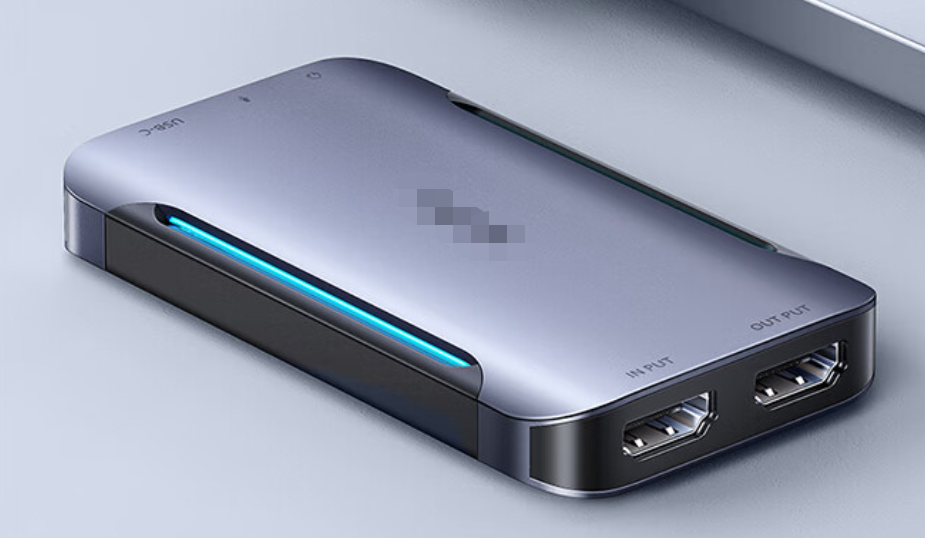
<span style="font-size:15px;font-family:'system-ui', '-apple-system', BlinkMacSystemFont, 'Segoe UI', Roboto, 'Helvetica Neue', Helvetica, sans-serif, 'Apple Color Emoji', 'Segoe UI Emoji', 'Segoe UI Symbol', 'Noto Color emoji', 'Helvetica Neue', Helvetica, 'PingFang SC', 'Microsoft YaHei', 'Source Han Sans SC', 'Noto Sans CJK SC', 'WenQuanYi Micro Hei', sans-serif;font-weight:bold;color:rgb(51,51,51);letter-spacing:0;vertical-align:baseline;">The appearance of a certain brand of capture card is as follows</span>

<span style="font-size:15px;font-family:'system-ui', '-apple-system', BlinkMacSystemFont, 'Segoe UI', Roboto, 'Helvetica Neue', Helvetica, sans-serif, 'Apple Color Emoji', 'Segoe UI Emoji', 'Segoe UI Symbol', 'Noto Color emoji', 'Helvetica Neue', Helvetica, 'PingFang SC', 'Microsoft YaHei', 'Source Han Sans SC', 'Noto Sans CJK SC', 'WenQuanYi Micro Hei', sans-serif;color:rgb(51,51,51);letter-spacing:0;vertical-align:baseline;">You need to confirm whether the purchased capture card requires driver installation. You should communicate with the merchant selling the capture card about this. If the computer needs to install the driver, please install it in advance.</span>

<span style="display:inline-block;overflow:hidden;width:604.733px;height:351.726px;">![mty4odg1mdq5mzg3ntyxng_250849_s8t6m8ibvzn2phyv_1678242094](https://wechatapppro-1252524126.file.myqcloud.com/help_document/image/ueditor/12817700_1686821597.cn/mty4odg1mdq5mzg3ntyxng_250849_s8t6m8ibvzn2phyv_1678242094)</span>

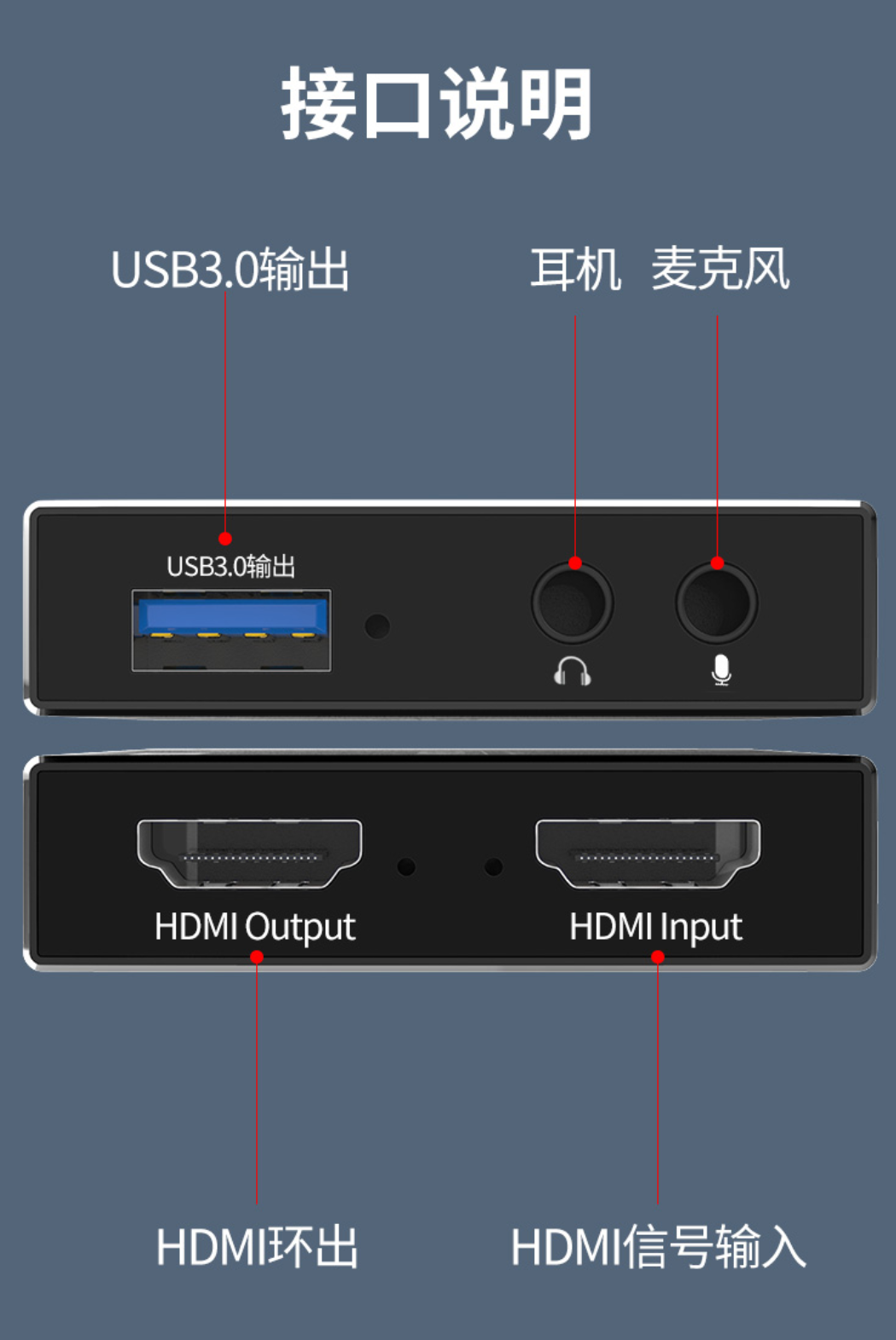
<span style="font-size:15px;font-family:'system-ui', '-apple-system', BlinkMacSystemFont, 'Segoe UI', Roboto, 'Helvetica Neue', Helvetica, sans-serif, 'Apple Color Emoji', 'Segoe UI Emoji', 'Segoe UI Symbol', 'Noto Color emoji', 'Helvetica Neue', Helvetica, 'PingFang SC', 'Microsoft YaHei', 'Source Han Sans SC', 'Noto Sans CJK SC', 'WenQuanYi Micro Hei', sans-serif;font-weight:bold;color:rgb(51,51,51);letter-spacing:0;vertical-align:baseline;">Capture card interface description:</span>

<span style="display:inline-block;overflow:hidden;width:604.733px;height:904.22px;">![mty4odg1mdq5mzg3ntyxng_355027_i7uuqeifj8rhangp_1678242371](https://wechatapppro-1252524126.file.myqcloud.com/help_document/image/ueditor/35231300_1686821597.cn/mty4odg1mdq5mzg3ntyxng_355027_i7uuqeifj8rhangp_1678242371)</span>

<span style="font-size:15px;font-family:'system-ui', '-apple-system', BlinkMacSystemFont, 'Segoe UI', Roboto, 'Helvetica Neue', Helvetica, sans-serif, 'Apple Color Emoji', 'Segoe UI Emoji', 'Segoe UI Symbol', 'Noto Color emoji', 'Helvetica Neue', Helvetica, 'PingFang SC', 'Microsoft YaHei', 'Source Han Sans SC', 'Noto Sans CJK SC', 'WenQuanYi Micro Hei', sans-serif;font-weight:bold;color:rgb(51,51,51);letter-spacing:0;vertical-align:baseline;">④ Cables for connecting devices (it is recommended to use the cables that come with the capture card)</span>

<span style="font-size:15px;font-family:'system-ui', '-apple-system', BlinkMacSystemFont, 'Segoe UI', Roboto, 'Helvetica Neue', Helvetica, sans-serif, 'Apple Color Emoji', 'Segoe UI Emoji', 'Segoe UI Symbol', 'Noto Color emoji', 'Helvetica Neue', Helvetica, 'PingFang SC', 'Microsoft YaHei', 'Source Han Sans SC', 'Noto Sans CJK SC', 'WenQuanYi Micro Hei', sans-serif;color:rgb(51,51,51);letter-spacing:0;vertical-align:baseline;">&lt;1&gt; To connect a camera to the capture card, you need an HDMI cable. To connect a mobile phone to the capture card, you need an adapter that matches the mobile phone and then connect it to an HDMI cable, which is then connected to the capture card.</span>

<span style="font-size:15px;font-family:'system-ui', '-apple-system', BlinkMacSystemFont, 'Segoe UI', Roboto, 'Helvetica Neue', Helvetica, sans-serif, 'Apple Color Emoji', 'Segoe UI Emoji', 'Segoe UI Symbol', 'Noto Color emoji', 'Helvetica Neue', Helvetica, 'PingFang SC', 'Microsoft YaHei', 'Source Han Sans SC', 'Noto Sans CJK SC', 'WenQuanYi Micro Hei', sans-serif;color:rgb(51,51,51);letter-spacing:0;vertical-align:baseline;">&lt;2&gt; The capture card is usually connected to the computer via a Type-C to USB 3.0 cable. Most computers can support this. For Mac computers with Thunderbolt interfaces, you also need a USB 3.0 to Type-C adapter. Some capture cards of different brands usually come with some of these cables. Merchants can consult the selling merchants according to their own devices and live streaming needs to find out what types of cables and adapters are still needed and purchase them in advance to ensure normal live streaming.</span>

<span style="font-size:15px;font-family:'system-ui', '-apple-system', BlinkMacSystemFont, 'Segoe UI', Roboto, 'Helvetica Neue', Helvetica, sans-serif, 'Apple Color Emoji', 'Segoe UI Emoji', 'Segoe UI Symbol', 'Noto Color emoji', 'Helvetica Neue', Helvetica, 'PingFang SC', 'Microsoft YaHei', 'Source Han Sans SC', 'Noto Sans CJK SC', 'WenQuanYi Micro Hei', sans-serif;font-weight:bold;color:rgb(51,51,51);letter-spacing:0;vertical-align:baseline;">How to connect an external camera:</span>

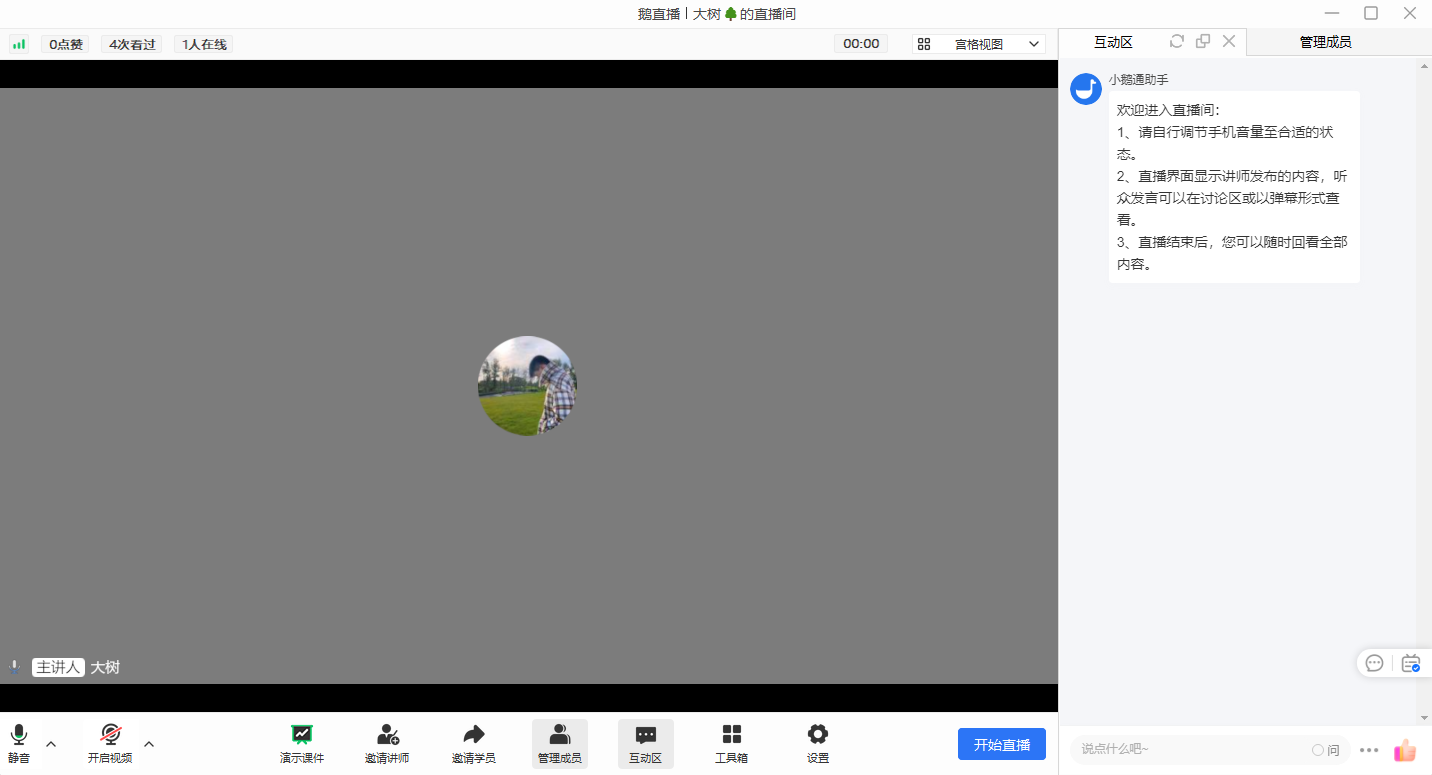
<span style="font-size:15px;font-family:'system-ui', '-apple-system', BlinkMacSystemFont, 'Segoe UI', Roboto, 'Helvetica Neue', Helvetica, sans-serif, 'Apple Color Emoji', 'Segoe UI Emoji', 'Segoe UI Symbol', 'Noto Color emoji', 'Helvetica Neue', Helvetica, 'PingFang SC', 'Microsoft YaHei', 'Source Han Sans SC', 'Noto Sans CJK SC', 'WenQuanYi Micro Hei', sans-serif;font-weight:bold;color:rgb(51,51,51);letter-spacing:0;vertical-align:baseline;">① Open the live streaming room (E-live client/elink Assistant)</span>

<span style="font-size:15px;font-family:'system-ui', '-apple-system', BlinkMacSystemFont, 'Segoe UI', Roboto, 'Helvetica Neue', Helvetica, sans-serif, 'Apple Color Emoji', 'Segoe UI Emoji', 'Segoe UI Symbol', 'Noto Color emoji', 'Helvetica Neue', Helvetica, 'PingFang SC', 'Microsoft YaHei', 'Source Han Sans SC', 'Noto Sans CJK SC', 'WenQuanYi Micro Hei', sans-serif;font-weight:bold;color:rgb(51,51,51);letter-spacing:0;vertical-align:baseline;">![image.png](https://wechatapppro-1252524126.file.myqcloud.com/help_document/image/ueditor/94405600_1686821632.png ".png")</span>

<span style="display:inline-block;overflow:hidden;width:604.733px;height:355.417px;">![mty4odg1mdq5mzg3ntyxng_286615_szhjcfgqdkn7qgts_1677564812](https://wechatapppro-1252524126.file.myqcloud.com/help_document/image/ueditor/55437700_1686821597.cn/mty4odg1mdq5mzg3ntyxng_286615_szhjcfgqdkn7qgts_1677564812)</span>

<span style="font-size:15px;font-family:'system-ui', '-apple-system', BlinkMacSystemFont, 'Segoe UI', Roboto, 'Helvetica Neue', Helvetica, sans-serif, 'Apple Color Emoji', 'Segoe UI Emoji', 'Segoe UI Symbol', 'Noto Color emoji', 'Helvetica Neue', Helvetica, 'PingFang SC', 'Microsoft YaHei', 'Source Han Sans SC', 'Noto Sans CJK SC', 'WenQuanYi Micro Hei', sans-serif;font-weight:bold;color:rgb(51,51,51);letter-spacing:0;vertical-align:baseline;">② Connect the relevant devices</span>

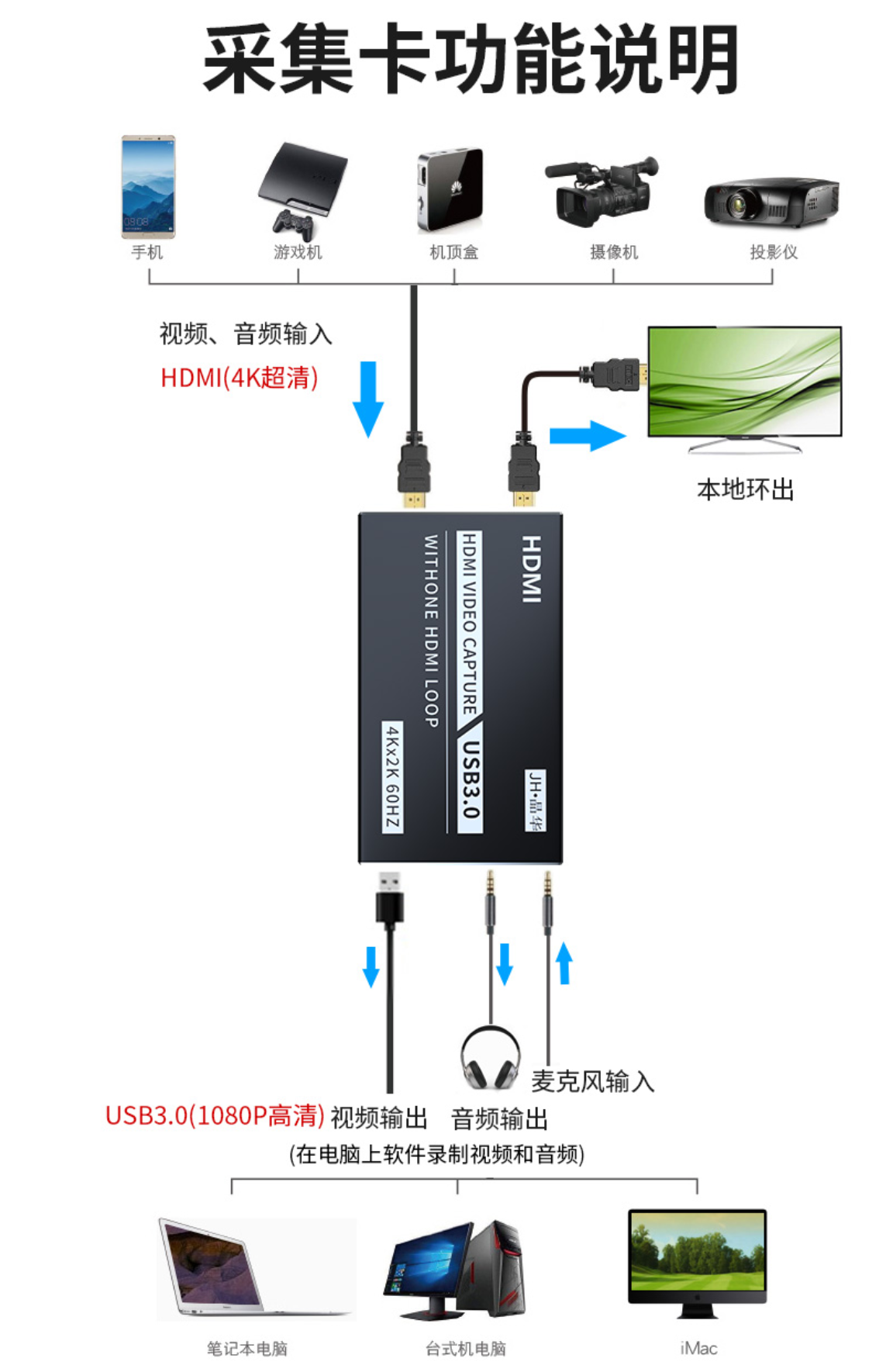
<span style="font-size:15px;font-family:'system-ui', '-apple-system', BlinkMacSystemFont, 'Segoe UI', Roboto, 'Helvetica Neue', Helvetica, sans-serif, 'Apple Color Emoji', 'Segoe UI Emoji', 'Segoe UI Symbol', 'Noto Color emoji', 'Helvetica Neue', Helvetica, 'PingFang SC', 'Microsoft YaHei', 'Source Han Sans SC', 'Noto Sans CJK SC', 'WenQuanYi Micro Hei', sans-serif;color:rgb(51,51,51);letter-spacing:0;vertical-align:baseline;">An example of the device connection diagram for a certain brand of capture card is as follows:</span>

<span style="display:inline-block;overflow:hidden;width:600.72px;height:841.469px;">![mty4odg1mdq5mzg3ntyxng_629578_e1p3jvtudrtophjm_1678242425](https://wechatapppro-1252524126.file.myqcloud.com/help_document/image/ueditor/81144800_1686821597.cn/mty4odg1mdq5mzg3ntyxng_629578_e1p3jvtudrtophjm_1678242425)</span>

<span style="font-size:15px;font-family:'system-ui', '-apple-system', BlinkMacSystemFont, 'Segoe UI', Roboto, 'Helvetica Neue', Helvetica, sans-serif, 'Apple Color Emoji', 'Segoe UI Emoji', 'Segoe UI Symbol', 'Noto Color emoji', 'Helvetica Neue', Helvetica, 'PingFang SC', 'Microsoft YaHei', 'Source Han Sans SC', 'Noto Sans CJK SC', 'WenQuanYi Micro Hei', sans-serif;color:rgb(51,51,51);letter-spacing:0;vertical-align:baseline;">HDMI Input: Refers to the device to be live streamed, that is, external devices such as cameras and mobile phones for live streaming.</span>

<span style="font-size:15px;font-family:'system-ui', '-apple-system', BlinkMacSystemFont, 'Segoe UI', Roboto, 'Helvetica Neue', Helvetica, sans-serif, 'Apple Color Emoji', 'Segoe UI Emoji', 'Segoe UI Symbol', 'Noto Color emoji', 'Helvetica Neue', Helvetica, 'PingFang SC', 'Microsoft YaHei', 'Source Han Sans SC', 'Noto Sans CJK SC', 'WenQuanYi Micro Hei', sans-serif;color:rgb(51,51,51);letter-spacing:0;vertical-align:baseline;">HDMI Output: Refers to the device for displaying the output image. That is, it displays the input live streaming image on the monitor. You don't need to connect this part if you don't have this requirement.</span>

<span style="font-size:15px;font-family:'system-ui', '-apple-system', BlinkMacSystemFont, 'Segoe UI', Roboto, 'Helvetica Neue', Helvetica, sans-serif, 'Apple Color Emoji', 'Segoe UI Emoji', 'Segoe UI Symbol', 'Noto Color emoji', 'Helvetica Neue', Helvetica, 'PingFang SC', 'Microsoft YaHei', 'Source Han Sans SC', 'Noto Sans CJK SC', 'WenQuanYi Micro Hei', sans-serif;color:rgb(51,51,51);letter-spacing:0;vertical-align:baseline;">USB 3.0: The interface for outputting live streaming data, which needs to be connected to the computer.</span>

<span style="font-size:15px;font-family:'system-ui', '-apple-system', BlinkMacSystemFont, 'Segoe UI', Roboto, 'Helvetica Neue', Helvetica, sans-serif, 'Apple Color Emoji', 'Segoe UI Emoji', 'Segoe UI Symbol', 'Noto Color emoji', 'Helvetica Neue', Helvetica, 'PingFang SC', 'Microsoft YaHei', 'Source Han Sans SC', 'Noto Sans CJK SC', 'WenQuanYi Micro Hei', sans-serif;color:rgb(51,51,51);letter-spacing:0;vertical-align:baseline;">IN: Connects to the mixer. You don't need to connect this part if you don't have this requirement.</span>

<span style="font-size:15px;font-family:'system-ui', '-apple-system', BlinkMacSystemFont, 'Segoe UI', Roboto, 'Helvetica Neue', Helvetica, sans-serif, 'Apple Color Emoji', 'Segoe UI Emoji', 'Segoe UI Symbol', 'Noto Color emoji', 'Helvetica Neue', Helvetica, 'PingFang SC', 'Microsoft YaHei', 'Source Han Sans SC', 'Noto Sans CJK SC', 'WenQuanYi Micro Hei', sans-serif;color:rgb(51,51,51);letter-spacing:0;vertical-align:baseline;">MIC: Connects to the microphone. You don't need to connect this part if you don't have this requirement.</span>

<span style="font-size:15px;font-family:'system-ui', '-apple-system', BlinkMacSystemFont, 'Segoe UI', Roboto, 'Helvetica Neue', Helvetica, sans-serif, 'Apple Color Emoji', 'Segoe UI Emoji', 'Segoe UI Symbol', 'Noto Color emoji', 'Helvetica Neue', Helvetica, 'PingFang SC', 'Microsoft YaHei', 'Source Han Sans SC', 'Noto Sans CJK SC', 'WenQuanYi Micro Hei', sans-serif;color:rgb(51,51,51);letter-spacing:0;vertical-align:baseline;">OUT: Connects to the monitoring headphones. You don't need to connect this part if you don't have this requirement.</span>

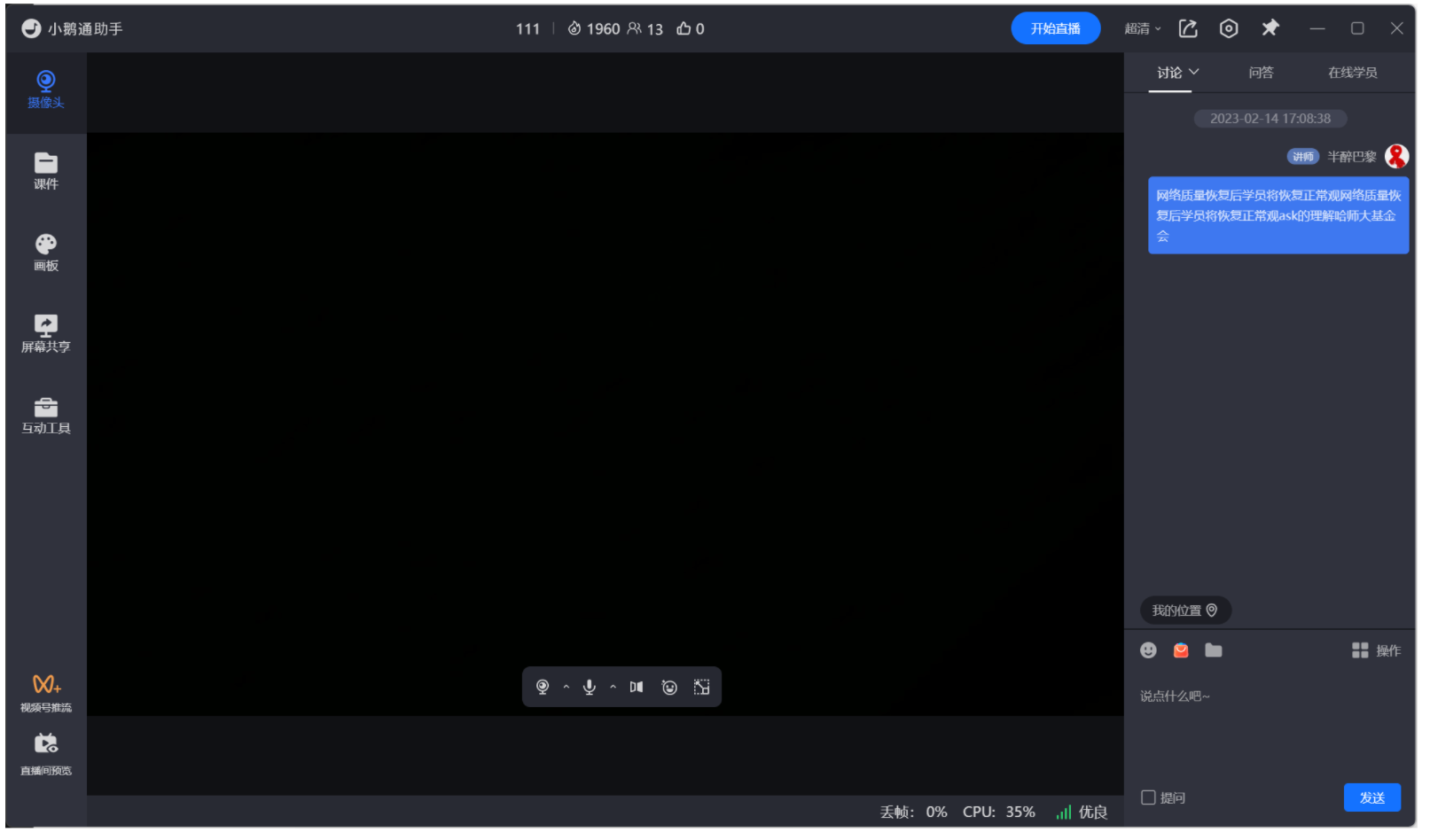
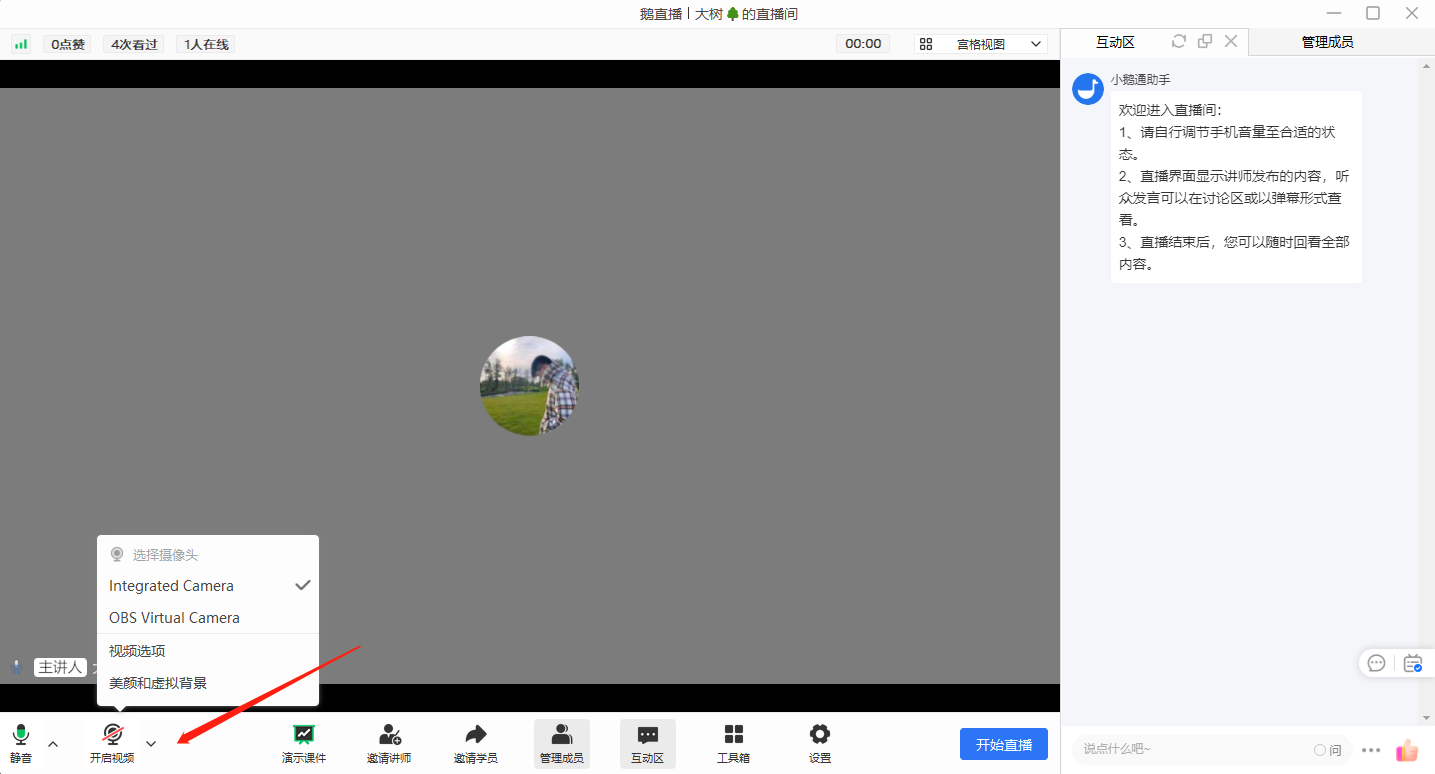
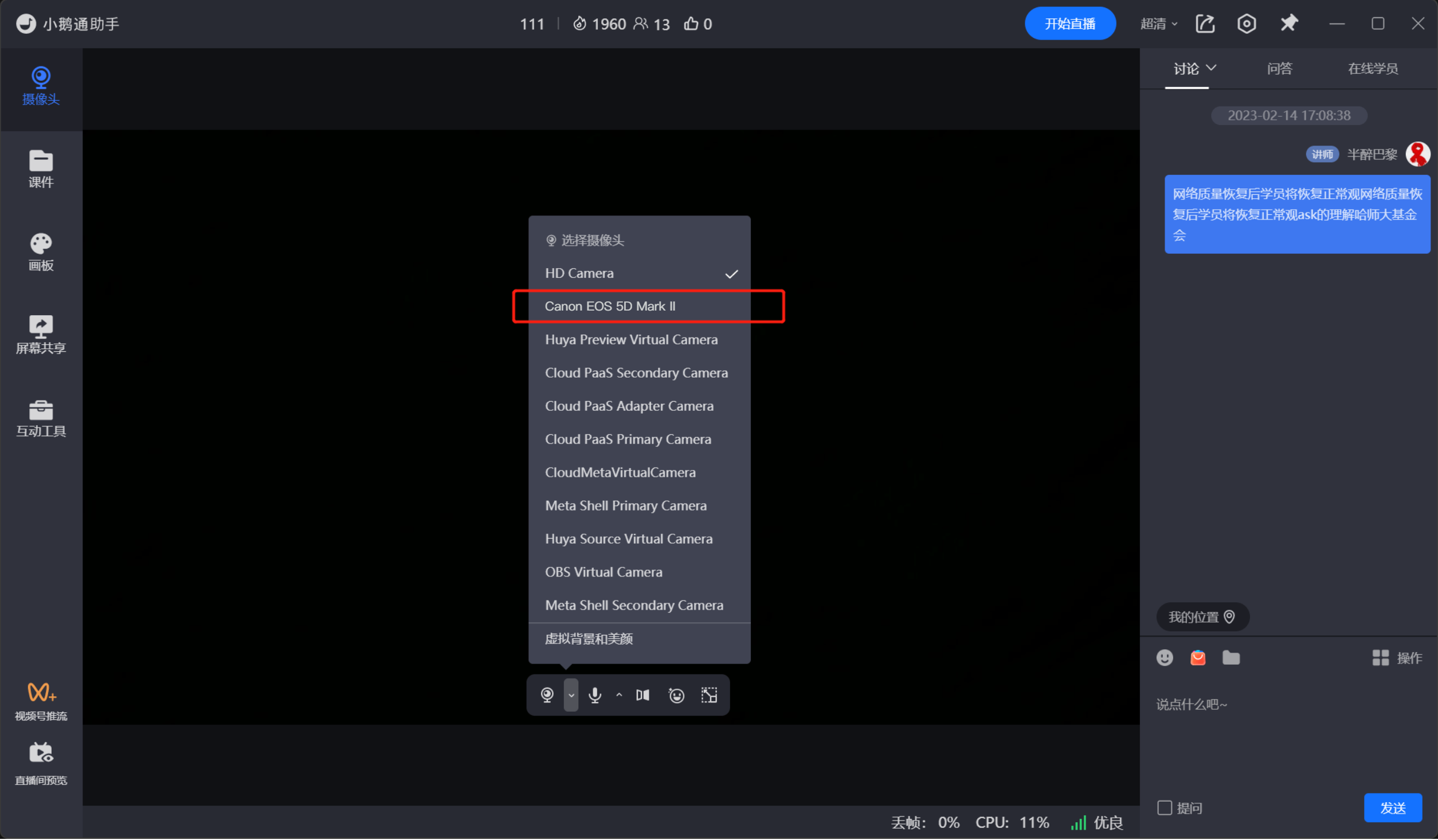
<span style="font-size:15px;font-family:'system-ui', '-apple-system', BlinkMacSystemFont, 'Segoe UI', Roboto, 'Helvetica Neue', Helvetica, sans-serif, 'Apple Color Emoji', 'Segoe UI Emoji', 'Segoe UI Symbol', 'Noto Color emoji', 'Helvetica Neue', Helvetica, 'PingFang SC', 'Microsoft YaHei', 'Source Han Sans SC', 'Noto Sans CJK SC', 'WenQuanYi Micro Hei', sans-serif;font-weight:bold;color:rgb(51,51,51);letter-spacing:0;vertical-align:baseline;">③ Switch the camera</span>

<span style="font-size:15px;font-family:'system-ui', '-apple-system', BlinkMacSystemFont, 'Segoe UI', Roboto, 'Helvetica Neue', Helvetica, sans-serif, 'Apple Color Emoji', 'Segoe UI Emoji', 'Segoe UI Symbol', 'Noto Color emoji', 'Helvetica Neue', Helvetica, 'PingFang SC', 'Microsoft YaHei', 'Source Han Sans SC', 'Noto Sans CJK SC', 'WenQuanYi Micro Hei', sans-serif;font-weight:bold;color:rgb(51,51,51);letter-spacing:0;vertical-align:baseline;">![image.png](https://wechatapppro-1252524126.file.myqcloud.com/help_document/image/ueditor/88252700_1686821632.png ".png")</span>

<span style="display:inline-block;overflow:hidden;width:604.733px;height:353.344px;">![mty4odg1mdq5mzg3ntyxng_288441_filkqwabvdskj-x9_1677656213](https://wechatapppro-1252524126.file.myqcloud.com/help_document/image/ueditor/6647900_1686821598.cn/mty4odg1mdq5mzg3ntyxng_288441_filkqwabvdskj-x9_1677656213)</span>

<span style="display:inline-block;overflow:hidden;width:604.733px;height:350.843px;">![mty4odg1mdq5mzg3ntyxng_796422_nq6ioigjcuy_d0_u_1677656298](https://wechatapppro-1252524126.file.myqcloud.com/help_document/image/ueditor/38007000_1686821598.cn/mty4odg1mdq5mzg3ntyxng_796422_nq6ioigjcuy_d0_u_1677656298)</span>

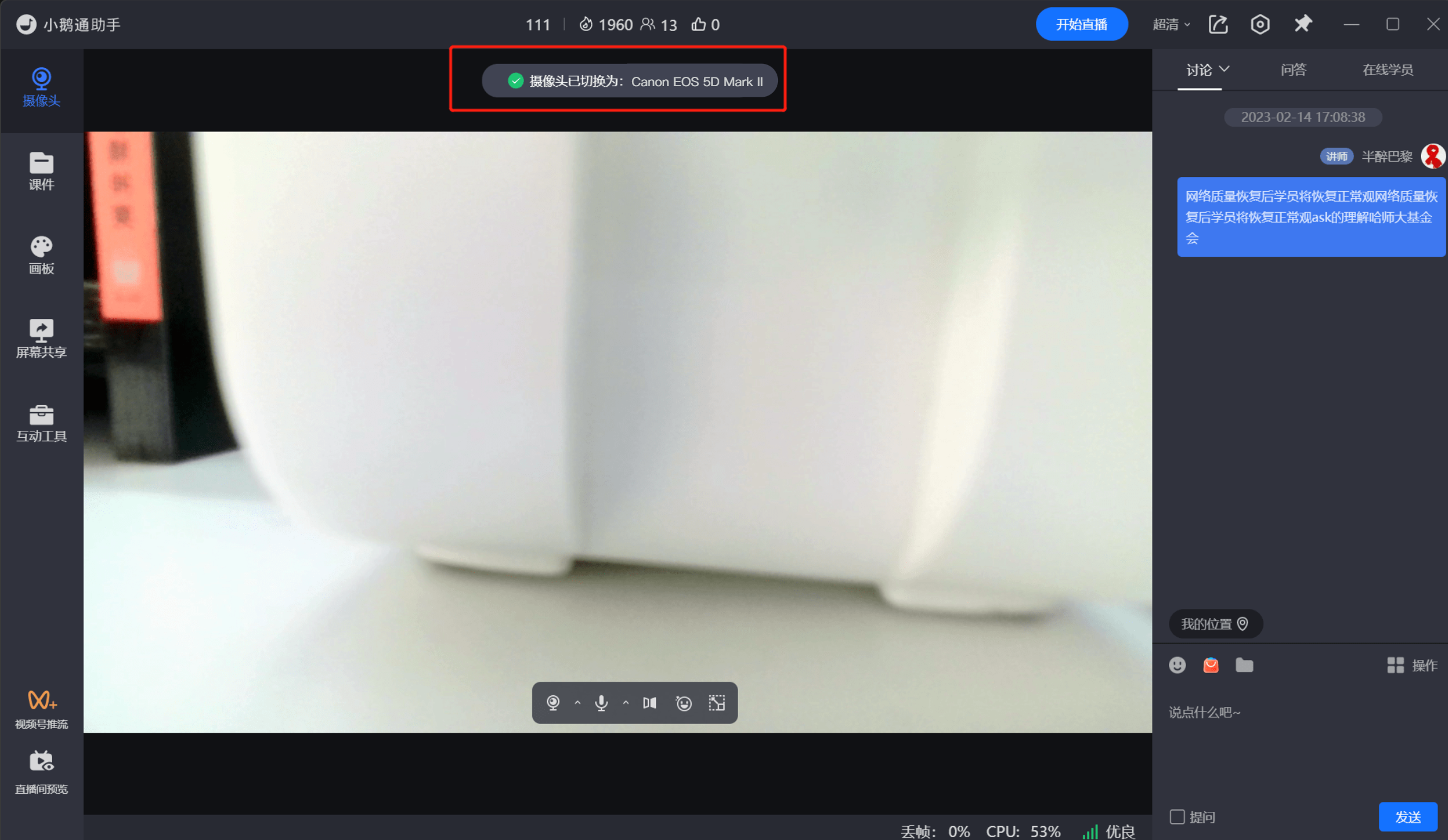
<span style="font-size:15px;font-family:'system-ui', '-apple-system', BlinkMacSystemFont, 'Segoe UI', Roboto, 'Helvetica Neue', Helvetica, sans-serif, 'Apple Color Emoji', 'Segoe UI Emoji', 'Segoe UI Symbol', 'Noto Color emoji', 'Helvetica Neue', Helvetica, 'PingFang SC', 'Microsoft YaHei', 'Source Han Sans SC', 'Noto Sans CJK SC', 'WenQuanYi Micro Hei', sans-serif;color:rgb(51,51,51);letter-spacing:0;vertical-align:baseline;">If you can see the image from the camera or mobile phone at this time, it means the configuration is successful, and you can start the live streaming normally. If there is no image or this option is not available, it means there are still some problems with the capture card configuration. Please troubleshoot according to the steps described before or contact the merchant selling the capture card for help.</span>

<span style="font-size:15px;font-family:'system-ui', '-apple-system', BlinkMacSystemFont, 'Segoe UI', Roboto, 'Helvetica Neue', Helvetica, sans-serif, 'Apple Color Emoji', 'Segoe UI Emoji', 'Segoe UI Symbol', 'Noto Color emoji', 'Helvetica Neue', Helvetica, 'PingFang SC', 'Microsoft YaHei', 'Source Han Sans SC', 'Noto Sans CJK SC', 'WenQuanYi Micro Hei', sans-serif;font-weight:bold;color:rgb(51,51,51);letter-spacing:0;vertical-align:baseline;">Common questions:</span>

<span style="color:rgb(51,51,51);font-family:'system-ui', '-apple-system', BlinkMacSystemFont, 'Segoe UI', Roboto, 'Helvetica Neue', Helvetica, sans-serif, 'Apple Color Emoji', 'Segoe UI Emoji', 'Segoe UI Symbol', 'Noto Color emoji', 'Helvetica Neue', Helvetica, 'PingFang SC', 'Microsoft YaHei', 'Source Han Sans SC', 'Noto Sans CJK SC', 'WenQuanYi Micro Hei', sans-serif;font-size:15px;letter-spacing:0px;">1. After connecting the camera,</span><span style="color:rgb(51,51,51);font-family:'system-ui', '-apple-system', BlinkMacSystemFont, 'Segoe UI', Roboto, 'Helvetica Neue', Helvetica, sans-serif, 'Apple Color Emoji', 'Segoe UI Emoji', 'Segoe UI Symbol', 'Noto Color emoji', 'Helvetica Neue', Helvetica, 'PingFang SC', 'Microsoft YaHei', 'Source Han Sans SC', 'Noto Sans CJK SC', 'WenQuanYi Micro Hei', sans-serif;font-size:15px;letter-spacing:0px;">why are there flickering black bars when shooting a monitor or LED screen?</span>

<span style="font-size:15px;font-family:'system-ui', '-apple-system', BlinkMacSystemFont, 'Segoe UI', Roboto, 'Helvetica Neue', Helvetica, sans-serif, 'Apple Color Emoji', 'Segoe UI Emoji', 'Segoe UI Symbol', 'Noto Color emoji', 'Helvetica Neue', Helvetica, 'PingFang SC', 'Microsoft YaHei', 'Source Han Sans SC', 'Noto Sans CJK SC', 'WenQuanYi Micro Hei', sans-serif;color:rgb(51,51,51);letter-spacing:0;vertical-align:baseline;">Answer: The flickering black bars (Moiré pattern) are caused by the mismatch between the camera shutter speed and the monitor screen refresh rate. You can adjust the camera shutter parameters to match the screen refresh rate or adjust the indoor lighting on site.</span>

<span style="font-size:15px;font-family:'system-ui', '-apple-system', BlinkMacSystemFont, 'Segoe UI', Roboto, 'Helvetica Neue', Helvetica, sans-serif, 'Apple Color Emoji', 'Segoe UI Emoji', 'Segoe UI Symbol', 'Noto Color emoji', 'Helvetica Neue', Helvetica, 'PingFang SC', 'Microsoft YaHei', 'Source Han Sans SC', 'Noto Sans CJK SC', 'WenQuanYi Micro Hei', sans-serif;color:rgb(51,51,51);letter-spacing:0;vertical-align:baseline;">Moiré pattern effect:</span>

<span style="display:inline-block;overflow:hidden;width:388px;height:218px;">![mty4odg1mdq5mzg3ntyxng_839428_zjjepptll9km4ztm_1678183179](https://wechatapppro-1252524126.file.myqcloud.com/help_document/image/ueditor/69556900_1686821598.cn/mty4odg1mdq5mzg3ntyxng_839428_zjjepptll9km4ztm_1678183179)</span><span style="display:inline-block;overflow:hidden;width:391.197px;height:232px;">![mty4odg1mdq5mzg3ntyxng_257184_20vuxgcvatwqmegi_1678183189](https://wechatapppro-1252524126.file.myqcloud.com/help_document/image/ueditor/87793800_1686821598.cn/mty4odg1mdq5mzg3ntyxng_257184_20vuxgcvatwqmegi_1678183189)</span>

<span style="font-size:15px;font-family:'system-ui', '-apple-system', BlinkMacSystemFont, 'Segoe UI', Roboto, 'Helvetica Neue', Helvetica, sans-serif, 'Apple Color Emoji', 'Segoe UI Emoji', 'Segoe UI Symbol', 'Noto Color emoji', 'Helvetica Neue', Helvetica, 'PingFang SC', 'Microsoft YaHei', 'Source Han Sans SC', 'Noto Sans CJK SC', 'WenQuanYi Micro Hei', sans-serif;color:rgb(51,51,51);letter-spacing:0;vertical-align:baseline;">2. There are black edges in the camera image when using an external camera.</span>

<span style="font-size:15px;font-family:'system-ui', '-apple-system', BlinkMacSystemFont, 'Segoe UI', Roboto, 'Helvetica Neue', Helvetica, sans-serif, 'Apple Color Emoji', 'Segoe UI Emoji', 'Segoe UI Symbol', 'Noto Color emoji', 'Helvetica Neue', Helvetica, 'PingFang SC', 'Microsoft YaHei', 'Source Han Sans SC', 'Noto Sans CJK SC', 'WenQuanYi Micro Hei', sans-serif;color:rgb(51,51,51);letter-spacing:0;vertical-align:baseline;">Answer: This is caused by the output resolution of the camera. Please check the output resolution of the camera and ensure that it outputs in a 16:9 ratio.</span>

<span style="font-size:15px;font-family:'system-ui', '-apple-system', BlinkMacSystemFont, 'Segoe UI', Roboto, 'Helvetica Neue', Helvetica, sans-serif, 'Apple Color Emoji', 'Segoe UI Emoji', 'Segoe UI Symbol', 'Noto Color emoji', 'Helvetica Neue', Helvetica, 'PingFang SC', 'Microsoft YaHei';"></span>

# Self-check suggestions for device abnormalities in [elink Live Client]

<div data-elink-language-switch="1" id="bkmrk-%E4%B8%AD%E6%96%87" style="border:1px solid #d6d9de;border-radius:6px;padding:10px 12px;margin:0 0 18px 0;background:#f8fafc;font-size:14px;">[中文](/books/na/page/7d04b)</div>## <span style="font-size:21px;letter-spacing:0;vertical-align:baseline;">1. </span><span style="font-size:21px;letter-spacing:0;vertical-align:baseline;">Speaker malfunction</span>

<span style="font-size:15px;color:rgb(51,51,51);letter-spacing:0;vertical-align:baseline;">Ensure that your speaker device is properly connected and turned on.</span>

### <span style="font-size:19px;color:rgb(26,26,26);letter-spacing:0;vertical-align:baseline;">1.1 Check the volume settings</span>

<span style="font-family:Wingdings;"><span style="font-size:15px;color:rgb(51,51,51);letter-spacing:0;vertical-align:baseline;">●<span style="font-family:'Times New Roman';"> </span></span></span><span style="font-size:15px;font-weight:bold;color:rgb(51,51,51);letter-spacing:0;vertical-align:baseline;">Windows system:</span>

<span style="font-size:15px;color:rgb(51,51,51);letter-spacing:0;vertical-align:baseline;">Click the volume icon in the lower - right corner of the taskbar to ensure that the volume is not muted and is set to an appropriate level.</span>

<span style="display:inline-block;overflow:hidden;width:604.733px;height:320.134px;">![image/png](https://wechatapppro-1252524126.file.myqcloud.com/help_center_ooo/image/help_center_ooo/m3niqclycnaczl.png "unknow.png")</span>

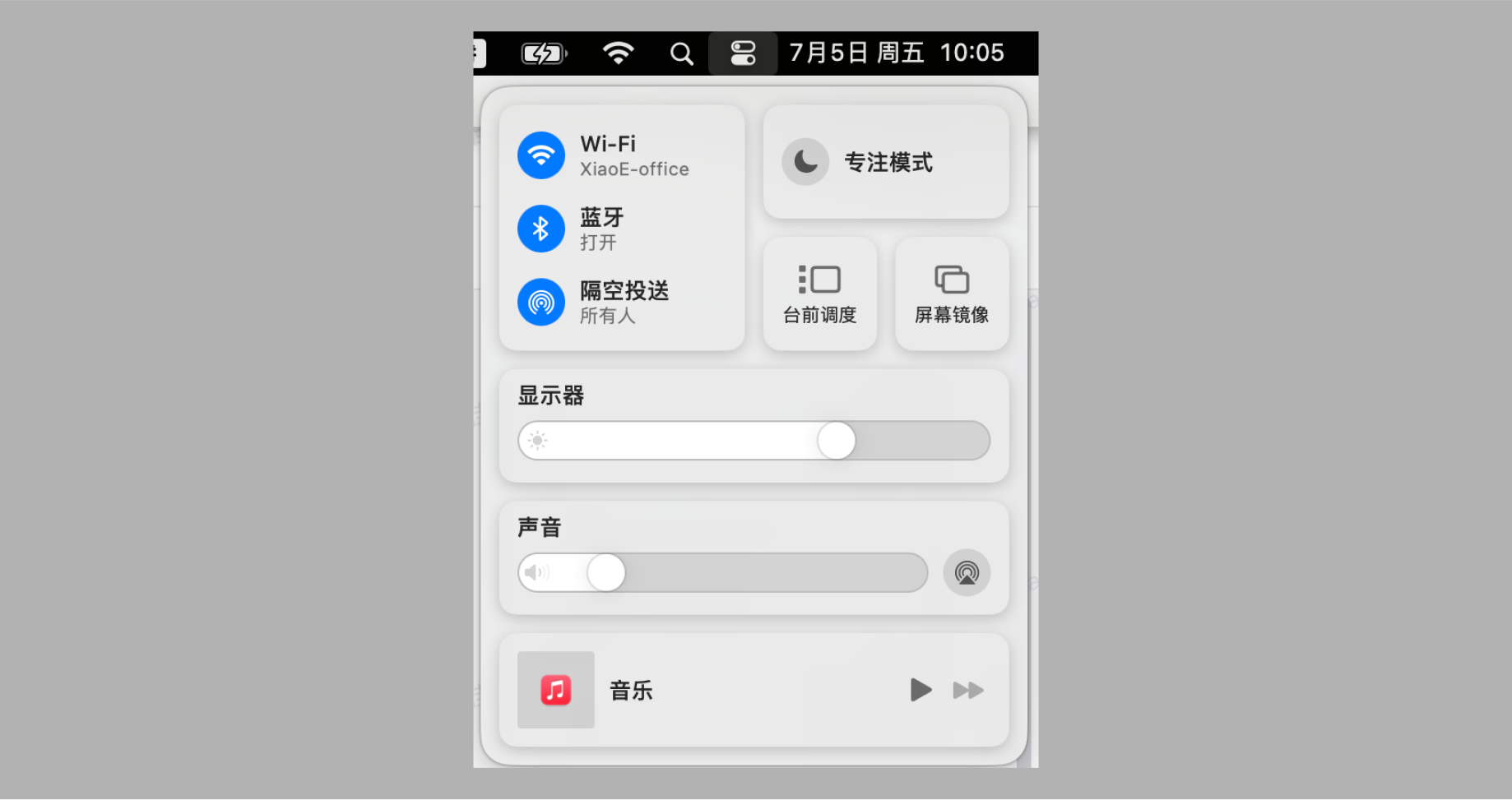
<span style="font-family:Wingdings;"><span style="font-size:15px;color:rgb(51,51,51);letter-spacing:0;vertical-align:baseline;">●<span style="font-family:'Times New Roman';"> </span></span></span><span style="font-size:15px;font-weight:bold;color:rgb(51,51,51);letter-spacing:0;vertical-align:baseline;">macOS:</span>

<span style="font-size:15px;color:rgb(51,51,51);letter-spacing:0;vertical-align:baseline;">Click the Control Center icon in the upper - right corner</span><span style="display:inline-block;overflow:hidden;width:35px;height:21px;">![image/png](https://wechatapppro-1252524126.file.myqcloud.com/help_center_ooo/image/help_center_ooo/z606a5lycnacws.png "unknow.png")</span><span style="font-size:15px;color:rgb(51,51,51);letter-spacing:0;vertical-align:baseline;"> to ensure that the volume is not muted and is set to an appropriate level.</span>

<span style="display:inline-block;overflow:hidden;width:604.733px;height:320.134px;">![image/png](https://wechatapppro-1252524126.file.myqcloud.com/help_center_ooo/image/help_center_ooo/ljxmiclycnacpz.png "unknow.png")</span>

<span style="font-size:15px;color:rgb(51,51,51);letter-spacing:0;vertical-align:baseline;">1.1.1 Check the connection and device</span>

<span style="font-size:15px;color:rgb(51,51,51);letter-spacing:0;vertical-align:baseline;">1. If you are using an external speaker, ensure that the speaker is powered on and the connection cable is securely plugged in. Plug and unplug the headphones to see if there is a change in sound to ensure that the speaker port is not damaged or loose.</span>

<span style="font-size:15px;color:rgb(51,51,51);letter-spacing:0;vertical-align:baseline;">2. Try using other speakers or headphones to determine if the problem lies with the speaker itself.</span>

### <span style="font-size:19px;color:rgb(26,26,26);letter-spacing:0;vertical-align:baseline;">1.2 If your live - streaming device is connected to multiple speaker devices, select the correct one</span>

<span style="font-size:15px;color:rgb(51,51,51);letter-spacing:0;vertical-align:baseline;">If multiple speaker devices are connected, the selected device may not match the detected device, resulting in abnormal sound.</span>

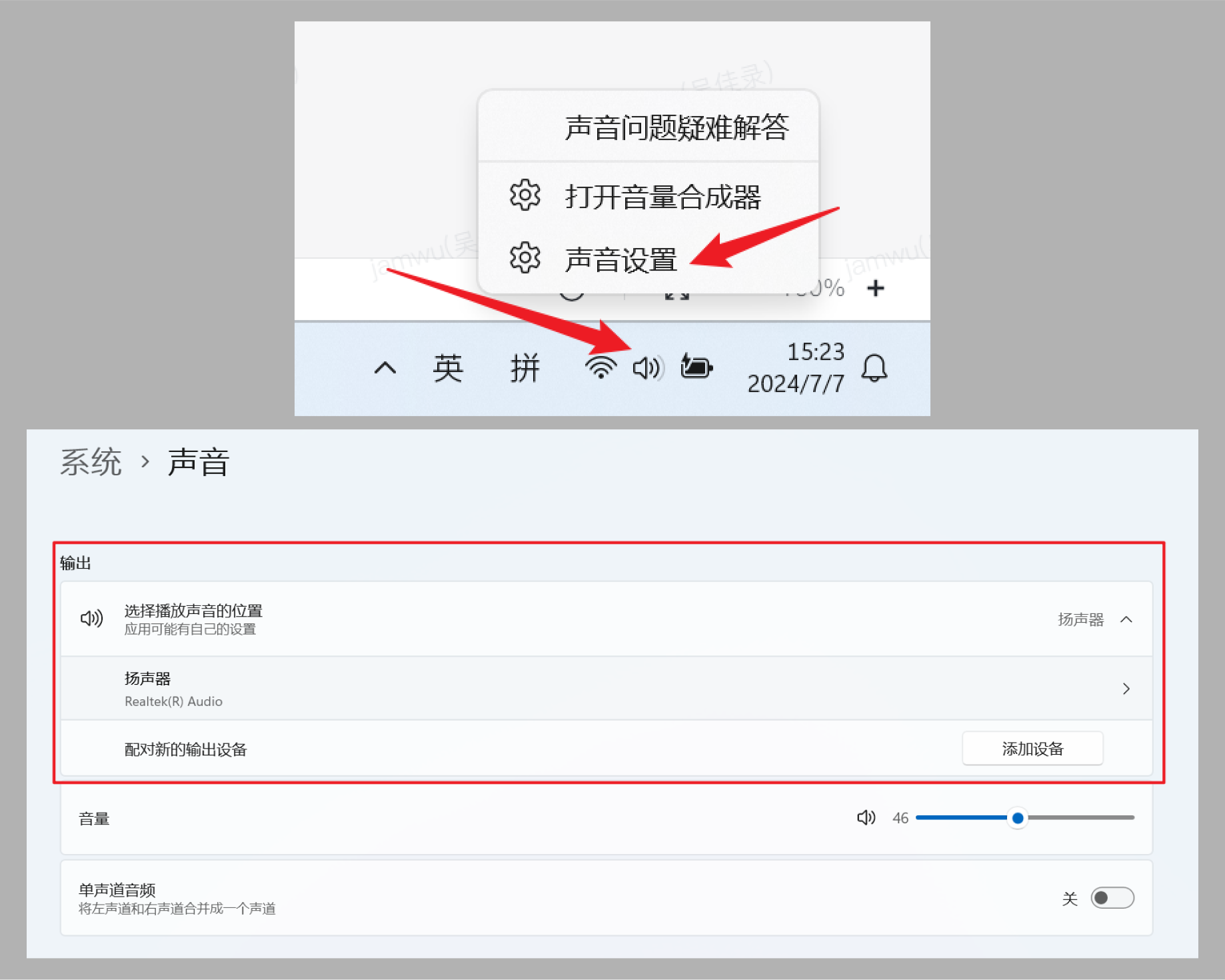
<span style="font-family:Wingdings;"><span style="font-size:15px;color:rgb(51,51,51);letter-spacing:0;vertical-align:baseline;">●<span style="font-family:'Times New Roman';"> </span></span></span><span style="font-size:15px;font-weight:bold;color:rgb(51,51,51);letter-spacing:0;vertical-align:baseline;">Windows:</span>

<span style="font-size:15px;color:rgb(51,51,51);letter-spacing:0;vertical-align:baseline;">Right - click the volume icon in the lower - right corner of the taskbar and select “Sound settings”. In the “Output” section, ensure that the correct playback device (such as speakers or headphones) is selected.</span>

<span style="display:inline-block;overflow:hidden;width:604.733px;height:483.655px;">![image/png](https://wechatapppro-1252524126.file.myqcloud.com/help_center_ooo/image/help_center_ooo/05je0dlycnacyy.png "unknow.png")</span>

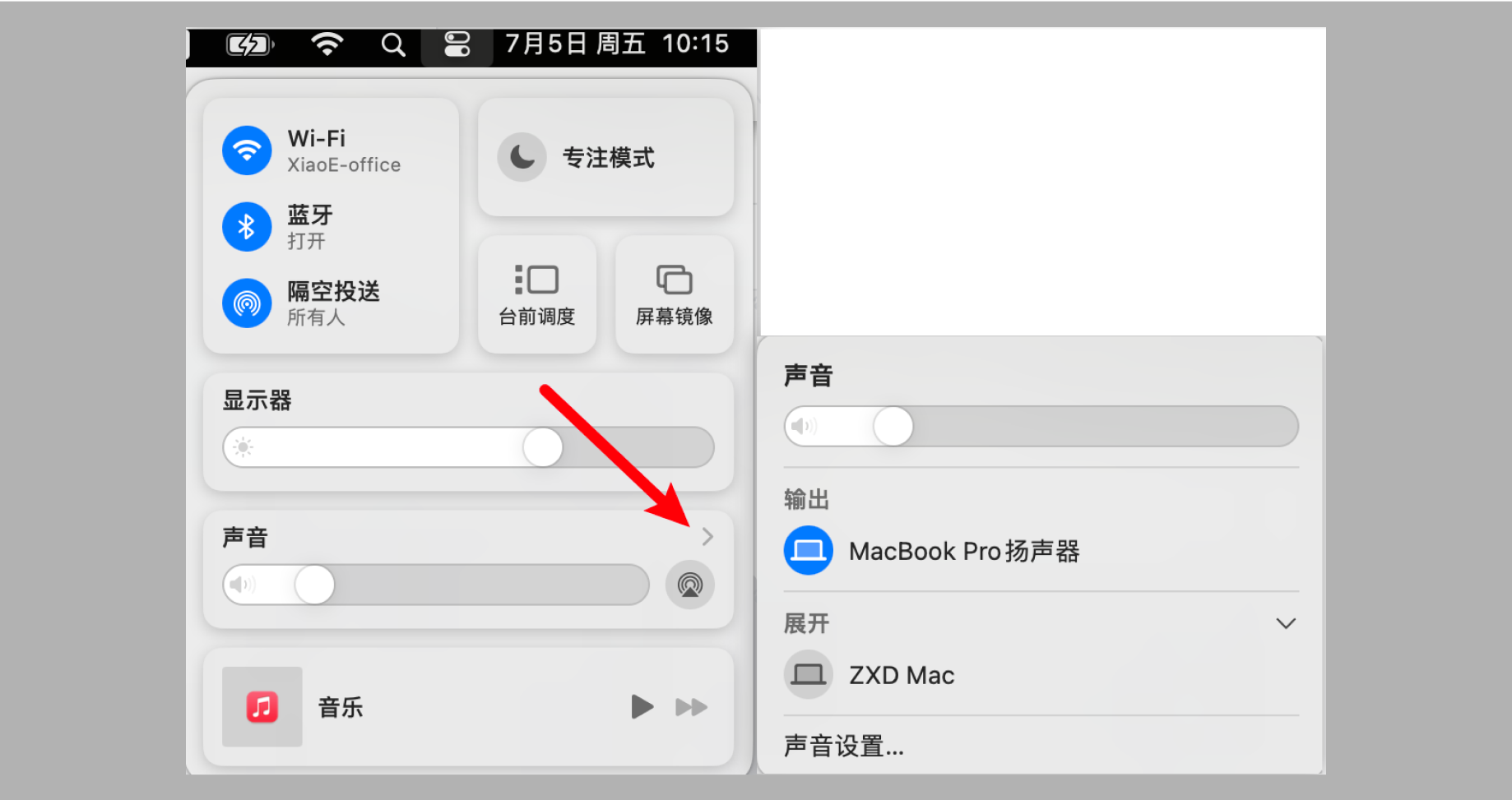
<span style="font-family:Wingdings;"><span style="font-size:15px;color:rgb(51,51,51);letter-spacing:0;vertical-align:baseline;">●<span style="font-family:'Times New Roman';"> </span></span></span><span style="font-size:15px;font-weight:bold;color:rgb(51,51,51);letter-spacing:0;vertical-align:baseline;">macOS:</span>

<span style="font-size:15px;color:rgb(51,51,51);letter-spacing:0;vertical-align:baseline;">Click the Control Center icon in the upper - right corner. After the panel appears, click the arrow after the “Sound” section to ensure that the correct playback device (such as speakers or headphones) is selected.</span>

<span style="display:inline-block;overflow:hidden;width:604.733px;height:320.134px;">![image/png](https://wechatapppro-1252524126.file.myqcloud.com/help_center_ooo/image/help_center_ooo/gy8kw7lycnacw4.png "unknow.png")</span>

### <span style="font-size:19px;color:rgb(26,26,26);letter-spacing:0;vertical-align:baseline;">1.3 Check if other applications can use the speaker normally</span>

<span style="font-size:15px;color:rgb(51,51,51);letter-spacing:0;vertical-align:baseline;">Use other software such as video players or music players to check if the speaker is working properly. If there is still no sound, the speaker device may be faulty.</span>

## <span style="font-size:21px;letter-spacing:0;vertical-align:baseline;">2. </span><span style="font-size:21px;letter-spacing:0;vertical-align:baseline;">Microphone malfunction</span>

<span style="font-size:15px;color:rgb(51,51,51);letter-spacing:0;vertical-align:baseline;">Please ensure that your microphone device is properly connected and turned on.</span>

### <span style="font-size:19px;letter-spacing:0;vertical-align:baseline;">2.1 Check if the microphone permission is enabled</span>

<span style="font-size:15px;color:rgb(51,51,51);letter-spacing:0;vertical-align:baseline;">When using the elink Live client for live - streaming, if the device does not have the microphone permission enabled, the microphone will not work.</span>

<span style="font-family:Wingdings;"><span style="font-size:15px;color:rgb(51,51,51);letter-spacing:0;vertical-align:baseline;">●<span style="font-family:'Times New Roman';"> </span></span></span><span style="font-size:15px;font-weight:bold;color:rgb(51,51,51);letter-spacing:0;vertical-align:baseline;">Windows:</span>

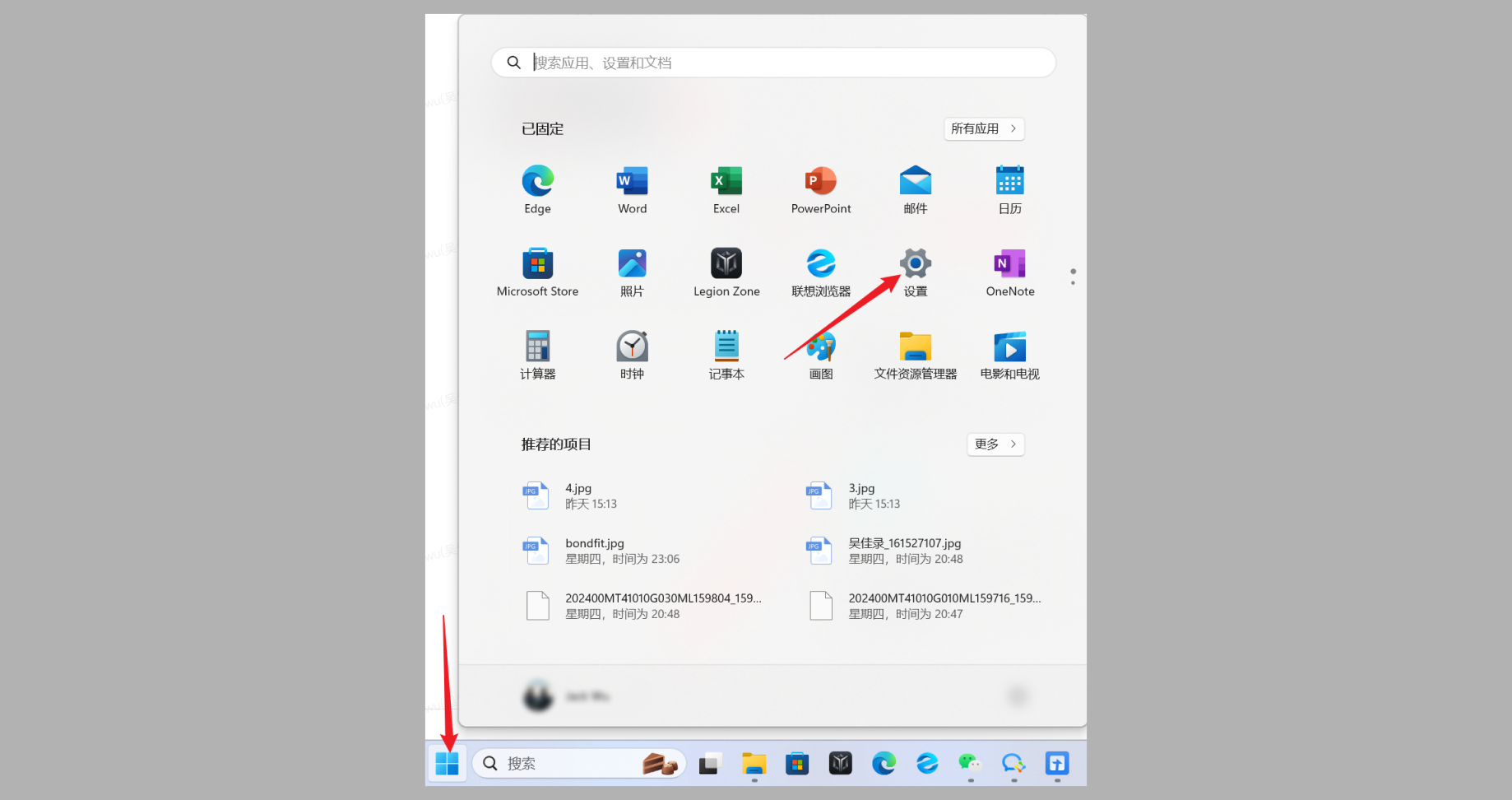
<span style="font-size:15px;color:rgb(51,51,51);letter-spacing:0;vertical-align:baseline;">1. </span><span style="font-size:15px;color:rgb(51,51,51);letter-spacing:0;vertical-align:baseline;">Click the Windows Start menu and select “Settings”.</span>

<span style="display:inline-block;overflow:hidden;width:582.333px;height:307.959px;">![image/png](https://wechatapppro-1252524126.file.myqcloud.com/help_center_ooo/image/help_center_ooo/5v4v0klycnacr1.png "unknow.png")</span>

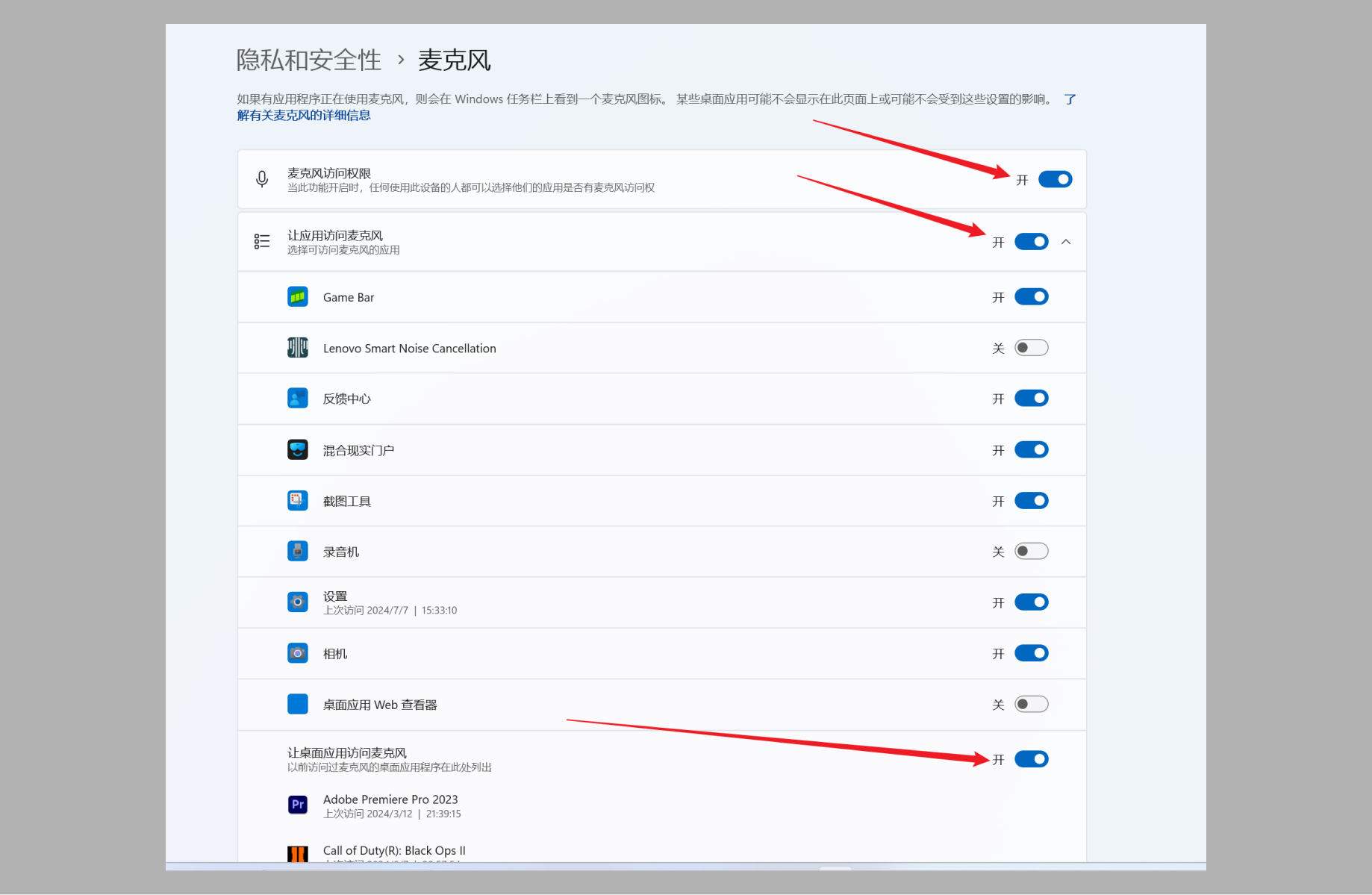
<span style="font-size:15px;color:rgb(51,51,51);letter-spacing:0;vertical-align:baseline;">2. </span><span style="font-size:15px;color:rgb(51,51,51);letter-spacing:0;vertical-align:baseline;">In the “Settings” window, select “Privacy &amp; Security” and click on “Microphone” settings on the right.</span><span style="display:inline-block;overflow:hidden;width:604.733px;height:353.364px;text-indent:0px;">![image/png](https://wechatapppro-1252524126.file.myqcloud.com/help_center_ooo/image/help_center_ooo/xbl7c8lycnacy4.png "unknow.png")</span>

<span style="font-size:15px;color:rgb(51,51,51);letter-spacing:0;vertical-align:baseline;">3. </span><span style="font-size:15px;color:rgb(51,51,51);letter-spacing:0;vertical-align:baseline;">Enable microphone permission: Ensure that</span><span style="font-size:15px;color:rgb(51,51,51);letter-spacing:0;vertical-align:baseline;">as shown in the following figure</span><span style="font-size:15px;color:rgb(51,51,51);letter-spacing:0;vertical-align:baseline;">the switch is turned on.</span>

<span style="display:inline-block;overflow:hidden;width:582.333px;height:379.879px;">![image/png](https://wechatapppro-1252524126.file.myqcloud.com/help_center_ooo/image/help_center_ooo/2e5hnylycnacx4.png "unknow.png")</span>

<span style="font-family:Wingdings;"><span style="font-size:15px;color:rgb(51,51,51);letter-spacing:0;vertical-align:baseline;">●<span style="font-family:'Times New Roman';"> </span></span></span><span style="font-size:15px;font-weight:bold;color:rgb(51,51,51);letter-spacing:0;vertical-align:baseline;">macOS:</span>

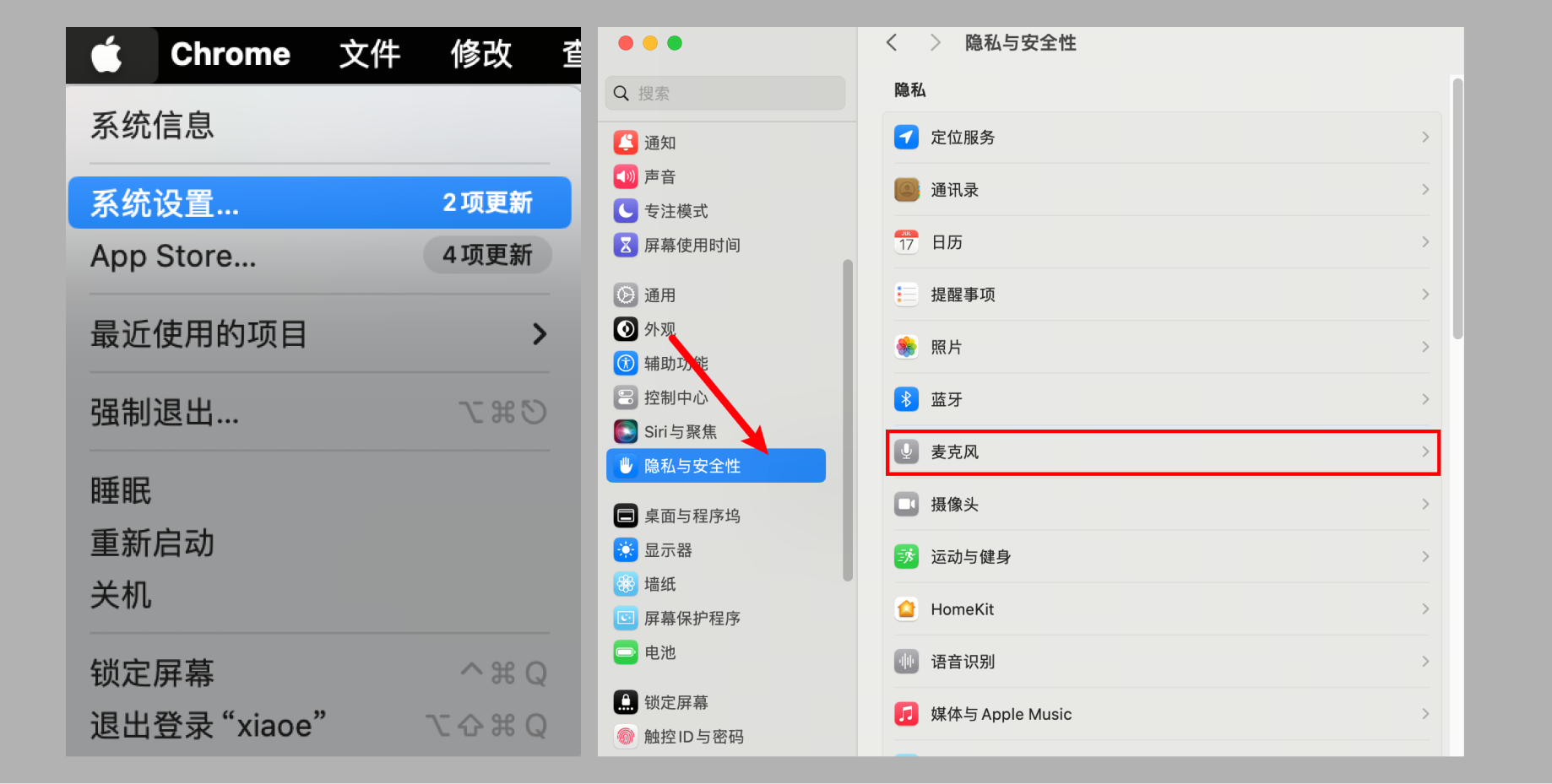
<span style="font-size:15px;color:rgb(51,51,51);letter-spacing:0;vertical-align:baseline;">1. </span><span style="font-size:15px;color:rgb(51,51,51);letter-spacing:0;vertical-align:baseline;">Click the Apple icon in the upper - left corner of the screen and select “System Settings” from the drop - down menu. Then select “Privacy &amp; Security” and “Microphone”.</span>

<span style="display:inline-block;overflow:hidden;width:579px;height:292.65px;">![image/png](https://wechatapppro-1252524126.file.myqcloud.com/help_center_ooo/image/help_center_ooo/fmq7i7lycnacrc.png "unknow.png")</span>

<span style="font-size:15px;color:rgb(51,51,51);letter-spacing:0;vertical-align:baseline;">2. </span><span style="font-size:15px;color:rgb(51,51,51);letter-spacing:0;vertical-align:baseline;">After entering the “Microphone” panel, turn on the microphone permission for the elink Live client.</span>

<span style="display:inline-block;overflow:hidden;width:577px;height:332.45px;">![image/png](https://wechatapppro-1252524126.file.myqcloud.com/help_center_ooo/image/help_center_ooo/mrri0olycnacye.png "unknow.png")</span>

### <span style="font-size:19px;letter-spacing:0;vertical-align:baseline;">2.2 Check if the correct microphone device is selected</span>

<span style="font-size:15px;color:rgb(51,51,51);letter-spacing:0;vertical-align:baseline;">If your live - streaming device is connected to multiple microphone devices, select the correct one</span>

<span style="font-family:Wingdings;"><span style="font-size:15px;color:rgb(51,51,51);letter-spacing:0;vertical-align:baseline;">●<span style="font-family:'Times New Roman';"> </span></span></span><span style="font-size:15px;font-weight:bold;color:rgb(51,51,51);letter-spacing:0;vertical-align:baseline;">Windows:</span>

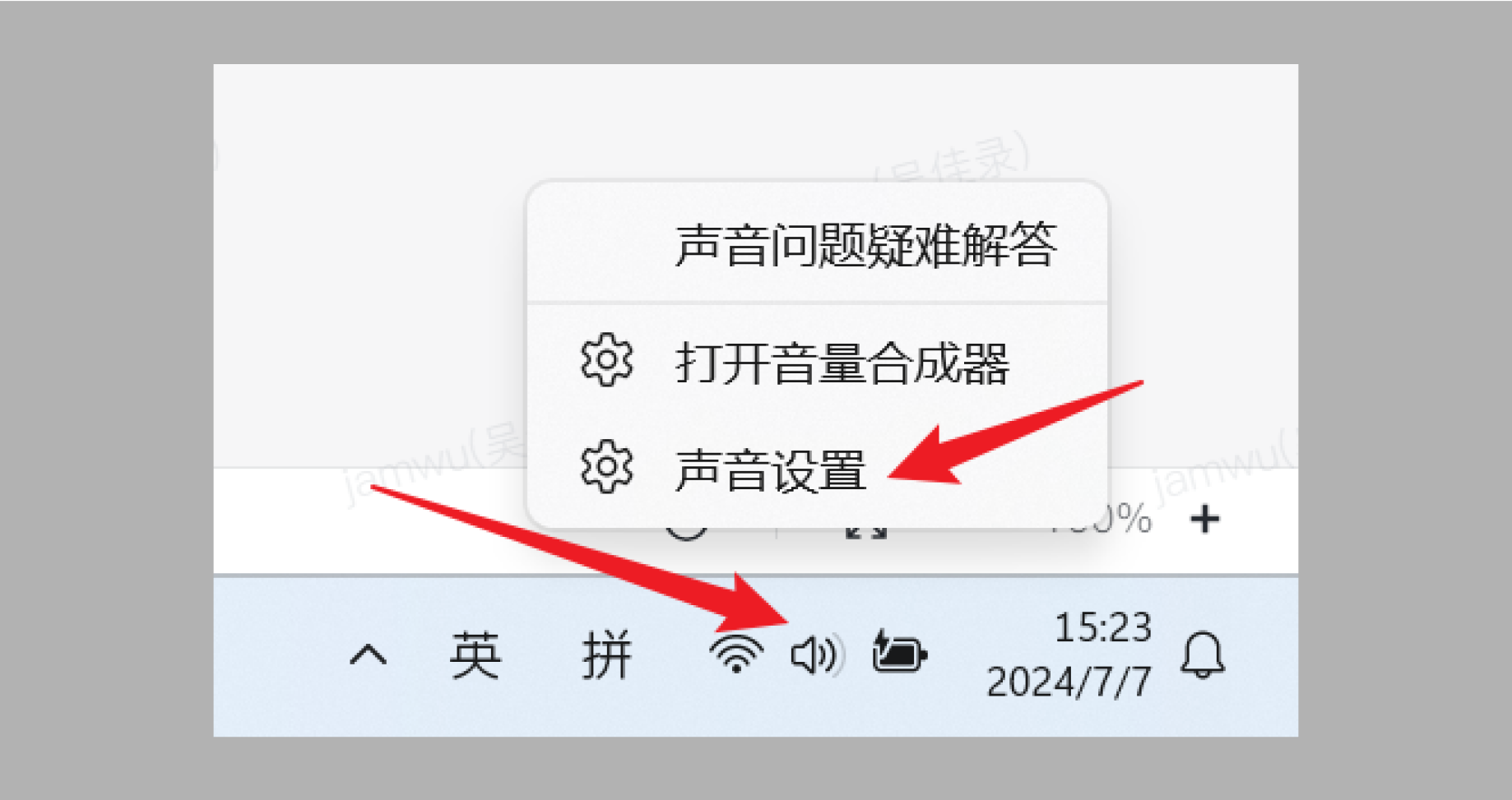
<span style="font-size:15px;color:rgb(51,51,51);letter-spacing:0;vertical-align:baseline;">1. </span><span style="font-size:15px;color:rgb(51,51,51);letter-spacing:0;vertical-align:baseline;">Right - click the</span><span style="font-size:15px;color:rgb(51,51,51);letter-spacing:0;vertical-align:baseline;">lower - right</span><span style="font-size:15px;color:rgb(51,51,51);letter-spacing:0;vertical-align:baseline;"> sound icon</span><span style="font-size:15px;color:rgb(51,51,51);letter-spacing:0;vertical-align:baseline;">, </span><span style="font-size:15px;color:rgb(51,51,51);letter-spacing:0;vertical-align:baseline;">select</span><span style="font-size:15px;color:rgb(51,51,51);letter-spacing:0;vertical-align:baseline;">Sound settings</span><span style="font-size:15px;color:rgb(51,51,51);letter-spacing:0;vertical-align:baseline;">.</span>

<span style="display:inline-block;overflow:hidden;width:582.333px;height:308.275px;">![image/png](https://wechatapppro-1252524126.file.myqcloud.com/help_center_ooo/image/help_center_ooo/y4te1blycnacwt.png "unknow.png")</span>

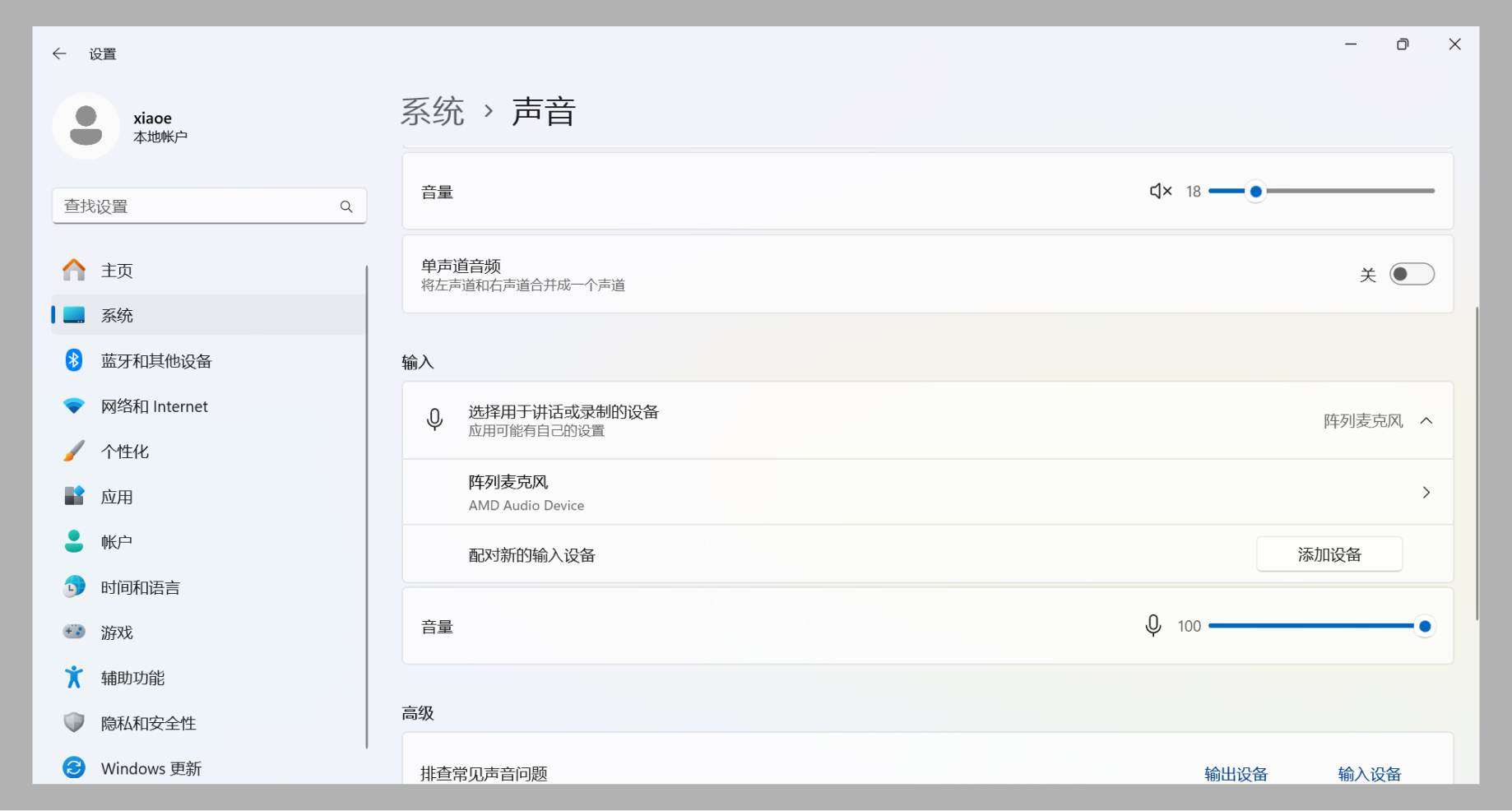
<span style="font-size:15px;color:rgb(51,51,51);letter-spacing:0;vertical-align:baseline;">2. </span><span style="font-size:15px;color:rgb(51,51,51);letter-spacing:0;vertical-align:baseline;">After opening the sound settings,</span><span style="font-size:15px;color:rgb(51,51,51);letter-spacing:0;vertical-align:baseline;">in the “Input” section, select the correct microphone device</span><span style="font-size:15px;color:rgb(51,51,51);letter-spacing:0;vertical-align:baseline;">(ensure that it is the same as the device selected in the elink Live client).</span>

<span style="display:inline-block;overflow:hidden;width:598.777px;height:321.216px;">![image/png](https://wechatapppro-1252524126.file.myqcloud.com/help_center_ooo/image/help_center_ooo/nb7lyqlycnacqx.png "unknow.png")</span>

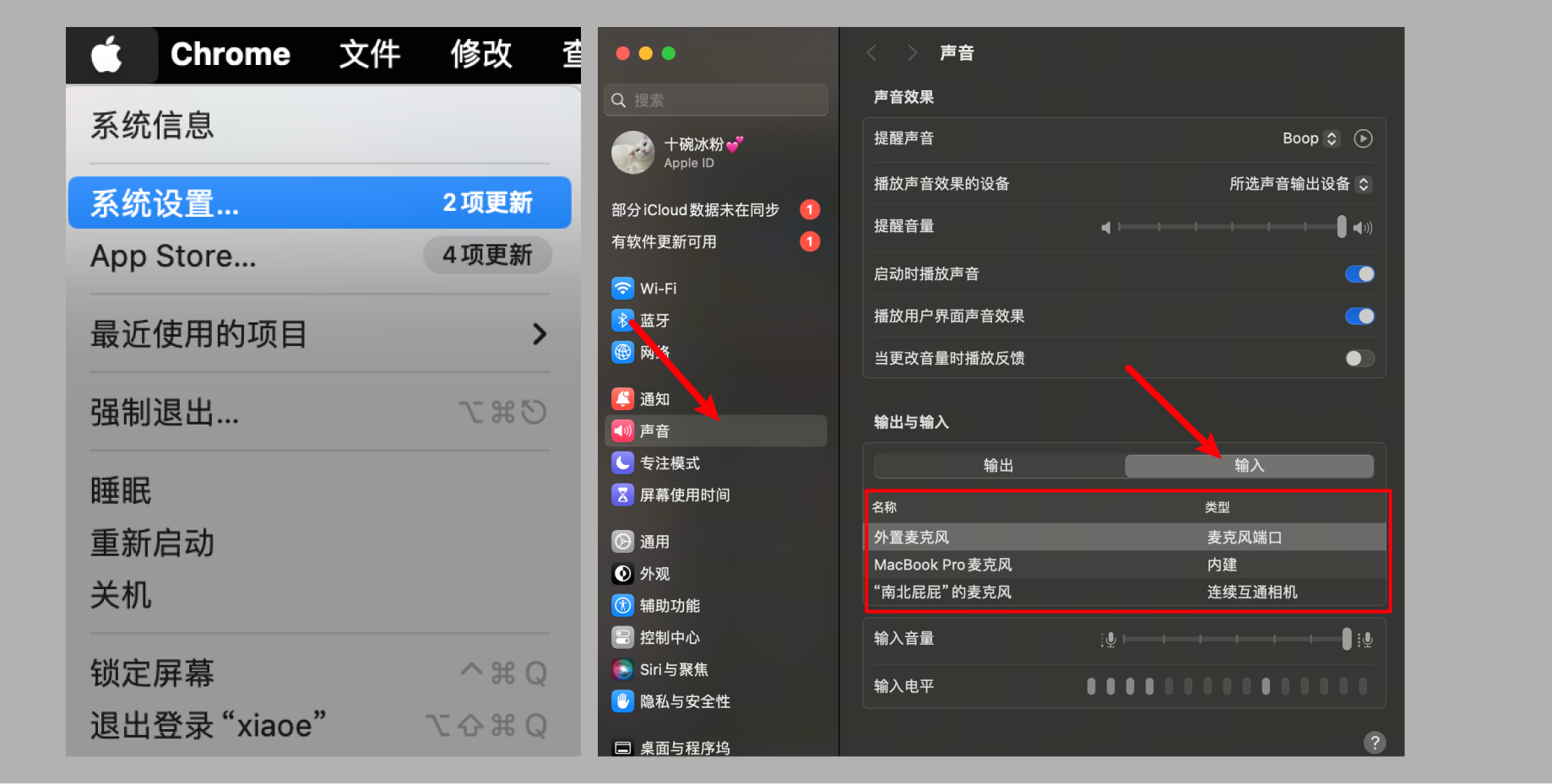
<span style="font-family:Wingdings;"><span style="font-size:15px;color:rgb(51,51,51);letter-spacing:0;vertical-align:baseline;">●<span style="font-family:'Times New Roman';"> </span></span></span><span style="font-size:15px;font-weight:bold;color:rgb(51,51,51);letter-spacing:0;vertical-align:baseline;">macOS:</span>

<span style="font-size:15px;color:rgb(51,51,51);letter-spacing:0;vertical-align:baseline;">Click the Apple icon in the upper - left corner of the screen and select “System Settings” from the drop - down menu. Then select “Sound”, enter the “Sound” settings panel, select “Input”, and choose the correct microphone device.</span>

<span style="display:inline-block;overflow:hidden;width:604.733px;height:305.657px;">![image/png](https://wechatapppro-1252524126.file.myqcloud.com/help_center_ooo/image/help_center_ooo/76dkw3lycnacyt.png "unknow.png")</span>

### <span style="font-size:19px;letter-spacing:0;vertical-align:baseline;">2.3 Check if other applications can use the microphone normally</span>

<span style="font-size:15px;color:rgb(51,51,51);letter-spacing:0;vertical-align:baseline;">Use other software such as WeChat video calls or Tencent Meeting to check if the microphone is working properly. If not, the microphone device may be faulty.</span>

## <span style="font-size:21px;letter-spacing:0;vertical-align:baseline;">3. Camera malfunction</span>

<span style="font-size:15px;color:rgb(51,51,51);letter-spacing:0;vertical-align:baseline;">Please ensure that your camera device is properly connected and turned on.</span>

### <span style="font-size:19px;letter-spacing:0;vertical-align:baseline;">3.1 Check if the camera permission is enabled</span>

<span style="font-size:15px;color:rgb(51,51,51);letter-spacing:0;vertical-align:baseline;">If your computer is connected to a camera but no image is captured, it may be because the camera system access permission is not enabled.</span>

<span style="font-family:Wingdings;"><span style="font-size:15px;color:rgb(51,51,51);letter-spacing:0;vertical-align:baseline;">●<span style="font-family:'Times New Roman';"> </span></span></span><span style="font-size:15px;font-weight:bold;color:rgb(51,51,51);letter-spacing:0;vertical-align:baseline;">Windows:</span>

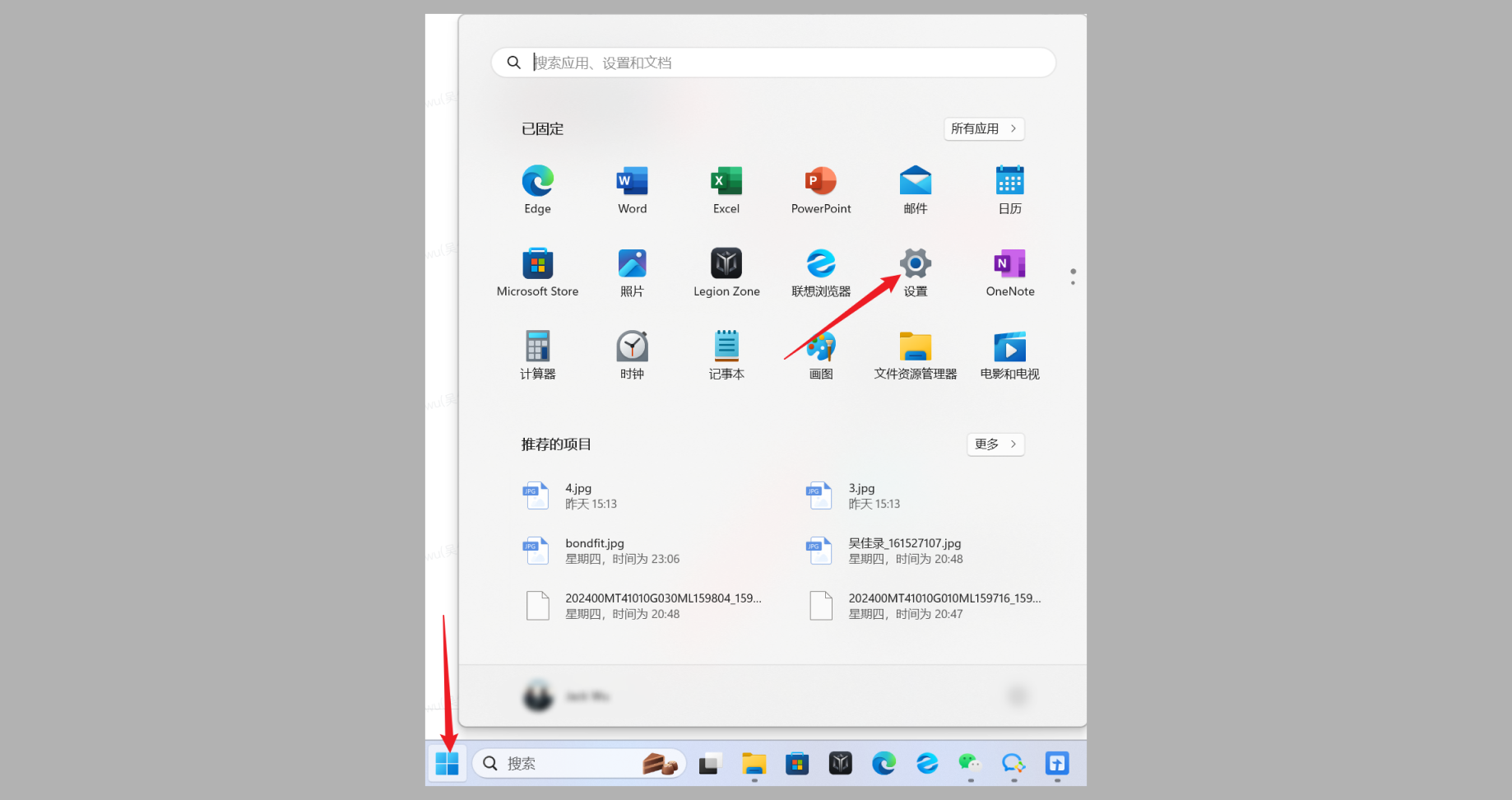
<span style="font-size:15px;color:rgb(51,51,51);letter-spacing:0;vertical-align:baseline;">1. </span><span style="font-size:15px;color:rgb(51,51,51);letter-spacing:0;vertical-align:baseline;">Click the Windows Start menu and select “Settings”.</span>

<span style="display:inline-block;overflow:hidden;width:604.733px;height:319.805px;">![image/png](https://wechatapppro-1252524126.file.myqcloud.com/help_center_ooo/image/help_center_ooo/pherg3lycnacwb.png "unknow.png")</span>

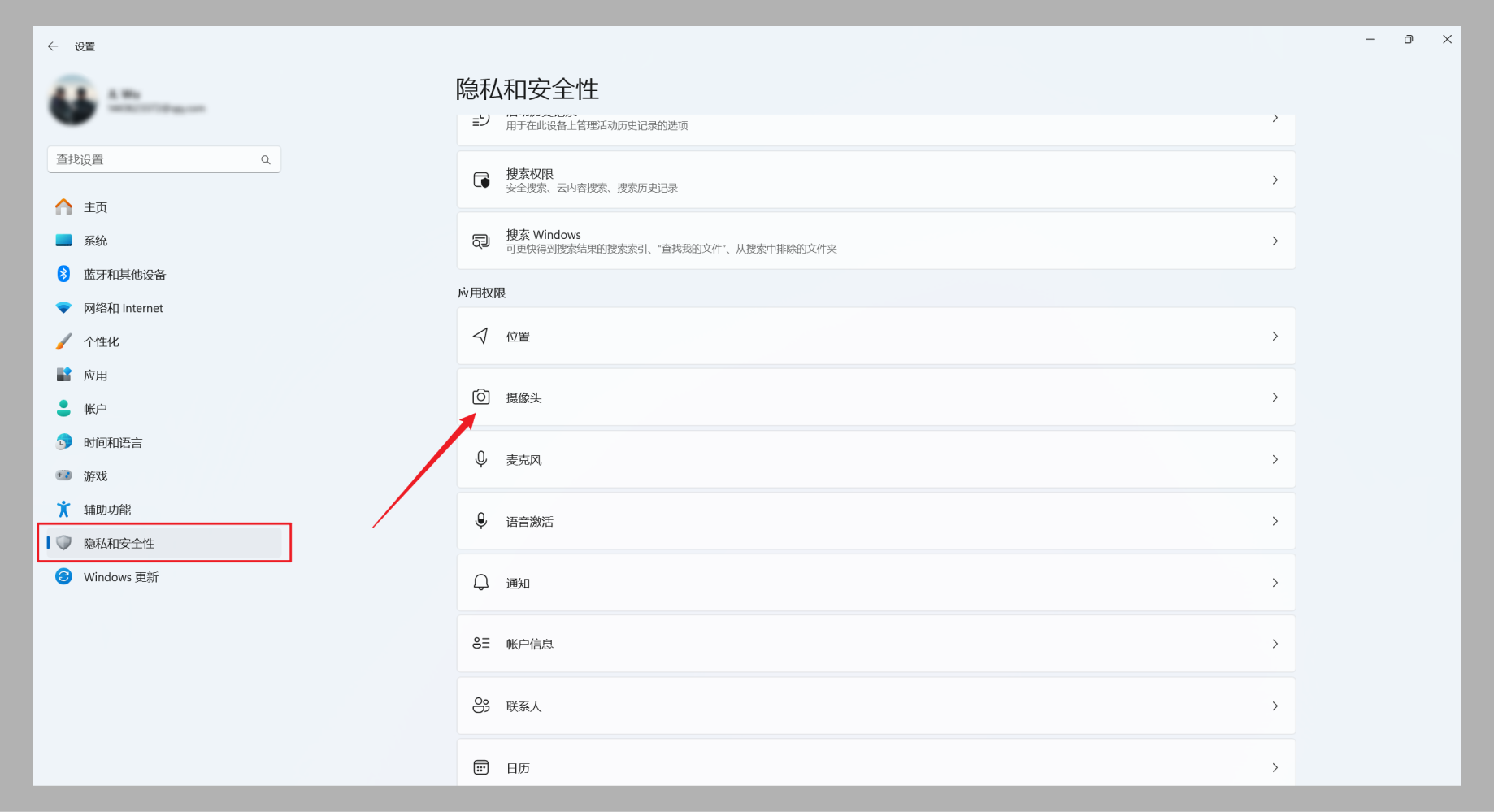
<span style="font-size:15px;color:rgb(51,51,51);letter-spacing:0;vertical-align:baseline;">2. </span><span style="font-size:15px;color:rgb(51,51,51);letter-spacing:0;vertical-align:baseline;">In the settings window, select “Privacy &amp; Security” and click on “Camera” on the right.</span>

<span style="display:inline-block;overflow:hidden;width:604.733px;height:328.688px;">![image/png](https://wechatapppro-1252524126.file.myqcloud.com/help_center_ooo/image/help_center_ooo/z61qldlycnacr6.png "unknow.png")</span>

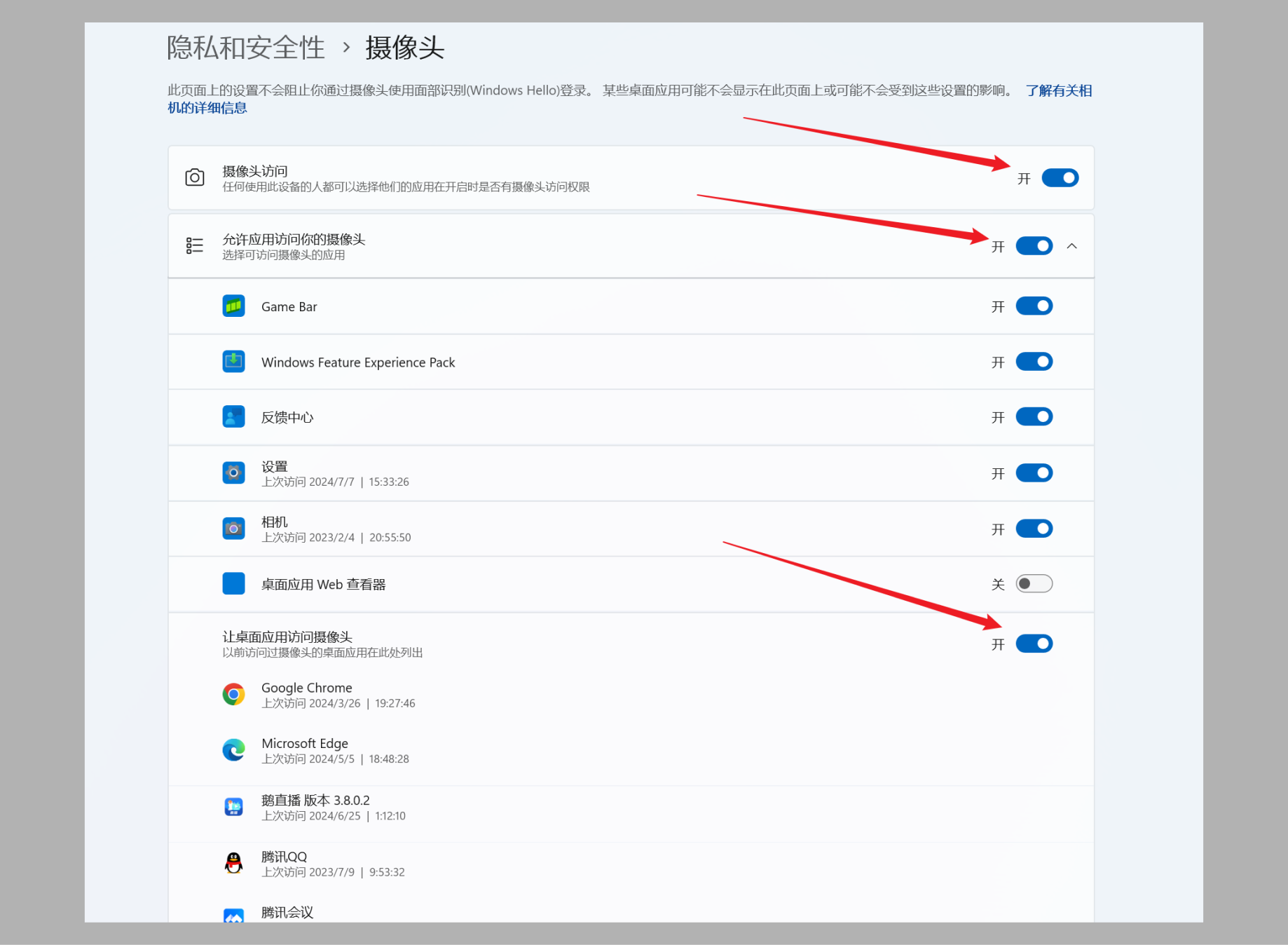
<span style="font-size:15px;color:rgb(51,51,51);letter-spacing:0;vertical-align:baseline;">3. </span><span style="font-size:15px;color:rgb(51,51,51);letter-spacing:0;vertical-align:baseline;">Enable camera permission:</span><span style="font-size:15px;color:rgb(51,51,51);letter-spacing:0;vertical-align:baseline;">In the “</span><span style="font-size:15px;color:rgb(51,51,51);letter-spacing:0;vertical-align:baseline;">Camera</span><span style="font-size:15px;color:rgb(51,51,51);letter-spacing:0;vertical-align:baseline;">” window,</span><span style="font-size:15px;color:rgb(51,51,51);letter-spacing:0;vertical-align:baseline;">ensure that the three permission switches shown in the following figure are turned on.</span>

<span style="display:inline-block;overflow:hidden;width:582.333px;height:427.087px;">![image/png](https://wechatapppro-1252524126.file.myqcloud.com/help_center_ooo/image/help_center_ooo/hbvpollycnacyn.png "unknow.png")</span>

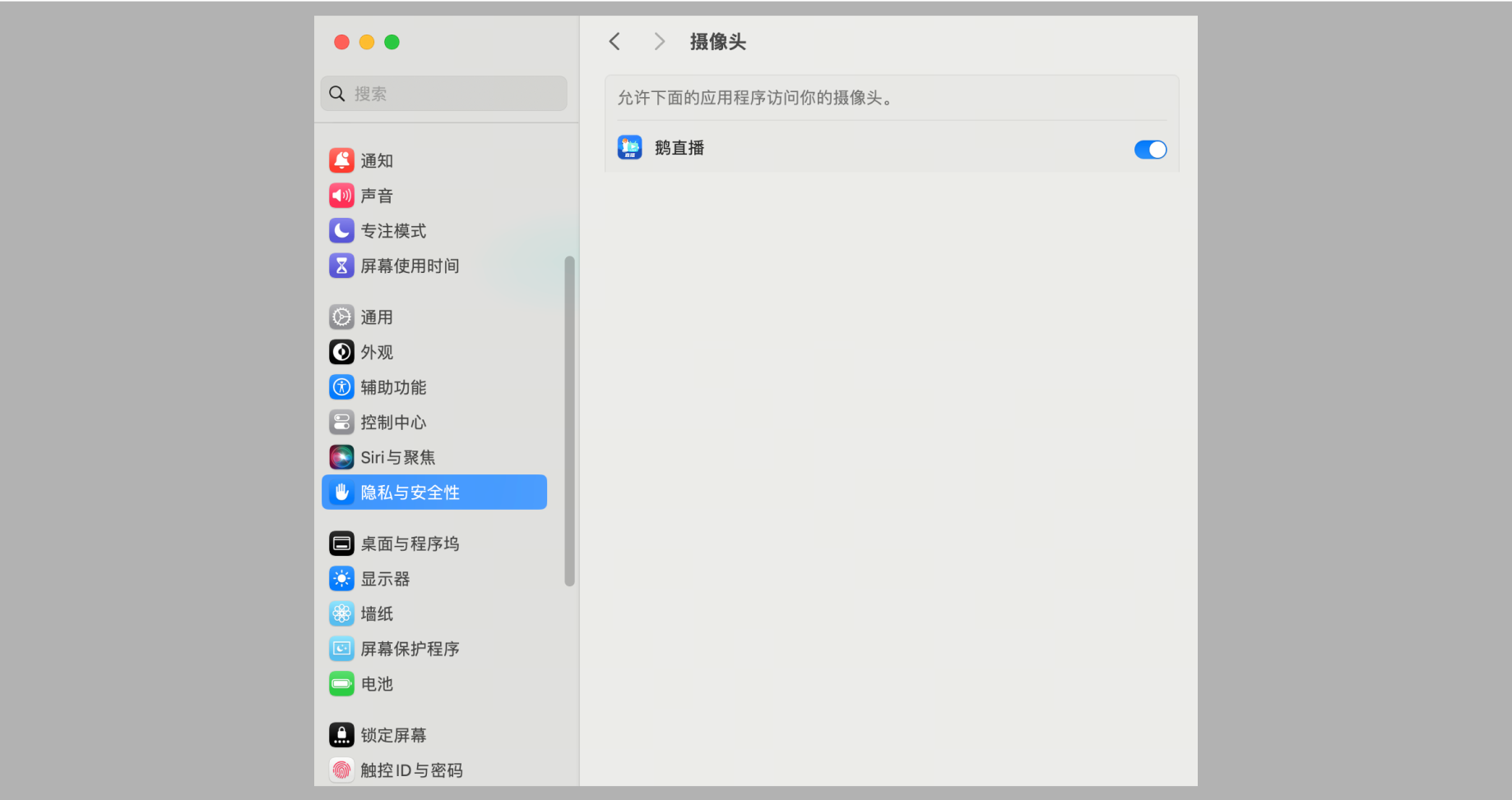
<span style="font-family:Wingdings;"><span style="font-size:15px;color:rgb(51,51,51);letter-spacing:0;vertical-align:baseline;">●<span style="font-family:'Times New Roman';"> </span></span></span><span style="font-size:15px;font-weight:bold;color:rgb(51,51,51);letter-spacing:0;vertical-align:baseline;">macOS:</span>

<span style="font-size:15px;color:rgb(51,51,51);letter-spacing:0;vertical-align:baseline;">1. </span><span style="font-size:15px;color:rgb(51,51,51);letter-spacing:0;vertical-align:baseline;">Click the Apple icon in the upper - left corner of the screen and select “System Settings” from the drop - down menu. Then select “Privacy &amp; Security” and “Camera”.</span>

<span style="display:inline-block;overflow:hidden;width:604.733px;height:305.657px;">![image/png](https://wechatapppro-1252524126.file.myqcloud.com/help_center_ooo/image/help_center_ooo/askijelycnacwa.png "unknow.png")</span>

<span style="font-size:15px;color:rgb(51,51,51);letter-spacing:0;vertical-align:baseline;">2. </span><span style="font-size:15px;color:rgb(51,51,51);letter-spacing:0;vertical-align:baseline;">After entering the camera settings panel, turn on the access permission for the elink Live client.</span>

<span style="display:inline-block;overflow:hidden;width:604.733px;height:320.134px;">![image/png](https://wechatapppro-1252524126.file.myqcloud.com/help_center_ooo/image/help_center_ooo/lxzh4dlycnacr1.png "unknow.png")</span>

### <span style="font-size:19px;letter-spacing:0;vertical-align:baseline;">3.2 If multiple camera devices are connected, check if the correct one is selected.</span>

<span style="font-family:Wingdings;"><span style="font-size:15px;color:rgb(51,51,51);letter-spacing:0;vertical-align:baseline;">●<span style="font-family:'Times New Roman';"> </span></span></span><span style="font-size:15px;font-weight:bold;color:rgb(51,51,51);letter-spacing:0;vertical-align:baseline;">Windows:</span>

<span style="font-size:15px;color:rgb(51,51,51);letter-spacing:0;vertical-align:baseline;">1. </span><span style="font-size:15px;color:rgb(51,51,51);letter-spacing:0;vertical-align:baseline;">Click the Windows Start menu and select “Settings”.</span>

<span style="display:inline-block;overflow:hidden;width:604.733px;height:319.805px;">![image/png](https://wechatapppro-1252524126.file.myqcloud.com/help_center_ooo/image/help_center_ooo/y3r2r5lycnacye.png "unknow.png")</span>

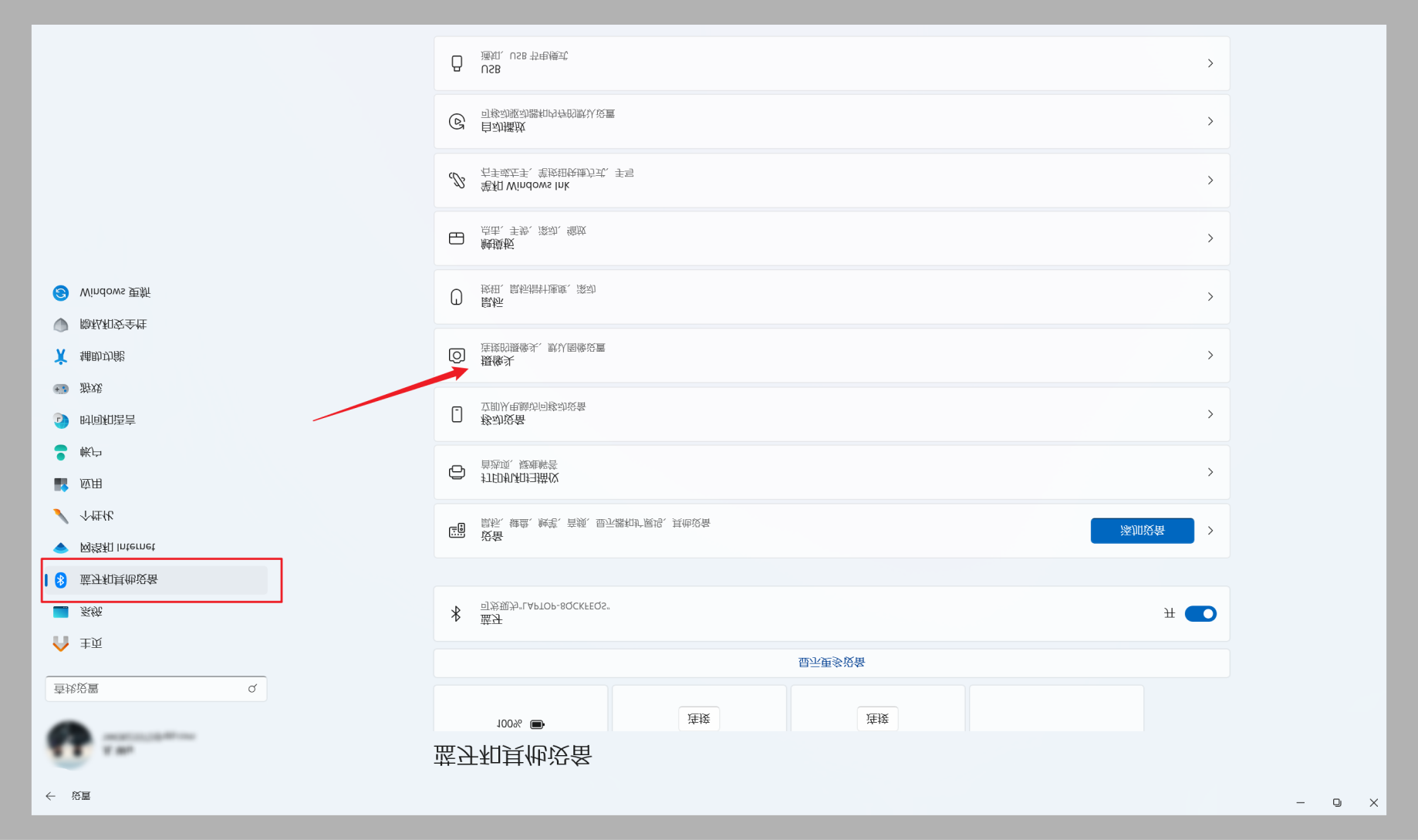
<span style="font-size:15px;color:rgb(51,51,51);letter-spacing:0;vertical-align:baseline;">2. </span><span style="font-size:15px;color:rgb(51,51,51);letter-spacing:0;vertical-align:baseline;">After entering the settings panel, click “Bluetooth &amp; other devices”, and then select the “Camera” option on the right after opening it.</span>

<span style="display:inline-block;overflow:hidden;width:604.733px;height:358.3px;">![image/png](https://wechatapppro-1252524126.file.myqcloud.com/help_center_ooo/image/help_center_ooo/jhihohlycnacw9.png "unknow.png")</span>

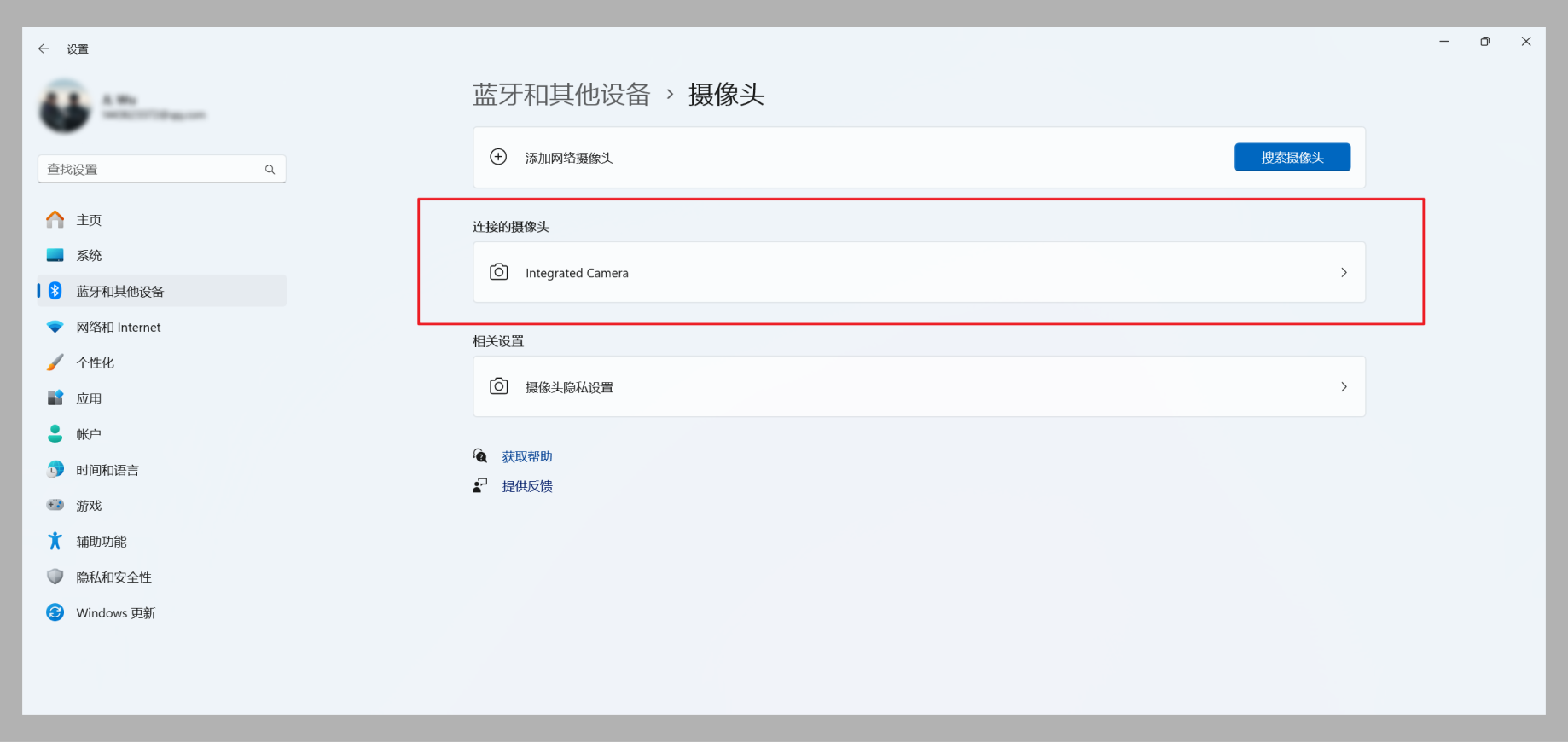
<span style="font-size:15px;color:rgb(51,51,51);letter-spacing:0;vertical-align:baseline;">3. </span><span style="font-size:15px;color:rgb(51,51,51);letter-spacing:0;vertical-align:baseline;">You can select and enable your camera device at the position shown in the following figure. (Ensure that it is the same as the device selected in the elink Live client).</span>

<span style="display:inline-block;overflow:hidden;width:604.733px;height:286.245px;">![image/png](https://wechatapppro-1252524126.file.myqcloud.com/help_center_ooo/image/help_center_ooo/lk0vf0lycnacr3.png "unknow.png")</span>

<span style="font-family:Wingdings;"><span style="font-size:15px;color:rgb(51,51,51);letter-spacing:0;vertical-align:baseline;">●<span style="font-family:'Times New Roman';"> </span></span></span><span style="font-size:15px;font-weight:bold;color:rgb(51,51,51);letter-spacing:0;vertical-align:baseline;">macOS:</span>

<span style="font-size:15px;color:rgb(51,51,51);letter-spacing:0;vertical-align:baseline;">On the Mac system, you can select the camera within the software.</span>

<span style="font-size:15px;color:rgb(51,51,51);"></span>