# Tutorial on Using Payment Success Message Reminders

<div data-elink-language-switch="1" id="bkmrk-%E4%B8%AD%E6%96%87" style="border:1px solid #d6d9de;border-radius:6px;padding:10px 12px;margin:0 0 18px 0;background:#f8fafc;font-size:14px;">[中文](/books/d34ab/page/d61e4)</div><span style="font-size:17px;">**I. Feature Introduction**</span>

<span style="font-size:15px;">After the user's payment is successful, they will receive a payment success message. By opening the template message or SMS, users can jump to the order details page via the link.</span>

<span style="font-size:17px;">**II. Purpose of Use**</span>

<span style="font-size:15px;">Users can find the corresponding order through the payment success message. For physical product orders, they can check the logistics status, and for knowledge product orders, they can quickly access the courses.</span>

<span style="font-size:17px;">**III. Operation Path**</span>

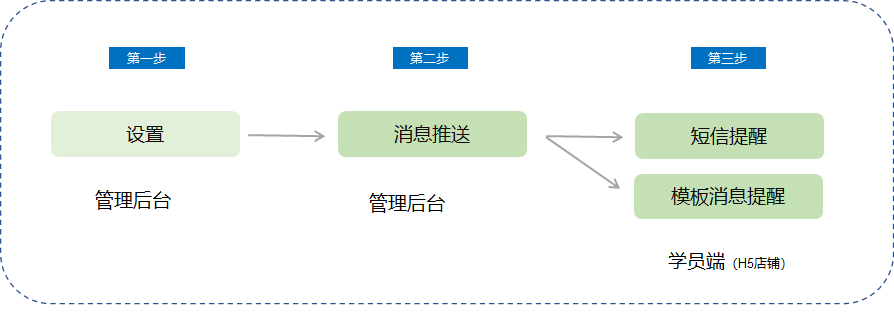
<span style="font-size:15px;">Merchant side: Merchant's PC management console → Settings → Push Settings (<span style="font-size:15px;">Message Push</span>) → Enable Payment Success Message Reminder</span>

<span style="font-size:15px;">Student side: WeChat template message/SMS → Order details page → Check logistics/Check courses/Check benefits</span>

<span style="font-size:15px;">![image.png](https://wechatapppro-1252524126.file.myqcloud.com/help_document/image/ueditor/58310800_1699859953.png ".png")</span>

<span style="font-size:17px;">**IV. Usage Tutorial**</span>

**<span style="font-size:15px;">Step 1: Message Center</span>**

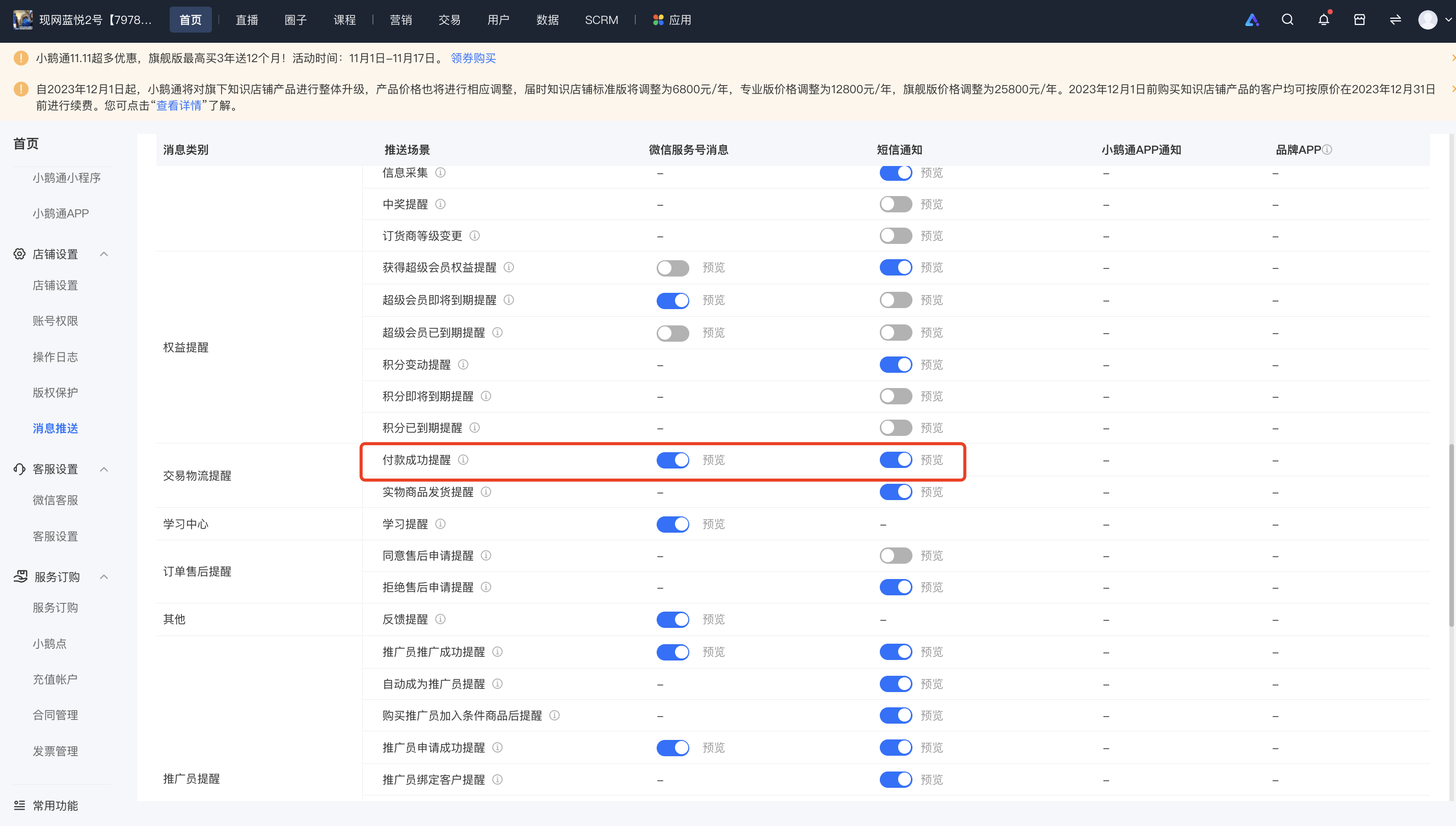
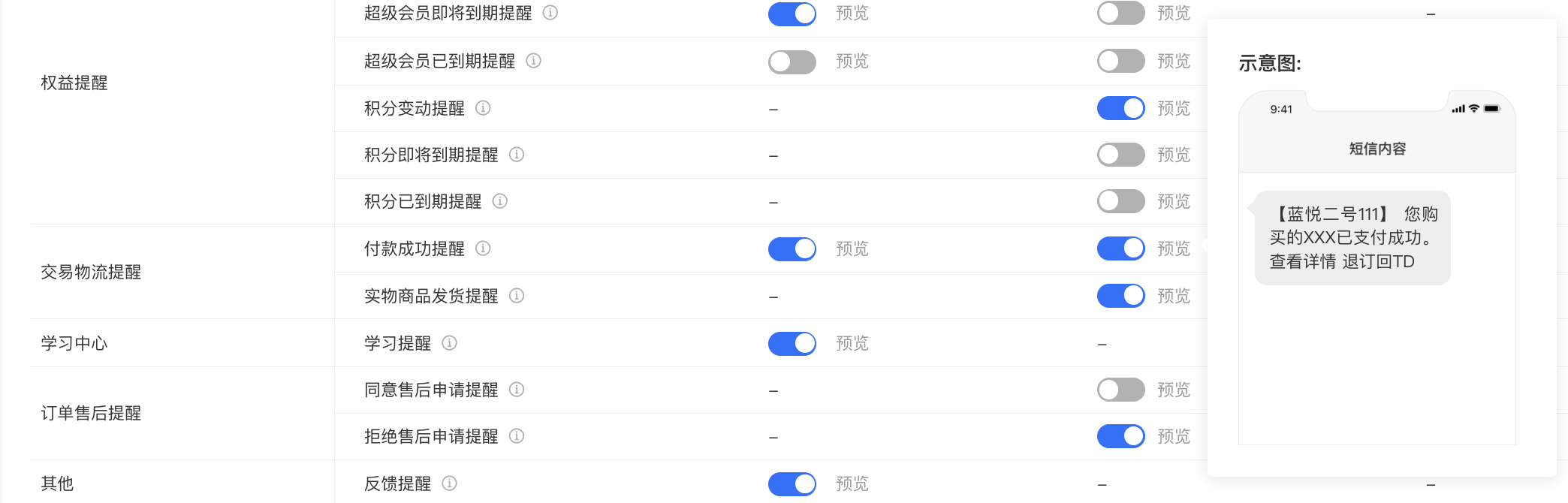
<span style="font-size:15px;">1. In the Message Center - Transaction and Logistics Reminders - Payment Success Reminder, you can choose two types of payment success message pushes: \[Template Message\] and \[SMS\].</span>

![image.png](https://wechatapppro-1252524126.file.myqcloud.com/help_document/image/ueditor/17310000_1699859992.png ".png")

<span style="font-size:15px;"> (Management background) </span>

**<span style="font-size:15px;">Step 2: Template Message</span>**

<span style="font-size:15px;">1. To enable template messages, you need to authorize the service account in advance. The payment success reminder does not support the individual mode and only supports the enterprise mode. Merchants must verify their service accounts.</span>

![image.png](https://wechatapppro-1252524126.file.myqcloud.com/help_document/image/ueditor/33788200_1699860014.png ".png")

<span style="font-size:15px;"> (Message Center) </span>

<span style="font-size:15px;">  
</span>

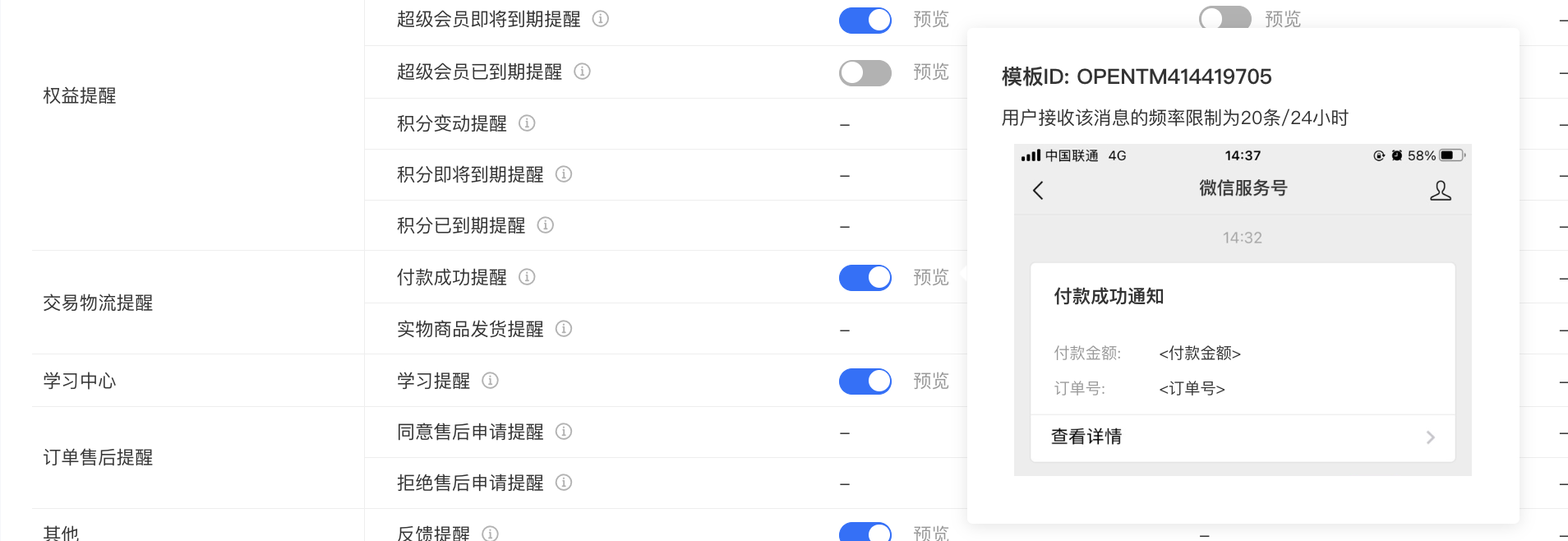
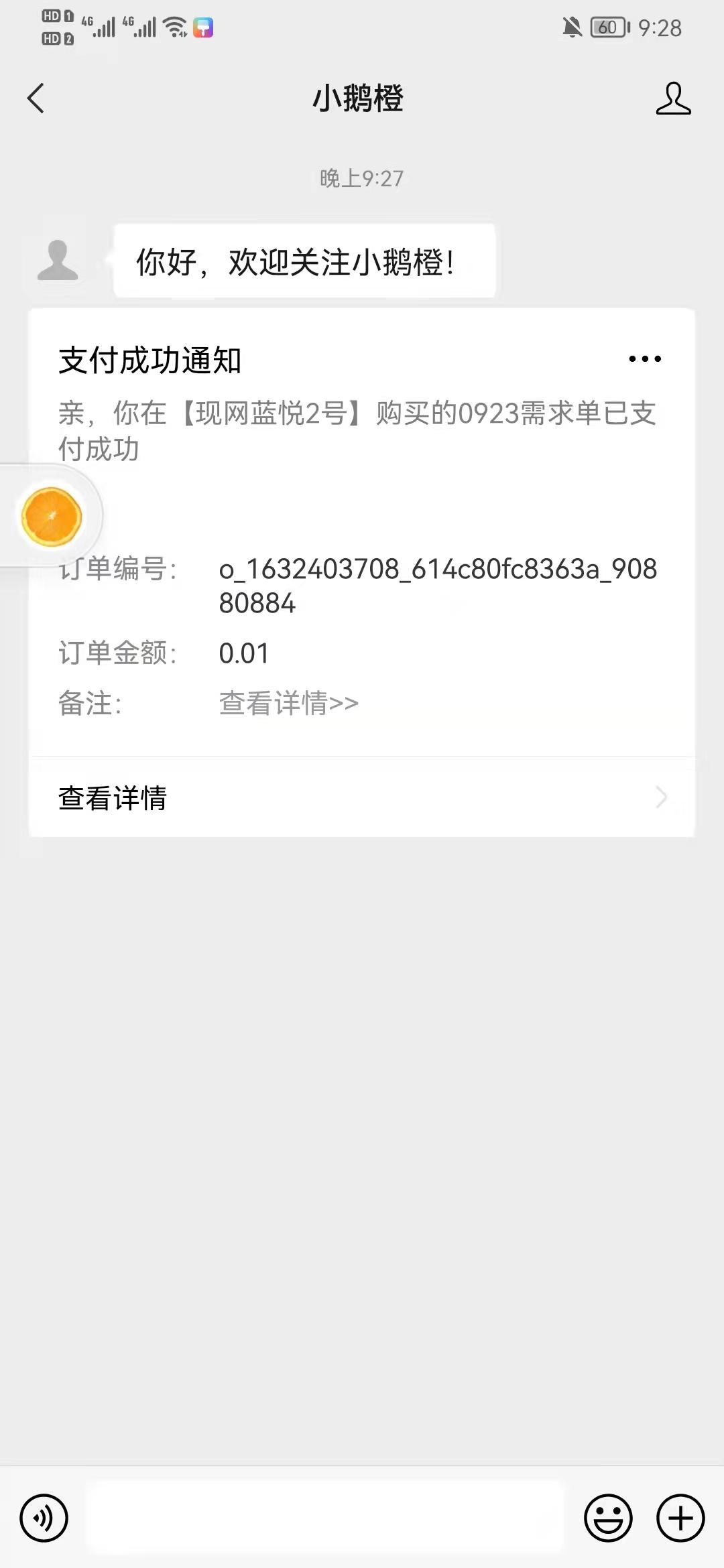
<span style="font-size:15px;">2. The payment success template message reminder is pushed by default after payment and does not require users to enable it.</span>

<span style="font-size:15px;">![image (2).png](https://wechatapppro-1252524126.file.myqcloud.com/help_document/image/ueditor/95755600_1699859953.png ".png")</span>

<span style="font-size:15px;"> (Template Message) </span>

<span style="font-size:15px;">  
</span>

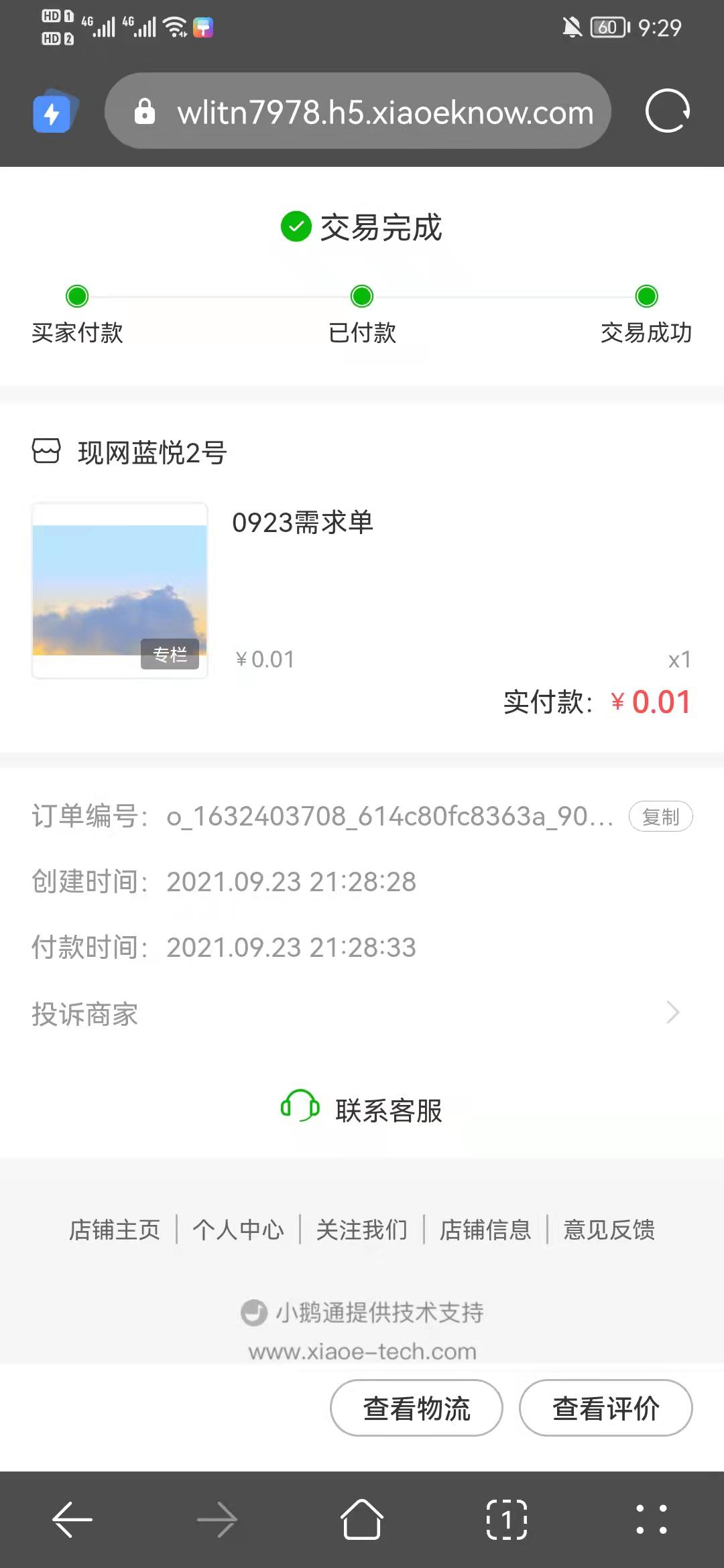
<span style="font-size:15px;">3. Clicking on the template message can take you to the corresponding order details page, from which you can jump to the course details.</span>

![image (3).png](https://wechatapppro-1252524126.file.myqcloud.com/help_document/image/ueditor/26194200_1699859954.png ".png")

<span style="font-size:15px;"> (Order Details) </span>

**<span style="font-size:15px;">Step 3: SMS Reminder</span>**

<span style="font-size:15px;">1. After enabling the SMS reminder, SMS will be sent to users who have bound their mobile phone numbers to the account.</span>

<span style="font-size:15px;">![image.png](https://wechatapppro-1252524126.file.myqcloud.com/help_document/image/ueditor/8712100_1699860014.png ".png")</span>

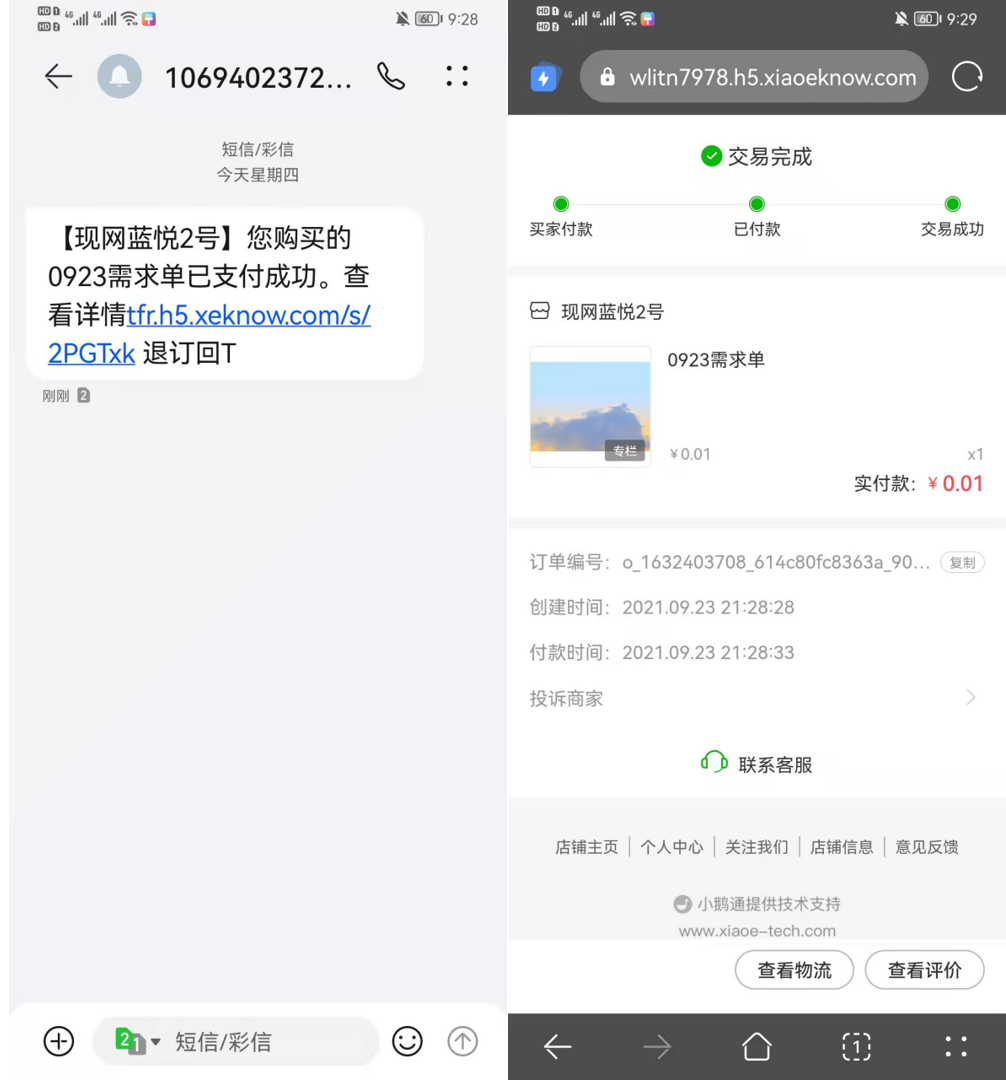
<span style="font-size:15px;">2. The SMS link can be directly opened to jump to the order details page. For physical product orders, you can check the logistics status on the order details page, and for knowledge product orders, you can jump to the course details.</span>

<span style="font-size:15px;">![企业微信截图_20210923221117.png](https://wechatapppro-1252524126.file.myqcloud.com/help_document/image/ueditor/62769000_1699859954.png ".png")</span>

<span style="font-size:15px;"> (SMS Details) (Order Details)</span>