Product management
- Which marketing tools are supported by the physical product e-commerce function?
- How to set the minimum purchase quantity for products
- Tutorial on Using Product Purchase Limits
- Common Questions about Product Purchase Limits
Which marketing tools are supported by the physical product e-commerce function?
Supports coupons, promo codes, promoters, payment rewards, limited-time discounts, Joint Orderg, viral posters, and page statistics
How to set the minimum purchase quantity for products
I. Feature Introduction
Can be setPhysical productsorPaid couponsMinimum order quantity to control the minimum number of items a user can purchase each time.
II. Use Cases
If the unit price of the physical products sold by the merchant is low, the merchant can set the minimum order quantity to 5 items, thereby increasing sales volume and average order value.
III. Operation Path
Merchant side: [Physical products] Merchant PC management console → Products → Product management → Create/Edit products
[Paid coupons] Merchant PC management console → Marketing → Paid coupons → Create/Edit paid coupons
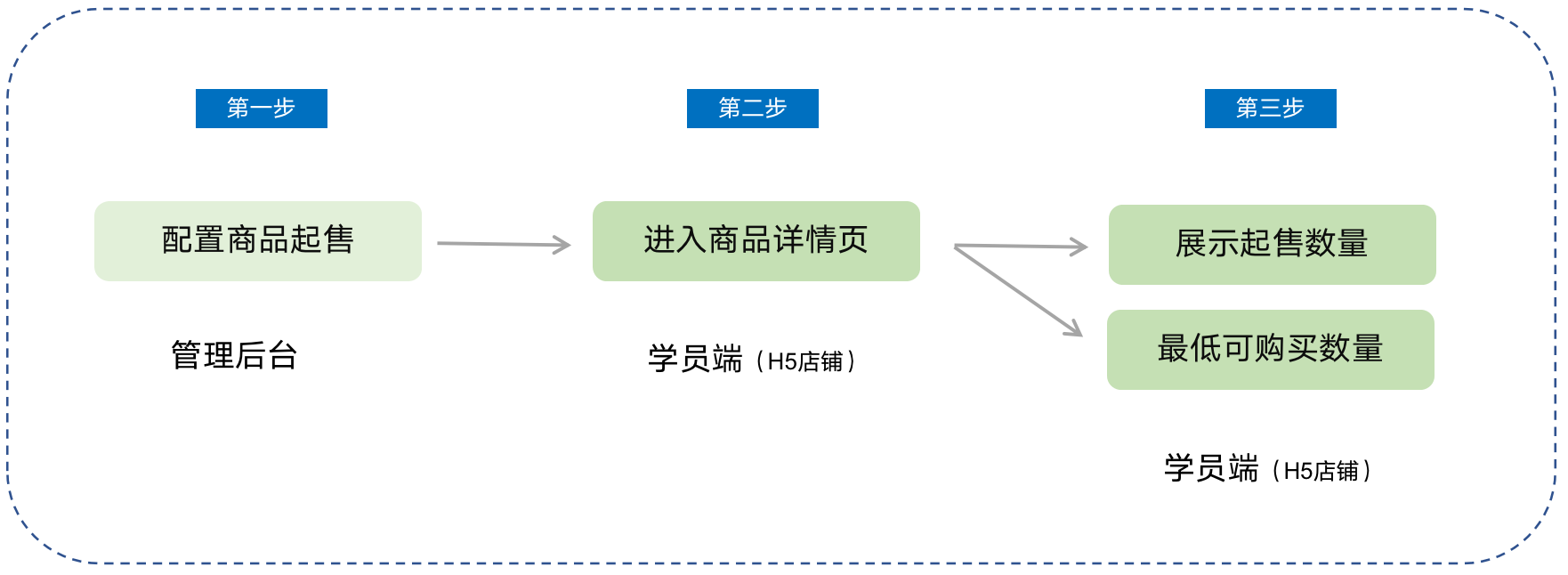
Student side: WeChat H5 store → Product detail page → Click to purchase
IV. Usage Tutorial
Step 1: Configure the minimum order quantity for products(Taking physical products as an example)
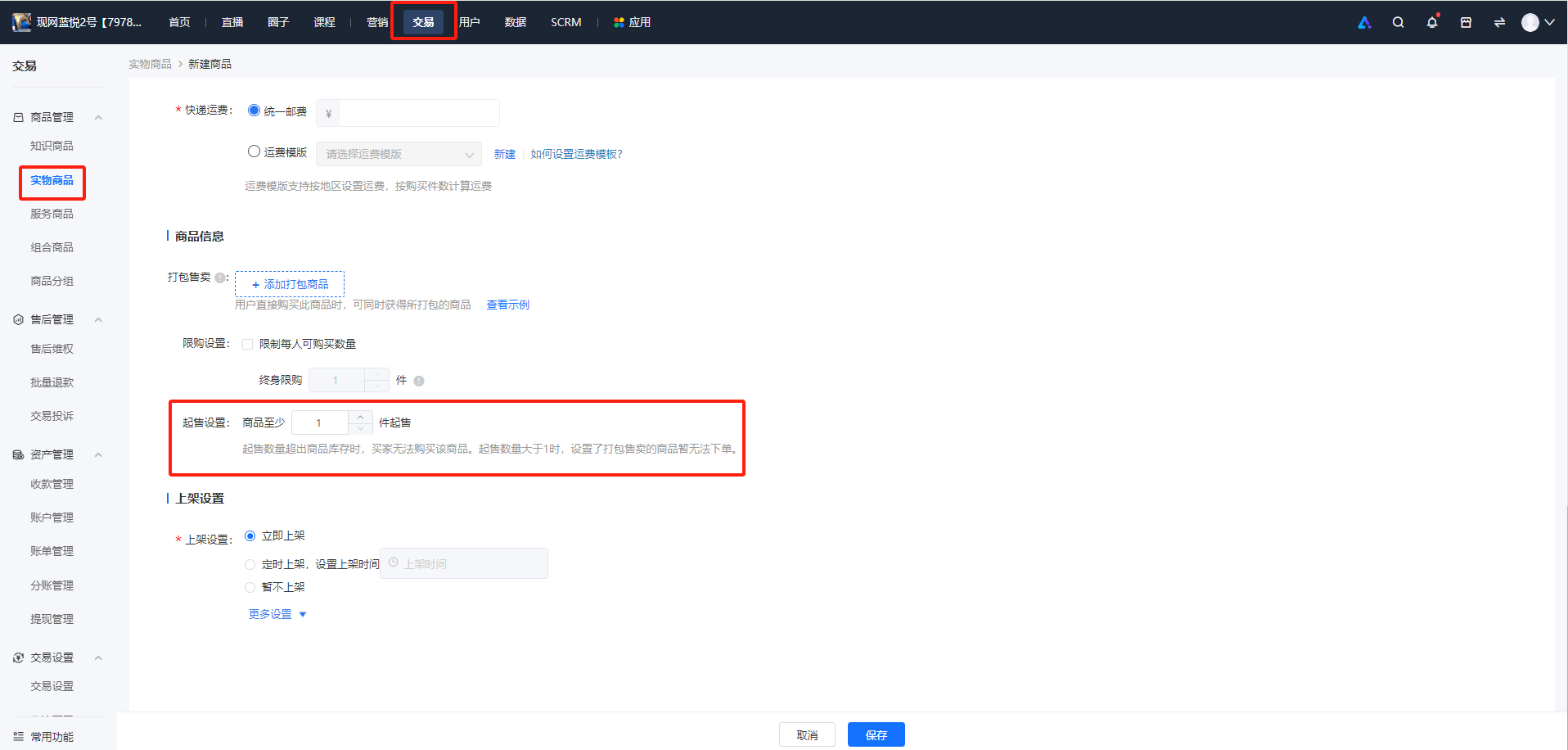
1. Log in to the store management backend, click [Transactions] - [Product management] - [Physical products], and click [New product].
2. In the [Product information] section, check [Minimum order quantity setting] and set the quantity.
**Note:When the minimum order quantity exceeds the product inventory, users cannot purchase the product. And when the minimum order quantity is greater than 1, associated products for sale cannot be ordered temporarily.
Step 2: Purchase on the student side
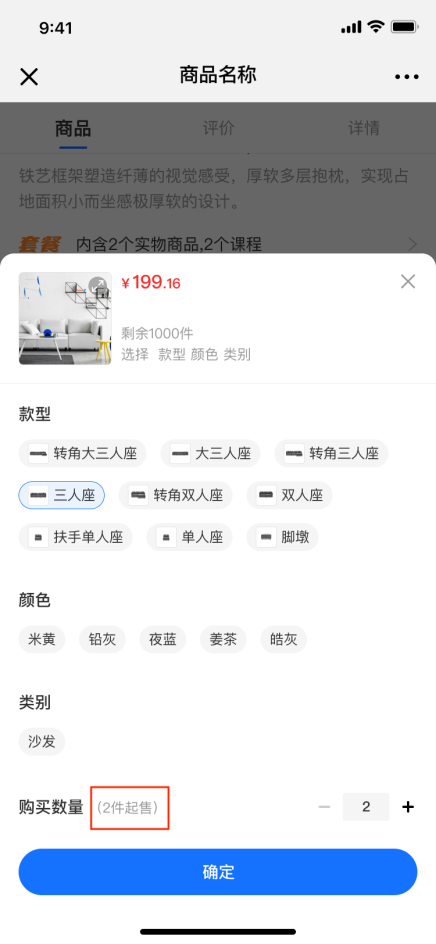
On the product detail page of physical products/paid coupons, it displaysthe minimum number of products that users can purchase.
Tutorial on Using Product Purchase Limits
I. Function Introduction
In scenarios such as clearance sales at low prices or new product launches, merchants can set purchase limits for products, restricting the number of items each user can purchase within a certain period. This helps merchants control individual users' purchasing behavior and improve the product's reach to users. Currently, this feature is applicable to the sales scenarios of [Physical Products] and [Paid Coupons].
II. Purpose of Use
(1) Cost control: Limited - purchase products have certain price advantages. By setting purchase limits, merchants can prevent users from bulk - buying products for resale.
(2) Creating a sense of product scarcity: Highlight the value of products and stimulate consumers' desire to buy.
(3) Preventing malicious inventory hoarding and fraudulent orders: In scenarios such as new product launches or special sales, more users can purchase products and enjoy the benefits.
III. Usage Scenarios
When a merchant plans a promotional event for physical products with low prices to attract more user traffic, they can set a limit of 3 items per user. This helps prevent users from buying a large number of low - priced products at once and reduces the occurrence of users taking advantage of the promotion.
IV. Operation Path
Merchant side: [Physical Products] Merchant's PC management console → Transactions → Product Management → Create/Edit Physical Products
[Paid Coupons] Merchant's PC management console → Marketing→ Marketing Campaigns→ Paid Coupons → Create/Edit Paid Coupons
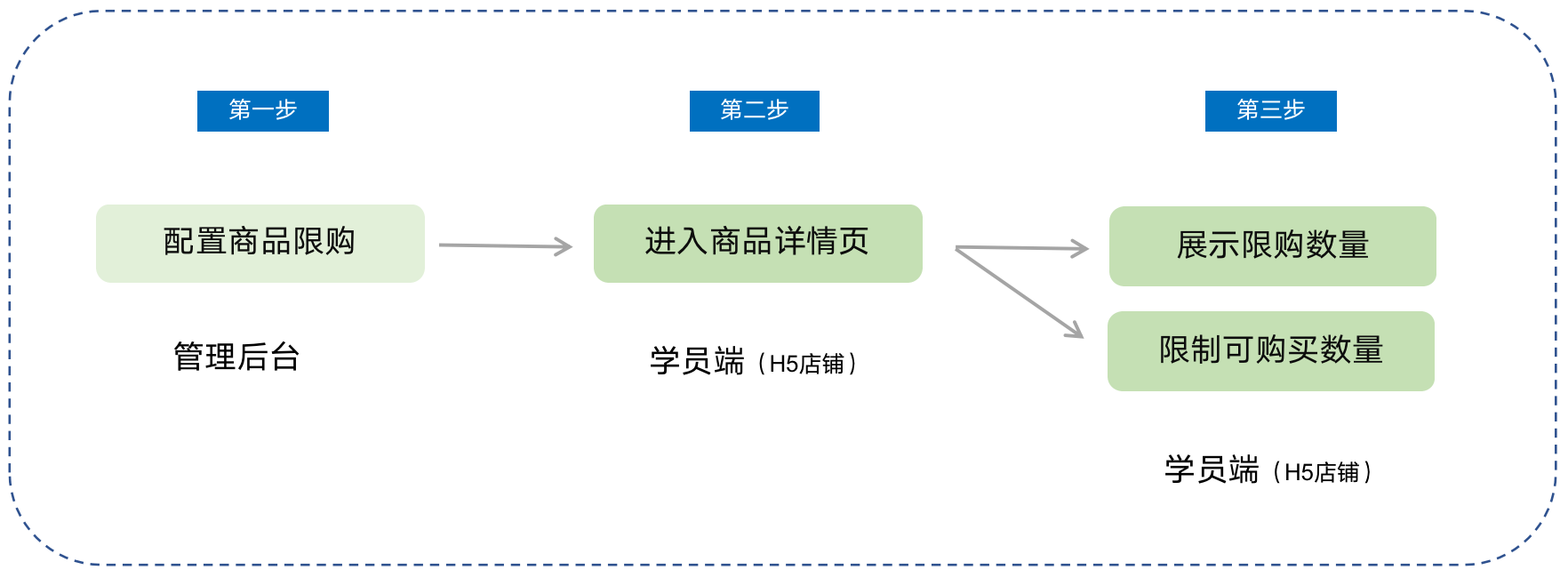
Student side: WeChat H5 Store → Product Details Page → Click to Purchase
V. Usage Tutorial
Step 1: Configure product purchase limits(Taking physical products as an example)
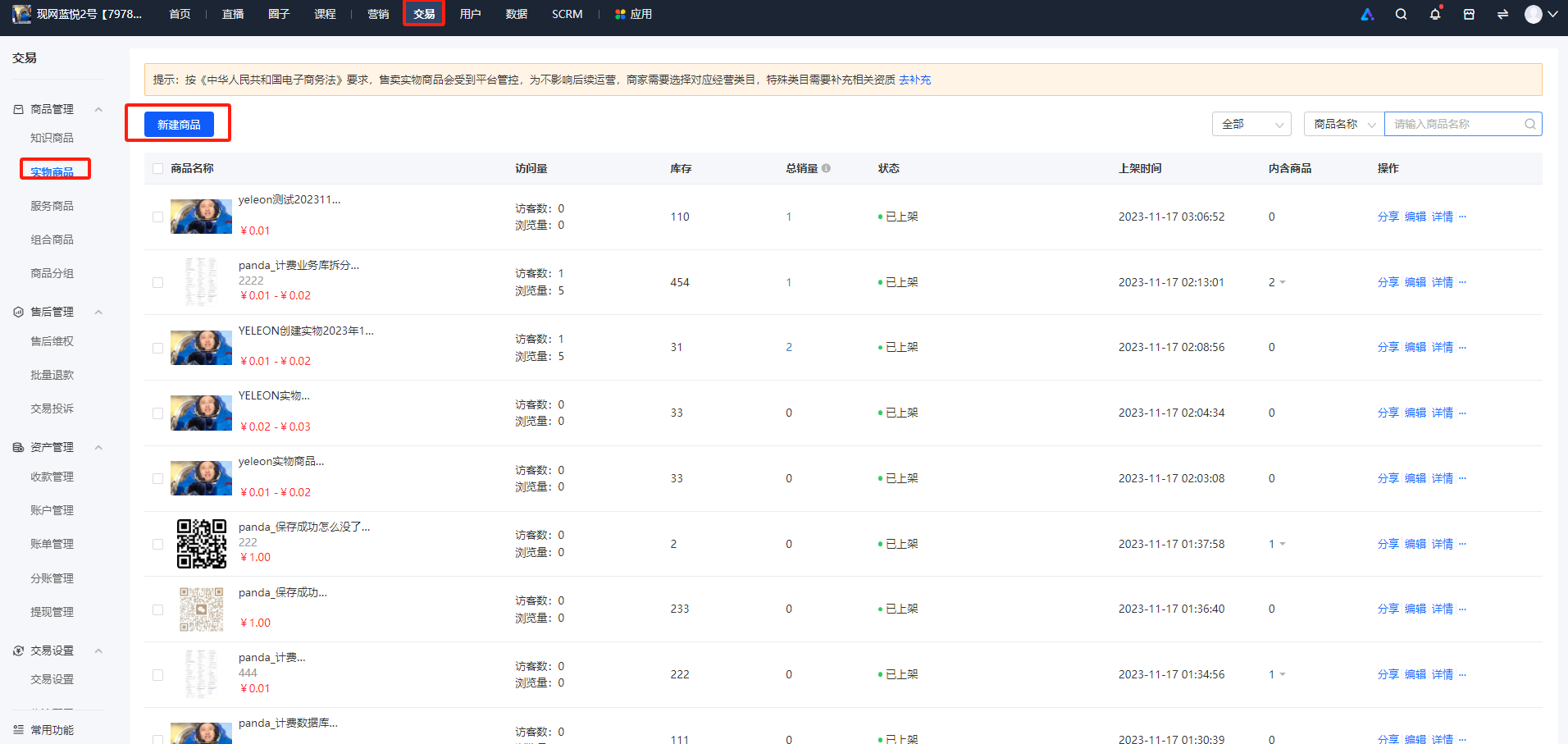
1. Log in to the store management backend. Click [Transactions] - [Product Management] - [Physical Products], and then click [New Product].
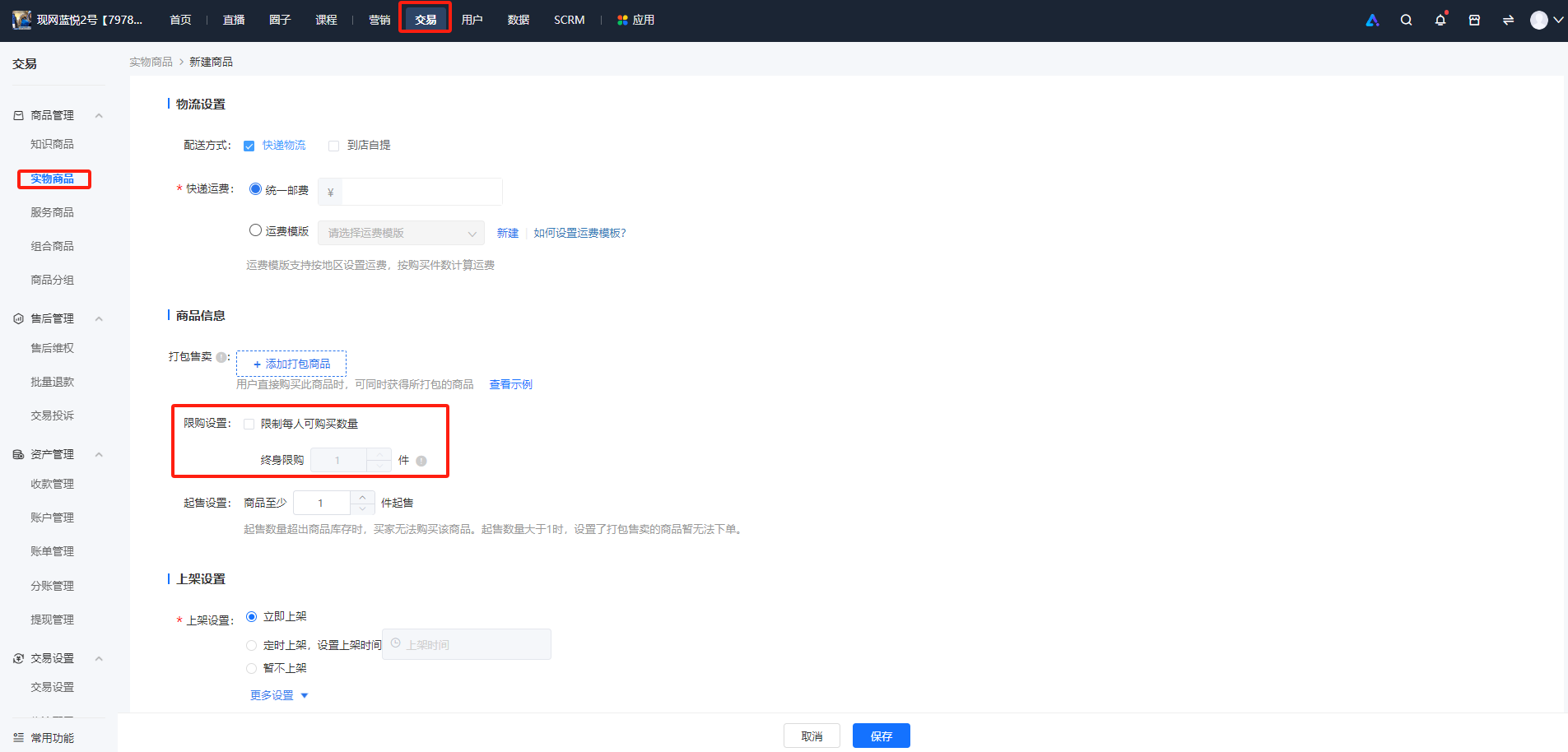
2. In the [Product Information] section, check [Purchase Limit Settings] and set the quantity. Currently, only lifetime purchase limits are supported, and periodic purchase limits are not available yet.
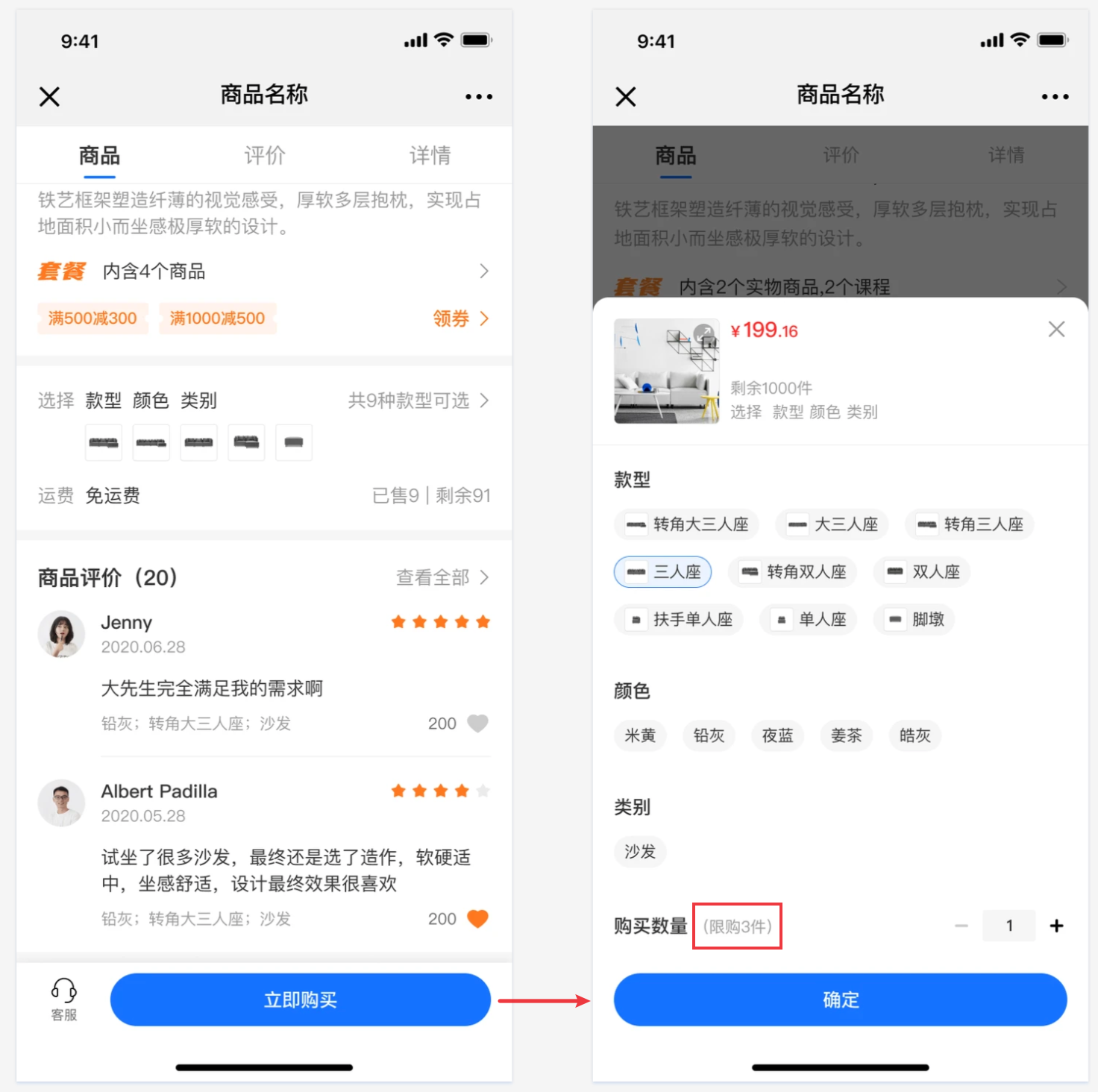
Step 2: Purchase on the student side
1. Physical products/Paid Coupons
2. Product details page of coupons
The number of products that users can purchase can be restricted.
Common Questions about Product Purchase Limits
1. How is the product purchase limit calculated?
A: After setting the start time of the purchase limit, before the end time of the purchase limit, the number of items ordered by the user (per account ID) is counted towards the purchase limit. The number of items purchased by the user before the start of the purchase limit is not counted towards the purchase limit.
2. If an order for a limited - purchase product is placed but not paid (resulting in a pending payment order), can the user make another purchase?
A: If an order for a limited - purchase product is placed but not paid, it will still occupy the purchase limit. If the purchase limit has not been reached, the user can place another order; otherwise, the pending payment order needs to be closed to cancel the occupation of the purchase limit before placing another order.
3. If a user refunds a limited - purchase product after purchase, can they make another purchase?
A: If a user purchases a limited - purchase product and completes the payment, the purchase limit will still be occupied after the refund. If the purchase limit has been reached, the user cannot make another purchase.
4. When a merchant changes the status/quantity of a product's purchase limit, will the system reset the user's available purchase quantity?
A: No. For example, if a merchant sets a purchase limit of 3 items for a product, and a user purchases 2 items during this period, and then the merchant changes the limit to 4 items, the user can still purchase 2 more items.
5. If both product purchase limit and group - buying purchase limit are set, how are they handled?
A: When both are set, the purchase path for initiating a group - buying is subject to the group - buying purchase limit. The specific scenarios are as follows:
① When a product's purchase limit is set to 4 items and there is no group - buying purchase limit, a user can buy a total of 4 items either through single - item purchase or group - buying.
② When a product's purchase limit is set to 4 items and the group - buying purchase limit is set to 2 items, a user can buy a maximum of 4 items through single - item purchase and a maximum of 2 items through group - buying, with a total limit of 4 items.
③ When there is no product purchase limit and the group - buying purchase limit is set to 4 items, a user can buy a maximum of 4 items through group - buying, and there is no limit for single - item purchase.
6. Is the redemption scenario subject to the purchase limit configuration?
A: When a limited - purchase product is added as a product for live commerce (course live commerce, physical product live commerce), it will not be counted towards the product's purchase limit.
When a limited - purchase product is listed in the points mall (points redemption), invitation code, or redemption code, users can redeem the product through these channels without being subject to the purchase limit. That is, the purchase limit function only applies to the paid purchase path for products.