# Payment Settings
# Fill in the payment settings on the elink management console
[中文](/books/d34ab/page/42a0e)
Step 1: Return to the elink management console and directly fill in the WeChat merchant ID recorded in Step 3 and the WeChat merchant API key recorded in Step 4.
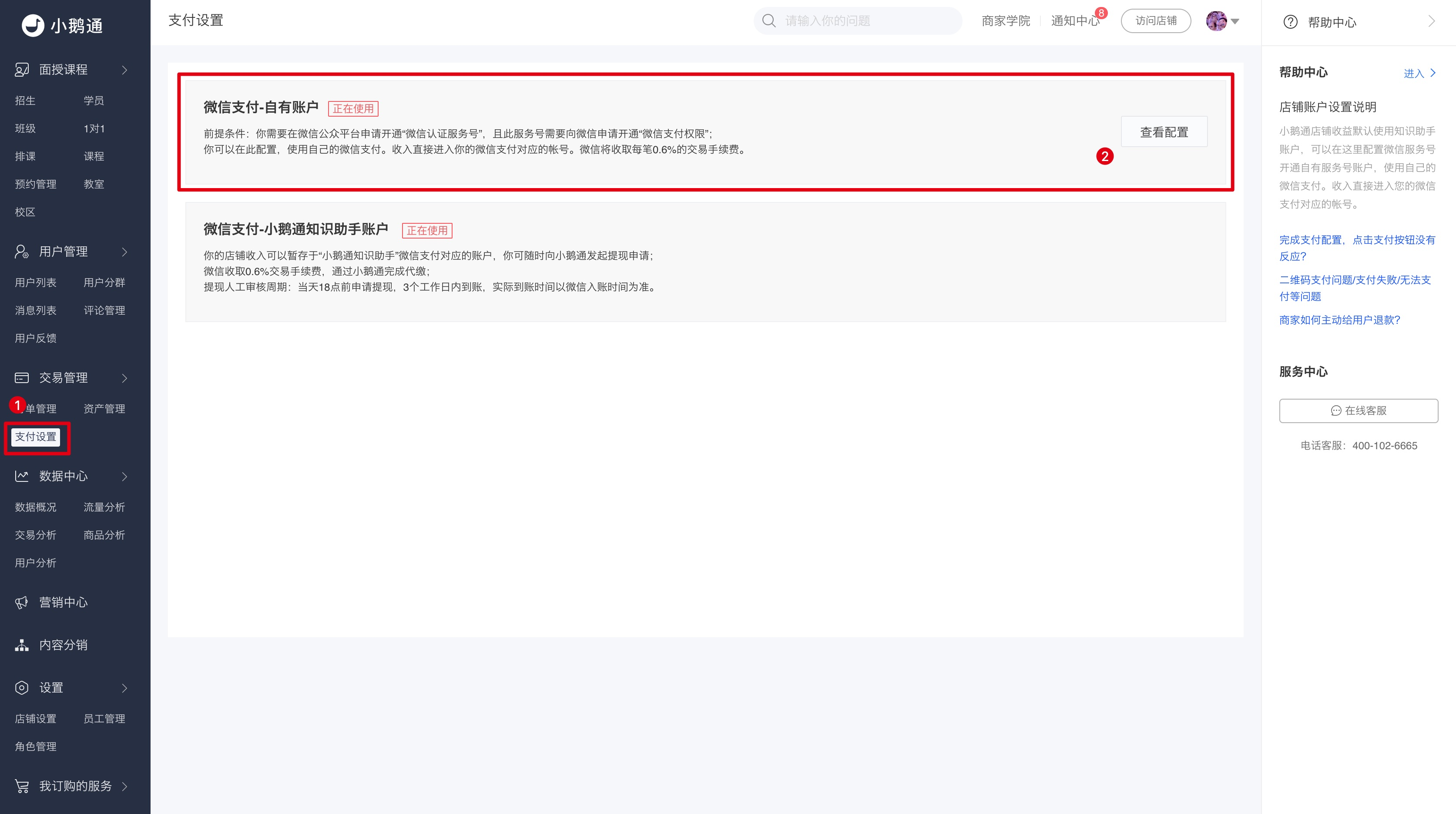
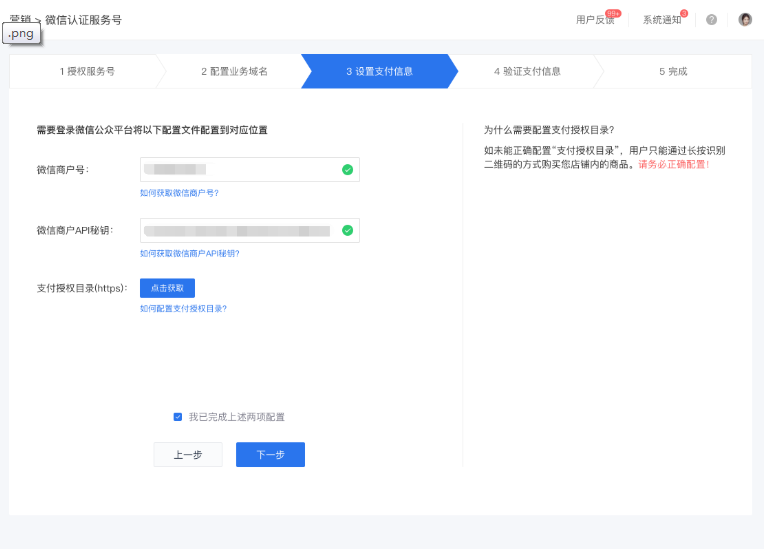
Step 2: In the \[Payment authorization directory (https)\] field, click the \[Copy link\] button on the right to copy the payment authorization directory of your elink store in full. Do not close the elink management console page after completing this step.
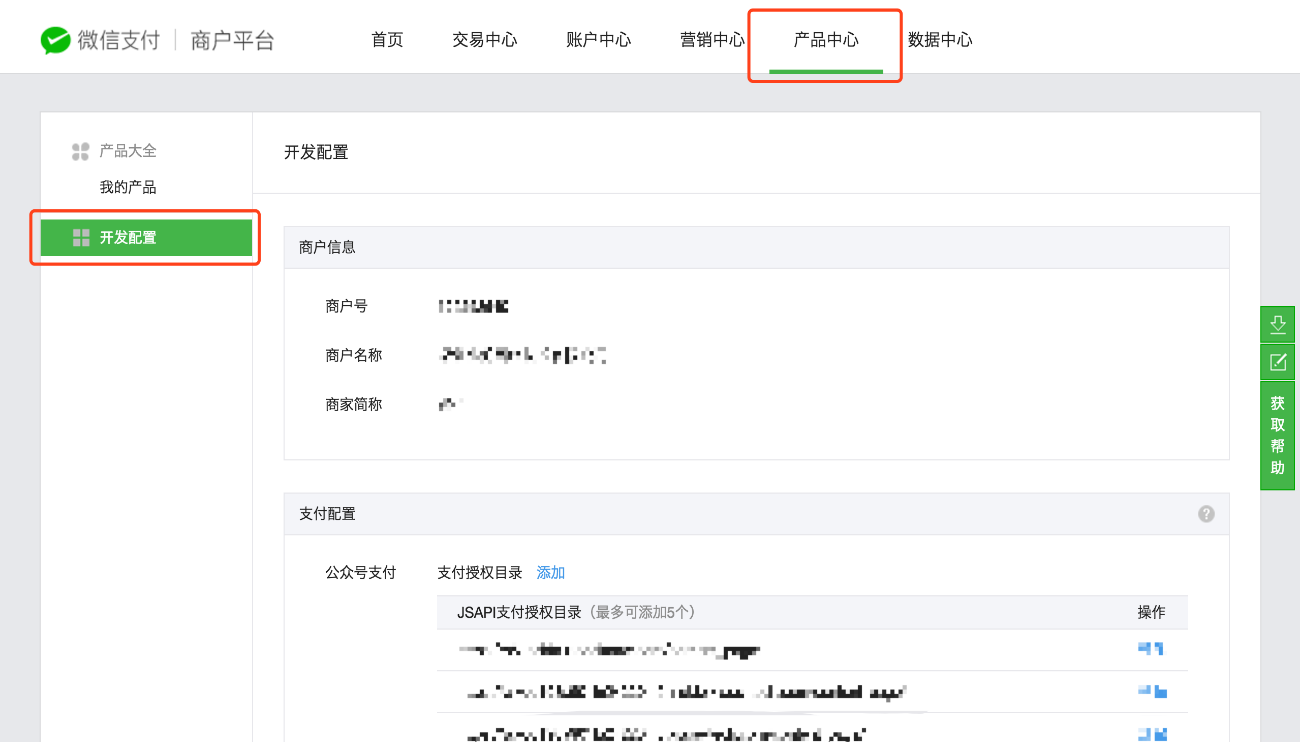
Step 3: Return to your WeChat Pay merchant platform page. Click \[Product Center\] in the top menu bar, and then click \[Development configuration\] in the left sidebar.
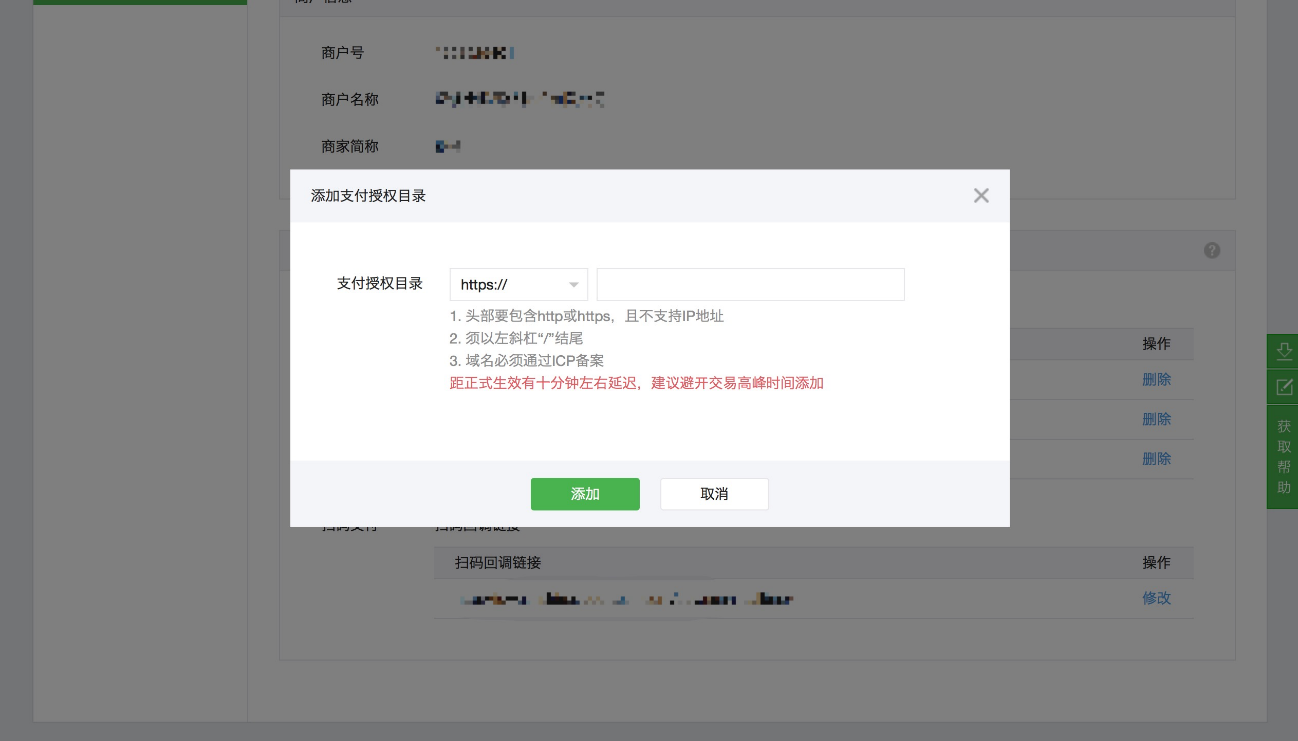
Step 4: In the \[Payment configuration\] section, click the \[Add\] button next to \[Official Account payment\] - \[Payment authorization directory\]. The browser will automatically pop up an add window. First, be sure to select the https:// type in the drop - down menu at the top of the directory, then paste the payment authorization directory of your elink store that you just copied, and click \[Add\] to confirm.
Step 5: Click \[I have completed the above two configurations\] and then click \[Next\] to complete the payment settings configuration process for your elink store.
# Obtain WeChat Merchant ID
[中文](/books/d34ab/page/40008)
In this tutorial, you can obtain your WeChat merchant ID in the following ways:
Step 1: After completing the authorization process in the previous step, open a new browser tab and log in to the authorized WeChat Official Account on the WeChat Public Platform (Login URL: https://mp.weixin.qq.com/).
Step 2: Click on \[WeChat Pay\] in the left sidebar.
● If your Official Account has already enabled the WeChat Pay function, you can view the merchant ID and relevant transaction information.
● If not, you need to apply for activation on this page.
● For users who have just enabled the WeChat Pay function, it takes about 1 day for the merchant information to be generated.
Step 3: Record the merchant ID for future use.
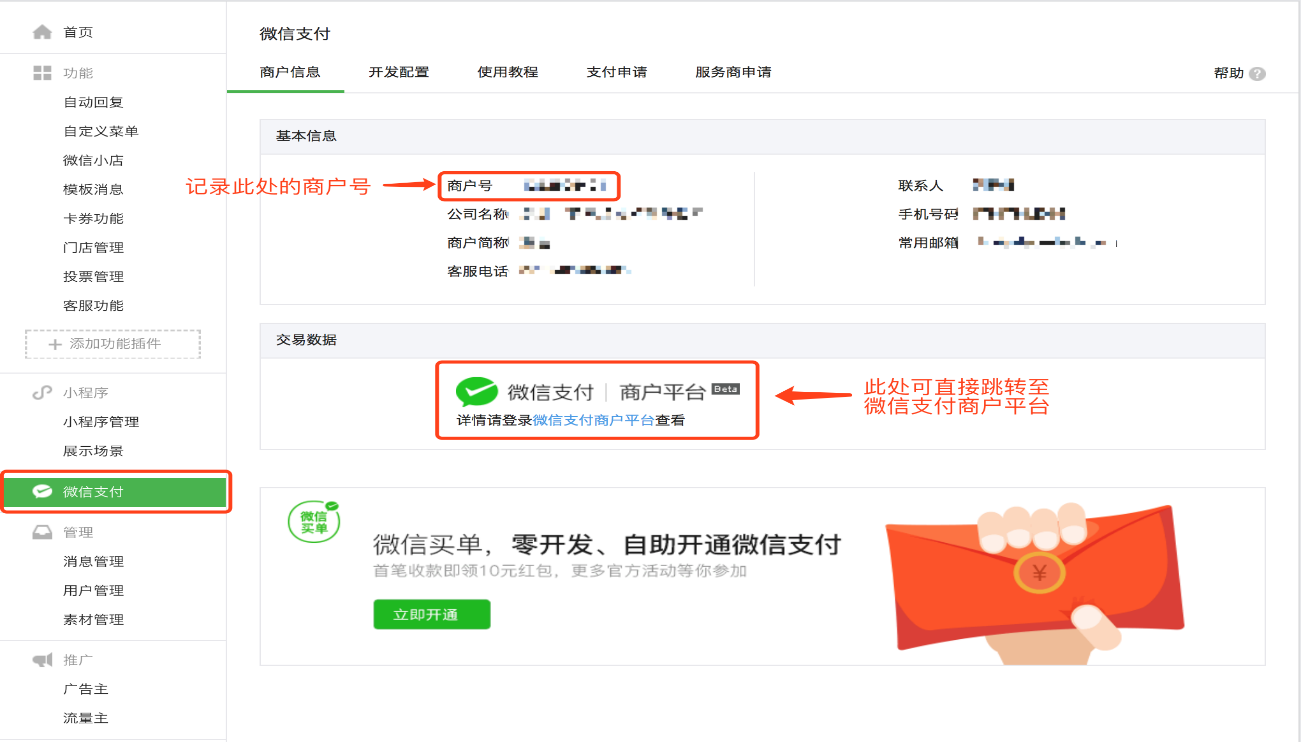
Step 4: Click on \[WeChat Pay | Merchant Platform\] under \[Transaction Data\] to navigate to the WeChat Pay Merchant Platform for the next steps.
# How to complete real-name authentication on WeChat
[中文](/books/d34ab/page/0e659)
When you use the elink personal mode, elink will collect the payment for the content products you sell on your behalf. You can initiate a withdrawal request to transfer your earnings to the bound WeChat account for withdrawal.
According to the official restrictions of WeChat Pay, the daily withdrawal limit for a real - name verified WeChat account is 100,000 yuan. Withdrawals from non - real - name verified WeChat accounts are not supported.
Therefore, before making a withdrawal, you need to check whether your WeChat account is real - name verified on the mobile WeChat client. If it is not verified, you need to complete the real - name verification.
### The specific operation steps are as follows:
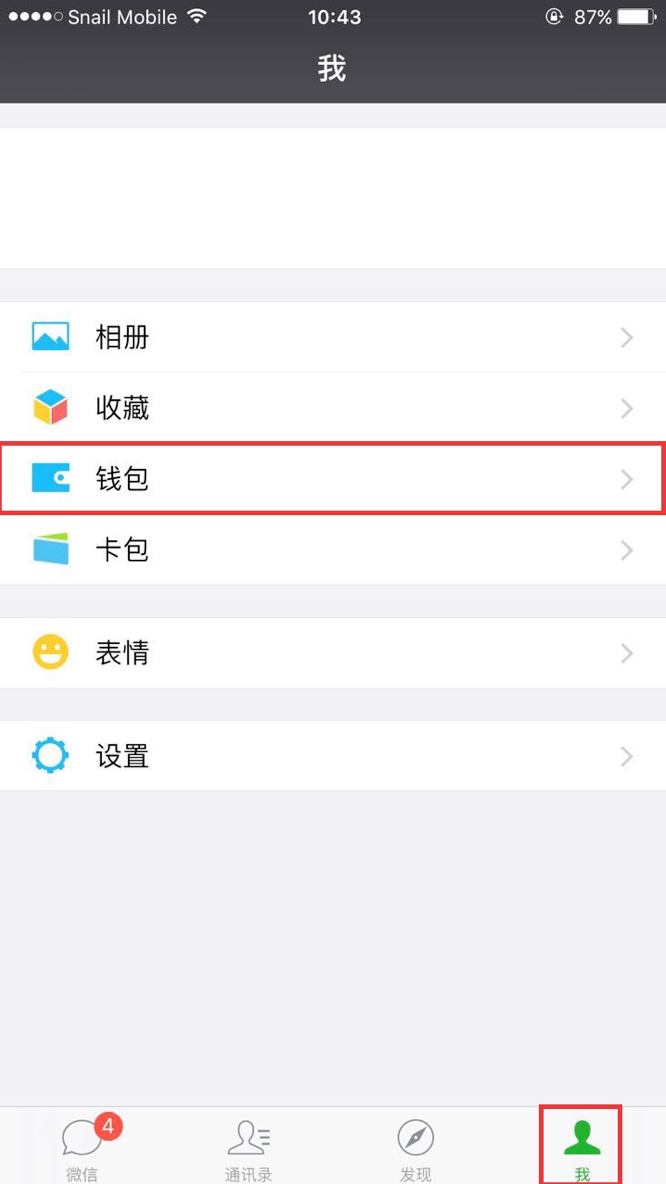
Step1: Log in to yourmobile WeChat client, click on the option “Me” in the bottom menu bar, and find the option “Wallet”.
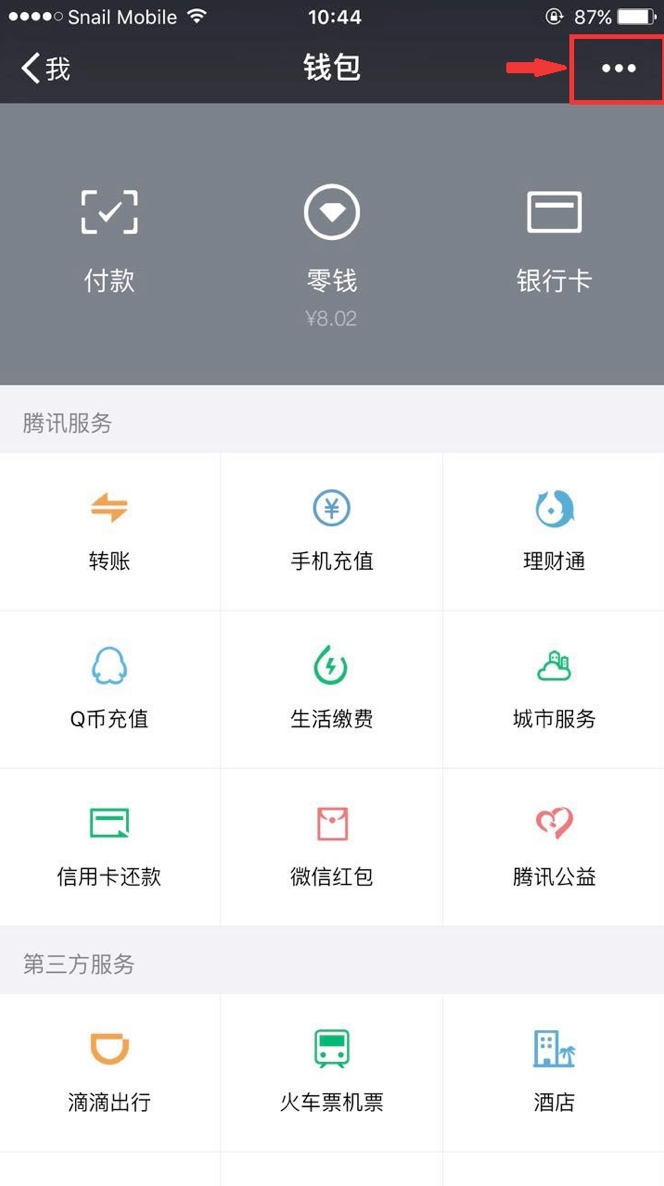
Step2: Click on the “Wallet” option to enter the wallet page, and then click on the “More” option in the upper - right corner (the icon isthree dots).
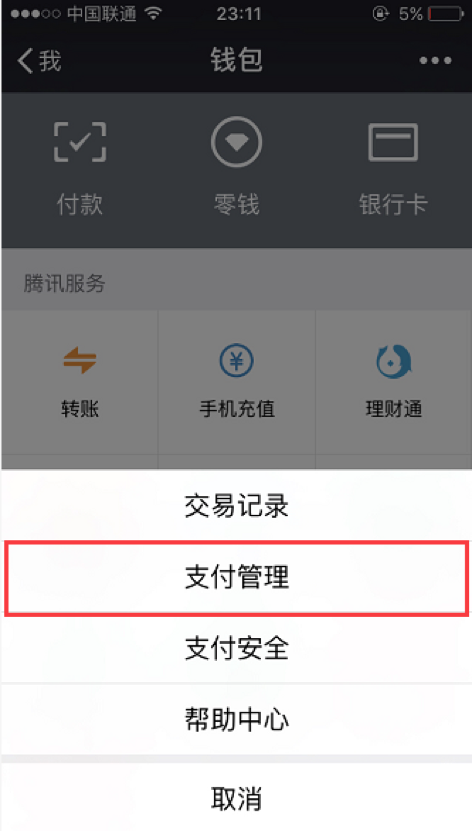
Step3: Click on the “Payment Management” option.
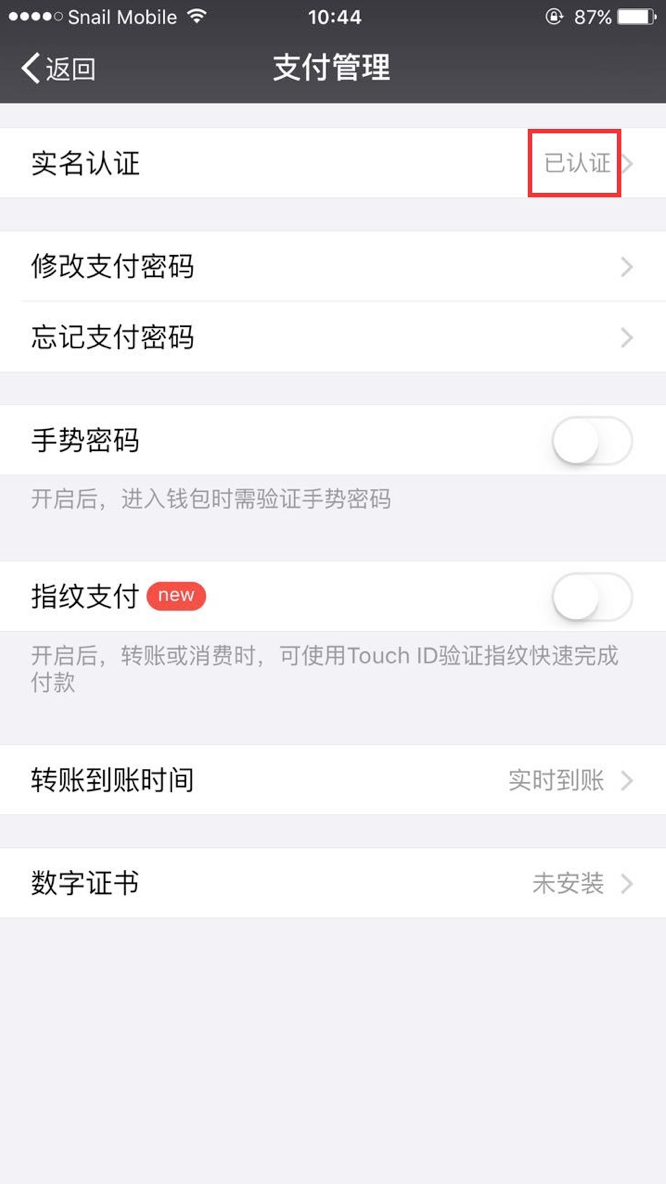
Step4: Check whether your account has been real - name verified on the payment management page.
If it shows “Verified” in the “Real - Name Verification” column, you can return to the elink management background and continue with the withdrawal operation.
If it shows “Verify Now” in the “Real - Name Verification” column, please refer to Step5.
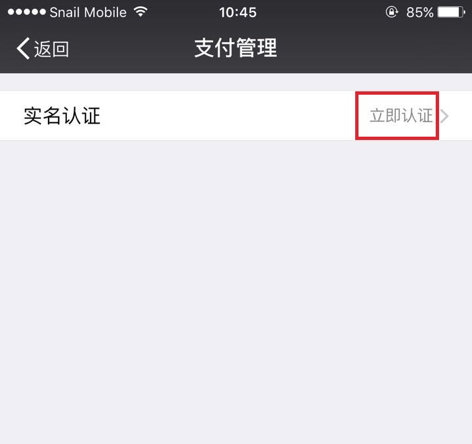
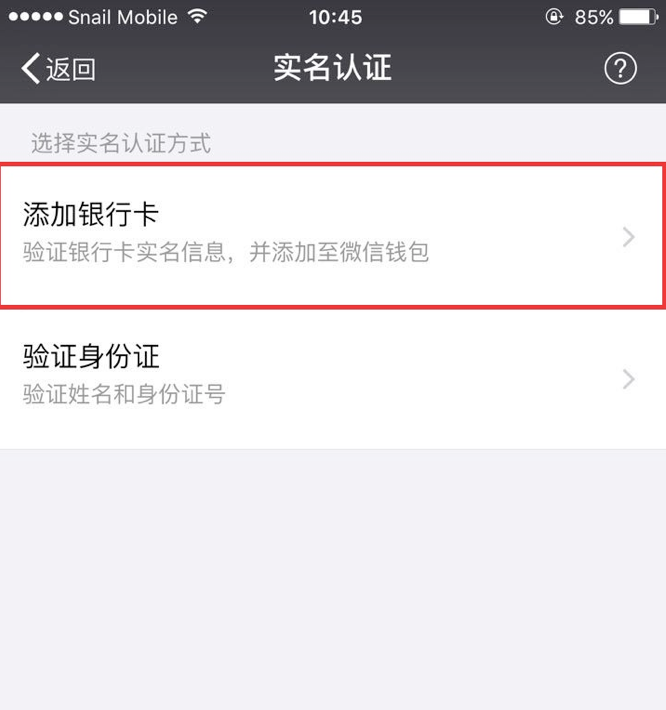
Step5: If it shows “Verify Now” in the “Real - Name Verification” column, it means you haven't completed the real - name verification. Please click on “Verify Now” to start the verification process.
There are two verification methods available. We choose the “Bind Bank Card” method and fill in the relevant verification information.
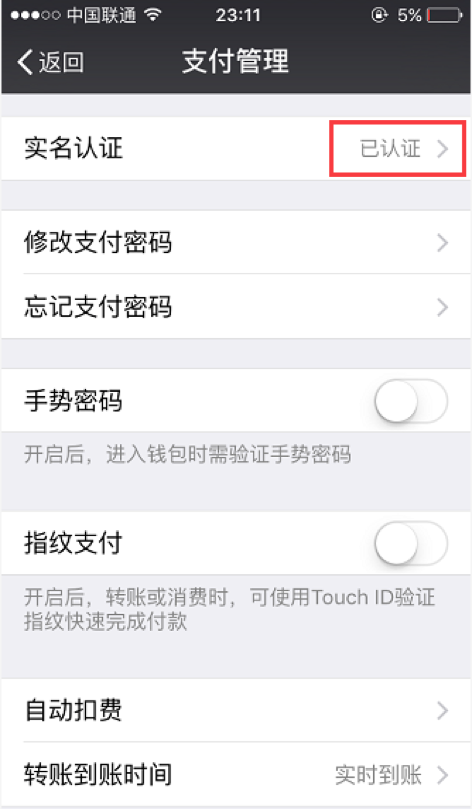
Step6: After filling in the relevant information, click “Complete”. If you see that the status of “Real - Name Verification” has changed to “Verified”, it means your WeChat real - name verification has been successful.
Now you can return to the elink management background and continue with the withdrawal operation.The daily withdrawal amount for a real - name verified WeChat account cannot exceed 20,000 yuan