Delivery management
- Does it support setting shipping fees?
- Tutorial on Using Shipping Fee Templates
- Combined Order Instructions
- Instructions for Order Fulfillment and Shipping
- Split order instructions
- I can't find the shipping button on the order list. How come?
- Users are supported with door-to-door pick-up service for returns
Does it support setting shipping fees?
Hello, you can now set the shipping fees for products, which can be done when creating a product. Currently, two types are supported: [Uniform Shipping Fee] and [Shipping Template].
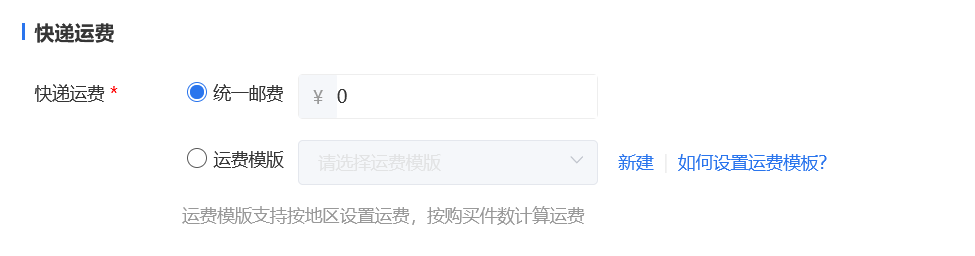
*Click to view the tutorial on using the [Shipping Template].
Tutorial on Using Shipping Fee Templates
I. Function Introduction
The shipping fee template is a shipping fee tool mainly used to solve the problem of sellers having to frequently modify shipping fees after a transaction is completed. Through the shipping fee template, sellers can address the issue of different shipping fees for buyers in different regions when purchasing products.
Core Functions
·Supports setting deliverable regions
·Allows flexible setting of shipping fees for different deliverable regions
·Supports setting shipping fees based on the number of purchased items
·Batch modify product shipping fees. After modifying the shipping fee template, the shipping fees of associated products will be modified accordingly.
II. Purpose of Use
1. Automatically match shipping fees according to the deliverable region, solving the problem of sellers frequently modifying shipping fees.
2. Improve the operational efficiency of merchants in setting shipping fees.
III. Usage Scenarios
Scenario 1: Suitable for all merchants selling physical products. Merchants can independently select deliverable regions, set different shipping fees for different regions, and set additional shipping fees based on the number of product items.
IV. Operation Path
Merchant side: Merchant computer - side management background → Transaction and Order Management → Shipping Fee Template → Create a new shipping fee template
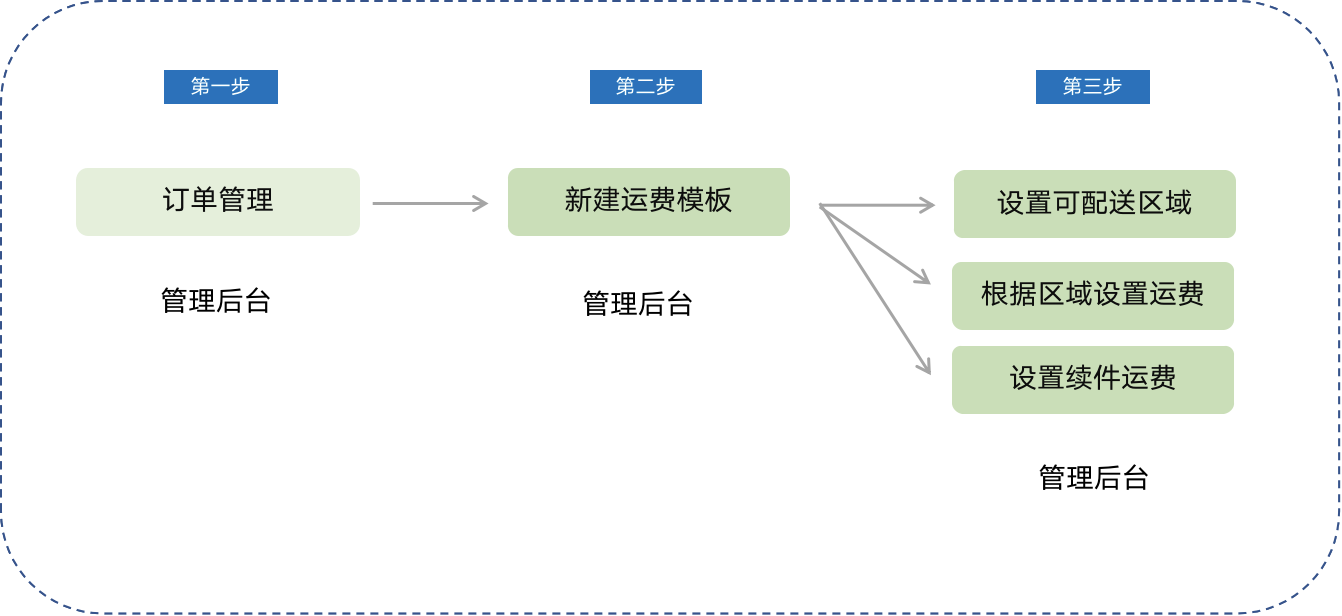
V. Usage Tutorial
Step 1: Create a new shipping fee template
Entry: Transaction → Transaction Settings → Delivery Settings
·On the delivery management list page, you can create a new shipping fee template.
·By default, there are three templates: Free shipping nationwide (except remote areas), No free shipping, and Free shipping in Jiangsu, Zhejiang, and Shanghai. You can 'Edit' and 'Delete' the templates.
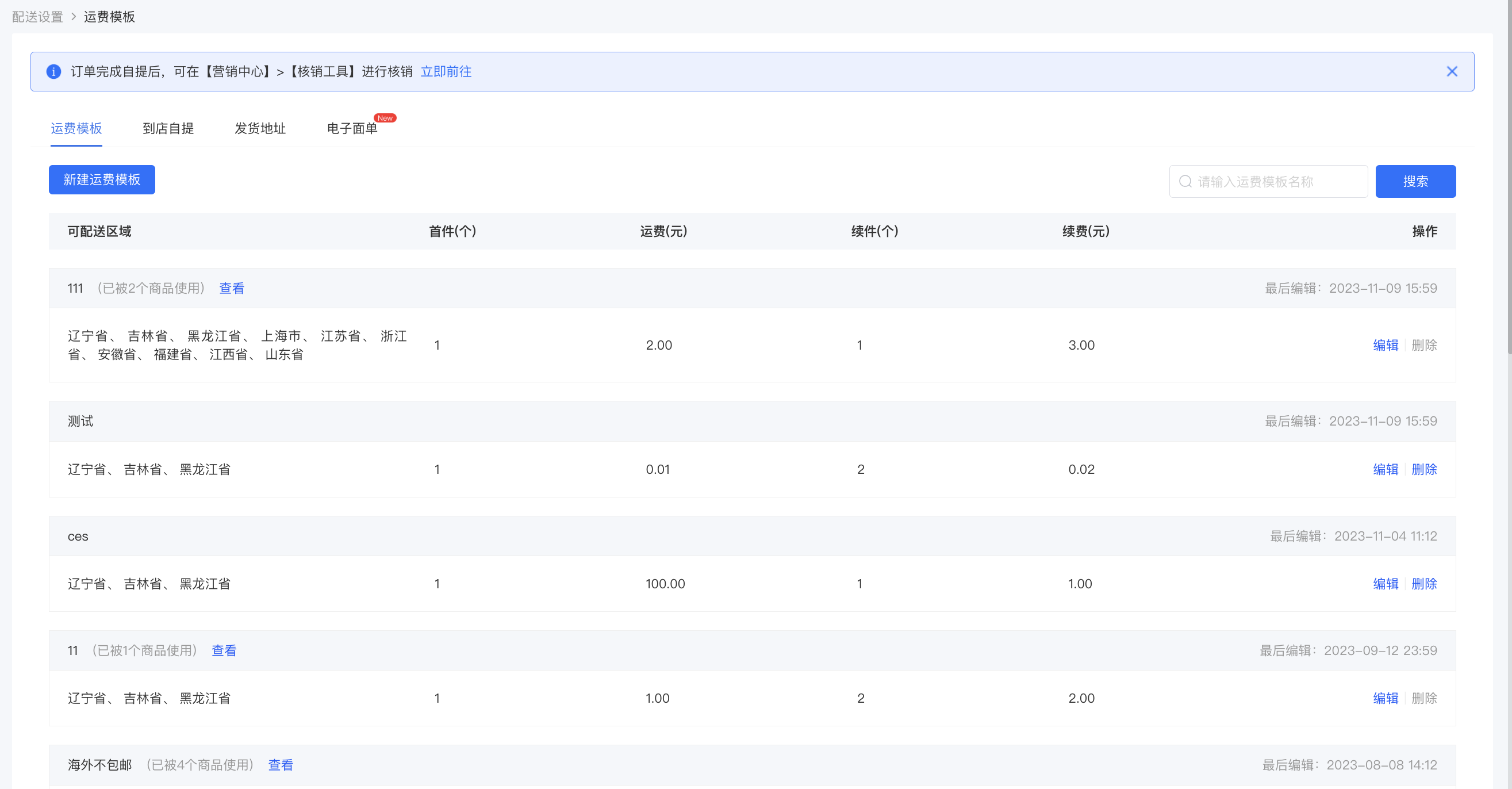
·Shipping fee templates that are in use by products cannot be deleted.

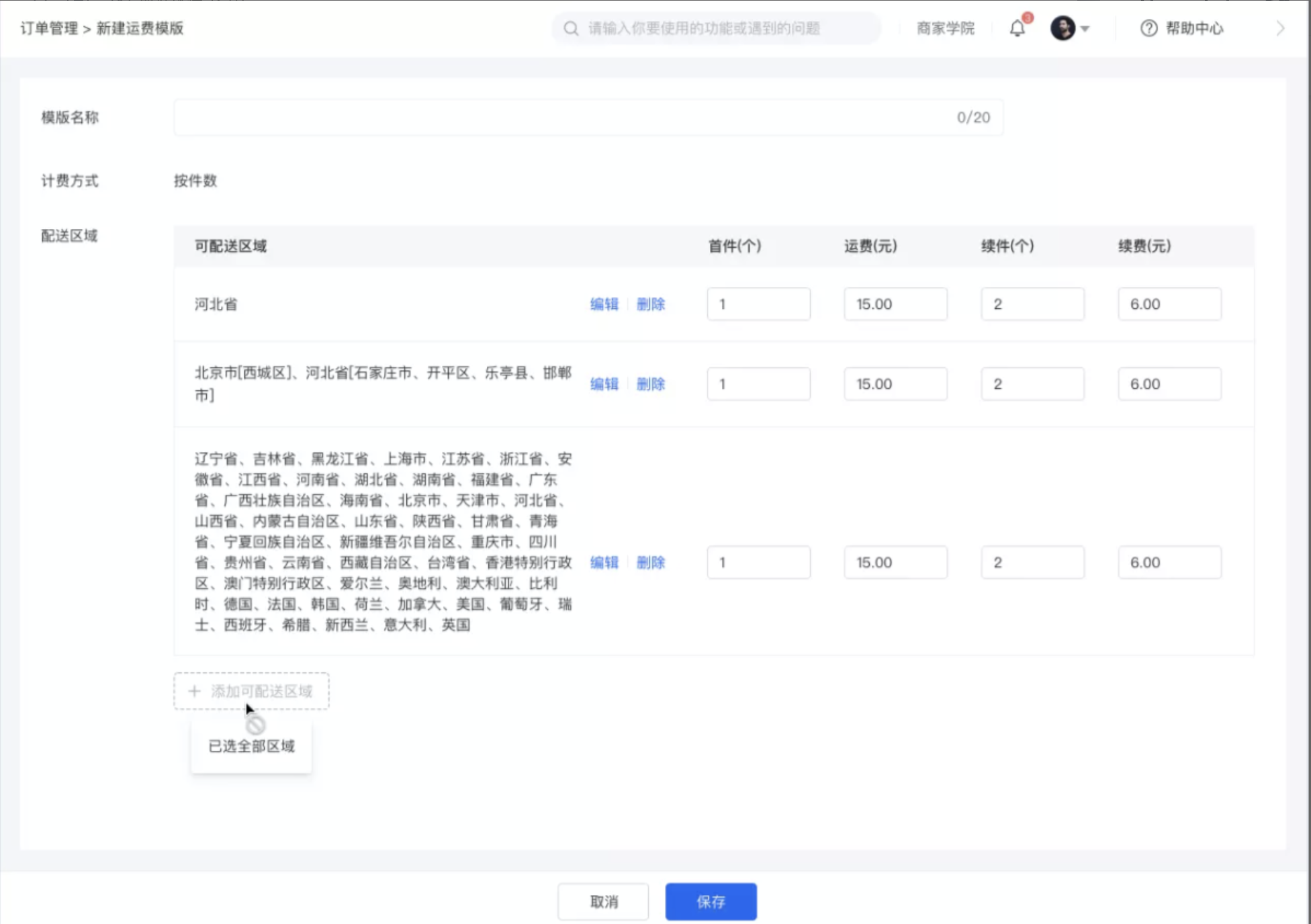
Step 2: Select deliverable regions
·Select deliverable regions. Click 'Cancel' to return to the shipping fee template list page. All content on the page is required. If any content is not filled in or is partially filled, it cannot be saved.
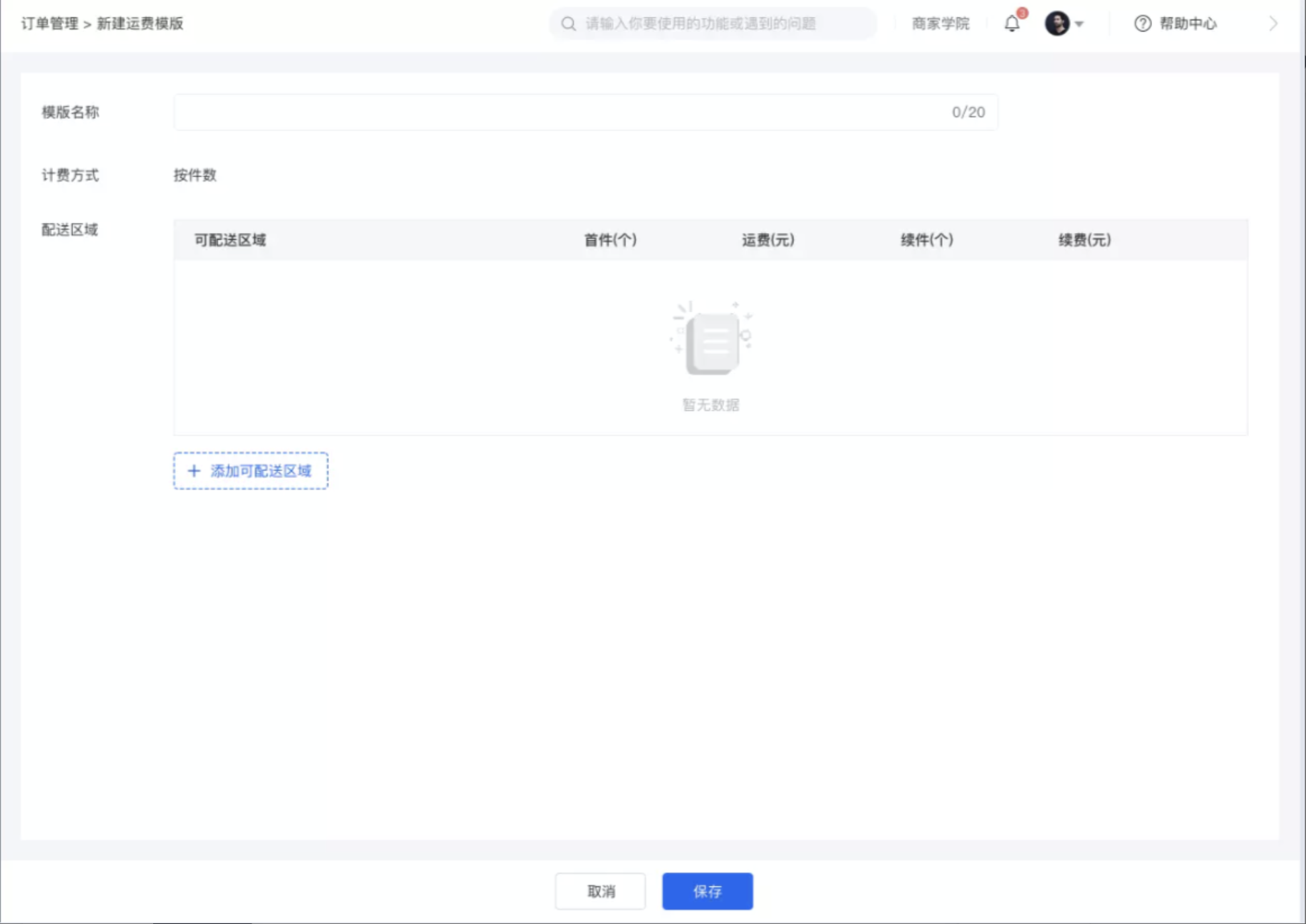
·The delivery regions support full - selection. Selected regions support delivery, and unselected regions do not support delivery.

Step 3: Set shipping fees
·You can flexibly set shipping fees according to different regions. The number of first - piece items should be greater than or equal to 1.
·Shipping fee calculation rule: First - piece shipping fee + Additional fee (Note: If the number is less than the additional - piece quantity, it will be calculated as the additional - piece quantity).
·Click 'Edit' to modify the deliverable region.
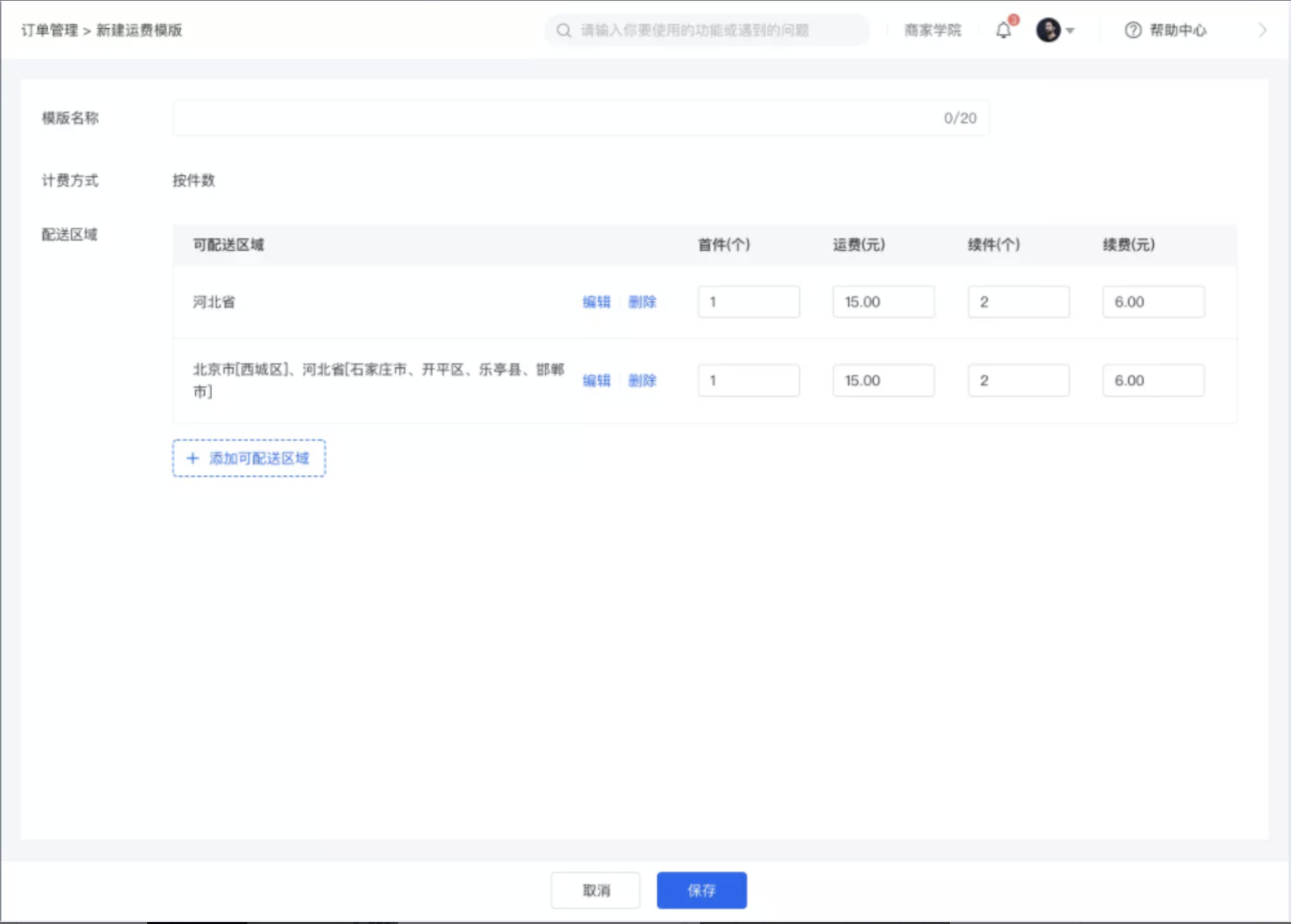
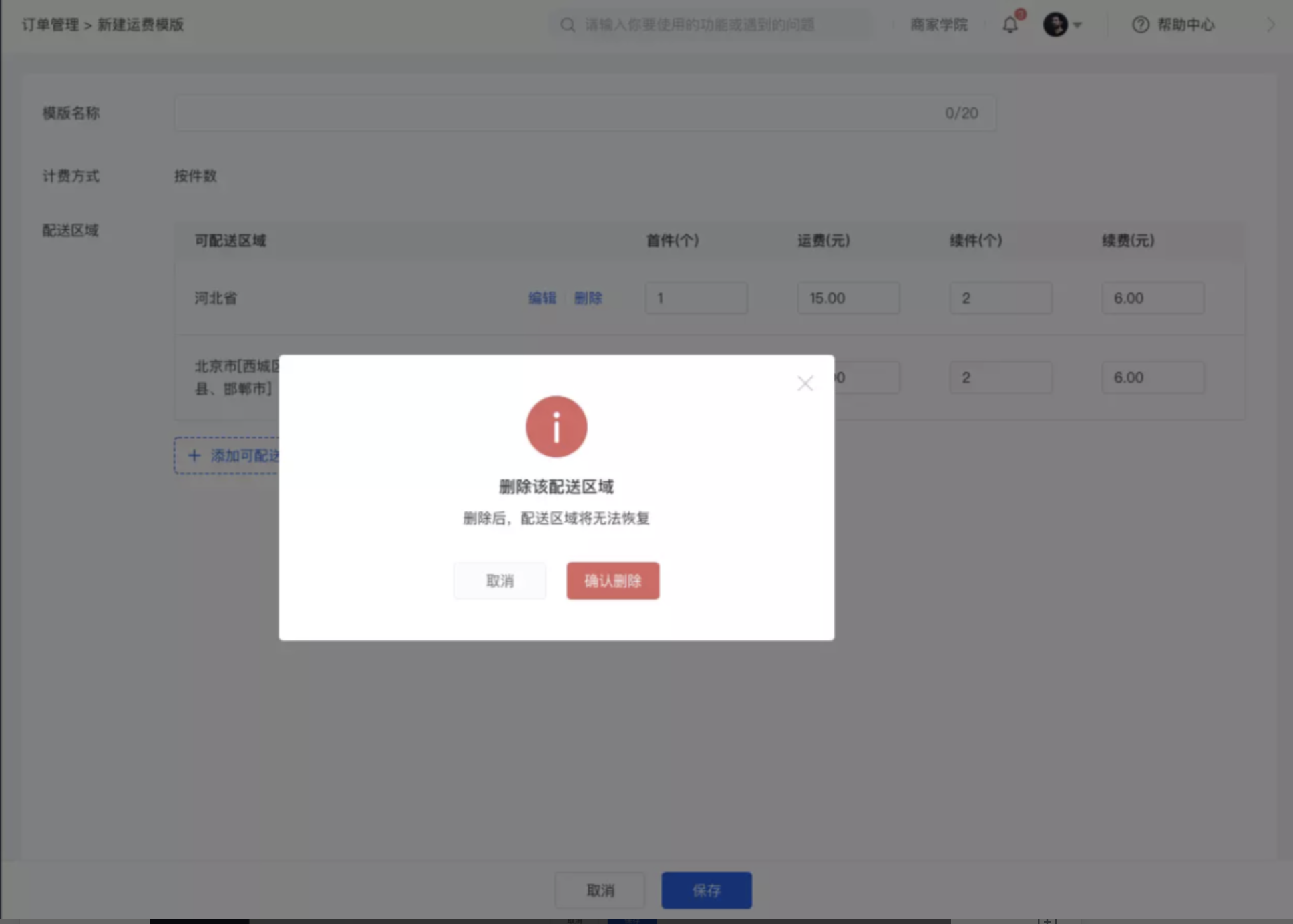
·Click 'Delete' to delete the selected region and the corresponding shipping fee, and it cannot be restored. You need to edit it again.
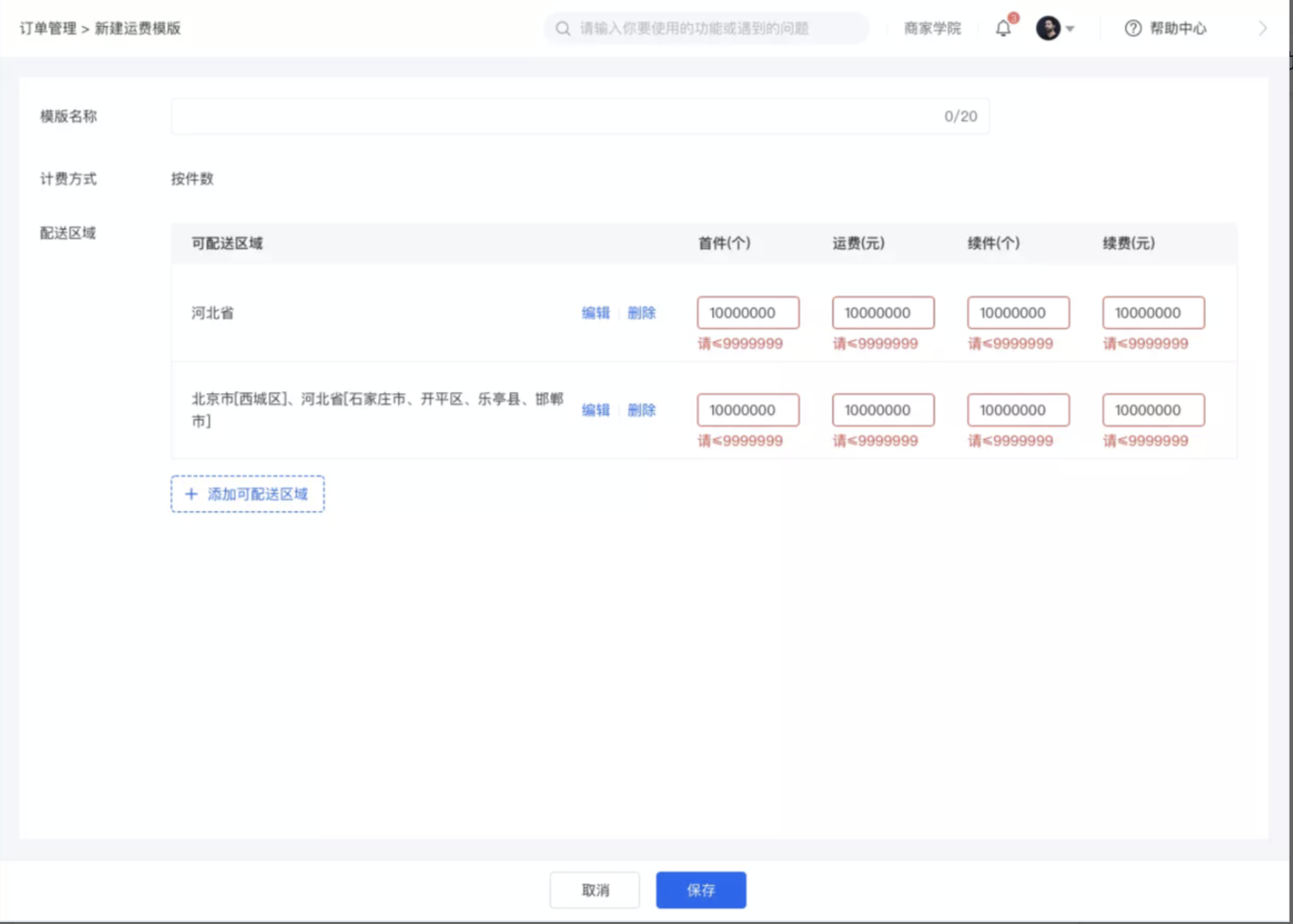
·When the number of shipping fee templates exceeds the limit
·First - piece: The maximum input unit is one million (7 digits: 9999999).
·Shipping fee: The maximum input unit is one million.
·Additional piece: The maximum input unit is one million.
·Additional fee: The maximum input unit is one million.
·Click 'Add deliverable region' to add a new deliverable region. When all deliverable regions are selected, 'Add deliverable region' cannot be clicked.
Step 4: Use the shipping fee template
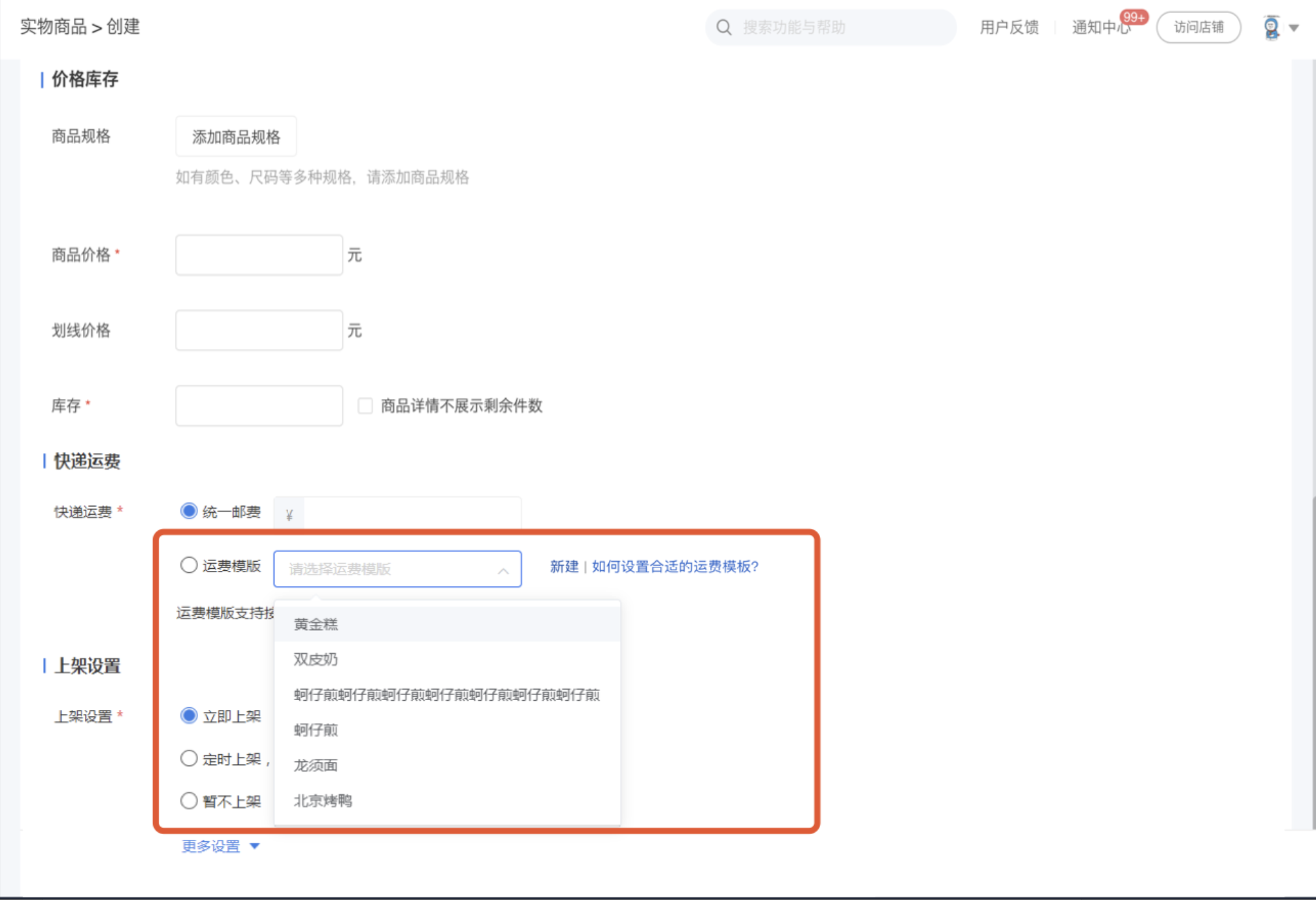
·The shipping fee template is used when creating/editing physical products.
·Click the drop - down list of the shipping fee template and select the shipping fee template you want to set.
·Click 'New' to jump to create a new shipping fee template.
Step 5: Shipping fee display on the C - end
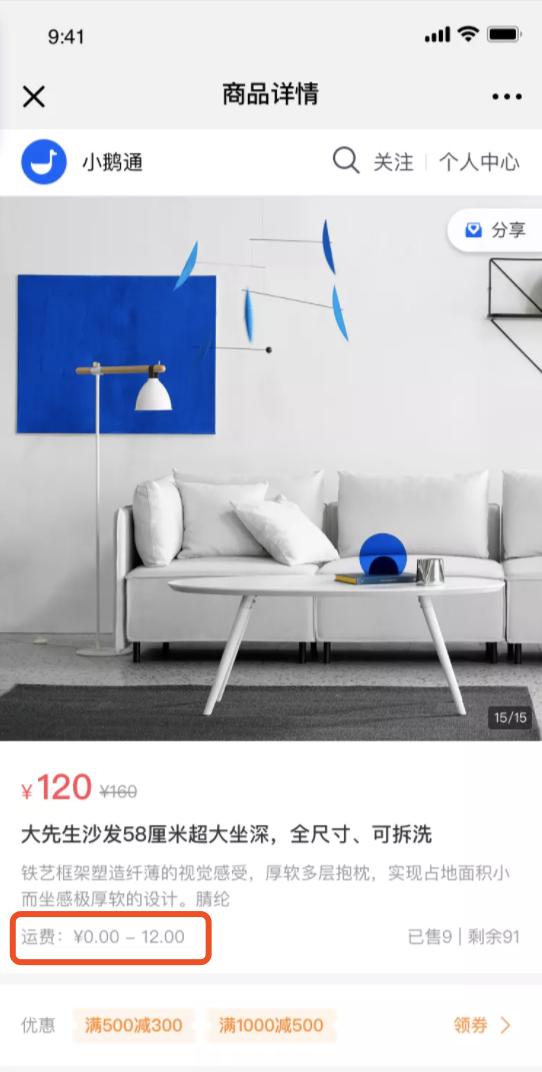
·If the shipping fee template used by a product has multiple shipping fee specifications, the shipping fee range is: First - piece shipping fee (lowest) - First - piece shipping fee (highest).
·If the first - piece shipping fees of the shipping fee template used by a product are the same, it will display: First - piece shipping fee.
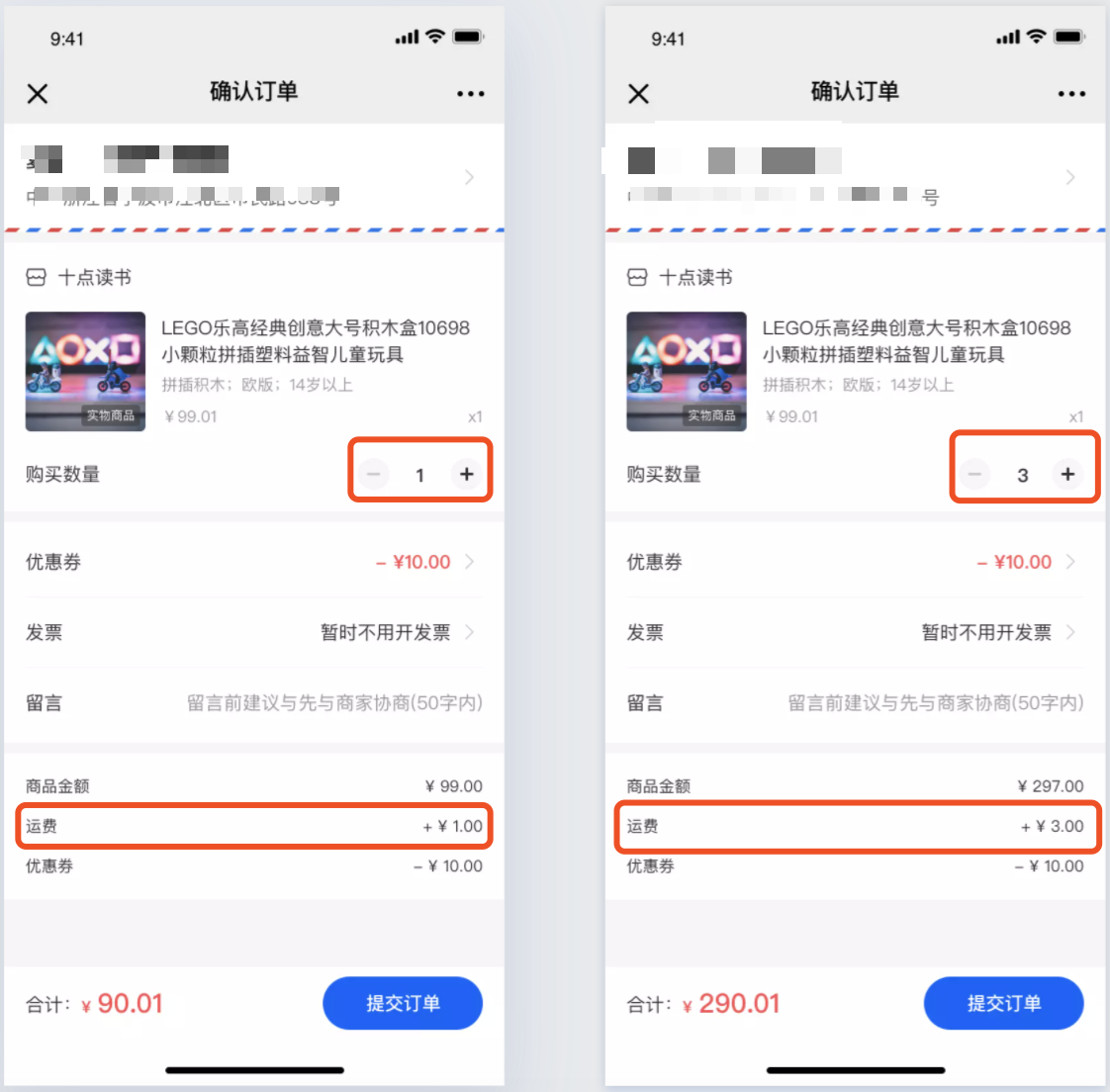
·When purchasing multiple products, the shipping fees will be automatically added up according to the shipping fees set in the shipping fee template.
Step 6: Shipping address
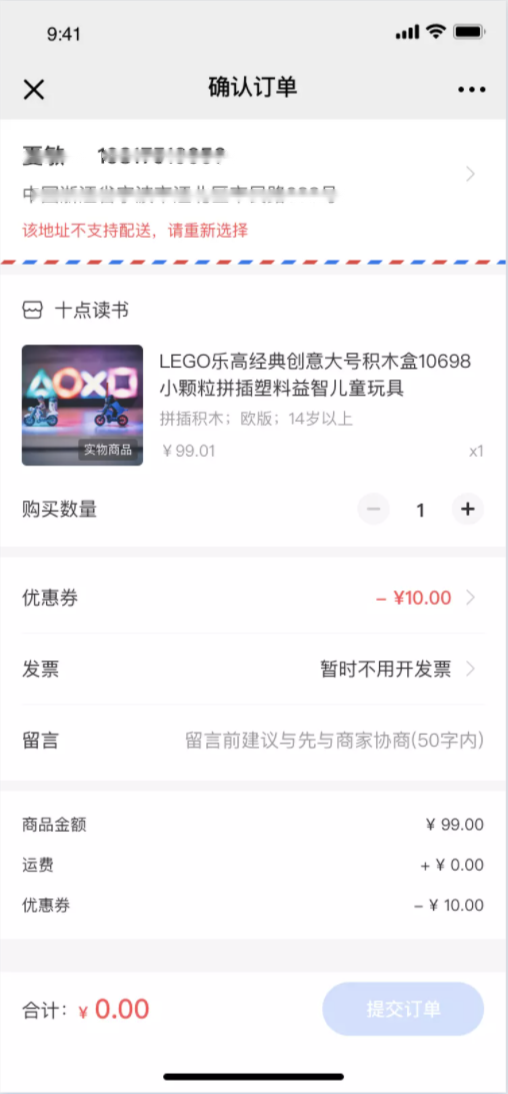
·If the shipping address filled in by the user is not within the merchant's deliverable region, the order cannot be submitted, and the user will be prompted: This address does not support delivery. Please select again.
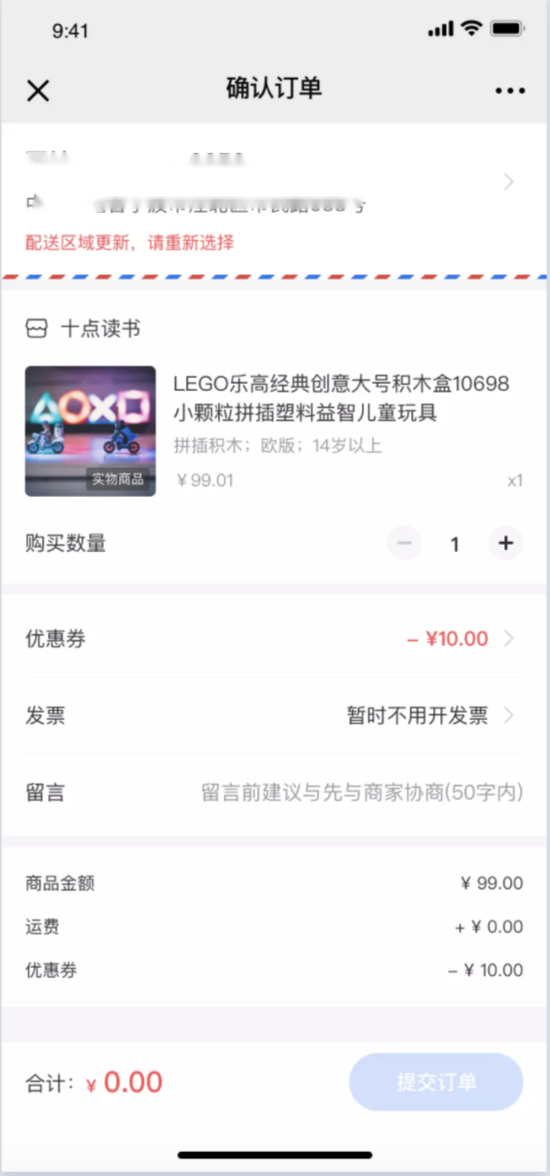
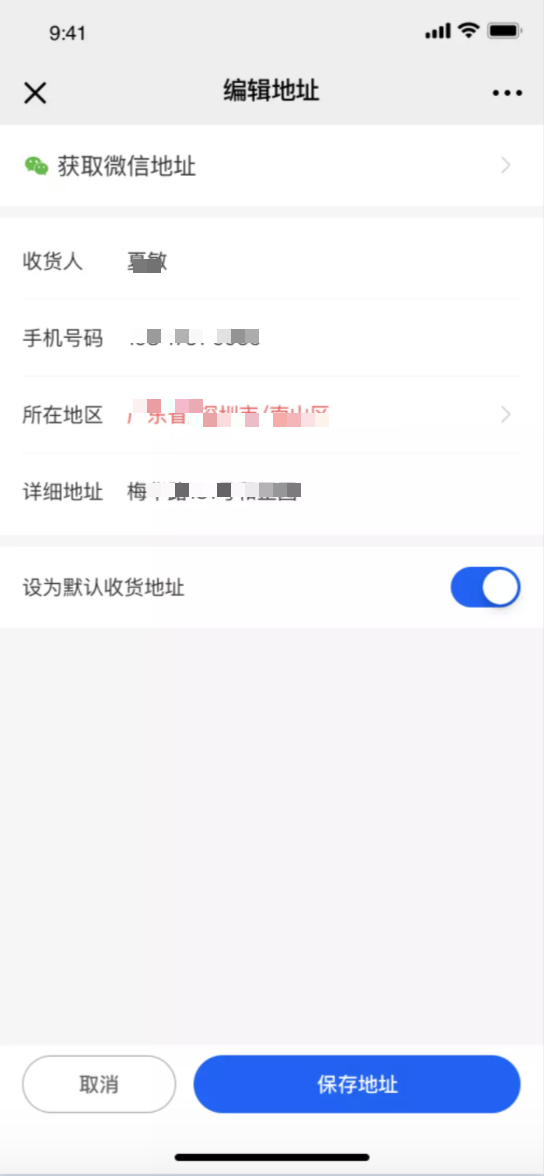
·When the user's old address does not match the address in the current address selector, the order cannot be submitted, and the user will be prompted to edit the address again.
Precautions:
1. Personnel without the 'Order Management - Delivery Management' permission cannot create shipping fee templates and cannot add them when creating physical products. They can use them normally after the permission is enabled.
2. After modifying the shipping fee template used by a product, the modified content will be synchronized to the products using this shipping fee template.
3. Unchecked 'Deliverable regions' do not support delivery.
Combined Order Instructions
1) Merge Orders
a. IfRecipient's Name/Phone Number/Addressare exactly the same, you can manually select and directly merge the orders. Note that you need to select at least two orders to merge. The merged orders will be labeled with 'Merged'.
b.The merged order takes the earliest order placement time(The order list for printing and shipping is sorted in descending order by order placement time)
c. Orders can only be merged once.Merged orders cannot be merged again.
2) Cancel Merge
a. Merged orders support canceling the merge (a secondary confirmation pop - up window will appear). You can select multiple merged orders to cancel the merge at the same time.
3) One - click Merge
a.One - click merge groups the orders that can be merged in the order list for printing and shipping by recipient. Each group corresponds to the same recipient.
b. For the same recipient, you can freely choose to merge the recipient's orders into one or multiple packages. Select the orders to be merged and click [Merge Selected Orders] to complete the merge.
c. If all orders of the same recipient are merged, it will automatically jump to the next group of recipients.
d. NoteOne - click merge excludes the merged orders(because orders can only be merged once)
Instructions for Order Fulfillment and Shipping
I. Project Background
The system does not support combined order shipping and split order shipping, forcing merchants to handle these tasks manually offline, which incurs high costs.
II. Project Value
1. Combined order shipping:When a single user places multiple orders, these orders can be packed into one parcel for shipping, saving the merchant's logistics costs.
2. Split order shipping: When an order includes multiple items, it supports split shipping to flexibly meet the user's needs.
III. Operation Path
New Management Console 2.0: Transactions - Order Management - Print and Ship
Current Management Console: Transactions - Logistics Management - Print and Ship
Old Management Console: Transaction Capabilities - Print and Ship
IV. Usage Instructions
1. Print and Ship List
All [Ship] operations are centralized in the newly added [Print and Ship] list, which only displays physical products.It supports filtering by order number, order placement time, product name, recipient region, and recipient name.
2. Combined Order Shipping
1) Merge Orders
a. Ifthe recipient's name/phone number/addressis exactly the same,you can manually select and directly merge the orders. Note that you need to select at least two orders to merge. The merged orders will be labeled with 'Combined'.
b.The merged order takes the earliest order placement time(The Print and Ship list is sorted in descending order by order placement time).
c. Orders can only be merged once.Merged orders cannot be merged again.
2) Cancel Merge
a. Merged orders support cancellation of the merge (a confirmation pop - up window will appear). You can select multiple merged orders to cancel the merge at the same time.
3) One - Click Merge
a.One - Click Merge groups the orders that can be merged in the Print and Ship list by recipient. Each group corresponds to the same recipient.
b. For the same recipient, you can freely choose to merge the recipient's orders into one or multiple parcels. Select the orders to be merged and click [Merge Selected Orders] to complete the merge successfully.
c. If all orders of the same recipient are merged, it will automatically jump to the next group of recipients.
d. NoteOne - Click Merge excludes merged orders(Because orders can only be merged once).
3. Split Order Shipping
1) Split Parcels
a.When an order contains multiple different products or multiple quantities of the same product, it supports splitting.You need to select at least one order to open the [Split Parcels] pop - up window. Note that if an order contains only one product, splitting is not supported.
b. Group and split according to the selected parcels.
c. Select the products to be split out and click [Split Selected Products for Separate Shipping]. The selected products will be split into a separate parcel for shipping. After successful splitting, the products will disappear from the pop - up window, and you can continue to split. NoteSplit parcels cannot be merged again.
d. If an order is fully split, it will automatically jump to the next group.
e.For products with a purchase quantity greater than 1, they can be further split into single - item parcels after being split out.For example, if you split out 3 durians, they can be further split into 3 separate parcels.
Split order instructions
1) Split packages
a、When an order contains multiple different products or multiple quantities of the same product, splitting is supported.You need to select at least one order to pop up the [Split Package] window. Note that if an order contains only one product, splitting is not supported.
b、Group and split according to the selected packages
c、Select the products to be split out, click [Split the selected products for separate shipment], and the products will be split into a separate package for shipment. After successful splitting, the products will disappear from the pop - up window, and you can continue to split. NoteSplit packages cannot be merged again.
d、If an order is fully split, it will automatically jump to the next group
e、For products with a purchase quantity greater than 1, they can be further split into single - item packages after being split out.For example, if you split out 3 durians, they can be further split into 3 separate packages
I can't find the shipping button on the order list. How come?
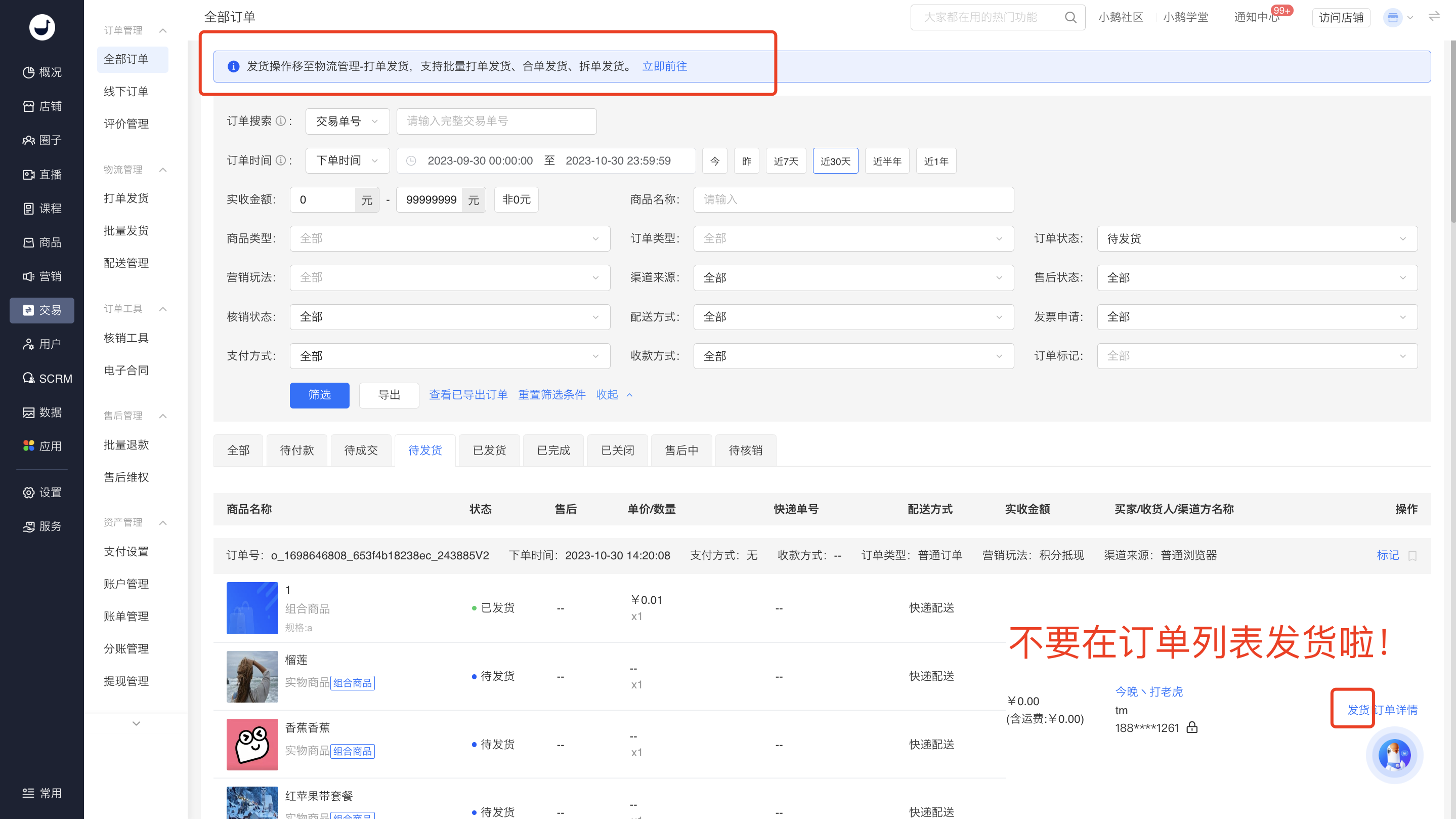
To provide customers with a better experience in order processing and shipping, the shipping operations have been centralized into a new module, and functions for combined order shipping and split order shipping are also provided. The changes are as follows:
The [To be shipped] operation in the original order list has been moved to the [Order Processing and Shipping] module. Subsequently, you can directly perform shipping operations in the [Order Processing and Shipping] list.
(Note: Currently in the transition phase, the shipping button is still retained in the order list. Clicking it will redirect you to the order processing and shipping page. The shipping button in the order list will be removed later.)
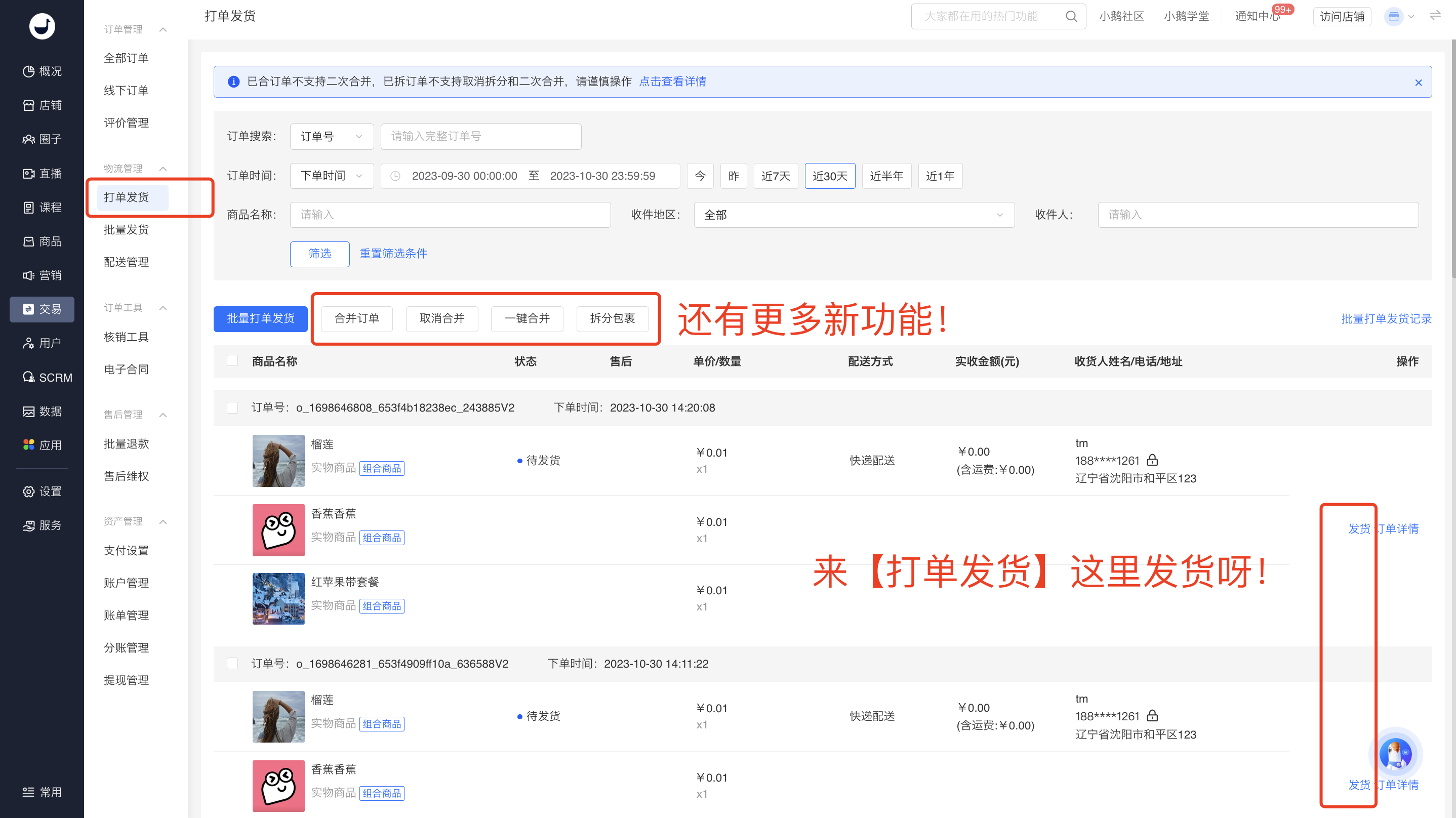
Appendix: Instructions for order processing and shipping operations:
https://admin.xiaoe-tech.com/helpCenter/problem?first_id=600&second_id=416&document_id=doc_6538c1231b8ae_tRslw
Users are supported with door-to-door pick-up service for returns
I. Project Background
Currently, when users apply for after-sales returns, they need to contact the courier company on their own and fill in the tracking number, which is very inconvenient.
II. Project Value
Support users to apply for door-to-door pick-up when initiating a return and refund request, reducing the user's operations in the entire after-sales process and improving after-sales efficiency.
III. Operation Path
Consumer End: Personal Center - Orders - After-sales - View Details - Return and Refund Details
IV. Instructions for Use
1. What is Door-to-Door Pick-up?
When a user returns a purchased product, they can choose to have the courier company arrange for a courier to pick up the returned product at their doorstep.
2. Which courier companies support door-to-door pick-up?
Currently, the courier company that supports door-to-door pick-up is JD Logistics.
3. How much does door-to-door pick-up cost?
Users can see the estimated shipping fee when placing an order. The actual shipping fee is subject to the courier's on-site assessment. Users pay the courier directly.
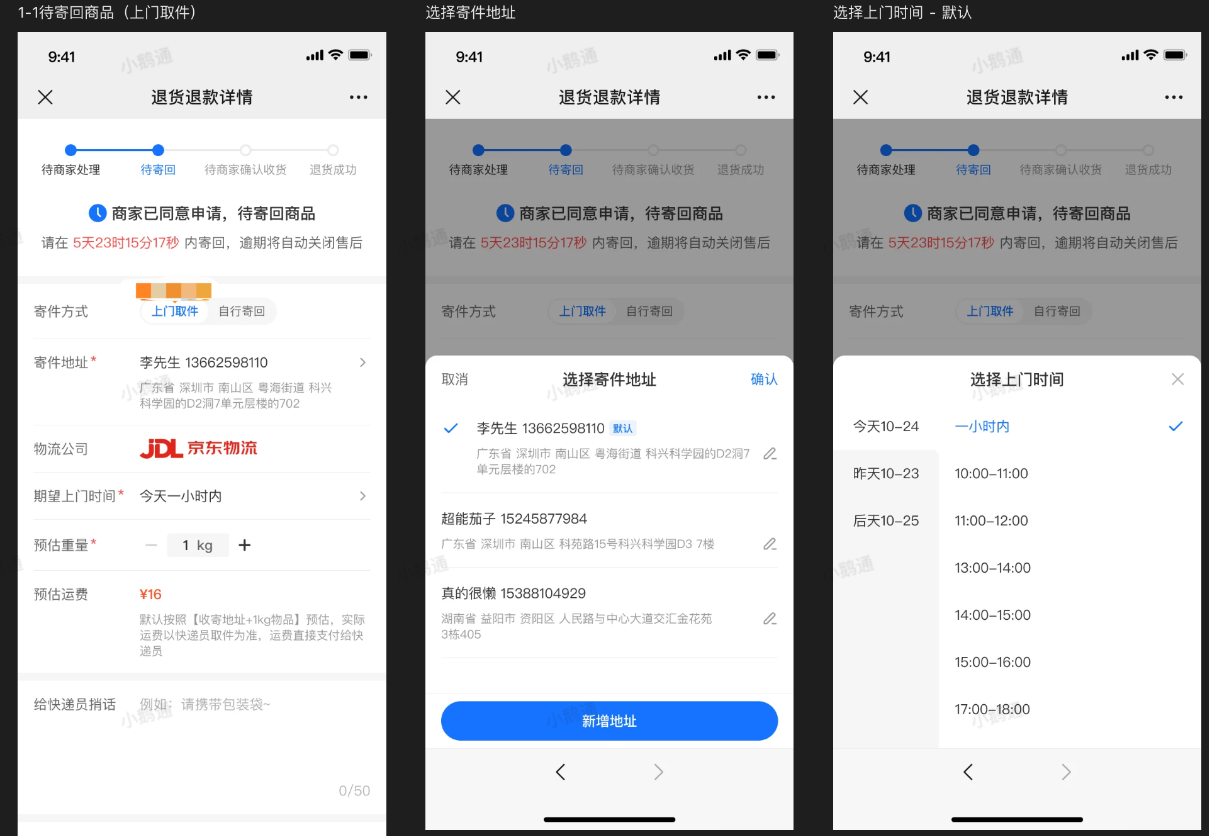
4. How do users operate door-to-door pick-up?
1) Apply for after-sales service for the order, submit a return and refund request, and wait for the merchant to approve the request.
2) After the merchant approves the return and refund or exchange request, the buyer selects the 'Door-to-Door Pick-up' return method.
3) The buyer selects door-to-door pick-up and chooses a time slot for the pick-up. The pick-up address defaults to the delivery address at the time of ordering and can be modified.
4) The courier comes to pick up the product, and the user pays the shipping fee to the courier.
5) The buyer waits for the merchant to confirm receipt of the product.
6) The merchant confirms receipt of the product, and the order refund is successful.
5. Can the door-to-door pick-up order be cancelled?
It can be cancelled before the courier arrives for pick-up. After cancellation, the order returns to the 'Pending Return' status, and the user can choose the return method again.
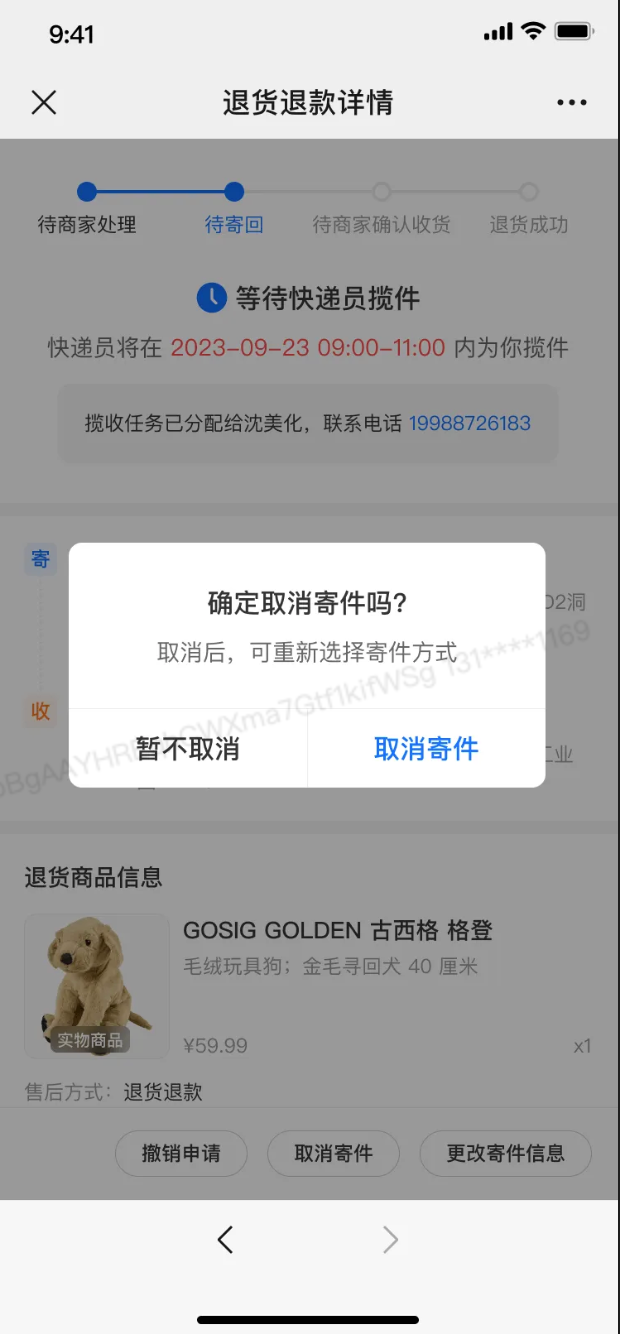
It can also be cancelled after the courier has picked up the product. Since transportation has already occurred at this time, partial shipping fees will be refunded upon cancellation. After cancellation, the order returns to the 'Pending Return' status, and the user can choose the return method again.