# Tutorial on Using the Micro Page on the Desktop

<div data-elink-language-switch="1" id="bkmrk-%E4%B8%AD%E6%96%87" style="border:1px solid #d6d9de;border-radius:6px;padding:10px 12px;margin:0 0 18px 0;background:#f8fafc;font-size:14px;">[中文](/books/8f855/page/06138)</div><span style="font-weight:700;background-image:initial;background-position:initial;background-size:initial;background-repeat:initial;background-attachment:initial;letter-spacing:0pt;vertical-align:baseline;font-size:17px;">I. Feature Introduction</span><span style="font-size:15px;"><span style="font-weight:700;background-image:initial;background-position:initial;background-size:initial;background-repeat:initial;background-attachment:initial;letter-spacing:0pt;vertical-align:baseline;"></span><span style="color:rgb(51,51,51);background-image:initial;background-position:initial;background-size:initial;background-repeat:initial;background-attachment:initial;letter-spacing:0pt;vertical-align:baseline;"></span></span>

<span style="font-size:15px;"><span style="font-size:15px;background-image:initial;background-position:initial;background-size:initial;background-repeat:initial;background-attachment:initial;letter-spacing:0pt;vertical-align:baseline;">Micro Pages are a feature that allows merchants to independently build personalized pages for their Online Stores. The content and display styles within Micro Pages can be customized by adding components. Multiple pages can be built within an Online Store, and navigation can be set up to enable page jumps.</span><span style="font-size:15px;color:rgb(51,51,51);background-image:initial;background-position:initial;background-size:initial;background-repeat:initial;background-attachment:initial;letter-spacing:0pt;vertical-align:baseline;"></span></span>

<span style="font-weight:700;background-image:initial;background-position:initial;background-size:initial;background-repeat:initial;background-attachment:initial;letter-spacing:0pt;vertical-align:baseline;font-size:17px;">II. Purpose of Use</span><span style="font-size:15px;"><span style="font-size:15px;font-weight:700;background-image:initial;background-position:initial;background-size:initial;background-repeat:initial;background-attachment:initial;letter-spacing:0pt;vertical-align:baseline;"></span><span style="font-size:15px;color:rgb(51,51,51);background-image:initial;background-position:initial;background-size:initial;background-repeat:initial;background-attachment:initial;letter-spacing:0pt;vertical-align:baseline;"></span></span>

<span style="font-size:15px;"><span style="font-size:15px;background-image:initial;background-position:initial;background-size:initial;background-repeat:initial;background-attachment:initial;letter-spacing:0pt;vertical-align:baseline;">Merchants can manage Micro Pages, including creating new pages, setting page parameters, decorating pages, sharing pages, deleting pages, and creating page copies.</span><span style="font-size:15px;color:rgb(51,51,51);background-image:initial;background-position:initial;background-size:initial;background-repeat:initial;background-attachment:initial;letter-spacing:0pt;vertical-align:baseline;"></span></span>

<span style="font-weight:700;background-image:initial;background-position:initial;background-size:initial;background-repeat:initial;background-attachment:initial;letter-spacing:0pt;vertical-align:baseline;font-size:17px;">III. Scenario Examples</span><span style="font-size:15px;"><span style="font-size:15px;font-weight:700;background-image:initial;background-position:initial;background-size:initial;background-repeat:initial;background-attachment:initial;letter-spacing:0pt;vertical-align:baseline;"></span><span style="font-size:15px;color:rgb(51,51,51);background-image:initial;background-position:initial;background-size:initial;background-repeat:initial;background-attachment:initial;letter-spacing:0pt;vertical-align:baseline;"></span></span>

<span style="font-size:15px;"><span style="font-size:15px;background-image:initial;background-position:initial;background-size:initial;background-repeat:initial;background-attachment:initial;letter-spacing:0pt;vertical-align:baseline;">Scenario 1: If a merchant has a large number of courses in their Online Store, they can use the \[Store - Micro Pages\] feature to customize the display settings.</span><span style="font-size:15px;color:rgb(51,51,51);background-image:initial;background-position:initial;background-size:initial;background-repeat:initial;background-attachment:initial;letter-spacing:0pt;vertical-align:baseline;"></span></span>

<span style="font-size:15px;"><span style="font-size:15px;background-image:initial;background-position:initial;background-size:initial;background-repeat:initial;background-attachment:initial;letter-spacing:0pt;vertical-align:baseline;">Scenario 2: If a merchant's Micro Pages are quite similar, they can create copies of existing Micro Pages for quick duplication, saving time on repetitive operations.</span><span style="font-size:15px;color:rgb(51,51,51);background-image:initial;background-position:initial;background-size:initial;background-repeat:initial;background-attachment:initial;letter-spacing:0pt;vertical-align:baseline;"></span></span>

<span style="font-size:15px;"><span style="font-size:15px;background-image:initial;background-position:initial;background-size:initial;background-repeat:initial;background-attachment:initial;letter-spacing:0pt;vertical-align:baseline;">Scenario 3: Multiple Micro Pages can be created. For example, one Micro Page can be dedicated to hosting course promotions, and another can be used to showcase the latest course content. Content can be categorized by theme, and multiple pages with different themes can be displayed in the store, enabling page jumps and saving users' time in searching for content, thus providing a better purchasing/browsing experience.</span><span style="font-size:15px;color:rgb(51,51,51);background-image:initial;background-position:initial;background-size:initial;background-repeat:initial;background-attachment:initial;letter-spacing:0pt;vertical-align:baseline;"></span></span>

<span style="font-weight:700;background-image:initial;background-position:initial;background-size:initial;background-repeat:initial;background-attachment:initial;letter-spacing:0pt;vertical-align:baseline;font-size:17px;">IV. Operation Path</span><span style="font-size:15px;"><span style="font-size:15px;font-weight:700;background-image:initial;background-position:initial;background-size:initial;background-repeat:initial;background-attachment:initial;letter-spacing:0pt;vertical-align:baseline;"></span><span style="font-size:15px;color:rgb(51,51,51);background-image:initial;background-position:initial;background-size:initial;background-repeat:initial;background-attachment:initial;letter-spacing:0pt;vertical-align:baseline;"></span></span>

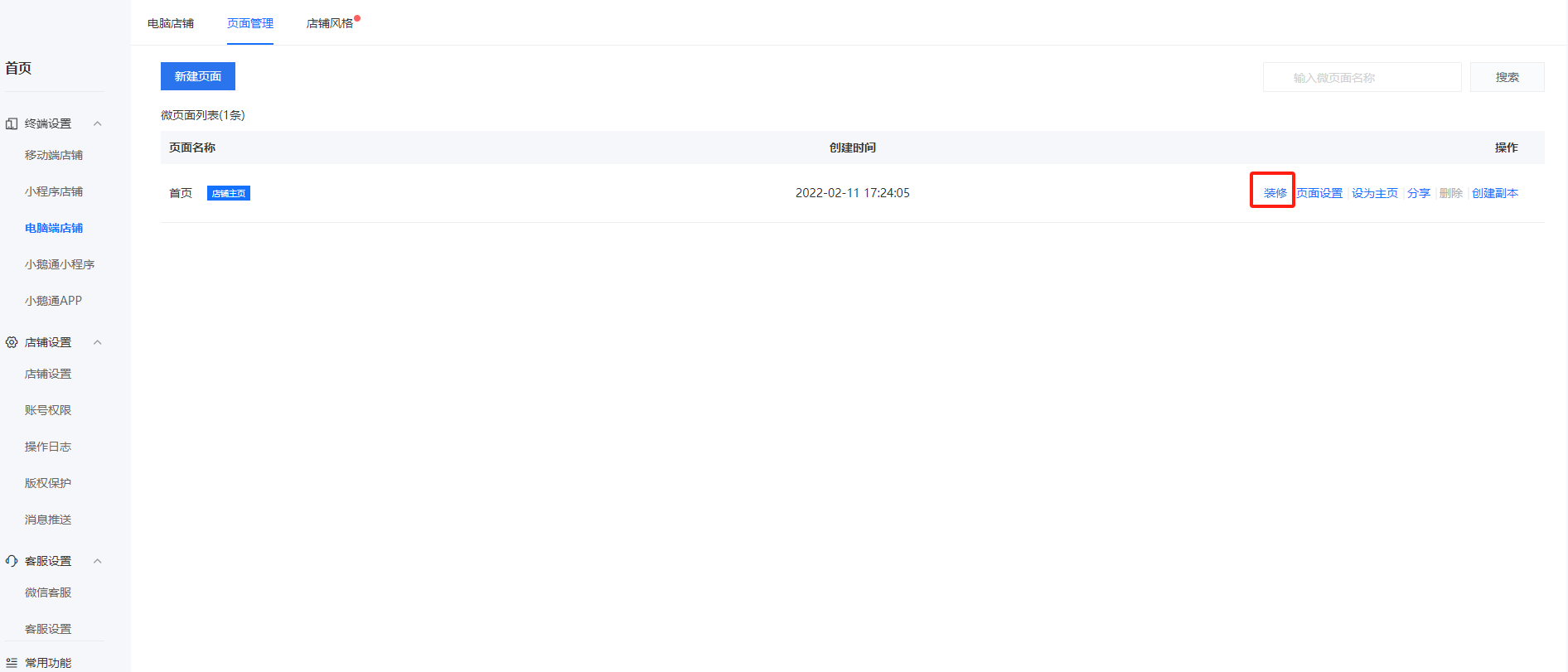
<span style="font-size:15px;"><span style="font-size:15px;background-image:initial;background-position:initial;background-size:initial;background-repeat:initial;background-attachment:initial;letter-spacing:0pt;vertical-align:baseline;">Merchant side: Terminal Settings → Desktop Store<span style="font-size:15px;">→ Page Management</span></span><span style="font-size:15px;color:rgb(51,51,51);background-image:initial;background-position:initial;background-size:initial;background-repeat:initial;background-attachment:initial;letter-spacing:0pt;vertical-align:baseline;"></span></span>

<span style="font-size:15px;"><span style="font-size:15px;background-image:initial;background-position:initial;background-size:initial;background-repeat:initial;background-attachment:initial;letter-spacing:0pt;vertical-align:baseline;"> </span><span style="font-size:15px;color:rgb(51,51,51);background-image:initial;background-position:initial;background-size:initial;background-repeat:initial;background-attachment:initial;letter-spacing:0pt;vertical-align:baseline;"></span></span>

<span style="font-weight:700;background-image:initial;background-position:initial;background-size:initial;background-repeat:initial;background-attachment:initial;letter-spacing:0pt;vertical-align:baseline;font-size:17px;">V. Usage Tutorial</span><span style="font-size:15px;"><span style="font-size:15px;font-weight:700;background-image:initial;background-position:initial;background-size:initial;background-repeat:initial;background-attachment:initial;letter-spacing:0pt;vertical-align:baseline;"></span><span style="font-size:15px;color:rgb(51,51,51);background-image:initial;background-position:initial;background-size:initial;background-repeat:initial;background-attachment:initial;letter-spacing:0pt;vertical-align:baseline;"></span></span>

![image.png](https://wechatapppro-1252524126.file.myqcloud.com/help_document/image/ueditor/94867600_1699602629.png ".png")

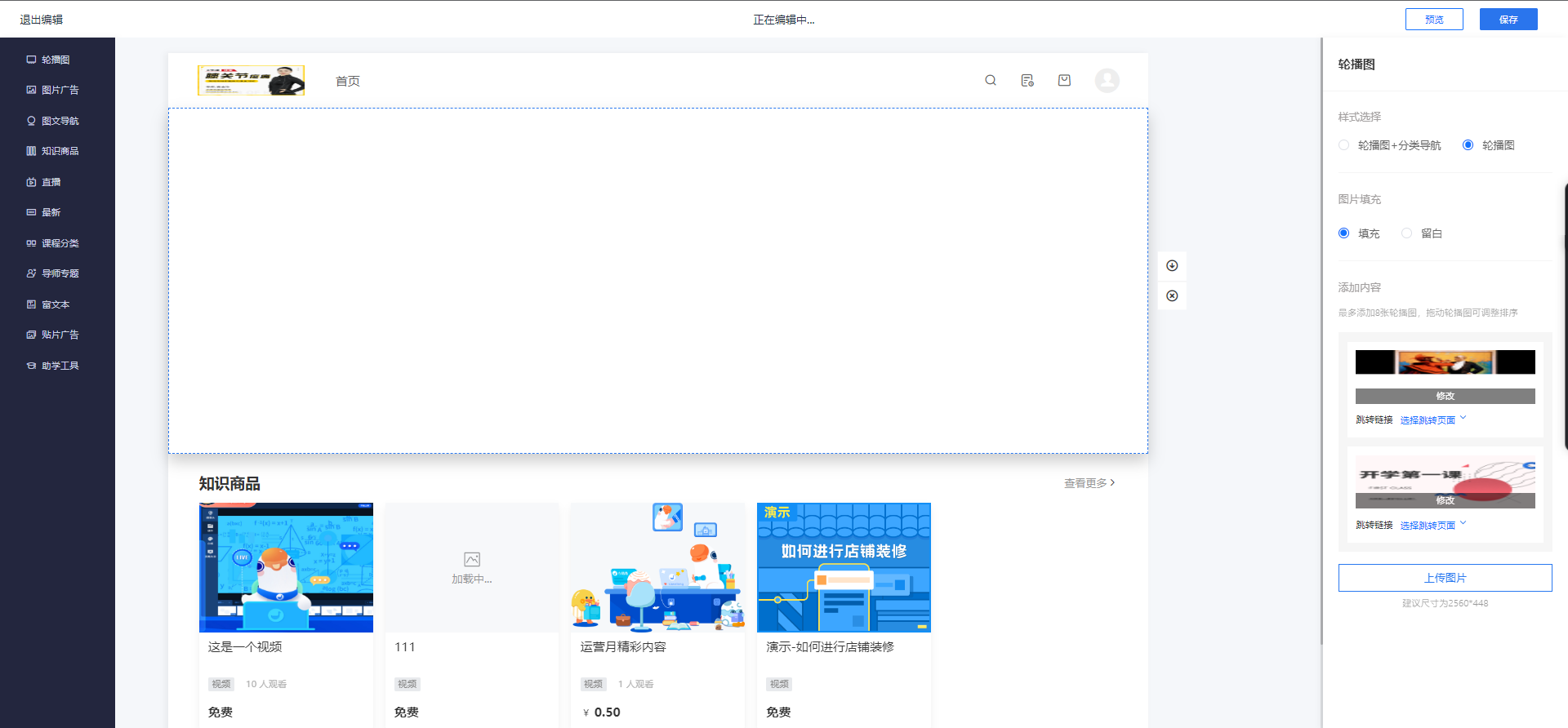
<span style="font-size:15px;"><span style="font-size:15px;font-weight:700;color:rgb(53,53,53);background:rgb(255,255,255);letter-spacing:0pt;vertical-align:baseline;">Step 2:</span><span style="font-size:15px;color:rgb(53,53,53);background:rgb(255,255,255);letter-spacing:0pt;vertical-align:baseline;">Click the 'Decorate' option to enter the store decoration page. There are various components to choose from. Click on a component to add and edit it. Click the \[Save\] button to save the Micro Page.</span></span>

<span style="font-size:15px;"><span style="font-size:15px;color:rgb(53,53,53);background:rgb(255,255,255);letter-spacing:0pt;vertical-align:baseline;">![电脑端装修.png](https://wechatapppro-1252524126.file.myqcloud.com/help_document/image/ueditor/97399400_1699602596.png ".png")</span></span>

<span style="font-size:15px;"><span style="font-size:15px;color:rgb(53,53,53);background:rgb(255,255,255);letter-spacing:0pt;vertical-align:baseline;">  
</span></span>

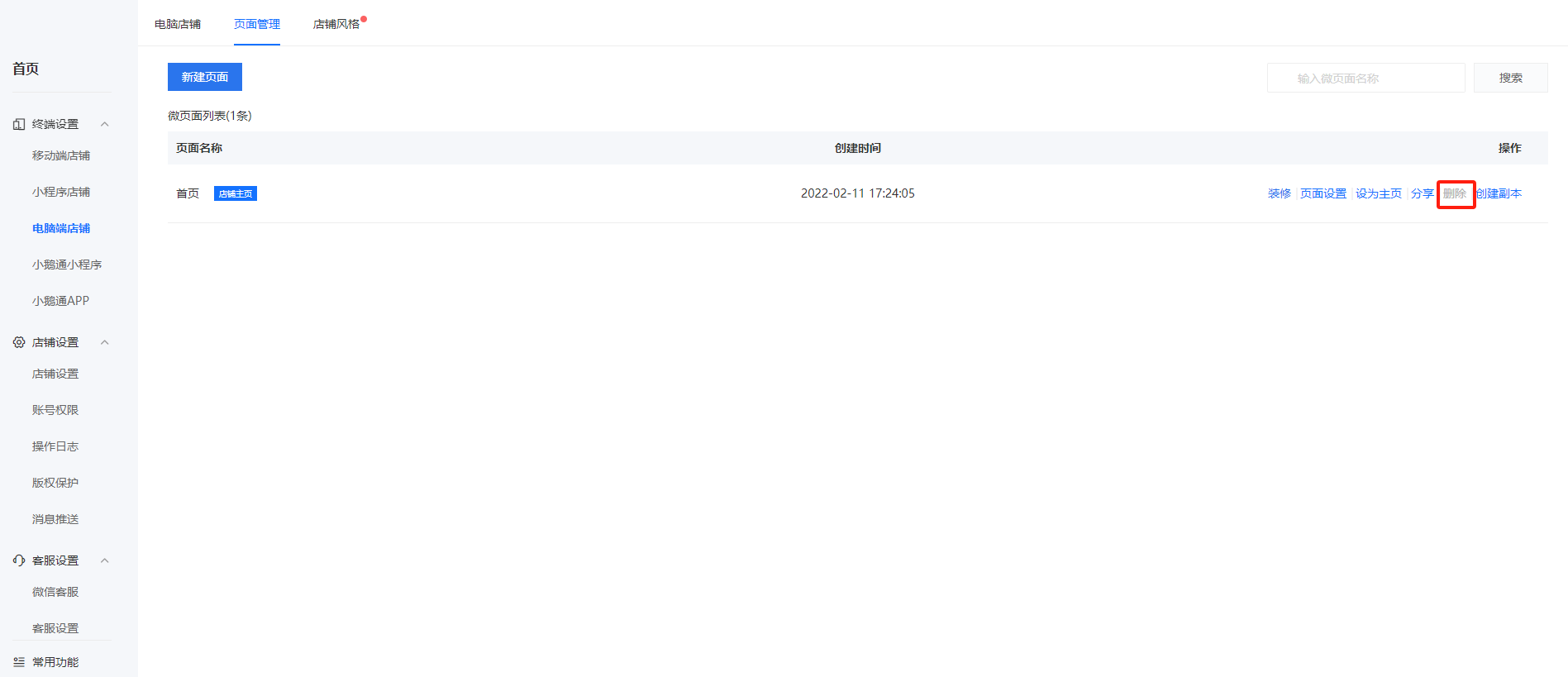
<span style="background-color:rgb(255,255,255);color:rgb(53,53,53);font-size:15px;">To duplicate an existing Micro Page, find the page and click the 'Create Copy' option to create an identical Micro Page. If there are too many copies or a page is no longer needed, click the 'Delete' option to remove the Micro Page.</span>

**<span style="color:rgb(53,53,53);background:rgb(255,255,255);font-size:15px;">Note: The default store homepage cannot be deleted.</span>**

<span style="color:rgb(53,53,53);background:rgb(255,255,255);font-size:15px;">![image.png](https://wechatapppro-1252524126.file.myqcloud.com/help_document/image/ueditor/59695300_1699602677.png ".png")</span>

<span style="color:rgb(53,53,53);background:rgb(255,255,255);font-size:15px;">  
</span>

<span style="color:rgb(53,53,53);background:rgb(255,255,255);font-size:15px;"></span>

<span style="font-size:15px;">**<span style="font-size:15px;color:rgb(53,53,53);background:rgb(255,255,255);"></span>**</span>

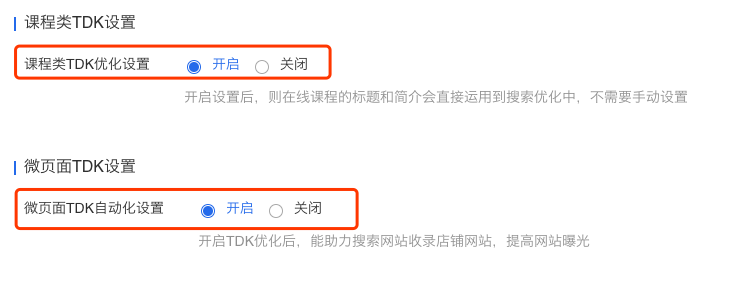
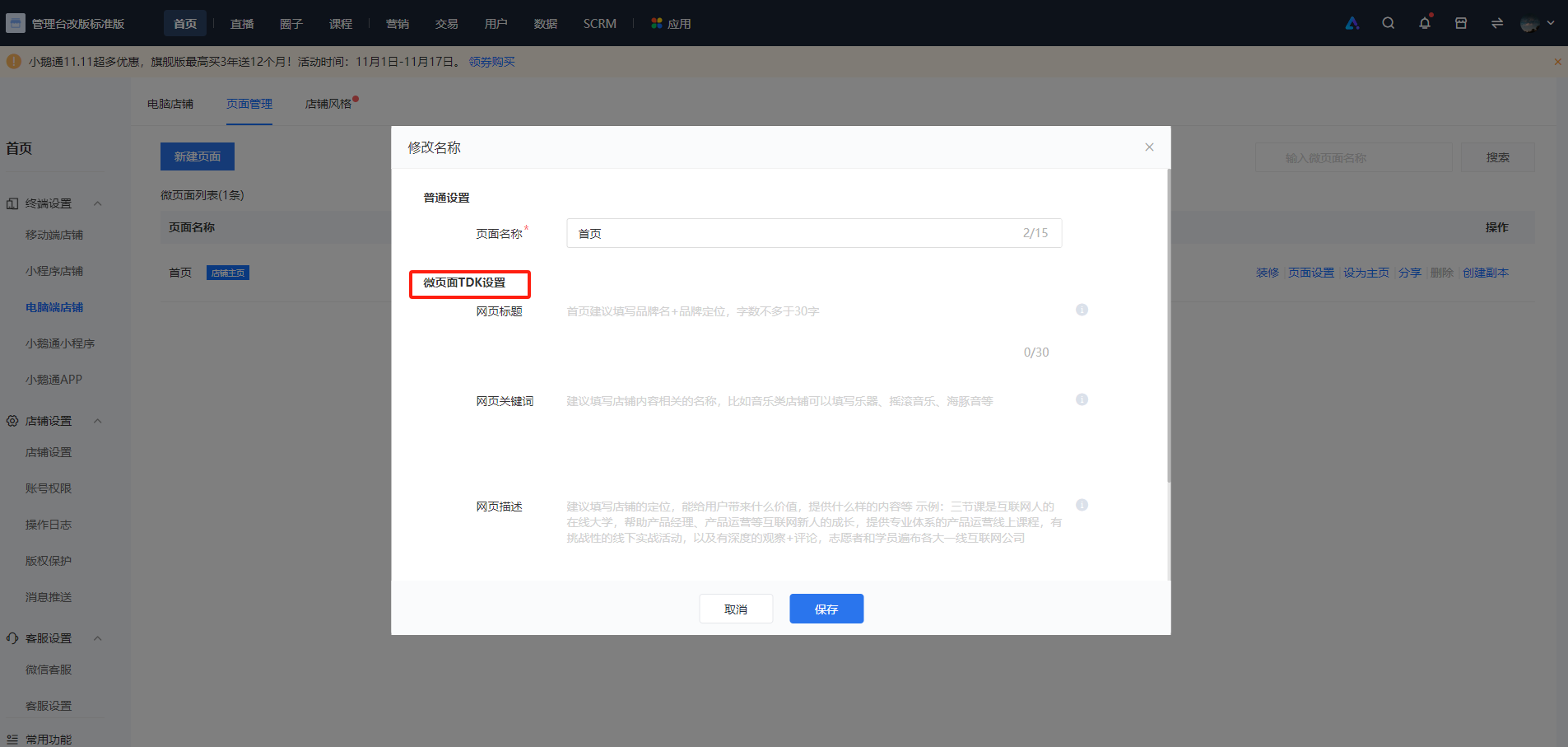
<span style="font-size:15px;"><span style="font-size:15px;font-weight:700;color:rgb(53,53,53);background:rgb(255,255,255);letter-spacing:0pt;vertical-align:baseline;">Step 3:</span><span style="font-size:15px;color:rgb(53,53,53);background:rgb(255,255,255);letter-spacing:0pt;vertical-align:baseline;">For created Micro Pages, the page name can be modified, and TDK settings can be adjusted. Good TDK settings can increase website clicks and rankings, making it more attractive to users with immediate needs.</span><span style="font-size:15px;color:rgb(51,51,51);background-image:initial;background-position:initial;background-size:initial;background-repeat:initial;background-attachment:initial;letter-spacing:0pt;vertical-align:baseline;"></span></span>

<span style="color:rgb(53,53,53);background:rgb(255,255,255);letter-spacing:0pt;vertical-align:baseline;font-size:15px;">Prerequisite for TDK settings: The TDK settings for courses and Micro Pages must be enabled in the desktop settings. If disabled, TDK settings cannot be made.</span>

<span style="color:rgb(53,53,53);background:rgb(255,255,255);font-size:15px;"></span>![5.png](https://wechatapppro-1252524126.file.myqcloud.com/help_document/image/ueditor/25115500_1699602597.png ".png")

![image.png](https://wechatapppro-1252524126.file.myqcloud.com/help_document/image/ueditor/91150800_1699602721.png ".png")

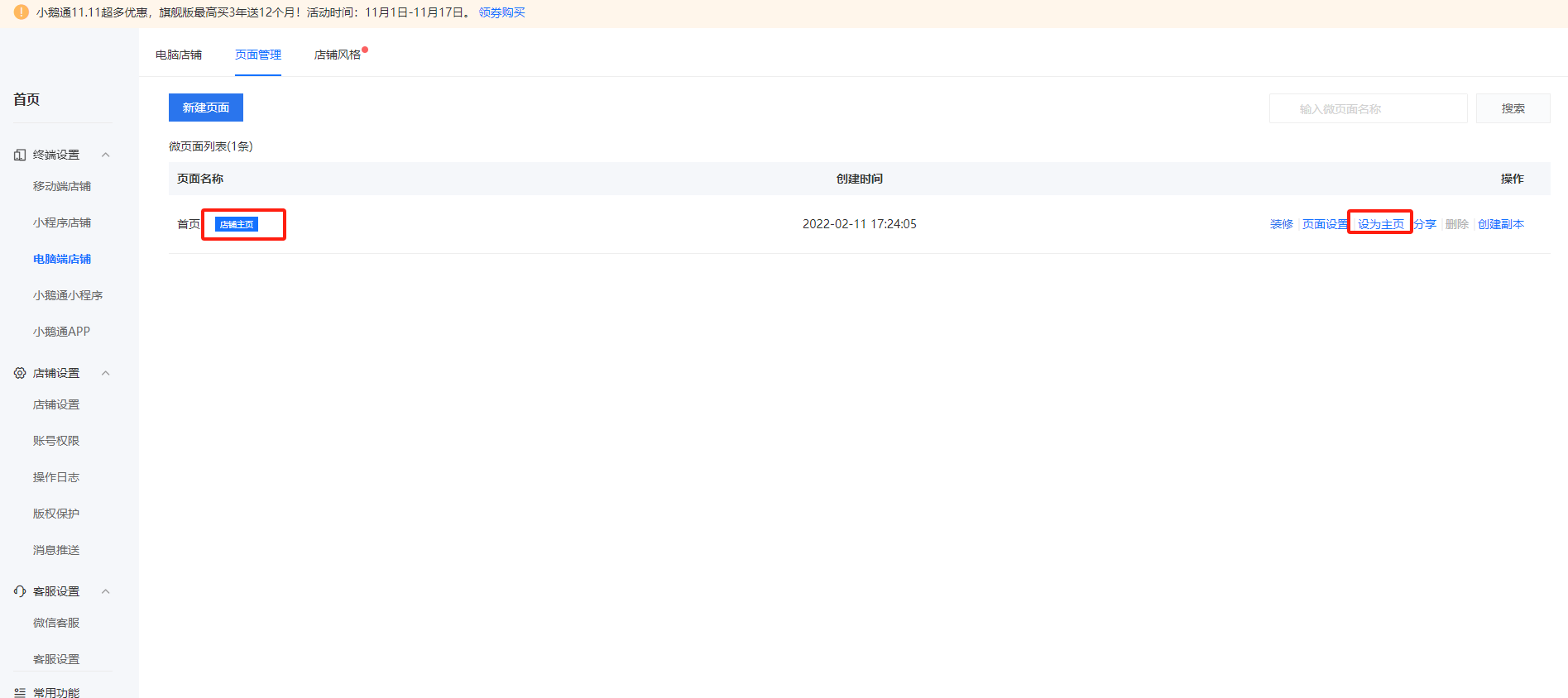
<span style="font-size:15px;font-weight:700;color:rgb(53,53,53);background:rgb(255,255,255);letter-spacing:0pt;vertical-align:baseline;">Step 4:</span><span style="font-size:15px;color:rgb(53,53,53);background:rgb(255,255,255);letter-spacing:0pt;vertical-align:baseline;">For created Micro Pages, the default homepage can be selected as the main page, or other pages can be set as the main page.</span>

<span style="color:rgb(53,53,53);background:rgb(255,255,255);font-size:15px;"></span>![image.png](https://wechatapppro-1252524126.file.myqcloud.com/help_document/image/ueditor/87095300_1699602975.png ".png")

<span style="color:rgb(53,53,53);background:rgb(255,255,255);font-size:15px;"></span>

<span style="font-size:15px;">**<span style="font-size:15px;color:rgb(53,53,53);background:rgb(255,255,255);">  
</span>**</span>

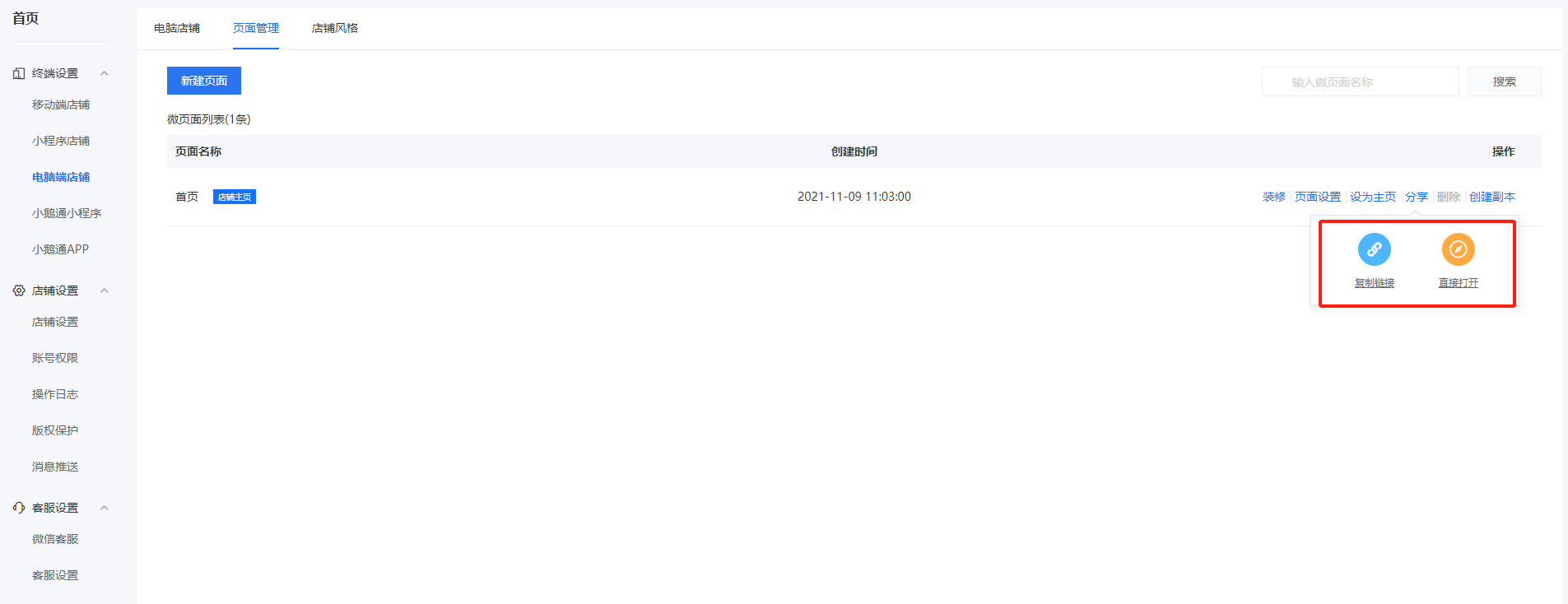
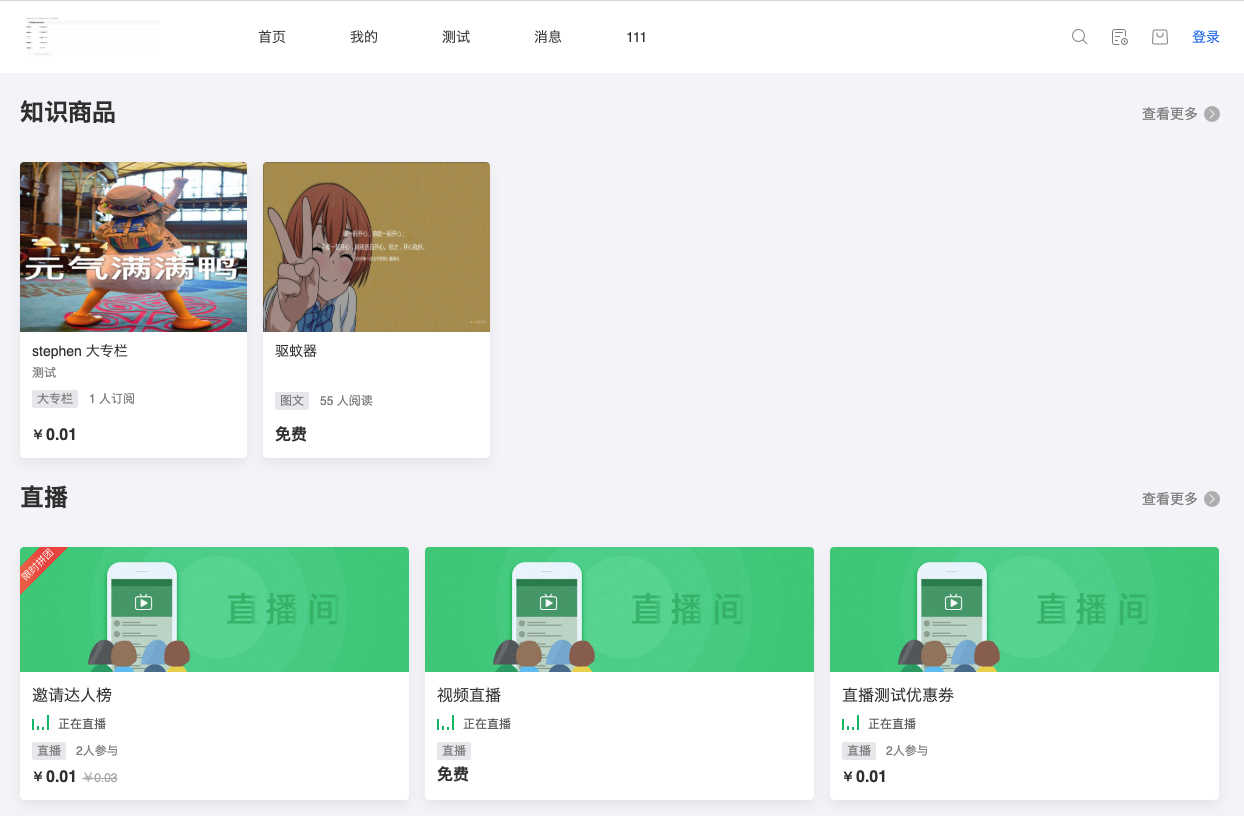
<span style="font-size:15px;">**<span style="font-size:15px;color:rgb(53,53,53);background:rgb(255,255,255);">Step 5:</span>**<span style="font-size:15px;color:rgb(53,53,53);background:rgb(255,255,255);">The created pages can be shared to view the effects.</span></span>

![image.png](https://wechatapppro-1252524126.file.myqcloud.com/help_document/image/ueditor/68731100_1699603007.png ".png")

![9.png](https://wechatapppro-1252524126.file.myqcloud.com/help_document/image/ueditor/30867000_1699602598.png ".png")