# Tutorial on Using Mobile Micro Pages
[中文](/books/8f855/page/ad61a)
**I. Feature Introduction**
Micro Pages allow merchants to independently build personalized pages for their Online Stores. The content and display styles within a Micro Page can be customized by adding components. Multiple pages can be built within an Online Store and linked through the store navigation.
**Special Reminder:**
If the mobile store and Mini Program of a merchant serve different purposes, different Micro Pages can be set for the H5 store and the Mini Program homepage. (For example, the merchant's mobile store is mainly used for selling courses, while the Mini Program is mainly for User Retention.)
**II. Scenario Examples**
If your Online Store has a large number of courses and also offers activities such as punch - in and community events, you can use the store - Micro Page feature for personalized display settings. You can also create multiple Micro Pages. For instance, one Micro Page can be dedicated to course promotion activities, and another can be used for circle - related content like test activities and offline events. These two pages can be used as display pages in the store, linked through the store navigation, saving users' time in finding content and providing a better purchasing/browsing experience.
**III. Operation Steps**
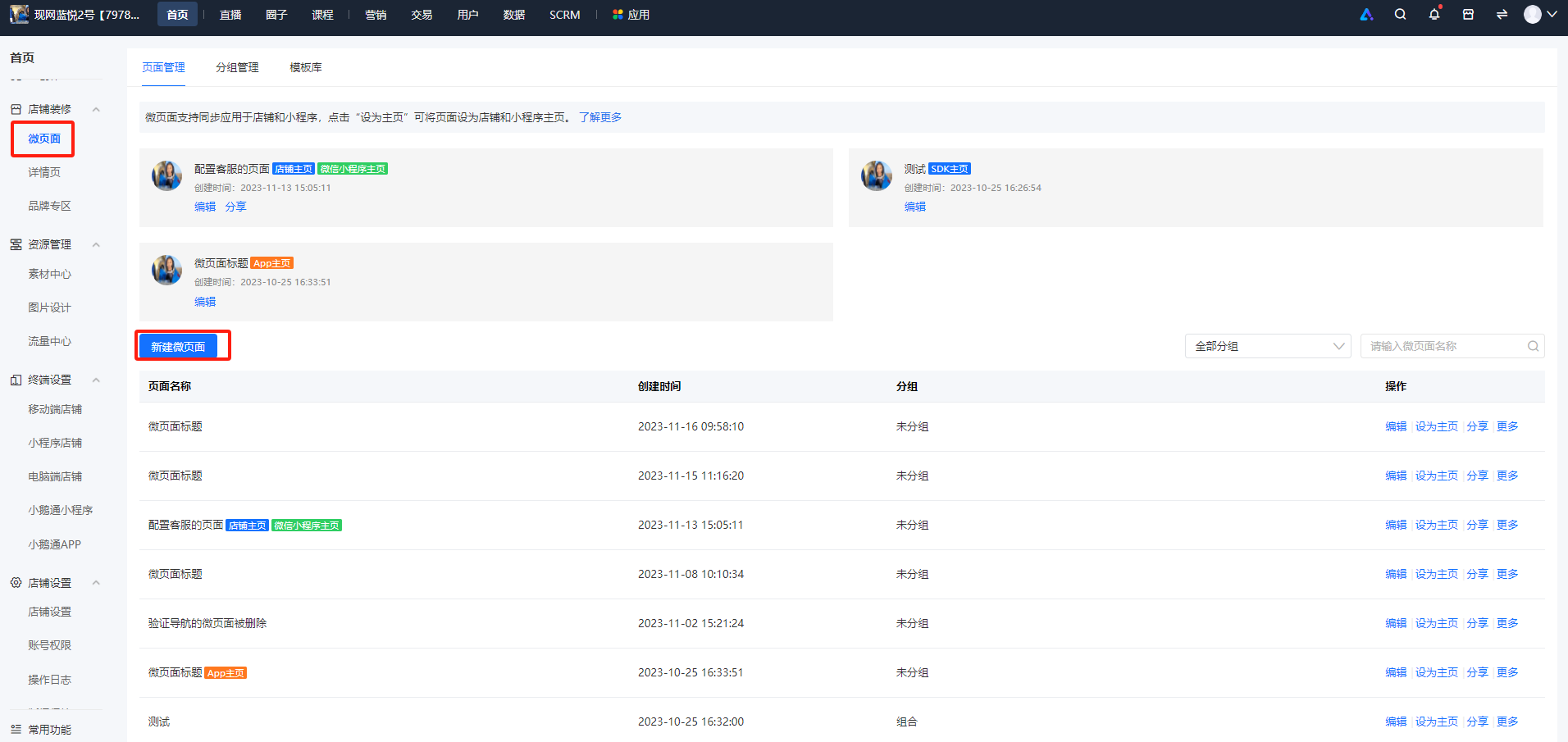
**Step 1** Click \[Homepage\] - \[Store Decoration\] - \[Micro Pages\] to enter the store's Micro Pages section.
**Step 2**
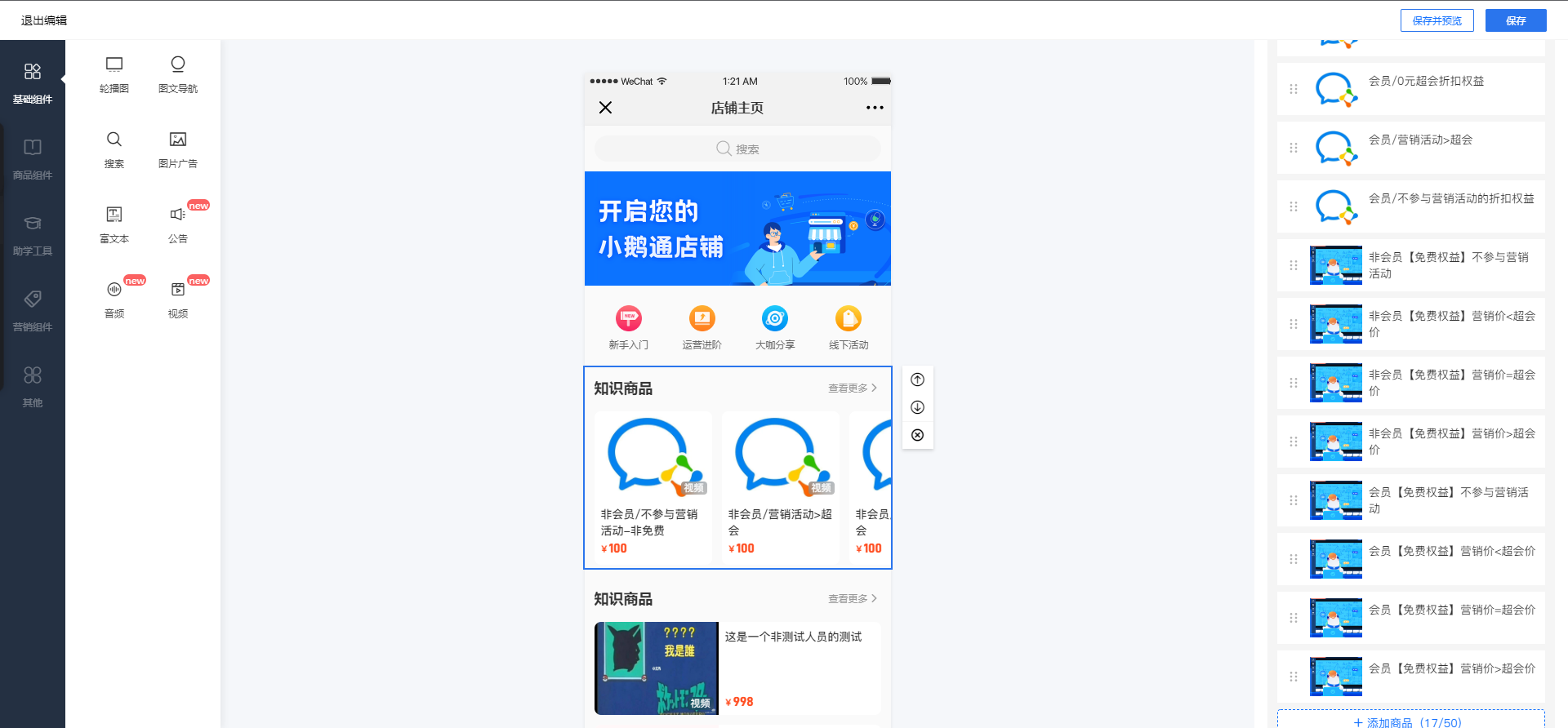
There are 37 types of components available in a Micro Page. Click on a component to add and edit it. Click the \[Save\] button to save the Micro Page.
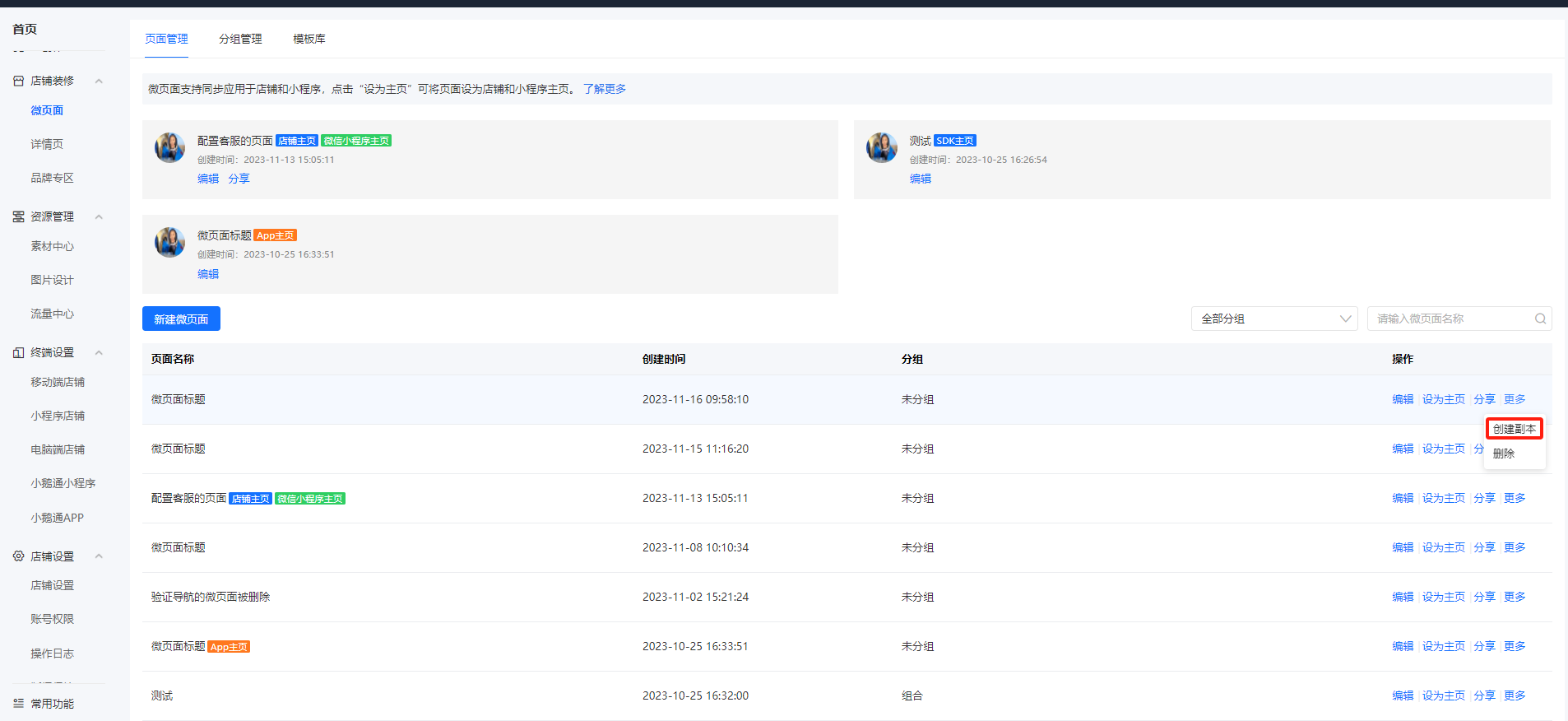
To duplicate an existing Micro Page, find the page and click \[More\] - \[Create Copy\] to create an identical Micro Page.
**Step 3** The created Micro Page can be set as the store/Mini Program homepage.
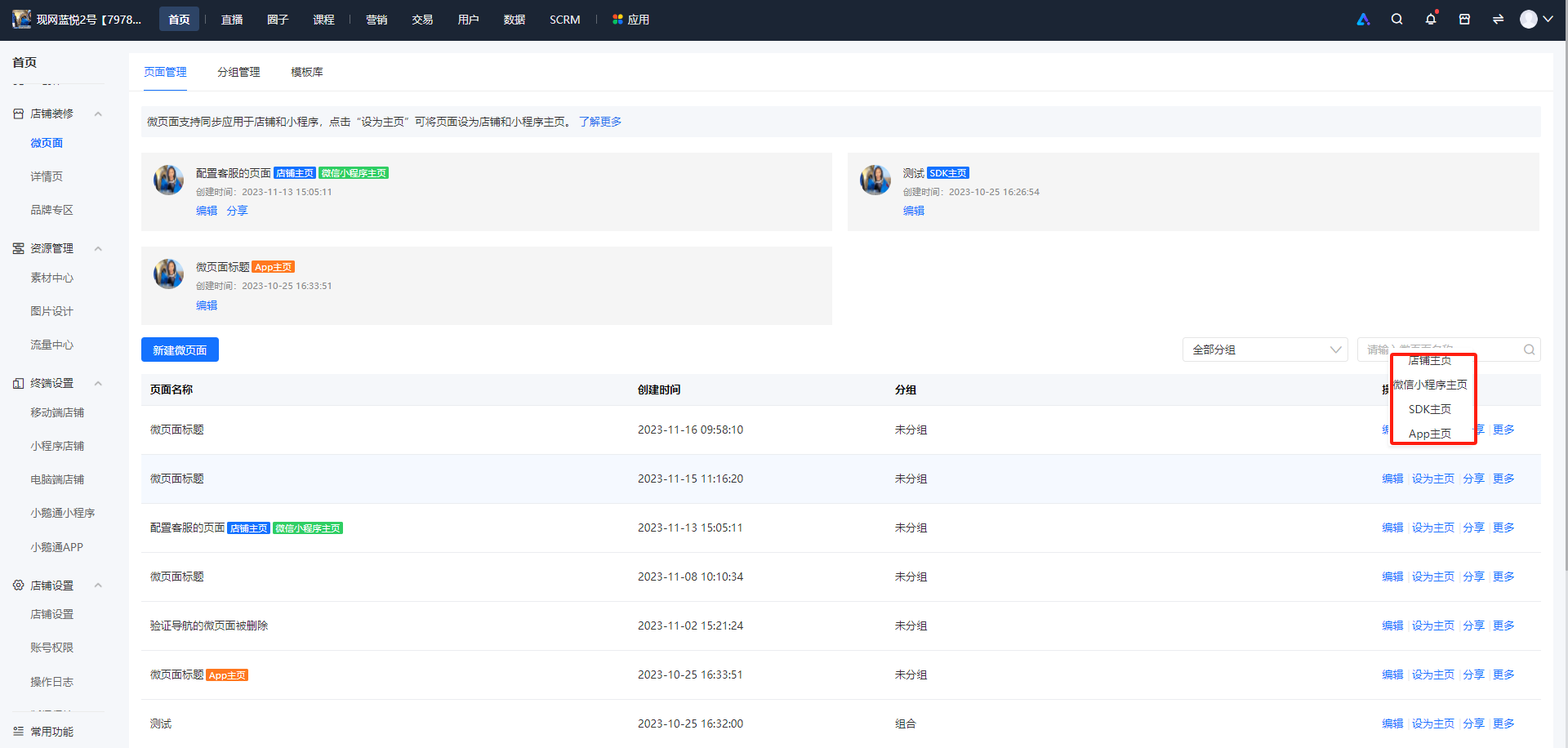
**Step 4: Apply the Micro Page**
Micro Pages can be displayed in the store. When selecting a jump link through the store navigation, Mini Program navigation, or graphic - text navigation component, you can choose to jump to a specific Micro Page.
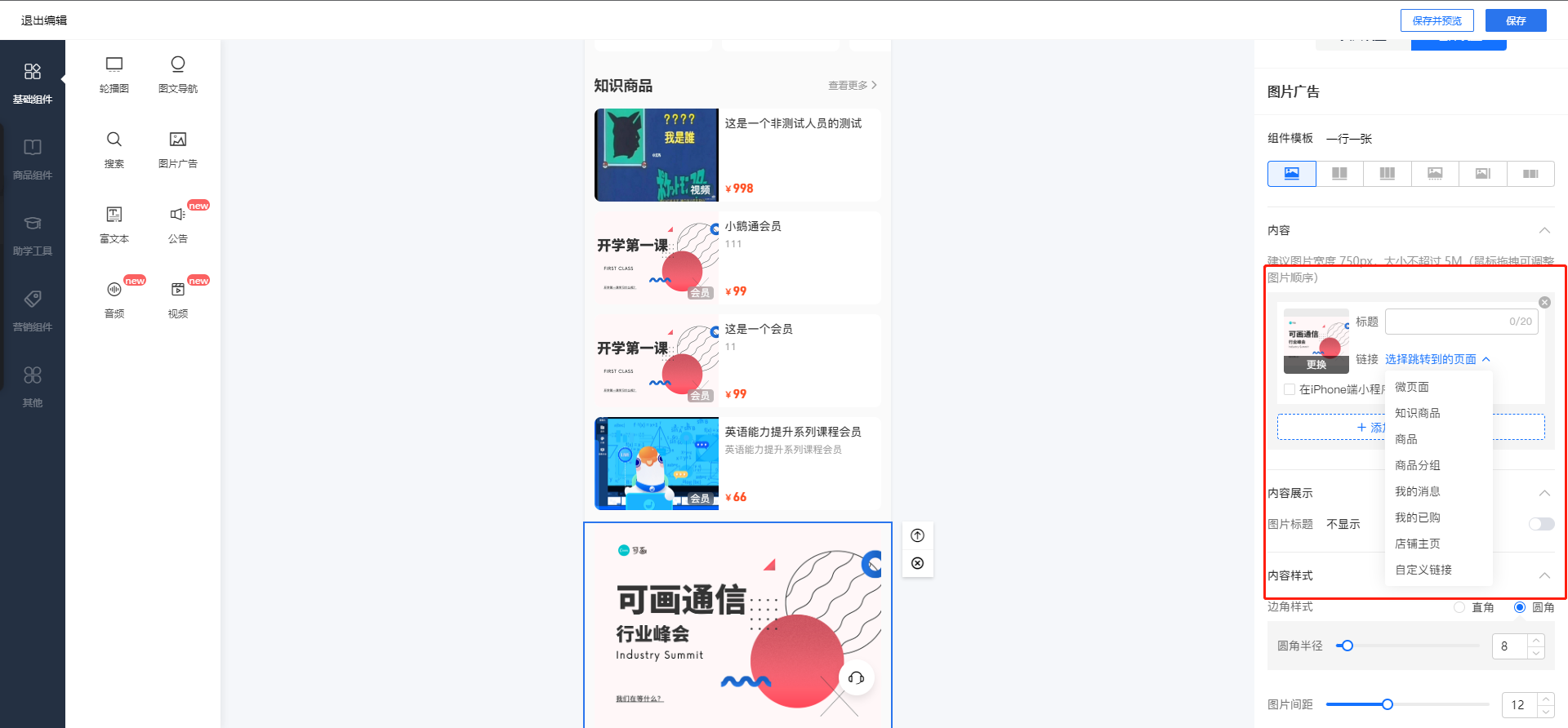
**IV. Final Effect**
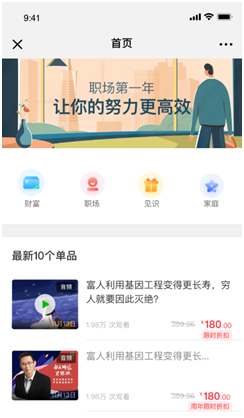
After setting a Micro Page as the store homepage, users can see the display effect of the Micro Page.