# Tutorial on Using Group Management in the Material Center
[中文](/books/8f855/page/a3f39)
**I. Function Introduction**
Since the launch of the Material Center, merchants have uploaded a large number of materials during use. To better classify and manage the materials, we have launched the multi-level grouping function for materials.
Merchants can create up to three levels of groups for materials in the Material Center list and can rename and delete groups to help merchants classify materials as needed. Meanwhile, to meet merchants' needs for reclassifying uploaded materials, we have added a one-click moving function, which allows all materials in a certain group to be moved to another group with one click.
**II. Use Cases**
The multi-level grouping management function for materials can meet the scenarios where merchants need to classify materials, facilitating search, management, and reference. Taking teaching materials as an example, you can first conduct primary classification by subject, such as mathematics, physics, chemistry, etc.; then, you can establish secondary classification by semester under each subject, such as the first semester of junior high school, the first grade of junior high school
the second semester, etc.
**III. Operation Steps**
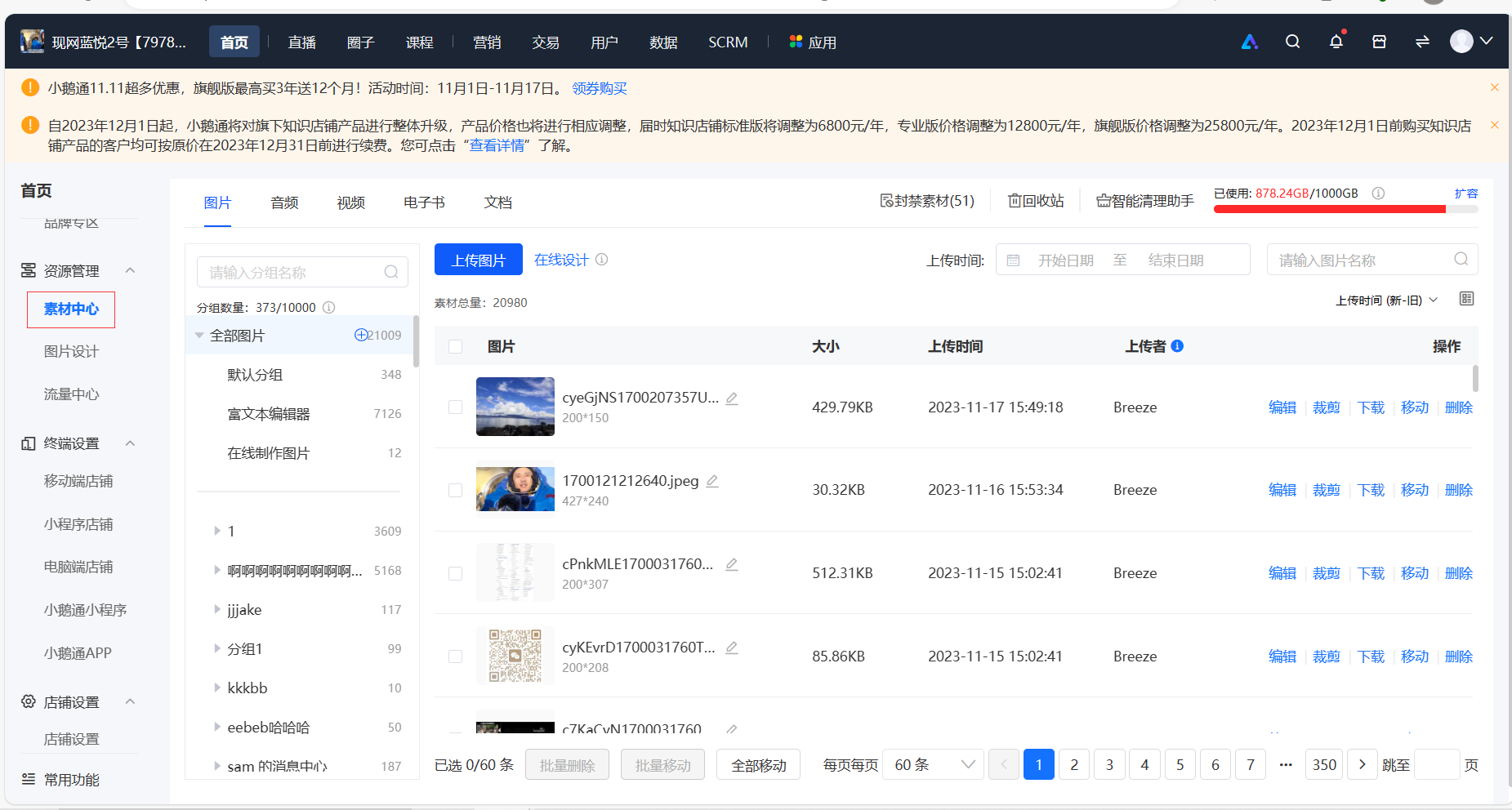
**1.**Enter the homepage - Resource Management - Material Center page
**
**
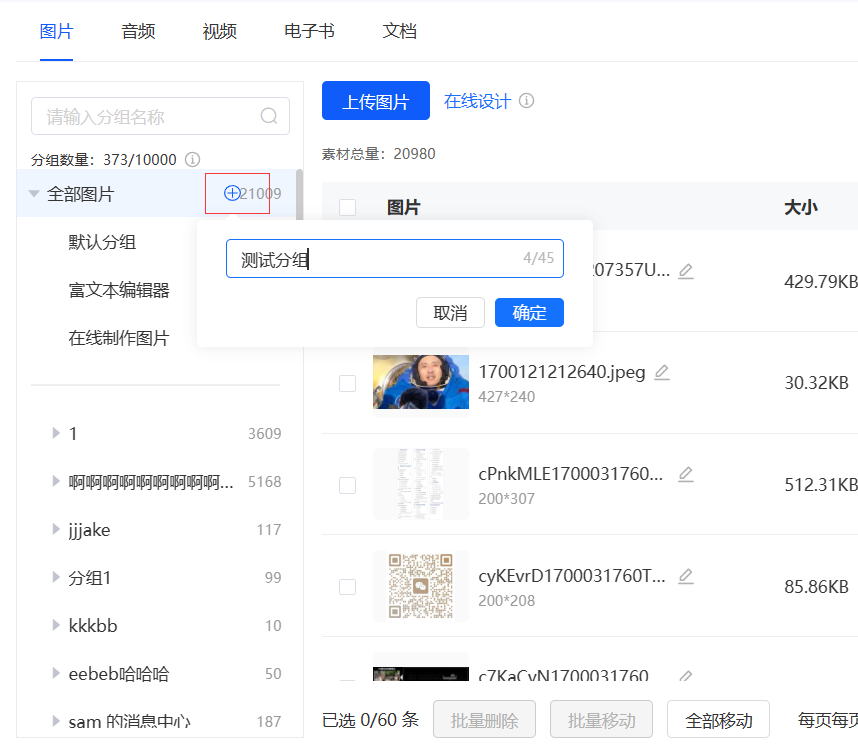
**2.**Click the small plus sign after the title to create a primary group
**
**
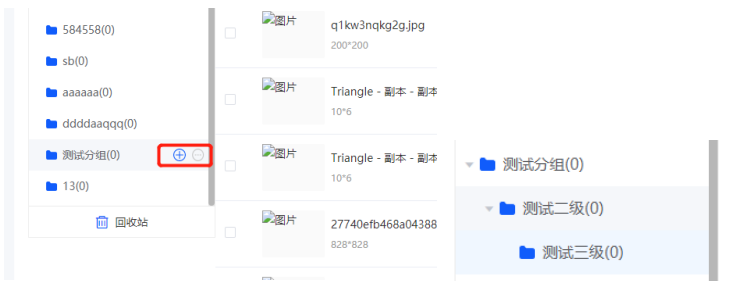
**3.**Move the mouse over any self - created group, a floating button will appear. Click the plus sign to create a sub - group.
*Note:*
*A maximum of three levels of groups can be created.*
*Preset groups such as the default group, live replay videos, and rich text editors cannot have sub - groups created.*
**
**
**
**
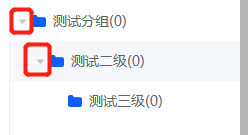
**4.**Click the arrow button in front of the multi - level group to expand or collapse the group level by level.
**
**
**
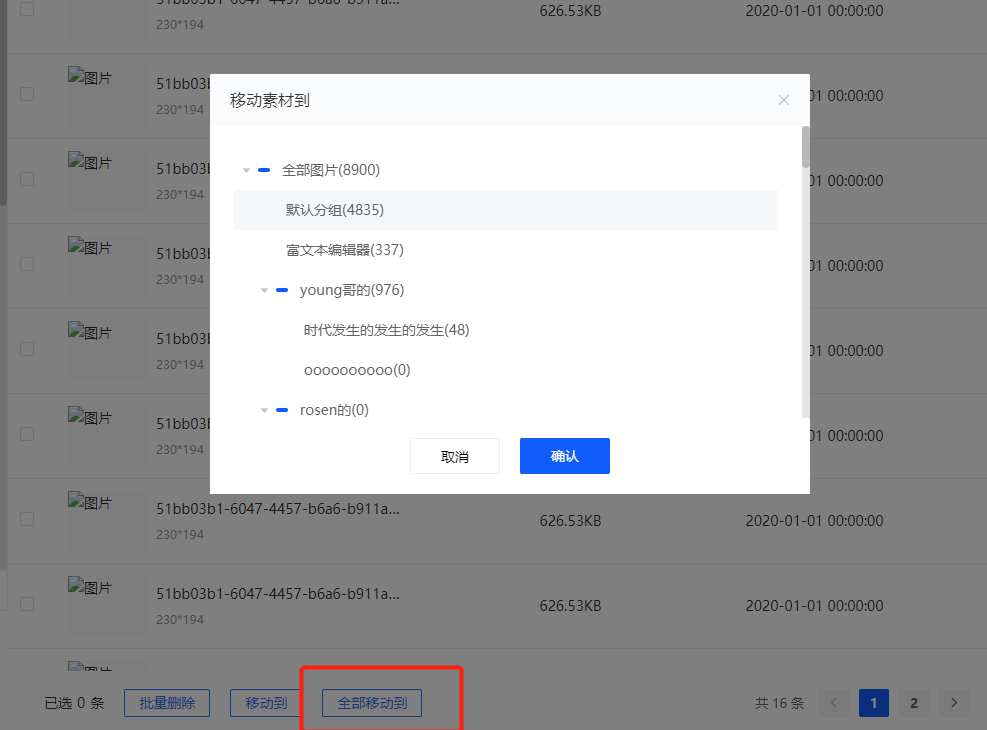
**5.**When moving materials, in addition to the original way of moving by checking, a new all - moving function has been added, which allows all materials in a specified group to be moved to another group with one click.
Select the specified group, click 'Move all to' at the bottom, select the destination in the floating layer, and click OK.
*Note: A maximum of 2000 materials can be moved at a time. For the excess part, you can operate the movement again.*
*
*
**
**
**
**
**6.**When there are too many groups, enter the name of the group in the search box on the group sidebar, click the magnifying glass button or directly press Enter to perform a fuzzy search by keyword.
After the search is completed, click 'Back' to return to the group list.