Tutorial on Navigating Settings for the Online Store on Desktop
I. Function Introduction
II. Purpose of Use
By setting the store navigation, merchants can categorize the pages and guide users to browse pages of different themes.
III. Scenario Examples
Scenario 1: If a merchant has a large number of products and activities in their online store, they can use the store navigation to guide users through the pages. The store navigation can lead to the mini homepage, course themes, or the latest content.
Scenario 2: Merchants can set up an event page and a course promotion page. Through the store navigation, users can jump between the homepage, events, promotions, and their personal pages, guiding them to focus on the pre - set content.
IV. Operation Path
Merchant side: Merchant backend → Terminal settings → PC store → Store navigation
V. Usage Tutorial
Step 1:Click [Store - PC store - Store navigation] to enter the store navigation editing page;
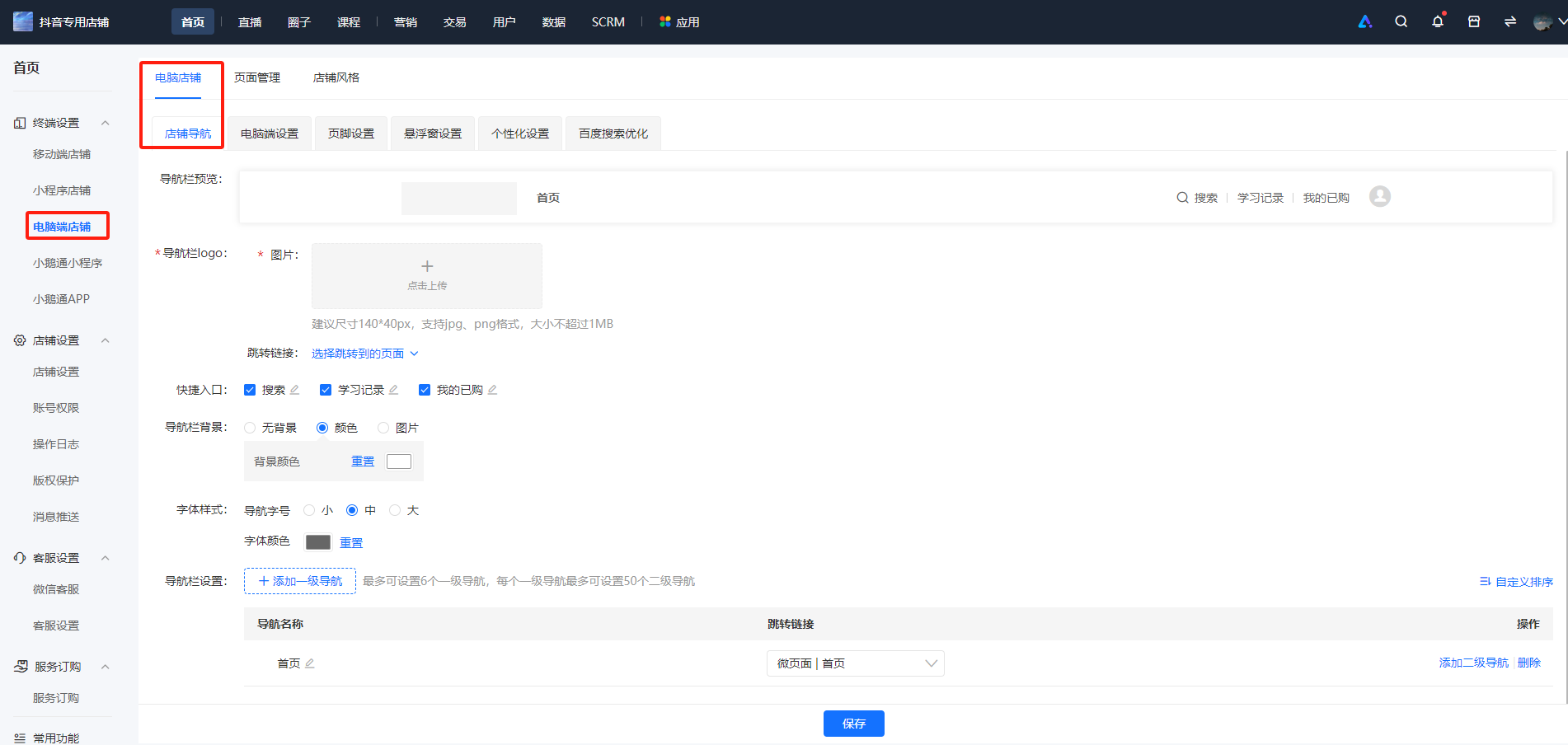
Step 2:You can upload the navigation logo and view the effect above.

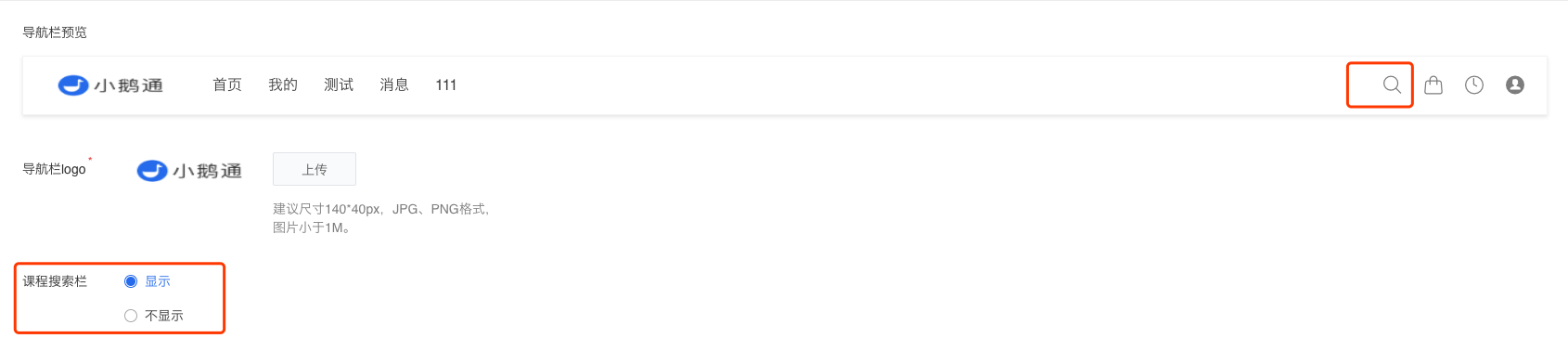
Step 3:You can customize whether to display the course search bar. If it is displayed, you can view the effect in the preview area.
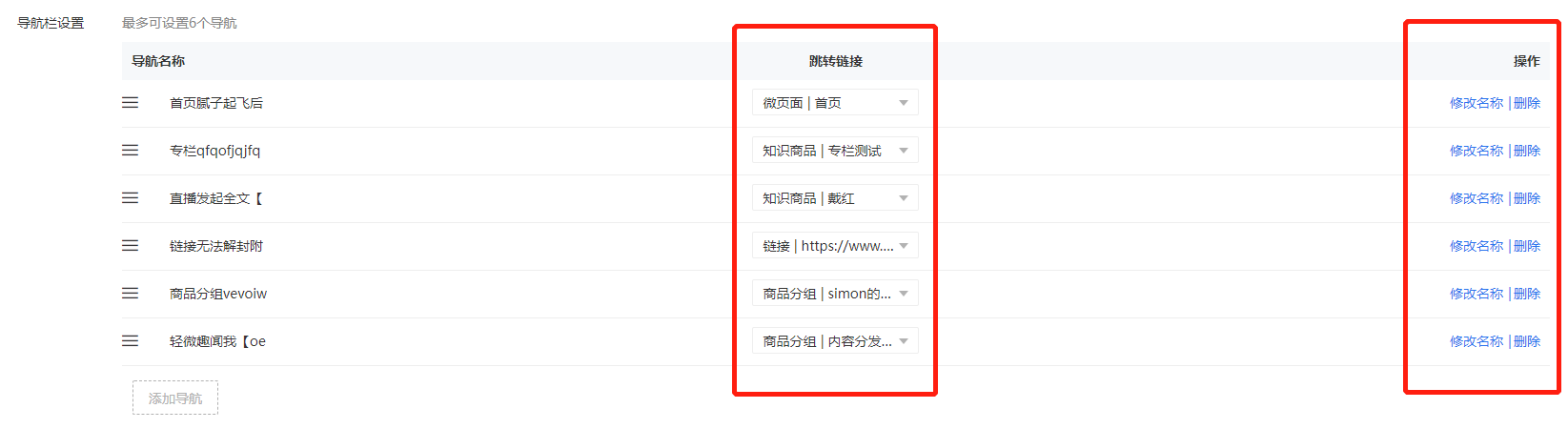
Step 4:You can customize the navigation names and the pages they link to. You can also click and drag the navigation editing boxes with the mouse to adjust their order. A maximum of 6 navigation items can be added.