Tutorial on Building the Online Store Homepage
I. Function Introduction
The elink Online Store homepage supports various types of components. You can build a personalized store homepage by configuring these components. elink provides 33 types of components, including carousel images, image ads, navigation menus, knowledge products, instructor specials, communities, Q&A sections, live streams, and coupons.
II. Purpose of Use
An excellent store homepage can attract learners and improve the store's activity, conversion rate, and user retention rate.
III. Use Scenarios
Scenario 1: If a merchant has strong store operation capabilities and wants to build a personalized store that showcases their brand, they can combine various components.
IV. Operation Paths
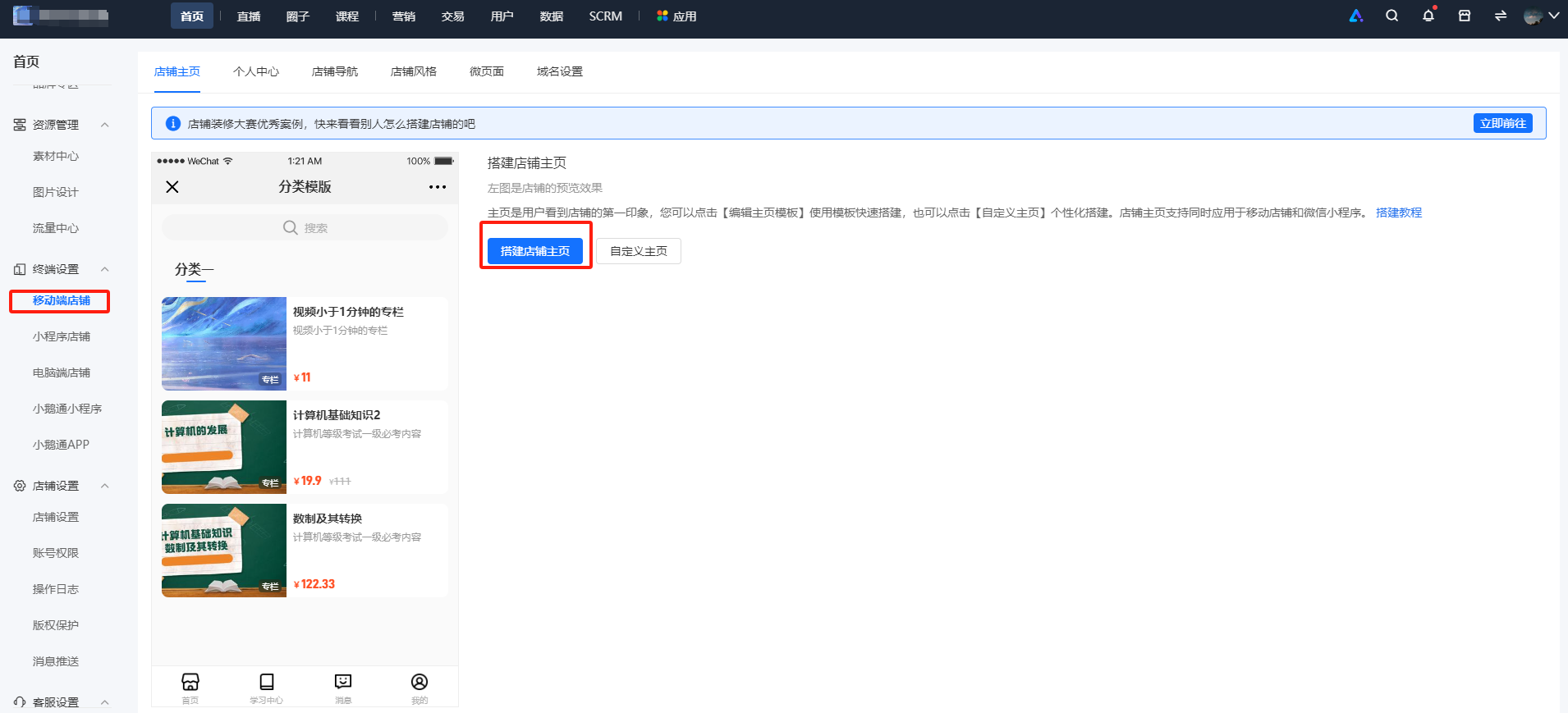
Merchant Terminal 1: Store -> Terminal Settings -> Mobile Store -> Store Homepage -> Build Store Homepage
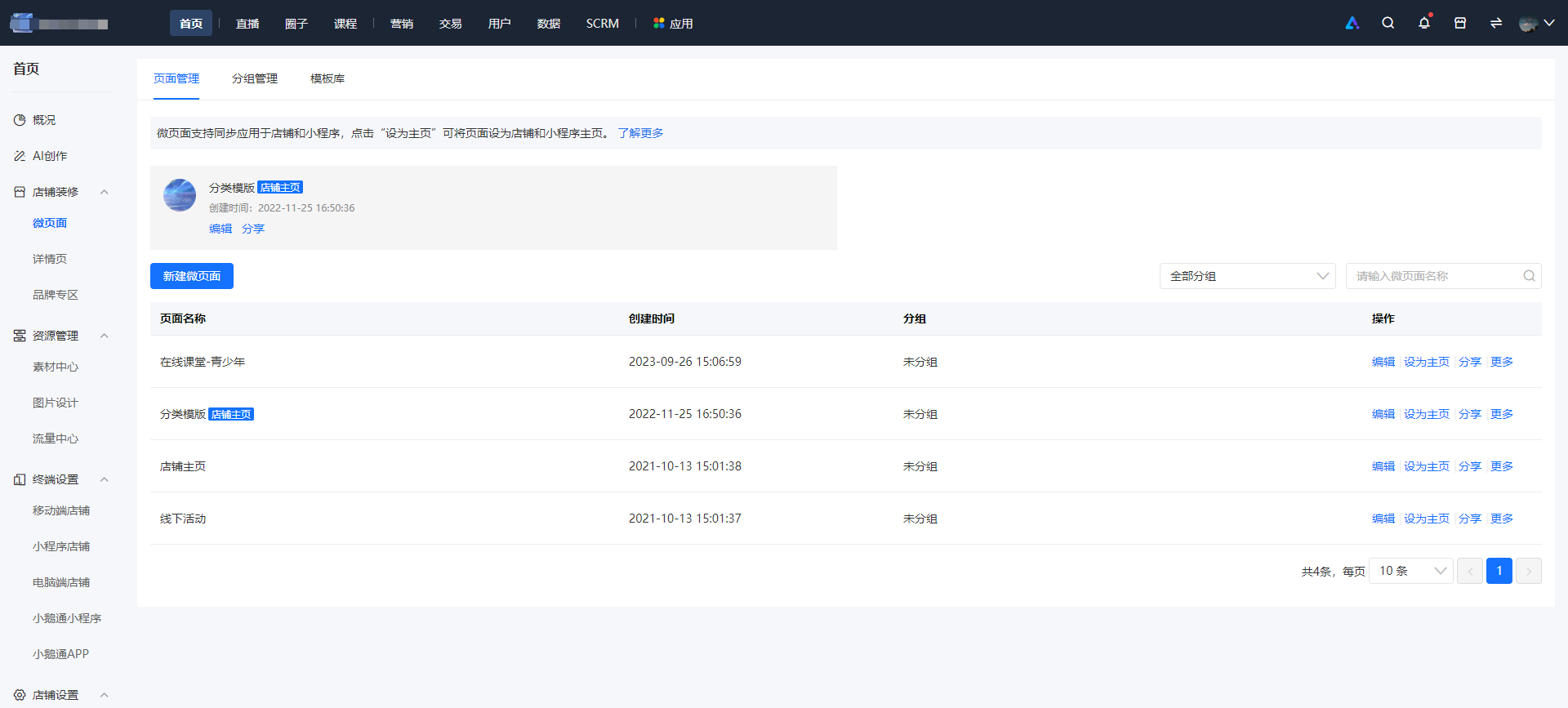
Merchant Terminal 2: Store -> Store Decoration -> Mini Page -> Operation -> Edit
V. Usage Tutorial
Step 1:Build the store homepage/mini page - Operation - Edit (Management Console)
Step 3:Add components (Management Console)
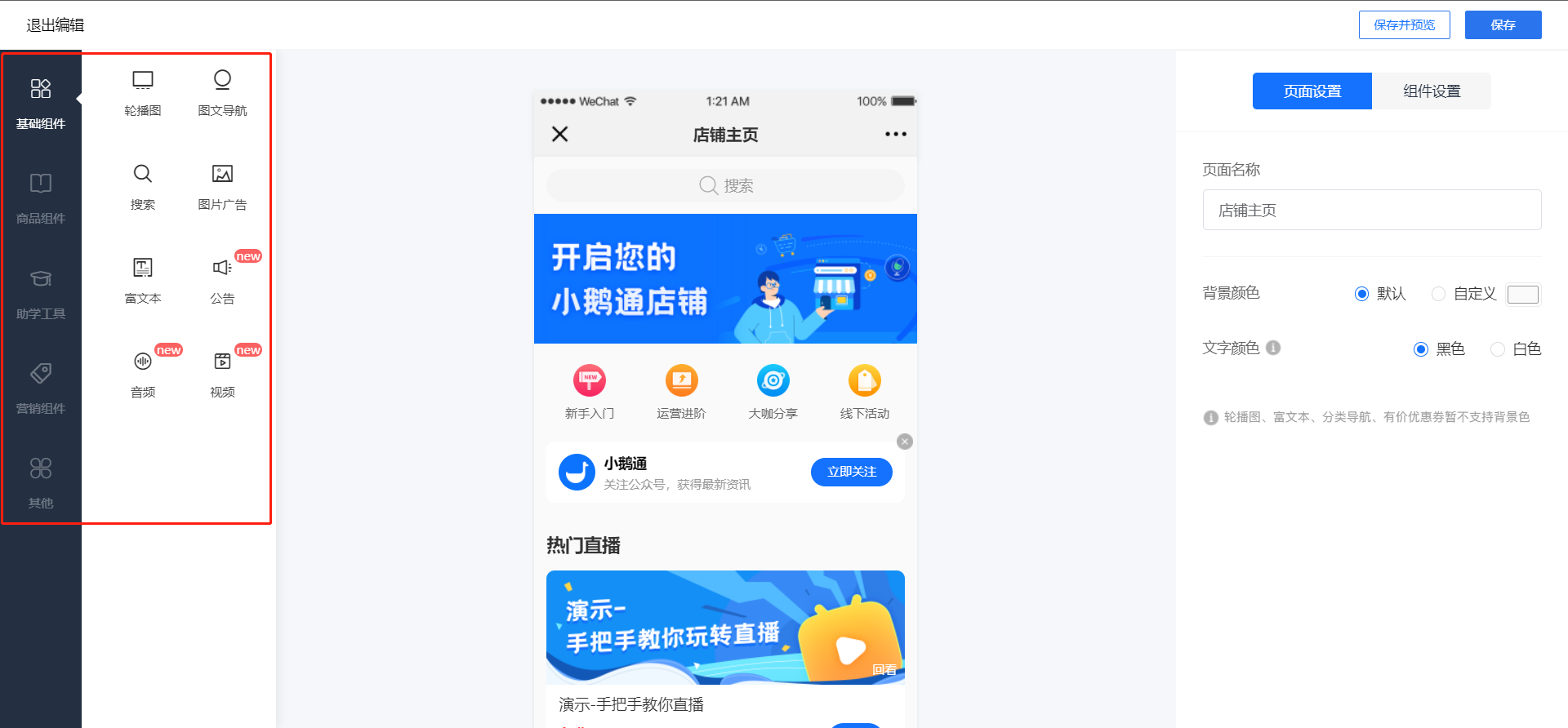
In the 'Component Library' area on the left, drag any component (or click directly) to the middle area for preview. Then, you can set the component's style and add product content in the 'Component Settings' area on the right.
Step 4:Change the order (Management Console)
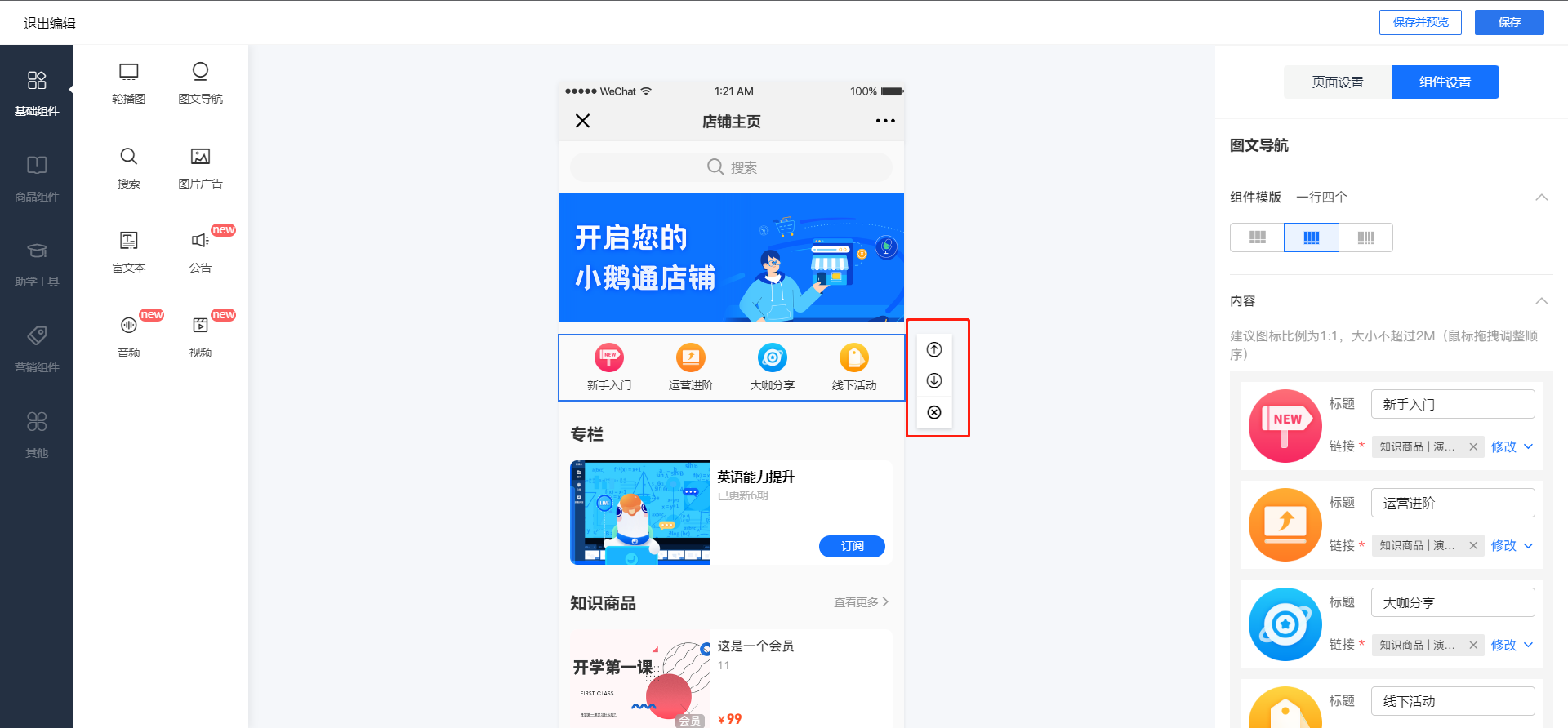
Click on a specified component and then click the button on the right to adjust the display order of the component on the homepage.
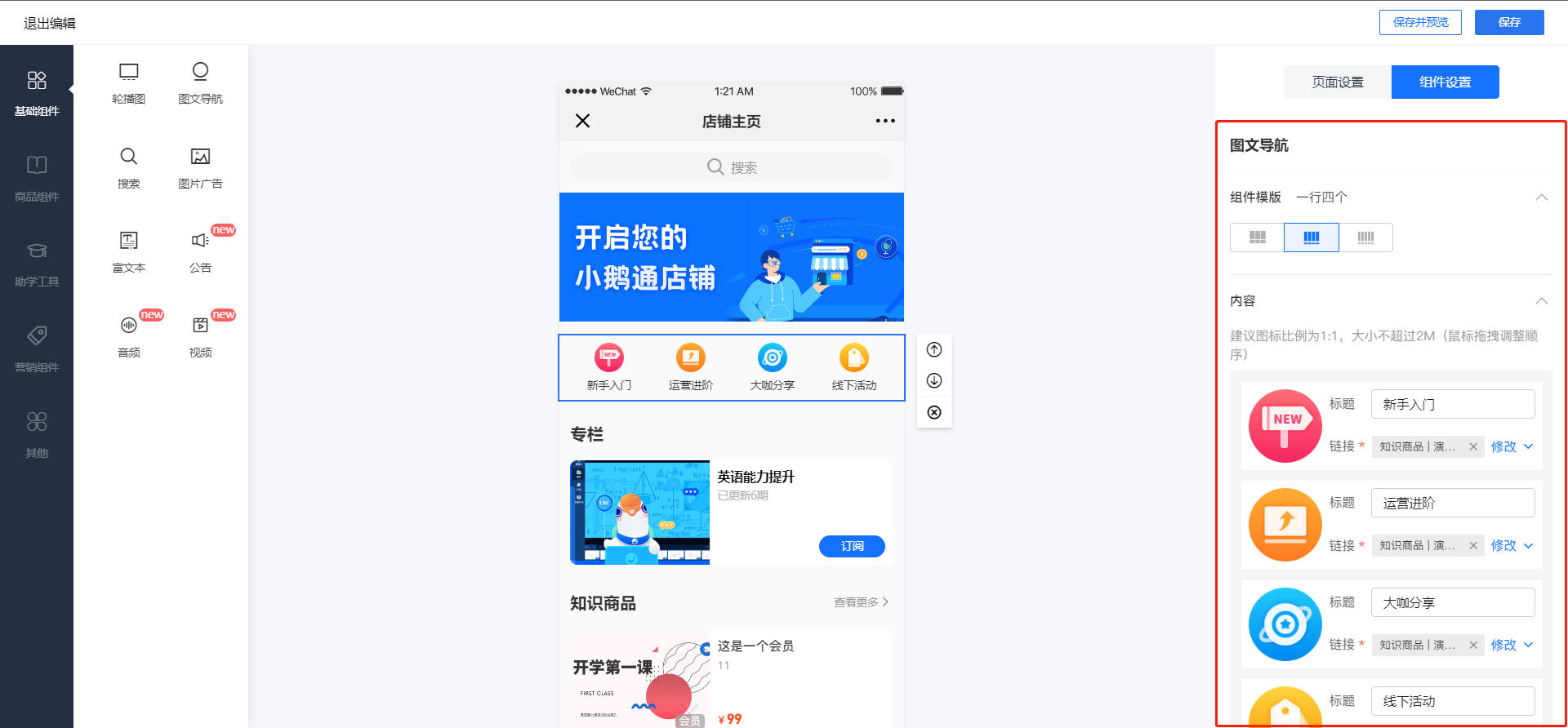
Step 5:Component settings (Management Console)
In the 'Component Settings' area on the right, click on the corresponding add operation area to edit the component's style and display content.
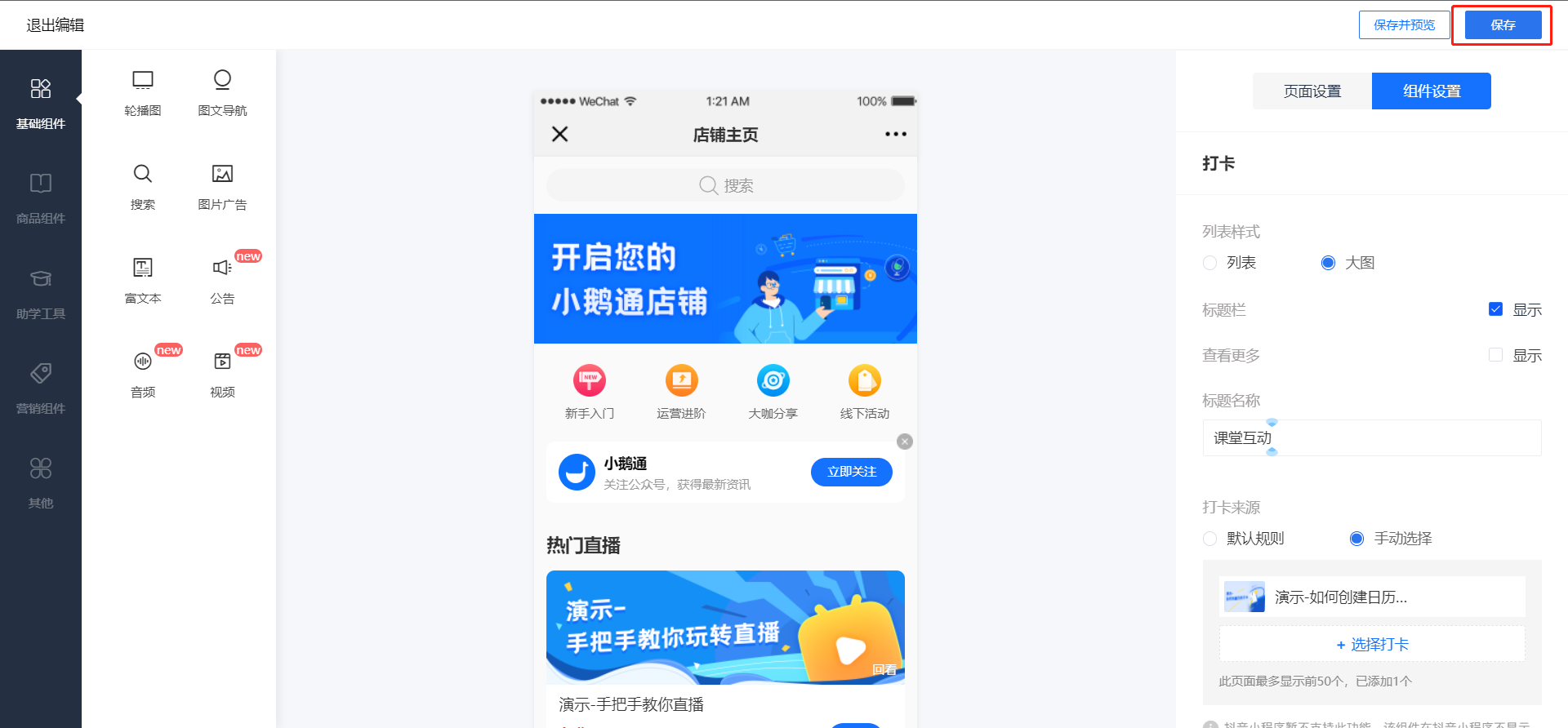
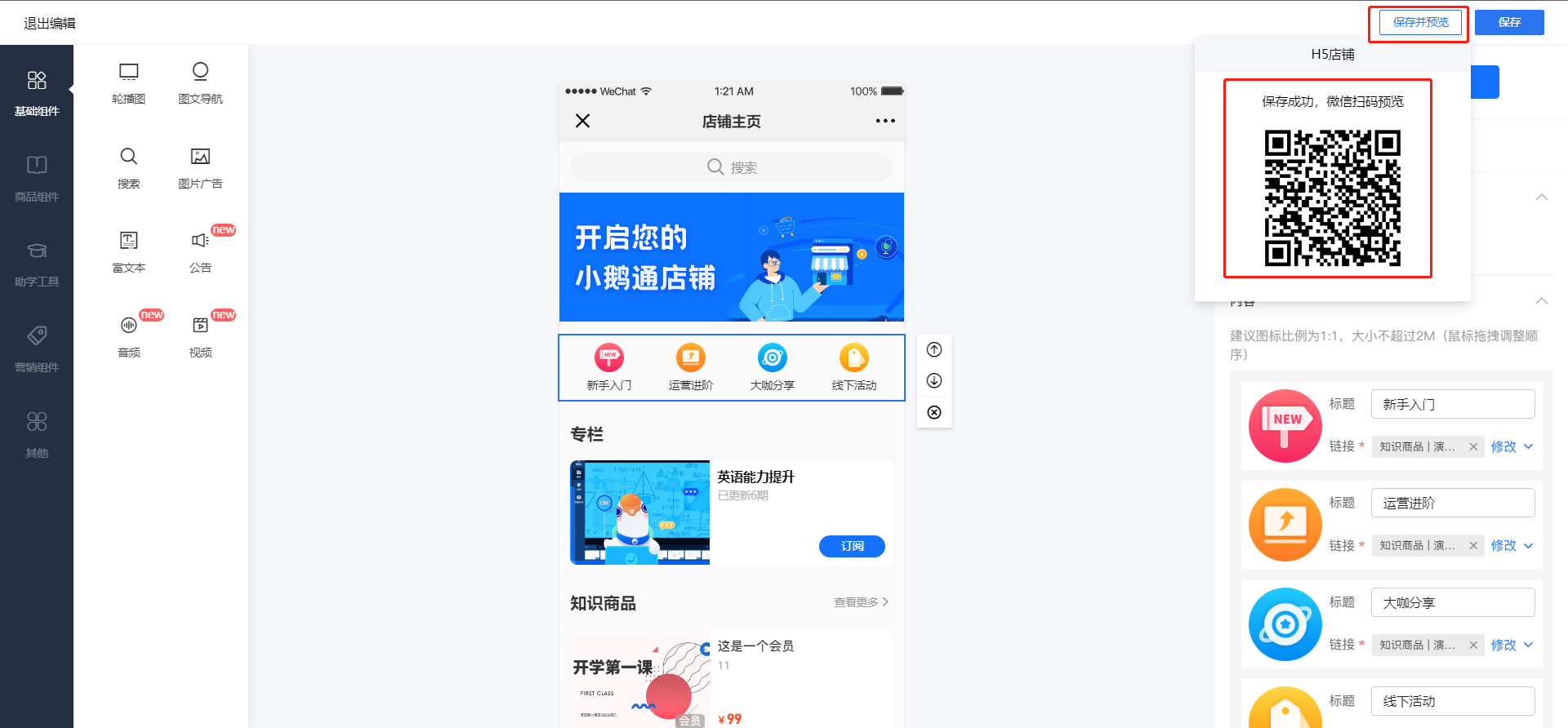
Step 6:Save and preview (Management Console)
Click the 'Save and Preview' button in the upper - right corner to complete the editing and save. You can preview the decorated store.
Click the 'Save' button in the upper - right corner to complete the editing and save the mini page to the mini page list