Copyright protection
- Where can I set up the marquee?
- What anti-theft configurations does elink currently offer?
- User Guide for Enhanced Protection Function of Video Courses
- Content security and anti-theft
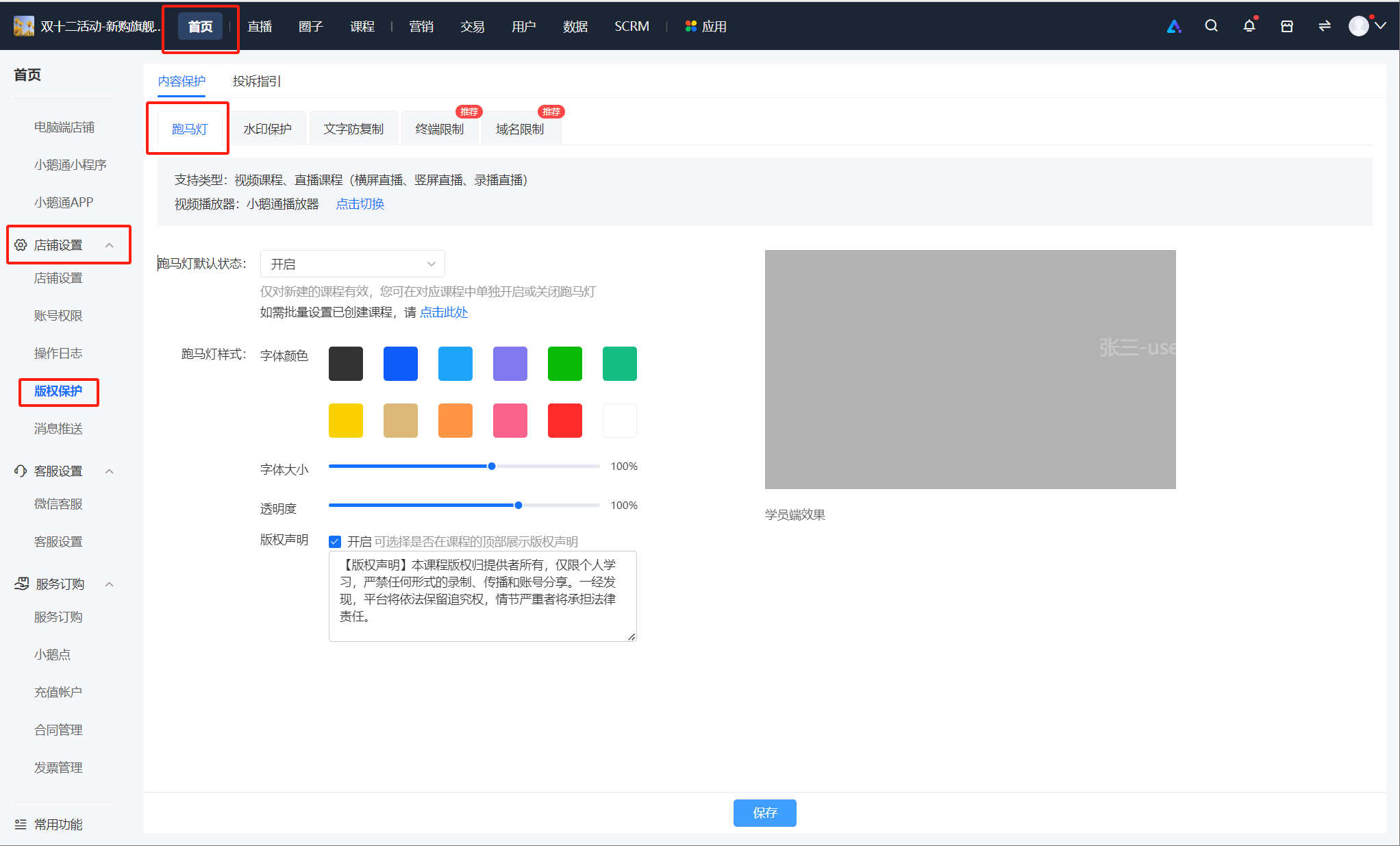
Where can I set up the marquee?
Enter the store management console, click [Store - Copyright Protection], and find [Anti-screen Recording Watermark] in [Content Protection] for settings.
What anti-theft configurations does elink currently offer?
Currently, elink has implemented relevant anti-theft measures for related images, texts, audios, and videos.E-books, live streams, etc.For example, preventing text copying in images and audios; using anti-screen recording watermarks for videos and live courses; setting viewing restrictions for audio, video, and live courses; and adding watermarks to live courses.
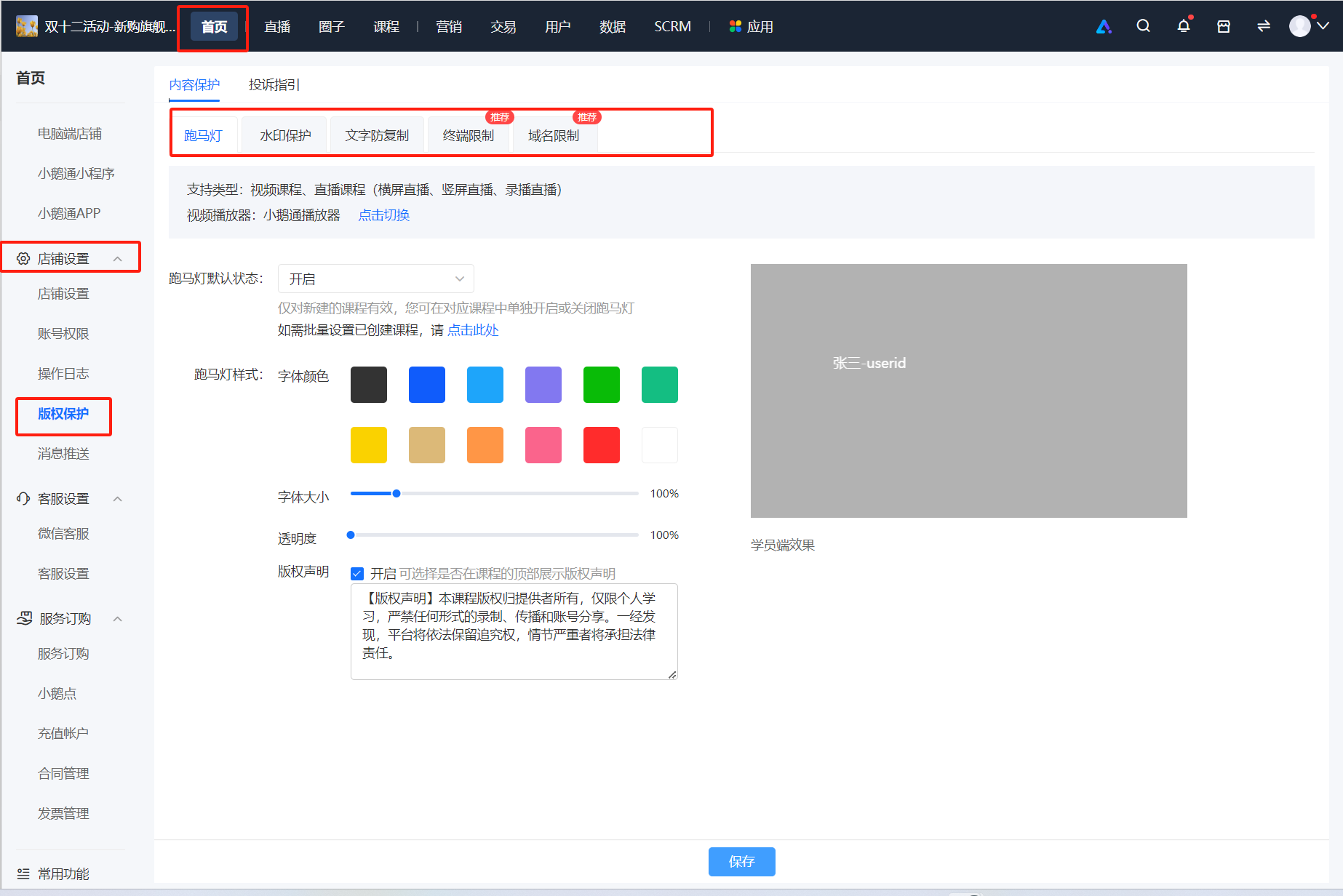
Attached are relevant functions for content security and anti-theft:
https://helpcenter.xiaoe-tech.com/#/problem/detail?document_id=d_597aeabf38294_UnHeArEW
User Guide for Enhanced Protection Function of Video Courses
Function Description: After enabling risk control and uploading video materials, the video courses referenced by the video materials can only be viewed on the App. Combined with intelligent material encryption technology, it effectively prevents multi-channel course piracy. Risk prevention and control video materials can only be used in video courses and are not currently supported for other types except video courses, such as live replay, screen-recorded live broadcasts, and rich text videos.

Implementation Method:
By privately encrypting the video file, it can only be decrypted and played through the elink player on the App, effectively preventing course piracy caused by the leakage of video links.
Terminal Restrictions:
Since the front-end code of web pages and Mini Programs is relatively easy to be decompiled, effective private encrypted playback cannot be achieved on web pages and Mini Programs. Therefore, enhanced protection restricts the playback terminals. Currently, only the "elink Student Edition App" can be used for playback. Even if other terminals enter the relevant course page, only a screen guiding users to watch on the "elink Student Edition App" will be displayed, effectively preventing illegal elements from pirating courses through other terminals.
Function Restrictions:
Since enhanced protection encrypts the playback link itself, it protects against illegal elements obtaining the original video playback link and directly pirating courses (the main piracy path currently discovered). Screen recording prevention on the App can be enabled on the B-side. However, if illegal elements record the screen through other physical means (including but not limited to physical screen recording with a camera, physical screen recording with a video capture card, and recording the PC screen by installing an emulator on the PC), enhanced protection alone cannot provide protection. To combat such course piracy, it is recommended to enable the marquee and watermark functions, trace the source of piracy, and resort to legal means to protect relevant rights and interests.
I. Video Upload
After purchase, you can upload videos with enhanced prevention and control through the following channels:
1. Upload in store settings: On the [Homepage], find [Copyright Protection] under [Store Settings] in the left navigation bar, and then find [Enhanced Protection] to upload videos with enhanced protection.
2. Upload in the material center: Enter [Courses] - [Content Management] - [Videos] to upload.

3. Upload within a course: Add a video within a course to upload a video with enhanced protection.

4. Upload within a community course: Add a video within a community course to upload a video with enhanced protection.

II. Video Addition
After uploading, you can add videos with enhanced protection to community courses, courses, or video courses.

III. Student Viewing
Videos with [Enhanced Protection] need to guide students to watch on the APP.
1. They cannot be displayed normally when viewed on other terminals.


2. They cannot be viewed normally when illegally downloaded.
Content security and anti-theft
I. Overview of Content Anti-theft
In addition to the regular anti-theft functions such as scrolling text and fixed watermarks, elink also provides protection for course content and course links, covering audio courses, video courses, and live courses. It maximally ensures that the original content of merchants is not leaked or misappropriated.

1. What does the anti-theft function refer to?
The purpose of the anti-theft function is to make it difficult for misappropriators to steal the audio, video, and live content of courses. Even if the content is stolen, it can help the copyright owner quickly find the students who stole the courses, which can be used as evidence for subsequent rights protection.
2. How to achieve content anti-theft?
By enabling the scrolling text, restricting the playback terminals, etc., the scrolling text will be displayed on the playback page, and the playback terminals will be restricted to prevent content theft.
II. Function Introduction and Operation Instructions
1. Anti-screen recording scrolling text
·Introduction: The anti-screen recording scrolling text displays copyright notices, student usernames, and student ID information on the course screen to prevent the course from being screen-recorded or misappropriated, greatly increasing the cost of piracy. At the same time, it can quickly track the information of pirates for subsequent rights protection.
·Operation instructions: Merchants can enable the anti-screen recording scrolling text settings on the course details page and select the style of the anti-screen recording scrolling text. After enabling, it will be displayed on the course screen throughout the playback.
Tutorial on setting the anti-screen recording scrolling text
2. Fixed watermark
· Introduction: Set a fixed watermark for live courses. It will always be displayed above the course during the live broadcast, highlighting the brand features. Enable the watermark for e-books and exams, and the username and user ID will be displayed when students view the courses.
· Operation instructions: Merchants can enable the live watermark in the general settings of live courses and select the watermark image, position, size, and transparency. After enabling, it will be displayed on the course screen throughout the playback. Enable the watermark protection on the details page of e-books or exams.
3. Anti-text copying
· Introduction: The anti-text copying function mainly restricts the copying, zooming, and saving of text and pictures in the course details.
· Operation instructions: Merchants can enable the anti-text copying function on the course details page of graphic, audio, and video courses.
4. Playback terminal restriction
· Introduction: Restrict the playback terminals of courses. Enable the 'Restrict course viewing on the PC store', and audio, video, and live courses cannot be played in the PC store. Enable the 'Only viewable on the APP', and video and live courses (including replays) can only be played on the elink APP.
· Operation instructions: Merchants can click to enable the 'Restrict course viewing on the PC store' in [Store - Copyright Protection]. When students enter the details page of audio, video, and live courses on the PC store and click to play, a prompt indicating that the course cannot be played will be displayed.
Merchants can restrict courses to be viewed only on the App or Mini Program in [Store - Copyright Protection - Terminal Restriction]Viewing(Supports elink Mini Program and eLive Mini Program). The course cannot be played on WeChat H5 or web pages.

5. Playback domain anti-hotlinking
· Introduction: Playback domain anti-hotlinking means restricting the playback domain. When clicking to play a video, the system will verify the domain name of the video link. Videos from non-designated domains cannot be played.
· Operation instructions: Merchants can enable the protection in [Store - Copyright Protection - Domain Restriction]. Note that if this function is enabled, the video casting function will not be available.
6. Content encryption
· Introduction: elink's self-developed private content encryption technology encrypts and protects course content.
· Operation instructions: This encryption is a technical-level protection capability, and there are no specific function settings.
For original content, it is recommended to complete copyright registration in advance to better protect intellectual property rights.
If you have any questions about content anti-theft, please contact elink customer service. There will be on-duty operators available every day to help you solve the problems in a timely manner.