Service
- Super Member
- What marketing features are supported for Super Members?
- What products can Super Members add as membership benefits?
- How to add privileges for super members?
- What's the difference between Course Memberships and Premium Memberships?
- Super Member Usage Tutorial
- Message interaction
- How to send messages to users within the Online Store?
- Does it support mass-sending store messages to a specific group of customers?
- Where can users view private messages after they are sent?
- Can the comments posted by users be set to be hidden by default?
- How can I export users' comment data in bulk?
- Can the comments posted by users be hidden?
- How can merchants view user messages?
- Tutorial on Message Interaction Usage
- Instructions for Comment Interaction Function
- User list
- How often is user data updated?
- Is the calculation method for cumulative users that each time a user clicks in counts as one?
- How to delete the activation records?
- How can students synchronize their purchased courses across multiple platforms?
- What causes the incorrect statistical data of trainees' transactions?
- Points Mall
- What business scenarios does the points function support?
- Can multiple custom activities be created simultaneously for the points issuance based on consumption?
- Are custom activities in the points distribution for consumption supported to be modified after creation?
- Can the same product support both points redemption and points deduction for cash at the same time?
- What are frozen points?
- Which marketing campaigns can be combined with point deductions?
Super Member
What marketing features are supported for Super Members?
Currently, Super Members support the functions of promoters, redemption codes, invitation codes, information collection, coupons, and viral posters.
1. When selling Super Member cards, it supports the use of redemption codes, invitation codes, coupons, discount codes, and promoters.
2. The discount benefits for Super Members support simultaneous use with coupons, discount codes, and viral posters.
Explanation:The fact that Super Members support viral posters means that if a store's courses have a viral poster campaign set up, users with Super Member benefits can purchase the courses in the viral poster campaign at a discounted price. The commission for the viral poster is calculated based on the actual payment amount. If the Super Member benefit is free access to all courses, users with Super Member benefits can watch the courses participating in the viral poster campaign for free.
What products can Super Members add as membership benefits?
Articles, Audio, Videos, Live Streams, E-books, Columns, Mega Columns, Course Memberships, Camps
Articles, Audio, Videos, Live Streams, E-books, Columns, Mega Columns, Course Memberships, Camps, Class Courses
How to add privileges for super members?
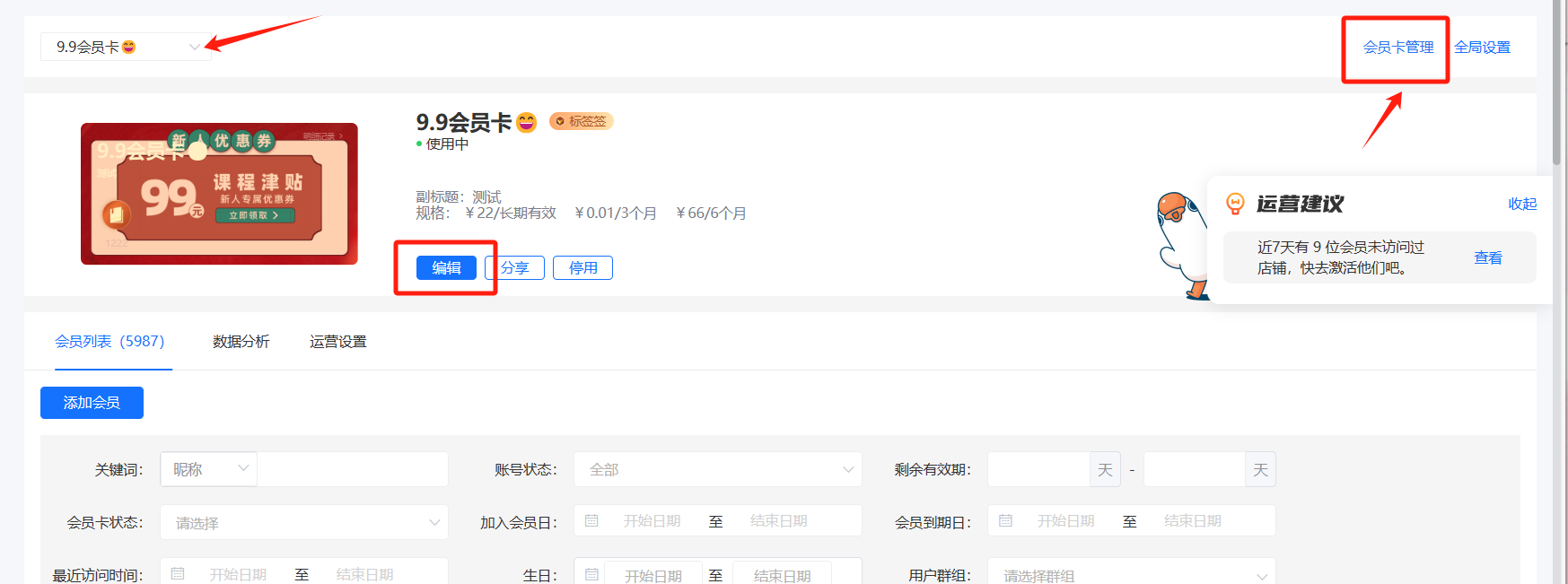
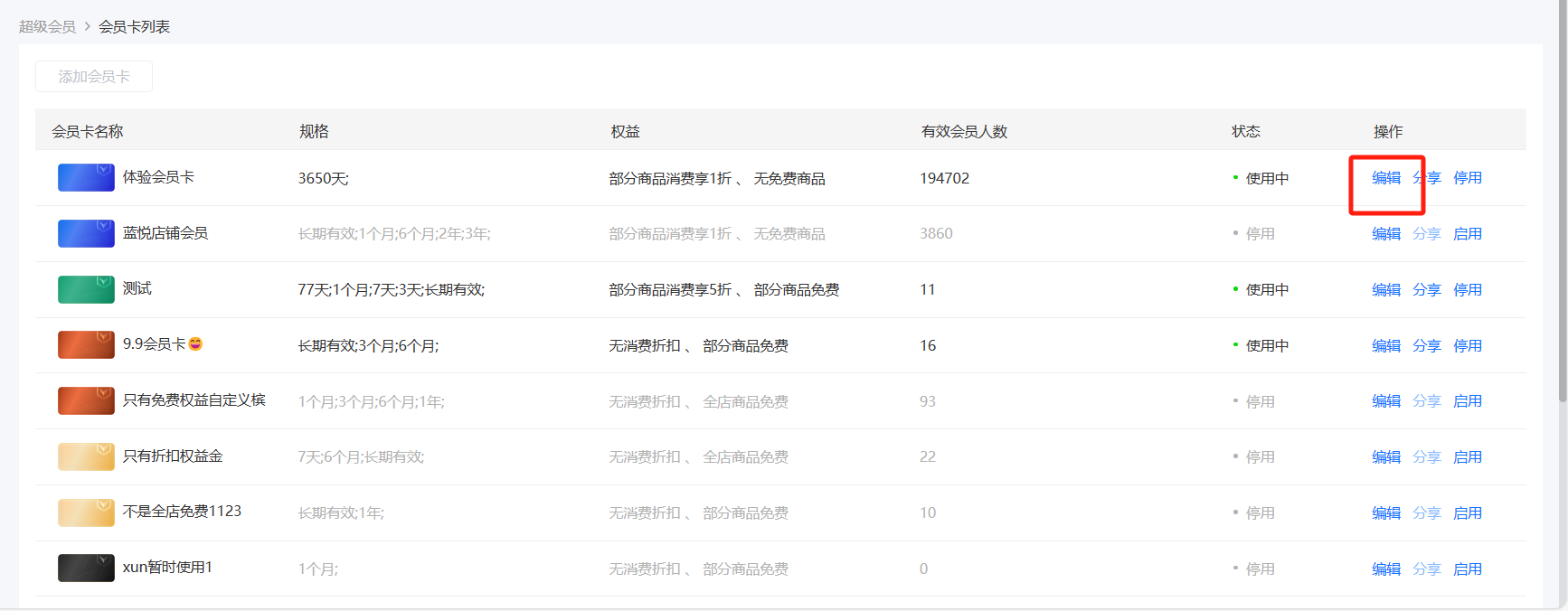
1. On the computer management console - [Users], enter [Super Members] - [Membership Card Management], click the [Edit] button to enter the [Membership Card Edit Page];
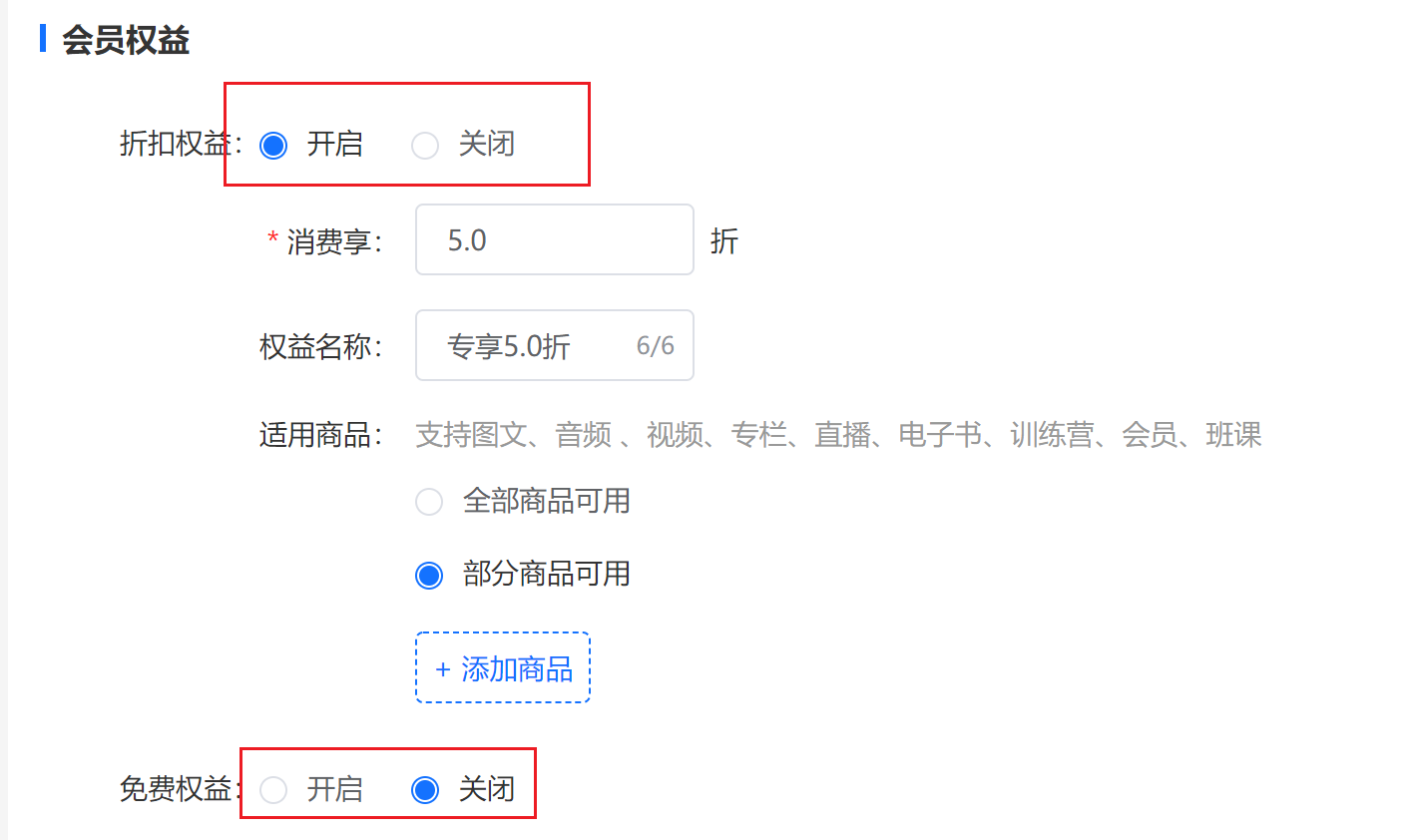
2. In the membership benefits, click [Add Product] to select the products to be added;
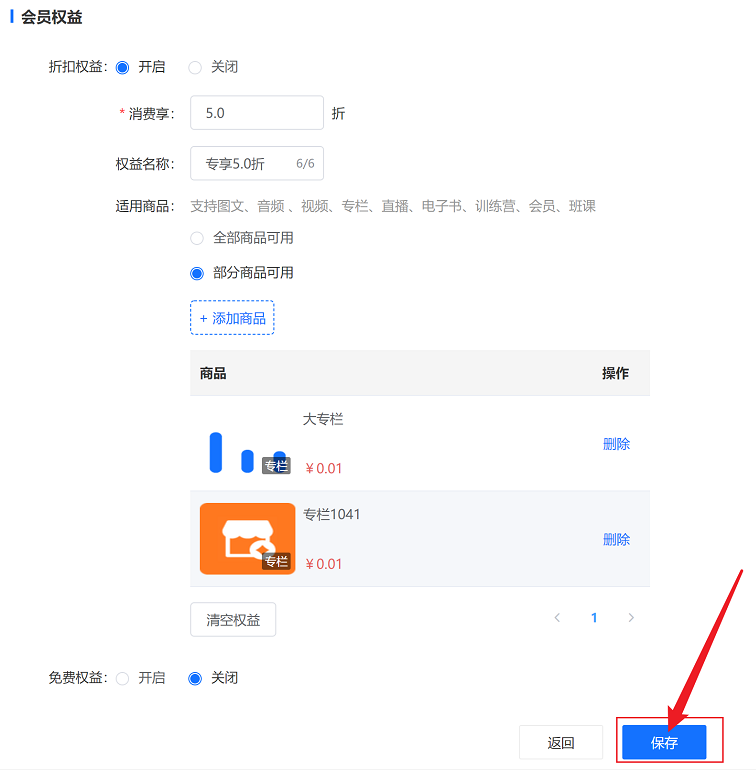
3. After completing the configuration, click the [Save] button at the bottom of the page to add the corresponding products to the super membership benefits.
What's the difference between Course Memberships and Premium Memberships?
elink offers two membership models: Course Membership and Premium Membership.
1. Course Membership is a time - based Knowledge Commerce model. After purchasing, learners can access specific content within the membership validity period, including articles, audio, videos, live streams, e - books, columns, and AI interactive courses.
2. Premium Membership is a user privilege. Users who purchase Premium Membership can enjoy the store membership benefits within the validity period, including discounts on all/part of the products and free access to all/part of the products.
Super Member Usage Tutorial
I. Function Introduction
Super Memberships are special user privileges that are inseparable from the processes of customer acquisition, activation, retention, and viral marketing. They are not only sold as privilege products but also serve as a powerful tool for user operations, enabling merchants to manage users throughout their entire lifecycle, thereby increasing the number of customers, retention rate, and user activity.
II. Purpose of Use
1. Expand the private traffic pool and increase the number of store members.
2. Assist merchants in user operations, enhance the stickiness of core students, improve store retention and activity, and expand the merchant's brand influence.
III. Use Scenarios
Scenario 1:Merchant A has accumulated a group of store students, but their activity is low, and the number of students entering the store each week is small. Merchant A can operate high - stickiness users through Super Memberships, offer exclusive privileges and services, and improve retention and activity.
Scenario 2:Merchant B hopes to attract more high - stickiness users but lacks operational capabilities. Merchant B can use Super Memberships for viral marketing and customer acquisition. Users can obtain free trial privileges by sharing Super Memberships, and the more they share, the more privileges they can accumulate.
IV. Operation Path
Merchant side: Desktop management console → Users → User Operations → Super Memberships
V. Usage Tutorial
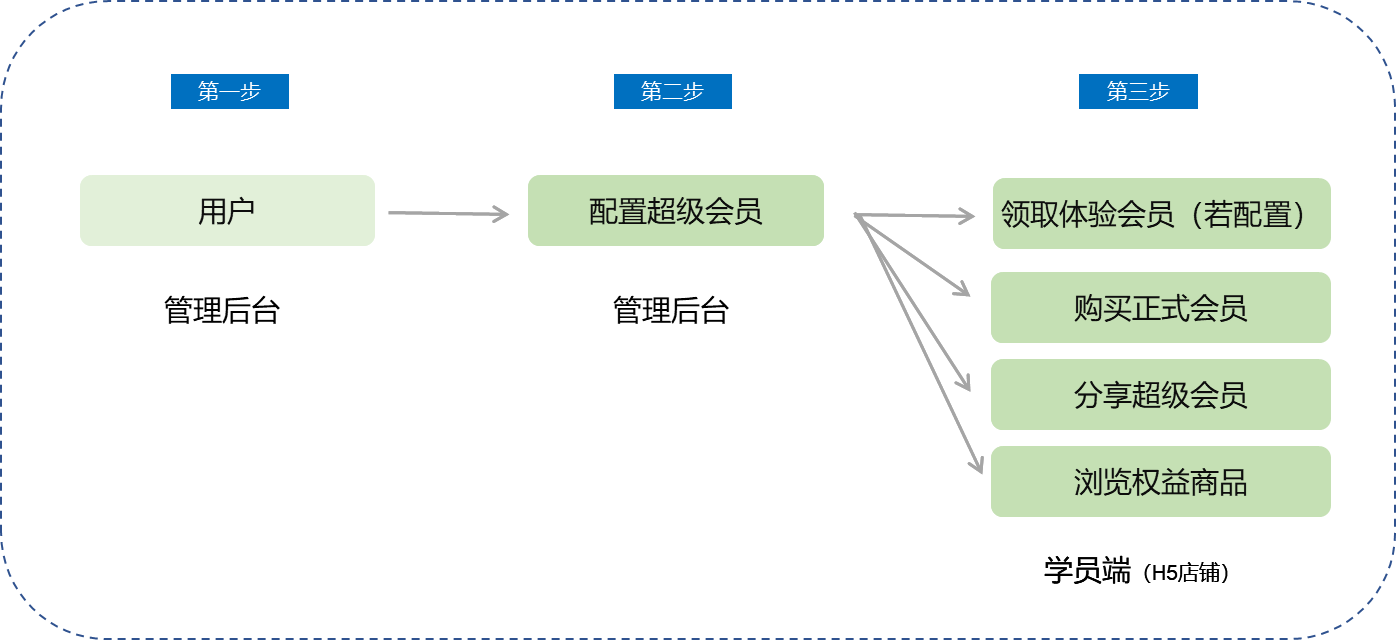
1. Enter Super Memberships for the first time
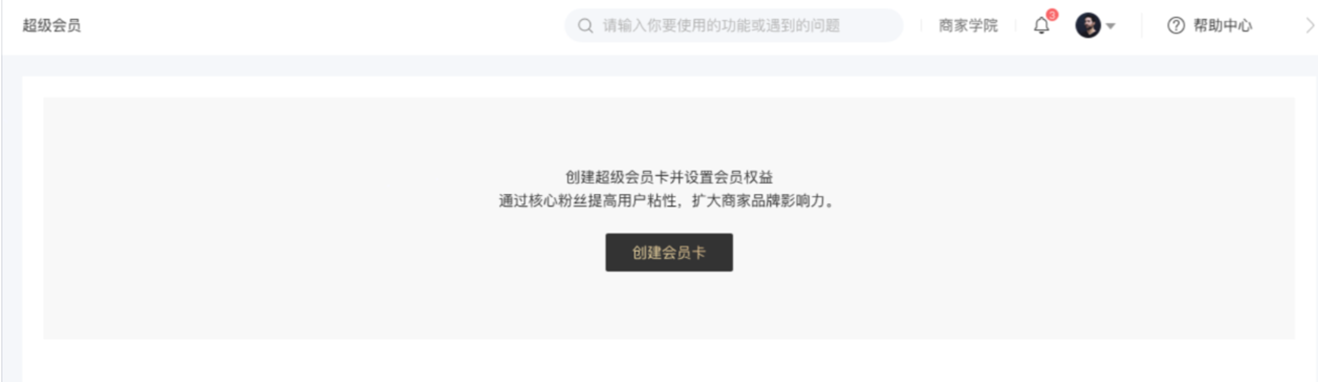
● Click [Create Membership Card] to enter the new membership card creation page.
2. Edit Super Memberships - Membership Card Settings
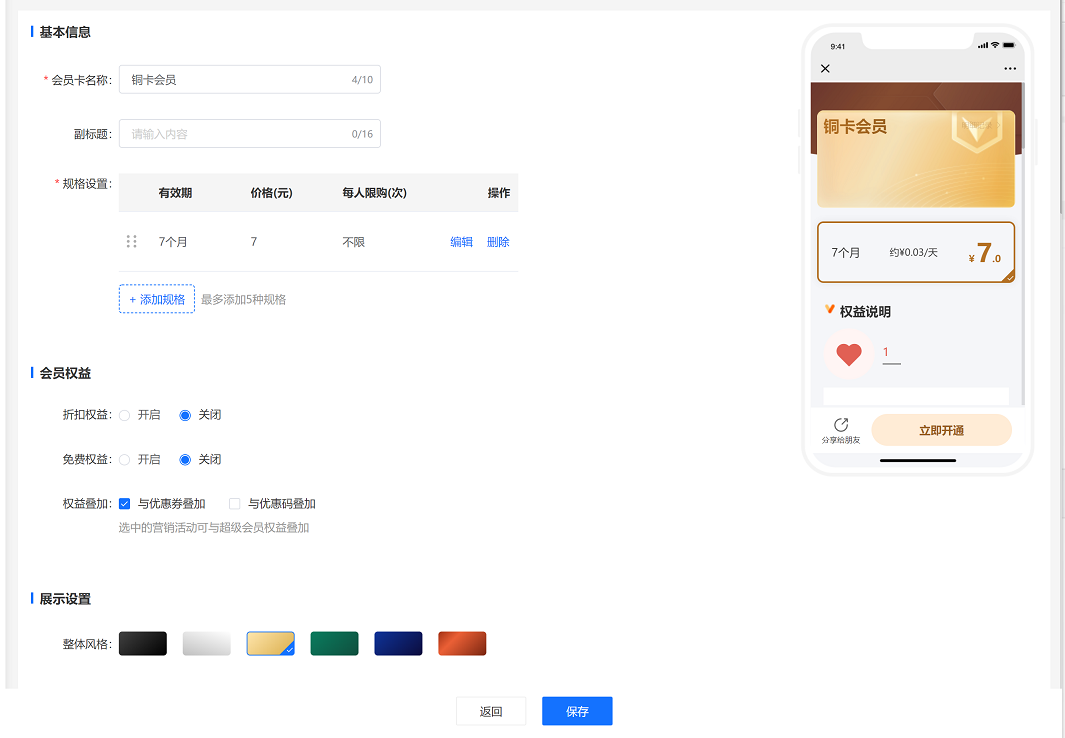
● Basic information: Name, subtitle
● Membership specifications: Validity period, price, purchase limit (maximum of 5 settings)
● Membership privileges: Partial/Full - store discounts, partial/full - store free access
● Membership description: Privilege description, membership introduction, usage instructions (supports rich text editing)
3. Edit Super Memberships - Membership Card Settings
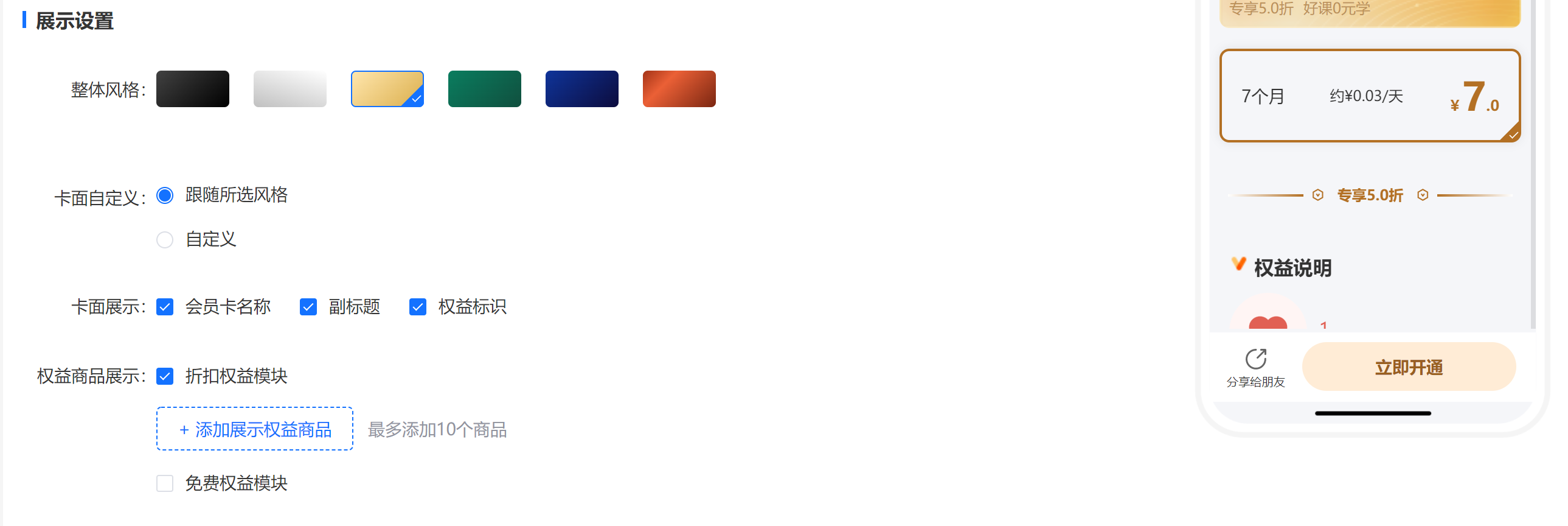
● Overall style: Supports 6 styles
● Card face customization: Can choose to follow the style or upload your own
● Privilege content display:
a. Free product display module (maximum of 10 products can be added)
b. Discount product display module (maximum of 10 products can be added)
● Membership description
4. Membership Operations - Membership List
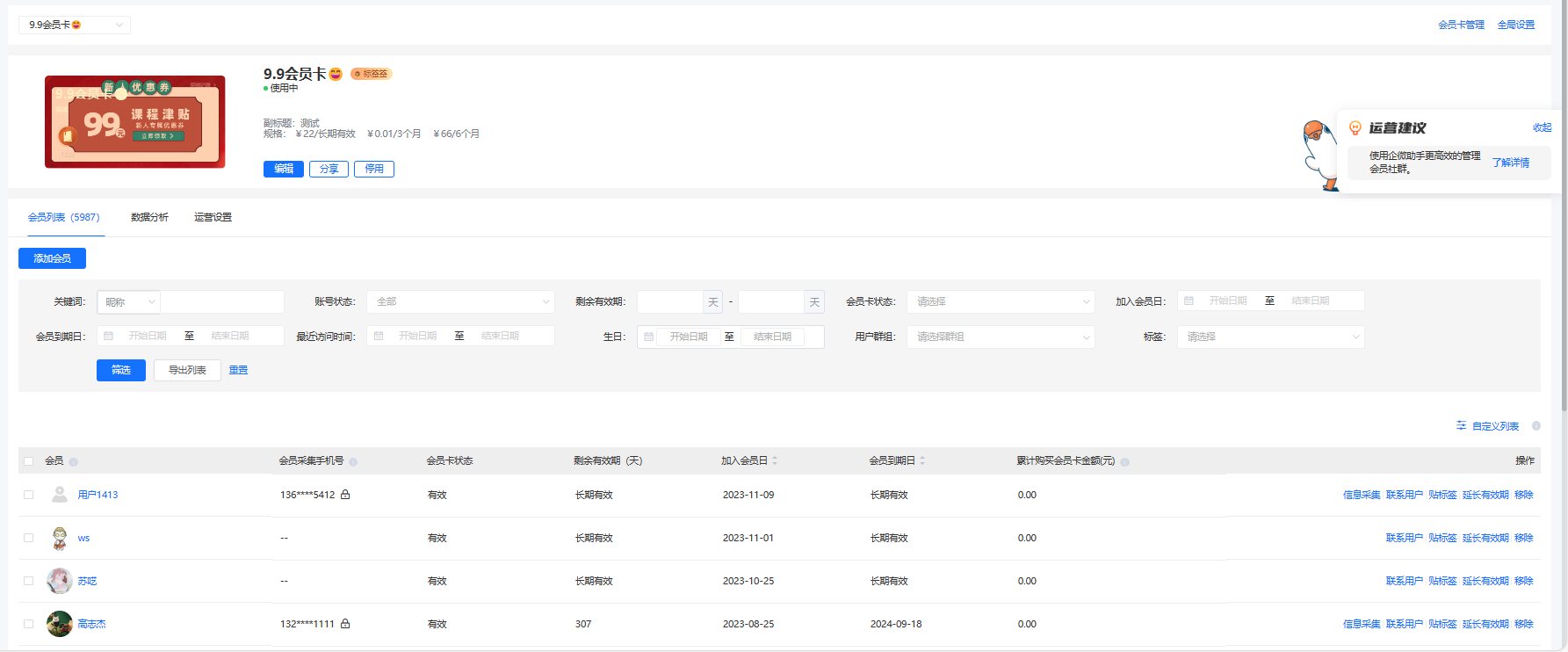
● You can select the membership cards to be displayed through the drop - down menu in the upper - left corner.
● You can directly add Super Memberships.
● You can filter and export the list.
● You can view the information filled in during user information collection.
● You can batch tag users.
● You can contact users (supports sending SMS to the user's account mobile number and the mobile number collected during information collection).
● Click on the avatar/nickname to jump to the user's personal details page.
● You can directly remove the user's Super Membership privileges (Note: After removal, the user will lose the Super Membership privileges, and the system will not automatically refund. You need to contact the user manually for a refund.)
5. Membership Operations - Operation Settings
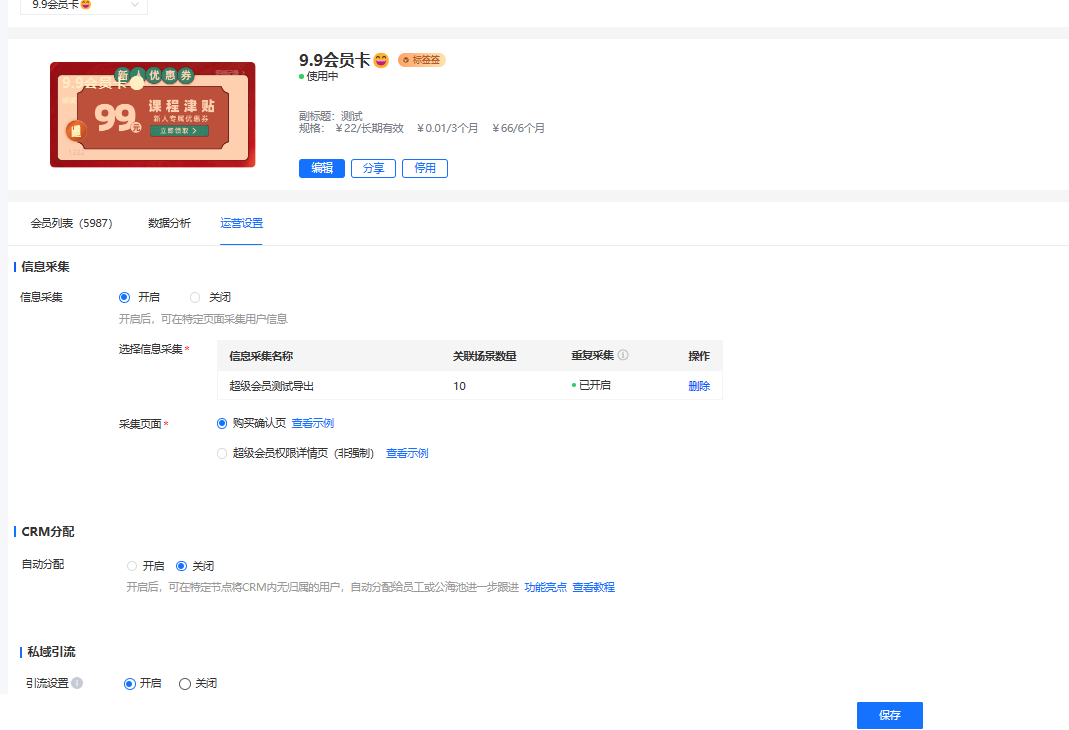
● Information collection: Supports invoking the information collection function.
● Private domain customer acquisition, including:
a. Customer acquisition settings (add a QR code for users to scan and join the community);
b. Sharing guidance (configure sharing posters in [Sharing - Poster Settings])
6. Membership Operations - Data Analysis
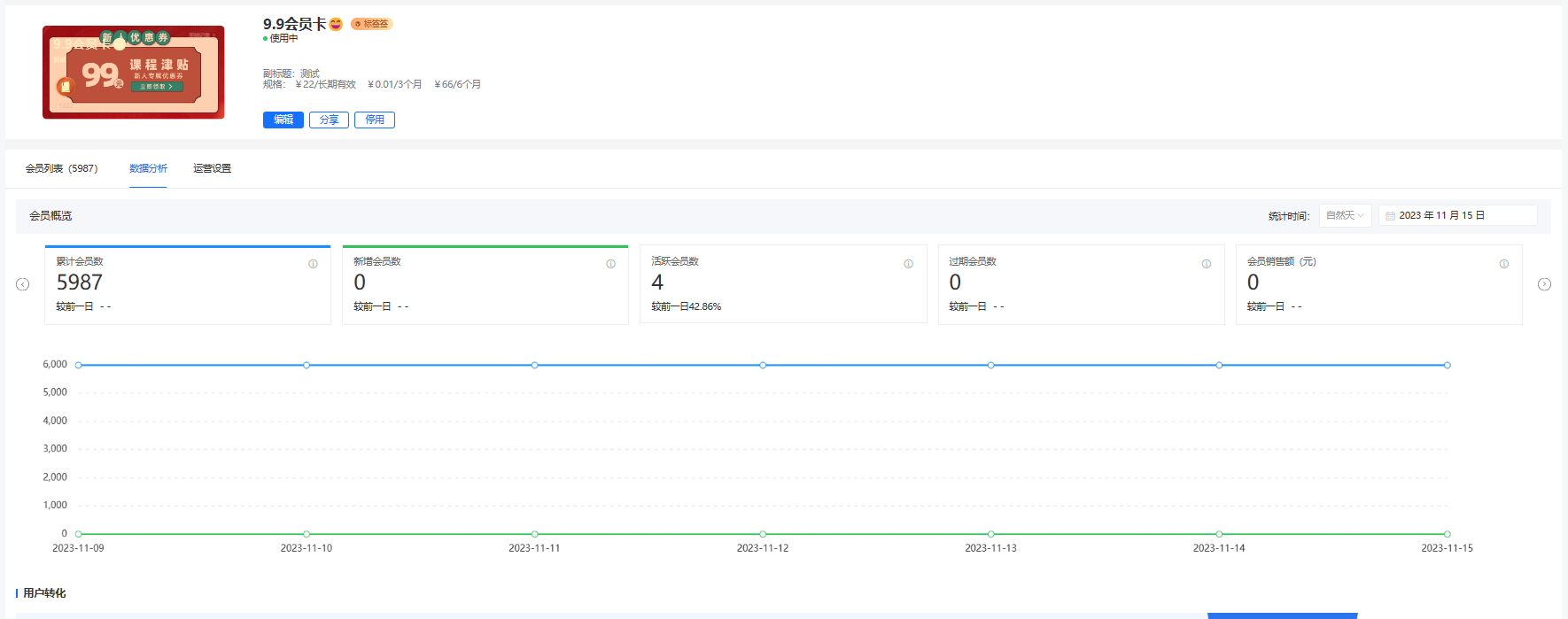
● Membership overview (basic data, user conversion, membership specification distribution)
● Membership geographical distribution
● Membership activity
● Membership retention analysis
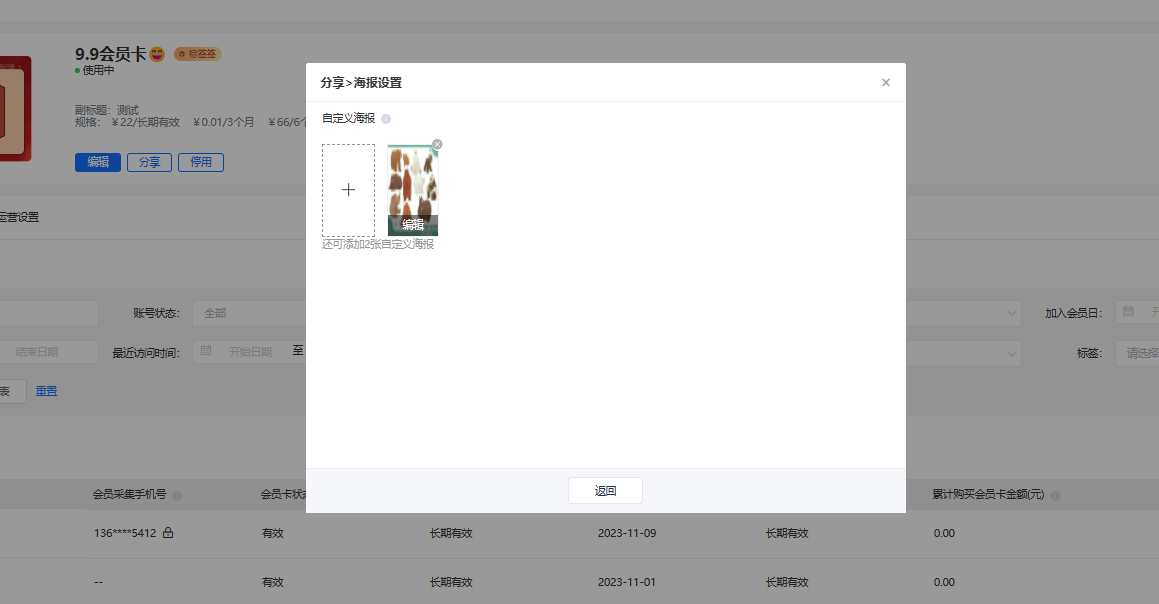
7. Membership Operations - Sharing Settings
● Sharing posters: You can customize and upload three posters for users to share and spread virally.
8. Membership Card Management
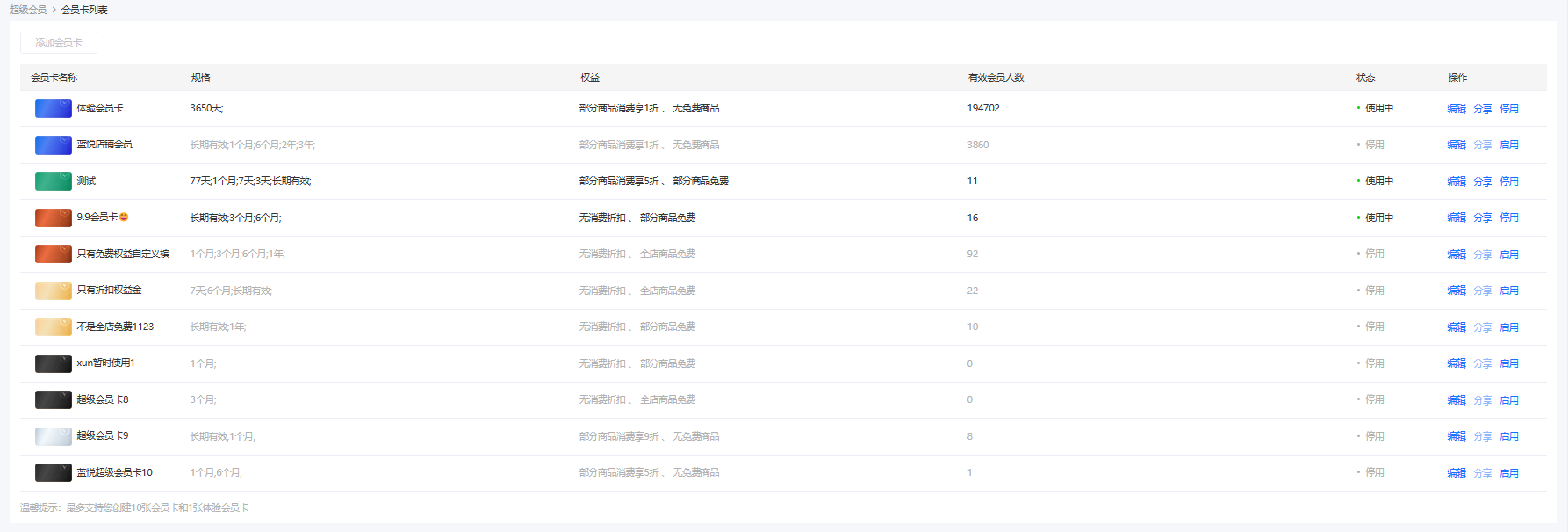
● Supports adding 10 official membership cards and one trial membership card.
9. Global Settings
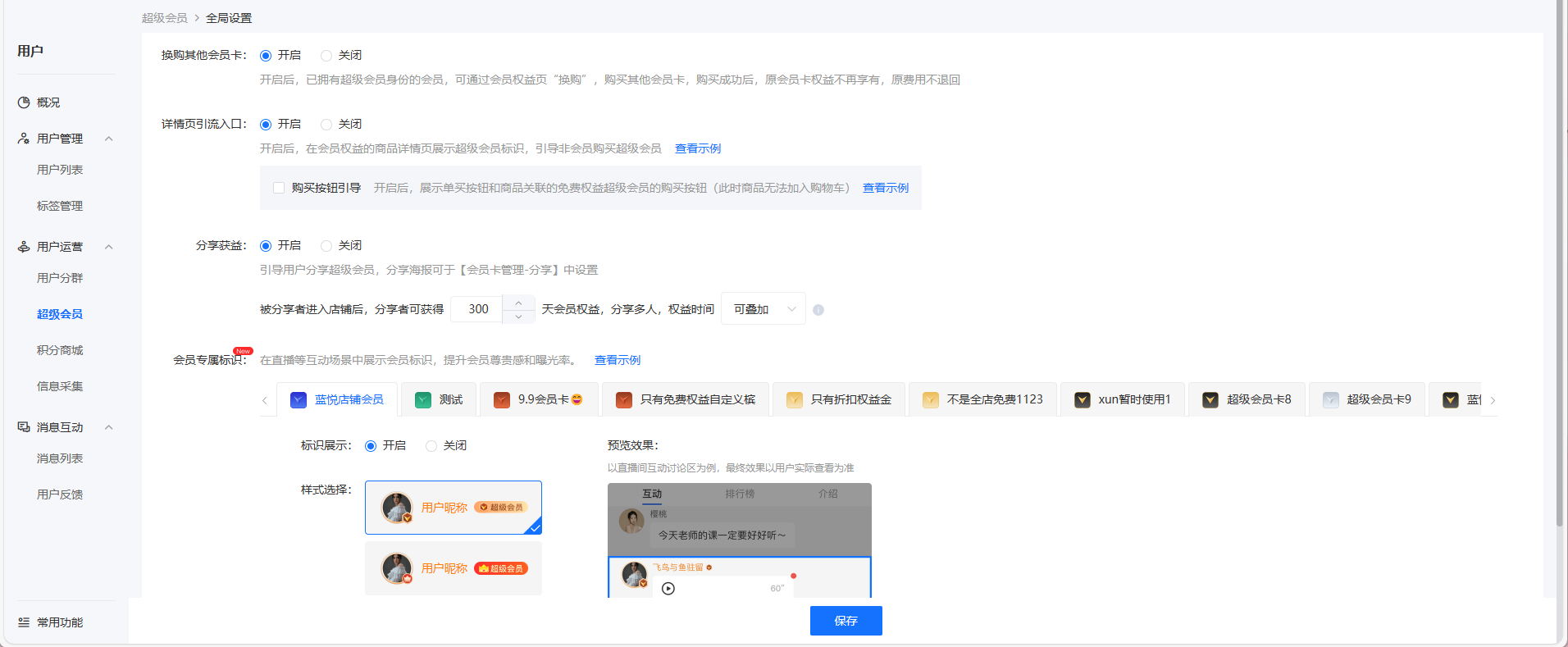
● Exchange for other membership cards:
After enabling, members within the validity period can exchange for other membership cards.
● Super Membership entrance
Under the membership privilege products, display the Super Membership guidance entrance for non - members.
● Sharing benefits
(2) If a user receives a trial membership and the sharing is successful, the validity period of the trial membership will be extended.
(3) If a user purchases an official membership and the sharing is successful, the validity period of the official membership will be extended.
(4) Definition of successful sharing: If the shared user scans the code and enters the store, the sharing is considered successful.
(6) Stackable/Non - stackable rules: If one person shares a Super Membership with multiple people and the sharing is successful, the privileges can be stacked/non - stacked. (If stacking is selected, consider the risk that the shared user can receive unlimited privileges.)
10. Super Membership Entrance (User Side)
● Entrance on the course details page for users who have not purchased the Super Membership
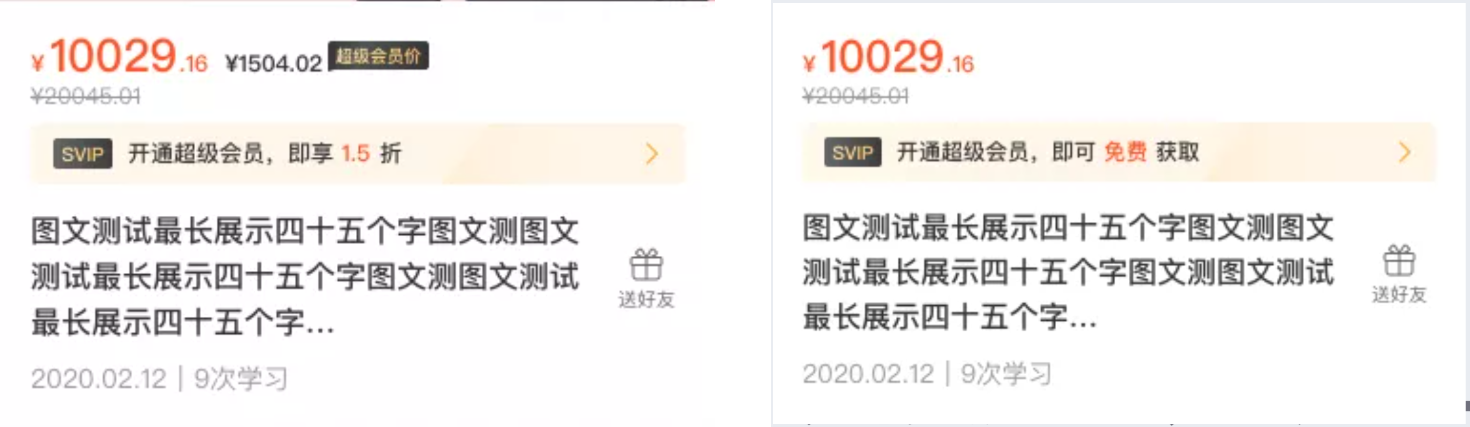
● Super Membership entrance in the personal center (not activated, trial/official membership activated)
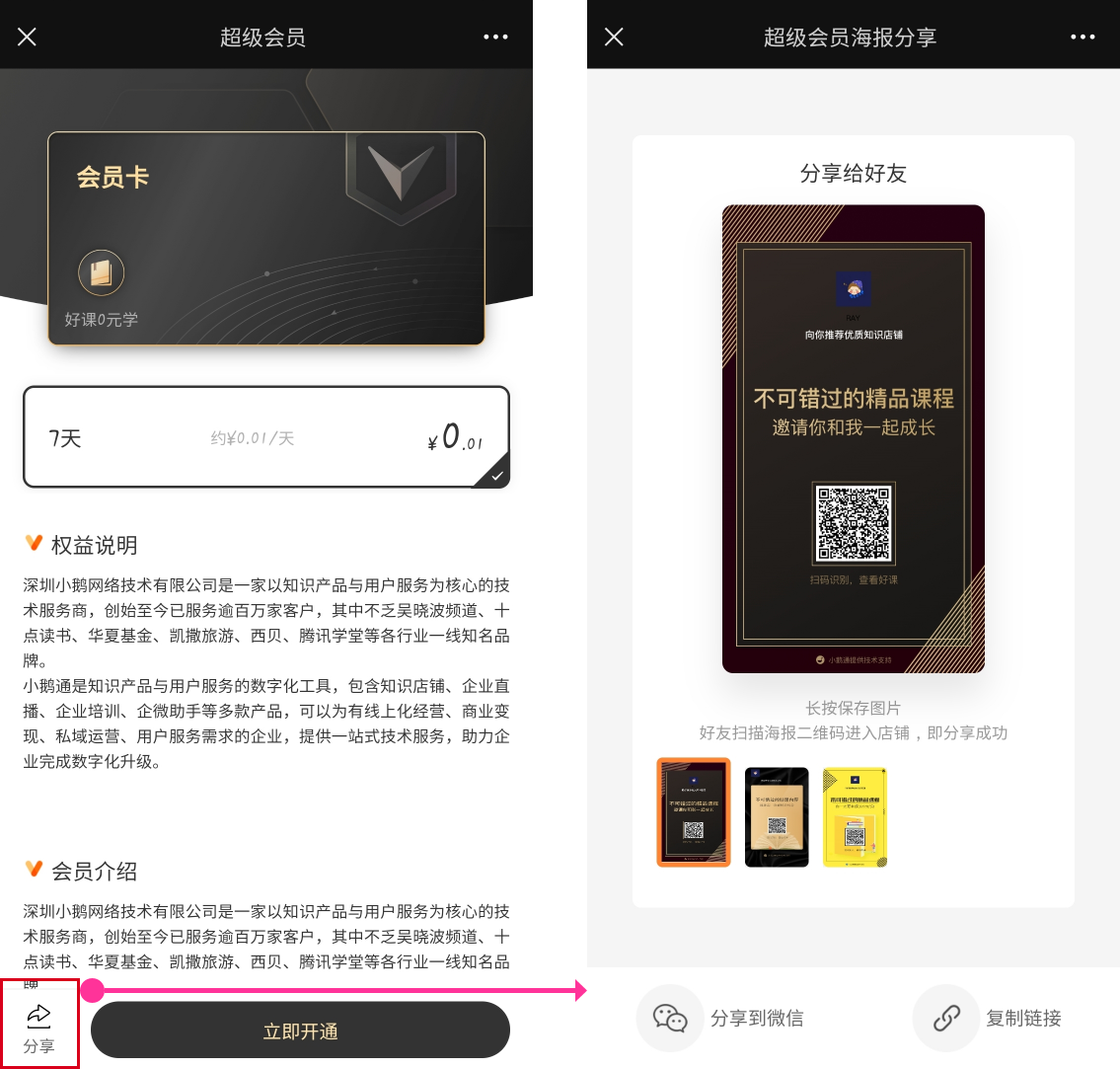
10. Super Membership Details Page (User Side): Users can browse the specifications and purchase/renew the membership.
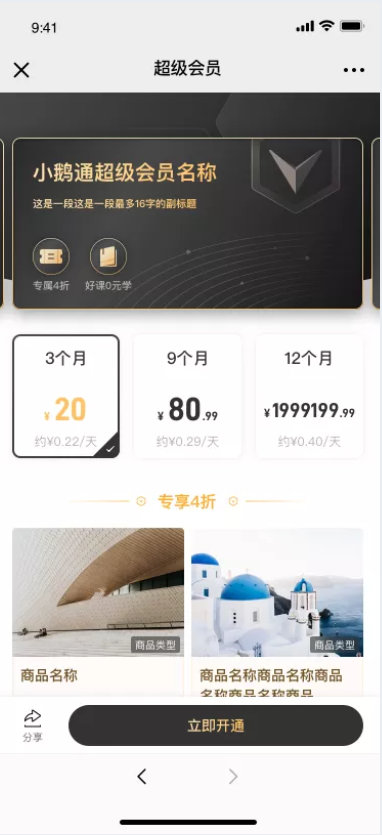
12. Super Membership Details Page - Sharing (User Side)
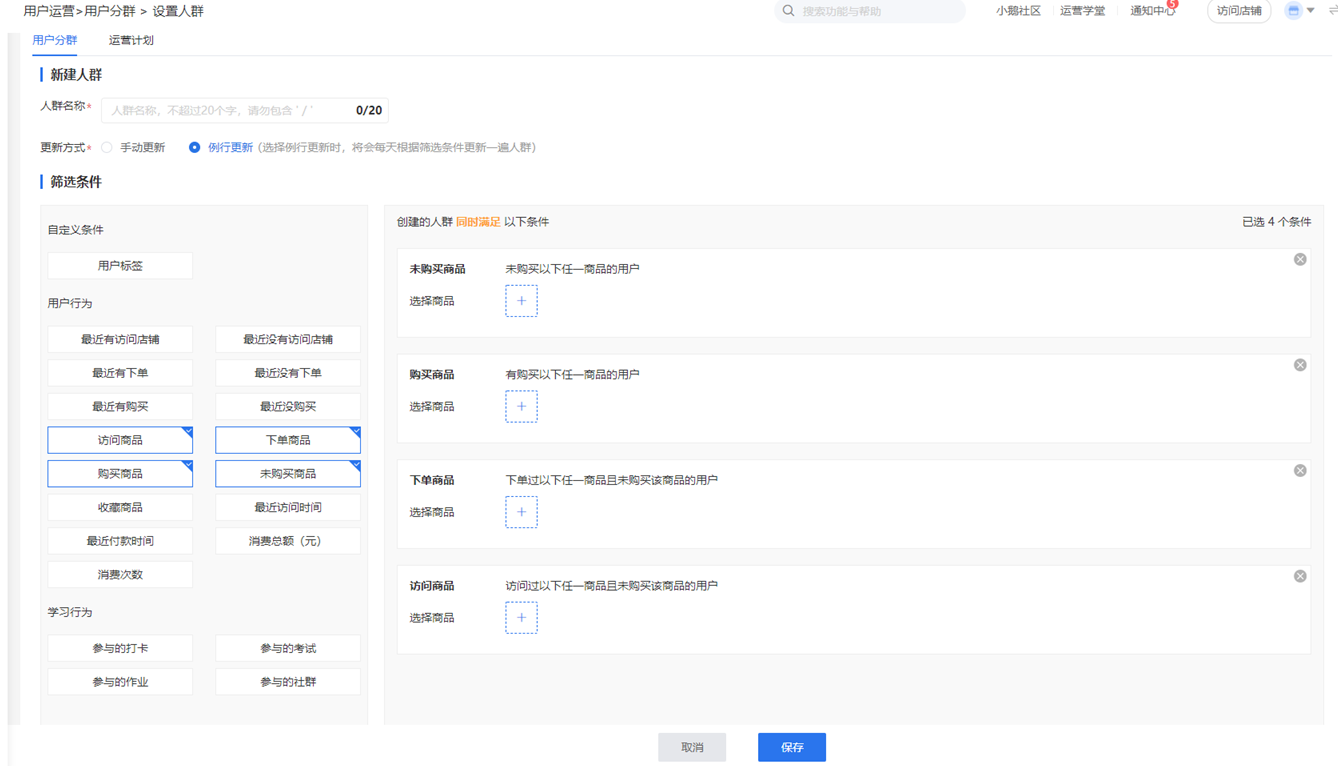
● You can select Super Membership products (official membership + trial membership) for user grouping.
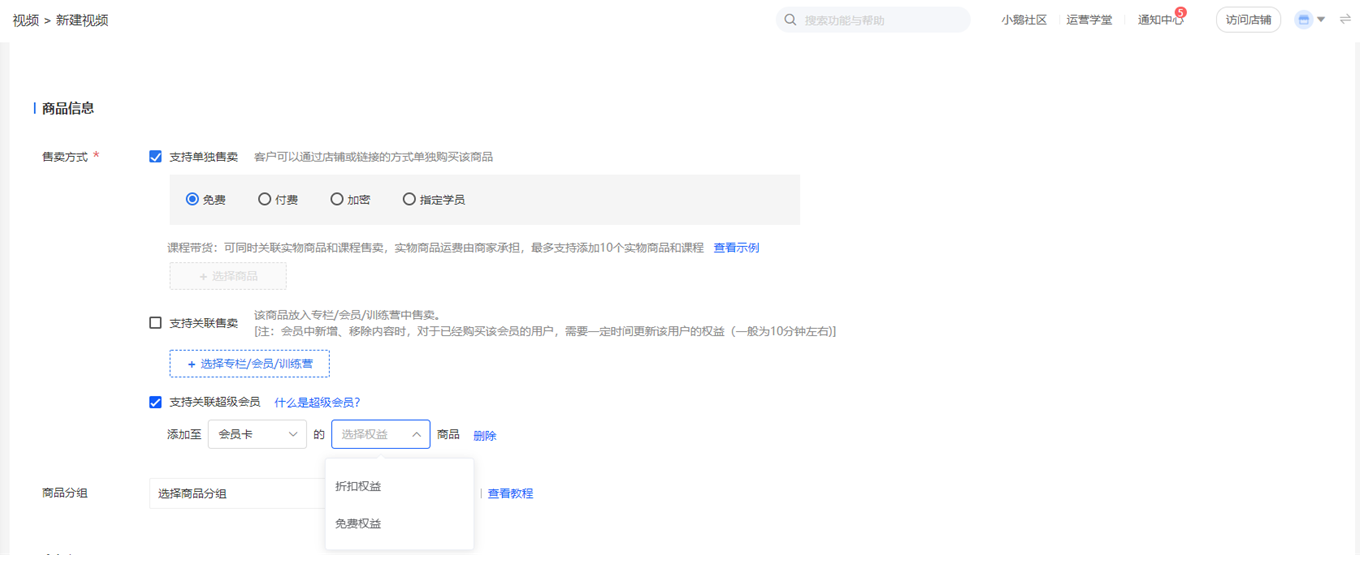
● When creating/editing products, you can choose whether to add them to the Super Membership free/discount products.
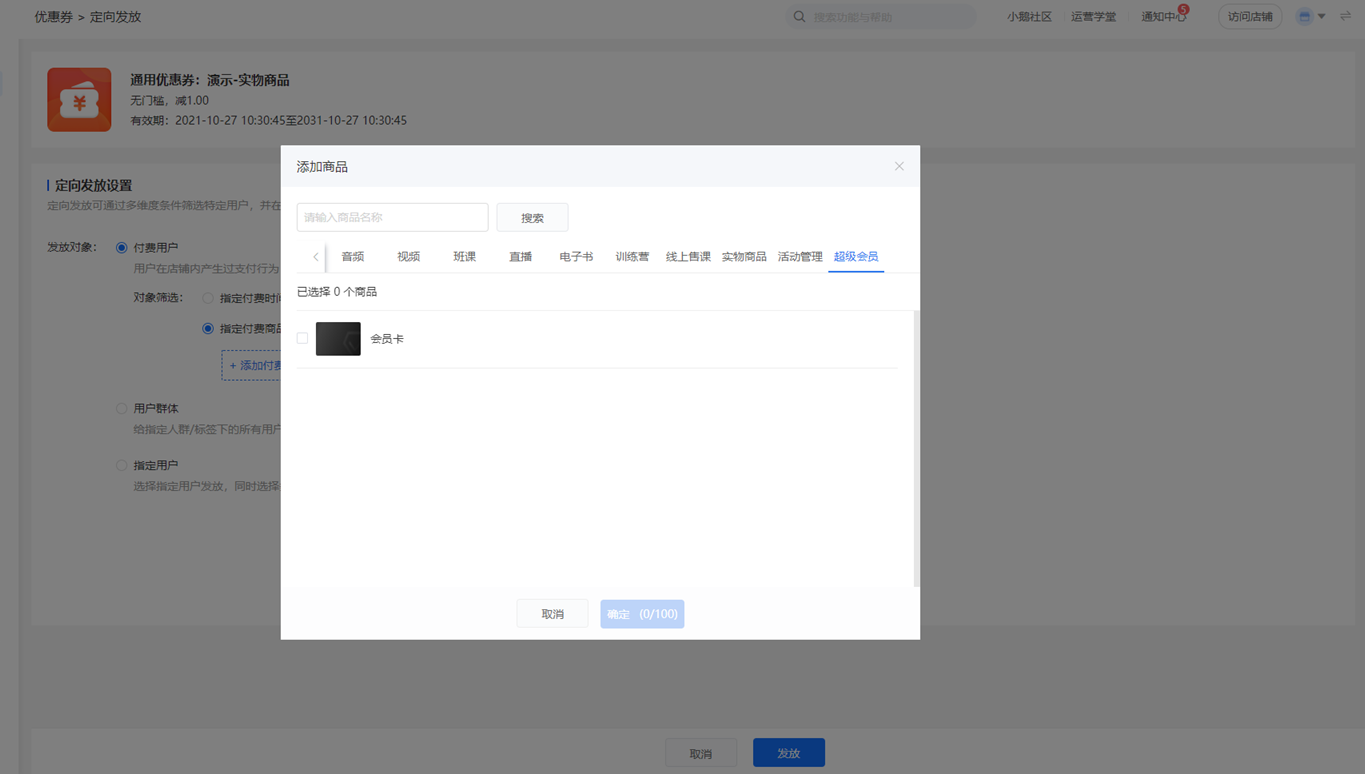
● Supports adding the group of users who have purchased the Super Membership (official members + trial members)
Message interaction
How to send messages to users within the Online Store?
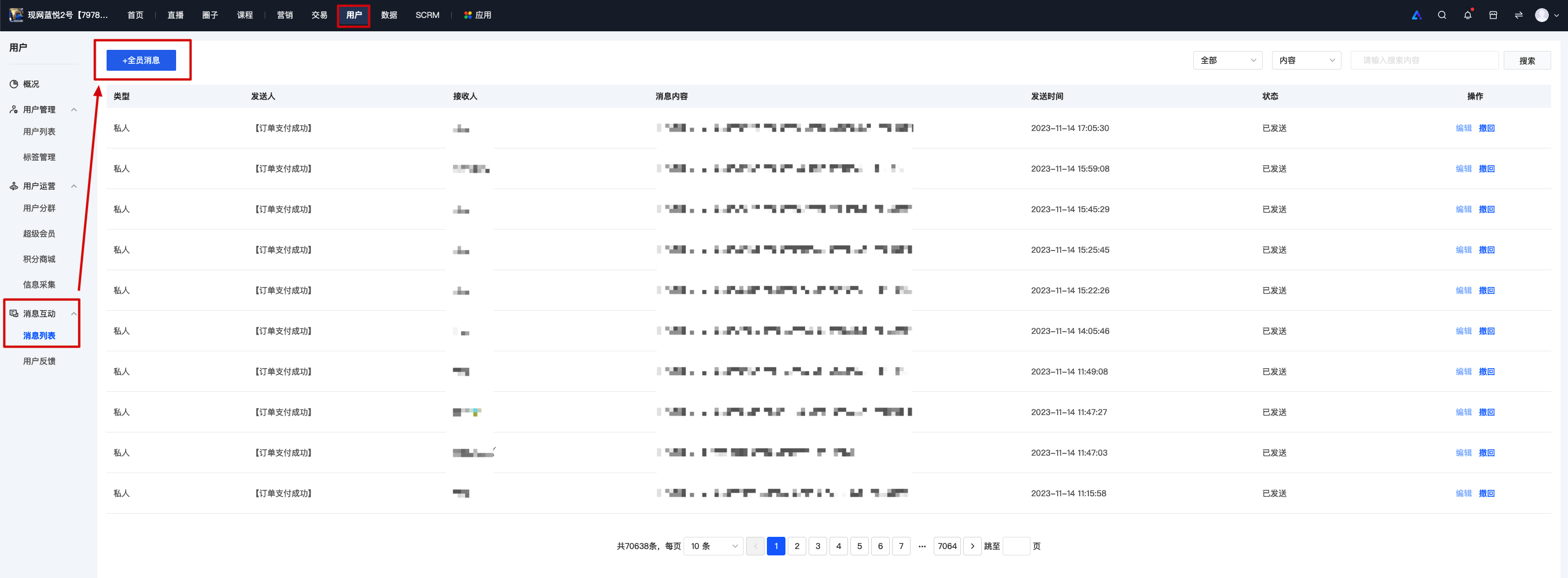
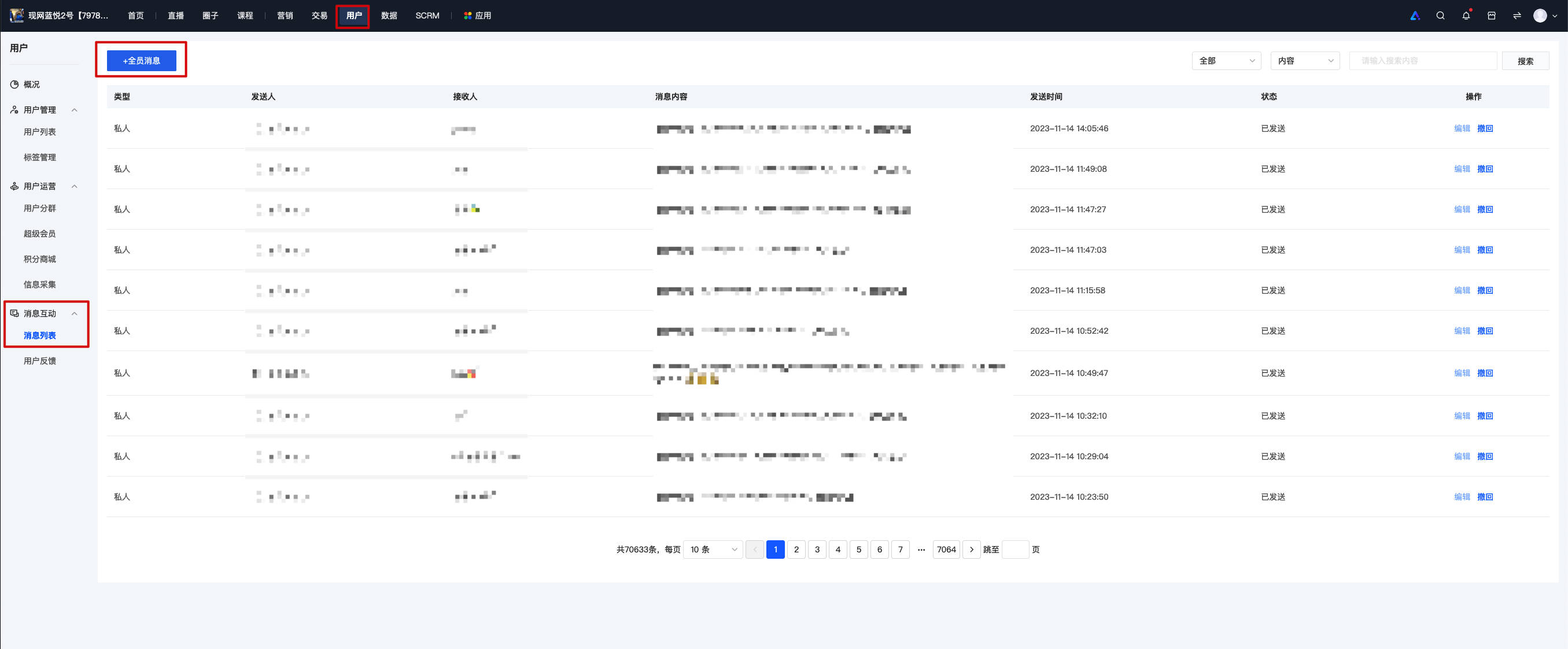
You can enter the store management console, click [Users] - [Message Interaction] - [Message List] - [+ Push Message to All], and then send in-store message notifications to all customers who have visited your store.
Does it support mass-sending store messages to a specific group of customers?
Yes, you can use the [User Segmentation] feature. Create a user segment according to your needs, specify the type of users it targets. After creating it, you can send targeted notifications and group messages.
Where can users view private messages after they are sent?
After users visit your Online Store, they can view it next to the avatar in the personal center. You can also configure it to be viewable at the [Messages] in the bottom menu bar of the page through the 「Store Design」.
Merchants can click [Users] - [Message Interaction] - [User Feedback] to select a user and send a message.
Can the comments posted by users be set to be hidden by default?
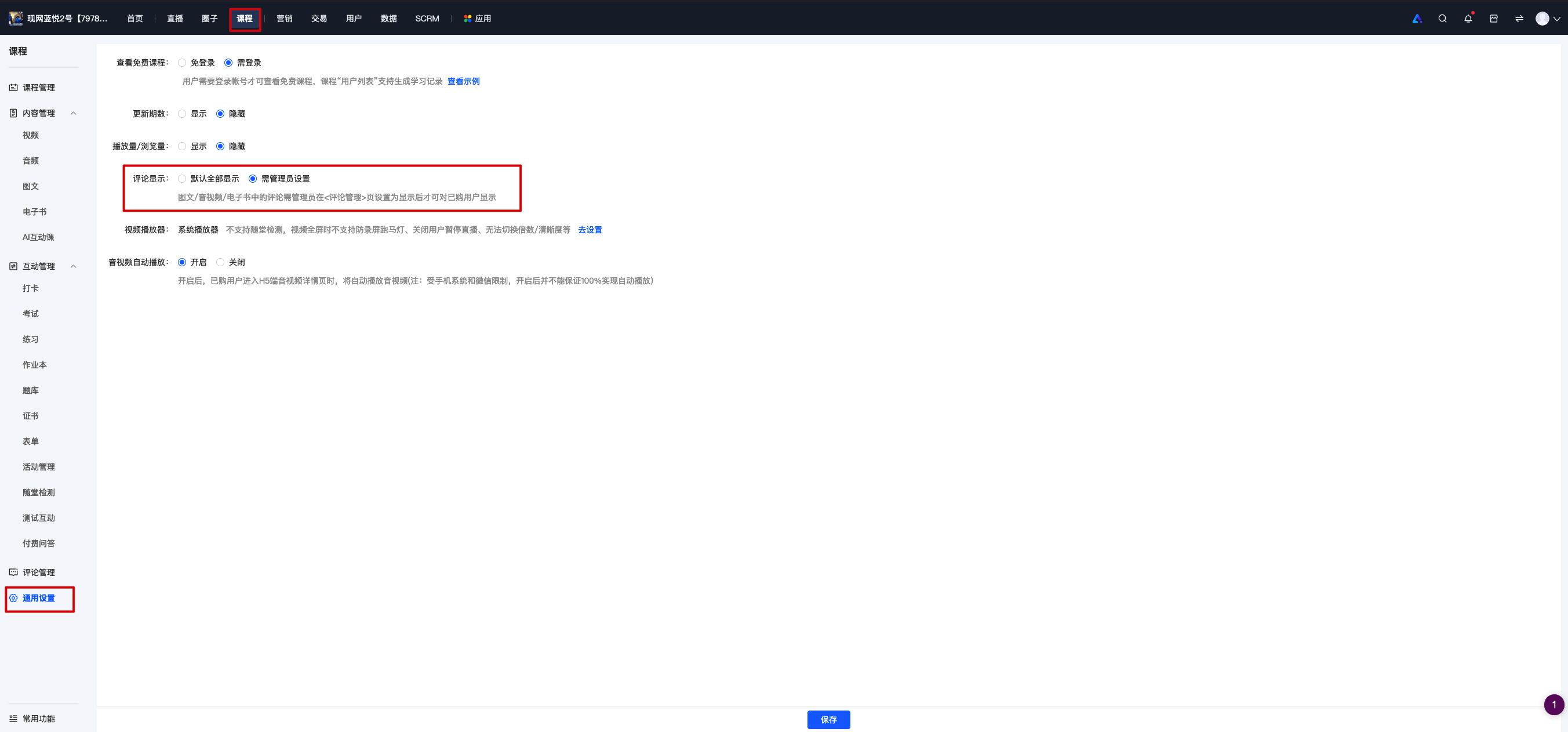
You can enable the [Comment Review Settings] feature. After enabling it, comments made by users on articles, audios, and videos will only be displayed after being approved by the administrator.
The operation path is as follows:
1. Configure in [Courses] - [General Settings] - [Comment Display].
How can I export users' comment data in bulk?
Currently, exporting user comments on courses is not supported. elink is working hard on optimization. Please understand.
Can the comments posted by users be hidden?
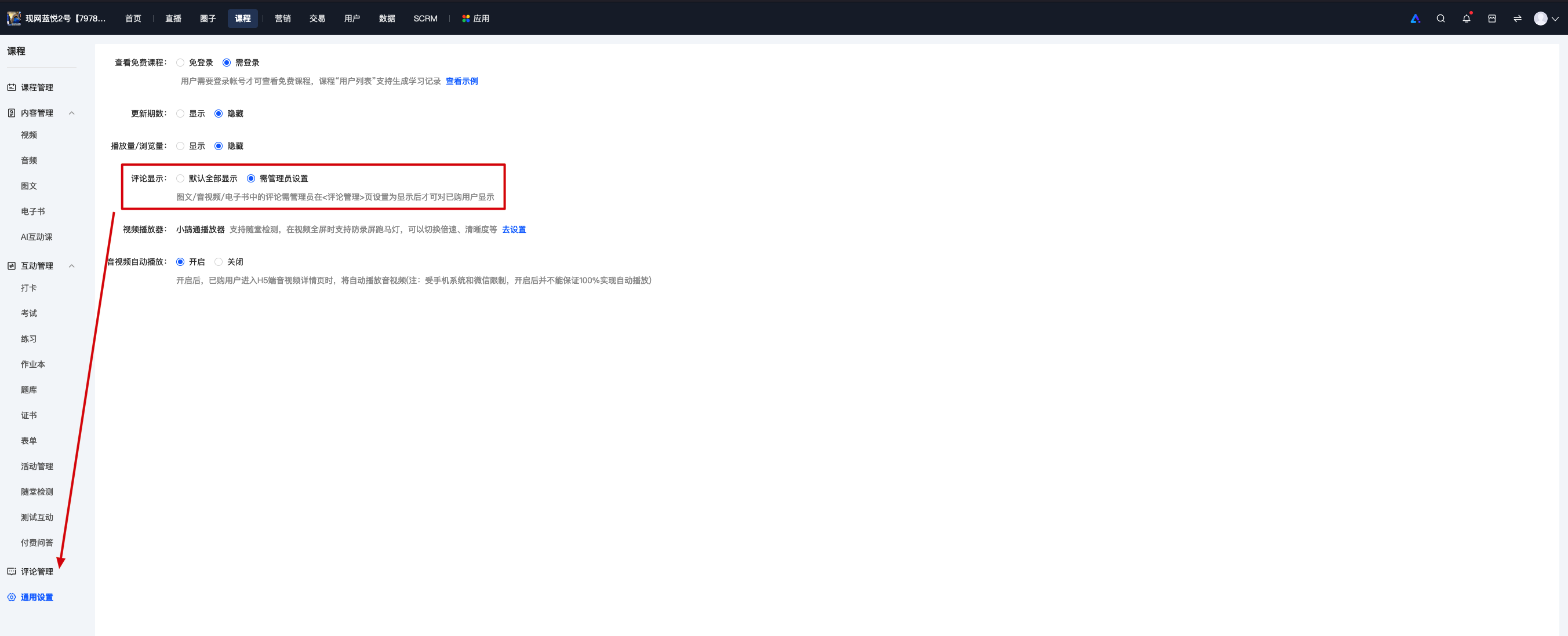
1. Comments posted by users support hiding and displaying. Merchants can enter the store management backend and configure the display or hiding of comments in [Courses] - [General Settings] - [Comment Display].
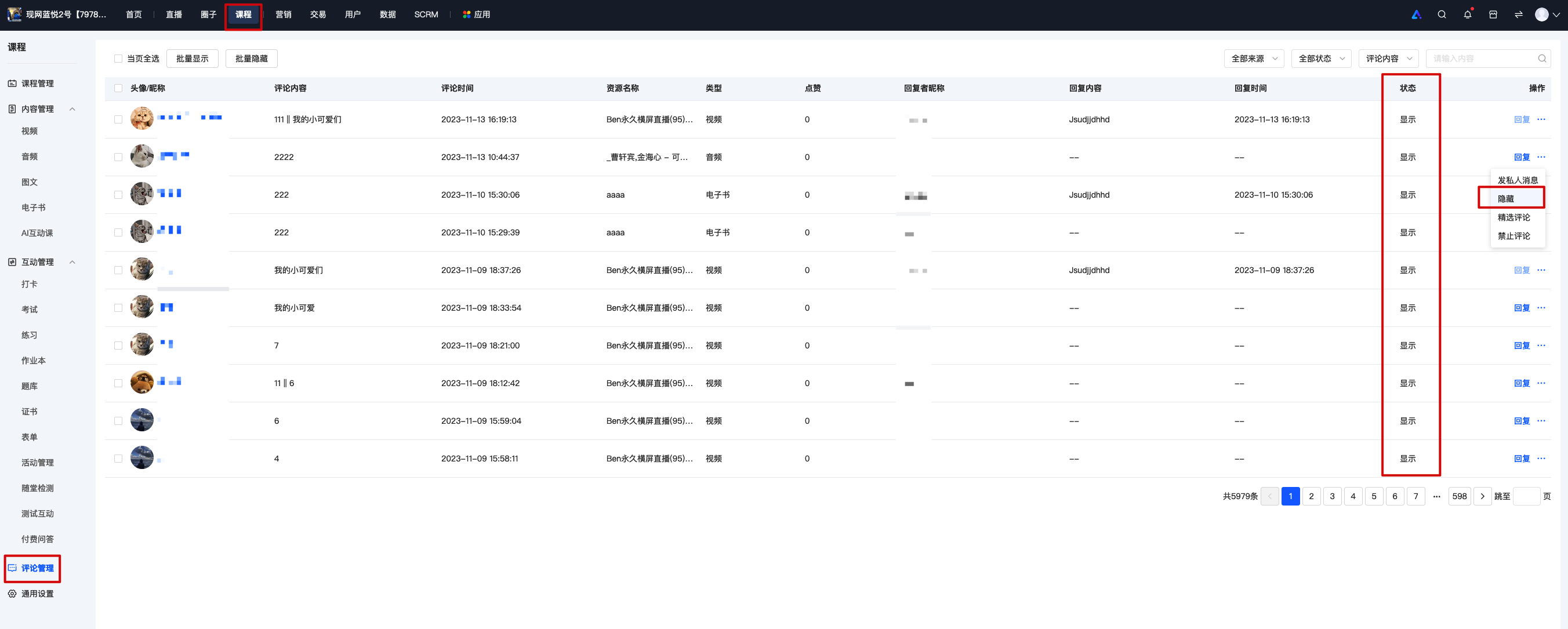
2. If you set[Comment Display]to 'Requires administrator settings', go to [Comment Management] to configure the display/hide.
How can merchants view user messages?
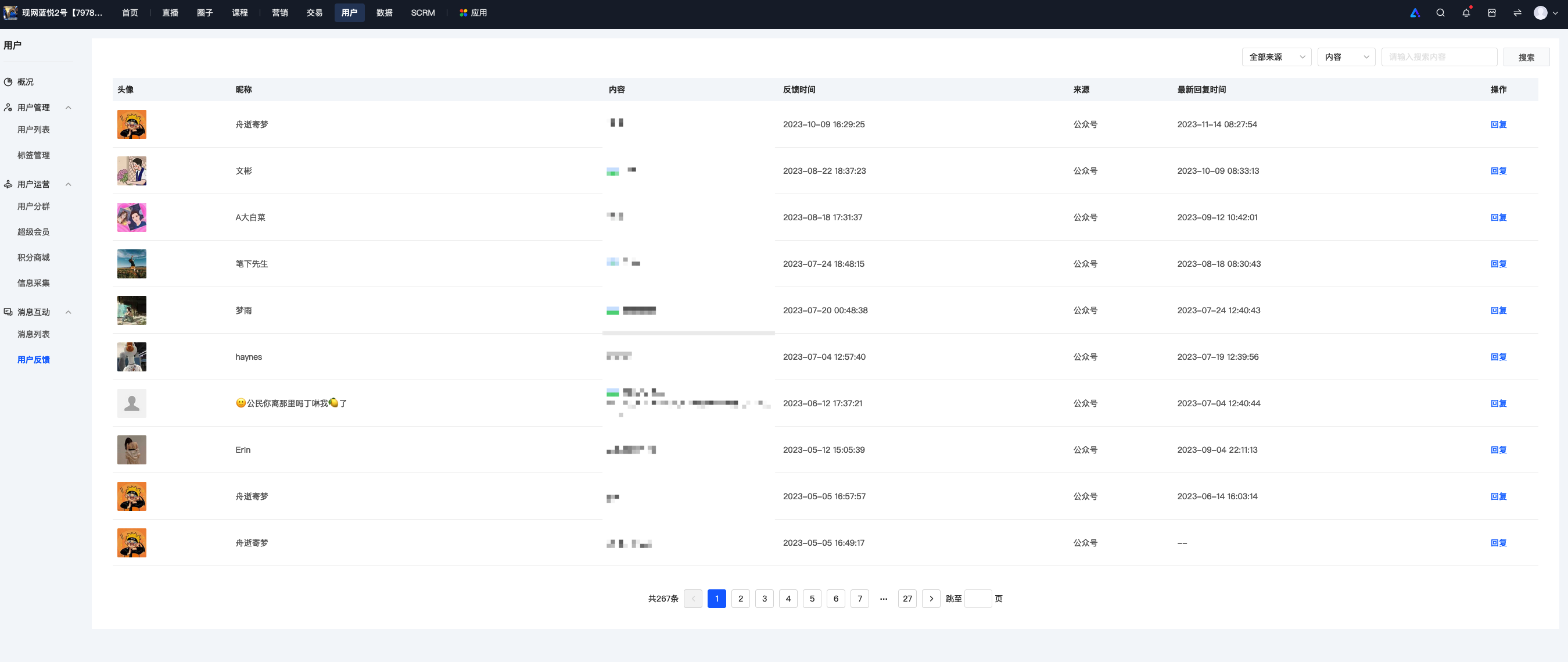
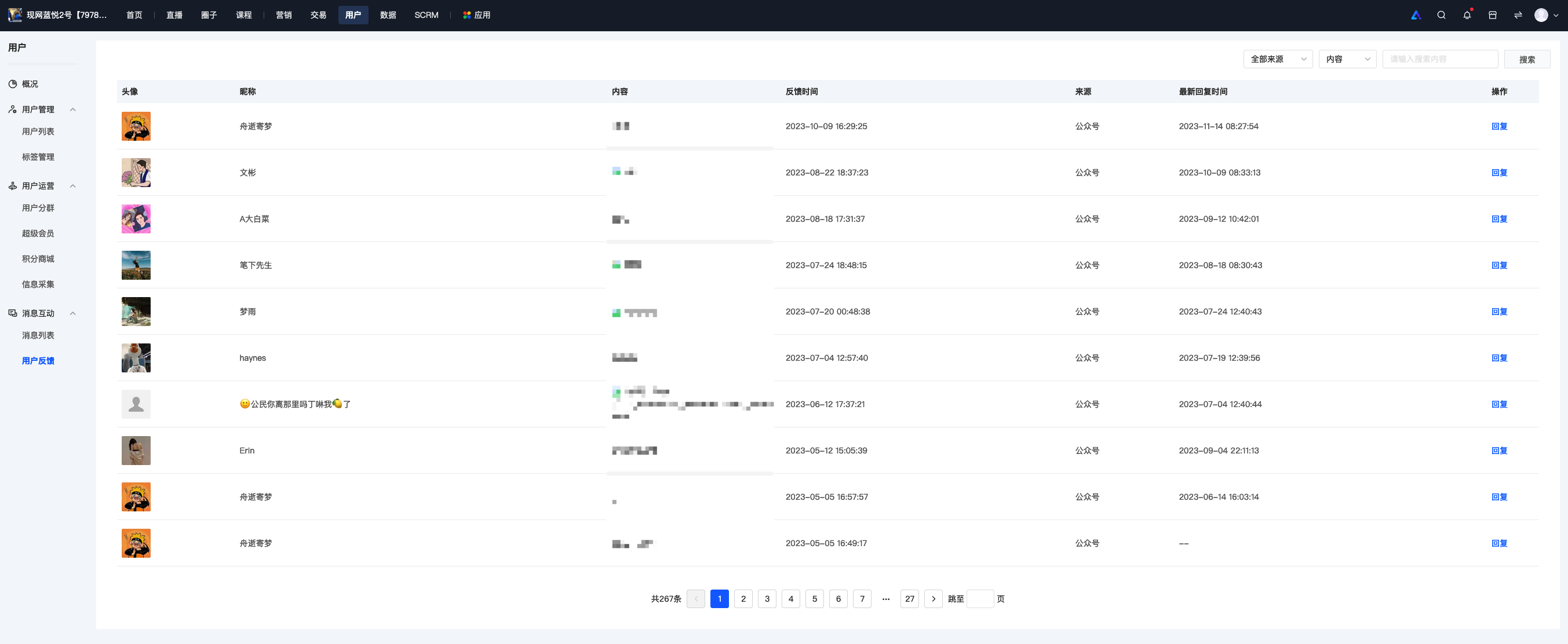
Merchants can view and reply to users' messages and feedback through the store management backend. Merchants can log in to the store management console and go to [Users] - [Message Reach] - [Message Interaction] - [User Feedback] to view/reply.
Tutorial on Message Interaction Usage
I. Function Introduction
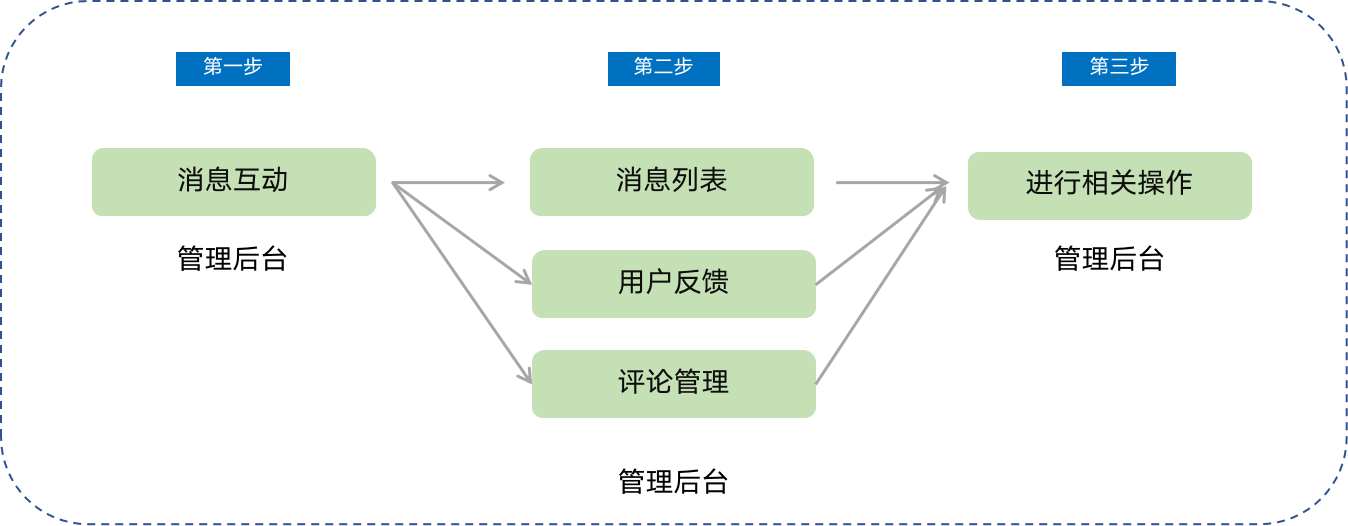
Message interaction allows merchants to centrally manage and handle store messages. It includes three modules: message list, user feedback, and comment management.
II. Purpose of Use
Merchants can manage messages, feedback, and comments from store students, keep abreast of the latest situation of students, and adjust product strategies in a timely manner based on feedback.
III. Usage Scenarios
Scenario 1: Merchant A has newly launched a course product and plans to send messages about the new product to users in the store. They can send messages to all users in the message list to achieve the purpose of promoting new products.
Scenario 2: Merchant B is unclear about user needs and plans to explore user needs through market research. Therefore, they interact with users through user feedback and comments to listen to users' real voices and launch better products based on user needs.
IV. Operation Path
Merchant side: Merchant backend → Users → Message Interaction
V. Usage Tutorial
1. Message List
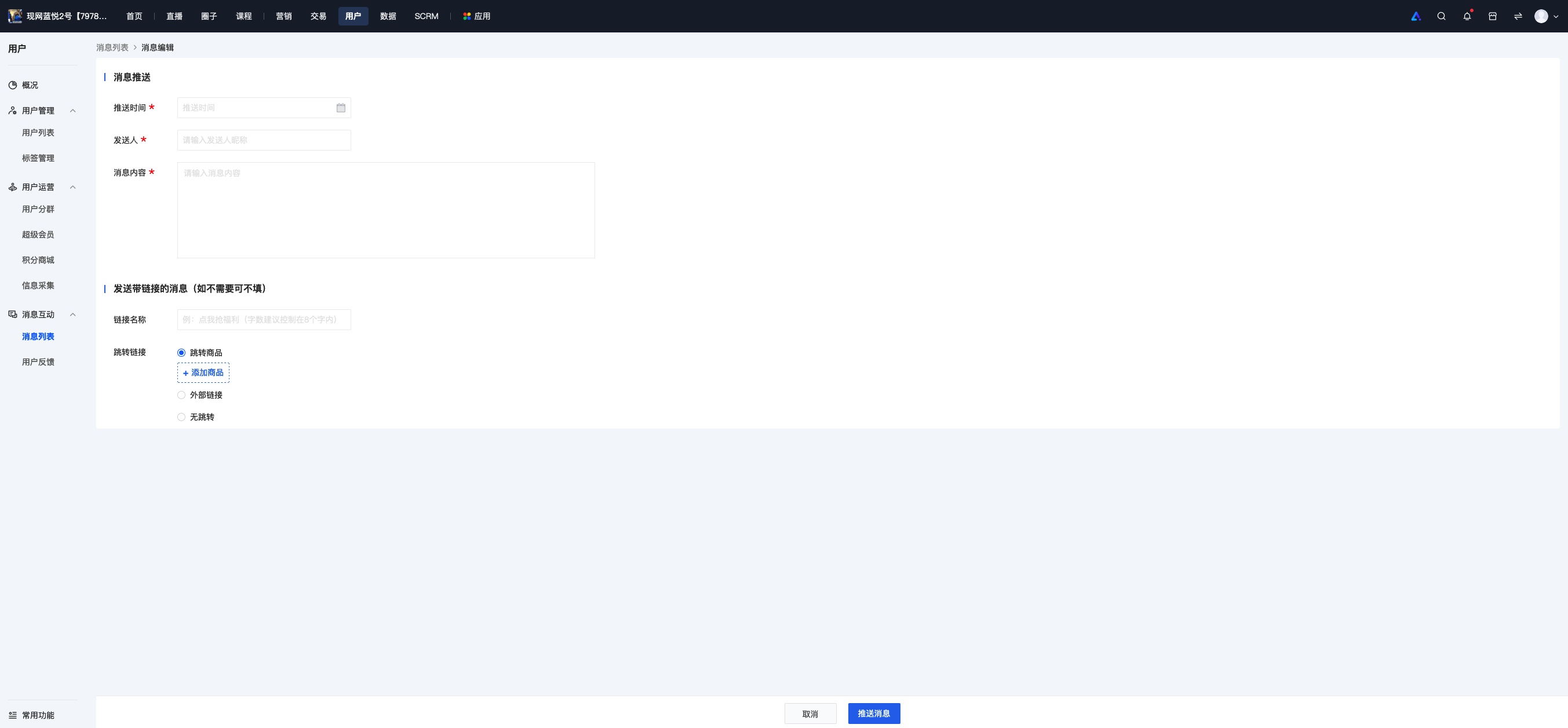
a. Click the top button [+ Message to All Users] to send a message to all users, including the push time, sender, message content, and link information. After filling in the information, click [Push Message], and the message will be automatically sent at the specified time.
b. You can view the details of sent messages in the list and edit or recall sent messages.
Before the push time, you can click the edit button to edit the message; sent messages cannot be edited, so please check carefully before sending. Incorrectly sent messages can be recalled by clicking the [Recall] button.
2. User Feedback
You can view and reply to feedback submitted by employees.
Instructions for Comment Interaction Function
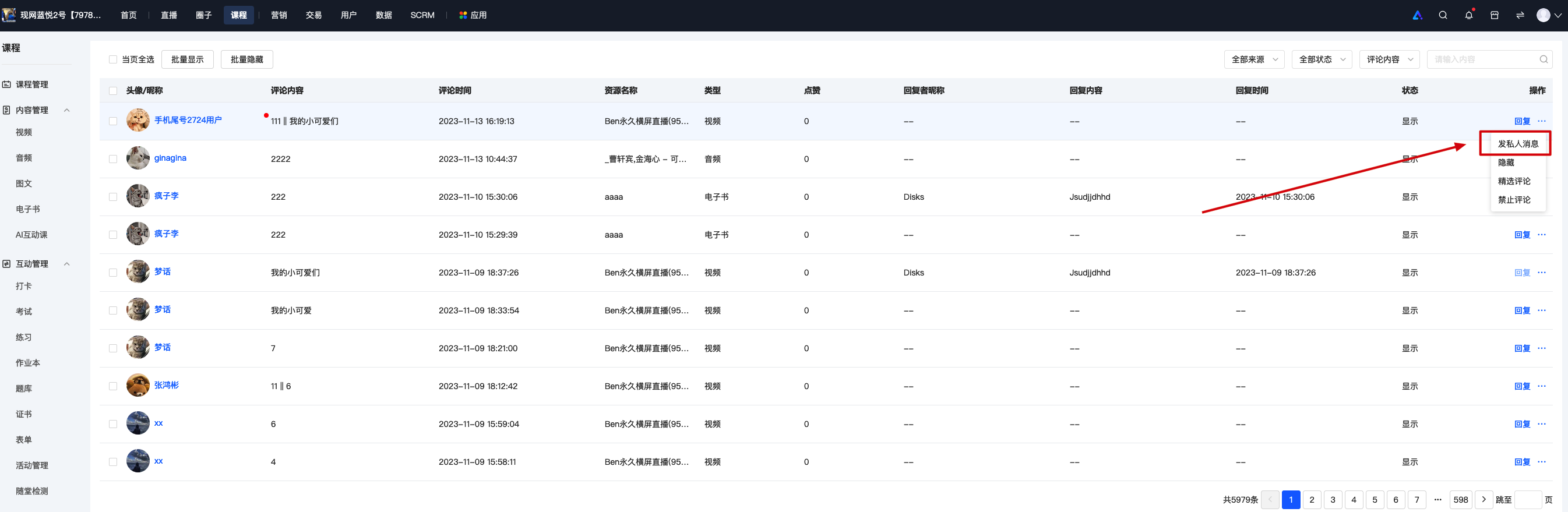
Click [Courses - Comment Management] in the left sidebar of the elink Management Console, and you can view comments on all content except those in the live streaming room.
You can find the comments you want to manage by scrolling through the list or searching in the search bar.You can manage a comment by clicking 'Reply' and 'More' on the right side of the comment.
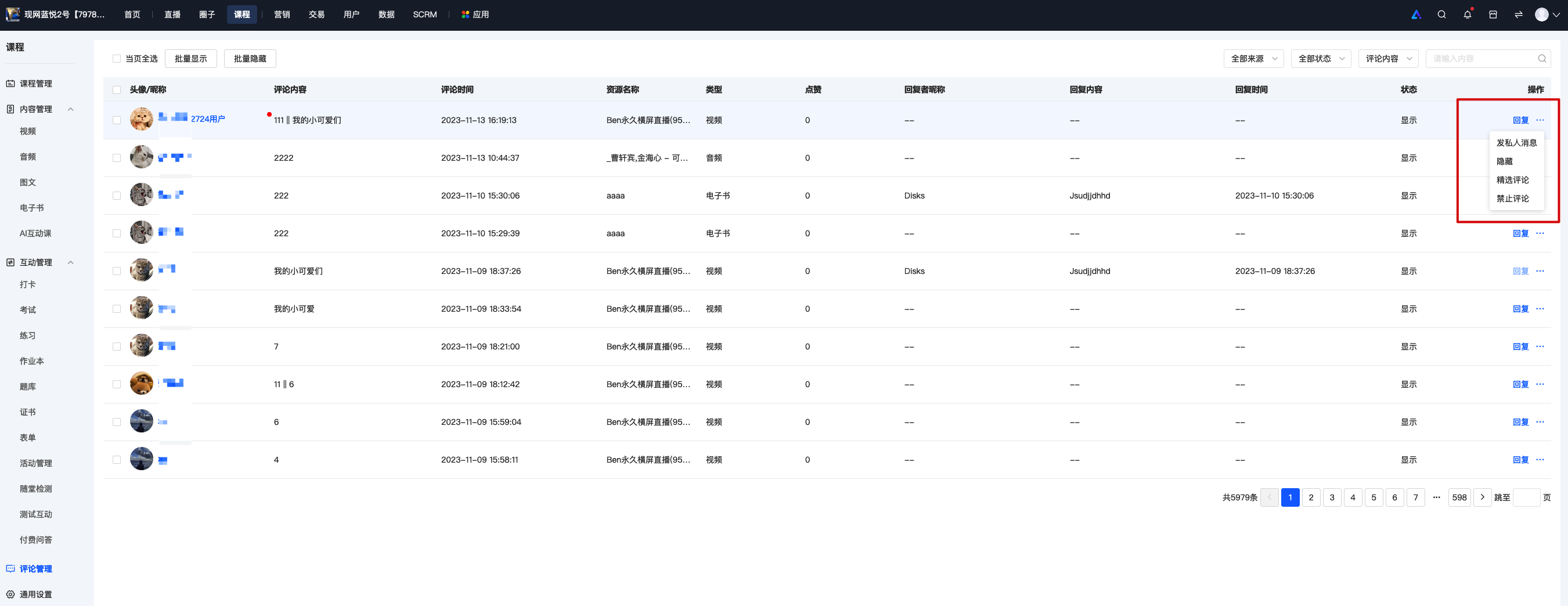
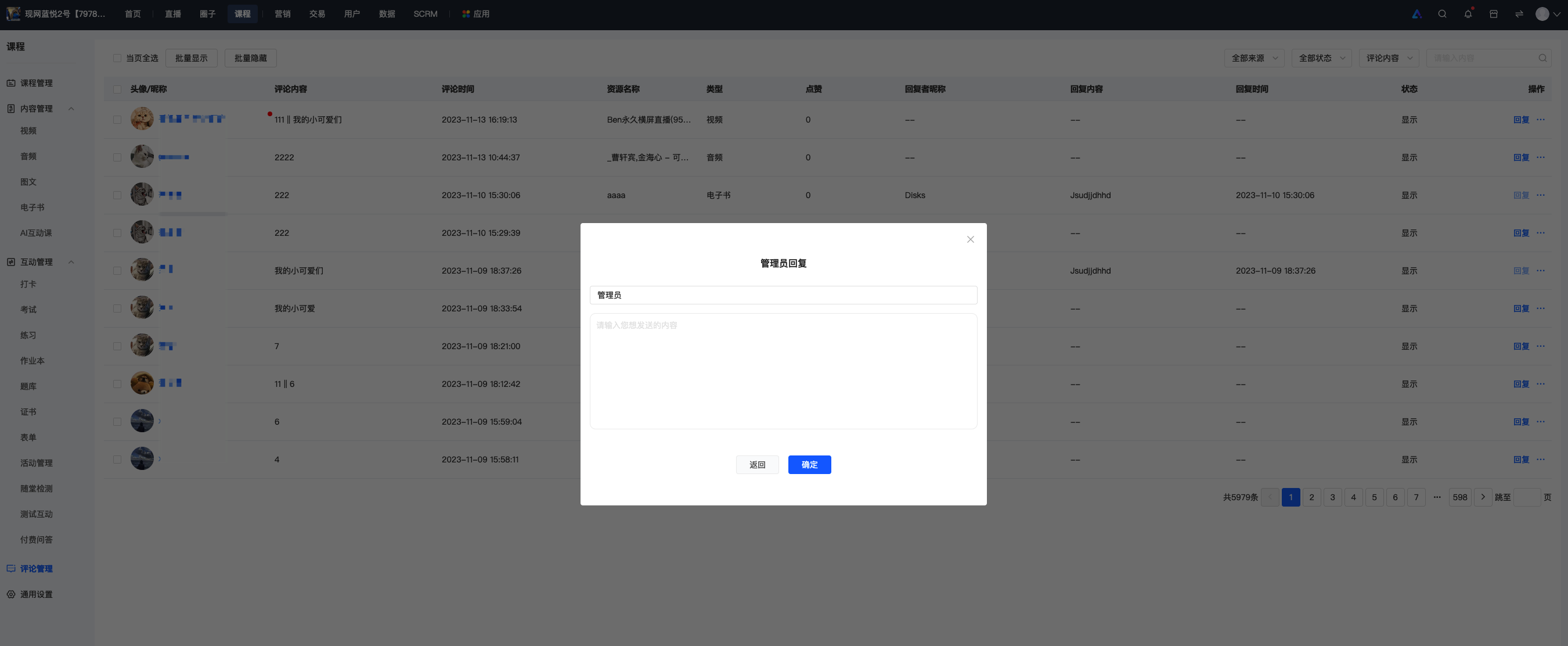
1. Click 'Reply' on the right side of the list, and you can reply to the comment.
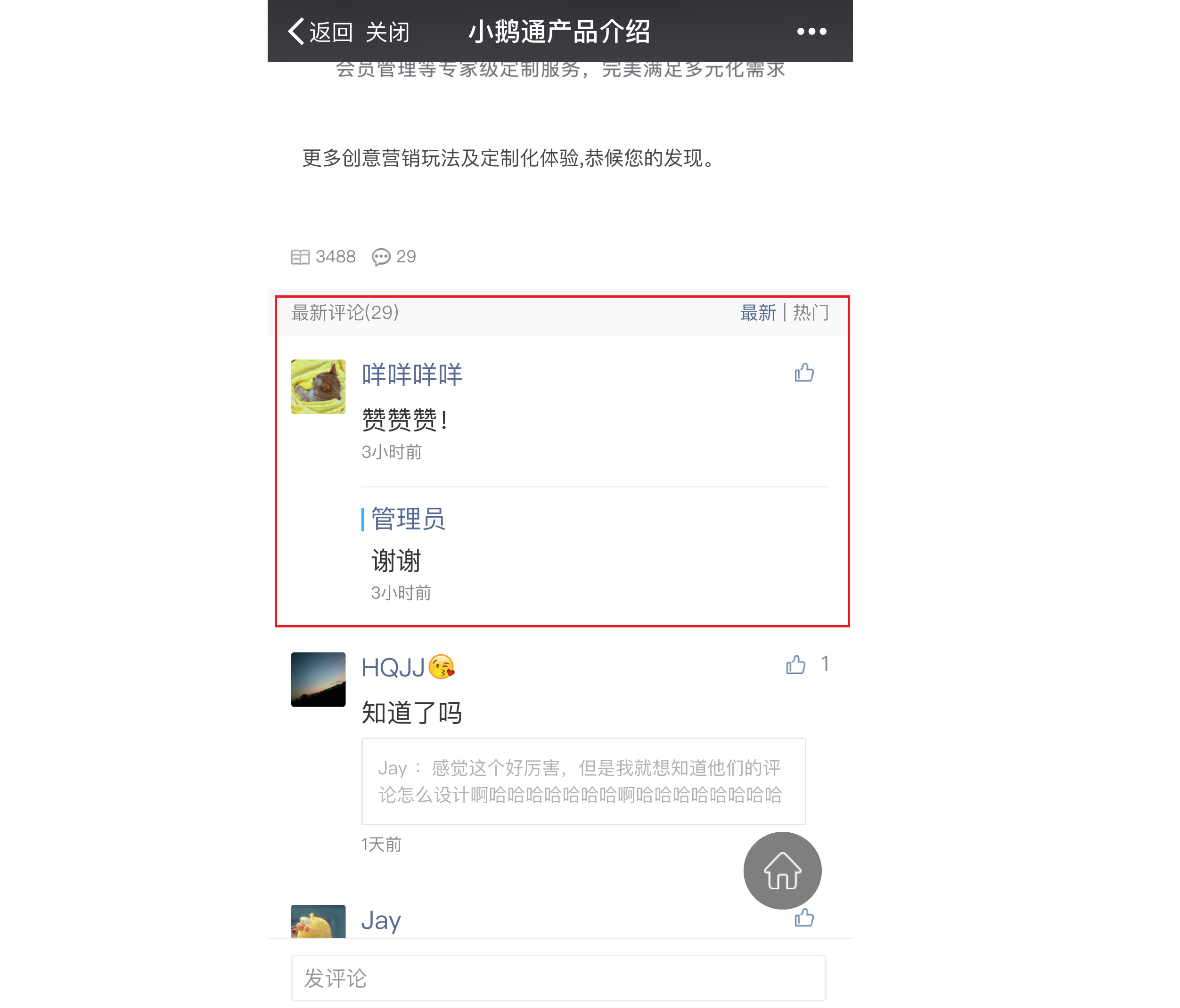
Your reply will be displayed in the comment list of the relevant content.
2. Click 'More' and select 'Send Private Message'. Your reply to the comment will be displayed in the 'Messages' list on the user's mobile device.
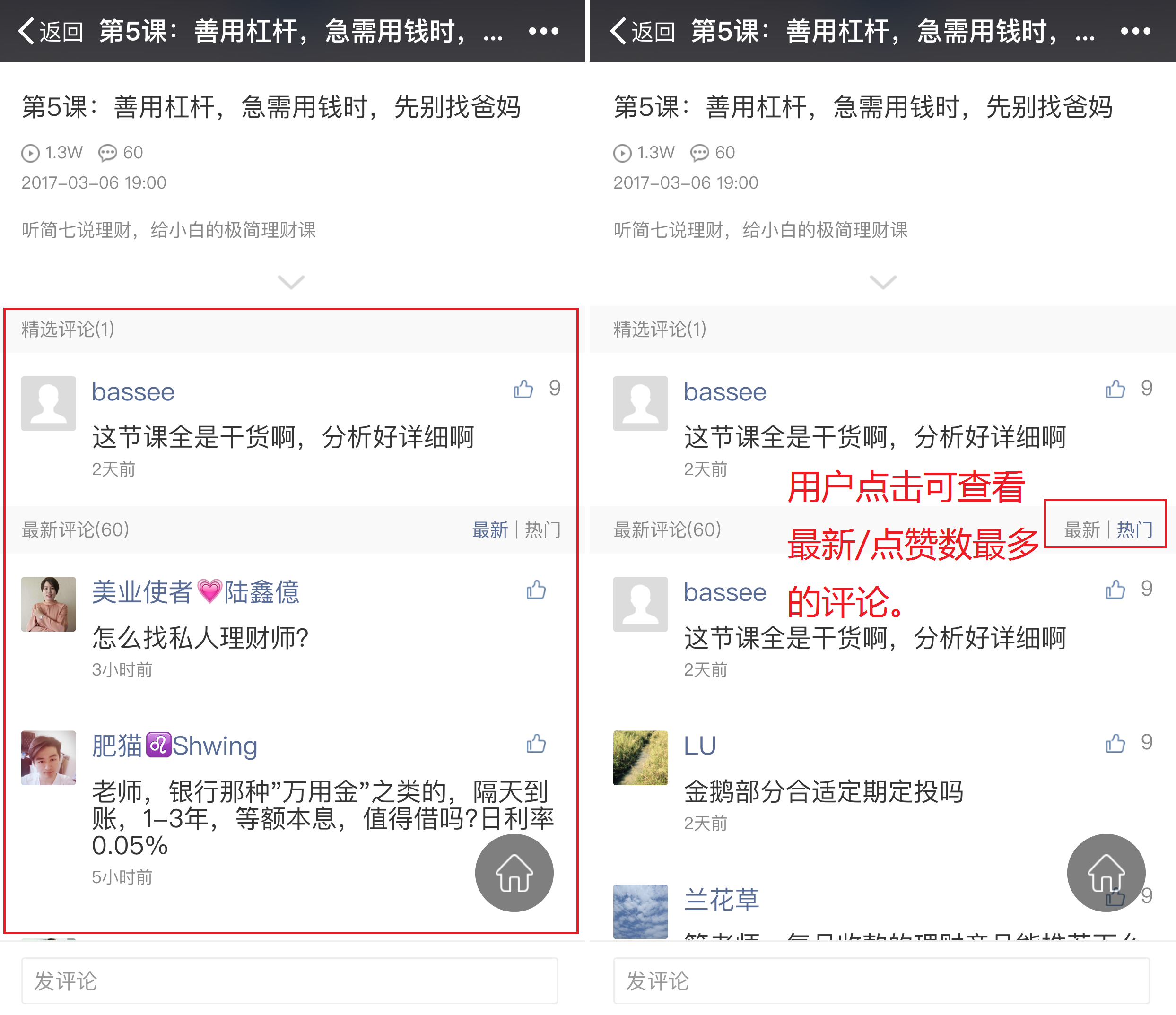
3. Click 'Feature' in 'More', and you can set featured comments.
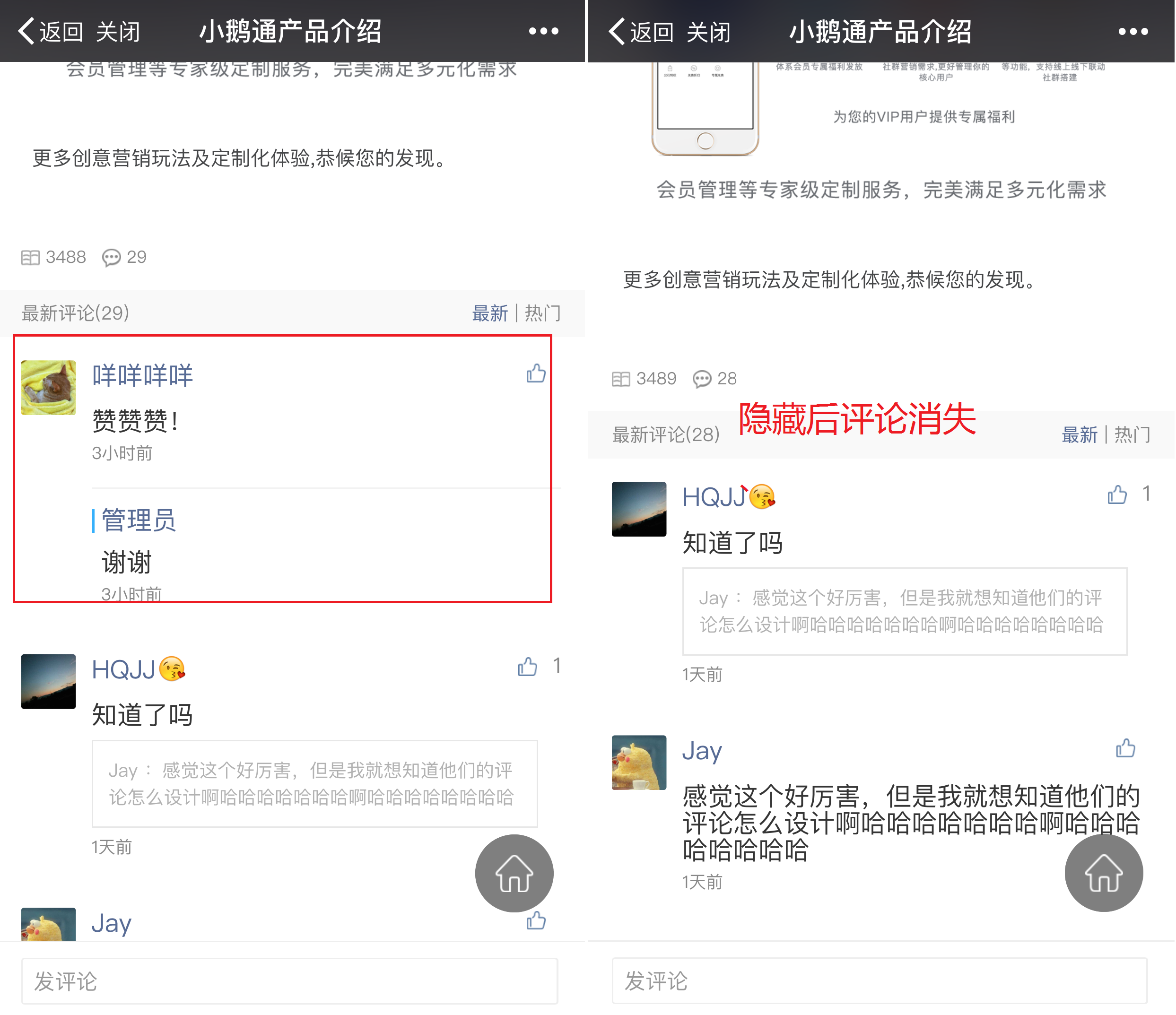
4. Click 'Hide' in 'More', and you can hide inappropriate comments.
User list
How often is user data updated?
To ensure system stability, user data is updated every 5 - 15 minutes. If there are issues such as inconsistent consumption data or inability to filter by assigned tags, it may be because the data has not been updated yet. Please try again later.
Is the calculation method for cumulative users that each time a user clicks in counts as one?
The cumulative number of users is calculated based on the number of unique users. If a user enters the Online Store multiple times, it will only be counted once.
How to delete the activation records?
In the details of the user list, you can view all the course activation records of the user. If you need to delete a specific activation record of a user, please click [Users] - [User Management] - [User List], search for the WeChat nickname to find the user's record, click on their avatar. In the activation records, you can see the courses they have activated. Click the [Delete] button. Since deleting the record will prevent the user from accessing the course content again, please proceed with caution.
How can students synchronize their purchased courses across multiple platforms?
I. Function Introduction
Students can study courses from the same merchant's Online Store on both the WeChat and QQ platforms after binding the same mobile phone number on the 'WeChat version' and 'QQ version' of the store.
II. Scenario Example
1. Student A of a merchant has been purchasing and studying courses in the [WeChat Store];
2. Later, the merchant opened a [QQ Store]. After entering the [QQ Store], A couldn't see the courses purchased on WeChat;
3. A wanted to study the courses from the [WeChat Store] on QQ, so A bound the mobile phone number 166xxxxxxxx used in the WeChat Store in the [QQ Store];
4. After successful binding, A can see the purchased courses in both the WeChat and QQ stores;
Scenario Diagram:

III. Operation Path
Merchant's H5 Store → Personal Center → Account Settings → Mobile Phone Number
IV. Operation Process
Step 1 Log in to the store and enter the 'My' page or the pop - up window for binding a mobile phone number;
 or
or 
Step 2 Enter the account settings, find the entry for binding a mobile phone number, and click on it to pop up the window for binding a mobile phone number;


Step 3 In the situation described in [II. Scenario Example], an account merging page will pop up. Agree to merge the accounts; cancel to skip the merging.
**Note:Commission pending settlement is not supported for now. You can suggest that users wait for the commission settlement to complete before merging accounts;

V. Supplementary Explanation
1. Under what circumstances will 'account merging' occur when binding a mobile phone number, and when will it not?
① 'Account merging' occurs
If a student binds the same mobile phone number in the WeChat Store and the QQ Store, 'account merging' will occur;

(Diagram of account changes during 'account merging')
② 'Account merging' does not occur
If a student binds the same mobile phone number in two WeChat (or two QQ) accounts, the two accounts cannot be merged;
In this case, if A binds B's mobile phone number, B's mobile phone number will be unbound and bound to A;

(Diagram of account changes during 'binding/modifying a mobile phone number')
What causes the incorrect statistical data of trainees' transactions?
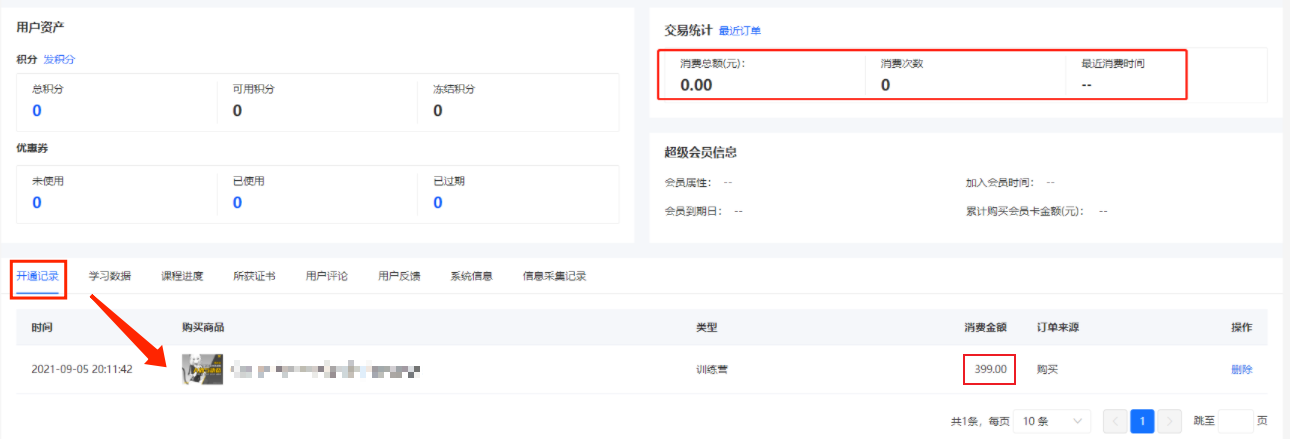
The transaction statistics on the user details page are calculated based on orders, while the activation records represent the course entitlements the user possesses.
If there are course activation records for a user that are not reflected in the transaction statistics, it means the user has merged the course entitlements through account consolidation.
Points Mall
What business scenarios does the points function support?
Supports text and images, audio, video, open courses (live streaming), e-books, columns, mega-columns, camps, memberships, premium memberships, class courses, offline courses, physical products, affiliate products, and valuable coupons.
Can multiple custom activities be created simultaneously for the points issuance based on consumption?
No, the validity period of the rule cannot overlap with existing activity rules.
Are custom activities in the points distribution for consumption supported to be modified after creation?
Before the event becomes effective, you can modify the event rules. After the event becomes effective, you can only delete it and cannot modify it.
Can the same product support both points redemption and points deduction for cash at the same time?
Yes, the same product can be applicable to both point redemption and point cashback simultaneously.
What are frozen points?
If merchants set a freeze period for points in the backend, the points obtained by users cannot be used during the freeze period.
Which marketing campaigns can be combined with point deductions?
Supports coupons, promo codes, limited-time discounts, flash sales, and Joint Orderg.