Message interaction
- How to send messages to users within the Online Store?
- Does it support mass-sending store messages to a specific group of customers?
- Where can users view private messages after they are sent?
- Can the comments posted by users be set to be hidden by default?
- How can I export users' comment data in bulk?
- Can the comments posted by users be hidden?
- How can merchants view user messages?
- Tutorial on Message Interaction Usage
- Instructions for Comment Interaction Function
How to send messages to users within the Online Store?
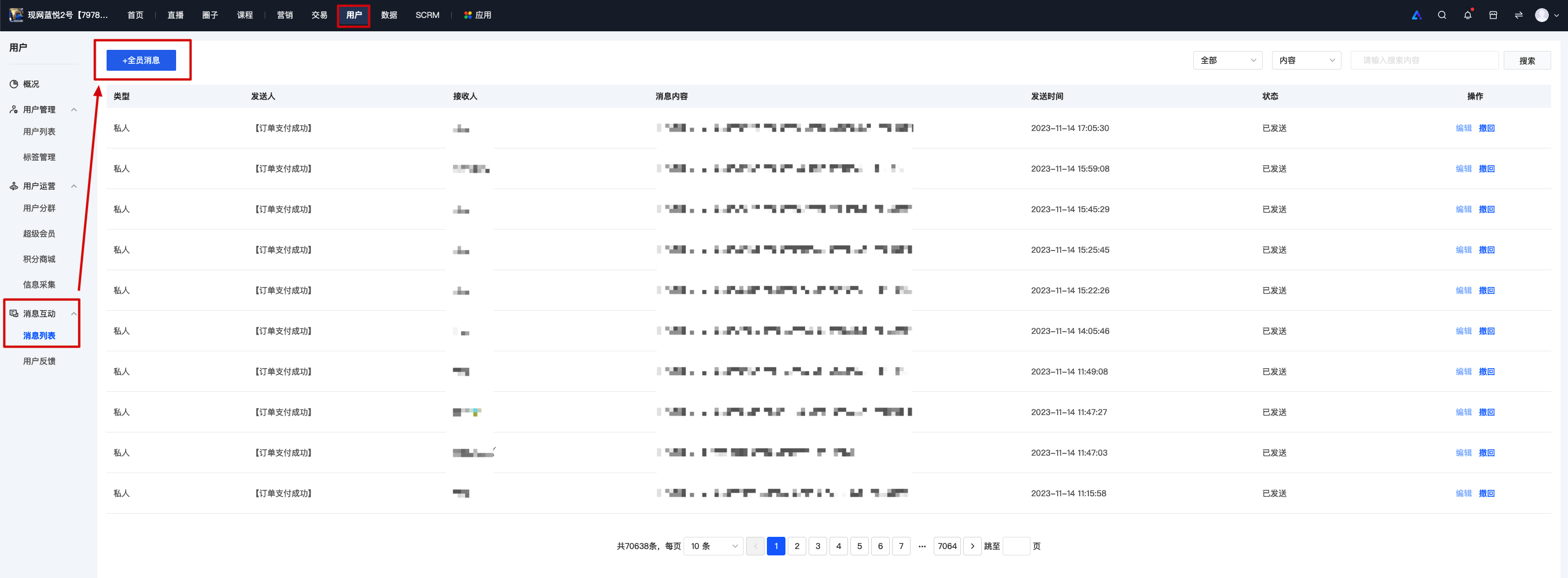
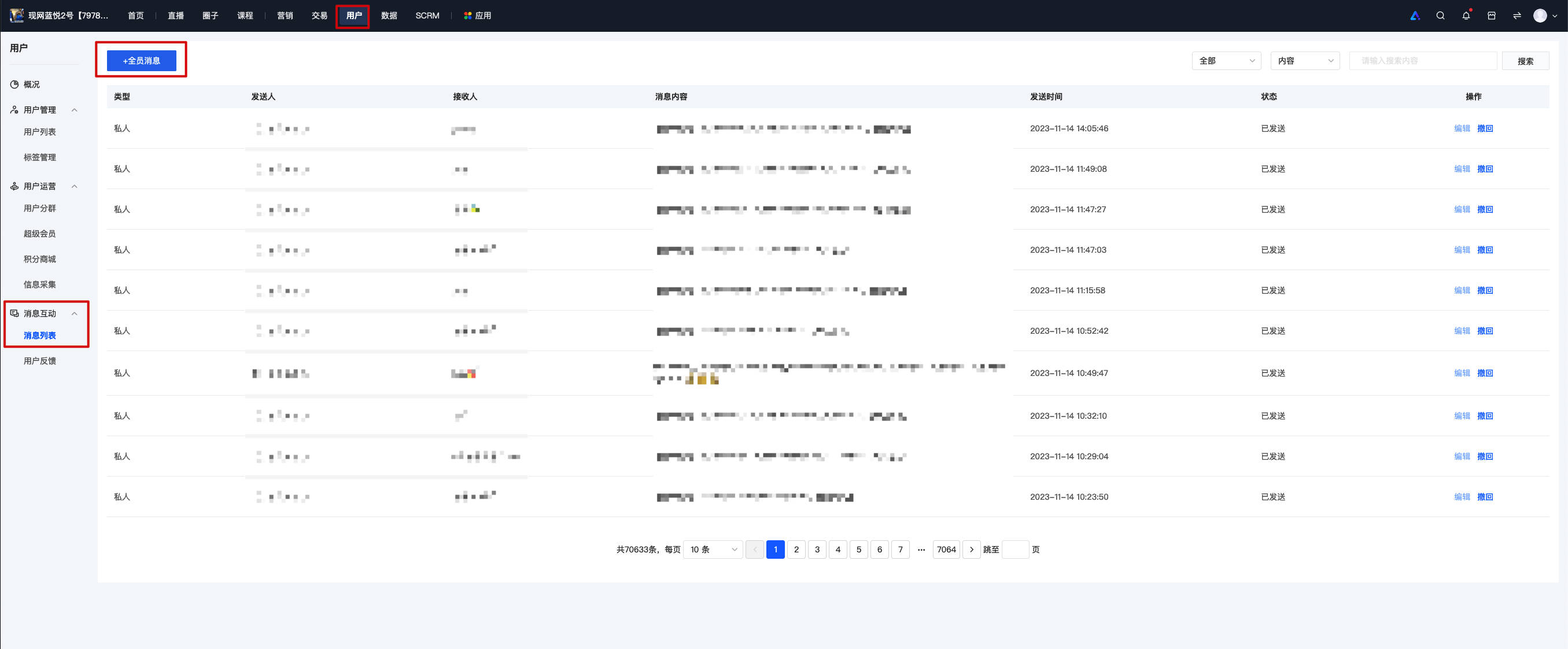
You can enter the store management console, click [Users] - [Message Interaction] - [Message List] - [+ Push Message to All], and then send in-store message notifications to all customers who have visited your store.
Does it support mass-sending store messages to a specific group of customers?
Yes, you can use the [User Segmentation] feature. Create a user segment according to your needs, specify the type of users it targets. After creating it, you can send targeted notifications and group messages.
Where can users view private messages after they are sent?
After users visit your Online Store, they can view it next to the avatar in the personal center. You can also configure it to be viewable at the [Messages] in the bottom menu bar of the page through the 「Store Design」.
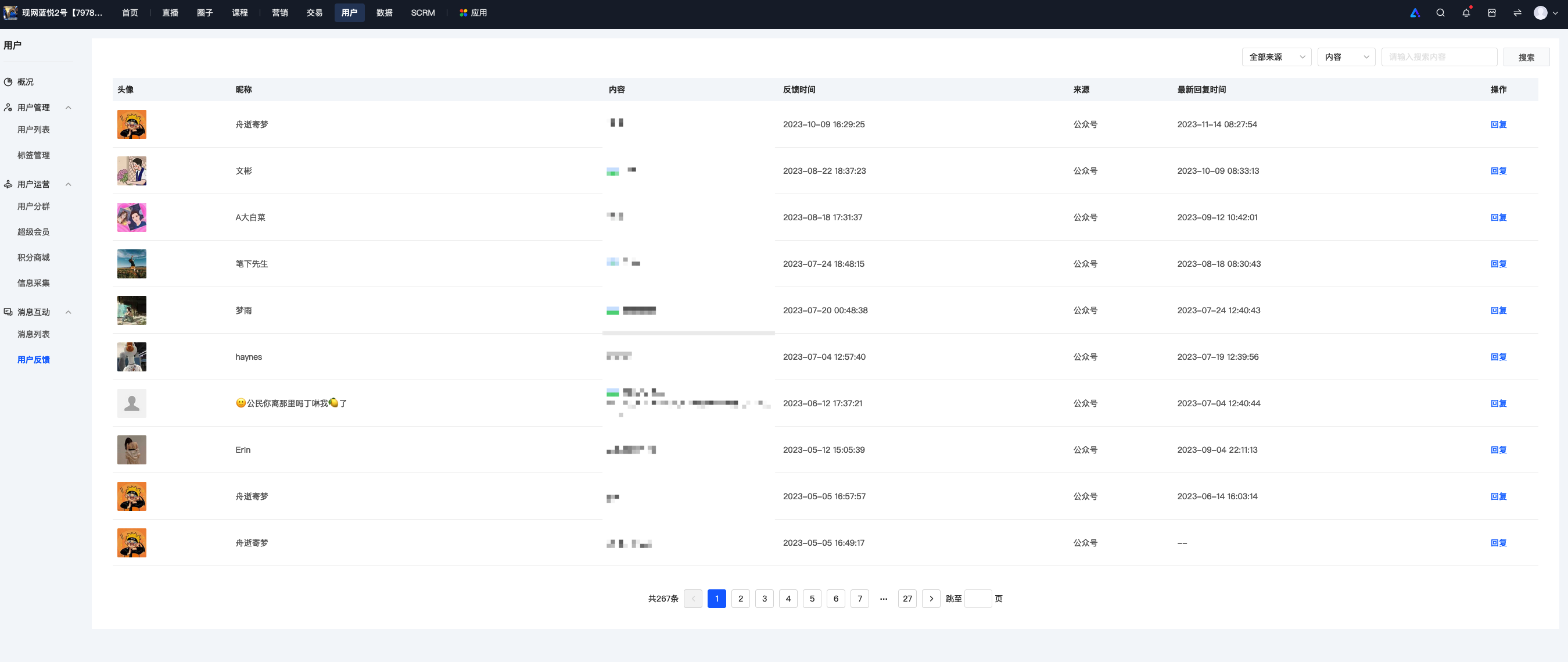
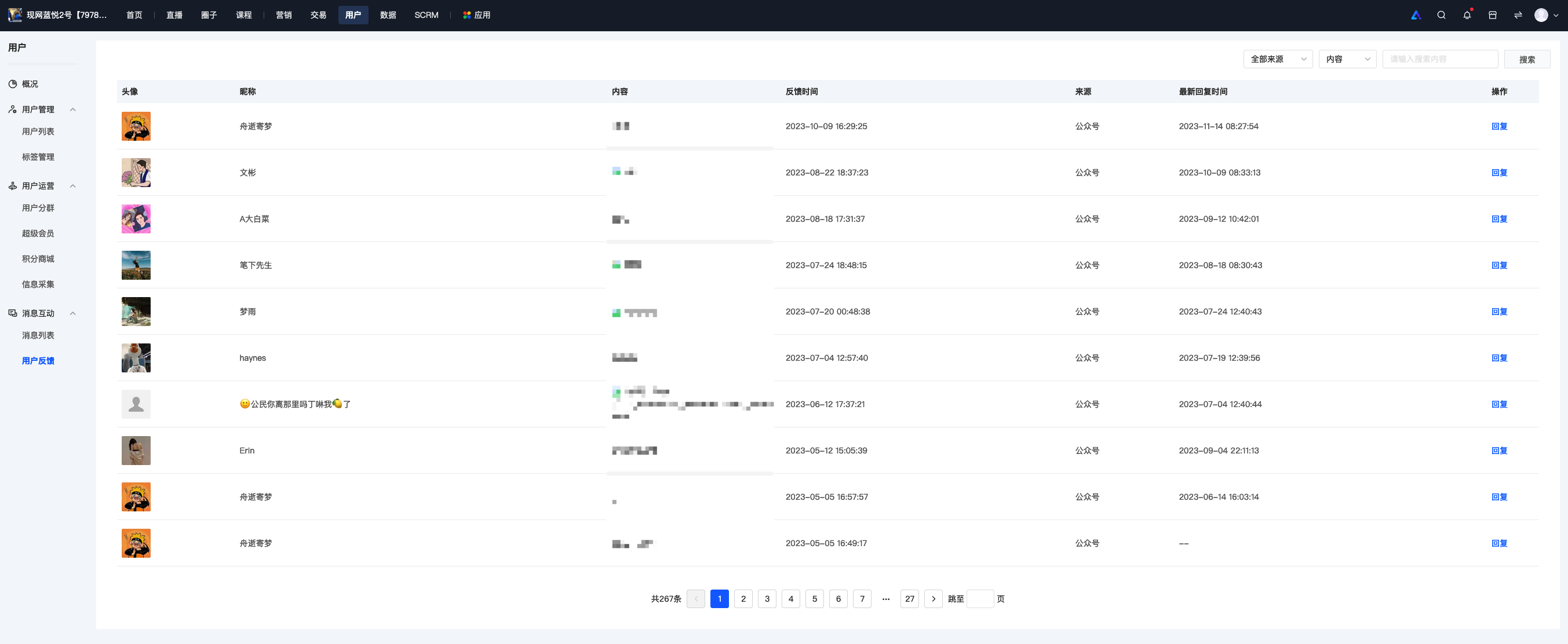
Merchants can click [Users] - [Message Interaction] - [User Feedback] to select a user and send a message.
Can the comments posted by users be set to be hidden by default?
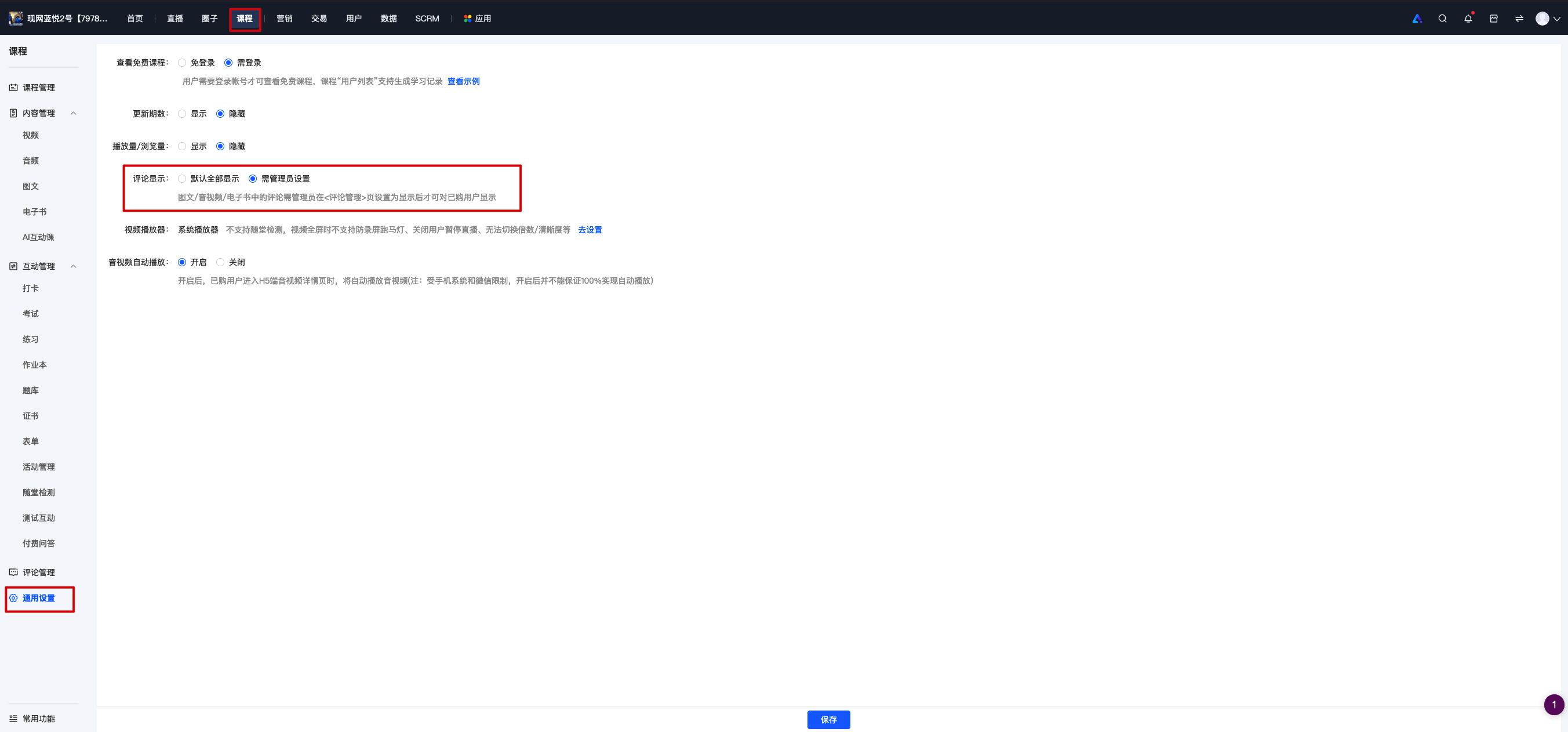
You can enable the [Comment Review Settings] feature. After enabling it, comments made by users on articles, audios, and videos will only be displayed after being approved by the administrator.
The operation path is as follows:
1. Configure in [Courses] - [General Settings] - [Comment Display].
How can I export users' comment data in bulk?
Currently, exporting user comments on courses is not supported. elink is working hard on optimization. Please understand.
Can the comments posted by users be hidden?
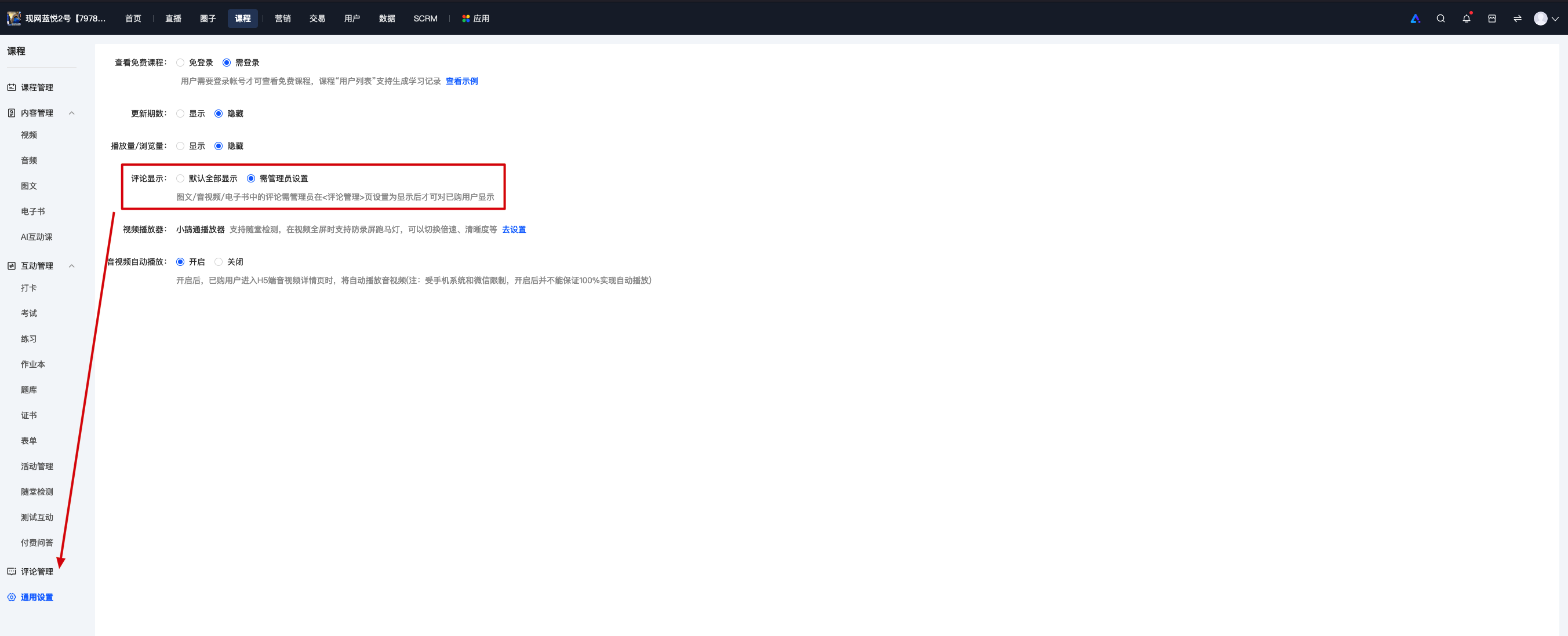
1. Comments posted by users support hiding and displaying. Merchants can enter the store management backend and configure the display or hiding of comments in [Courses] - [General Settings] - [Comment Display].
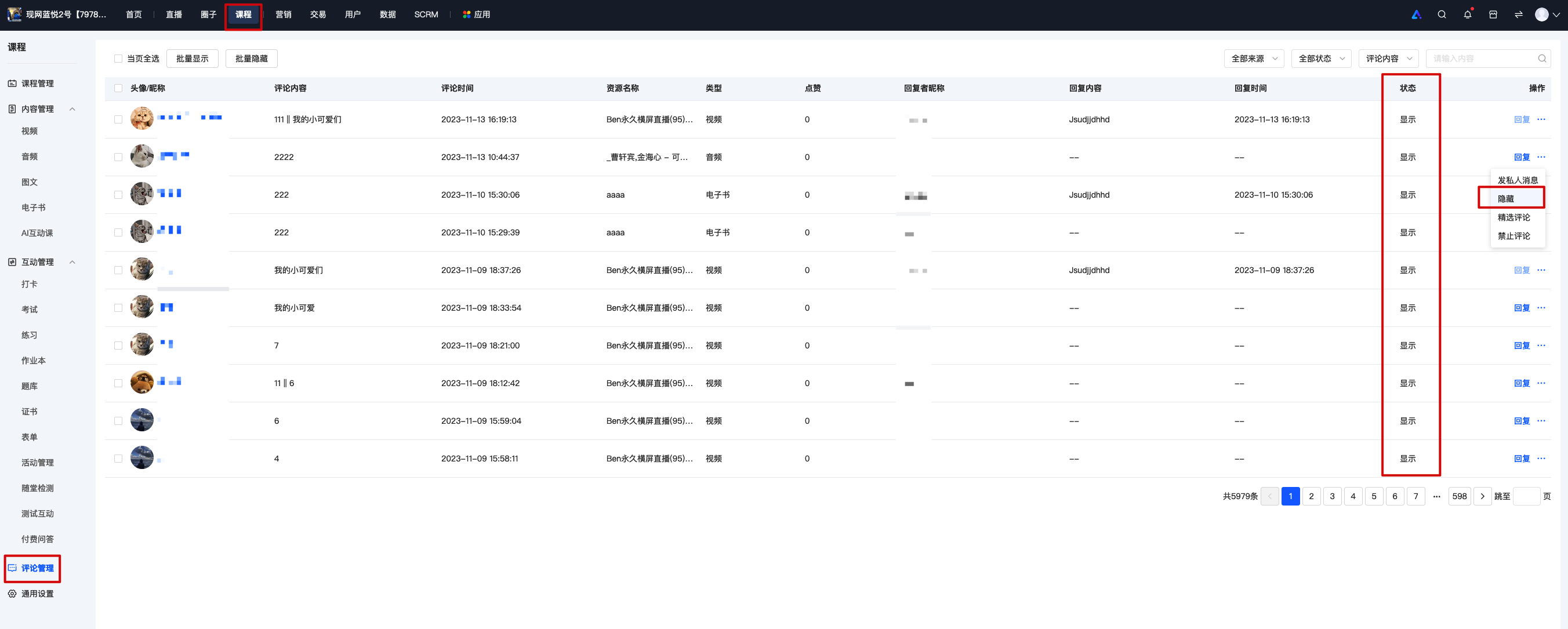
2. If you set[Comment Display]to 'Requires administrator settings', go to [Comment Management] to configure the display/hide.
How can merchants view user messages?
Merchants can view and reply to users' messages and feedback through the store management backend. Merchants can log in to the store management console and go to [Users] - [Message Reach] - [Message Interaction] - [User Feedback] to view/reply.
Tutorial on Message Interaction Usage
I. Function Introduction
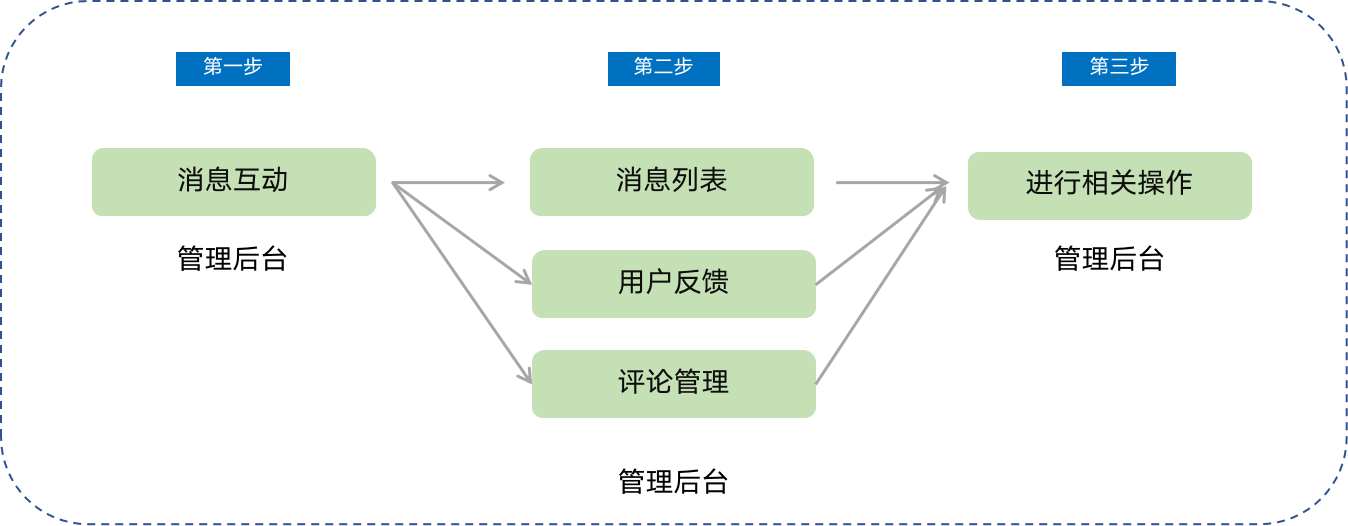
Message interaction allows merchants to centrally manage and handle store messages. It includes three modules: message list, user feedback, and comment management.
II. Purpose of Use
Merchants can manage messages, feedback, and comments from store students, keep abreast of the latest situation of students, and adjust product strategies in a timely manner based on feedback.
III. Usage Scenarios
Scenario 1: Merchant A has newly launched a course product and plans to send messages about the new product to users in the store. They can send messages to all users in the message list to achieve the purpose of promoting new products.
Scenario 2: Merchant B is unclear about user needs and plans to explore user needs through market research. Therefore, they interact with users through user feedback and comments to listen to users' real voices and launch better products based on user needs.
IV. Operation Path
Merchant side: Merchant backend → Users → Message Interaction
V. Usage Tutorial
1. Message List
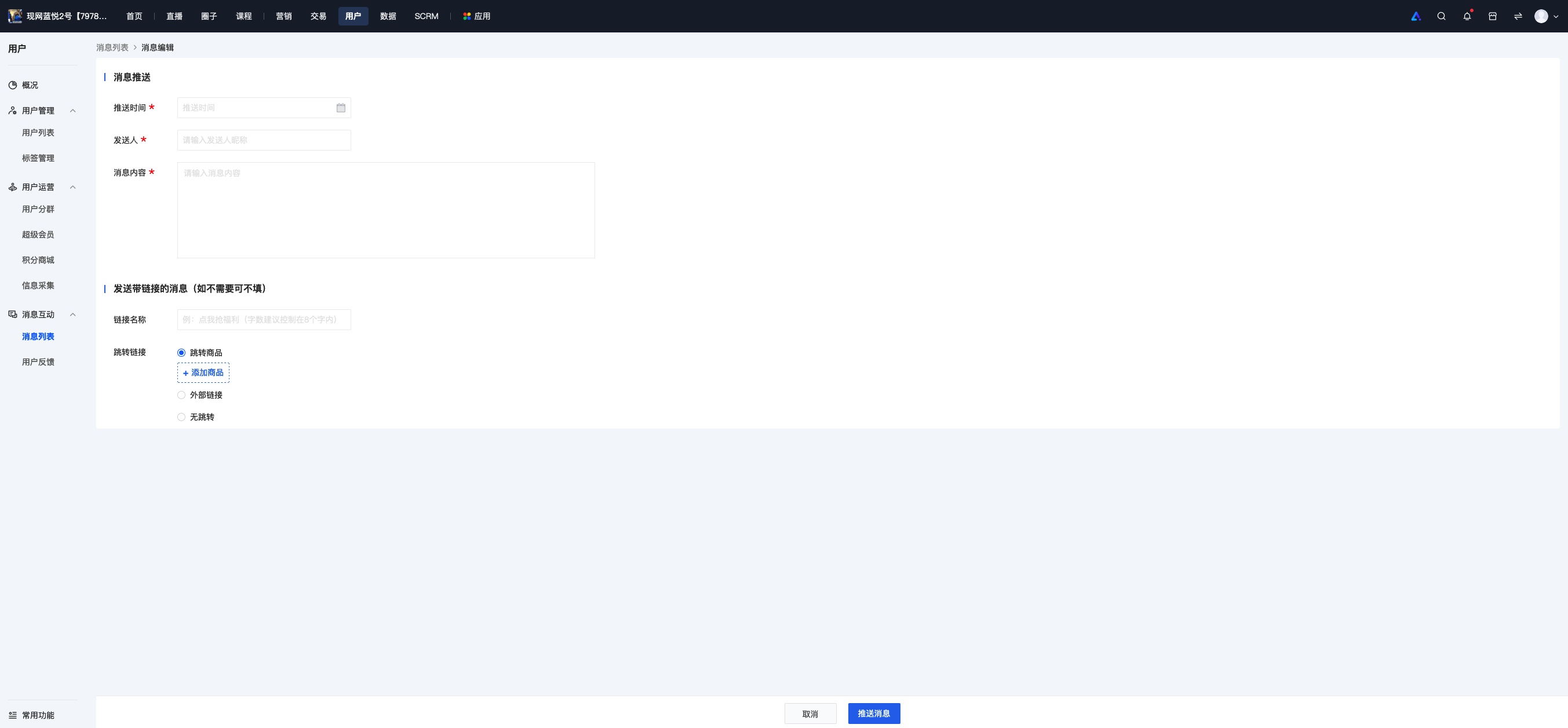
a. Click the top button [+ Message to All Users] to send a message to all users, including the push time, sender, message content, and link information. After filling in the information, click [Push Message], and the message will be automatically sent at the specified time.
b. You can view the details of sent messages in the list and edit or recall sent messages.
Before the push time, you can click the edit button to edit the message; sent messages cannot be edited, so please check carefully before sending. Incorrectly sent messages can be recalled by clicking the [Recall] button.
2. User Feedback
You can view and reply to feedback submitted by employees.
Instructions for Comment Interaction Function
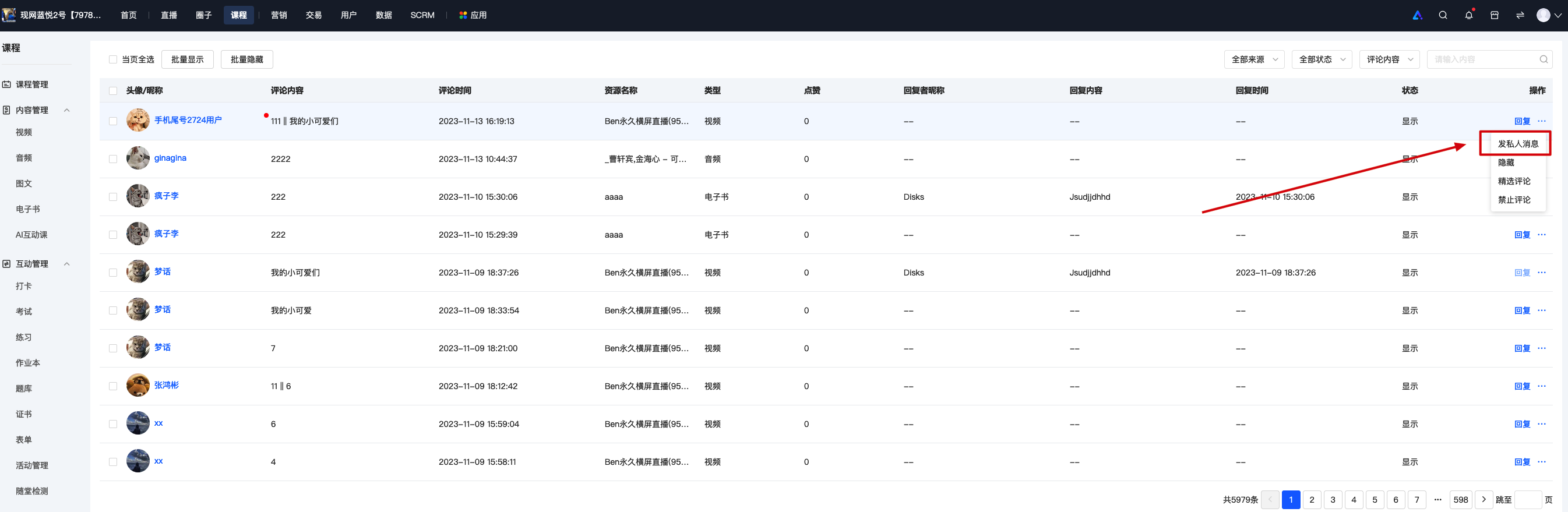
Click [Courses - Comment Management] in the left sidebar of the elink Management Console, and you can view comments on all content except those in the live streaming room.
You can find the comments you want to manage by scrolling through the list or searching in the search bar.You can manage a comment by clicking 'Reply' and 'More' on the right side of the comment.
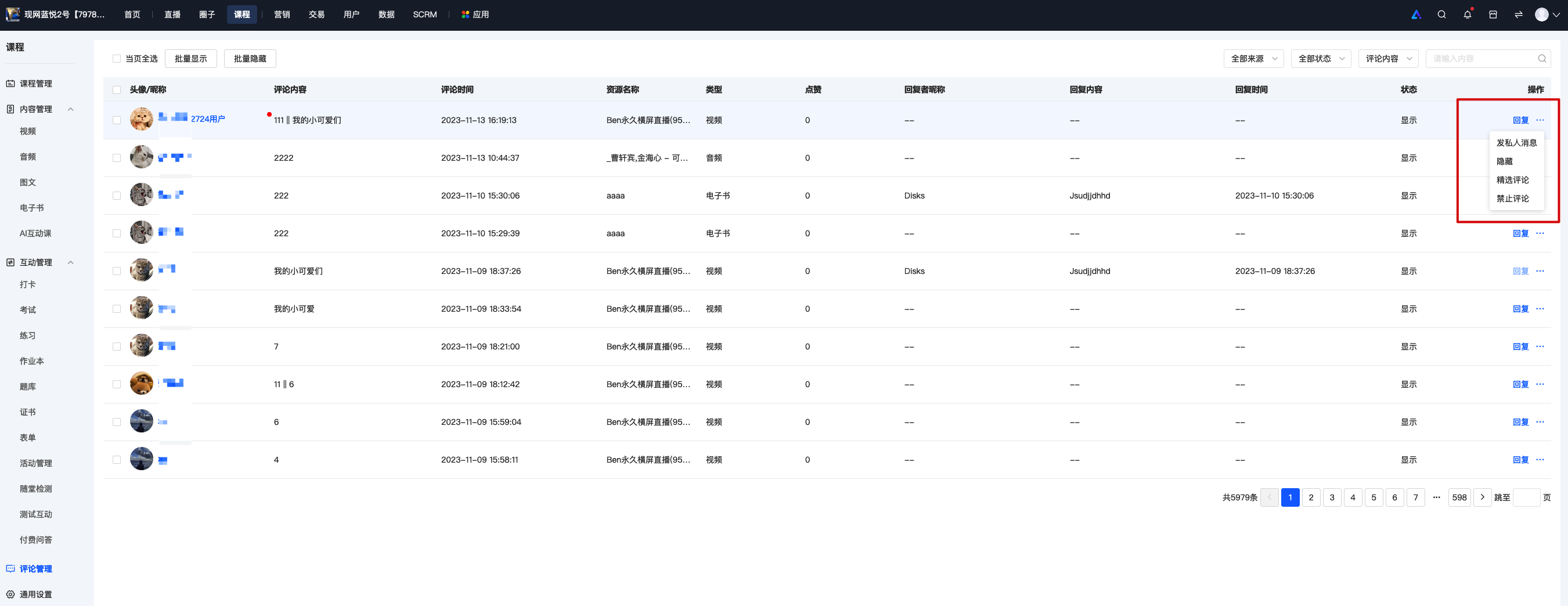
1. Click 'Reply' on the right side of the list, and you can reply to the comment.
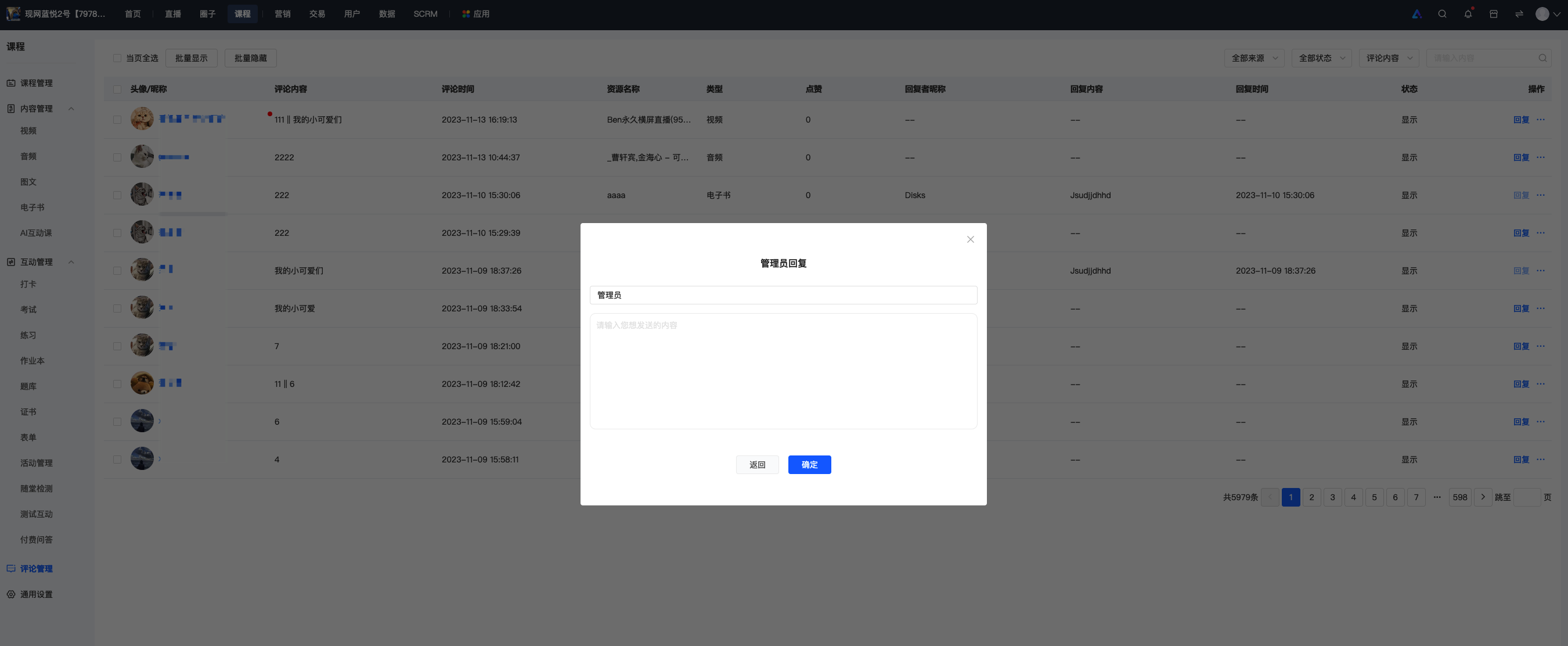
Your reply will be displayed in the comment list of the relevant content.
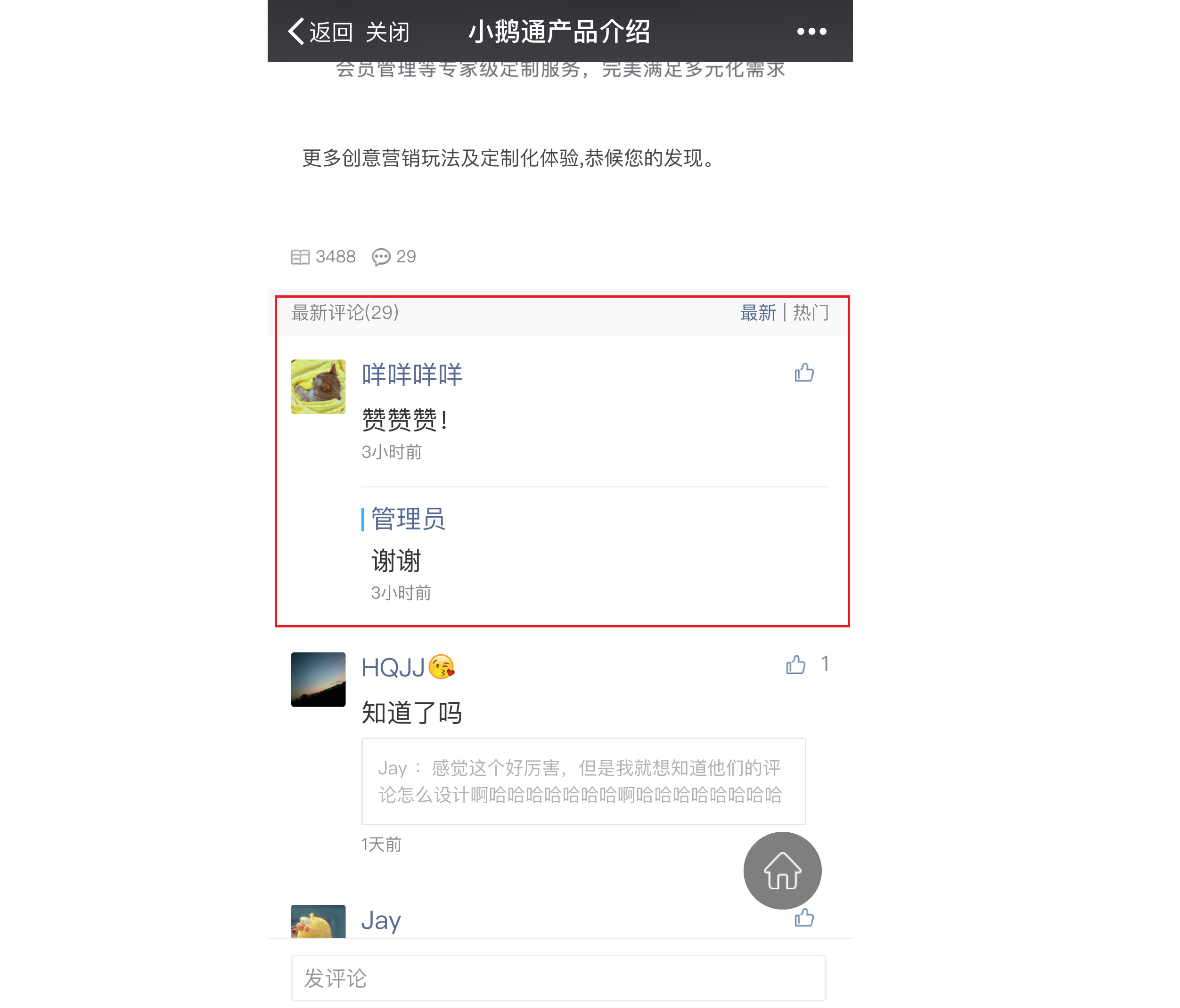
2. Click 'More' and select 'Send Private Message'. Your reply to the comment will be displayed in the 'Messages' list on the user's mobile device.
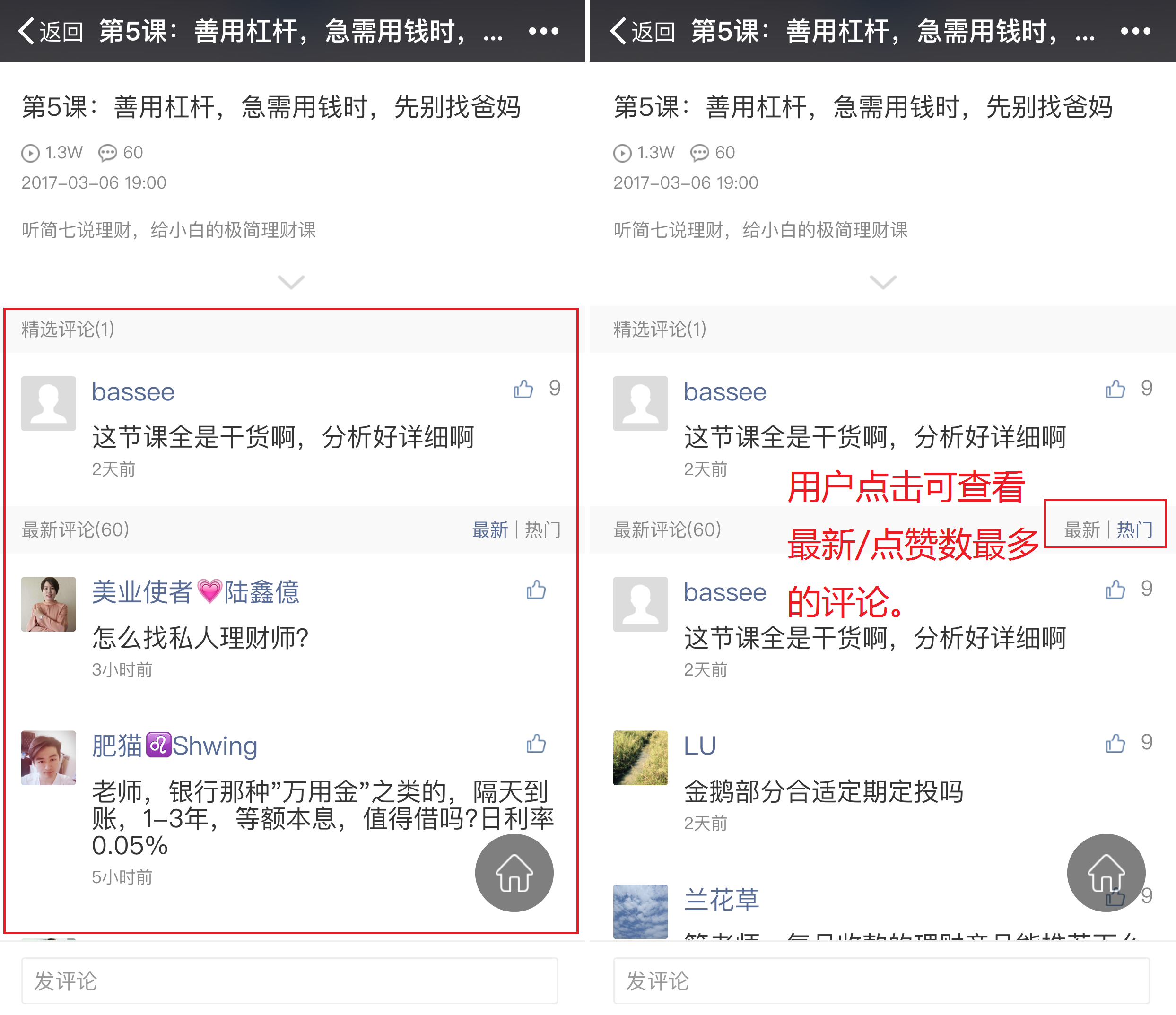
3. Click 'Feature' in 'More', and you can set featured comments.
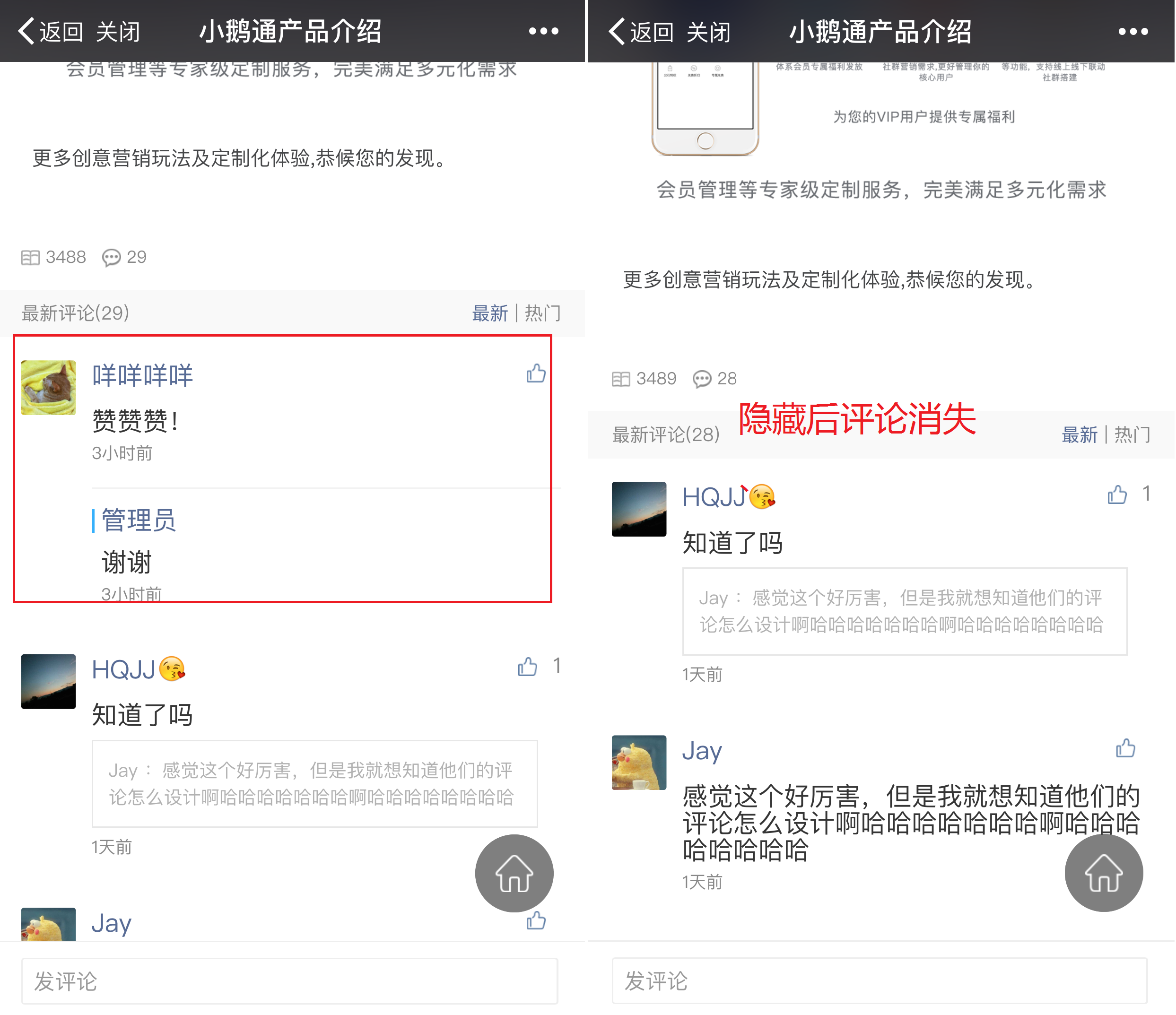
4. Click 'Hide' in 'More', and you can hide inappropriate comments.