Scene template
Scene
elink Live broadcasts can be re - broadcast on Channels, reaching more public domain users
Applicable scenarios
Merchants conduct live commerce on elink and simultaneously rebroadcast the live stream to Channels to attract more public domain users to watch the live stream.
Operation steps
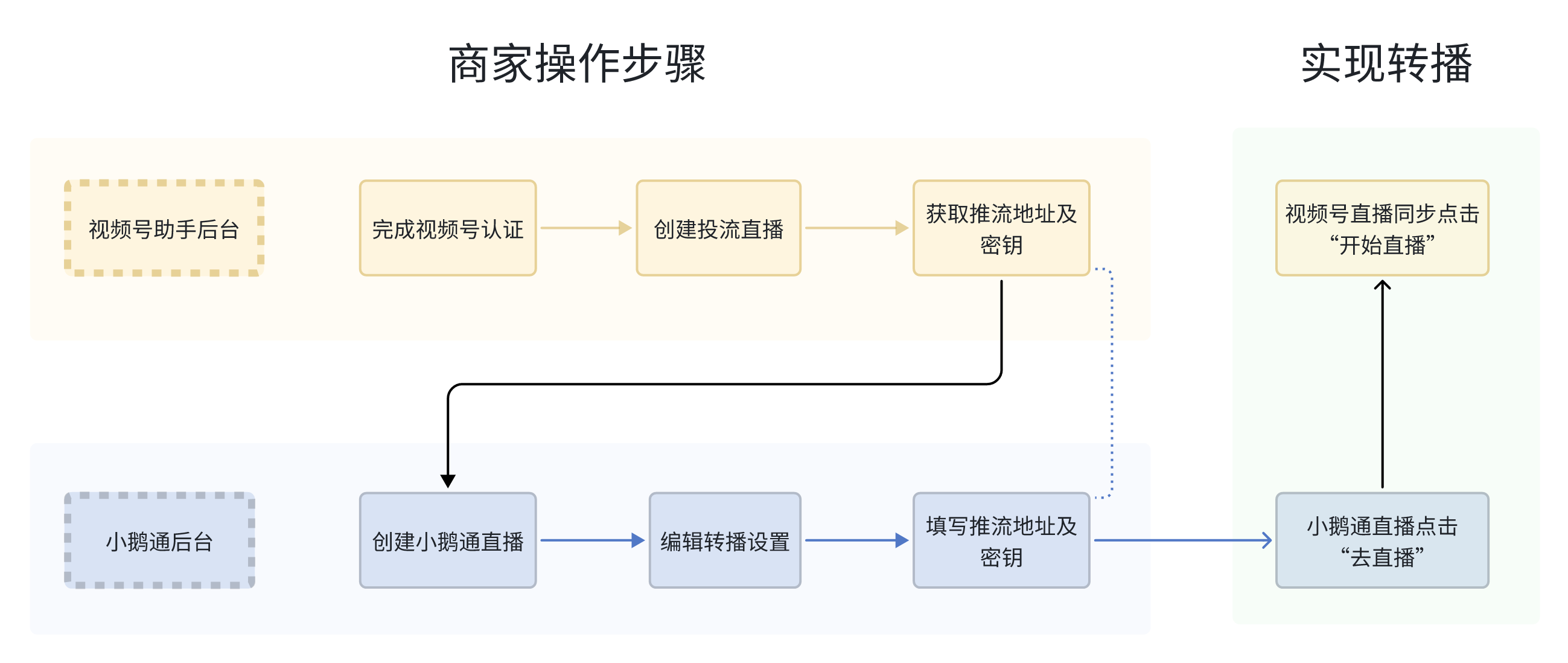
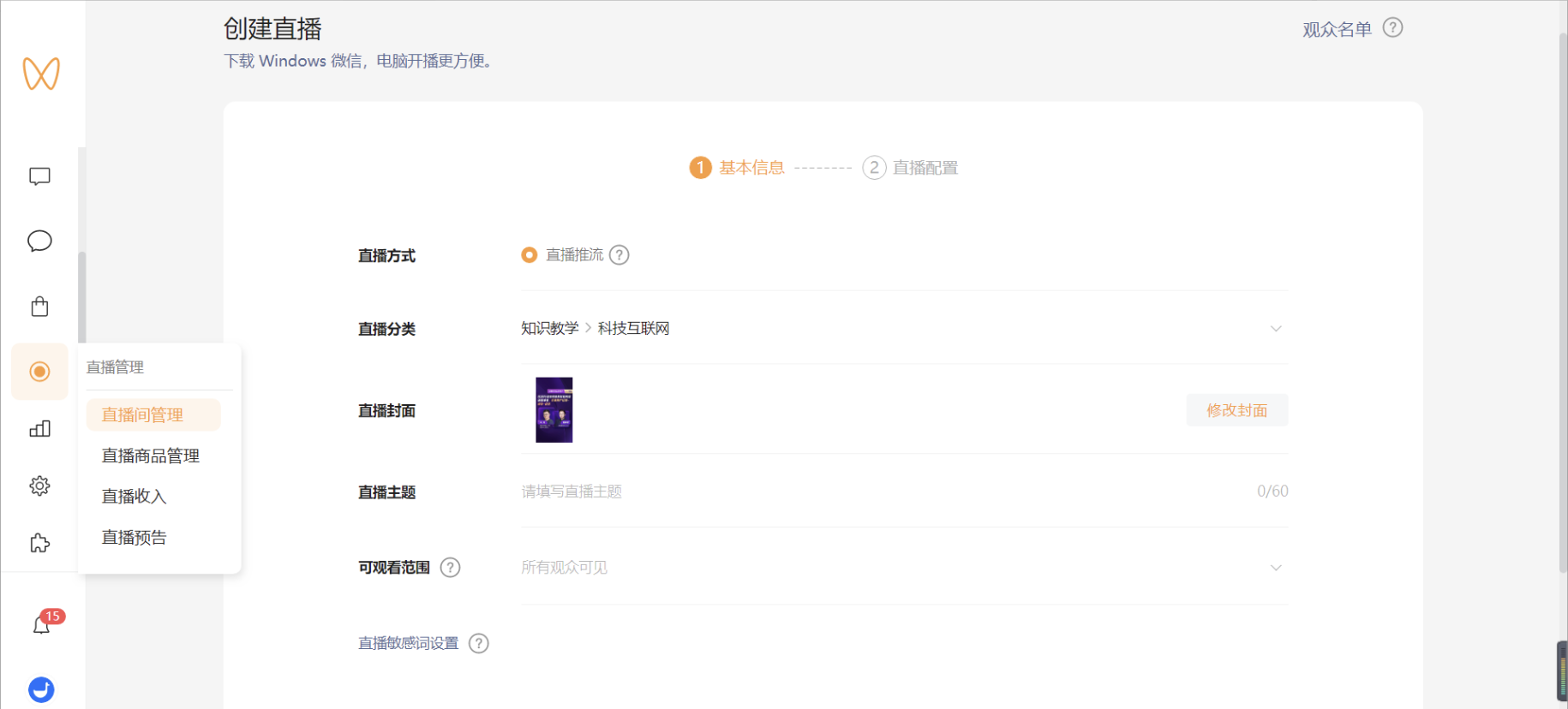
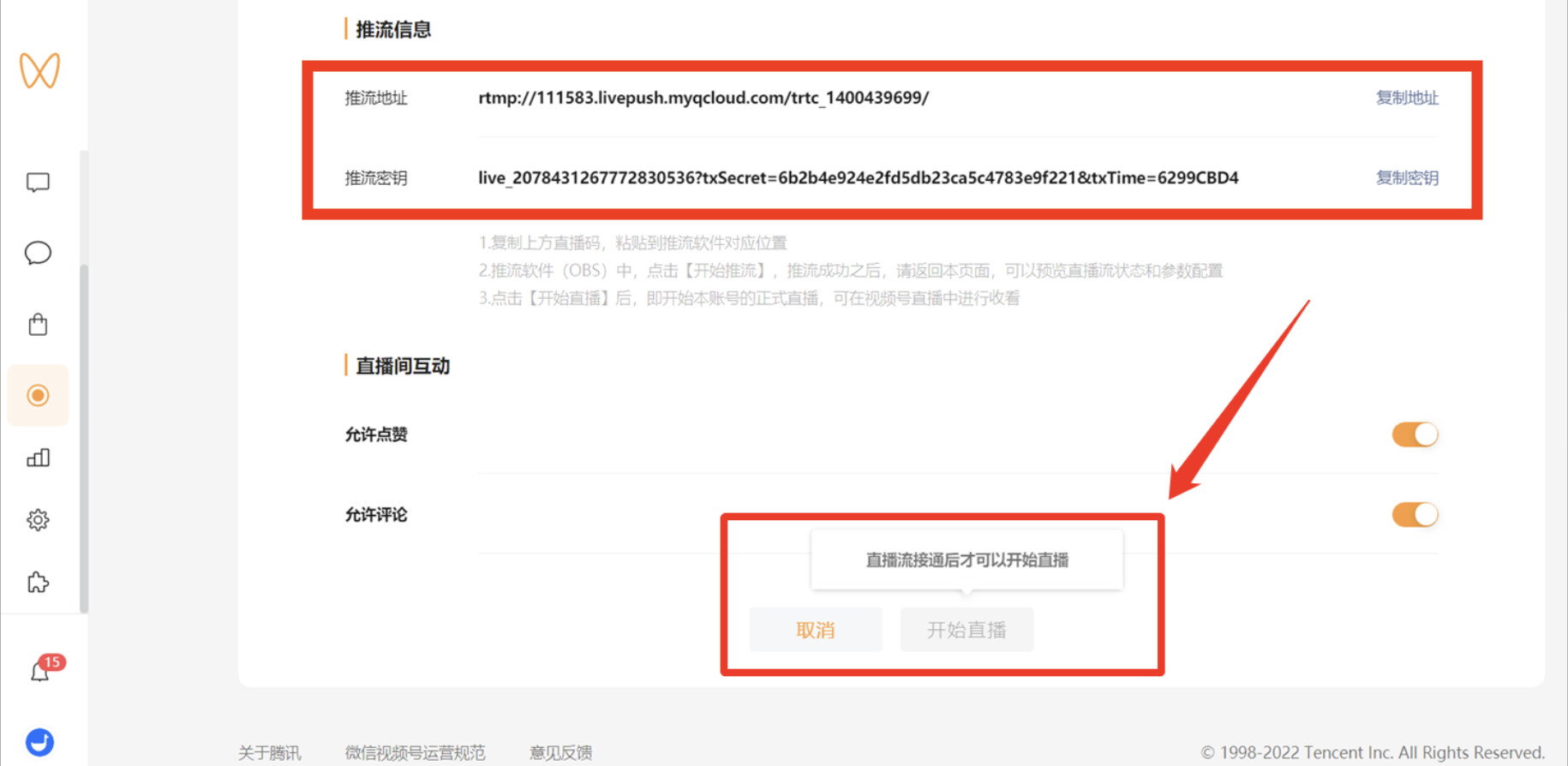
Step 1: Start a stream-pushing live stream on Channels and obtain the streaming address and key
Operation steps: Log in to the Channels Assistant backend > Click “Live Stream Management” to create a stream-pushing live stream > Obtain the streaming address and key
Step 2: Edit the live stream in the elink backend and add the streaming address and key to enable rebroadcasting
Operation steps: Find the live stream that needs to be set > Click “Details” > Click “Rebroadcast Settings” > Enable “Rebroadcast to Third-Party Platforms” > Select the “Channels” rebroadcasting platform > Add the streaming address and key
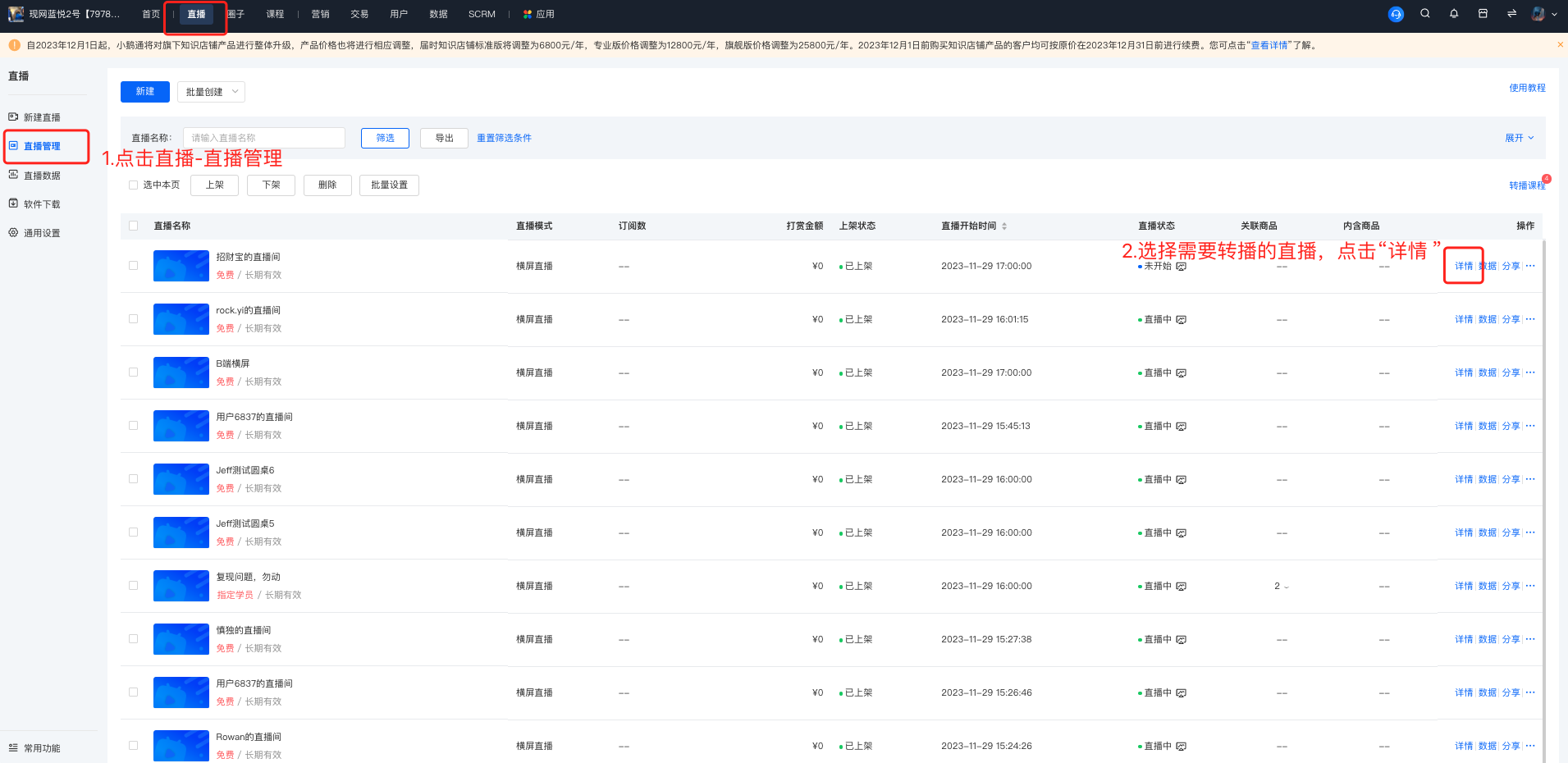
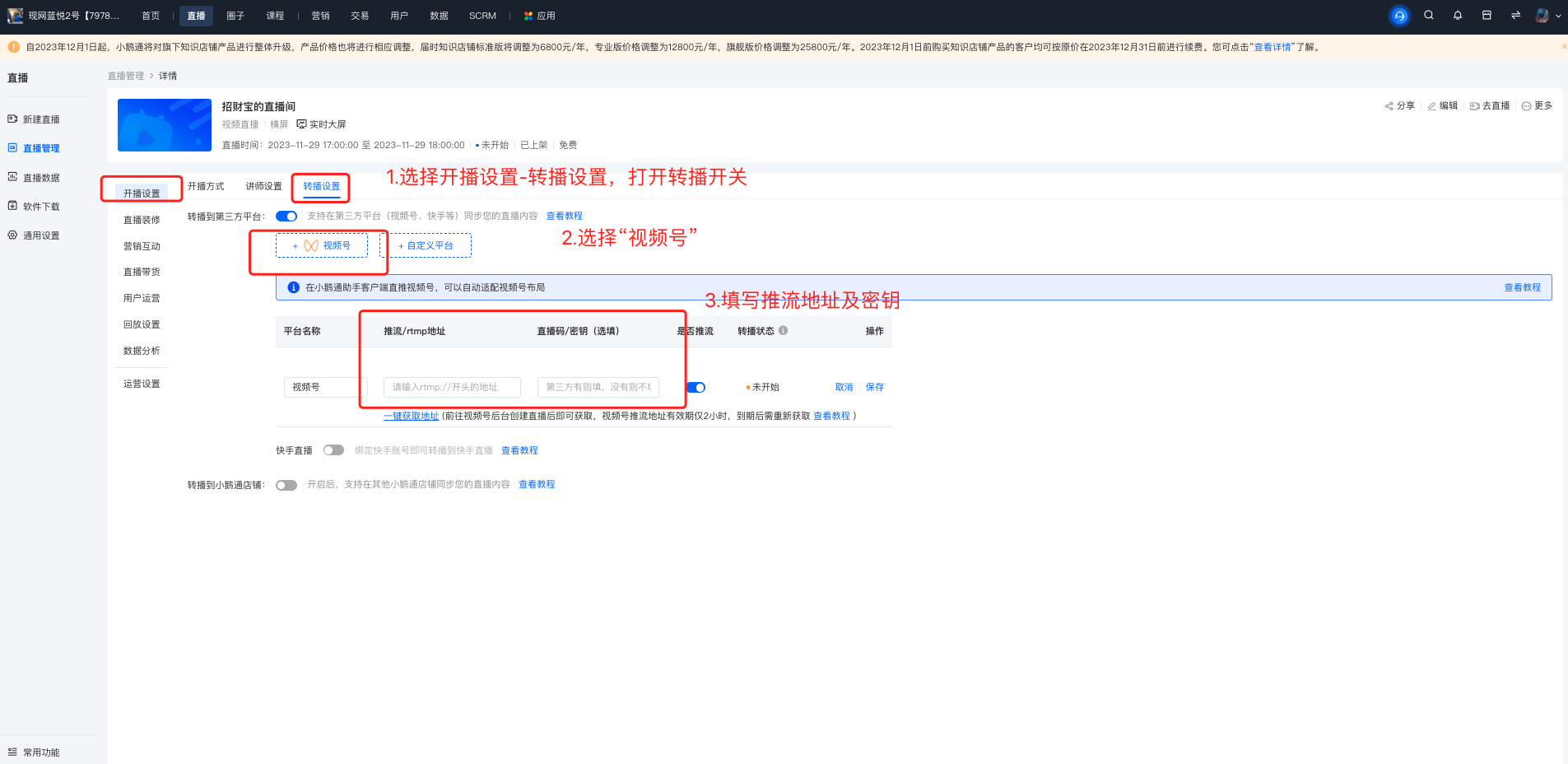
Step 3: Click “Start Live Stream” on Channels to enable rebroadcasting
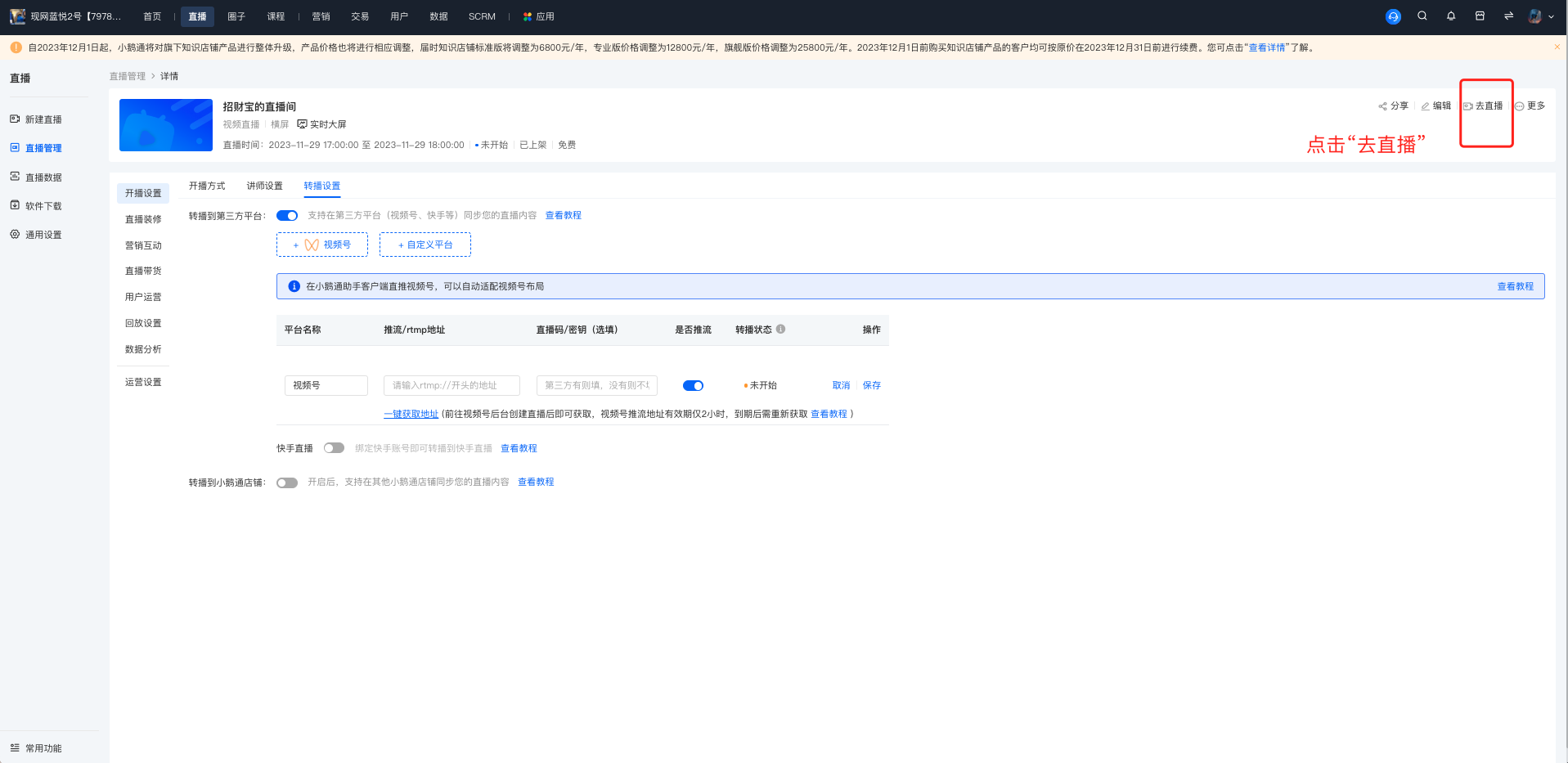
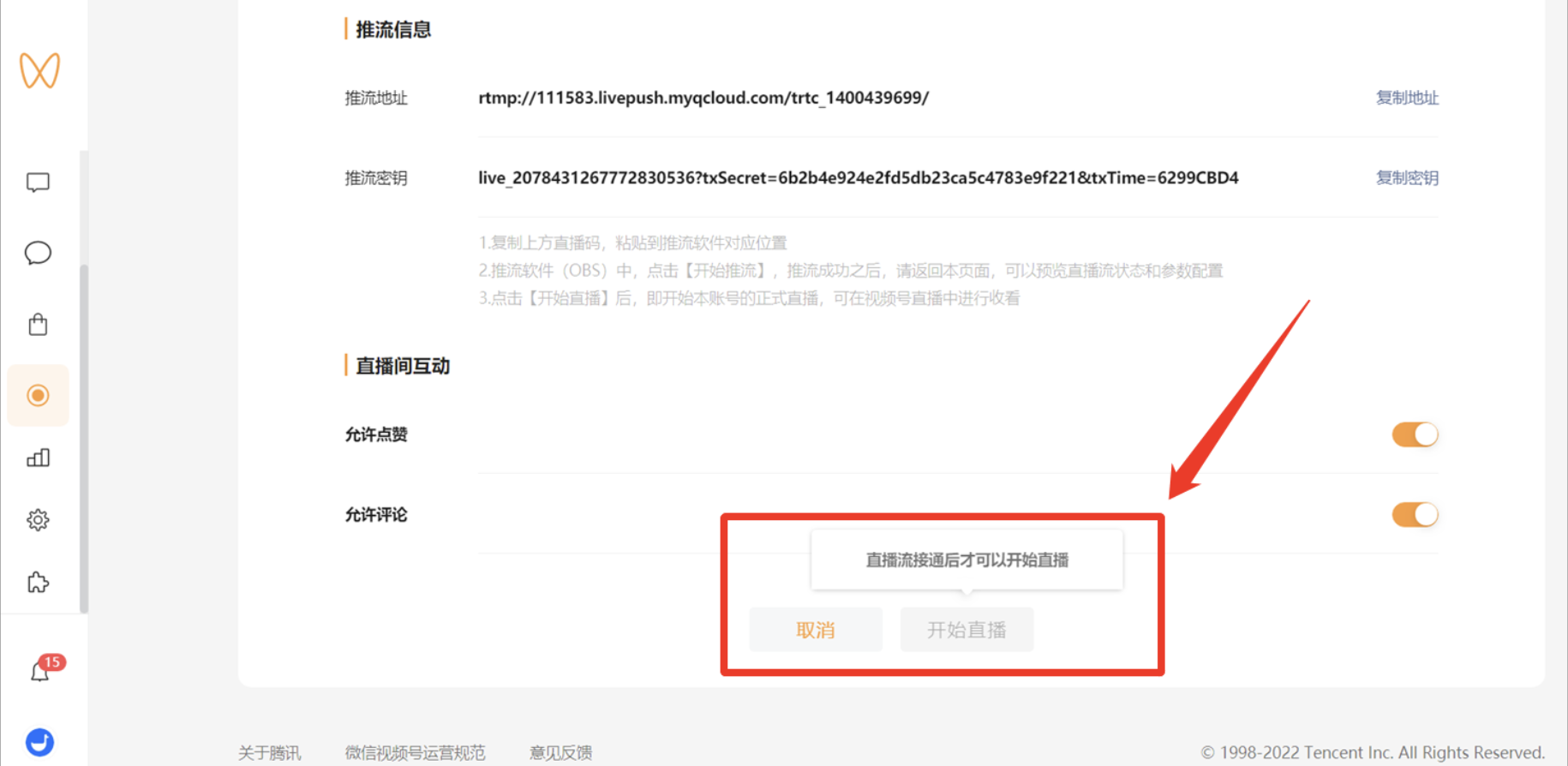
Operation steps: Click “Go Live” in the elink backend to start the live stream in the elink online store; simultaneously click “Start Live Stream” in the Channels Assistant to successfully rebroadcast the elink live stream to Channels.
Precautions
a. You can only click “Start Live Stream” after there is an image in the 【Live Stream Detection】 area of the Channels Assistant backend.
b. You need to start the live stream within 2 hours after creation; otherwise, it will become invalid.
Preconditions
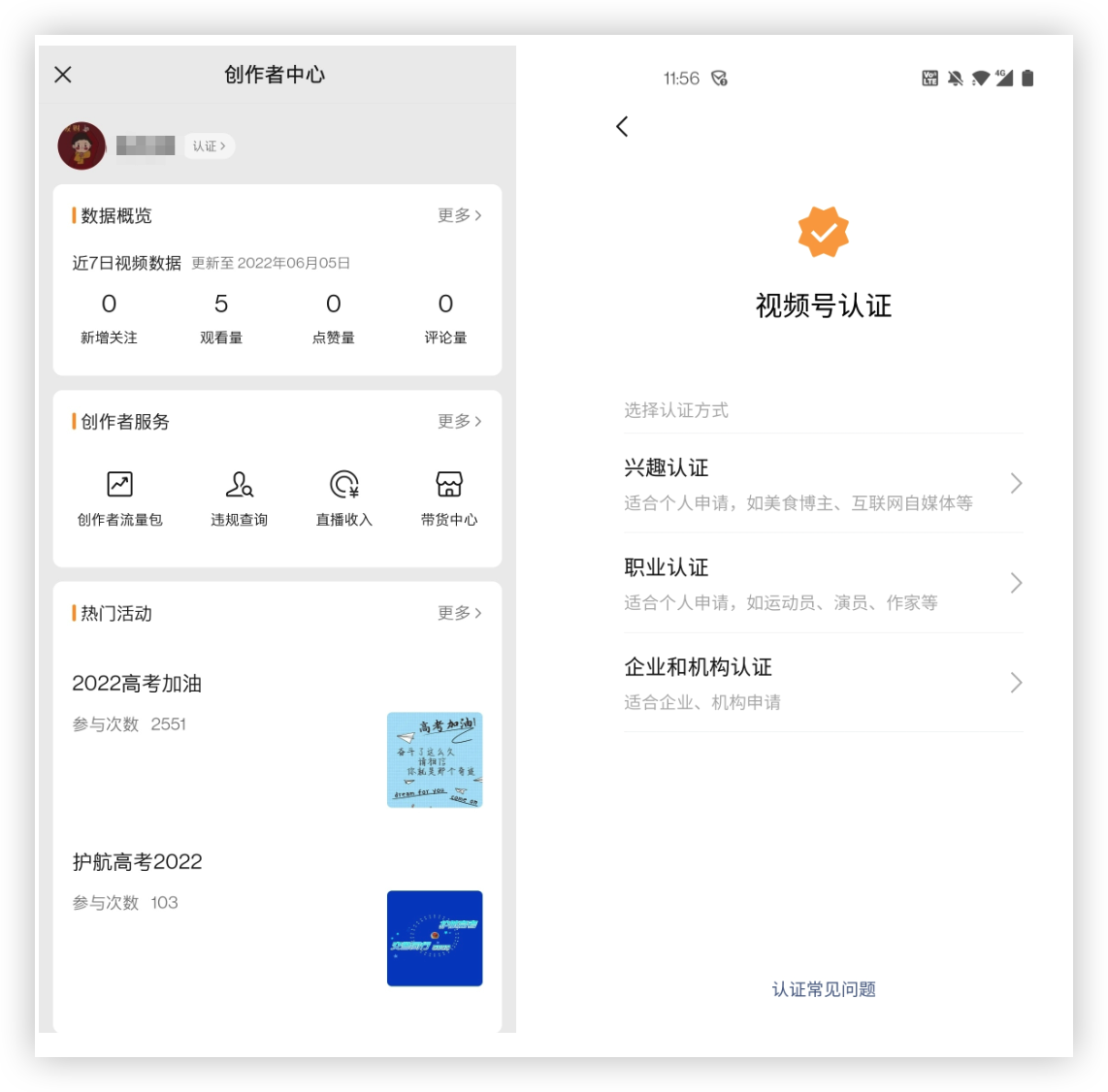
Merchants need to complete the Channels verification
Rebroadcasting elink live streams to Channels is achieved through the stream-pushing live stream function of Channels, which requires merchants to complete the Channels verification. Currently, Channels officially supports multiple verification methods. For specific verification requirements, please refer to the official Channels website:
Operation steps: Channels > Creator Center > Apply for Verification > Select the verification method > Complete the verification according to the official Channels guidelines