Sales
- Customer management
- Tutorial on Using the Customer List
- Tutorial on Using Customer Tags
- Introduction to customer statistics details
- Employee empowerment
- Data monitoring
- Enterprise WeChat Configuration
- Customer reach
- Enterprise management
- Lead management
Customer management
Tutorial on Using the Customer List
I. Feature Introduction
The customer list feature helps merchants efficiently manage private domain traffic and reduce operational management costs. Through the customer list, merchants can understand the relationship between customers and the enterprise, including the name, personal tags, enterprise tags, added employees, channel remarks, and addition time. Merchants can quickly locate users based on multi - dimensional filtering conditions and perform common operational operations (such as tagging) on users with different characteristics to facilitate subsequent refined operations.
II. Purpose of Use
Help merchants understand the basic information of customers and promptly adjust the operational strategies for different customers.
III. Usage Scenarios
Merchant A held a holiday marketing event last week and converted most customers into private domain traffic for management. After the event, the merchant wanted to mark the customers who added employees during the holiday marketing event. So, the merchant first filtered out these customers through the time - filtering condition and then uniformly tagged them with enterprise tags related to the event for identification and later follow - up.
IV. Operation Path
Desktop Management Console—SCRM—Customer Management—Customer List
V. Usage Tutorial
(I) Customer Filtering
1. Supports custom filtering conditions to filter out the required customers and supports export.
2. Filtering conditions include: customer name (supports fuzzy search), added employees, follow - up status, personal tags, enterprise tags, channel remarks, addition time, and churn status.
(II) Introduction to the Customer List Page
1. The list displays all user information by default. The displayed fields are: customer name, remarks, gender, personal tags, enterprise tags, added employees, channel remarks, follow - up status, and addition time.
2. The synchronization methods for the customer list include automatic synchronization and manual synchronization. The system defaults to automatic synchronization.
3. View customer details: In the customer list, click on the customer's avatar/nickname to jump to the customer details page.
4. Remark name: The remark name marked by enterprise employees for customers on Enterprise WeChat.
5. Personal tags: Display personal tags on Enterprise WeChat and personal tags in the customer profile of the Enterprise WeChat Assistant.
6. Enterprise tags: Tags created by enterprise administrators in the Enterprise WeChat backend to provide employees with unified tags for convenient operation and facilitate enterprise management.
7. Added employees & time: The enterprise employees added by the customer and the addition time.
8. Channel remarks: The remark name of the channel live code when the customer adds an employee through the channel live code.
9. Follow - up status: Consistent with the status set by employees for customers in [Chat Sidebar - elink Profile - Follow - up Status].Including: new customers, initial communication, potential customers, paying customers, non - potential customers.
10. If a customer adds multiple employees, a record will be displayed for each added employee. Therefore, in the upper - left corner of the customer list, we provide merchants with the total number of customers and the total number of unique customers.
(III) View Customer Details:Enter the customer list page, click on the customer's name, and enter the [Customer Details] page.
1. Since each user may add multiple employees, and each employee can modify the user's information in the customer profile on the chat sidebar, the customer details will be displayed separately for each employee on the customer details page of the management console.
2. Customer information mainly includes: customer name, remark name, gender, addition time, channel remarks, personal tags, and enterprise tags.
3. The details page of customer information also displays information about all group chats the customer has joined, including: group name (click to jump to the group details), group owner, number of group members, customer's joining time, and group chat creation time.
(IV) Tagging:On the customer list page, click the [Tag] button.
Supports batch tagging operations.
Tutorial on Using Customer Tags
I. Feature Introduction
II. Purpose of Use
Assist enterprises in setting up a customer enterprise tag system. Employees can assign corresponding enterprise tags based on user characteristics, facilitating refined user segmentation and operation.
III. Usage Scenarios
An enterprise sets up enterprise tags in different dimensions on the management console, such as activity level (highly active, less active, likely to churn), conversion intention (converted, no intention, to be followed up), and hobbies (pop music, classical music, ethnic music) based on user data and business strategies. When interacting with users, enterprise employees can assign corresponding tags according to the user's situation. For example, employees can assign the 'Hobby - Classical Music' tag to users interested in classical music.
Later, when the merchant holds an operation event related to classical music, they can filter customers based on tags, send group messages, and offer exclusive discounts to attract existing users to participate in the event, enabling targeted operations and increasing the repurchase rate.
IV. Operation Path
Desktop Management Console → SCRM → Customer Management → Customer Tags
V. Usage Tutorial
By default, it is in real - time two - way synchronization with the enterprise tags in the Enterprise WeChat backend. Additionally, you can manually click the synchronization button to manually synchronize the enterprise tags from the Enterprise WeChat backend.
(2) Create a New Tag Group
Merchantscan create tag groups according to different dimensions.Click [Add Tag Group], and fill in the tag group name and tag name.
(3) Edit a Tag Group
Click the [Edit] button corresponding to the tag group. Administrators can modify the tag group name, modify/delete/add tags within the group. After confirming and saving, the data will be synchronized to the Enterprise WeChat backend.
(4) Delete a Tag Group
Click the [Delete] button of the tag group to delete the corresponding tag group. After deletion, the relevant tag data in the customer information will also be deleted.
(5) Tag Sorting
Merchants can drag and sort tag groups and tag items.
(Tag Group Sorting)
(Tag Item Sorting)
Introduction to customer statistics details
I. Indicator Definitions
1. Total number of customers: The total number of customers added by enterprise members within the visible range of this application.
2. Number of newly added customers: The number of new customers added by enterprise members within the visible range of this application.
3. Number of lost customers: The number of customers deleted or added to the blacklist by enterprise members within the visible range of this application.
II. Frequently Asked Questions
1. Data update timing and cross - day calculation
(1) How often is the data updated?
The data is updated at 12:00 every night, and the data for each natural day will not change after the update.
[Example] Zhang San added 3 customers on the first day but deleted these 3 customers the next day. The 'Number of newly added customers' on the first day is still '3'.
Zhang San added 3 customers on the first day but immediately deleted them. The 'Number of newly added customers' on the first day is '0' because the statistics are made at 12:00 that night.
(2) How to calculate multi - day data?
The multi - day data of 'Number of newly added customers' and 'Number of lost customers' is the sum of the daily data.
2. Data coverage and statistical methods
(1) Is the statistics based on the relationship chain or customers?
The statistics are calculated based on the relationship chain between members and customers.
[Example] If 3 service staff add the same customer, the 'Number of newly added customers' is '3'.
(2) How to calculate the data after a member leaves the company or is transferred?
● After a member is transferred, the historical data generated before the transfer will follow the member.
[Example] If Zhang San is transferred from the sales department to the marketing department, Zhang San's historical and new data will be included in the marketing department.
● After a member leaves the company, the historical data generated before leaving will not be cleared.
[Example] If Zhang San in the marketing department leaves the company, the historical data of the marketing department will not decrease.
Employee empowerment
How to find the shortcuts in the chat toolbar?
During one-on-one or group chats with customers, employees can click on Quick Reply and Customer Profile in the chat toolbar to improve the accuracy and efficiency of communication services and enhance the customer experience.
Step 1: Click to enter the chat dialog box with external contacts (customers).
Step 2: Click on the chat toolbar icon to see the entrance to the chat toolbar.
(1) On the PC, click on the icon on the right in the following figure.

(2) On the mobile device, click on the icon in the upper right corner in the following figure.

Data monitoring
Frequently Asked Questions about Conversation Content Archiving
Q1:What types of messages are restricted from being archived by the conversation archiving feature?
Answer: The conversation archiving feature does not archive 'video calls' or the message content in the 'File Transfer Assistant'. Customers can disable these two functions in the Enterprise WeChat backend.
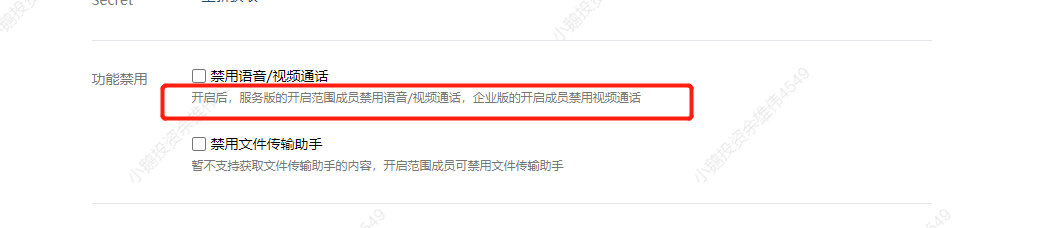
Q2: If [elink SCRM] expires, but the conversation content archiving service has not expired, will the conversations still be archived?
Answer:Conversations will not be archived. The product page will prompt the customer that if they do not renew the service, the conversation content will not be pulled for archiving, leaving the decision to the customer. During the non - renewal period, the unarchived conversation content cannot be retrieved (Enterprise WeChat only allows pulling conversation content from the last three days).
Q3: [elink SCRM] expires and is not renewed. How will the previously archived conversation content be handled?
Answer: [elink SCRM] will continue to store the archived content for the customer. If the customer needs it, they can continue to view it.
Q4: Is a refund available for the conversation content archiving service?
Answer: Refunds are not available after the paid purchase of the conversation content archiving service. This is stated in the contract signed when purchasing the conversation archiving feature.
Q5: How can I apply for a trial of the conversation content archiving service?
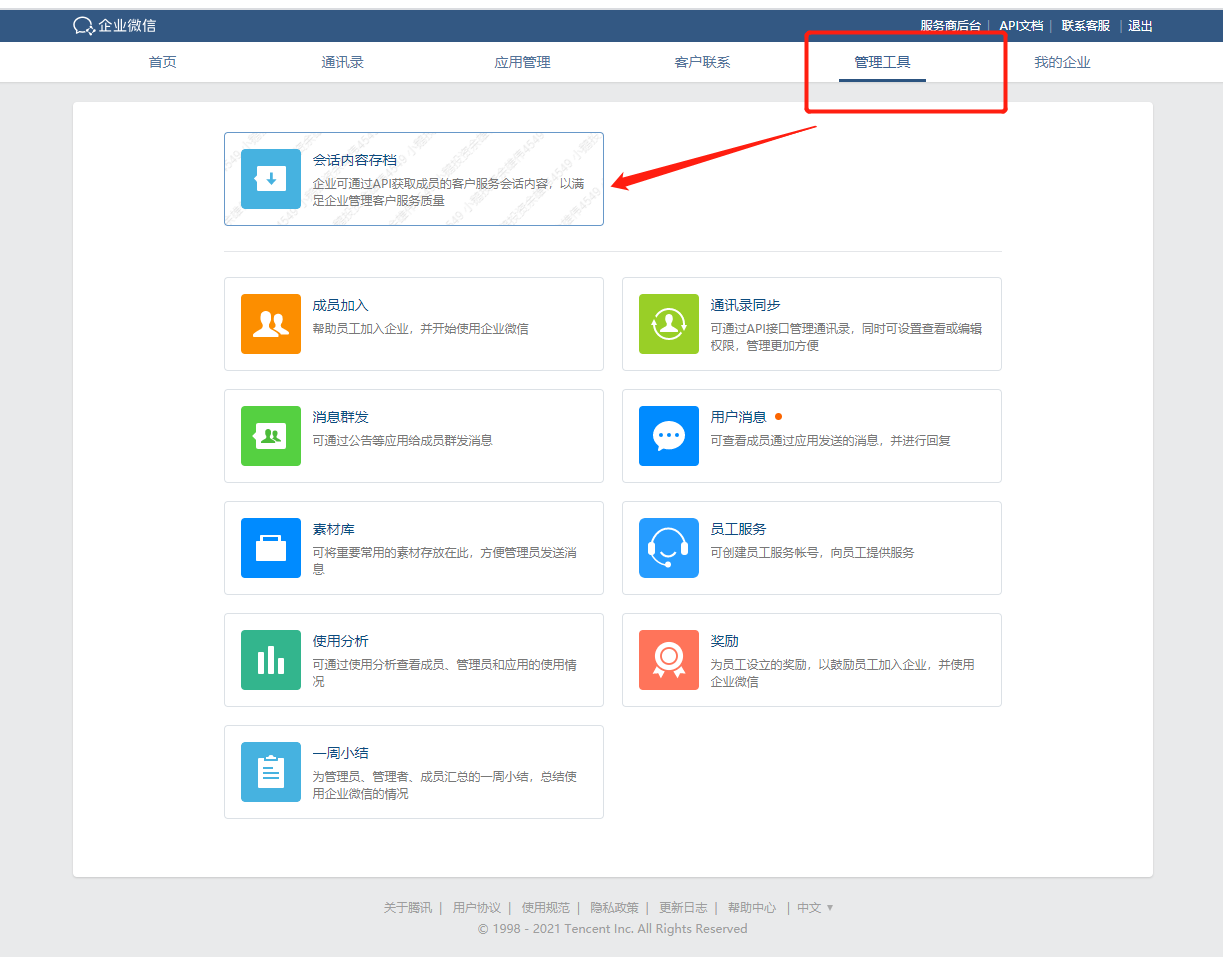
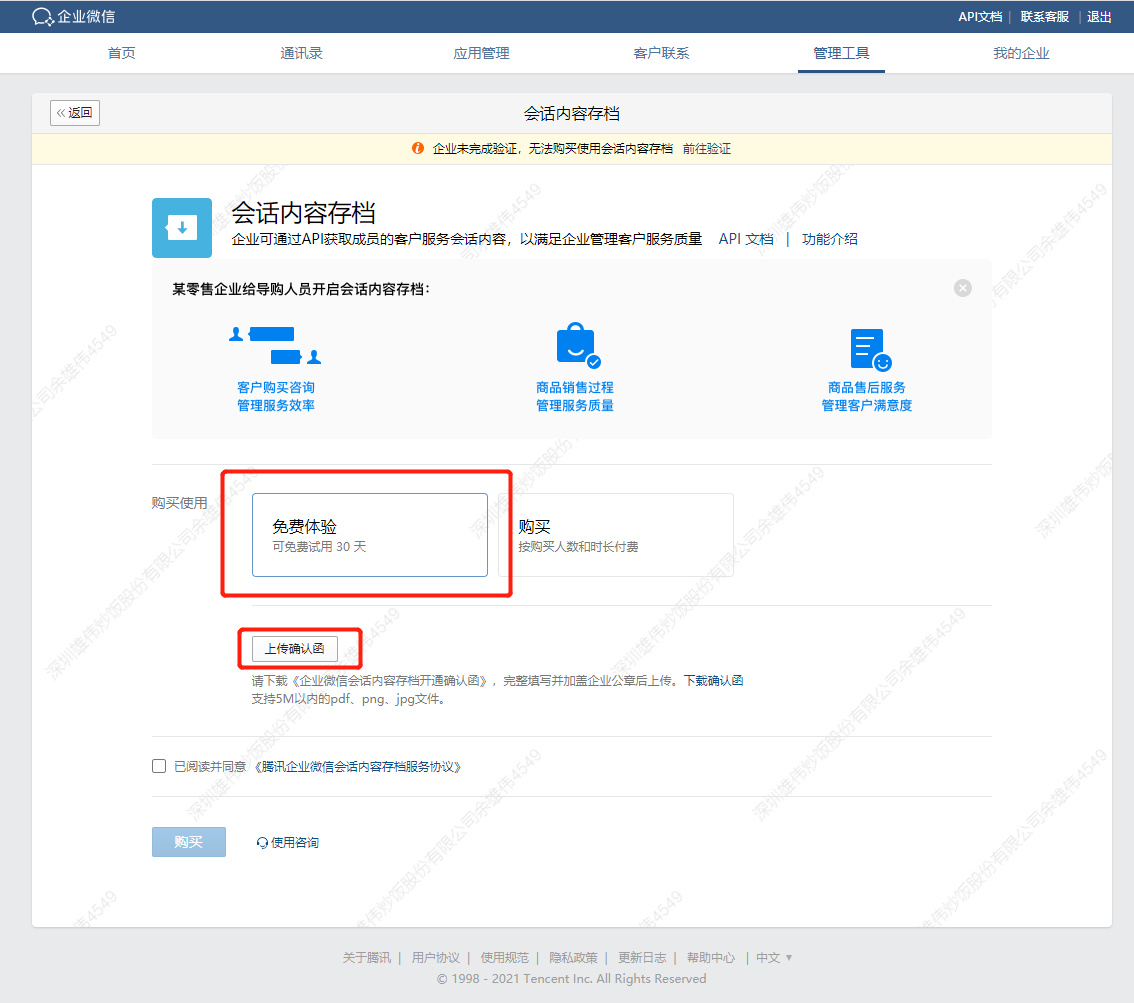
Answer: 1. Enter the Enterprise WeChat backend: https://work.weixin.qq.com/
2. Click [Management Tools] - [Conversation Content Archiving]
3. Click 'Free Trial' and upload the 'Confirmation Letter' (the confirmation letter must be stamped with the company seal).
4. After waiting for the official review of Enterprise WeChat, you will obtain the conversation archiving secret and get the conversation content after configuration in [elink SCRM].
Q6: What types of messages are currently archived by the conversation content archiving service?
Answer: The message types currently archived by the conversation content archiving feature include: text, images, recalled messages (only the status is displayed), approved conversation chat content, voice, video, files, links, Mini Program messages, mixed messages, and archived audio messages (i.e., voice chats).
Q7: Can merchants who have previously used the conversation archiving service now use elink Enterprise WeChat Assistant?
Answer: If merchants have previously purchased a 'Conversation Archiving' account in the Enterprise WeChat backend on their own, as long as the usage period of the conversation archiving service has not expired and elink Enterprise WeChat Assistant is still within the normal usage period, they can configure and use it normally.
Q8: Can multiple public keys be set for the conversation archiving service? How does the logic work?
Answer: The Enterprise WeChat backend only supports setting one public key. The public key is provided on the conversation archiving settings page of elink Enterprise WeChat Assistant. Merchants can fill in the public key in the Enterprise WeChat conversation archiving backend. Each time the public key is updated, the version number in the Enterprise WeChat backend will increase by 1. This version number needs to be filled back into the elink Enterprise WeChat Assistant backend.
Enterprise WeChat Configuration
Explanation of Function Adjustments Related to External Contact Secret
Due to the adjustment of the official capabilities of Enterprise WeChat, starting from December 19, 2023, the usage conditions and capabilities of some SCRM functions have been adjusted:
1. When usingfunctions such as 'Customer Tags', 'Group List - Export', 'Customer Statistics - Export', 'Group Statistics - Export', 'Poster Materials', and 'Enterprise Business Cards', there is no longer a need to configure the External Contact Secret;
2. Editing and deleting tags created in the Enterprise WeChat backend and by third - parties are no longer supported in 'Customer Tags';
3. To use 'Poster Materials' and 'Enterprise Business Cards', you need to configure the 'Self - developed Application for Agency Development'. For details on how to configure it, please refer toHelp Center - elink
Customer reach
Introduction to Community Statistics Details
I. Indicator Definitions
1. Total number of group chats: As of the last day of the statistical period, the number of customer groups owned by members.
2. Number of newly added group chats: During the statistical period, the number of customer groups newly owned by employees, including those created and transferred by others.
3. Number of group chats with messages: During the statistical period, the number of customer groups in which group members have sent messages.
4. Total number of group members: As of the last day of the statistical period, the number of group members in the customer groups owned by members.
5. Number of newly added group members: During the statistical period, the number of new group members who joined the customer groups of members.
6. Number of group members who left the group: During the statistical period, the number of group members who left the customer groups of members.
7. Number of group members who sent messages: During the statistical period, the number of group members who sent messages in the customer groups.
II. Frequently Asked Questions
1. Data update timing and cross - day calculation
(1) How often is the data updated?
The data is updated at 12:00 every night, and the data for each natural day will not change after the update.
[Example] Zhang San created 3 customer groups on the first day but dissolved them on the next day. Then the 'Number of newly added group chats' on the first day is still '3'.
Zhang San created 3 customer groups on the first day but immediately dissolved them. Then the 'Number of newly added group chats' on the first day is '0' because the statistics are carried out at 12:00 that night.
(2) How to calculate multi - day data?
The multi - day data of 'Number of newly added group chats', 'Number of group chats with messages', 'Number of newly added group members', 'Number of group members who left the group', 'Number of group members who sent messages', and 'Total number of group chat messages' is the sum of the daily data.
The multi - day data of 'Total number of group chats' and 'Total number of group members' is the data of the last day within the selected time range.
2. Data coverage
(1) Which group data will be included in the statistics?
The prerequisite for data to be included in the statistics is that the group is a customer group.
[Example] Data generated by ordinary external groups, groups whose group owners have been transferred to WeChat users, etc., will not be included in the statistics.
(2) Which message types will be included in the statistics?
Regular text, pictures, videos, links, and Mini Program messages will be included. System messages, voice calls, and group join invitations will not be included.
(3) How to calculate the data after a member leaves the company or is transferred?
● After a member is transferred, the historical data generated before the transfer will follow the member.
[Example] If Zhang San is transferred from the sales department to the marketing department, Zhang San's historical and new data will be included in the marketing department.
● After a member leaves the company, the historical data generated before leaving will not be cleared.
[Example] If Zhang San in the marketing department leaves the company, the historical data of the marketing department will not decrease.
Enterprise management
What does the management scope in permission management refer to?
1. What is the management scope? What is the purpose of setting the management scope?
The management scope determines which members' or departments' customer data and community data within the enterprise a member can view. Merchants can effectively protect the enterprise's data assets by setting the management scope for each role.
2. Which specific functional modules involve customer data and community data?
After setting the management scope for a role, members can only view the customer data and community data of members/departments within the management scope in the following functions; moreover, when selecting employee filtering conditions, they can only filter members and departments within the management scope.
Lead management
Traffic Pool Help Documentation
I. Function Introduction
The Traffic Pool is used to isolate leads from a specific channel. Marketers can analyze the quality of leads from this channel through the Traffic Pool. The Traffic Pool includes leads without a follow - up person and leads with a follow - up person.
II. Purpose of Use
MarketersAnalyze the quality of leads obtained from the public domain through the Traffic Pool
III. Permission Description
Only the person in charge of the Traffic Pool can view all leads in the current Traffic Pool.
IV. Operation Path
Traffic Pool: Desktop Management Console → SCRM → Lead Management → Traffic Pool
Traffic Pool Settings:Desktop Management Console → SCRM → Enterprise Management → Traffic Pool Settings
V. Usage Tutorial
Prerequisites for Use
Contact the service steward to enable the whitelist; otherwise, the function will display 'Coming Soon'.
Set the Person in Charge of the Traffic Pool
The person in charge of the Traffic Pool can view all leads in the Traffic Pool.

Filter Leads in the Traffic Pool
