How to customize the skin of the live streaming room for courses?
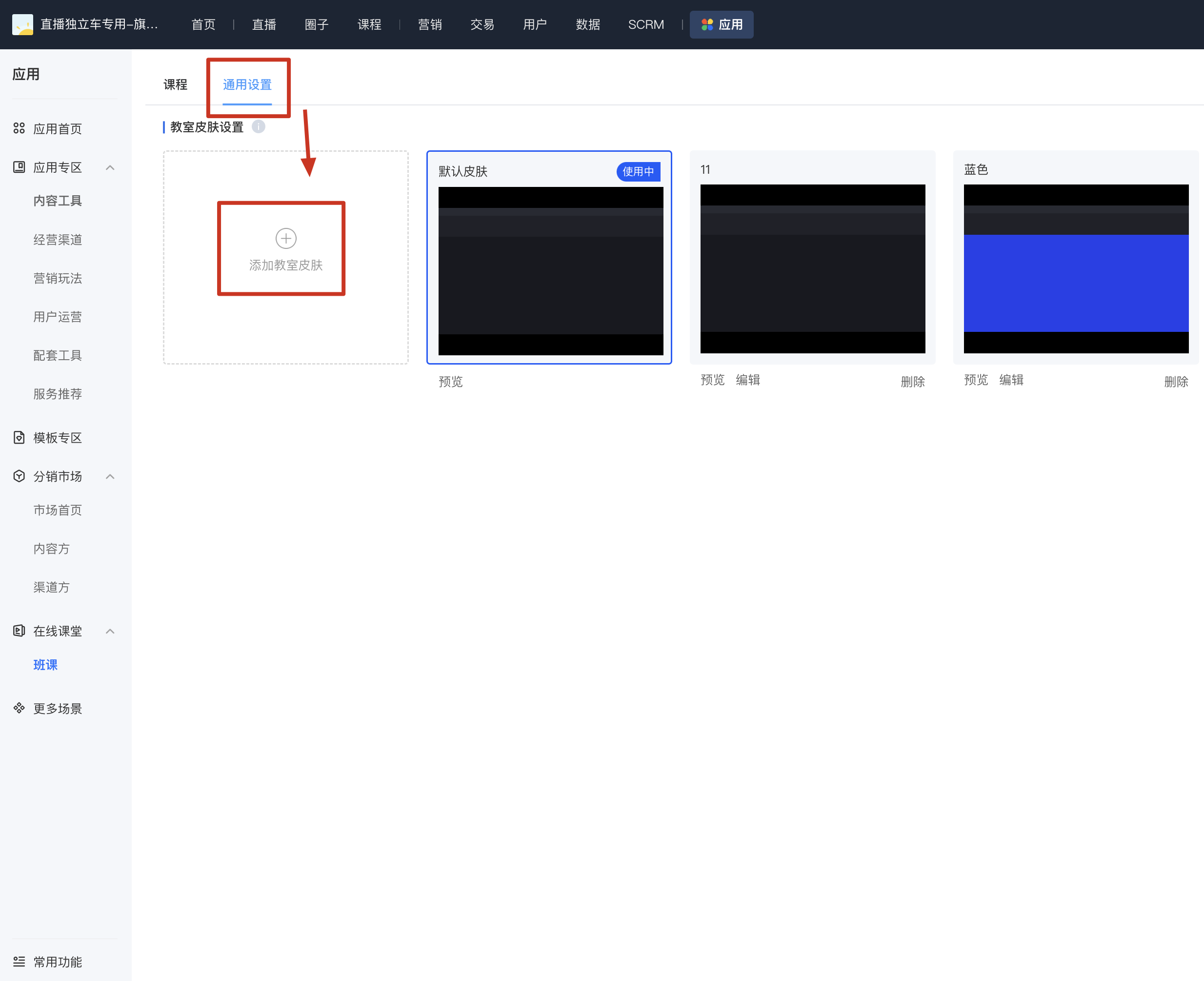
Step 1: The administrator clicks on 'Courses' in the management backend and selects the 'General Settings' menu.
Step 2: Click on 'Add Classroom Skin' to enter the custom skin settings page.
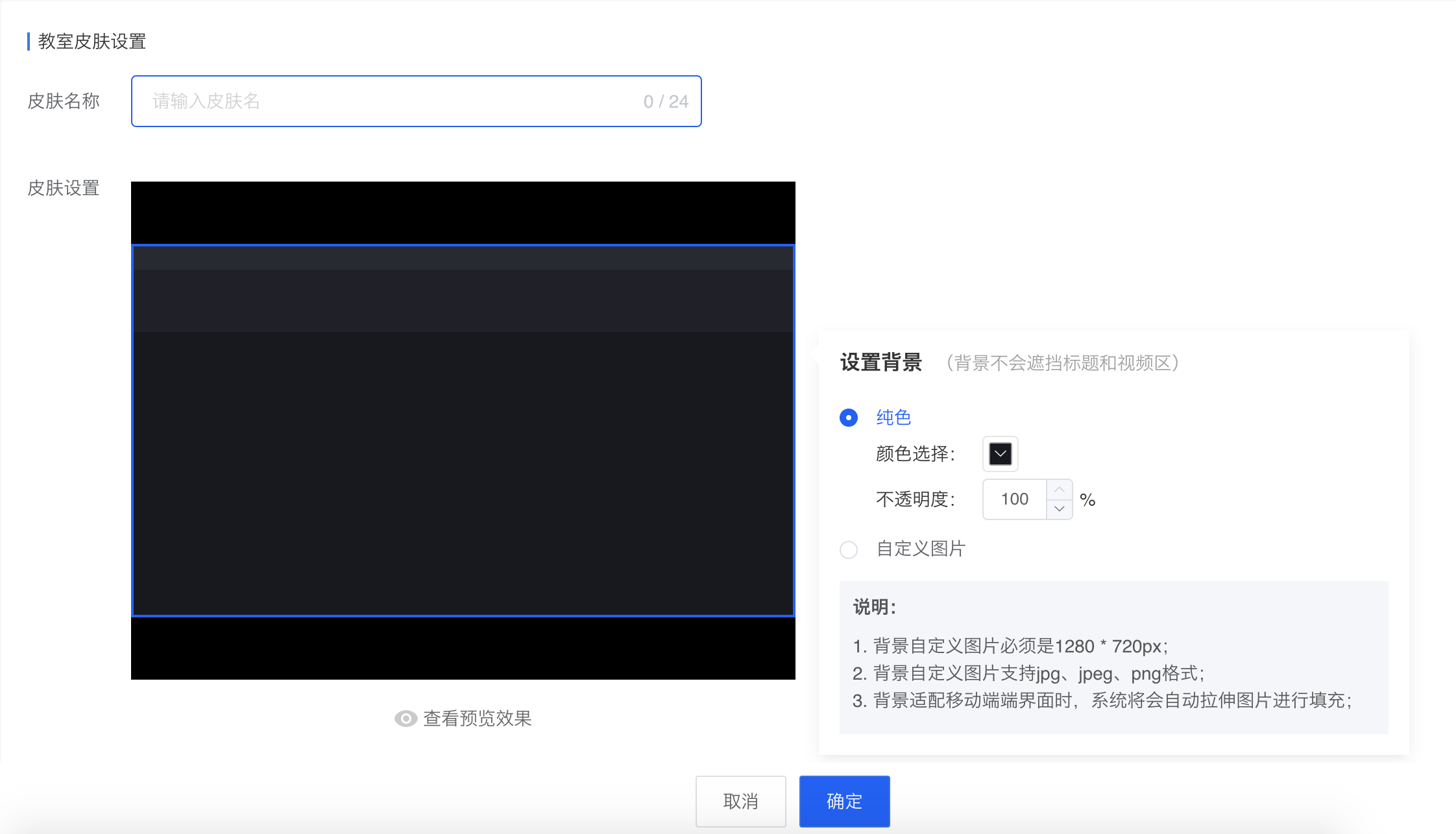
Step 3: Enter the name of the custom skin, set the colors and backgrounds of the corresponding areas (supports adding images), and click the 'OK' button to complete the creation of the custom skin.
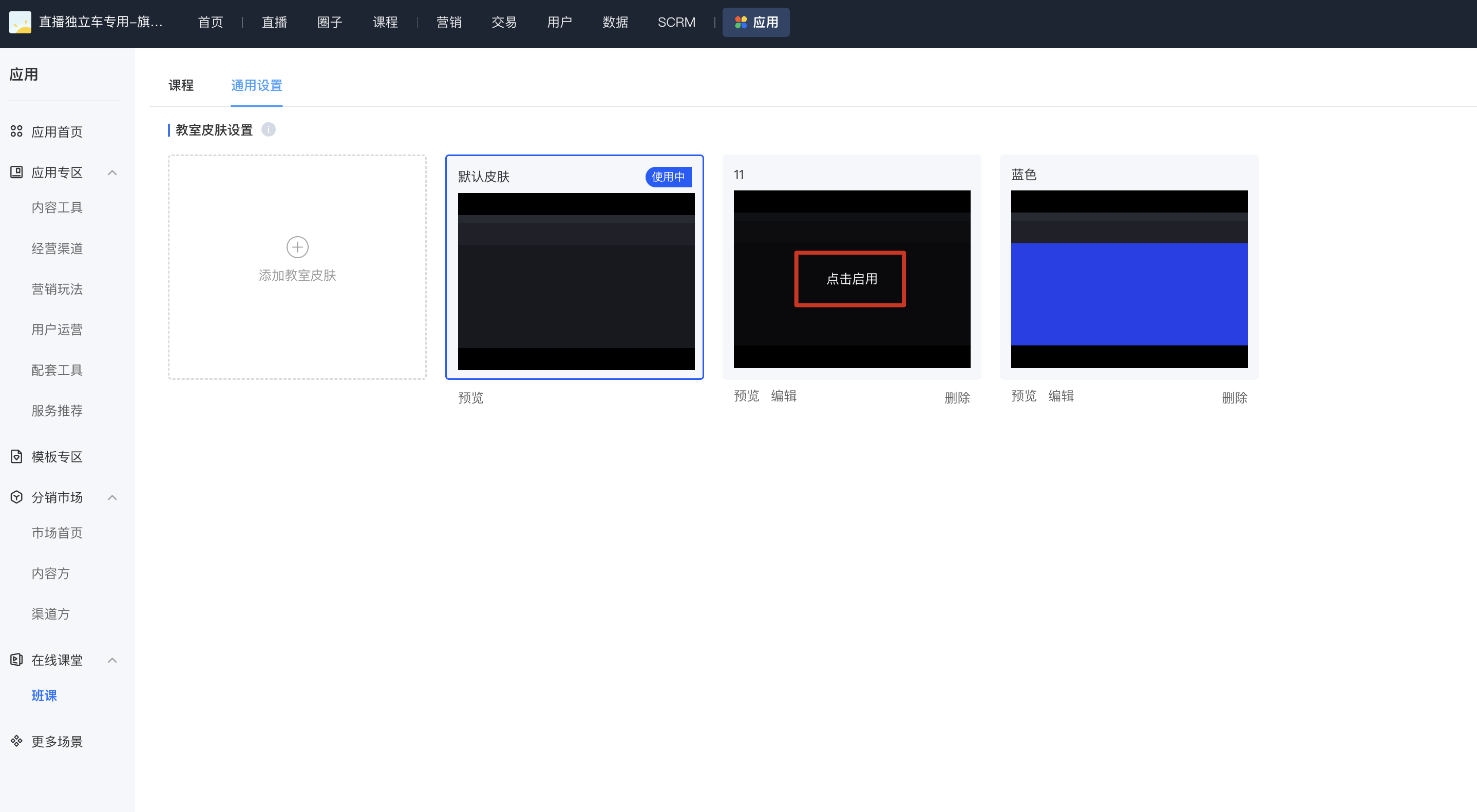
Step 4: Select the skin, click 'Activate', and re - enter the live streaming room for the changes to take effect.