# How to add course session access for learners?

<div data-elink-language-switch="1" id="bkmrk-%E4%B8%AD%E6%96%87" style="border:1px solid #d6d9de;border-radius:6px;padding:10px 12px;margin:0 0 18px 0;background:#f8fafc;font-size:14px;">[中文](/books/68d30/page/274ad)</div><span style="font-size:15px;">**Step 1:**Log in to the desktop management console, click \[Applications - Online Classroom - Class Courses\], find the corresponding course, and click \[Details\].</span>

![07.png](https://wechatapppro-1252524126.file.myqcloud.com/help_document/image/ueditor/95656000_1640587926.png ".png")

<span style="font-size:15px;">**Step 2:**Click \[Students\] - \[Add Students\].</span>

![08.png](https://wechatapppro-1252524126.file.myqcloud.com/help_document/image/ueditor/66848000_1640587927.png ".png")

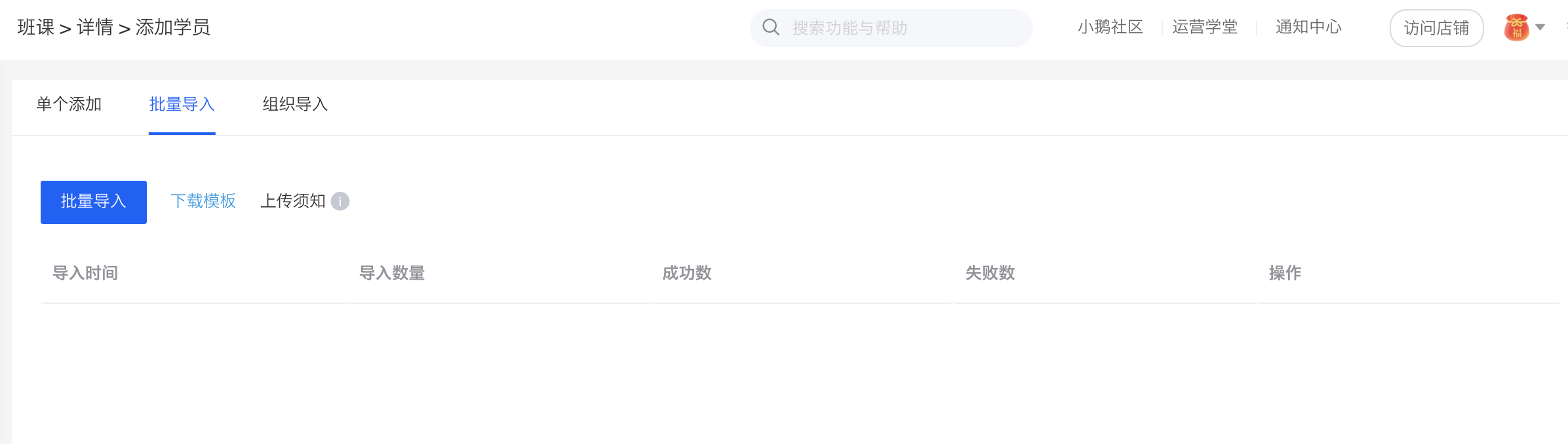
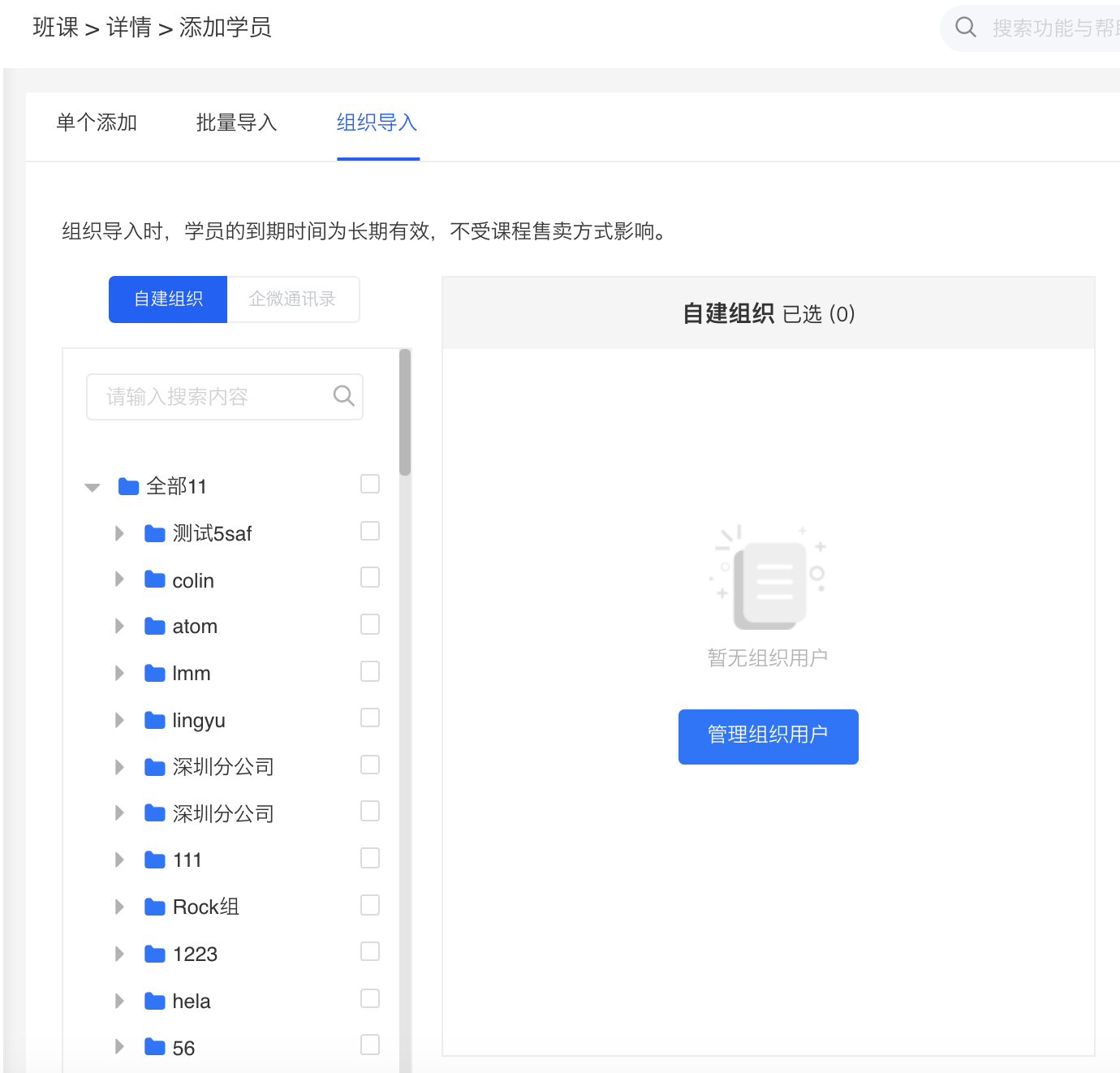
<span style="font-size:15px;">There are currently three methods for adding students:**Single addition**,**Bulk import**,**Organization import**;</span>

<span style="font-size:15px;">![09.png](https://wechatapppro-1252524126.file.myqcloud.com/help_document/image/ueditor/9501300_1640587928.png ".png")</span>

<span style="font-size:15px;"><span style="font-size:15px;">Single addition</span></span>

<span style="font-size:15px;">  
</span>

<span style="font-size:15px;">![10.png](https://wechatapppro-1252524126.file.myqcloud.com/help_document/image/ueditor/48517700_1640587948.png ".png")</span>

<span style="font-size:15px;"><span style="font-size:15px;">Bulk import</span></span>

<span style="font-size:15px;">  
</span>

<span style="font-size:15px;">![11.png](https://wechatapppro-1252524126.file.myqcloud.com/help_document/image/ueditor/65199900_1640587964.png ".png")</span>

<span style="font-size:15px;"><span style="font-size:15px;">Organization import</span></span>

<span style="font-size:15px;">**\*\*Notes:**  
</span>

<span style="font-size:15px;">1. Imported students can directly log in to the**elinkAPP**and**elink Assistant Desktop Client**for classes using their mobile phone numbers and verification codes.</span>

<span style="font-size:15px;">2. If the imported students are existing users of the store, you can choose to enter the user ID or the user's mobile phone number (the mobile phone number bound to the account).</span>

<span style="font-size:15px;">3. If the imported students are new users (who have never visited the store), please enter their mobile phone numbers. After successful import, the backend will create new accounts based on the entered mobile phone numbers. The entered mobile phone numbers will automatically be used as the mobile phone numbers bound to the user accounts.<span style="font-size:15px;text-decoration:underline;">Students need to be guided to go to \[Personal Center\] - \[Account Settings\] in the store to bind their mobile phone numbers and synchronize course permissions.</span></span>

![企业微信截图_20210910195040.png](https://wechatapppro-1252524126.file.myqcloud.com/help_document/image/ueditor/58540700_1640587928.png ".png")