Class Course Terminal
- What are the computer configuration requirements for downloading the client?
- What should I do if I can't find the desktop icon after installing the client?
- What should I do if the client login page shows a white screen or a dotted frame?
- How can instructors start a class on the client side?
- How does the client test the device?
- What should the instructor do if they accidentally click the end class button during a class on the client side?
- How to play animated PPTs during classes using the client?
- How to delay the end of the class?
- The client cannot enter the live streaming room all the time and frequently prompts 'timeout'?
What are the computer configuration requirements for downloading the client?
Recommended configuration:
● Windows
CPU: i5-8250U or higher
Memory: 8GB or more
System: Windows 7 or later (XP system is not supported)
● Mac
Memory: 8GB or more
System: 10.13 or later
What should I do if I can't find the desktop icon after installing the client?
Locate the executable program in the installation directory and right-click to set up a shortcut.
What should I do if the client login page shows a white screen or a dotted frame?
Display of white screen issues:

Display of dashed frame issues:

Operation:
Right-click the elink icon, select Properties, and then open it in compatibility mode. It is recommended to use the Windows Vista (Service Pack 1) mode to open it under Windows 7.

How can instructors start a class on the client side?
After the instructor enters the classroom, click the "Start Class" button in the upper right corner to begin the class:
Class time requirements:
1. Classes can be started within 30 minutes before the scheduled start time.
2. If the class has not started after the set end time, the course time needs to be readjusted on the management console before starting the class.
How does the client test the device?
Click on the device detection in the settings in the upper right corner to test the speakers, camera, and microphone.

(1) Speakers
Click to test the speakers. If you can hear sound, it means the speakers are working properly. If you can't hear sound, you can switch the speaker device and test again.

(2) Camera
After selecting the camera device, if you can see the video image, it means the camera is working properly.

(3) Microphone
After selecting the microphone device and speaking, if you can see the volume fluctuate, it means the microphone is working properly.

What should the instructor do if they accidentally click the end class button during a class on the client side?
After the instructor clicks the "End Class" button during the class,A pop-up window will appear:
1. Click "Take a Break" to return to the course list page. The course will not end and you can enter it again.
2. The "End Class" button will have a 5-second countdown to prevent accidental course termination.
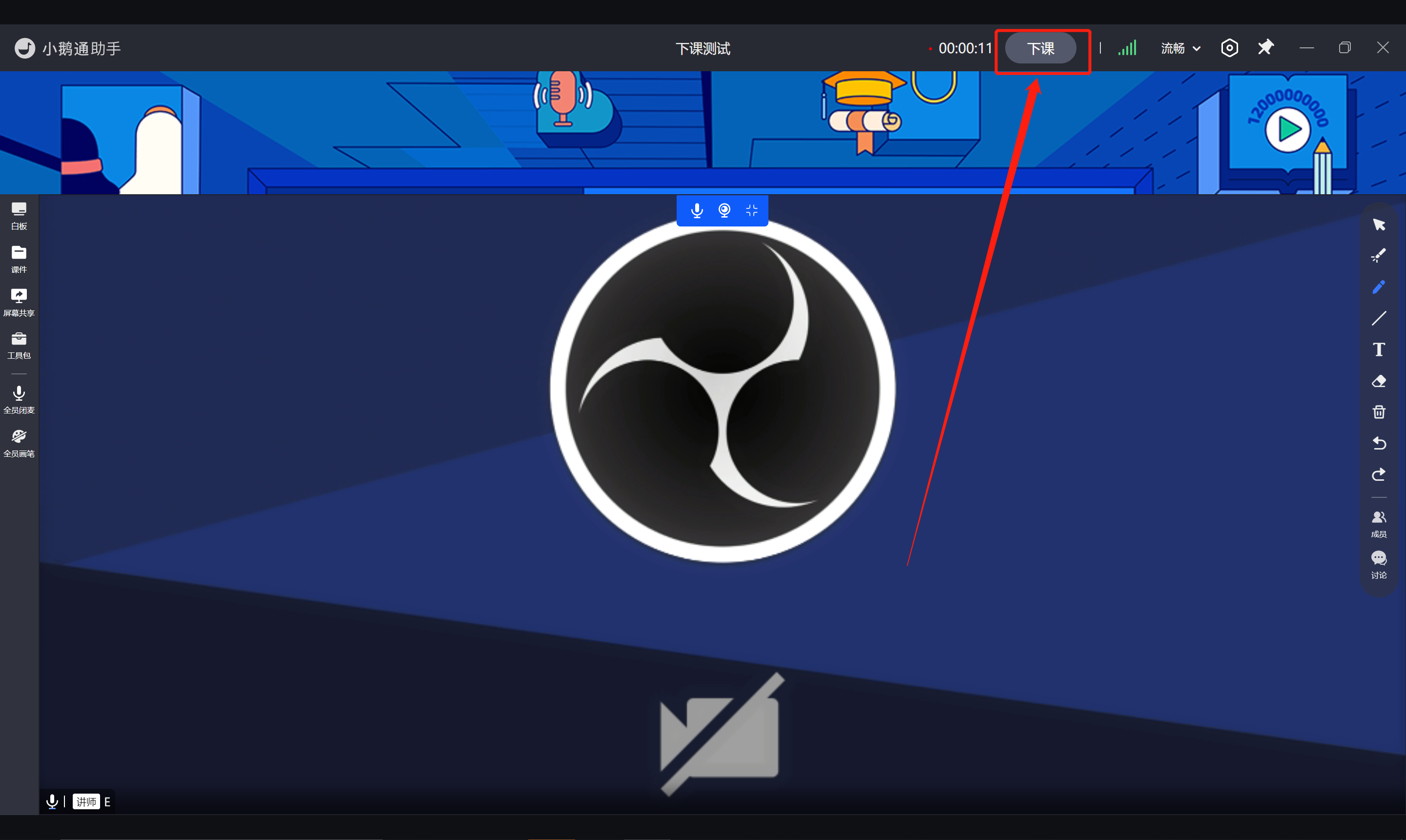
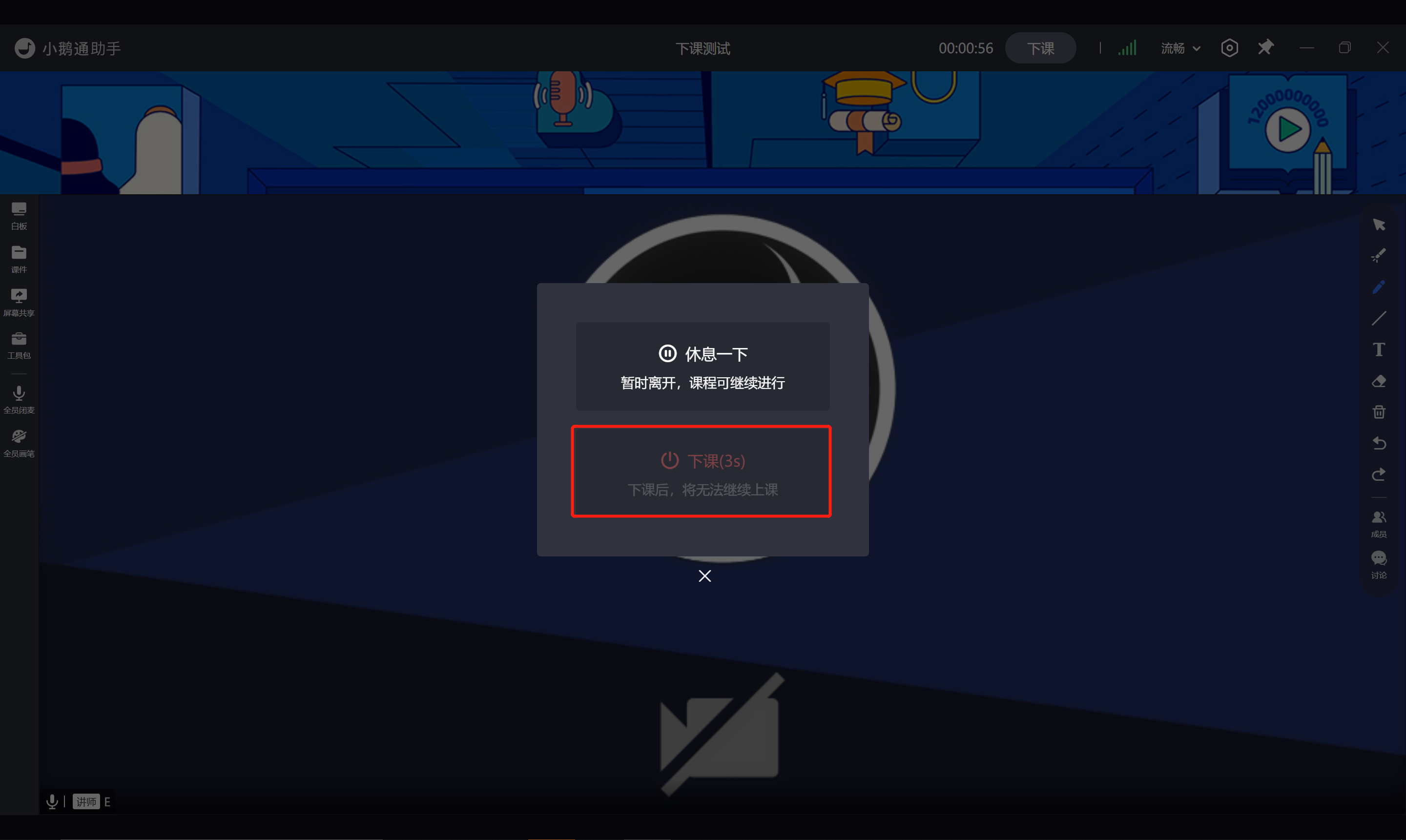
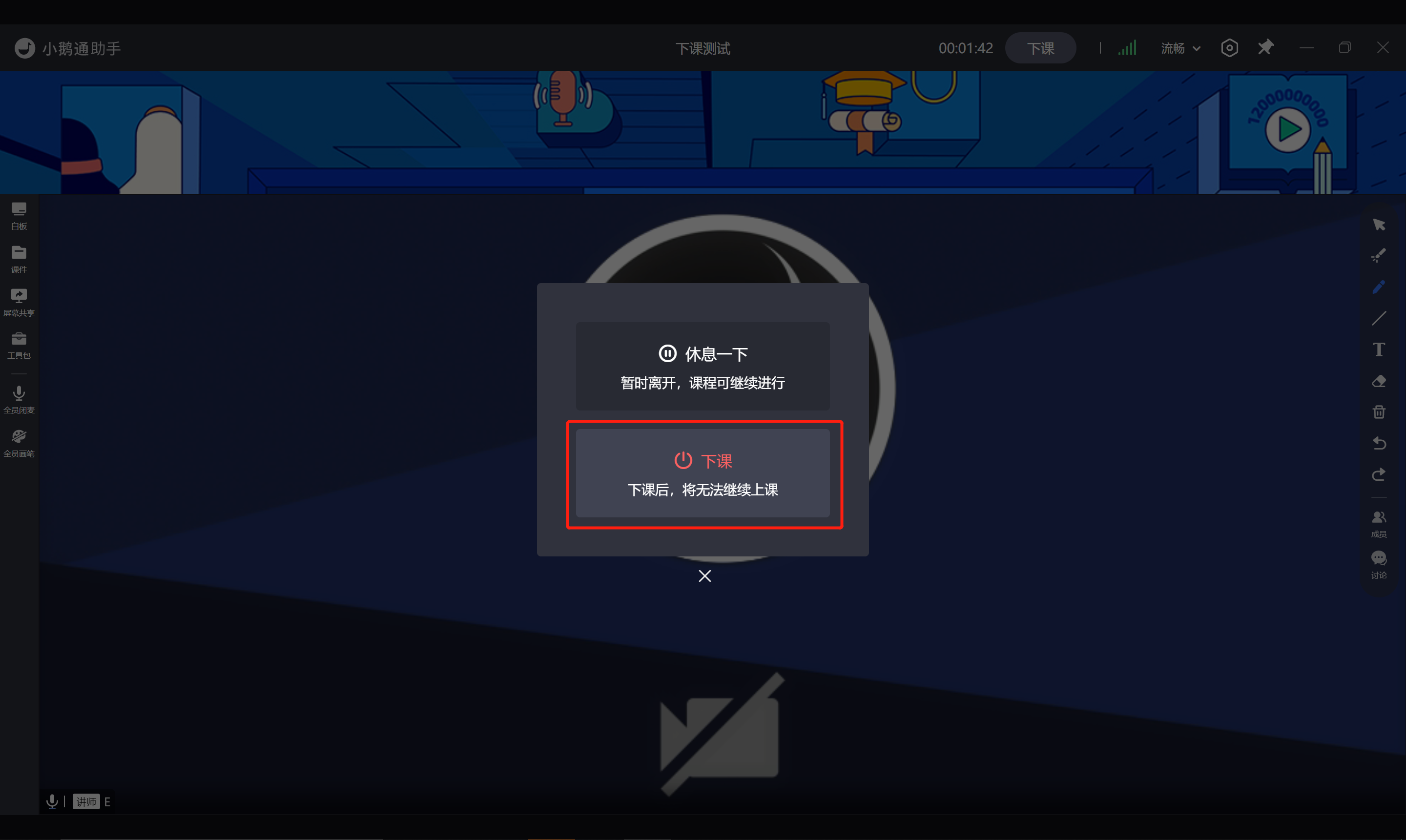
After the countdown ends, the "End Class" button will light up and can be clicked.
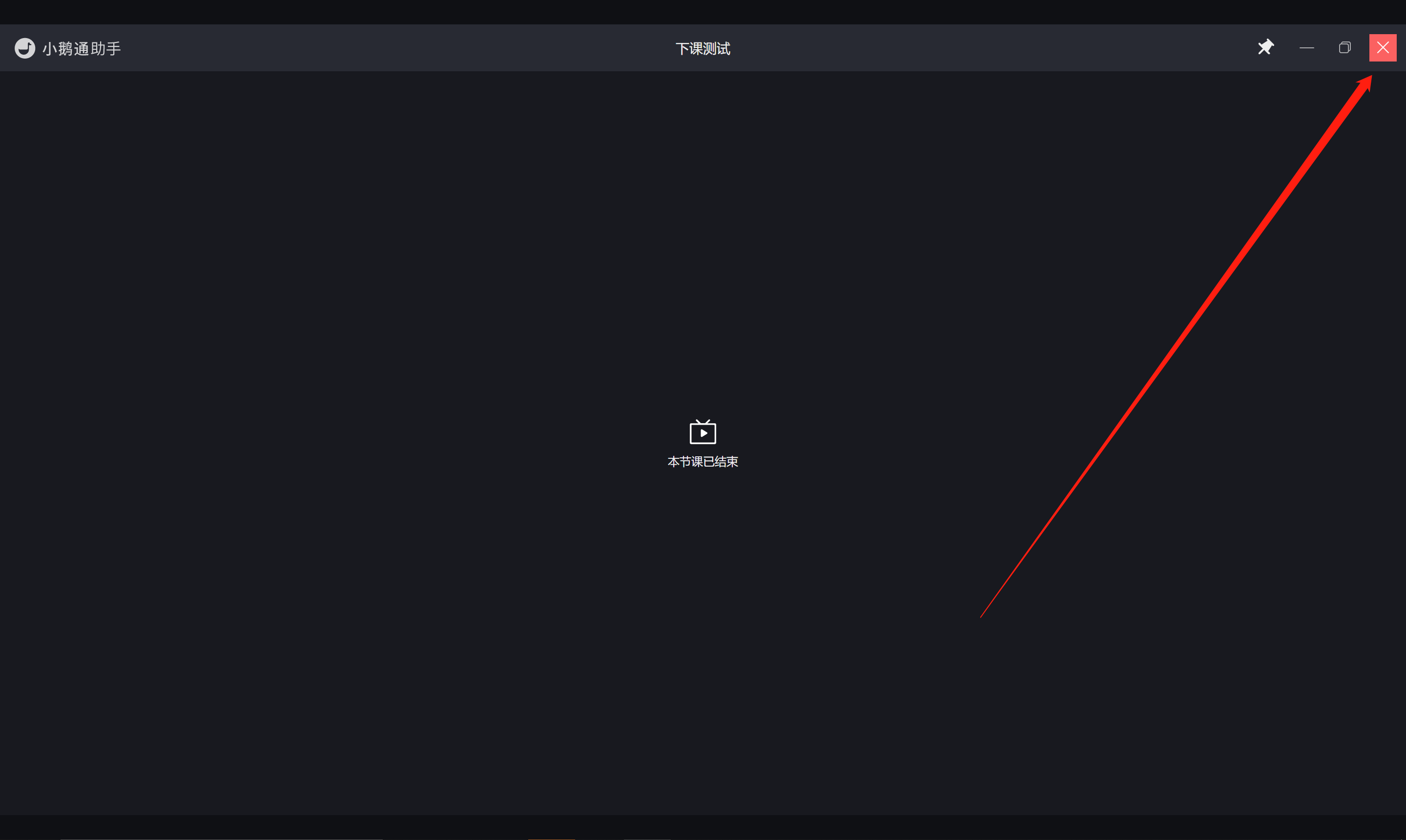
At this time, clicking "End Class" will end the class session and you cannot start it again.
Click the top right corner to close the interface and return to the course calendar list page.
How to play animated PPTs during classes using the client?
When using courseware, click the button in the figure or use the left and right arrow keys on the keyboard to play the courseware animations.

How to delay the end of the class?
When there are 5 minutes left in the course, the instructor will be prompted to decide whether to extend the class. Click the 'Extend for 30 minutes' button to delay the end of the class. Each class can be extended twice.

The client cannot enter the live streaming room all the time and frequently prompts 'timeout'?
When a 'timeout' prompt appears, it indicates that the current network is poor. Check if your mobile network is stable or connect to a Wi-Fi network with a stable internet speed, and then enter the live streaming room again.