Promoter
- After turning off the recruitment conditions for affiliates, will users automatically become affiliates if they meet the conditions?
- How can promoters invite friends to become promoters?
- How can promoters recruit sub-promoters?
- What ways can users become promoters?
- Which products cannot be set as promoted products?
- How to understand "Affiliate Levels" and "Hierarchical Relationships"?
- Can promoters still invite friends to become promoters after recruitment is closed?
- How to modify the levels of promoters in batches?
- How to set the product commission rate?
- After enabling the 'Purchase Courses' condition, which products can be purchased to become a promoter?
- How to become a general promoter?
- If a customer scans a promoter's poster again within the validity period of the promoter binding, will the binding time change?
- Recruitment review has been enabled. Where can I view the review information?
- If the recruitment of promoters is closed, can the previous promoters continue to promote normally?
- Sending rules for message notifications of promoters on the Official Account
- How to set up the promotion product button?
- How to set up the promotional poster for the online store?
- Can merchants proactively remove specific promoters?
- How to understand the customer binding mode?
- How to set up promoter levels?
- Recruitment review has been enabled. Where can I view the review information?
- How to generate a promotion link?
- What is the commission settlement period?
- How to set up self-purchase commission?
- What will be the impact if the merchant disables the promoters?
- Why isn't the "Promotion Center" entry displayed in the Personal Center?
- Can I set it up so that users become affiliates after purchasing specific courses?
- When setting 'Purchase any course to become a promoter', which products cannot make users become promoters even after purchase?
- Tutorial on Using Promotion Coupons/Codes
- Why can't customers successfully claim the promotional coupon code?
- Tutorial on Using Affiliate Marketer Groups
- Promoter Function Service Agreement
- How are the rewards for promoters calculated?
- How to enable users to automatically become promoters after purchasing products?
- Tutorial on Recruiting Promoters for Live Streaming Rooms
- How to enable users to automatically become promoters (everyone promotes)?
- Explanation of the self-pickup point capabilities for promoters
- The promoter's promotion method is normal. What possible abnormal situations may affect the promoter's binding of customer relationships?
- Why isn't the store management in the C-end promotion center of the online store displayed?
- What's the difference between the product statistics and order statistics in the store for promoters?
After turning off the recruitment conditions for affiliates, will users automatically become affiliates if they meet the conditions?
No. After users meet the requirements, they still need to apply to become affiliates in the Promotion Center on their own.
How can promoters invite friends to become promoters?
Promoters can save the poster in the [Promotion Center] - [Invite Friends], then send the poster to their friends. Friends can accept the invitation to become promoters by scanning the QR code on the poster.
How can promoters recruit sub-promoters?
Promoters can save the poster in [Promotion Center] - [Invite Friends], then send the poster to their friends. Friends can scan the QR code on the poster to accept the invitation and become promoters.
What ways can users become promoters?
1. Click the Promotion Center and apply to become a promoter. If the merchant has set conditions, the application switch will only be enabled after the user meets the application conditions.
2. Click the recruitment link shared by the merchant from the backend and apply to become a promoter. If the merchant has set conditions, the application switch will only be enabled after the user meets the application conditions.
3. Scan the invitation poster for friends sent by other promoters and become a promoter upon the invitation of other users.
Which products cannot be set as promoted products?
The following products cannot be set as promoted products for now:
Affiliate products, punch-in activities, communities, paid Q&A, and exercises.
How to understand "Affiliate Levels" and "Hierarchical Relationships"?
1. The "Promoter Level" is a self-promotion mechanism for promoters. After meeting the promotion conditions, a promoter can be promoted to a higher level and receive more generous commissions.
2. The "Superior-Subordinate Relationship" refers to the inviter-invitee relationship between Promoter A and Promoter B. If Promoter A invites B to become a promoter, then B is A's subordinate.
The "Promoter Level" has no connection with the "Superior-Subordinate Relationship"
Can promoters still invite friends to become promoters after recruitment is closed?
After closing the recruitment, all channels for becoming a promoter will be closed. Users cannot apply to become promoters on their own, and existing promoters cannot invite friends to become promoters either.
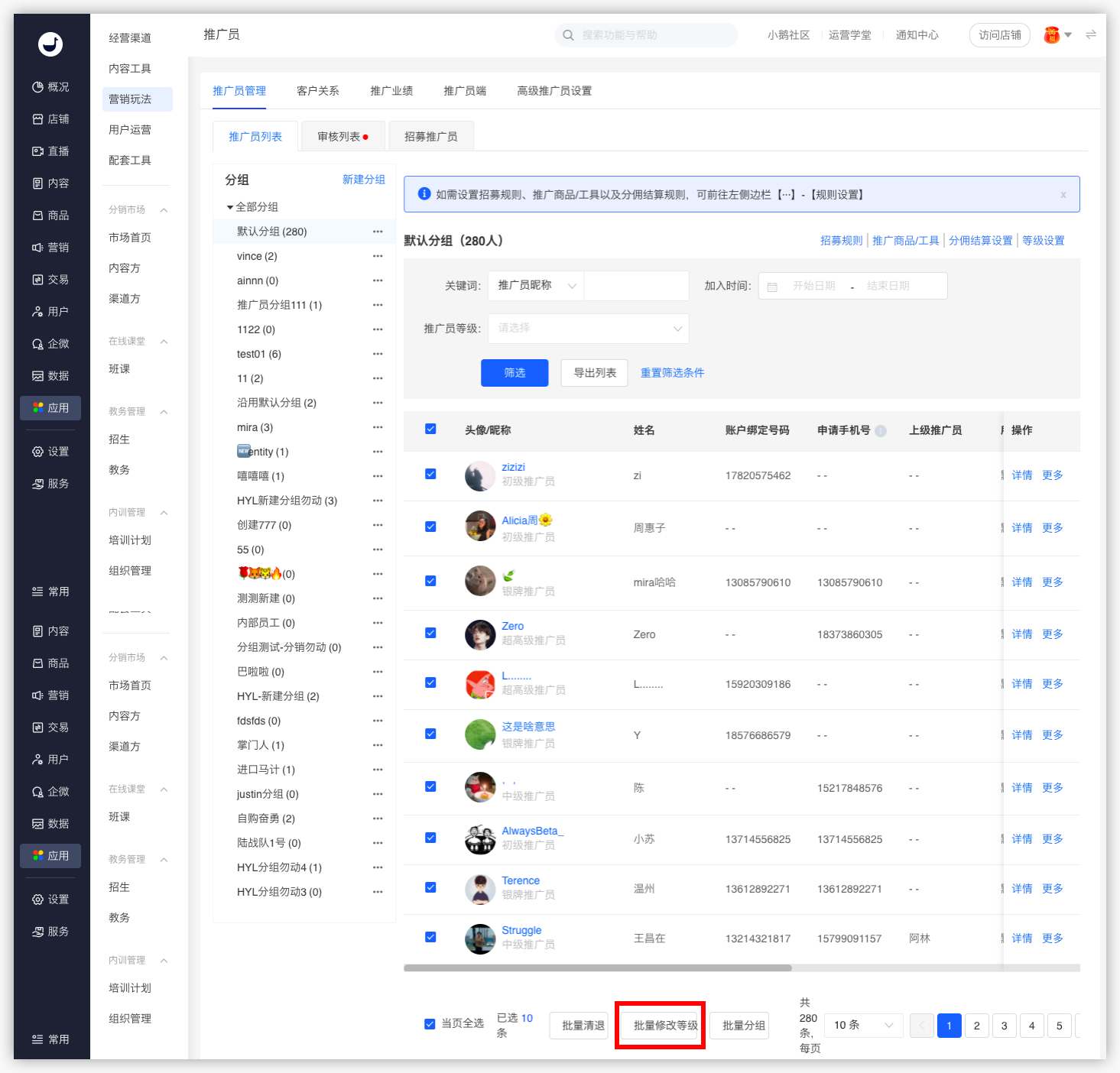
How to modify the levels of promoters in batches?
Click [Promoters] - [Promoter Management] - [Promoter List] - [All Groups], then check the avatars/nicknames of the promoters you need to modify at the bottom of the page.
How to set the product commission rate?
Step 1: Enter the promotion product settings page

Step 2: Add promotion products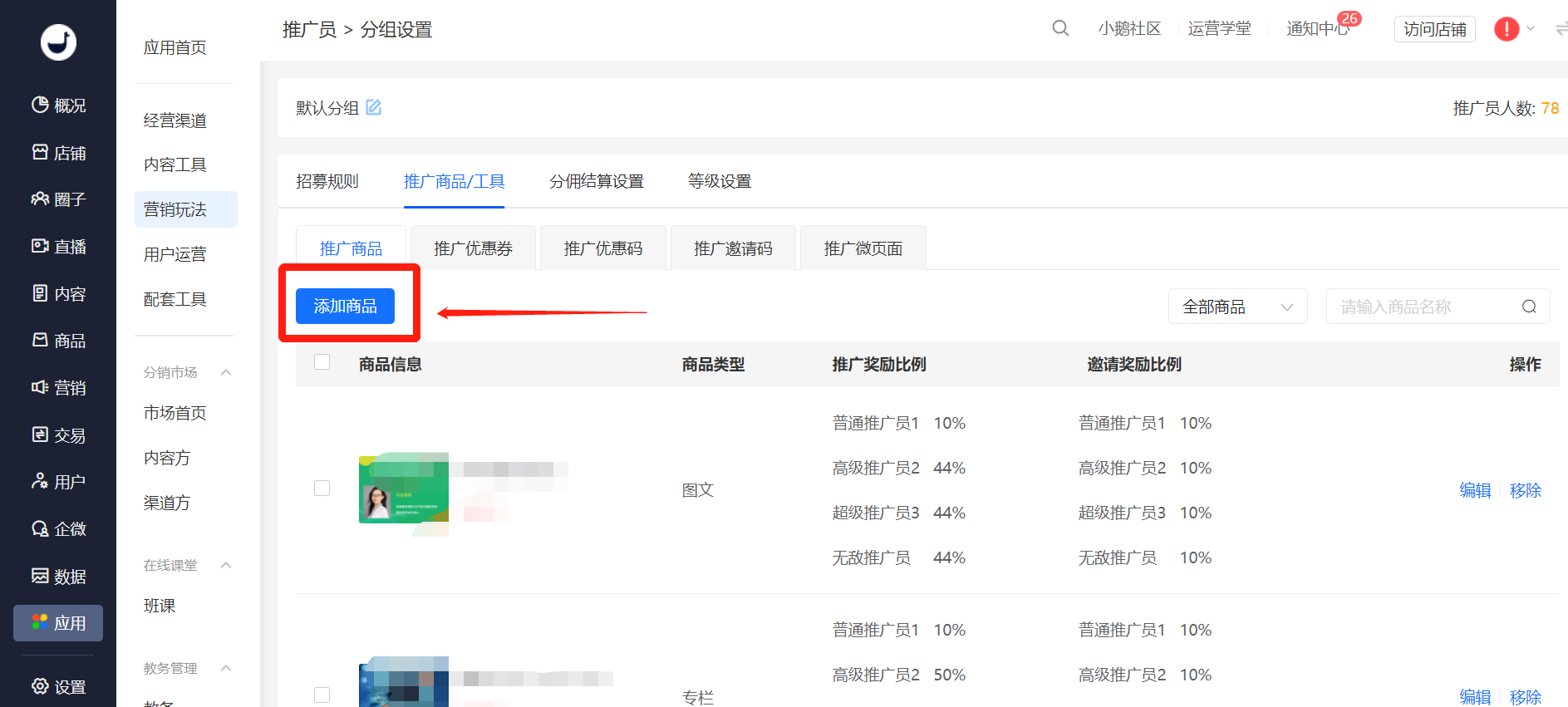
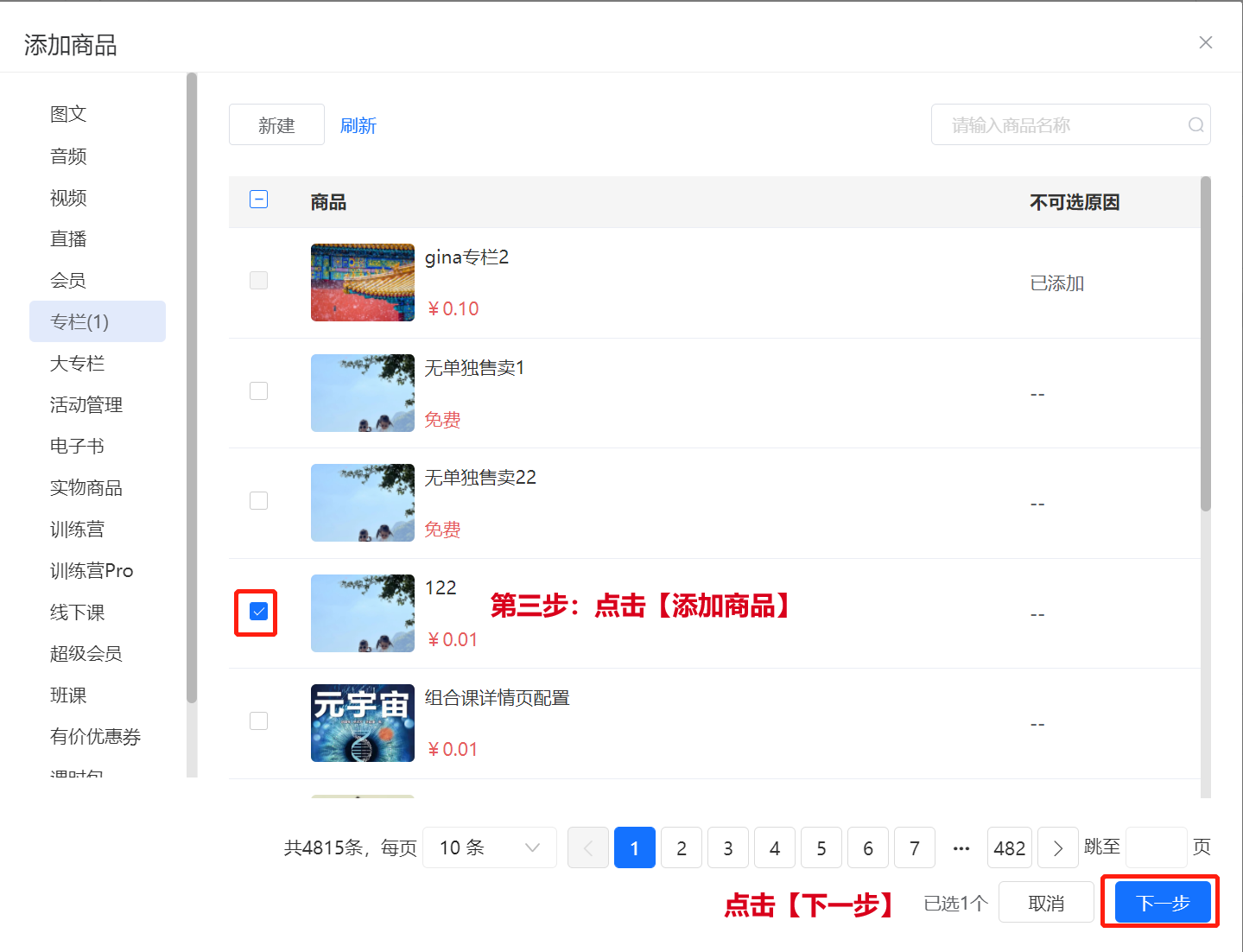
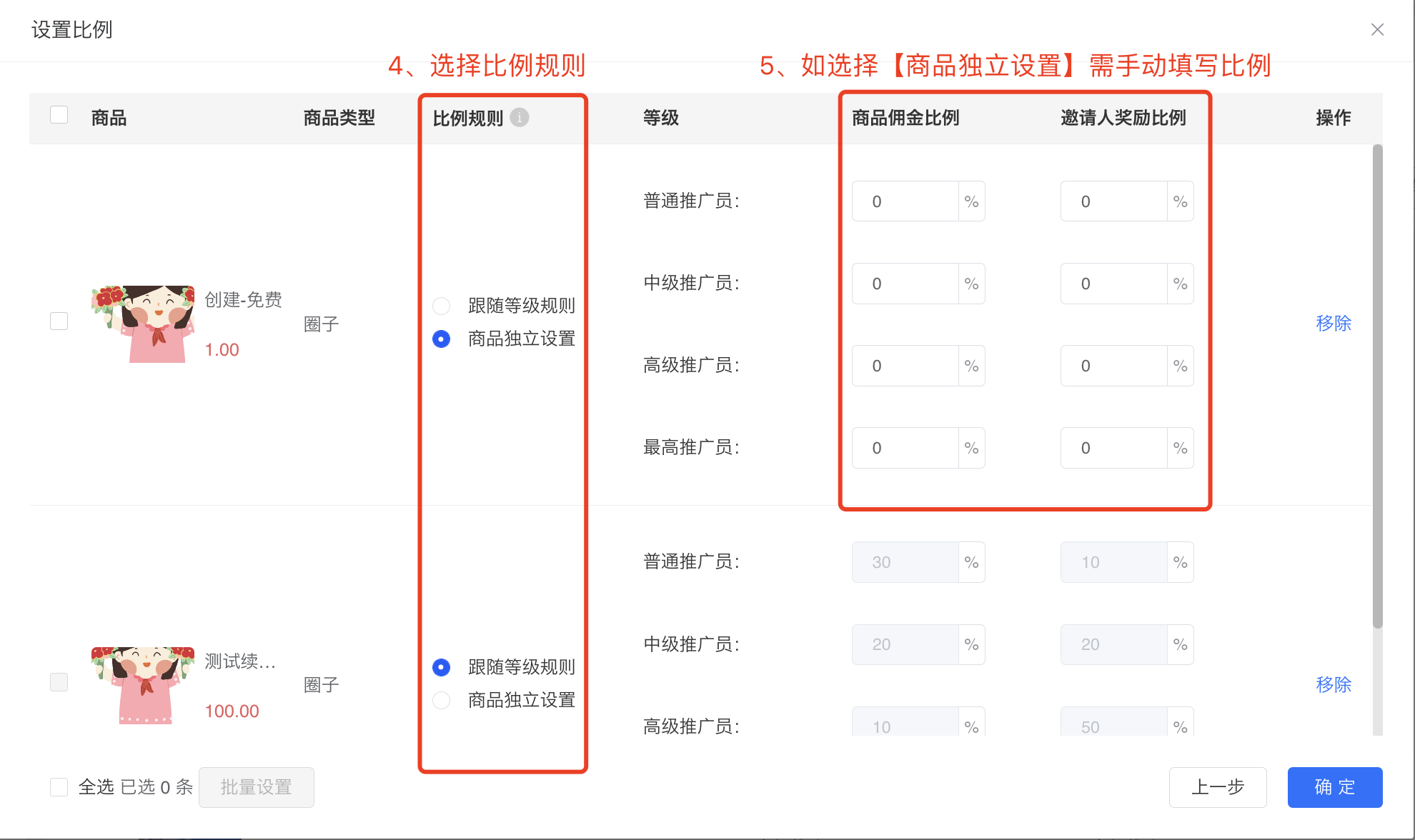
Step 3: Set the product commission rate. If no custom settings are made, the default commission rate will apply
After enabling the 'Purchase Courses' condition, which products can be purchased to become a promoter?
1. Supported course types for setting include:
Text and images, audio, video, class courses, live streams, memberships, columns, mega - columns, event management, e - books, physical products, affiliate products, super memberships, camps, valuable coupons, online course sales, small - class courses, exercises, lesson packages, AI interactive courses.
2. When a product participates in a marketing campaign
In the following situations when purchasing a course, the user can become a promoter:
① Successful Joint Orderg
② Purchase using a coupon (including full - amount deduction)
③ Gift the course to a friend after purchase
④ Redeem code
⑤ Invitation code
In the following situations when obtaining a course, the user will not become a promoter:
① Follower growth tool
② Receive a gift from a friend
How to become a general promoter?
Ways to become a general promoter are as follows:
I. When no joining conditions are set
1. All users will automatically become promoters after clicking "Promotion Center" - "Apply to be a Promoter";
2. After students click the recruitment link for promoters provided by the merchant and then click "Apply to be a Promoter", they will automatically become promoters;
3. Users can accept invitations from other promoters, scan the QR code on the invitation poster of other promoters to enter, and then click "Apply to be a Promoter" to automatically become promoters.
II. When joining conditions are set
1. All users click "Promotion Center". After meeting the conditions, they can click "Apply to be a Promoter" to automatically become promoters;
2. Students click the recruitment link for promoters provided by the merchant. After meeting the conditions, they can click "Apply to be a Promoter" to automatically become promoters;
3. Users can accept invitations from other promoters, scan the QR code on the invitation poster of other promoters to enter. After meeting the conditions, they can click "Apply to be a Promoter" to automatically become promoters.
Notes:
1. If the recruitment is closed [Marketing - Promoters - Promoter Management - Recruitment Rules - Promoter Recruitment - Close], all users cannot become promoters;
2. If recruitment review is enabled [Marketing - Promoters - Promoter Management - Recruitment Rules - Promoter Recruitment - Enable], all users need to submit an application and wait for the merchant's review.
If a customer scans a promoter's poster again within the validity period of the promoter binding, will the binding time change?
1. If a customer rescans the promoter's poster within the validity period, the validity period will be recalculated.
2. Within the validity period, each time a customer visits the promotion link or scans the QR code, the first binding time will be automatically updated;
For permanent binding (non-customer snatching mode with a permanent validity period), the binding time will not be updated again.
Recruitment review has been enabled. Where can I view the review information?
1. When a merchant enables recruitment review, users of the online store can submit an application via the [Promotion Center], [Merchant Recruitment Link], or [Promoter Recruitment Link or Poster] and wait for the merchant's review. They can become promoters only after passing the review.If the merchant sets recruitment conditions, users need to meet the conditions before they can apply.
2. If the merchant disables the review, users of the online store can directly submit an application to become promoters.
If the recruitment of promoters is closed, can the previous promoters continue to promote normally?
Promotion can still be carried out normally.
If merchants no longer need to recruit promoters, they can choose to close the recruitment. After closing, users who have already become promoters can still promote and earn money normally. It's just that no new promoters will be generated after closing. The path to close is [Marketing - Promoters - Settings - (Rule Settings) - Recruitment Plan - On/Off].

Sending rules for message notifications of promoters on the Official Account
Merchants can log in to the elink Merchant Backend, click [Marketing Center] - [Promoters] - [Settings] - [Official Account Notification Settings] to enable promotion notifications. They can receive a maximum of 3 notifications per day regarding relationship bindings and earnings.
Enable the settings as shown below:

Note: This operation option will only be available if a service account is configured.
Notification Rules:
1. Notification Content:Includes notifications for successful/failed relationship bindings and earnings arrival.
2. Enable Conditions:Merchants can enable/disable 'Promotion Notifications' (currently only supported for stores with a bound service account).
3. Notification Rules:
To avoid the risk of service account suspension (due to frequent push notifications), the system has established 'Frequency Limitation Rules'.
4. Frequency Limitation Rules:
● Promoters who have followed the service account can receive a maximum of 3 promotion notifications per day.
● After the system sends the 3rd promotion notification, it will send a guiding message to prompt the promoter to go to the [H5 Store] - [Messages] module to view all messages.
How to set up the promotion product button?
For products participating in the promotion, you can set the text for the promotion button:
Default text
Custom text (According to the [WeChat External Link Content Management Regulations], the text is not allowed to have explicit or implicit monetary rewards. You can customize the text, with a maximum of 5 characters) [Manual adjustment required]

Display effect on the user side:

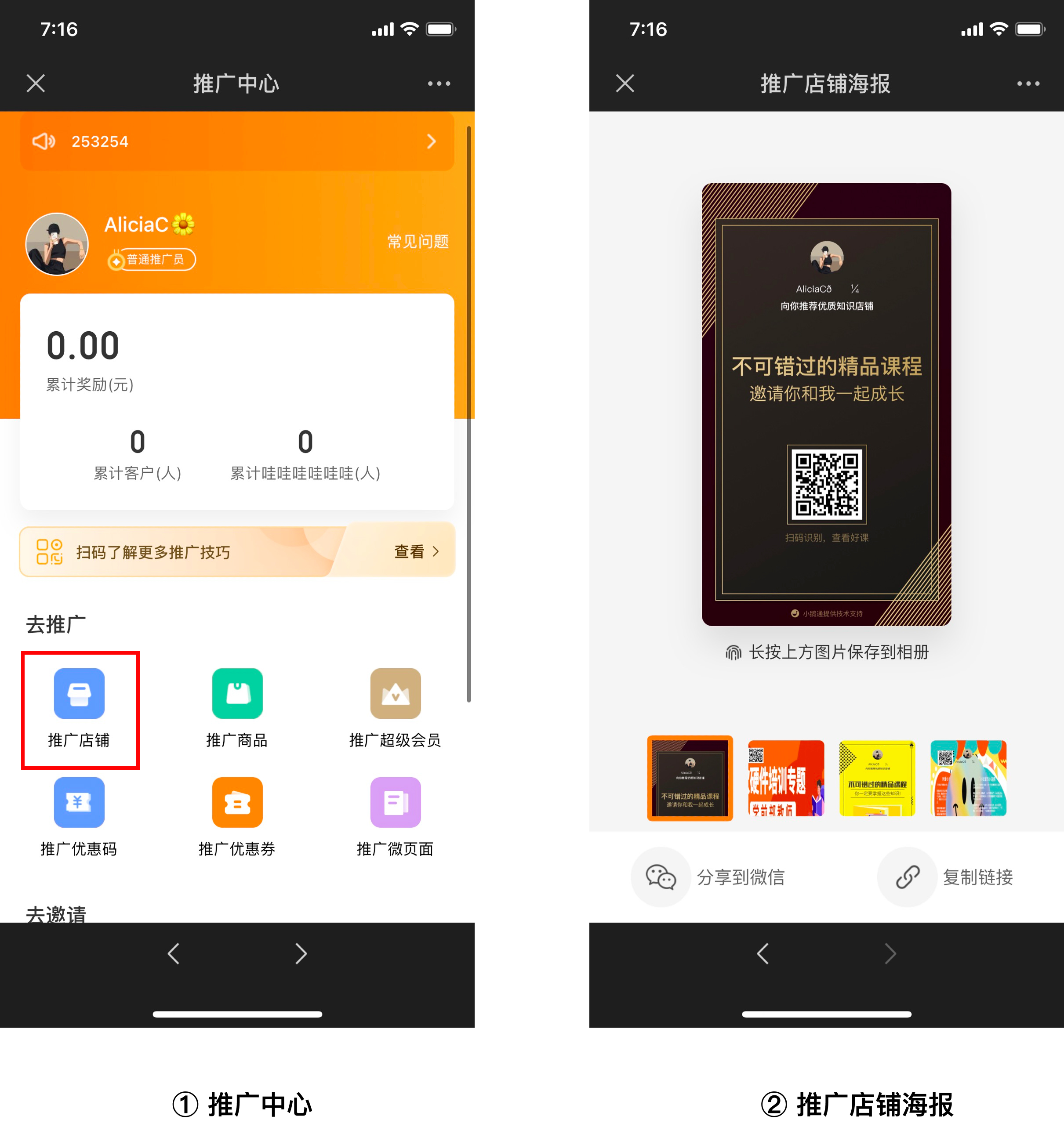
How to set up the promotional poster for the online store?
Promotional store posters are mainly used by promoters to spread the store to customers.
elink will provide 3default posters. Merchants can also upload up to 3customized postersor go to the material center to use theonline productionimage tool for online design.
You can hide the default posters on the management console and drag to adjust the display order of the posters. 
The following settings can be edited for customized posters:
1) Poster image
2) User avatar and nickname, nickname text color
3) Customize the positions of the avatar, nickname, and QR code

The effect is as follows:
Can merchants proactively remove specific promoters?
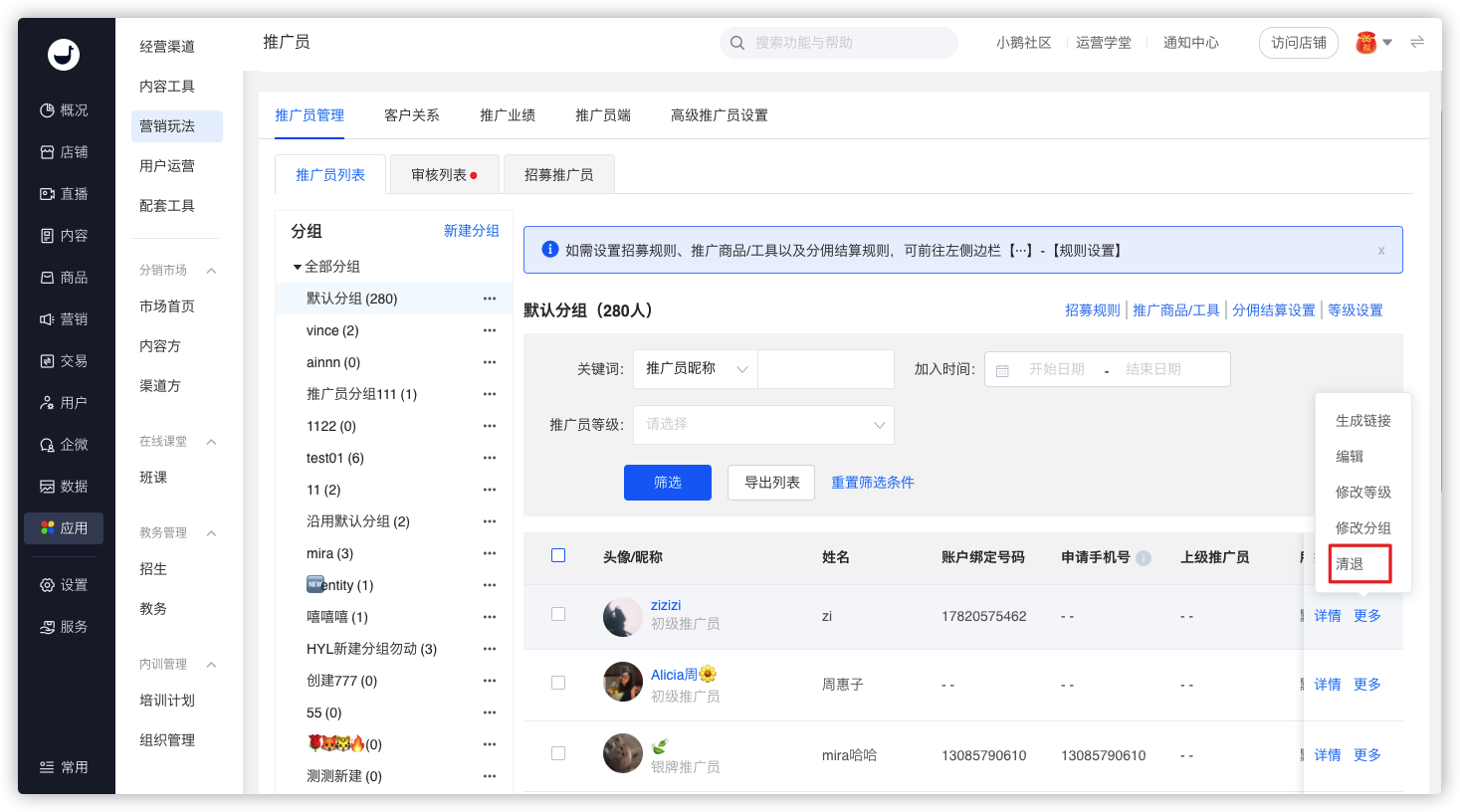
1. Merchants can proactively remove specified promoters, including regular promoters, senior promoters, and super promoters. Merchants can go to [Marketing - Promoters], find the promoter information, and then click [More - Remove].
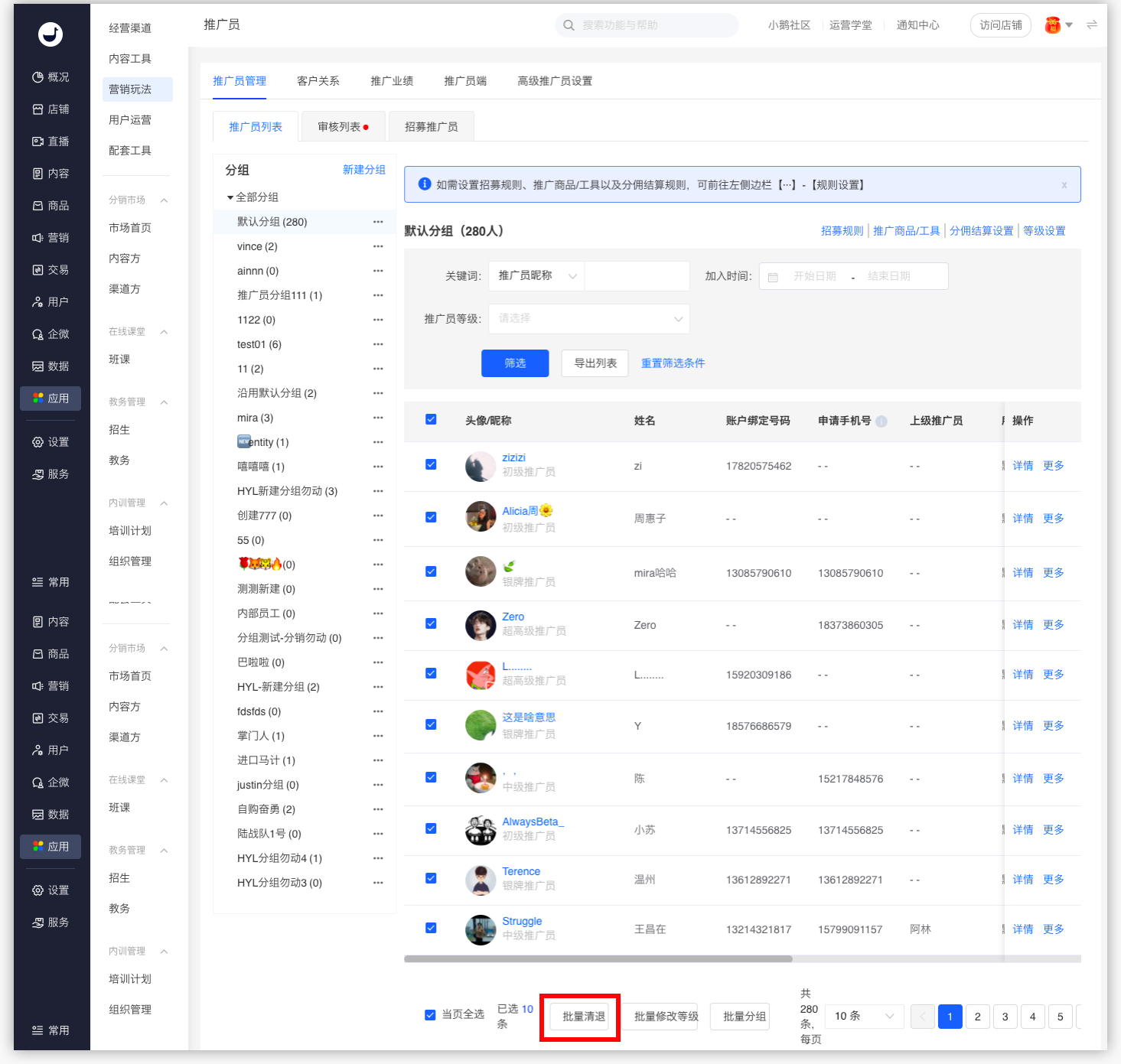
2. Merchants can also remove promoters in batches.
3. After removing a promoter, the following relationship changes will occur:
1) The promoter becomes a regular user.
2) All customers of the promoter will be unlinked.
3) All subordinate promoters of the promoter will be unlinked.
4) The promoter is no longer a subordinate promoter of other promoters.
5) The promoter remains a customer of others.
How to understand the customer binding mode?
Merchants can set the rules for promoters to invite customers in [Marketing - Promoters - Customer Relationships - Customer Binding Settings]. The mode change takes effect immediately, and the mode can only be modified once a day.
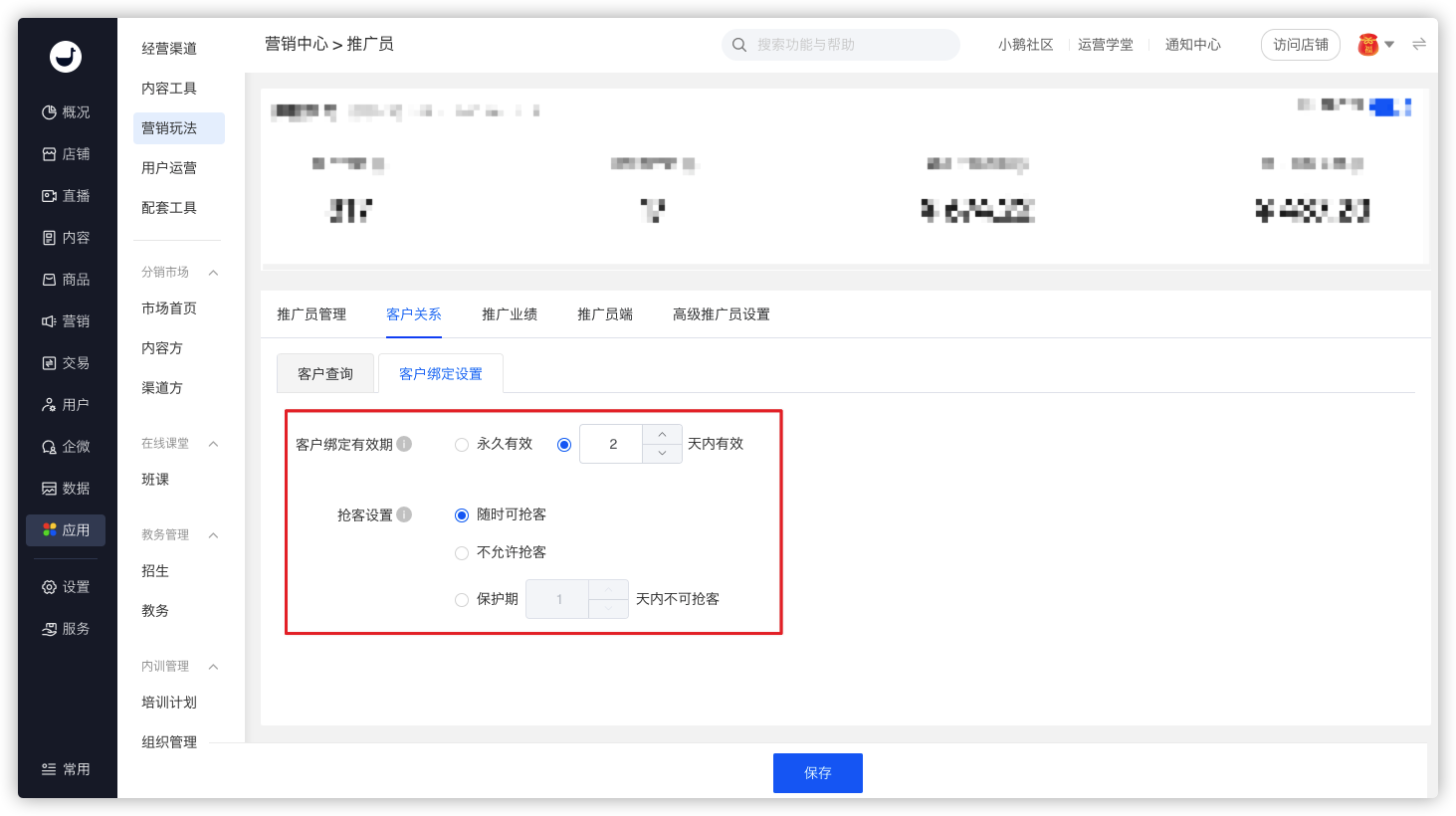
You can customize the binding validity period between promoters and customers; you can also customize whether to allow poaching customers.
Notes: When the merchant enables self - purchase commission and the customer bound to the promoter is also upgraded to a promoter, the binding relationship will automatically become invalid.
How to set up promoter levels?
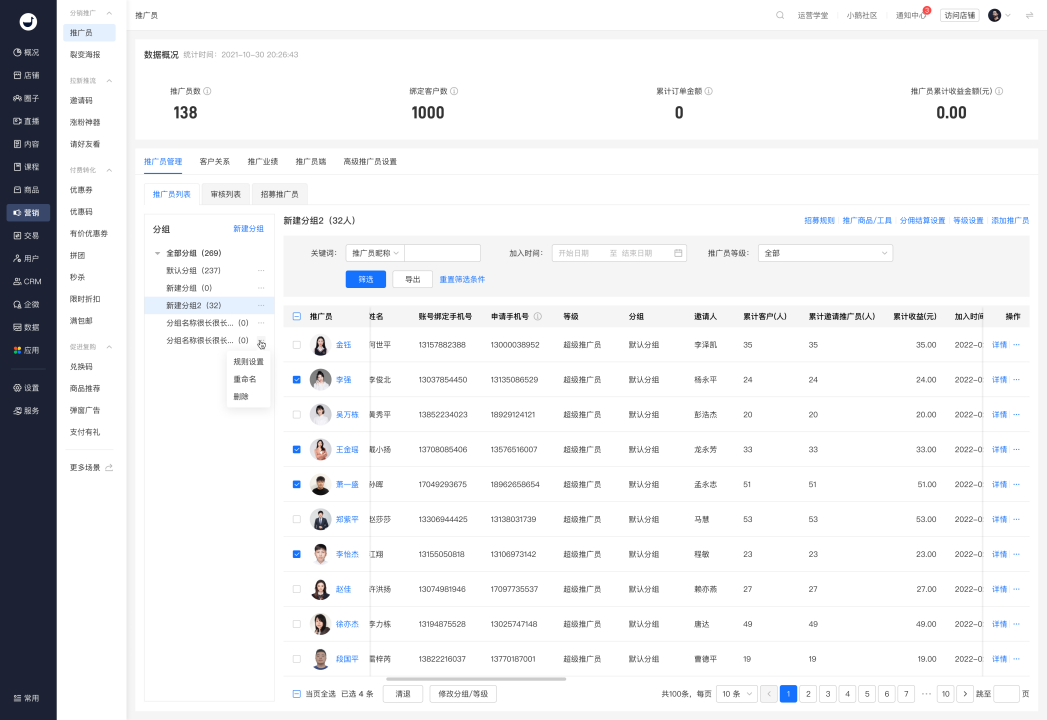
1. Enter the merchant management backend
Click [Marketing Center] - [Group Settings] - [Level Settings].
2. Select template rules or customize rules
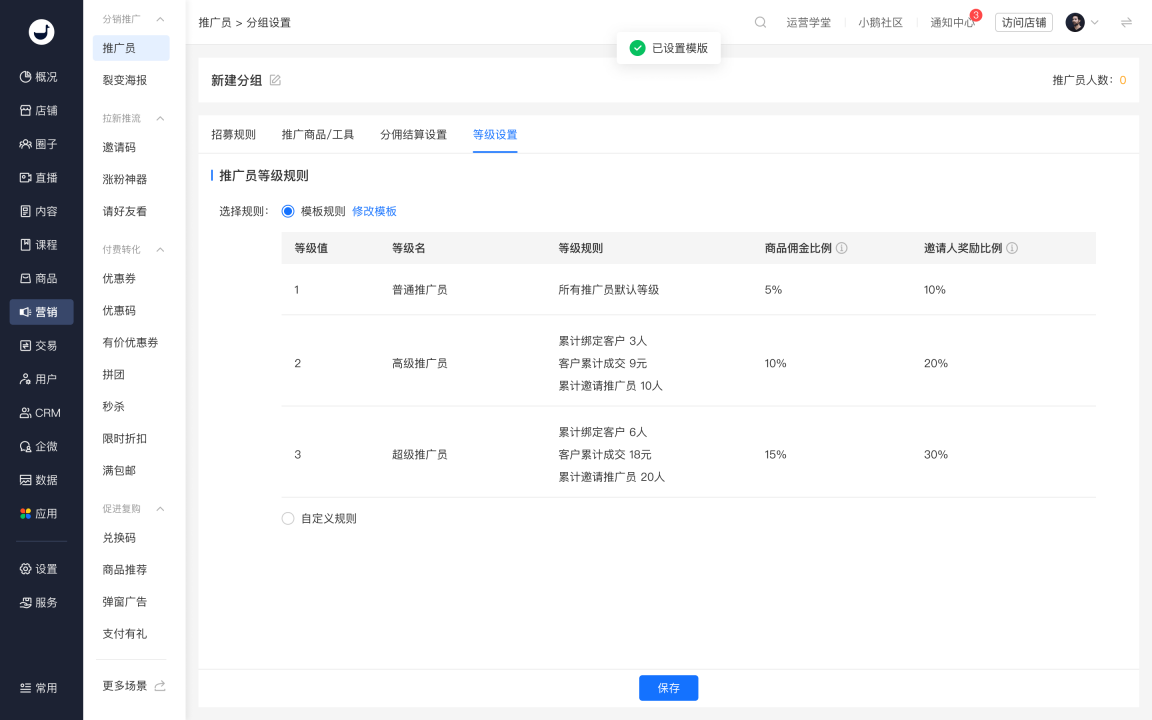
「Template rules」 meet the requirement of 「Unified level rules for all groups」. After the 「Template rules」 are set, they can be referenced by multiple groups simultaneously. 「Template rules」 can only be modified, not deleted.
Example: Three groups, A, B, and C, all use the same template. If the merchant modifies a certain field in the template rules for Group A, the changes will also take effect for Groups B and C.
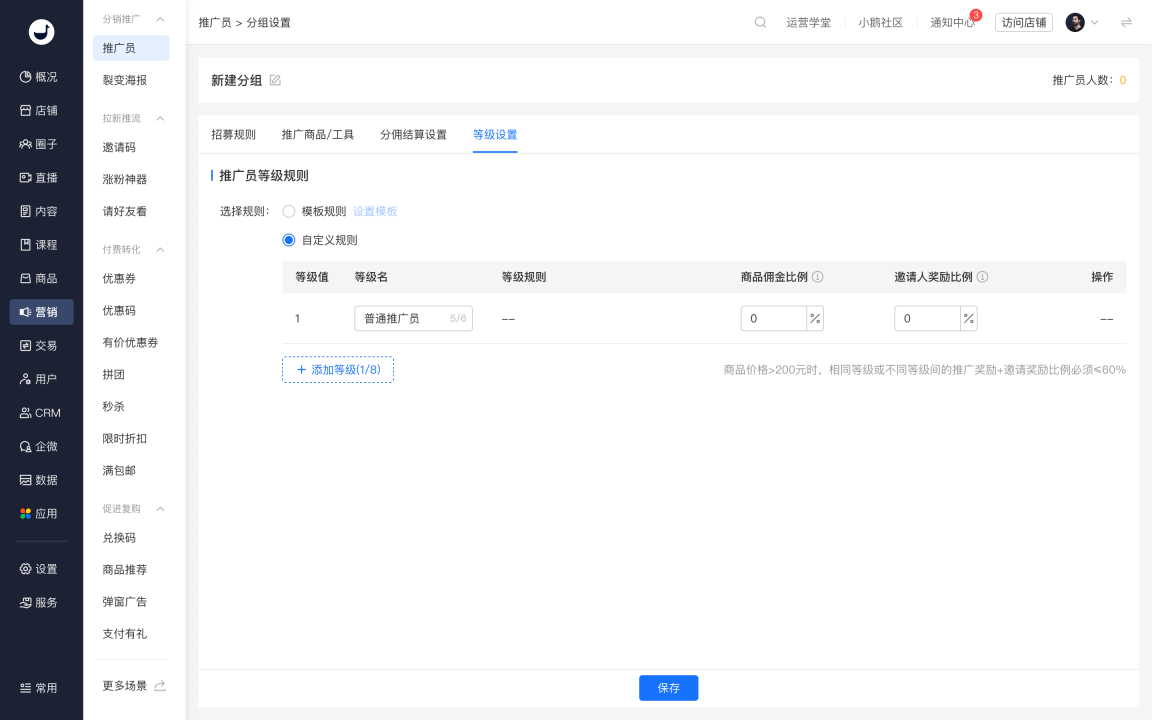
「Customized rules」 meet the requirement of 「Different level rules for different groups」. After the 「Customized rules」 are set, each group can set one customized rule.
Example: Three groups, A, B, and C, all use their own customized rules. If the merchant modifies a certain field in the customized rules for Group A, Groups B and C will not be affected.
3. Set the level name, upgrade conditions, and default ratio
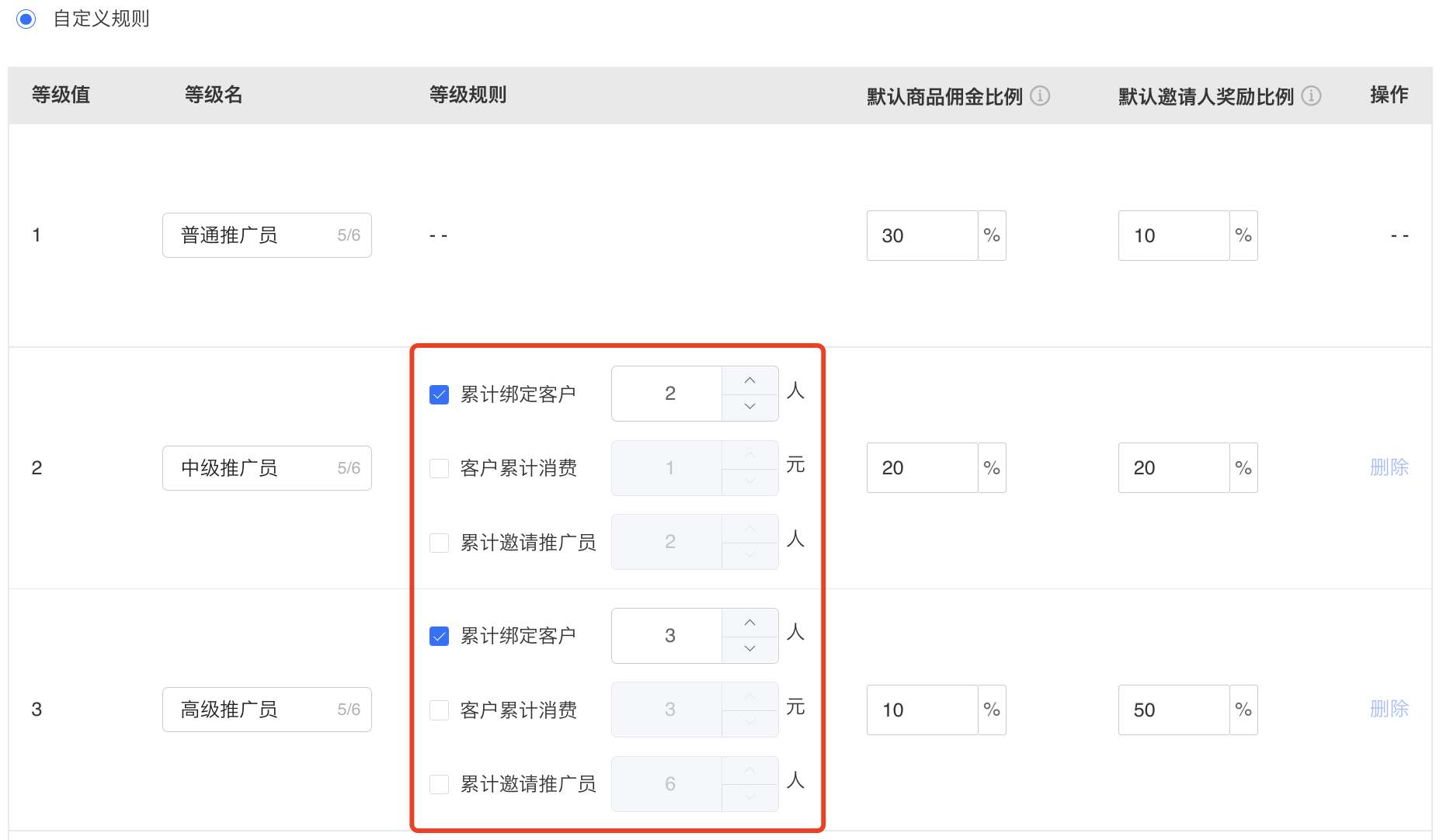
Explanation of upgrade conditions:
(1) After the merchant modifies the upgrade conditions, the promoters' levels will automatically be upgraded to the corresponding levels when the conditions are met.
(2) Before the merchant modifies the upgrade conditions, the levels of promoters who have already met the modified upgrade conditions will not change immediately after the modification. Promoters may be automatically upgraded when any one or more of the following scenarios occur:
- After the merchant modifies the conditions, the promoter actively enters the promotion center.
- After the merchant modifies the conditions, the promoter successfully invites a customer.
- After the merchant modifies the conditions, the promoter successfully develops a subordinate.
- After the merchant modifies the conditions, the promoter generates a new promotion order.
Recruitment review has been enabled. Where can I view the review information?
Click to enter [Promoters] - [Approval List] to view approval information.

How to generate a promotion link?
1. Merchants can generate a promotion link/QR code for a specific product for a promoter in the backend to help the promoter quickly spread and share it and invite customers. Navigate to [Marketing Center - Promoters], find the promoter information, and then click [··· - Generate Product Link]. Currently, promotion links/QR codes can only be generated for communities, articles, audio, videos, live broadcasts, memberships, columns, super columns, event management, combined products, physical products, service products, e-books, courses, super memberships, camps, valuable coupons, offline courses, class courses, AI interactive courses, and course packages.

2. Students can enter a specific course in the merchant's H5 online store and generate a promotion link/QR code for the product. As shown in the figure below.

What is the commission settlement period?
1. When the merchant sets to settle the commission immediately, the promoter canin real-timereceive the commission after each order is completed. 
2. When the merchant sets to delay the commission settlement,after the set number of days has passedthe promoter canin real-timereceive the commission.
How to set up self-purchase commission?
Merchants can go to the backend [Marketing Center - Promoters - Settings - Promotion Rules - Benefit Settings] to enable or disable [Self-purchase Commission].


1. Disable self-purchase commission
1) Promoters can become customers of other people.
2) When a promoter purchases a product, they will not receive a commission themselves.
If C is a subordinate promoter and also a customer of B, and B is a subordinate promoter of A. At this time, when C purchases a product (equivalent to B's successful promotion), B will receive the “Direct Promotion Commission” and A will receive the “Indirect Promotion Commission”. As shown in the following figure:

2. When self-purchase commission is enabled
1) Promoters cannot become customers of other people (if they were customers of other people before, the customer relationship will become invalid after enabling).
2) When a promoter purchases a product, they will receive the “Direct Promotion Commission” themselves.
If C is a subordinate promoter of B, and B is a subordinate promoter of A.
At this time, if promoter C receives a link shared by another promoter D, they can purchase the course, but the customer relationship cannot be bound, and D cannot get the direct promotion commission.
If promoter C purchases a product (equivalent to C's successful promotion), C will receive the “Direct Promotion Commission” and B will receive the “Indirect Promotion Commission”.

What will be the impact if the merchant disables the promoters?
1. Merchants can enter the [Marketing] section.- Referrer page.Select to enable or disable the [Referrer] function.
For newly opened stores,by defaultit isdisabledthe referrer function. 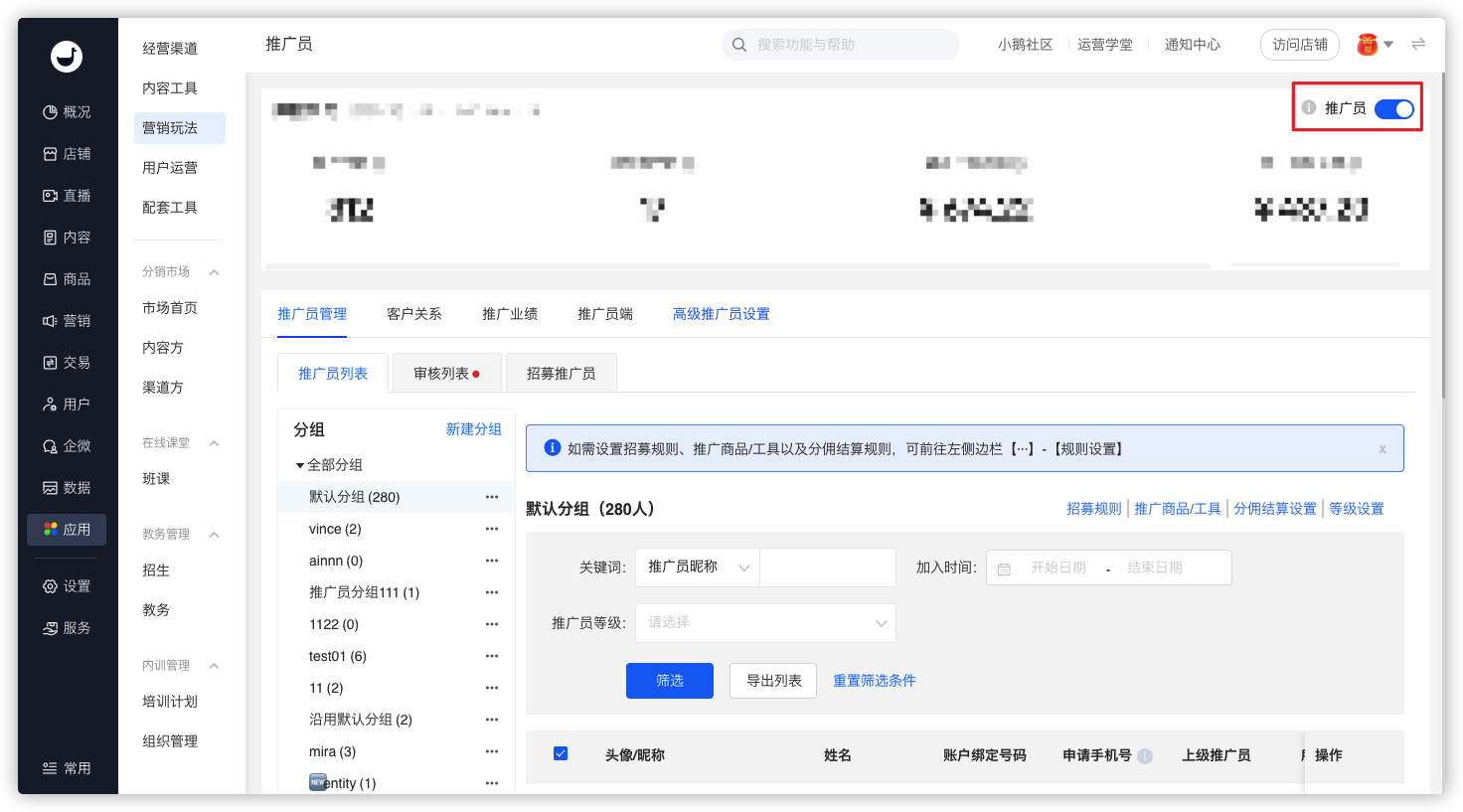
2. Merchants who have used the referrer function can disable the referrer.After disabling, all referral functions will become invalid.Please be cautious when disabling it.
Impact on store users:
1) All users cannot apply to become referrers, but users can share courses normally.
2) When ordinary users enter the issued recruitment link or scan the referrer's invitation poster, they will be redirected to the store's homepage.
Impact on referrers:
1) They cannot invite new customers.
2) They cannot promote products or the store.
3) They cannot earn commissions.
5) Customer relationships that were bound before disabling and have not expired will remain valid until they expire.
6) When referrers enter the "Referral Center", they will be prompted that the store has disabled the referral function.
3. If a merchant disables and then re - enables the referrer, the changes are as follows:
1) Users who meet the recruitment requirements can apply to become referrers.
2) Existing referrers will still exist and can promote products and the store normally and earn commissions.
3) Existing customer relationships will still exist.
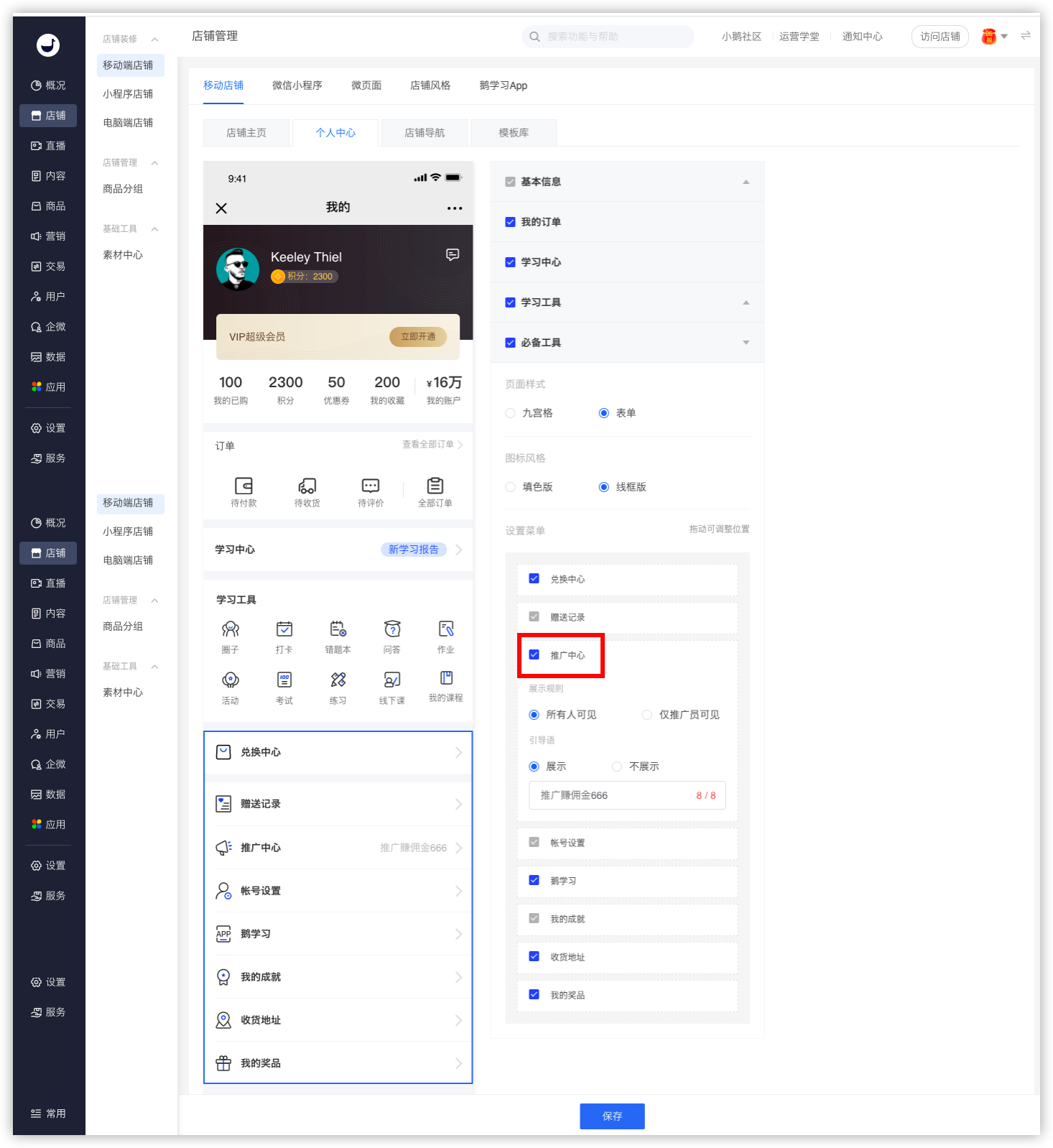
Why isn't the "Promotion Center" entry displayed in the Personal Center?
1. Merchants need to enable the affiliate function in Marketing - Affiliates.
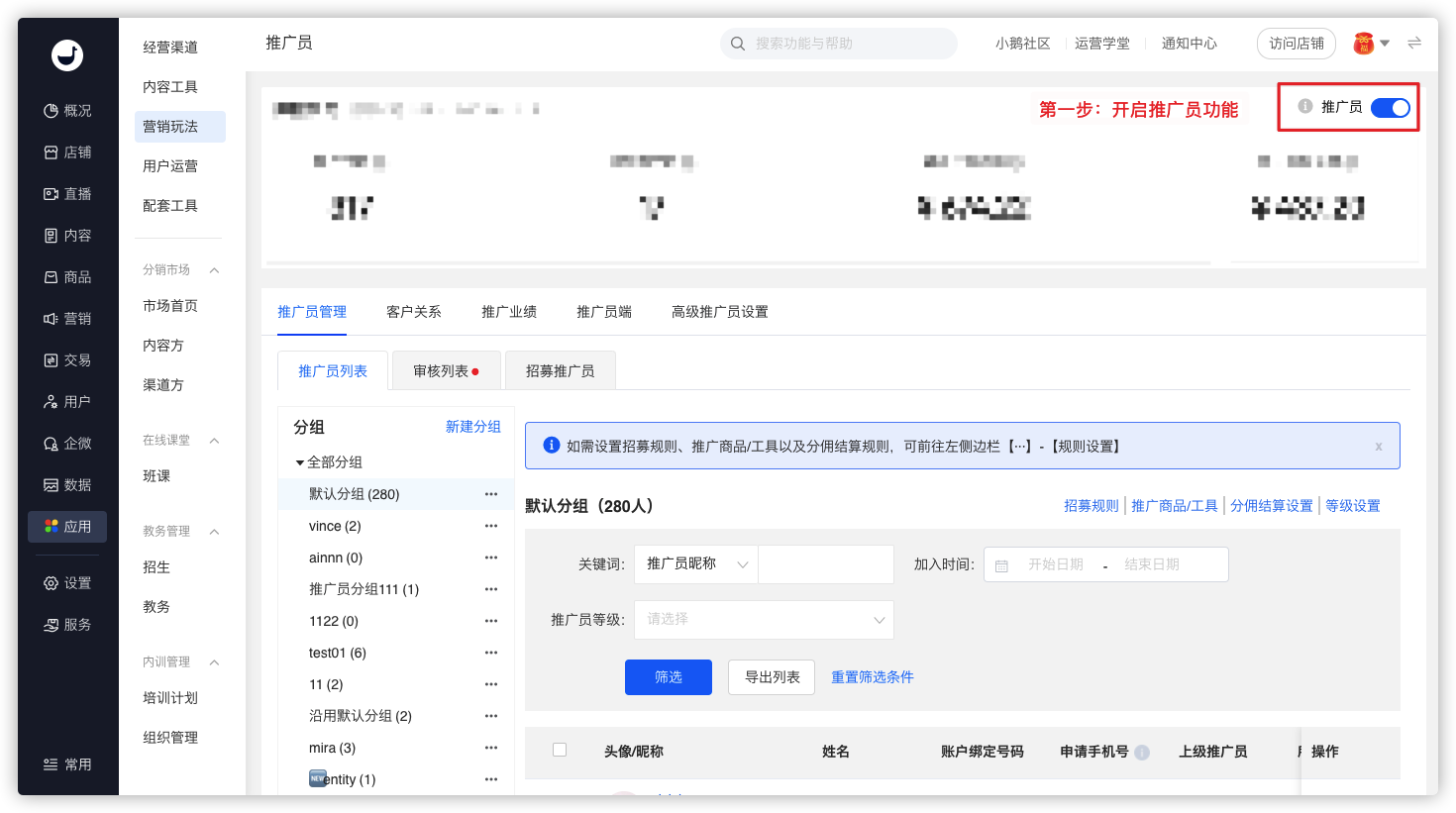
2. And in the Marketing Center - Affiliates - Affiliate Management - Affiliate List, according to different grouping rules, enable recruitment in the recruitment rules.
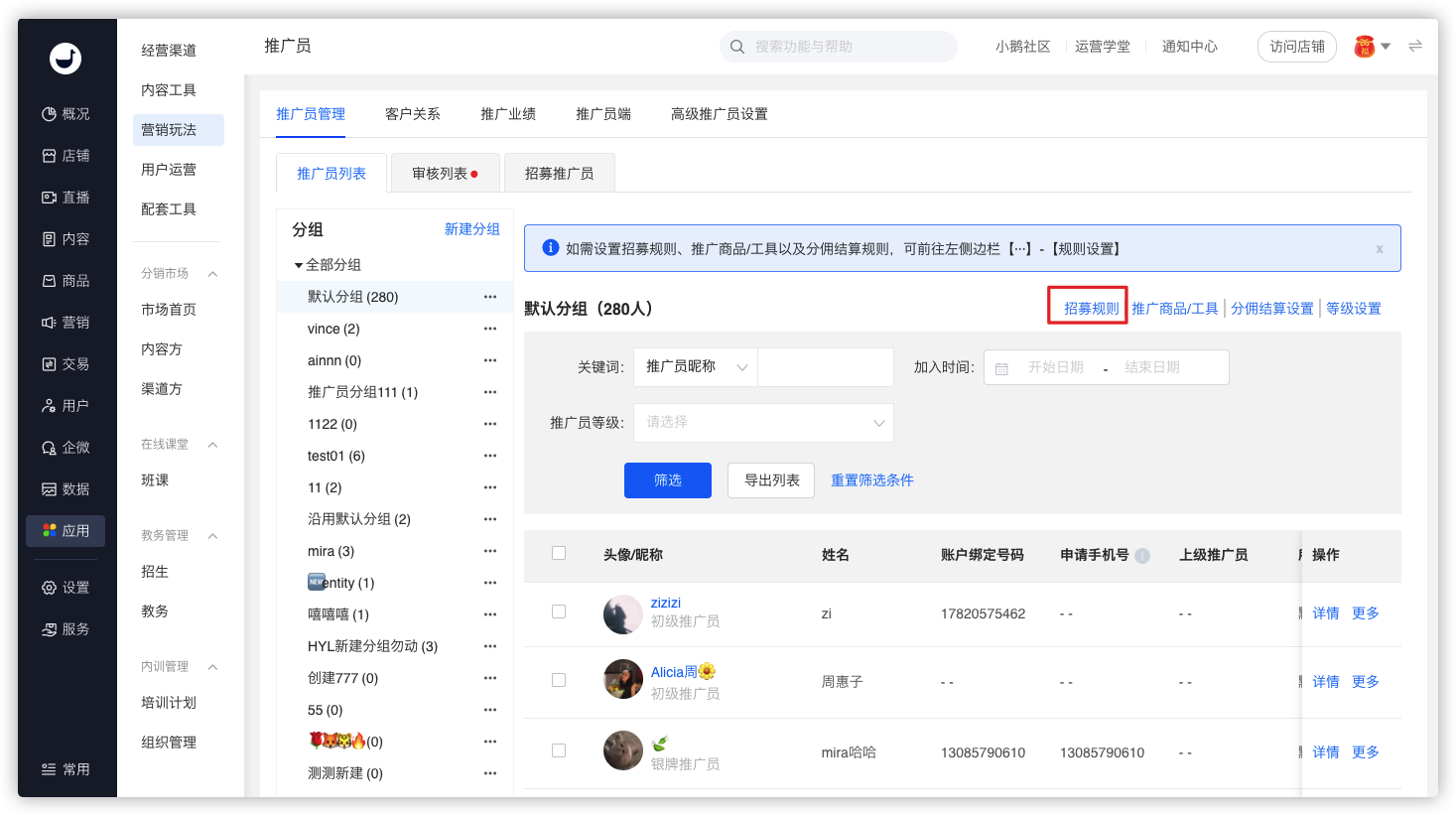
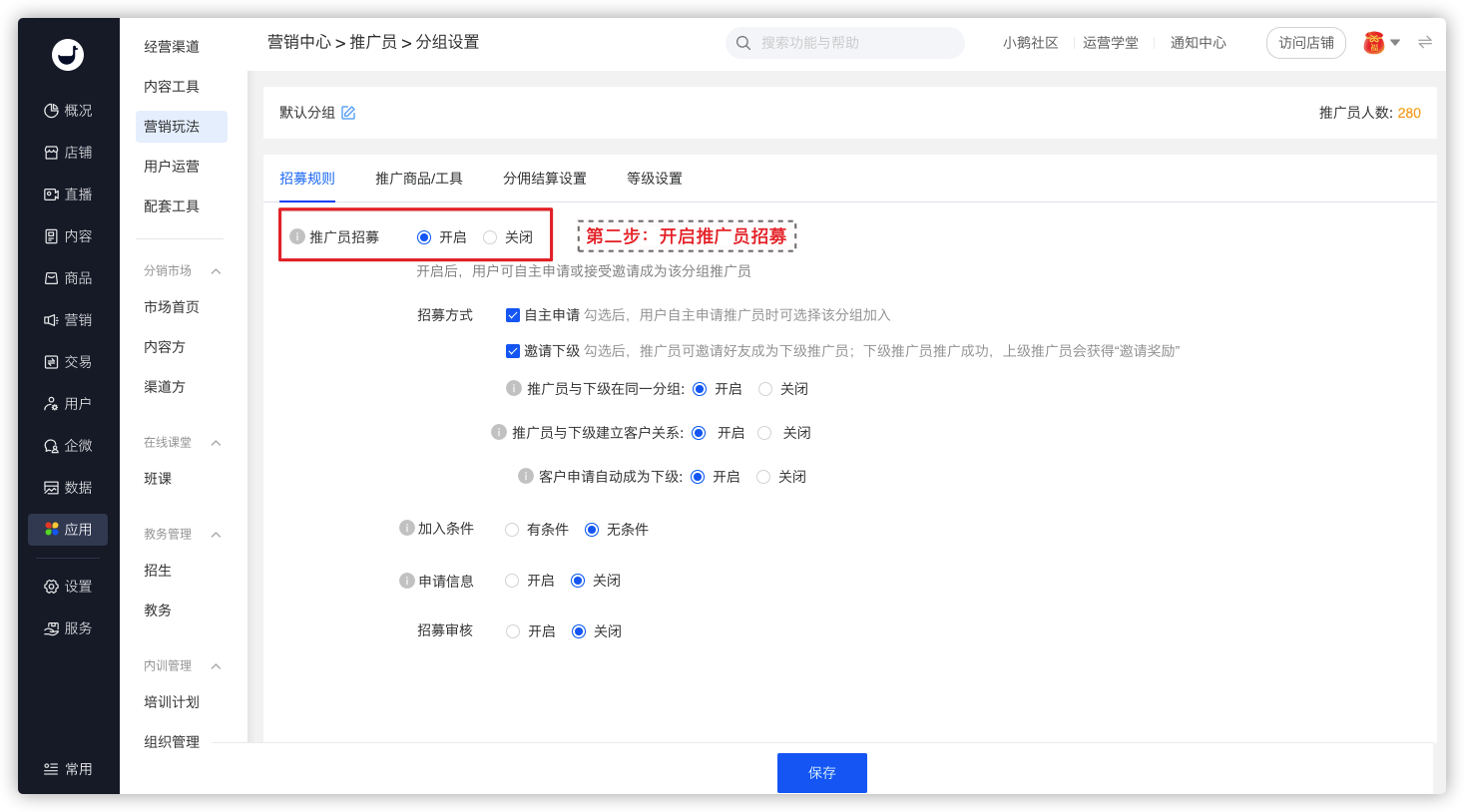
3. Finally, check the affiliate option in Store Management - Mobile - Personal Center - Essential Tools.
Can I set it up so that users become affiliates after purchasing specific courses?
Yes, it's possible.You can set it up so that users become affiliates after purchasing specific courses.Follow the steps as shown below:
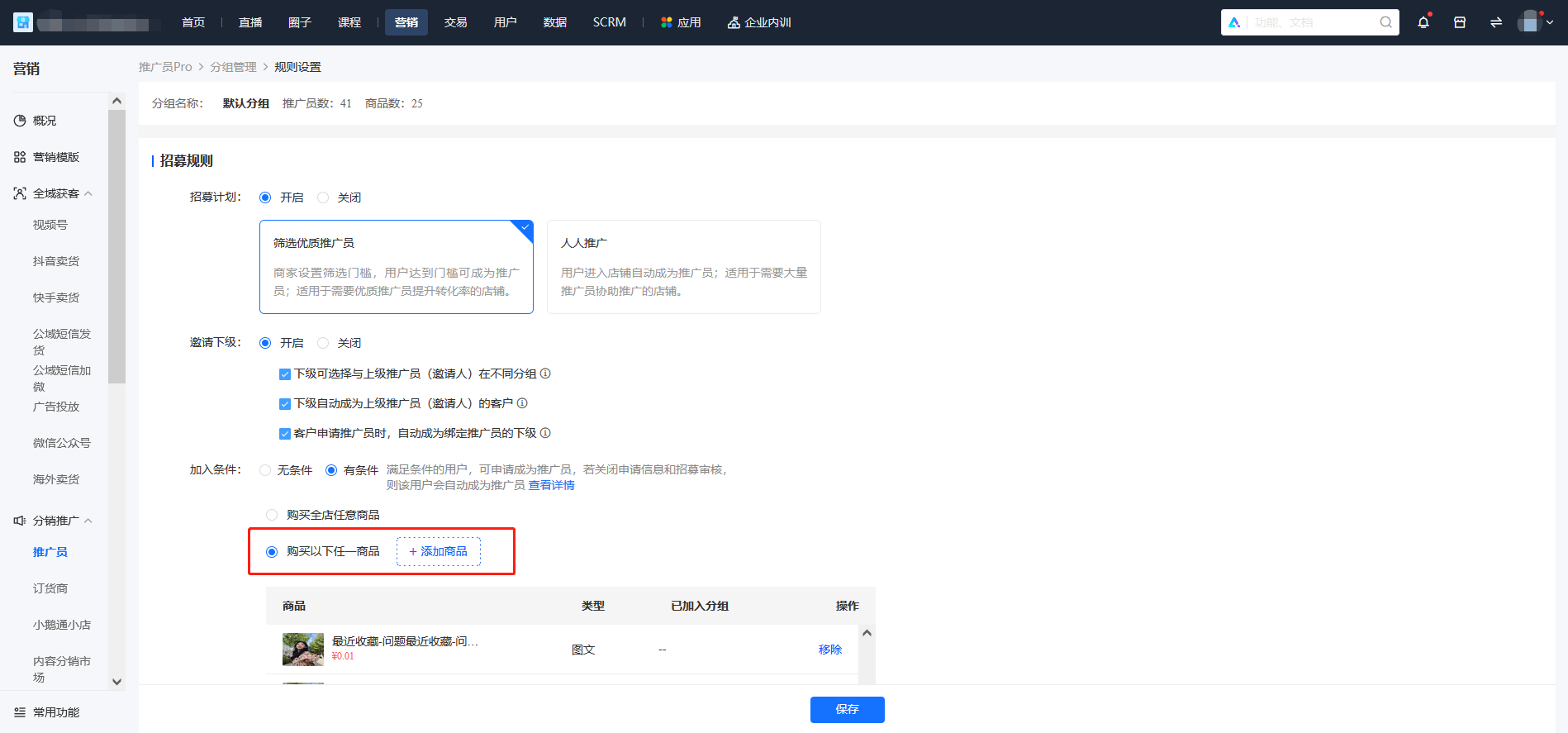
Desktop management console: On the [Recruitment Rule Configuration] page of the Affiliates section, select [Conditional] in the [Joining Conditions] field. You can choose to allow users to become affiliates after purchasing specific products, with a maximum of 20 products supported. Users only need to purchase one of these products to meet the application requirements.
Online Store: When users enter the affiliate recruitment page, an entrance to purchase specific products will be displayed at the top of the page. If users do not meet the requirements, they can enter the list page of specific products to make a purchase. If users have already met the requirements, they can apply to become affiliates.
When setting 'Purchase any course to become a promoter', which products cannot make users become promoters even after purchase?
Paid check-ins, paid communities, paid Q&A, paid exercises.
Tutorial on Using Promotion Coupons/Codes
I. Function Introduction
Promoters can promote the coupons and promo codes specified by the merchant. After the learners successfully claim them, they will be bound to the promoter as customers. When customers place orders using the coupons or promo codes to enjoy the discounts, the promoter can also receive corresponding commission rewards.
II. Purpose of Use
1. Provide promoters with a novel way to acquire new customers. Promoters can help merchants distribute coupons and promo codes to users with purchase intentions, thereby increasing the redemption rate of coupons and promo codes.
2. Customers can place orders at discounted prices, and promoters can receive commission rewards, achieving mutual benefits.
III. Usage Scenarios
1. Assist in new customer acquisition: Promoter A is a new promoter for the store and needs to quickly bind a group of customers in a short period. By distributing coupons/codes in the community or on the Moments, Promoter A can quickly bind the first batch of customers.
2. Promote conversion: Promoter A has been following up with Customer B for some time, but Customer B has not placed an order. Promoter A offers a discount to Customer B by promoting coupons/codes to encourage price - sensitive customers to make a purchase.
IV. Operation Path

V. Usage Tutorial
Step 1: Specify Promotable Coupons/Codes (Management Back - end)
Specific path: Computer management console - Marketing - Promoters - Promotable Products/Tools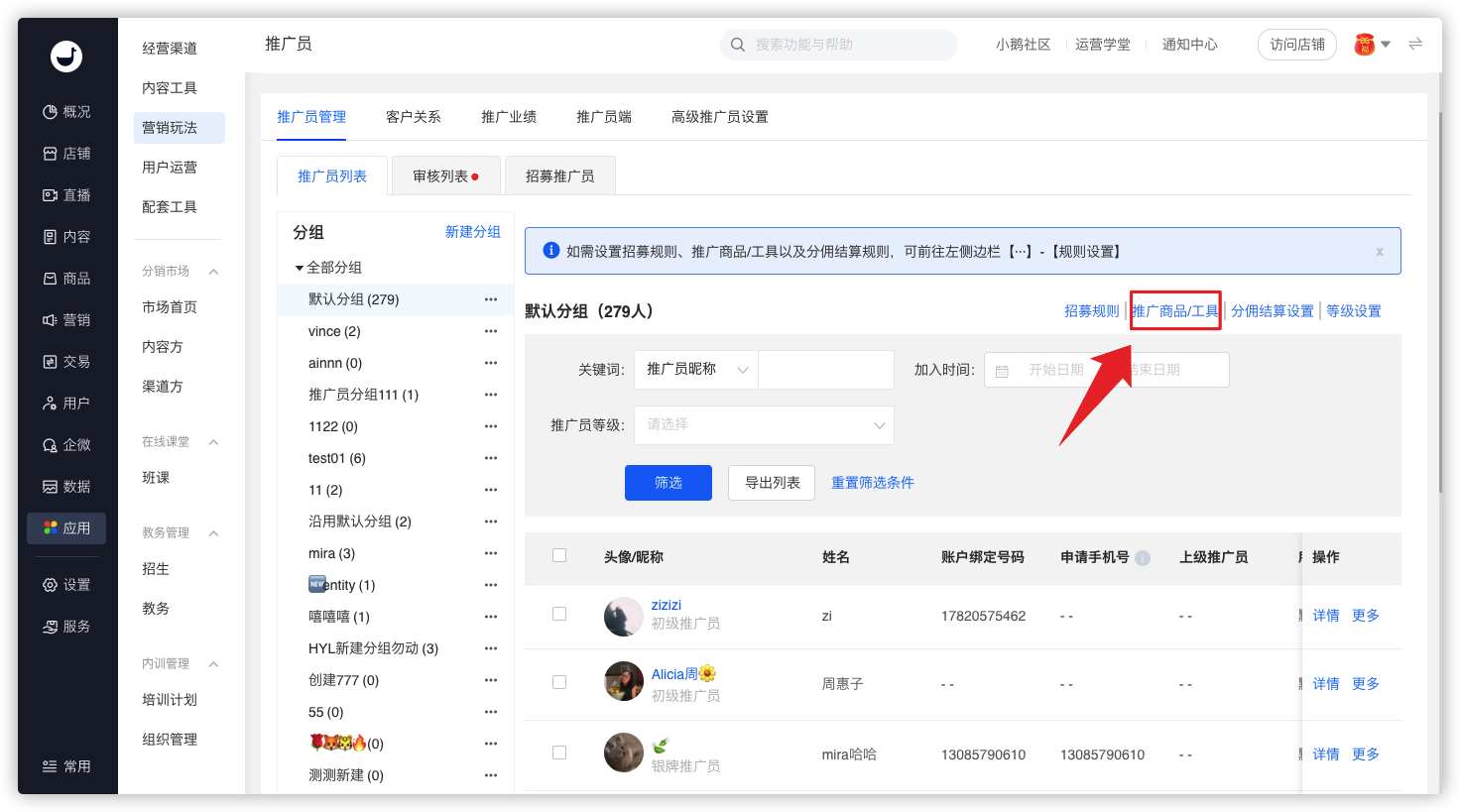
· Click [Create New Promotable Coupon] to add promotable coupons with one click.
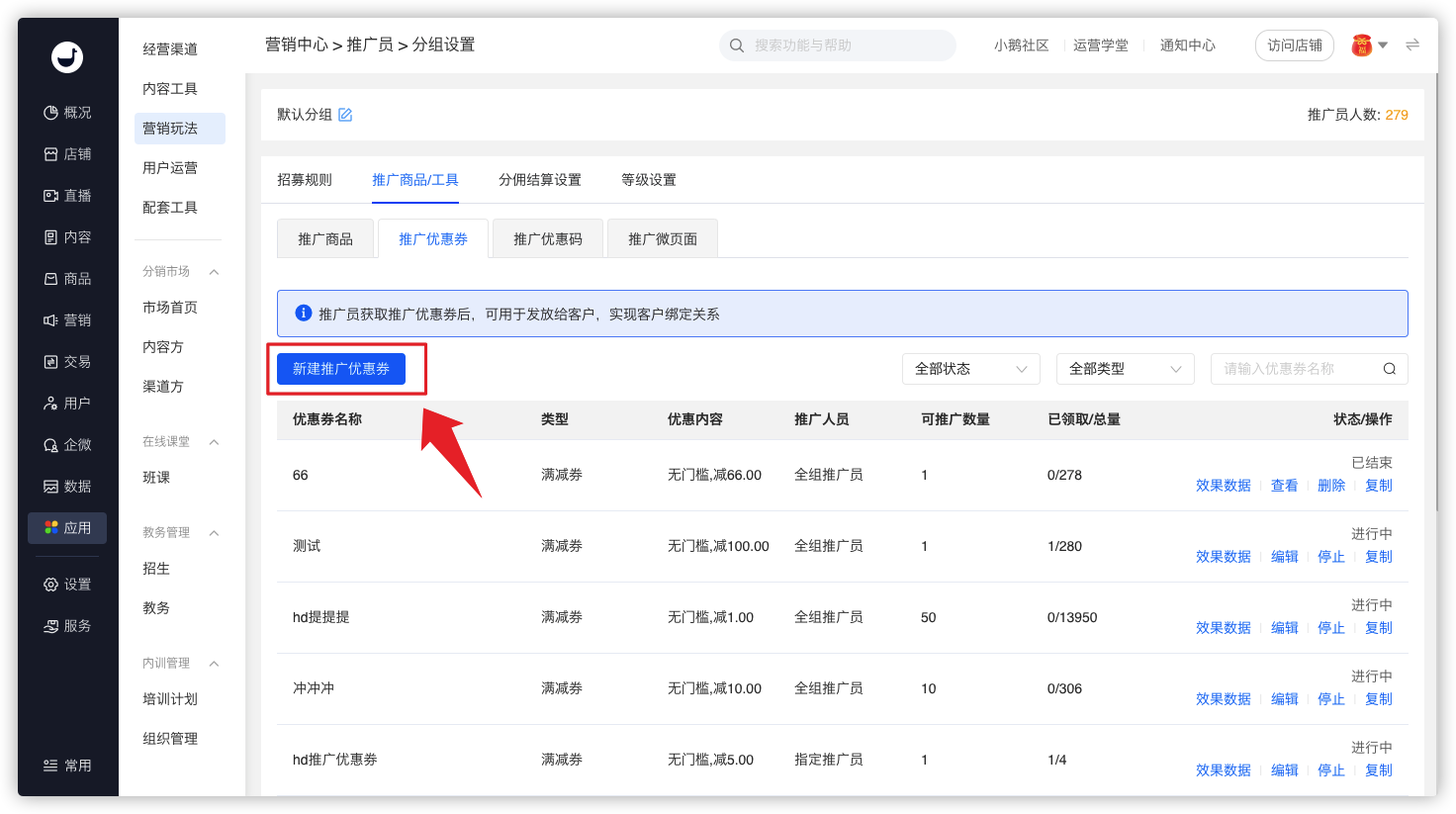
· Click [Add Promo Code] to specify the created promo codes as promotable ones. A maximum of 50 promo codes can be specified. 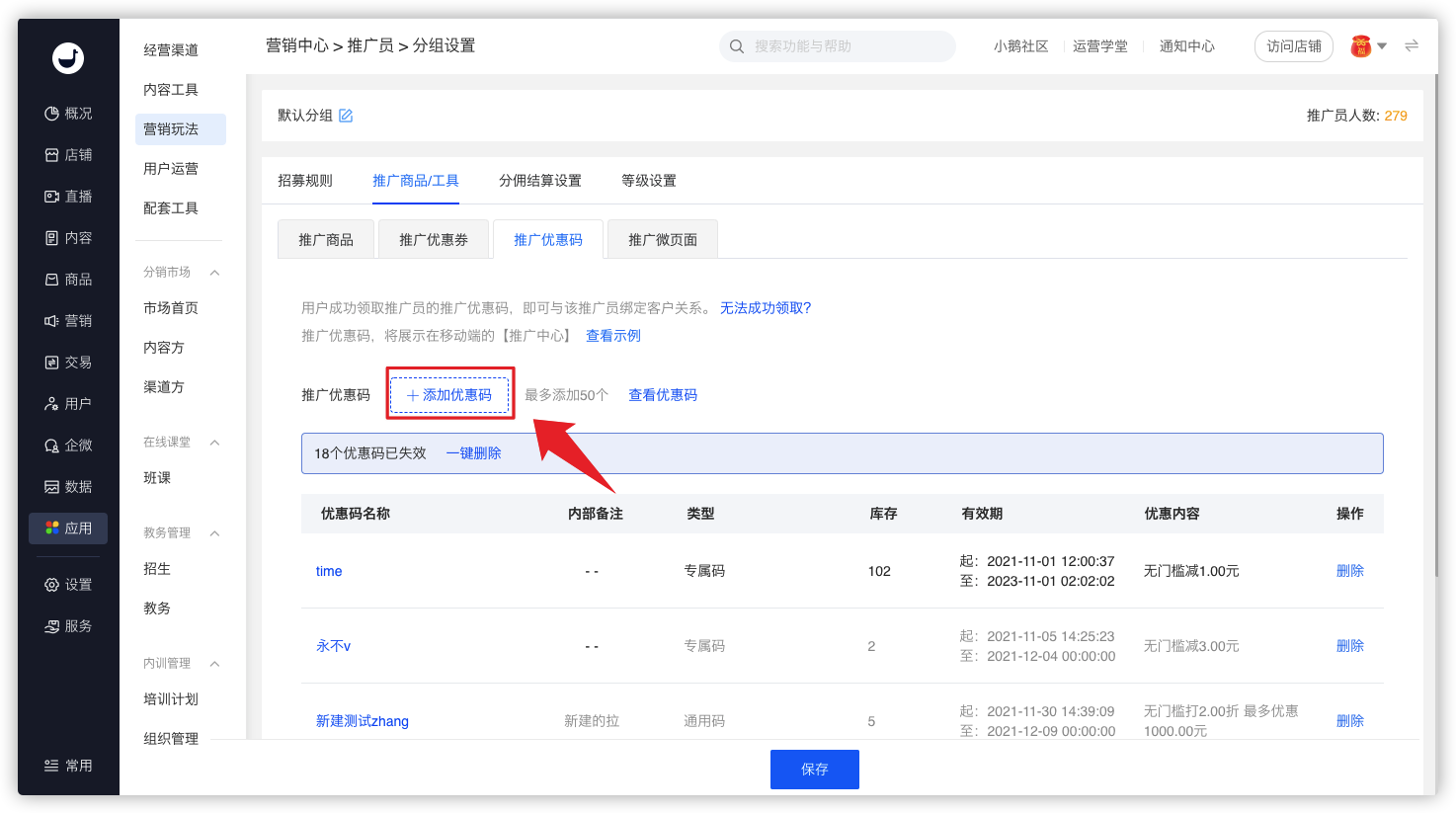
· Only promo codes with the status of [Not Started] and [In Progress] can be specified as promotable promo codes.
· Click the [Save] button at the bottom. After successful saving, the specified promotable promo codes will be synchronized to the promotion center of the H5 store.
Step 2: Promote Coupons/Codes (Promoters)


·Promoters can see the [Promote Coupons/Codes] entry in the promotion center. Click it to enter the list page of promotable coupons/codes.
·On the list page of promotable coupons/codes, select the coupons/codes with appropriate denominations or applicable product ranges. Click [Go to Promote]. Promoters can preview the claim page that users will see after opening it in advance and share the coupons/codes with learners on this page.
·The list page of promotable coupons/codes will automatically hide the expired or invalid coupons and promo codes.
Step 3: Claim Coupons/Codes and Bind the Relationship (Learners)


·When learners open the claim page, they can see the exclusive avatar and nickname of the promoter. On the coupon claim page, click [Go to Claim], or on the promo code claim page, click [Claim Now]. After successful claim, they will be bound to the promoter as customers.
·When customers place orders using the coupons or promo codes to enjoy the discounts, the promoter can also receive corresponding commission rewards.
Step 4: View Data (Management Back - end)
Merchants can view the redemption status of learners in the coupon effectiveness data and promo code effectiveness data.
Why can't customers successfully claim the promotional coupon code?
If customers fail to successfully claim the promotional coupons/codes, they cannot be linked to the promoters as customers.
The following situations may cause customers to fail to claim successfully:
1. When customers try to claim the promotional coupons/codes, if the coupons/codes have expired or become invalid, users will be unable to claim them.
2. If merchants set a 'limit on the number of claims' for the coupons/codes and users have already claimed the coupons/codes, users will be unable to claim them again.
3. When customers try to claim the promotional coupons/codes, if there is no inventory of the coupons/codes, users will be temporarily unable to claim them. At this time, merchants can replenish the inventory of the coupons/codes to enable users to claim them successfully.
Tutorial on Using Affiliate Marketer Groups
I. Function Introduction
Supports creating groups for promoters. Different promoters can be added to different groups, and different promotion products and commission ratios can be set for different groups.
II. Purpose of Use
(1) Assist merchants in flexibly setting the promotion products and commission ratios for each promotion team;
(2) Distinguish different promotion teams based on attributes to ensure the privacy of team information (such as commission ratios).
III. Use Scenarios
Scenario 1: An educational institution hopes to set different ratios according to different types of promoters (such as course consultants, parents, and influencers). For example, for the same course, the promotion ratio for course consultants is 20%, and the promotion ratio for parents is 30%.
Scenario 2: A training institution has two types of promoters: channel partners and individual distributors. It only wants channel partners to promote Product A and does not want individual distributors to see it.
IV. Operation Path
Merchant side: Desktop management console → Marketing → Marketing strategies → Promoters
Student side: WeChat H5 store → Learning center → View data

V. Usage Tutorial
Step 1: Create a promoter group
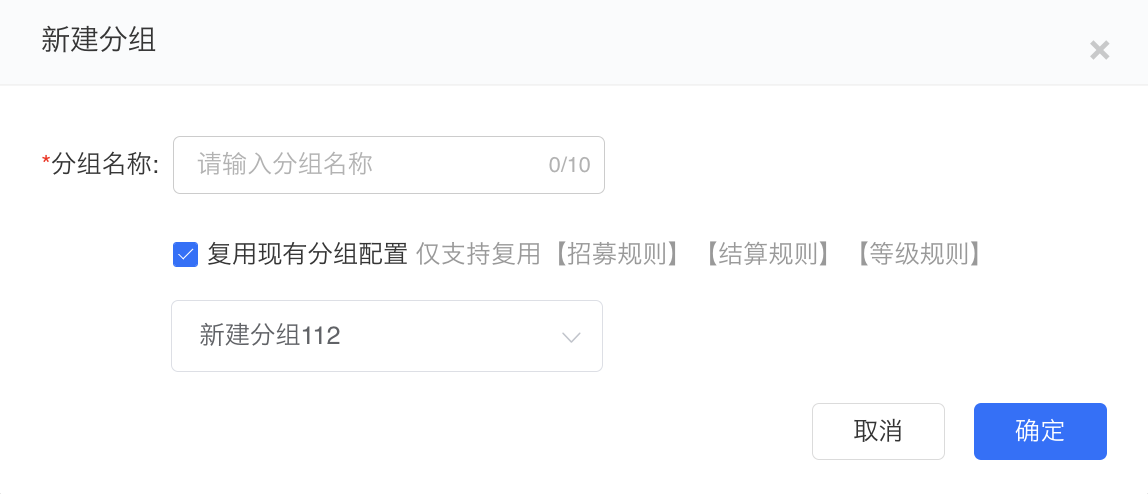
1. Enter the desktop management background, click [Marketing] - [Promoters], and click to enter the promoter function. Then click [New group] on the left side of the promoter list.

2. Enter the group name and choose whether to reuse the existing group configuration as needed. It supports directly reusing the recruitment rules and commission settlement settings (including the reward distribution method and self - purchase commission settings).
**Note: Promotion products and tools do not support reuse for now. You need to add them separately after creating a new group.
Step 2: Configure group promotion products
1. Click [...], [Rule settings], or directly select a group and then click [Promotion products/tools] to enter the promotion product list. Click [Add products] to pop up the product selection window.

2. Merchants can select the created products as promotion products as needed. After selection, click [Next] to configure the corresponding product ratios.

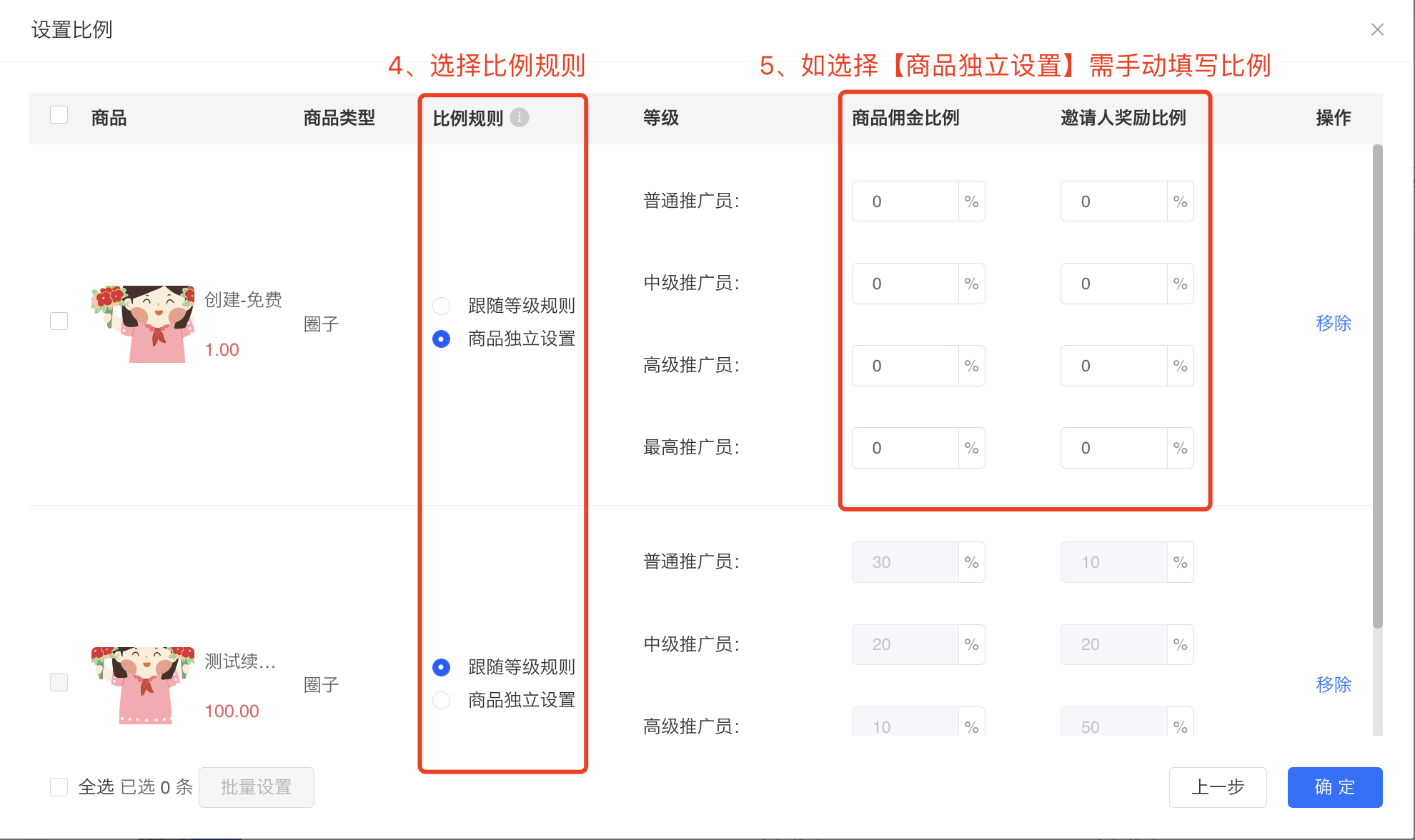
**Note:The ratio settings need to follow the following rules: (The split - payment priority refers to the priority of WeChat Pay distributing the actual payment amount of an order to different accounts (merchants, subordinate promoters, and superior promoters).)
(1) When the promotion product is a virtual product and the price ≤ 200 yuan, the sum of the promotion reward ratio and the invitation reward ratio needs to be ≤ 100%. There will be a verification when setting the same group, and no verification will be done between different groups. The split - payment priority is: subordinate promoters → superior promoters → merchants.
If the superior and subordinate promoters are in different groups, and the sum of the promotion reward ratio of the subordinate promoter and the invitation reward ratio of the superior promoter > 100%, then the split - payment will be made according to the split - payment priority (subordinate promoters → superior promoters → merchants). In this case, there may not be enough remaining amount in the split - payment to distribute the invitation reward according to the superior promoter's invitation reward ratio (if there is a remaining amount, the system will still give the remaining amount to the superior promoter).
● Example: Promoter A is the superior promoter of Promoter B. A is in Group A, and B is in Group B. The invitation reward ratio of Group A is 40%, and the promotion reward ratio of Group B is 70%. When B's customer purchases a 100 - yuan promotion product, the system will first distribute a 70 - yuan commission to Promoter B according to the 70% ratio, leaving 30 yuan. Although it is not enough to pay Promoter A's invitation reward (100 * 40% = 40 yuan), 30 yuan will still be distributed to A, so A will get a 30 - yuan commission.

(2) When the promoted product is a virtual product and the price > 200 yuan, the sum of the promotion reward ratio and the invitation reward ratio must be ≤ 60%. There will be a verification when setting the same group, and no verification will be made between different groups. The profit-sharing priority is: Merchant → Subordinate promoter → Superior promoter.
If the superior and subordinate promoters are in different groups, and the sum of the subordinate's promotion reward ratio and the superior's invitation reward ratio > 60%, profit-sharing will be carried out according to the profit-sharing priority (Merchant → Subordinate promoter → Superior promoter). In this case, the remaining amount in the profit-sharing may be insufficient to pay the superior promoter's invitation reward (if there is a remaining amount, the system will still give the remaining amount to the superior promoter).
● Example: Promoter A is the superior promoter of Promoter B. A is in Group A, and B is in Group B. The invitation reward ratio of Group A is 20%, and the promotion reward ratio and invitation reward ratio of Group B are 50% and 10% respectively. After B's customer purchases a promoted product and actually pays 300 yuan, the system will first share the profit with the merchant according to the ratio of (1 - 50% - 10)%, that is, 120 yuan. Then, it will distribute the commission to Promoter B according to the promotion ratio of 50%, that is, B will receive 150 yuan. At this time, there is only 30 yuan left. Although it is insufficient to pay Promoter A's invitation reward (300 * 20% = 60 yuan), it will still be distributed to A, so A will receive a commission of 30 yuan.

(3) When the promoted product is a physical product, the sum of the promotion reward ratio and the invitation reward ratio of the same group must be ≤ 60%. No verification will be made between different groups. The profit-sharing priority is: Merchant → Subordinate promoter → Superior promoter.
If the superior and subordinate promoters are in different groups, it is the same as (2).
● Example: See the example in (2).
Step 3: Configure group recruitment rules and commission settlement rules
After creating a group, you can set recruitment rules and commission settlement settings for the group.

1. Set recruitment rules
Merchants can choose whether to recruit promoters for this group as needed, and support two recruitment methods: self-application and inviting subordinates.
(1) Enable self-application: Users can select this group when applying.
(2) Enable inviting subordinates: Promoters in this group can invite subordinates.

2. Set commission settlement rules
(1) Reward distribution method: It only takes effect for promoters in the current group. You can set the promotion commission to be distributed immediately after the transaction is completed or N days after the transaction is completed (the maximum setting is 90 days).
(2) Commission for self-purchase by promoters: It only takes effect for promoters in the current group. You can set it to be distributed after the transaction is completed or N days after the transaction is completed. After enabling, promoters in this group can receive commissions for self-purchase.

Step 4: Add promoters to the group
Method 1: Manually add/change groups(Management background)
1. Go to the promoter list page, click [More] - [Modify group] on the right side of the promoter to be grouped.

2. Select the group to be assigned to.

Method 2: Users can independently select a group to join when applying(The group recruitment needs to be enabled)
When the merchant sets the group to enable "self-application", users can select this group to join when applying.

Promoter Function Service Agreement
【Important Notice】
Before using the elink Online Store Promoter function, please carefully read and understand the Promoter Function Service Agreement (hereinafter referred to as "this Agreement"), especially the clauses that are marked in bold, underlined, or in other reasonable ways to draw your attention, which may have a significant impact on your rewards. These include but are not limited to relevant exemption clauses, clauses restricting rights, laws applicable, and dispute resolution clauses.
If you do not agree to any or all of the clauses in this Agreement, especially the aforementioned clauses, please immediately stop the process. Once you click to confirm on the web page or actually use the promoter function, it shall be deemed that you have read, understood, and agreed to sign this Agreement, and voluntarily accept and abide by all the provisions of this Agreement.
If you have any questions, comments, or suggestions regarding the content of this Agreement, you can contact us via the customer service hotline (400 - 102 - 6665).
Article 1: General Provisions
1.1The Promoter Functionrefers to the marketing tool function provided by elink to merchants, hereinafter referred to as "this function".
1.2Merchantsrefer to individuals or organizations that use the elink Online Store SaaS service and activate the promoter function.
1.3Promotersrefer to individuals who sign this Agreement, complete the registration according to the activation process, and register as promoters recruited by merchants to help promote the merchants' products or services.
1.4Rewardsrefer to the rewards obtained by promoters during the process of promoting products or services.
1.5Promoter Ordersrefer to orders generated through the promotion behavior of promoters.
1.6 This Agreement has the same legal effect as the elink Service Agreement. For matters not covered in this Agreement, all parties shall comply with the relevant provisions of the elink Service Agreement. If there is any conflict or inconsistency between the clauses of this Agreement and the elink Service Agreement, this Agreement shall prevail, but only within the scope of such conflict or inconsistency.
Article 2: Notes on Using the Promoter Function
2.1Merchants and promoters shall not engage in the following behaviors when using this function:
(1) Illegal and criminal acts;
(2) Publishing content that violates laws and regulations, public order and good customs, or infringes on the intellectual property rights and other rights and interests of third - parties;
(3) Promoting counterfeit and shoddy products or false services.
2.2Merchants and promoters shall not publish promotional content containing the following:
(1) Content that violates the prohibitive provisions of national laws and regulations;
(2) Political propaganda, feudal superstition, obscenity, porn, gambling, violence, terrorism, or content inciting crime; [Manual adjustment required]
(3) Fraudulent, false, inaccurate, or misleading content;
(4) Content that infringes on the intellectual property rights of others or involves the trade secrets and other proprietary rights of third - parties;
(5) Content that infringes on the personal information of others;
(6) Content that insults, slanders, intimidates others, or involves the privacy of others and infringes on the legitimate rights and interests of others.
(7) It contains malicious software or program codes such as viruses, Trojans, and web crawlers that may damage, tamper with, delete, or affect the data or personal profiles of elink or third - parties.
(8) Other content that violates social public rewards, public morality, or is not suitable for publication according to the rules.
Article 3 Special Agreement on Services
3.1Merchants need to follow the instructions to activate and use the Promoter function and self - set the promoter recruitment, product promotion information, etc.
3.2When individual users apply to merchants to become promoters, they need to operate according to the page instructions and submit relevant personal information as prompted on the page. You agree and acknowledge that after you apply to become a promoter, elink and the merchant can obtain your personal information.
3.3The rewards, reward ratios, and reward settlement periods for promoter orders shall be determined by the merchant and the promoter themselves. If the merchant needs to charge taxes or other related fees on the rewards, it shall be negotiated and confirmed by the merchant and the promoter. If the actual settled rewards are reduced as a result, the promoter and the merchant shall resolve it through negotiation. At the same time, the promoter needs to comply with relevant tax regulations and pay taxes on their reward income independently in accordance with the law.
3.4The fund settlement for promoter orders is provided by WeChat Pay. Promoters need to ensure that their personal WeChat accounts have WeChat Pay enabled and are in normal use. Any losses caused thereby shall be borne by the promoter themselves.
3.5If there are after - sales issues with the promoted products or services, the promoter needs to promptly report to the merchant and jointly handle the after - sales issues with the merchant.
3.6If a consumer initiates a refund for a promoter order and it meets the refund rules, the merchant needs to refund the full amount according to the refund request and follow the following principles:
(1) If the promotion reward has been credited to the promoter's WeChat account, the refund of this order will not affect the already - issued promotion reward.
(2) If the promotion reward has not been settled and credited to the promoter's WeChat account, after the refund of the promoter order is successful, the promotion reward for this order will no longer be issued.
3.7elink only provides technical support. The rewards, reward ratios, reward settlement periods, and reward issuance generated during the promotion process need to be communicated and handled by the merchant and the promoter themselves.
Article 4 Termination of the Promoter Function
4.1The conditions for activating, suspending, and terminating the promoter function are set by the merchant. You should understand the various settings of the promoter conditions from the merchant before applying to become a promoter. Clicking on this agreement to apply to become a promoter means that you have known and agreed to the merchant's settings for promoters.
4.2In the following situations, the promoter's status as a promoter will be terminated:
(1) The promoter voluntarily cancels the account midway;
(2) The promoter and the merchant confirm the termination or suspension of the promoter service by themselves;
(3) The promoter violates the merchant's rules, elink's service agreement, or other rules.
Article 5 Exemption Clause
5.1If there are legal disputes between the merchant and the promoter due to the use of the promoter function, the two parties shall handle it by themselves, and elink shall not bear any liability.
5.2If the actions of the merchant and the promoter cause losses to elink and/or its affiliated companies (including but not limited to direct economic losses, loss of goodwill, and indirect economic losses such as compensation paid to third - parties, settlement fees, lawyer's fees, and litigation fees), they shall compensate elink and/or its affiliated companies for all the above losses.
5.3If the actions of the merchant and the promoter cause elink and/or its affiliated companies to be claimed by a third - party, elink and/or its affiliated companies can recover all the losses from the relevant parties after fulfilling their monetary payment obligations to the third - party.
Article 6 Others
6.1 The formation, validity, performance, interpretation, and dispute resolution of this agreement shall be governed by the laws of the mainland region of the People's Republic of China (excluding conflict of laws). [Manual adjustment required]
How are the rewards for promoters calculated?
The following points should be noted when settling rewards for promoters:
1. The actual rewards for promoters are calculated based on the actual payment amount of customers and according to the reward ratio set in the merchant's backend or the reward ratio automatically adjusted by the system.
2. elink order splitting depends on WeChat Pay. Due to the limitations of WeChat Pay, when the actual payment amount of an order is > 200 yuan, the splitting party (i.e., the account where the order revenue arrives) must receive at least 40% of the splitting amount.
3. The order of splitting for a single order is as follows (the actual revenue of each party needs to deduct the WeChat Pay handling fee additionally):
Ordinary products (i.e., products produced and sold by the content producer):
Direct promoter > Superior promoter > Content producer
4. There may be situations where the sum of the promotion reward ratio and the invitation reward ratio for promoters set in the management console exceeds the splittable ratio of the splitting party (merchant) (the splittable ratio refers to the remaining ratio of the splitting party after deducting the self - retained part restricted by WeChat Pay). For example, if the promoter and their superior promoter are not in the same group, the system cannot determine the over - limit situation when setting the ratio.
When the above over - limit situation occurs, during order settlement, the system will split the funds step by step according to the splitting order until the funds are fully split.
** For example, when the product amount is greater than or equal to 200 yuan or the product is a physical product, the splittable ratio of the splitting party (merchant) is 60%. Then the promotion reward ratio for the promoter is 40%, and the invitation reward ratio for the superior promoter is 30%. According to the splitting priority, the splittable ratio of the splitting party (merchant) can meet the promotion reward for the promoter, but the superior promoter can only receive the invitation reward at a ratio of 20%.
How to enable users to automatically become promoters after purchasing products?
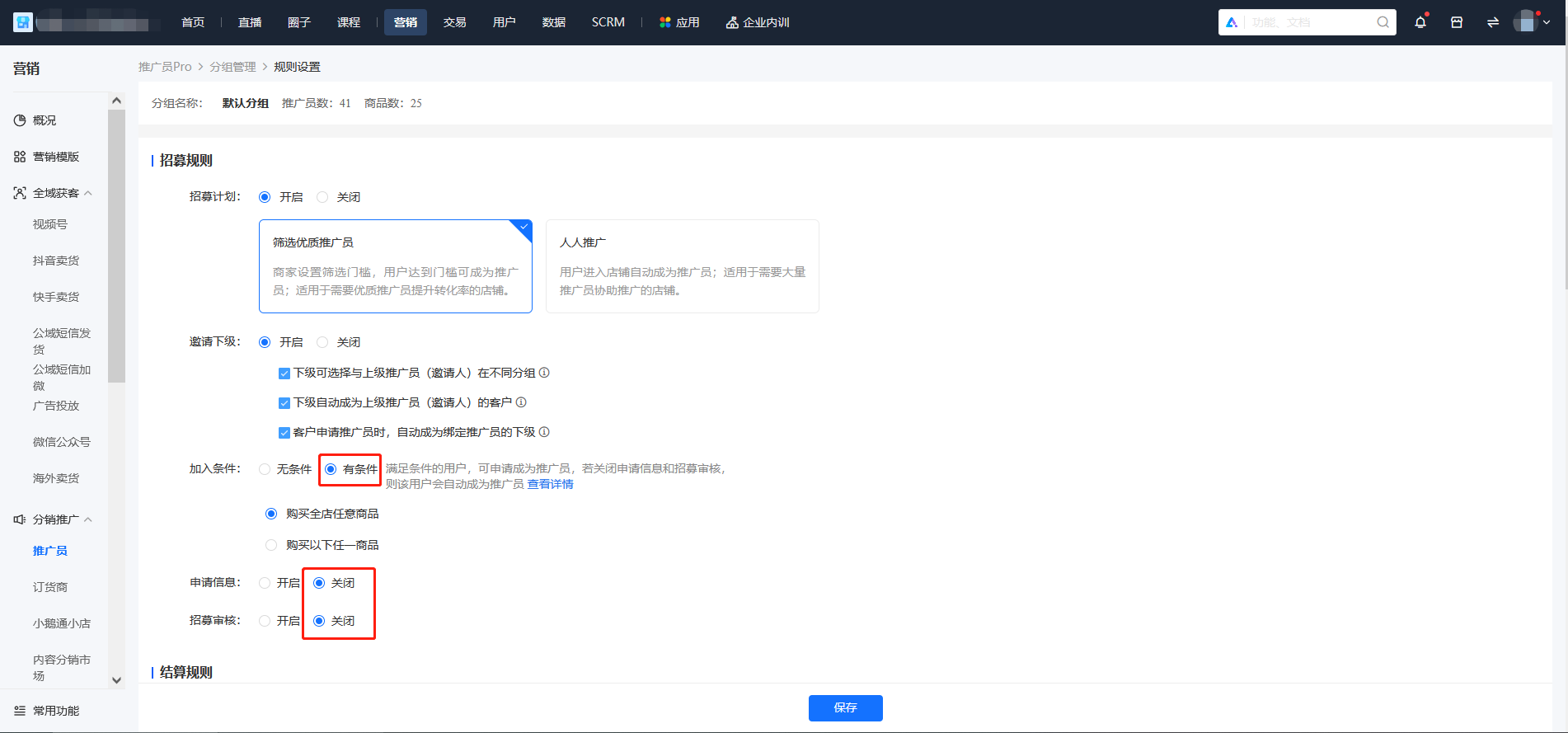
Currently, on the premise that merchants have enabled recruitment, users will automatically become promoters upon purchase when the following conditions are met:
1. Set the joining condition to "Conditional" and select either "Purchase any product in the store" or "Purchase specified products".
2. Disable application information and recruitment review.
3. The order for the corresponding product purchased by the user is not a free order.
Note: If recruitment is enabled for multiple groups, ensure that the joining conditions for other groups are different (i.e., do not select the same specified product or "Purchase any product in the store" as the joining condition).
Tutorial on Recruiting Promoters for Live Streaming Rooms
I. Feature Introduction
Supports merchants in recruiting promoters during live streaming in the store.
II. Purpose of Use
Enables the conversion of high - quality users into promoters during merchants' live streaming, or allows merchants to specifically launch a live stream to recruit promoters.
III. Usage Tutorial
1. Merchant Side:
① Store Management - Marketing - Marketing Tactics - Promoters - Promoter Management - Promoter List - Recruitment RulesEnable promoter recruitment and configure recruitment rules.

② Store Management - Live Streaming - Create a New Live Stream or Live Stream Management. Create or select a live stream - Enter the operation settingsEnable the setting for recruiting promoters

2. User Side:
Watch the merchant's live stream - Click the [Promoter] entry to complete the application process.

How to enable users to automatically become promoters (everyone promotes)?
Configuration method:Click [Rule Settings] - [Recruitment Rules], then click to enable the recruitment plan. When you select the [Everyone Promotes] recruitment mode and click [Save].
How users can automatically become promoters:Users enterthe store homepage, mini pages, product detail pages, course detail pages, and personal centerandcomplete authorizationto automatically become promoters.
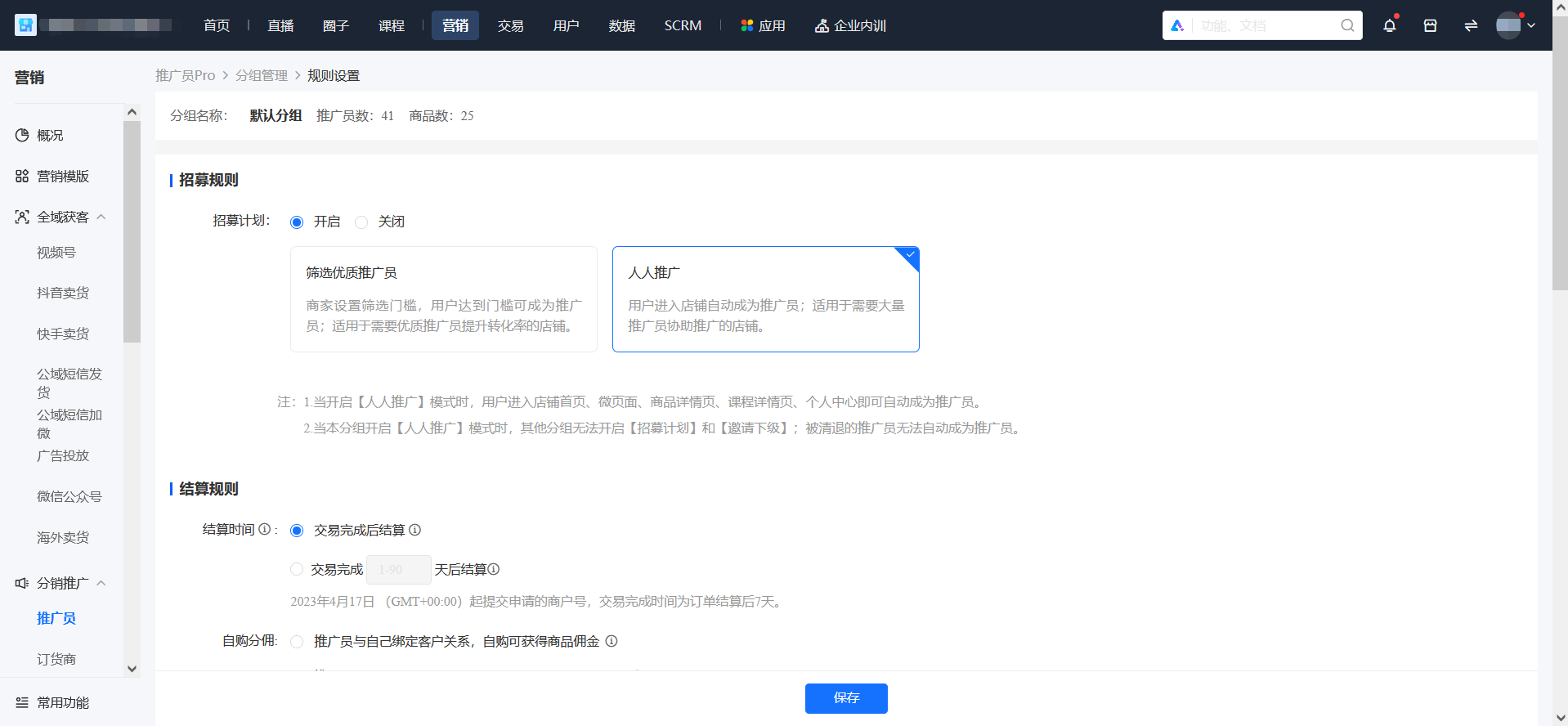
Precautions:
1. Inviting promoters is not supported under the Everyone Promotes mode. Existing invitation relationships will not be affected.
2. After enabling Everyone Promotes, the recruitment page will stop recruiting, and promoters who have been removed cannot trigger automatic promotion. Merchants can guide users to re - apply after disabling Everyone Promotes or manually import these users through the backend to add them as promoters again.
3. Only one group is supported to enable Everyone Promotes at most. After enabling Everyone Promotes, all automatically - added promoters will be added to this group by default.
Explanation of the self-pickup point capabilities for promoters
The self-pickup point capabilities for promoters have been fully upgraded.Self-pickup point stores are now operated on a team basis. Promoters need to join a team to use the 'Store Management' feature.
The new capabilities are as follows:
Operate stores in teams. Support B-side to add teams, import teams in batches, modify team names, and view team member lists.
Support store managers to invite clerks to join the store. Clerks can verify store orders and gift vouchers.
A new store verification code has been added, supporting customers to scan the code to verify store orders in batches.
Support the B-side 'Product Statistics' to implement the screening of 'Single store with multiple products'/'Multiple stores with a single product'.
Adapt to the scenarios of store staff leaving or transferring. Support changing the team leader and reassigning customers to the team leader when removing members.
The 'Order Statistics' in the Promotion Center supports searching by user nicknames.
What impact will it have on the existing store operations?
1. Promoters who have set up self-pickup points before the launch will automatically have teams created:
(1) Team leader (store manager): This promoter, and historical performance will be included in the team's initial performance.
(2) Team name (store name): By default, it is the name of the 'Self-pickup Point' set by this promoter.
2. Promoters can no longer edit the name of the self-pickup point. The self-pickup point name displayed during C-side orders will be directly synchronized with the team name.
3. The 'Store Management' entry will only be shown to promoters who have joined a team. To add a new store, you need to recruit a store manager as a promoter and then create a team.
4. 'Product Statistics' will be calculated on a team (store) basis.
For the detailed guide on store distribution for promoters, please refer to:
https://doc.weixin.qq.com/doc/w3_AE4AvgbHACUvQXNaPJHR0eyWCHhn4?scode=ALQAnAdhAAYFVO0RiPAE4AvgbHACU
The promoter's promotion method is normal. What possible abnormal situations may affect the promoter's binding of customer relationships?
● Confirm whether the promoter isalsoa reseller. The binding relationship of theresellertakes precedence over that of the promoter.
● Confirm whether the customer has been bound by other promoters, and whether the rule of not allowing poaching customers is set in Customer Management - Binding Rules or if it is within the protection period.
● If the customer is also a promoter and has a binding relationship with oneself, you can check whetherthefunction ofSelf - purchase Commission
● In the WeChat built - in sharing menu [···], you can only click [Forward to Friends] or [Share to Moments]. Selecting “Copy Link” cannot bind the relationship!
Why isn't the store management in the C-end promotion center of the online store displayed?
1. The promoter has not joined any team.
2. In the Store - Transactions - In-store Pickup module, it is not enabled.Promoter In-store Pickup Mode
3. The promoter has been removed from the team.
What's the difference between the product statistics and order statistics in the store for promoters?
Product statistics and order statistics in the promoter store management
Product statistics: Usually refers to the statistics of data such as the inventory, sales volume, and sales revenue of all products in the store to understand the sales and inventory status of products.
Order statistics: Focus more on the statistics of customers' purchasing behavior, including the number of orders, order amount, order source, etc.To analyze customers' purchasing habits and preferences.
Therefore, product statistics and order statistics differ in terms of focus and statistical content.