Coupon
- How many ways can users claim coupons?
- What are the differences between user - claimed coupons and targeted - issued coupons? How can they be used in combination?
- Can the coupon be forcibly invalidated?
- Why can some users still use the coupon after it has been manually terminated?
- Can the coupon be transferred after it is redeemed?
- Why can users still claim the coupon when forwarding the link after unchecking the option to allow sharing the coupon link?
- How to view the data after creating a coupon?
- How can users use coupons?
- How to control the sharing of coupons or stop their issuance?
- How can users view their own coupons?
- Coupon Usage Tutorial
- Why can't students see the coupon after it's been applied to a specific product?
- Frequently Asked Questions about Post-coupon Price and Automatic Coupon Redemption
- Tutorial on Using Coupons in Combination
- Introduction to the rules for stacking coupon usage
- Tutorial on selecting applicable products for coupons grouped by product
How many ways can users claim coupons?
1. Ways for users to actively claim coupons: Claim on the homepage, claim on the course details page, claim via link/QR code.
2. Ways for users to passively receive coupons: Targeted distribution, redemption with a coupon code, distribution as a payment gift, etc. Coupons received passively by users will be directly credited to their accounts.
What are the differences between user - claimed coupons and targeted - issued coupons? How can they be used in combination?
User redemption means that users redeem coupons through links or on the details page. Targeted distribution is for specific user groups and is automatically distributed when users enter the store.
The same coupon can be used for both user redemption and targeted distribution. Merchants can choose according to their own needs.
Can the coupon be forcibly invalidated?
Yes. Merchants can click to end the coupon issuance, and students who have already received the coupon can use it normally within the validity period. Users who haven't received it cannot receive it anymore.
Why can some users still use the coupon after it has been manually terminated?
Manually ending a coupon means that after you end the coupon, users can no longer claim it. However, users who have already claimed the coupon or received it through targeted distribution can still use it within the validity period you set.
Can the coupon be transferred after it is redeemed?
Once a coupon is claimed, it can only be used by the claiming user. Gift-giving of coupons is not currently supported.
Why can users still claim the coupon when forwarding the link after unchecking the option to allow sharing the coupon link?
If you forward the original link, users can claim [the relevant item], and this cannot be blocked. Please proceed with caution. The restriction here is that after the buyer claims [the relevant item], they cannot share it with others for claiming.
How to view the data after creating a coupon?
1. Check the issuance status of coupons:
(1) Filter coupons according to your viewing needs.
Filter the activity status. The coupon activity status is classified according to the validity period:
- Not started (can be claimed but cannot be used)
- In progress (can be claimed and used)
- Stopped manually (cannot be claimed but can be used)
- Ended (cannot be claimed or used)
(2) You can directly view the coupon collection data on the coupon list page.
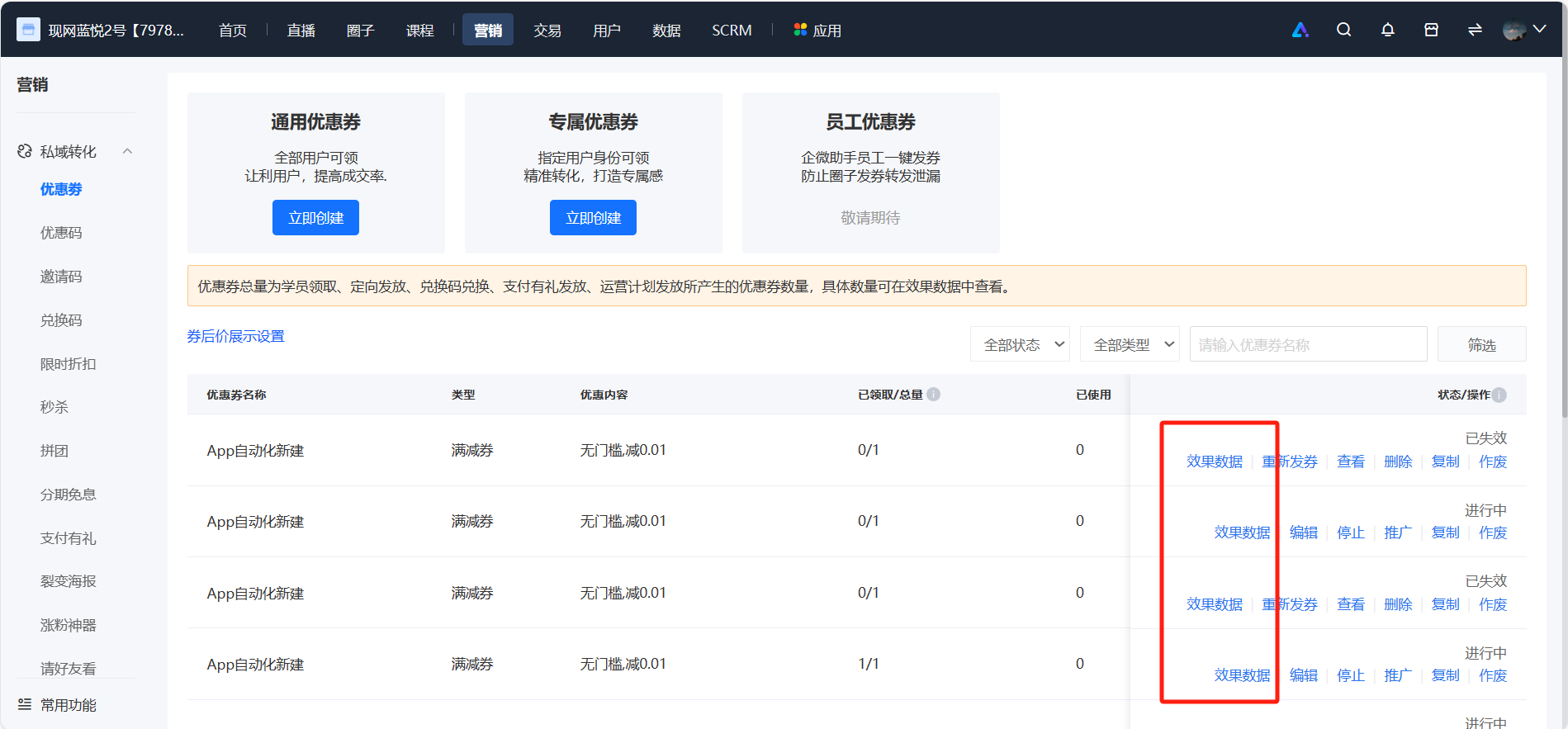
2. View the detailed data of coupons: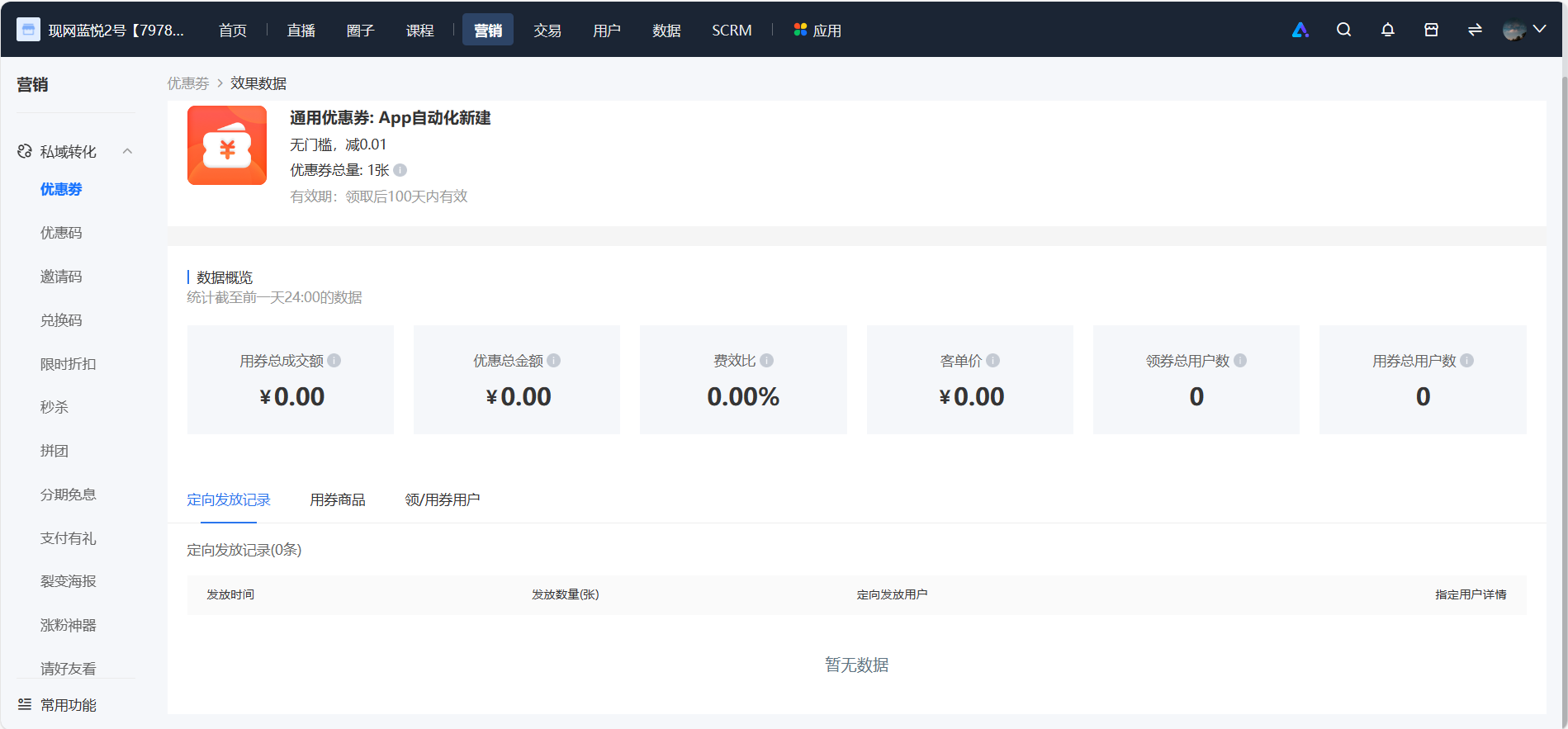
Click [Effect Data] in the coupon list to view more detailed coupon-related data (statistics up to the previous day).
How can users use coupons?
I. Merchants do not check the option for stackable coupons
After users receive coupons, they can select the coupons to use when making payments on the product detail page. Only one coupon can be used for each payment, and users can choose not to use any coupons.

II. Merchants set stackable coupons
After users receive coupons, they can select the coupons to use when making payments on the product detail page. Multiple stackable coupons can be used for each payment, and users can choose not to use any coupons.

How to control the sharing of coupons or stop their issuance?
1. Control the sharing of coupons:When creating (editing) a coupon, check or uncheck the sharing settings to control the spread of the coupon sharing link.
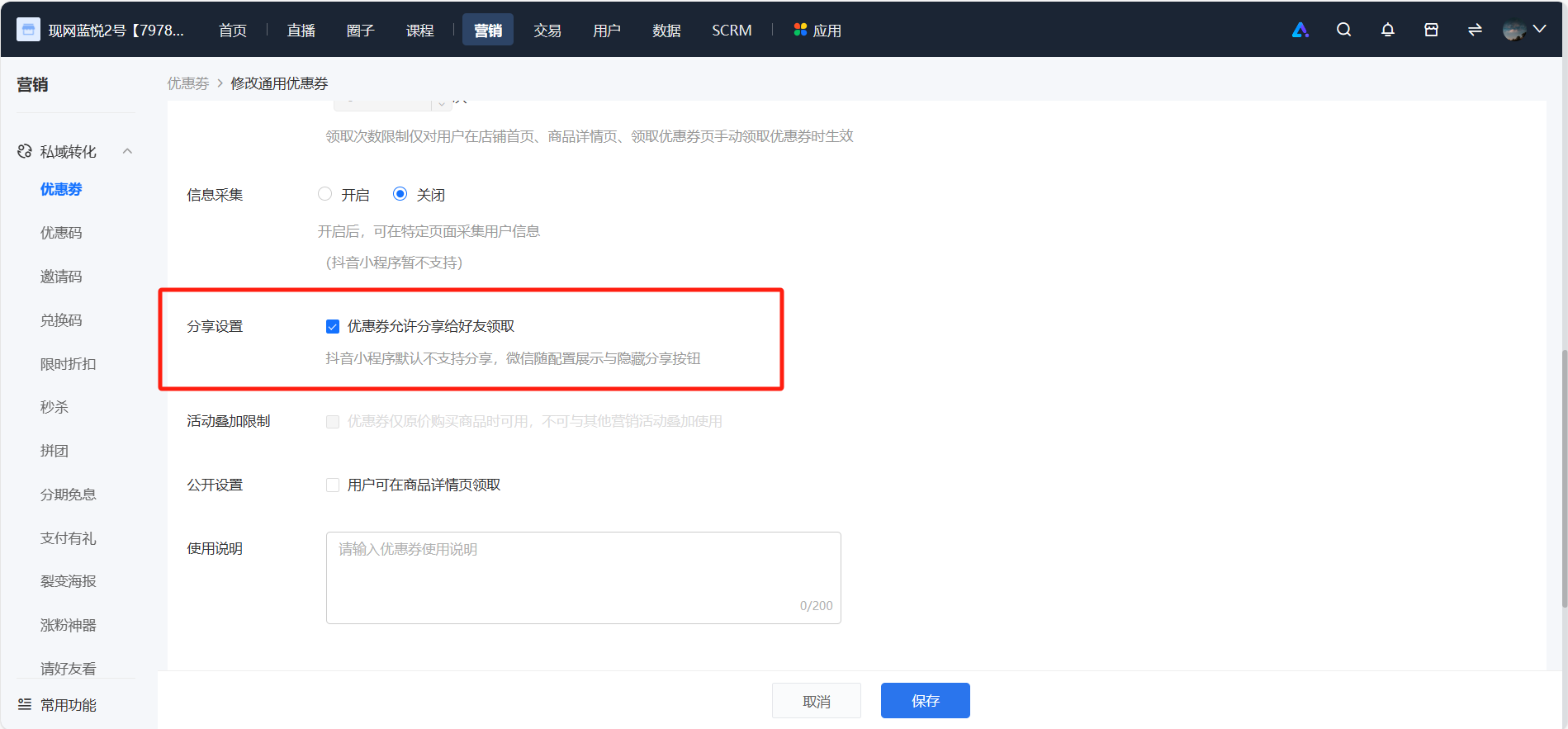
2. Stop issuing:Click 'Stop' on the coupon list page and confirm. After stopping, users will not be able to claim the coupon, and users who have already claimed it can continue to use it. 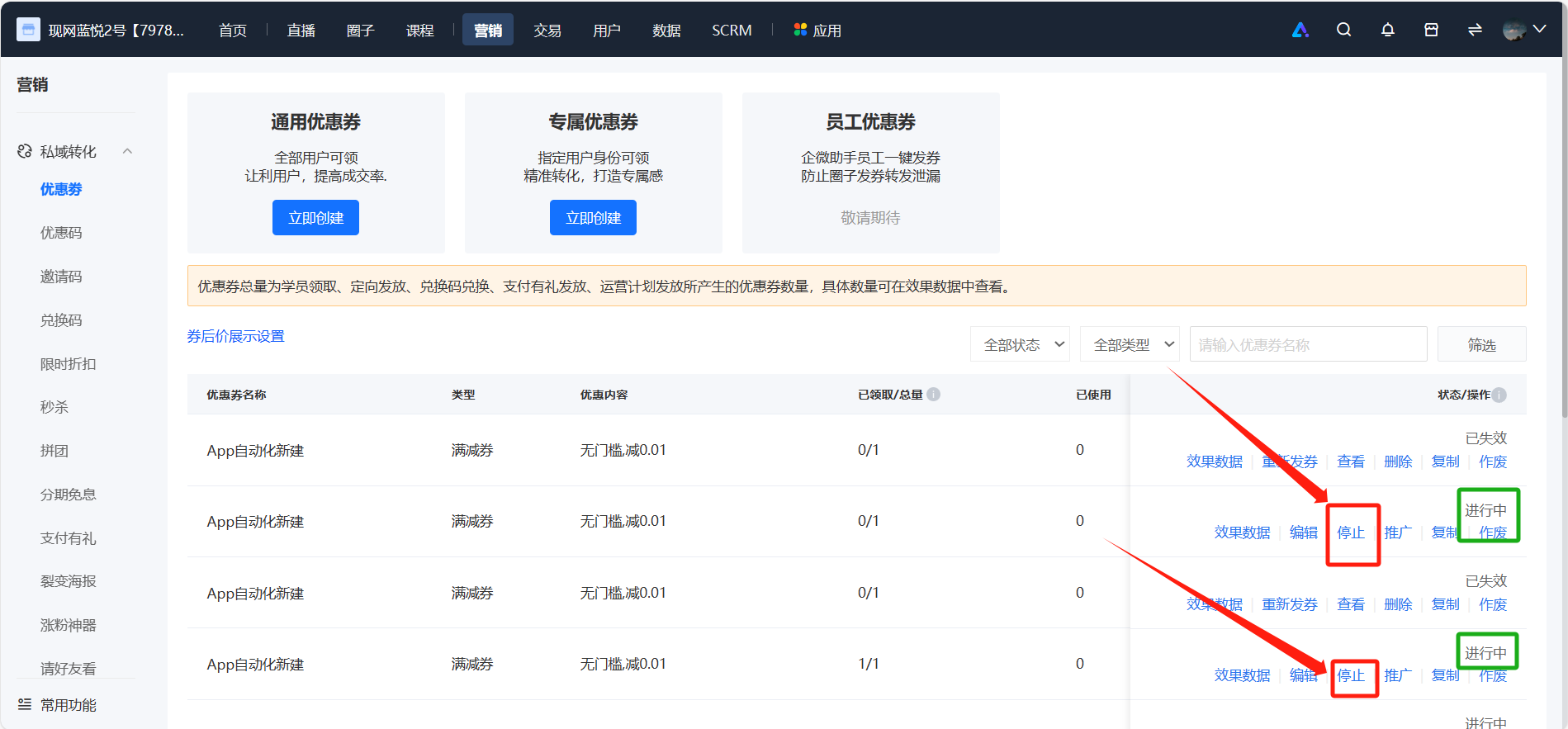
How can users view their own coupons?
Users can view their coupons in [Personal Center] - [Coupons]. Coupons are divided into three categories: unused, used, and expired.
(Unused coupons are sorted in descending order by start time, used coupons are sorted in descending order by usage time, and expired coupons are sorted in descending order by expiration time.)

Coupon Usage Tutorial
I. Function Introduction
【Coupons】 are a marketing tool that allows users to enjoy discounts when purchasing courses through merchants' concessions. Coupons are one of the key factors in promoting user conversions.
II. Purpose of Use
Merchants issue coupons to users, stimulating them to make purchases through discounts and improving the paid conversion rate.
III. Usage Scenarios
Scenario 1: Tostimulate the first - time conversion of new users, a merchant sets up discount coupons for low - priced courses in the store and distributes them in the new user community.
Scenario 2: Toattract users to purchase high - priced courses in the store, a merchant sets up full - reduction coupons for the courses and distributes them to old users through targeted distribution.
IV. Operation Path
Merchant side:Desktop management console → Marketing → Coupons
Student side:
- Coupon collection path: WeChat H5 store → Store homepage/Course details page/Targeted coupon pop - up window → Collect coupons → Coupons are added to the user's account;
- Coupon usage path: WeChat H5 store → Course details page → Use coupons;

V. Usage Tutorial
Step 1: Create coupons (Management background)
1. Click 【Create coupons】

① General coupons: Coupons that can be collected by all users;
② Exclusive coupons: Limit the identity of collectors to create exclusive coupons;
③ Employee coupons: Combine the capabilities of Enterprise WeChat to empower employees to issue coupons with one click, preventing the leakage of community - issued coupons through forwarding.
2. Create coupons and configure field information
【① General coupons】
Note: After creating coupons, only some fields can be edited. Please check carefully before saving.

【② Exclusive coupons】
The rules of other fields are the same as those of general coupons, with an additional setting item for specified identities to actively collect coupons.

Step 2: Distribute coupons (Management background)
1. Passive coupon distribution by merchants
Merchantsconfigure coupons on the homepage, configure coupons on the course details page, and promote the coupon collection pageto place coupons somewhere and wait for users to actively collect them.
1) Merchants can configure coupons in 【Store management】 - 【Mobile】 - 【Store homepage】 - 【Build store homepage】, and users can collect coupons on the homepage.


2) Merchants can check 【Public settings】 when creating coupons. After checking, the coupons will be displayed on the product details page, and users can collect them there.

3) Merchants can click 【Promote】 in 【Coupon list】 to promote the QR code or link externally. After users scan the QR code or click the link, they can collect coupons on the coupon collection page.

2. Active coupon distribution by merchants
When usingtargeted distribution, purchase rewards, and redemption codesand other functional modules, merchants can use coupons as benefits for distribution, and the coupons will be directly added to the user's account.
1) Merchants can click 【Targeted distribution】 in 【Coupon list】 to distribute coupons in a targeted manner. After distribution, the coupons will automatically enter the user's account, and a pop - up window indicating that the user has received the coupon will appear when the user enters the store homepage.

2) When creating 【Purchase rewards】 in 【Marketing】 - 【Marketing games】 - 【Purchase rewards】, merchants can add coupons as benefits. After users successfully make a purchase, the coupons will automatically enter their accounts.

3) When creating 【Redemption codes】 in 【Marketing】 - 【Marketing games】 - 【Redemption codes】, merchants can add coupons as benefits. After users redeem them, the coupons will automatically enter their accounts.

Step 3: Collect and use coupons (Student side)
1. Several ways for students to collect coupons

2. Ways for students to use coupons

Step 4: View performance data (Management background)
Merchants can click 【Performance data】 in 【Coupon list】 to observe the data on coupon distribution, collection, and usage.


Note: 【Data overview】 statistics are as of 24:00 of the previous day. 【Targeted distribution records】, 【List of products with coupon usage】, and 【List of users who collected/used coupons】 are updated in real - time.
Why can't students see the coupon after it's been applied to a specific product?
To provide users with a better experience, the system has set multiple constraint rules for displaying coupon content. For example, if a merchant configures products for a coupon in the background, but learners cannot see them, the following situations may occur:
1. The selected products do not meet the usage threshold of the coupon.
Example: A merchant's coupon offers a 2 - yuan discount when the purchase reaches 10 yuan. If the merchant selects a 9 - yuan图文课程, it does not meet the usage threshold of the coupon, and the product will not be displayed on the learner's end.
PS: Multiple knowledge products cannot be purchased at once, while multiple physical products can.
2. The merchant has selected a course that is participating in a marketing event, and the coupon usage condition is set to be available only when purchasing products at the original price.
Example: The merchant sets the coupon to be available only when purchasing products at the original price, but selects products participating in time - limited discounts and flash sales. In this case, the products will not be displayed on the learner's end.
3. There is a conflict between the super - member benefits and the coupon conditions.
Example: The merchant sets the condition that super - member discounted products cannot be used in combination with coupons. If the coupon selects relevant products, the relevant products will not be displayed when super - members enter the coupon collection page.
The above rules also apply to custom - recommended products. Recommended products may also not be displayed on the learner's end due to the above situations.
Frequently Asked Questions about Post-coupon Price and Automatic Coupon Redemption
1. Can the post - coupon price and automatic coupon redemption be disabled?
Answer: Yes, you can disable this feature in the Coupon List - Post - coupon Price Display Settings. After disabling, the post - coupon price and automatic coupon redemption will not be displayed on the C - end.
2. How is the post - coupon price calculated?
Answer: After users enter the product details page, the system selects the coupon with the highest available amount for the current product price from the coupons in the user's account and the publicly available coupons on the product details page for calculation.
● If the coupon with the highest amount is in the user's account, the purchase button will display [Buy Now XX after coupon]. Clicking the purchase button will automatically use the coupon.
● If the coupon with the highest amount is publicly available on the product details page, the purchase button will display [Redeem Coupon and Buy XX after coupon]. Clicking the purchase button will automatically redeem and use the coupon.
3. What types of products do not support the post - coupon price and automatic coupon redemption?
Answer: Currently, it does not support educational assistance tools, AI interactive courses, paid coupons, course packs, affiliate products, and premium memberships.
Tutorial on Using Coupons in Combination
I. Function Introduction
The coupon feature of the marketing tool has been updated! A new coupon stacking setting has been added, allowing multiple coupons to be used in a single order, meeting merchants' needs for more marketing strategies such as full - amount discounts. For the same product, users can stack coupons obtained from different channels. To enjoy greater stacked discounts, users will make payments in a short time, which can stimulate user payment conversion.
II. Purpose of Use
Meet merchants' coupon requirements in refined operation scenarios;
Improve the coupon conversion rate of the corresponding user group;
III. Use Scenarios
Scenario 1: [Stimulate conversion of coupon - receiving users]: Merchants can distribute pre - event coupons through multiple channels during the pre - heat stage and event coupons during the event stage. The double - stacked discounts can stimulate users to place orders. Merchants can also hold multiple event coupons, and the multiple - stacked discounts can stimulate users to place orders.
Scenario 2: [Referral marketing]: Merchants can distribute multiple coupons to old customers who bring in multiple new customers. Old customers can stack and use these coupons, promoting referral marketing.
Scenario 3: [Refined operation]: Merchants can distribute coupons in batches according to the learning situations of different students. Excellent students can stack more coupons, enabling more refined student management.
IV. Operation Path
Merchant side: Marketing Center - Coupons - Create Coupons - Check the option for stackable coupons
Student side: Receive Coupons - Product Details Page - Order Confirmation Page

V. Usage Tutorial
Step 1Enter [Marketing Center] - [Coupons], clickCreate a new coupon. Check the option to allow stacking with other stackable coupons.(Store management backend)
(Click to view the coupon creation tutorial)

Step 2Students actively receive coupons(Students enter the H5 store)

Step 3Students place orders using coupons(Students enter the H5 store)

Step 4Select stacked coupons on the order payment page.(H5 store)

Step 5Check the order status of orders using stacked coupons(Merchant management backend)


Introduction to the rules for stacking coupon usage
1. Coupon stacking rules:
Parallel stacking. Both full - reduction coupons and discount coupons can be stacked.
There is no upper limit on the number of stacked coupons, butonly one coupon from the same batch can be used at a time.For example, for an order with a product priced at 100 yuan, there is a coupon for a 50 - yuan reduction without a threshold (stackable) and a coupon for a 20% discount without a threshold (stackable). Then the final price of the product is: 100 - 50-(100*(1 - 0.8)) = 30
2. Does the stacking usage setting support secondary editing?
Secondary editing is not allowed.
3. Does coupon stacking support shopping cart items?
Currentlyshopping cartitems are not supported.
4. Can stacked coupons be used in combination with marketing campaigns/super memberships?
It depends on whether the product's coupons are set to be used in combination with marketing campaigns/super memberships.
Tutorial on selecting applicable products for coupons grouped by product
I. Feature Introduction
The coupon feature in marketing has been updated! A new 'Select by product group' function has been added for applicable products. Merchants can select a product group to batch set the applicable products for coupons. Moreover, by modifying the content of the product group, they can batch modify the applicable products for coupons, improving the efficiency of merchants' marketing operations.
II. Purpose of Use
To improve the operational efficiency of merchants in multi - coupon scenarios.
III. Use Scenarios
Scenario 1: [Batch set applicable products] When merchants have a new marketing campaign that covers a large number of products, they can put these products into the same product group. Then, they can select the corresponding group when setting up coupons. In the future, other coupons can also reference this group.
Scenario 2: [Batch modify coupons] When merchants launch new products and need to add them to existing marketing campaigns, they can directly add the new products to the groups associated with these coupons. Then, these coupons can be used for the new products.
IV. Operation Path
Merchant side:
1. Configure product groups:Merchant background →Transactions → Product groups → Create a new product group → Content management
2. Configure coupons: Merchant background → Marketing → Coupons → Create/Edit a coupon → Select 'Select by product group' for applicable products
Student side: WeChat H5 store →Receive coupons→Use coupons

V. Usage Tutorial
Step 1Configure product groups(Management background)
1. Enter [Transactions] - [Product groups], click 'Create a new product group', fill in the group name, and click 'OK' to save.

(Product group)
2. Click 'Content management', click 'Add products', and select the products to be added to the group.

(Product group)

(Product group - Content management)
Step 2 Configure coupons(Management background)
1. Enter [Marketing] - [Coupons], click 'Create/Edit a coupon' immediately. In the 'Applicable products' field, select 'Available for specified products'/'Not available for specified products', and then select 'Select by product group'.

(Create/Edit a coupon)
2. Click 'Add product group', select the required group in the pop - up window, and click 'Confirm'. After filling in other coupon information, save the coupon settings.

(Add product group)
Step 3 Receive coupons(H5 store)

(H5 store)
Step 4 Use coupons(H5 store)

(Order confirmation page)