# Usage tutorial for instructors to grab live streaming slots
[中文](/books/091d5/page/ac627)
**I. Function Introduction**
The "Live Broadcast Grab" feature is a common capability for instructors. When another instructor is currently live, it provides an entry for subsequent instructors entering the same live room to independently grab the live broadcast, thereby enhancing the live broadcast experience for instructors and the viewing experience for students. (Currently, only live broadcasts created on the computer management console are supported.)
**II. Purpose of Use**
1. When multiple instructors are allowed to start live broadcasts simultaneously in the same live room, subsequent instructors can independently grab the live broadcast to take over from the previous instructor and start the live broadcast.
2. When multiple instructors are vying for the live broadcast, the student - end can seamlessly switch the live - broadcast screen within seconds, reducing the student churn rate.
**III. Usage Scenarios**
A merchant needs multiple instructors to appear on camera in sequence during a live broadcast, and only one instructor needs to appear on camera at a time. After the first instructor finishes the presentation, there is no need to pause the live broadcast. The second instructor only needs to directly click "Start Live Broadcast" on their own live - broadcast port to achieve a "seamless switch of the live - broadcast screen".
**IV. Operation Path**
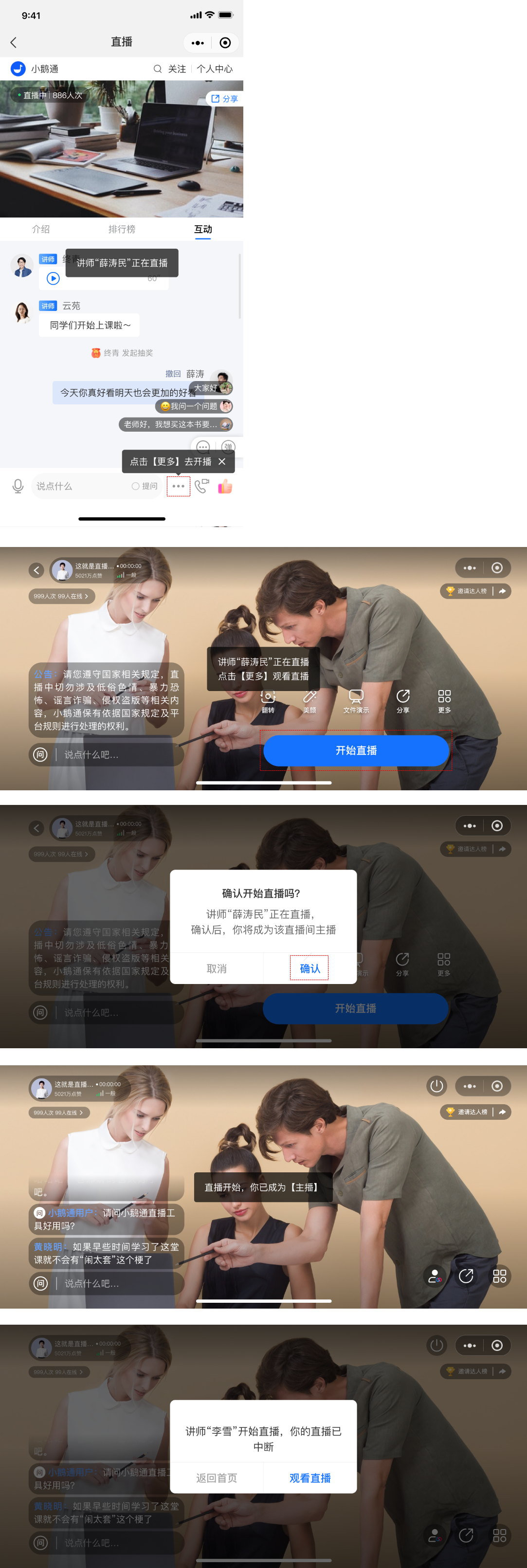
Instructor - end: Enter the live room(eLive Mini Program)> When another instructor is currently live, it will default to the viewing perspective. > Click "...". > Click "Go Live". > Click "Confirm" in the secondary confirmation pop - up window. > Successfully grab the live broadcast and start the live broadcast. (The instructor whose live broadcast is grabbed will be prompted with a pop - up window to end the live broadcast.)
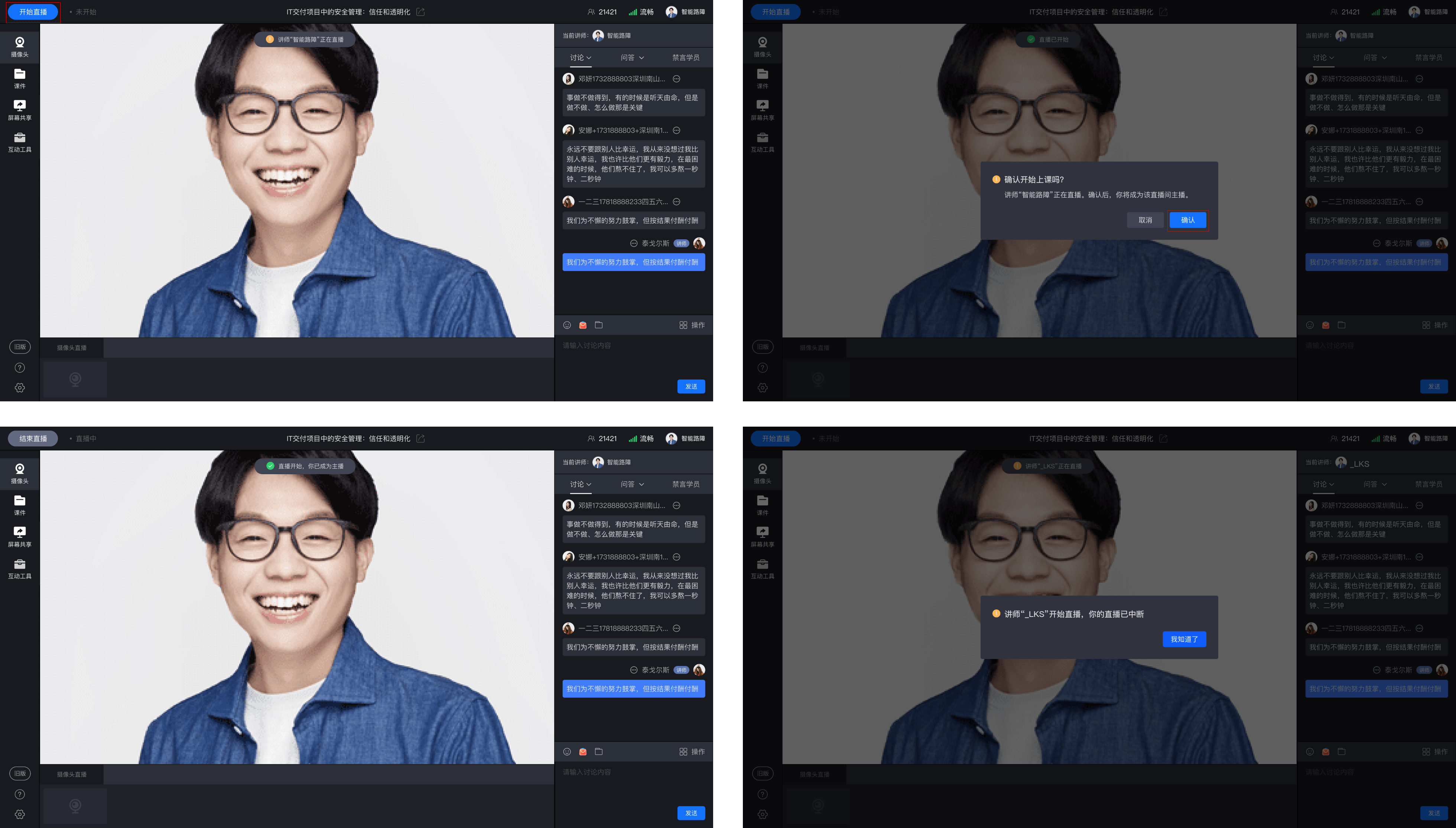
Instructor - end: Enter the live room(eLive, eLink Assistant, Web version)> When another instructor is currently live, a prompt bar will appear at the top/right side. > Click "Start Live Broadcast/Start Class". > Click "Confirm" in the secondary confirmation pop - up window. > Successfully grab the live broadcast and start the live broadcast. (The instructor whose live broadcast is grabbed will be prompted with a pop - up window to end the live broadcast.)
**V. Usage Tutorial**
**(1) eLive Mini Program**
When another instructor is currently live, it will default to the viewing perspective. > Click "...". > Click "Go Live". > Click "Confirm" in the secondary confirmation pop - up window. > Successfully grab the live broadcast and start the live broadcast. (The instructor whose live broadcast is grabbed will be prompted with a pop - up window to end the live broadcast.)
### **(2) eLive Client**
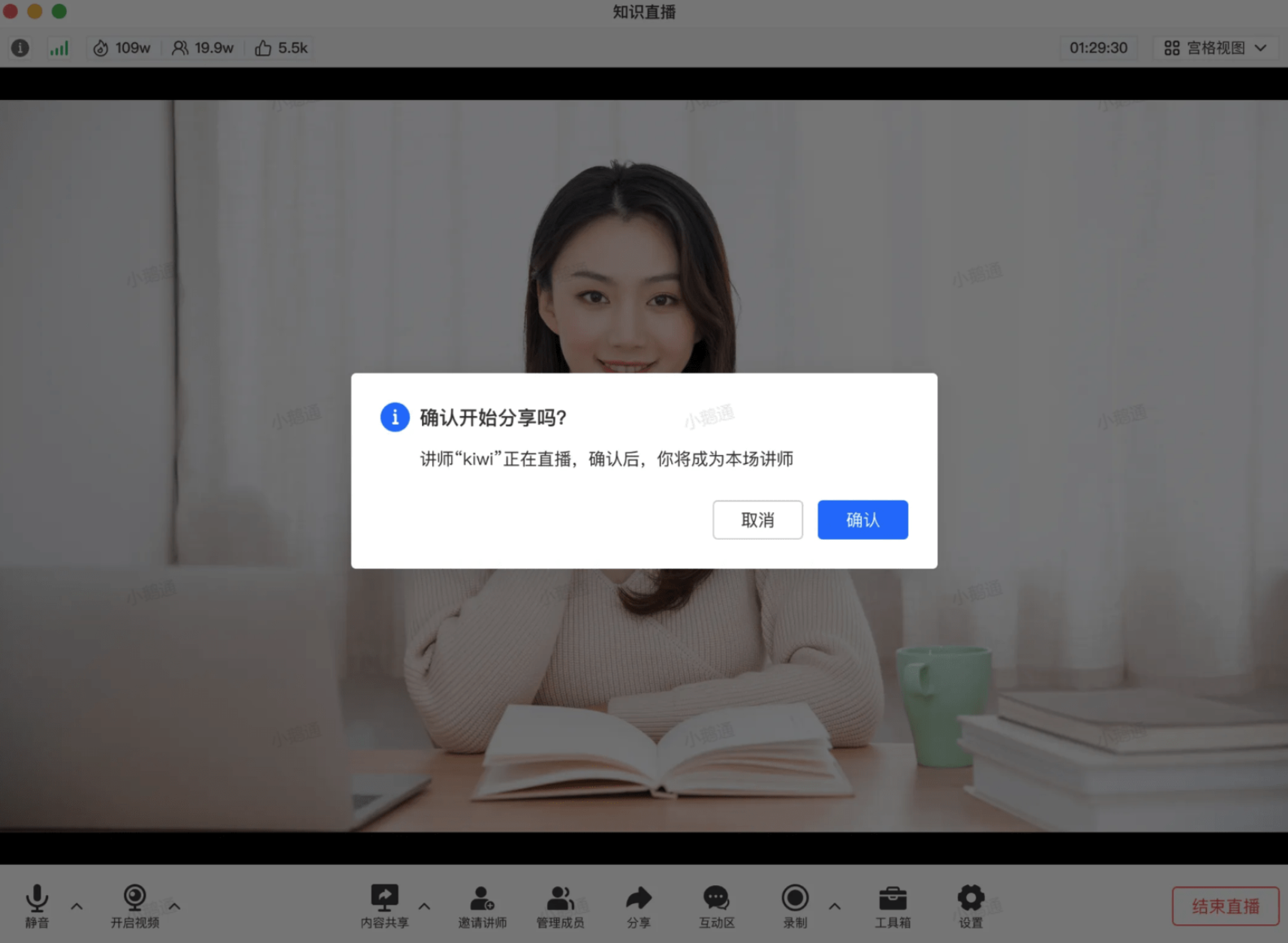
When Instructor A is currently live, if Instructor B clicks "Start Live Broadcast" or "Present Courseware Content", a pop - up window will prompt whether to take over the live broadcast. If Instructor B confirms, it will be considered that Instructor B has successfully taken over the live broadcast. The live - broadcast screen will be based on Instructor B. At this time, Instructor A will be considered in an off - air state. According to this rule, Instructor C or Instructor A can also take over the live broadcast again.
**(3) eLink Assistant**
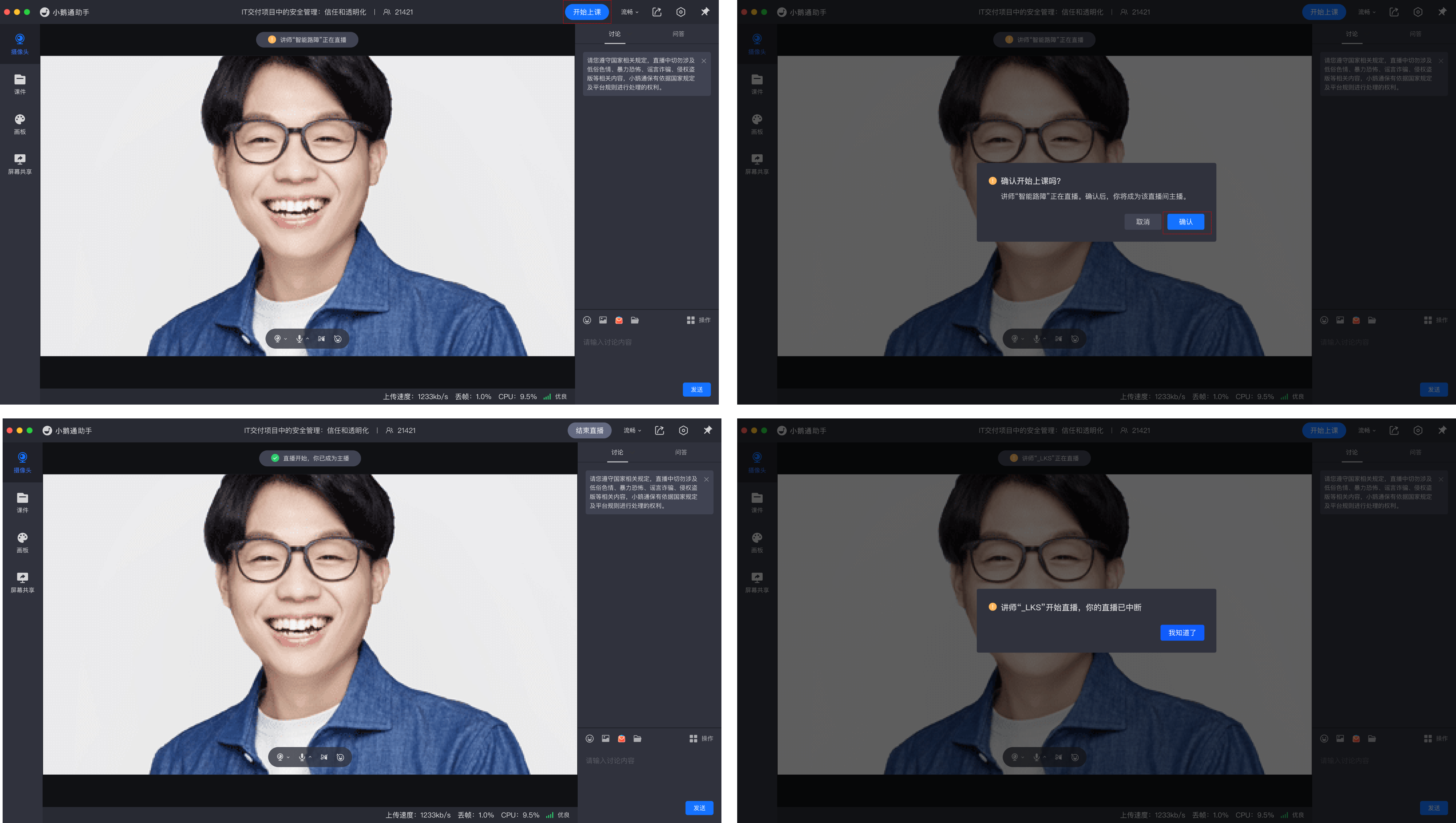
When another instructor is currently live, a prompt bar will appear at the top. > Click "Start Class". > Click "Confirm" in the secondary confirmation pop - up window. > Successfully grab the live broadcast and start the live broadcast. (The instructor whose live broadcast is grabbed will be prompted with a pop - up window to end the live broadcast.)
**(4) Web version**
When another instructor is currently live, a prompt bar will appear on the right side. > Click "Start Live Broadcast". > Click "Confirm" in the secondary confirmation pop - up window. > Successfully grab the live broadcast and start the live broadcast. (The instructor whose live broadcast is grabbed will be prompted with a pop - up window to end the live broadcast.)
**VI. Frequently Asked Questions**
1. Does pushing live - stream content using third - party live - broadcast tools such as OBS support the "Live Broadcast Grab" feature?
Answer: No. OBS is a third - party live - stream pushing tool without business attributes. Therefore, when an instructor is using the OBS terminal for live broadcasting, the eLink live - broadcast tool cannot grab the live broadcast. It can only start pushing the live - stream after the OBS live - stream pushing ends.
2. After having their live broadcast grabbed, can the instructor whose live broadcast was grabbed take it back?
Answer: Yes. The "Live Broadcast Grab" is a common capability. As long as an instructor has the permission to start a live broadcast, they will automatically be granted the "right to grab the live broadcast".