# Tutorial on Using Voice Live Streaming
[中文](/books/091d5/page/a516a)
**I. Function Introduction**
Students can participate in the live voice broadcast in real - time. Teachers can explain course content with courseware in the live - broadcast room and interact with students by sending voice, text, courseware, and videos in real - time.
**II. Purpose of Use**
The voice broadcast - courseware mode is a relatively lightweight live - broadcast form, suitable for live - broadcast content that does not require a camera. Merchants can upload courseware and send voice and other content in the live - broadcast room to interact with students.
**III. Usage Scenarios**
It is suitable for live broadcasts with a large amount of voice, text, and pictures. After uploading text & courseware, instructors can explain in the form of voice.
**IV. Operation Path**
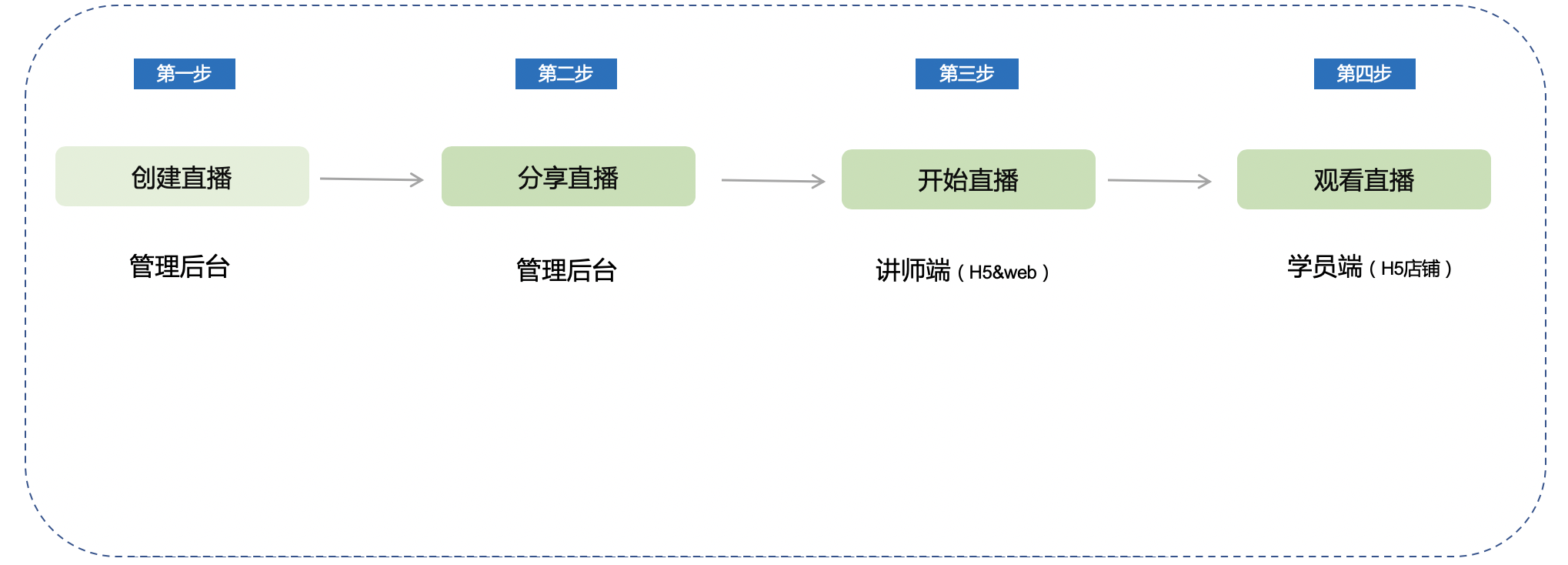
Merchant side: Merchant background → Create voice live broadcast → Start live broadcast
**V. Usage Tutorial**
**Step 1: Create a live broadcast (Management background)**
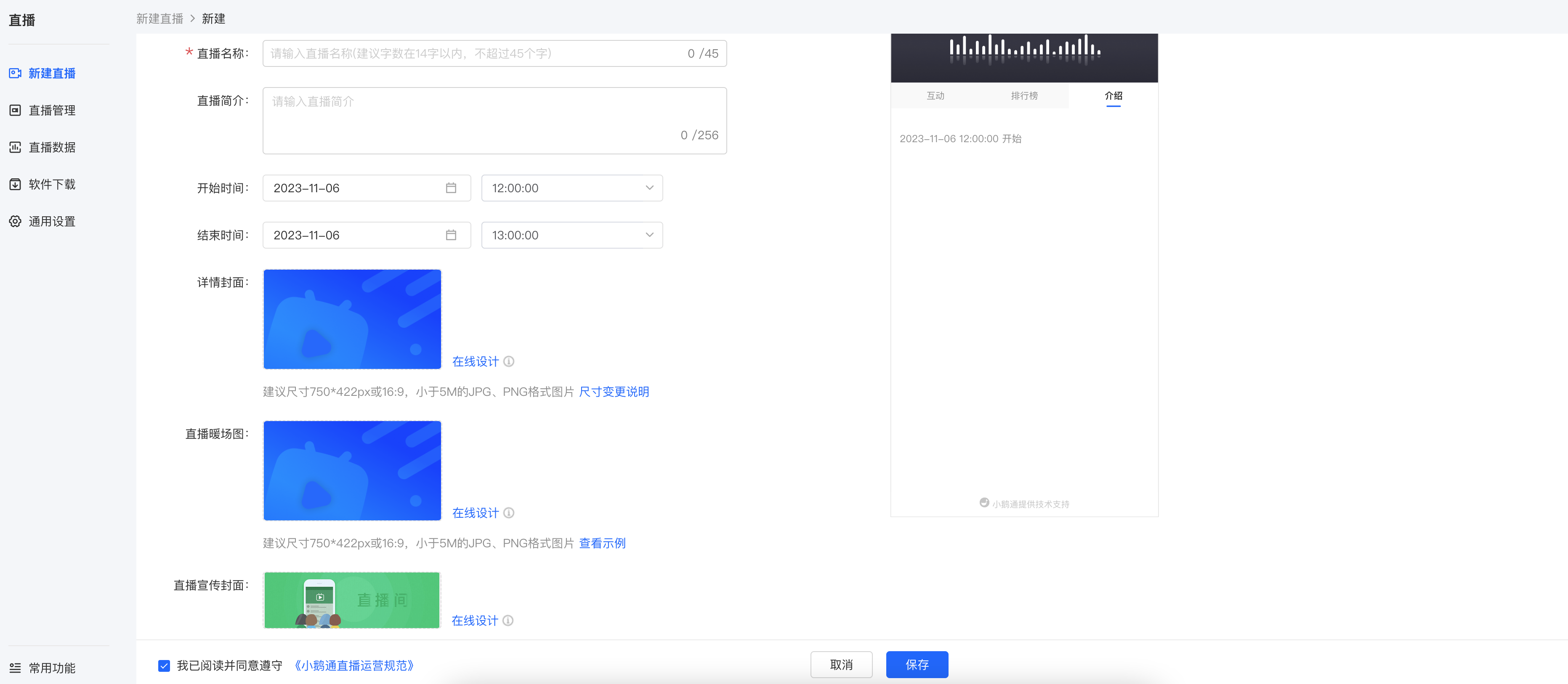
1. Enter the store management background, click \[Live broadcast\] - \[New live broadcast\];
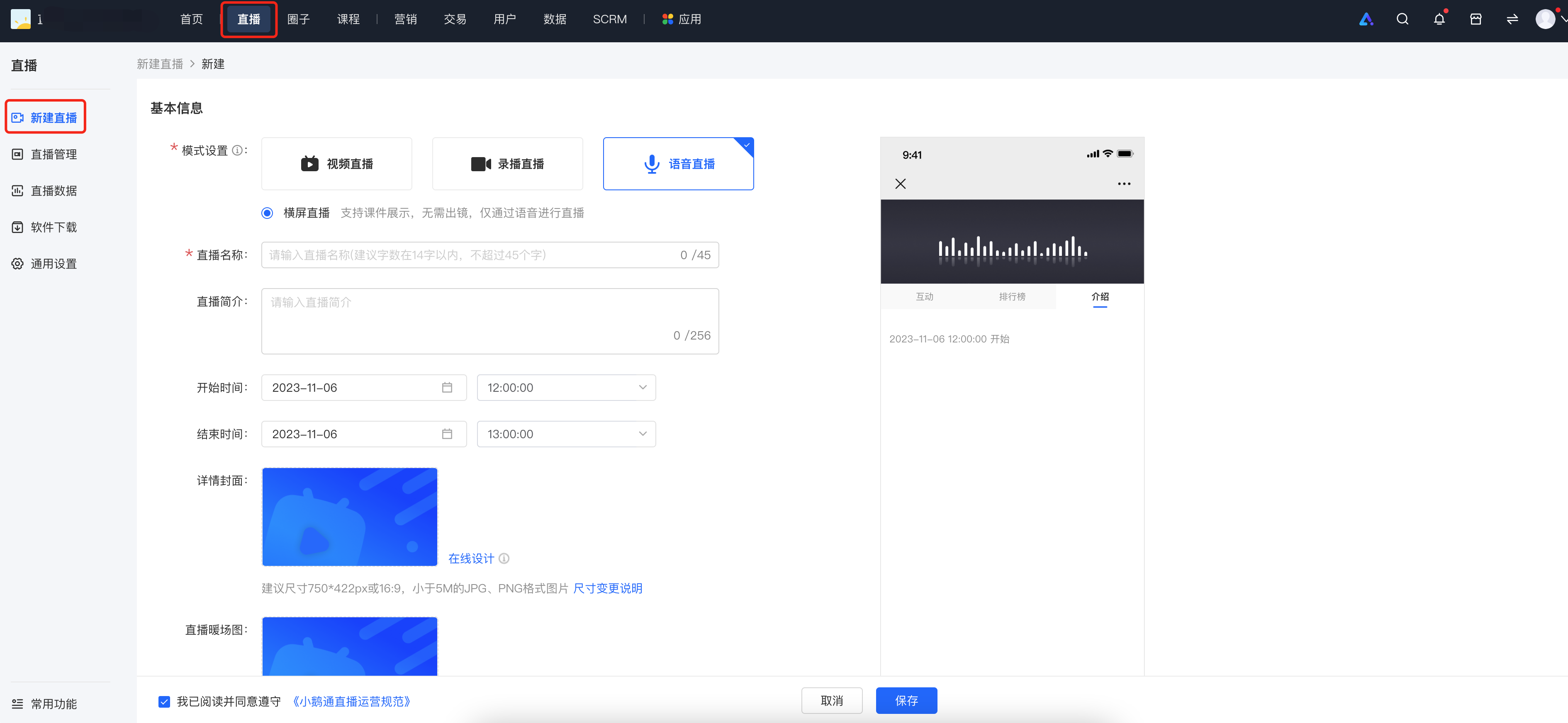
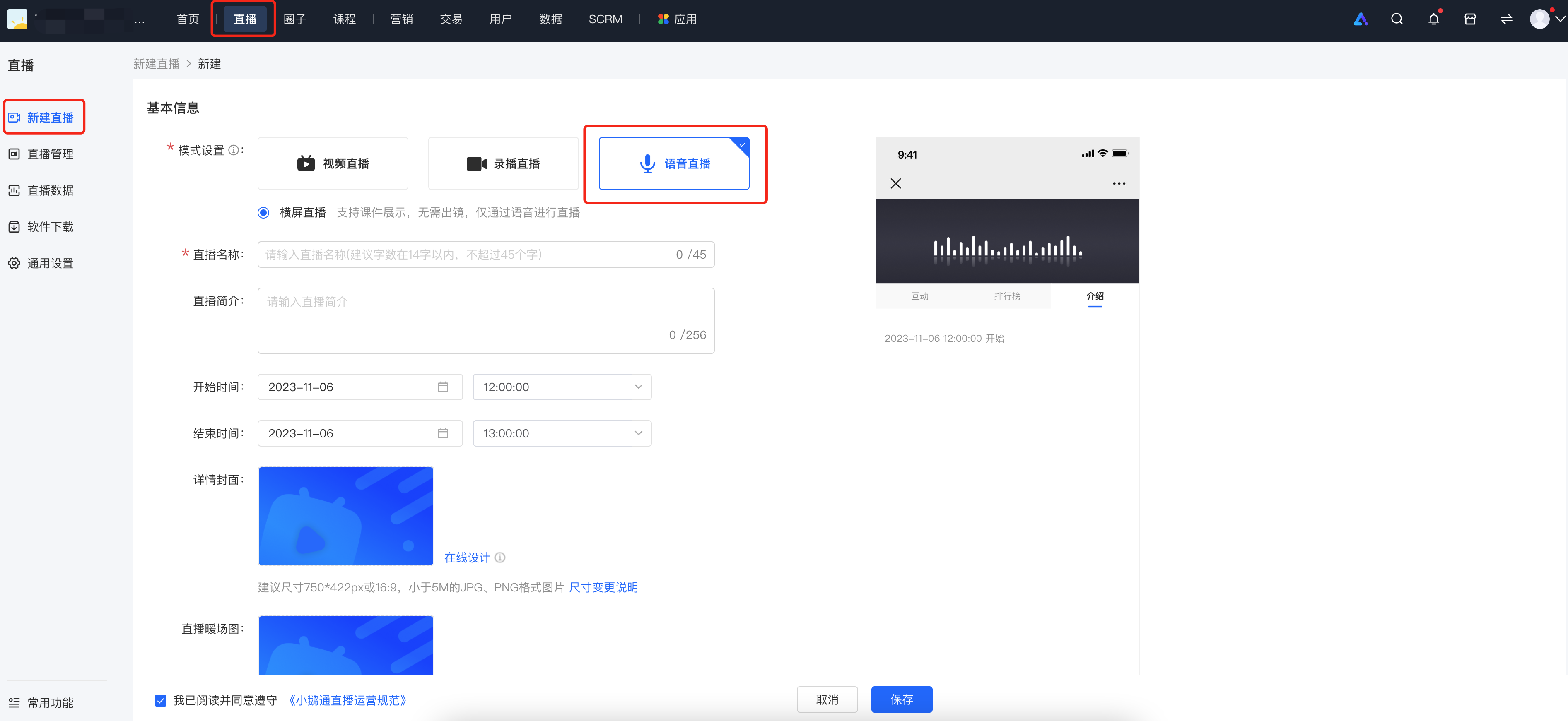
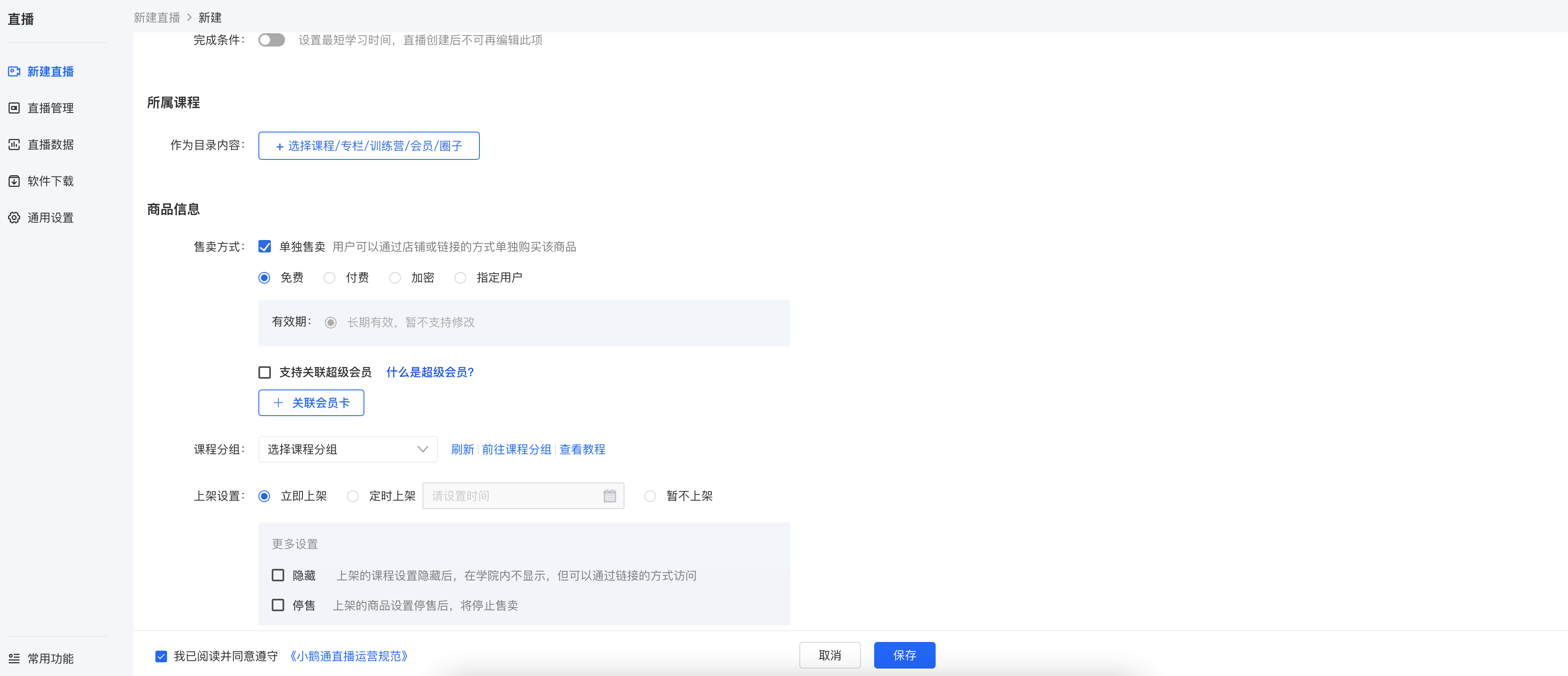
2. Select the \[Voice Live Broadcast\] mode, fill in relevant information (basic information, product information, listing settings), and click Save to complete the creation of the live broadcast;
**Step 2: Share the live broadcast (Management background)**
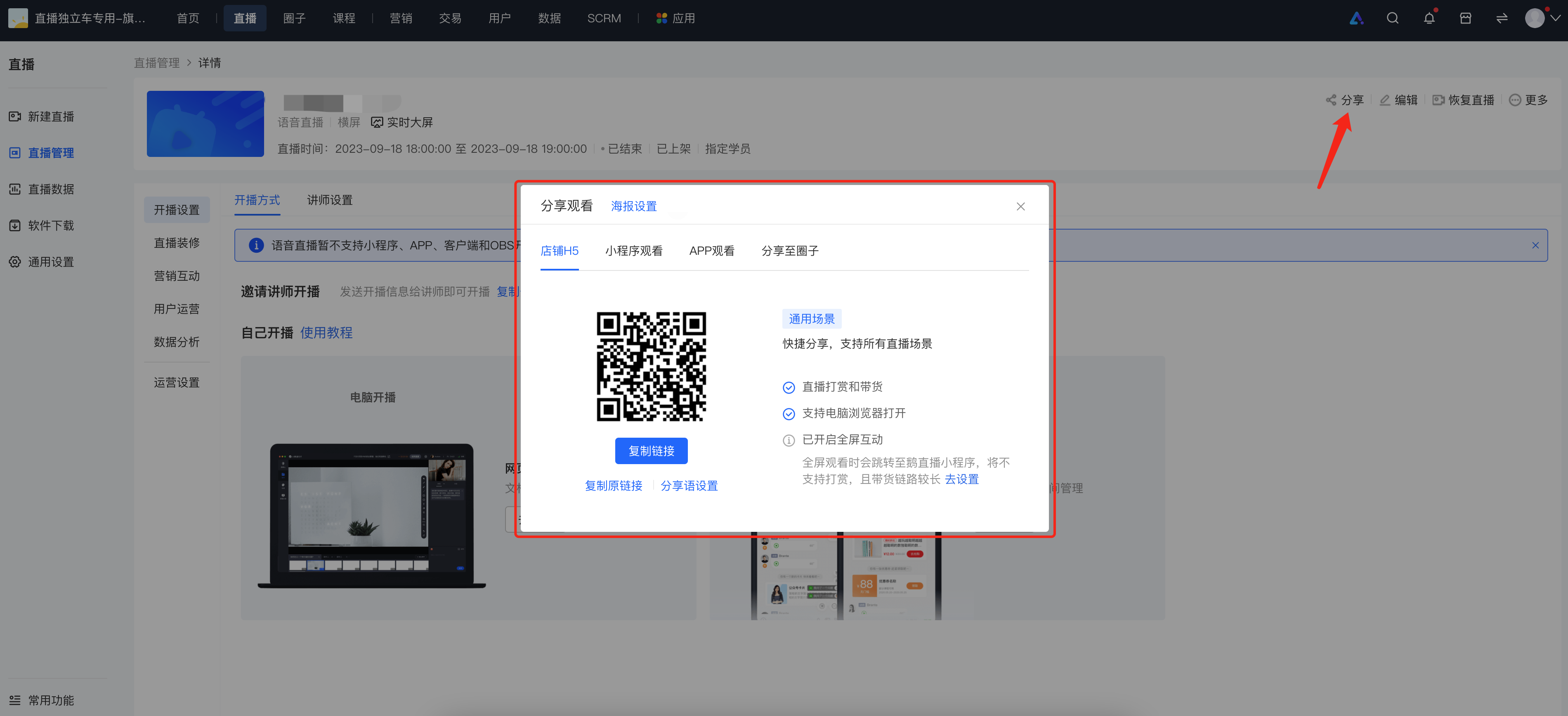
1. After the creation is completed, on the live - broadcast details page, click the \[Share\] button to get the QR code and link of the live - broadcast room, and share them with students;
**2. H5 - end sharing**
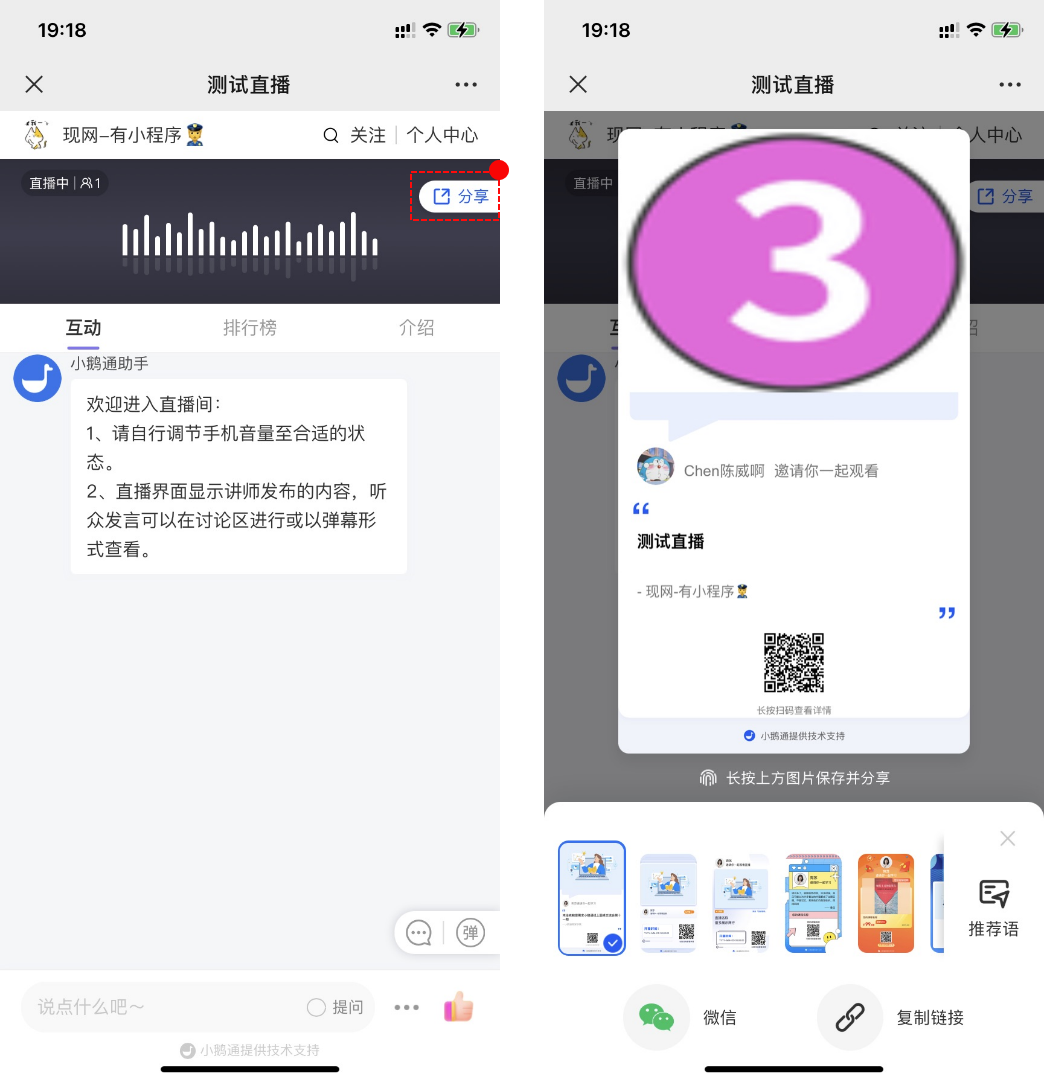
On the mobile - phone side, you can get the live - broadcast invitation card and share it through channels such as Moments, WeChat groups, and Official Accounts
Method for creating an invitation card: \[Live - broadcast room\] → \[Invitation influencer list\] → \[Click the share course button\] → Long - press the picture to save → Send and share
**
**
**Step 3: Instructors start the live broadcast (H5, Web side)**
**1. Web - side voice live - broadcast room**
**(1) Enter the web live - broadcast room**
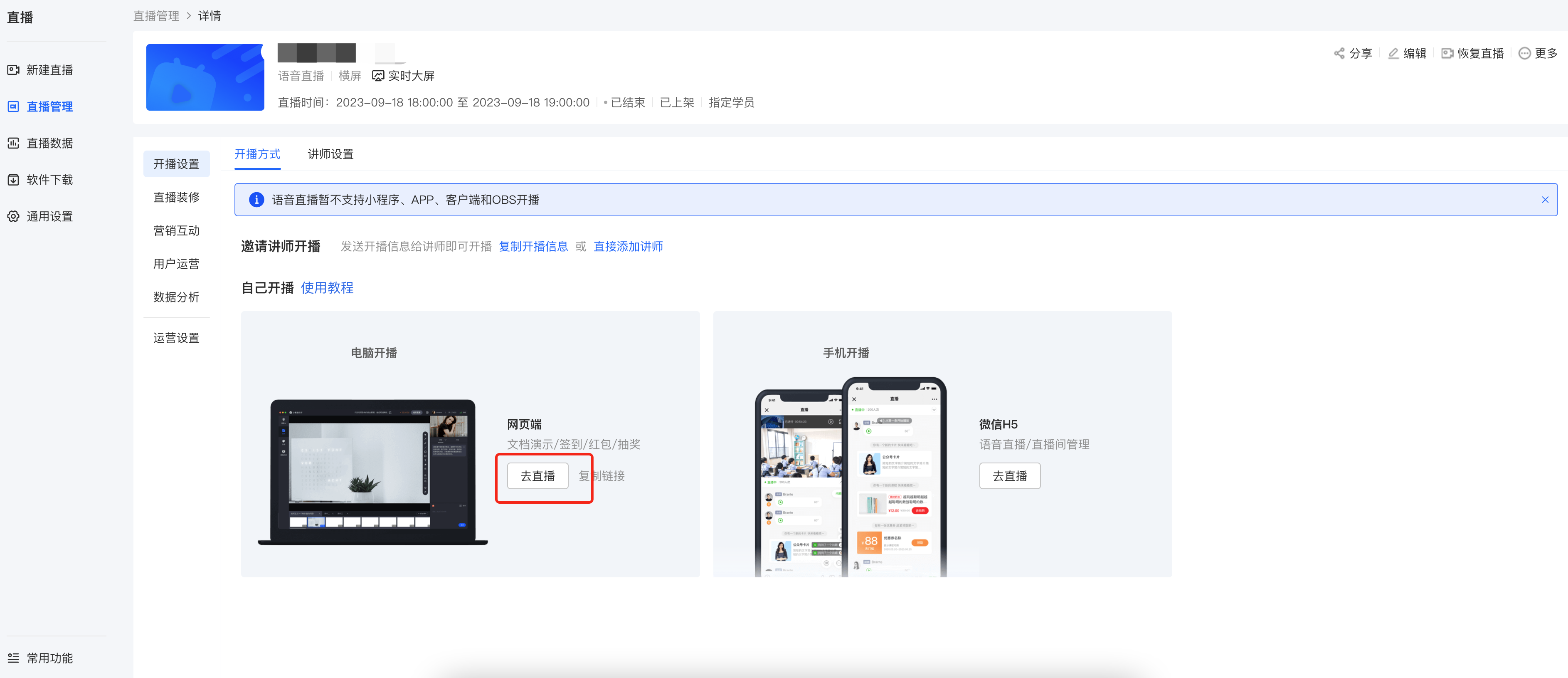
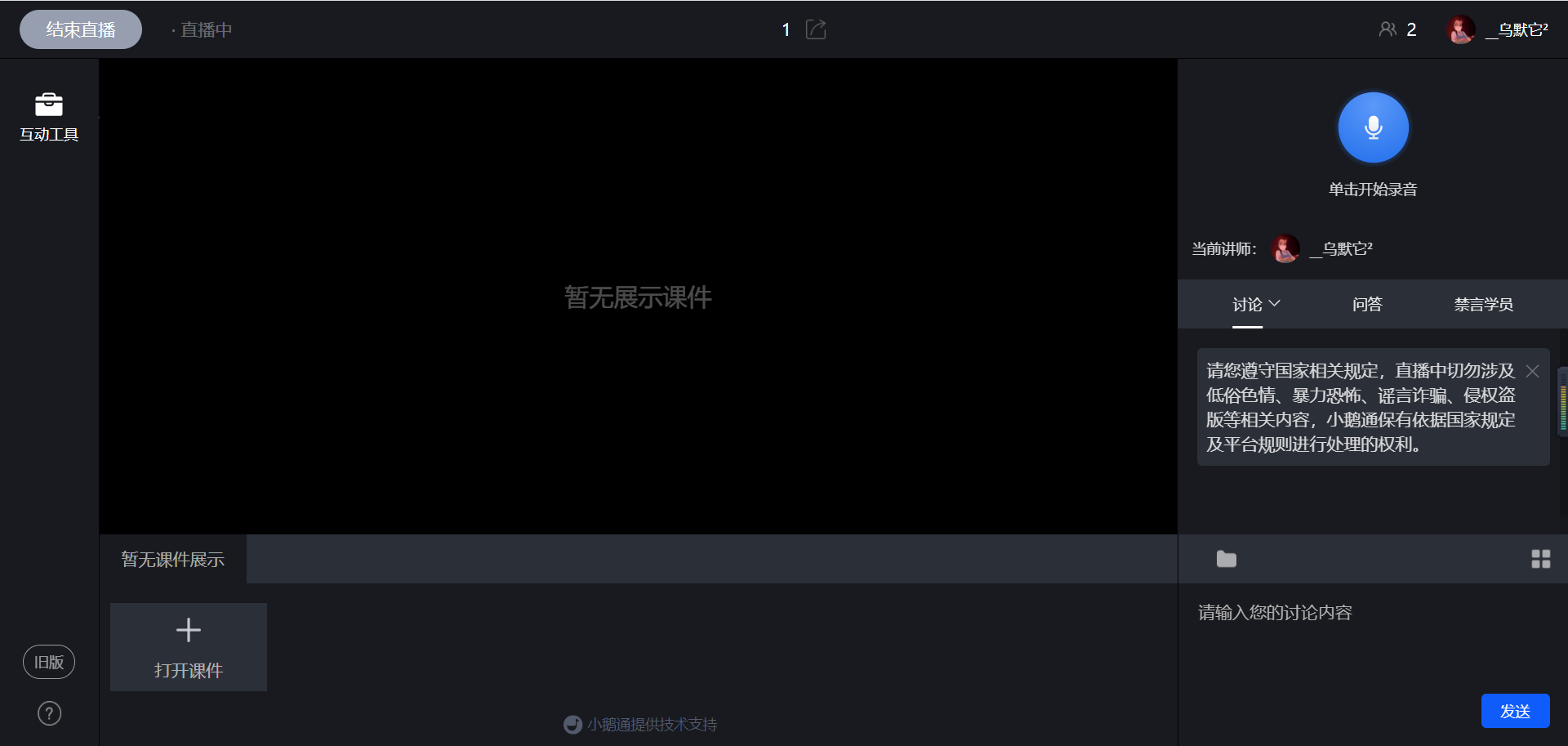
After creating a voice live broadcast, the instructor clicks \[Live - broadcast settings\] - \[Live - broadcast method\] - \[Start the live broadcast by myself\], selects the web side, opens the live - broadcast room address, scans the QR code with WeChat to log in, and then enters the live - broadcast room page, and clicks \[Start live broadcast\];
**(2) Send voice**
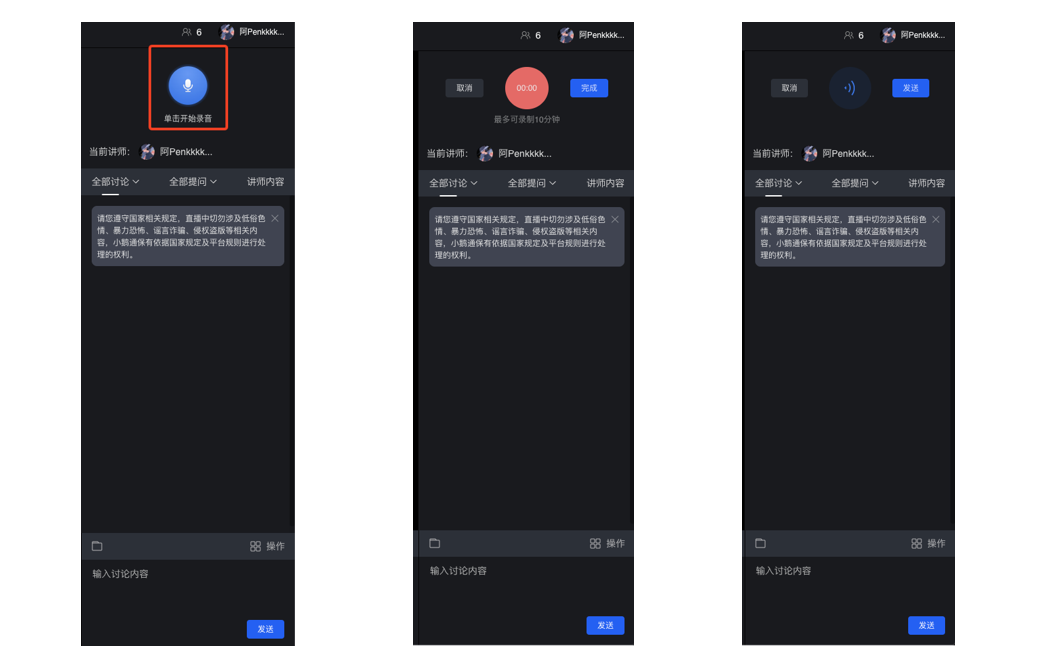
Click the microphone icon to start voice recording;
Click to end voice recording. Click \[Complete\] to finish voice recording, click \[Cancel\] to cancel sending;
After voice recording is completed, click the send button to send the voice, click \[Cancel\] to cancel sending
**(3) Courseware display**
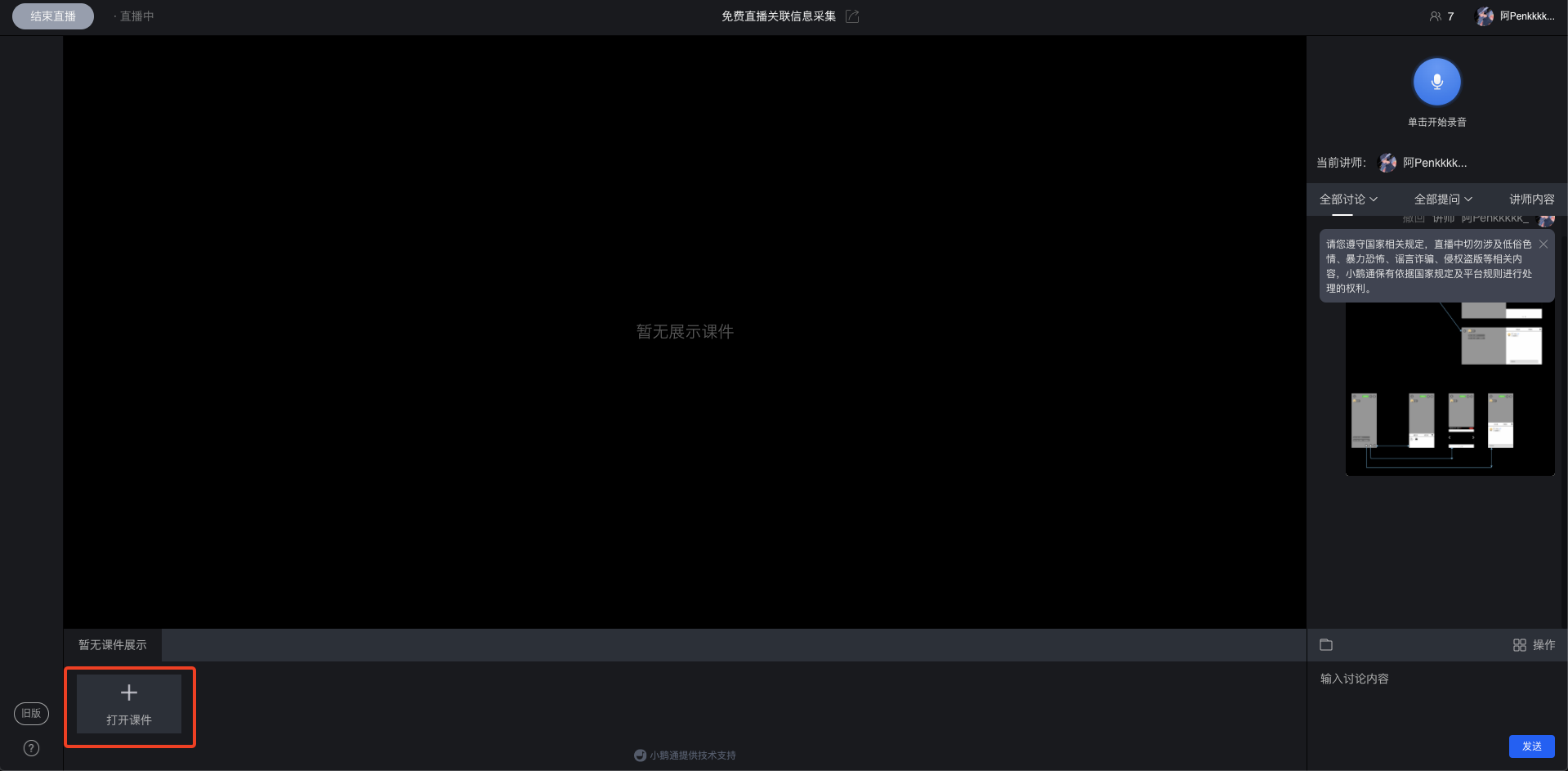
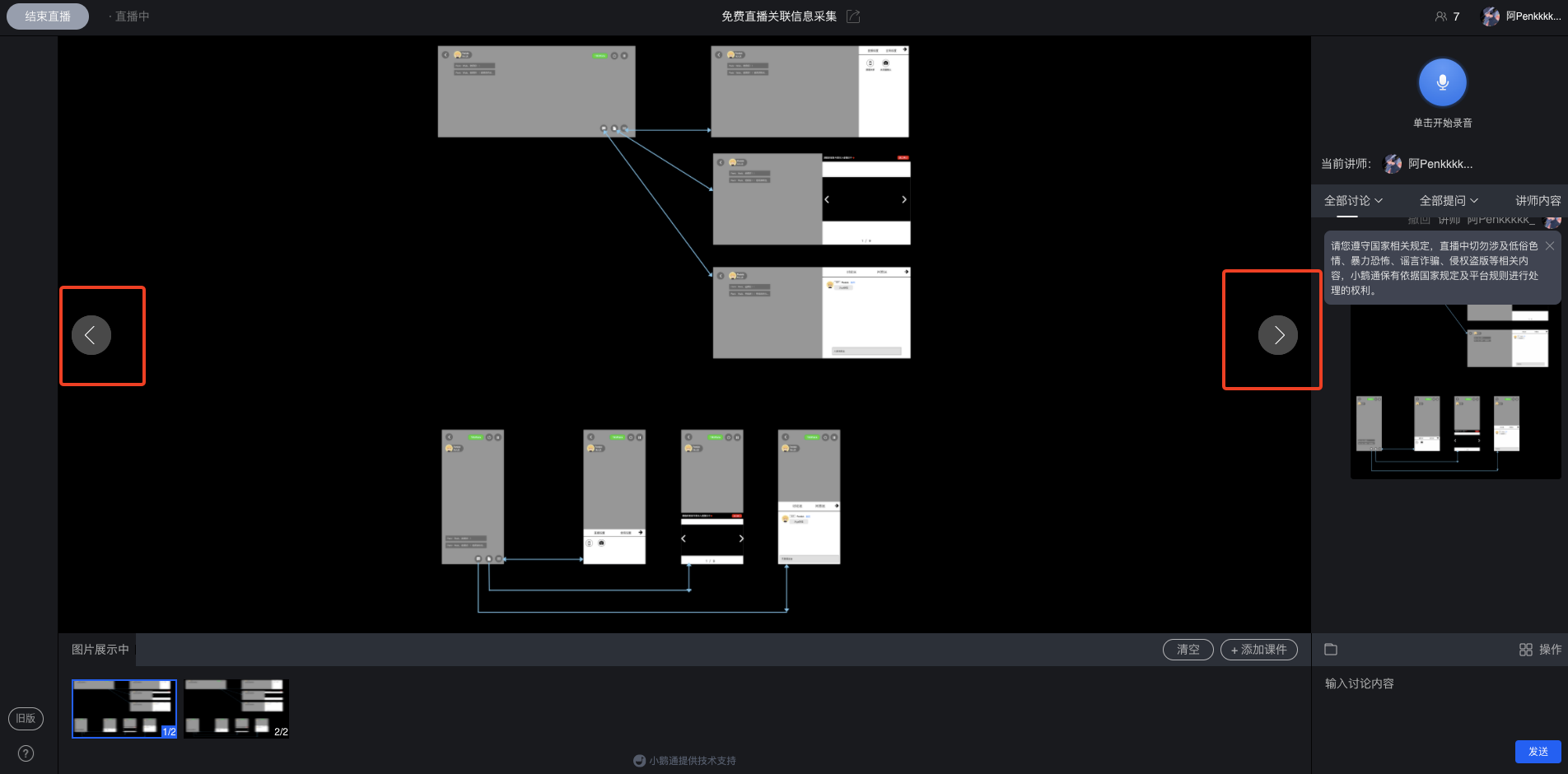
Click \[Open courseware\] at the bottom of the live - broadcast room to upload pictures, supporting single - picture or multi - picture upload;
After uploading, click the left and right arrows in the courseware display area to turn pages, and the student side will synchronize the page - turning;
Click the \[Folder\] button in the lower - right corner to enter the material library, where you can upload and send files in other formats;
**(4) End the live broadcast**
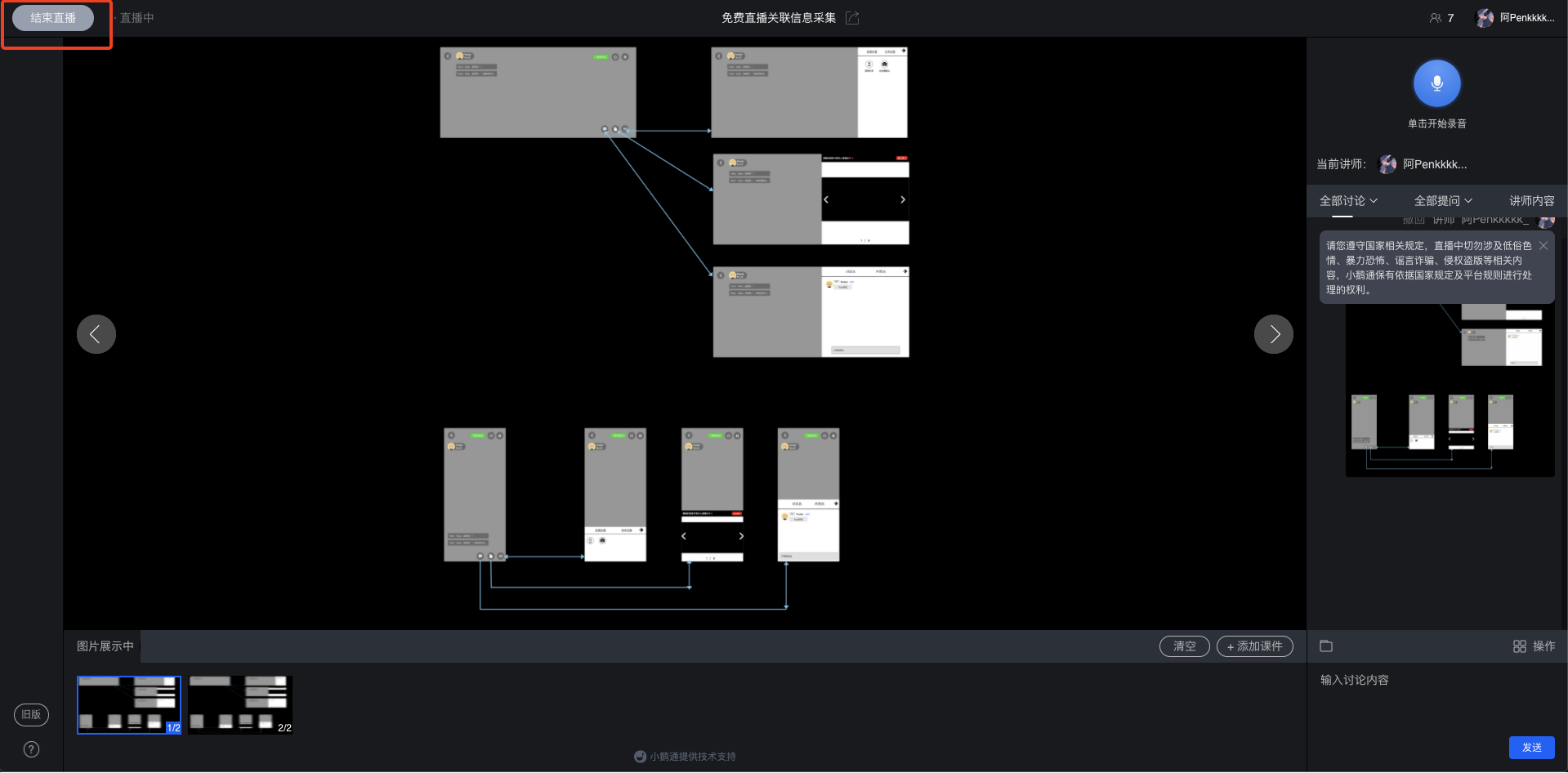
When the instructor needs to end the live broadcast, click the operation button in the upper - left corner to end the live broadcast.
**2. H5 voice live - broadcast room**
**(1) Enter the H5 live - broadcast room**
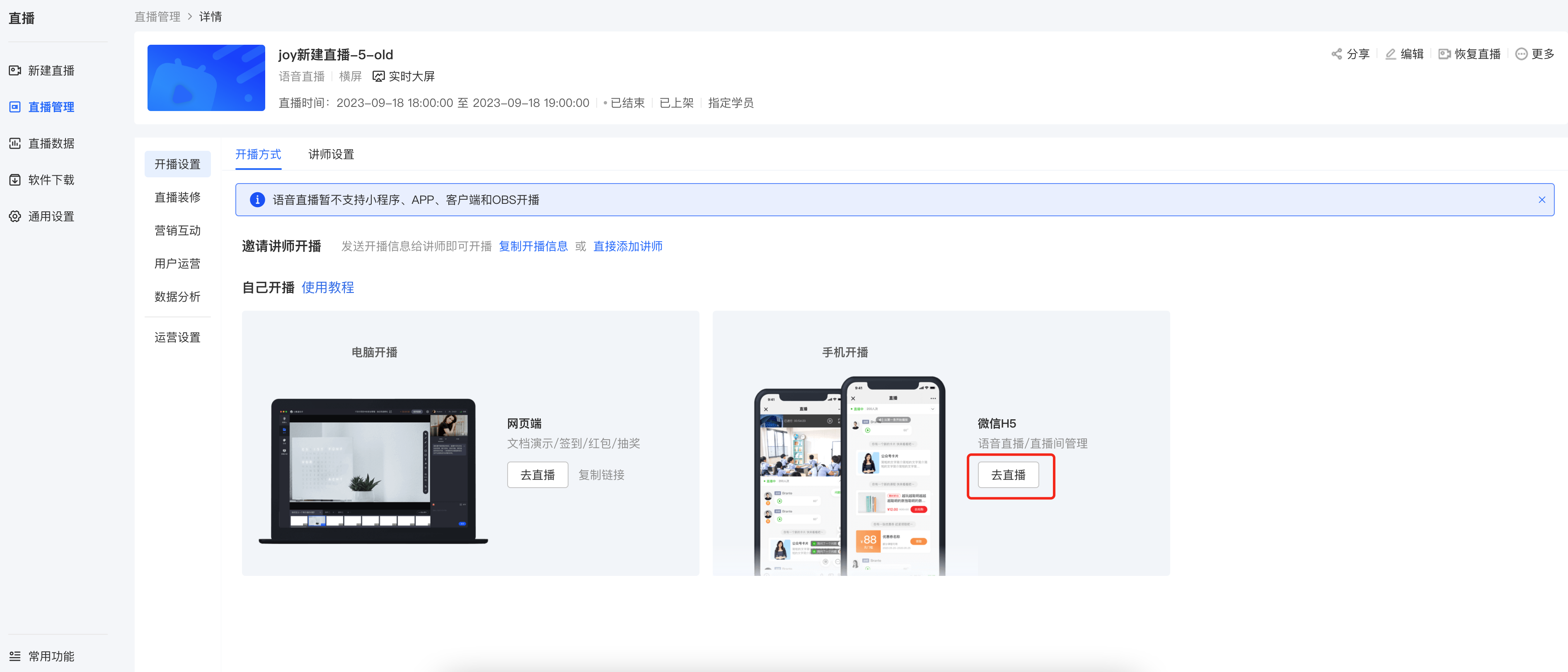
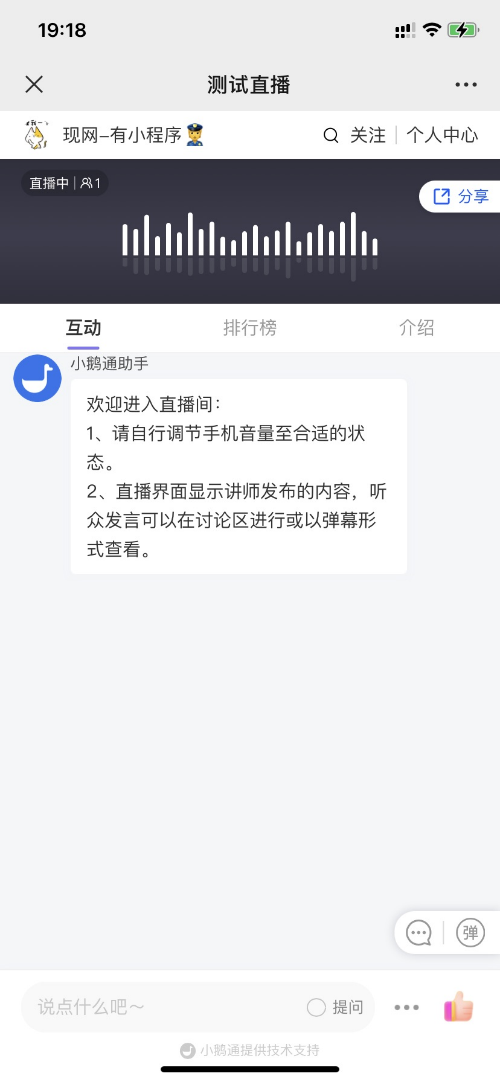
After creating a voice live broadcast, the instructor clicks \[Live - broadcast settings\] - \[Live - broadcast method\] - \[Start the live broadcast by myself\], selects 'WeChat H5' to start the live broadcast, and scans the QR code with WeChat on the mobile phone to enter the live - broadcast room for the live broadcast.
**(2) Send voice**
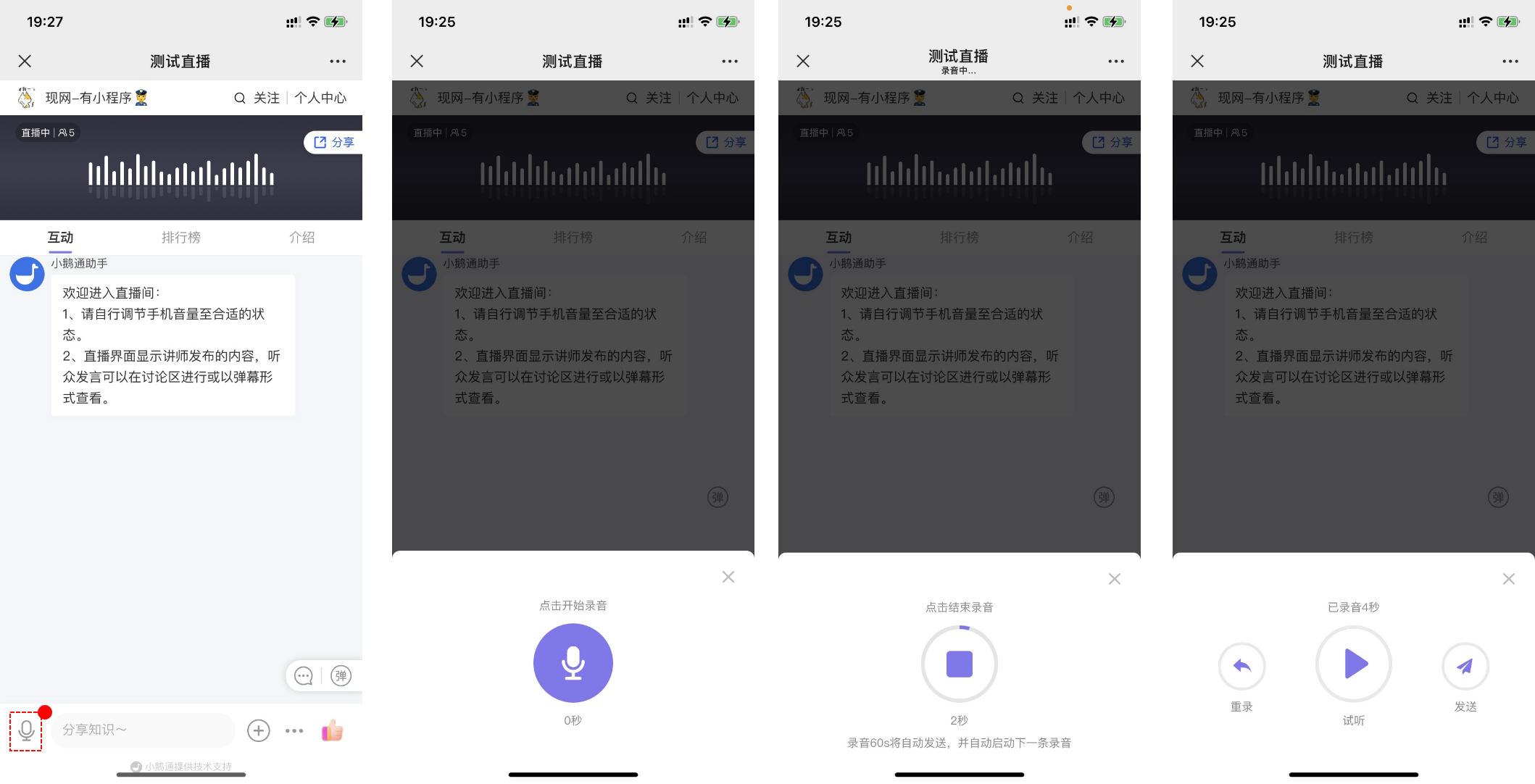
Click the microphone icon to start voice recording;
Click to end voice recording. Click \[Complete\] to finish voice recording, click \[Cancel\] to cancel sending;
After voice recording is completed, click the send button to send the voice, click \[Cancel\] to cancel sending
In the elink live - broadcast room, instructors can record voice continuously. Instructors do not need to manually click to send the recording, and the system will automatically cut the recording into 60 - second voice messages and send them out.
This allows instructors to teach at their own pace without being interrupted by the action of sending voice messages.
**(3) Courseware display**
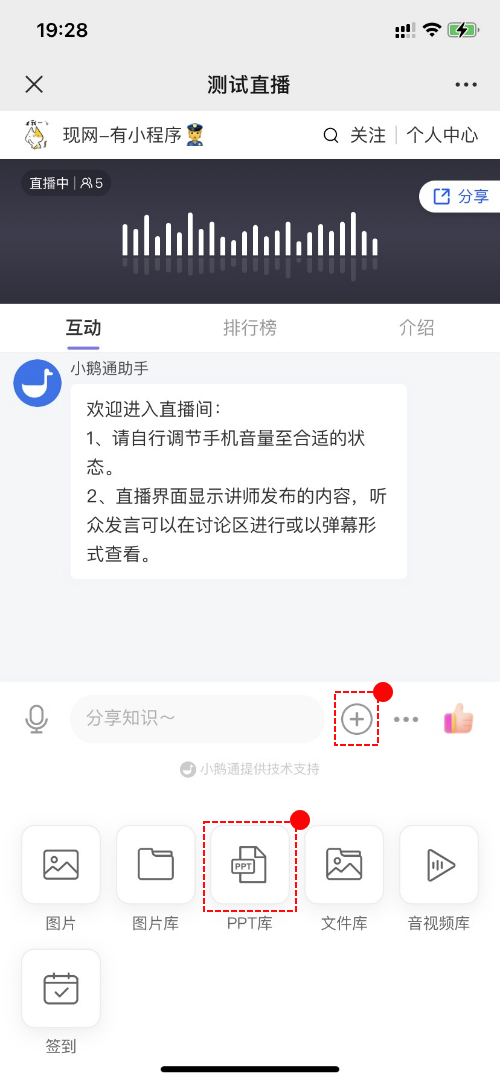
Click \[+\] in the lower - left corner of the live - broadcast room, then click the PPT library to upload pictures, supporting single - picture or multi - picture upload;
After uploading, the corresponding courseware will be displayed at the top of the live - broadcast room. Slide to turn pages;
Click the file library or audio - video library to upload content in other formats (need to upload on the web side)
**(4) End the live broadcast**
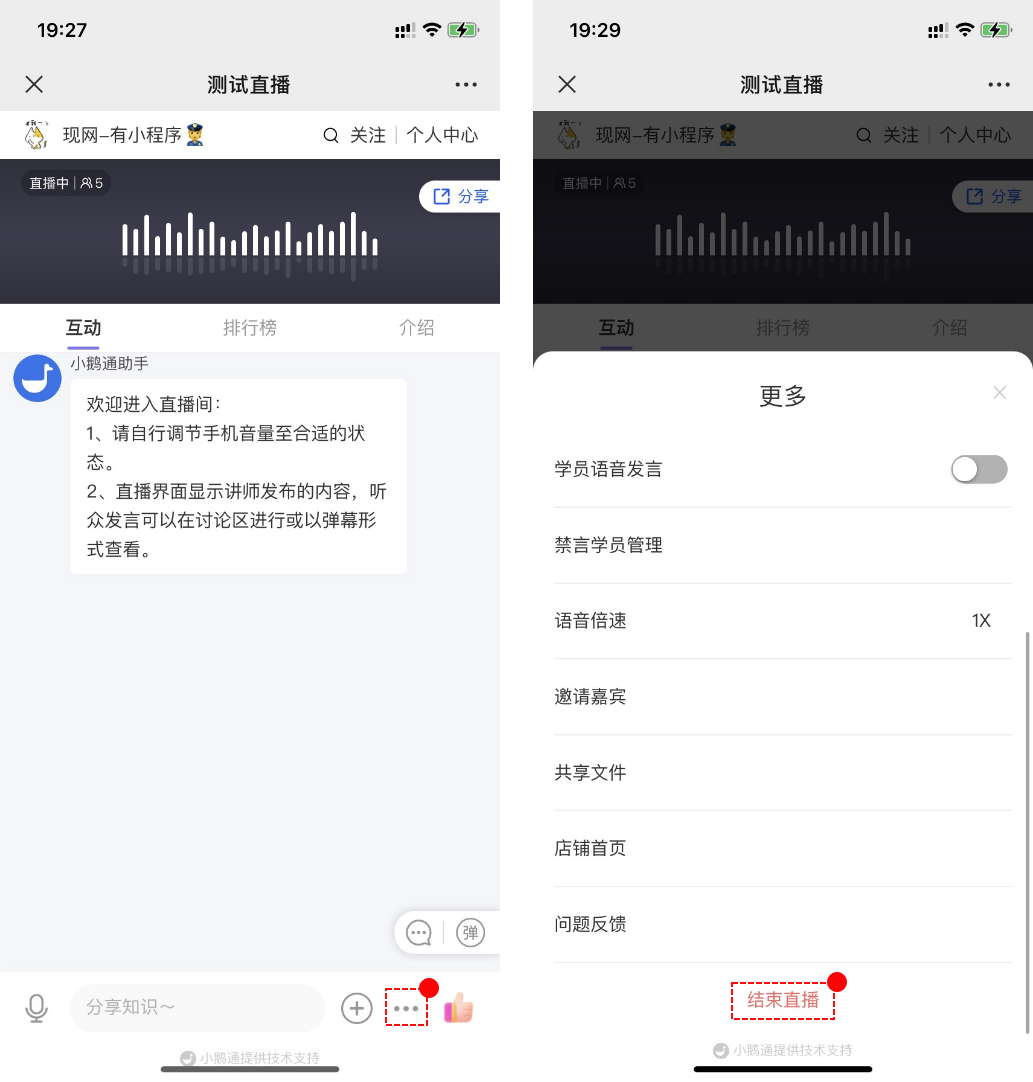
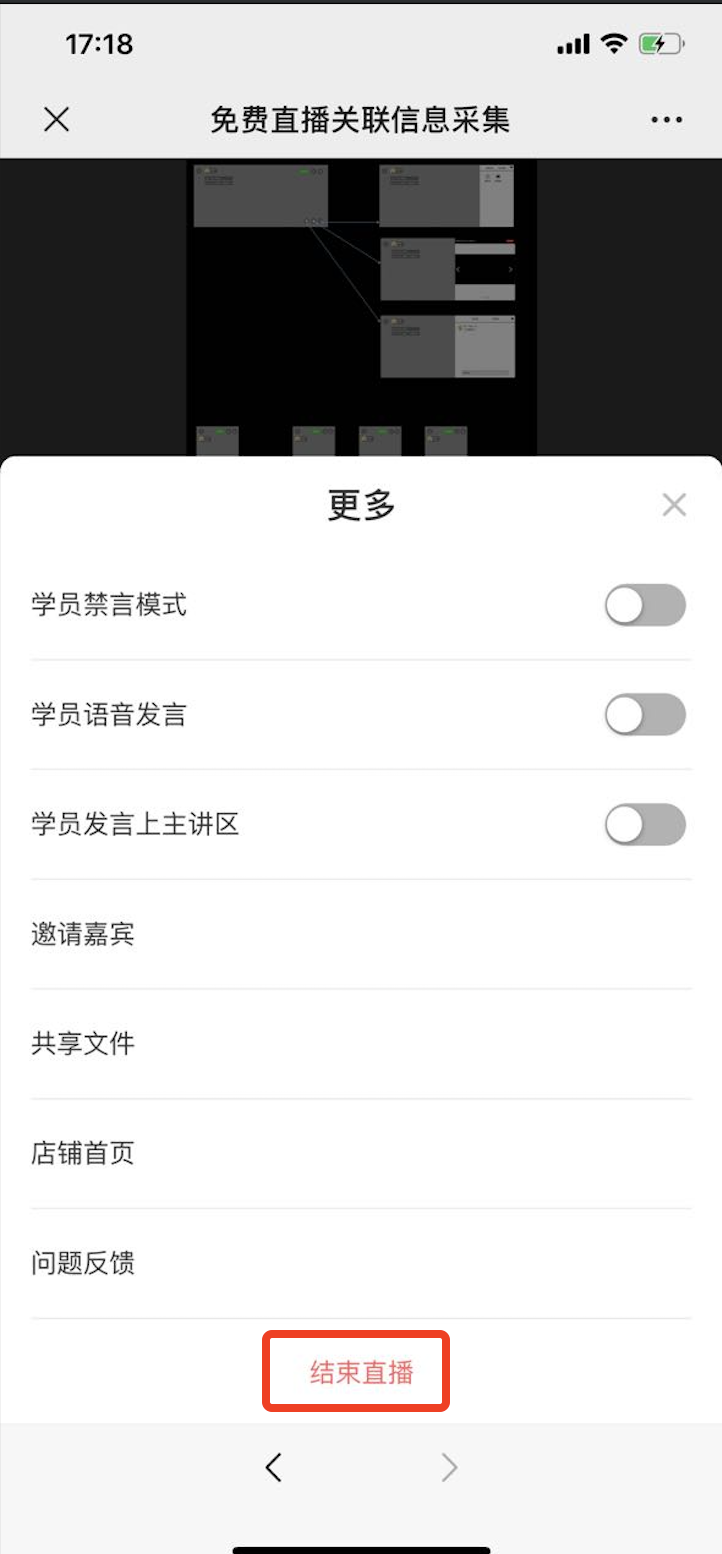
When the instructor needs to end the live broadcast, click the \[More\] button in the lower - right corner, and click 'End live broadcast' in the pop - up drop - down box to end the live broadcast.
**Step 4: Watch the live broadcast (H5 store or elink Live Mini Program)**
1. Users can enter the live - broadcast room by scanning the QR code or opening the link.
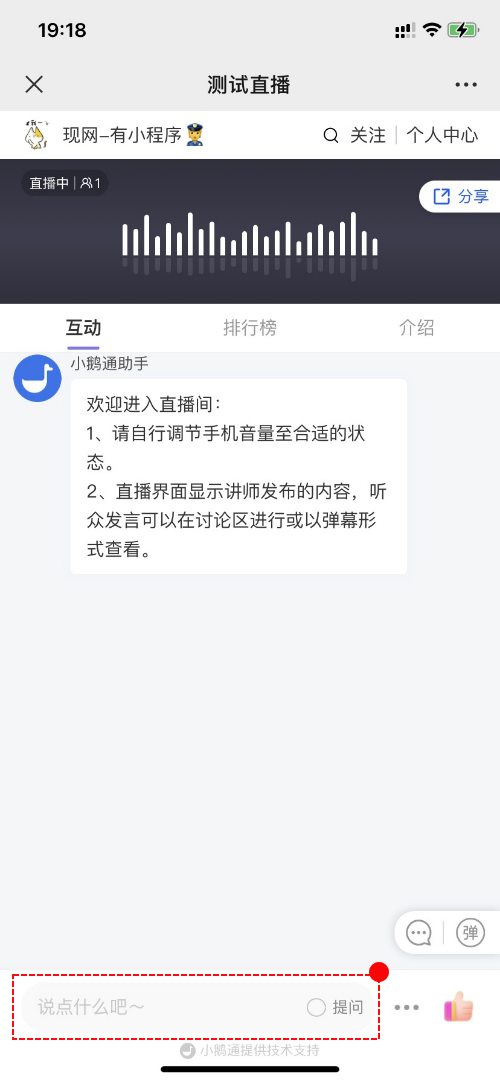
2. After entering the live - broadcast room, students can interact with instructors by sending text content, asking questions, etc.