# Tutorial on Using the Video Mode for Recorded and Live Streams

<div data-elink-language-switch="1" id="bkmrk-%E4%B8%AD%E6%96%87" style="border:1px solid #d6d9de;border-radius:6px;padding:10px 12px;margin:0 0 18px 0;background:#f8fafc;font-size:14px;">[中文](/books/091d5/page/3295c)</div>**<span style="font-size:17px;">I. Function Introduction</span>**

<span style="font-size:14px;">Students can participate in the live stream in real - time in the video mode and watch the video content uploaded by the teacher. They can also interact with the teacher by sending voice messages, texts, courseware, and videos in real - time.</span>

**<span style="font-size:17px;">II. Purpose of Use</span>**

<span style="font-size:14px;">Recorded live stream - video mode is suitable for scenarios where there are videos and the live - stream content is relatively lightweight. Merchants can upload videos to the live - stream room, and the videos will start playing once the live stream begins.</span>

<span style="font-size:17px;">**III. Use Scenarios**</span>

<span style="font-size:14px;">It is suitable for live streams where the lecturer can prepare recorded videos in advance. The lecturer prepares the recorded videos in advance, and users can view the videos uploaded by the lecturer during the live stream. The lecturer can explain the content in the form of voice or text.</span>

<span style="font-size:17px;">**IV. Operation Path**</span>

<span style="font-size:14px;">Merchant side: Merchant background → Create recorded live stream → Start live stream</span>

<span style="font-size:17px;">**V. Usage Tutorial**</span>

![91056100_1699239435.jpg](https://wechatapppro-1252524126.file.myqcloud.com/help_document/image/ueditor/91056100_1699239435.jpg)

<span style="font-size:14px;">**<span style="font-size:14px;font-family:'微软雅黑', sans-serif;"></span>**</span>

<span style="font-size:14px;"></span>

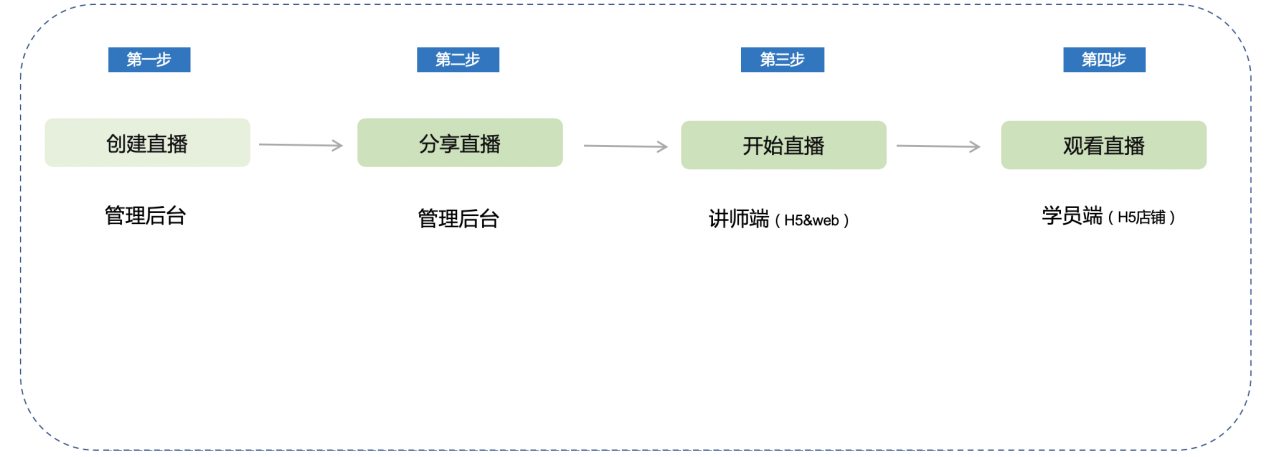
<span style="font-size:14px;">**Step 1: Create a live stream (Management background)**</span>

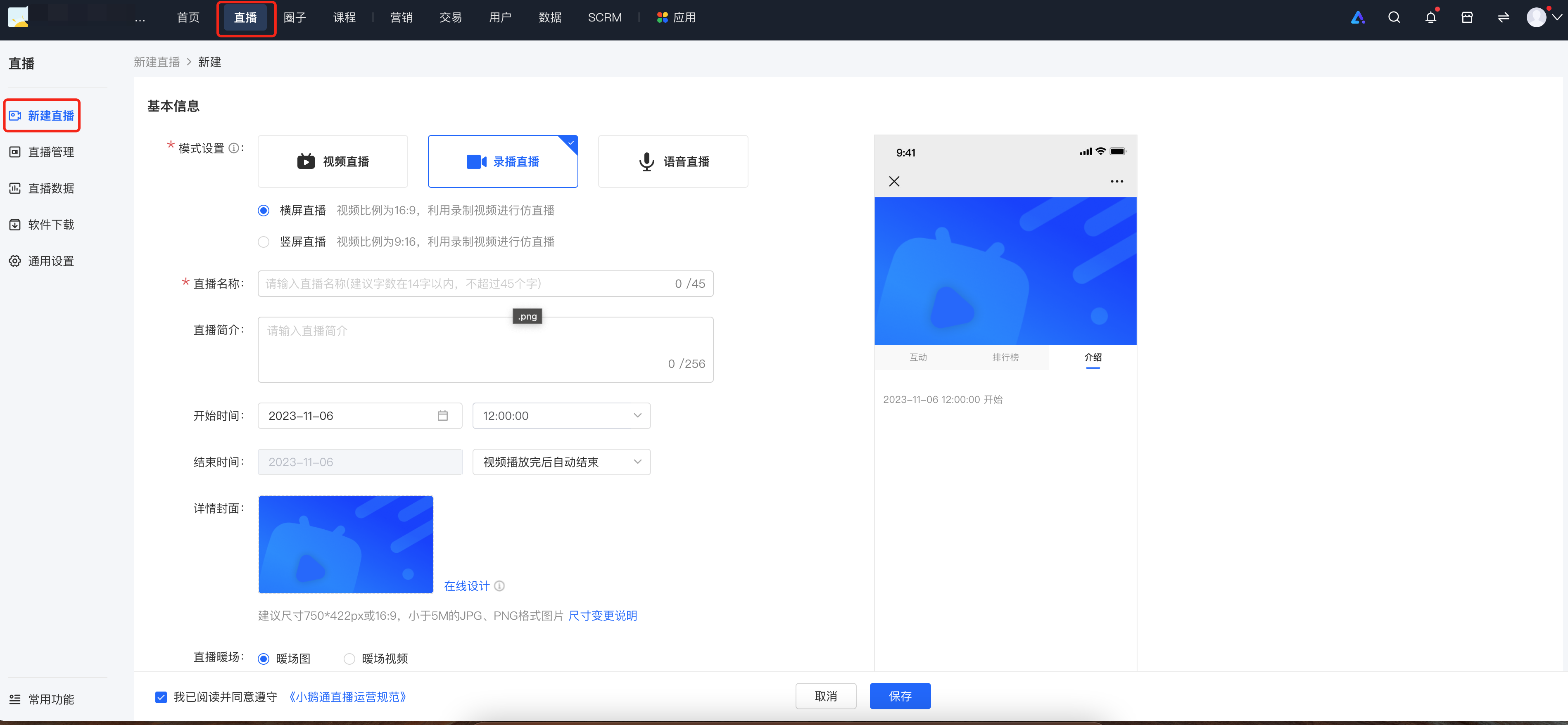
<span style="font-size:14px;">1. Enter the merchant management background - click on Live Stream - New Live Stream, and select Recorded Live Stream.</span>

![image.png](https://wechatapppro-1252524126.file.myqcloud.com/help_document/image/ueditor/66895400_1699239706.png ".png")

<span style="text-align:center;font-size:14px;"></span>

**<span style="font-family:'Helvetica Neue', Helvetica, 'PingFang SC', 'Microsoft YaHei', 'Source Han Sans SC', 'Noto Sans CJK SC', 'WenQuanYi Micro Hei', sans-serif;background-image:initial;background-position:initial;background-size:initial;background-repeat:initial;background-attachment:initial;letter-spacing:0pt;vertical-align:baseline;font-size:14px;">(Management background)</span>**<span style="font-size:11pt;font-family:'Helvetica Neue', Helvetica, 'PingFang SC', 'Microsoft YaHei', 'Source Han Sans SC', 'Noto Sans CJK SC', 'WenQuanYi Micro Hei', sans-serif;color:rgb(51,51,51);background-image:initial;background-position:initial;background-size:initial;background-repeat:initial;background-attachment:initial;letter-spacing:0pt;vertical-align:baseline;"></span>

<span style="text-align:center;font-size:14px;"></span>

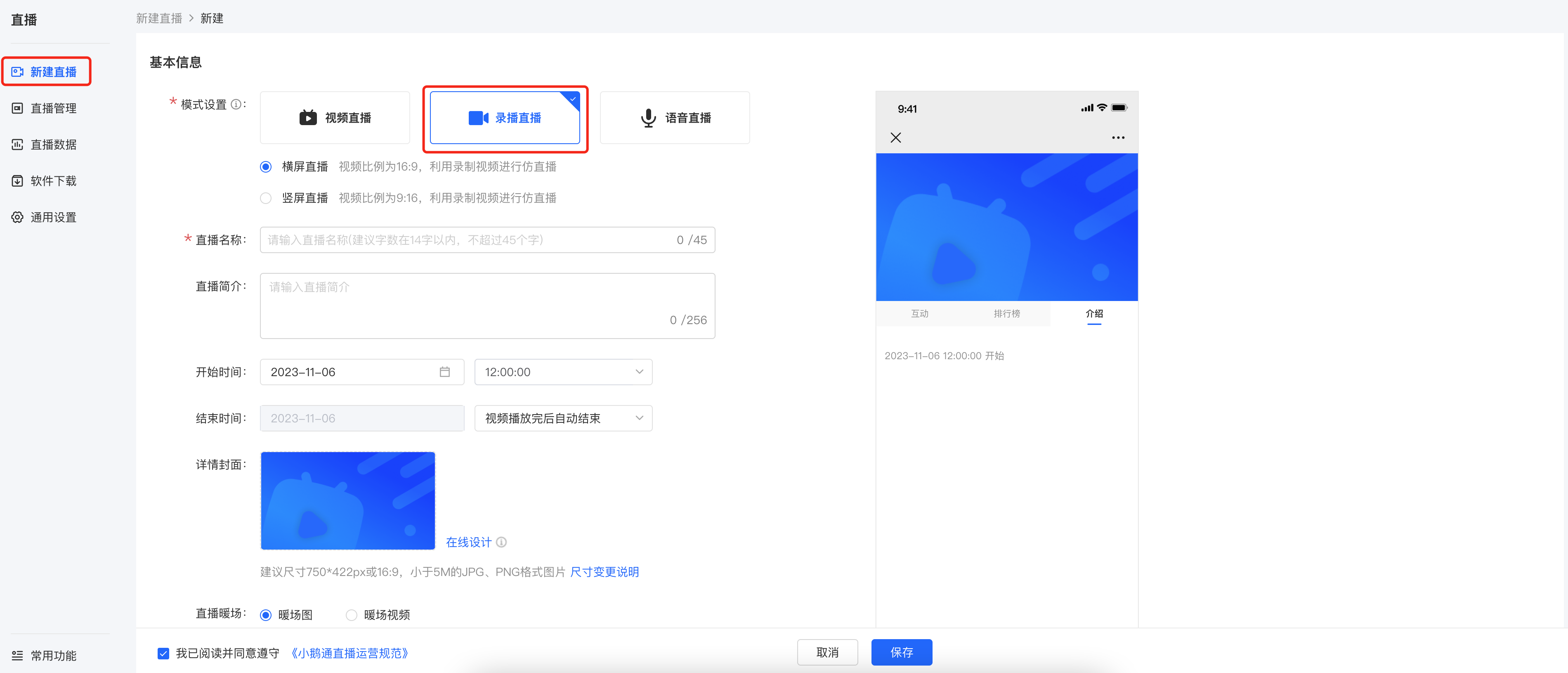
<span style="text-align:center;font-size:14px;">2.</span><span style="font-family:'Helvetica Neue', Helvetica, 'PingFang SC', 'Microsoft YaHei', 'Source Han Sans SC', 'Noto Sans CJK SC', 'WenQuanYi Micro Hei', sans-serif;font-size:10.5pt;letter-spacing:0pt;">Select the 'Recorded Live Stream' mode</span>

![image.png](https://wechatapppro-1252524126.file.myqcloud.com/help_document/image/ueditor/53916000_1699239706.png ".png")<span style="text-align:center;font-size:14px;"></span>

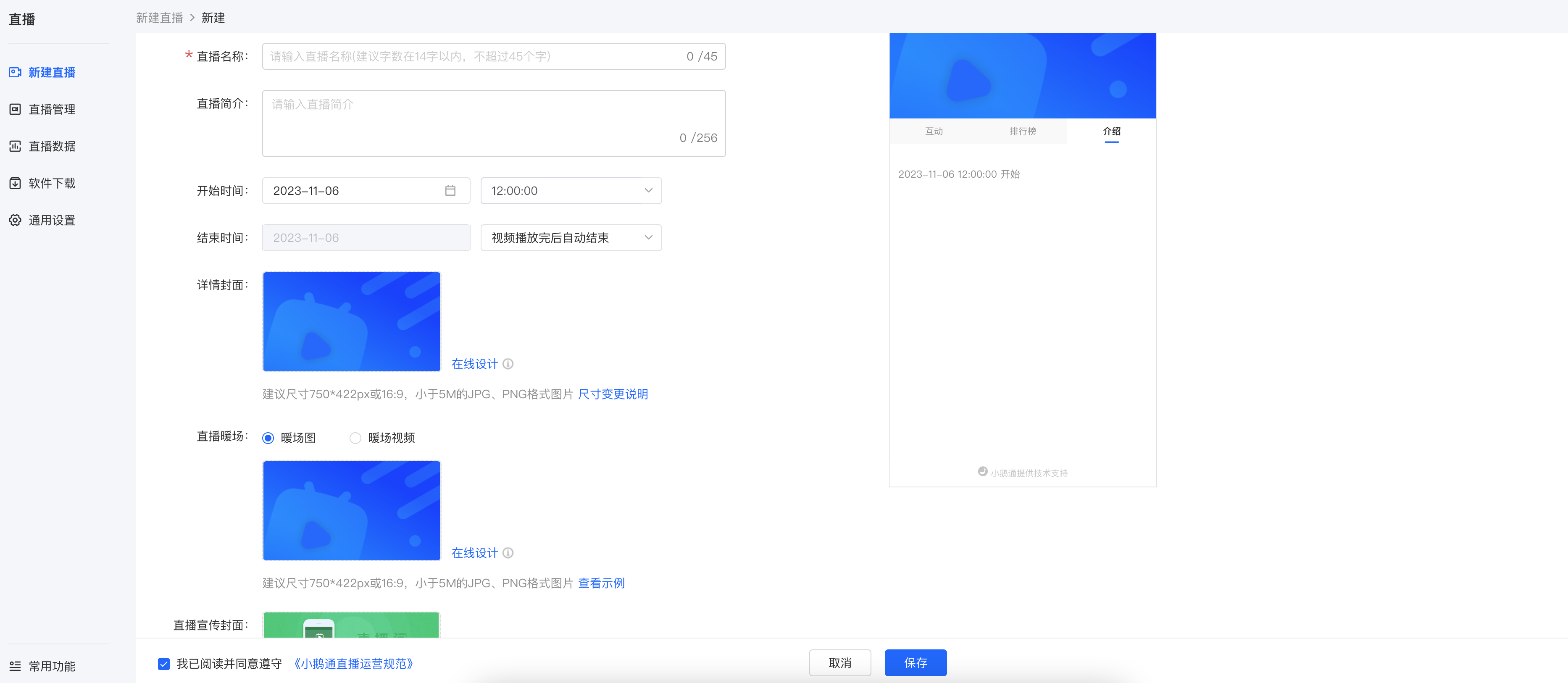
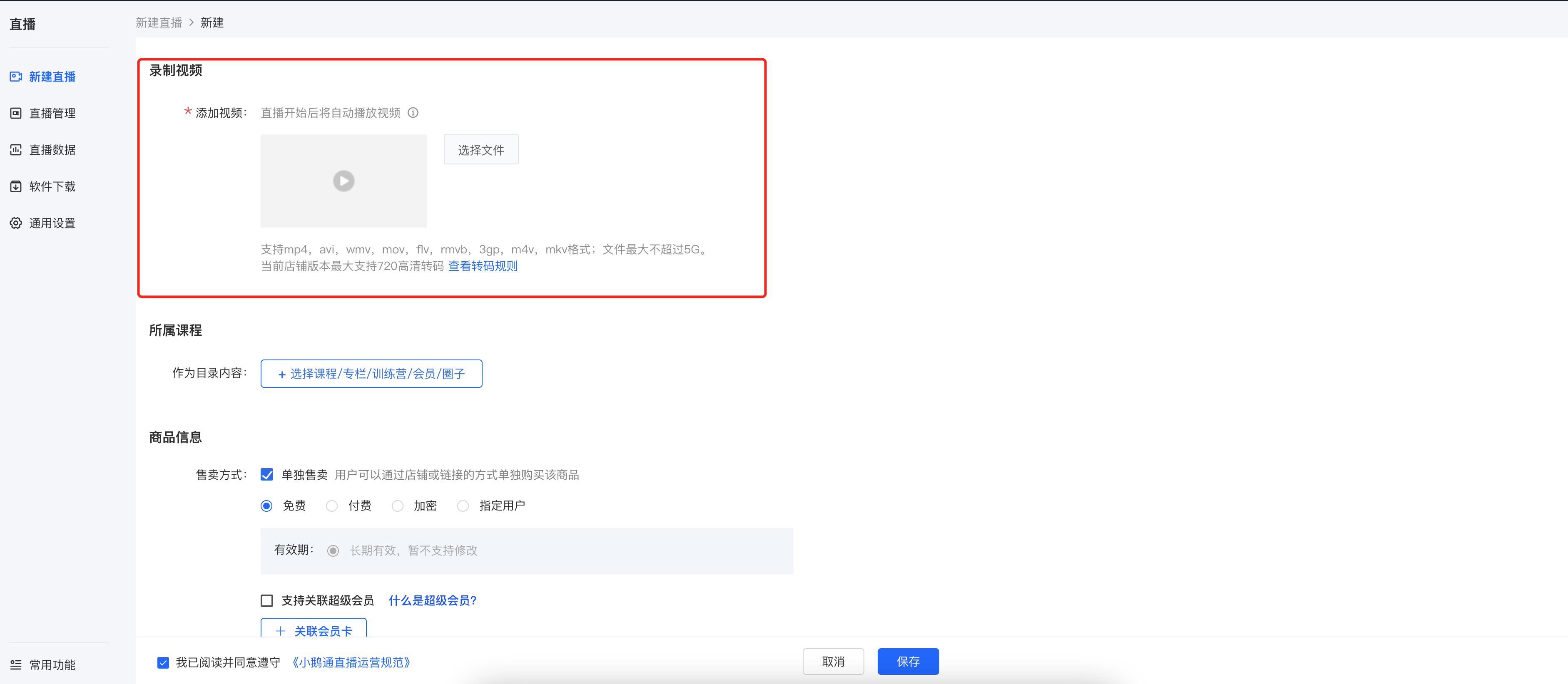
<span style="font-size:10.5pt;font-family:'Helvetica Neue', Helvetica, 'PingFang SC', 'Microsoft YaHei', 'Source Han Sans SC', 'Noto Sans CJK SC', 'WenQuanYi Micro Hei', sans-serif;background-image:initial;background-position:initial;background-size:initial;background-repeat:initial;background-attachment:initial;letter-spacing:0pt;vertical-align:baseline;">3. Fill in the relevant information, click Save, and complete the creation</span><span style="font-size:11pt;font-family:'Helvetica Neue', Helvetica, 'PingFang SC', 'Microsoft YaHei', 'Source Han Sans SC', 'Noto Sans CJK SC', 'WenQuanYi Micro Hei', sans-serif;color:rgb(51,51,51);background-image:initial;background-position:initial;background-size:initial;background-repeat:initial;background-attachment:initial;letter-spacing:0pt;vertical-align:baseline;"></span>

![image.png](https://wechatapppro-1252524126.file.myqcloud.com/help_document/image/ueditor/96762000_1699239660.png ".png")<span style="text-align:center;font-size:14px;"></span>

<span style="font-size:10.5pt;font-family:'Helvetica Neue', Helvetica, 'PingFang SC', 'Microsoft YaHei', 'Source Han Sans SC', 'Noto Sans CJK SC', 'WenQuanYi Micro Hei', sans-serif;background-image:initial;background-position:initial;background-size:initial;background-repeat:initial;background-attachment:initial;letter-spacing:0pt;vertical-align:baseline;">PS: Don't forget to select and upload the video at \[Recorded Videos\] - \[Add Video\]!</span><span style="font-size:11pt;font-family:'Helvetica Neue', Helvetica, 'PingFang SC', 'Microsoft YaHei', 'Source Han Sans SC', 'Noto Sans CJK SC', 'WenQuanYi Micro Hei', sans-serif;color:rgb(51,51,51);background-image:initial;background-position:initial;background-size:initial;background-repeat:initial;background-attachment:initial;letter-spacing:0pt;vertical-align:baseline;"></span>

![image.png](https://wechatapppro-1252524126.file.myqcloud.com/help_document/image/ueditor/16874800_1699239630.png ".png")

<span style="font-size:14px;">**<span style="font-size:14px;font-family:'微软雅黑', sans-serif;"></span>**</span>

**<span style="font-size:14px;">**<span style="font-family:'Helvetica Neue', Helvetica, 'PingFang SC', 'Microsoft YaHei', 'Source Han Sans SC', 'Noto Sans CJK SC', 'WenQuanYi Micro Hei', sans-serif;background-image:initial;background-position:initial;background-size:initial;background-repeat:initial;background-attachment:initial;letter-spacing:0pt;vertical-align:baseline;font-size:14px;">(Management background)</span>**</span>**

**<span style="font-size:14px;">Step 2: Share the live stream (Management background)</span>**

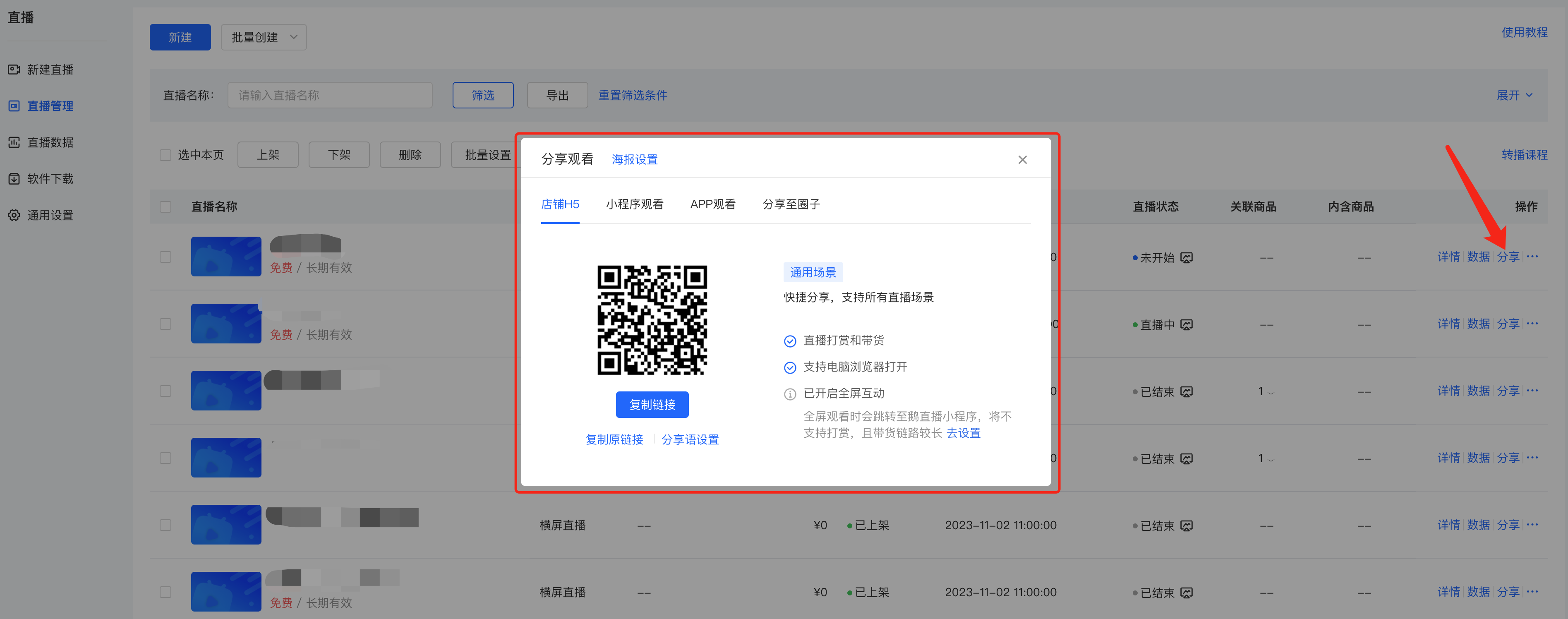
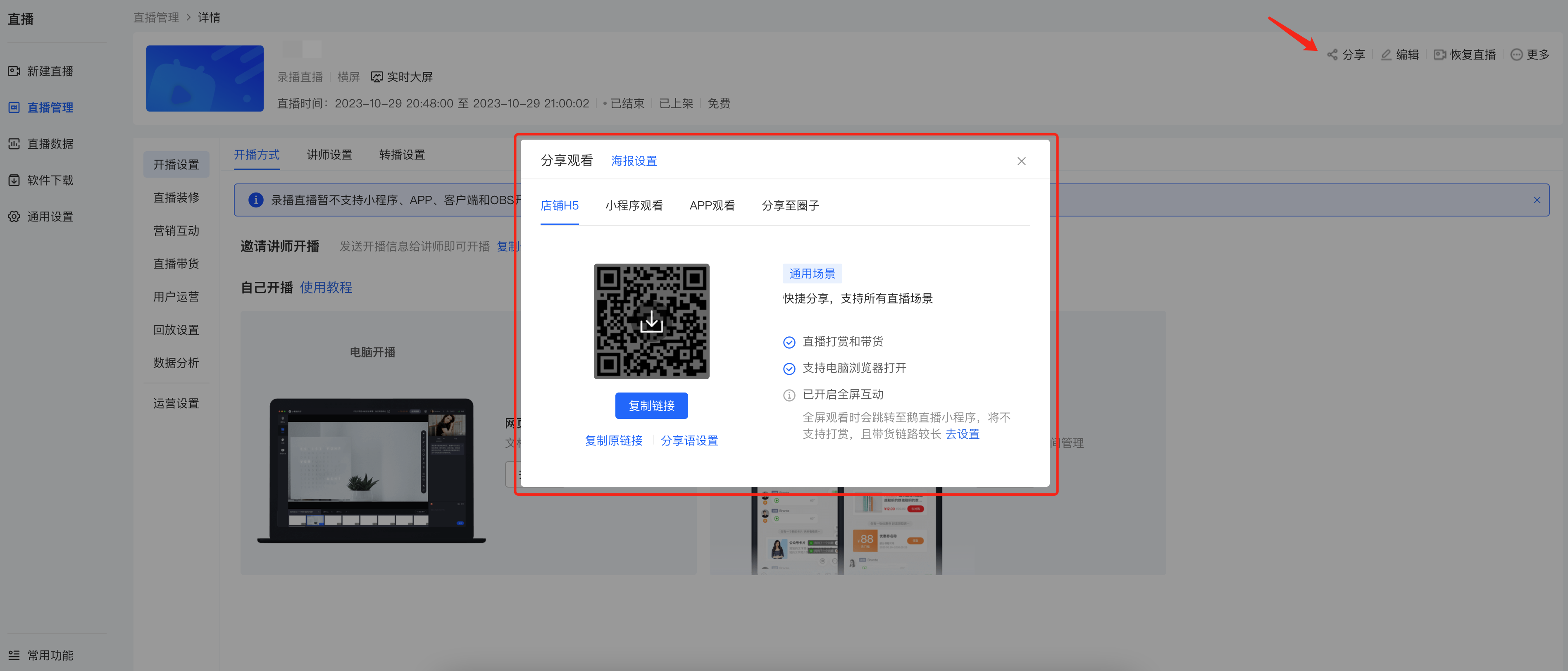
<span style="font-size:14px;">1. After the creation is completed, on the live - stream list page, click the 'Share' button to get the QR code and link of the live - stream room, and share them with students.</span>

![image.png](https://wechatapppro-1252524126.file.myqcloud.com/help_document/image/ueditor/46802000_1699239599.png ".png")

<span style="font-size:14px;font-family:Cambria, serif;"></span>

<span style="font-size:14px;">**<span style="font-family:'Helvetica Neue', Helvetica, 'PingFang SC', 'Microsoft YaHei', 'Source Han Sans SC', 'Noto Sans CJK SC', 'WenQuanYi Micro Hei', sans-serif;background-image:initial;background-position:initial;background-size:initial;background-repeat:initial;background-attachment:initial;letter-spacing:0pt;vertical-align:baseline;">(Management background)</span>**</span>

<span style="font-size:14px;">**<span style="font-family:'Helvetica Neue', Helvetica, 'PingFang SC', 'Microsoft YaHei', 'Source Han Sans SC', 'Noto Sans CJK SC', 'WenQuanYi Micro Hei', sans-serif;background-image:initial;background-position:initial;background-size:initial;background-repeat:initial;background-attachment:initial;letter-spacing:0pt;vertical-align:baseline;">  
</span>**</span>

<span style="font-size:14px;">2. H5 - end sharing</span>

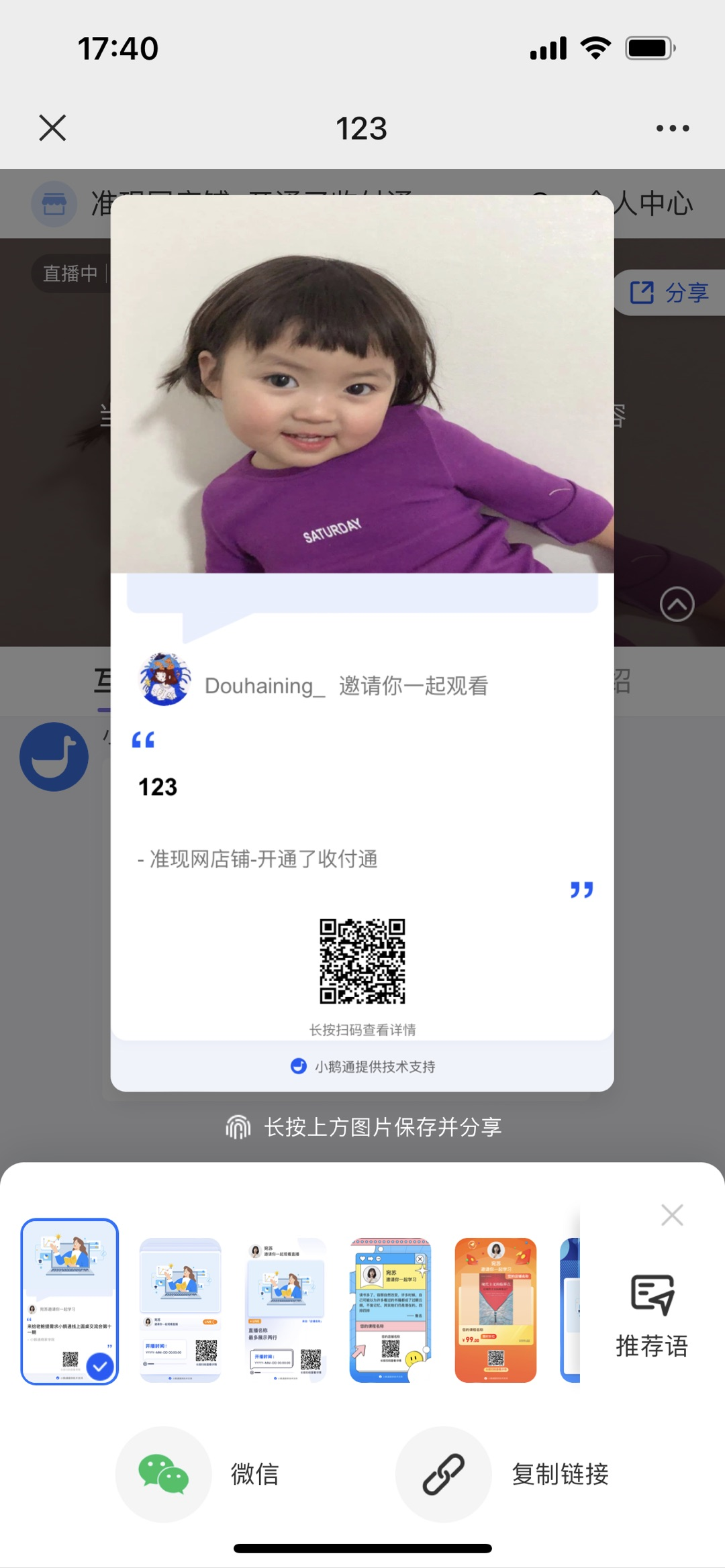
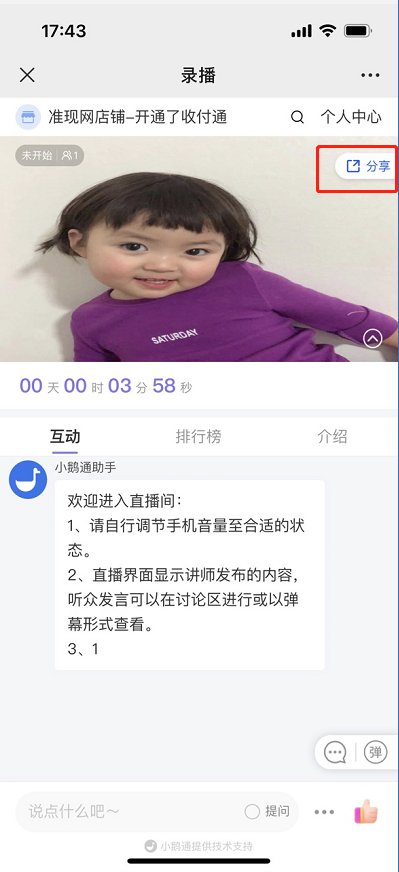
<span style="font-size:14px;">On the mobile end, you can create a live - stream invitation card and share it through channels such as Moments, WeChat groups, and Official Accounts \[Manual adjustment required\].</span>

**<span style="font-size:14px;"><span style="font-family:'PingFang SC', 'Microsoft YaHei', '黑体', '宋体', sans-serif;font-size:14px;white-space:pre-line;background-color:rgb(250,250,250);">Method for creating an invitation card:</span></span>**<span style="font-size:14px;"><span style="font-family:'PingFang SC', 'Microsoft YaHei', '黑体', '宋体', sans-serif;font-size:14px;white-space:pre-line;background-color:rgb(250,250,250);">\[Live - stream room\] → \[Click the share button\] → Long - press the picture to save → Send and share</span></span>

<span style="font-size:14px;"><span style="font-family:'PingFang SC', 'Microsoft YaHei', '黑体', '宋体', sans-serif;font-size:14px;white-space:pre-line;background-color:rgb(250,250,250);">![image.png](https://wechatapppro-1252524126.file.myqcloud.com/help_document/image/ueditor/49721000_1699239437.png ".png")![image.png](https://wechatapppro-1252524126.file.myqcloud.com/help_document/image/ueditor/26032500_1699239438.png ".png")</span></span>

**<span style="font-size:14px;">Step 3: Start the live stream (H5 &amp; web lecturer side)</span>**

**<span style="font-size:14px;">1. Web - end voice live - stream room</span>**

**<span style="font-size:14px;">(1) Enter the web - end live - stream room</span>**

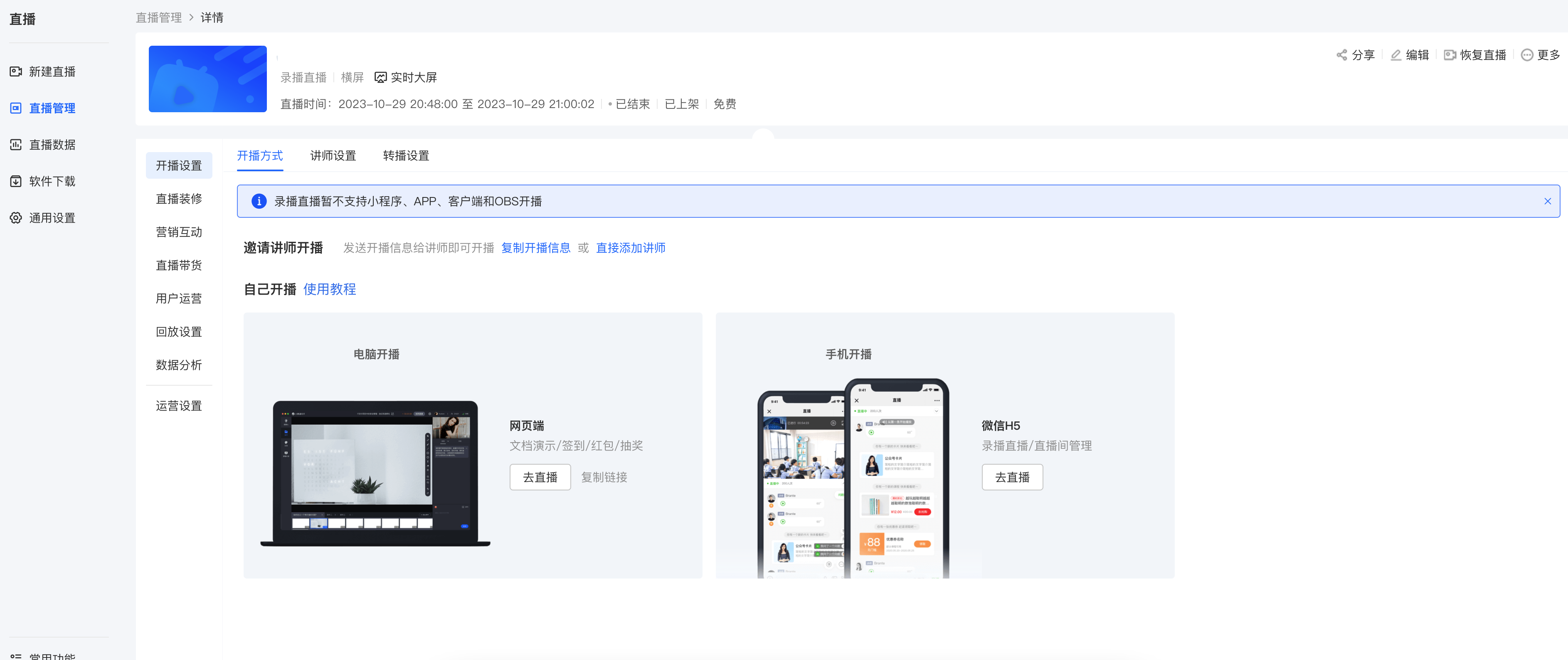
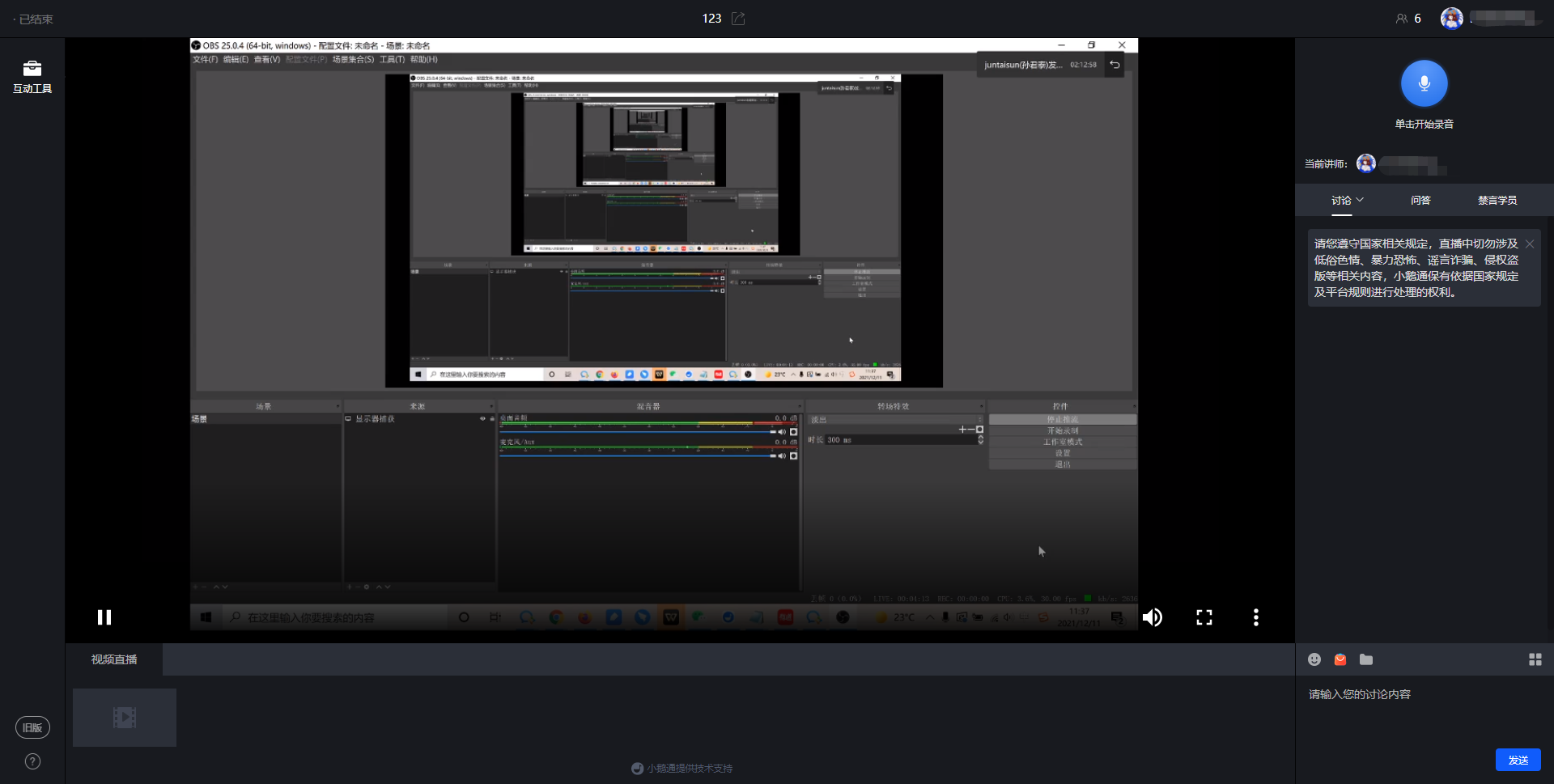
<span style="font-size:14px;">After creating a voice live stream, the lecturer clicks 'Go to live stream' and selects the web end. Open the live - stream room address, scan the QR code with WeChat to log in, and then enter the live - stream room page. The live stream will start as soon as the scheduled time arrives, and the uploaded videos will start playing.</span>

![image.png](https://wechatapppro-1252524126.file.myqcloud.com/help_document/image/ueditor/50192800_1699239492.png ".png")

![image.png](https://wechatapppro-1252524126.file.myqcloud.com/help_document/image/ueditor/882300_1699239439.png ".png")

**<span style="font-size:14px;">(2) Send voice messages</span>**

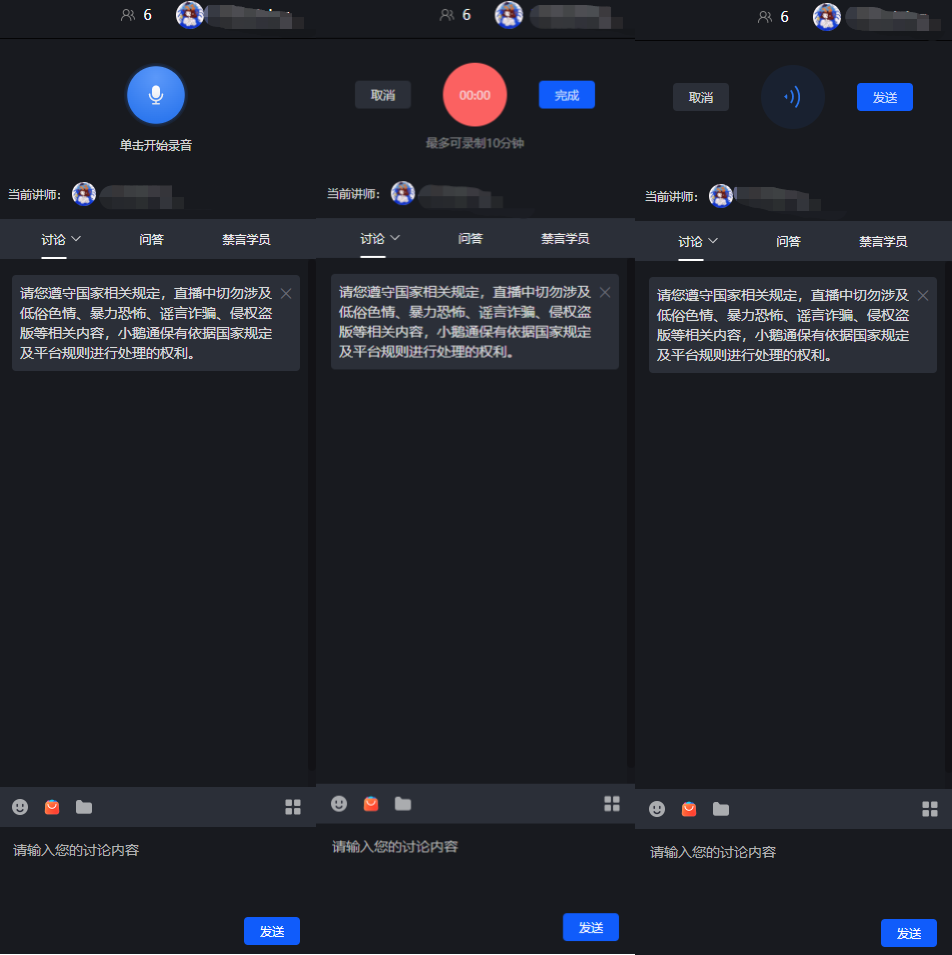
<span style="font-size:14px;">Click the microphone icon to start recording voice messages;</span>

<span style="font-size:14px;">Click \[Finish\] to complete the voice recording; click \[Cancel\] to cancel the sending</span>

<span style="font-size:14px;">After the voice recording is completed, click the \[Send\] button to send the voice message. Click Cancel to cancel the sending.</span>

<span style="font-size:14px;">![image.png](https://wechatapppro-1252524126.file.myqcloud.com/help_document/image/ueditor/17422300_1699239439.png ".png")</span>

**<span style="font-size:14px;">(3) Courseware display</span>**

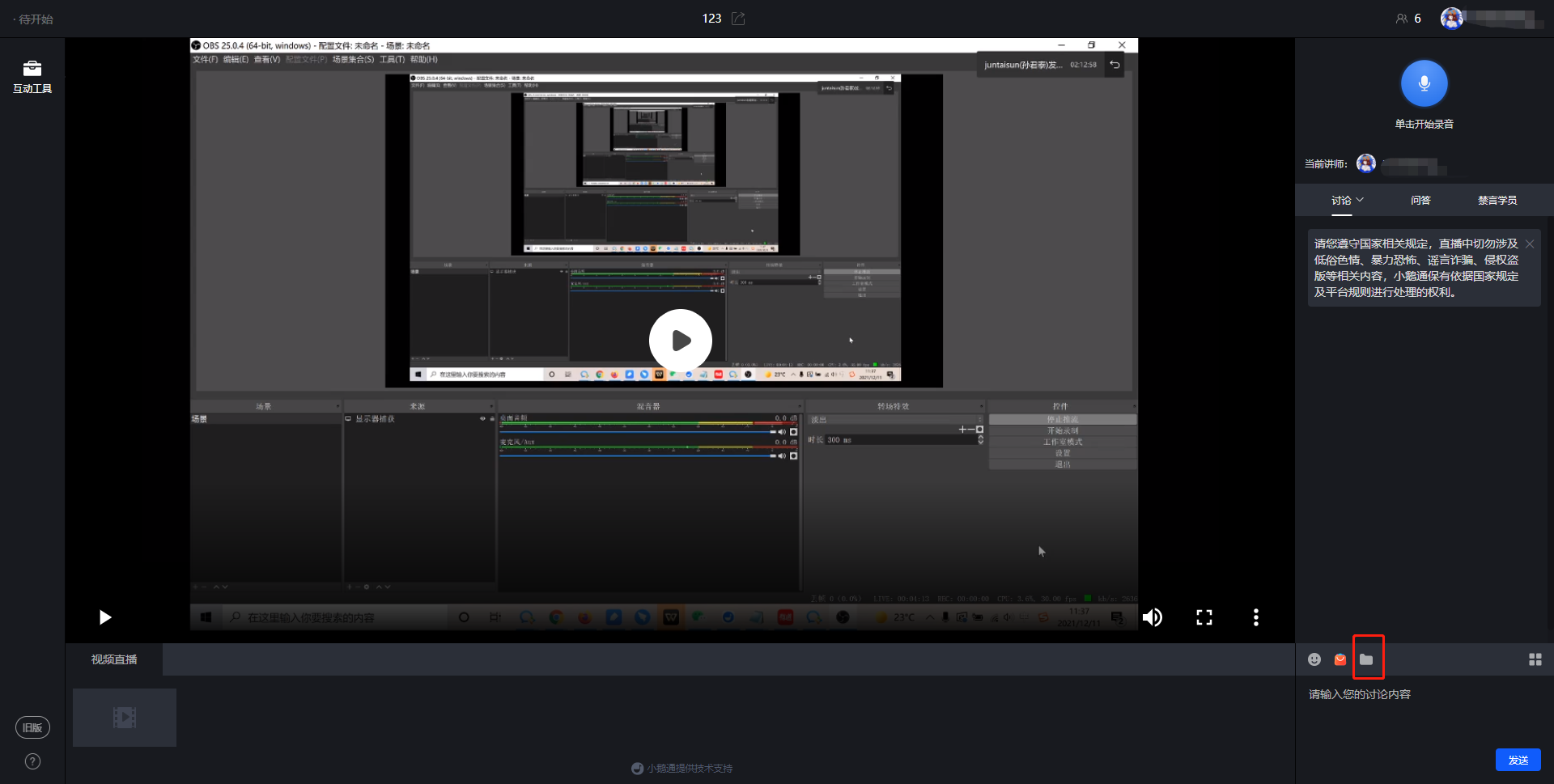
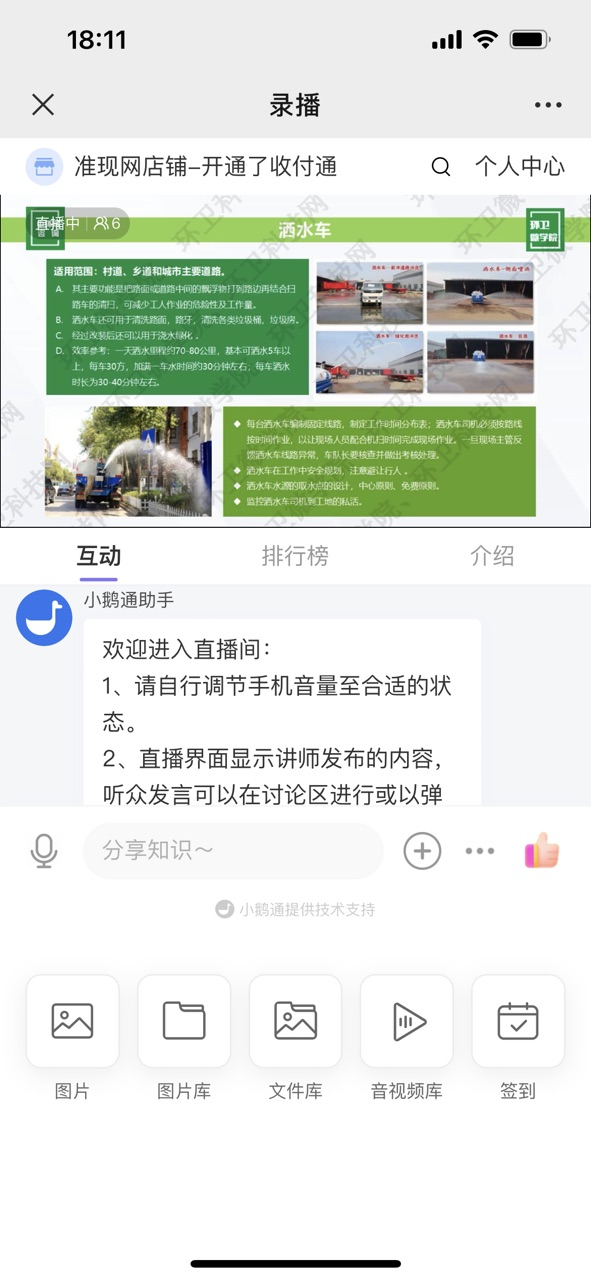
<span style="font-size:14px;">Click the 'Folder' button in the lower - right corner to enter the material library, where you can upload and send files in other formats;</span>

<span style="font-size:14px;">![image.png](https://wechatapppro-1252524126.file.myqcloud.com/help_document/image/ueditor/83768500_1699239439.png ".png")</span>

<span style="font-size:14px;">  
</span>

<span style="font-size:14px;">(4) End the live stream</span>

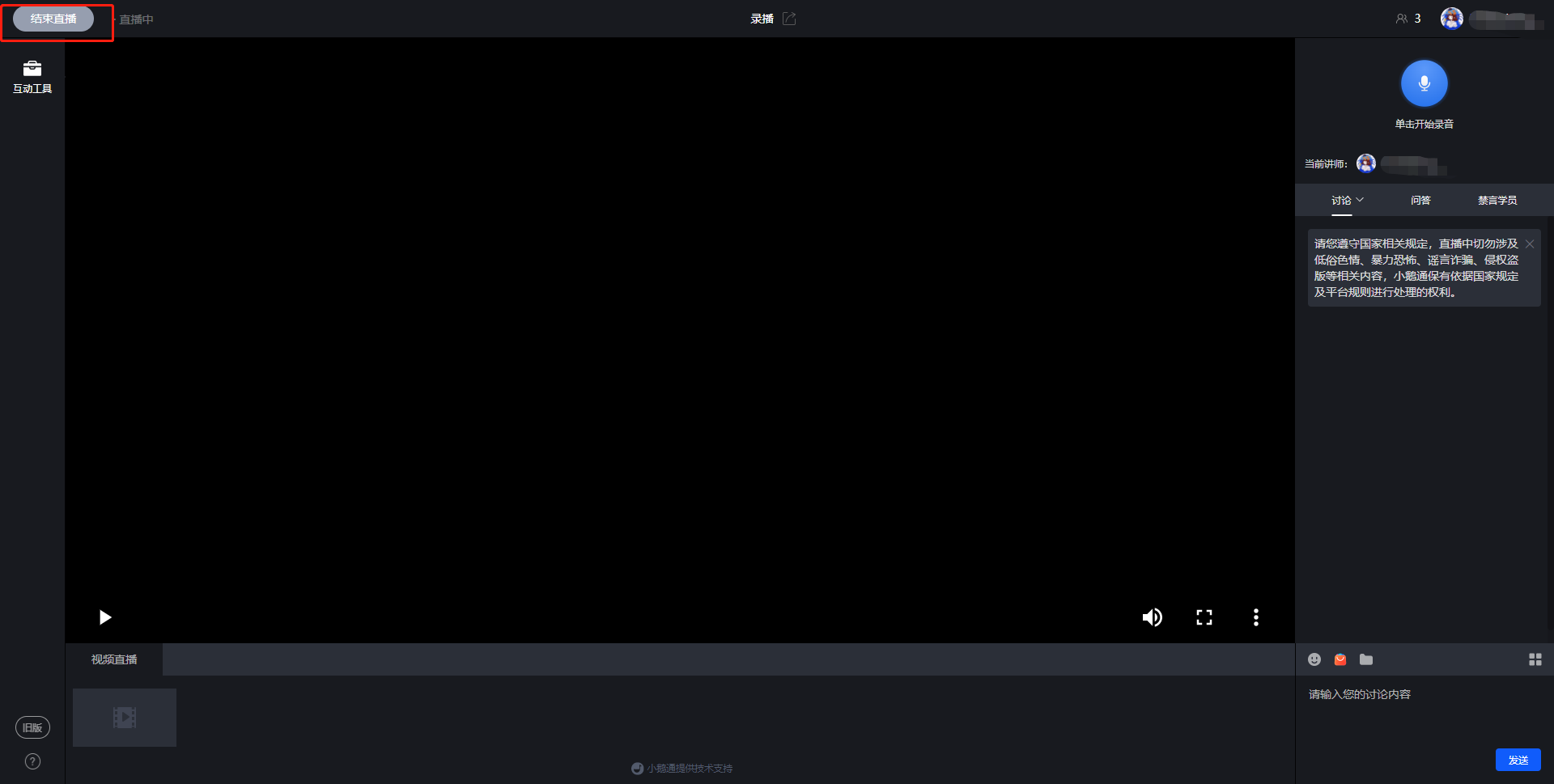
<span style="font-size:14px;">When the lecturer needs to end the live stream, click the operation button in the upper - left corner to end the live stream</span>

<span style="font-size:14px;">![image.png](https://wechatapppro-1252524126.file.myqcloud.com/help_document/image/ueditor/32467400_1699239440.png ".png")</span>

<span style="font-size:14px;">  
</span>

<span style="font-size:14px;">2. H5 voice live - stream room</span>

<span style="font-size:14px;">(1) Enter the H5 live - stream room</span>

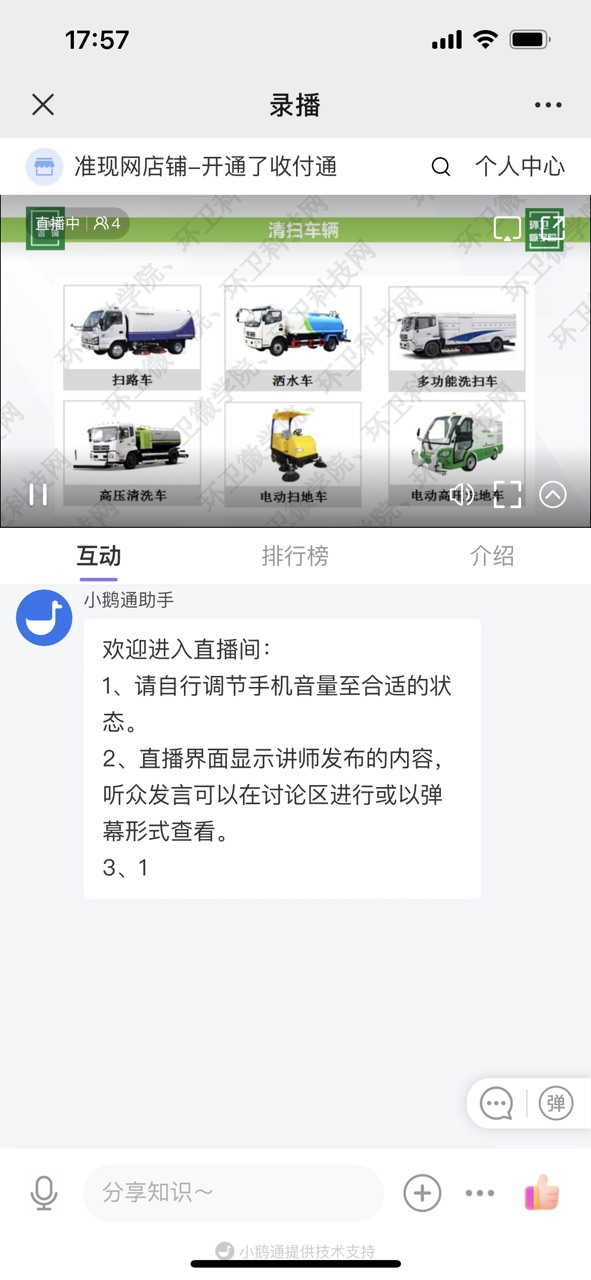
<span style="font-size:14px;">After creating a voice live stream, the lecturer clicks 'Go to live stream', then clicks 'Share', and scan the QR code with the mobile phone to enter the live - stream room. The live stream will start as soon as the scheduled time arrives, and the uploaded videos will start playing.</span>

![image.png](https://wechatapppro-1252524126.file.myqcloud.com/help_document/image/ueditor/52554300_1699239440.png ".png")

<span style="font-size:14px;font-family:'宋体';"></span>

<span style="font-size:14px;font-family:'微软雅黑', sans-serif, serif;"></span>

<span style="font-size:14px;">  
</span>

<span style="font-size:14px;">(2) Send voice messages</span>

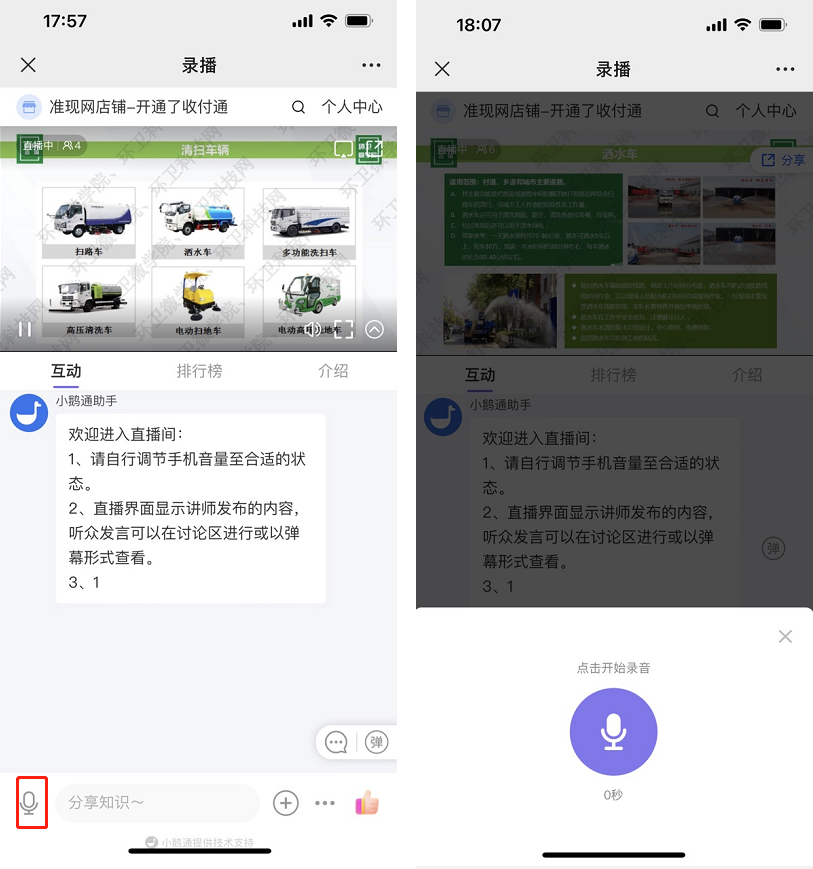
<span style="font-size:14px;">Click the microphone icon to start recording voice messages;</span>

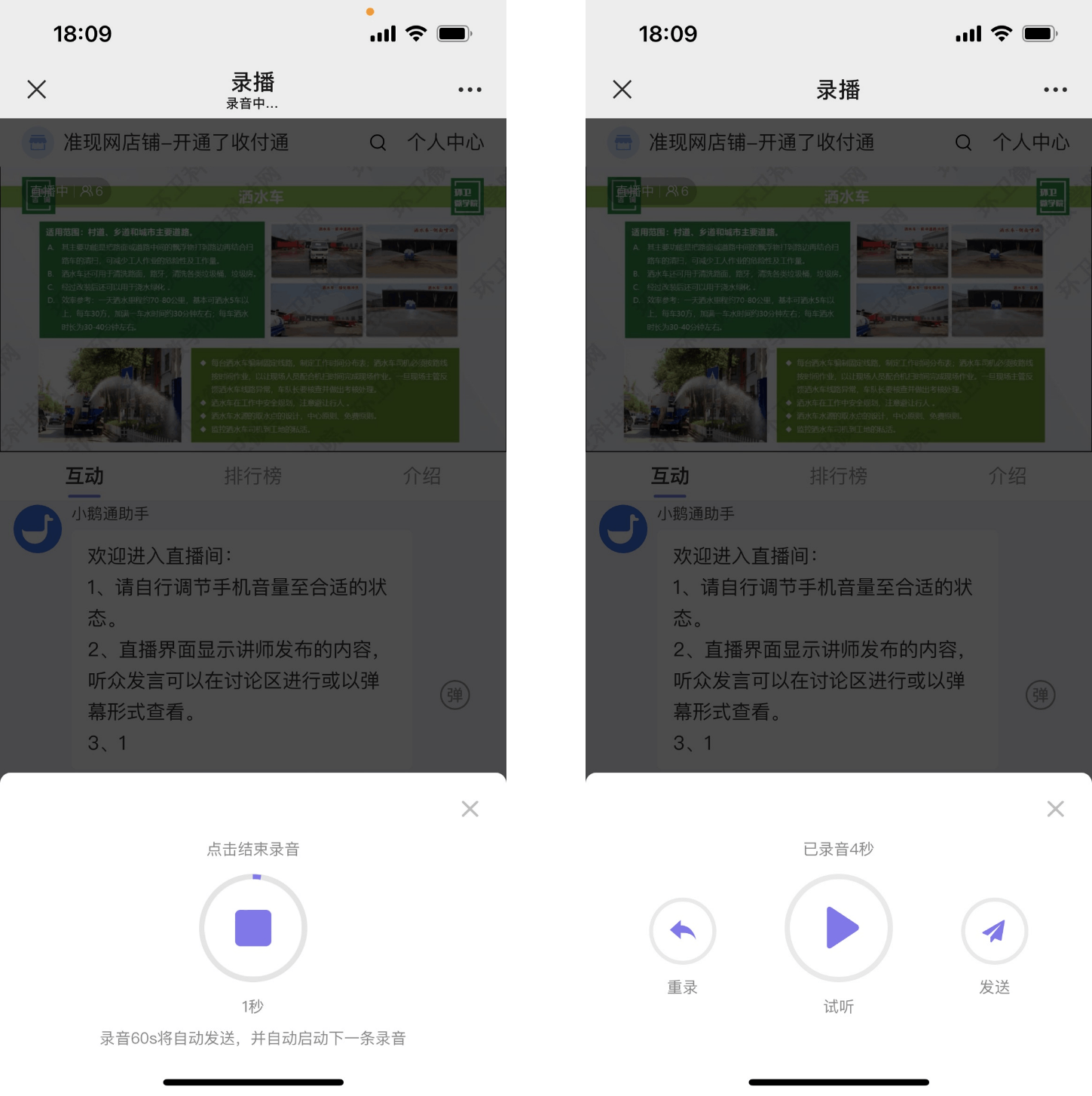
<span style="font-size:14px;">Click the \[Red square\] to complete the voice recording. Click Cancel to cancel the sending;</span>

<span style="font-size:14px;">After the voice recording is completed, click the send button to send the voice message. Click Cancel to cancel the sending</span>

<span style="font-size:14px;">The live - stream room on elink supports continuous voice recording by the lecturer. The lecturer does not need to manually click to send the recordings. The system will automatically cut the recordings into 60 - second voice messages and send them one by one.</span>

<span style="font-size:14px;">This allows the lecturer to teach at their own pace without being interrupted by the action of sending voice messages.</span>

<span style="font-size:14px;">![image.png](https://wechatapppro-1252524126.file.myqcloud.com/help_document/image/ueditor/22360000_1699239441.png ".png")</span>

![image.png](https://wechatapppro-1252524126.file.myqcloud.com/help_document/image/ueditor/52968300_1699239441.png ".png")

<span style="font-size:14px;">(3) Courseware display</span>

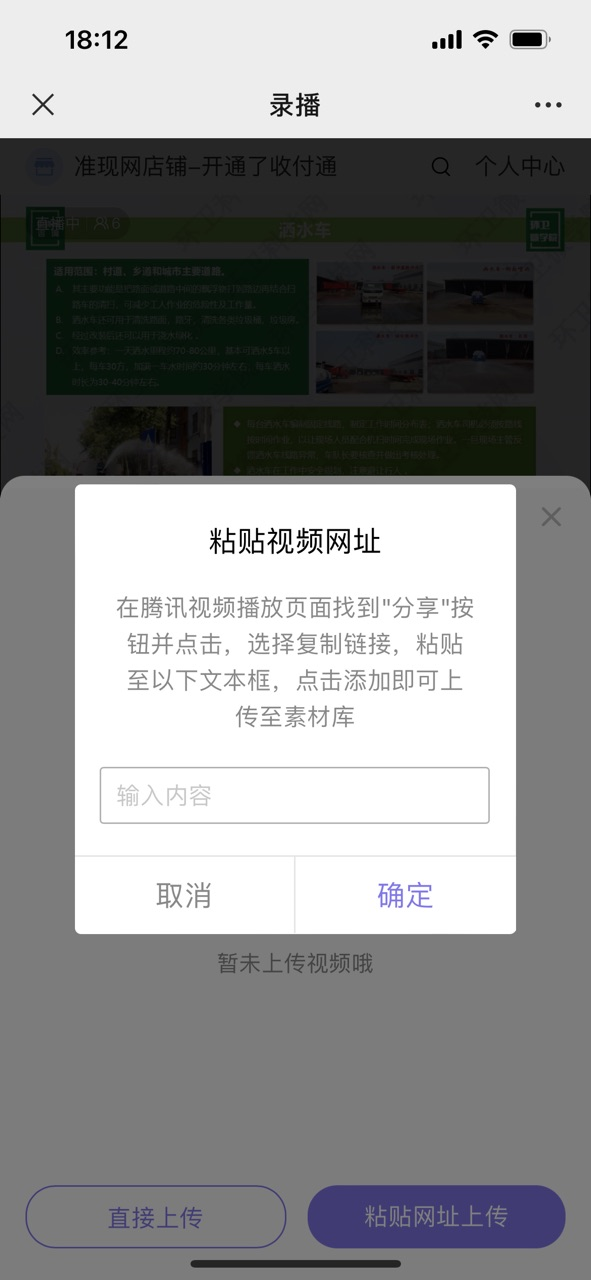
<span style="font-size:14px;">Click the '+' in the lower - left corner of the live - stream room, and then click the File Library or Audio - Video Library to share content in other formats (you need to complete the upload in the material library on the web - end lecturer side).</span>

![image.png](https://wechatapppro-1252524126.file.myqcloud.com/help_document/image/ueditor/86147400_1699239441.png ".png")

![image.png](https://wechatapppro-1252524126.file.myqcloud.com/help_document/image/ueditor/3274600_1699239442.png ".png")

<span style="font-size:14px;">  
</span>

<span style="font-size:14px;">(4) End the live stream</span>

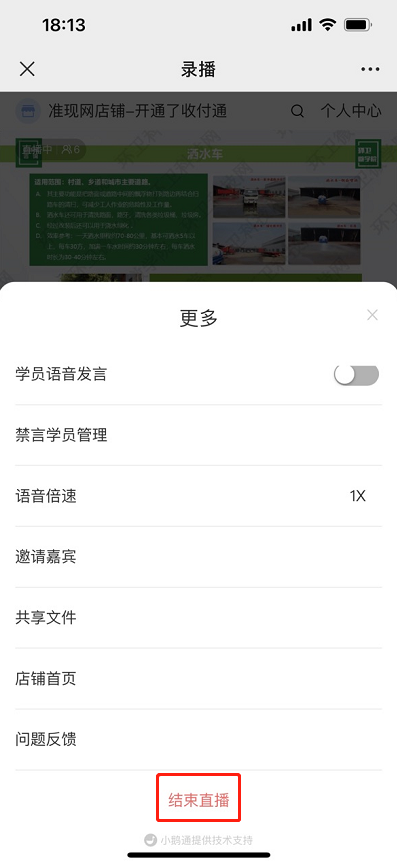
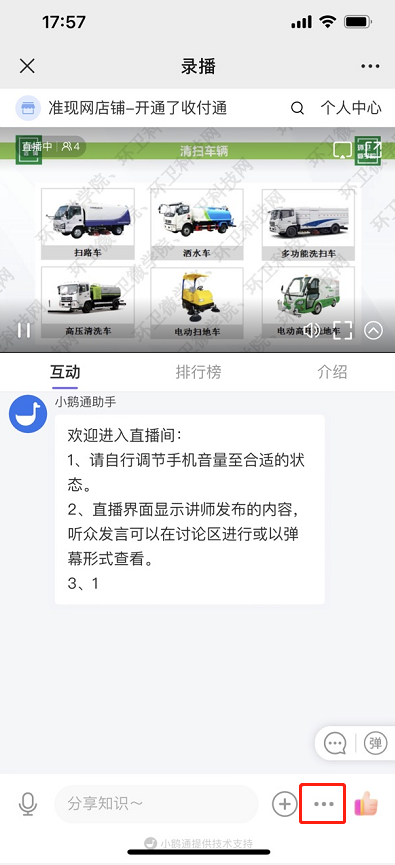
<span style="font-size:14px;">When the lecturer needs to end the live stream</span>

<span style="font-size:14px;">click the 'More' button in the lower - right corner and click 'End Live Stream' in the pop - up drop - down box to end the live stream.</span>

![image.png](https://wechatapppro-1252524126.file.myqcloud.com/help_document/image/ueditor/24297100_1699239442.png ".png")![image.png](https://wechatapppro-1252524126.file.myqcloud.com/help_document/image/ueditor/48206200_1699239442.png ".png")

**<span style="font-size:14px;">  
</span>**

**<span style="font-size:14px;">Step 4: Watch the live stream (H5 store or elink Live Mini Program)</span>**

<span style="font-size:14px;">1. Users can enter the live - stream room by scanning the QR code or opening the link</span>

![image.png](https://wechatapppro-1252524126.file.myqcloud.com/help_document/image/ueditor/18843800_1699239566.png ".png")

<section id="bkmrk-2.-after-entering-th"><span style="font-size:14px;font-family:'微软雅黑', sans-serif, serif;"></span>

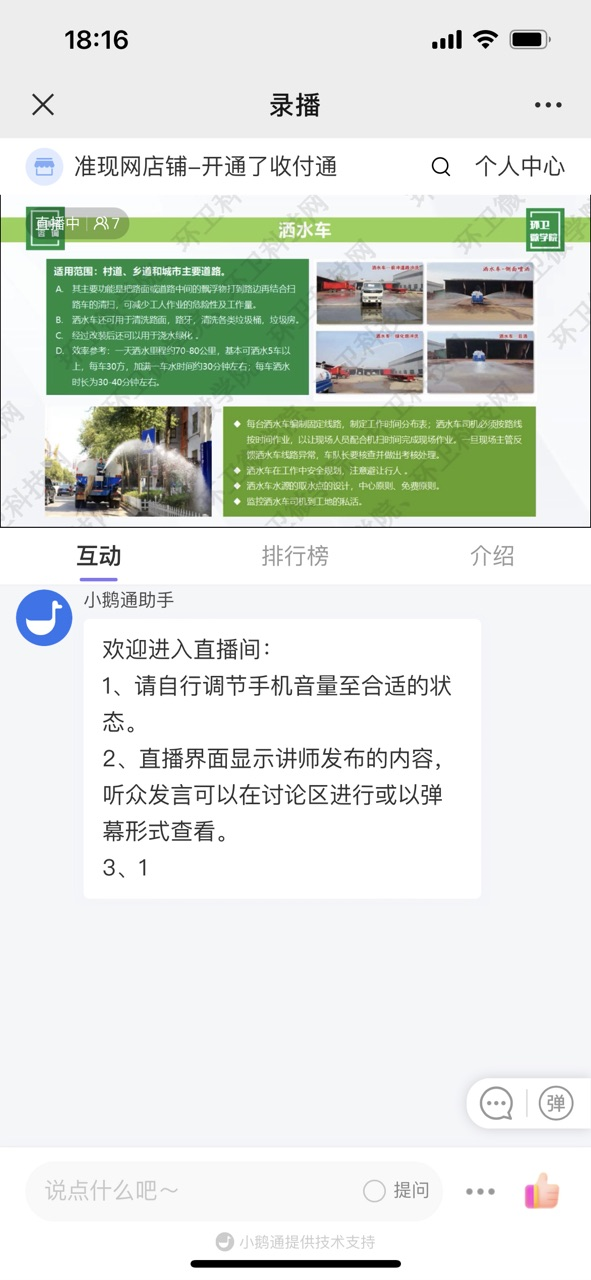
<span style="font-size:14px;">2. After entering the live - stream room, students can interact with the lecturer by sending text content, asking questions, etc.</span>

![image.png](https://wechatapppro-1252524126.file.myqcloud.com/help_document/image/ueditor/144000_1699239443.png ".png")

</section>