# Tutorial on Manual Transcoding for Live Streaming
[中文](/books/091d5/page/a8baa-7SQ)
**I. Feature Introduction**
The manual transcoding feature is specifically designed for**Single - session cumulativeLive streaming scenarios where the duration exceeds five hours.**For such scenarios, merchants can not only significantly improve the transcoding success rate and reduce transcoding time through manual transcoding but also more easily manage and edit long - term and multiple live replay videos.
**II. Purpose of Use**
Significantly improve the transcoding success rate and reduce the transcoding time, saving a great deal of time for merchants.
**III. Usage Scenarios**
After a user finishes a live stream that lasts more than five hours or the cumulative duration of a live stream exceeds five hours, they may encounter problems such as excessively long transcoding time and possible transcoding failures. After the live stream ends, users can enter the management console's replay management, select the replay file that needs to be transcoded, and perform manual transcoding. This can significantly improve the transcoding success rate and reduce the time consumed compared to automatic transcoding.
**IV. Operation Path**
Merchant side: Merchant background → Live streaming → Select the live - streaming room → Replay settings → Manual transcoding
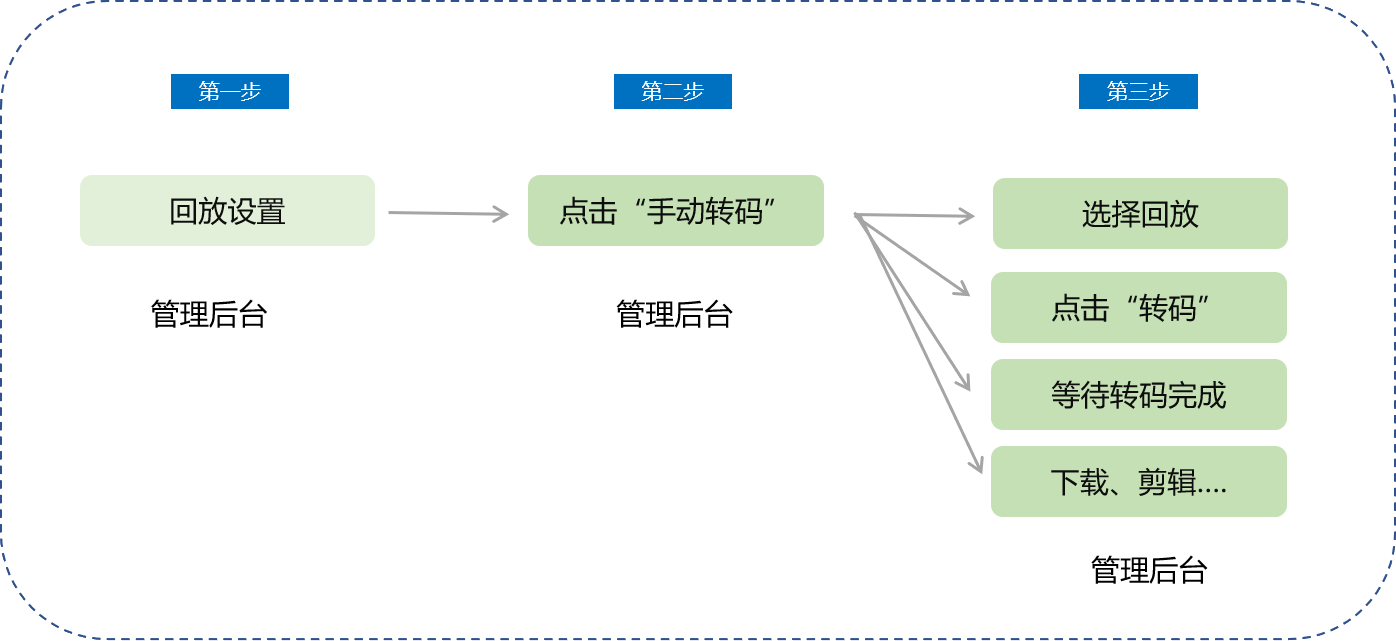
**V. Usage Tutorial**
**Step 1: Replay settings (Management background)**
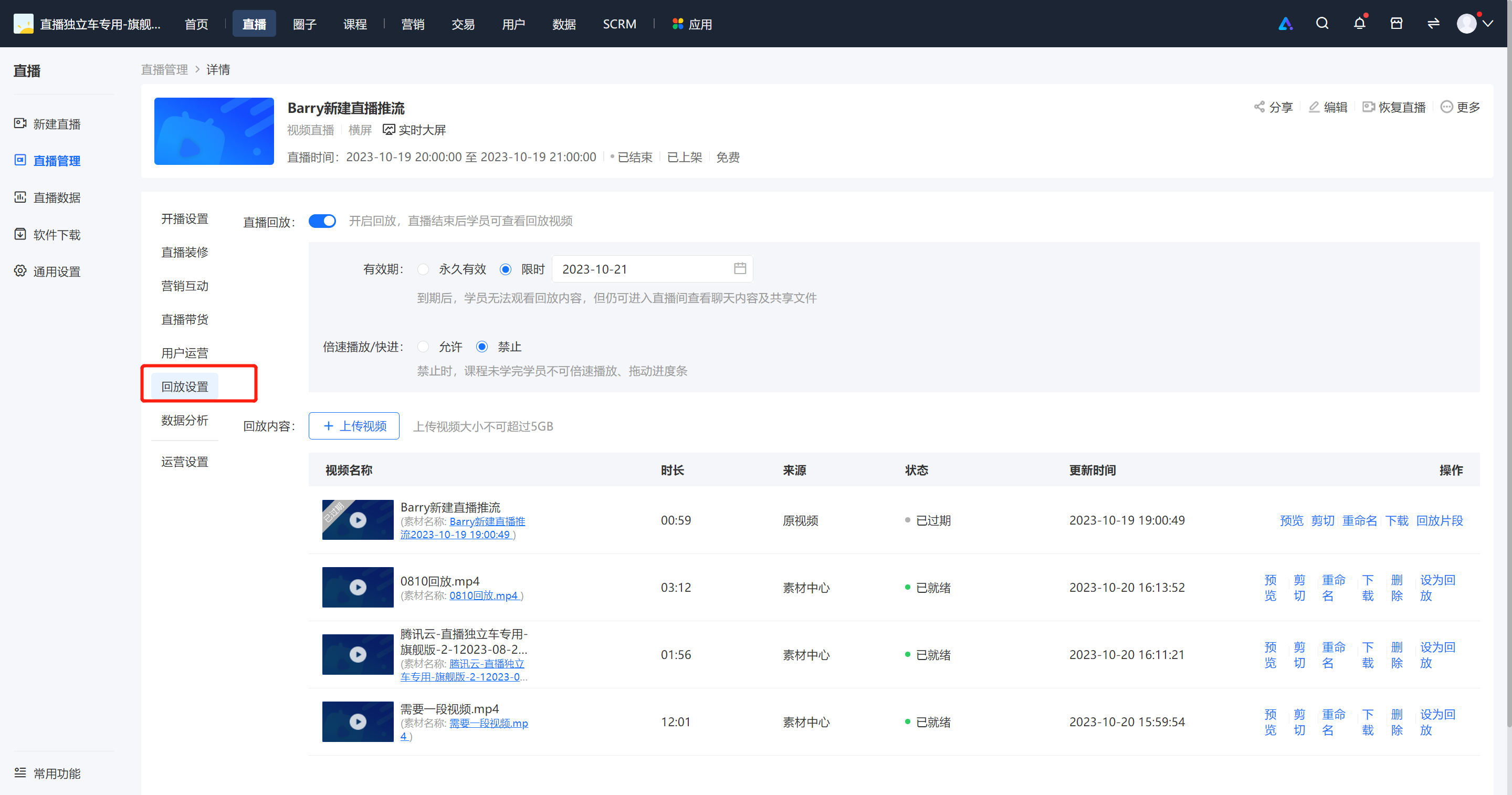
Enter the merchant management background, click to enter the live - streaming section, find the corresponding live stream, and click \[Details\] - \[Replay settings\].
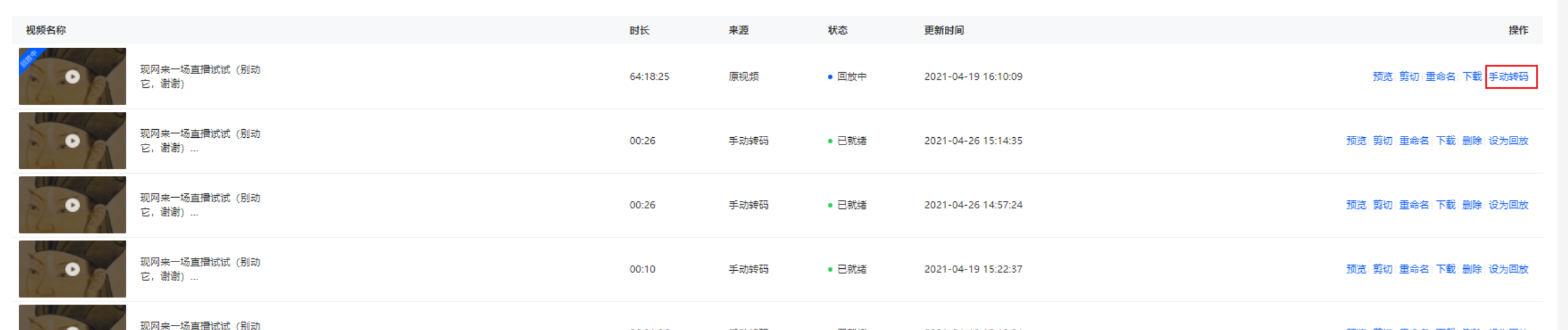
**Step 2: Click Manual TranscodingSelect the file that needs to be transcoded and click \[Transcode\].(Management background)**
**\*\*Note:**The \[Manual Transcoding\] button will only be displayed when the cumulative duration of this live stream exceeds 5 hours.
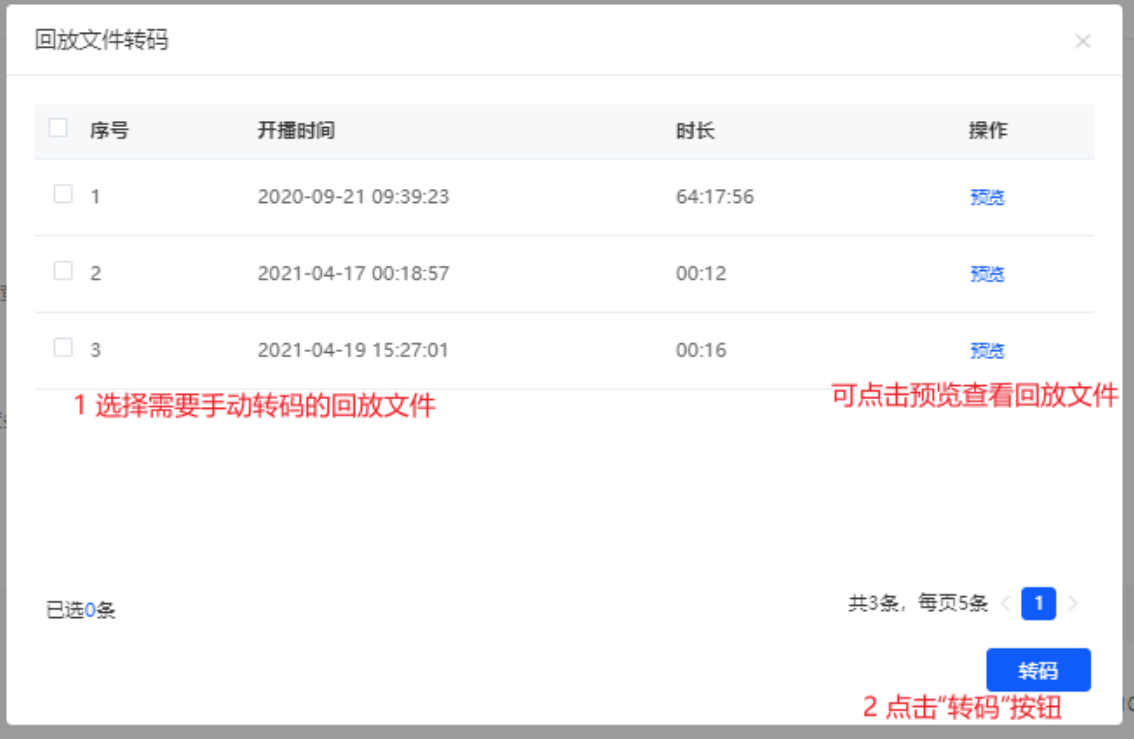
**Step 3: Select the replay**
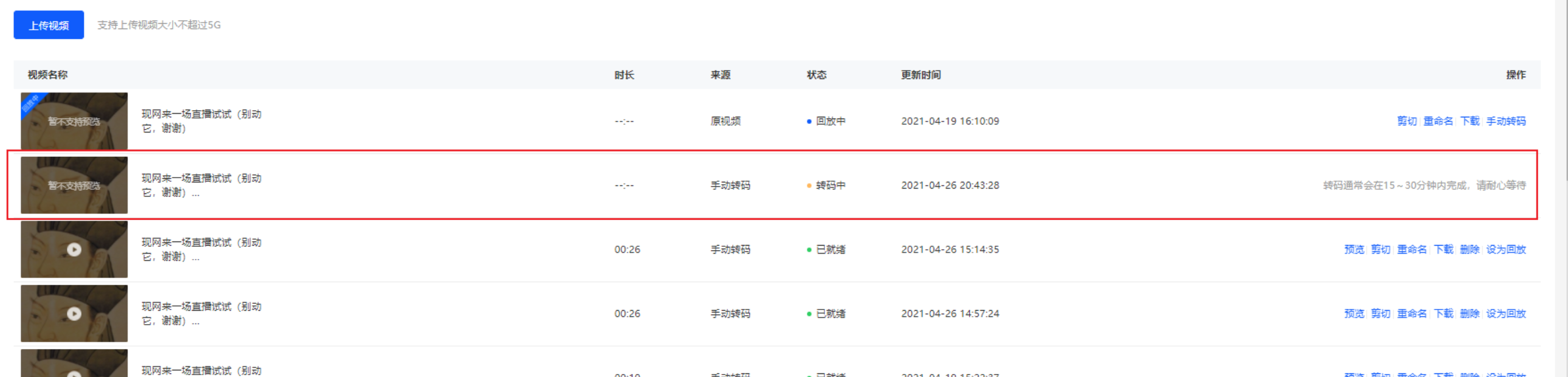
A new transcoding record will be added to the replay video list. After the transcoding is successful, a series of operations such as editing can be performed.