How to set up live guests?
I. Feature Introduction
After creating a live stream, you can invite others to become instructors in the live - streaming room. Instructors can enter the live stream without purchasing the paid content and have the functions of speaking, managing the live stream, and ending the live stream.
II. Purpose of Use
Merchants can use this feature to configure live - stream instructors.
III. Use Scenarios
Video live stream, audio live stream, recorded live stream
IV. Operation Path
Merchant side:
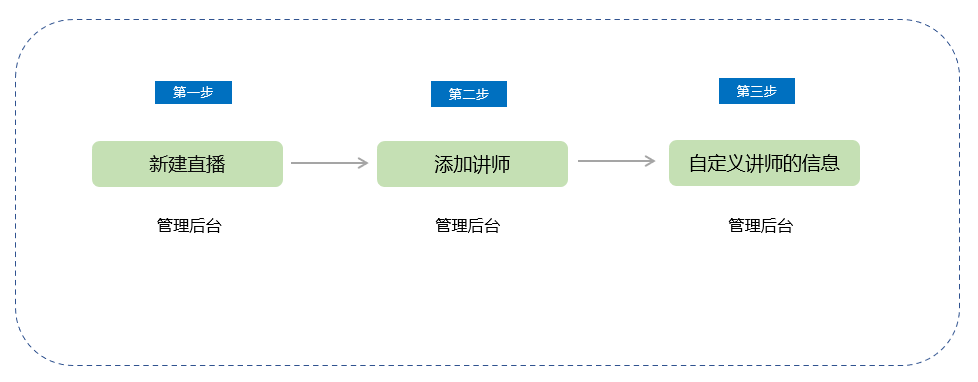
Path 1: Create a new live stream → Add an instructor → Customize the instructor's information
Path 2: Live - streaming room details/Live - stream list → Instructor settings → Customize the instructor's information
V. Usage Tutorial
Path 1:
Step 1: Create a new live stream
You can add an instructor on the new live - stream creation page.
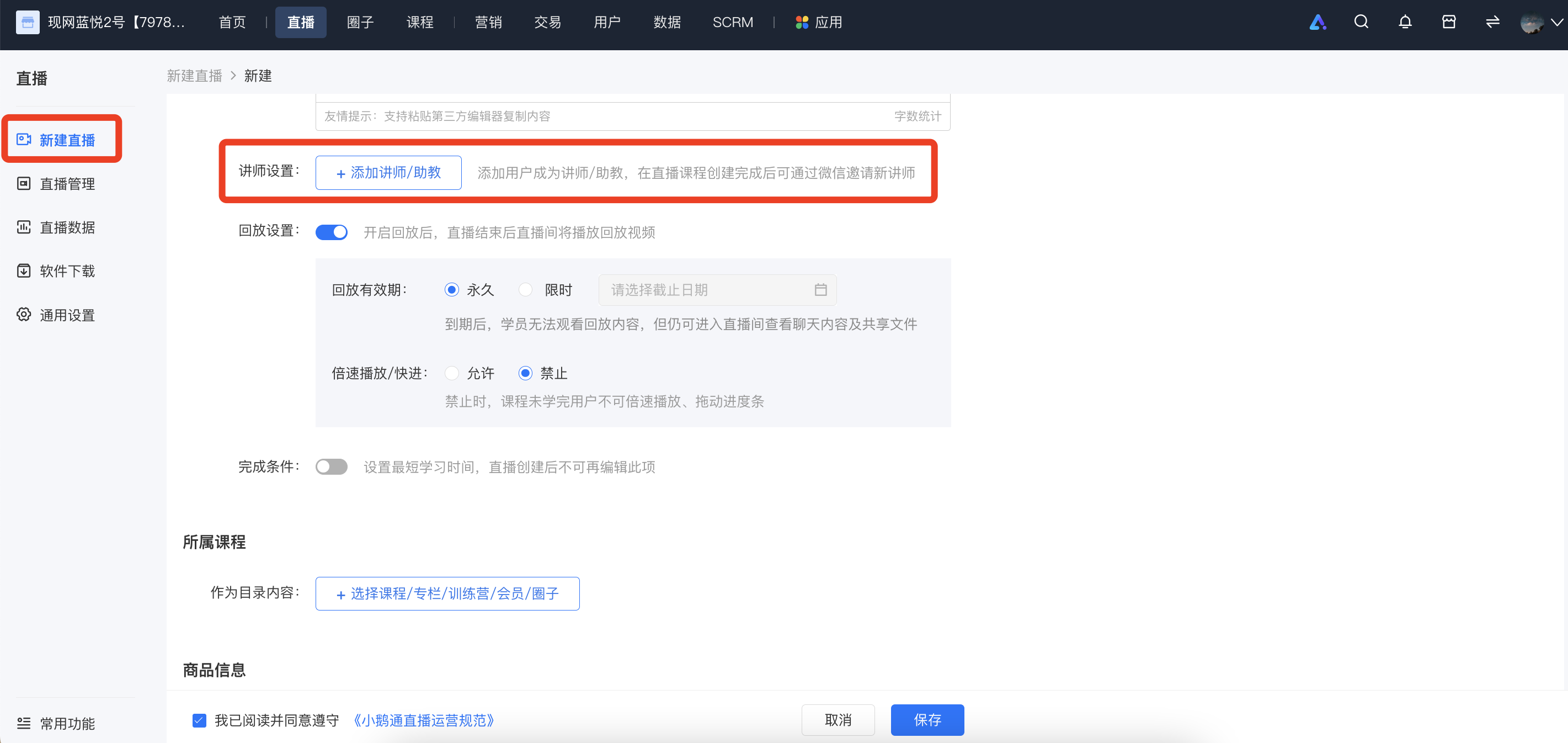
Step 2: Add an instructor
Log in to the elink management console and click 'Add an instructor' on the new live - stream creation page.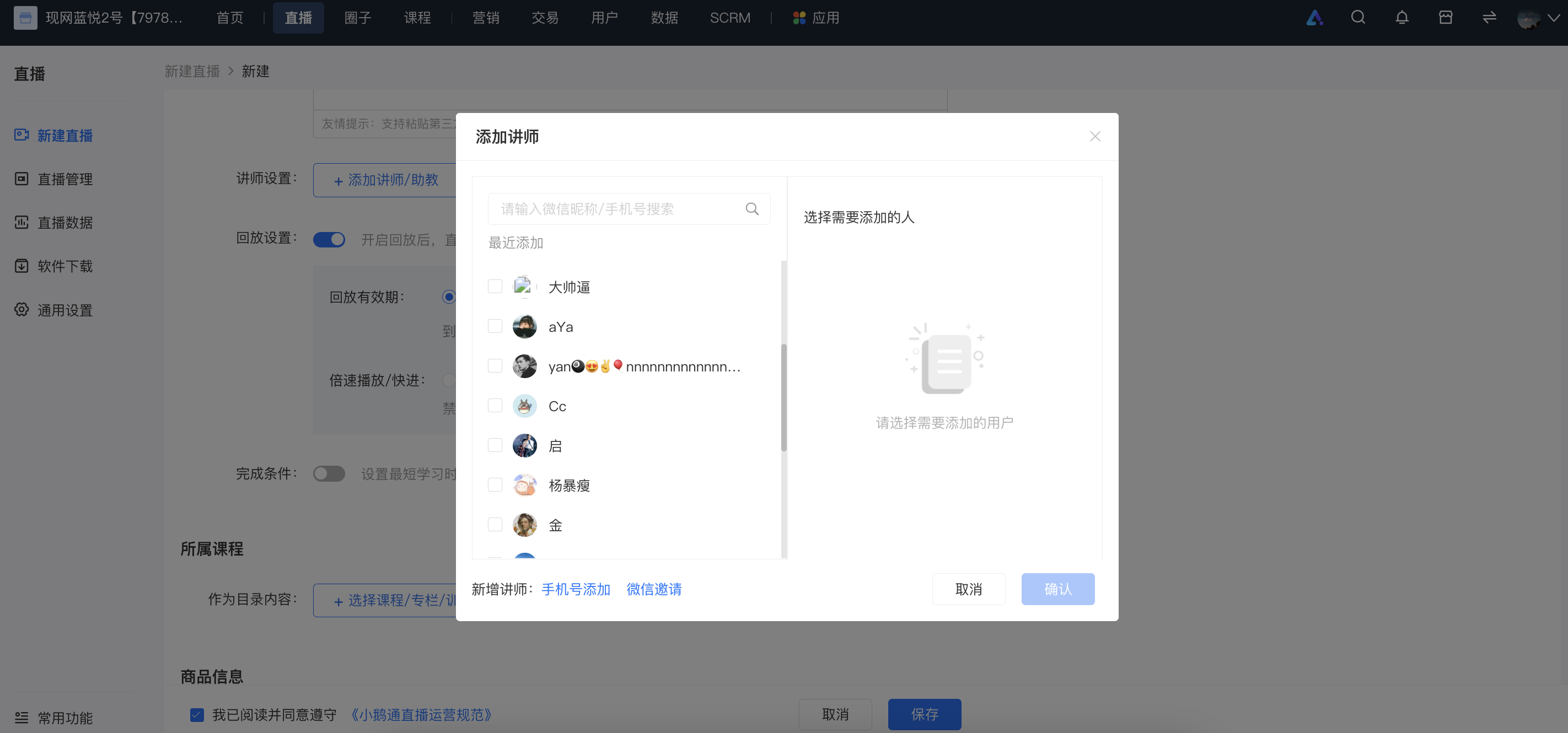
(1) You can select the recently added instructors to add as instructors.
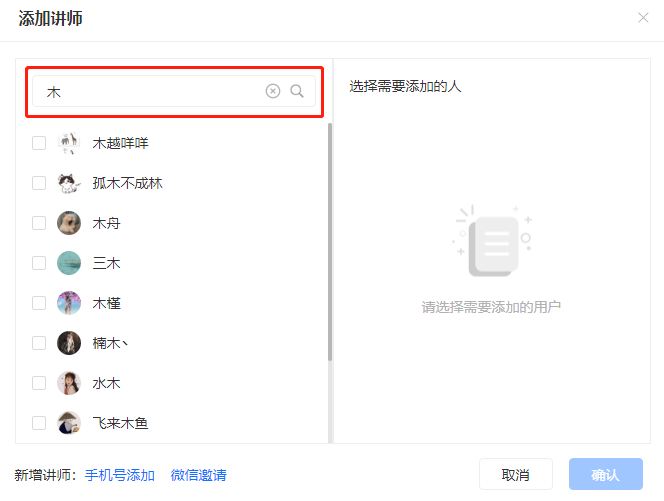
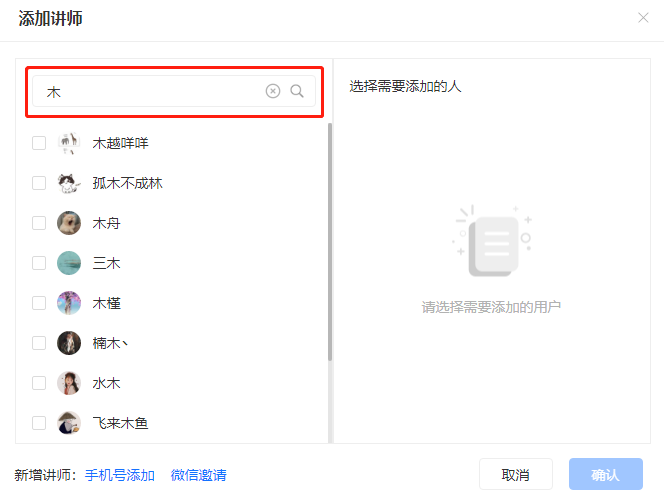
(2) Add someone as an instructor by searching the store's historical access records in the search box.
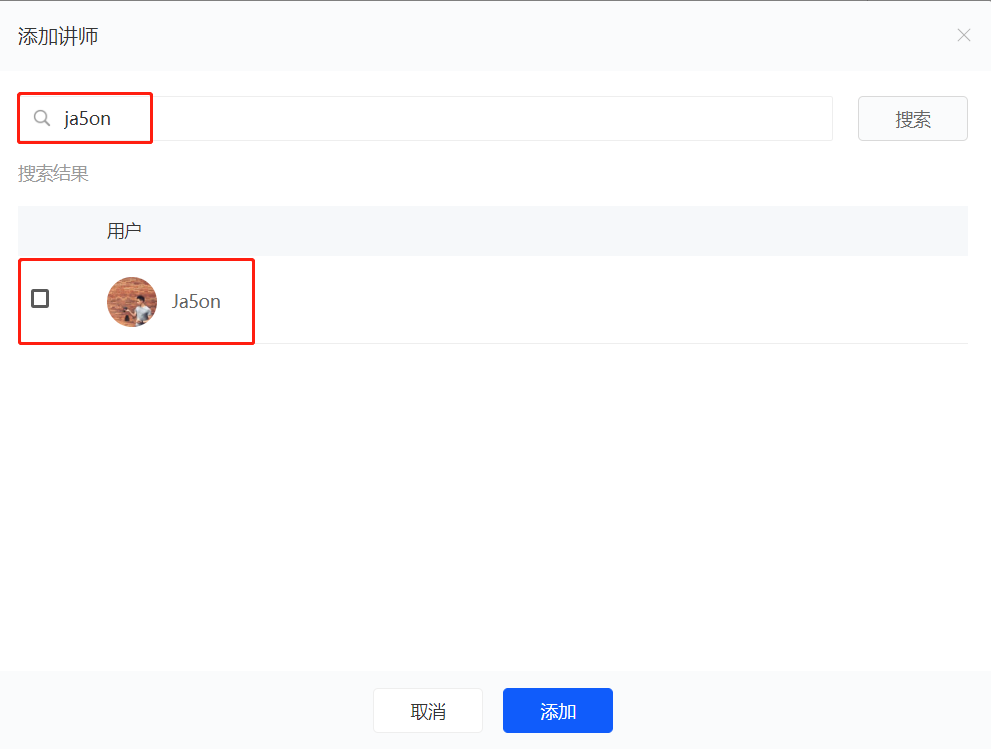
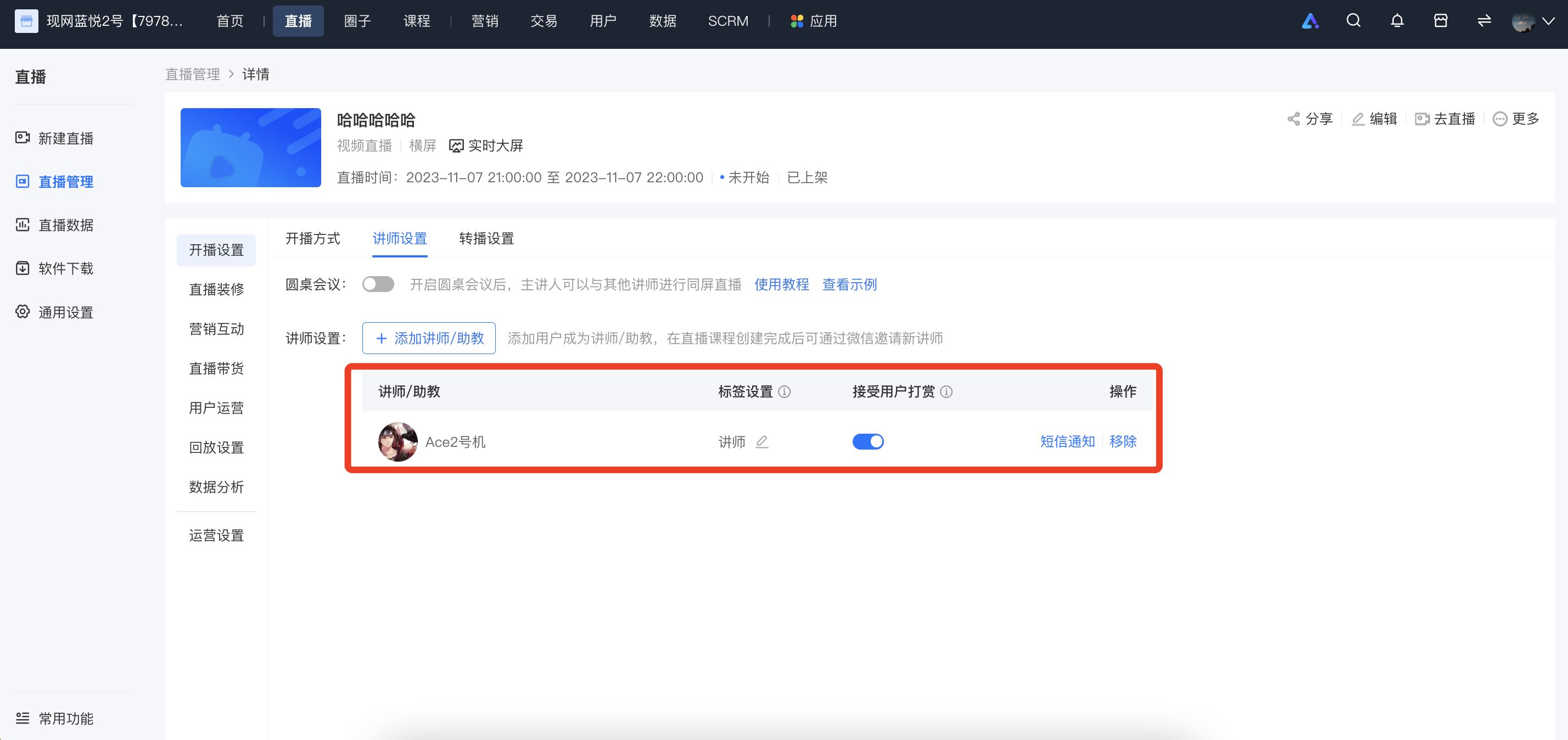
Step 3: Customize the instructor's information
1) Tag setting: After adding an instructor, you can set tags for the added instructor (titles/designations in the live - streaming room, such as 'Instructor', 'Teaching Assistant') through tags, which is convenient for distinguishing when there are multiple instructors in the live - streaming room.
2) Accept student tips: You can control the tip switch for the corresponding instructor. After the tip switch is turned off, the tip entry for this instructor in the live - streaming room will be hidden.
3) Remove: Support the operation of removing an instructor.
Path 2:
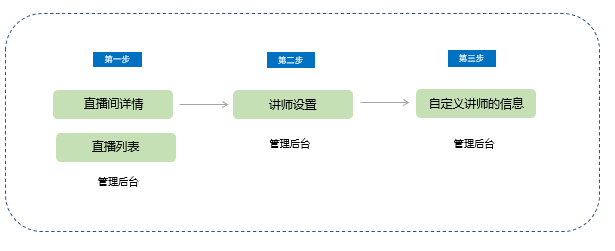
Step 1: Live - streaming room details page
On the live - stream list page, find the live stream for which you need to set an instructor, click 'Details', and enter the 'Live - streaming room details page'.
Find 'Live - streaming room settings' - 'Course settings' and locate the instructor setting function.
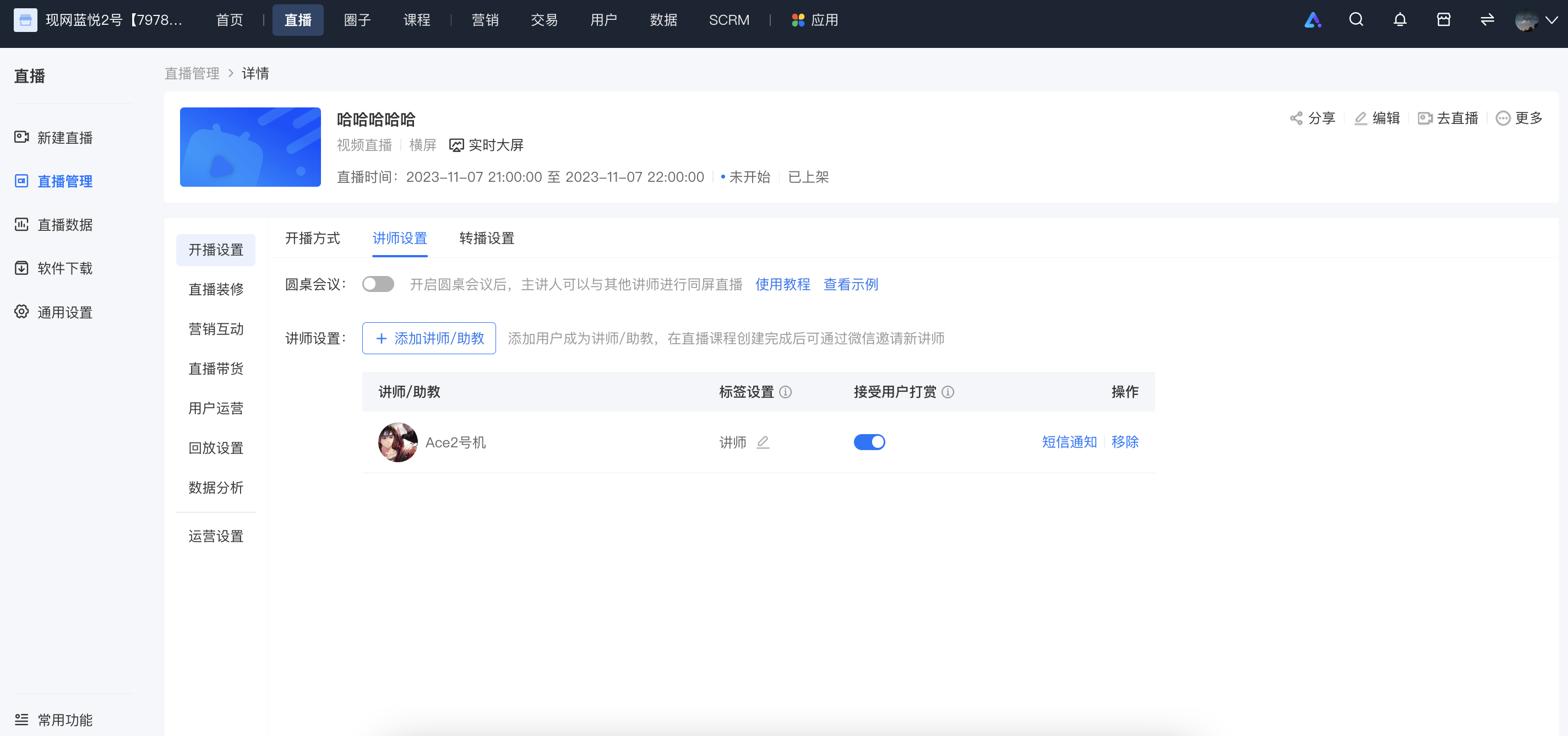
Step 2: Set an instructor
Click 'Instructor settings', and a window for instructor settings will pop up.
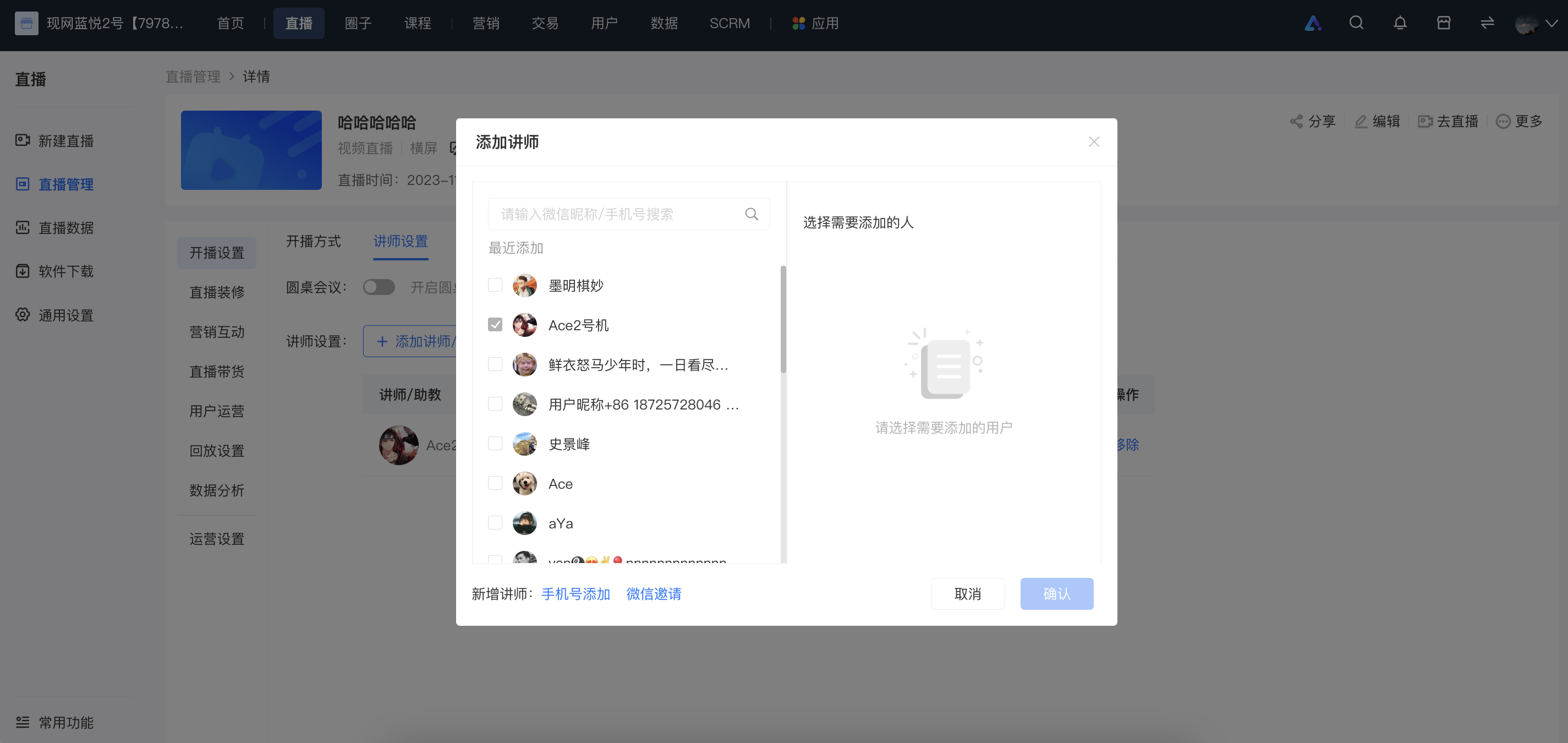
(1) Add someone as an instructor by searching the historical access records in the search box.
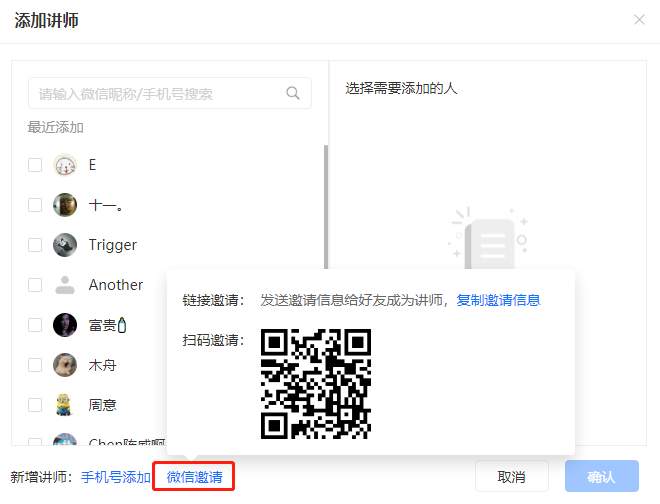
(2) Invite friends to become instructors via WeChat QR code.
Step 3: Customize the instructor's information
1) Tag setting: After adding an instructor, you can set tags for the added instructor (titles/designations in the live - streaming room, such as 'Instructor', 'Teaching Assistant') through tags, which is convenient for distinguishing when there are multiple instructors in the live - streaming room.
2) Accept student tips: You can control the tip switch for the corresponding instructor. After the tip switch is turned off, the tip entry for this instructor in the live - streaming room will be hidden.
3) Remove: Support the operation of removing an instructor.