# How to restore the live streaming room after the instructor has enabled the mute mode?
[中文](/books/091d5/page/d9640)
The live chat mute mode applies to all students in the live room. Currently, the supported live broadcast ports are: Web, eLive Client, elink Assistant PC Client, elink Assistant App, and H5.
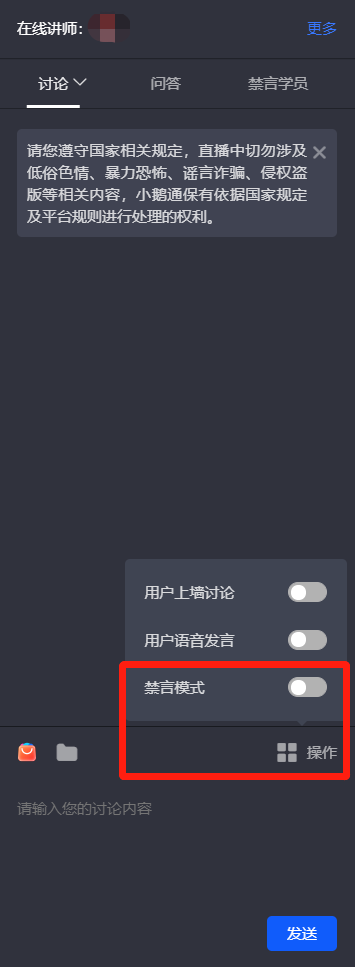
**1. Webelink Assistant PC Client:**Click \[Operations\] in the discussion area on the right and turn off the \[Mute Mode\] button.
- eLive Client
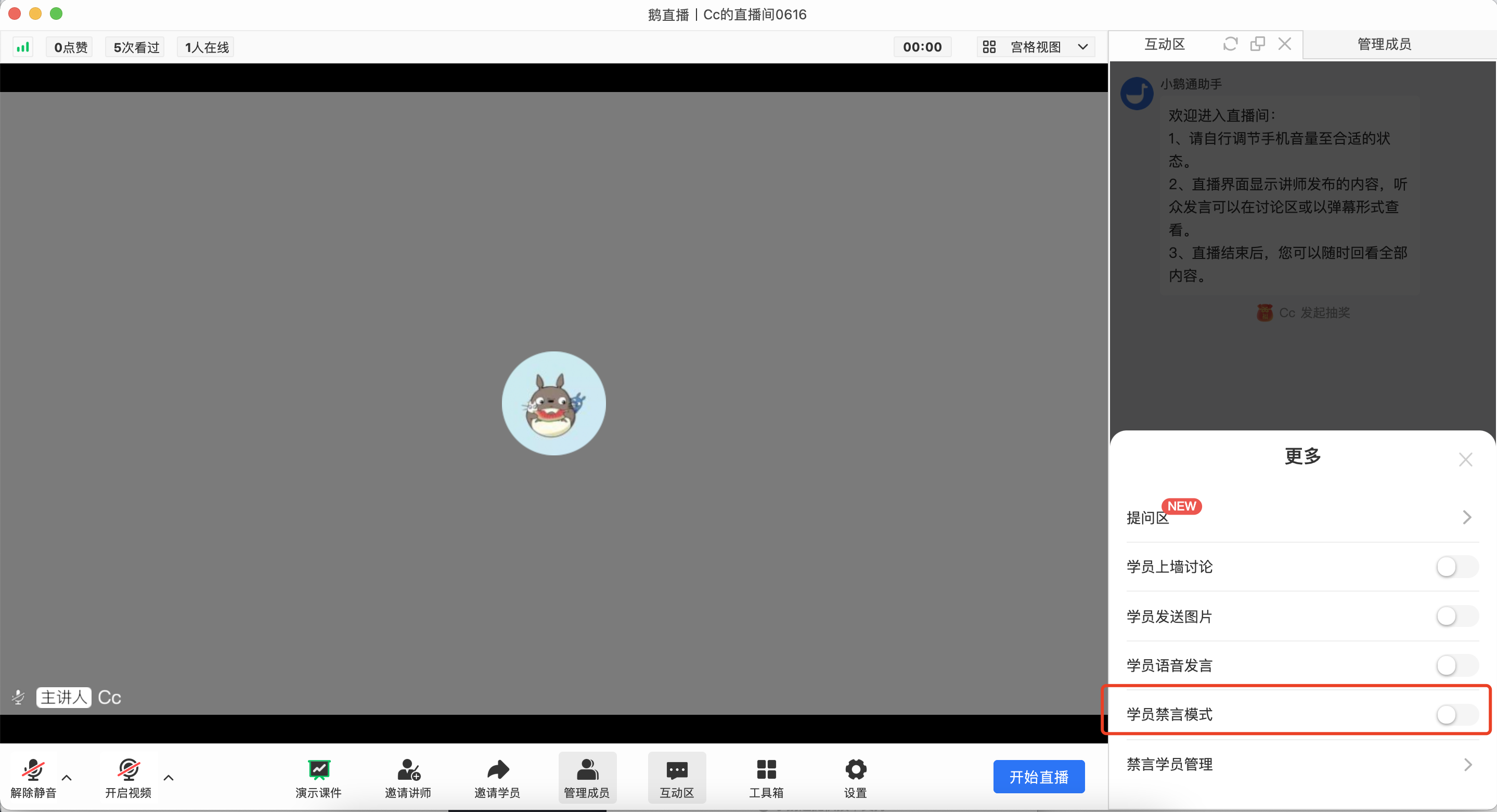
Open the "Interaction Area", click the three dots for "More", and confirm to turn off the "Student Mute Mode" to cancel the mute for all students.
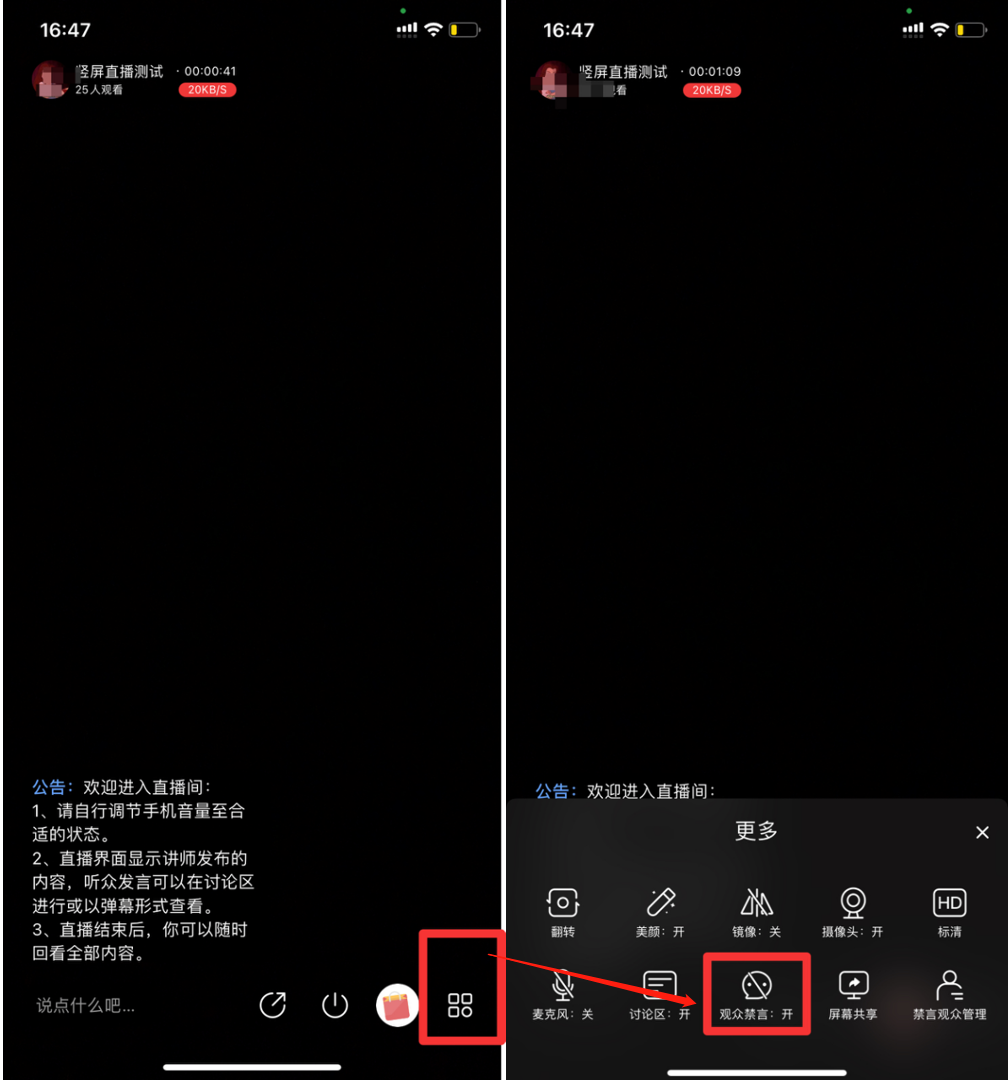
**2.elink Assistant App(Taking vertical screen live broadcast as an example):**Find the \[More Operations\] button in the live room.Turn off \[Mute Mode\].
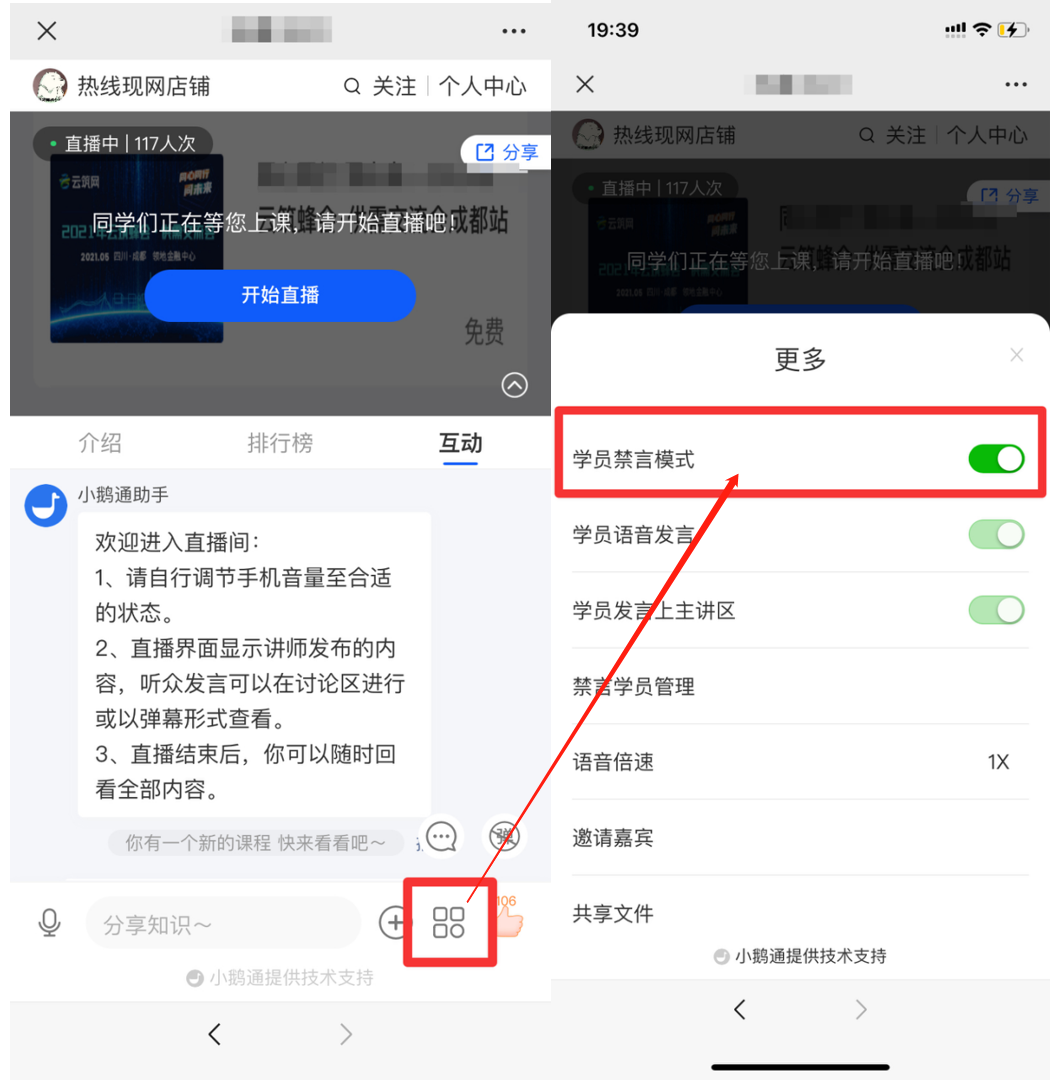
**3. H5 Live Room:**Find the \[More Operations\] button in the live room.Turn off the \[Mute Mode\] button.