How to rebroadcast a live stream to Weibo
Merchants can use the rebroadcasting function in elink to synchronize the live content they broadcast on elink toWeibo, thereby improving the content reuse rate and traffic reach rate.
I. Step 1: Obtain the Weibo streaming address
1. Visit and log in to the Weibo management backendhttp://t.cn/A6Uoeoga
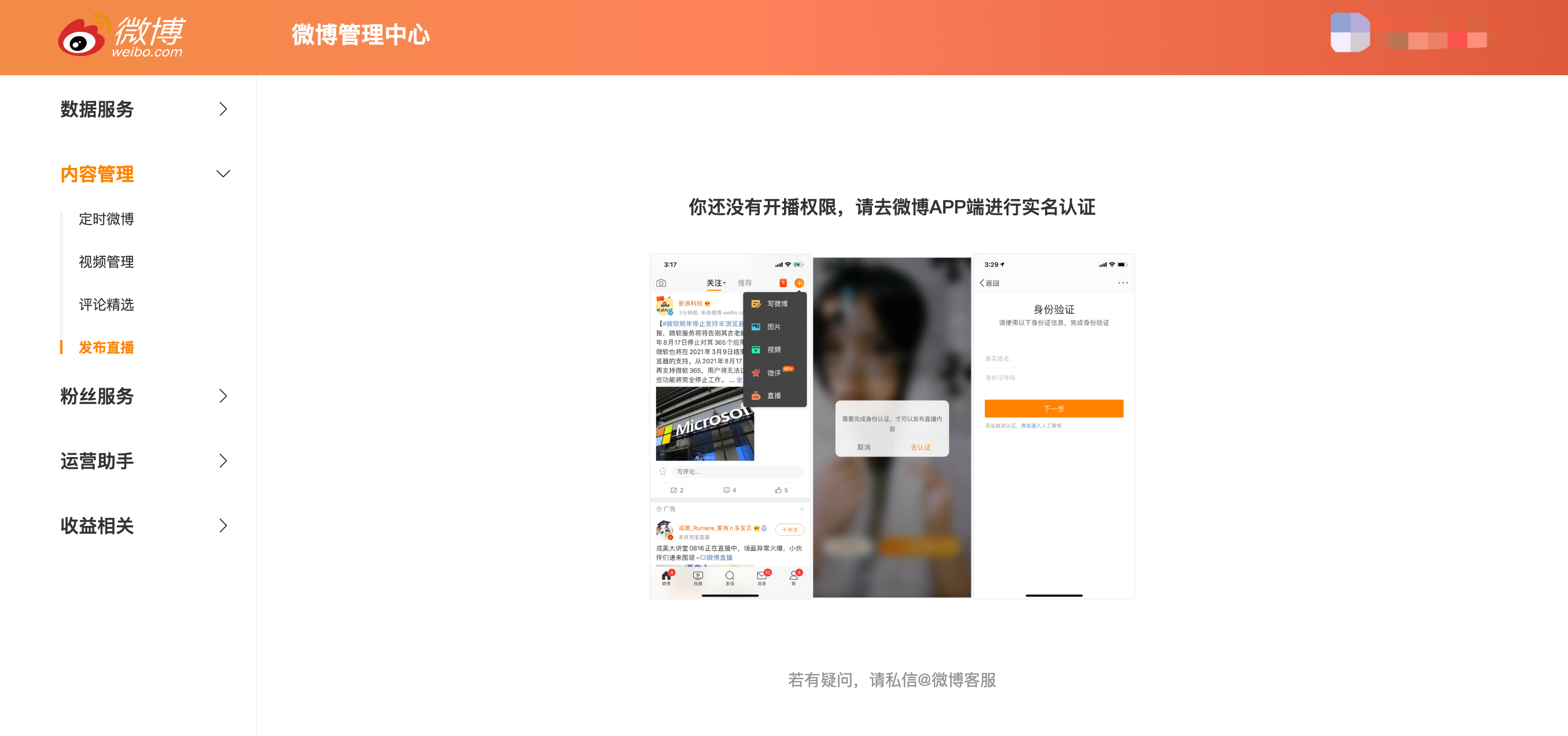
If your account is not real - name verified, you need to complete the verification on the Weibo app before you can start a live broadcast
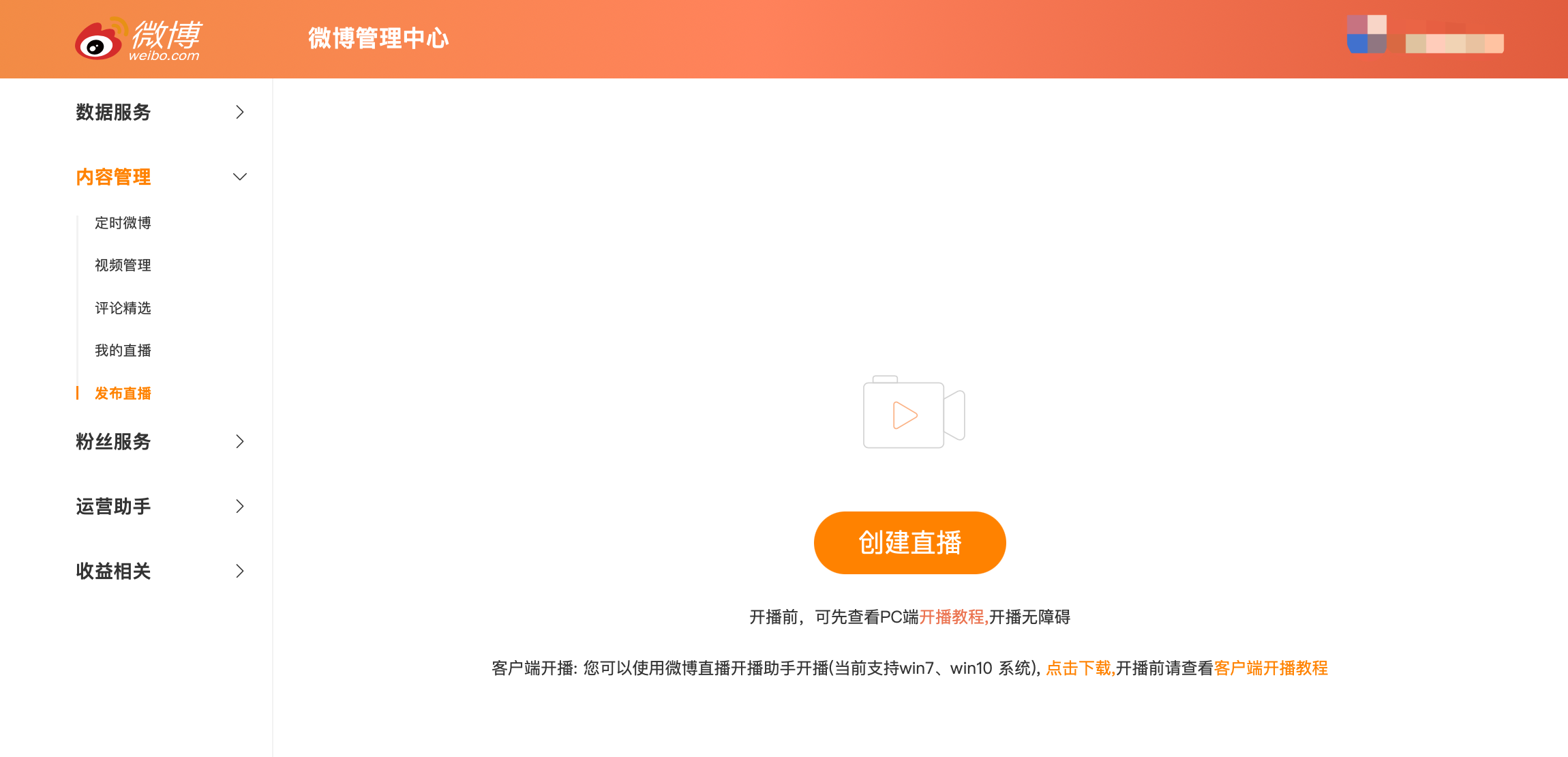
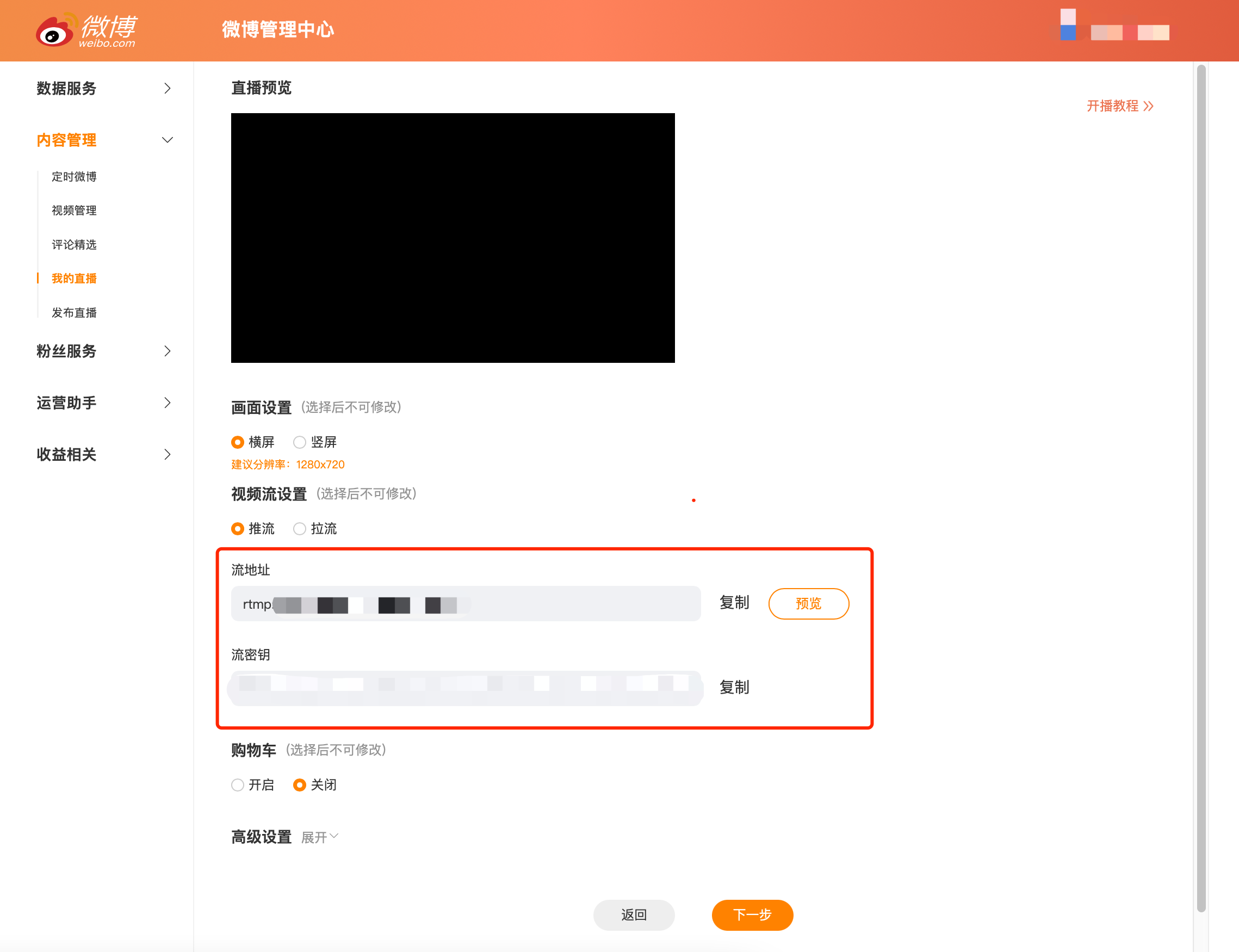
2. Select “Content Management - Publish Live” in the left - hand navigation bar, click “Create Live”, and copy the stream address and stream key
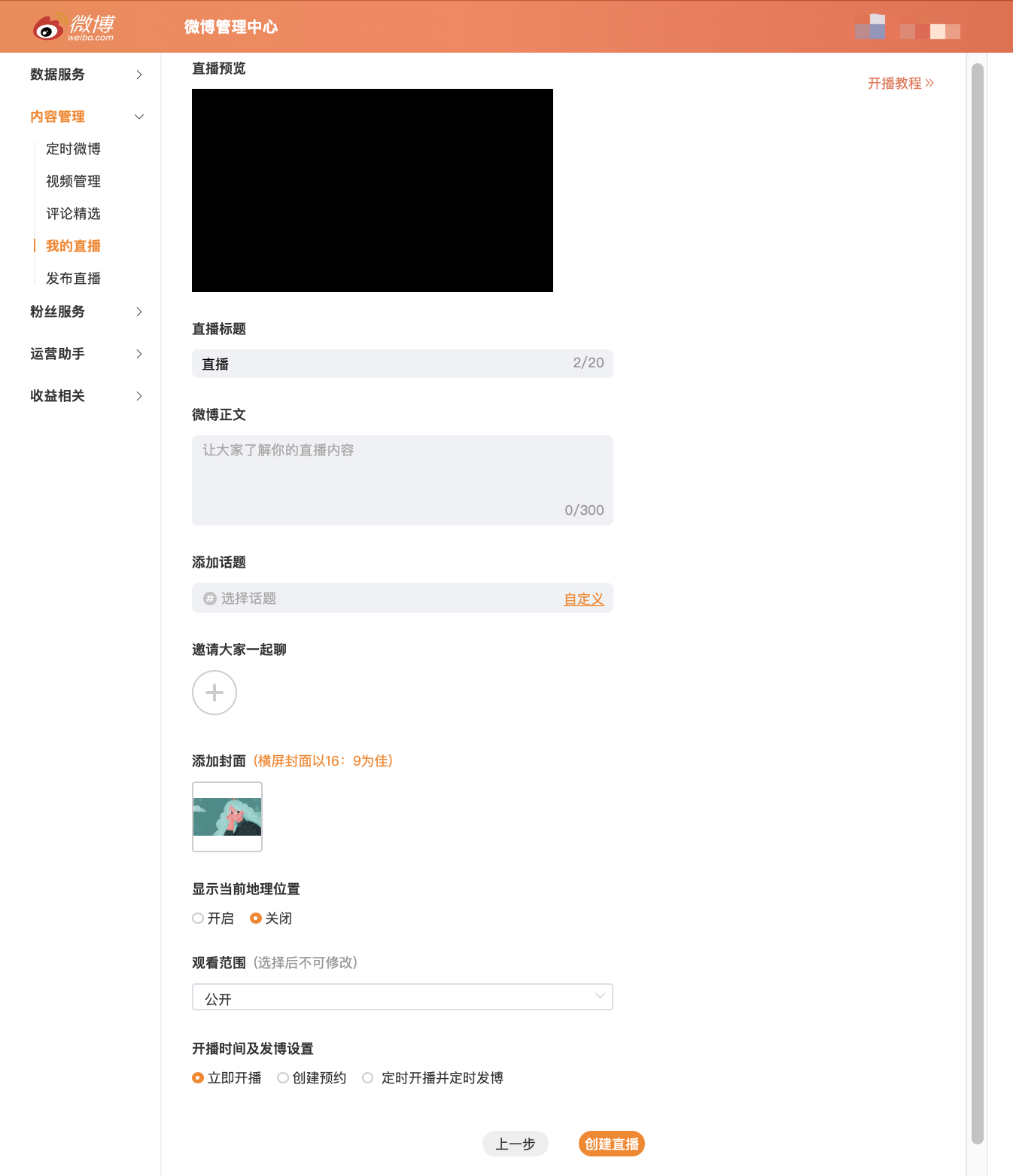
3. After completion, click “Next” to set the live broadcast information. Once completed, the live broadcast will be successfully created. You can manage the live broadcast in “My Live Broadcasts”.
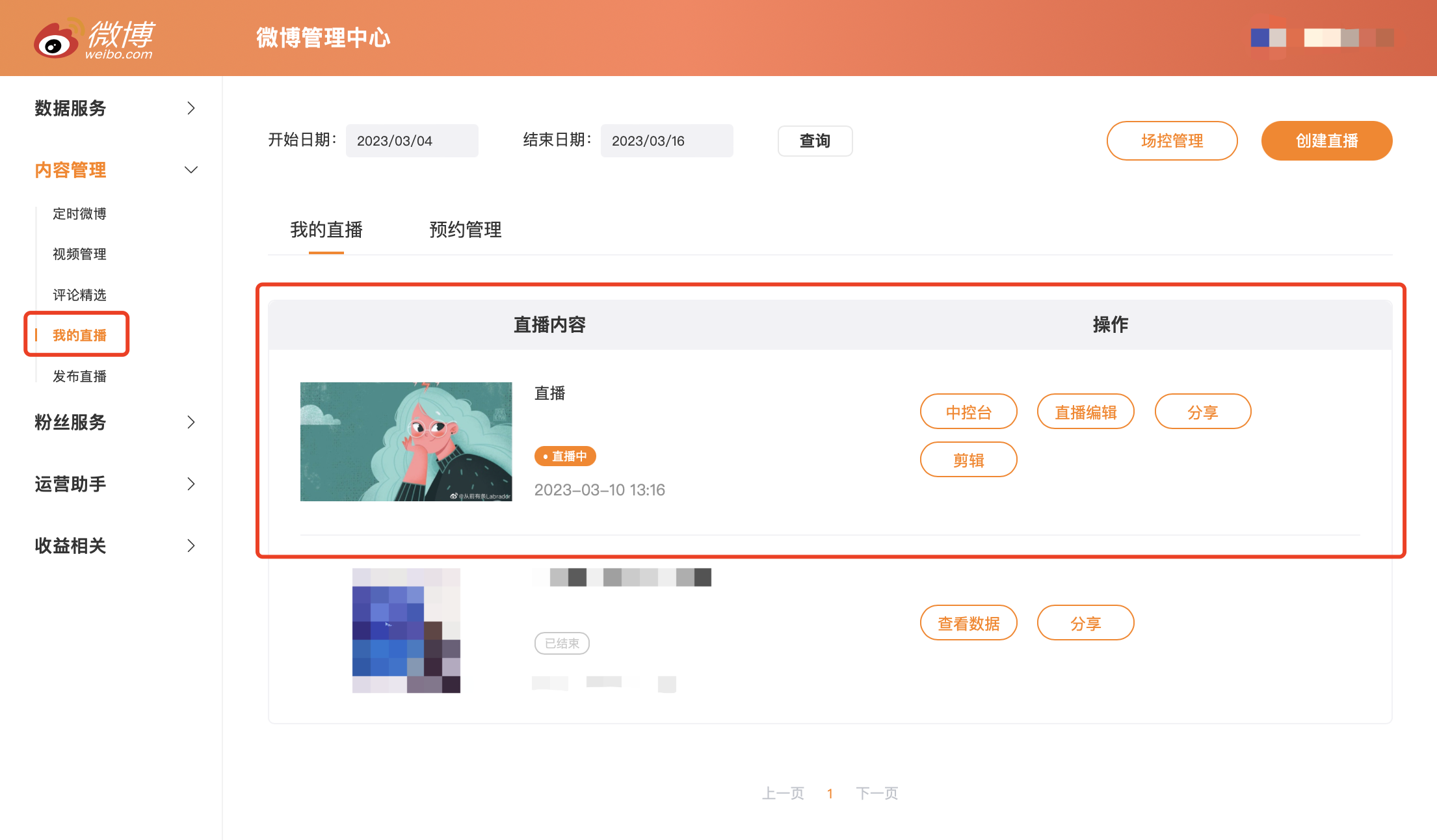
For more information on starting a live broadcast on Weibo, please refer to the official tutorial:https://weibo.com/l/wblive/act/k2mw80kz3kw0
II. Step 2: Fill in the elink management backend
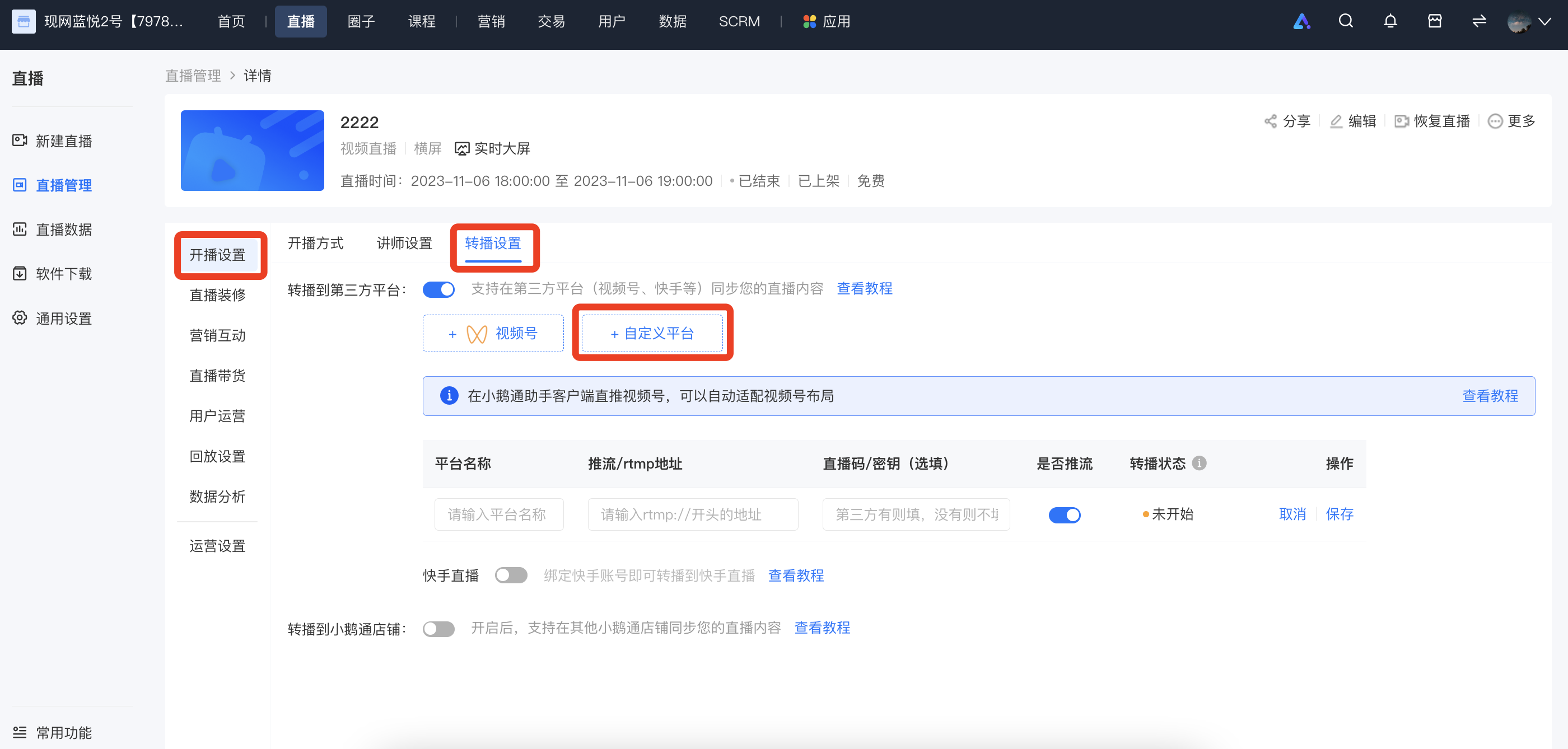
Log in to the elink management backend, select the live - broadcast room you want to rebroadcast, go to [Details Page - Live - broadcast Settings - Rebroadcast Settings - Rebroadcast to Third - party Platforms - Custom Platform], fill in the name of the rebroadcasting platform, the streaming address, and the key, and then click “Save”.
III. Step 3: Start the live broadcast
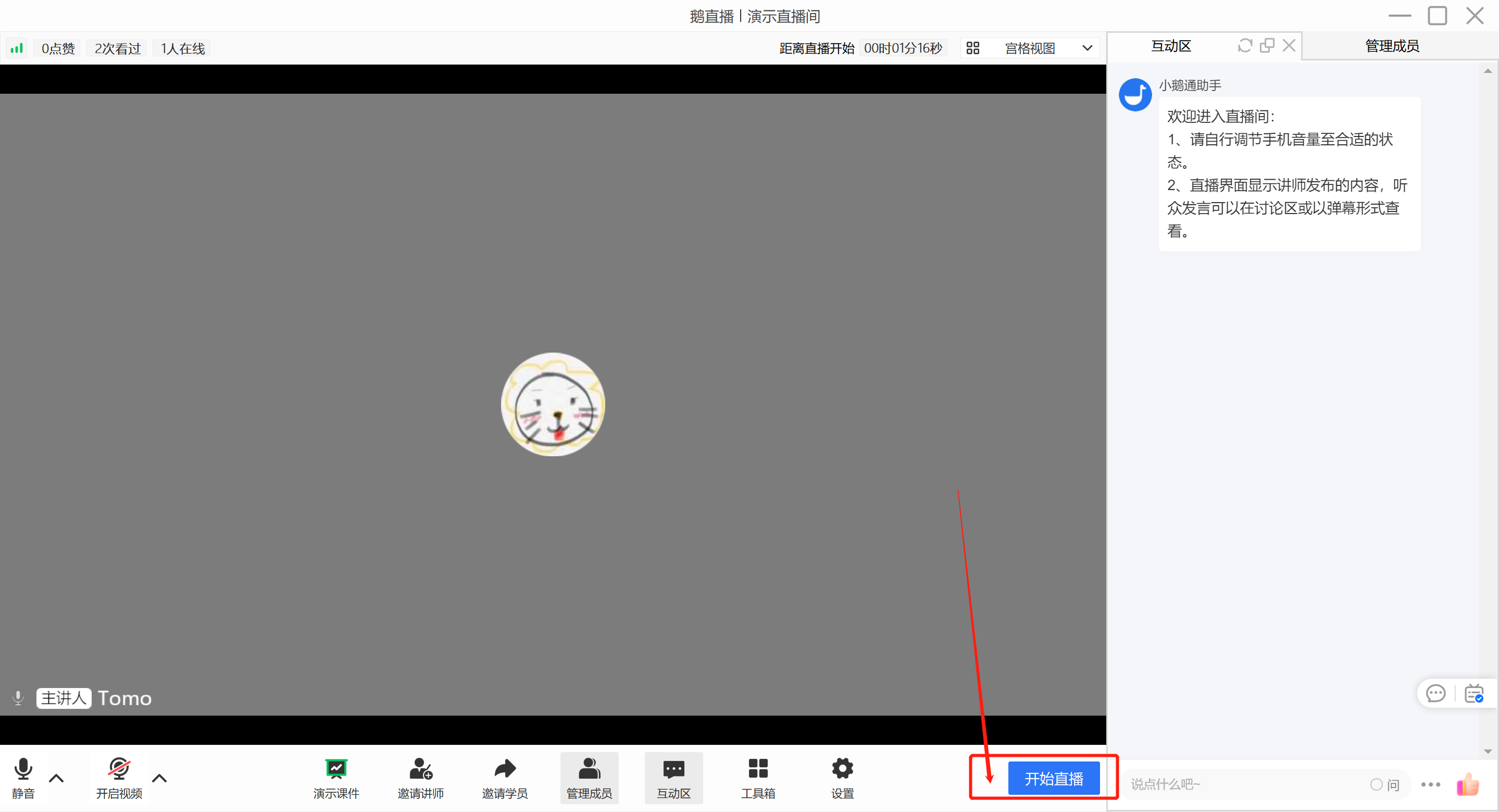
Go to the eLive client/elink live - broadcast terminal to start the live broadcast. Different live - broadcast modes are applicable to different live - broadcast terminals:
- Landscape live broadcast: Computer (eLive client,elink Assistant client, web version), mobile phone (eLive Mini Program)
- Portrait live broadcast: Mobile phone (eLive Mini Program)
- Recorded live broadcast: Computer (web version), mobile phone (H5)
(Schematic diagram of the eLive client)
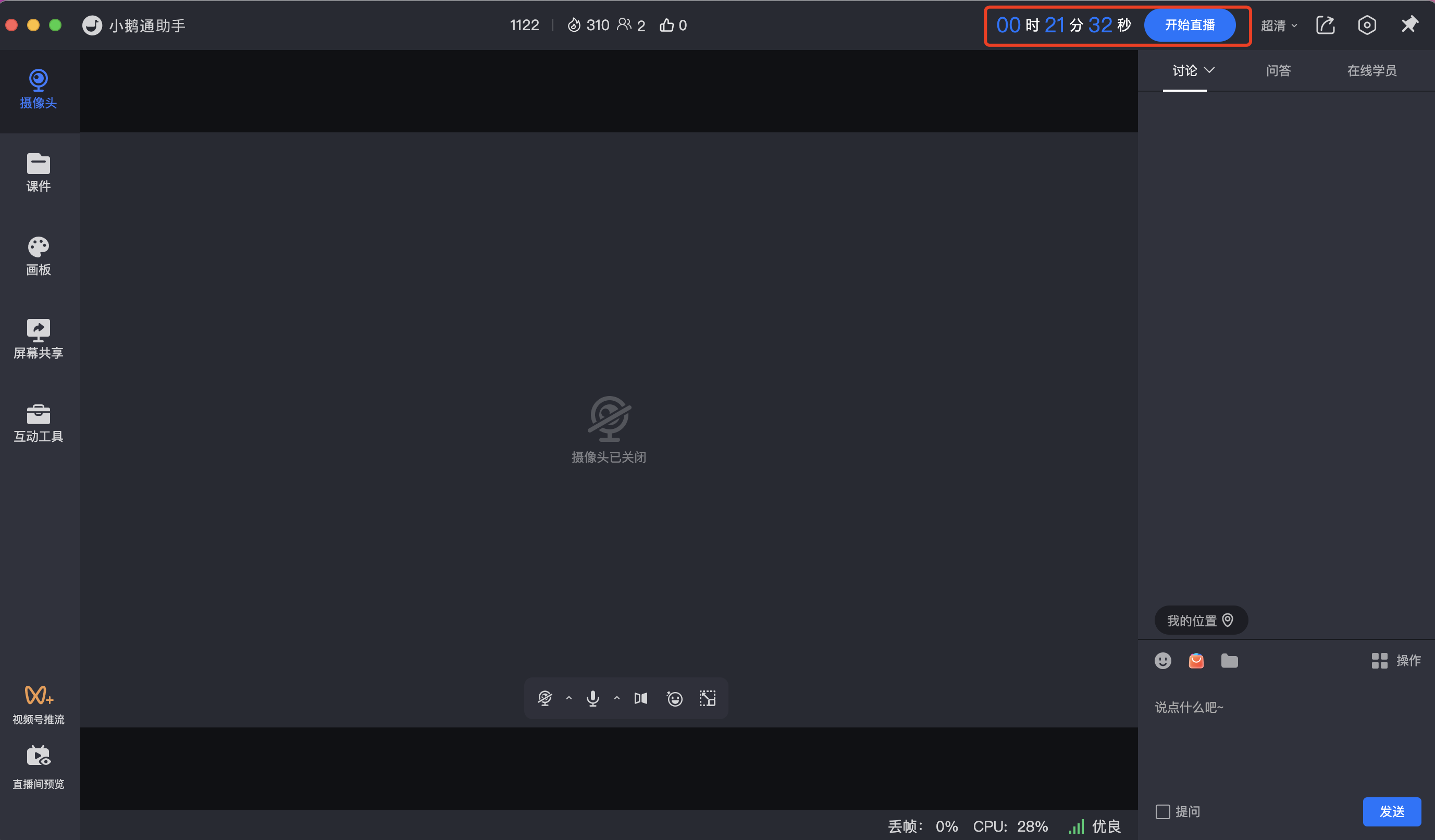
(Schematic diagram of the elink Assistant)