# How to obtain the server and streaming key?

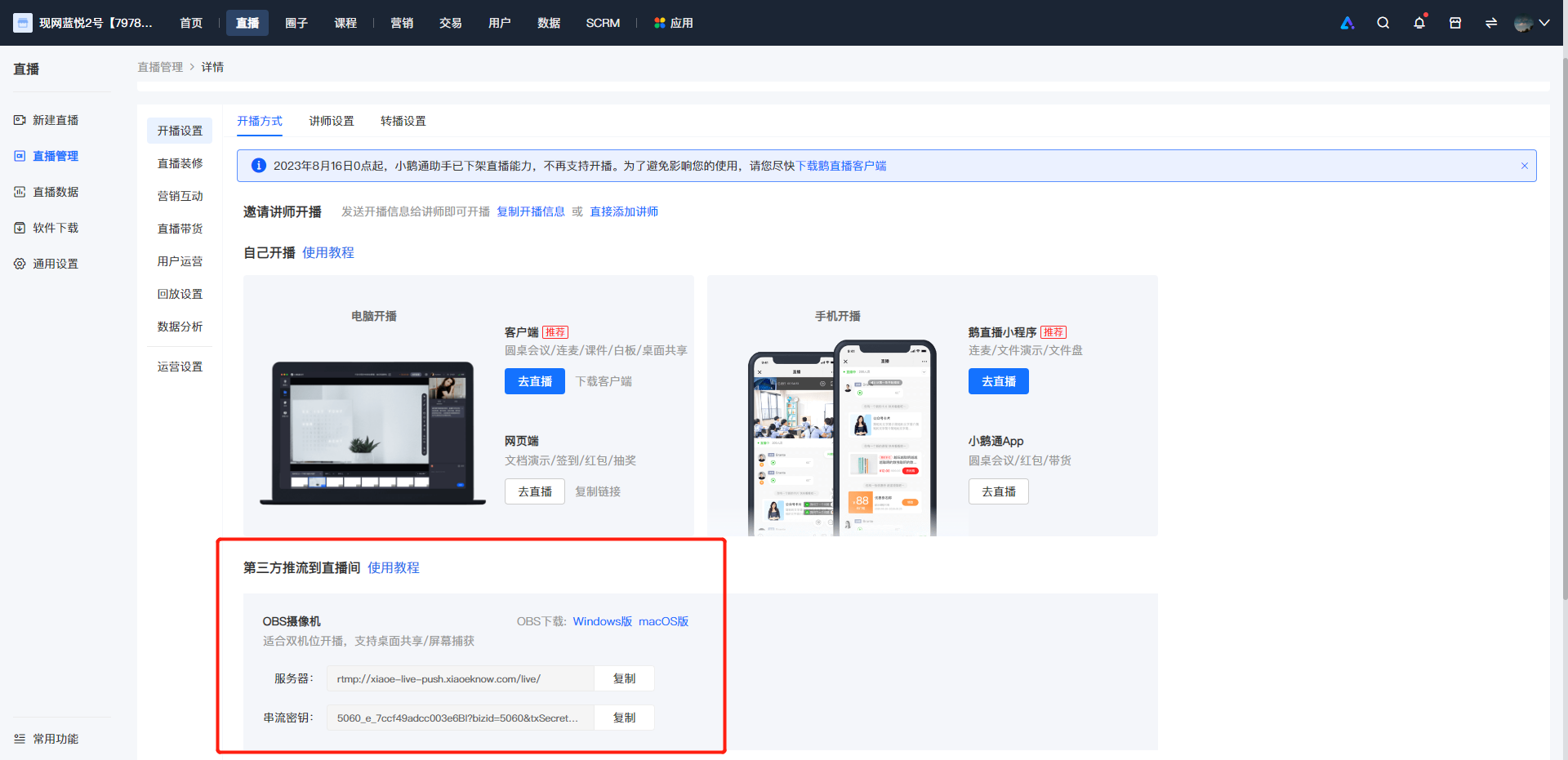
<div data-elink-language-switch="1" id="bkmrk-%E4%B8%AD%E6%96%87" style="border:1px solid #d6d9de;border-radius:6px;padding:10px 12px;margin:0 0 18px 0;background:#f8fafc;font-size:14px;">[中文](/books/091d5/page/cedeb)</div><span style="white-space:pre-wrap;background-color:rgb(255,255,255);font-size:15px;">1. <span style="white-space:pre-line;background-color:rgb(255,255,255);">You can log in to the elink Merchant Backend, click \[Live Streaming\], find the corresponding course, and then click \[More &gt; Go to Live &gt; Live Streaming Settings\] to copy the "Server" and "Stream Key".</span></span>

<span style="font-size:14px;">![image.png](https://wechatapppro-1252524126.file.myqcloud.com/help_document/image/ueditor/74995200_1699236913.png ".png")</span>

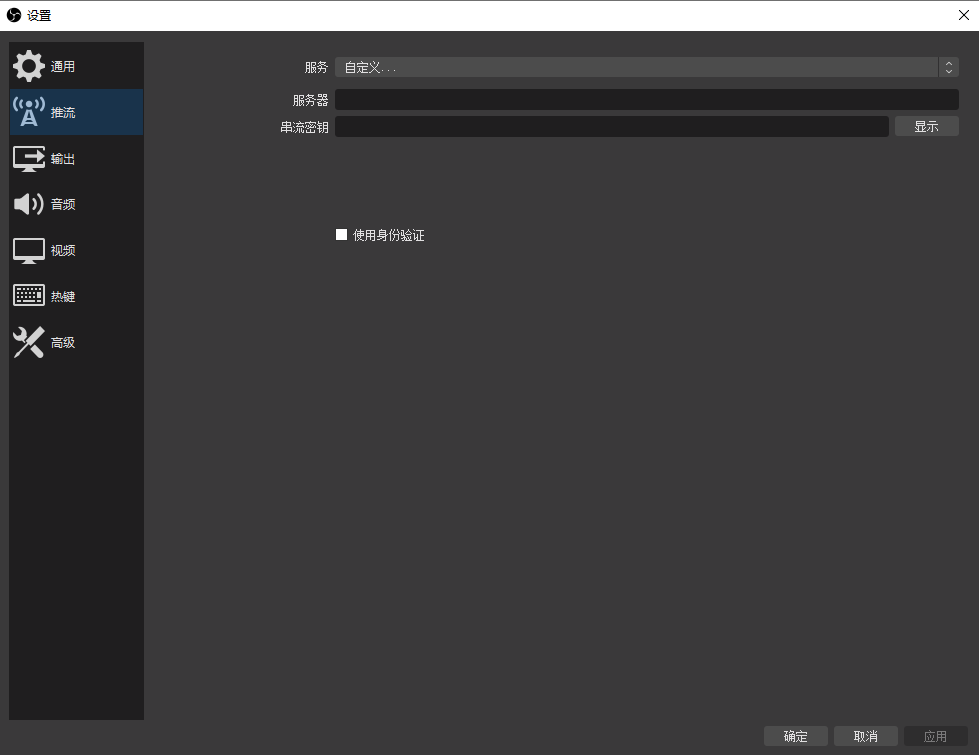
<span style="font-family:'Microsoft YaHei', '微软雅黑';white-space:pre-wrap;background-color:rgb(255,255,255);font-size:15px;">2. After obtaining the "Server" and "Stream Password", open OBS, click the settings button in the bottom right corner. On the settings page, select "Streaming" from the left - hand sidebar. On the streaming settings page, click the dropdown menu next to "Service" and select "Custom".<span style="font-family:'PingFang SC', 'Microsoft YaHei', '黑体', '宋体', sans-serif;white-space:pre-line;background-color:rgb(255,255,255);">Then fill in the corresponding information in the "Server" and "Stream Key" fields.</span></span>

![2.png](https://wechatapppro-1252524126.file.myqcloud.com/help_document/image/ueditor/11791600_1699236914.png ".png")