# How to check if the microphone permission is occupied?

<div data-elink-language-switch="1" id="bkmrk-%E4%B8%AD%E6%96%87" style="border:1px solid #d6d9de;border-radius:6px;padding:10px 12px;margin:0 0 18px 0;background:#f8fafc;font-size:14px;">[中文](/books/091d5/page/6c834)</div>**<span style="font-size:20px;">How to check if the microphone permission is occupied?  
</span>**  
1\. Click on Privacy and Security  
Press Win + I to open Settings and search for Microphone Privacy Settings.
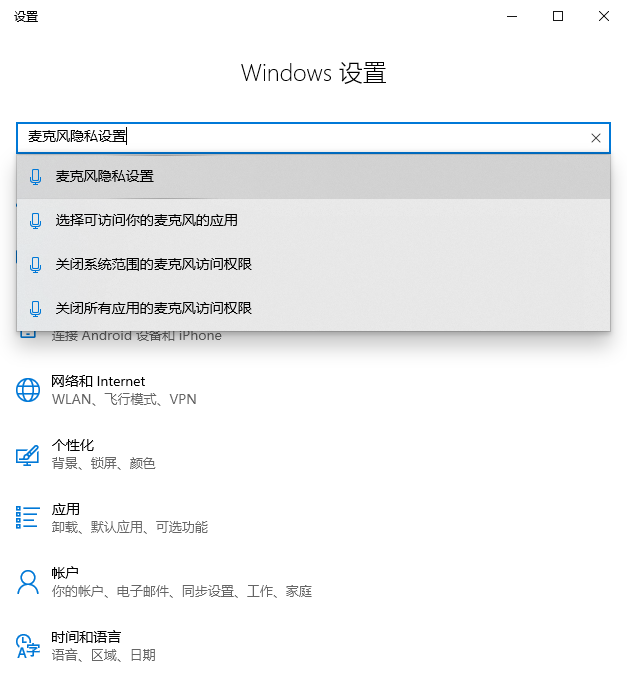
![image.png](https://wechatapppro-1252524126.file.myqcloud.com/help_document/image/ueditor/72037900_1677492113.png ".png")

2\. Check if there is an app with the "Currently in use" indicator in "Allow desktop apps to access your microphone" and quit that app.
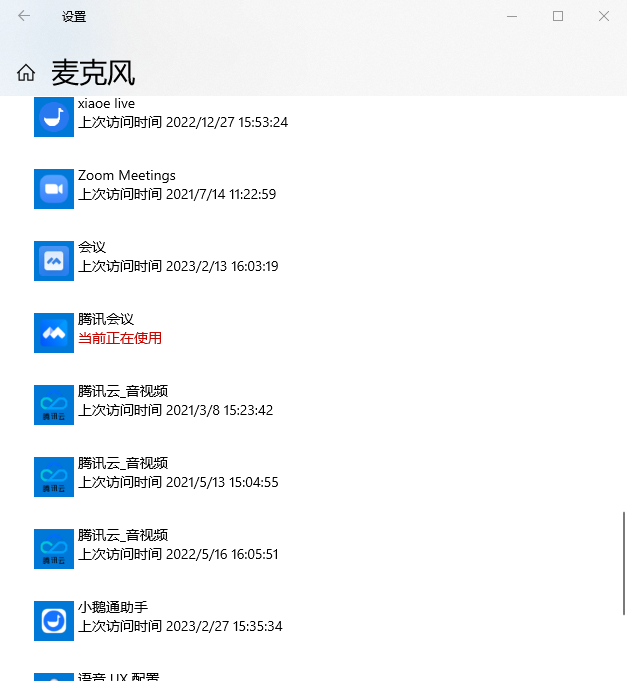
![image.png](https://wechatapppro-1252524126.file.myqcloud.com/help_document/image/ueditor/83979600_1677492135.png ".png")

3\. Reopen the elink Assistant client and check if you can use the microphone normally.