# English version live streaming room usage tutorial

<div data-elink-language-switch="1" id="bkmrk-%E4%B8%AD%E6%96%87" style="border:1px solid #d6d9de;border-radius:6px;padding:10px 12px;margin:0 0 18px 0;background:#f8fafc;font-size:14px;">[中文](/books/091d5/page/3ef81-tkQ)</div><span style="font-size:17px;">**I. Function Introduction**</span>

<span style="font-size:15px;"><span style="font-size:15px;">To enhance the live streaming and viewing experience for overseas instructors and students, the live streaming room supports switching to the English version. After overseas instructors start a live stream in English on the client, they can interact with students in the live streaming room without language barriers. Overseas instructors who haven't downloaded the client can also directly start a live stream using the English version of the web page. Overseas students can choose to watch the live stream in English on the H5 and web platforms.</span></span>

<span style="font-size:17px;">**II. Purpose of Use**</span>

To meet the live streaming needs of overseas instructors and students.

<span style="font-size:17px;">**III. Use Scenarios**</span>

<span style="font-size:15px;">Scenario 1: After overseas instructors start a live stream in English on the client, the English version can help them enhance interaction with students in the live streaming room.</span><span style="font-size:15px;"></span>

<span style="font-size:15px;">Scenario 2: Overseas instructors can experience starting a live stream using the English version of the web page without downloading the client.</span>

<span style="font-size:15px;">Scenario 3: Overseas students can watch the live stream in English on the web and H5 platforms.</span>

<span style="font-size:17px;">**IV. Operation Path**</span>

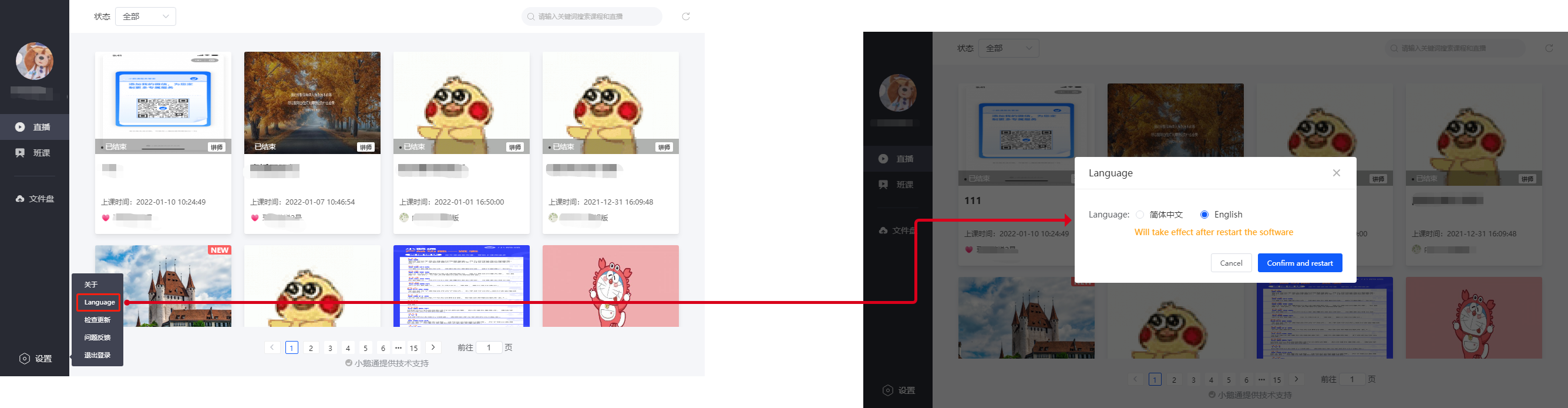
<span style="font-size:15px;">elink Assistant Client (Instructor): Settings → Switch Language → language → English</span>

<span style="font-size:15px;"></span>

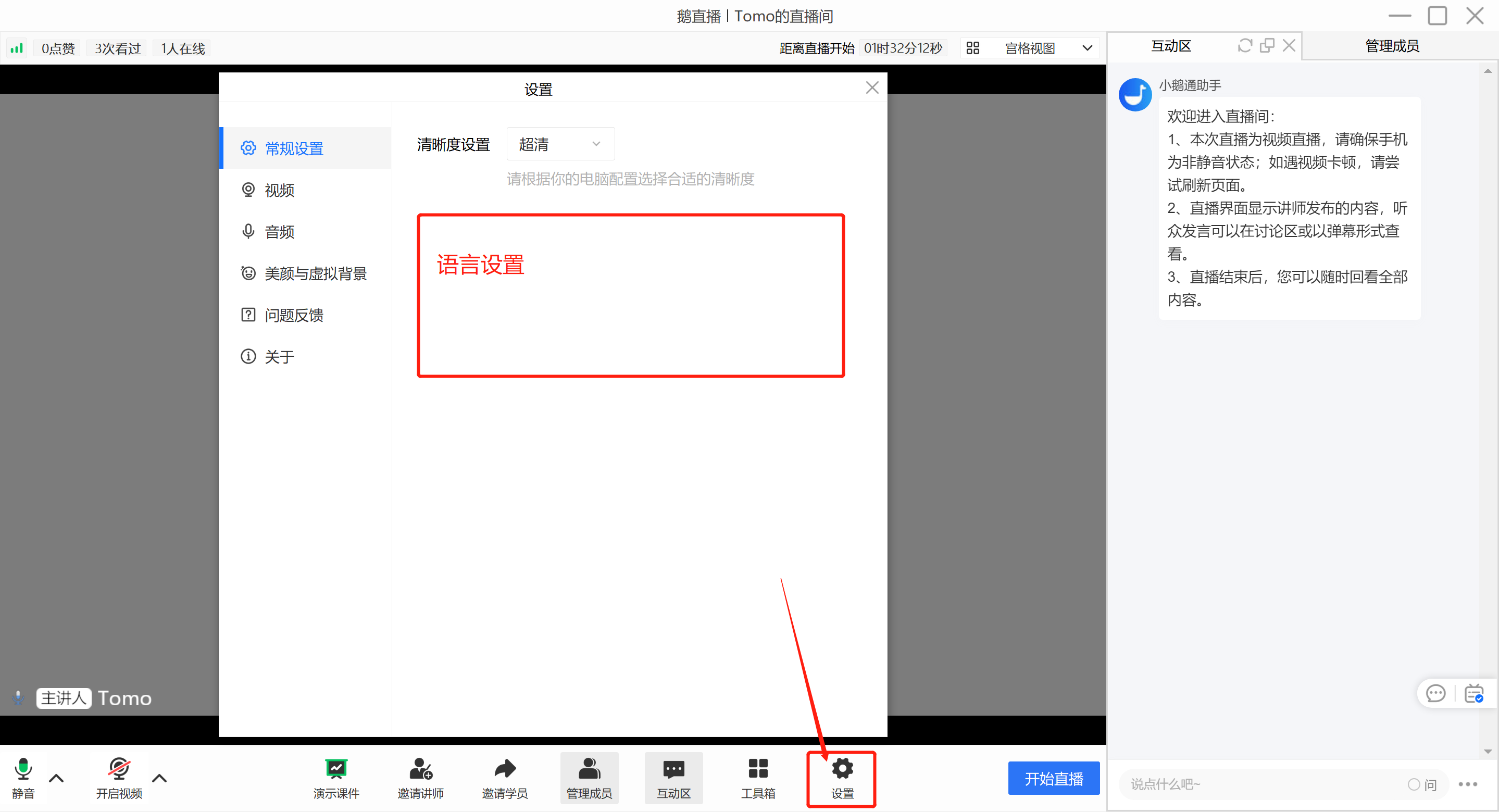
<span style="font-size:15px;">elink Live Streaming Client (Instructor): Settings → General Settings<span style="font-size:15px;">→ </span>Switch Language → language → English</span>

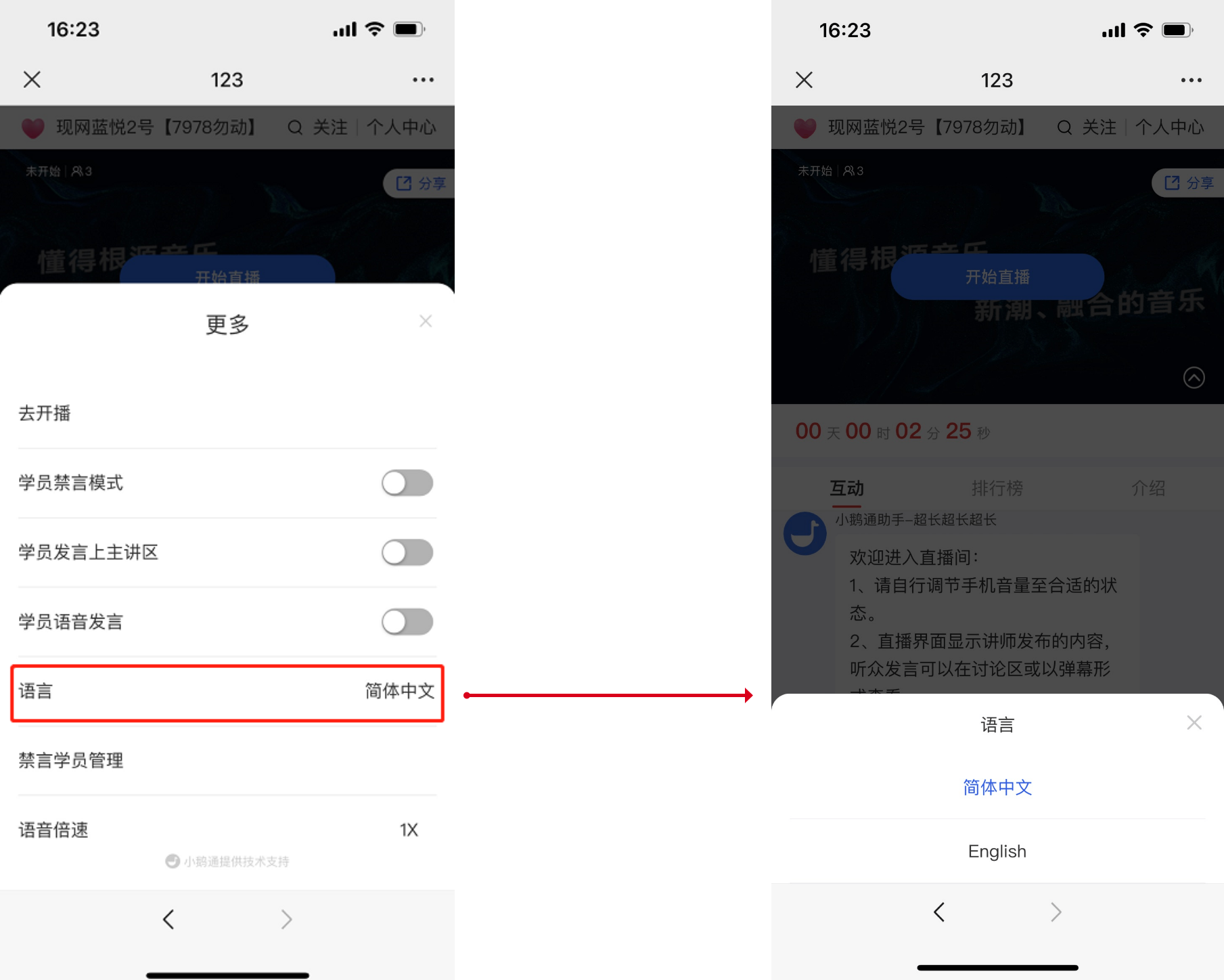
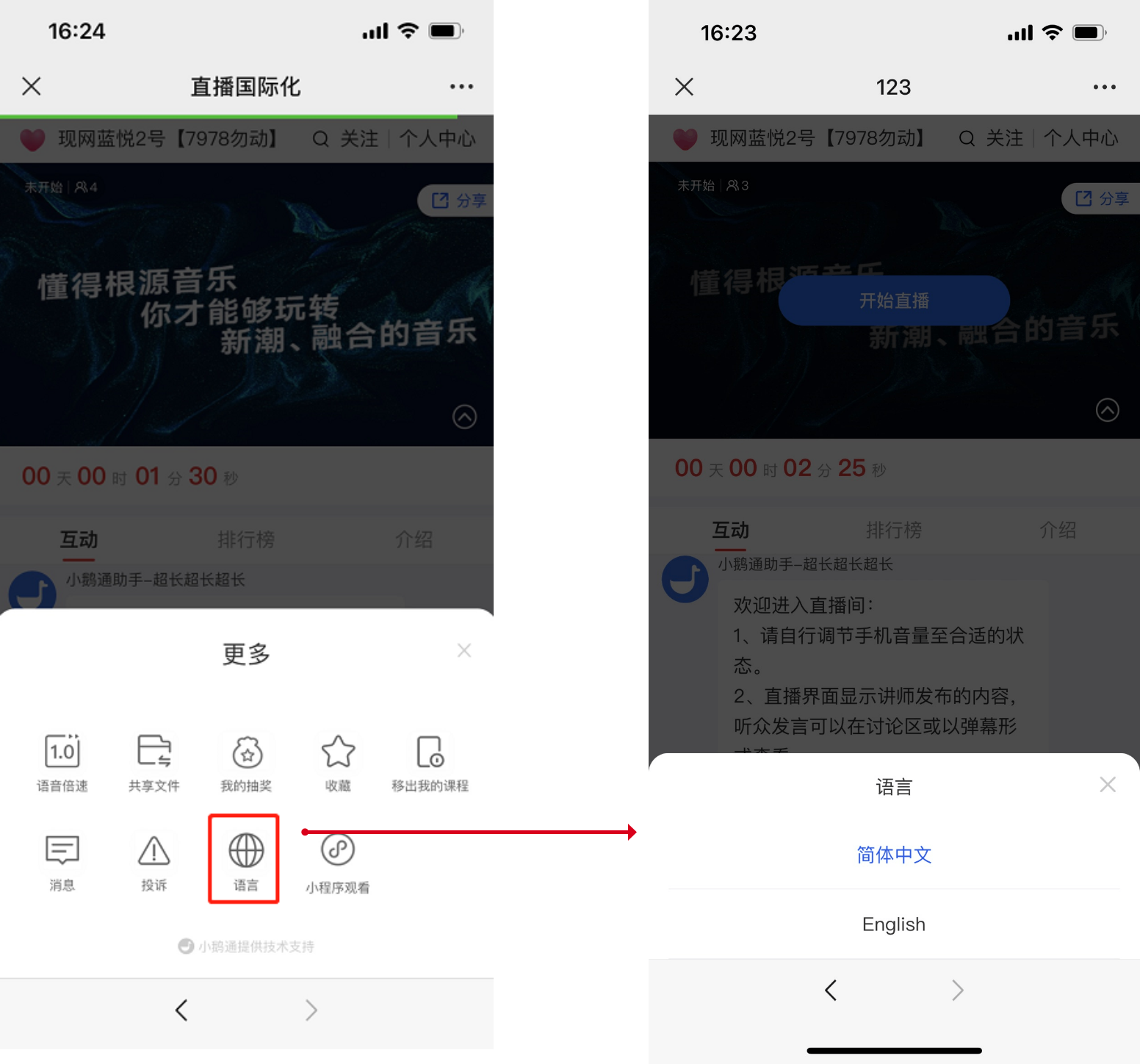
<span style="font-size:15px;">H5 Platform (Instructor/Student): H5 Live Streaming Room → More → Language → English</span>

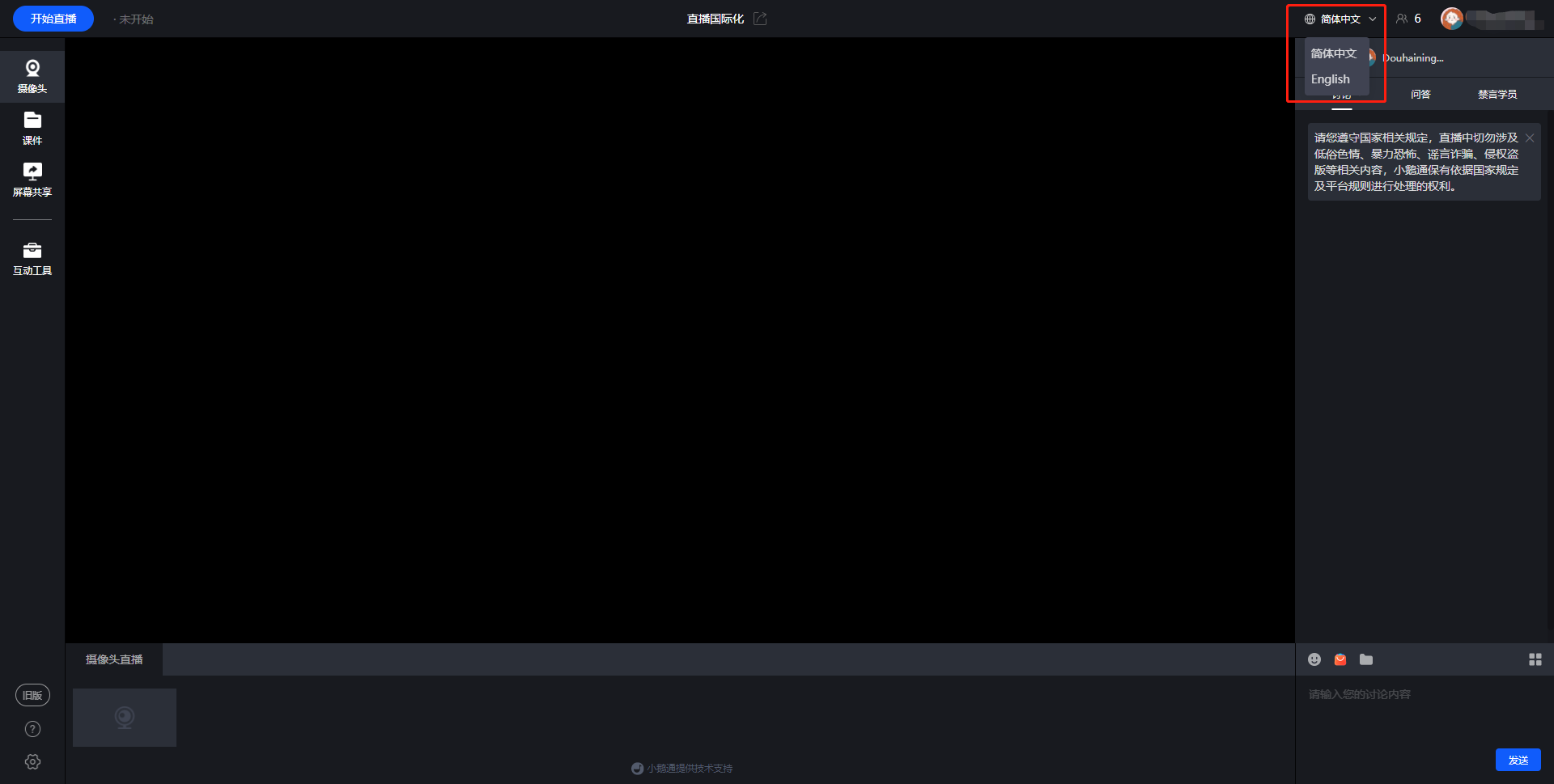
<span style="font-size:15px;">Web Platform (Instructor/Student): Switch the language in the upper - right corner of the page</span>

<span style="font-size:15px;">V. Usage Tutorial</span>

**<span style="font-size:15px;">● Instructor Side - elink Assistant</span>**

<span style="font-size:15px;">  
</span>

<span style="font-size:15px;">![1.png](https://wechatapppro-1252524126.file.myqcloud.com/help_document/image/ueditor/84850200_1686904109.png ".png")</span>

<span style="font-size:15px;"></span>

### **<span style="font-family:'Helvetica Neue', Helvetica, 'PingFang SC', 'Microsoft YaHei', 'Source Han Sans SC', 'Noto Sans CJK SC', 'WenQuanYi Micro Hei', sans-serif;color:rgb(26,26,26);background-image:initial;background-position:initial;background-size:initial;background-repeat:initial;background-attachment:initial;letter-spacing:0pt;vertical-align:baseline;font-size:15px;">● Instructor Side - elink Live Streaming Client (Expected to be supported in August 2023)</span>**<span style="font-size:14pt;font-family:'Helvetica Neue', Helvetica, 'PingFang SC', 'Microsoft YaHei', 'Source Han Sans SC', 'Noto Sans CJK SC', 'WenQuanYi Micro Hei', sans-serif;color:rgb(26,26,26);background-image:initial;background-position:initial;background-size:initial;background-repeat:initial;background-attachment:initial;letter-spacing:0pt;vertical-align:baseline;"></span>

<span style="font-size:11pt;color:rgb(0,0,0);background-image:initial;background-position:initial;background-size:initial;background-repeat:initial;background-attachment:initial;letter-spacing:0pt;vertical-align:baseline;">Select 'Settings'. After entering the settings page, select 'General Settings'. You can find 'Select Language' at the bottom of this page. Select the corresponding language to take effect.</span><span style="font-size:11pt;background-image:initial;background-position:initial;background-size:initial;background-repeat:initial;background-attachment:initial;letter-spacing:0pt;vertical-align:baseline;"></span>

![image.png](https://wechatapppro-1252524126.file.myqcloud.com/help_document/image/ueditor/83976100_1686904109.png ".png")

  
<span style="font-size:15px;">  
</span>

**<span style="font-size:15px;">● Instructor Side - H5 Live Streaming Room</span>**

<span style="font-size:15px;">![2.png](https://wechatapppro-1252524126.file.myqcloud.com/help_document/image/ueditor/25360900_1686904110.png ".png")</span>

<span style="font-size:15px;">  
</span>

**<span style="font-size:15px;">● Student Side - H5 Live Streaming Room</span>**

<span style="font-size:15px;">![3.png](https://wechatapppro-1252524126.file.myqcloud.com/help_document/image/ueditor/61297300_1686904110.png ".png")</span>

<span style="font-size:15px;">  
</span>

<span style="font-size:15px;">●**Instructor/Student Side - Web Platform**</span>

<span style="font-size:15px;">![4.png](https://wechatapppro-1252524126.file.myqcloud.com/help_document/image/ueditor/89140500_1686904110.png ".png")</span>

<span style="font-size:15px;">PS: The English version only takes effect in the live streaming room.</span>