# Black borders or incomplete display in the live streaming video

<div data-elink-language-switch="1" id="bkmrk-%E4%B8%AD%E6%96%87" style="border:1px solid #d6d9de;border-radius:6px;padding:10px 12px;margin:0 0 18px 0;background:#f8fafc;font-size:14px;">[中文](/books/091d5/page/202cb-alr)</div>### <span style="font-family:'微软雅黑';">  
</span>

### <span style="font-family:'微软雅黑';">  
</span>

### <span style="font-family:'微软雅黑';">  
</span>

### <span style="font-family:'微软雅黑';">  
</span>

### <span style="font-family:'微软雅黑';">  
</span>

### <span style="font-family:'微软雅黑';">  
</span>

### <span style="font-family:'微软雅黑';">  
</span>

### <span style="font-family:'微软雅黑';">  
</span>

### <span style="font-family:'微软雅黑';">  
</span>

### <span style="font-family:'微软雅黑';">  
</span>

### <span style="font-family:'微软雅黑';">  
</span>

### <span style="font-family:'微软雅黑';">  
</span>

### <span style="font-family:'微软雅黑';">I. </span><span style="font-size:19px;color:rgb(26,26,26);letter-spacing:0;vertical-align:baseline;">Black borders on the screen</span>

<span style="font-family:Wingdings;">  
</span>

<span style="font-family:Wingdings;">●<span style="font-family:'Times New Roman';"> </span></span><span style="font-size:15px;color:rgb(51,51,51);letter-spacing:0;vertical-align:baseline;">Scenario 1: Black borders appear during screen sharing</span>

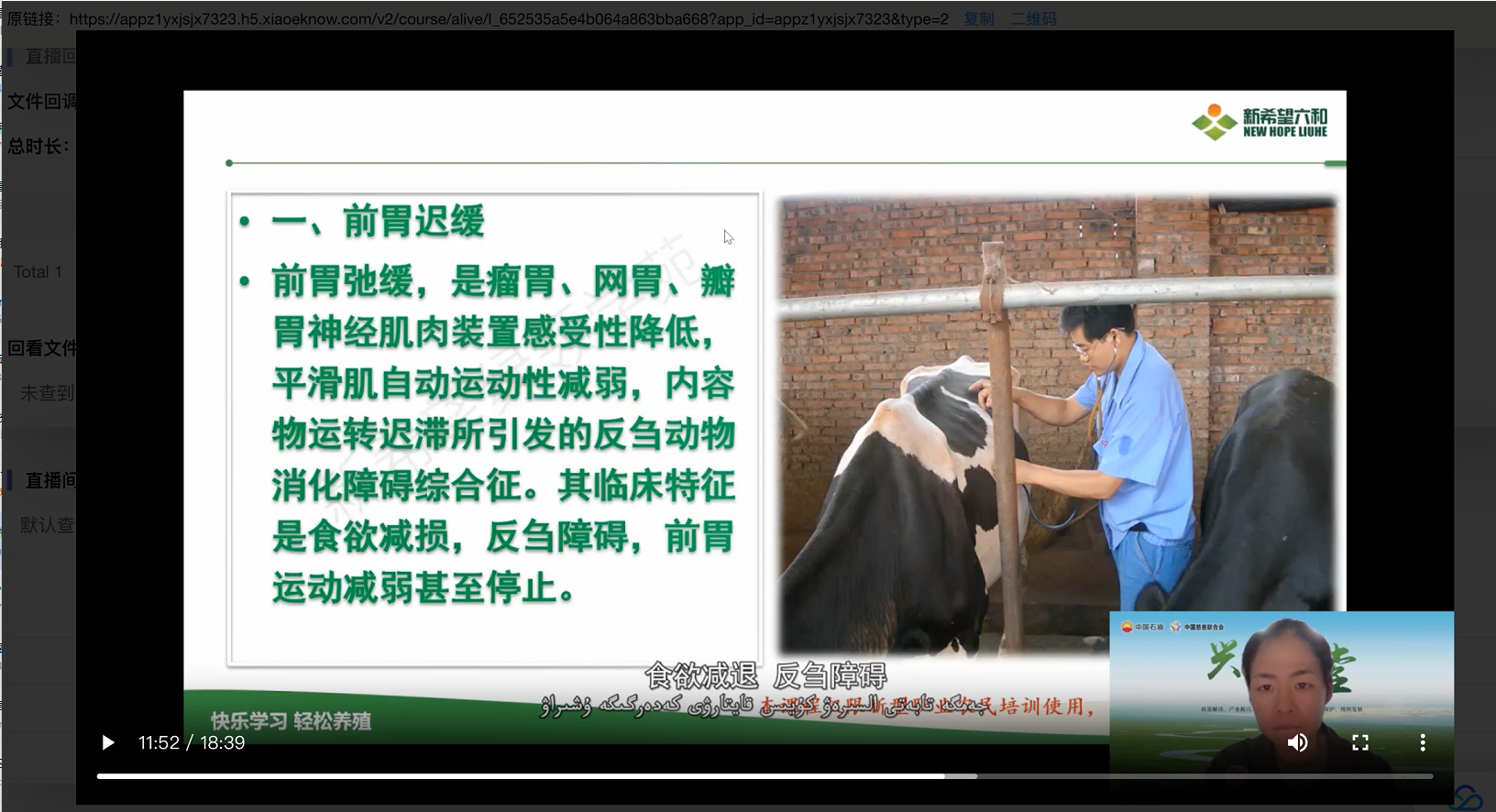
<span style="font-family:Wingdings;">○<span style="font-family:'Times New Roman';"> </span></span><span style="font-size:15px;color:rgb(51,51,51);letter-spacing:0;vertical-align:baseline;">Example: Sharing the desktop</span>

 ![image.png](https://wechatapppro-1252524126.file.myqcloud.com/help_document/image/ueditor/17056200_1698218274.png ".png")

<span style="font-family:Wingdings;">○<span style="font-family:'Times New Roman';"> </span></span><span style="font-size:15px;color:rgb(51,51,51);letter-spacing:0;vertical-align:baseline;">Reason 1: The screen sharing resolution of the computer desktop is not 16:9, which is common on Mac and Huawei computers. The resolution of Mac computers is usually 16:10.</span>

<span style="font-family:Wingdings;">○<span style="font-family:'Times New Roman';"> </span></span><span style="font-size:15px;color:rgb(51,51,51);letter-spacing:0;vertical-align:baseline;">Suggestion 1:</span>

<span style="font-family:Wingdings;">■<span style="font-family:'Times New Roman';"> </span></span><span style="font-size:15px;color:rgb(51,51,51);letter-spacing:0;vertical-align:baseline;">Step 1: It is recommended to check the screen resolution and adjust it to 16:9 if possible. The adjustment method is as shown in the following figure:</span>

<span style="font-size:15px;color:rgb(51,51,51);letter-spacing:0;vertical-align:baseline;"> 【Adjusting the screen resolution on a Mac computer】</span>

<span class="image-wrapper" style="display:inline-block;overflow:hidden;width:495px;height:435.462px;">![png](https://wdcdn.qpic.cn/MTY4ODg1MDQ5MzgxNDU4Mw_806859_XNg0oU8zAu9XJFzZ_1697703384?w=1430&h=1258&type=image/png)</span>

<span style="font-size:15px;color:rgb(51,51,51);letter-spacing:0;vertical-align:baseline;"> 【Screen resolution on a Windows computer】</span>

<span class="image-wrapper" style="display:inline-block;overflow:hidden;width:488px;height:266.445px;">![png](https://wdcdn.qpic.cn/MTY4ODg1MDQ5MzgxNDU4Mw_889044_8YcvaFH7XGNW3nfl_1697703448?w=1011&h=552&type=image/png)</span>

<span style="font-family:Wingdings;">■<span style="font-family:'Times New Roman';"> </span></span><span style="font-size:15px;color:rgb(51,51,51);letter-spacing:0;vertical-align:baseline;">Step 2: If there is no such resolution (e.g., on a Mac computer), it is recommended that the instructor share the window and ensure that the ratio of the shared window is 16:9 to avoid black borders. (Note: If some videos have built - in black borders, there will also be black borders when sharing these videos through window sharing.)</span>

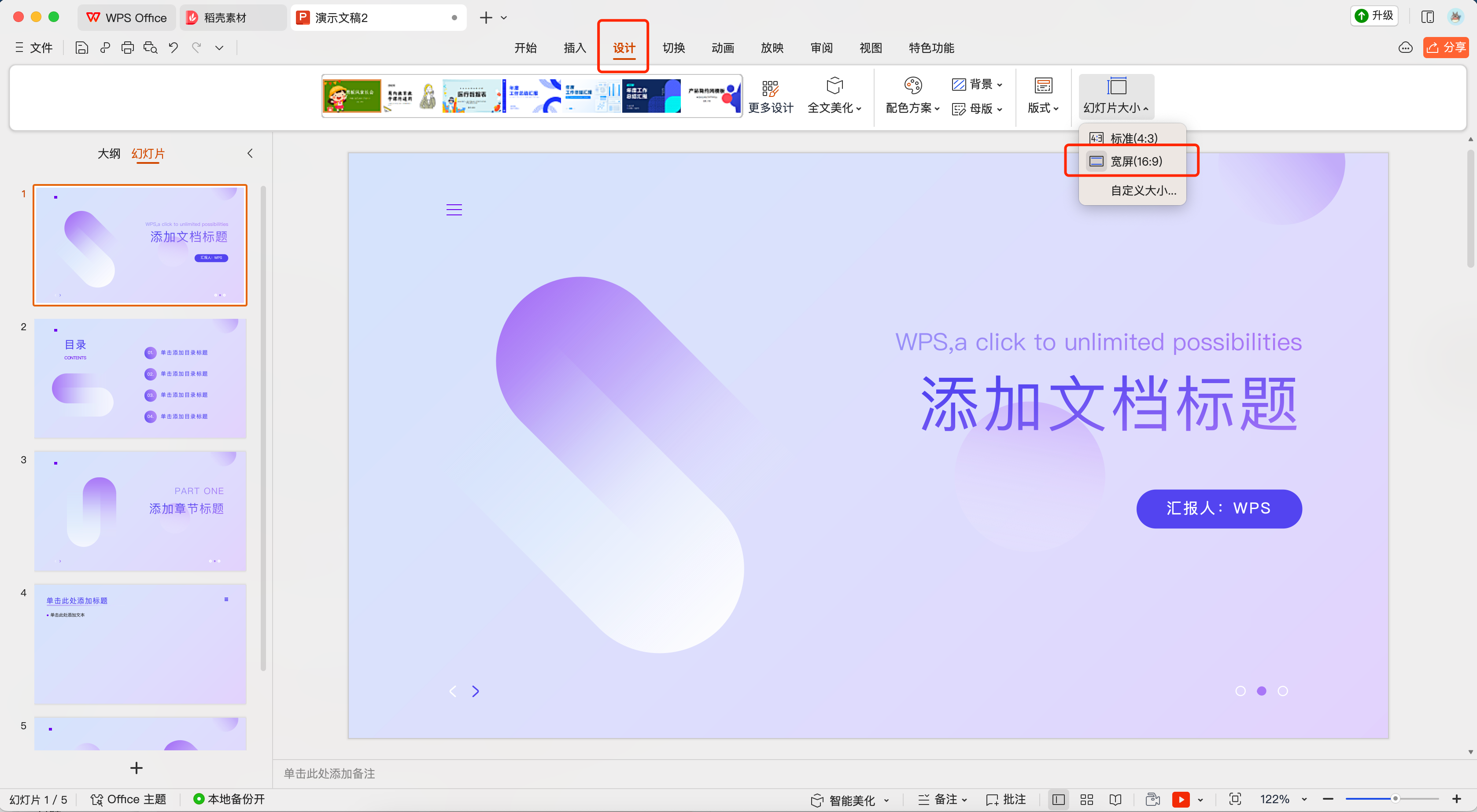
<span style="font-family:Wingdings;">■<span style="font-family:'Times New Roman';"> </span></span><span style="font-size:15px;color:rgb(51,51,51);letter-spacing:0;vertical-align:baseline;">Step 3: If you cannot confirm the size of the shared window; if you are sharing courseware, it is recommended to upload the courseware to the live - streaming room for demonstration. Note that before uploading the courseware, you can adjust the size of the courseware to “Wide screen (16:9)” locally. The specific operation is as shown in the following figure:</span>

<span style="font-family:Wingdings;">◆<span style="font-family:'Times New Roman';"> </span></span><span style="font-size:15px;color:rgb(51,51,51);letter-spacing:0;vertical-align:baseline;">Step 1: Adjust the slide size in the design</span>

 ![image.png](https://wechatapppro-1252524126.file.myqcloud.com/help_document/image/ueditor/27027800_1698217713.png ".png")

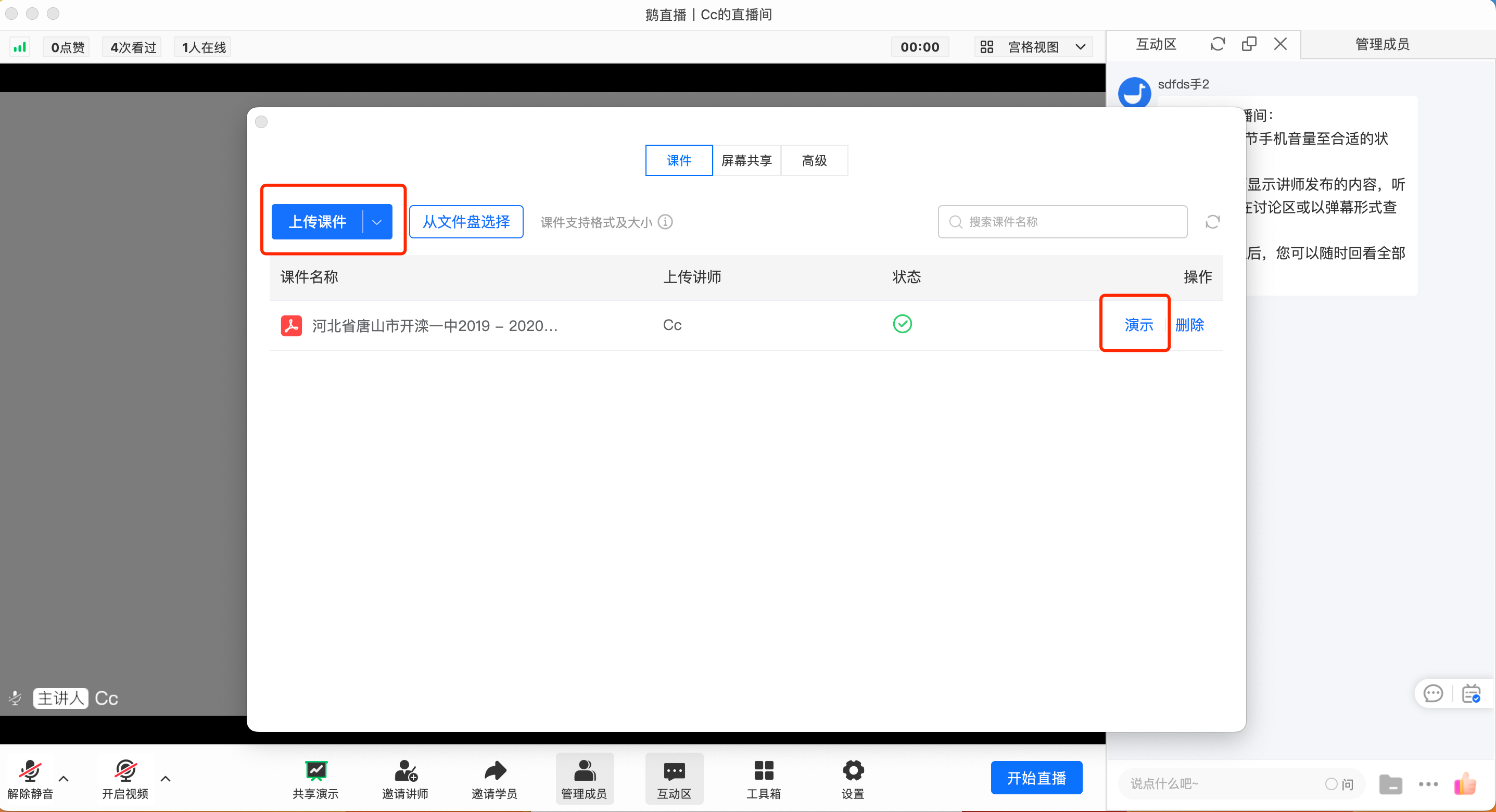
<span style="font-family:Wingdings;">◆<span style="font-family:'Times New Roman';"> </span></span><span style="font-size:15px;color:rgb(51,51,51);letter-spacing:0;vertical-align:baseline;">Step 2: Upload the courseware to the live - streaming room/file storage and select “Presentation”</span>

 ![image.png](https://wechatapppro-1252524126.file.myqcloud.com/help_document/image/ueditor/40183700_1698217843.png ".png")

<span style="font-size:15px;color:rgb(51,51,51);letter-spacing:0;vertical-align:baseline;">If you are sharing a video, it is recommended to adjust the size of the local player. Taking Tencent Video as an example, if it is not in the compact mode, first enter the compact mode in the upper - right corner. If there are still black borders at this time, you can stretch the playback interface to adjust until you are satisfied.</span>

<span style="font-family:Wingdings;">■<span style="font-family:'Times New Roman';"> </span></span><span style="font-size:15px;color:rgb(51,51,51);letter-spacing:0;vertical-align:baseline;">Step 1: Open Tencent Video</span>

<span class="image-wrapper" style="display:inline-block;overflow:hidden;width:500px;height:318px;"> ![png](https://wdcdn.qpic.cn/MTY4ODg1MDQ5Mzg2OTkzOA_473970_7jBu8bQvR7oEfFOf_1697170339?w=500&h=318&type=image/png)</span>

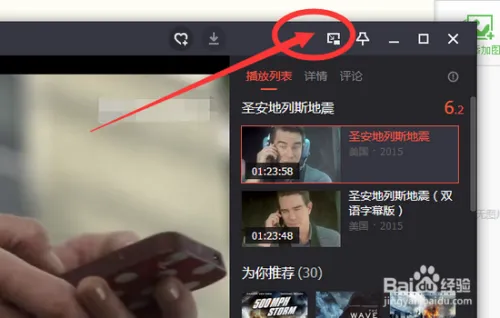
<span style="font-family:Wingdings;">■<span style="font-family:'Times New Roman';"> </span></span><span style="font-size:15px;color:rgb(51,51,51);letter-spacing:0;vertical-align:baseline;">Step 2: Click the compact mode</span>

 ![image.png](https://wechatapppro-1252524126.file.myqcloud.com/help_document/image/ueditor/50475400_1698218131.png ".png")

<span style="font-family:Wingdings;">■<span style="font-family:'Times New Roman';"> </span></span><span style="font-size:15px;color:rgb(51,51,51);letter-spacing:0;vertical-align:baseline;">Step 3: After clicking the 【Compact mode】 icon, it will automatically enter the 【Compact mode】 for playback. At this time, you can also adjust the size of the video playback window with the mouse.</span>

<span style="font-family:Wingdings;">○<span style="font-family:'Times New Roman';"> </span></span><span style="font-size:15px;color:rgb(51,51,51);letter-spacing:0;vertical-align:baseline;">Reason 3: Since the viewing devices of some students are not 16:9, no matter how the instructor adjusts, there will still be black borders on some viewing devices.</span>

<span style="font-family:Wingdings;">●<span style="font-family:'Times New Roman';"> </span></span><span style="font-size:15px;color:rgb(51,51,51);letter-spacing:0;vertical-align:baseline;">Scenario 2: Black borders appear in the round - table mode</span>

<span style="font-family:Wingdings;">○<span style="font-family:'Times New Roman';"> </span></span><span style="font-size:15px;color:rgb(51,51,51);letter-spacing:0;vertical-align:baseline;">Example:</span>

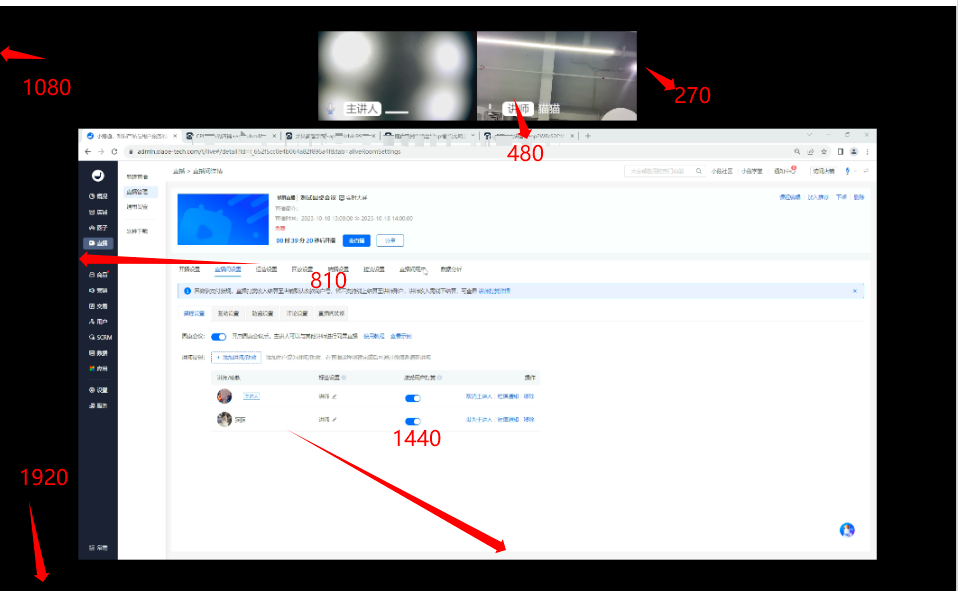
 ![image.png](https://wechatapppro-1252524126.file.myqcloud.com/help_document/image/ueditor/66313300_1698218148.png ".png")

<span style="font-family:Wingdings;">○<span style="font-family:'Times New Roman';"> </span></span><span style="font-size:15px;color:rgb(51,51,51);letter-spacing:0;vertical-align:baseline;">Reason: In the round - table meeting mode, the camera ratio is fixed at 16:9, and the content sharing ratio mode is 16:9. There will definitely be black borders in the empty part of the camera and around the content sharing. If the ratio of the shared window content itself is not 16:9, there will be two layers of black borders.</span>

<span style="font-family:Wingdings;">○<span style="font-family:'Times New Roman';"> </span></span><span style="font-size:15px;color:rgb(51,51,51);letter-spacing:0;vertical-align:baseline;">Suggestion: Adjust the ratio of the content - sharing window to 16:9 and set the background image of the video area to fill the black borders.</span>

### <span style="font-family:'微软雅黑';">II. </span><span style="font-size:19px;color:rgb(26,26,26);letter-spacing:0;vertical-align:baseline;">Incomplete screen display</span>

<span style="font-size:19px;color:rgb(26,26,26);letter-spacing:0;vertical-align:baseline;">  
</span>

<span style="font-family:Wingdings;">●<span style="font-family:'Times New Roman';"> </span></span><span style="font-size:15px;color:rgb(51,51,51);letter-spacing:0;vertical-align:baseline;">Scenario 1: In the vertical screen live - streaming mode, the viewing end cannot see the full screen</span>

<span style="font-family:Wingdings;">○<span style="font-family:'Times New Roman';"> </span></span><span style="font-size:15px;color:rgb(51,51,51);letter-spacing:0;vertical-align:baseline;">Reason: This situation is mainly related to the instructor's mobile device for streaming. The system defaults to streaming the entire screen of the instructor's mobile phone, while the screen ratios of each viewer's mobile phone model are different. Therefore, some models may have incomplete screen display.</span>

<span style="font-family:Wingdings;">○<span style="font-family:'Times New Roman';"> </span></span><span style="font-size:15px;color:rgb(51,51,51);letter-spacing:0;vertical-align:baseline;">Suggestion: When the instructor is doing vertical screen live - streaming, they can use another mobile phone to test the effect and leave a safe distance when making the background image. If using OBS for live - streaming and pushing, it is recommended to adjust the output ratio to 9:16.</span>

<span style="font-family:Wingdings;">●<span style="font-family:'Times New Roman';"> </span></span><span style="font-size:15px;color:rgb(51,51,51);letter-spacing:0;vertical-align:baseline;">Scenario 2: In the horizontal screen live - streaming mode, the output image of the camera is inconsistent with the image captured by the external camera</span>

<span style="font-family:Wingdings;">○<span style="font-family:'Times New Roman';"> </span></span><span style="font-size:15px;color:rgb(51,51,51);letter-spacing:0;vertical-align:baseline;">Reason: Currently, the output image of the camera is 16:9, while the image captured by the external camera has a different ratio, so part of the image will be cropped.</span>

<span style="font-family:Wingdings;">○<span style="font-family:'Times New Roman';"> </span></span><span style="font-size:15px;color:rgb(51,51,51);letter-spacing:0;vertical-align:baseline;">Suggestion: It is recommended to check the output effect in the camera preview screen and adjust the ratio of the image captured by the external camera to 16:9.</span>