Relay broadcast
- Where can I obtain the streaming push address from a third-party platform?
- What should I do if adding or modifying the streaming push address during a live stream does not take effect?
- Which online stores can authorize live rebroadcasting?
- Which online stores can accept live rebroadcasting?
- Third-party streaming to the elink live streaming room
- What should I do if the live streaming push URL for Channels fails to work?
- What should I do if students can't watch the live rebroadcast on Channels?
- How to rebroadcast a live stream to Bilibili
- How to rebroadcast a live stream to Weibo
Where can I obtain the streaming push address from a third-party platform?
Obtain directly from the third-party platform's backend or consult the third-party platform's customer service. For details, please refer to the documentation:Tutorial on Live Streaming Relay to Third-Party Platforms
What should I do if adding or modifying the streaming push address during a live stream does not take effect?
Limited by Tencent Cloud technology, after adding or modifying, you need to pause the live stream for 5 minutes and then restart it for the changes to take effect. It is recommended to configure the streaming push address 5 minutes before the live stream starts.
Which online stores can authorize live rebroadcasting?
Currently, only the trial version, professional version, and flagship version are supported. The basic version is not supported.
Which online stores can accept live rebroadcasting?
All versions of the online store can accept live rebroadcasts
Third-party streaming to the elink live streaming room
I. Function Introduction
This function allows merchants to push the live - streaming footage from other platforms to the elink live - streaming room, where the live - streaming footage will be synchronously displayed.
II. Purpose of Use
With this function, merchants can re - broadcast third - party live - streaming content to the store's live - streaming room, which can quickly expand the store's influence. Learners can also watch more diverse non - store content.
III. Use Scenarios
Through cooperation, merchants can push third - party live - streaming content to the store's live - streaming room and make it available to learners for free or at a charge. This can not only expand the store's influence but also provide learners with more diverse content.
IV. Operation Paths
Path 1: Merchant side: Management console → Create live - streaming → Live - streaming settings → Third - party push to the live - streaming room → Copy the stream name and streaming key
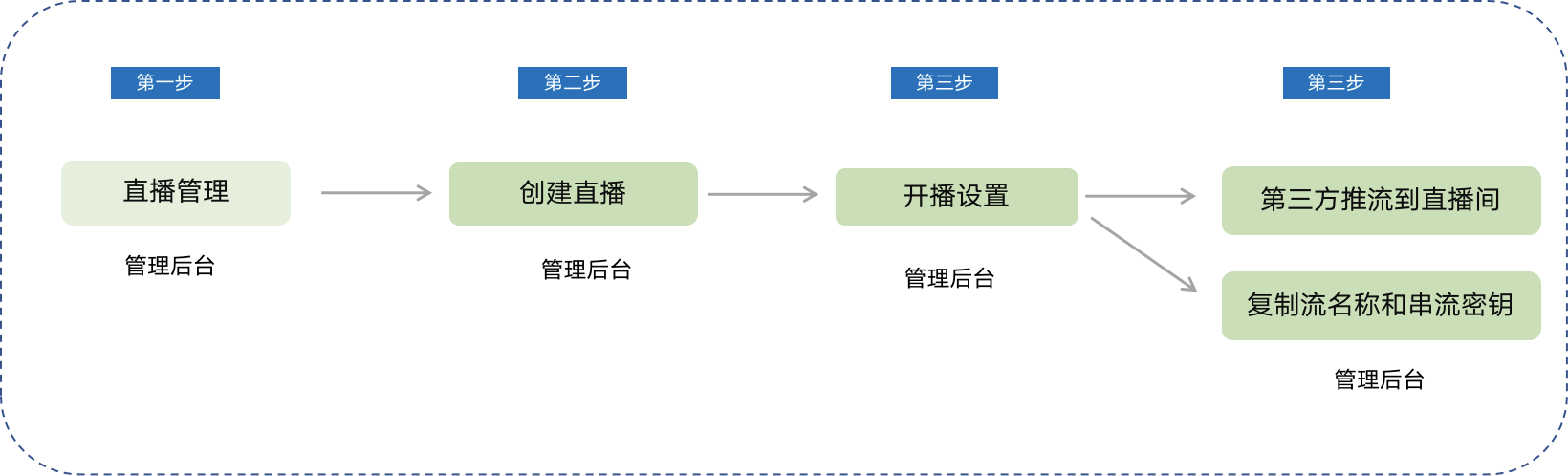
Path 2: Copy the stream name and streaming key and paste them into the third - party's push - stream address settings (see the usage tutorial for details).
V. Usage Tutorial
Step 1: Create a live - streaming session.Find the corresponding stream name and streaming key for the live - streaming room.
Users can find [Third - party push to the live - streaming room] in the live - streaming details > Live - streaming settings > Live - streaming method of the 'Created' live - streaming sessions.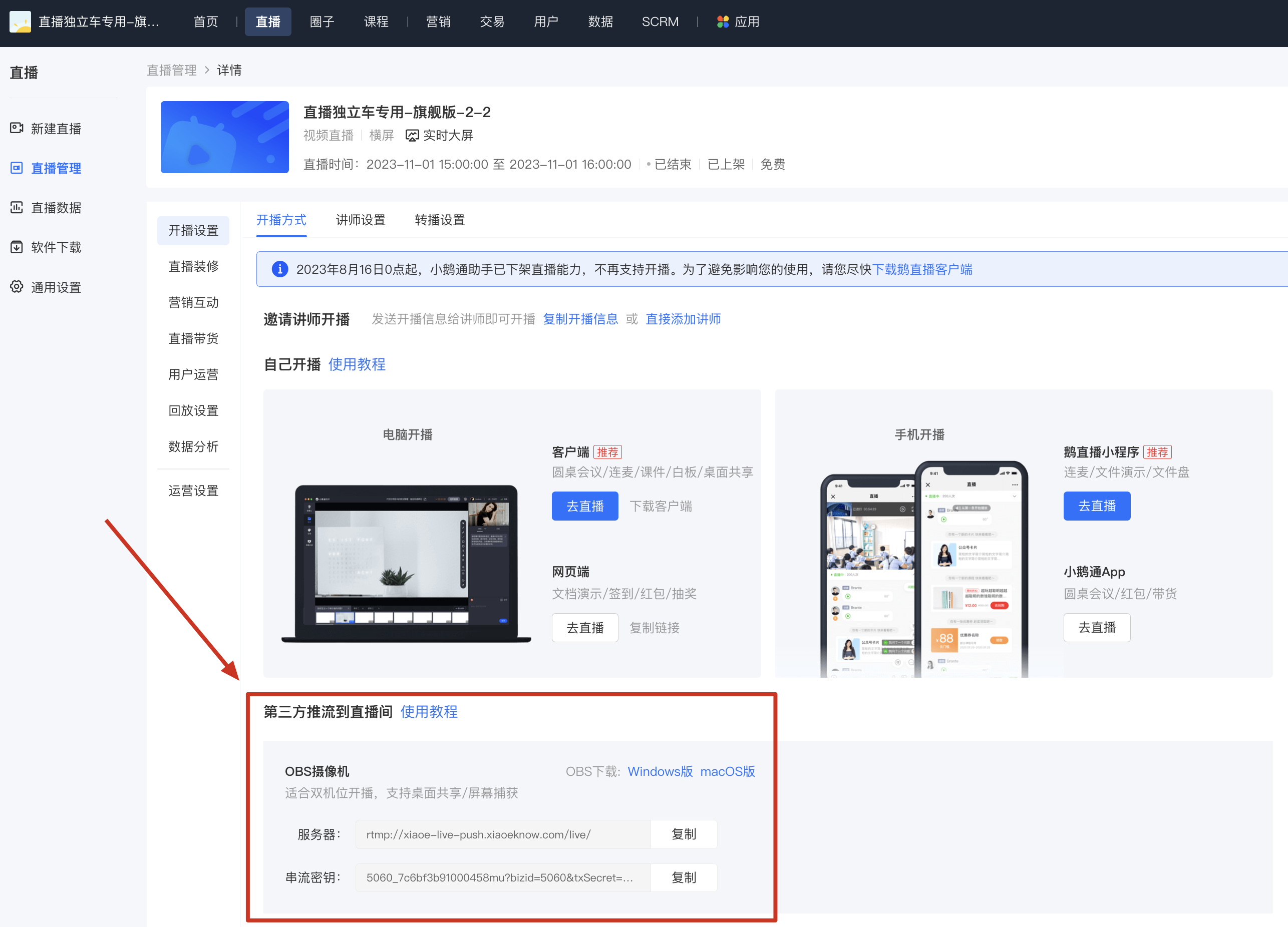
Step 2: Copy the stream name and streaming key.
Note: The stream name and streaming key here need to comply with the requirements of the third - party platform for filling in the push - stream address. If there is only one line in the 'input box', the server URL and the streaming key need to be copied together.
Step 3: Push the stream to the third - party live - streaming room.
(1) OBS Operation
1. Open the main interface of the OBS client and click [Settings].
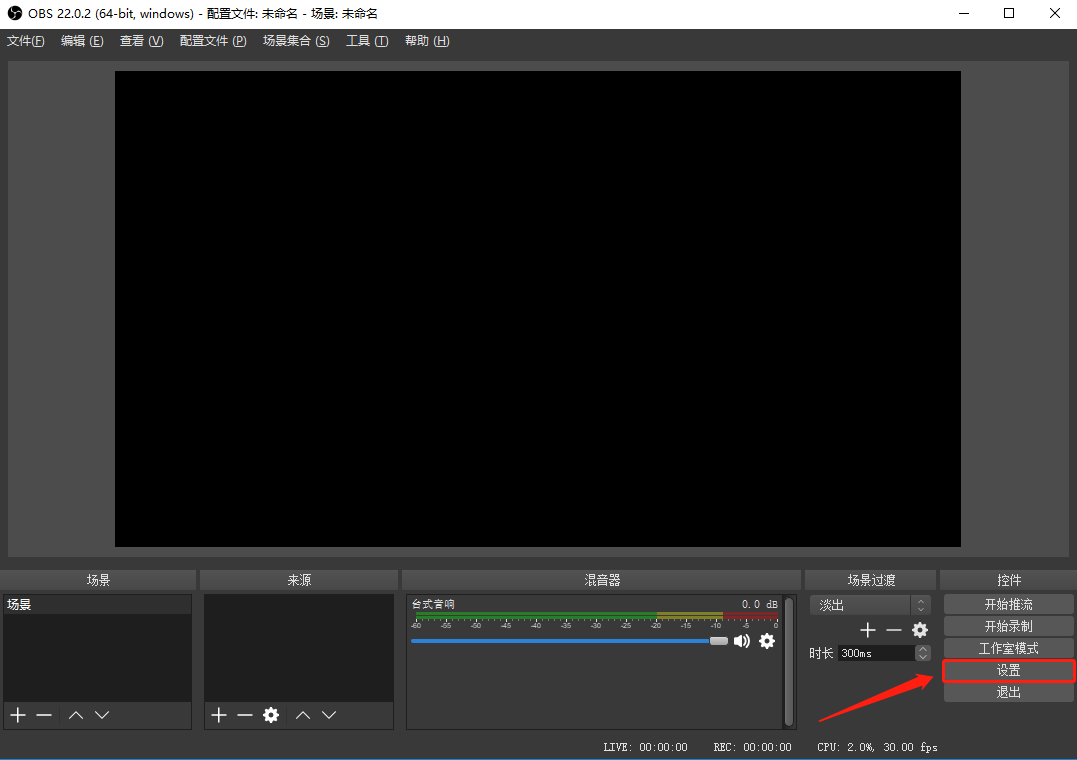
2. Select 'Streaming' in the left - hand function bar and choose 'Custom streaming server' as the service type. Paste the server URL and streaming key copied from the elink management console into the corresponding positions in OBS respectively.
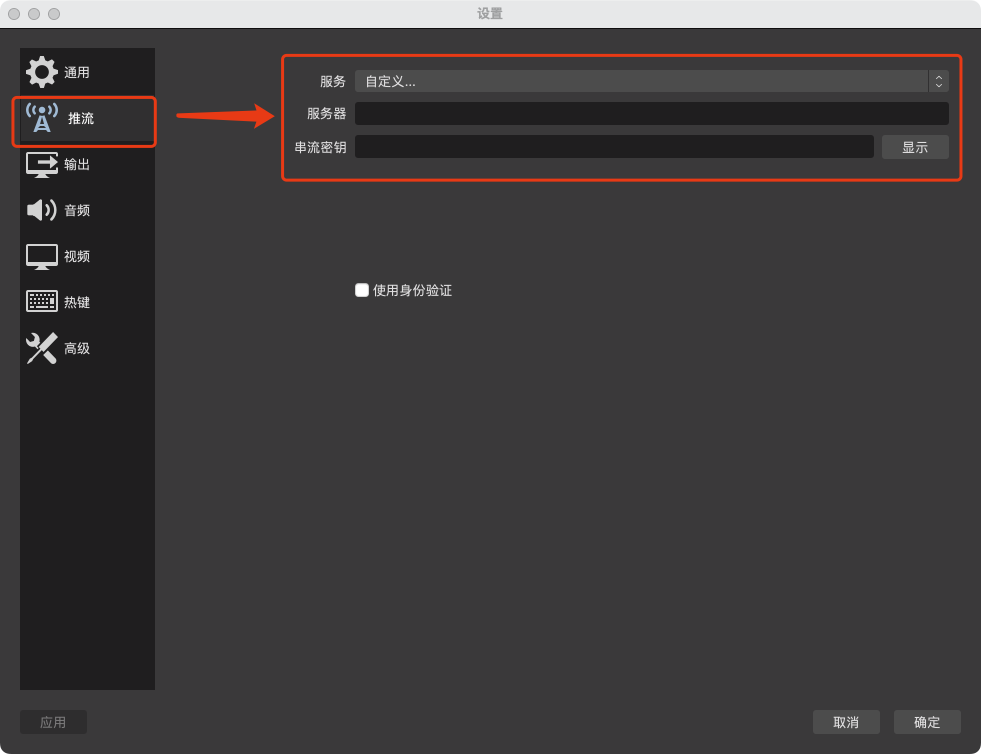
3. Set the output bitrate (video bitrate). It is recommended to set it between 1000Kbps and 3200Kbps, which can be adjusted as needed:
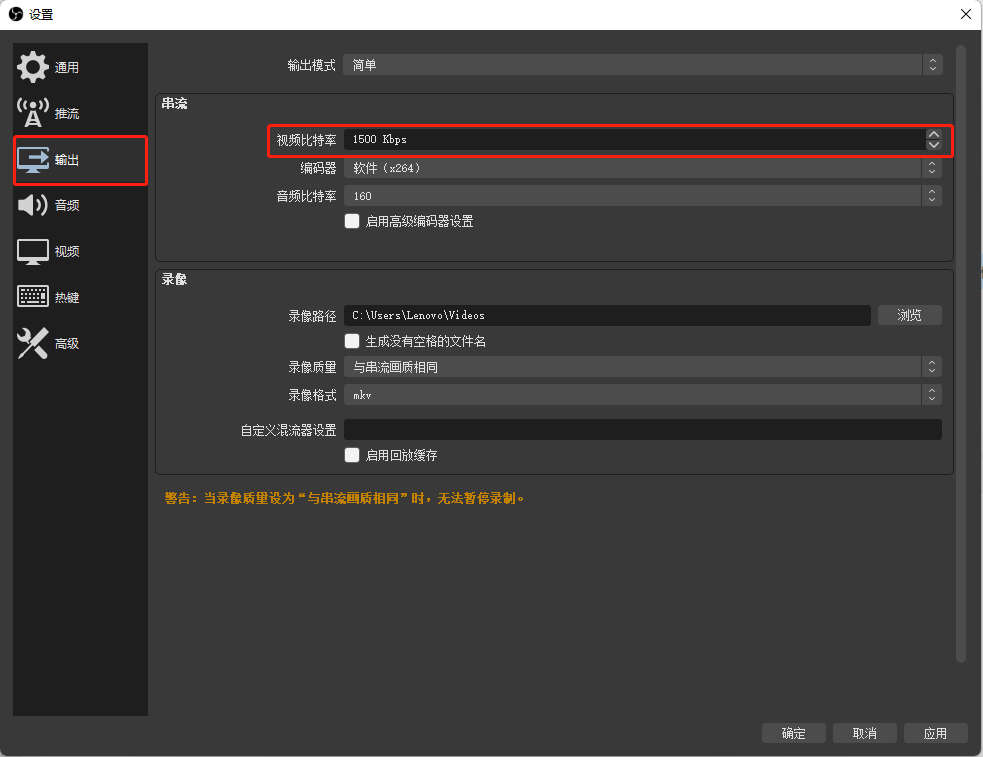
Generally, the standard live - streaming latency is about 15 seconds, and the ultra - low live - streaming latency is within 4 seconds.If there is abnormal latency in the OBS push - stream, it is recommended to modify the settings in the red - framed area to reduce the latency:
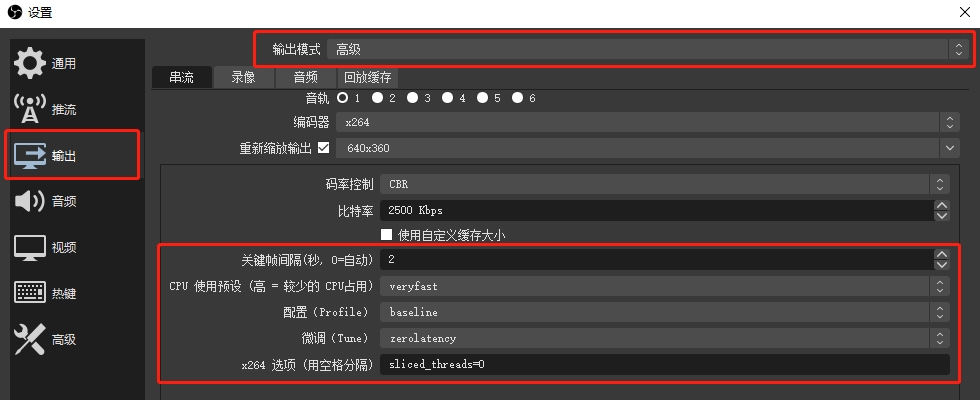
1. Key - frame interval: 2s
2. Profile configuration: baseline
3. CPU preset: veryfast
4. Fine - tune tune: zerolatency
5. It is recommended to use x264 as the encoder, and the x264 option: sliced_threads = 0
Note: If ultra - low latency is enabled for the live - streaming but the actual viewing latency is still 15 seconds, it is usually because the ultra - low latency viewing guarantee strategy is triggered. To ensure normal viewing for users, those who cannot play the low - latency live - streaming due to network or device issues will be automatically switched to the standard live - streaming mode.
4. Set the canvas resolution and the frame rate to 30.
Note: For horizontal - screen live - streaming, a resolution of 1920x1080 with an aspect ratio of 16:9 is recommended; for vertical - screen live - streaming, a resolution of 900x1600 with an aspect ratio of 9:16 is recommended.
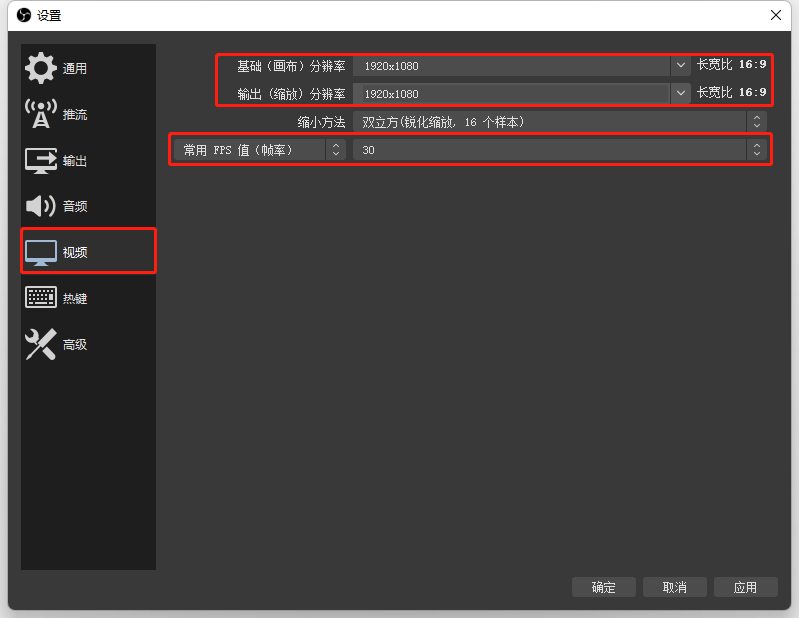
5. After adjusting the relevant settings, click 'OK'. After clicking 'Start streaming' on the OBS interface, the elink live - streaming room will synchronously display the footage.
Note: For other OBS tutorials, please refer to《OBS Tutorial Collection》at the link:
(2) Kuaishou Live Companion
1. Open the Kuaishou Cloud Live web - based backend. After creating a live - streaming session, find [Distribution Center] on the details page.
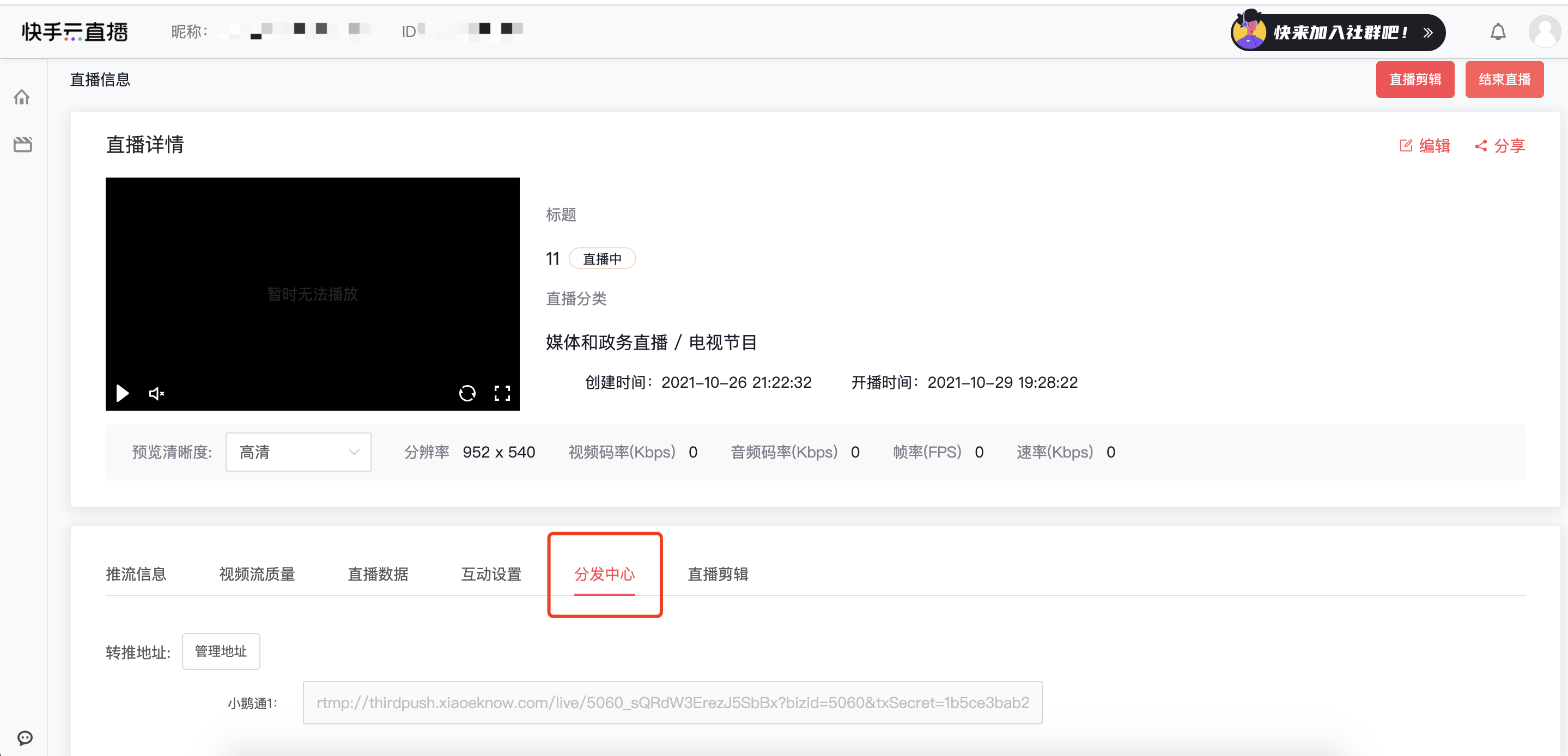
2. Find the 'Manage address' button on the page. Combine and copy the server URL and streaming key copied from the elink management console into the push - stream address, and click the 'OK' button to save. After starting the push - stream, the elink live - streaming room will synchronously display the footage.
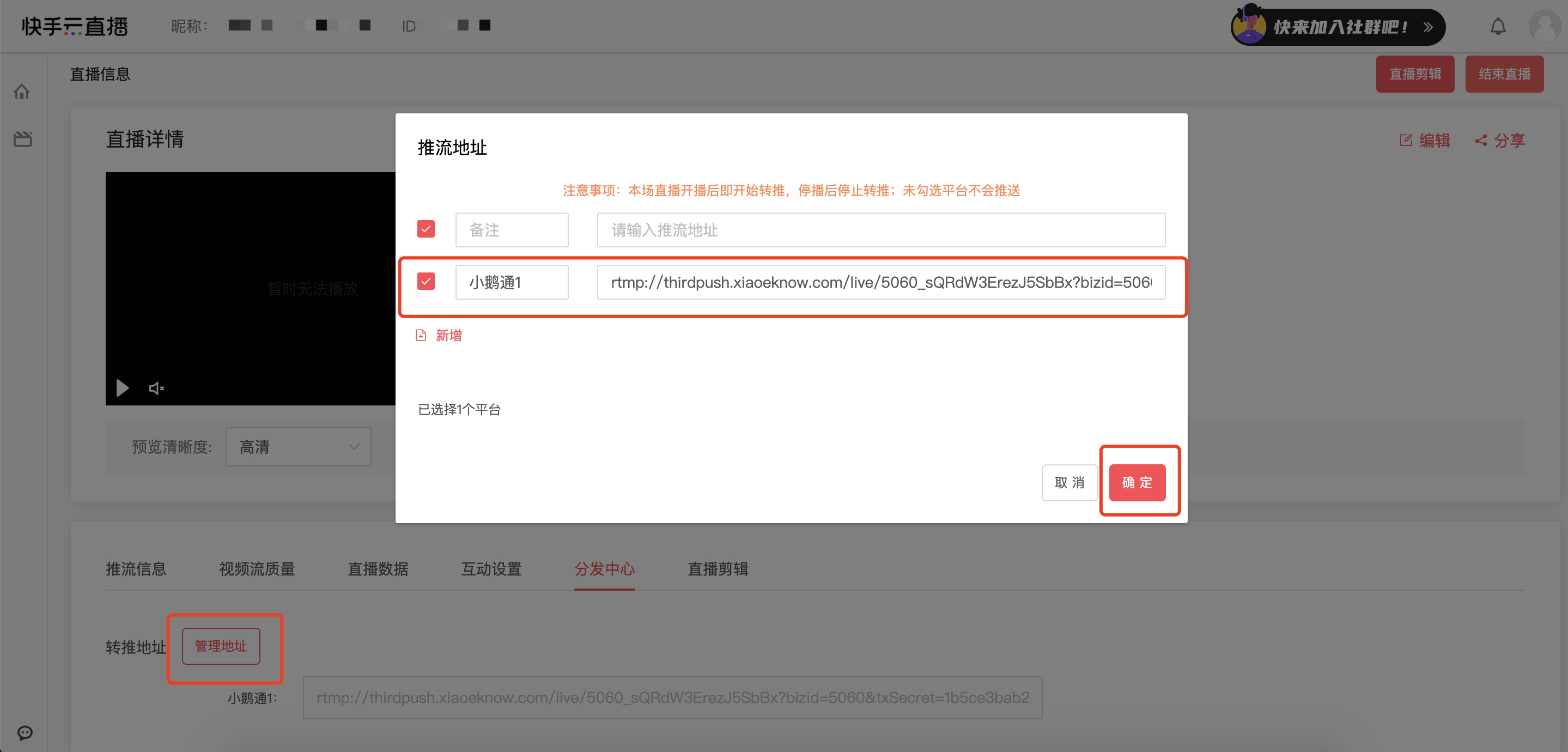
Note: For Kuaishou Cloud Live push - streaming, the stream needs to be pushed/pulled from other platforms to the Kuaishou live - streaming room first, and then redirected to the elink live - streaming room through the Distribution Center.
VI. Notes
1. When using the third - party push - stream method, there is no need to click 'Start live - streaming' on the elink assistant/GoLive client.
Currently, onlysimultaneouslysupports the push - stream content from one terminal. When two or more devices push the stream simultaneously, only the content from the device that starts the live - streaming first will be displayed.
VII. Frequently Asked Questions
Q: The elink assistant cannot find the OBS camera option?
A: Please use the latest version of the OBS client and click 'Start virtual camera' to find it.
Q: How to monitor the quality of the OBS push - stream?
A:How to monitor the quality of the push - stream when using OBS for live - streaming?
Q: How to conduct vertical - screen PPT live - streaming?
A: The vertical - screen live - streaming mode can be combined with OBS to achieve vertical - screen PPT live - streaming.Usage tutorial for vertical - screen PPT live - streaming configuration
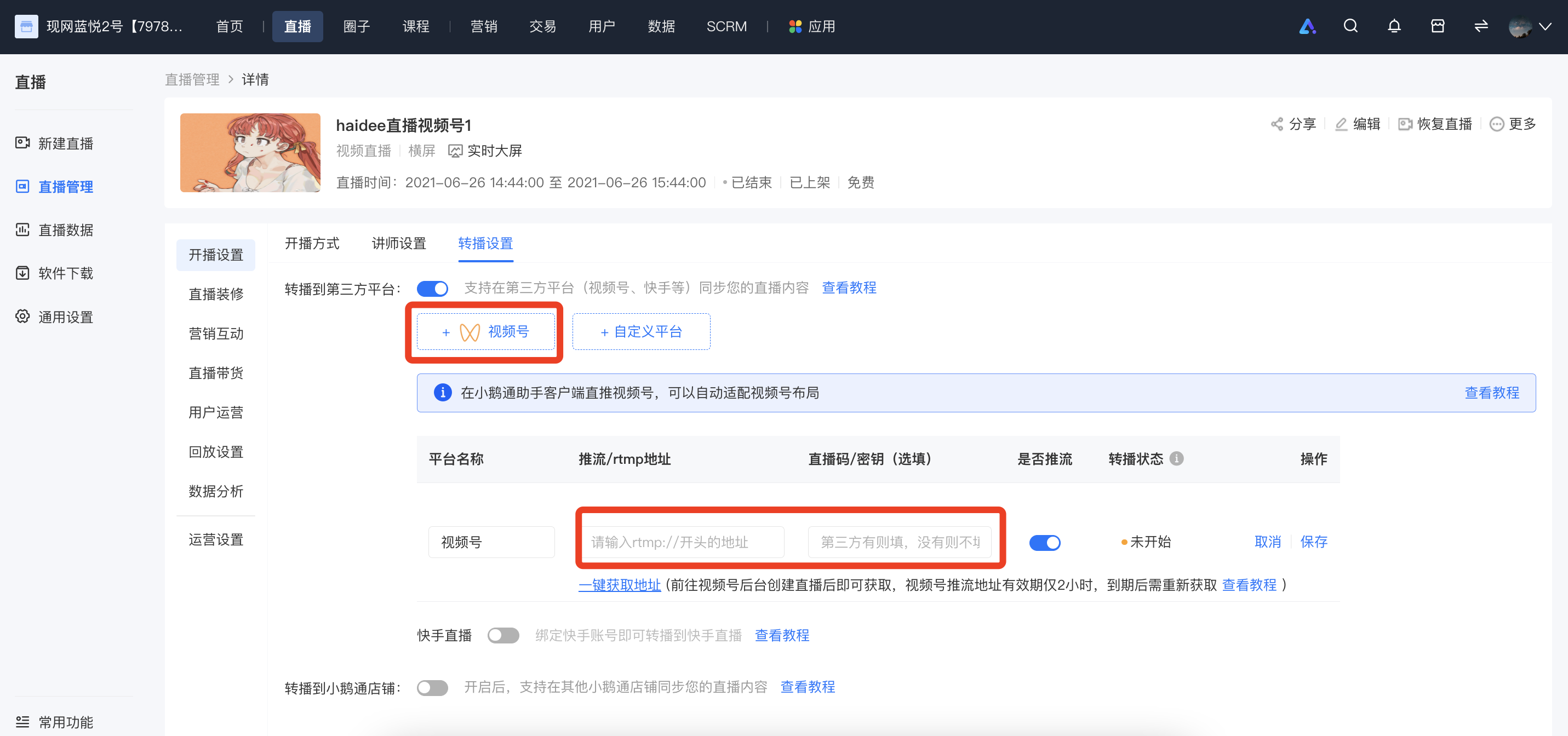
What should I do if the live streaming push URL for Channels fails to work?
Merchants need to recreate a Channels live streaming room and obtain the streaming push address. The specific operations are as follows:
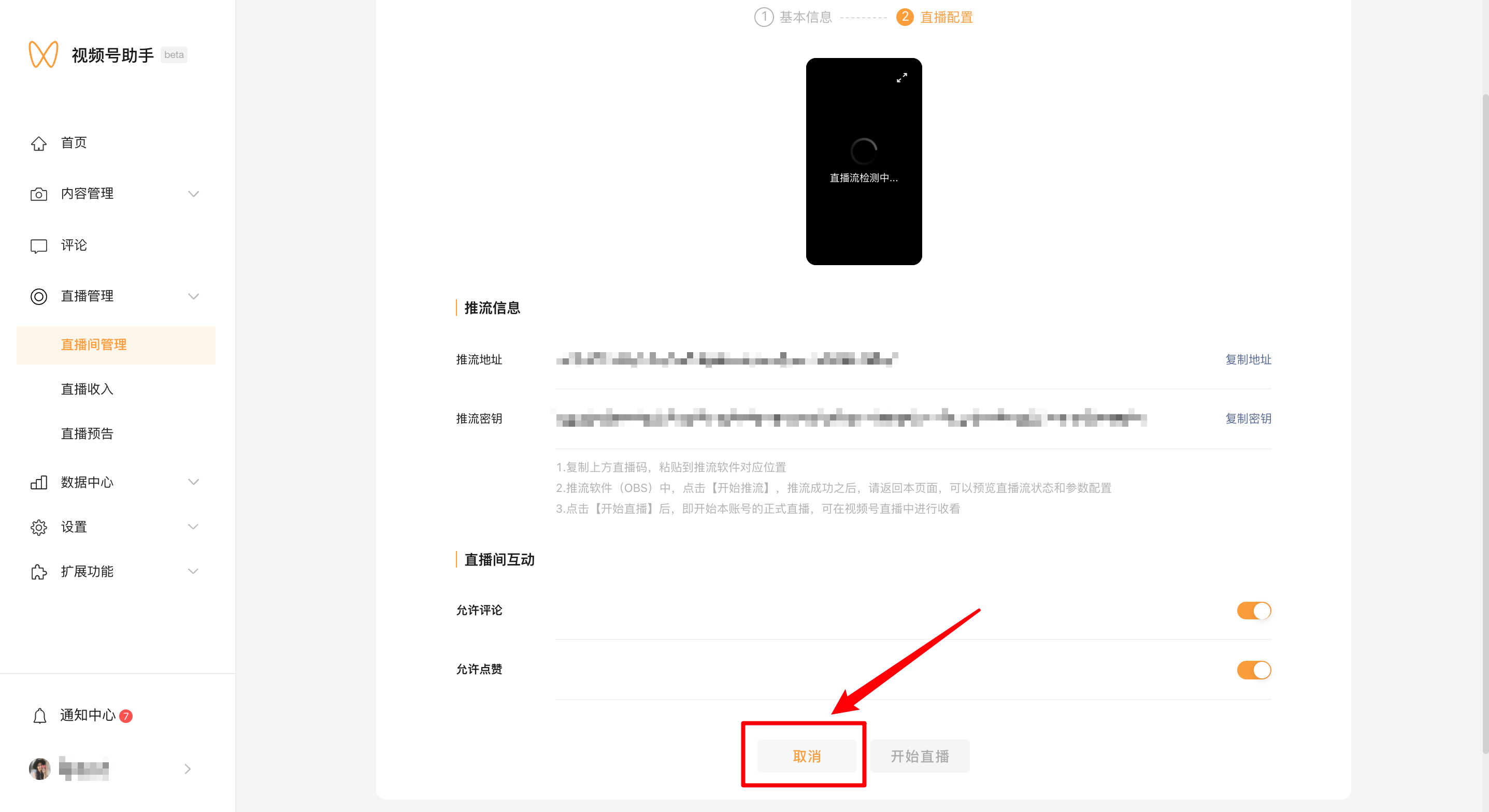
1. Cancel the current live streaming room.
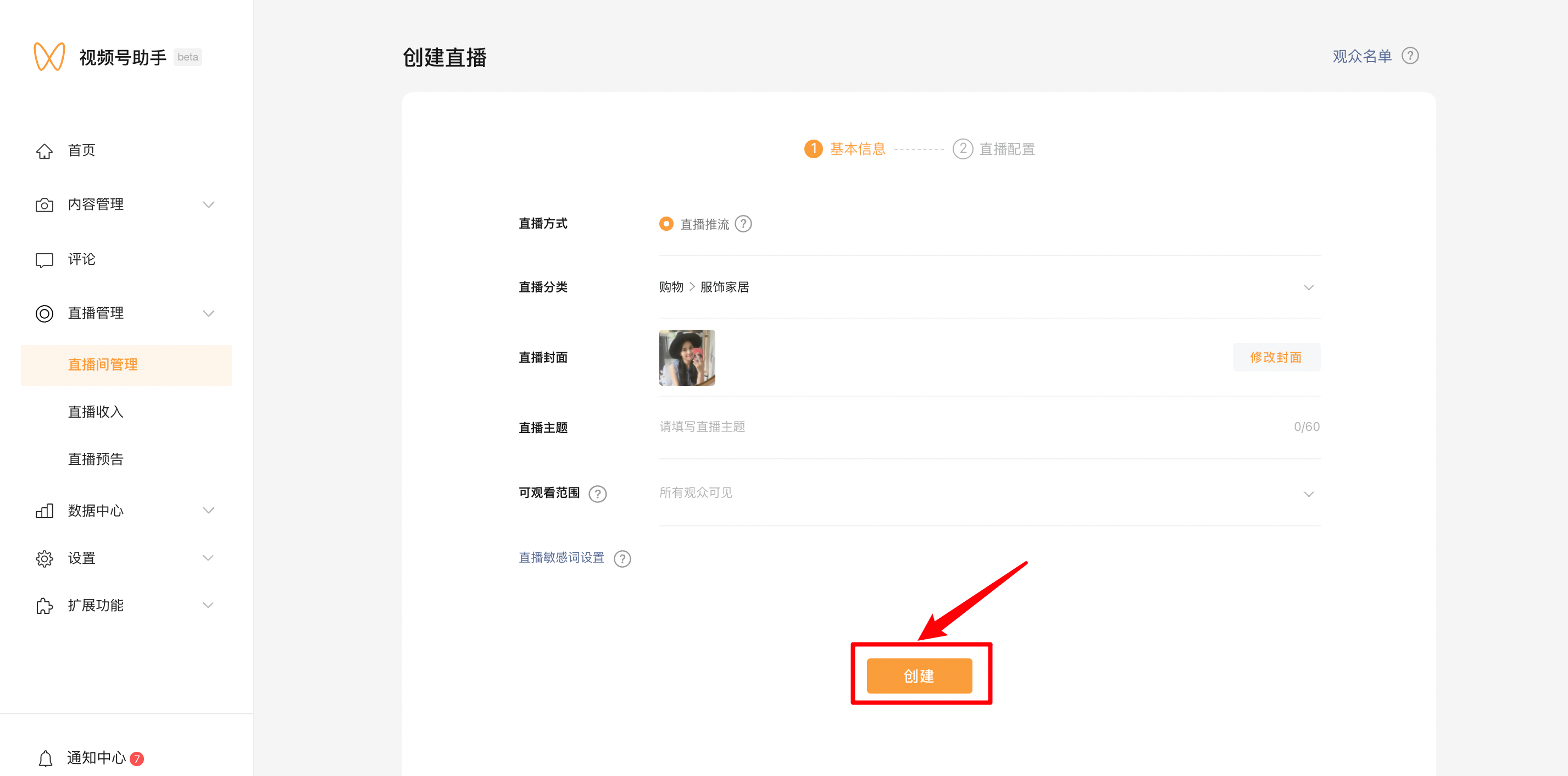
2. Recreate the live stream and obtain the streaming push address.
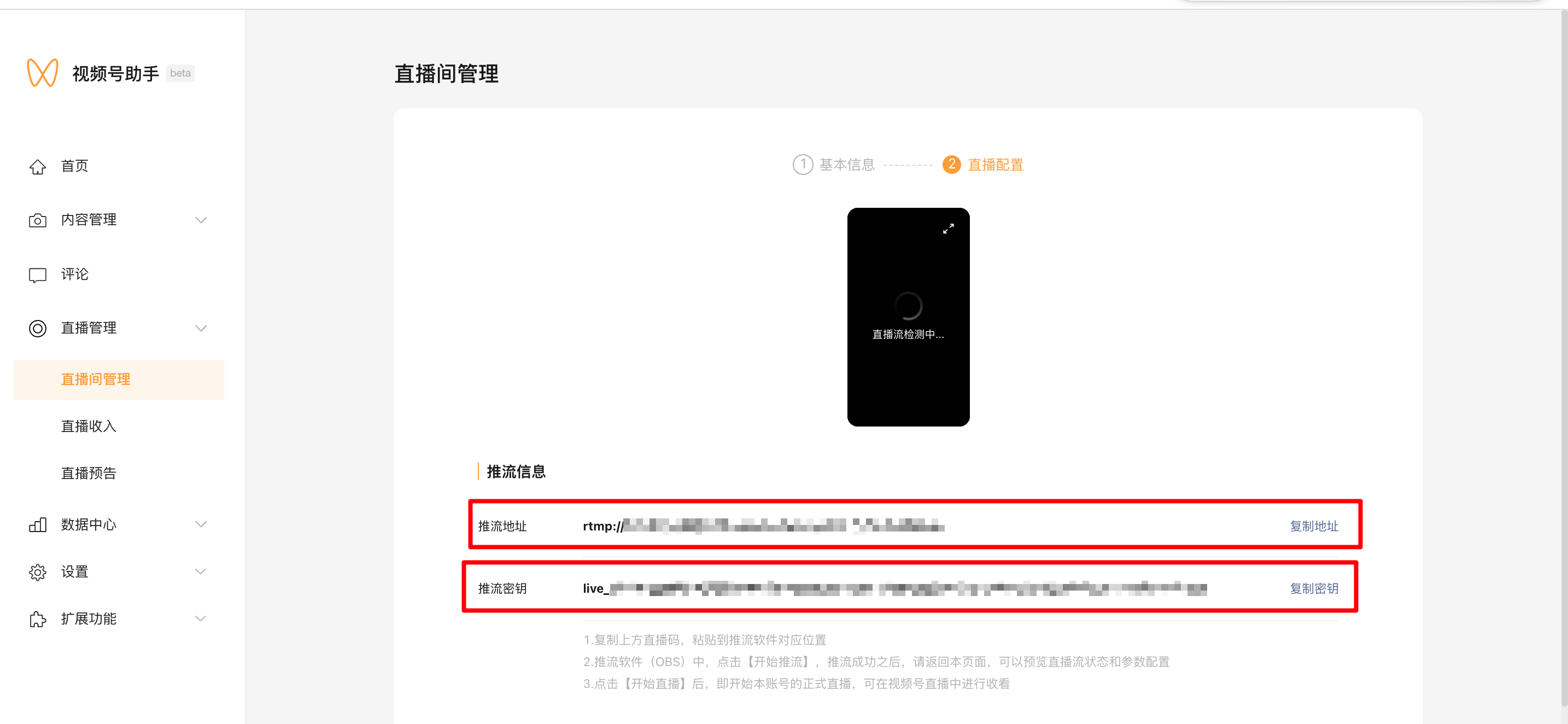
3. Replace the streaming push address with the latest one.
What should I do if students can't watch the live rebroadcast on Channels?
There are two solutions:
1. Check if the student is included in the visibility scope of the Channels. If not, adjust the visibility scope.

2. If live streaming cannot be pushed, recreate the Channels live streaming room and obtain the streaming push address (Click to view the specific operations).
How to rebroadcast a live stream to Bilibili
Merchants can use the rebroadcast function on elink to synchronize their live - streaming content to Bilibili, thereby increasing the content reuse rate and traffic reach rate.
I. Step 1: Obtain the Bilibili streaming address
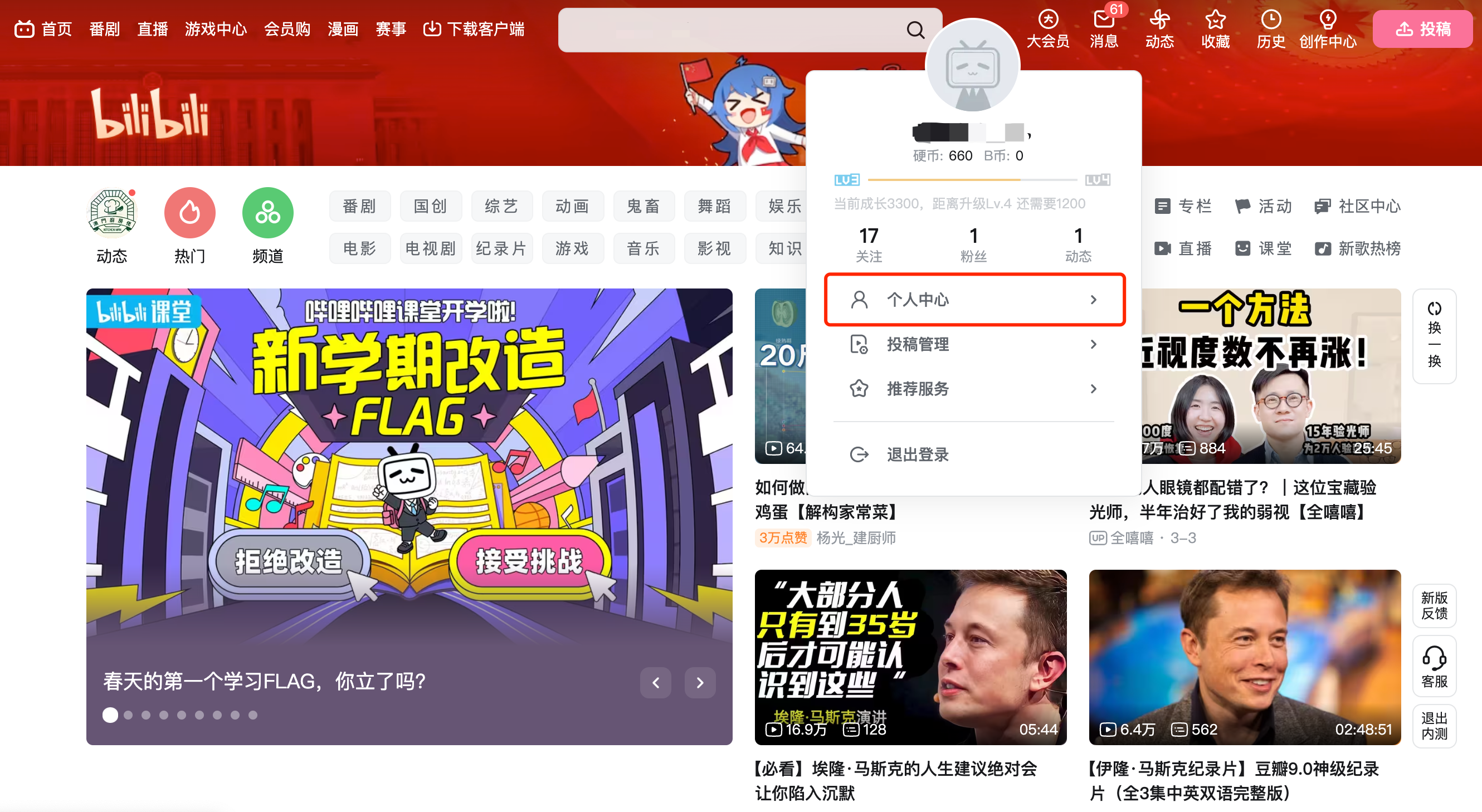
1. Log in to Bilibilihttps://www.bilibili.com/Click on your avatar to enter your personal center
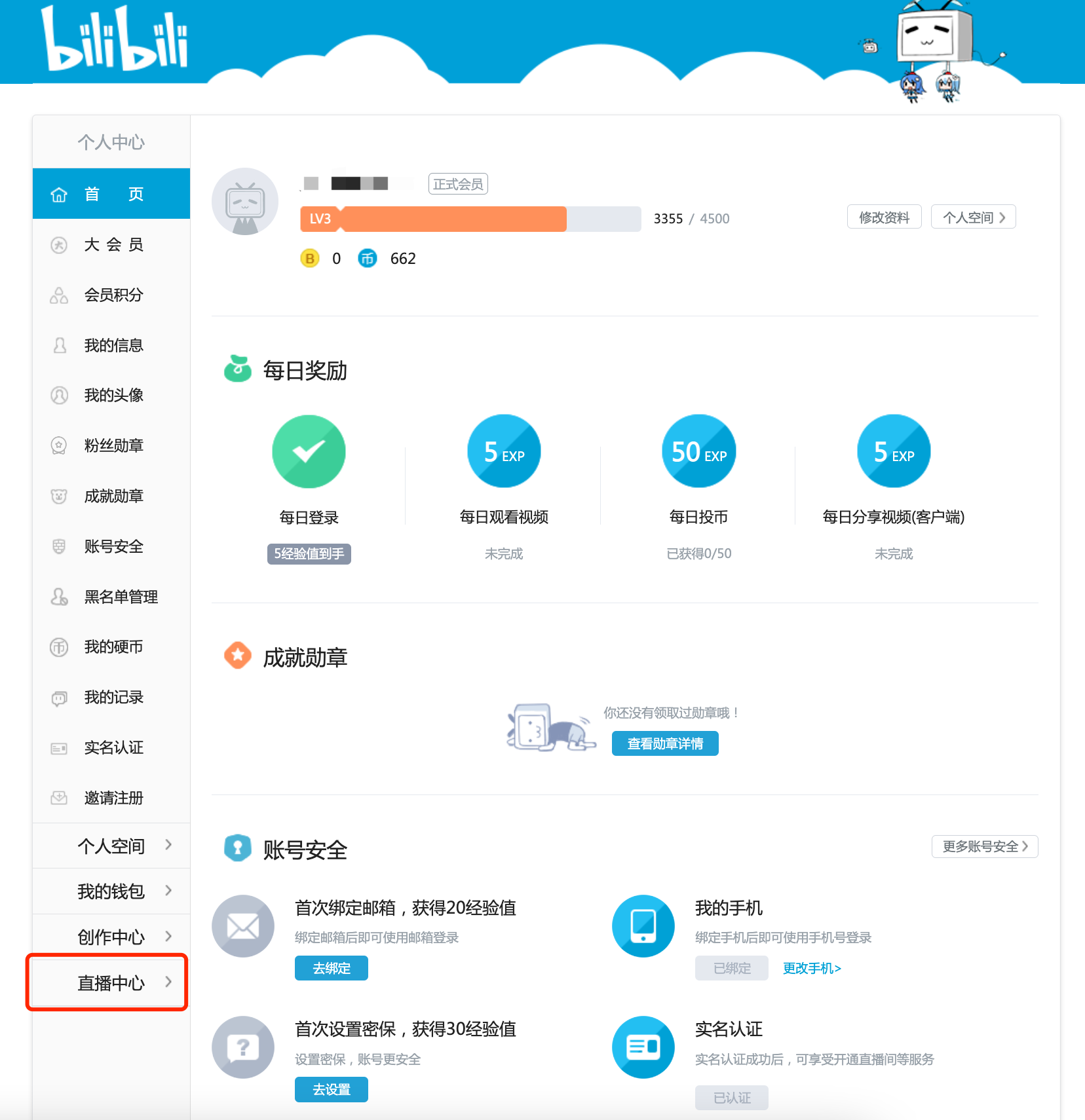
2. Click [My Live Room - Live Streaming Settings] on the left - hand navigation menu to enter your live - streaming room
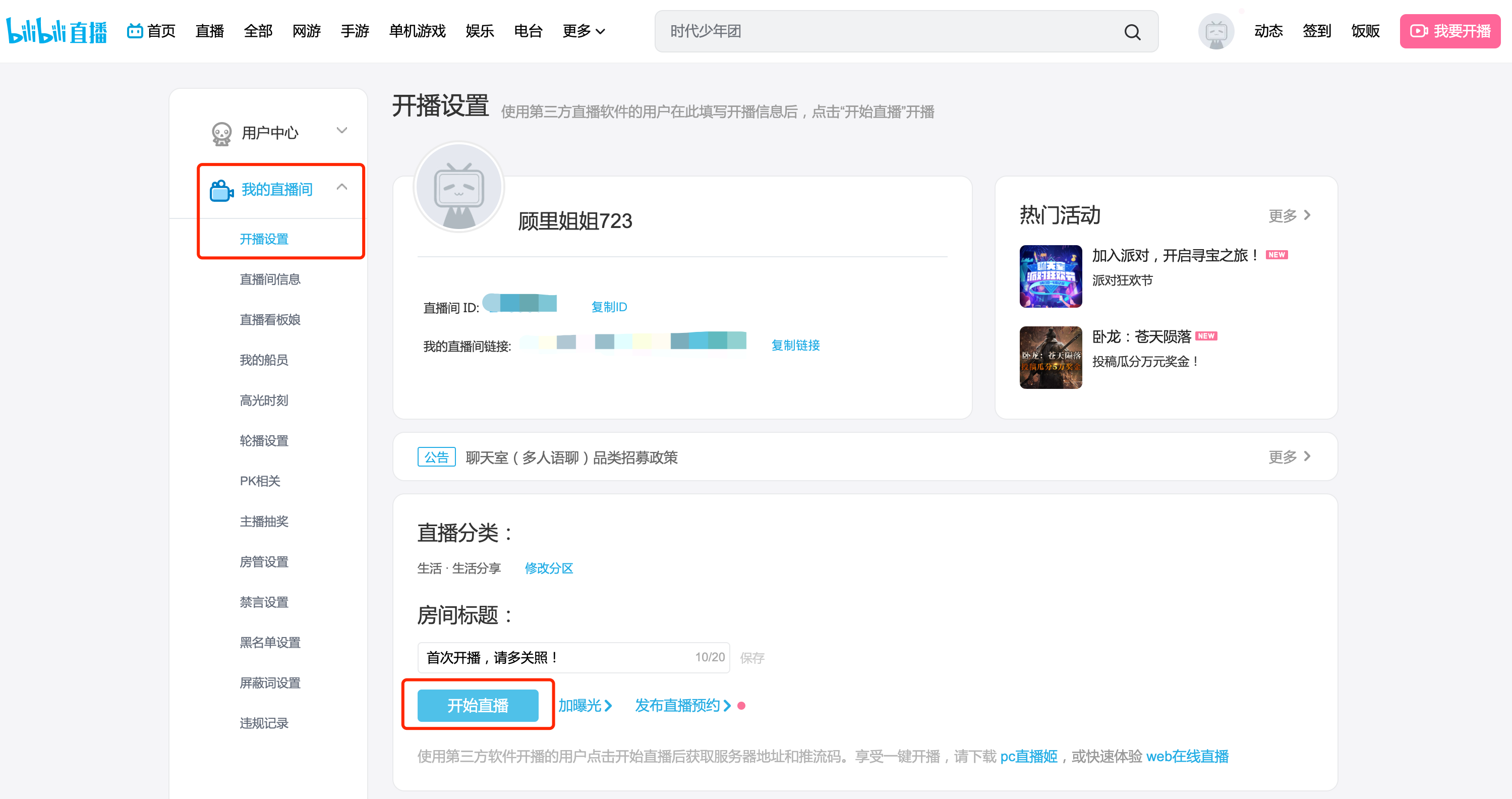
3. Set the title and category of the live - streaming room. After clicking the 'Start Live Streaming' button, copy the streaming address and key.
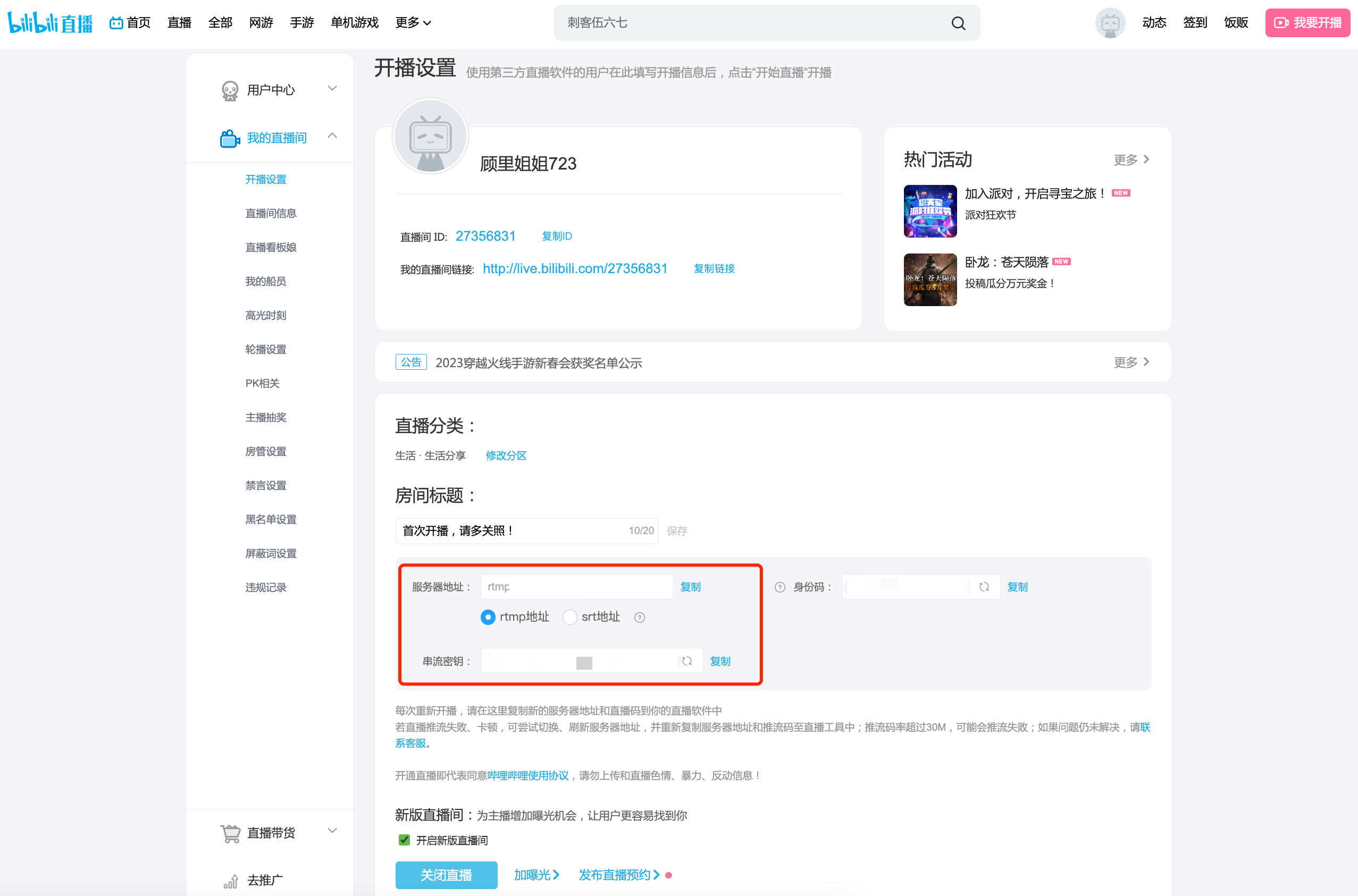
*Note: Ifthe streaming address starts with the format 'rtmp://txy......', it is an invalid streaming address. Please check if the VPN on your computer is enabled. If it is enabled, please turn it off and then re - obtain the streaming address.If it is not enabled, please try switching the hotspot, browser, or device. If the format of the streaming address remains unchanged after the attempt, please consult Bilibili's official customer service.
II. Step 2: Fill in the elink management background
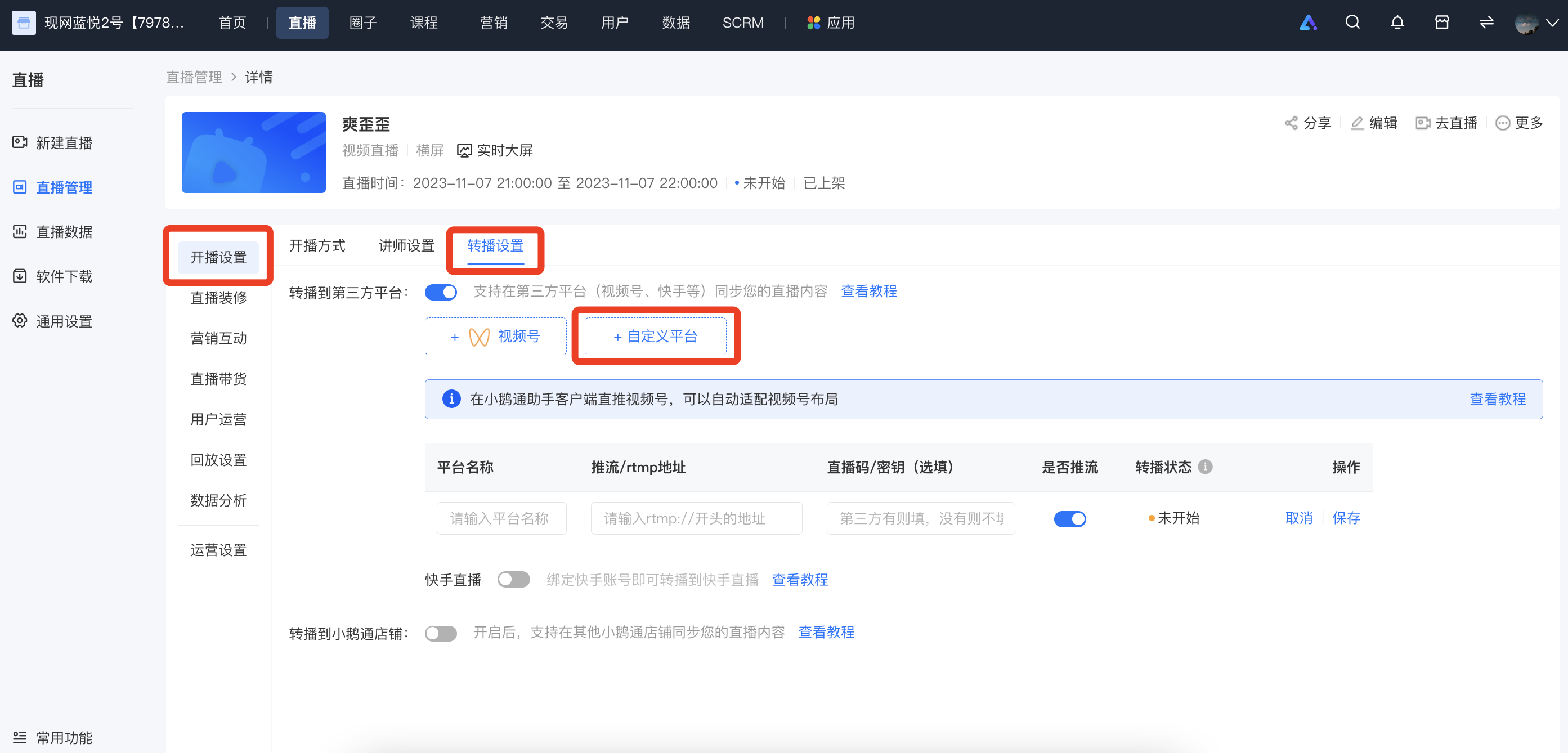
Log in to the elink management background, select the live - streaming room you want to rebroadcast, enter [Details Page - Live Streaming Settings - Rebroadcast Settings - Rebroadcast to Third - Party Platform - Custom Platform], fill in the name of the rebroadcast platform, the streaming address, and the key, and then click 'Save'.
III. Step 3: Start live streaming
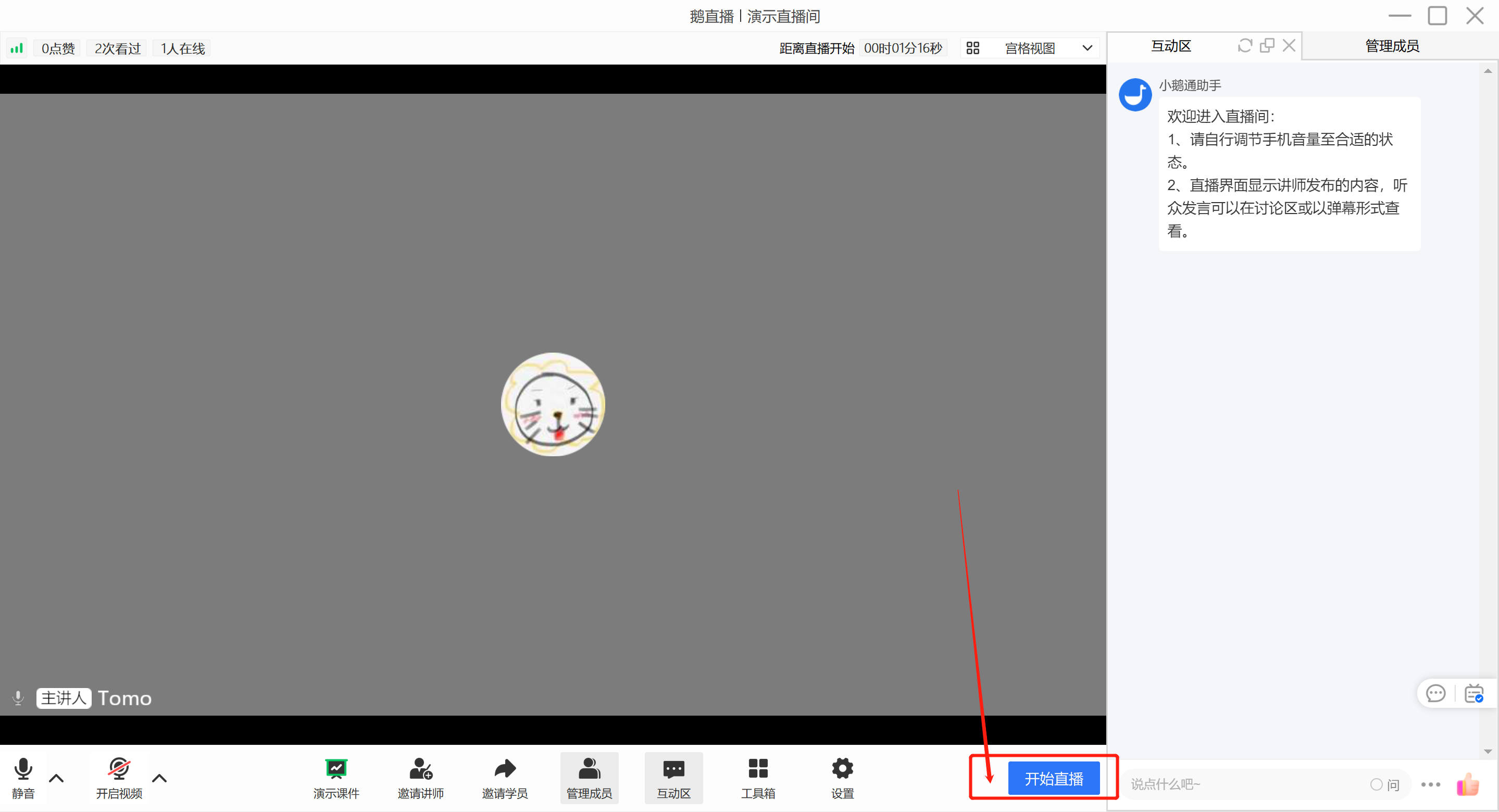
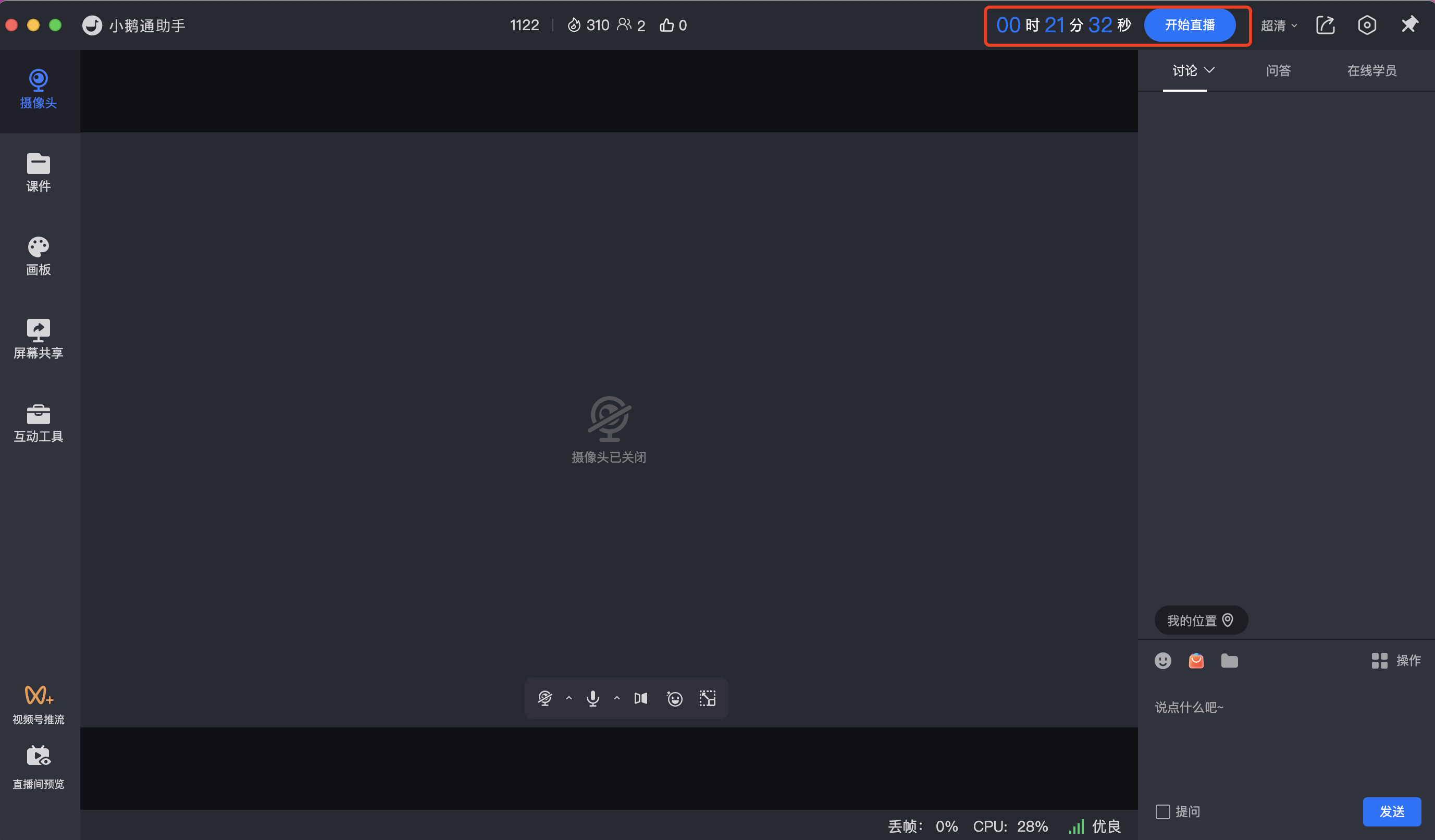
Go to the eLive client or the elink live - streaming terminal to start live streaming. Different live - streaming modes are applicable to different live - streaming terminals:
- Landscape live streaming: Computer (eLive client,elink Assistant client, web version), Mobile phone (eLive Mini Program)
- Portrait live streaming: Mobile phone (eLive Mini Program)
- Recorded live streaming: Computer (web version), Mobile phone (H5)
IV. Frequently Asked Questions
1. After starting the live streamWhy can't I see the picture on Bilibili?
1) Check if the streaming address and key have expired. If they have expired, you need to go to Bilibili to re - obtain them and then fill them in the elink management background.
2) Ifthe streaming address starts with the format 'rtmp://txy......', it is an invalid streaming address. Please check if the VPN on your computer is enabled. If it is enabled, please turn it off and then re - obtain the streaming address.If it is not enabled, please try switching the hotspot, browser, or device. If the format of the streaming address remains unchanged after the attempt, please consult Bilibili's official customer service.
2. Do I still need to start the live stream on Bilibili after starting it on elink?
No. Under normal circumstances, you can see the streaming picture in the Bilibili room after starting the live stream on elink.
How to rebroadcast a live stream to Weibo
Merchants can use the rebroadcasting function in elink to synchronize the live content they broadcast on elink toWeibo, thereby improving the content reuse rate and traffic reach rate.
I. Step 1: Obtain the Weibo streaming address
1. Visit and log in to the Weibo management backendhttp://t.cn/A6Uoeoga
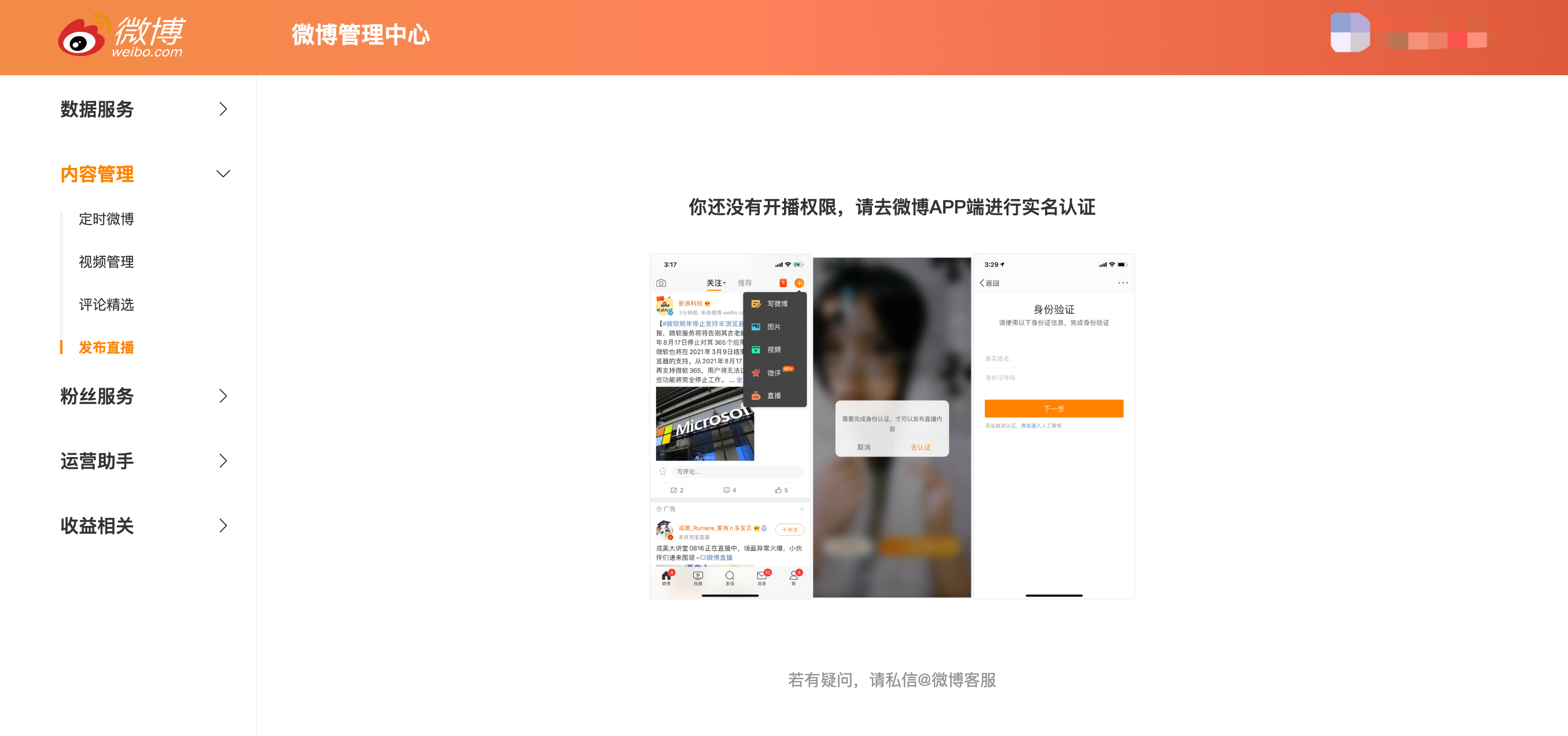
If your account is not real - name verified, you need to complete the verification on the Weibo app before you can start a live broadcast
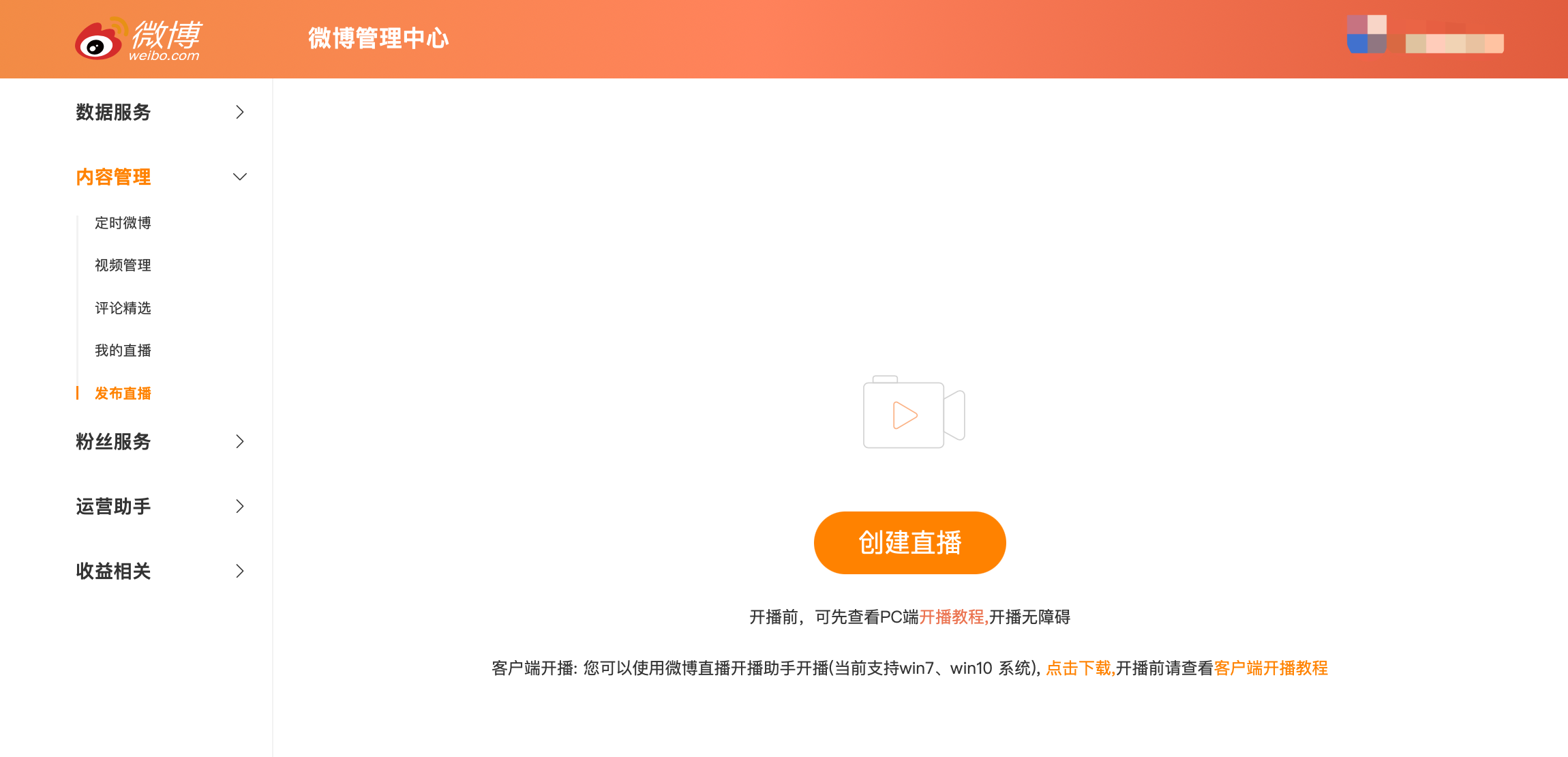
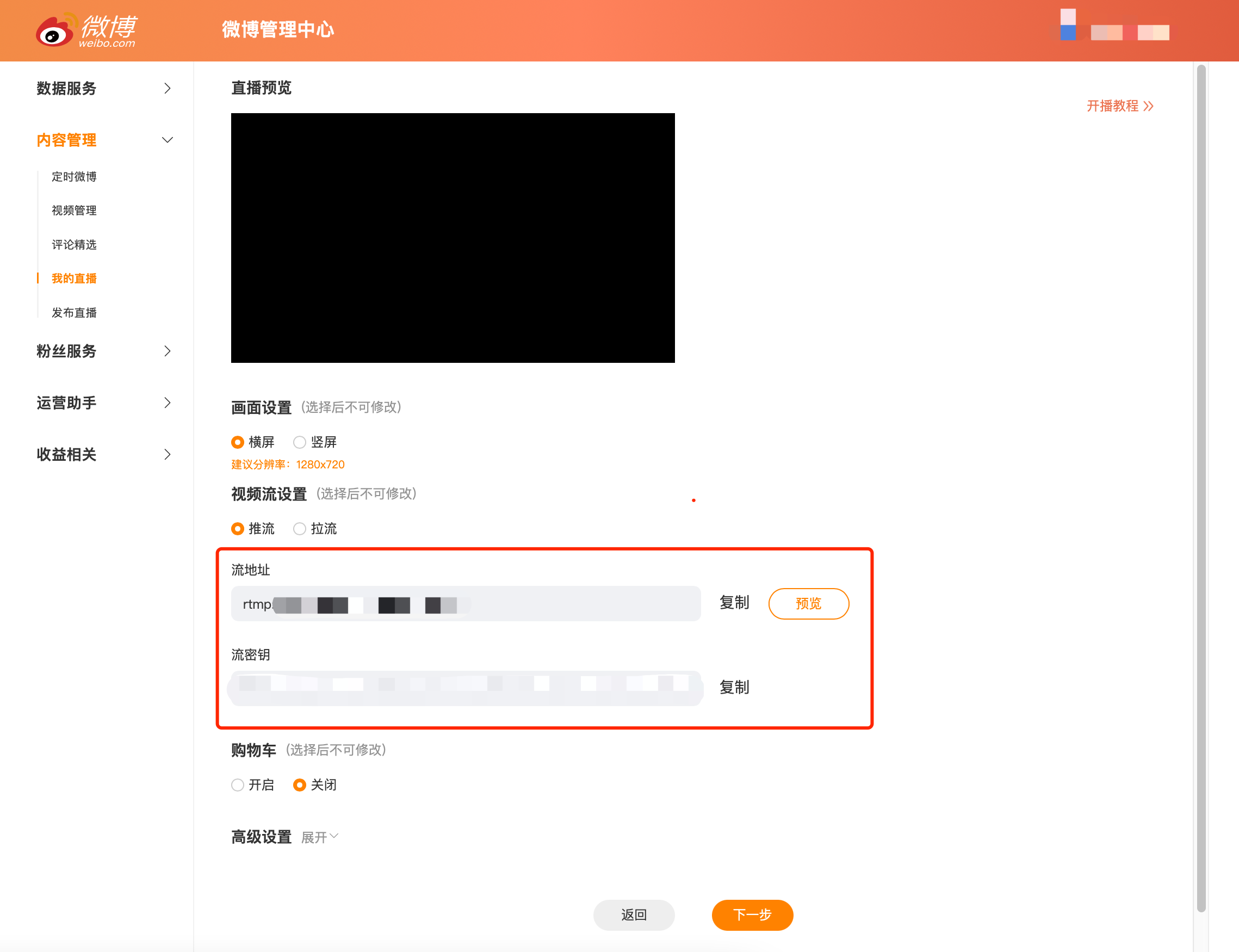
2. Select “Content Management - Publish Live” in the left - hand navigation bar, click “Create Live”, and copy the stream address and stream key
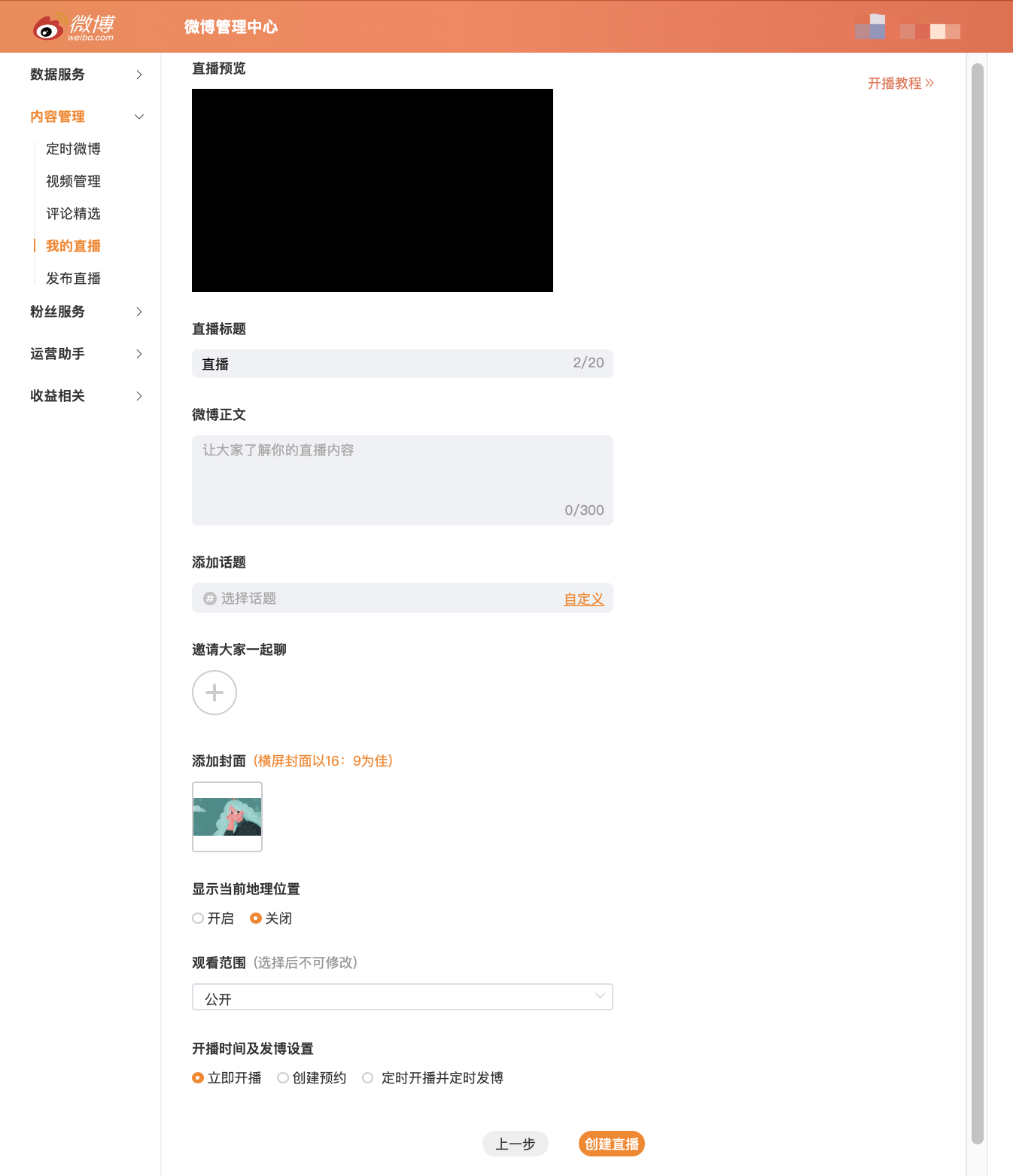
3. After completion, click “Next” to set the live broadcast information. Once completed, the live broadcast will be successfully created. You can manage the live broadcast in “My Live Broadcasts”.
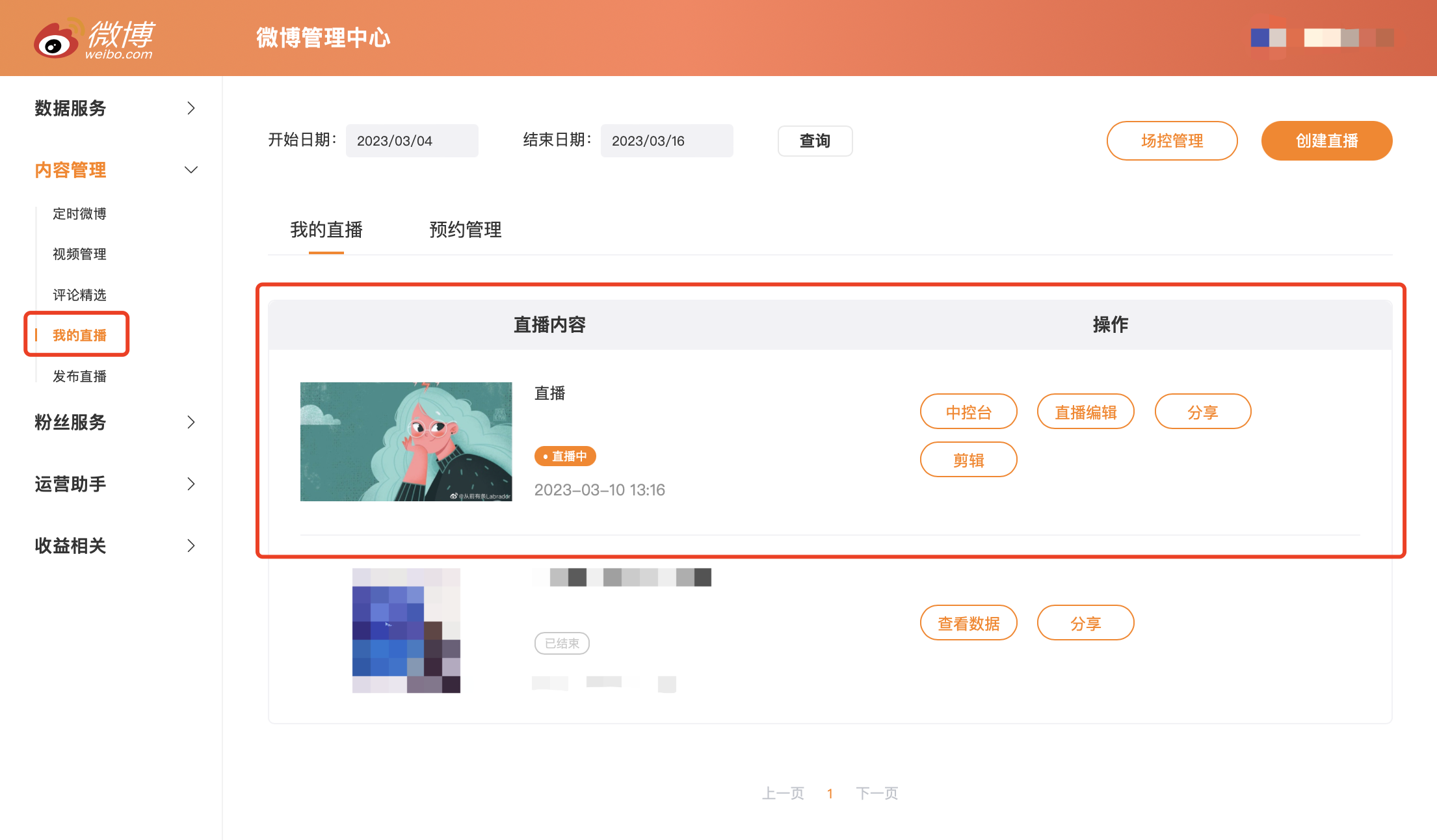
For more information on starting a live broadcast on Weibo, please refer to the official tutorial:https://weibo.com/l/wblive/act/k2mw80kz3kw0
II. Step 2: Fill in the elink management backend
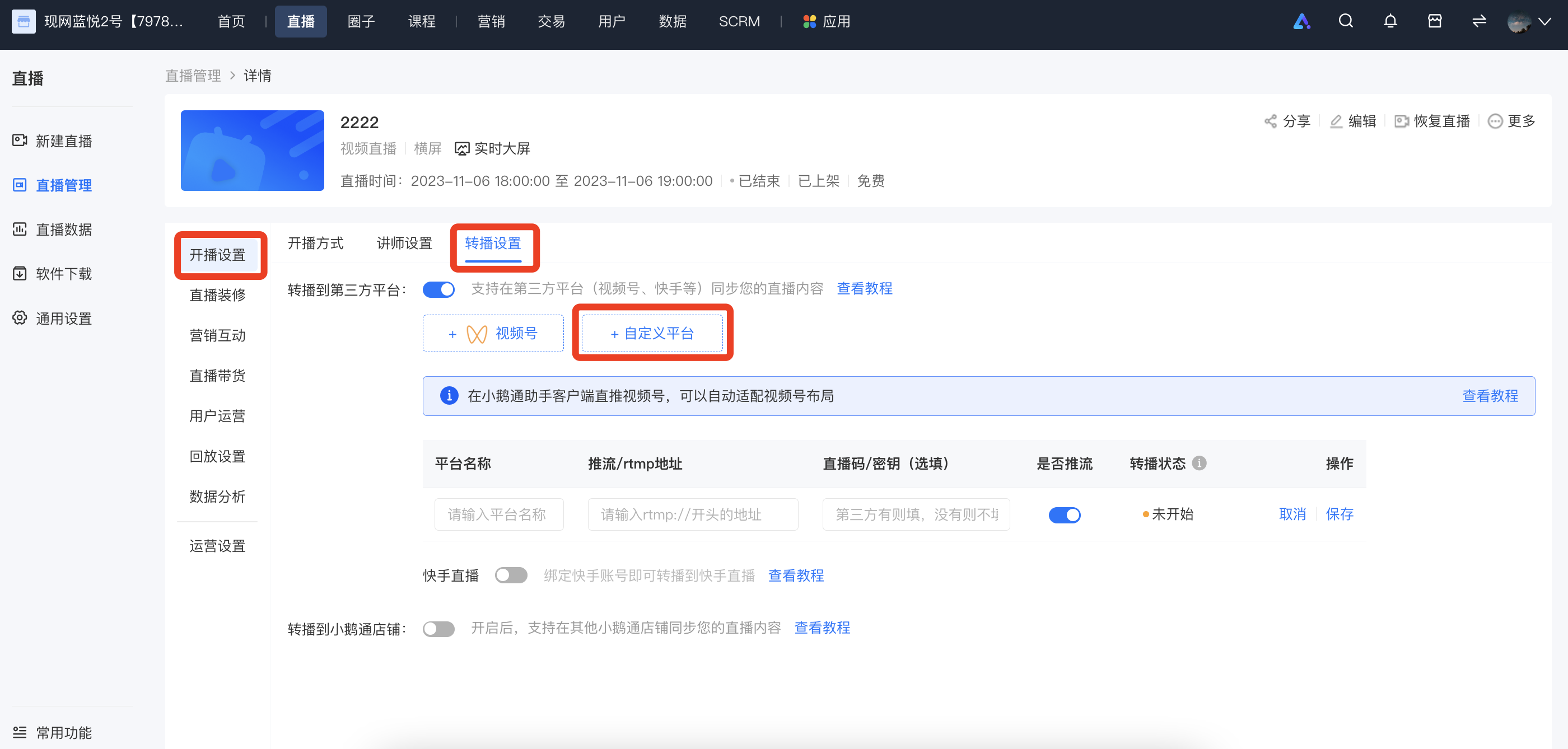
Log in to the elink management backend, select the live - broadcast room you want to rebroadcast, go to [Details Page - Live - broadcast Settings - Rebroadcast Settings - Rebroadcast to Third - party Platforms - Custom Platform], fill in the name of the rebroadcasting platform, the streaming address, and the key, and then click “Save”.
III. Step 3: Start the live broadcast
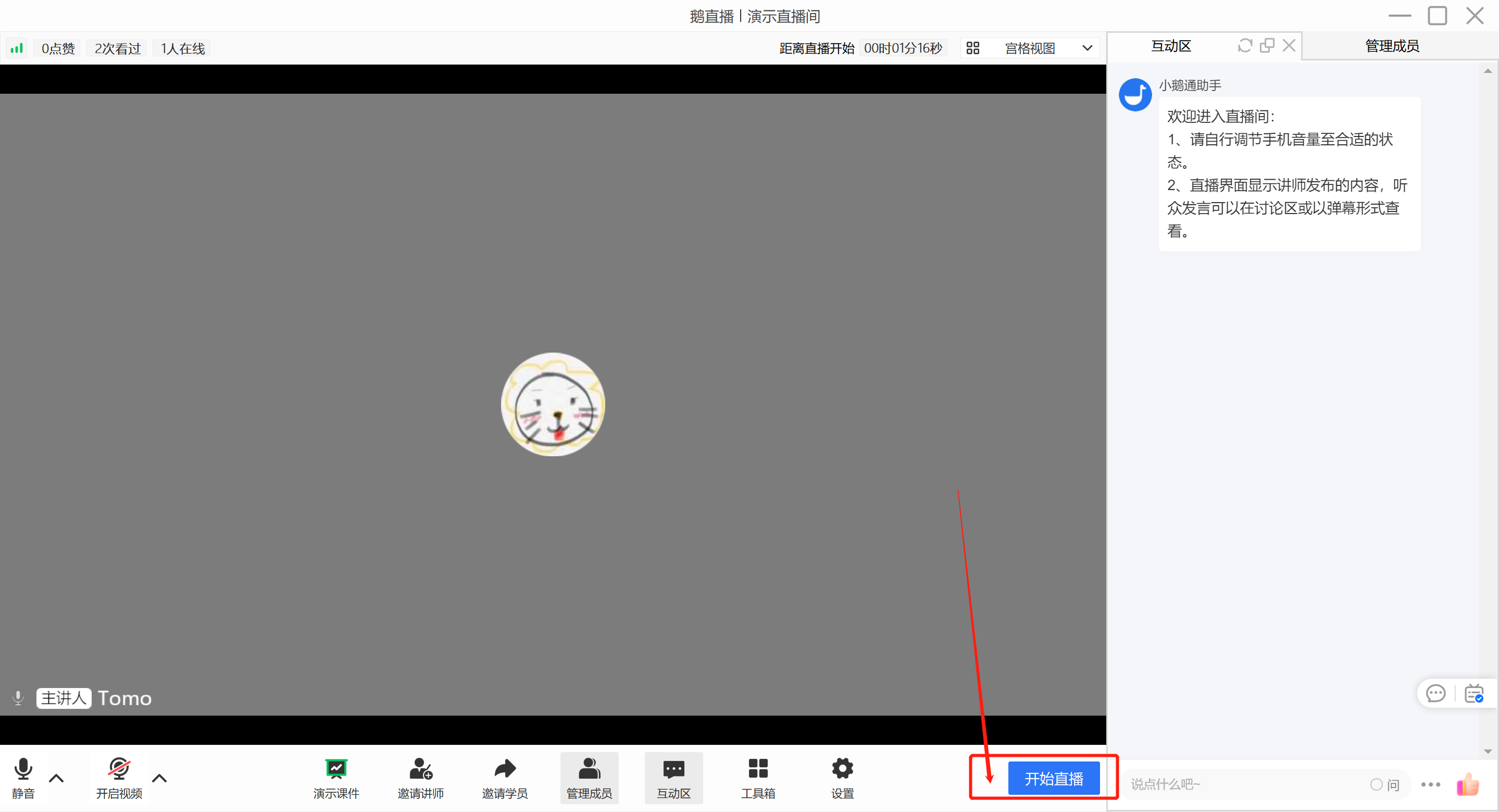
Go to the eLive client/elink live - broadcast terminal to start the live broadcast. Different live - broadcast modes are applicable to different live - broadcast terminals:
- Landscape live broadcast: Computer (eLive client,elink Assistant client, web version), mobile phone (eLive Mini Program)
- Portrait live broadcast: Mobile phone (eLive Mini Program)
- Recorded live broadcast: Computer (web version), mobile phone (H5)
(Schematic diagram of the eLive client)
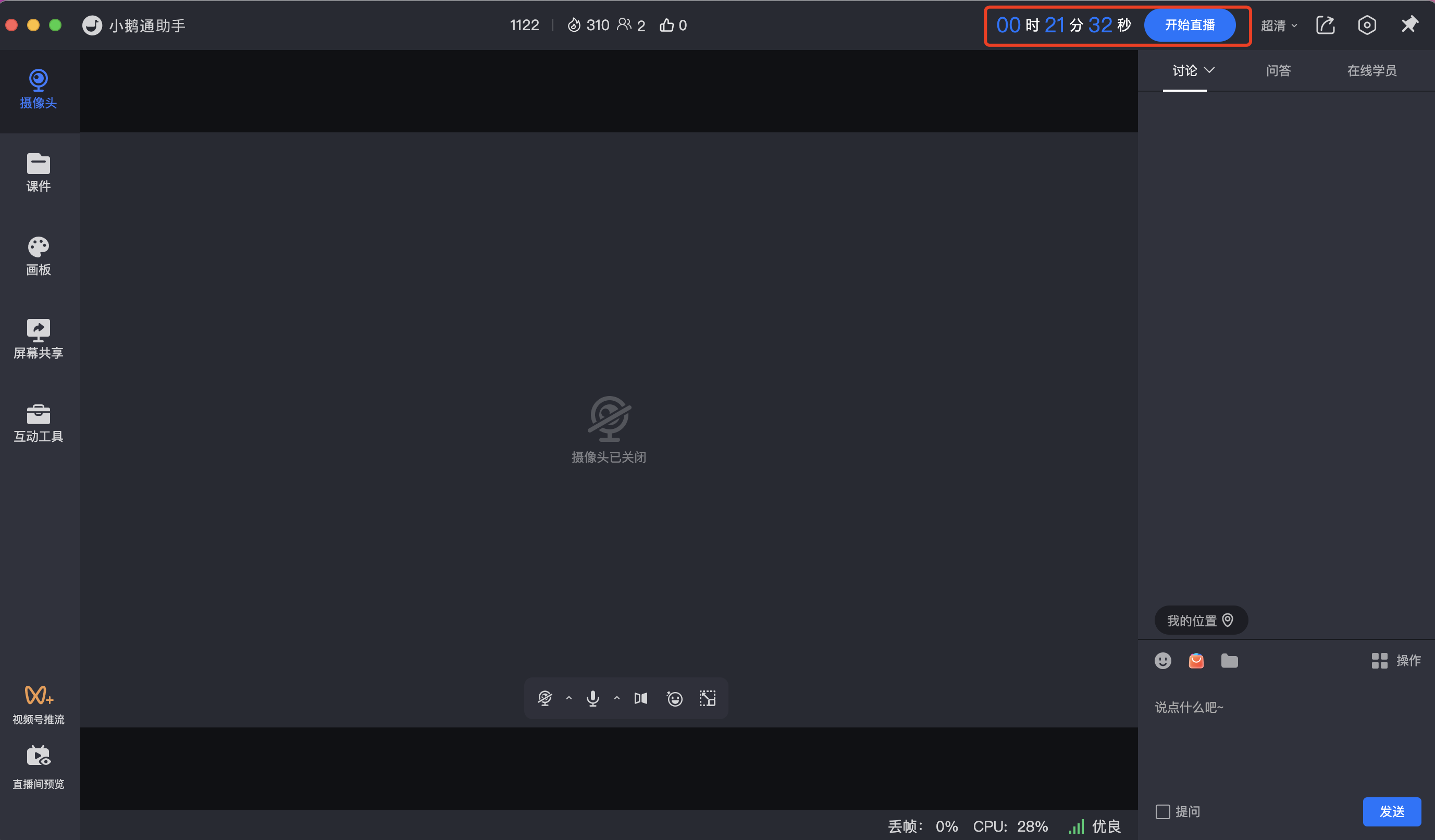
(Schematic diagram of the elink Assistant)