OBS Streaming
- 【OBS】How to download the video streamed by OBS?
- 【OBS】 Experiencing lag during live streaming?
- 【OBS】How to solve the live streaming latency issue?
- 【OBS】Is the streaming screen inconsistent with the actual screen?
- How to obtain the server and streaming key?
- Where can I download [OBS]?
- After successfully configuring live streaming, why can't students see the video?
- 【OBS】 How to adjust the size of the instructor's video?
- Can the stream name be used permanently after being set once?
- [OBS] Streaming shows no connection to the server (some office networks may have restrictions)
- What is a streaming key?
- What should the instructor do if they need a break during the live stream?
【OBS】How to download the video streamed by OBS?
During the use of OBS, merchants can use the OBS software to record the video during the streaming process. After the recording is completed, they can view and use it.
1. Select the save location and format for the recorded video:
1) Open the OBS software, click the settings button in the lower right corner, and enter the settings page.
2) Select 'Output' in the left - hand function bar on the settings page, and click 'Recording' on the output page.
3) You can click the 'Browse' button after the recording path to modify the save path for the recording.
4) You can click the recording format to switch the video format of the recording.
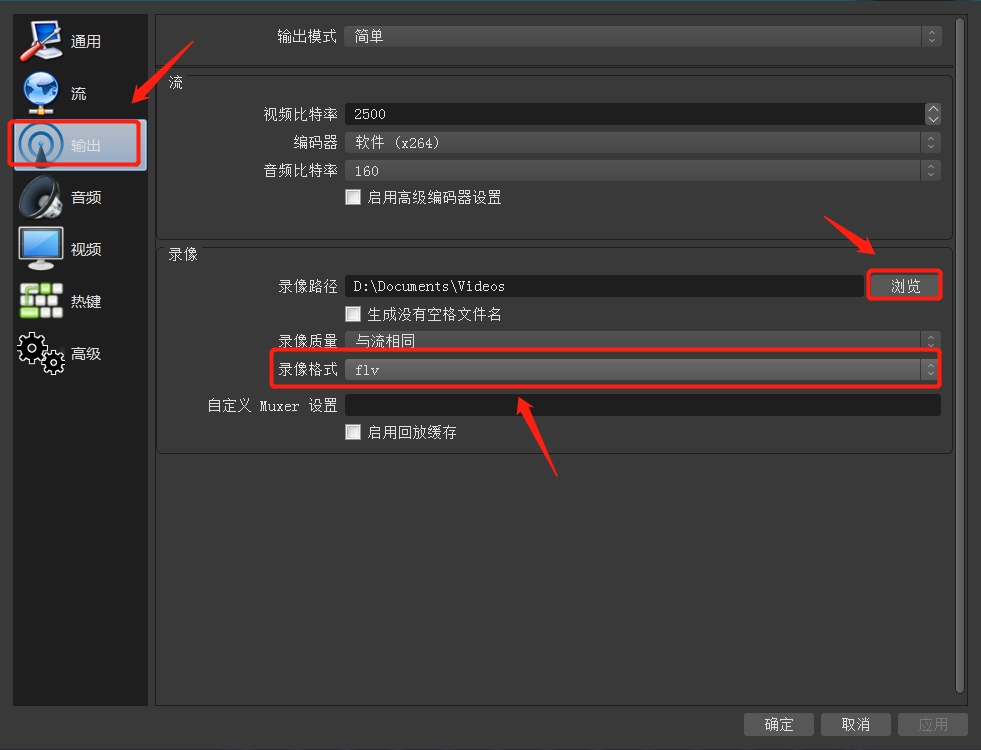
2. Steps for recording a video: After starting the streaming, click the 'Start Recording' button to start recording the video. When ending the streaming, click 'Stop Recording' to complete the recording of the live - stream video. After the recording is completed, users can open the folder where the video is saved to view the recorded video.

【OBS】 Experiencing lag during live streaming?
There may be four possible reasons:
1. Possible reason: The upstream network speed of your current computer is too low.
Solution: Please switch to a network with a higher upstream speed or use a 4G network for live streaming. A minimum upstream bandwidth of 10M/s is required for live streaming with OBS.
Network speed test: http://www.speedtest.cn/
2. Possible reason 2: The bitrate setting in the OBS software is too high.
If you want to adjust the video bitrate to suit your needs, you can check the status indicator in the lower right corner during the streaming test. If the network speed indicator is green and the frame loss is 0, it indicates a smooth network;
If the network indicator is orange or red and there is significant frame loss, it means the network is congested. In this case, you need to lower the video bitrate. The following figure shows a smooth network situation.

Solution: Method to modify the bitrate: Open the OBS streaming software, click [Settings -> Output], and set the bitrate to 500. (Note: The higher the bitrate, the clearer the video, but it also makes the stream more prone to congestion and increases the live streaming latency.)

3. Possible reason 3: The resolution or FPS settings in the OBS software set by the user are too high.
Solution: Please lower the resolution or the FPS value. Recommended resolution: 1280×720. Recommended FPS value: 30
Modify the resolution and FPS settings:
4. Possible reason 4: The computer configuration is too low.
Solution: Please upgrade your computer configuration or close other software except elink and OBS.
Recommended computer configuration:
CPU: i5 - 6400 or higher (i5 - 6500)
Graphics card: GTX1050 or higher (1050Ti)
If you are not recording games, you can directly use the integrated graphics card of the CPU and ignore this item.
Memory: 8G or higher (16G)
Monitor: 1080
Check the computer configuration: Right - click on 'This PC' on the desktop, click 'Properties' to enter the system page. The CPU is displayed under 'Processor' in the system, and the installed memory is shown under 'Installed memory'. Click 'Display adapters' in the Device Manager to view the graphics card.
【OBS】How to solve the live streaming latency issue?
Reasons for live streaming delay and solutions:
1. The current upload speed of your computer's network is too low.
Solution: Please switch to a network with a higher upload speed or use a 4G network for live streaming. A minimum upload bandwidth of 10M/s is required for live streaming with OBS. Network speed test: http://www.speedtest.cn/
2. Improve the situation by adjusting OBS parameters
Solution (preferred): Open the OBS streaming software, click [Settings -> Output], and set the bitrate to 500 - 1000. (Note: The higher the bitrate, the clearer the video, but it is also more likely to cause stuttering and increase the live streaming delay.) Check if the live streaming delay has improved.
If the live streaming delay is still not resolved
Click [Settings -> Output], set the output mode to Advanced, then set the bitrate to 500 - 1000 and the keyframe interval to 1

【OBS】Is the streaming screen inconsistent with the actual screen?
When using OBS for live streaming, there are generally two types of abnormal display issues with the streamed video: 1. Only part of the video is displayed. 2. The video is too small.
Solution for the first issue: Right-click on the video on the screen -> Transform -> Center on screen.
Solution for the second issue: Right-click on the video on the screen -> Transform -> Fit to screen.
How to obtain the server and streaming key?
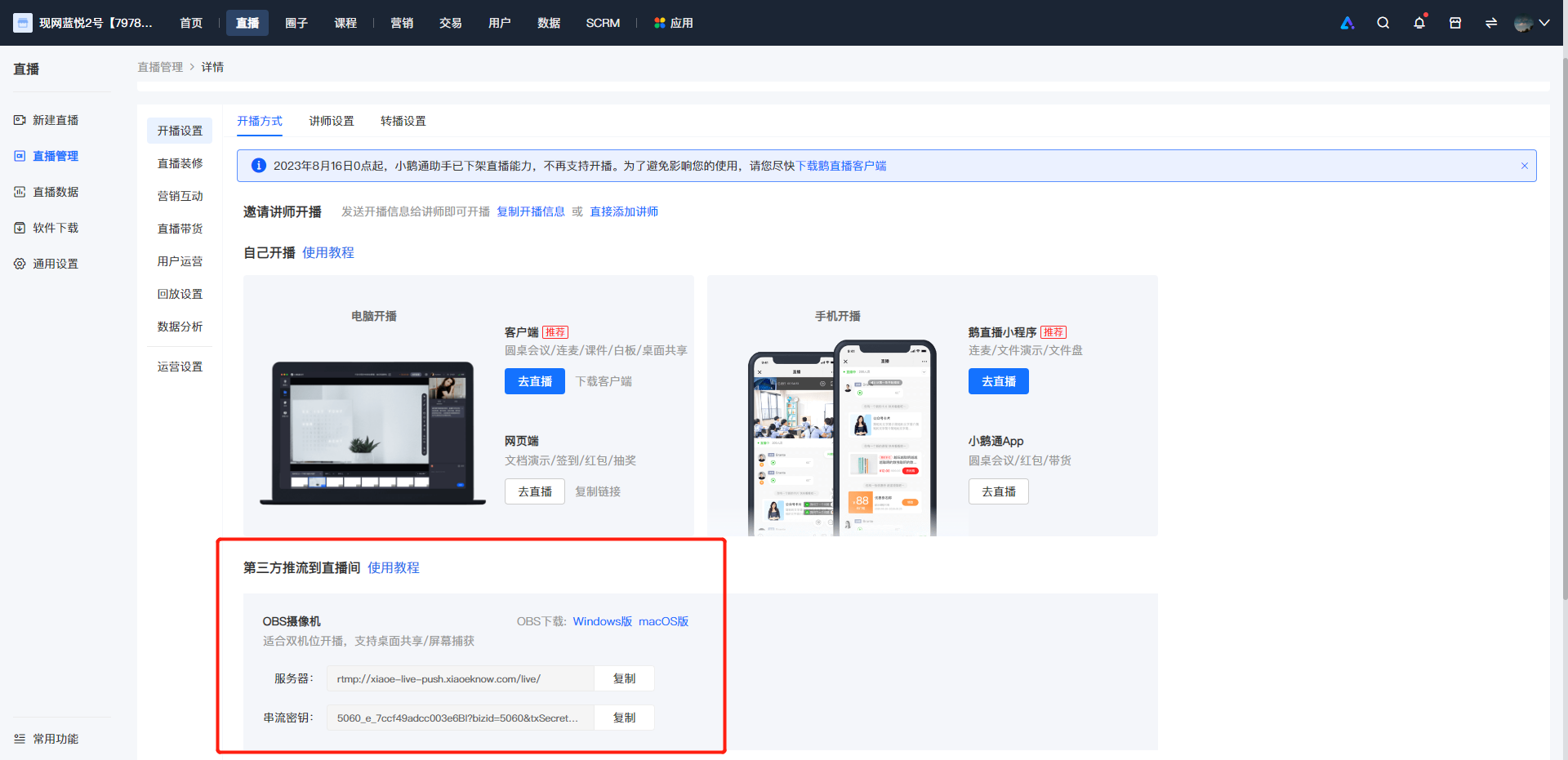
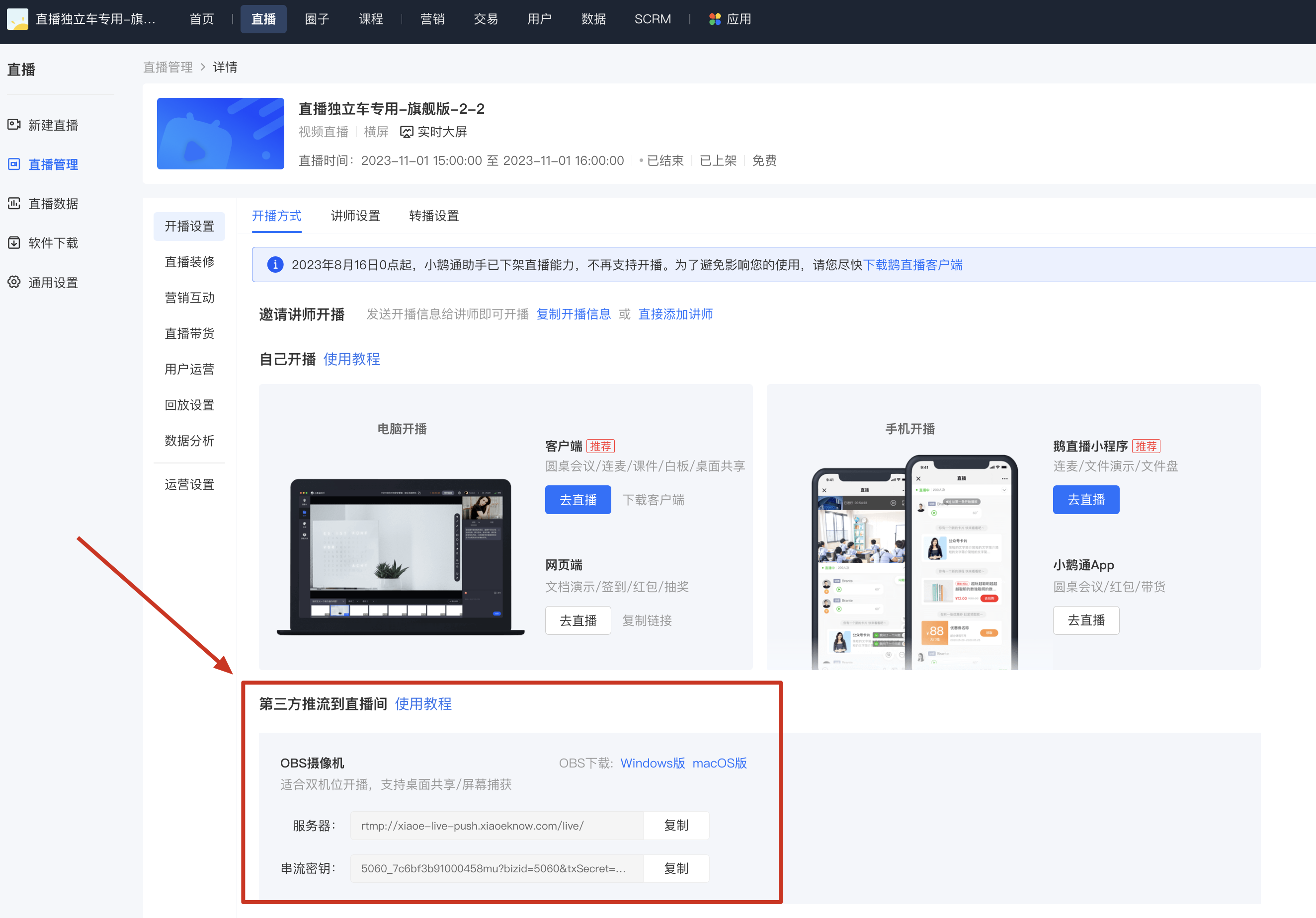
1. You can log in to the elink Merchant Backend, click [Live Streaming], find the corresponding course, and then click [More > Go to Live > Live Streaming Settings] to copy the "Server" and "Stream Key".
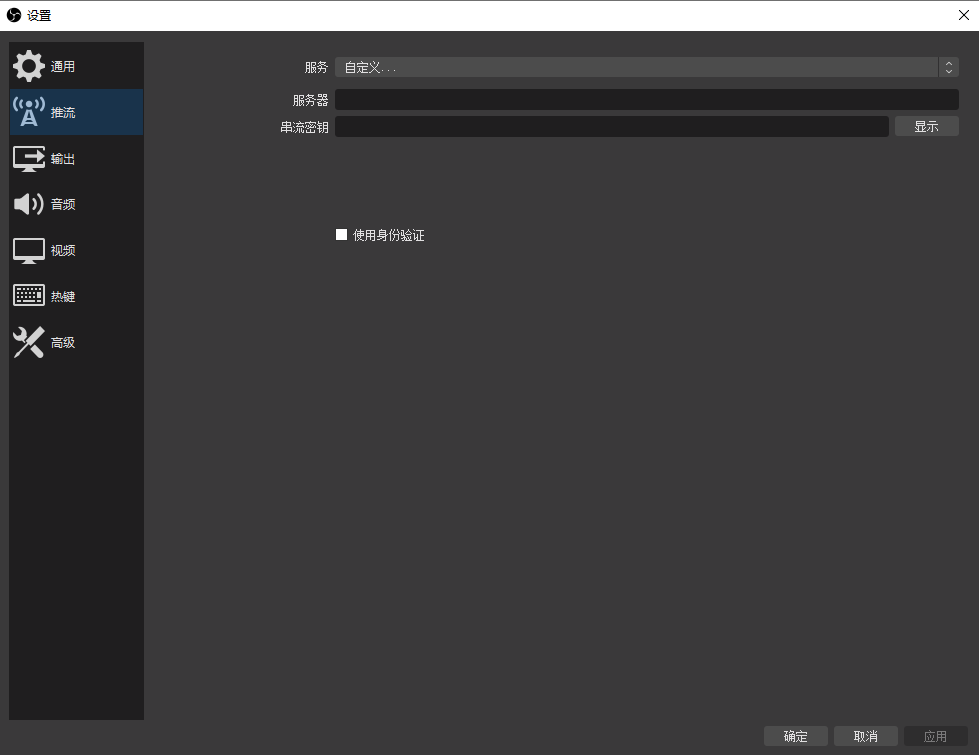
2. After obtaining the "Server" and "Stream Password", open OBS, click the settings button in the bottom right corner. On the settings page, select "Streaming" from the left - hand sidebar. On the streaming settings page, click the dropdown menu next to "Service" and select "Custom".Then fill in the corresponding information in the "Server" and "Stream Key" fields.
Where can I download [OBS]?
1. You can go to the official OBS website for download: https://obsproject.com/
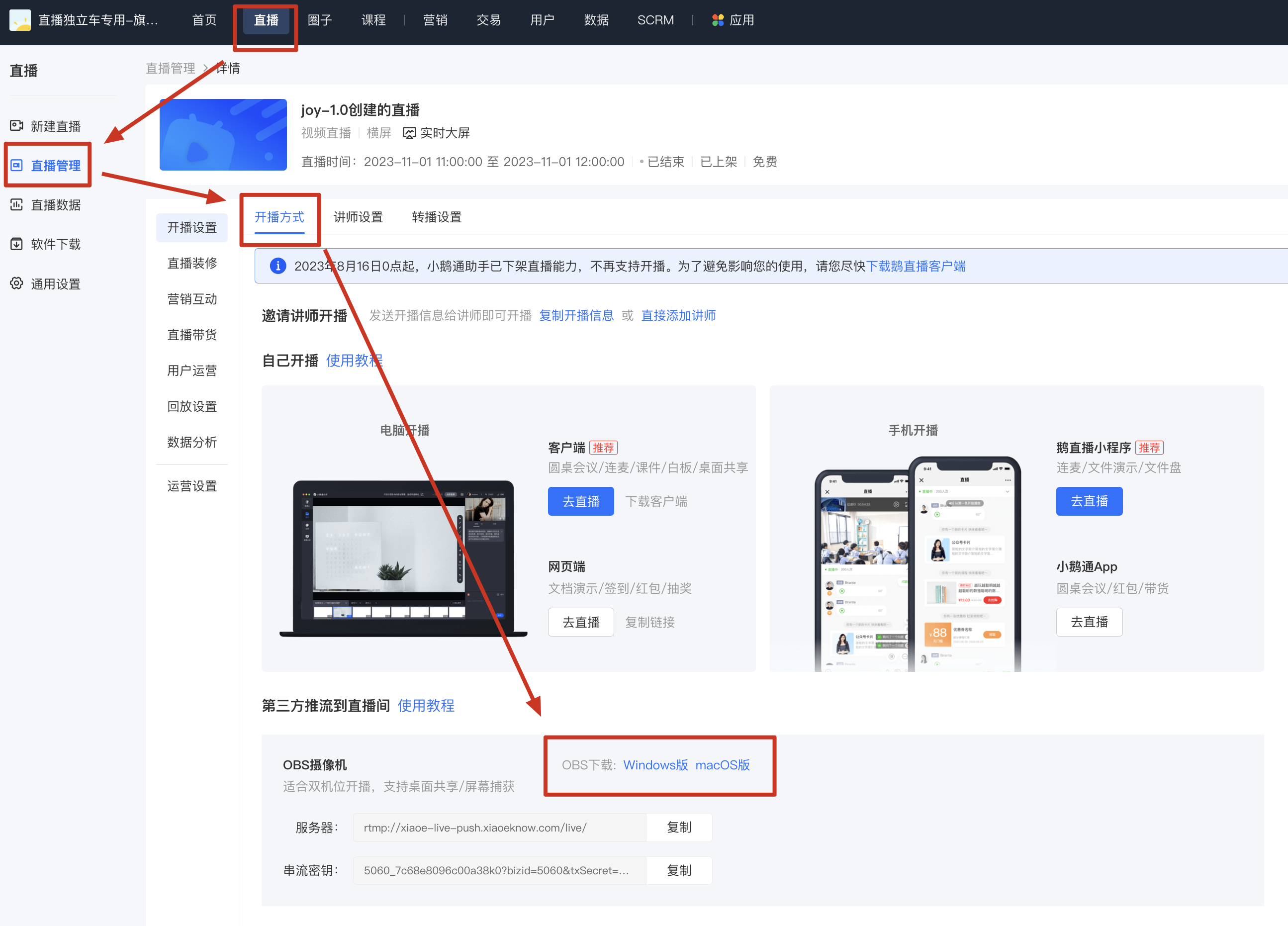
2. You can access the elink Merchant Store Management Console: [Live Streaming — Live Streaming Management— Live Streaming Details— Live Streaming Settings — Live Streaming Method — Third - party Streaming to the Live Room — OBS Download], click on the corresponding computer system to enter the download page.
After successfully configuring live streaming, why can't students see the video?
After streaming, students won't immediately see the streaming screen. There's approximately a 12-second delay. If the streaming screen isn't visible for an extended period, ensure that the settings in the OBS software are correct:
1. Confirm that the streaming key and server address for the stream have been entered correctly (i.e., the URL and stream name of the target live room filled in OBS). If the instructor hasn't filled in the corresponding streaming key, the live screen may be pushed to another live room. If the corresponding streaming key and server address have been filled in, verify their accuracy [Verification path: OBS - Settings - Stream].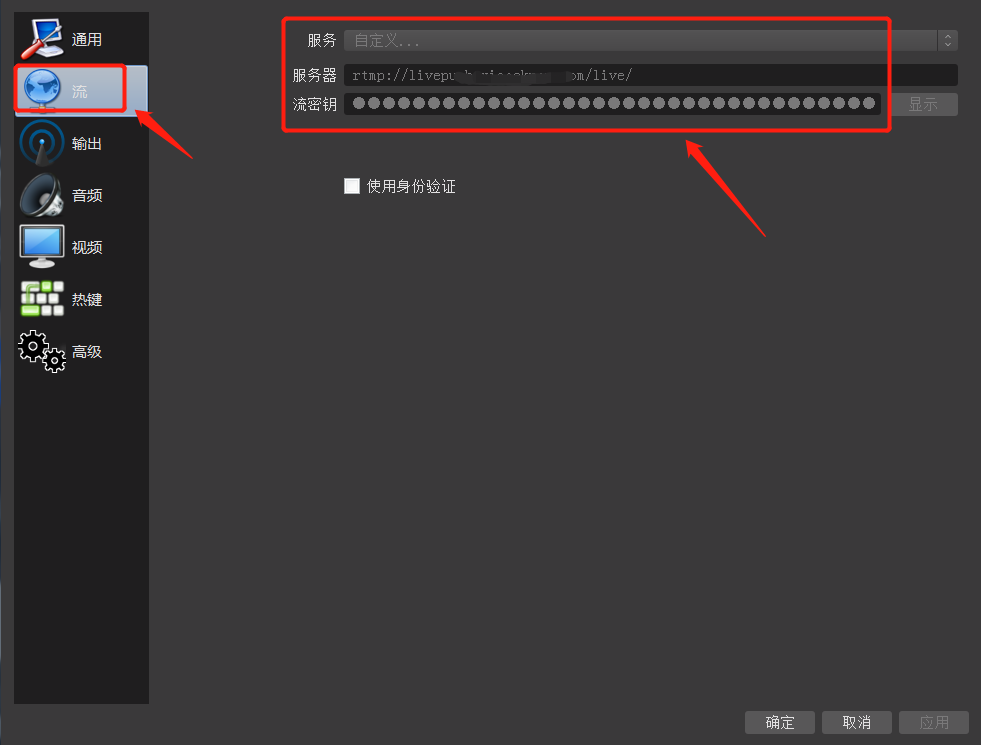
2. Check if the 'Start Streaming' button has been clicked in the OBS operation area to start the stream. If the stream has started, 'Stop Streaming' should be displayed in the bottom right corner.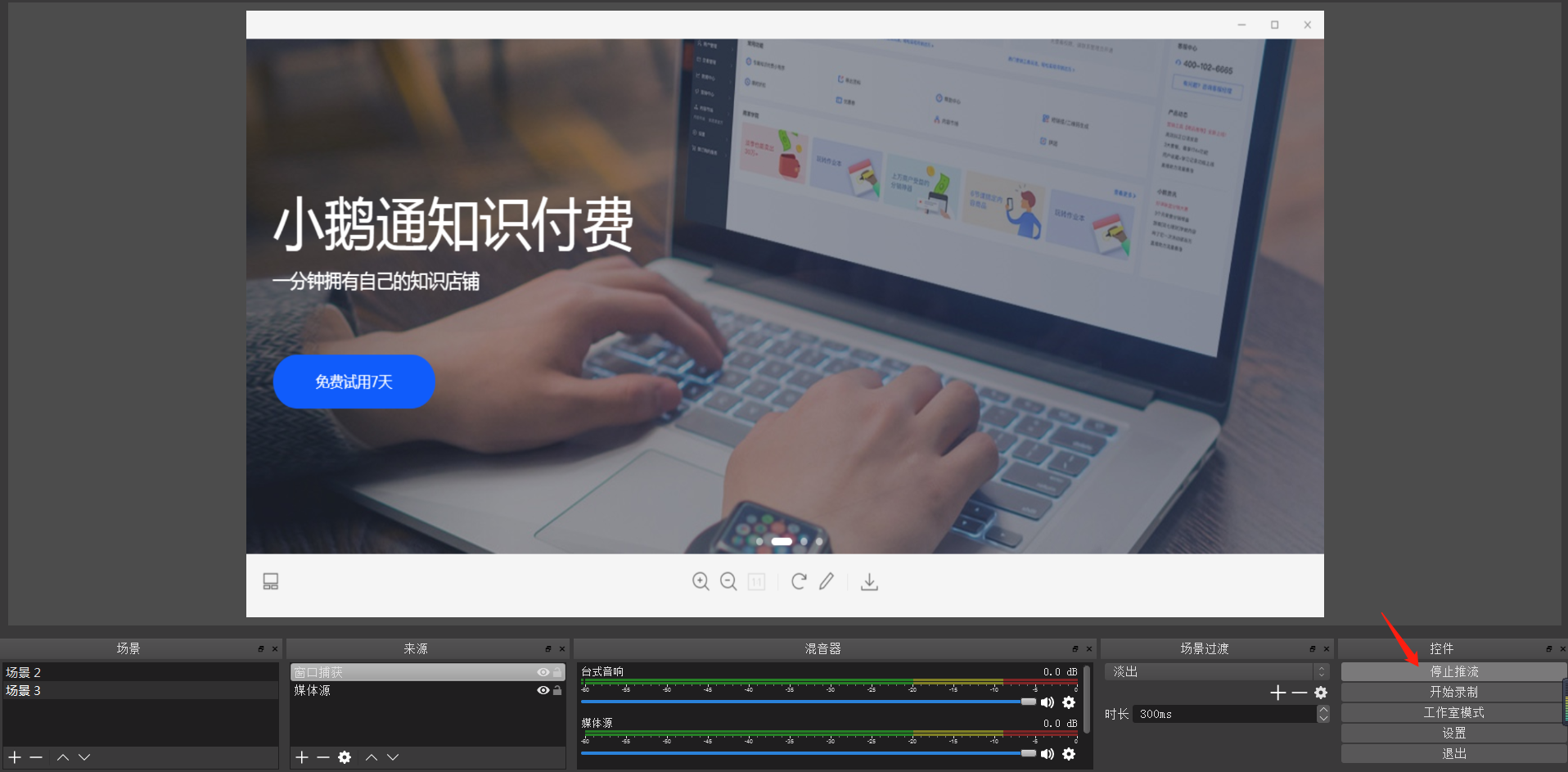
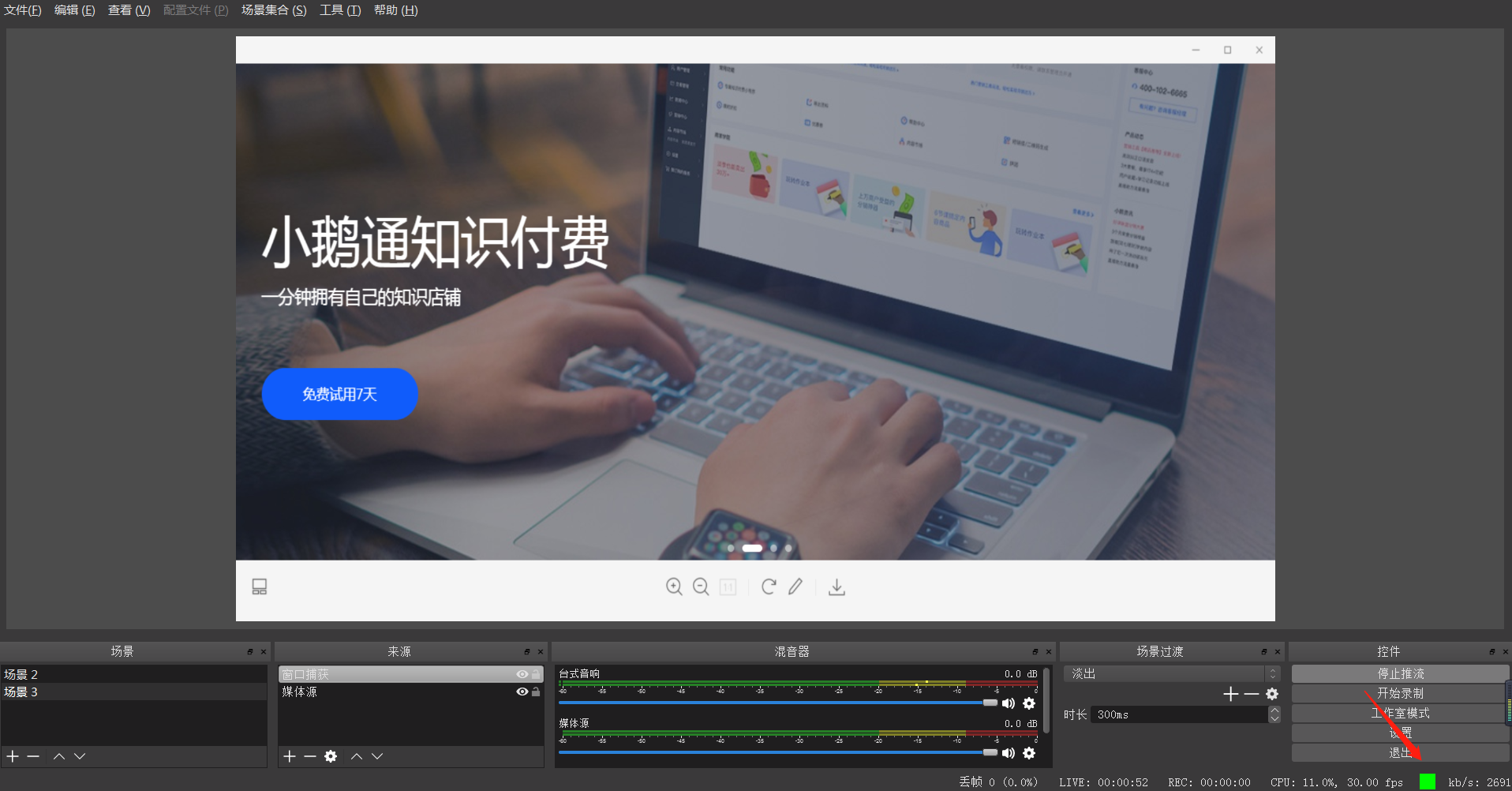
3. Check if the streaming quality indicator in the bottom right corner of OBS is green. If not, reduce the live streaming quality.
【OBS】 How to adjust the size of the instructor's video?
Click and drag the bottom right corner of the video frame to adjust its position. You can also zoom in or out on the instructor's video.
Can the stream name be used permanently after being set once?
Each live course has a dedicated streaming key, which cannot be used permanently. You can log in to the elink merchant backend, click [Live], find the corresponding course, and then click [More - Go Live] to copy the "Stream Name".
[OBS] Streaming shows no connection to the server (some office networks may have restrictions)
Problem Phenomenon
OBS shows that the service is not connected. Please refer to the following methods to solve the problem:
Method 1: Check the streaming address
① Check if the streaming link settings in the settings are correct
② Click the settings button in the lower right corner of the OBS page. Enter the settings page, select “Stream” in the left sidebar, and check if the streaming information is consistent with the streaming address of the live room
Method 2: Switch the network
① Try to change the network (such as using a 4G hotspot)
② If the problem still exists after switching the network, please change the DNS
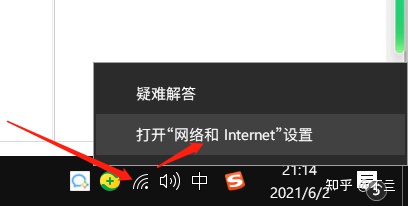
<1> Right - click the network icon in the lower right corner and select “Open Network & Internet settings”.
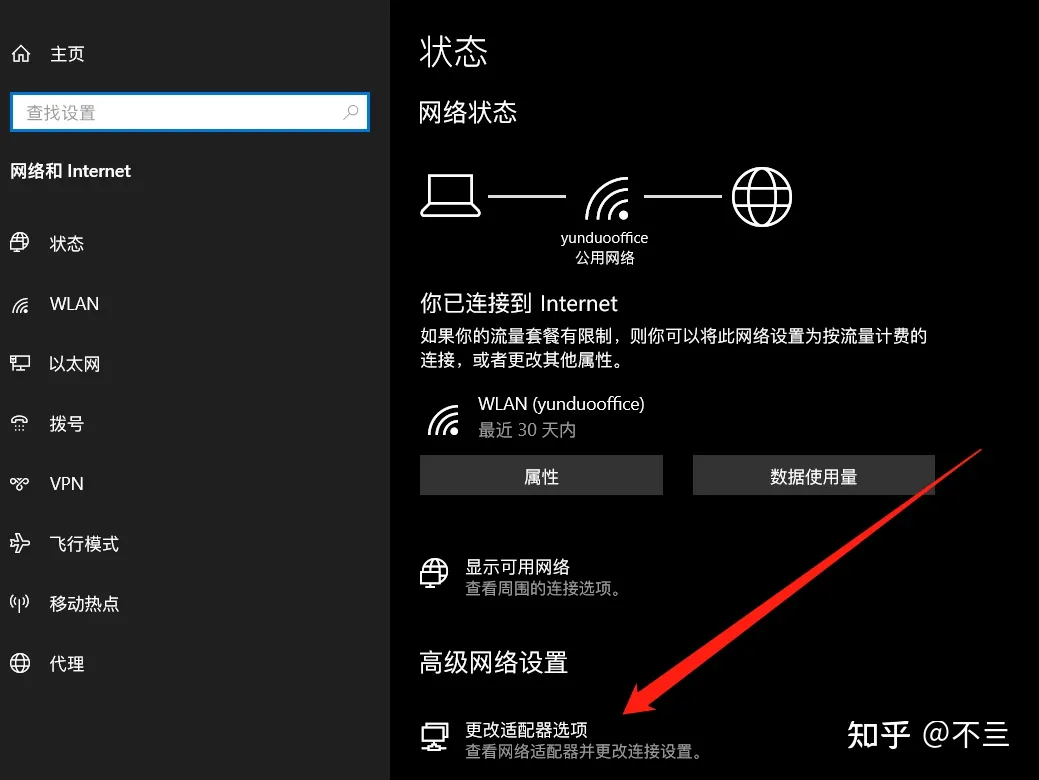
<2>Select “Change adapter options”.
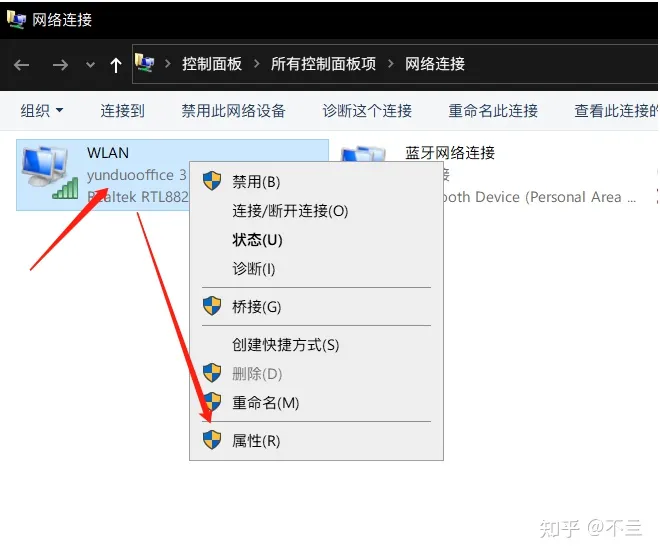
<3> Right - click the “WLAN” icon and select “Properties” (if you are connected via Ethernet, you need to change the properties of “Ethernet”. Just change the properties of the network you are using).
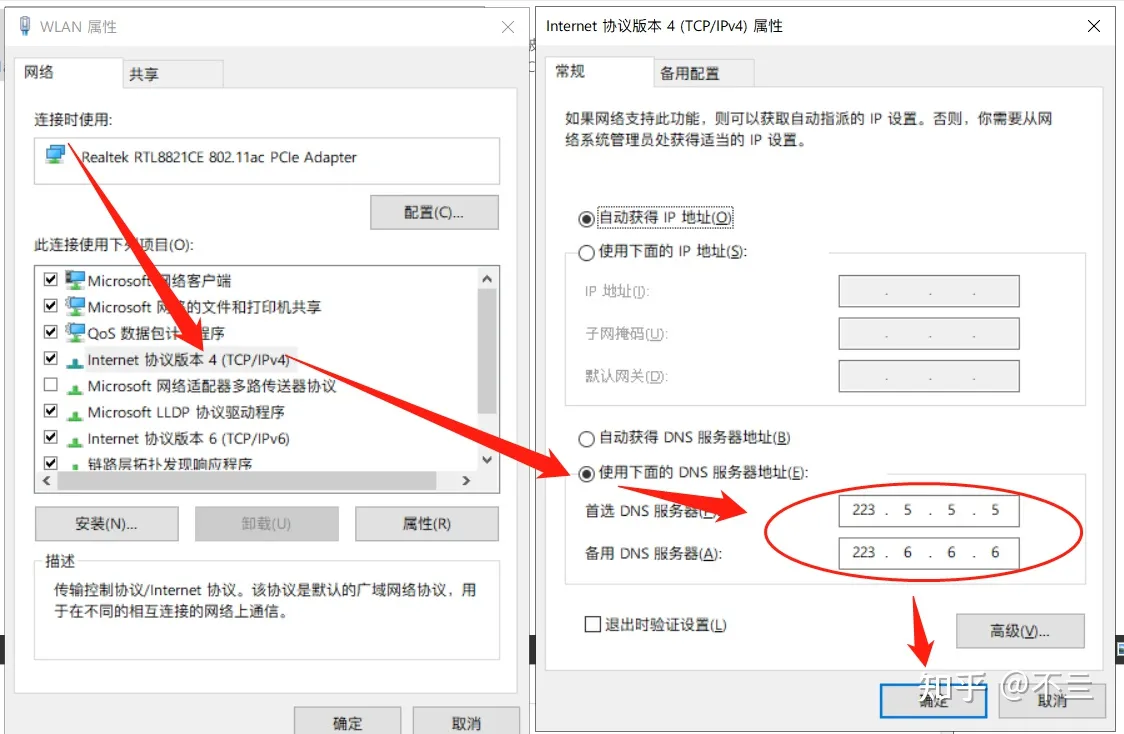
<4> In the properties, select “Internet Protocol Version 4 (TCP/IPv4)” and double - click to open it. Change the DNS from “Obtain automatically” to “Manual input”, enter a set of DNS, and save it.
Common public DNS
Tencent: 119.29.29.29
Alibaba: 223.5.5.5, 223.6.6.6
③ If the problem still cannot be resolved after changing the DNS as described above, please use the following method:
<1> Open the following detection website link in your browser
https://ping.huatuo.qq.com/thirdpush.xiaoeknow.com
<2> After all the content data on the page has finished loading, click the blue button “Copy result URL for sharing”
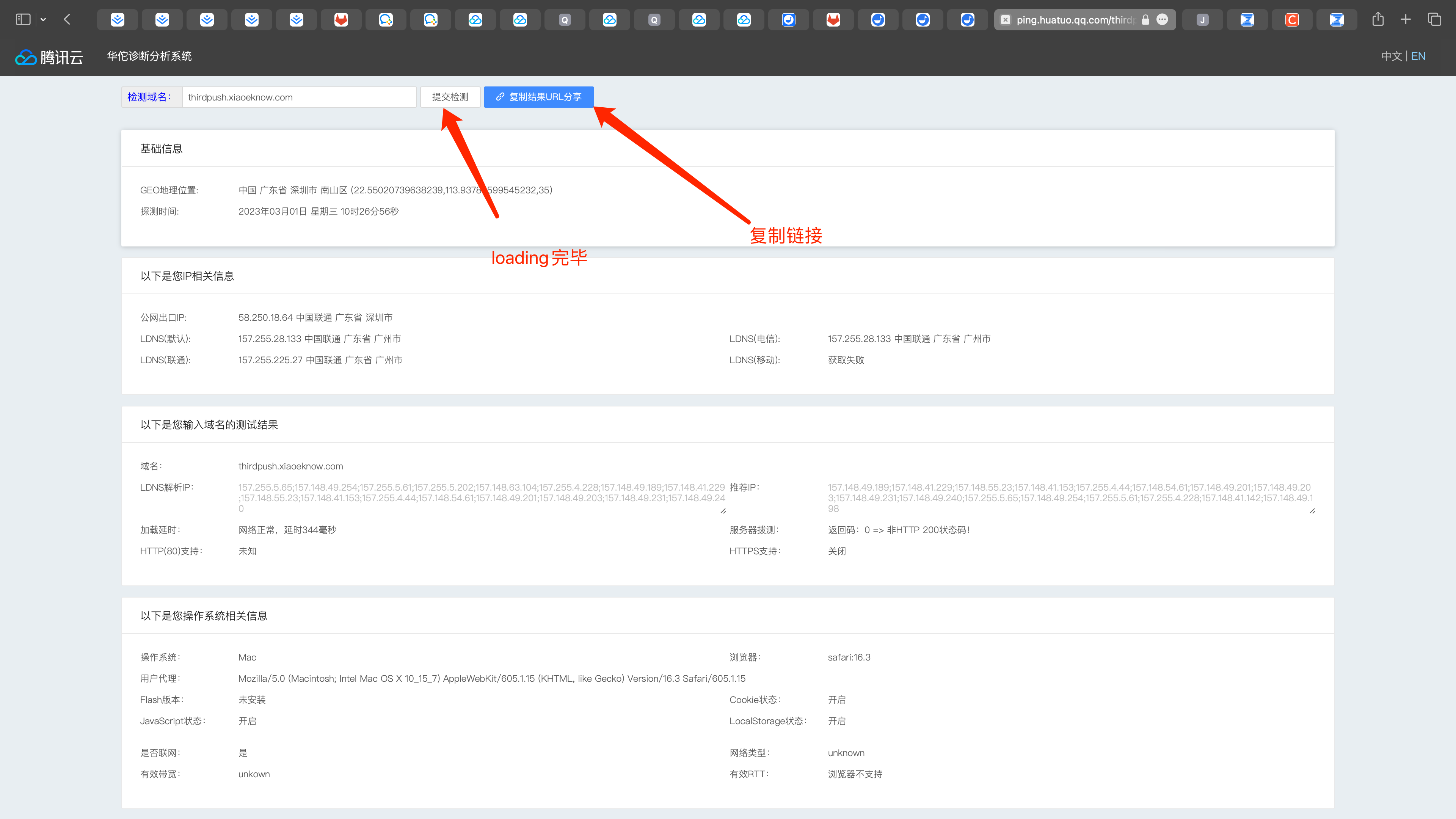
<3> Send the copied content to your service manager, and the service manager will perform further troubleshooting for you.
What is a streaming key?
The OBS streaming code refers to the streaming address and streaming password used by the anchor to push the locally captured audio and video streams to the media server, ensuring a one-to-one correspondence between your live content and your live streaming room.
The streaming code is generally divided into two parts: the RTMP address and the stream key. Enter them in the following locations in OBS:Server and Stream Key.
What should the instructor do if they need a break during the live stream?
When the instructor of the desktop sharing live stream needs to take a break, after notifying the students, click 'Stop Streaming' in the OBS software. To resume the live stream, click 'Start Streaming'.
Note: Please ensure that the live stream has not reached the current end time.