Live broadcast configuration
- How to set up live guests?
- During live streaming, can I customize the waiting screen when the instructor is away?
- How many course start reminders can be pushed during a live stream?
- Can invitation codes be used for live courses?
- How can instructors enter the live streaming room?
- Can elink's live streaming share the instructor's desktop?
- Which browser should I use for live streaming?
- If the scheduled live streaming time has not started, can the instructor start the live stream in the live room in advance?
- Can watermarks be added to live streams?
- Can multiple instructors be set up in the live streaming room?
- Where can I modify the nickname and avatar of the live stream instructor?
- Can live streams be set to not allow playback?
- Can the live stream room copywriting be modified?
- How to set up a live stream instructor and how to invite instructors (guests)?
- Tutorial on Setting the Live Streaming Room Cover
- Tutorial on Using Live Streaming Watermark Settings
- Tutorial on setting up live streaming instructors (guests)
- Tutorial on Using Ultra-Low Latency Live Streaming
- Will this feature take effect immediately after enabling ultra-low latency live streaming?
- After enabling ultra-low latency live streaming, can users enjoy ultra-low latency when watching on all devices?
- Why is the live streaming latency still high after enabling ultra-low latency live streaming?
- Tutorial on converting documents to PDF
- Specification for configuring external links in recommendation cards
- Tutorial on converting documents to PDF
- What should I do if the virtual background and beauty filter don't work?
- Tutorial on Privacy Protection Usage
- Tutorial on Using Live Commerce Comment Review
- Scope of application for trainees to pause live commerce
How to set up live guests?
I. Feature Introduction
After creating a live stream, you can invite others to become instructors in the live - streaming room. Instructors can enter the live stream without purchasing the paid content and have the functions of speaking, managing the live stream, and ending the live stream.
II. Purpose of Use
Merchants can use this feature to configure live - stream instructors.
III. Use Scenarios
Video live stream, audio live stream, recorded live stream
IV. Operation Path
Merchant side:
Path 1: Create a new live stream → Add an instructor → Customize the instructor's information
Path 2: Live - streaming room details/Live - stream list → Instructor settings → Customize the instructor's information
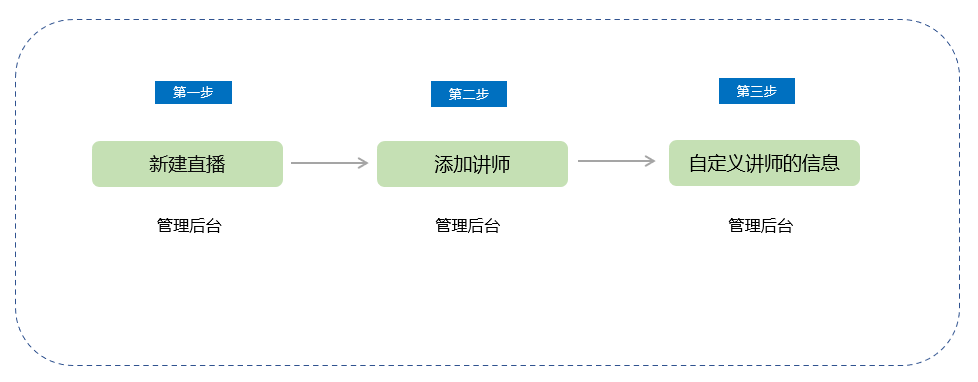
V. Usage Tutorial
Path 1:
Step 1: Create a new live stream
You can add an instructor on the new live - stream creation page.
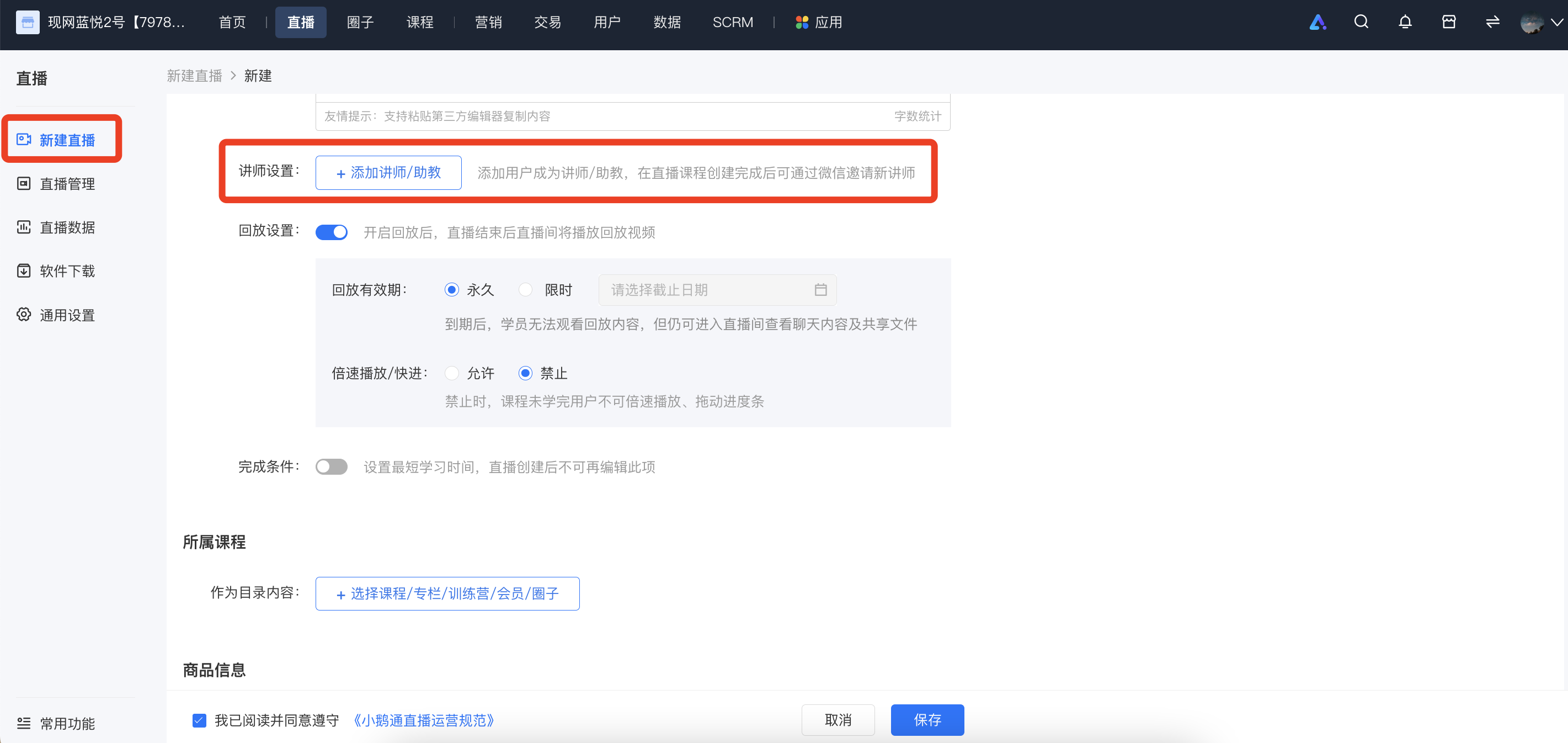
Step 2: Add an instructor
Log in to the elink management console and click 'Add an instructor' on the new live - stream creation page.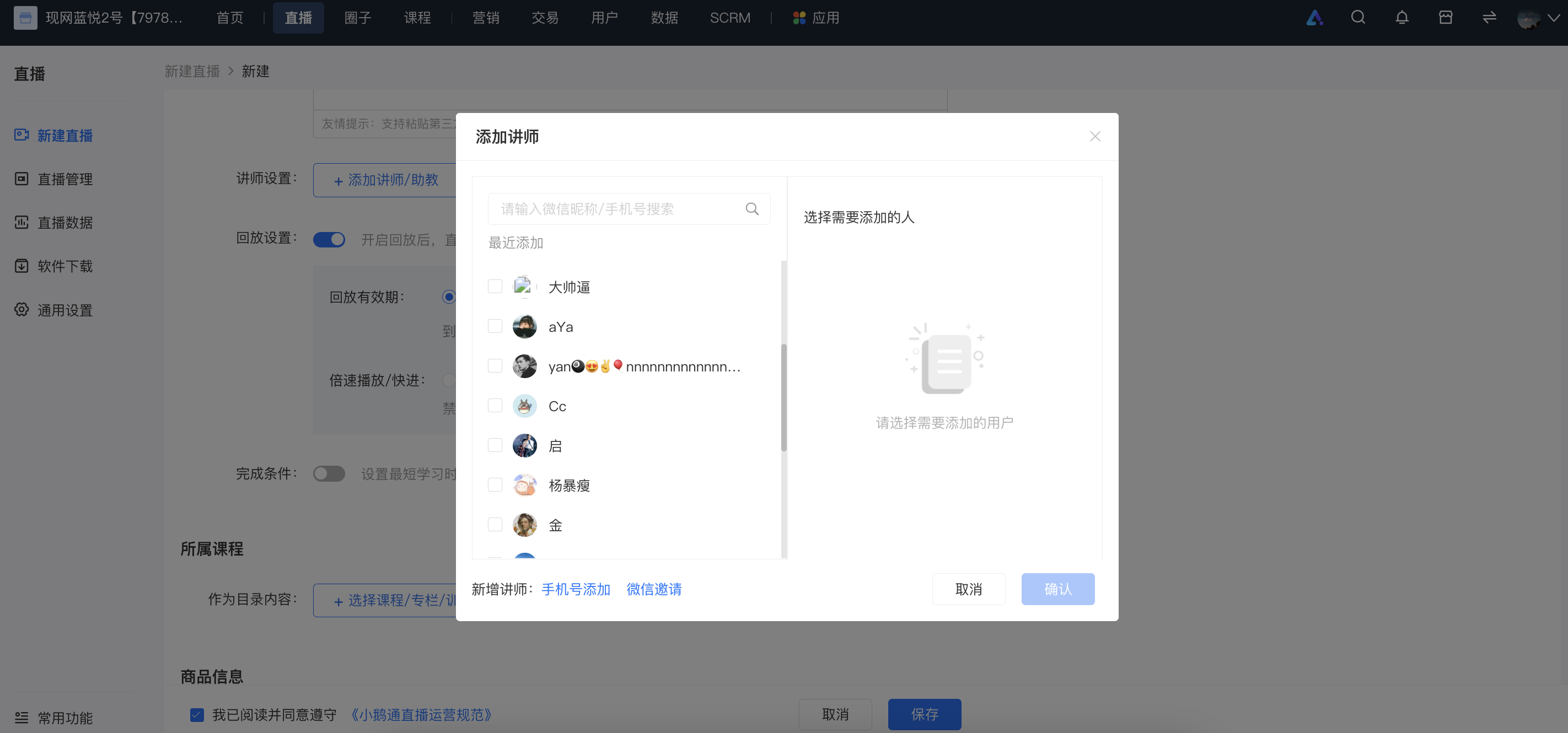
(1) You can select the recently added instructors to add as instructors.
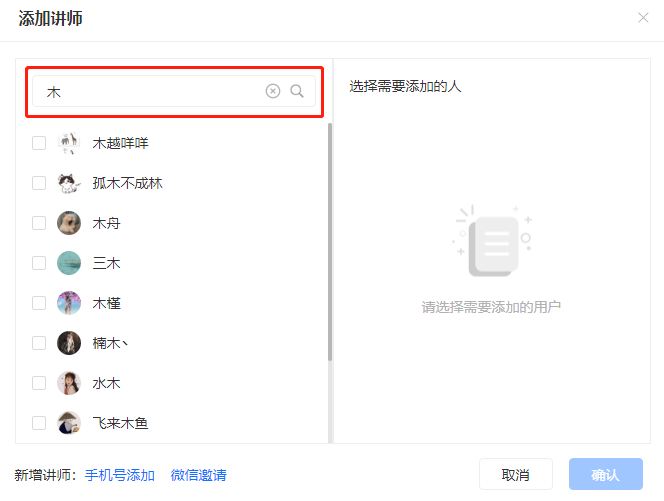
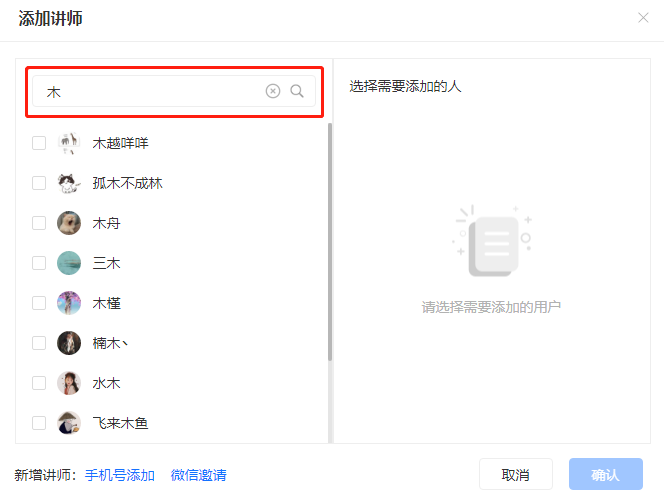
(2) Add someone as an instructor by searching the store's historical access records in the search box.
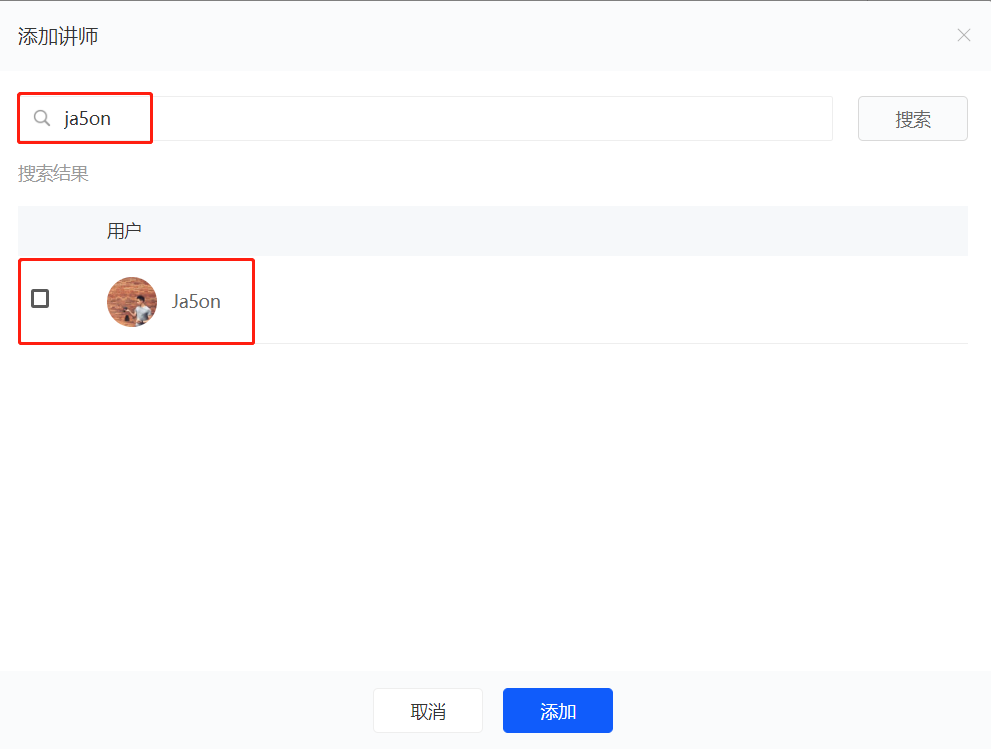
Step 3: Customize the instructor's information
1) Tag setting: After adding an instructor, you can set tags for the added instructor (titles/designations in the live - streaming room, such as 'Instructor', 'Teaching Assistant') through tags, which is convenient for distinguishing when there are multiple instructors in the live - streaming room.
2) Accept student tips: You can control the tip switch for the corresponding instructor. After the tip switch is turned off, the tip entry for this instructor in the live - streaming room will be hidden.
3) Remove: Support the operation of removing an instructor.
Path 2:
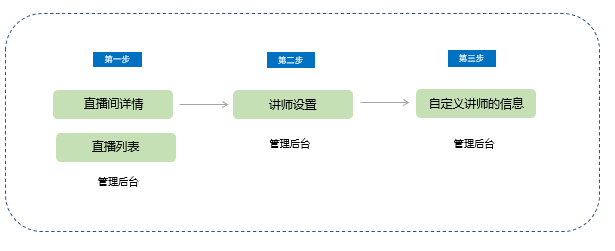
Step 1: Live - streaming room details page
On the live - stream list page, find the live stream for which you need to set an instructor, click 'Details', and enter the 'Live - streaming room details page'.
Find 'Live - streaming room settings' - 'Course settings' and locate the instructor setting function.
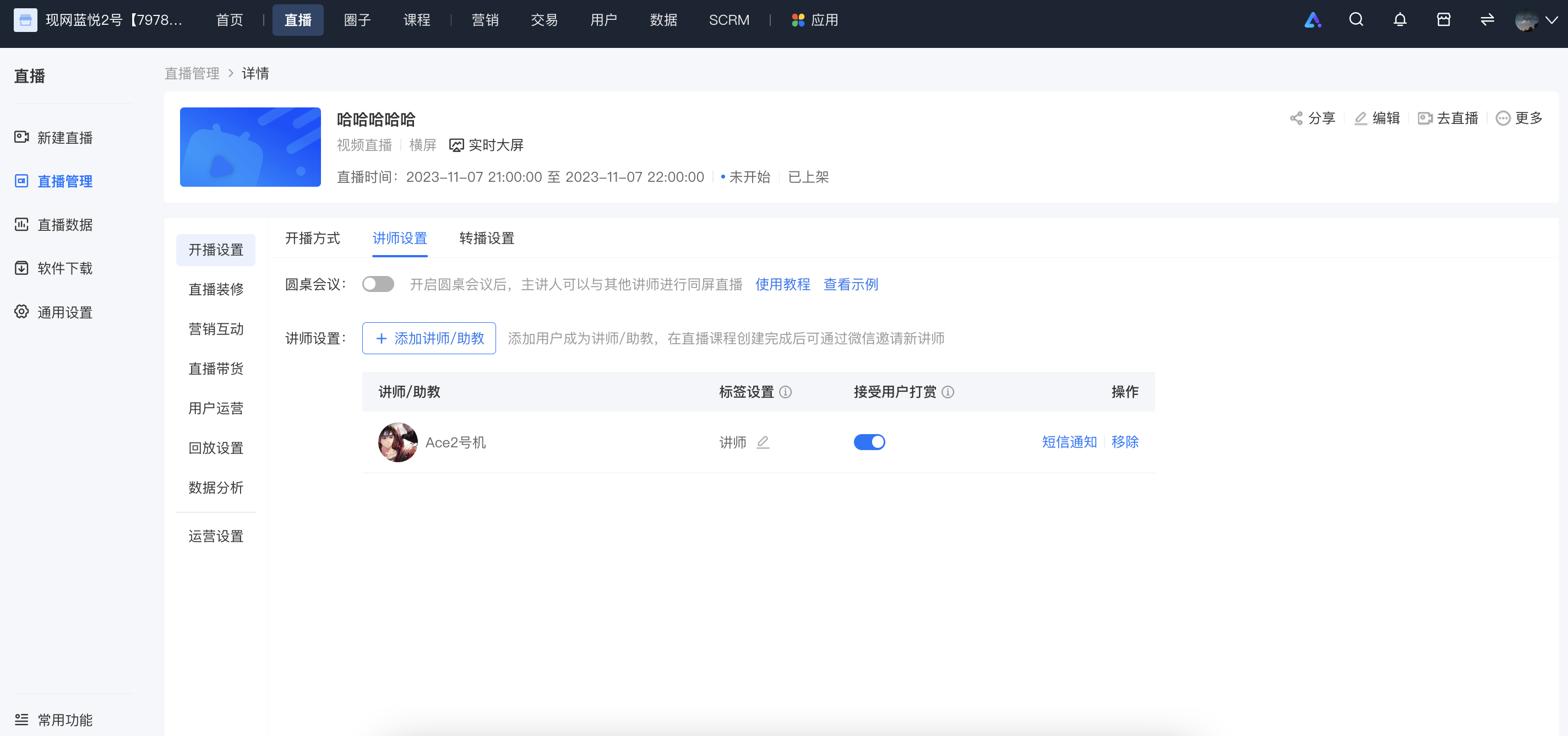
Step 2: Set an instructor
Click 'Instructor settings', and a window for instructor settings will pop up.
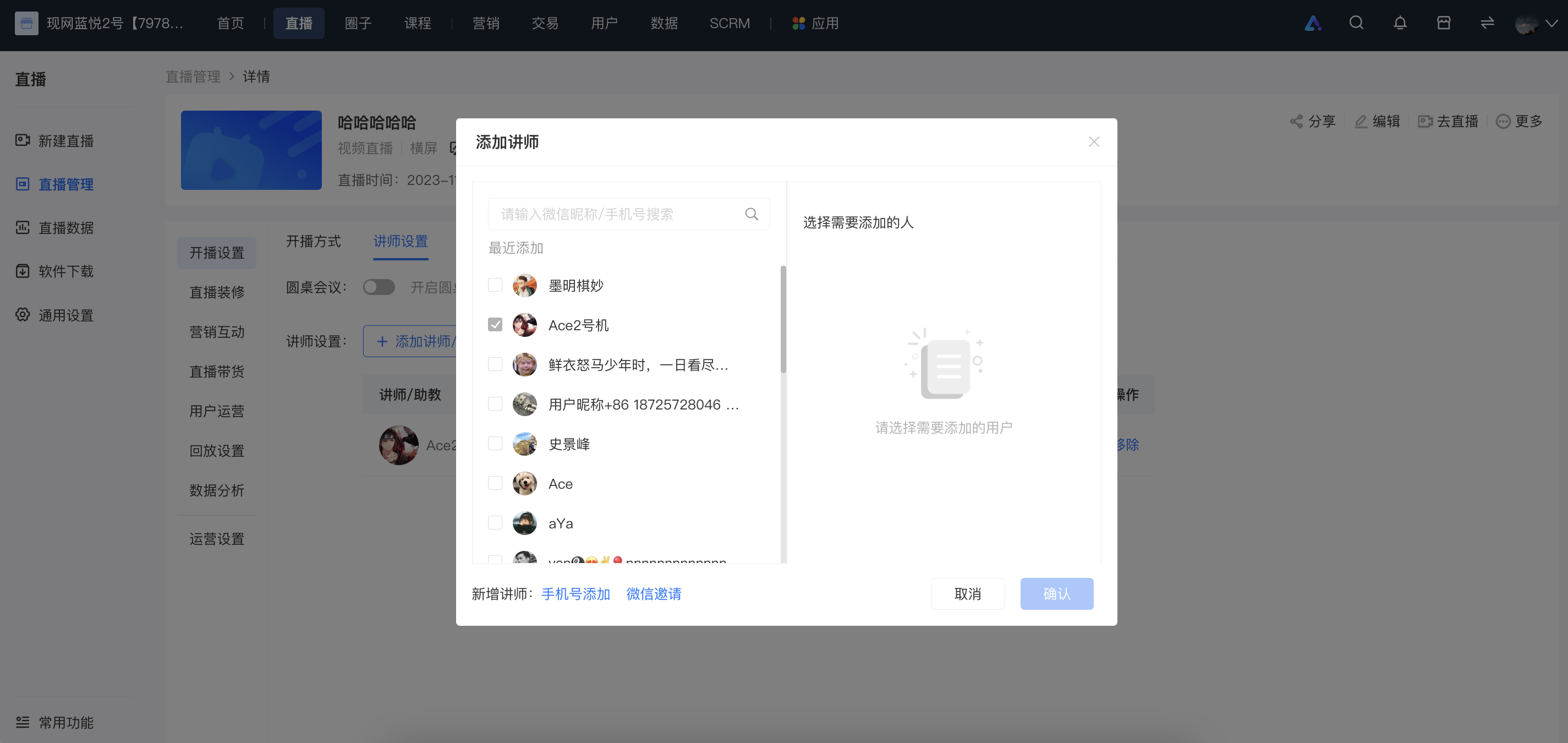
(1) Add someone as an instructor by searching the historical access records in the search box.
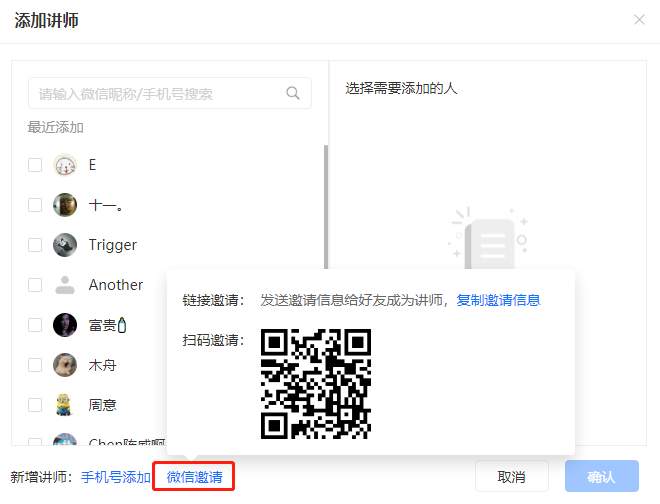
(2) Invite friends to become instructors via WeChat QR code.
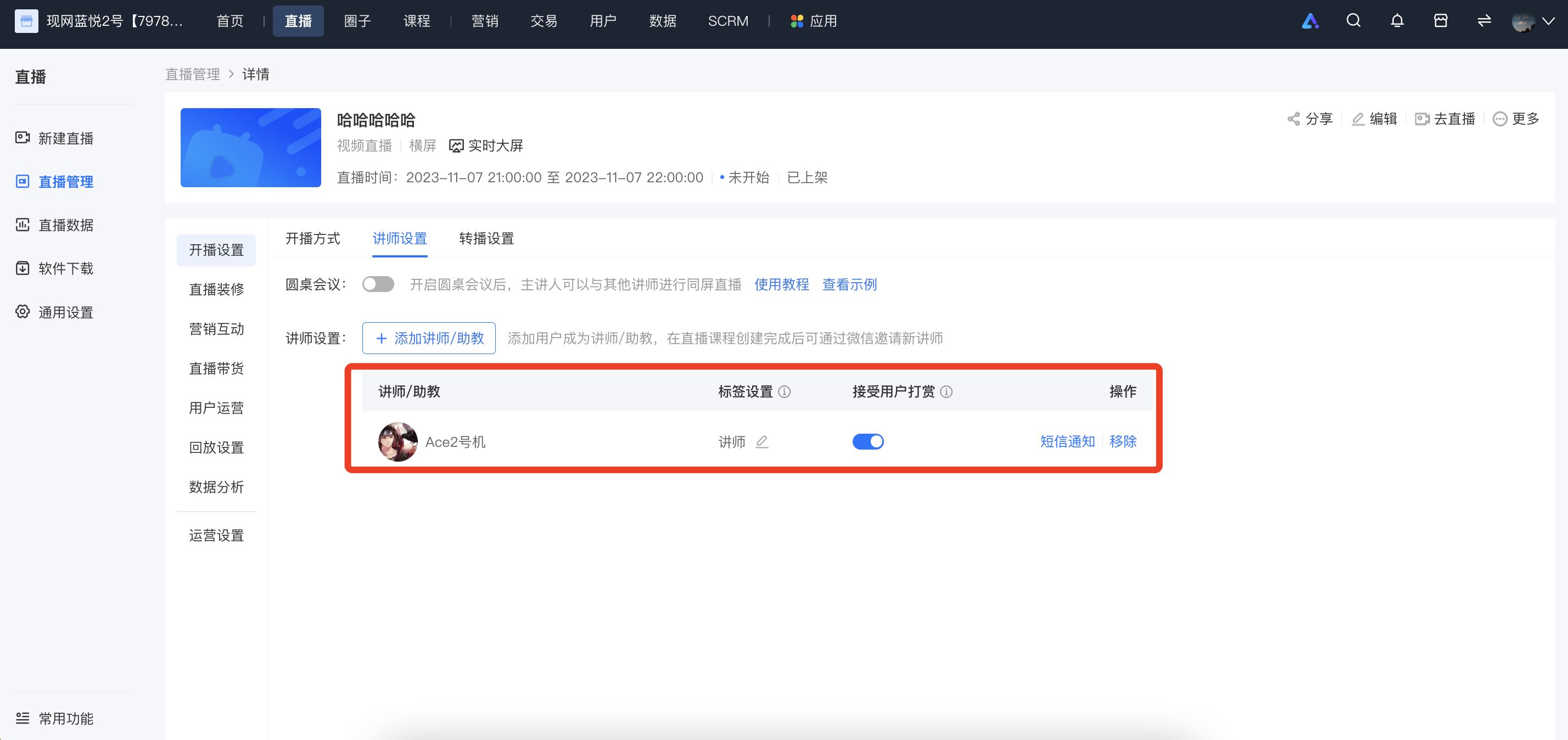
Step 3: Customize the instructor's information
1) Tag setting: After adding an instructor, you can set tags for the added instructor (titles/designations in the live - streaming room, such as 'Instructor', 'Teaching Assistant') through tags, which is convenient for distinguishing when there are multiple instructors in the live - streaming room.
2) Accept student tips: You can control the tip switch for the corresponding instructor. After the tip switch is turned off, the tip entry for this instructor in the live - streaming room will be hidden.
3) Remove: Support the operation of removing an instructor.
During live streaming, can I customize the waiting screen when the instructor is away?
Temporarily does not support setting instructors.LeaveWaiting screen and copywriting.
How many course start reminders can be pushed during a live stream?
After setting the push time for the course start reminder of the corresponding live streaming course for a single live stream, it onlywillpush a course start reminder to the corresponding users once before the live stream.
Can invitation codes be used for live courses?
Yes, paid courses (including live commerce, columns, memberships, e-books, videos, audios, images & texts, premium memberships, communities, mega-columns, and Campss) can all use invitation codes.
How can instructors enter the live streaming room?
First, you need to invite the instructor to become a live-streaming guest or instructor. You can add and set the instructor through [More/Details] - [Instructor Settings] in the live stream.
Audio live stream:
1. You can send the live-streaming room sharing link to the instructor. The instructor can open the link on the WeChat H5 page to enter the mobile H5 live-streaming room for the live stream.
2. In the store management background, for the corresponding live-streaming task, select [More -> Go Live], copy the link on the web version, and send it to the instructor to open in the browser.
Video live stream:
For the corresponding live-streaming task, click [More -> Go Live], and select one of the five live-streaming tools: [Web version, Client, OBS, Mobile APP, WeChat Mini Program] to start the live stream.
Can elink's live streaming share the instructor's desktop?
Yes, after creating a video live stream, you can use the web version, elink Live client, elink Assistant client, and OBS to share the instructor's desktop for real-time live teaching.
Which browser should I use for live streaming?
It is recommended that instructors use Google Chrome when conducting live broadcasts on the computer web version. We highly recommend using the elink Live client on your computer for a more stable experience.
If the scheduled live streaming time has not started, can the instructor start the live stream in the live room in advance?
Before the live stream of the Online Store starts, the instructor can also conduct a live stream in the live room in advance. The video of the live stream before the official start can also be viewed in the live replay.
Can watermarks be added to live streams?
Yes, you can directly enable the watermark display setting at [Homepage -> Store Settings -> Feature Configuration -> Watermark Settings].Live streams created afterward will display the watermark.
Can multiple instructors be set up in the live streaming room?
Yes, in a single live stream, go to [Details/More] -> [Live Stream Settings]-> [Lecturer Settings]You can add multiple lecturers as guests in the live stream room. Alternatively, you can directly add multiple lecturers on the details page when editing the live stream.
Where can I modify the nickname and avatar of the live stream instructor?
Instructors can access the merchant's WeChat H5 store on their mobile phones to make modifications. The modification steps are as follows: Navigate to the merchant's [Store Homepage] → [My] → [Edit Personal Information] interface to make changes.
Can live streams be set to not allow playback?
For video live streaming, you can set whether to allow trainees to watch the replay in [Details] → [Replay Settings].
For audio live streaming, it is temporarily not supported to set the live stream as non - replayable. You can watch the replay after the live stream ends.
Can the live stream room copywriting be modified?
Live stream room announcements can be modified.
You can make unified settings for all live stream room announcements in [Live Streaming > General Settings > Live Stream Room Announcements]. This setting will take effect for all live stream rooms that have not had their announcements set individually (there may be a certain delay before the modified announcements take effect).
You can also set a separate live stream announcement for a single live stream room in [Live Stream Details - Live Stream Decoration - Live Stream Room Information - Live Stream Room Announcement]. This setting will only take effect for this specific live stream room.
How to set up a live stream instructor and how to invite instructors (guests)?
Setting Method 1: Add and manage guests directly on the management console
In the live broadcast list, find the live room, go to [Management -> Live broadcast settings -> Instructor settings], and click [Add instructor/teaching assistant]. You can directly select an instructor added previously, or click [Add by mobile phone number] and enter the mobile phone number to grant instructor permissions.


Setting Method 2: Invite guests on the WeChat side
In the live broadcast list, find the live room, go to [Management -> Live broadcast settings -> Instructor settings], click [Add instructor/teaching assistant], and then click [Invite via WeChat]. An invitation guide pop - up window will appear. You can add instructors through the following methods:
1. Invitation via link: You can click "Copy invitation information -> Copy all information", and then send it to the instructor via other chat tools such as WeChat on your mobile phone. The instructor can become an instructor by clicking the link in the text.
2. Invitation via QR code: You can scan the QR code with your WeChat on your mobile phone to invite yourself or others to become an instructor.
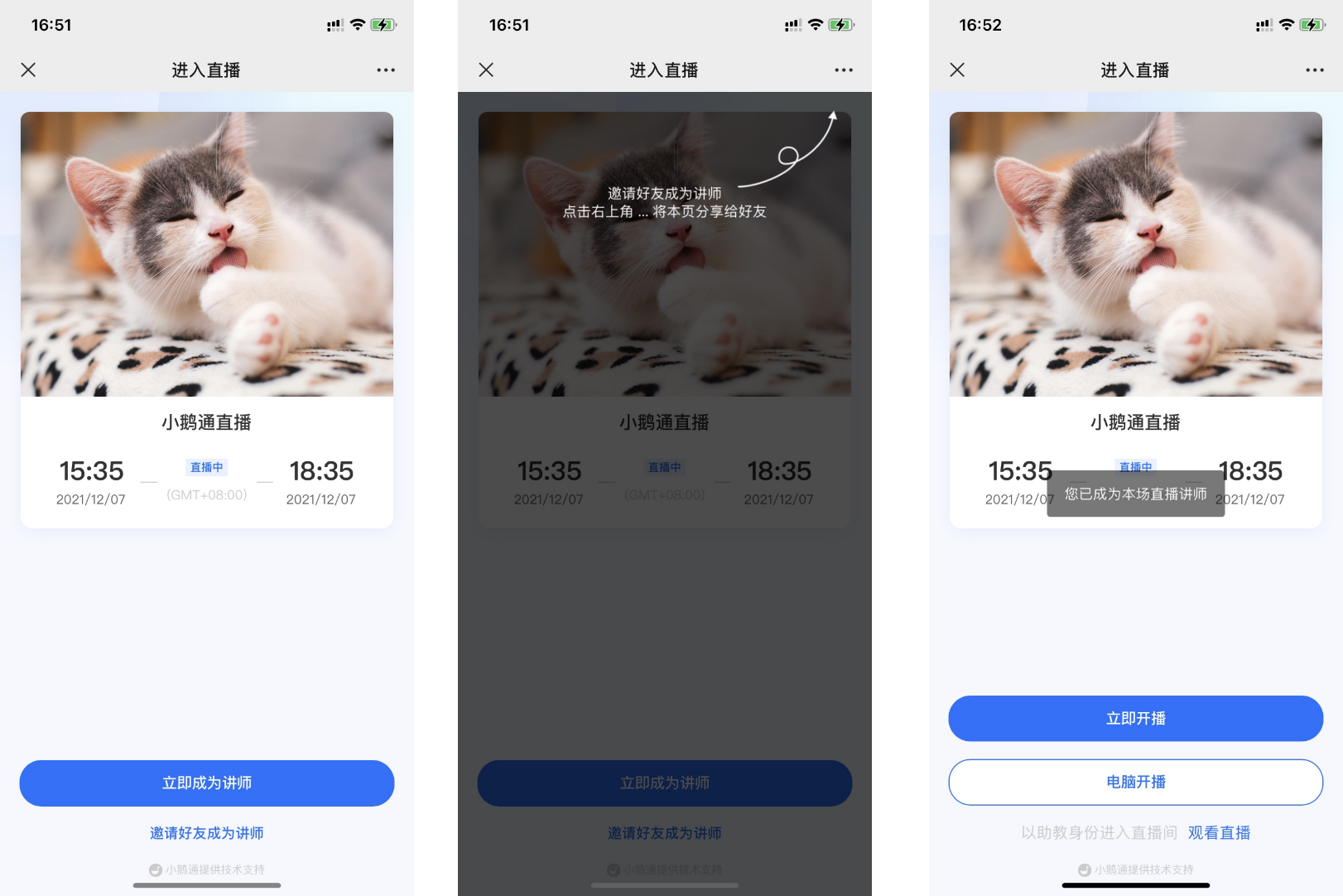
After scanning the QR code on your mobile phone
(1) You can click "Become an instructor immediately" to grant yourself instructor permissions.
(2) You can click "Invite friends to become instructors". After clicking, click the top - right corner to forward the page to your friends. Your friends can become instructors after accepting the invitation.

Tutorial on Setting the Live Streaming Room Cover
I.Function Introduction
Cover Settings for the Live Streaming Room
II.Purpose of Use
Display the page effect of the live streaming room and package the live streaming room.
III.Usage Scenarios
Cover settings for video live streaming, audio live streaming, and recorded live streaming.
IV.Usage Tutorial
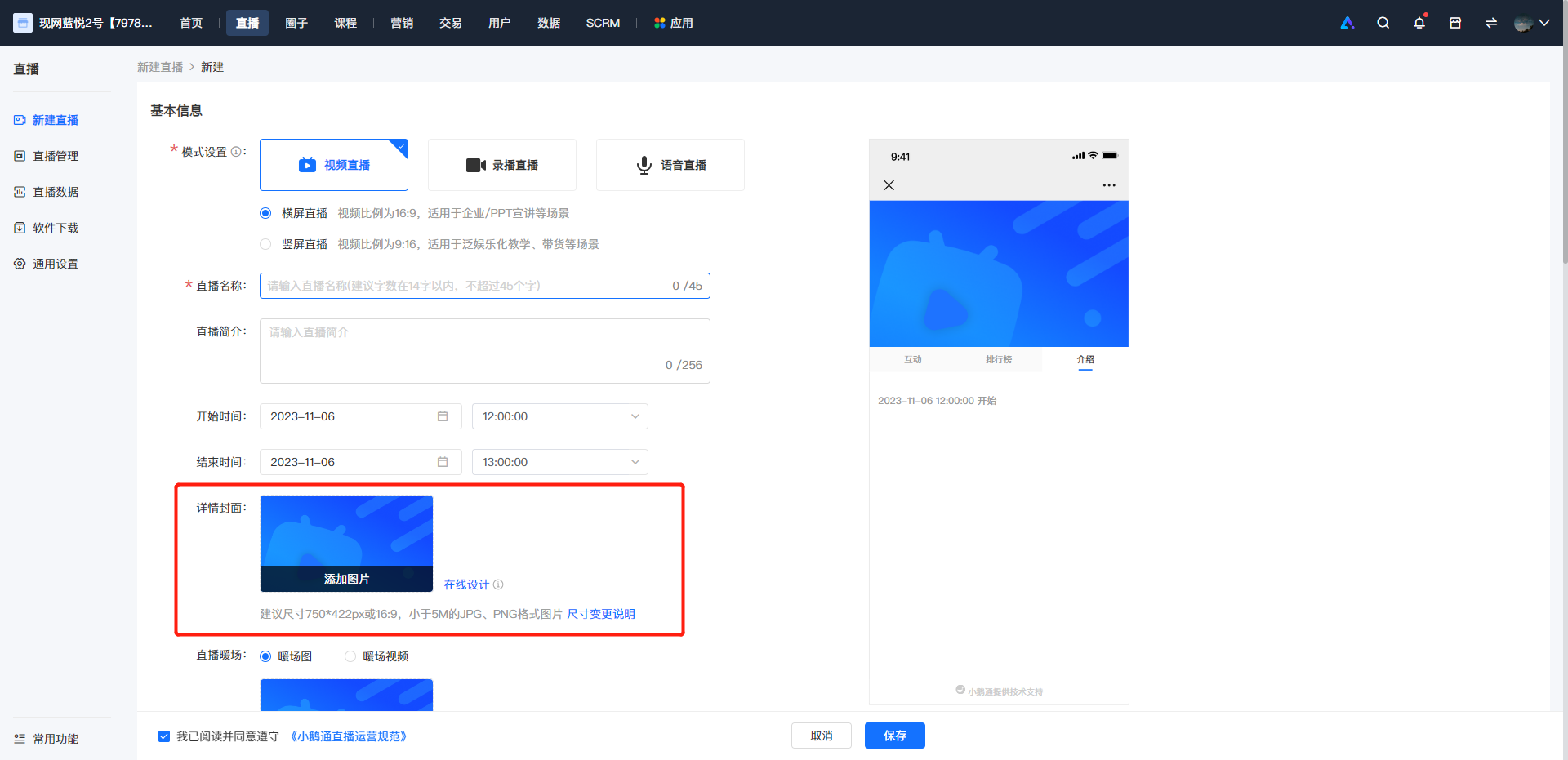
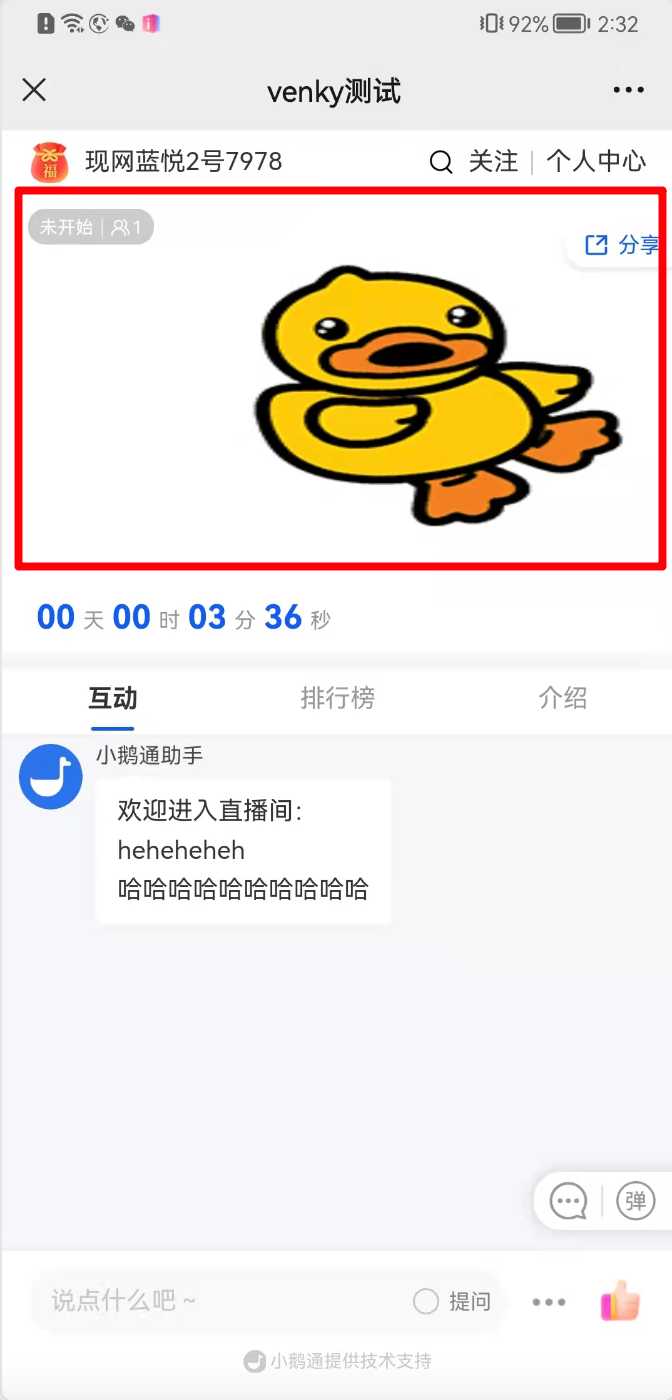
1.Upload the cover on the page for creating a new live stream.
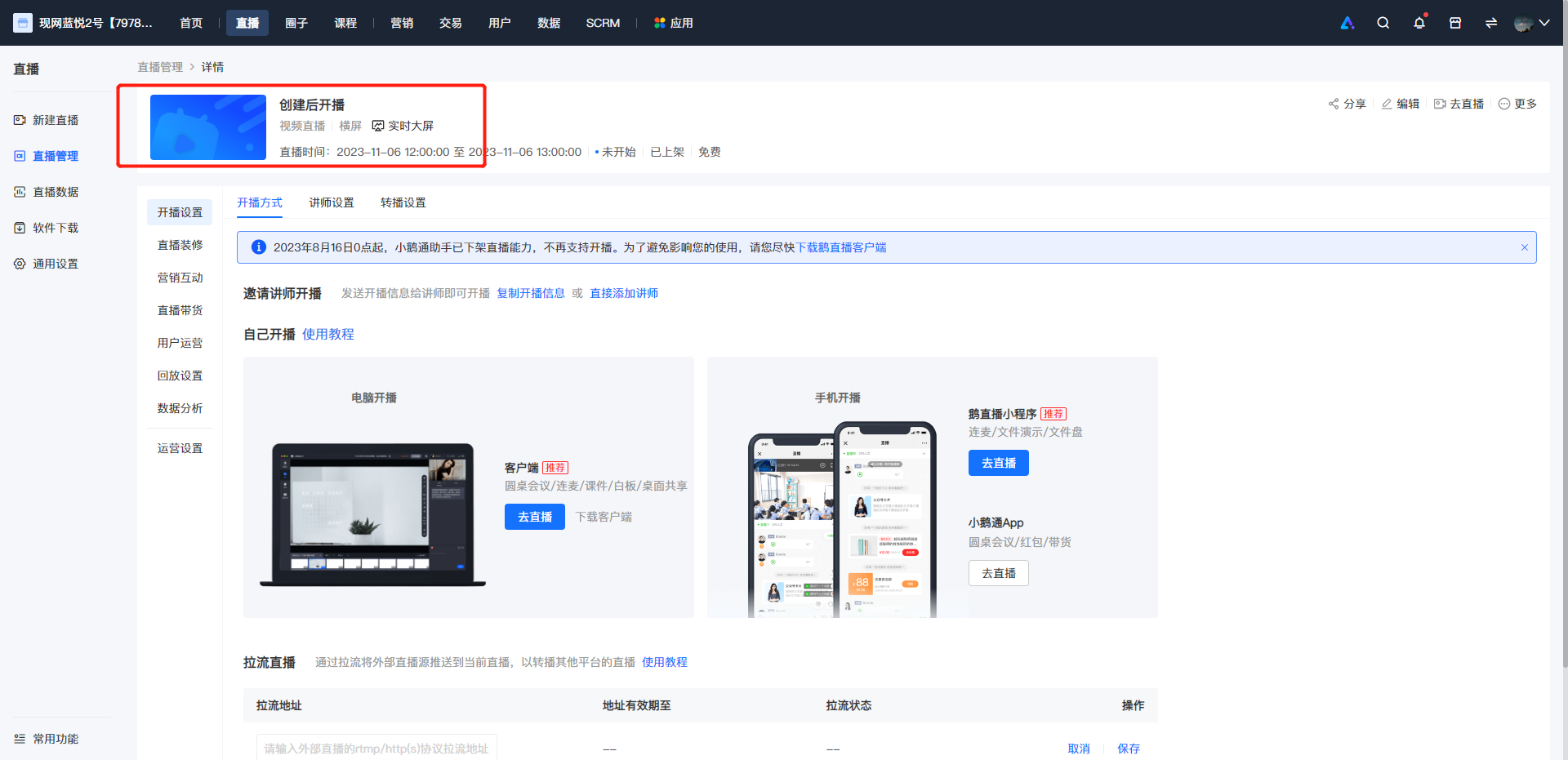
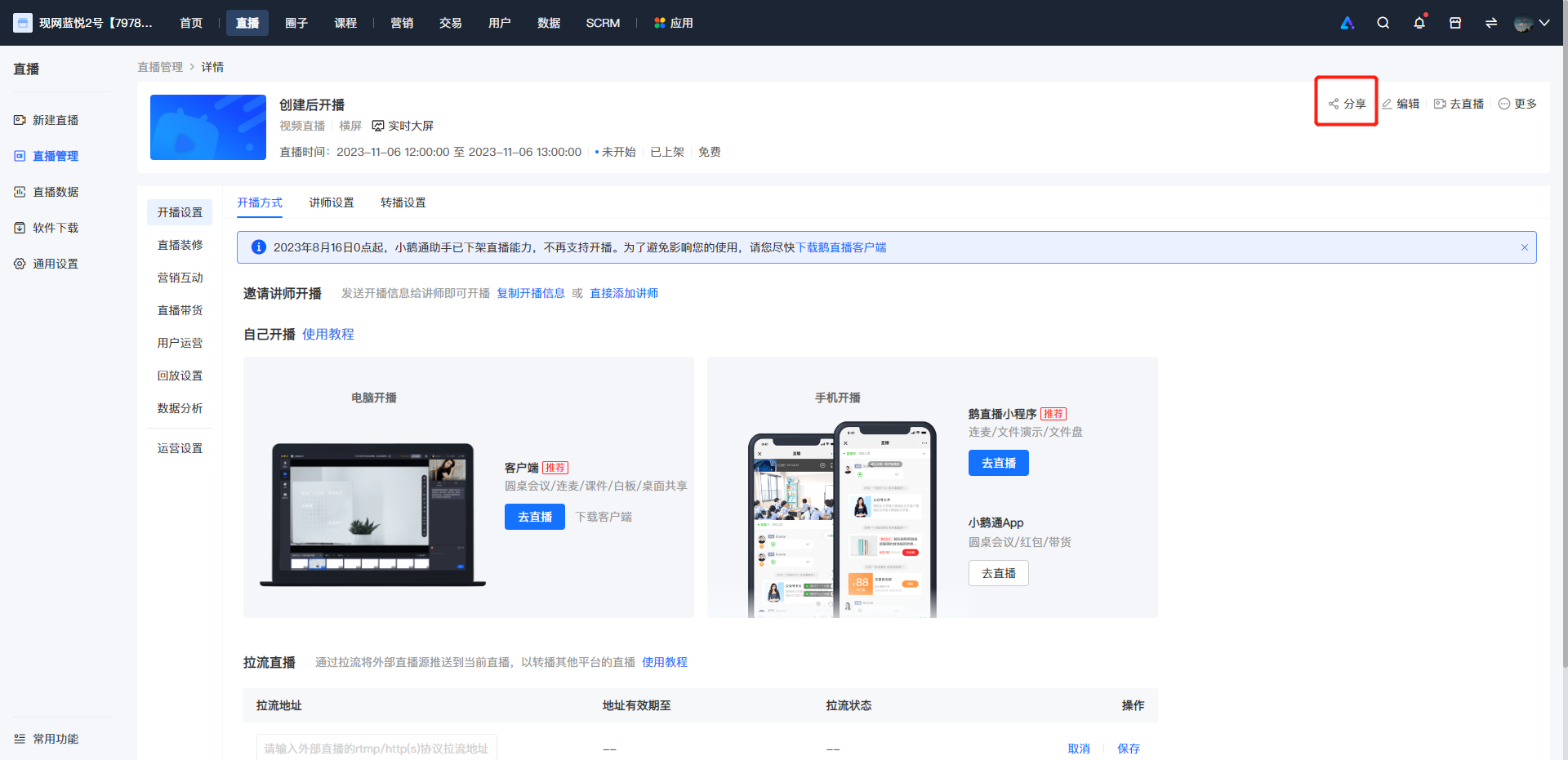
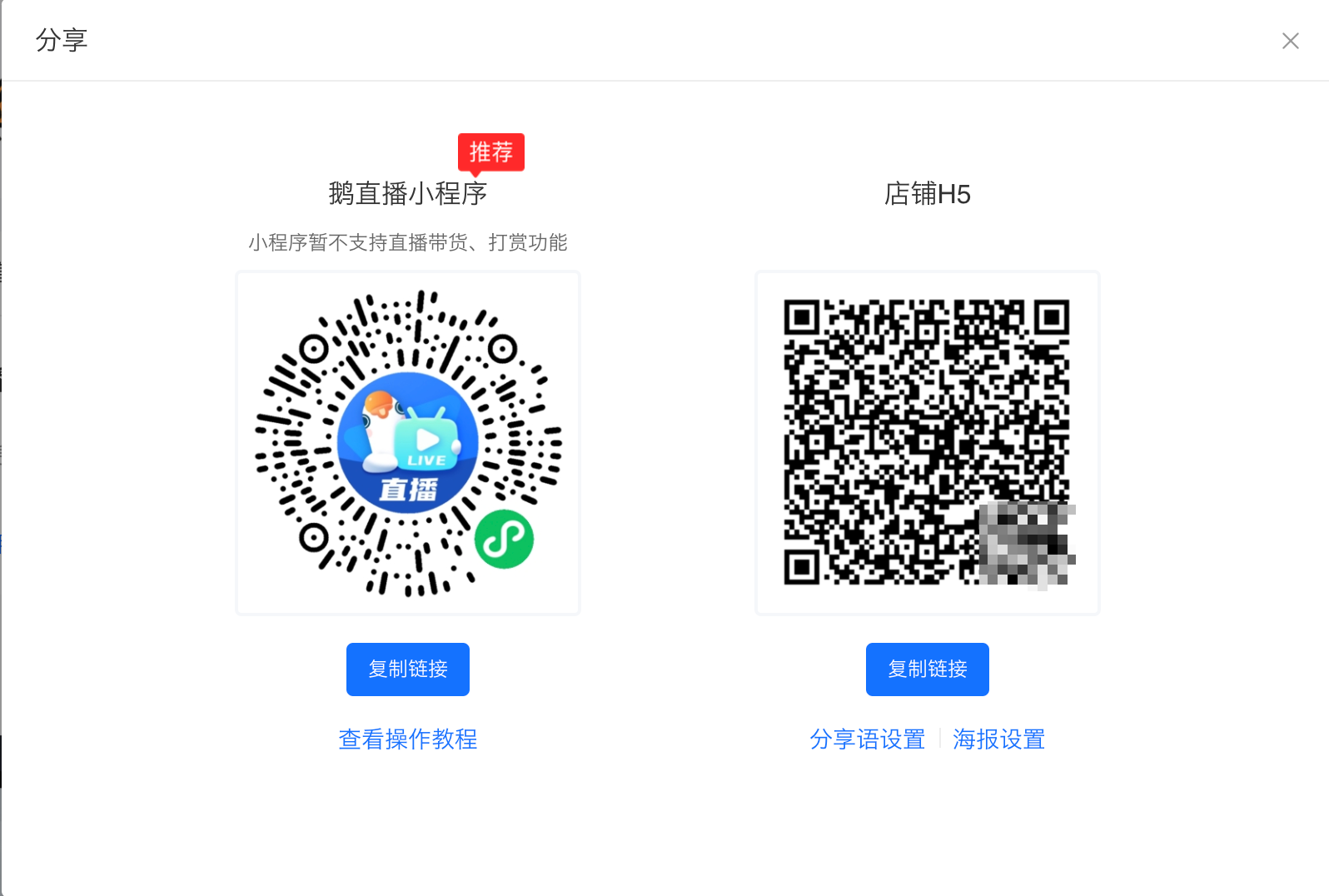
2.Display on the live stream details page.
Tutorial on Using Live Streaming Watermark Settings
I. Feature Introduction
Add watermarks to live videos
II. Purpose of Use
Prevent merchants' live videos from being illegally recorded
III. Scope of Application
Scope of application for live watermark settings: Real-time video live streaming, Desktop sharing live streaming
IV. Operation Path
Merchant side:Live Streaming Management→General Settings→ Watermark Settings
V. Usage Tutorial
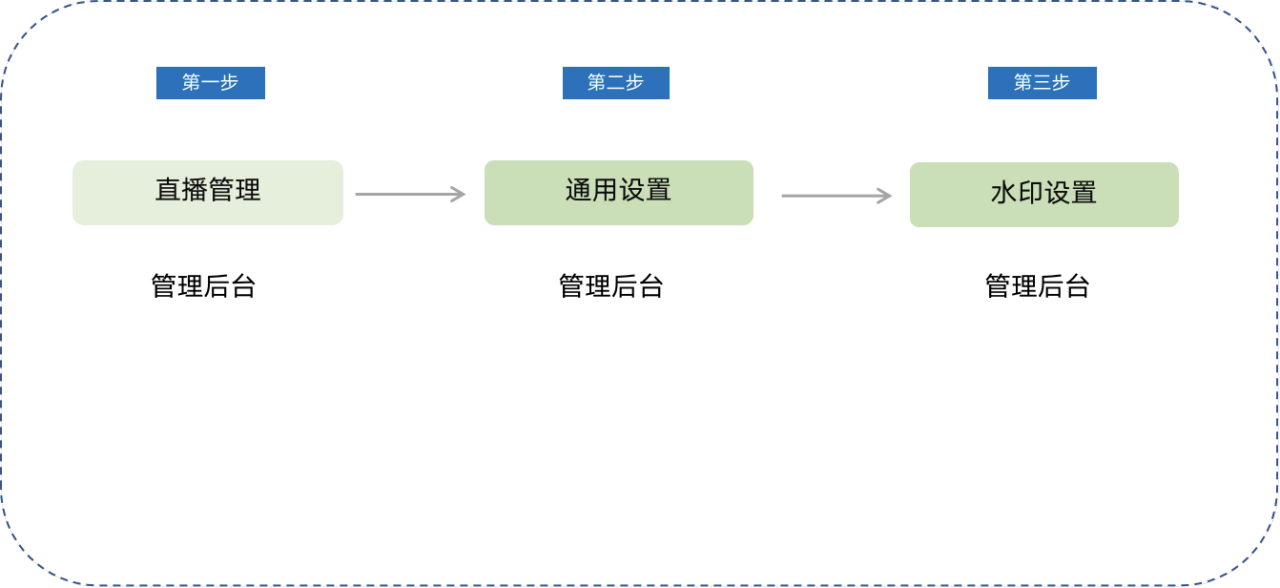
Step 1:Live Streaming Management (Store Management Console)
Enter the live streaming management page
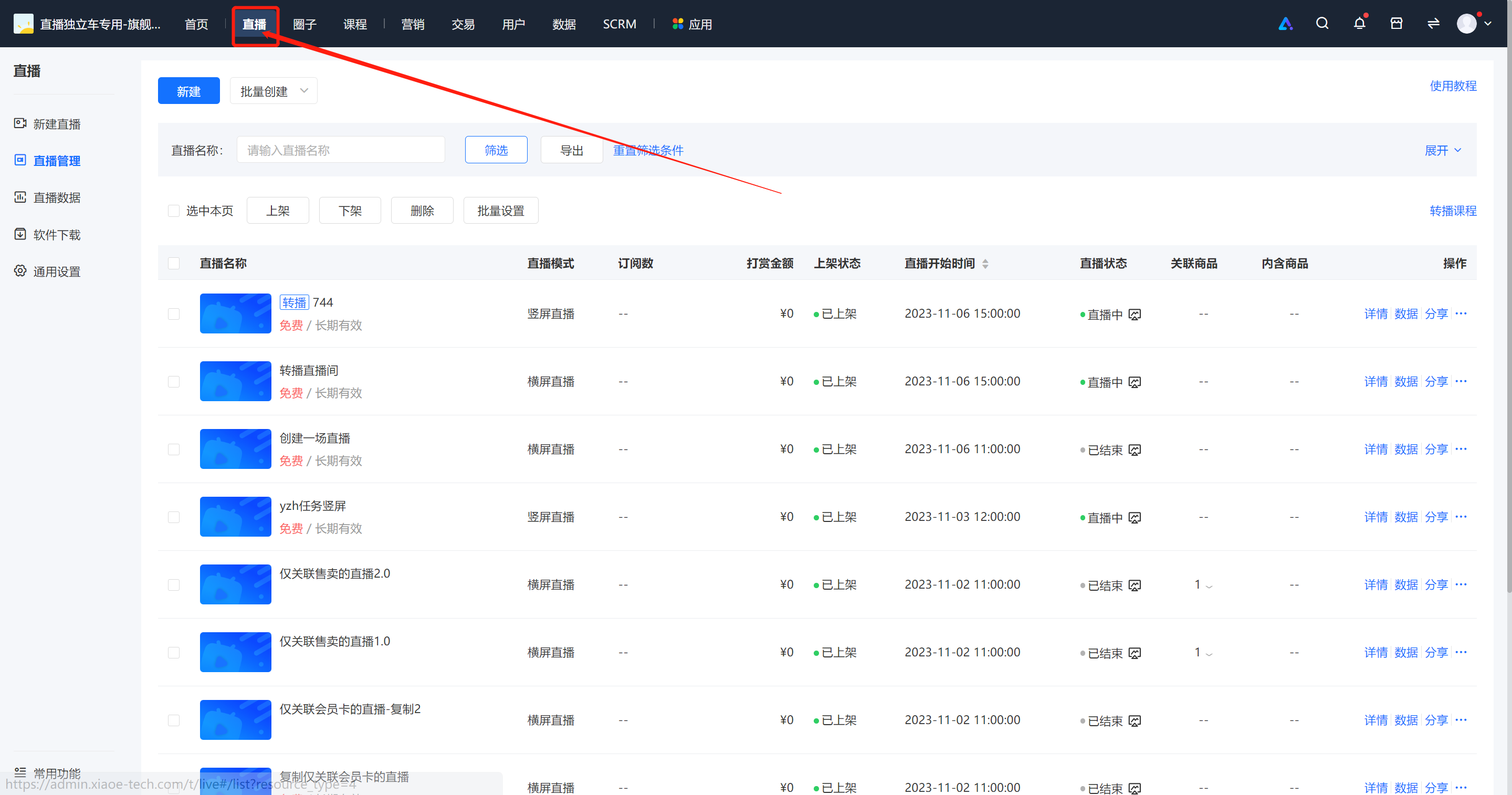
Step 2:General Settings (Store Management Console)
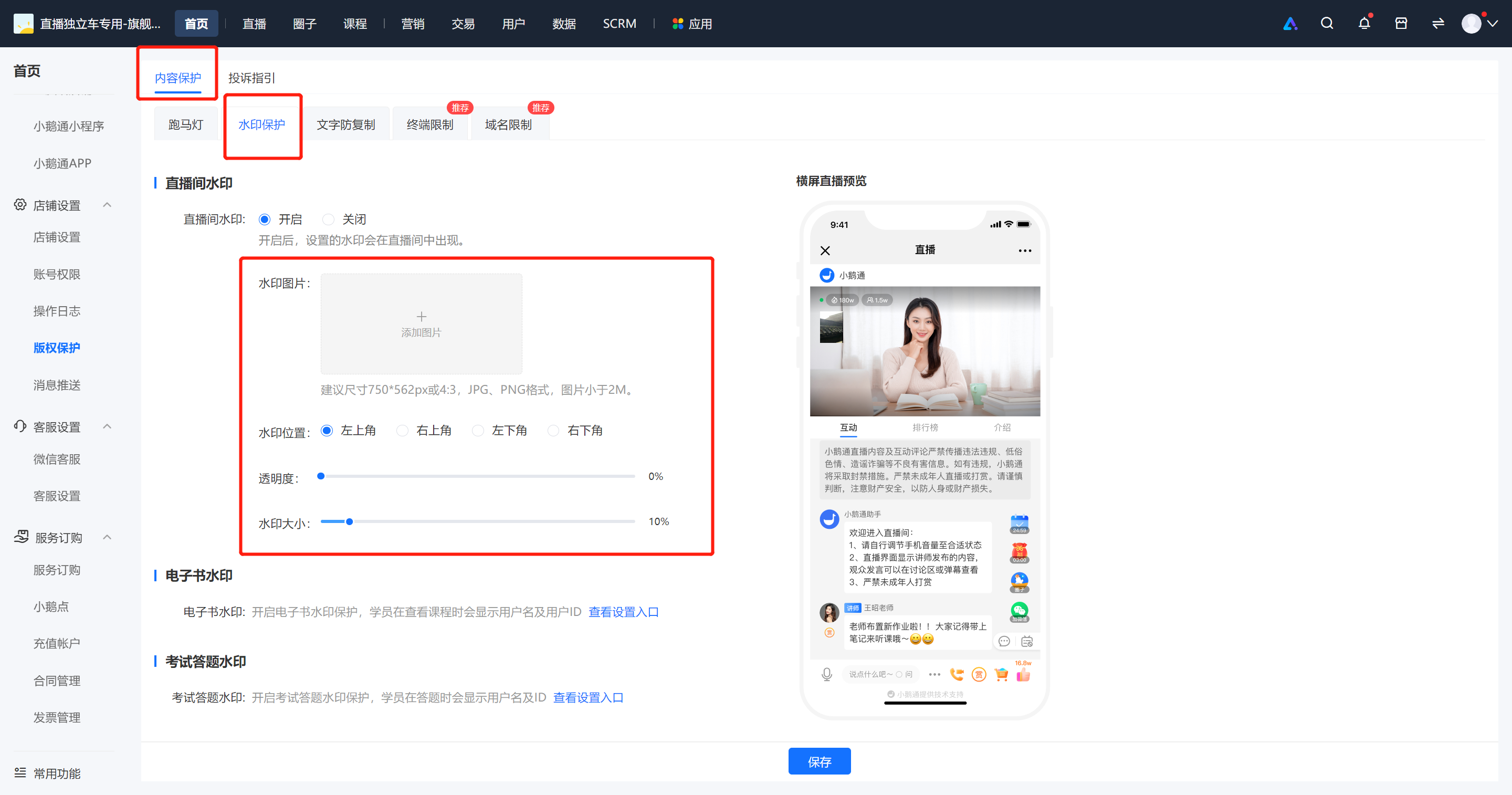
2Click General Settings - Global Settings - Live Room Watermark - Go to Settings
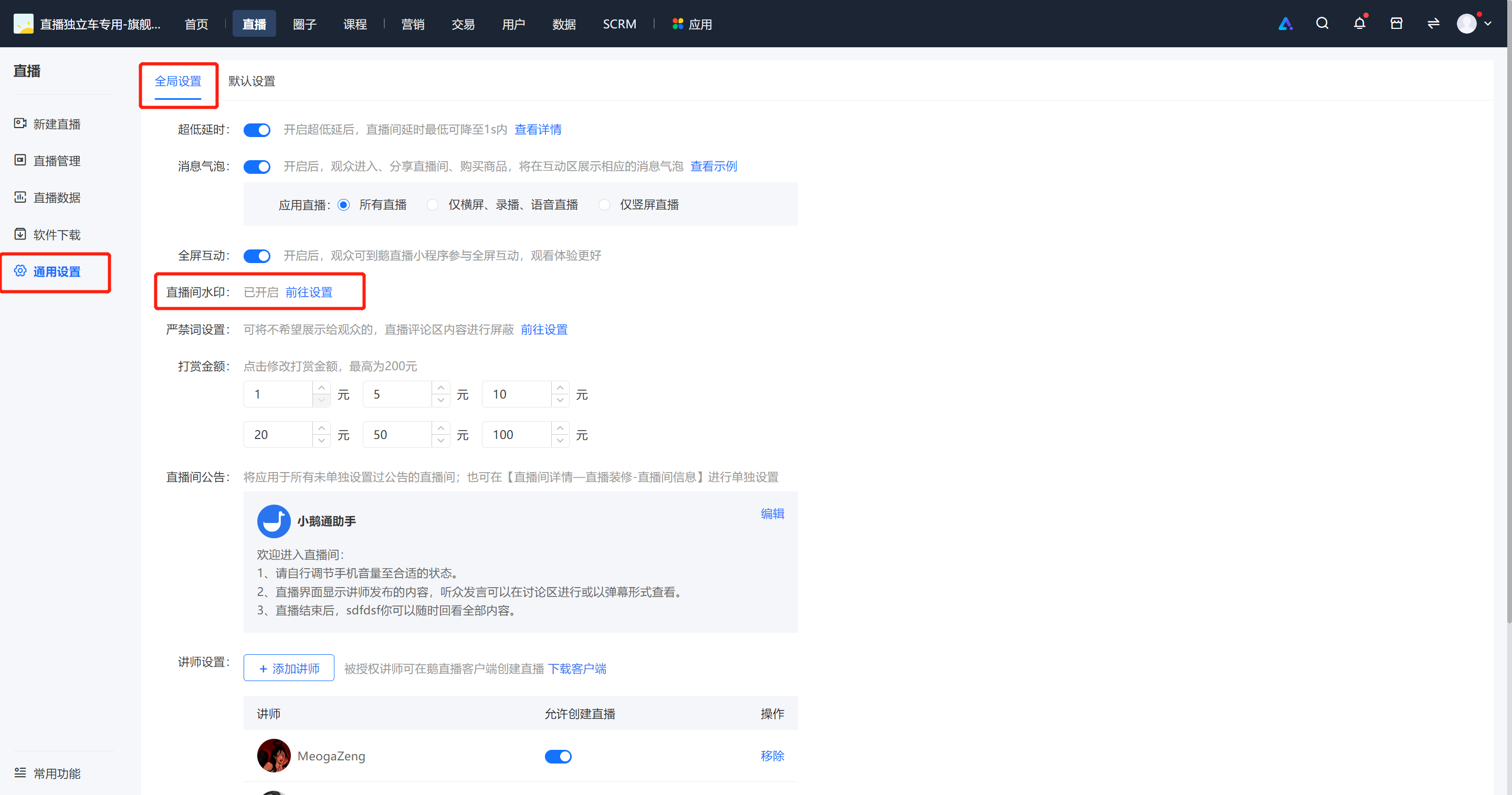
Step 3:Watermark Settings (Store Management Console)
3.Currently, watermark settings support real-time video and desktop sharing live streaming across the entire store;
Third-party streaming: After enabling watermark settings before the live stream, watermarks will appear in the live course;
elink Assistant streaming: After setting the watermark and restarting the stream, the watermark will take effect immediately.
Select to display the watermark, upload the watermark image, adjust the watermark position, transparency, and size, and click Save. For real-time video and desktop sharing live streaming, the watermark will be enabled by default when the live stream starts.
Tutorial on setting up live streaming instructors (guests)
I. Function Introduction
When creating a live stream, you need to set the corresponding instructor for your live stream. You can be the instructor yourself or invite others to be instructors. Instructors can enter the live stream without purchasing the paid content and have functions such as speaking, managing the live stream, interacting with students, and ending the live stream.
II. Purpose of Use
Merchants can use this function to configure live - stream instructors.
III. Use Scenarios
Video live streams and audio live streams.
IV. Operation Paths(Merchant side)
Currently, there are two paths to add an instructor:
Path 1: Create a new live stream → Add an instructor → Customize the instructor's information
Path 2: Live - stream room details page→ Live - stream settings→ Instructor settings
V. Usage Tutorial
(1) Path 1: Create a new live stream → Add an instructor → Customize the instructor's information
Step 1: Create a new live stream
Log in to the elink store management console, click [Create a new live stream], and add an instructor during the new live - stream creation process.
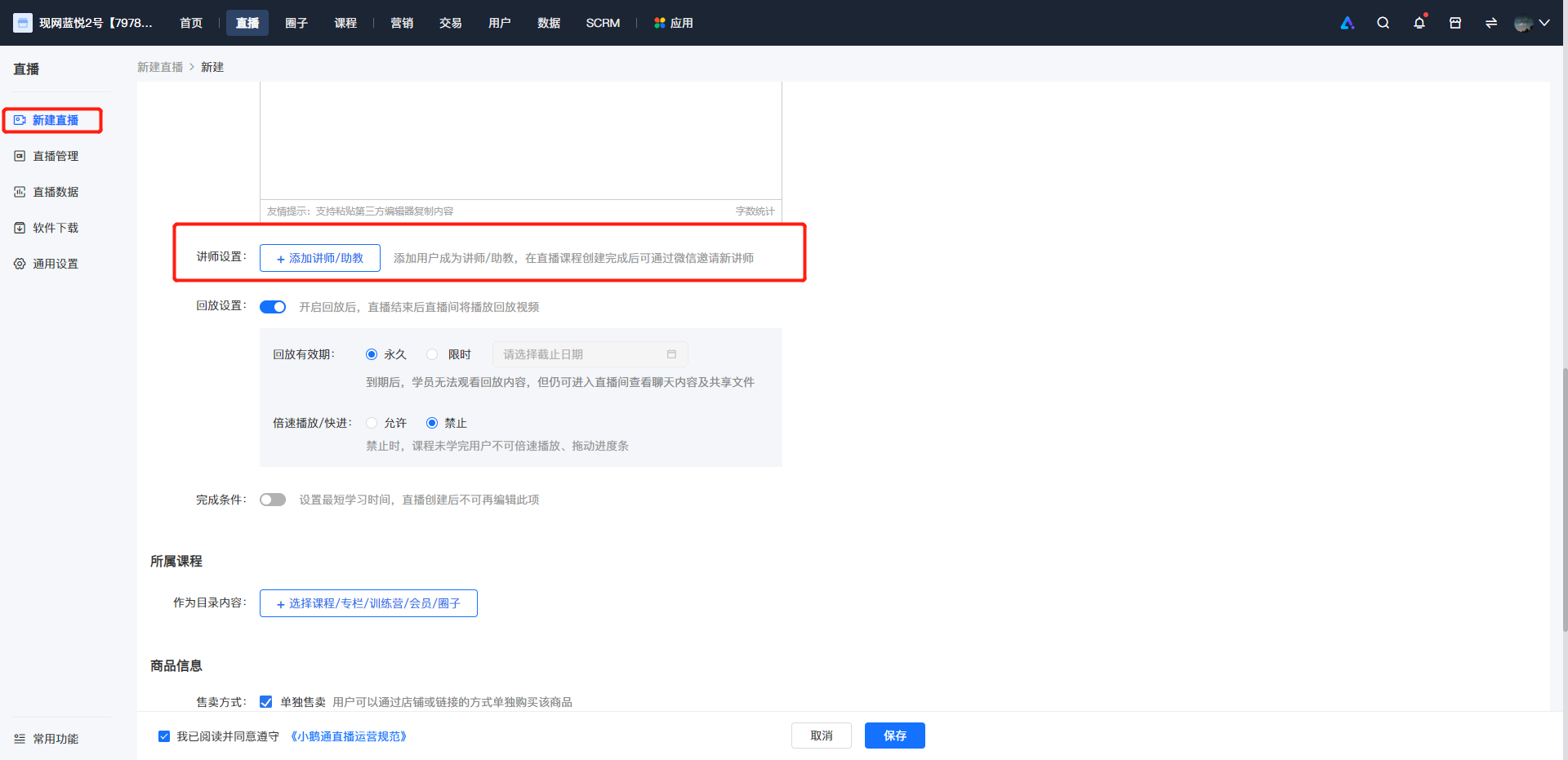
Step 2: Add an instructor
① You can search and add an instructor by WeChat nickname/phone number;**Note:You can only search for the WeChat nickname or phone number if the instructor has entered the store.
② Add an instructor by phone number. Simply enter the user's phone number to successfully add the instructor.
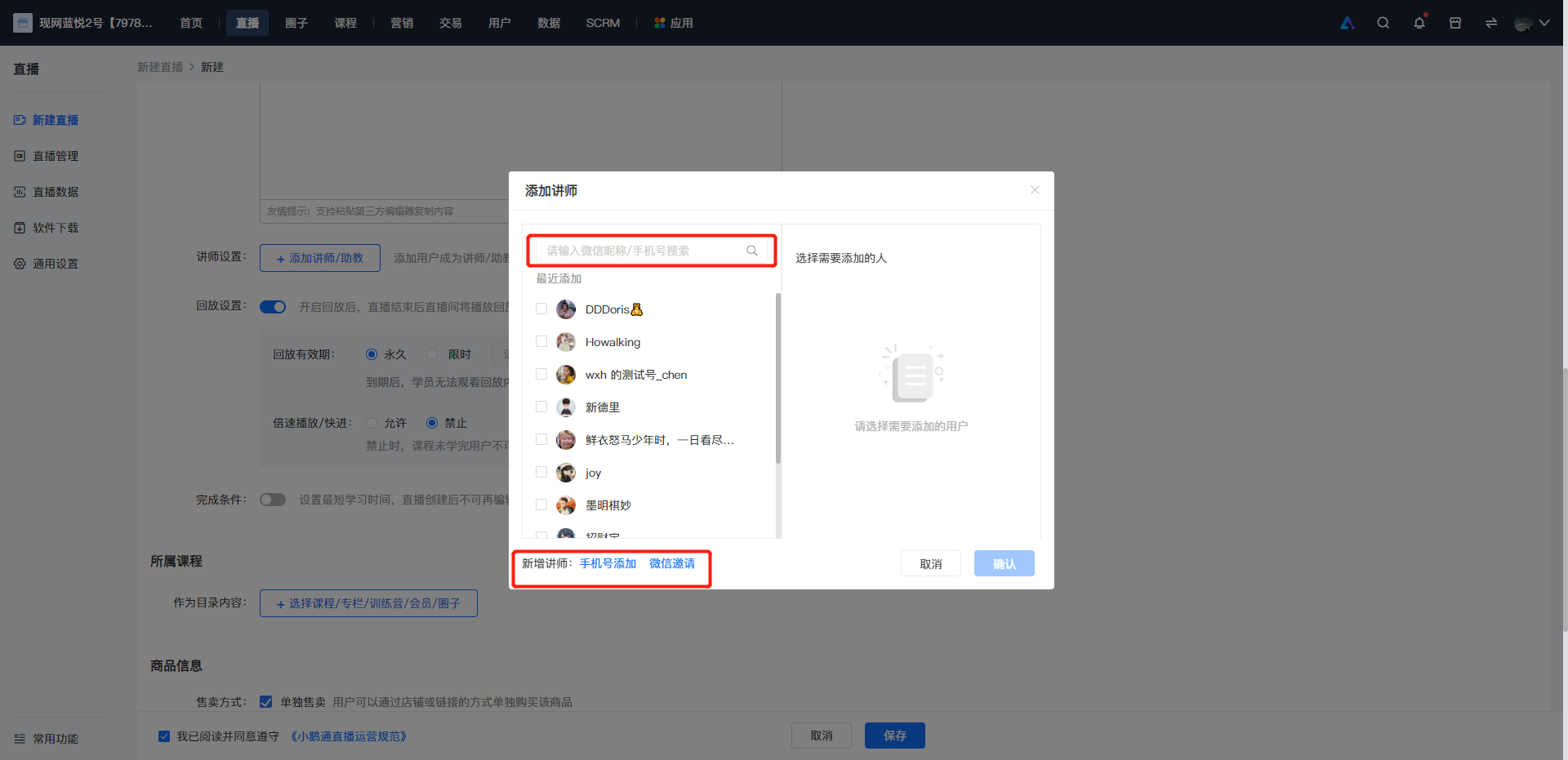
Step 3: Customize the instructor's information
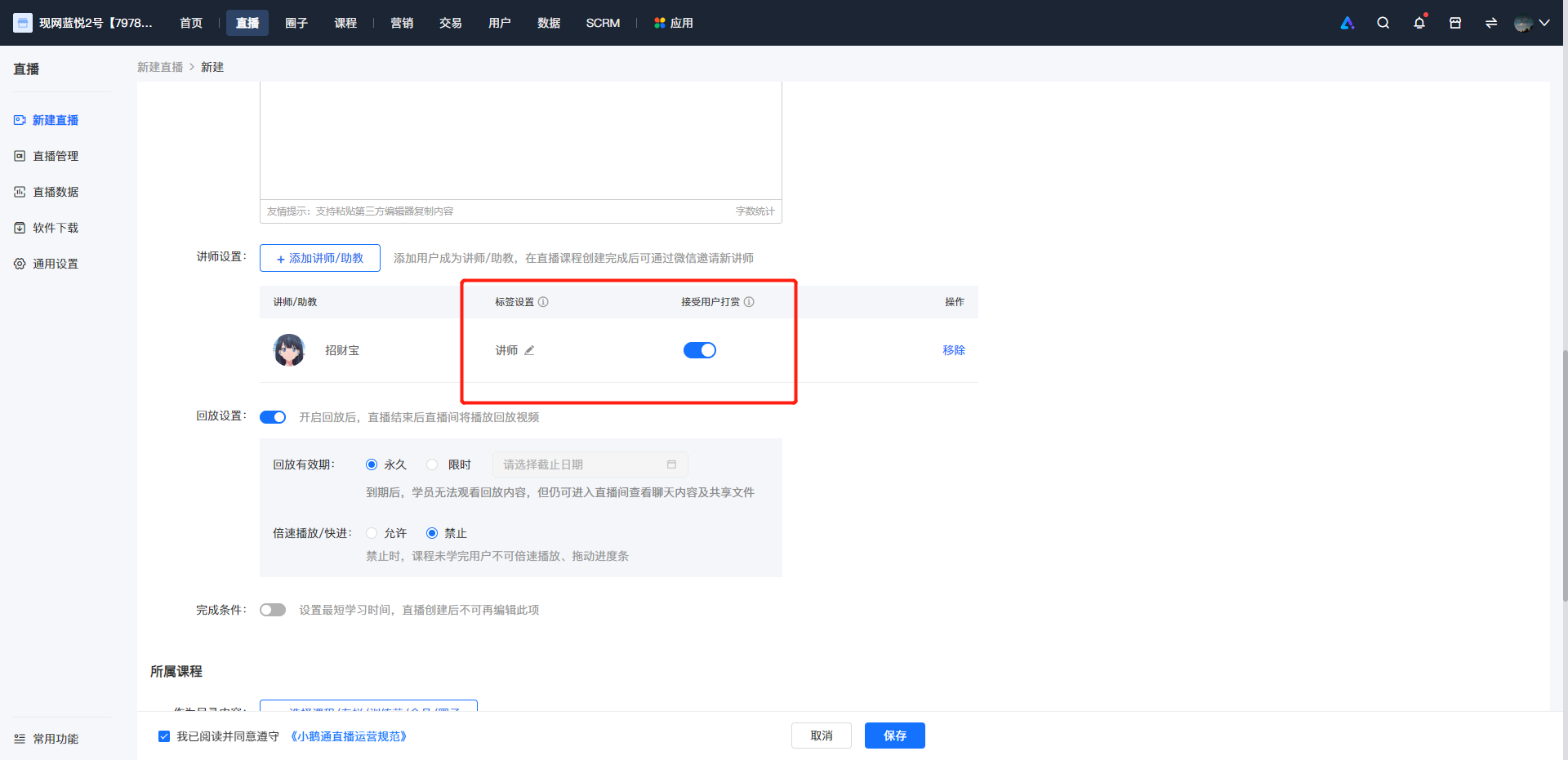
After adding, you can set the instructor's label and whether to accept tips;
① Label setting: The label sets the title or honorific of the instructor in the live - stream room, such as 'Instructor' or 'Teaching Assistant', which is convenient for distinguishing when there are multiple instructors in the live - stream room.
② Tip acceptance switch: Control the tip switch for the corresponding instructor. After the tip switch is turned off, the tip entry for this instructor in the live - stream room will be hidden.
③ Removal: If you add too many instructors or add the wrong instructor, you can remove them.
(2) Path 2: Live - stream room details page → Live - stream settings → Instructor settings
Step 1: Find the corresponding live - stream room and enter the live - stream details page - Live - stream settings
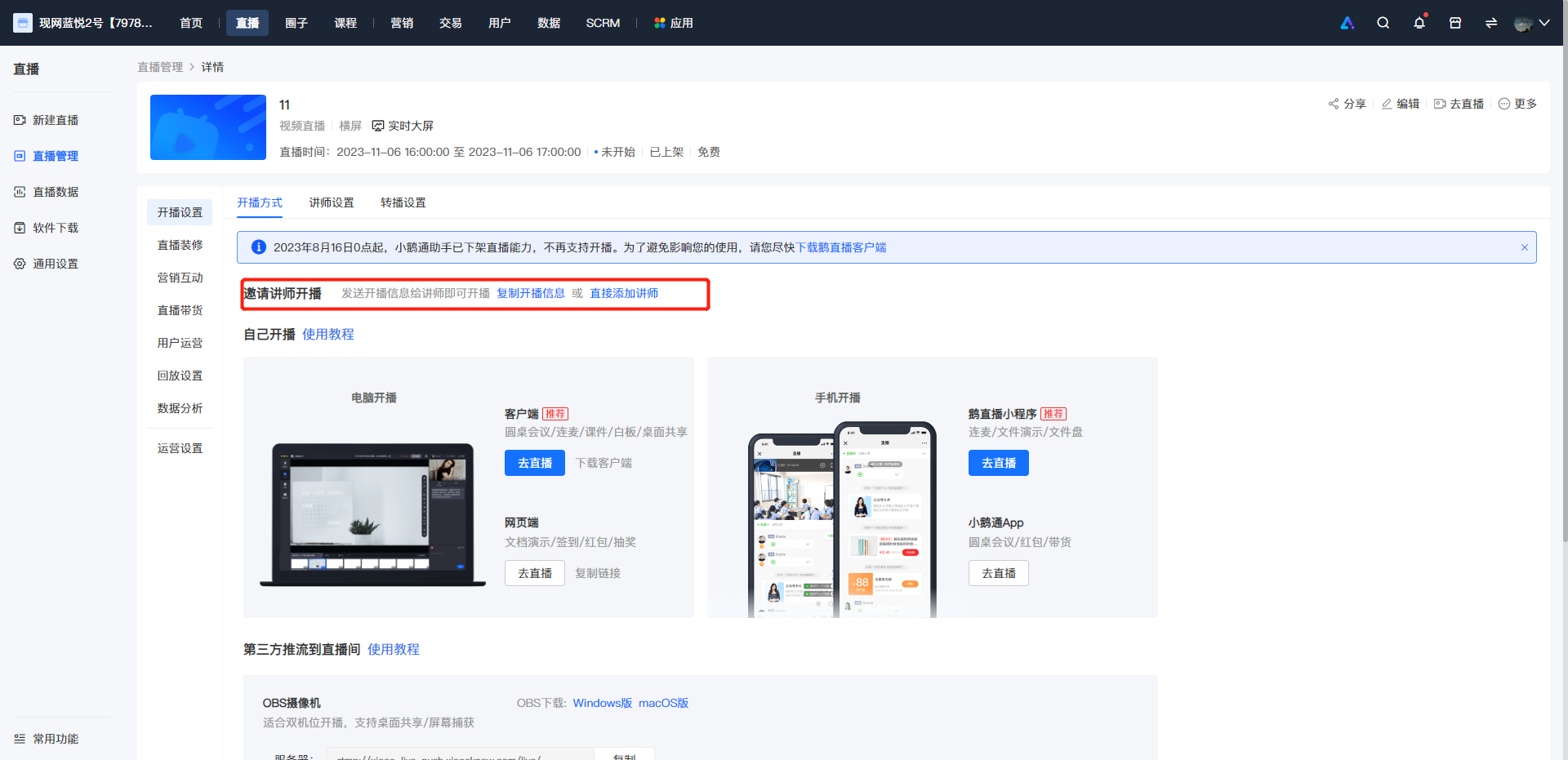
Step 2: Select the corresponding scenario to start the live stream (invite an instructor to start the live stream or start the live stream by yourself)
① Invite an instructor to start the live stream
● Click 'Copy live - stream information' in the [Invite an instructor to start the live stream] module → Click 'Copy all information';
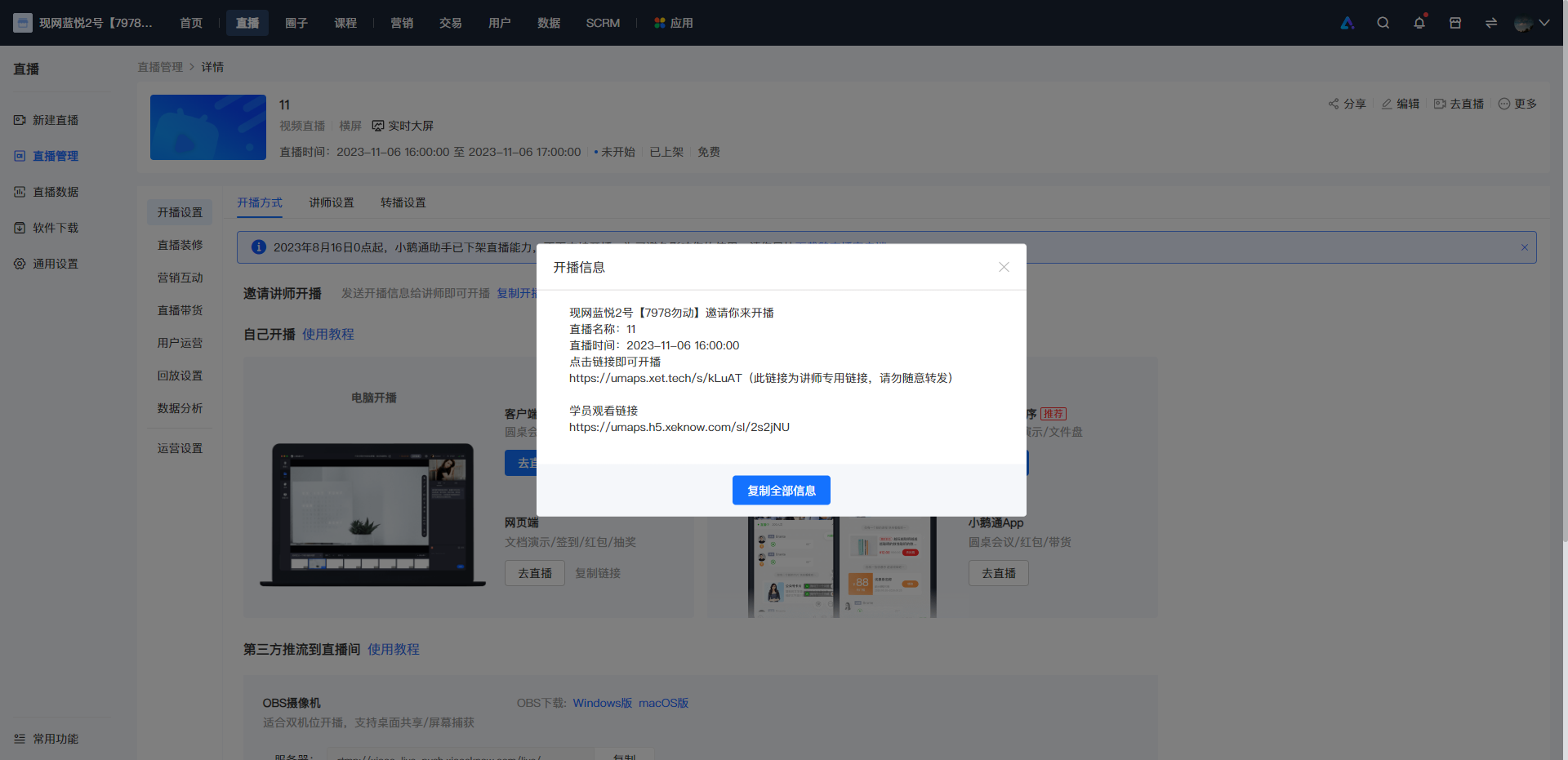
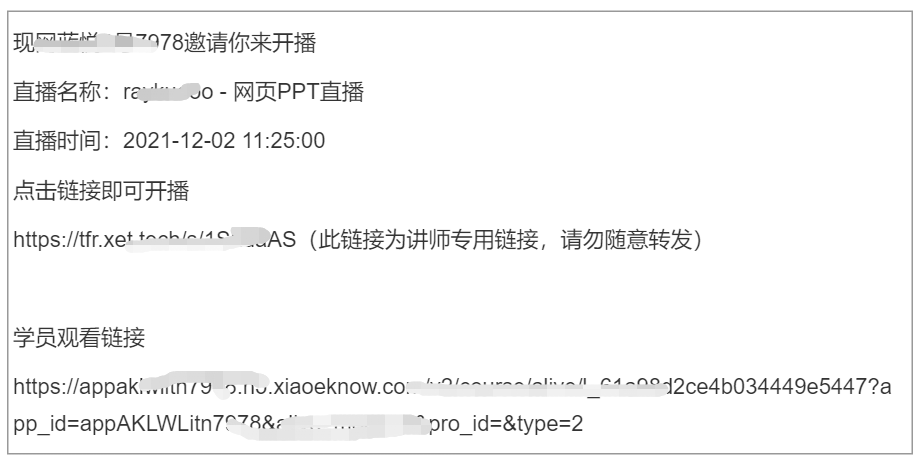
● Send the copied content directly to the instructor/teaching assistant;
● The instructor or teaching assistant can click the link to select the corresponding live - stream terminal to enter;
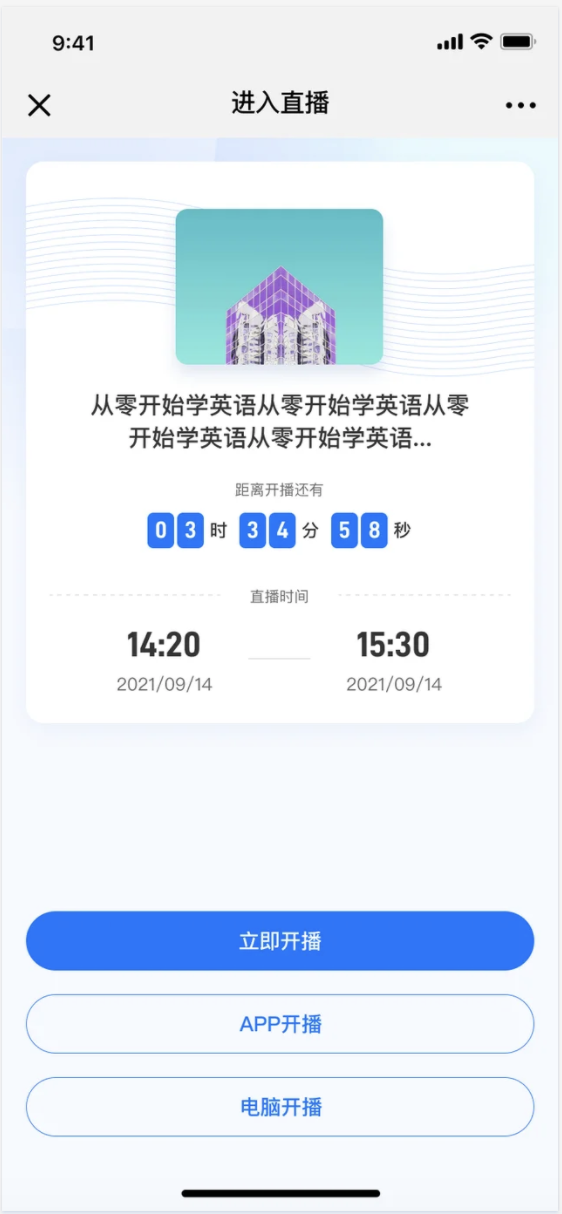
**Note:The available terminals here will vary according to the live - stream mode;
To start a live stream using the App, the version needs to be V3.2.8 or higher to directly enter the live - stream room. If you cannot enter, it is recommended to update the version first and then click 'Start live stream on the App', or search in the live - stream list by the live - stream room name.
② Start the live stream by yourself: The administrator is the live - stream instructor
In the [Start the live stream by yourself] module, select a suitable live - stream terminal. After scanning the QR code/opening the live - stream room, you will automatically become the instructor and start the live stream;
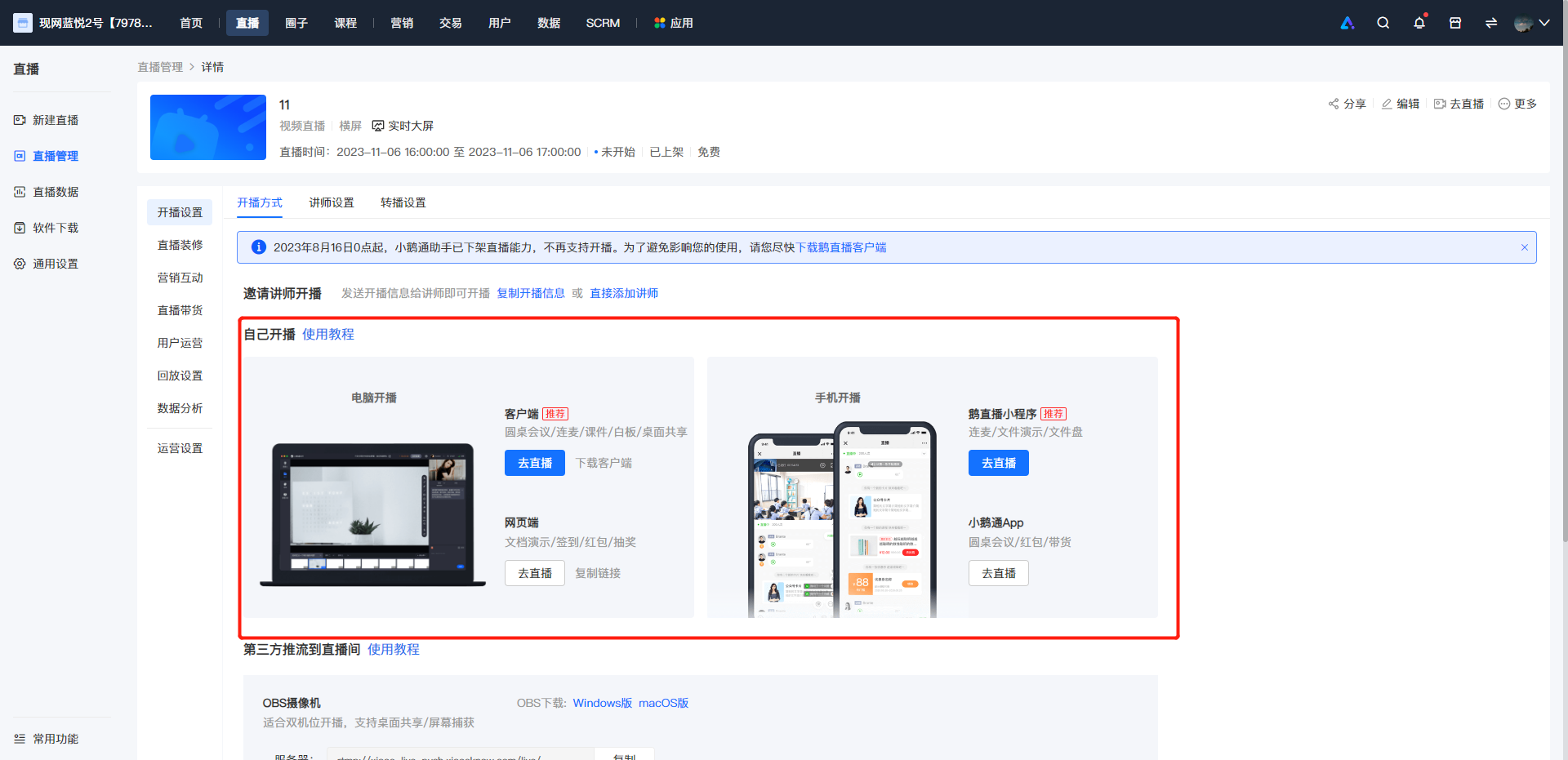
**Note:The available terminals here will vary according to the live - stream mode. To start a live stream using the App, the version needs to be V3.2.6 or higher to directly enter the live - stream room. If you cannot enter, it is recommended to update the version first and then select, or search in the live - stream list by the live - stream room name.
(3) Path 3: Live - stream room details page → Live - stream settings → Instructor settings
Step 1: Find the corresponding live - stream room and enter the live - stream room details page - Live - stream settings - Instructor settings.
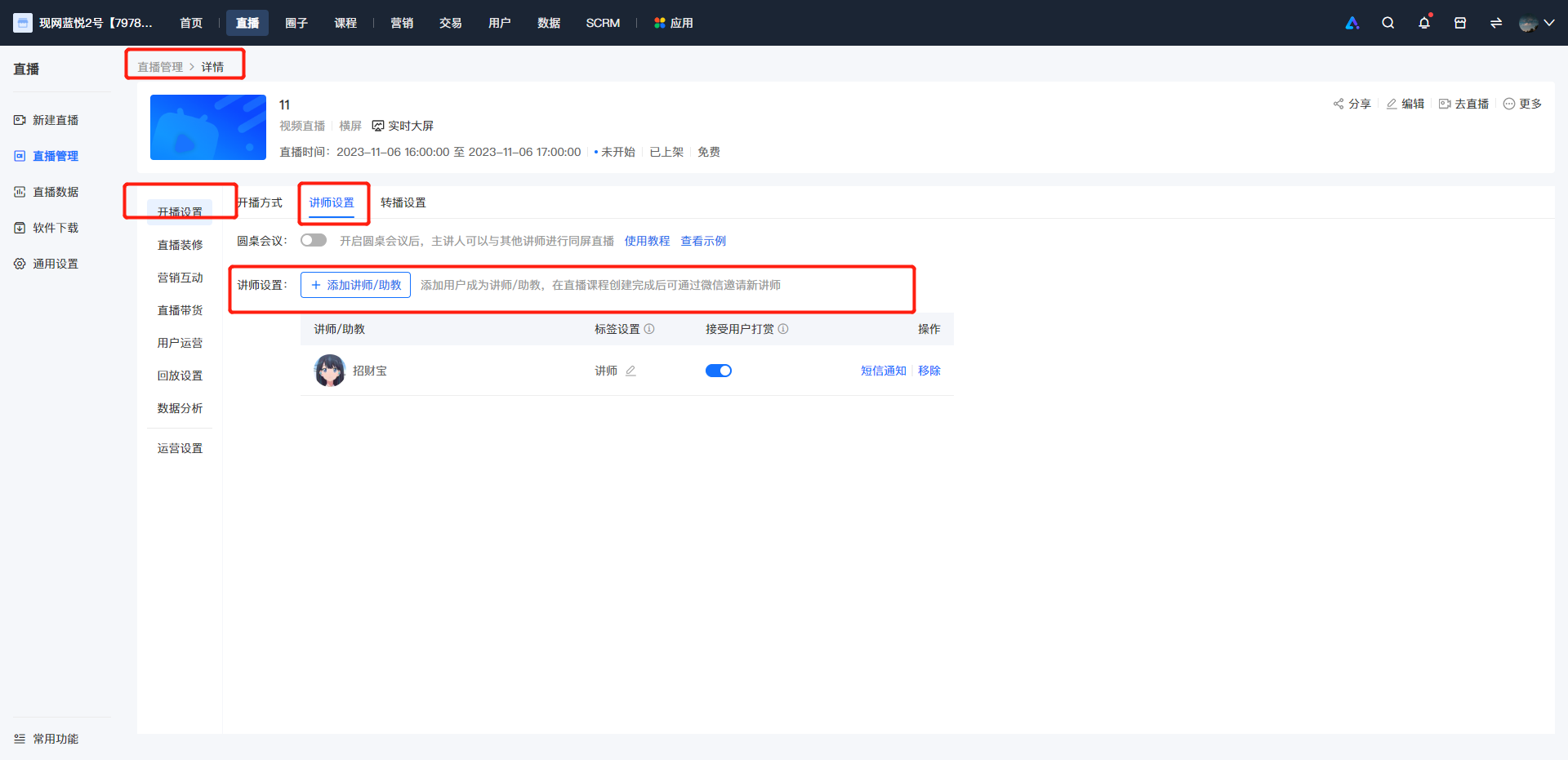
Step 2: Click 'Add an instructor/teaching assistant'
① You can search and add an instructor by WeChat nickname/phone number;**Note:You can only search for the WeChat nickname or phone number if the instructor has entered the store.
② Add an instructor by phone number. Simply enter the user's phone number to successfully add the instructor;
③ Invite an instructor via WeChat. Copy the invitation link or QR code to invite friends to be instructors; administrators can also scan the code and then forward the invitation;
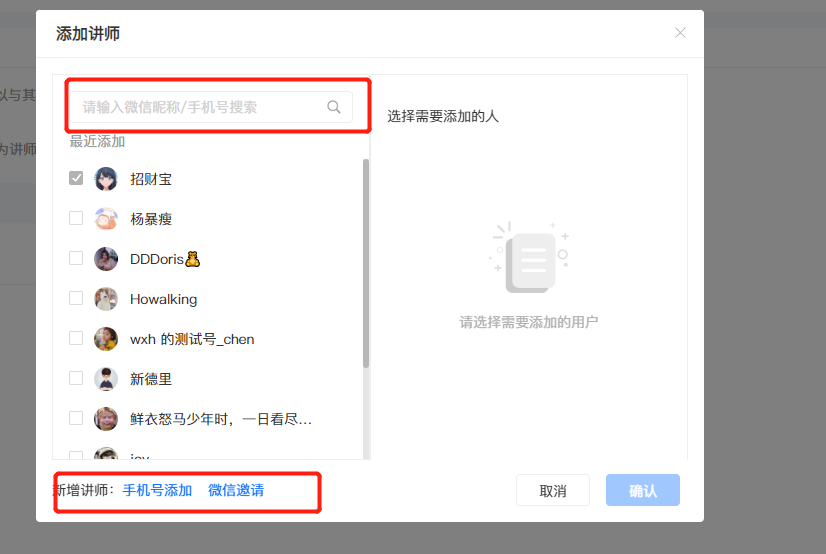
● After the user scans the code: They can choose to be the instructor for this live stream or forward the invitation to friends to be instructors;
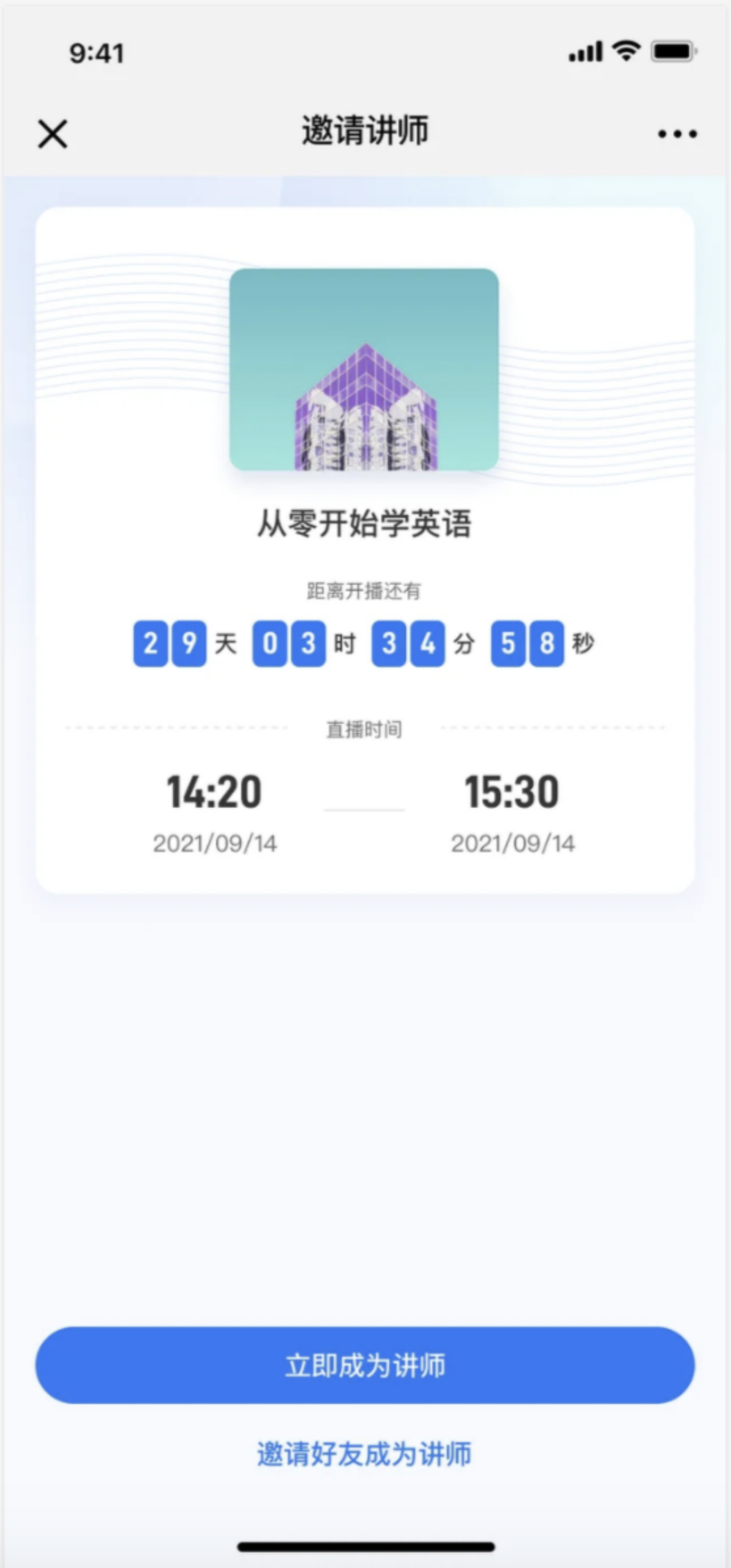
● After becoming an instructor: Select a terminal and enter the live - stream room to start the live stream;
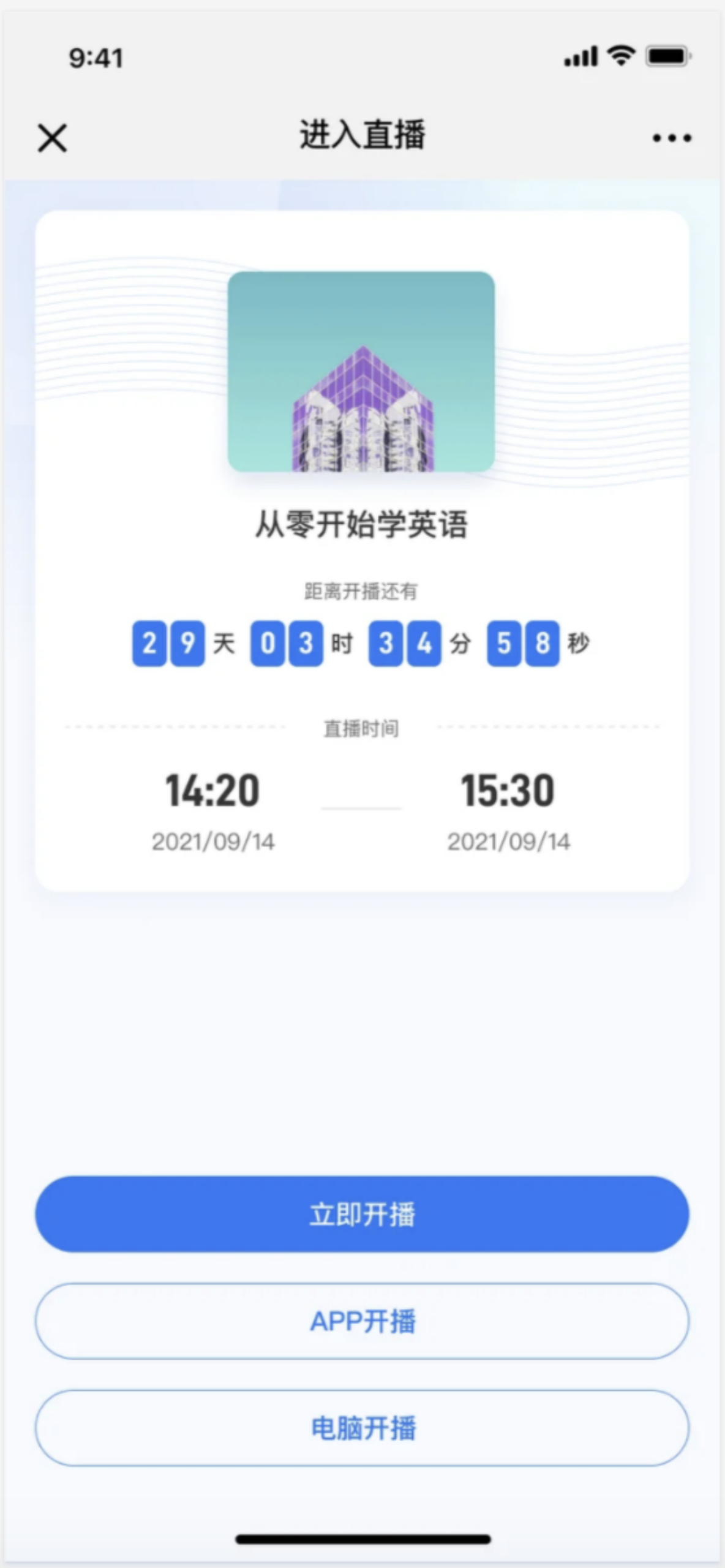
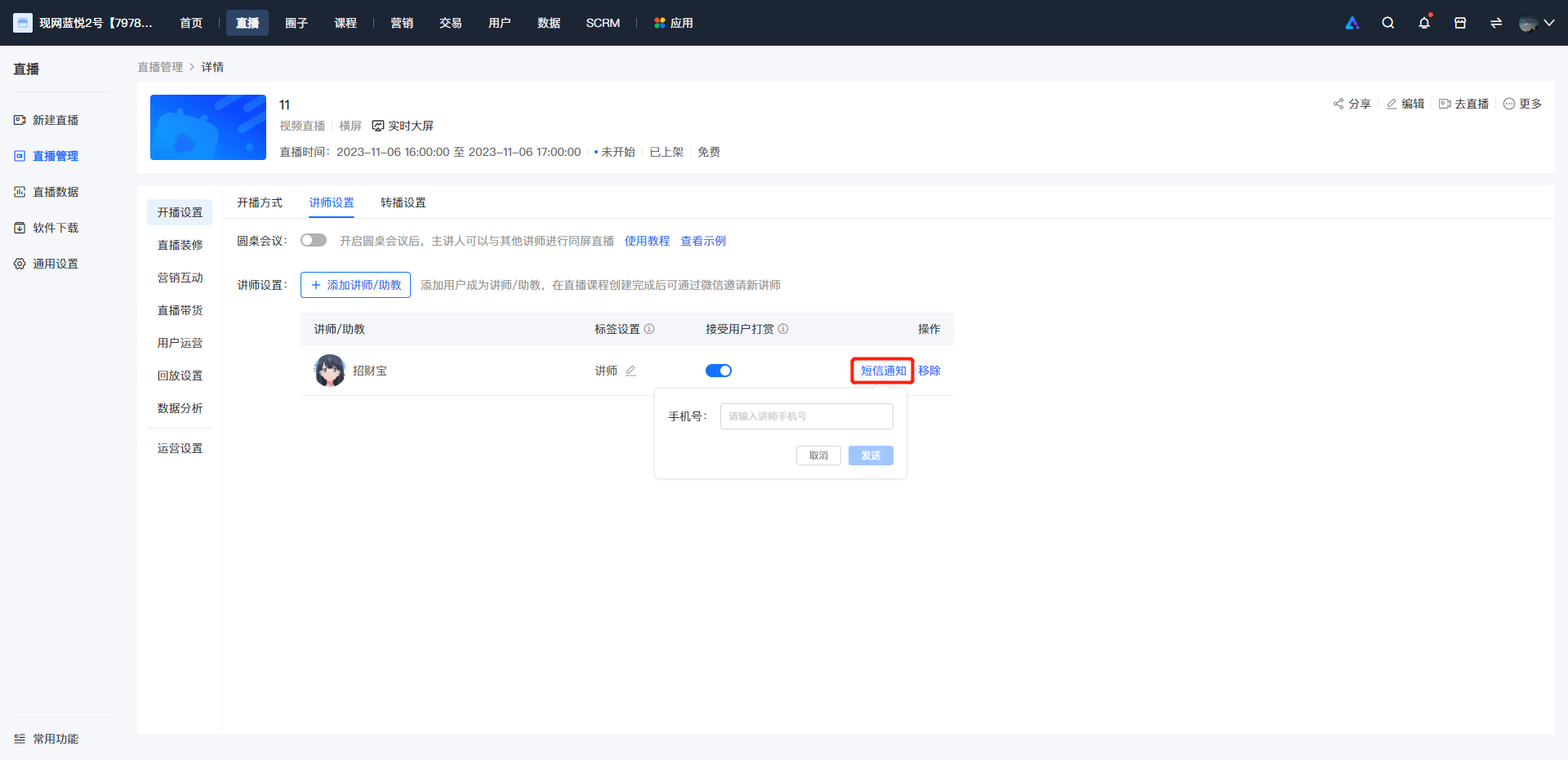
PS:In the live - stream room settings - Course settings, you can sendSMS notifications;
By default, SMS notifications will be sent to the phone number bound to the instructor in the store. If the phone number is not filled in or does not match, you can enter the phone number and then send the notification.
Tutorial on Using Ultra-Low Latency Live Streaming
I. Feature Introduction
The ultra-low latency feature can significantly reduce the live streaming latency (down to less than 1 second).It meets the specific scenario requirements of merchants with higher latency performance requirements, such as online education, live sports events, and online quizzes.This provides viewers with a more immersive live streaming experience.
II. Use Cases
1. Online Education: Teachers and students can have real-time Q&A interactions, ensuring the effectiveness of classroom teaching. Online classes can be as natural as face-to-face ones.
2. E-commerce Live Streaming: Users can interact with merchants in real-time, increasing the purchase conversion rate. Users won't miss out on promotional flash sales.
3. Large-scale Events: Information from large conferences and sporting events can be synchronously transmitted, quickly reaching users and allowing viewers to stay updated on the latest event dynamics.
4. Interactive Entertainment: Streamers can provide timely feedback on user likes and rewards, enhancing the user viewing experience and increasing interaction enthusiasm.
III. Operation Path
Merchant Side: Merchant Backend → Live Streaming → General Settings
IV. Usage Tutorial
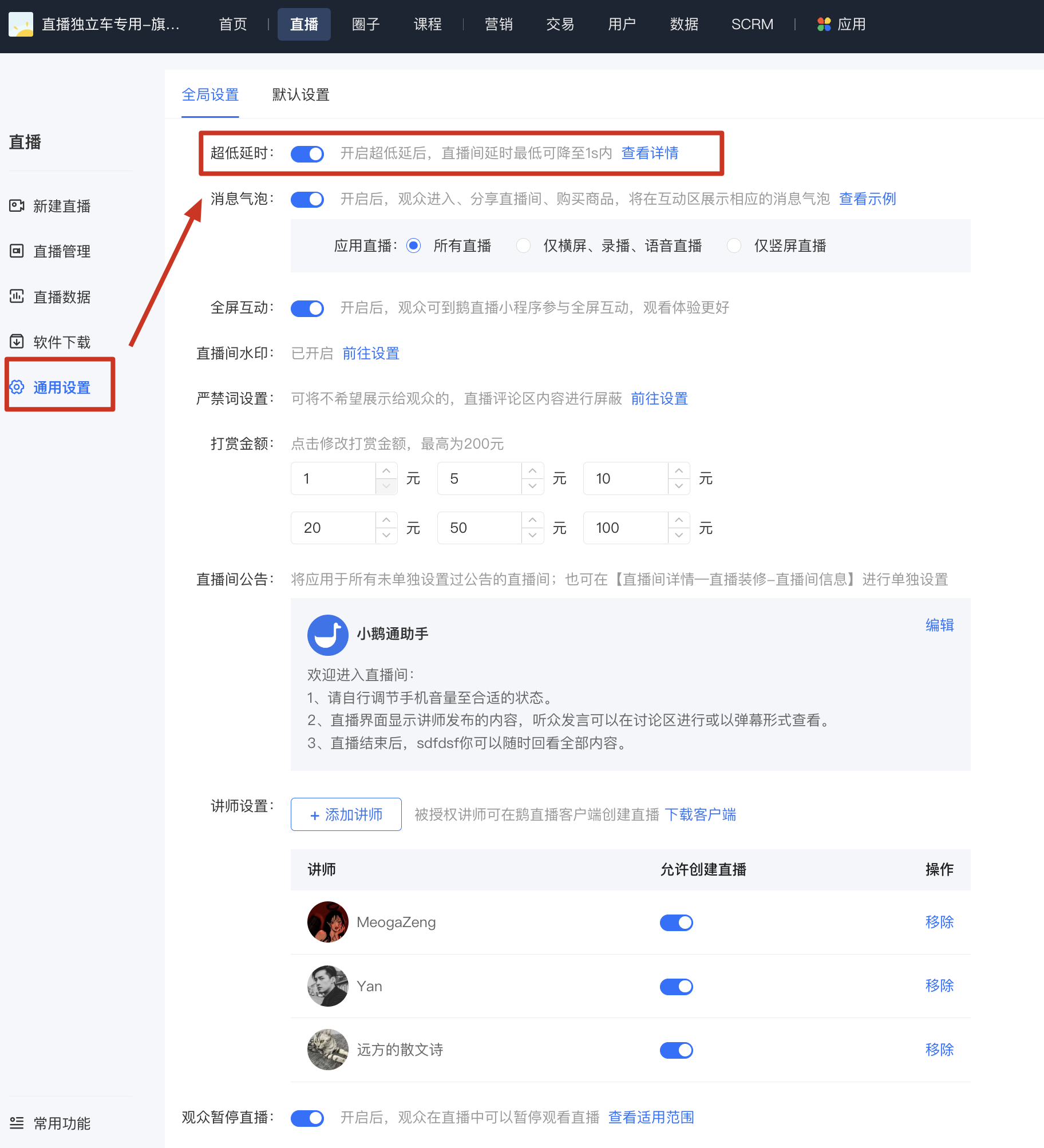
Step 1: Enter the [General Settings] page and enable ultra-low latency.
Click [Live Streaming] - [General Settings] and find [Ultra-low Latency] at the top of the page.After enabling it, learners can watch the live stream with ultra-low latency.
Will this feature take effect immediately after enabling ultra-low latency live streaming?
This function takes effect immediately after being enabled. If a live stream is in progress, you need to refresh the viewing page for the function to take effect.
After enabling ultra-low latency live streaming, can users enjoy ultra-low latency when watching on all devices?
After enabling ultra-low latency live streaming, ultra-low latency is supported when viewing on the following terminals:
·WeChat H5 (not supported on systems below iOS 12/Android 8 and some Huawei models for now)
· Web browsers (most browsers such as Google Chrome, 360 Browser, and Cheetah Browser are supported, but Safari is not)
· Mini Programs and the desktop version of WeChat will be supported in the future
Why is the live streaming latency still high after enabling ultra-low latency live streaming?
Under normal circumstances, when using the elink Assistant client for ultra-low latency live streaming, the latency on the viewing end can reach around 2 seconds (when using OBS for streaming after settings, the minimum latency can be within 1 second).
[Tutorial on Using OBS for Ultra-Low Latency Live Streaming]
(1) Go to the [Settings - Output] page.
(2) Output mode: Select "Advanced".
(3) Keyframe interval: Enter "2".
(4) CPU usage preset: Select "veryfast".
(5) Configuration: Select "baseline".
(6) Fine-tuning: Select "zerolatency".
(7) X264 options: Enter "sliced_threads=0".

Live streaming latency is affected by various factors, such as network conditions, the performance of live streaming devices, and the devices on the viewing end.
If there is severe latency, please check whether the network speed and the performance of the live streaming device meet the requirements.
1) Network speed requirements:During live streaming, the upload and download speeds of the device need to reach at least 10M. You can visit the website: https://www.speedtest.cn/ to measure the speed.
2) Device requirements:Currently, mainstream laptops priced over 5000 yuan can generally meet the live streaming requirements. For example, the new Xiaomi laptops. If the configuration is too low, it may cause stuttering and latency during live streaming.
Tutorial on converting documents to PDF
(1) Convert WPS documents to PDF
1. Open the courseware to be converted and click the "WPS Presentation" button in the top-left corner.

2. In the "WPS Presentation Menu", click: "Save As - Output as PDF Format".

(2) Convert Microsoft Office 2010, 2013, 2016 documents to PDF
1. Open the courseware to be converted and click the "File" button in the top-left corner.

2. Then click "Save As - Select the save path - Set the courseware name - Set the save type to PDF" and save.


Specification for configuring external links in recommendation cards
To facilitate merchants in promoting and selling their own platform products, elink supports configuring external link products for live commerce. To maintain a healthy online ecosystem and protect the legitimate rights and interests of consumers, the following regulations are hereby formulated. elink reserves the right to handle content that violates these regulations, including but not limited to taking down relevant live streams, courses, and products, banning them, and restricting or removing store functions. The details are as follows:
It is strictly prohibited to use external links to spread the following content:
I. Content that violates national laws and regulations, including but not limited to:
(1) Content that violates the basic principles established by the Constitution;
(2) Content that endangers national security, discloses state secrets, subverts state power, or undermines national unity;
(3) Content that damages national honor and interests;
(4) Content that incites ethnic hatred or discrimination and undermines ethnic unity;
(5) Content that undermines national religious policies and promotes cults or feudal superstitions;
(6) Content that spreads rumors, disrupts social order, or undermines social stability;
(7) Content that spreads pornographic, vulgar, gambling, violent, terrorist content or incites crime;
(8) Content that insults or slanders others and infringes on their legitimate rights and interests;
(9) Content that incites illegal assemblies, associations, marches, demonstrations, or gatherings to disrupt social order;
(10) Content that operates in the name of illegal non - governmental organizations;
(11) Content that contains other content prohibited by laws and administrative regulations;
II. Fraudulent content:
(1) Content that promotes or deceives users into buying items that infringe on the legitimate rights and interests of others through false advertising;
(2) Content that infringes on users' rights and interests by forging other official websites;
(1) Conducting relevant business activities without obtaining the required legal licenses or permits or failing to meet the requirements of regulatory authorities, including but not limited to illegally promoting drugs or medical devices, illegally providing paid investment consultations on securities or futures, and illegally promoting tobacco;
(2) Engaging in pyramid - selling activities;
(3) Other illegal business operations and suspicious services;
IV. Illegally obtaining and using user data and information:
(1) Copying, storing, using, or transmitting user data without the user's explicit consent and without truthfully disclosing the purpose and scope of data use to the user;
(2) Misusing user data and information without the user's explicit consent and without truthfully disclosing the purpose and scope of data use to the user;
V. Religious donation content:
Any information related to spreading “religious donations” that may damage the legitimate rights and interests of users, such as online Buddha offerings and online animal releases;
VI. Behaviors explicitly prohibited in the 《elink Service Agreement》 and 《Privacy Policy》
Tutorial on converting documents to PDF
(1) Convert WPS documents to PDF
1. Open the courseware to be converted and click the "WPS Presentation" button in the top-left corner.
2. In the "WPS Presentation Menu", click: "Save As - Output as PDF Format".
(2) Convert Microsoft Office 2010, 2013, 2016 documents to PDF
1. Open the courseware to be converted and click the "File" button in the top-left corner.
2. Then click "Save As - Select the save path - Set the courseware name - Set the save type to PDF" and save.
What should I do if the virtual background and beauty filter don't work?
1. After setting the virtual background and beauty effects, you can't see the results. ClickDownload the plugin. After installing the plugin, re-enter the client, and the virtual background and beauty effects will appear.
2. If the above method cannot solve the problem, you need to modify the system characters of your computer:
① First, right-click on the Start menu, click “Run” or use the shortcut key “Win + R” to open the Run window.
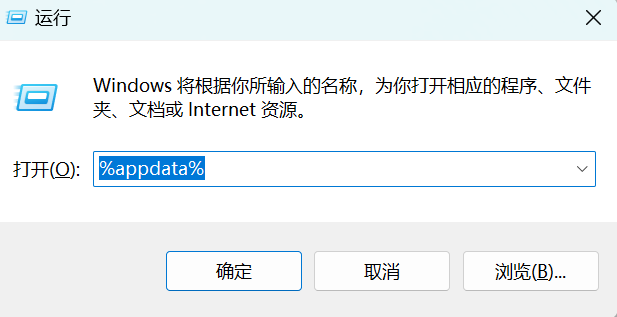
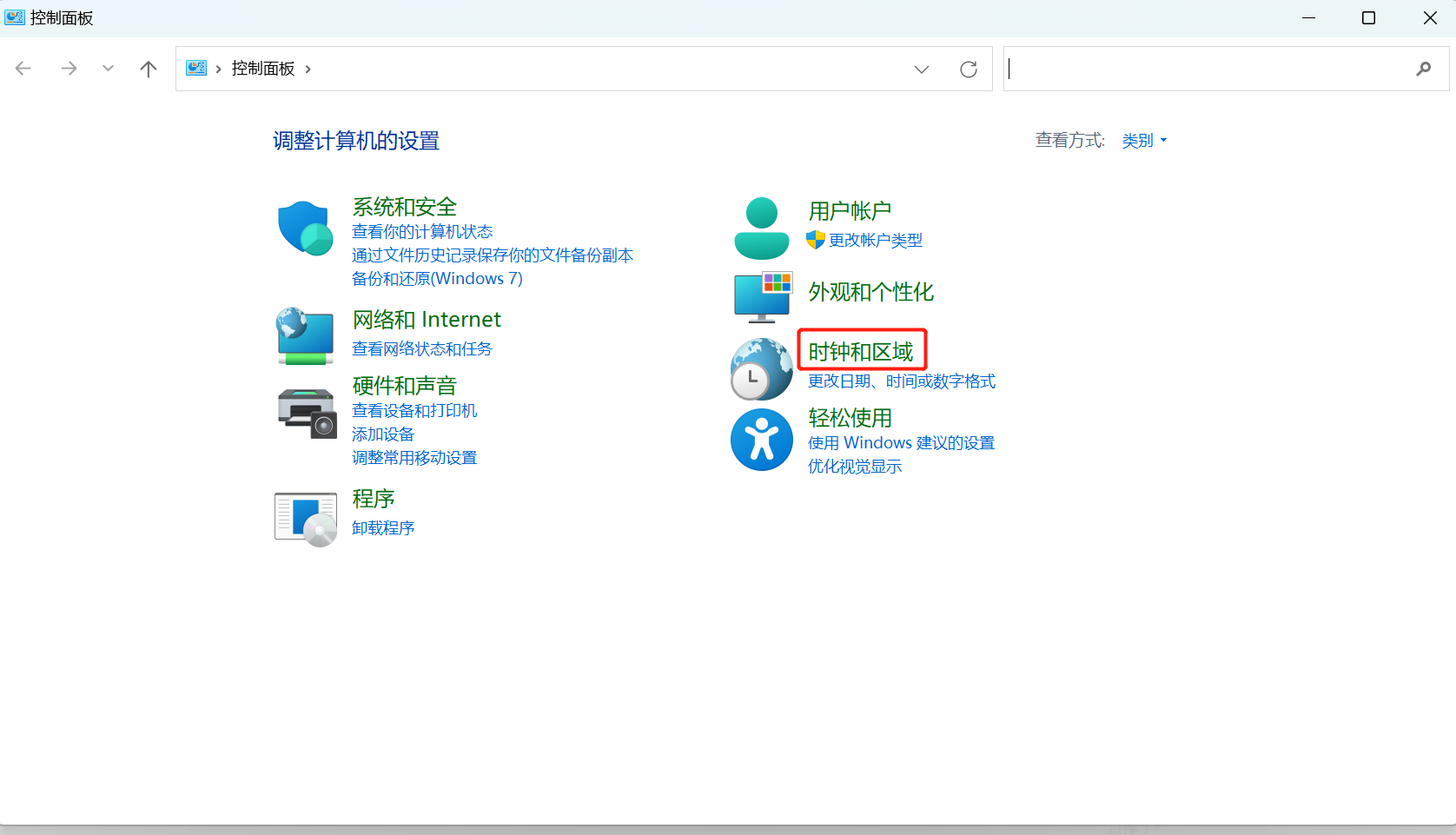
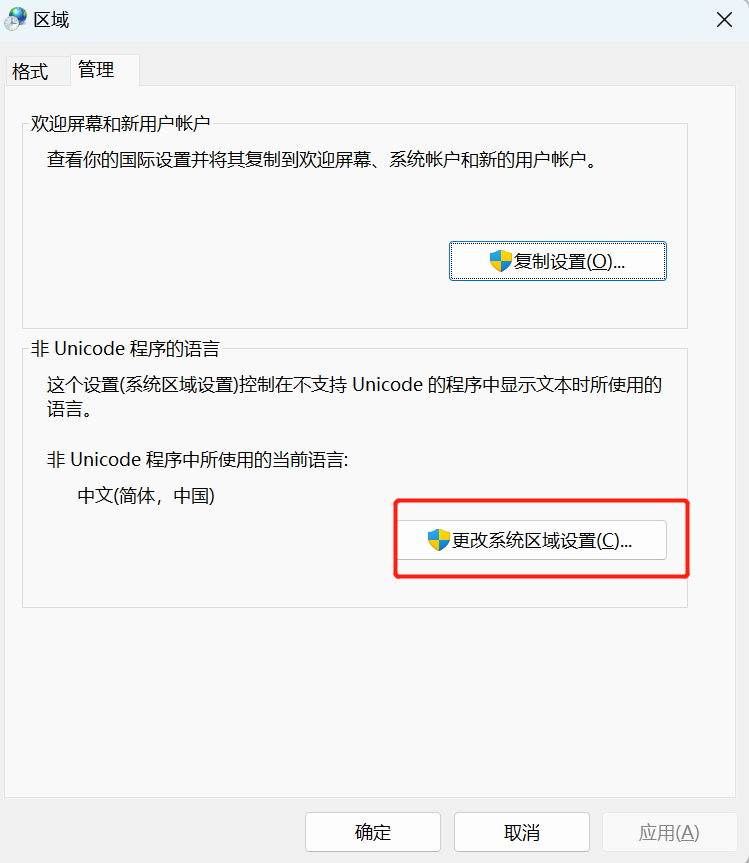
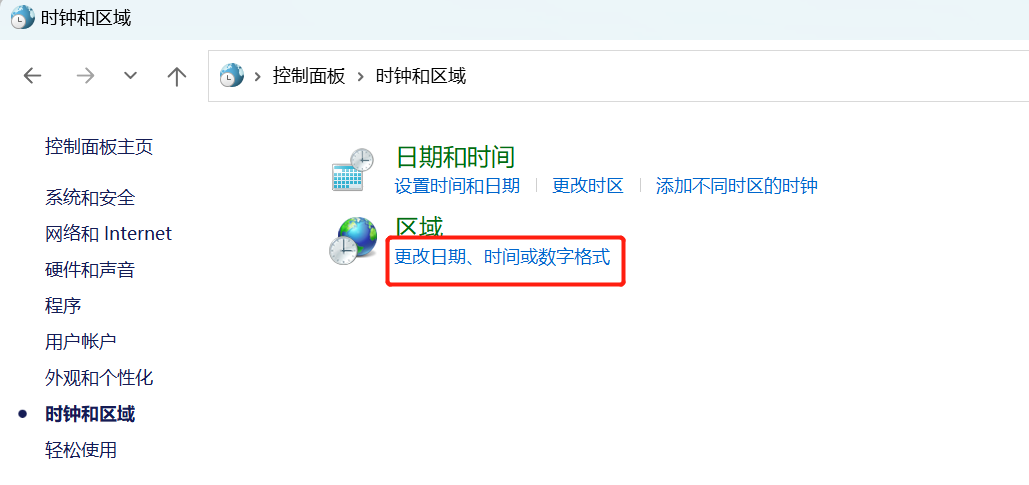
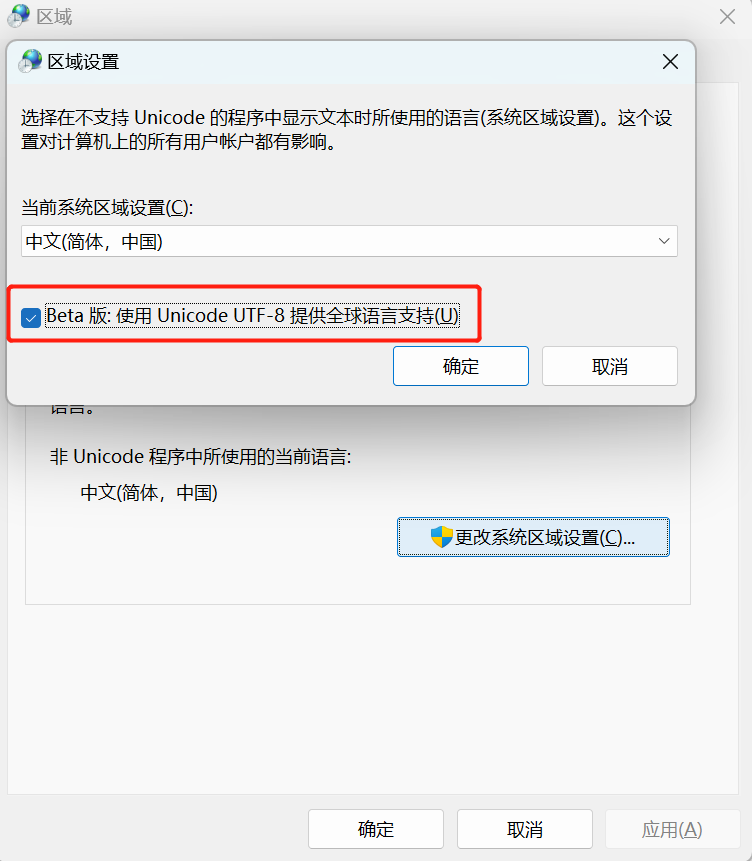
② Enter “control”, then press the “Enter” key to open the Control Panel. Find Clock and Region > Region > Management > Change system locale > Check “Beta: Use Unicode UTF-8 for worldwide language support”. Click “OK”, then click “Apply”. After that, reopen the client.
Tutorial on Privacy Protection Usage
I. Function Introduction
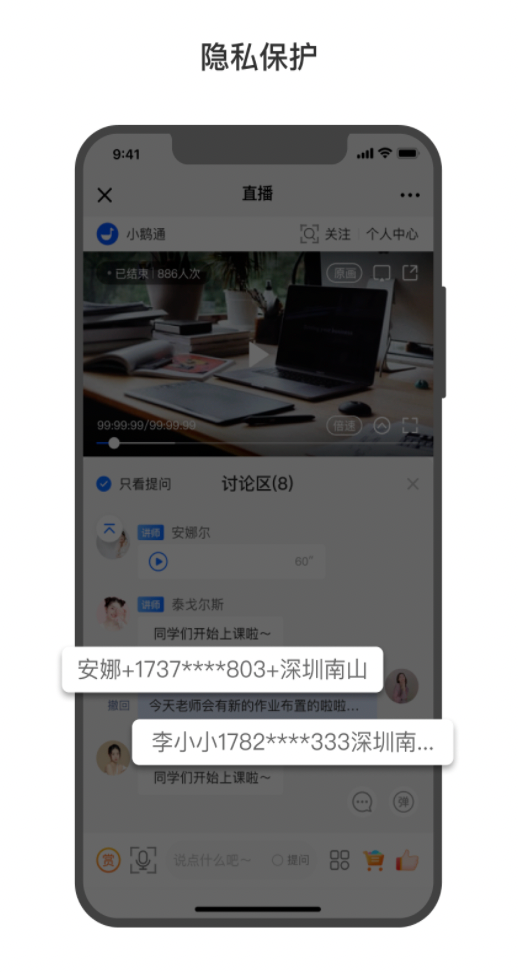
Privacy protection can effectively safeguard the privacy of learners. When a learner's nickname contains a phone number, the phone number in the nickname will be hidden when the learner comments in the live - streaming room. The instructor and teaching assistants can view the learner's comments and nicknames in the live - streaming room without any impact.
II. Purpose of Use
1. Protect the interests of merchants and ensure that the phone numbers of learners, which are the merchants' resources, will not be leaked from the live - streaming room.
2. Protect the privacy of learners and avoid unauthorized information leakage.
III. Usage Scenarios
After enabling the function, learners don't need to worry about their phone numbers being leaked when commenting. Merchants can effectively protect the learners' nicknames and avoid losses caused by customer data leakage.
IV. Operation Path
Merchant side: Merchant background → Live streaming → General settings
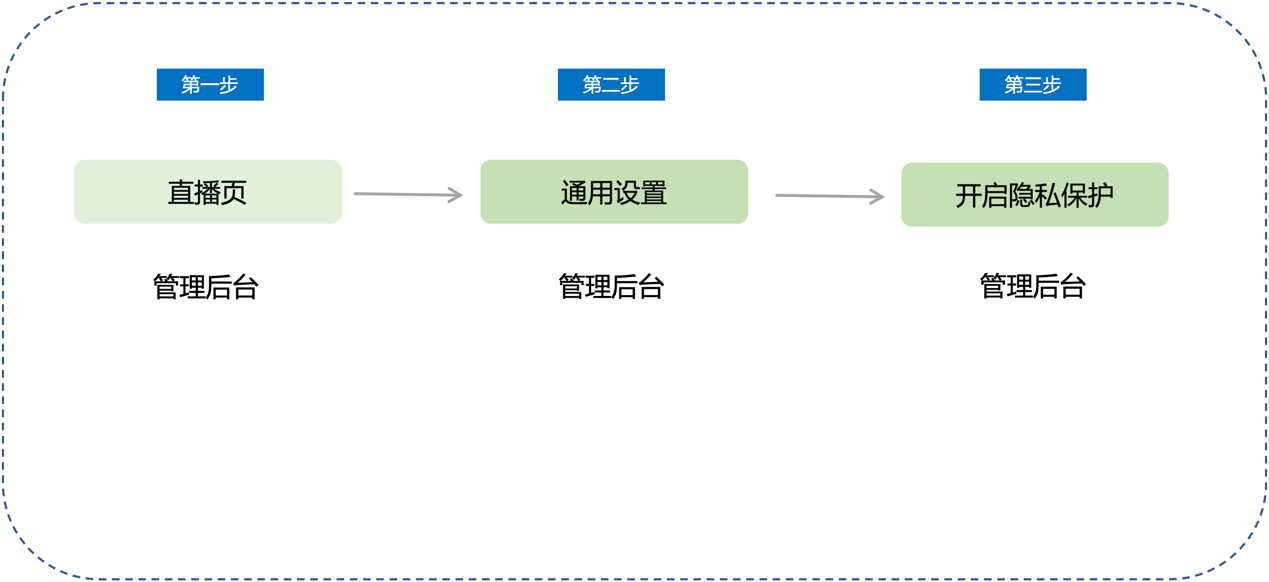
V. Usage Tutorial
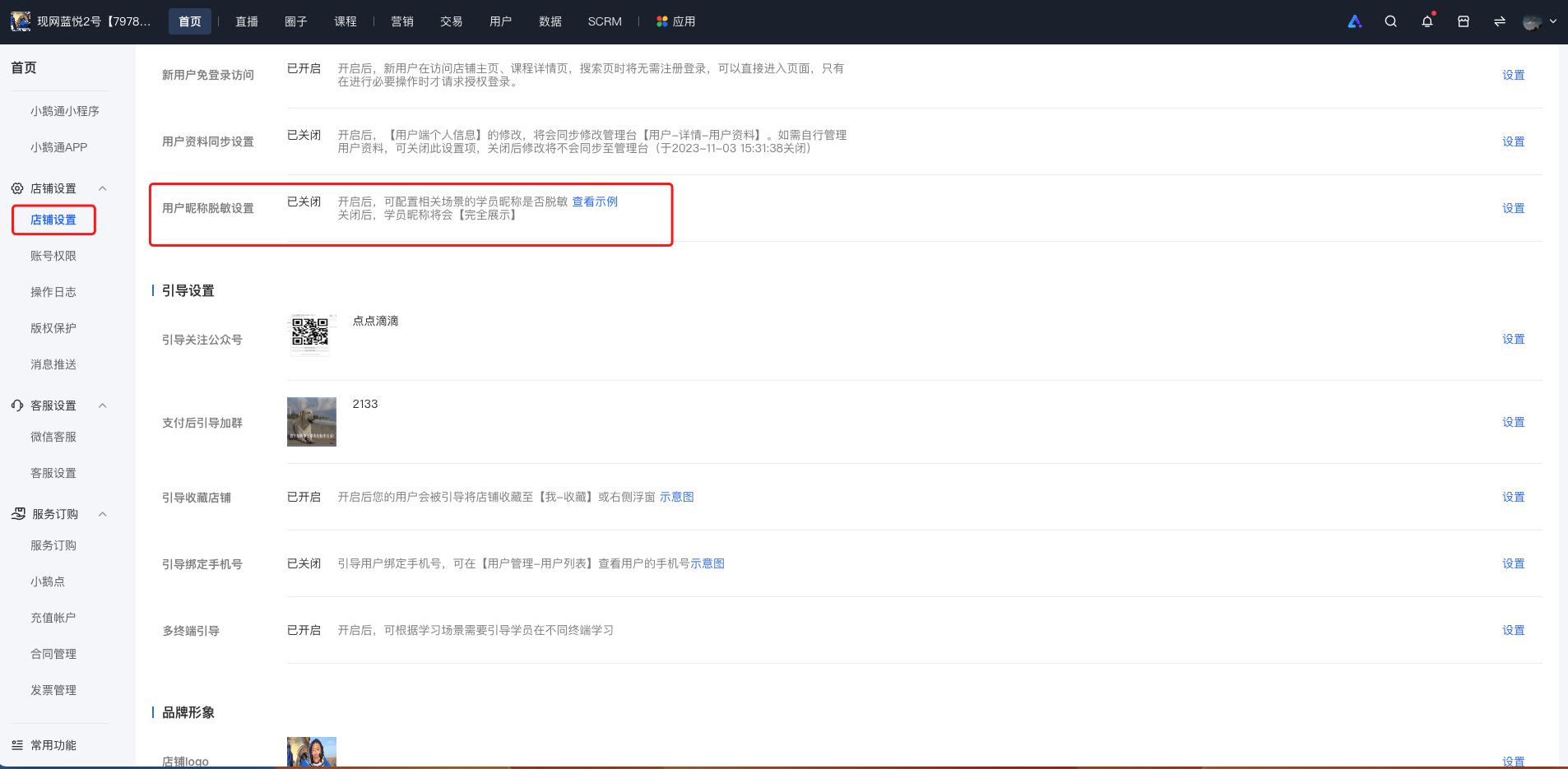
Step 1: Enter Settings - Store settings - User nickname desensitization settings(Management background)
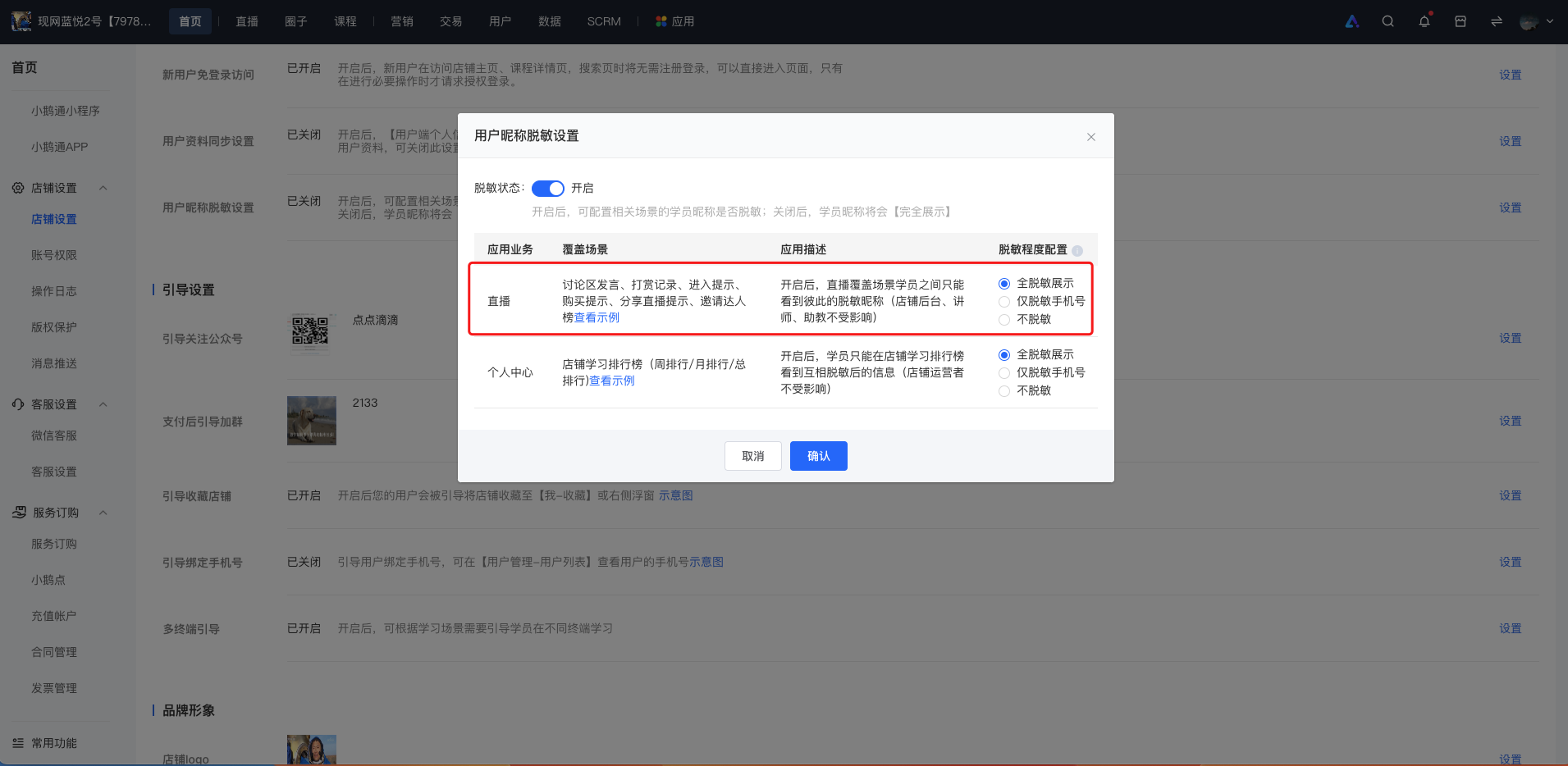
Step 2: Enable privacy protection(Management background)
Effect after enabling the privacy protection function:
Tutorial on Using Live Commerce Comment Review
I. Function Introduction
In the specific live streaming room settings - Comment Settings, after enabling the [Comment Review] function, merchants can review the comments in the live streaming room. After confirming that the comments meet the merchants' requirements, merchants can perform the "Display" operation on specific comments. After completion, the comment will be visible to all users in the live streaming room.
II. Purpose of Use
Merchants can use this function to more effectively manage and control the comments in the live streaming room.
III. Usage Scenarios
To prevent non - compliant comments (such as political, terrorist, pornographic remarks, advertising information, spamming information, etc.) from affecting the merchant's brand and live streaming effect during the live streaming, merchants can enable the [Comment Review] function to review the comments before displaying them to all users.
IV. Operation Path
Merchant side: PC management console → Live Streaming → Details → User Operations → Comment Settings
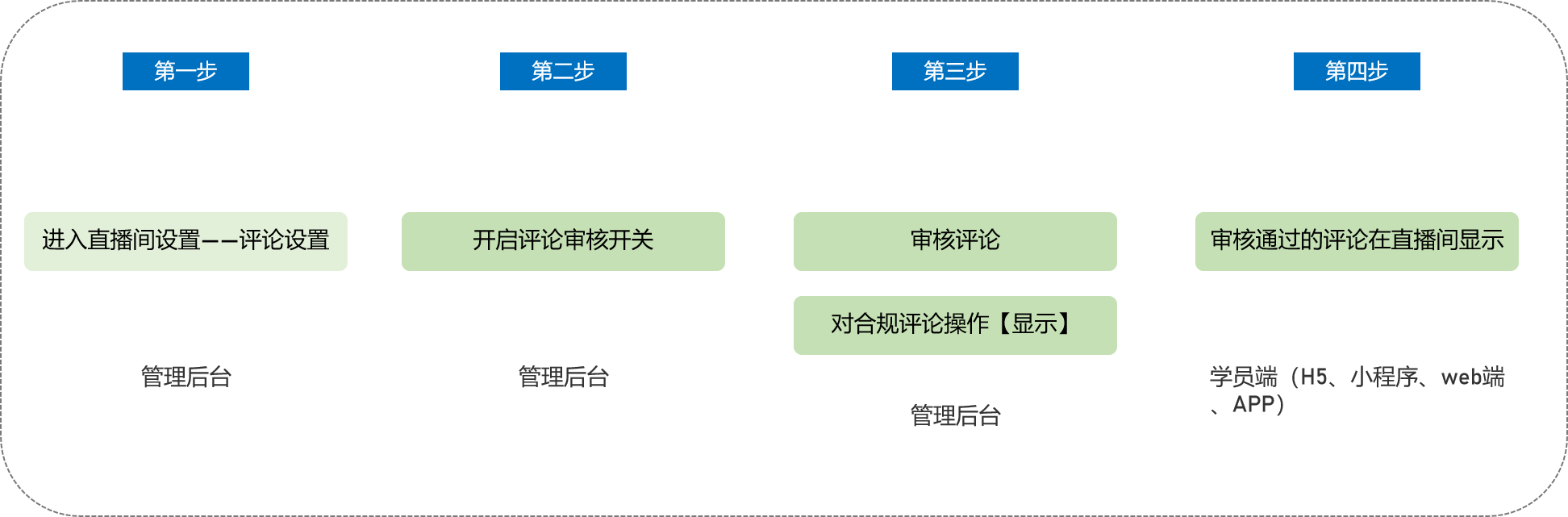
V. Usage Tutorial
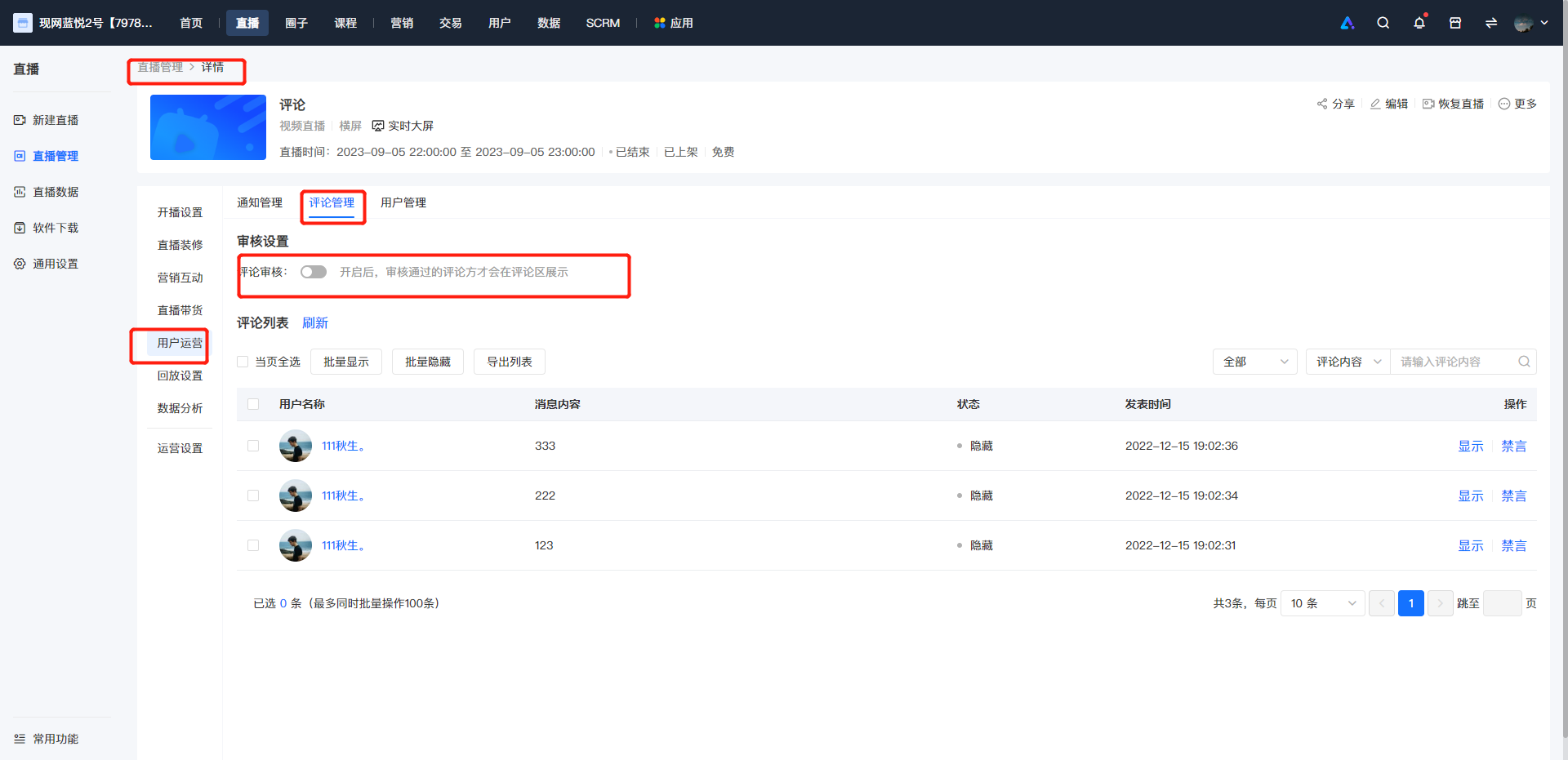
Step 1 Enter User Operations - Comment Settings (Management Backend)
Enter the details page of the specific live streaming room, click to enter User Operations, and select Comment Settings.
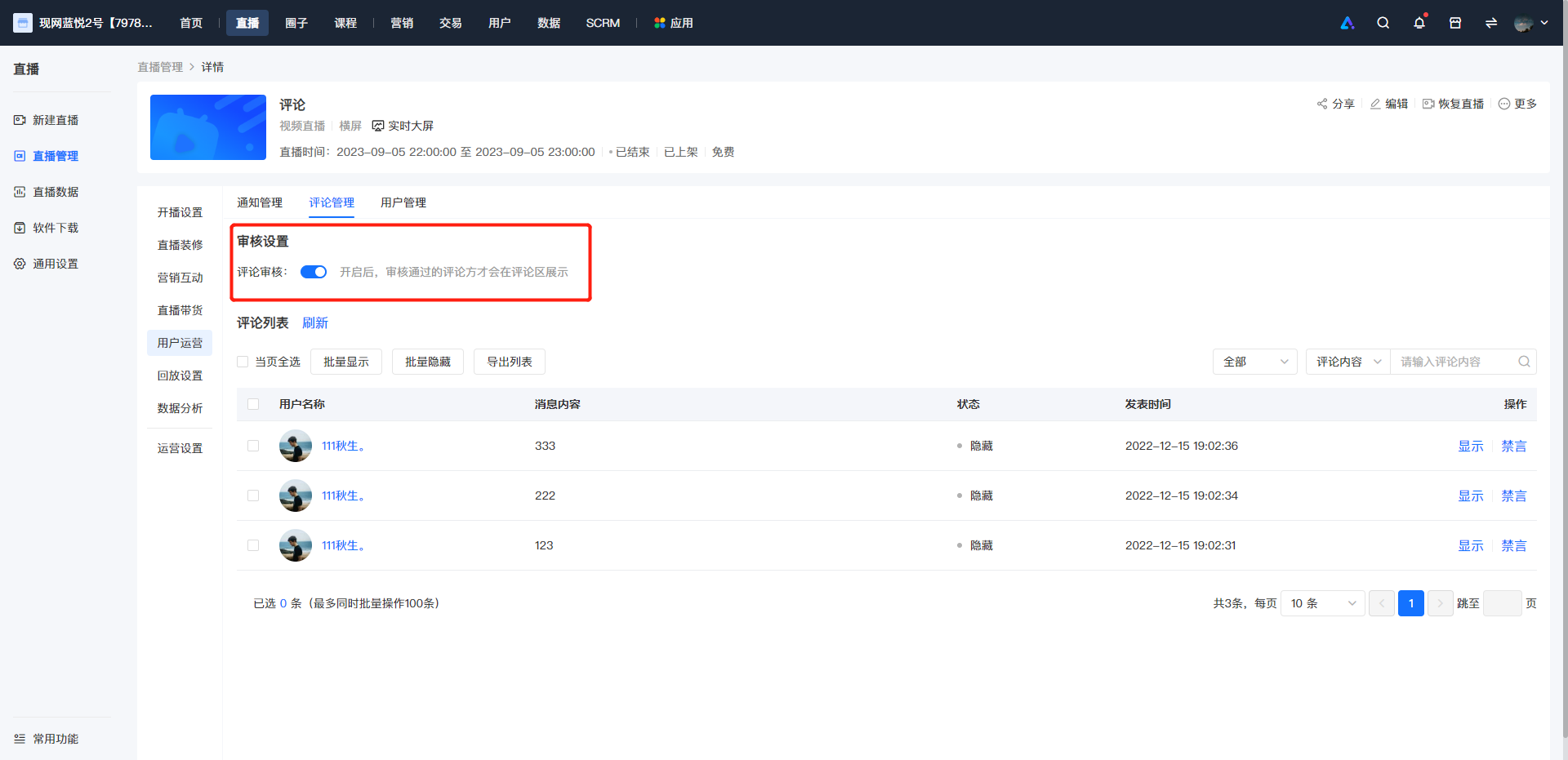
Step 2 Enable the Comment Review Switch (Management Backend)
Enable the comment review switch. After enabling, the comments sent by users in the live streaming room will be hidden by default and not visible to all users (except the user who sent the comment).
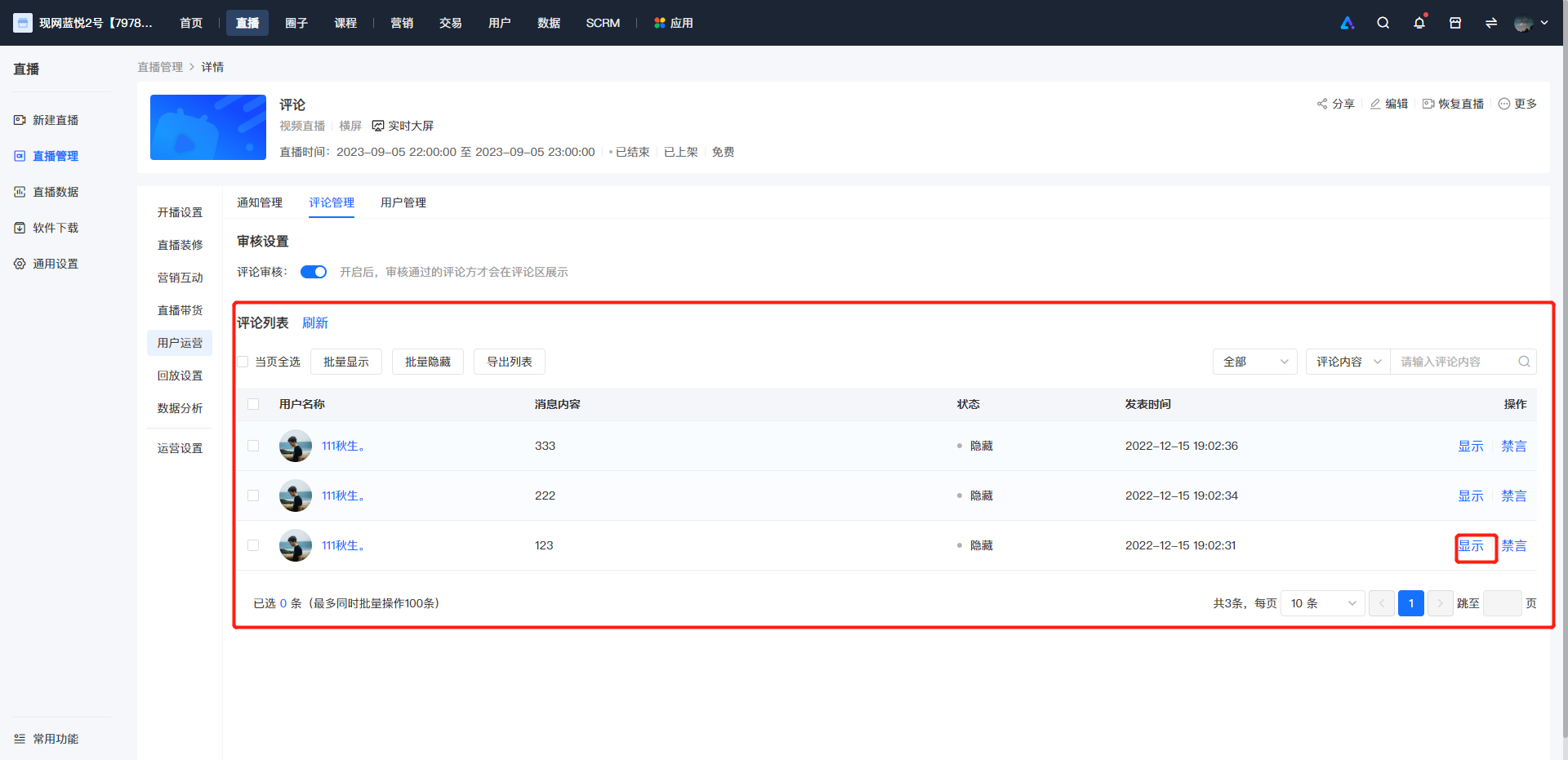
Step 3 Review Comments and Perform the [Display] Operation on Compliant Comments (Management Backend)
Review the comments sent by users in the live streaming room. Perform the [Display] operation on the comments that pass the review and meet the merchants' requirements. The status column shows the display status of the current comment. Comments with the status of "Display" are visible to all users in the live streaming room, and comments with the status of "Hidden" are not visible to all users in the live streaming room (except the user who sent the comment).
Step 4 Display the Approved Comments in the Live Streaming Room (H5, elink Live Mini Program, Web, elink App)
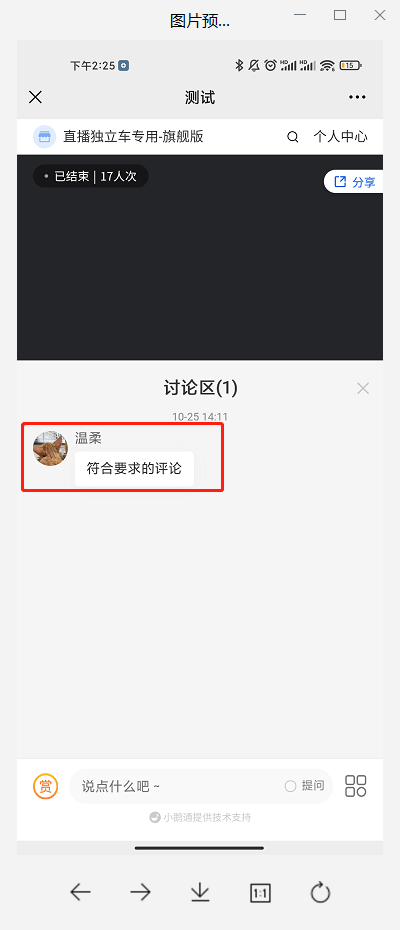
Comments that have passed the review and been operated with "Display" by the merchant in the backend will be displayed in the live streaming room and will be visible to all users.
Scope of application for trainees to pause live commerce
Merchants can choose to disable the 'Student Pause' function for live streams. When students are watching the live stream on the H5 page, elink Live Mini Program, or PC, the 'Pause' button on the player will be hidden, and they will not be able to pause the live stream during the viewing process.
Inapplicable Scope:
1. Due to certain limitations of some players, such as the system player which cannot hide the 'Pause' button. When a merchant selects the system player for their online store and disables the 'Student Pause' function for live streams, students can still pause the live stream when watching it in full - screen mode on the H5 page.
2.Currently, this rule does not apply to the App version. When merchants disable the 'Student Pause' function for live streams, students can still pause the live stream when watching it on the elink App.