# Common Questions about Live Streaming

# What should I do if there is an error when exporting a video?

<div data-elink-language-switch="1" id="bkmrk-%E4%B8%AD%E6%96%87" style="border:1px solid #d6d9de;border-radius:6px;padding:10px 12px;margin:0 0 18px 0;background:#f8fafc;font-size:14px;">[中文](/books/091d5/page/2a38a)</div><span style="font-size:14px;">Currently, the export uses the MP4 format, which may have some compatibility issues. If you encounter an export failure, you can contact our customer service, and we will assist you with the export.</span>

# Can the courseware be downloaded?

<div data-elink-language-switch="1" id="bkmrk-%E4%B8%AD%E6%96%87" style="border:1px solid #d6d9de;border-radius:6px;padding:10px 12px;margin:0 0 18px 0;background:#f8fafc;font-size:14px;">[中文](/books/091d5/page/45c48)</div><span style="font-size:14px;">Currently, courseware cannot be directly downloaded by students.</span>

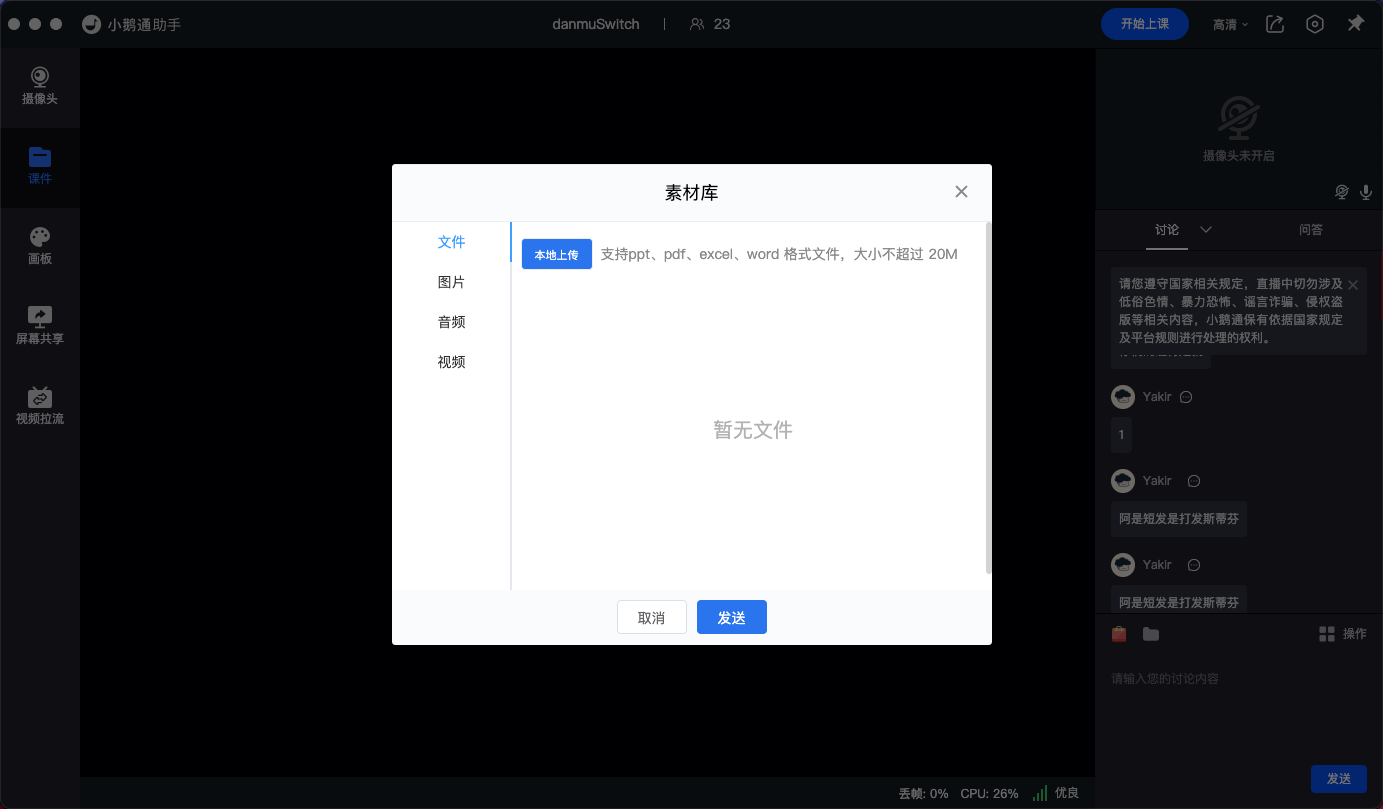
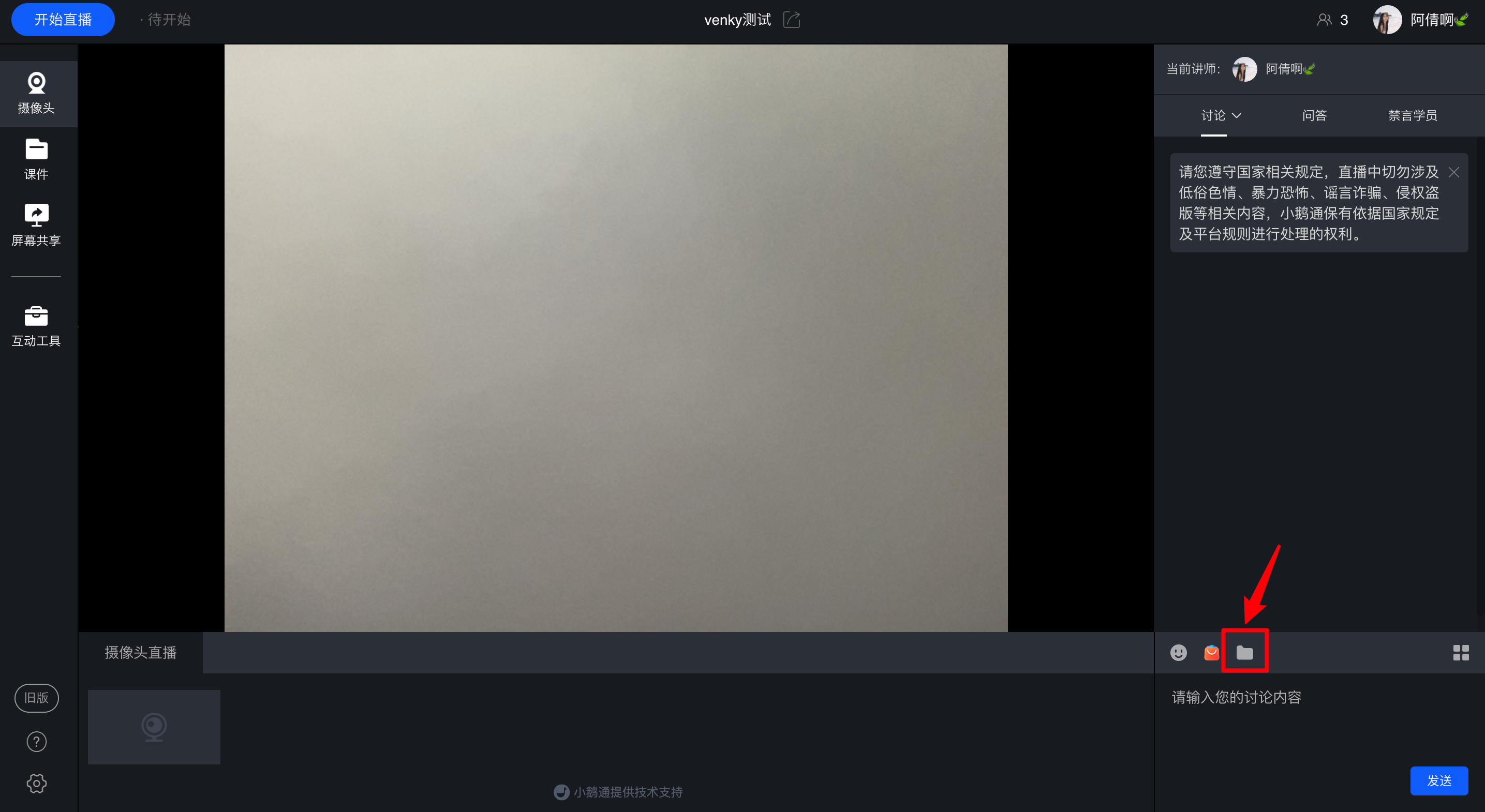
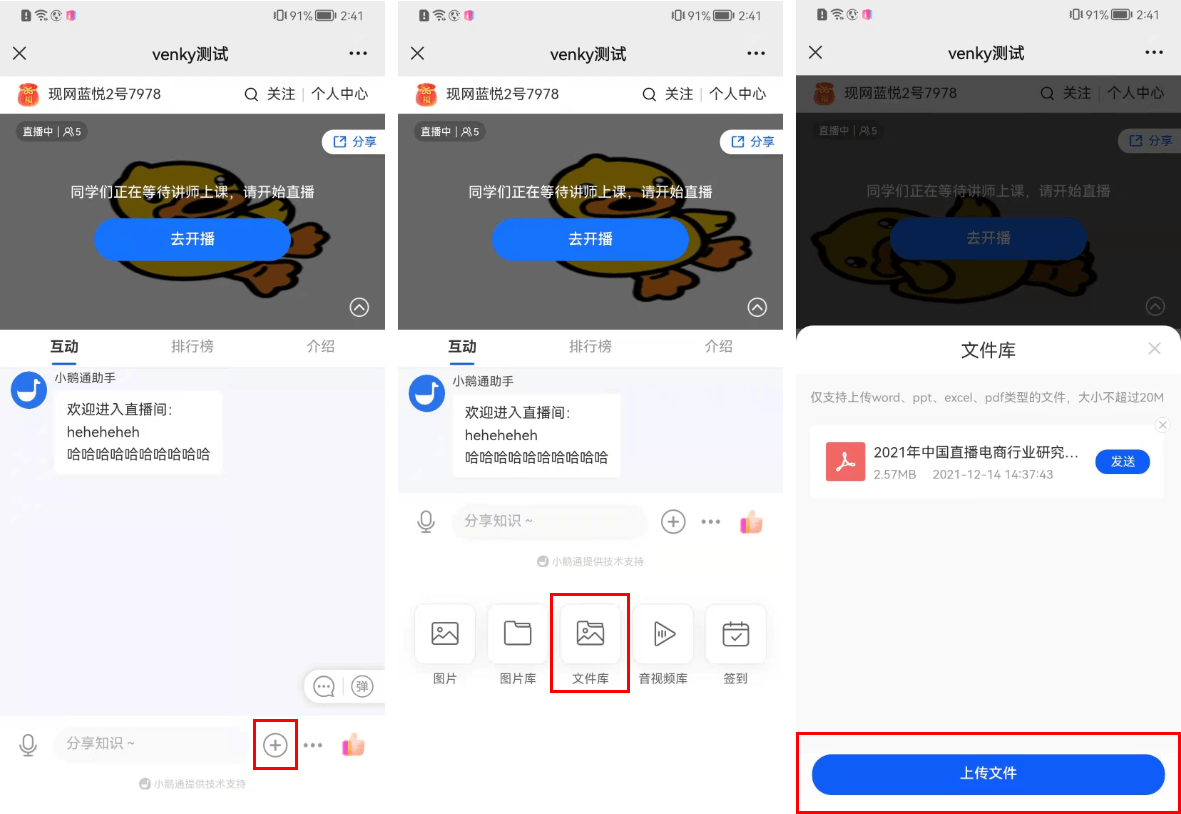
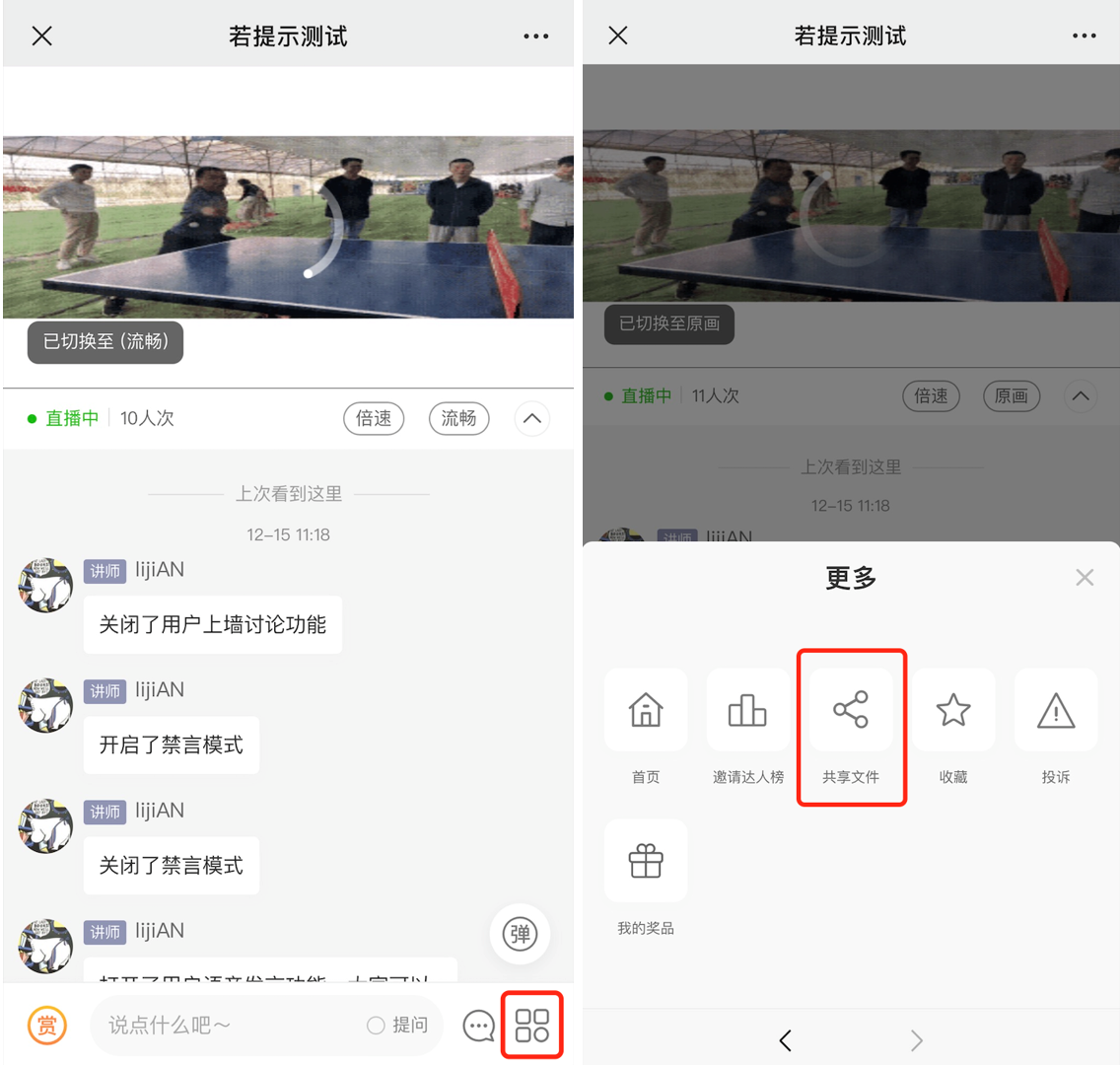
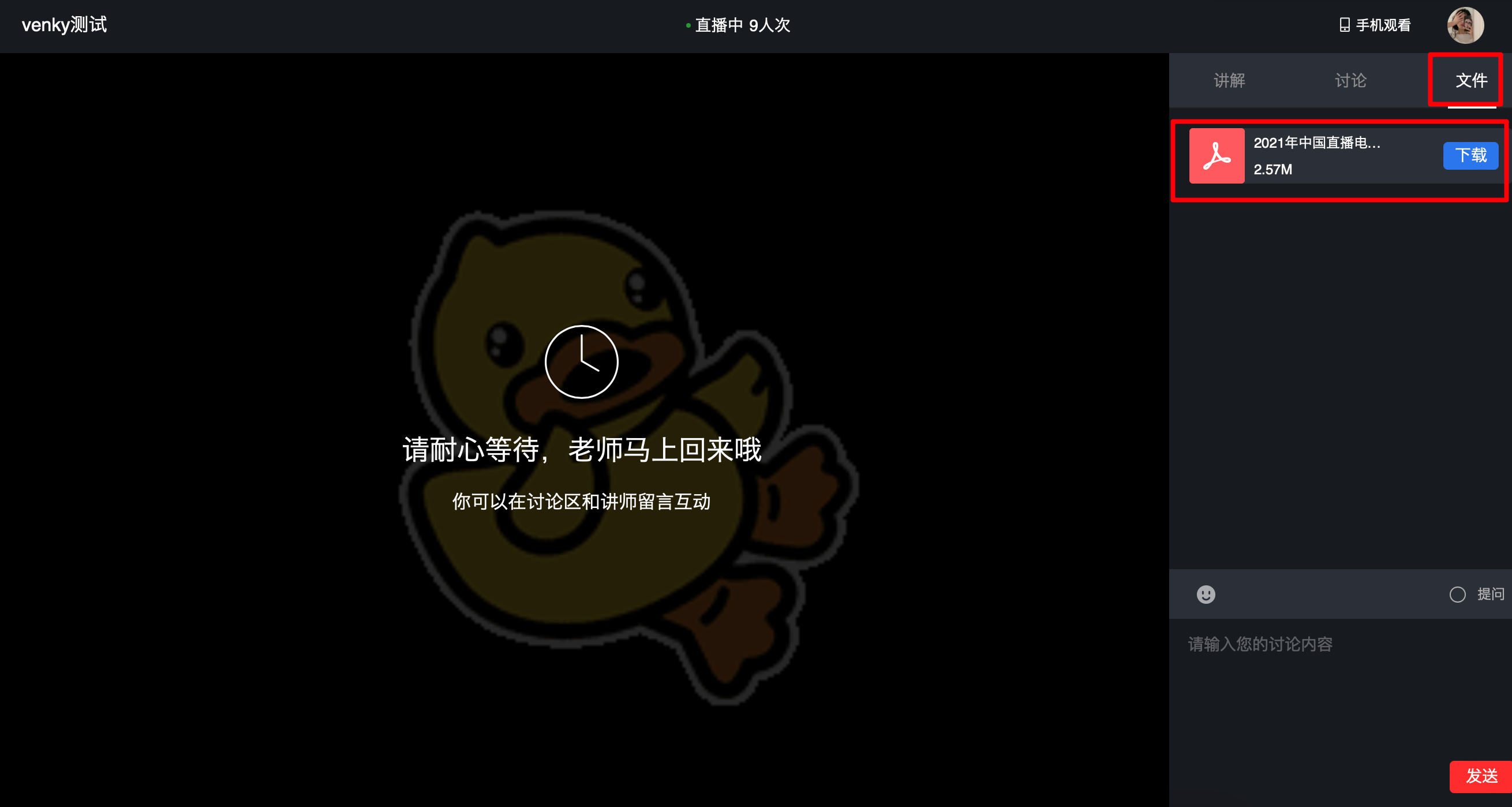
<span style="font-size:14px;">If instructors need to allow students to download courseware, they can click on the material library in the PC live streaming room/H5 live streaming room to upload the courseware they want students to download in advance (currently, only word, ppt, excel, and pdf file types are supported for upload).</span><span style="font-size:14px;">After uploading, the corresponding courseware can be sent to the discussion area for students to download. Students can also find the file in the shared files for download.</span>

# Can I export the leaderboard?

<div data-elink-language-switch="1" id="bkmrk-%E4%B8%AD%E6%96%87" style="border:1px solid #d6d9de;border-radius:6px;padding:10px 12px;margin:0 0 18px 0;background:#f8fafc;font-size:14px;">[中文](/books/091d5/page/53c3b)</div><span style="font-size:14px;">Yes, it's possible.</span>

<span style="font-size:14px;">You can enter the live streaming list page, select the corresponding live stream, click \[Details &gt; Data Analysis\] to enter the data statistics page, and then<span style="font-size:14px;"></span>you can export the user data of the Top 100 Influencers Invited in the Live Stream Ranking.</span>

# Can live streaming be implemented in a WeChat group?

<div data-elink-language-switch="1" id="bkmrk-%E4%B8%AD%E6%96%87" style="border:1px solid #d6d9de;border-radius:6px;padding:10px 12px;margin:0 0 18px 0;background:#f8fafc;font-size:14px;">[中文](/books/091d5/page/9fc3d)</div><span style="font-size:14px;">After creating the live streaming room, share the link to the live streaming room in the WeChat Community. When students click on the link, they will be redirected to your live streaming room.</span>

# How to apply for the restoration of a deleted live stream?

<div data-elink-language-switch="1" id="bkmrk-%E4%B8%AD%E6%96%87" style="border:1px solid #d6d9de;border-radius:6px;padding:10px 12px;margin:0 0 18px 0;background:#f8fafc;font-size:14px;">[中文](/books/091d5/page/97665)</div>**<span style="font-family:'PingFang SC', 'Microsoft YaHei', '黑体', '宋体', sans-serif;font-size:14px;white-space:pre-line;background-color:rgb(250,250,250);">Within 30 days after deleting a live stream</span>**<span style="font-family:'PingFang SC', 'Microsoft YaHei', '黑体', '宋体', sans-serif;font-size:14px;white-space:pre-line;background-color:rgb(250,250,250);">, you can find the corresponding log record in \[Settings\] - \[Operation Logs\] and click \[Restore Course\].</span>

# The preset end time of the live stream has passed, but the instructor is still in the live room. Will it affect the students' viewing of the replay?

<div data-elink-language-switch="1" id="bkmrk-%E4%B8%AD%E6%96%87" style="border:1px solid #d6d9de;border-radius:6px;padding:10px 12px;margin:0 0 18px 0;background:#f8fafc;font-size:14px;">[中文](/books/091d5/page/f5f85)</div><span style="font-size:14px;">If the instructor continues to stream after the scheduled live streaming time has ended, the live stream will not end until the instructor leaves the live streaming room and stops the stream.</span>

# Will the audio or video uploaded to the live streaming room play automatically? Or do users need to click manually to play?

<div data-elink-language-switch="1" id="bkmrk-%E4%B8%AD%E6%96%87" style="border:1px solid #d6d9de;border-radius:6px;padding:10px 12px;margin:0 0 18px 0;background:#f8fafc;font-size:14px;">[中文](/books/091d5/page/5f93f)</div><span style="font-size:14px;"><span style="margin:0px;padding:0px;font-family:'Microsoft YaHei', '微软雅黑';white-space:pre-wrap;">The audio and video uploaded in the explanation area of the live streaming room will not play automatically. Users need to click manually to start playback.  
</span><span style="margin:0px;padding:0px;font-family:'Microsoft YaHei', '微软雅黑';white-space:pre-wrap;color:rgb(255,0,0);">Note: The uploaded video recordings in the voice live streaming need to wait until the live stream starts to play automatically.</span></span>

# What should I do if there is a harsh noise or the microphone howls during a live stream?

<div data-elink-language-switch="1" id="bkmrk-%E4%B8%AD%E6%96%87" style="border:1px solid #d6d9de;border-radius:6px;padding:10px 12px;margin:0 0 18px 0;background:#f8fafc;font-size:14px;">[中文](/books/091d5/page/006f5)</div><span style="font-size:14px;"><span style="font-family:'Microsoft YaHei', '微软雅黑';white-space:pre-wrap;background-color:rgb(255,255,255);">There are numerous reasons for squealing. Please check the following causes one by one: faulty microphone, excessive current, problematic motherboard sound card, or interference from nearby electronic devices.</span>  
<span style="font-family:'Microsoft YaHei', '微软雅黑';white-space:pre-wrap;background-color:rgb(255,255,255);">You can refer to the solutions mentioned in this article.[Article link](https://zhidao.baidu.com/question/278116627.html)</span>  
<span style="font-family:'Microsoft YaHei', '微软雅黑';white-space:pre-wrap;background-color:rgb(255,255,255);">1. Try replacing the microphone to rule out device issues.</span>  
<span style="font-family:'Microsoft YaHei', '微软雅黑';white-space:pre-wrap;background-color:rgb(255,255,255);">2. Keep the microphone away from external speakers and other audio - output devices to avoid interference.</span></span>

# How to solve issues such as live streaming freezing and long latency?

<div data-elink-language-switch="1" id="bkmrk-%E4%B8%AD%E6%96%87" style="border:1px solid #d6d9de;border-radius:6px;padding:10px 12px;margin:0 0 18px 0;background:#f8fafc;font-size:14px;">[中文](/books/091d5/page/3ef81-35g)</div>**<span style="font-size:14px;"><span style="margin:0px;padding:0px;">If the Live Streaming Assistant encounters issues such as lag or high latency, you can troubleshoot using the following methods.</span></span>**<span style="font-size:14px;"><span style="margin:0px;padding:0px;">:</span></span>

<span style="font-size:14px;"><span style="margin:0px;padding:0px;">1. Check if the current network upload speed is too low. It is recommended that the network upload speed be above 10M. It is advisable to use an Ethernet cable for live streaming.  
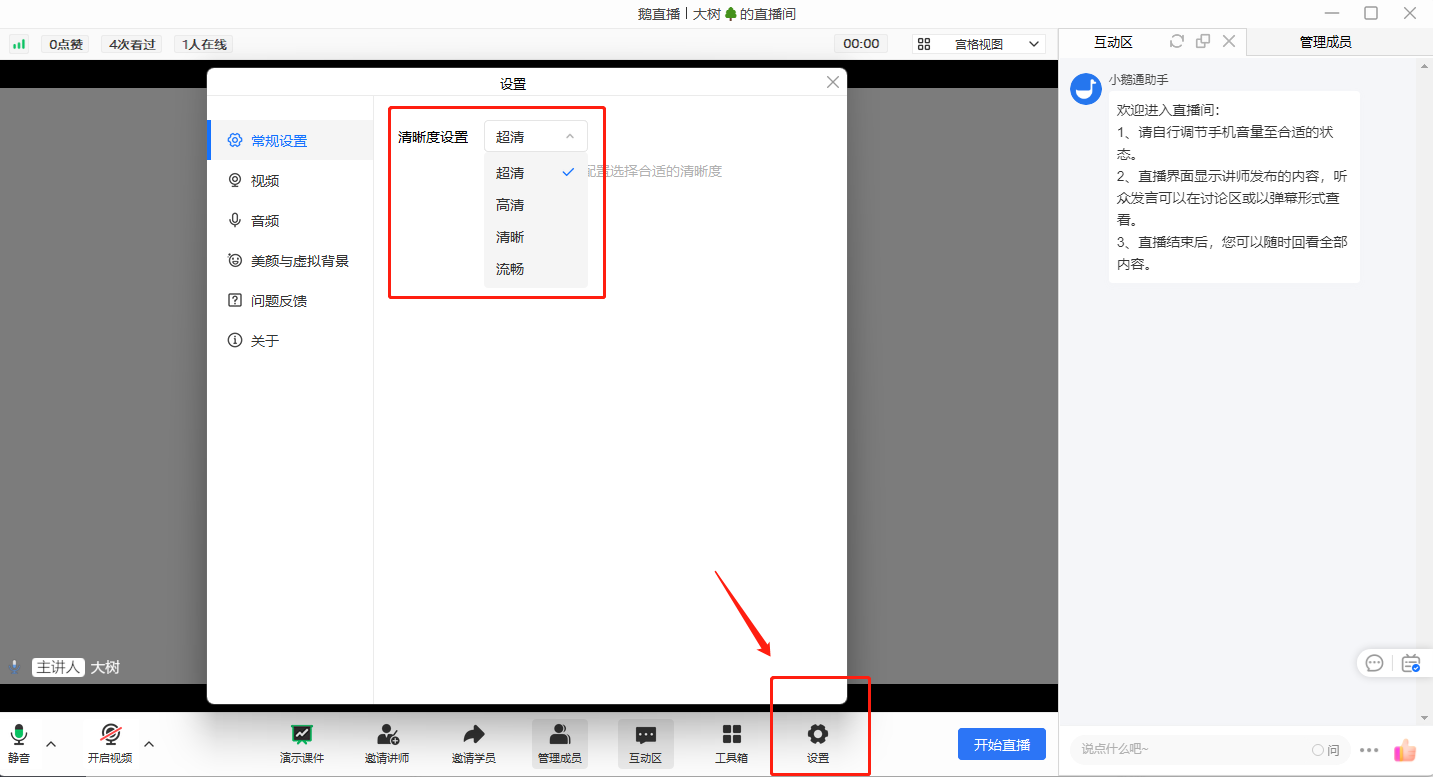
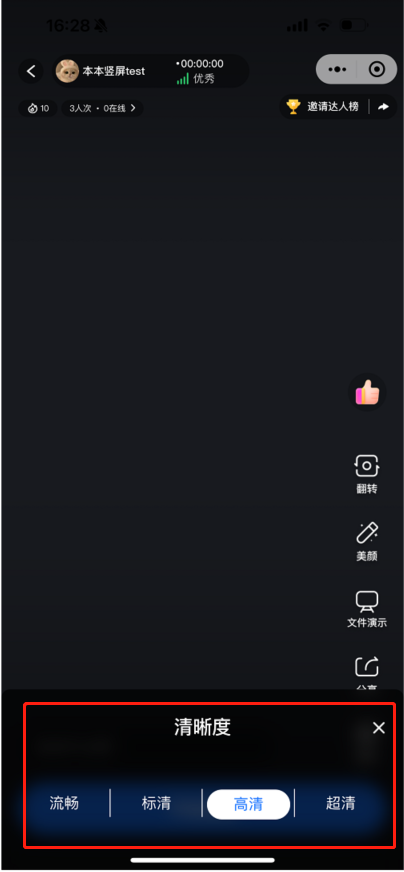
2\. Enter the software - click on the top - right corner - Video Settings, and reduce the output resolution, bitrate, and frame rate. (The elink Assistant does not support video settings operations for the time being.)  
3\. Check if the current computer configuration is too low. Recommended network configuration: Recommended computer configuration.<span style="font-size:14px;">The computer has certain requirements for the CPU. It is not recommended to use ultra - thin laptops (because the CPU performance will be reduced, such as the macbook air).</span>:  
CPU:<span style="font-size:14px;">The CPU should be i5 - 9300H or higher (corresponding to non - ultra - thin laptops priced above 5000 on JD.com).</span></span></span>

<span style="font-size:14px;"><span style="margin:0px;padding:0px;">Graphics card: GTX1050 or higher (1050Ti).</span></span>

<span style="font-size:14px;"><span style="margin:0px;padding:0px;">If you are not recording games, you can directly use the integrated graphics of the CPU and ignore this item.  
Memory: 8G or higher (16G).  
Monitor: 1080.  
Note: Precautions before live streaming: Before the official live stream, create a live streaming room for a pre - live test to avoid live streaming lag issues caused by poor network conditions.  
</span><span style="margin:0px;padding:0px;">  
</span></span>

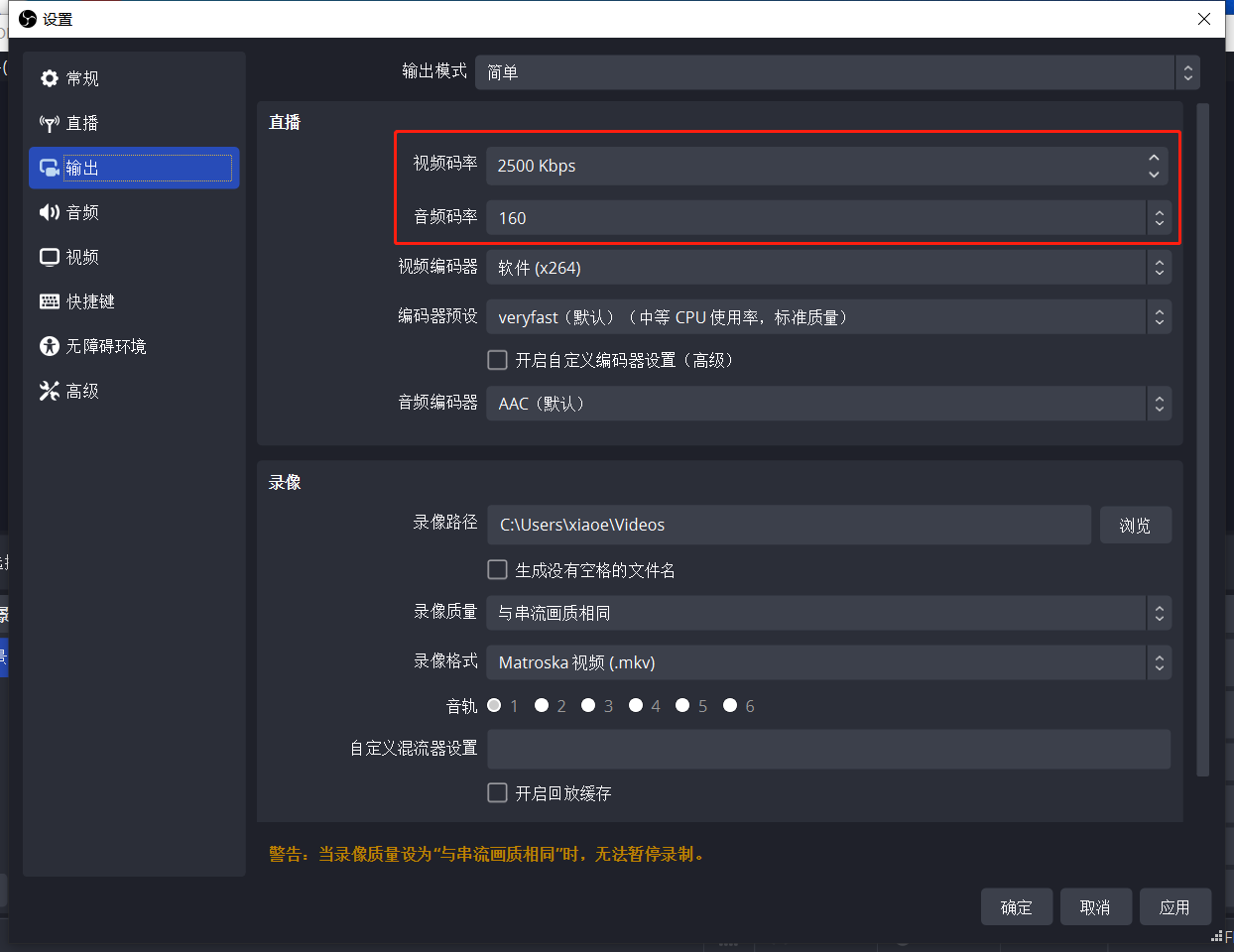
<span style="font-size:14px;"><span style="margin:0px;padding:0px;">Note: If there is still no improvement after troubleshooting in this way, it is recommended to use OBS for live streaming. You can set parameters to reduce latency and alleviate lag. The specific settings are as follows:</span><span style="margin:0px;padding:0px;">  
  
OBS: 1. Check if the current network upload speed is too low. It is recommended that the network upload speed be above 10M. It is advisable to use an Ethernet cable for live streaming.  
2\. The bitrate setting in the OBS software is too high. Recommended bitrate value: 500 - 1000. Solution: Please reduce the bitrate value or increase the current network speed.  
3\. The resolution or FPS set by the instructor in the OBS software is too high. Solution: Please reduce the resolution or the FPS value. Recommended resolution: 1280×720. Recommended FPS value: 30.  
3\. Check if the current computer configuration is too low. Recommended network configuration: Recommended computer configuration:  
CPU: i5 - 6400 or higher (i5 - 6500).  
Graphics card: GTX1050 or higher (1050Ti).  
If you are not recording games, you can directly use the integrated graphics of the CPU and ignore this item.  
Memory: 8G or higher (16G).  
Monitor: 1080</span></span><span style="margin:0px;padding:0px;">  
</span>

# Can I watch the replay and download the live stream after it ends?

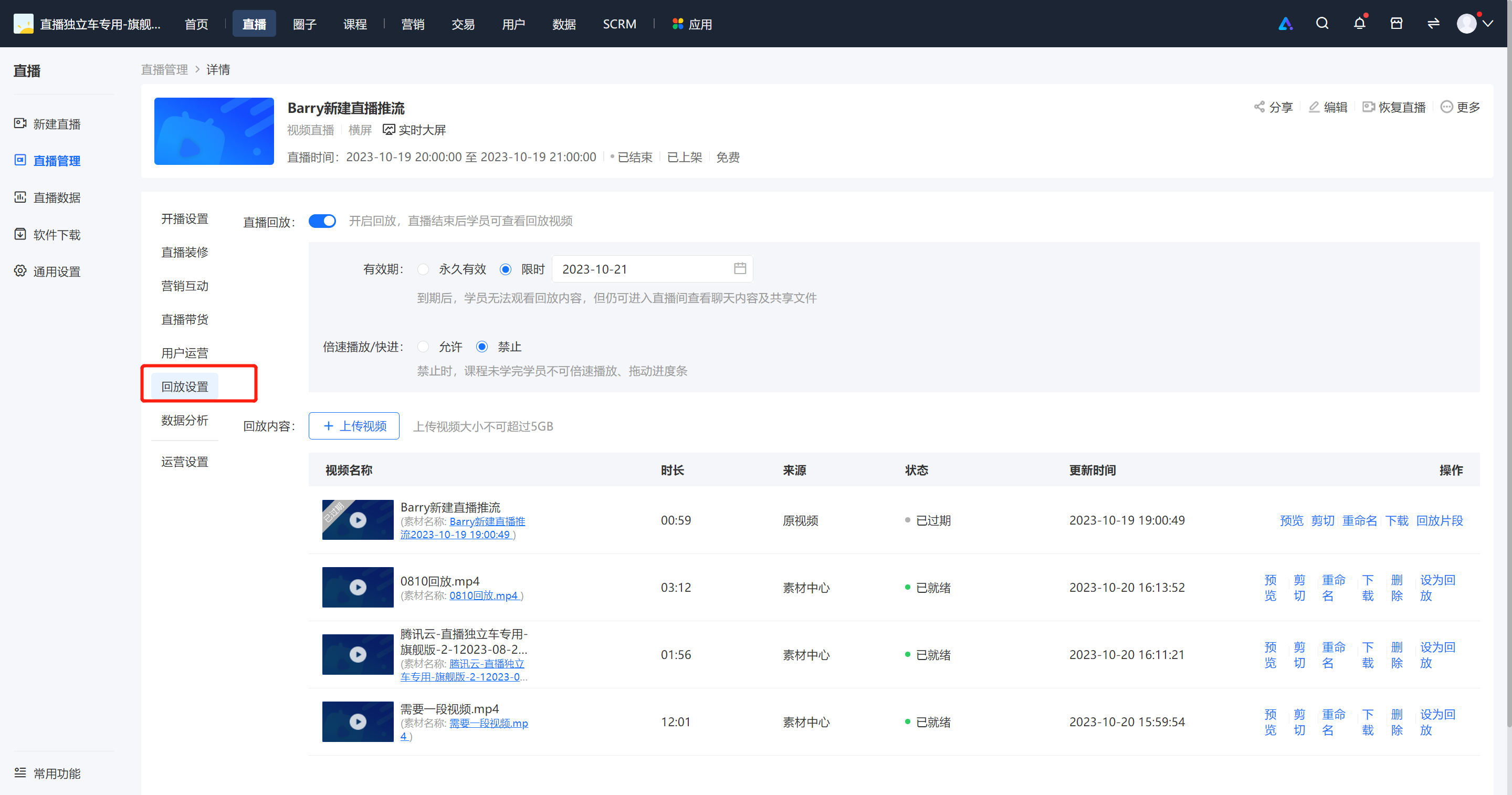
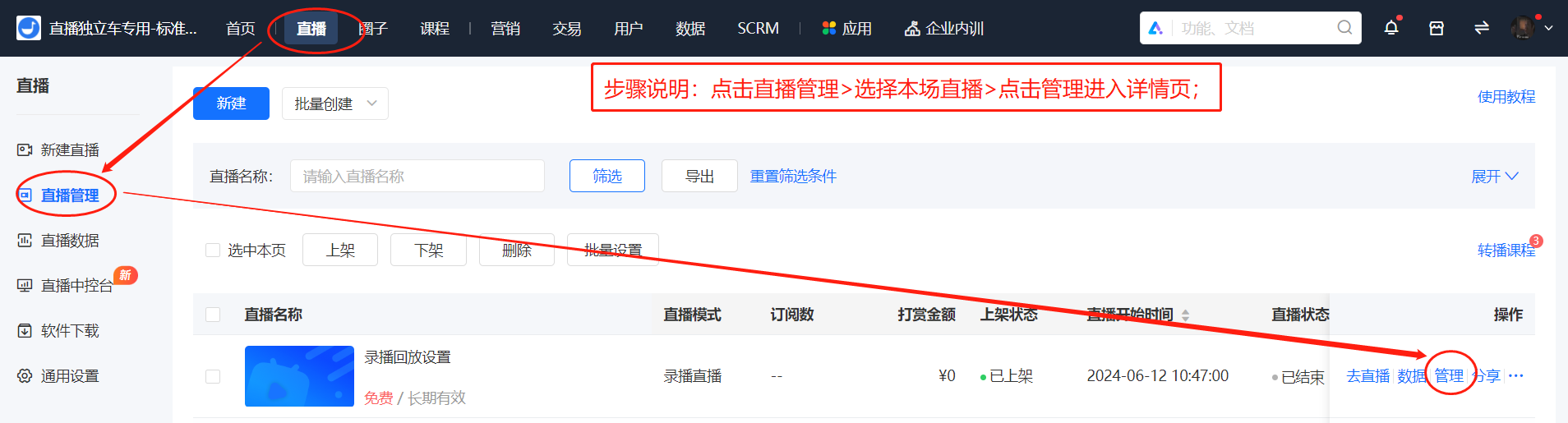
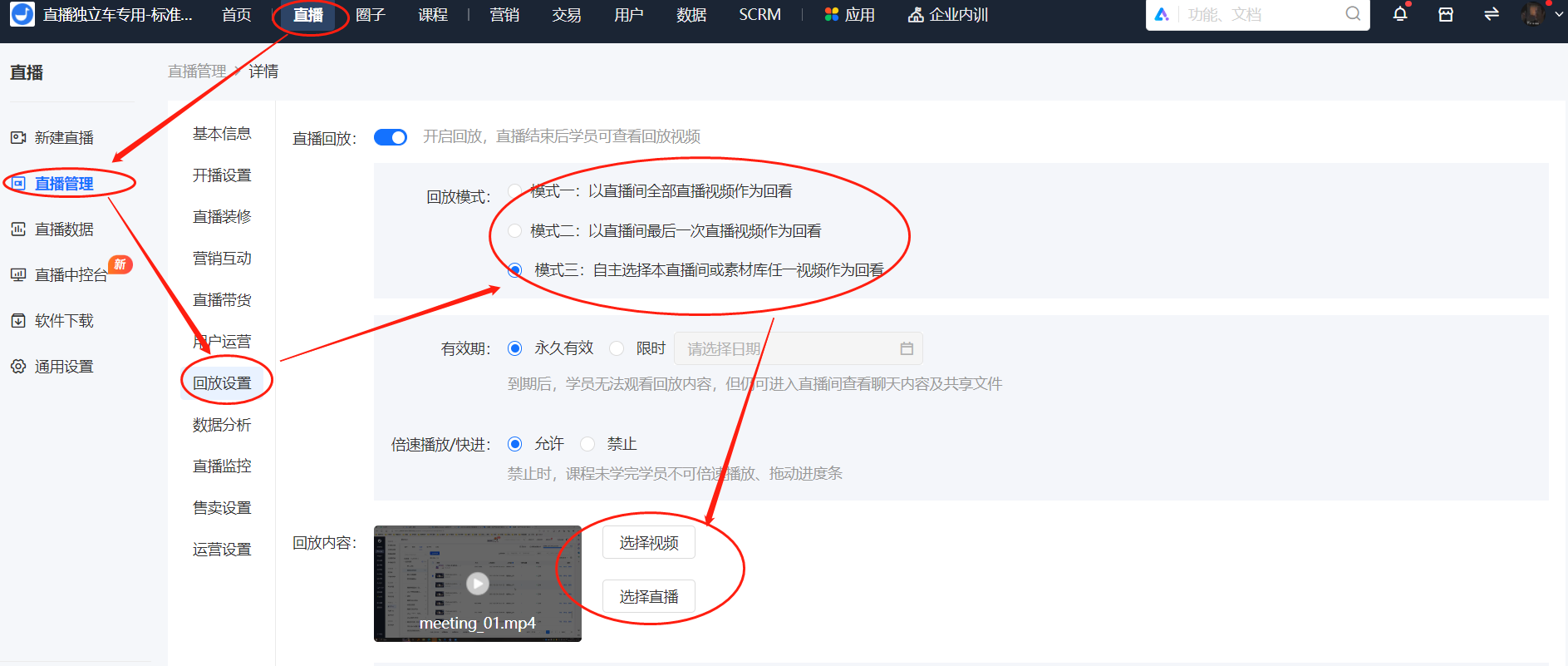
<div data-elink-language-switch="1" id="bkmrk-%E4%B8%AD%E6%96%87" style="border:1px solid #d6d9de;border-radius:6px;padding:10px 12px;margin:0 0 18px 0;background:#f8fafc;font-size:14px;">[中文](/books/091d5/page/d67d8)</div><span style="font-size:14px;"><span style="font-family:'Microsoft YaHei', '微软雅黑';white-space:pre-wrap;background-color:rgb(255,255,255);">Video live streaming: After the live stream ends, merchants can enable the playback in \[Live Stream List - Details - Playback Settings\], or set to enable the playback when editing the live stream details page. Then, after the live stream ends, students can watch the replay. Merchants can download and edit the replay video in the background \[Live Stream List - Details - Playback Settings\].</span>  
  
<span style="font-family:'Microsoft YaHei', '微软雅黑';white-space:pre-wrap;background-color:rgb(255,255,255);">Audio live streaming: There is no need to set up the playback for audio live streaming. The playback will be automatically available after the live stream ends. Merchants can download and export the live stream audio by clicking \[Export Audio\] in the upper right corner of the background \[Live Stream List - Details\].</span></span>

# Can the live stream continue after the scheduled time?

<div data-elink-language-switch="1" id="bkmrk-%E4%B8%AD%E6%96%87" style="border:1px solid #d6d9de;border-radius:6px;padding:10px 12px;margin:0 0 18px 0;background:#f8fafc;font-size:14px;">[中文](/books/091d5/page/7eacb)</div><span style="font-size:14px;"><span style="margin:0px;padding:0px;font-family:'Microsoft YaHei', '微软雅黑';white-space:pre-wrap;">If the set end time for the video live stream has arrived, but the instructor has not exited the live streaming room, the instructor can continue the live stream as long as the live stream remains stable. There is no impact on the voice live stream, and the instructor can still send voice messages in the live streaming room.  
  
</span><span style="margin:0px;padding:0px;font-family:'Microsoft YaHei', '微软雅黑';white-space:pre-wrap;color:rgb(255,0,0);">Note: If the instructor's lecture time in the video live stream has exceeded the current end time of the live stream, to ensure that the instructor can continue smoothly, it is recommended to appropriately extend the live stream time before the scheduled end time to guarantee the smooth progress of the live stream.</span></span>

# If I exit my live streaming room before the scheduled end time, will the live stream end and become available for replay?

<div data-elink-language-switch="1" id="bkmrk-%E4%B8%AD%E6%96%87" style="border:1px solid #d6d9de;border-radius:6px;padding:10px 12px;margin:0 0 18px 0;background:#f8fafc;font-size:14px;">[中文](/books/091d5/page/8fe00)</div><span style="font-family:'Microsoft YaHei', '微软雅黑';white-space:pre-wrap;background-color:rgb(255,255,255);font-size:14px;">During the live stream, if the instructor exits the live room (not due to accidental manual termination of the live stream), the students will see a prompt indicating that the instructor has left the live room, but the live stream will not end. If the instructor is not in the live room when the scheduled end time of the live stream arrives, the live stream will automatically end.</span>

# Can the avatar of the elink assistant in the live streaming room be changed?

<div data-elink-language-switch="1" id="bkmrk-%E4%B8%AD%E6%96%87" style="border:1px solid #d6d9de;border-radius:6px;padding:10px 12px;margin:0 0 18px 0;background:#f8fafc;font-size:14px;">[中文](/books/091d5/page/a5771-s69)</div><span style="font-size:11pt;font-family:'Helvetica Neue', Helvetica, 'PingFang SC', 'Microsoft YaHei', 'Source Han Sans SC', 'Noto Sans CJK SC', 'WenQuanYi Micro Hei', sans-serif;color:rgb(51,51,51);background-image:initial;background-position:initial;background-size:initial;background-repeat:initial;background-attachment:initial;letter-spacing:0pt;vertical-align:baseline;">It can be replaced.</span>

<span style="font-size:11pt;font-family:'Helvetica Neue', Helvetica, 'PingFang SC', 'Microsoft YaHei', 'Source Han Sans SC', 'Noto Sans CJK SC', 'WenQuanYi Micro Hei', sans-serif;color:rgb(51,51,51);background-image:initial;background-position:initial;background-size:initial;background-repeat:initial;background-attachment:initial;letter-spacing:0pt;vertical-align:baseline;">You can make unified settings for all live stream announcements, replace the assistant avatar, and change the live stream announcements in \[Live Streaming &gt; General Settings &gt; Live Stream Announcements\]. This setting will take effect for all live streams that have not had their announcements set individually (there may be a certain delay before the modified announcements take effect).</span>

<span style="font-family:'Helvetica Neue', Helvetica, 'PingFang SC', 'Microsoft YaHei', 'Source Han Sans SC', 'Noto Sans CJK SC', 'WenQuanYi Micro Hei', sans-serif;color:rgb(51,51,51);background-image:initial;background-position:initial;background-size:initial;background-repeat:initial;background-attachment:initial;letter-spacing:0pt;vertical-align:baseline;font-size:15px;">You can also set the announcement for a single live stream in \[Live Stream Details - Live Stream Decoration - Live Stream Information - Live Stream Announcement\], which will only take effect for this particular live stream.</span>

# Can the live stream be resumed after manually ending it?

<div data-elink-language-switch="1" id="bkmrk-%E4%B8%AD%E6%96%87" style="border:1px solid #d6d9de;border-radius:6px;padding:10px 12px;margin:0 0 18px 0;background:#f8fafc;font-size:14px;">[中文](/books/091d5/page/d9d4f)</div><span style="font-family:'Microsoft YaHei', '微软雅黑';white-space:pre-wrap;background-color:rgb(255,255,255);font-size:14px;">Manually ended live streams can be restored. You can perform the restoration operation through \[Management Console - Live Stream List - More - Restore Live Stream\].</span>

# Does the live replay support playback speed adjustment?

<div data-elink-language-switch="1" id="bkmrk-%E4%B8%AD%E6%96%87" style="border:1px solid #d6d9de;border-radius:6px;padding:10px 12px;margin:0 0 18px 0;background:#f8fafc;font-size:14px;">[中文](/books/091d5/page/8f855)</div><span style="font-size:16px;"><span style="font-family:'Microsoft YaHei', '微软雅黑';white-space:pre-wrap;background-color:rgb(255,255,255);">Instructions on live streaming playback speed adjustment:</span>  
<span style="font-family:'Microsoft YaHei', '微软雅黑';white-space:pre-wrap;background-color:rgb(255,255,255);"></span></span>

<span style="font-size:16px;">1. Live streaming type: Video live streaming supports the playback speed adjustment function. (Not supported during the live stream)</span>

<span style="font-size:16px;">2. Store terminals: Supported on both H5, Mini Programs, and PC clients</span>

<span style="font-size:16px;">3. Mobile phone models: Supported on both iOS and Android devices</span>

<span style="font-family:'Microsoft YaHei', '微软雅黑';font-size:14.6667px;white-space:pre-wrap;background-color:rgb(255,255,255);"></span>

# During the live stream, the live broadcast area shows a black screen, and the live stream footage cannot be displayed properly

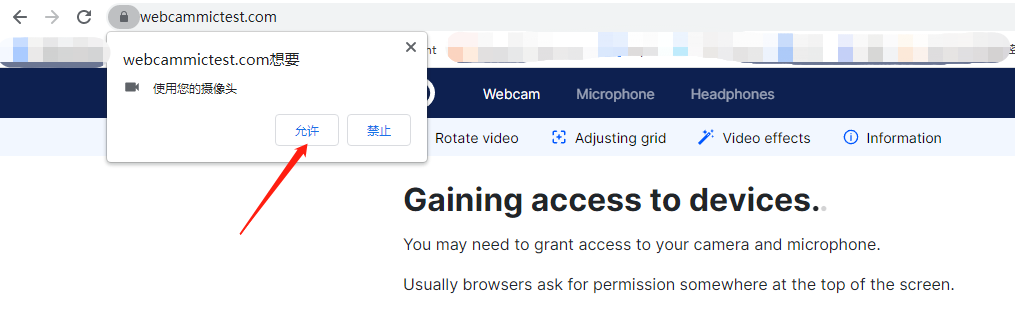
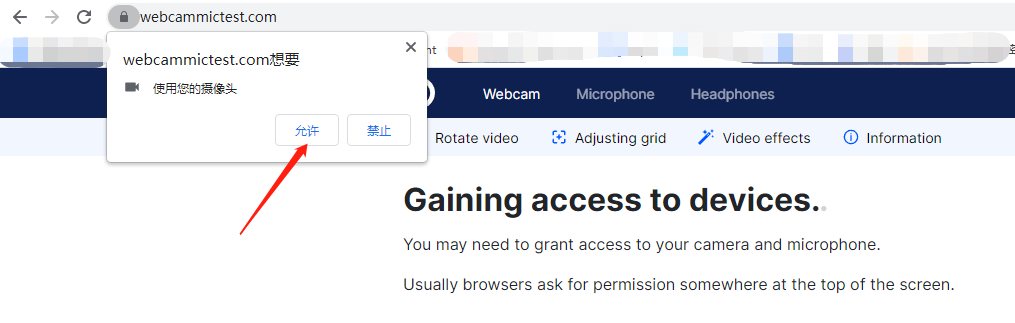
<div data-elink-language-switch="1" id="bkmrk-%E4%B8%AD%E6%96%87" style="border:1px solid #d6d9de;border-radius:6px;padding:10px 12px;margin:0 0 18px 0;background:#f8fafc;font-size:14px;">[中文](/books/091d5/page/02522)</div><span style="font-size:14px;"><span style="font-family:'Microsoft YaHei', '微软雅黑';white-space:pre-wrap;background-color:rgb(255,255,255);">If the user refuses the Flash request to use the camera and microphone, the live streaming area will go black. You can re-enter the live streaming room.</span>  
<span style="font-family:'Microsoft YaHei', '微软雅黑';white-space:pre-wrap;background-color:rgb(255,255,255);">Step 1: Click the "lock" on the left side of the URL and select "Site settings".</span>  
<span style="font-family:'Microsoft YaHei', '微软雅黑';white-space:pre-wrap;background-color:rgb(255,255,255);">Step 2: In the "Privacy and security settings", check the usage permissions for Flash, camera, and microphone as "Allow".</span></span>

# How to handle the issue of low audio volume in live streaming content?

<div data-elink-language-switch="1" id="bkmrk-%E4%B8%AD%E6%96%87" style="border:1px solid #d6d9de;border-radius:6px;padding:10px 12px;margin:0 0 18px 0;background:#f8fafc;font-size:14px;">[中文](/books/091d5/page/7f6ff)</div><span style="font-size:14px;"><span style="font-family:'Microsoft YaHei', '微软雅黑';white-space:pre-wrap;background-color:rgb(255,255,255);">This may be caused by the instructor being too far away from the microphone. When you need to conduct a live stream away from the device, it is recommended to use an external portable microphone device.</span>  
<span style="font-family:'Microsoft YaHei', '微软雅黑';white-space:pre-wrap;background-color:rgb(255,255,255);">\*Adding a pop filter or a sponge cover to the microphone will yield better results.</span></span>

<span style="font-size:14px;"><span style="font-family:'Microsoft YaHei', '微软雅黑';white-space:pre-wrap;background-color:rgb(255,255,255);">  
</span></span>

<span style="font-size:14px;"><span style="font-family:'Microsoft YaHei', '微软雅黑';white-space:pre-wrap;background-color:rgb(255,255,255);"></span></span>

<span style="font-size:11pt;font-family:'Helvetica Neue', Helvetica, 'PingFang SC', 'Microsoft YaHei', 'Source Han Sans SC', 'Noto Sans CJK SC', 'WenQuanYi Micro Hei', sans-serif;font-weight:700;color:rgb(51,51,51);background-image:initial;background-position:initial;background-size:initial;background-repeat:initial;background-attachment:initial;letter-spacing:0pt;vertical-align:baseline;">eLive Client</span><span style="font-size:11pt;font-family:'Helvetica Neue', Helvetica, 'PingFang SC', 'Microsoft YaHei', 'Source Han Sans SC', 'Noto Sans CJK SC', 'WenQuanYi Micro Hei', sans-serif;font-weight:700;color:rgb(51,51,51);background-image:initial;background-position:initial;background-size:initial;background-repeat:initial;background-attachment:initial;letter-spacing:0pt;vertical-align:baseline;"></span>

- <span style="font-size:11pt;color:rgb(0,0,0);background-image:initial;background-position:initial;background-size:initial;background-repeat:initial;background-attachment:initial;letter-spacing:0pt;vertical-align:baseline;">Select “Settings”. After entering the settings page, select “Audio” and find the voice enhancement function. When the microphone volume is low or you are far from the microphone, it is recommended to turn on the voice enhancement.</span><span style="font-size:11pt;background-image:initial;background-position:initial;background-size:initial;background-repeat:initial;background-attachment:initial;letter-spacing:0pt;vertical-align:baseline;"></span>
- <span style="font-size:11pt;color:rgb(0,0,0);background-image:initial;background-position:initial;background-size:initial;background-repeat:initial;background-attachment:initial;letter-spacing:0pt;vertical-align:baseline;">Select “Settings”. After entering the settings page, select “Audio” and find the option to increase the speaker or microphone volume.</span><span style="font-size:11pt;background-image:initial;background-position:initial;background-size:initial;background-repeat:initial;background-attachment:initial;letter-spacing:0pt;vertical-align:baseline;"></span>

<span class="image-wrapper" style="display:inline-block;overflow:hidden;width:601px;height:279px;"> ![mtmxmdi3mda0mdy0mty0odk_419719_sds2pu7s5migt2li_1672219407](https://wechatapppro-1252524126.file.myqcloud.com/help_document/image/ueditor/37650100_1672297740.cn/mtmxmdi3mda0mdy0mty0odk_419719_sds2pu7s5migt2li_1672219407)</span>

<span style="font-size:14px;"><span style="font-family:'Microsoft YaHei', '微软雅黑';white-space:pre-wrap;background-color:rgb(255,255,255);">  
</span></span>

# What will happen and what impacts will there be if you start pushing the stream before the live streaming has begun?

<div data-elink-language-switch="1" id="bkmrk-%E4%B8%AD%E6%96%87" style="border:1px solid #d6d9de;border-radius:6px;padding:10px 12px;margin:0 0 18px 0;background:#f8fafc;font-size:14px;">[中文](/books/091d5/page/05049)</div><span style="font-family:'Microsoft YaHei', '微软雅黑';white-space:pre-wrap;background-color:rgb(255,255,255);font-size:14px;">The live streaming status is updated from 'Not started' to 'In progress', and other operational functions remain unaffected.</span>

# Multi-segment editing of live replay videos

<div data-elink-language-switch="1" id="bkmrk-%E4%B8%AD%E6%96%87" style="border:1px solid #d6d9de;border-radius:6px;padding:10px 12px;margin:0 0 18px 0;background:#f8fafc;font-size:14px;">[中文](/books/091d5/page/6f3ef)</div><span style="font-size:15px;">**Step 1: Enter the live stream details page**</span>

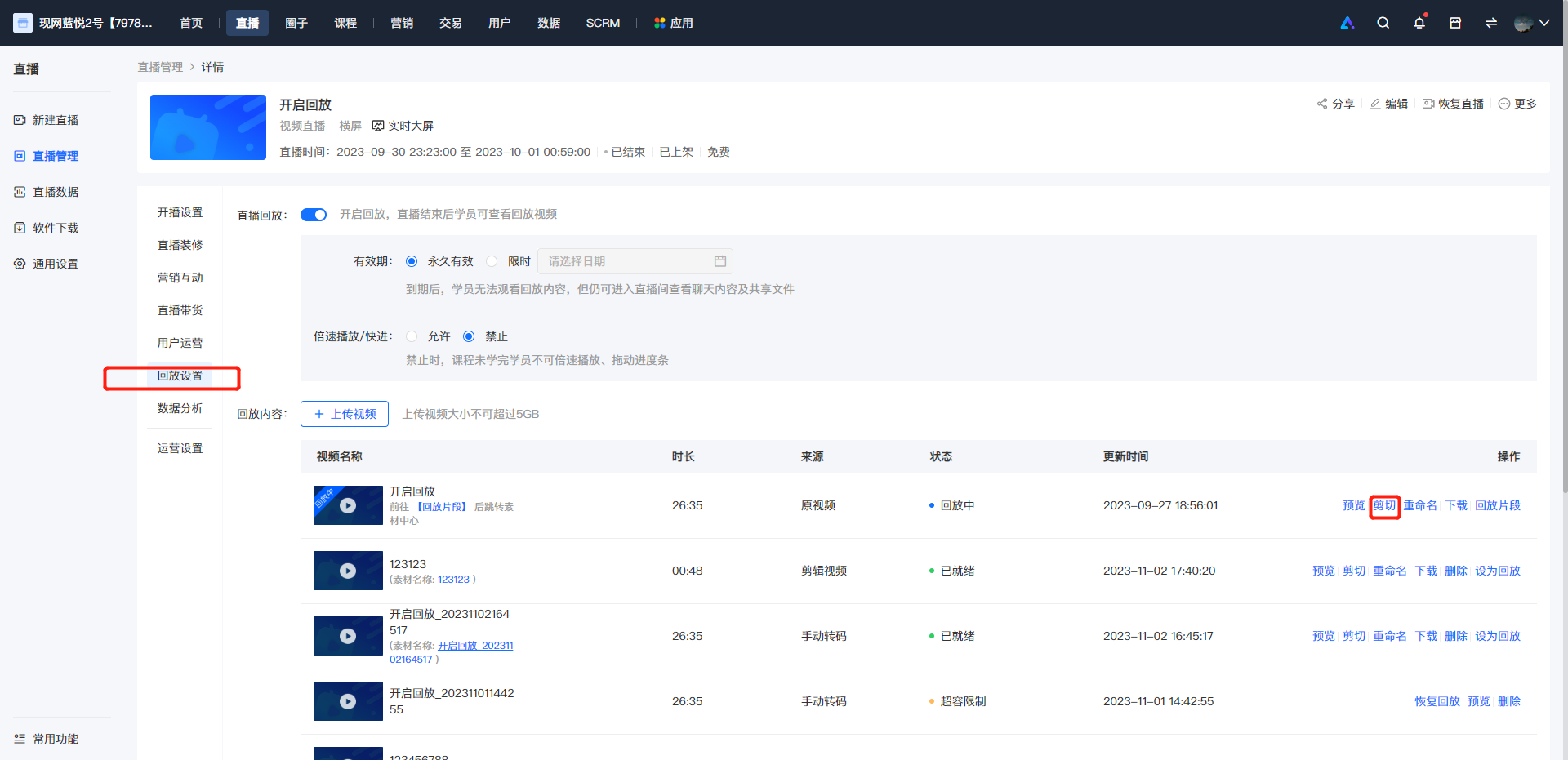
<span style="font-size:15px;"><span style="font-size:14px;">Click \[Live Stream Management\] - \[Live Streams\]. Find the live stream you need to edit in the live stream list, and click \[Details\] of this live stream to enter the live stream details page.</span></span>

**<span style="font-size:14px;">Step 2: Enter the video replay settings page</span>**

<span style="font-size:15px;"><span style="font-size:14px;">On the live stream details page, click \[Replay Settings\] to find all replay videos of this live stream. Find the segment you need to edit and click to edit it.</span>**<span style="font-size:14px;">  
</span><span style="font-size:14px;"></span>**</span>

<span style="font-size:15px;"><span style="font-size:14px;">![image.png](https://wechatapppro-1252524126.file.myqcloud.com/help_document/image/ueditor/77544100_1699240344.png ".png")</span></span>

<span style="font-size:15px;">**<span style="font-size:14px;"></span>**</span>

<span style="font-size:15px;">**<span style="font-size:14px;">  
</span>**</span>

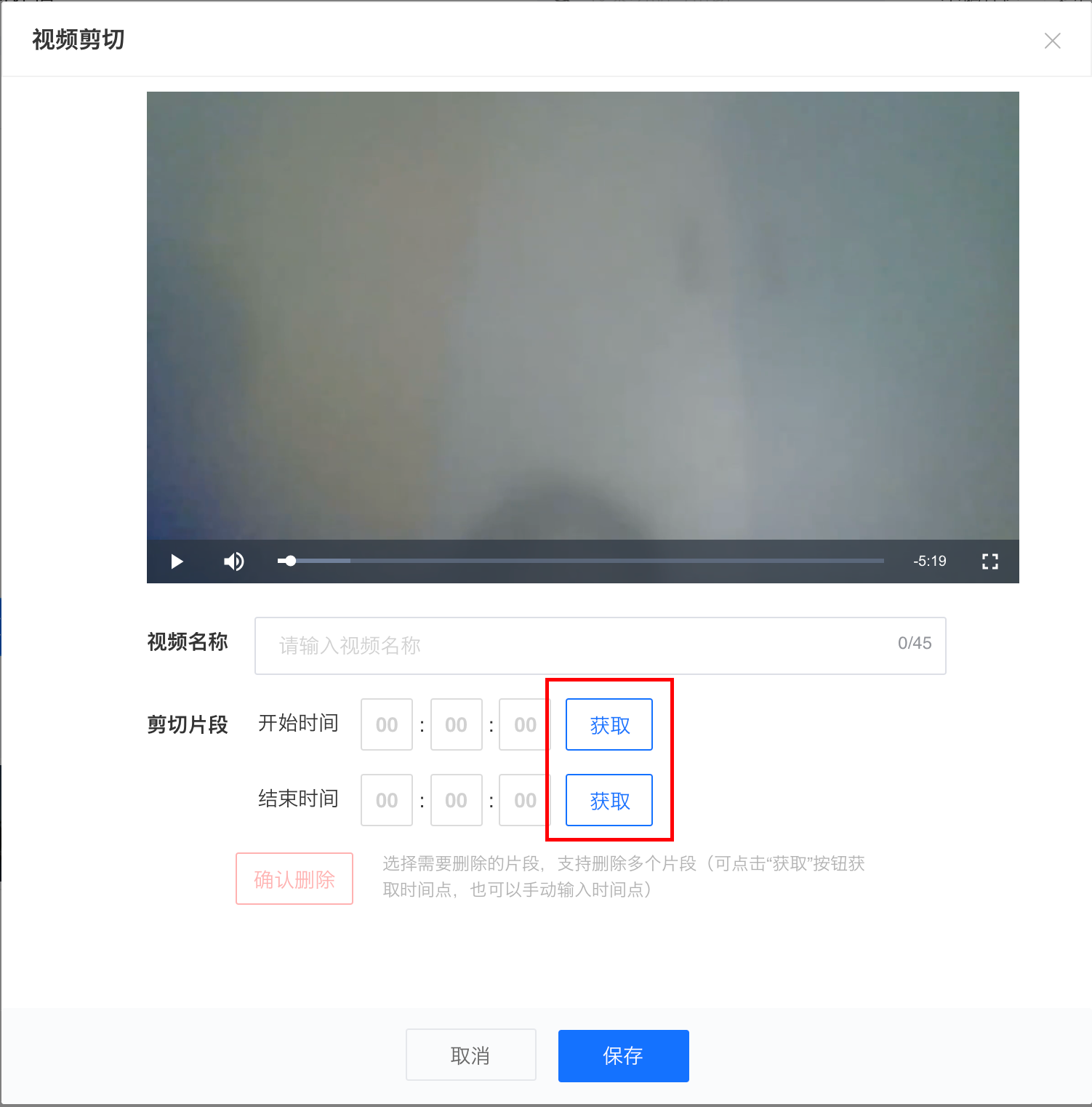
<span style="font-size:15px;">**<span style="font-size:14px;">Step 3: Select the start - end time of the segment to be deleted</span><span style="font-size:14px;"></span>**</span>

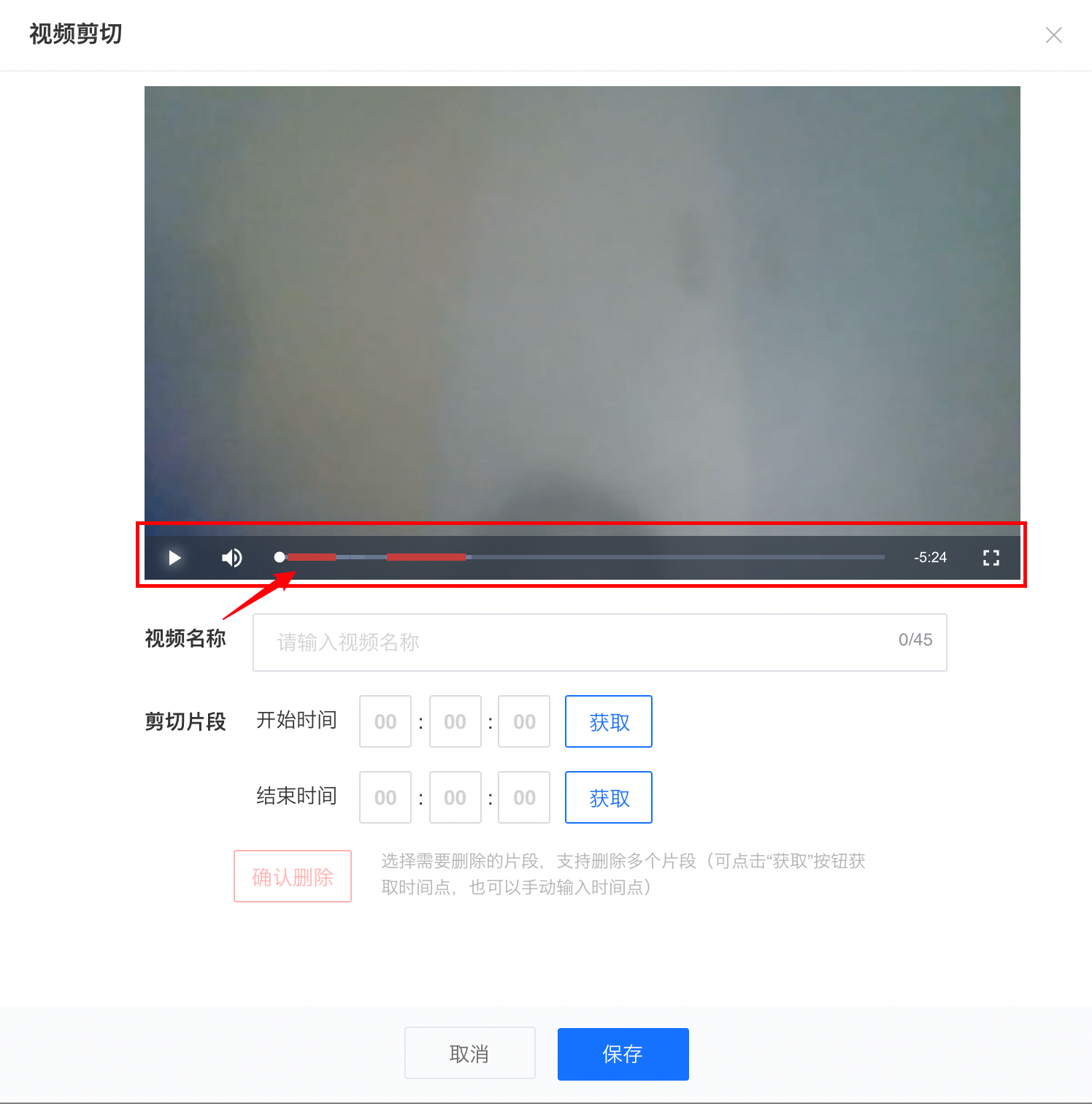
<span style="font-size:15px;">Click 'Get' to obtain the current video playback time point</span>

<span style="font-size:15px;">![image.png](https://wechatapppro-1252524126.file.myqcloud.com/help_document/image/ueditor/13966000_1699240345.png ".png")</span>

<span style="font-size:15px;">  
</span>

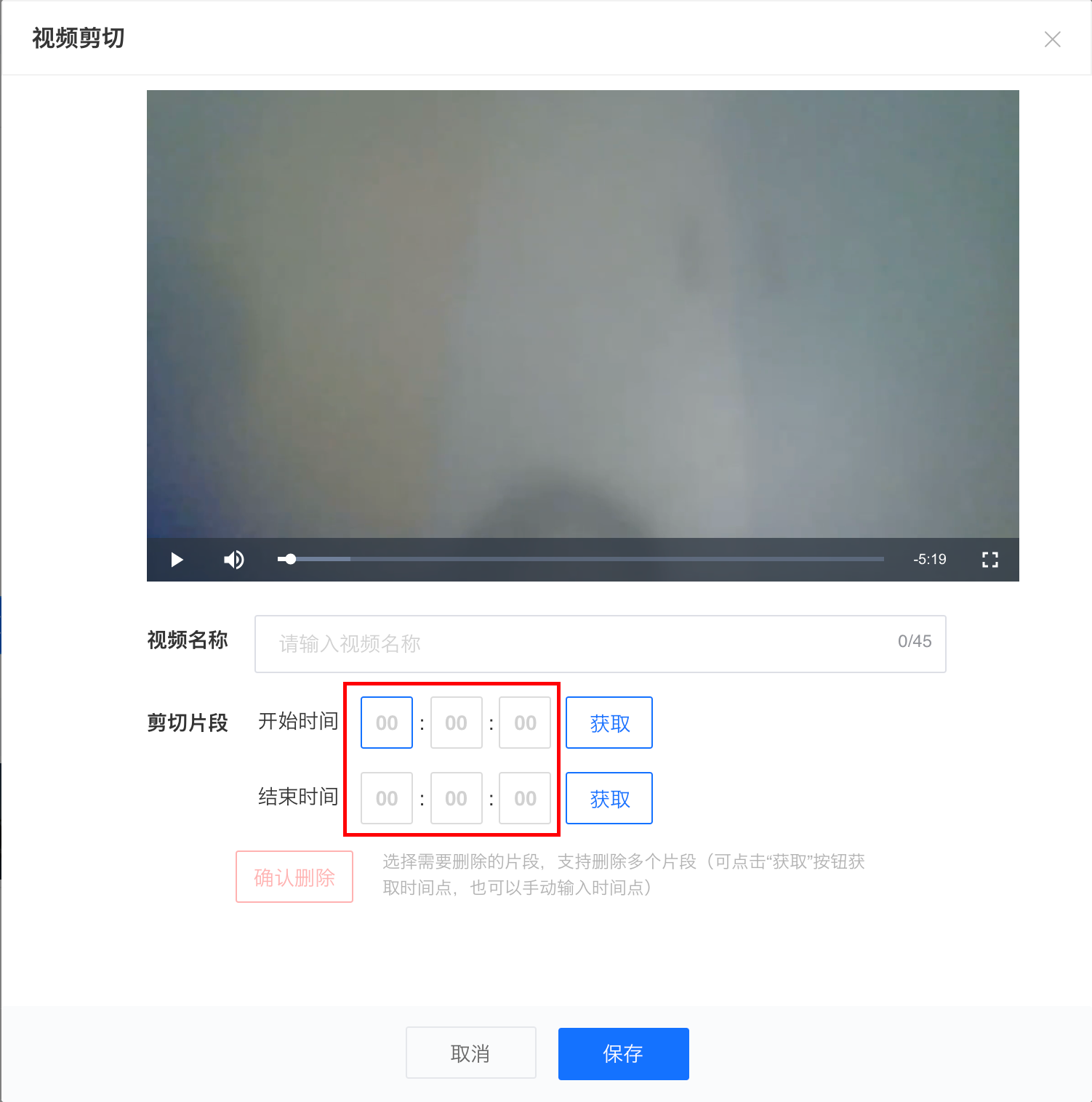
<span style="font-size:15px;">You can also manually enter 'hours - minutes - seconds' to select the time point (simply enter manually without clicking the 'Get' button again)</span>

<span style="font-size:15px;">![image.png](https://wechatapppro-1252524126.file.myqcloud.com/help_document/image/ueditor/36897000_1699240345.png ".png")</span>

<span style="font-size:15px;">**<span style="font-size:14px;"></span>**</span>

<span style="font-size:15px;">**<span style="font-size:14px;">  
</span>**</span>

<span style="font-size:15px;">**<span style="font-size:14px;">Step 4: Delete the segment</span>**  
</span>

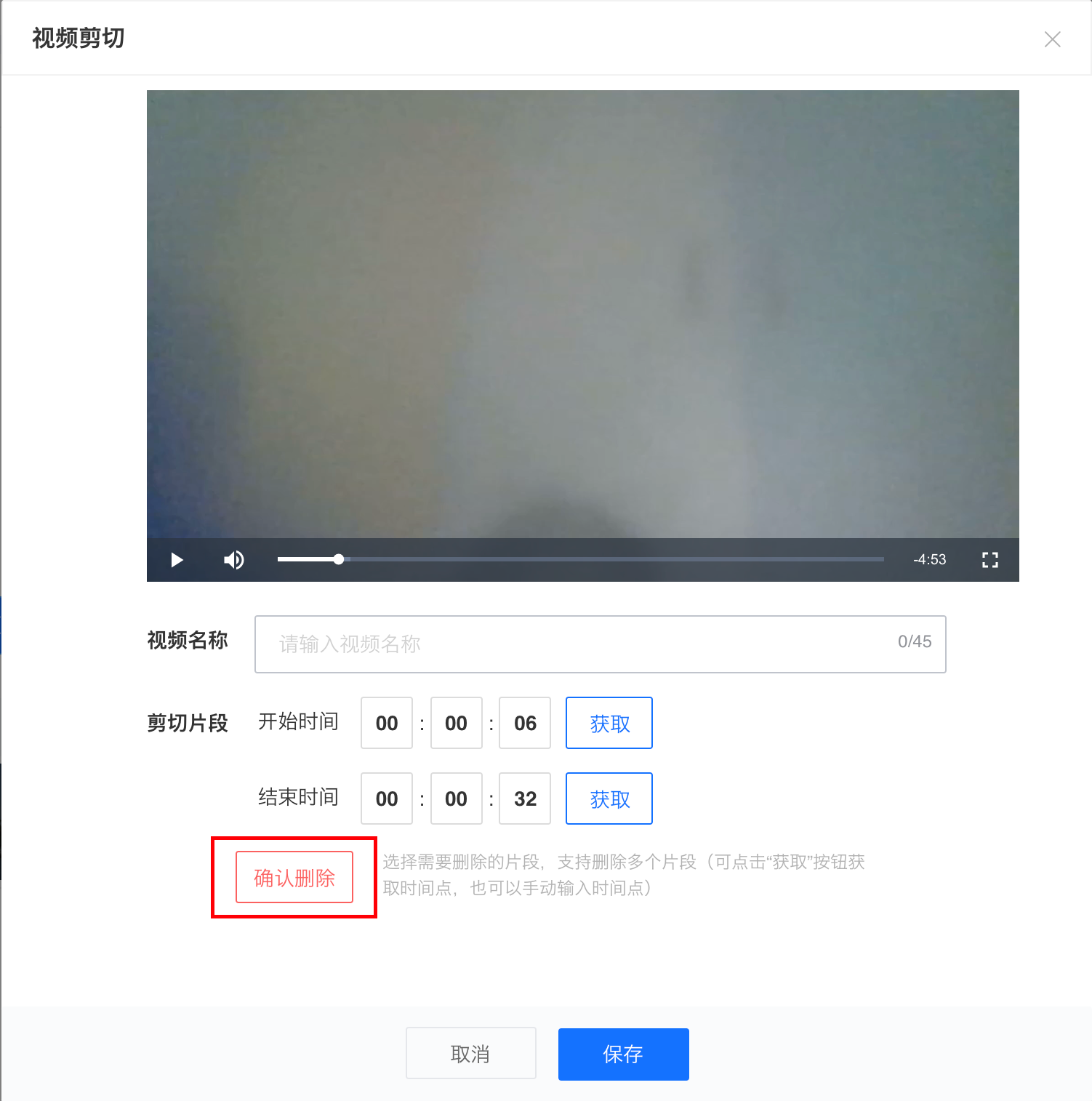
<span style="font-size:15px;">After selecting the start and end deletion time points, click 'Delete Segment' to delete the corresponding video segment</span>

<span style="font-size:15px;">![image.png](https://wechatapppro-1252524126.file.myqcloud.com/help_document/image/ueditor/59039500_1699240345.png ".png")</span>

<span style="font-size:15px;">After confirming the deletion, the progress bar of the deleted video segment will be marked in red.</span>

<span style="font-size:15px;">  
</span>

<span style="font-size:15px;">![image.png](https://wechatapppro-1252524126.file.myqcloud.com/help_document/image/ueditor/92792900_1699240345.png ".png")</span>

<span style="font-size:15px;">Repeat the above steps to delete multiple segments.</span>

<span style="font-size:15px;">**<span style="font-size:14px;">Step 5: Enter the video name</span><span style="font-size:14px;"></span>**</span>

<span style="font-size:15px;">Click on the video name area to enter the video name</span>

<span style="font-size:15px;">**<span style="font-size:14px;">Step 6: Save the video</span><span style="font-size:14px;"></span>**</span>

<span style="font-size:15px;">Click 'Save Video'. The segments marked in red will be deleted, and the remaining segments will be spliced together to form a new edited video.</span>

<span style="font-size:15px;">If you need to set the edited video as a live stream replay, after saving, you need to wait for the video transcoding to succeed, and then click to set it as the replay video.</span>

# Tutorial on Using the Playback Validity Period Function

<div data-elink-language-switch="1" id="bkmrk-%E4%B8%AD%E6%96%87" style="border:1px solid #d6d9de;border-radius:6px;padding:10px 12px;margin:0 0 18px 0;background:#f8fafc;font-size:14px;">[中文](/books/091d5/page/d3957-6zd)</div>**<span style="font-size:17px;">I. Feature Introduction</span>**

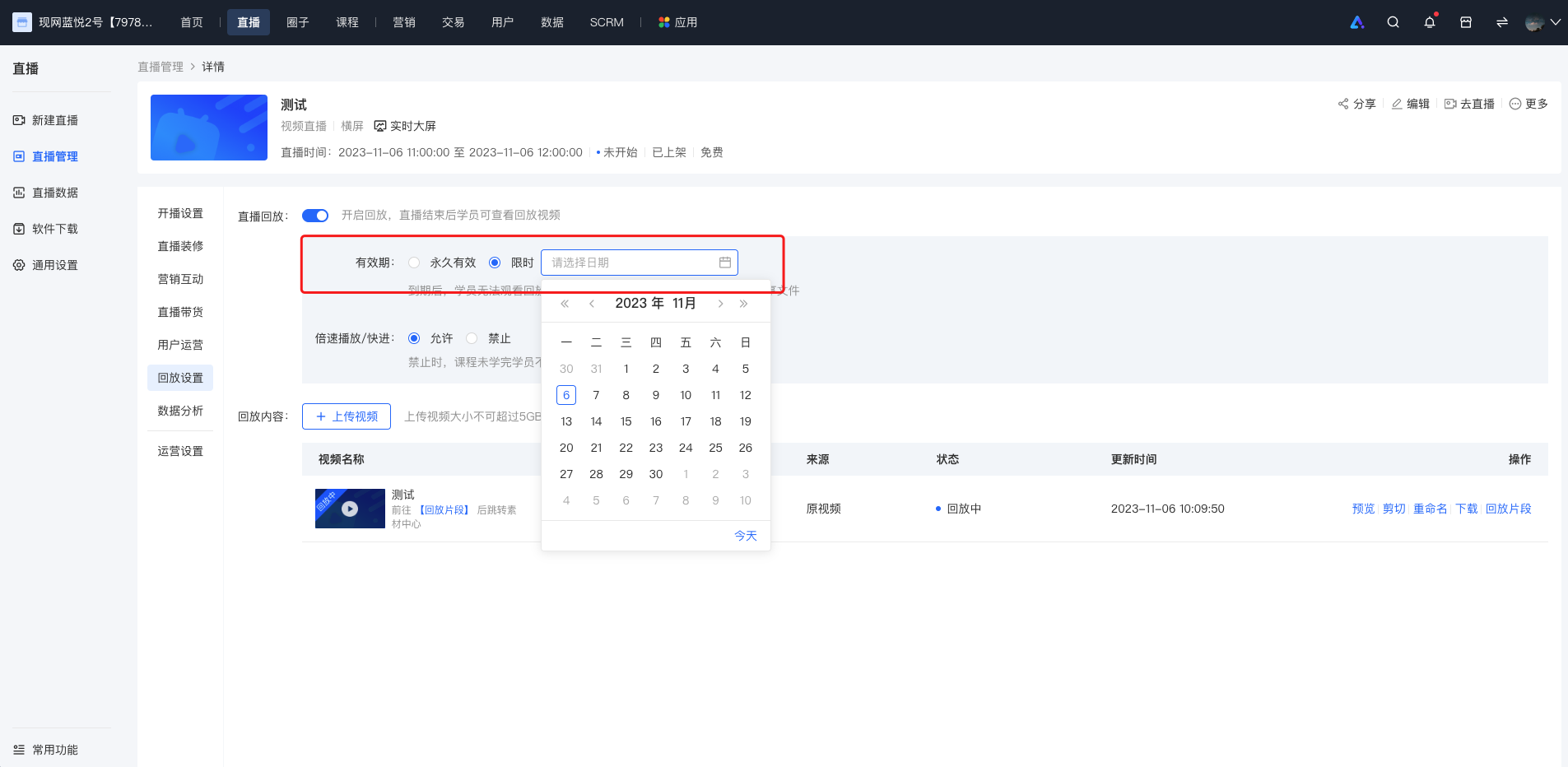
<span style="font-size:14px;">Merchants can set the validity period of the replay. They can control the viewing duration of students by selecting the \[Limited Time\] option on the replay settings interface or the live course editing page and specifying the expiration date of the replay.</span>

<span style="font-size:14px;">  
</span>

**<span style="font-size:17px;">II. Purpose of Use</span>**

<span style="font-size:14px;">To meet the merchants' needs to encourage students to watch the content promptly and improve the viewing rate.</span>

<span style="font-size:14px;">  
</span>

**<span style="font-size:17px;">III. Usage Scenarios</span>**

<span style="font-size:14px;">Merchants notice that students are lazy and lack motivation in learning. They hope to urge students to study the purchased courses by setting a validity period for the replay.</span>

**<span style="font-size:17px;">IV. Operation Path</span>**

<span style="font-size:14px;">Merchant side: Merchant backend</span>

<span style="font-size:14px;">Student side: Live room details page → Enter the live broadcast</span>

**<span style="font-size:17px;">V. Usage Tutorial</span>**

![1.png](https://wechatapppro-1252524126.file.myqcloud.com/help_document/image/ueditor/92507000_1699238248.png ".png")

<span style="font-size:14px;">  
</span>

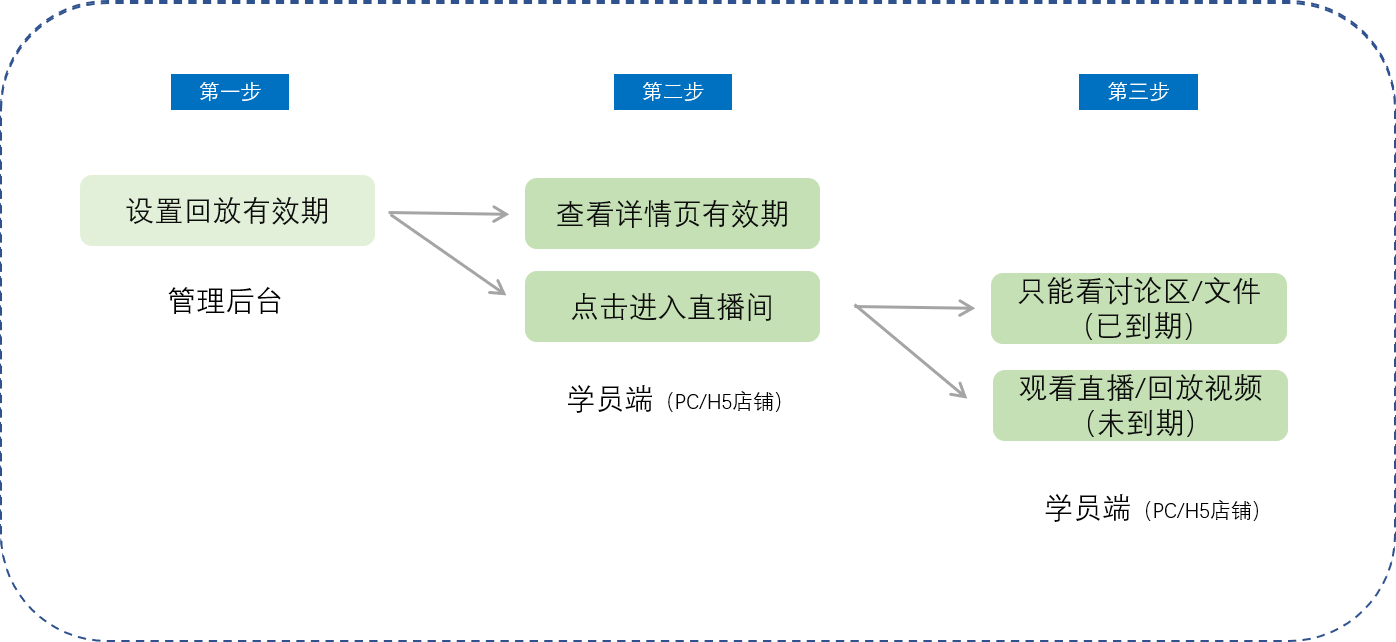
**<span style="font-size:14px;">Step 1: Set the replay validity period (Management backend)</span>**

**<span style="font-size:14px;">![image.png](https://wechatapppro-1252524126.file.myqcloud.com/help_document/image/ueditor/90481700_1699238248.png ".png")</span>**

**<span style="font-size:14px;">  
</span>**

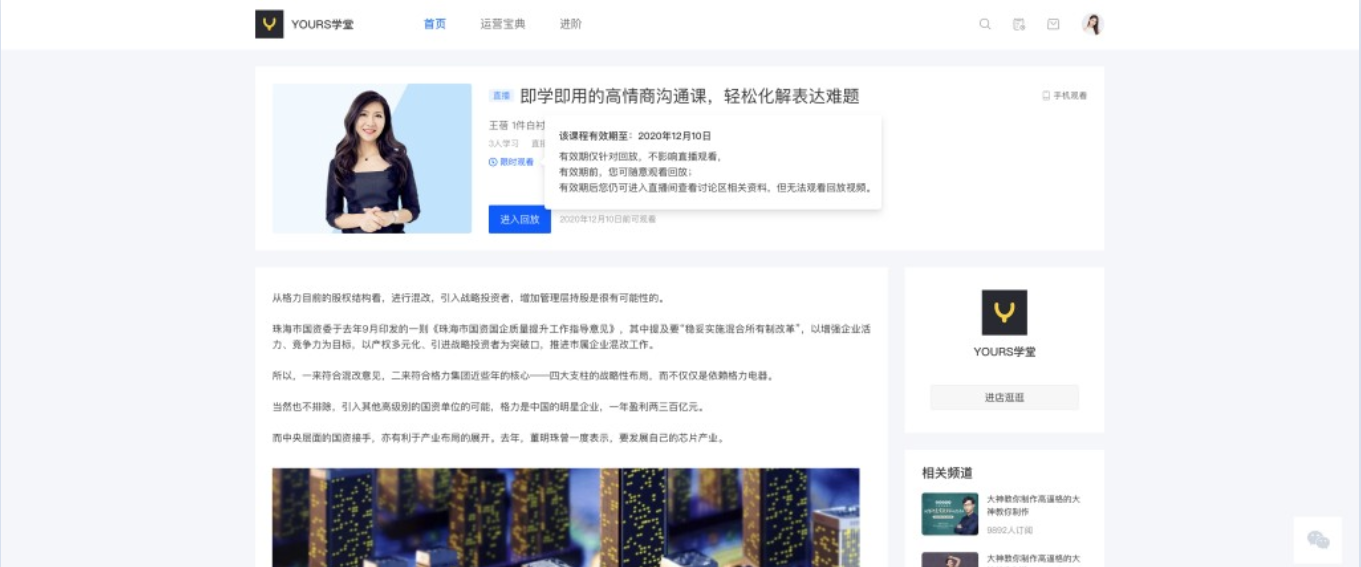
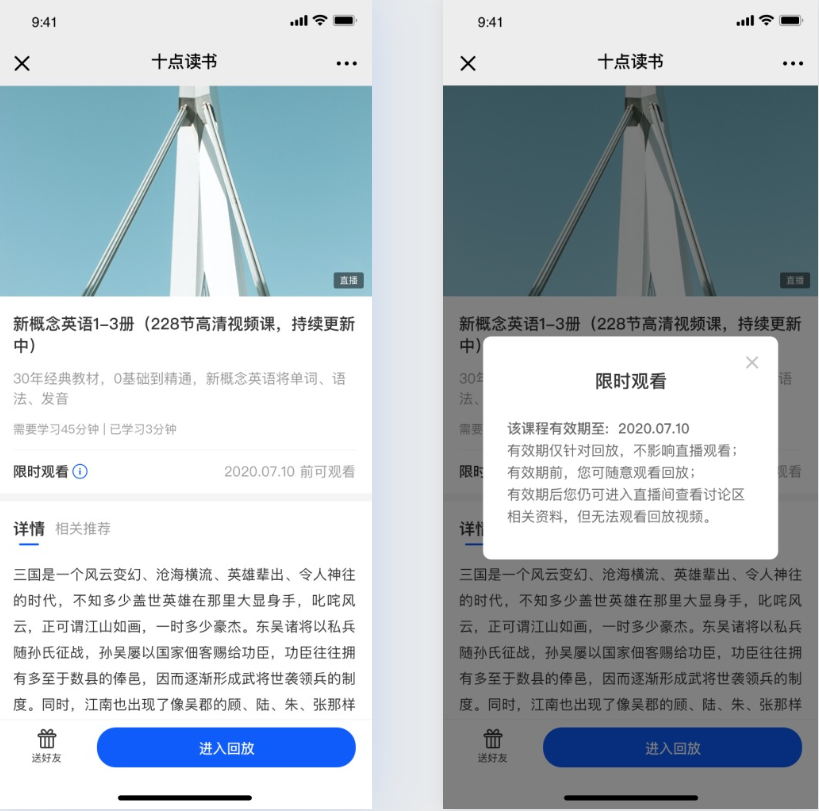
**<span style="font-size:14px;">Step 2: Check the validity period on the details page (Student PC/H5 store)</span>**

![3.png](https://wechatapppro-1252524126.file.myqcloud.com/help_document/image/ueditor/38094200_1699238249.png ".png")

<span style="font-size:14px;">PC student store</span>

![4.png](https://wechatapppro-1252524126.file.myqcloud.com/help_document/image/ueditor/71347200_1699238249.png ".png")

<span style="font-size:14px;">**H5 student store**</span>

**<span style="font-size:14px;">Step 3: Enter the live room (Student PC/H5 store)</span>**

<span style="font-size:14px;">When the replay is still within the validity period, students can watch the replay video normally without any issues.</span>

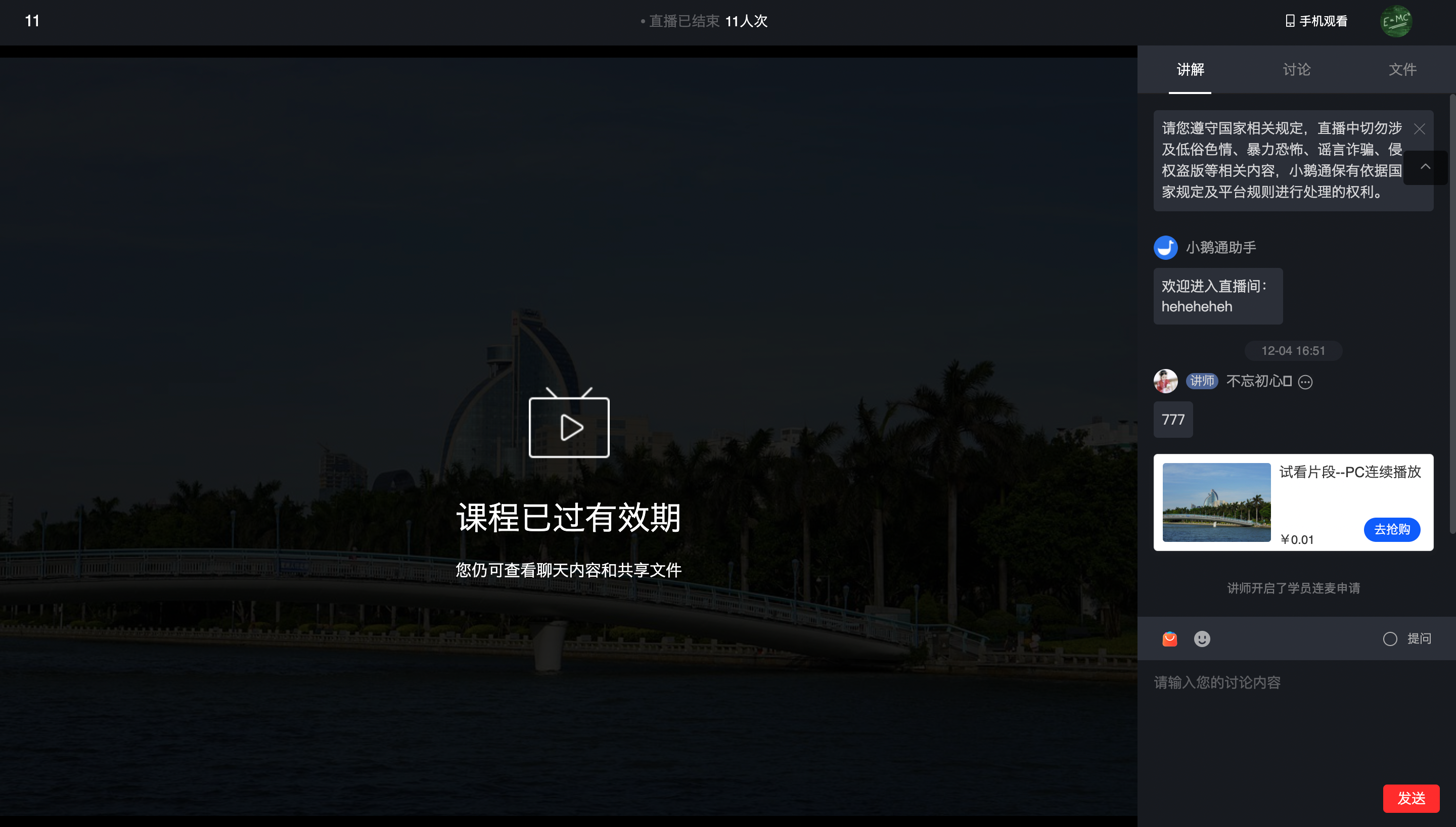
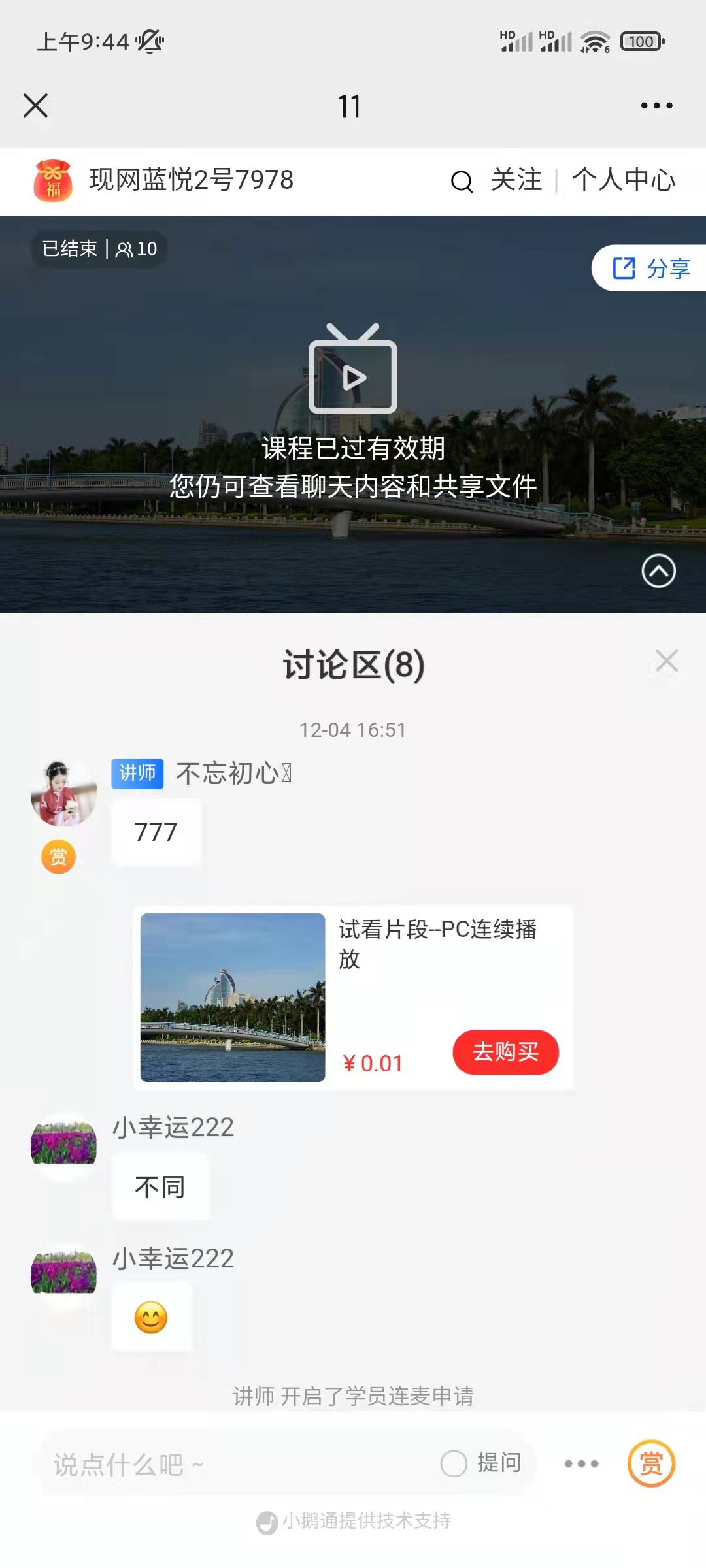
<span style="font-size:14px;">When the replay has expired and students enter the live room:</span>

<span style="font-size:14px;">![image.png](https://wechatapppro-1252524126.file.myqcloud.com/help_document/image/ueditor/27963700_1699238250.png ".png")</span>

**<span style="font-size:14px;">PC student store</span>**

**<span style="font-size:14px;">  
</span>**

<span style="font-size:14px;">![image.png](https://wechatapppro-1252524126.file.myqcloud.com/help_document/image/ueditor/59974800_1699238250.png ".png")</span>

<span style="font-size:14px;">**H5 student store**</span>

<span style="font-size:14px;"></span>

# How can live course students download course materials?

<div data-elink-language-switch="1" id="bkmrk-%E4%B8%AD%E6%96%87" style="border:1px solid #d6d9de;border-radius:6px;padding:10px 12px;margin:0 0 18px 0;background:#f8fafc;font-size:14px;">[中文](/books/091d5/page/2f557)</div>**<span style="font-size:17px;">I. Feature Introduction</span>**

<span style="font-size:14px;">Merchants can upload relevant courseware on the instructor's end, and then students can download the relevant courseware on their mobile phones and computers, which improves the students' review effect after class.</span>

**<span style="font-size:17px;">II. Purpose of Use</span>**

<span style="font-size:14px;">By downloading the courseware, students can study the live - streamed courses repeatedly in combination with the live replay content, thus enhancing the learning effect. They can also achieve this by repeatedly studying the courseware.</span>

**<span style="font-size:17px;">III. Use Scenarios</span>**

<span style="font-size:14px;">Teacher Zhang San conducts training for the sales staff in the company via live streaming. However, the sales staff usually face high work pressure and rarely have time for online review outside of class hours, resulting in less - than - satisfactory learning results. So, Teacher Zhang San shares the courseware with his students through elink live streaming. After downloading the courseware, the students watch and study it repeatedly during their free time, and both their learning effect and performance have improved significantly!</span>

<span style="font-size:17px;">**IV. Operation Path**</span>

**<span style="font-size:10.5pt;font-family:'Helvetica Neue', Helvetica, 'PingFang SC', 'Microsoft YaHei', 'Source Han Sans SC', 'Noto Sans CJK SC', 'WenQuanYi Micro Hei', sans-serif;background-image:initial;background-position:initial;background-size:initial;background-repeat:initial;background-attachment:initial;letter-spacing:0pt;vertical-align:baseline;">Merchant's End:</span>**<span style="font-size:10.5pt;font-family:'Helvetica Neue', Helvetica, 'PingFang SC', 'Microsoft YaHei', 'Source Han Sans SC', 'Noto Sans CJK SC', 'WenQuanYi Micro Hei', sans-serif;background-image:initial;background-position:initial;background-size:initial;background-repeat:initial;background-attachment:initial;letter-spacing:0pt;vertical-align:baseline;">elink</span><span style="font-size:10.5pt;font-family:'Helvetica Neue', Helvetica, 'PingFang SC', 'Microsoft YaHei', 'Source Han Sans SC', 'Noto Sans CJK SC', 'WenQuanYi Micro Hei', sans-serif;background-image:initial;background-position:initial;background-size:initial;background-repeat:initial;background-attachment:initial;letter-spacing:0pt;vertical-align:baseline;">Assistant</span><span style="font-size:10.5pt;font-family:'Helvetica Neue', Helvetica, 'PingFang SC', 'Microsoft YaHei', 'Source Han Sans SC', 'Noto Sans CJK SC', 'WenQuanYi Micro Hei', sans-serif;background-image:initial;background-position:initial;background-size:initial;background-repeat:initial;background-attachment:initial;letter-spacing:0pt;vertical-align:baseline;">Client/</span><span style="font-size:10.5pt;font-family:'Helvetica Neue', Helvetica, 'PingFang SC', 'Microsoft YaHei', 'Source Han Sans SC', 'Noto Sans CJK SC', 'WenQuanYi Micro Hei', sans-serif;background-image:initial;background-position:initial;background-size:initial;background-repeat:initial;background-attachment:initial;letter-spacing:0pt;vertical-align:baseline;">Web Version</span><span style="font-size:10.5pt;font-family:'Helvetica Neue', Helvetica, 'PingFang SC', 'Microsoft YaHei', 'Source Han Sans SC', 'Noto Sans CJK SC', 'WenQuanYi Micro Hei', sans-serif;background-image:initial;background-position:initial;background-size:initial;background-repeat:initial;background-attachment:initial;letter-spacing:0pt;vertical-align:baseline;">/</span><span style="font-size:10.5pt;font-family:'Helvetica Neue', Helvetica, 'PingFang SC', 'Microsoft YaHei', 'Source Han Sans SC', 'Noto Sans CJK SC', 'WenQuanYi Micro Hei', sans-serif;background-image:initial;background-position:initial;background-size:initial;background-repeat:initial;background-attachment:initial;letter-spacing:0pt;vertical-align:baseline;">WeChat</span><span style="font-size:10.5pt;font-family:'Helvetica Neue', Helvetica, 'PingFang SC', 'Microsoft YaHei', 'Source Han Sans SC', 'Noto Sans CJK SC', 'WenQuanYi Micro Hei', sans-serif;background-image:initial;background-position:initial;background-size:initial;background-repeat:initial;background-attachment:initial;letter-spacing:0pt;vertical-align:baseline;">H5 Instructor's End → Share Courseware </span><span style="font-size:11pt;font-family:'Helvetica Neue', Helvetica, 'PingFang SC', 'Microsoft YaHei', 'Source Han Sans SC', 'Noto Sans CJK SC', 'WenQuanYi Micro Hei', sans-serif;color:rgb(51,51,51);background-image:initial;background-position:initial;background-size:initial;background-repeat:initial;background-attachment:initial;letter-spacing:0pt;vertical-align:baseline;"></span>

**<span style="font-size:10.5pt;font-family:'Helvetica Neue', Helvetica, 'PingFang SC', 'Microsoft YaHei', 'Source Han Sans SC', 'Noto Sans CJK SC', 'WenQuanYi Micro Hei', sans-serif;background-image:initial;background-position:initial;background-size:initial;background-repeat:initial;background-attachment:initial;letter-spacing:0pt;vertical-align:baseline;">Student's End:</span>**<span style="font-size:10.5pt;font-family:'Helvetica Neue', Helvetica, 'PingFang SC', 'Microsoft YaHei', 'Source Han Sans SC', 'Noto Sans CJK SC', 'WenQuanYi Micro Hei', sans-serif;background-image:initial;background-position:initial;background-size:initial;background-repeat:initial;background-attachment:initial;letter-spacing:0pt;vertical-align:baseline;">WeChat H5/</span><span style="font-size:10.5pt;font-family:'Helvetica Neue', Helvetica, 'PingFang SC', 'Microsoft YaHei', 'Source Han Sans SC', 'Noto Sans CJK SC', 'WenQuanYi Micro Hei', sans-serif;background-image:initial;background-position:initial;background-size:initial;background-repeat:initial;background-attachment:initial;letter-spacing:0pt;vertical-align:baseline;">Web Version</span><span style="font-size:10.5pt;font-family:'Helvetica Neue', Helvetica, 'PingFang SC', 'Microsoft YaHei', 'Source Han Sans SC', 'Noto Sans CJK SC', 'WenQuanYi Micro Hei', sans-serif;background-image:initial;background-position:initial;background-size:initial;background-repeat:initial;background-attachment:initial;letter-spacing:0pt;vertical-align:baseline;">→ Live Room → Shared Courseware → Download Courseware</span><span style="font-size:11pt;font-family:'Helvetica Neue', Helvetica, 'PingFang SC', 'Microsoft YaHei', 'Source Han Sans SC', 'Noto Sans CJK SC', 'WenQuanYi Micro Hei', sans-serif;color:rgb(51,51,51);background-image:initial;background-position:initial;background-size:initial;background-repeat:initial;background-attachment:initial;letter-spacing:0pt;vertical-align:baseline;"></span>

**<span style="font-size:17px;">  
</span>**

**<span style="font-size:17px;">V. Usage Tutorial</span>**

![1.png](https://wechatapppro-1252524126.file.myqcloud.com/help_document/image/ueditor/1888400_1686904330.png ".png")

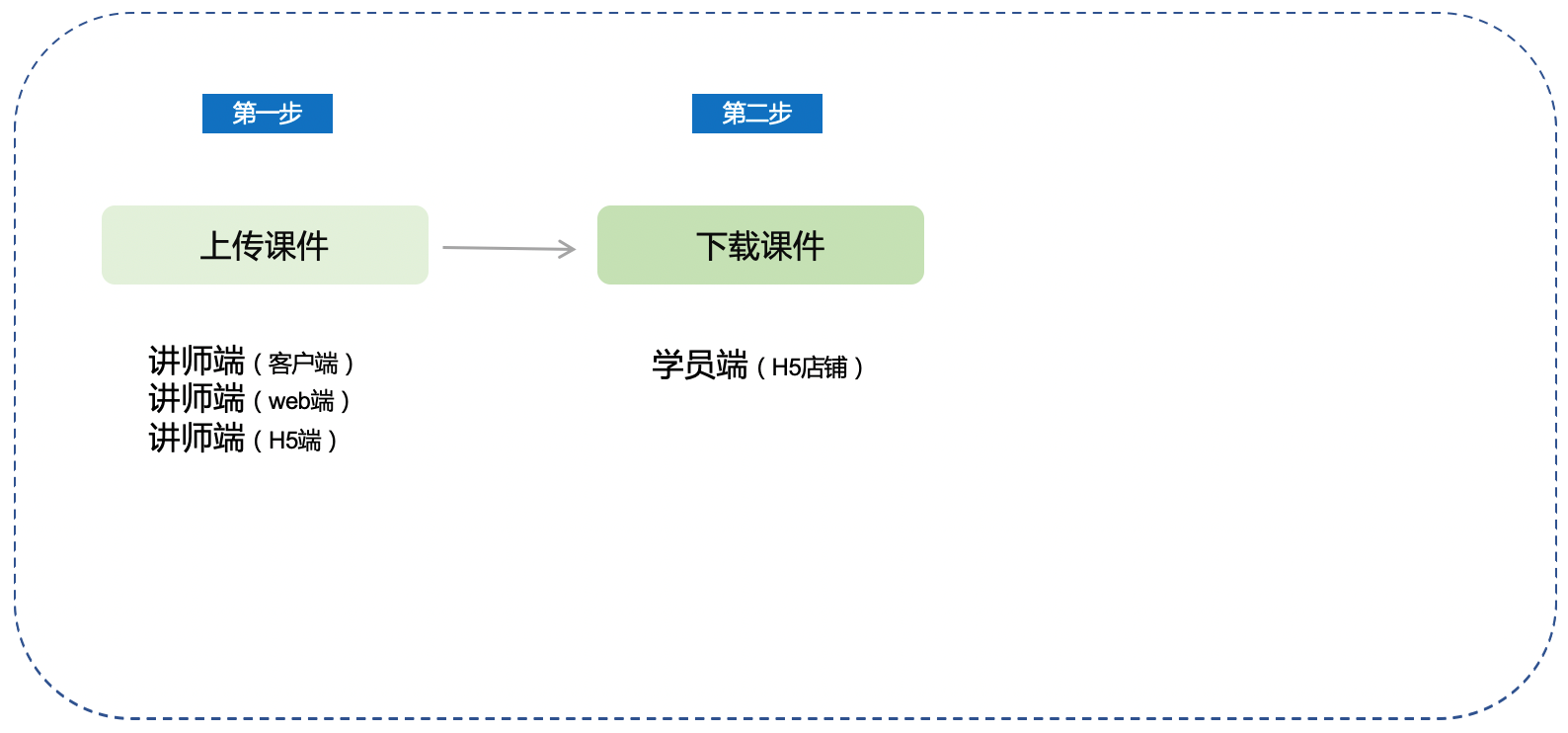
**<span style="font-size:14px;">Step 1: Instructors Upload Courseware (e - Live Client/elink Assistant Client/Web Version/H5 Instructor's End)</span>**

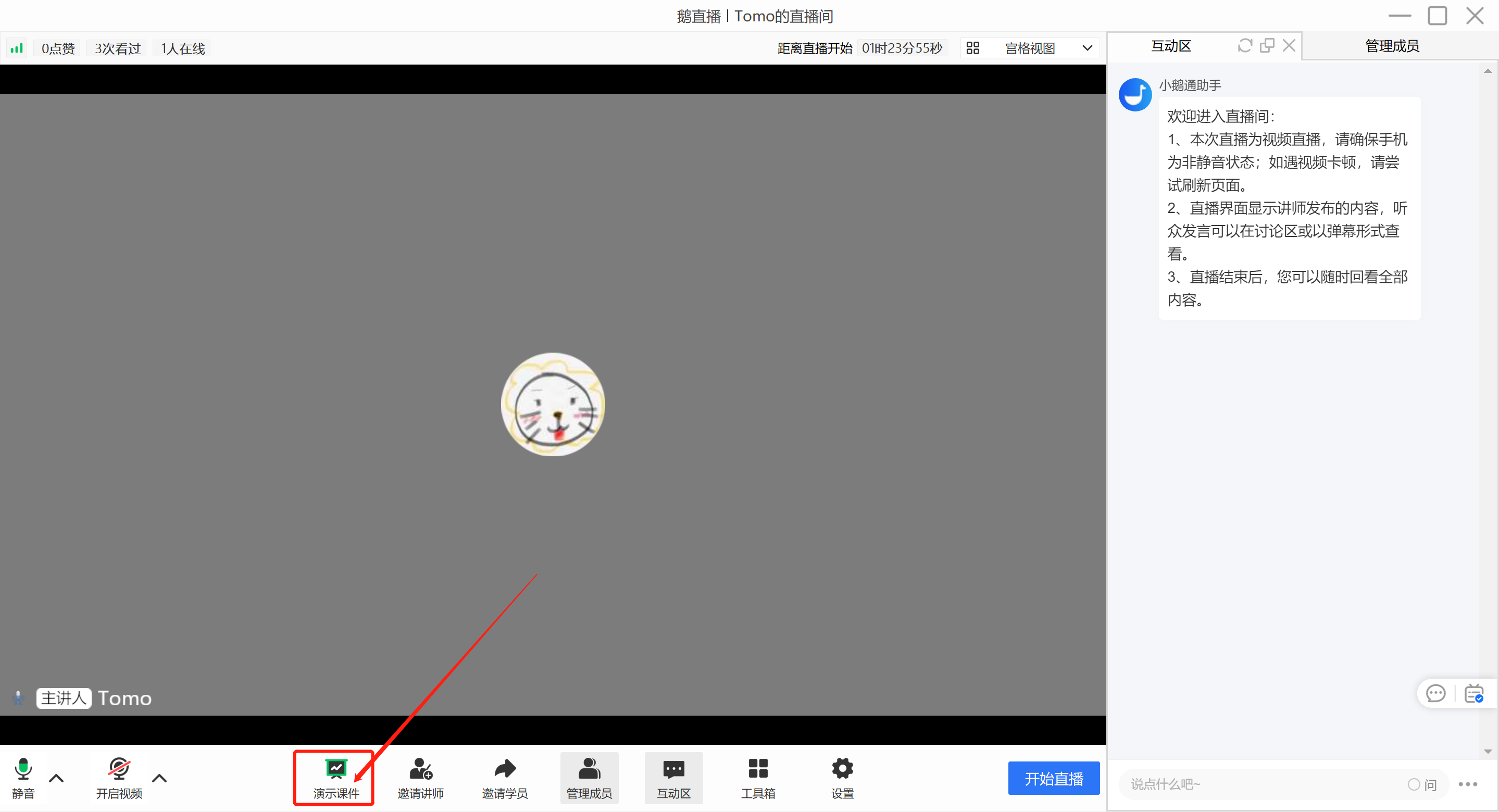
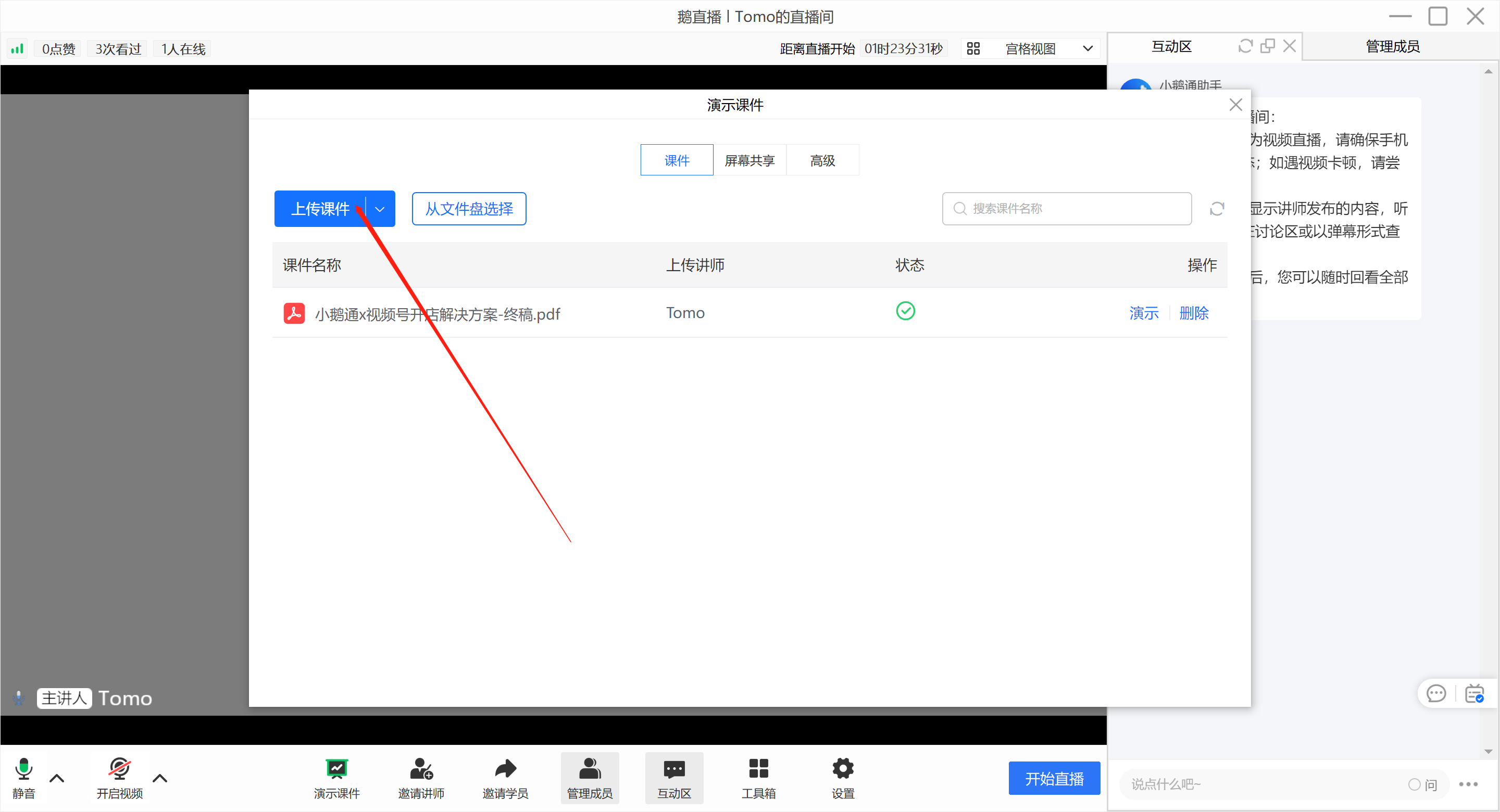
<span style="font-size:14px;">1. Instructors enter the e - Live client and open \[Presentation Courseware - Upload Courseware\].</span>

<span style="font-size:14px;">![image.png](https://wechatapppro-1252524126.file.myqcloud.com/help_document/image/ueditor/56685900_1686904602.png ".png")</span>

<span style="font-size:10px;"> **<span style="font-size:14px;">(e - Live Client Instructor's End) </span>**</span>

<span style="font-size:14px;">  
</span>

![image.png](https://wechatapppro-1252524126.file.myqcloud.com/help_document/image/ueditor/44334900_1686904602.png ".png")

**<span style="font-size:14px;">(e - Live Client**<span style="font-size:14px;">Instructor's End</span>**)</span>**

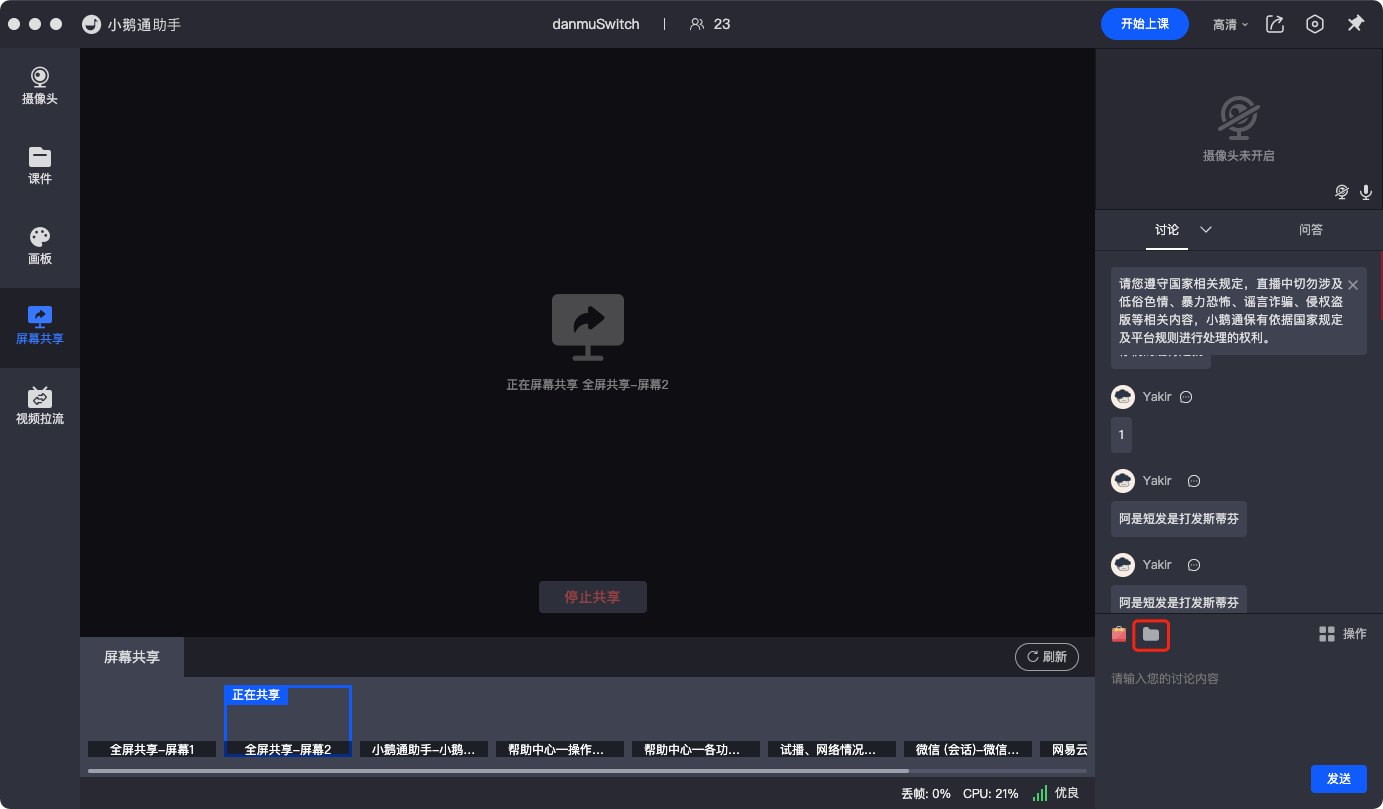
<span style="font-size:14px;">2. Instructors enter the elink client and open the material library to upload courseware.</span>

<span style="font-size:14px;"> ![2.png](https://wechatapppro-1252524126.file.myqcloud.com/help_document/image/ueditor/55116500_1686904330.png ".png")</span>

<span style="font-size:10px;"> **<span style="font-size:14px;">(elink Assistant Client Instructor's End) </span>**</span>

<span style="font-size:14px;">  
</span>

![3.png](https://wechatapppro-1252524126.file.myqcloud.com/help_document/image/ueditor/65813900_1686904330.png ".png")

**<span style="font-size:14px;">(elink Assistant Client Instructor's End)</span>**

<span style="font-size:14px;">3. Instructors enter the web - based instructor's end and open the material library to upload courseware.</span>

<span style="font-size:14px;">![image.png](https://wechatapppro-1252524126.file.myqcloud.com/help_document/image/ueditor/1459300_1686904331.png ".png")</span>

**<span style="font-size:14px;">  
</span>**

**<span style="font-size:14px;">(Web - based Instructor's End)</span>**

<span style="font-size:14px;">4. Instructors enter the H5 instructor's end and open the material library to upload courseware (only Android phones are supported for courseware upload).</span>

<span style="font-size:14px;">![image.png](https://wechatapppro-1252524126.file.myqcloud.com/help_document/image/ueditor/26785400_1686904331.png ".png")</span>

**(H5 Instructor's End)**

**<span style="font-size:14px;">Step 2: Students Download Courseware (Web Version/H5 Student's End)</span>**

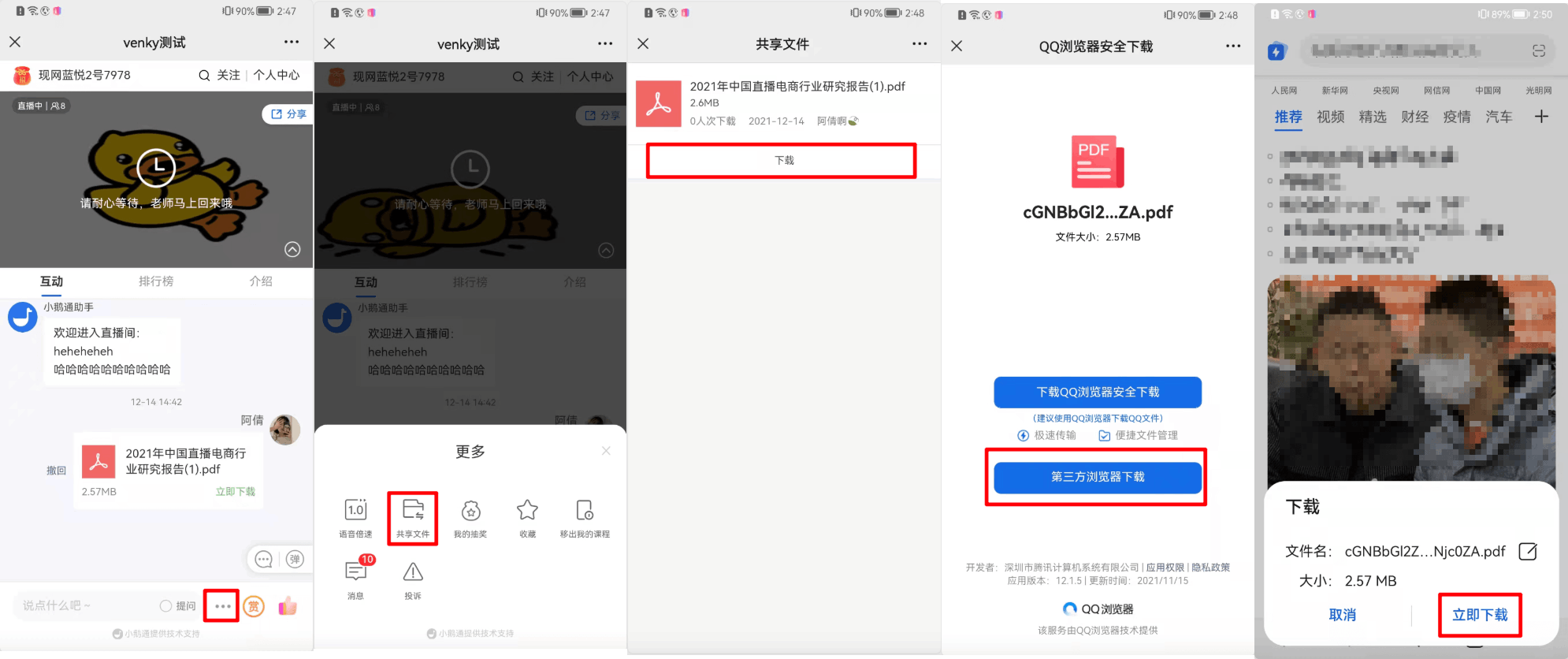
**<span style="font-size:14px;">1. Download courseware on the H5 student's end:</span>**<span style="font-size:14px;">Find the shared files in the live room, enter the shared file page, click to download. You can preview the current courseware content. Copy the link and open it in the browser on your phone or computer to directly download the courseware.</span>

<span style="font-size:10px;">![7.png](https://wechatapppro-1252524126.file.myqcloud.com/help_document/image/ueditor/47673100_1686904331.png ".png") ![image.png](https://wechatapppro-1252524126.file.myqcloud.com/help_document/image/ueditor/69452500_1686904331.png ".png")</span>

**<span style="font-size:14px;">(H5 Student's End - Shared Files)</span>**<span style="font-size:10px;"></span>

<span style="font-size:14px;">  
</span>

**<span style="font-size:14px;">2. Download courseware on the web - based student's end:</span>**<span style="font-size:14px;">Find the shared file area on the web - based student's end, locate the file you want to download, and click to download the corresponding courseware.</span>

<span style="font-size:14px;">![image.png](https://wechatapppro-1252524126.file.myqcloud.com/help_document/image/ueditor/98673000_1686904331.png ".png")</span>

# Tutorial on Manual Transcoding for Live Streaming

<div data-elink-language-switch="1" id="bkmrk-%E4%B8%AD%E6%96%87" style="border:1px solid #d6d9de;border-radius:6px;padding:10px 12px;margin:0 0 18px 0;background:#f8fafc;font-size:14px;">[中文](/books/091d5/page/a8baa-7SQ)</div><span style="font-size:17px;">**I. Feature Introduction**</span>

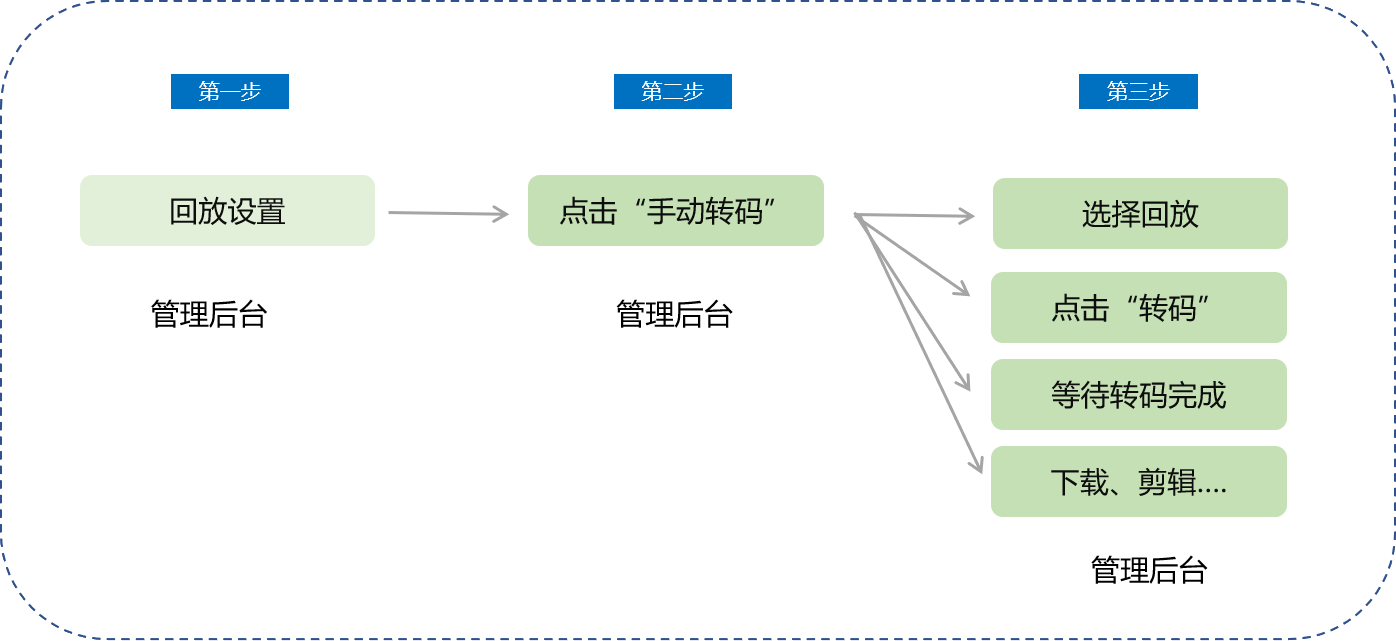
<span style="font-size:14px;">The manual transcoding feature is specifically designed for**Single - session cumulativeLive streaming scenarios where the duration exceeds five hours.**For such scenarios, merchants can not only significantly improve the transcoding success rate and reduce transcoding time through manual transcoding but also more easily manage and edit long - term and multiple live replay videos.</span>

<span style="font-size:17px;">**II. Purpose of Use**</span>

<span style="font-size:14px;">Significantly improve the transcoding success rate and reduce the transcoding time, saving a great deal of time for merchants.</span>

<span style="font-size:17px;">**III. Usage Scenarios**</span>

<span style="font-size:14px;">After a user finishes a live stream that lasts more than five hours or the cumulative duration of a live stream exceeds five hours, they may encounter problems such as excessively long transcoding time and possible transcoding failures. After the live stream ends, users can enter the management console's replay management, select the replay file that needs to be transcoded, and perform manual transcoding. This can significantly improve the transcoding success rate and reduce the time consumed compared to automatic transcoding.</span>

<span style="font-size:17px;">**IV. Operation Path**</span>

<span style="font-size:14px;">Merchant side: Merchant background → Live streaming → Select the live - streaming room → Replay settings → Manual transcoding</span>

<span style="font-size:14px;">![图片1.png](https://wechatapppro-1252524126.file.myqcloud.com/help_document/image/ueditor/51607700_1699255375.png ".png")</span>

<span style="font-size:17px;">**V. Usage Tutorial**</span>

**<span style="font-size:14px;">Step 1: Replay settings (Management background)</span>**

<span style="font-size:14px;">Enter the merchant management background, click to enter the live - streaming section, find the corresponding live stream, and click \[Details\] - \[Replay settings\].</span>

![image.png](https://wechatapppro-1252524126.file.myqcloud.com/help_document/image/ueditor/37391300_1699256124.png ".png")

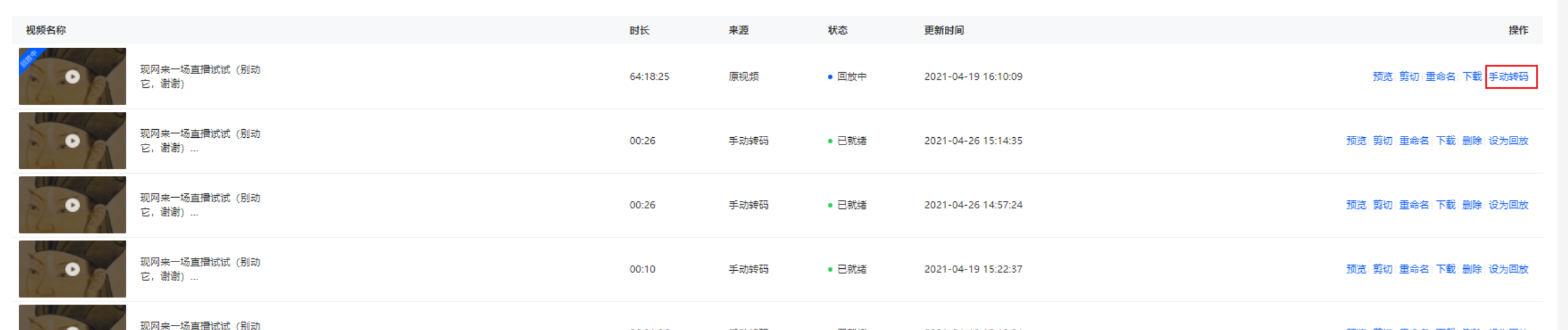
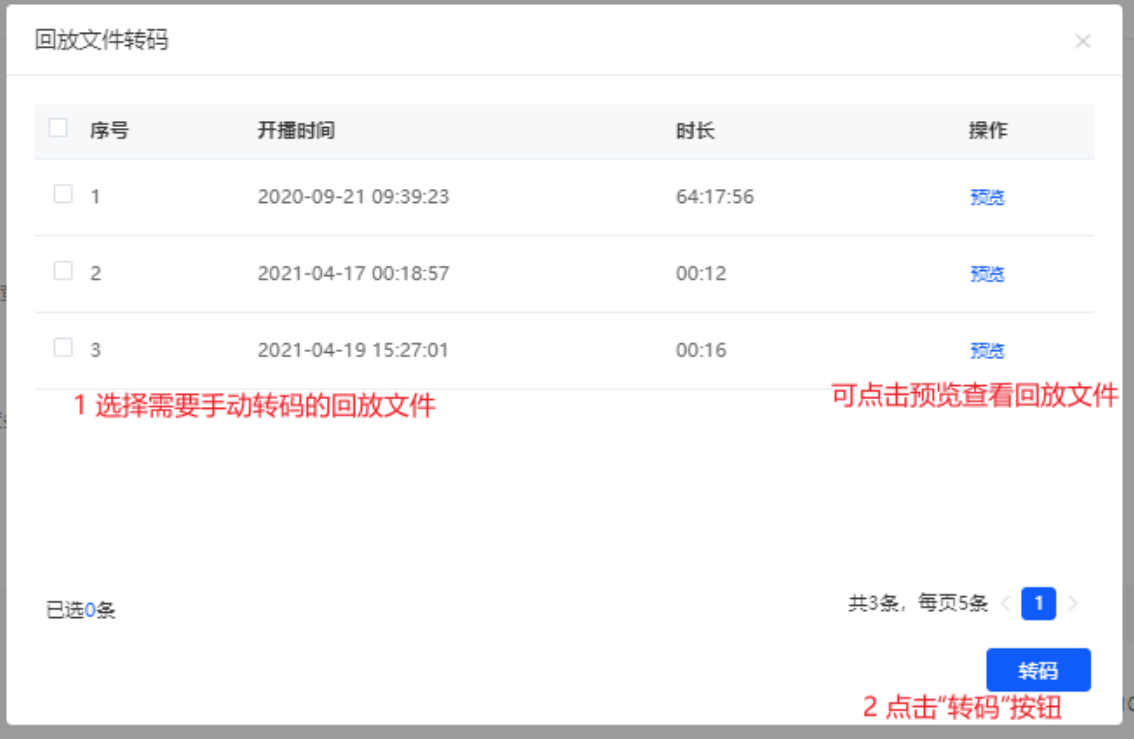
**<span style="font-size:14px;">Step 2: Click Manual Transcoding<span style="font-size:14px;">Select the file that needs to be transcoded and click \[Transcode\].</span>(Management background)</span>**

**<span style="font-size:14px;"><span style="font-size:14px;">\*\*Note:</span></span>**<span style="font-size:14px;"><span style="font-size:14px;">The \[Manual Transcoding\] button will only be displayed when the cumulative duration of this live stream exceeds 5 hours.</span></span>

![image.png](https://wechatapppro-1252524126.file.myqcloud.com/help_document/image/ueditor/64665300_1699256154.png ".png")

<span style="font-size:14px;">![image.png](https://wechatapppro-1252524126.file.myqcloud.com/help_document/image/ueditor/91932600_1699256182.png ".png")</span>

<span style="font-size:14px;"></span>

**<span style="font-size:14px;">Step 3: Select the replay</span>**

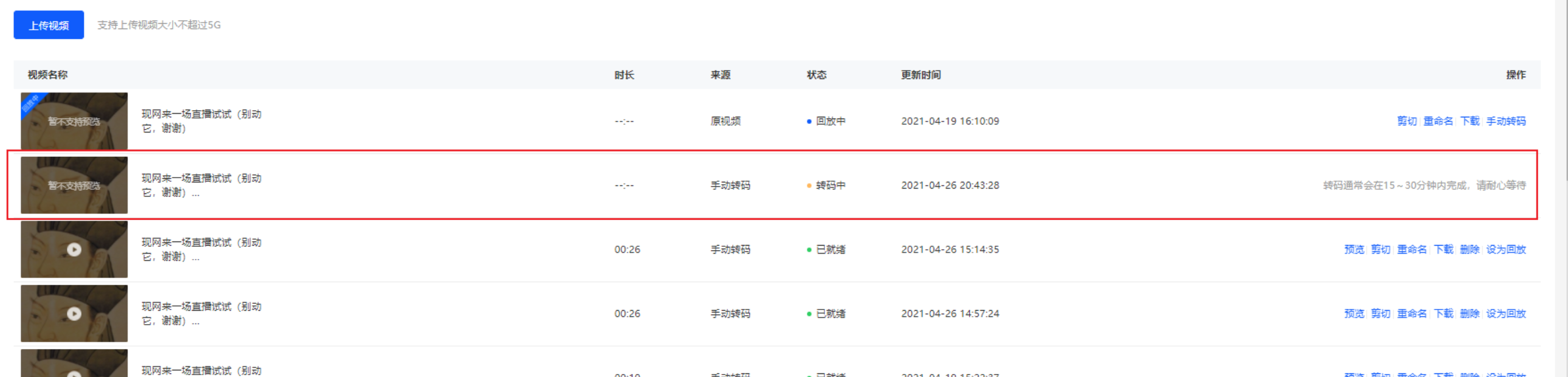
<span style="font-size:14px;">A new transcoding record will be added to the replay video list. After the transcoding is successful, a series of operations such as editing can be performed.</span>

<span style="font-size:14px;">![image.png](https://wechatapppro-1252524126.file.myqcloud.com/help_document/image/ueditor/81150400_1699256182.png ".png")</span>

# English version live streaming room usage tutorial

<div data-elink-language-switch="1" id="bkmrk-%E4%B8%AD%E6%96%87" style="border:1px solid #d6d9de;border-radius:6px;padding:10px 12px;margin:0 0 18px 0;background:#f8fafc;font-size:14px;">[中文](/books/091d5/page/3ef81-tkQ)</div><span style="font-size:17px;">**I. Function Introduction**</span>

<span style="font-size:15px;"><span style="font-size:15px;">To enhance the live streaming and viewing experience for overseas instructors and students, the live streaming room supports switching to the English version. After overseas instructors start a live stream in English on the client, they can interact with students in the live streaming room without language barriers. Overseas instructors who haven't downloaded the client can also directly start a live stream using the English version of the web page. Overseas students can choose to watch the live stream in English on the H5 and web platforms.</span></span>

<span style="font-size:17px;">**II. Purpose of Use**</span>

To meet the live streaming needs of overseas instructors and students.

<span style="font-size:17px;">**III. Use Scenarios**</span>

<span style="font-size:15px;">Scenario 1: After overseas instructors start a live stream in English on the client, the English version can help them enhance interaction with students in the live streaming room.</span><span style="font-size:15px;"></span>

<span style="font-size:15px;">Scenario 2: Overseas instructors can experience starting a live stream using the English version of the web page without downloading the client.</span>

<span style="font-size:15px;">Scenario 3: Overseas students can watch the live stream in English on the web and H5 platforms.</span>

<span style="font-size:17px;">**IV. Operation Path**</span>

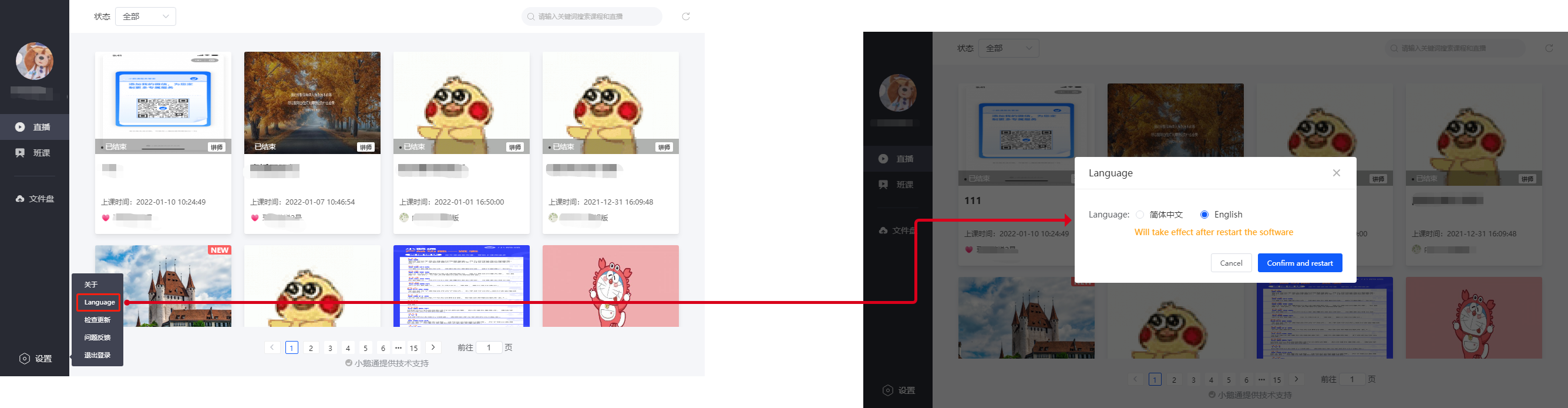
<span style="font-size:15px;">elink Assistant Client (Instructor): Settings → Switch Language → language → English</span>

<span style="font-size:15px;"></span>

<span style="font-size:15px;">elink Live Streaming Client (Instructor): Settings → General Settings<span style="font-size:15px;">→ </span>Switch Language → language → English</span>

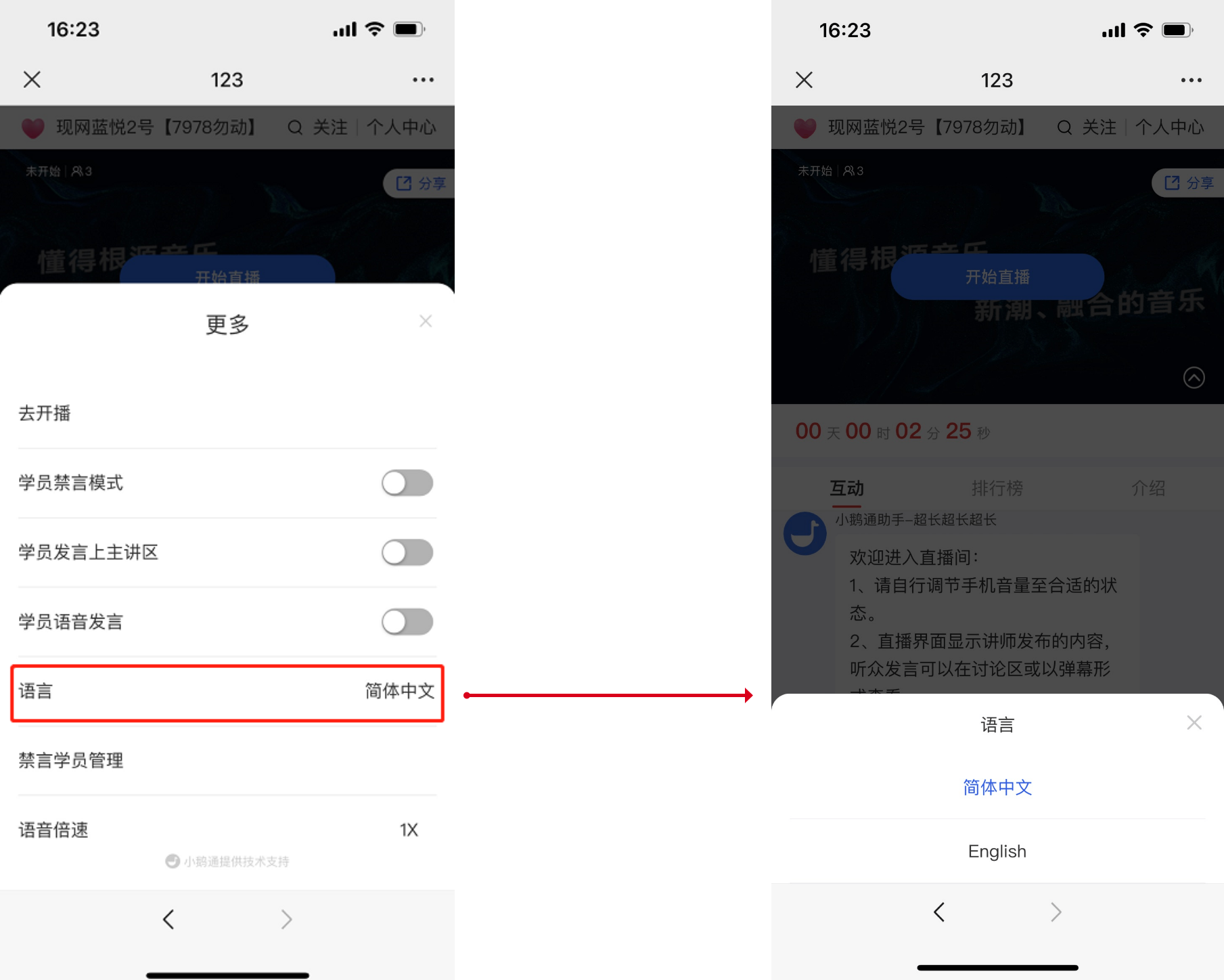
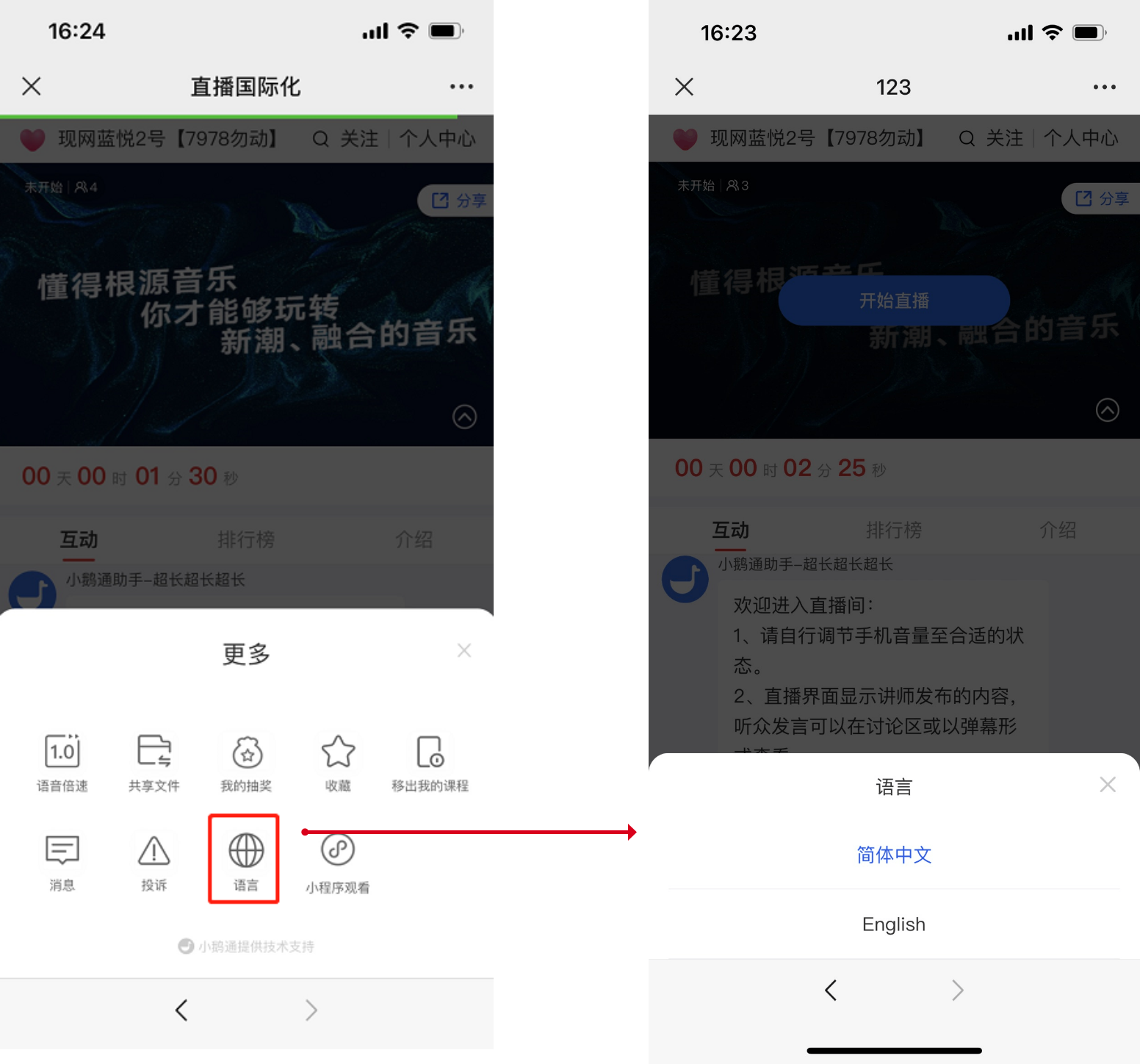
<span style="font-size:15px;">H5 Platform (Instructor/Student): H5 Live Streaming Room → More → Language → English</span>

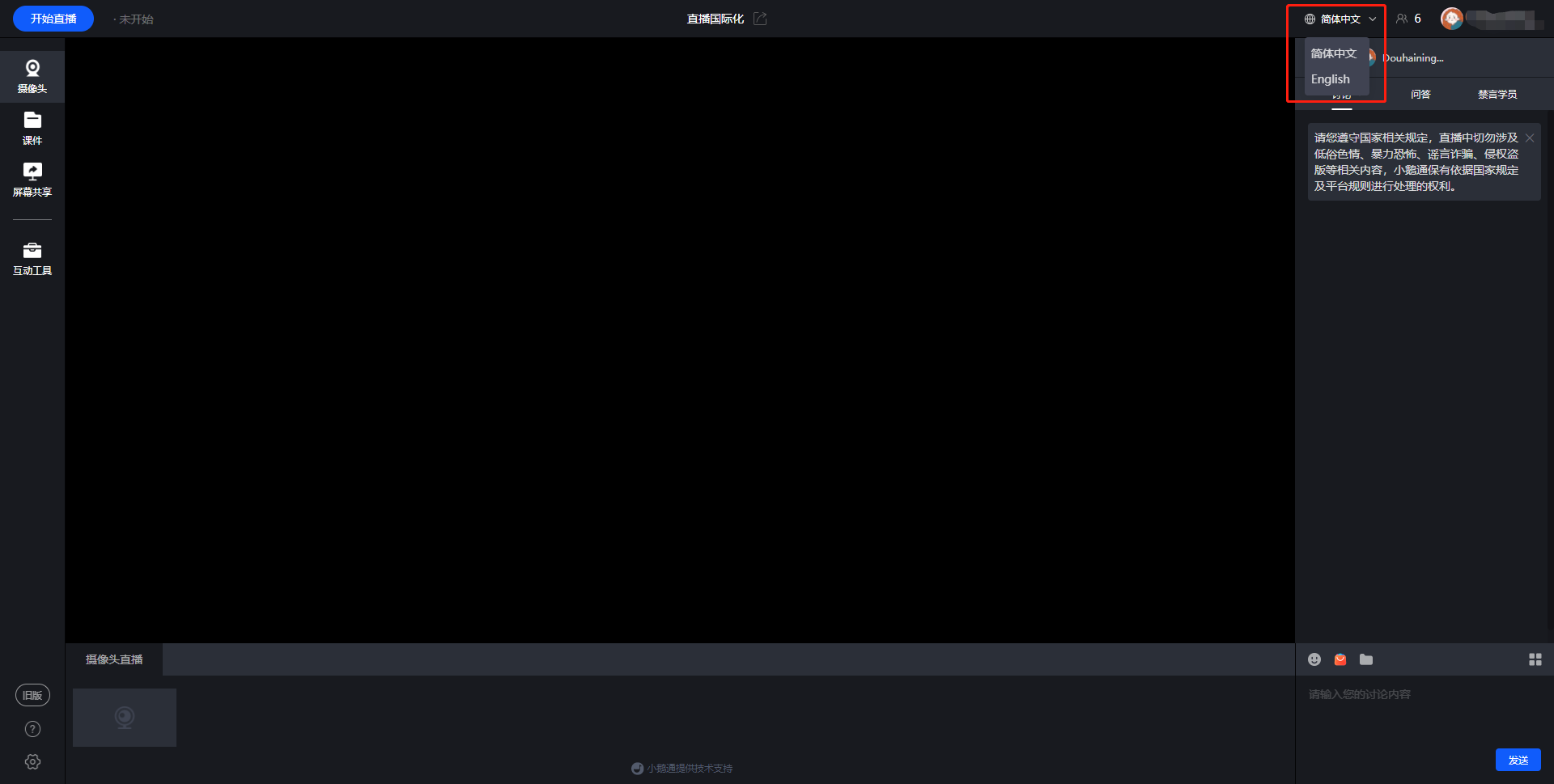
<span style="font-size:15px;">Web Platform (Instructor/Student): Switch the language in the upper - right corner of the page</span>

<span style="font-size:15px;">V. Usage Tutorial</span>

**<span style="font-size:15px;">● Instructor Side - elink Assistant</span>**

<span style="font-size:15px;">  
</span>

<span style="font-size:15px;">![1.png](https://wechatapppro-1252524126.file.myqcloud.com/help_document/image/ueditor/84850200_1686904109.png ".png")</span>

<span style="font-size:15px;"></span>

### **<span style="font-family:'Helvetica Neue', Helvetica, 'PingFang SC', 'Microsoft YaHei', 'Source Han Sans SC', 'Noto Sans CJK SC', 'WenQuanYi Micro Hei', sans-serif;color:rgb(26,26,26);background-image:initial;background-position:initial;background-size:initial;background-repeat:initial;background-attachment:initial;letter-spacing:0pt;vertical-align:baseline;font-size:15px;">● Instructor Side - elink Live Streaming Client (Expected to be supported in August 2023)</span>**<span style="font-size:14pt;font-family:'Helvetica Neue', Helvetica, 'PingFang SC', 'Microsoft YaHei', 'Source Han Sans SC', 'Noto Sans CJK SC', 'WenQuanYi Micro Hei', sans-serif;color:rgb(26,26,26);background-image:initial;background-position:initial;background-size:initial;background-repeat:initial;background-attachment:initial;letter-spacing:0pt;vertical-align:baseline;"></span>

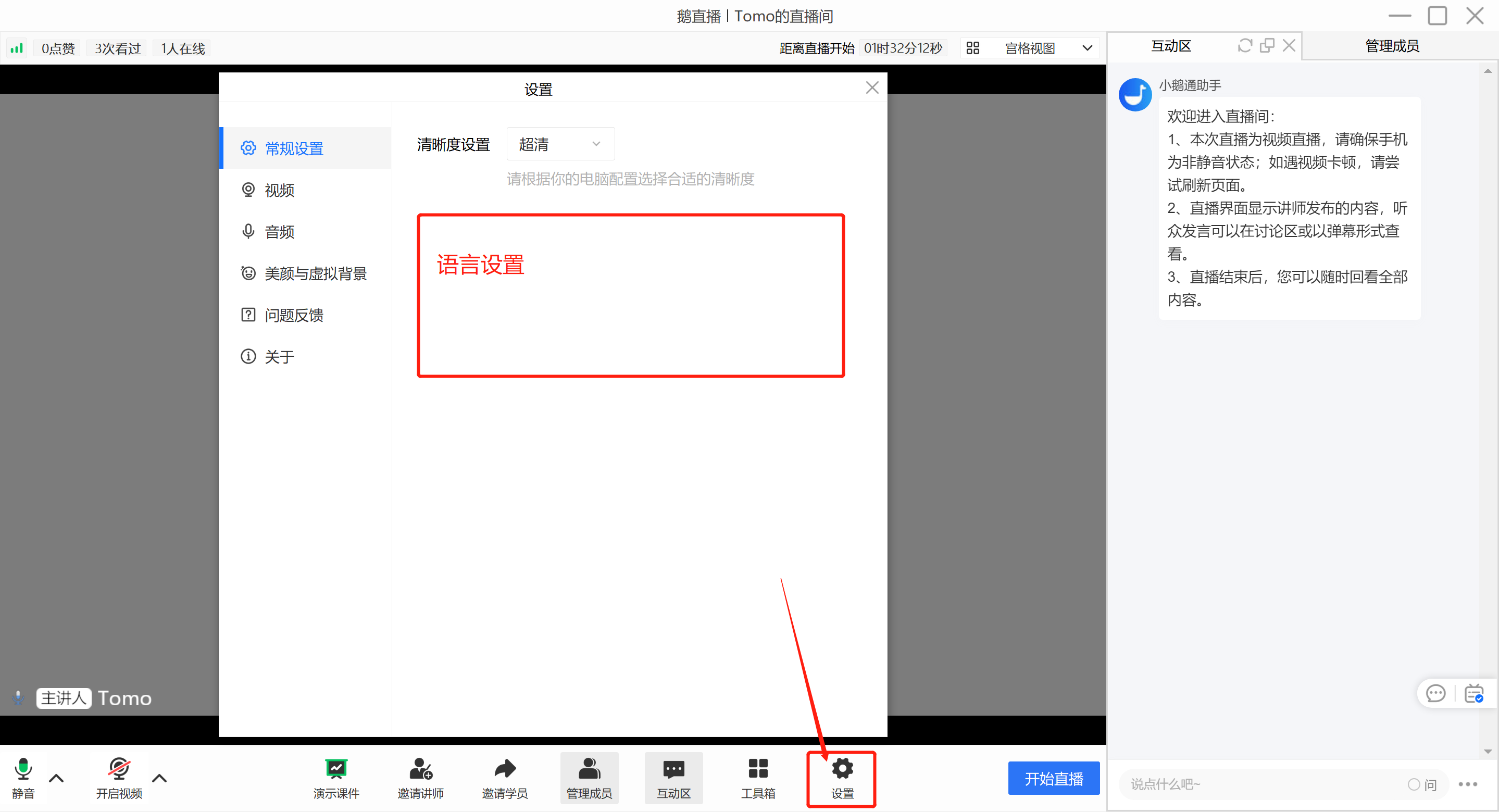
<span style="font-size:11pt;color:rgb(0,0,0);background-image:initial;background-position:initial;background-size:initial;background-repeat:initial;background-attachment:initial;letter-spacing:0pt;vertical-align:baseline;">Select 'Settings'. After entering the settings page, select 'General Settings'. You can find 'Select Language' at the bottom of this page. Select the corresponding language to take effect.</span><span style="font-size:11pt;background-image:initial;background-position:initial;background-size:initial;background-repeat:initial;background-attachment:initial;letter-spacing:0pt;vertical-align:baseline;"></span>

![image.png](https://wechatapppro-1252524126.file.myqcloud.com/help_document/image/ueditor/83976100_1686904109.png ".png")

  
<span style="font-size:15px;">  
</span>

**<span style="font-size:15px;">● Instructor Side - H5 Live Streaming Room</span>**

<span style="font-size:15px;">![2.png](https://wechatapppro-1252524126.file.myqcloud.com/help_document/image/ueditor/25360900_1686904110.png ".png")</span>

<span style="font-size:15px;">  
</span>

**<span style="font-size:15px;">● Student Side - H5 Live Streaming Room</span>**

<span style="font-size:15px;">![3.png](https://wechatapppro-1252524126.file.myqcloud.com/help_document/image/ueditor/61297300_1686904110.png ".png")</span>

<span style="font-size:15px;">  
</span>

<span style="font-size:15px;">●**Instructor/Student Side - Web Platform**</span>

<span style="font-size:15px;">![4.png](https://wechatapppro-1252524126.file.myqcloud.com/help_document/image/ueditor/89140500_1686904110.png ".png")</span>

<span style="font-size:15px;">PS: The English version only takes effect in the live streaming room.</span>

# 【OBS】 Frequently Asked Questions

<div data-elink-language-switch="1" id="bkmrk-%E4%B8%AD%E6%96%87" style="border:1px solid #d6d9de;border-radius:6px;padding:10px 12px;margin:0 0 18px 0;background:#f8fafc;font-size:14px;">[中文](/books/091d5/page/obs-rg0)</div>## <span style="font-size:24px;">I. Basic Operations</span>

#### [<span style="font-size:20px;">**1. Where can I download \[OBS\]?**</span>](https://helpcenter.xiaoe-tech.com/#/problem/detail?document_id=doc_5ea57e4c308a2_4vLEF)

#### [<span style="font-size:20px;">**2. Tutorial on using the \[OBS\] client**</span>](https://helpcenter.xiaoe-tech.com/#/problem/detail?document_id=doc_5eb50e26e1f6e_fcnIf)

<span style="font-size:20px;"></span>

[](https://helpcenter.xiaoe-tech.com/#/problem/detail?document_id=doc_5eb50e26e1f6e_fcnIf)

[**<span style="font-size:20px;">3. Recommended live streaming settings for \[OBS\]</span>**](https://helpcenter.xiaoe-tech.com/#/problem/detail?document_id=doc_638ee4af4ff2b_XgV9i)

[<span style="font-size:20px;">**4. How to download the video streamed by \[OBS\]?**  
</span>](https://helpcenter.xiaoe-tech.com/#/problem/detail?document_id=doc_5ea5796a55f18_nsvLe)

[<span style="font-size:20px;">**5. How to monitor the streaming quality of \[OBS\]?**  
</span>](https://helpcenter.xiaoe-tech.com/#/problem/detail?document_id=doc_638ee87753ca1_2rTTp)

[<span style="font-size:20px;">**6. How to adjust the size of the instructor's picture in \[OBS\]?**</span>  ](https://helpcenter.xiaoe-tech.com/#/problem/detail?document_id=doc_5ea57efd621eb_80RIC)

[**<span style="font-size:20px;">7. How to use vertical screen live streaming in \[OBS\]?</span>**](https://admin.xiaoe-tech.com/helpCenter/problem?first_id=600&second_id=1225&document_id=doc_60af7fbbb5648_h03Pj)

[<span style="font-size:20px;">**8. How to use beauty filters in \[OBS\]?**</span>](https://admin.xiaoe-tech.com/helpCenter/problem?first_id=600&second_id=1225&document_id=doc_63fec2919e580_gDkRQ)

[<span style="font-size:20px;">**9. How to use green screen keying in \[OBS\]?**</span>](https://admin.xiaoe-tech.com/helpCenter/problem?first_id=600&second_id=1225&document_id=doc_63fec39ee091b_e0qkd)

[**<span style="font-size:20px;">10. Combine the elink Assistant with \[OBS\] to achieve green screen keying</span>**](https://admin.xiaoe-tech.com/helpCenter/problem?first_id=600&second_id=1225&document_id=doc_63fec470d9110_28tMX)

## <span style="font-size:24px;">II. Live Streaming Screen</span>

#### [<span style="font-size:20px;">**1.Is the streaming screen in \[OBS\] inconsistent with the actual screen?**</span>](https://helpcenter.xiaoe-tech.com/#/problem/detail?document_id=doc_5ea57d4570b4a_hEJrK)

#### [**<span style="font-size:20px;">2. How to handle abnormal or out - of - sync audio and video during \[OBS\] live streaming?</span>**](https://helpcenter.xiaoe-tech.com/#/problem/detail?document_id=doc_638f16da68c30_rljKp)

#### [<span style="font-size:20px;">**3. Is the \[OBS\] live streaming screen blurry?**</span>](https://helpcenter.xiaoe-tech.com/#/problem/detail?document_id=doc_638f17d053444_k9fnr)

#### [<span style="font-size:20px;">**4.Is there any lag during \[OBS\] live streaming?**</span>](https://helpcenter.xiaoe-tech.com/#/problem/detail?document_id=doc_5ea57bc24ceb3_iAFSY)

#### [<span style="font-size:20px;">**5. How to solve the problem of live streaming delay in \[OBS\]?**</span>](https://helpcenter.xiaoe-tech.com/#/problem/detail?document_id=doc_5ea57ccda72a0_lJk9Y)

#### [<span style="font-size:20px;">**6. Tutorial on capturing desktop audio without affecting speaker output in \[OBS\] (MAC computers)**</span>](https://helpcenter.xiaoe-tech.com/#/problem/detail?document_id=doc_60e44d468b56a_5haon)

#### [<span style="font-size:20px;">**7. Does the screen go black when using display capture in \[OBS\]?**</span>](https://helpcenter.xiaoe-tech.com/#/problem/detail?document_id=doc_5d19fbaf81791_xrkOR)

## <span style="font-size:24px;">III. Error Reporting</span>

#### [<span style="font-size:20px;">**1. \[OBS\] shows that there is no connection to the server (due to restrictions of some office networks)**</span>](https://helpcenter.xiaoe-tech.com/#/problem/detail?document_id=doc_5ea57fb785ead_05UWP)

#### [<span style="font-size:20px;">**2. Does \[OBS\] keep prompting that the connection has been disconnected?**</span>](https://helpcenter.xiaoe-tech.com/#/problem/detail?document_id=doc_638f185488d1b_SdZWl)

# How to authorize the microphone on a Mac computer?

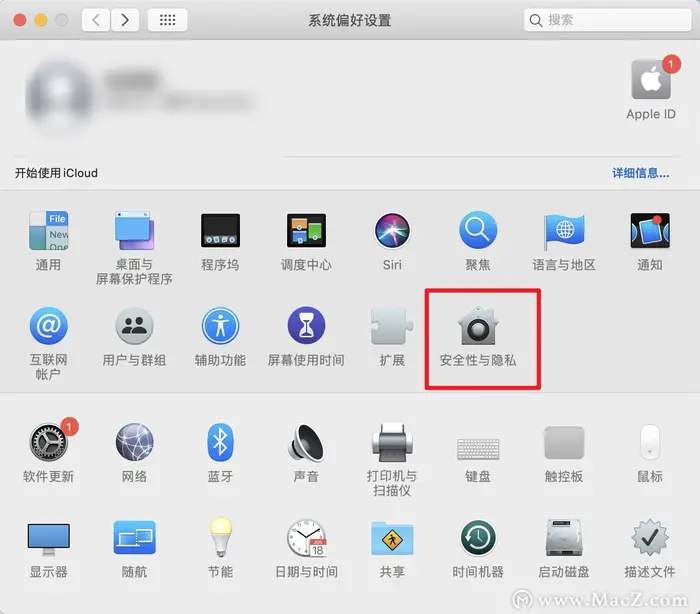
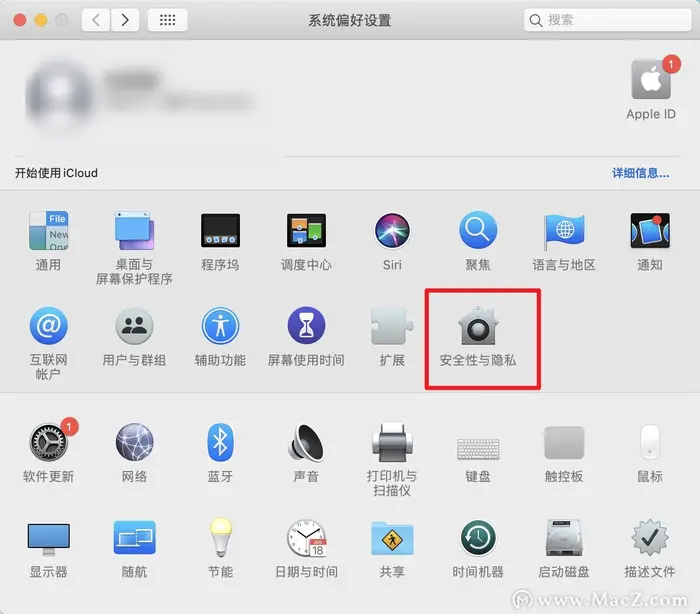
<div data-elink-language-switch="1" id="bkmrk-%E4%B8%AD%E6%96%87" style="border:1px solid #d6d9de;border-radius:6px;padding:10px 12px;margin:0 0 18px 0;background:#f8fafc;font-size:14px;">[中文](/books/091d5/page/mac)</div><span style="font-family:'微软雅黑';">1. </span><span style="font-size:14px;font-family:'Microsoft YaHei', Tahoma, Helvetica, '宋体', '宋体', 'Microsoft YaHei', '微软雅黑', PingFang, 'PingFang SC', '苹方', '苹方-简', SimSun, 'Songti SC', '宋体', '宋体-简', 'SimSun_GB2312', '宋体_GB2312', 'system-ui', '-apple-system', BlinkMacSystemFont, 'Segoe UI', Roboto, 'Helvetica Neue', Helvetica, sans-serif, 'Apple Color Emoji', 'Segoe UI Emoji', 'Segoe UI Symbol', 'Noto Color emoji', 'Helvetica Neue', Helvetica, 'PingFang SC', 'Microsoft YaHei', 'Source Han Sans SC', 'Noto Sans CJK SC', 'WenQuanYi Micro Hei', sans-serif;color:rgb(58,65,69);background:rgb(255,255,255);letter-spacing:0px;vertical-align:baseline;">On your computer, click the Apple icon and then click System Preferences.</span>

<span style="font-family:'微软雅黑';">2. </span><span style="font-size:14px;font-family:'Microsoft YaHei', Tahoma, Helvetica, '宋体', '宋体', 'Microsoft YaHei', '微软雅黑', PingFang, 'PingFang SC', '苹方', '苹方-简', SimSun, 'Songti SC', '宋体', '宋体-简', 'SimSun_GB2312', '宋体_GB2312', 'system-ui', '-apple-system', BlinkMacSystemFont, 'Segoe UI', Roboto, 'Helvetica Neue', Helvetica, sans-serif, 'Apple Color Emoji', 'Segoe UI Emoji', 'Segoe UI Symbol', 'Noto Color emoji', 'Helvetica Neue', Helvetica, 'PingFang SC', 'Microsoft YaHei', 'Source Han Sans SC', 'Noto Sans CJK SC', 'WenQuanYi Micro Hei', sans-serif;color:rgb(58,65,69);background:rgb(255,255,255);letter-spacing:0;vertical-align:baseline;">Click Security &amp; Privacy.</span>

<span style="display:inline-block;overflow:hidden;width:604.733px;height:530.437px;">![mty4odg0otk3nzc4mjk4na_286412__yvh1dkmr-hwgbxi_1677137145](https://wechatapppro-1252524126.file.myqcloud.com/help_document/image/ueditor/11738300_1677479434.cn/mty4odg0otk3nzc4mjk4na_286412__yvh1dkmr-hwgbxi_1677137145)</span>

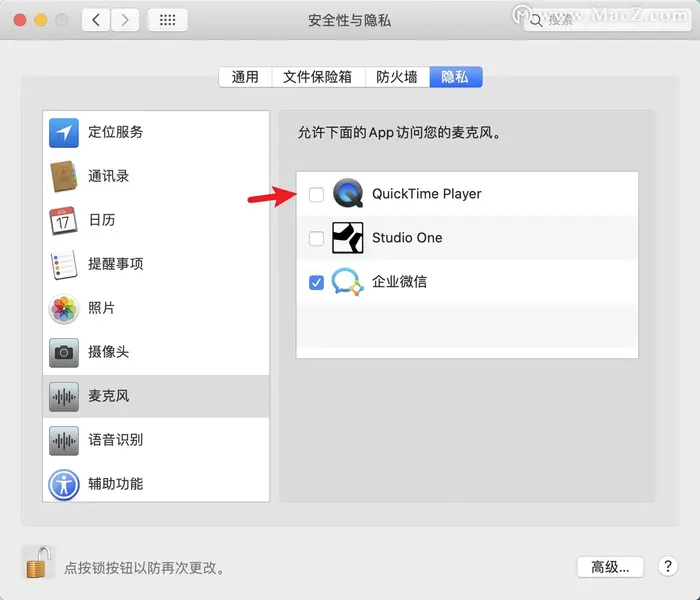
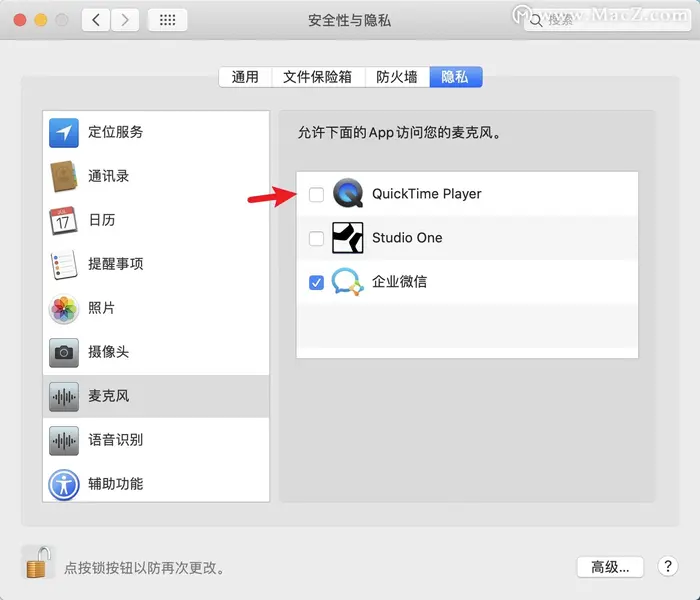
<span style="font-family:'微软雅黑';">3. </span><span style="font-size:14px;font-family:'Microsoft YaHei', Tahoma, Helvetica, '宋体', '宋体', 'Microsoft YaHei', '微软雅黑', PingFang, 'PingFang SC', '苹方', '苹方-简', SimSun, 'Songti SC', '宋体', '宋体-简', 'SimSun_GB2312', '宋体_GB2312', 'system-ui', '-apple-system', BlinkMacSystemFont, 'Segoe UI', Roboto, 'Helvetica Neue', Helvetica, sans-serif, 'Apple Color Emoji', 'Segoe UI Emoji', 'Segoe UI Symbol', 'Noto Color emoji', 'Helvetica Neue', Helvetica, 'PingFang SC', 'Microsoft YaHei', 'Source Han Sans SC', 'Noto Sans CJK SC', 'WenQuanYi Micro Hei', sans-serif;color:rgb(58,65,69);background:rgb(255,255,255);letter-spacing:0;vertical-align:baseline;">Click Privacy, find Microphone on the left side, and click the small lock icon in the lower - left corner.</span>

<span style="font-family:'微软雅黑';">4. </span><span style="font-size:14px;font-family:'Microsoft YaHei', Tahoma, Helvetica, '宋体', '宋体', 'Microsoft YaHei', '微软雅黑', PingFang, 'PingFang SC', '苹方', '苹方-简', SimSun, 'Songti SC', '宋体', '宋体-简', 'SimSun_GB2312', '宋体_GB2312', 'system-ui', '-apple-system', BlinkMacSystemFont, 'Segoe UI', Roboto, 'Helvetica Neue', Helvetica, sans-serif, 'Apple Color Emoji', 'Segoe UI Emoji', 'Segoe UI Symbol', 'Noto Color emoji', 'Helvetica Neue', Helvetica, 'PingFang SC', 'Microsoft YaHei', 'Source Han Sans SC', 'Noto Sans CJK SC', 'WenQuanYi Micro Hei', sans-serif;color:rgb(58,65,69);background:rgb(255,255,255);letter-spacing:0;vertical-align:baseline;">Enter your password to allow changes, and then select the program you want to use the microphone with (here, select the eLink Live app or eLink Assistant).</span>

<span style="display:inline-block;overflow:hidden;width:604.733px;height:518.343px;">![mty4odg0otk3nzc4mjk4na_421079_finzqo6bpifoi1_w_1677137174](https://wechatapppro-1252524126.file.myqcloud.com/help_document/image/ueditor/72575600_1677479434.cn/mty4odg0otk3nzc4mjk4na_421079_finzqo6bpifoi1_w_1677137174)</span>

# How to authorize the microphone?

<div data-elink-language-switch="1" id="bkmrk-%E4%B8%AD%E6%96%87" style="border:1px solid #d6d9de;border-radius:6px;padding:10px 12px;margin:0 0 18px 0;background:#f8fafc;font-size:14px;">[中文](/books/091d5/page/c0c7c)</div>**<span style="font-size:24px;">How to authorize the microphone?</span>**

**<span style="font-size:24px;">  
</span>**

For Windows 10 computers, please click[https://jingyan.baidu.com/article/f0e83a2590c6f863e59101d9.html](https://jingyan.baidu.com/article/f0e83a2590c6f863e59101d9.html "win10电脑授权麦克风教程")

For Windows 11 computers, please click[https://jingyan.baidu.com/article/4853e1e555da485808f72612.html](https://jingyan.baidu.com/article/4853e1e555da485808f72612.html "win11电脑授权麦克风教程")

For Mac computers, please click[https://helpcenter.xiaoe-tech.com/#/problem/detail?document\_id=doc\_63fc4e7a40d64\_0EAUW](https://helpcenter.xiaoe-tech.com/#/problem/detail?document_id=doc_63fc4e7a40d64_0EAUW "MAC电脑授权麦克风教程")

# How to authorize the camera on a Mac computer?

<div data-elink-language-switch="1" id="bkmrk-%E4%B8%AD%E6%96%87" style="border:1px solid #d6d9de;border-radius:6px;padding:10px 12px;margin:0 0 18px 0;background:#f8fafc;font-size:14px;">[中文](/books/091d5/page/mac-QbV)</div><span style="font-family:'微软雅黑';">1. </span><span style="font-size:14px;font-family:'Microsoft YaHei', Tahoma, Helvetica, '宋体', '宋体', 'Microsoft YaHei', '微软雅黑', PingFang, 'PingFang SC', '苹方', '苹方-简', SimSun, 'Songti SC', '宋体', '宋体-简', 'SimSun_GB2312', '宋体_GB2312', 'system-ui', '-apple-system', BlinkMacSystemFont, 'Segoe UI', Roboto, 'Helvetica Neue', Helvetica, sans-serif, 'Apple Color Emoji', 'Segoe UI Emoji', 'Segoe UI Symbol', 'Noto Color emoji', 'Helvetica Neue', Helvetica, 'PingFang SC', 'Microsoft YaHei', 'Source Han Sans SC', 'Noto Sans CJK SC', 'WenQuanYi Micro Hei', sans-serif;color:rgb(58,65,69);background:rgb(255,255,255);letter-spacing:0;vertical-align:baseline;">On your computer, click the Apple icon and then click System Preferences.</span>

<span style="font-family:'微软雅黑';">2. </span><span style="font-size:14px;font-family:'Microsoft YaHei', Tahoma, Helvetica, '宋体', '宋体', 'Microsoft YaHei', '微软雅黑', PingFang, 'PingFang SC', '苹方', '苹方-简', SimSun, 'Songti SC', '宋体', '宋体-简', 'SimSun_GB2312', '宋体_GB2312', 'system-ui', '-apple-system', BlinkMacSystemFont, 'Segoe UI', Roboto, 'Helvetica Neue', Helvetica, sans-serif, 'Apple Color Emoji', 'Segoe UI Emoji', 'Segoe UI Symbol', 'Noto Color emoji', 'Helvetica Neue', Helvetica, 'PingFang SC', 'Microsoft YaHei', 'Source Han Sans SC', 'Noto Sans CJK SC', 'WenQuanYi Micro Hei', sans-serif;color:rgb(58,65,69);background:rgb(255,255,255);letter-spacing:0;vertical-align:baseline;">Click Security &amp; Privacy.</span>

<span style="display:inline-block;overflow:hidden;width:604.733px;height:530.437px;">![mty4odg0otk3nzc4mjk4na_286412__yvh1dkmr-hwgbxi_1677137145](https://wechatapppro-1252524126.file.myqcloud.com/help_document/image/ueditor/48833000_1677480247.cn/mty4odg0otk3nzc4mjk4na_286412__yvh1dkmr-hwgbxi_1677137145)</span>

<span style="font-family:'微软雅黑';">3. </span><span style="font-size:14px;font-family:'Microsoft YaHei', Tahoma, Helvetica, '宋体', '宋体', 'Microsoft YaHei', '微软雅黑', PingFang, 'PingFang SC', '苹方', '苹方-简', SimSun, 'Songti SC', '宋体', '宋体-简', 'SimSun_GB2312', '宋体_GB2312', 'system-ui', '-apple-system', BlinkMacSystemFont, 'Segoe UI', Roboto, 'Helvetica Neue', Helvetica, sans-serif, 'Apple Color Emoji', 'Segoe UI Emoji', 'Segoe UI Symbol', 'Noto Color emoji', 'Helvetica Neue', Helvetica, 'PingFang SC', 'Microsoft YaHei', 'Source Han Sans SC', 'Noto Sans CJK SC', 'WenQuanYi Micro Hei', sans-serif;color:rgb(58,65,69);background:rgb(255,255,255);letter-spacing:0;vertical-align:baseline;">Click Privacy, find Camera on the left side, and click the small lock icon at the bottom left.</span>

<span style="font-family:'微软雅黑';">4. </span><span style="font-size:14px;font-family:'Microsoft YaHei', Tahoma, Helvetica, '宋体', '宋体', 'Microsoft YaHei', '微软雅黑', PingFang, 'PingFang SC', '苹方', '苹方-简', SimSun, 'Songti SC', '宋体', '宋体-简', 'SimSun_GB2312', '宋体_GB2312', 'system-ui', '-apple-system', BlinkMacSystemFont, 'Segoe UI', Roboto, 'Helvetica Neue', Helvetica, sans-serif, 'Apple Color Emoji', 'Segoe UI Emoji', 'Segoe UI Symbol', 'Noto Color emoji', 'Helvetica Neue', Helvetica, 'PingFang SC', 'Microsoft YaHei', 'Source Han Sans SC', 'Noto Sans CJK SC', 'WenQuanYi Micro Hei', sans-serif;color:rgb(58,65,69);background:rgb(255,255,255);letter-spacing:0;vertical-align:baseline;">Enter your password to allow changes, and then select the program you want to use the camera with (here, select the eLink Live app or eLink Assistant).</span>

<span style="display:inline-block;overflow:hidden;width:604.733px;height:518.343px;">![mty4odg0otk3nzc4mjk4na_421079_finzqo6bpifoi1_w_1677137174](https://wechatapppro-1252524126.file.myqcloud.com/help_document/image/ueditor/4549700_1677480248.cn/mty4odg0otk3nzc4mjk4na_421079_finzqo6bpifoi1_w_1677137174)</span>

# How to authorize the camera?

<div data-elink-language-switch="1" id="bkmrk-%E4%B8%AD%E6%96%87" style="border:1px solid #d6d9de;border-radius:6px;padding:10px 12px;margin:0 0 18px 0;background:#f8fafc;font-size:14px;">[中文](/books/091d5/page/6cdd6)</div>**<span style="font-size:24px;">How to authorize the camera?</span>**

**<span style="font-size:24px;">  
</span>**

For Windows 10 computers, please click[https://jingyan.baidu.com/article/0eb457e5d9738242f1a905f7.html](https://jingyan.baidu.com/article/0eb457e5d9738242f1a905f7.html "win10电脑授权摄像头教程")

For Windows 11 computers, please click[https://jingyan.baidu.com/article/7908e85cb3861aee491ad264.html](https://jingyan.baidu.com/article/7908e85cb3861aee491ad264.html "win11电脑授权摄像头教程")

For Mac computers, please click[https://helpcenter.xiaoe-tech.com/#/problem/detail?document\_id=doc\_63fc5152bf8d5\_BTsGD](https://helpcenter.xiaoe-tech.com/#/problem/detail?document_id=doc_63fc5152bf8d5_BTsGD "MAC电脑授权摄像头教程")

# How to check if the microphone permission is occupied?

<div data-elink-language-switch="1" id="bkmrk-%E4%B8%AD%E6%96%87" style="border:1px solid #d6d9de;border-radius:6px;padding:10px 12px;margin:0 0 18px 0;background:#f8fafc;font-size:14px;">[中文](/books/091d5/page/6c834)</div>**<span style="font-size:20px;">How to check if the microphone permission is occupied?  
</span>**  
1\. Click on Privacy and Security  
Press Win + I to open Settings and search for Microphone Privacy Settings.
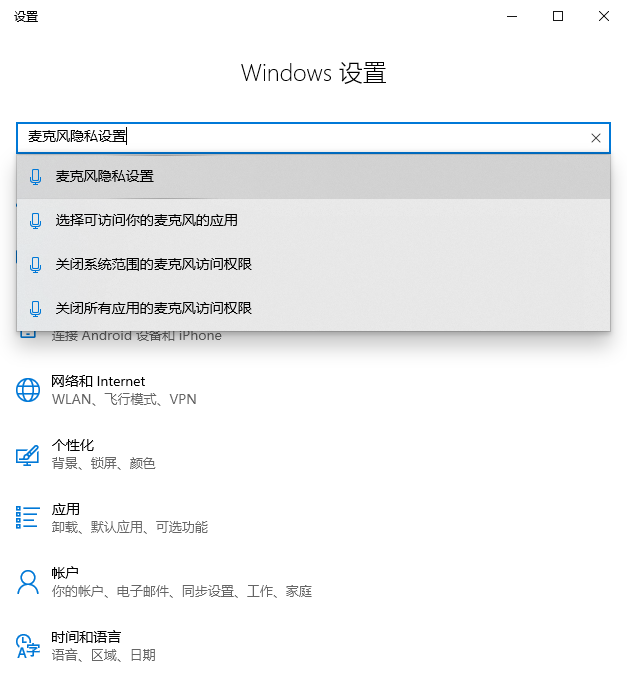
![image.png](https://wechatapppro-1252524126.file.myqcloud.com/help_document/image/ueditor/72037900_1677492113.png ".png")

2\. Check if there is an app with the "Currently in use" indicator in "Allow desktop apps to access your microphone" and quit that app.
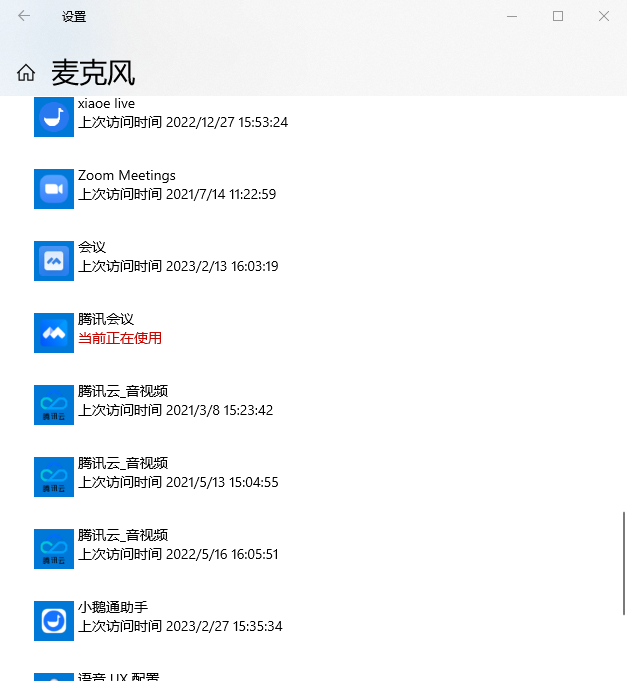
![image.png](https://wechatapppro-1252524126.file.myqcloud.com/help_document/image/ueditor/83979600_1677492135.png ".png")

3\. Reopen the elink Assistant client and check if you can use the microphone normally.

# How to reduce the CPU usage of a computer?

<div data-elink-language-switch="1" id="bkmrk-%E4%B8%AD%E6%96%87" style="border:1px solid #d6d9de;border-radius:6px;padding:10px 12px;margin:0 0 18px 0;background:#f8fafc;font-size:14px;">[中文](/books/091d5/page/cpu)</div>**<span style="font-size:24px;">How to reduce the CPU usage of a computer?</span>**

**<span style="font-size:24px;"></span>**

<span style="font-family:'微软雅黑';">I. </span><span style="font-size:14px;font-family:'Microsoft YaHei', Tahoma, Helvetica, '宋体', '宋体', 'Microsoft YaHei', '微软雅黑', PingFang, 'PingFang SC', '苹方', '苹方-简', SimSun, 'Songti SC', '宋体', '宋体-简', 'SimSun_GB2312', '宋体_GB2312', 'system-ui', '-apple-system', BlinkMacSystemFont, 'Segoe UI', Roboto, 'Helvetica Neue', Helvetica, sans-serif, 'Apple Color Emoji', 'Segoe UI Emoji', 'Segoe UI Symbol', 'Noto Color emoji', 'Helvetica Neue', Helvetica, 'PingFang SC', 'Microsoft YaHei', 'Source Han Sans SC', 'Noto Sans CJK SC', 'WenQuanYi Micro Hei', sans-serif;color:rgb(58,65,69);background:rgb(255,255,255);letter-spacing:0;vertical-align:baseline;">Reduce CPU usage by closing unnecessary programs (taking </span><span style="font-size:16px;font-family:'PingFang SC', 'Lantinghei SC', 'Microsoft YaHei', arial, '宋体', tahoma, PingFang, 'PingFang SC', '苹方', '苹方-简', 'Microsoft YaHei', '微软雅黑', 'Microsoft YaHei', '微软雅黑', PingFang, 'PingFang SC', '苹方', '苹方-简', SimSun, 'Songti SC', '宋体', '宋体-简', 'SimSun_GB2312', '宋体_GB2312', 'system-ui', '-apple-system', BlinkMacSystemFont, 'Segoe UI', Roboto, 'Helvetica Neue', Helvetica, sans-serif, 'Apple Color Emoji', 'Segoe UI Emoji', 'Segoe UI Symbol', 'Noto Color emoji', 'Helvetica Neue', Helvetica, 'PingFang SC', 'Microsoft YaHei', 'Source Han Sans SC', 'Noto Sans CJK SC', 'WenQuanYi Micro Hei', sans-serif;color:rgb(51,51,51);background:rgb(255,255,255);letter-spacing:0;vertical-align:baseline;">Windows 10 as an example)</span>

<span style="font-family:'微软雅黑';">1. </span><span style="font-size:16px;font-family:'PingFang SC', 'Lantinghei SC', 'Microsoft YaHei', arial, '宋体', tahoma, PingFang, 'PingFang SC', '苹方', '苹方-简', 'Microsoft YaHei', '微软雅黑', 'Microsoft YaHei', '微软雅黑', PingFang, 'PingFang SC', '苹方', '苹方-简', SimSun, 'Songti SC', '宋体', '宋体-简', 'SimSun_GB2312', '宋体_GB2312', 'system-ui', '-apple-system', BlinkMacSystemFont, 'Segoe UI', Roboto, 'Helvetica Neue', Helvetica, sans-serif, 'Apple Color Emoji', 'Segoe UI Emoji', 'Segoe UI Symbol', 'Noto Color emoji', 'Helvetica Neue', Helvetica, 'PingFang SC', 'Microsoft YaHei', 'Source Han Sans SC', 'Noto Sans CJK SC', 'WenQuanYi Micro Hei', sans-serif;color:rgb(51,51,51);background:rgb(255,255,255);letter-spacing:0;vertical-align:baseline;">Directly enter the Windows 10 Task Manager by pressing shift + ctrl + esc, as shown in the following figure:</span>

<span style="display:inline-block;overflow:hidden;width:604.733px;height:535.456px;">![MTY4ODg0OTk3Nzc4Mjk4NA_785406_pQic4VxI0LMVpak-_1677138271?w=838&h=742](https://wdcdn.qpic.cn/MTY4ODg0OTk3Nzc4Mjk4NA_785406_pQic4VxI0LMVpak-_1677138271?w=838&h=742)</span>

<span style="font-family:'微软雅黑';">2. </span><span style="font-size:16px;font-family:'PingFang SC', 'Lantinghei SC', 'Microsoft YaHei', arial, '宋体', tahoma, PingFang, 'PingFang SC', '苹方', '苹方-简', 'Microsoft YaHei', '微软雅黑', 'Microsoft YaHei', '微软雅黑', PingFang, 'PingFang SC', '苹方', '苹方-简', SimSun, 'Songti SC', '宋体', '宋体-简', 'SimSun_GB2312', '宋体_GB2312', 'system-ui', '-apple-system', BlinkMacSystemFont, 'Segoe UI', Roboto, 'Helvetica Neue', Helvetica, sans-serif, 'Apple Color Emoji', 'Segoe UI Emoji', 'Segoe UI Symbol', 'Noto Color emoji', 'Helvetica Neue', Helvetica, 'PingFang SC', 'Microsoft YaHei', 'Source Han Sans SC', 'Noto Sans CJK SC', 'WenQuanYi Micro Hei', sans-serif;color:rgb(51,51,51);background:rgb(255,255,255);letter-spacing:0;vertical-align:baseline;">Find some running processes that we don't need in the Task Manager, and click to select them. As shown in the following figure:</span>

<span style="display:inline-block;overflow:hidden;width:604.733px;height:535.456px;">![MTY4ODg0OTk3Nzc4Mjk4NA_951848_3hLFkoJ3uVH-fTV0_1677138305?w=838&h=742](https://wdcdn.qpic.cn/MTY4ODg0OTk3Nzc4Mjk4NA_951848_3hLFkoJ3uVH-fTV0_1677138305?w=838&h=742)</span>

<span style="font-family:'微软雅黑';">3. </span><span style="font-size:16px;font-family:'PingFang SC', 'Lantinghei SC', 'Microsoft YaHei', arial, '宋体', tahoma, PingFang, 'PingFang SC', '苹方', '苹方-简', 'Microsoft YaHei', '微软雅黑', 'Microsoft YaHei', '微软雅黑', PingFang, 'PingFang SC', '苹方', '苹方-简', SimSun, 'Songti SC', '宋体', '宋体-简', 'SimSun_GB2312', '宋体_GB2312', 'system-ui', '-apple-system', BlinkMacSystemFont, 'Segoe UI', Roboto, 'Helvetica Neue', Helvetica, sans-serif, 'Apple Color Emoji', 'Segoe UI Emoji', 'Segoe UI Symbol', 'Noto Color emoji', 'Helvetica Neue', Helvetica, 'PingFang SC', 'Microsoft YaHei', 'Source Han Sans SC', 'Noto Sans CJK SC', 'WenQuanYi Micro Hei', sans-serif;color:rgb(51,51,51);background:rgb(255,255,255);letter-spacing:0;vertical-align:baseline;">Then click 'End Task' in the lower right corner to close the task.</span>

<span style="display:inline-block;overflow:hidden;width:604.733px;height:535.456px;">![MTY4ODg0OTk3Nzc4Mjk4NA_266475_GGf7tsHFQ_o0wd1J_1677138326?w=838&h=742](https://wdcdn.qpic.cn/MTY4ODg0OTk3Nzc4Mjk4NA_266475_GGf7tsHFQ_o0wd1J_1677138326?w=838&h=742)</span>

<span style="font-family:'微软雅黑';">II. </span><span style="font-size:14px;font-family:'Microsoft YaHei', Tahoma, Helvetica, '宋体', '宋体', 'Microsoft YaHei', '微软雅黑', PingFang, 'PingFang SC', '苹方', '苹方-简', SimSun, 'Songti SC', '宋体', '宋体-简', 'SimSun_GB2312', '宋体_GB2312', 'system-ui', '-apple-system', BlinkMacSystemFont, 'Segoe UI', Roboto, 'Helvetica Neue', Helvetica, sans-serif, 'Apple Color Emoji', 'Segoe UI Emoji', 'Segoe UI Symbol', 'Noto Color emoji', 'Helvetica Neue', Helvetica, 'PingFang SC', 'Microsoft YaHei', 'Source Han Sans SC', 'Noto Sans CJK SC', 'WenQuanYi Micro Hei', sans-serif;color:rgb(58,65,69);background:rgb(255,255,255);letter-spacing:0;vertical-align:baseline;">Clean up computer junk: Check the Control Panel - Programs - Uninstall - to see if there are any unnecessary or similar software installed. If there are multiple antivirus or optimization software, you can uninstall them and keep only one.</span>

<span style="font-family:'微软雅黑';">III. </span><span style="font-size:14px;font-family:'Microsoft YaHei', Tahoma, Helvetica, '宋体', '宋体', 'Microsoft YaHei', '微软雅黑', PingFang, 'PingFang SC', '苹方', '苹方-简', SimSun, 'Songti SC', '宋体', '宋体-简', 'SimSun_GB2312', '宋体_GB2312', 'system-ui', '-apple-system', BlinkMacSystemFont, 'Segoe UI', Roboto, 'Helvetica Neue', Helvetica, sans-serif, 'Apple Color Emoji', 'Segoe UI Emoji', 'Segoe UI Symbol', 'Noto Color emoji', 'Helvetica Neue', Helvetica, 'PingFang SC', 'Microsoft YaHei', 'Source Han Sans SC', 'Noto Sans CJK SC', 'WenQuanYi Micro Hei', sans-serif;color:rgb(58,65,69);background:rgb(255,255,255);letter-spacing:0;vertical-align:baseline;">Computer configuration is also very important. If your computer has a relatively low configuration, it will cause lag. It is not recommended to use ultra - thin laptops. It is recommended to have a CPU of i5 - 9300H or higher.</span>

**<span style="font-size:24px;">  
</span>**

# How to check if the camera permission is occupied?

<div data-elink-language-switch="1" id="bkmrk-%E4%B8%AD%E6%96%87" style="border:1px solid #d6d9de;border-radius:6px;padding:10px 12px;margin:0 0 18px 0;background:#f8fafc;font-size:14px;">[中文](/books/091d5/page/75fc0)</div>**<span style="font-size:20px;">How to check if the camera permission is occupied?</span>**  
  
1\. Click on Privacy and Security  
Press Win + I to open Settings and search for Camera privacy settings.
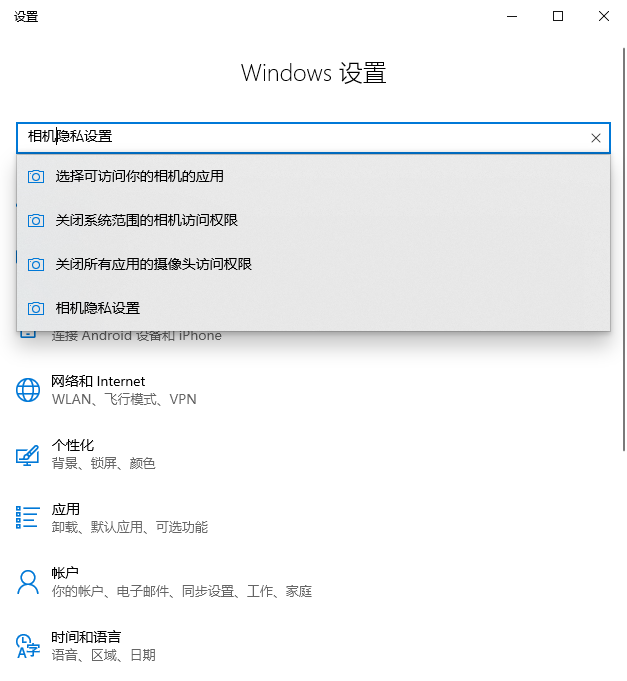
![image.png](https://wechatapppro-1252524126.file.myqcloud.com/help_document/image/ueditor/61741600_1677492254.png ".png")

2\. Check if there is an app with the 'Currently in use' indicator in 'Allow desktop apps to access your camera', and close that app.
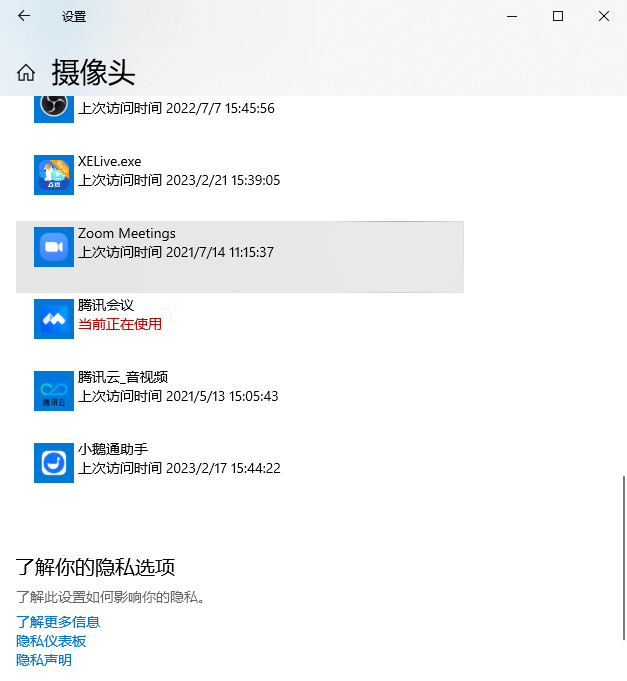
![image.png](https://wechatapppro-1252524126.file.myqcloud.com/help_document/image/ueditor/41680200_1677492277.png ".png")

3\. Reopen the elink Assistant client and check if the camera can be used normally.

# How to check if the current microphone is working properly?

<div data-elink-language-switch="1" id="bkmrk-%E4%B8%AD%E6%96%87" style="border:1px solid #d6d9de;border-radius:6px;padding:10px 12px;margin:0 0 18px 0;background:#f8fafc;font-size:14px;">[中文](/books/091d5/page/060ad)</div>**<span style="font-size:20px;">How to check if the current microphone is working properly?</span>**  
  
1\. Click the following URL to test:[https://webcammictest.com/check-mic.html](https://webcammictest.com/check-mic.html)
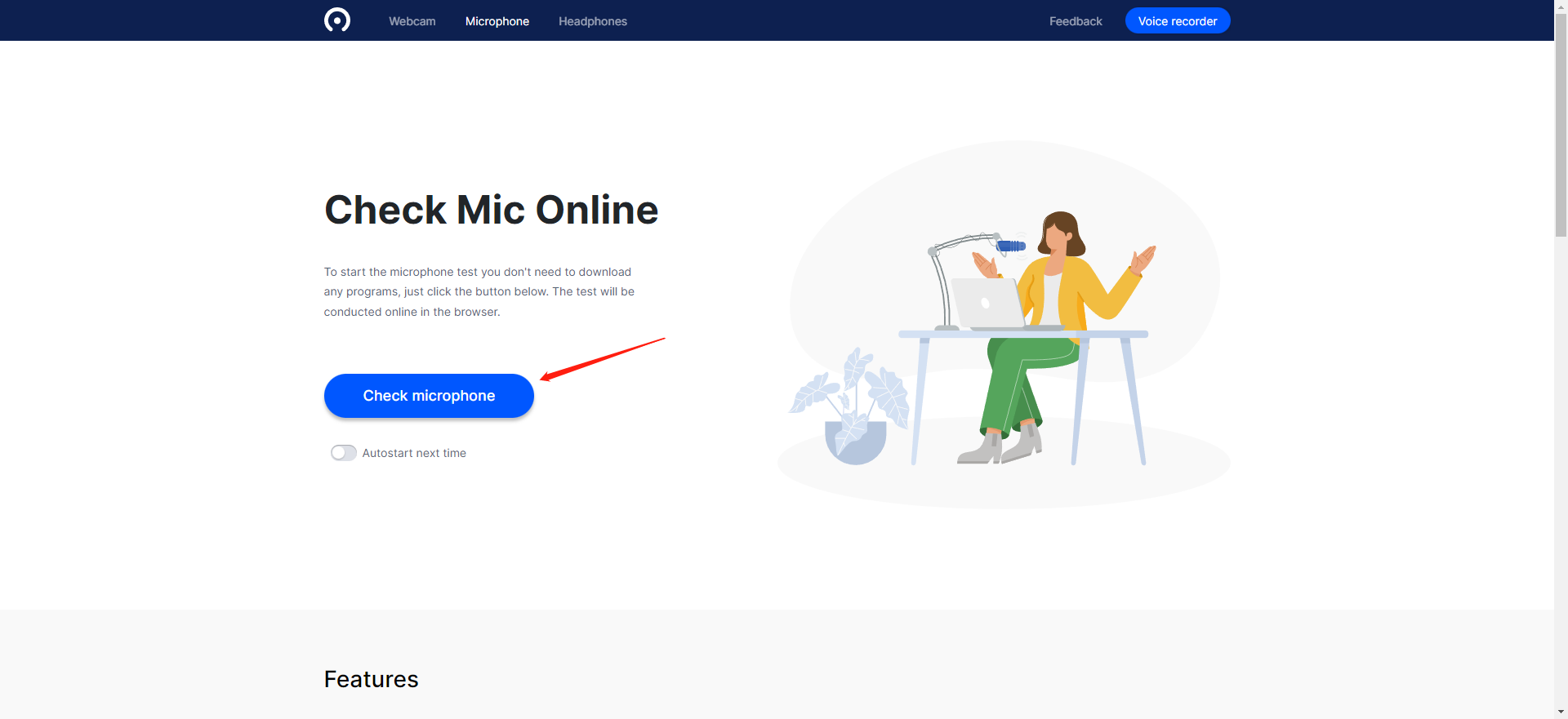
![image.png](https://wechatapppro-1252524126.file.myqcloud.com/help_document/image/ueditor/96010700_1677492619.png ".png")

2\. Grant authorization.

![image.png](https://wechatapppro-1252524126.file.myqcloud.com/help_document/image/ueditor/57970700_1677492660.png ".png")

3\. If the detected microphone volume is abnormal or there are no available devices in the device list, you need to check if the microphone device is malfunctioning or replace the microphone.
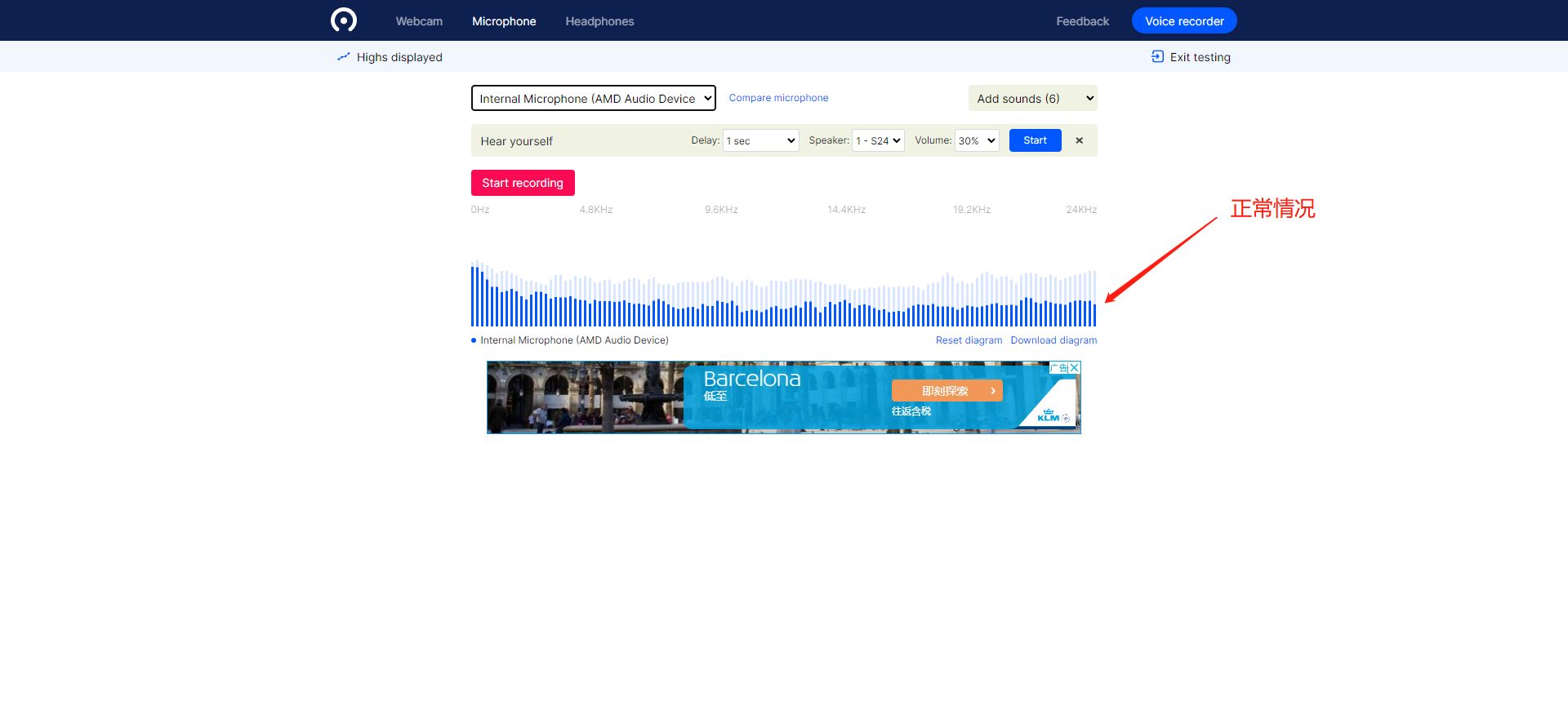
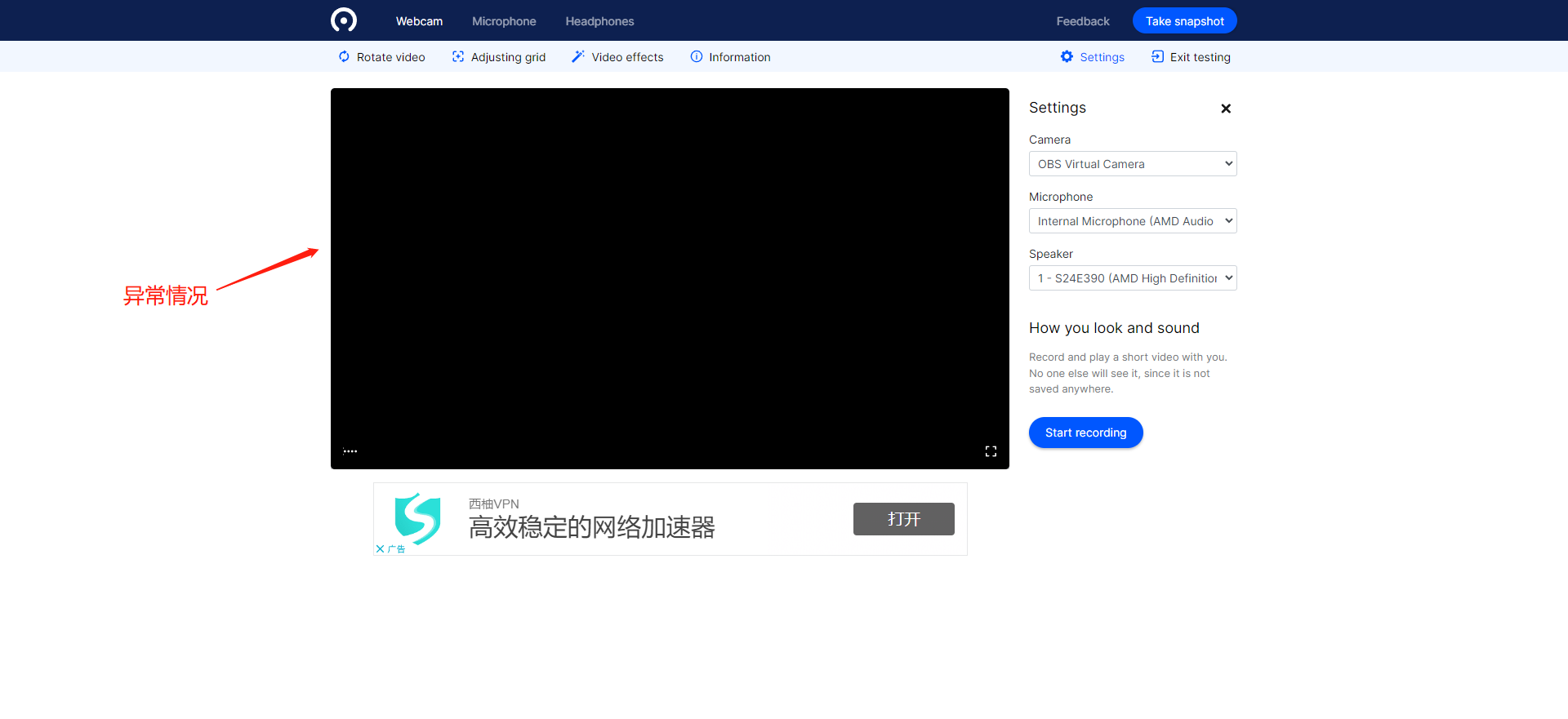
![image.png](https://wechatapppro-1252524126.file.myqcloud.com/help_document/image/ueditor/49539000_1677492677.png ".png")

![image.png](https://wechatapppro-1252524126.file.myqcloud.com/help_document/image/ueditor/32225400_1677492677.png ".png")

# How to check if the current camera is working properly?

<div data-elink-language-switch="1" id="bkmrk-%E4%B8%AD%E6%96%87" style="border:1px solid #d6d9de;border-radius:6px;padding:10px 12px;margin:0 0 18px 0;background:#f8fafc;font-size:14px;">[中文](/books/091d5/page/94f6d)</div>**<span style="font-size:20px;">How to check if the current camera is working properly?</span>**  
  
1\. Click the following URL to test:[https://webcammictest.com/](https://webcammictest.com/)
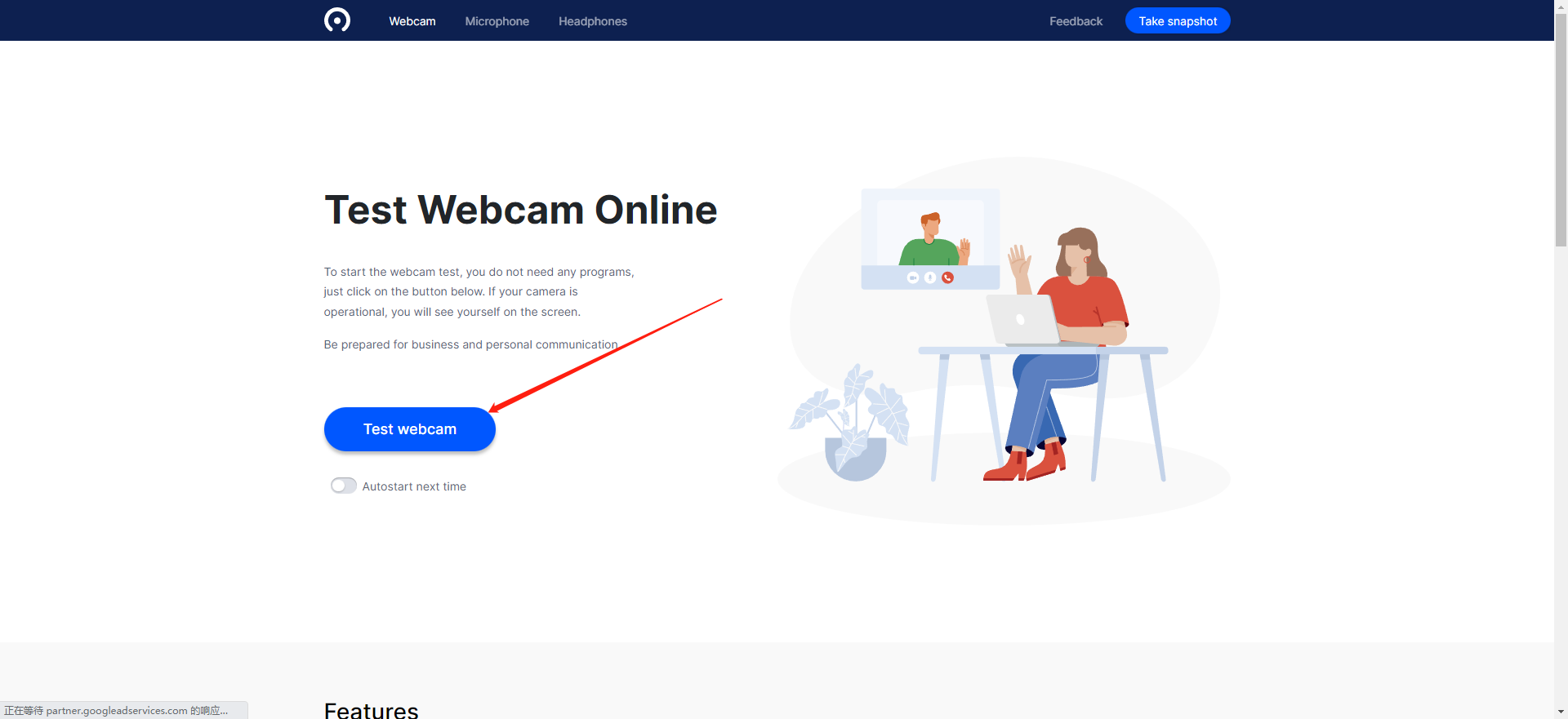
![image.png](https://wechatapppro-1252524126.file.myqcloud.com/help_document/image/ueditor/65681500_1677492440.png ".png")

2\. Grant authorization.

![image.png](https://wechatapppro-1252524126.file.myqcloud.com/help_document/image/ueditor/3405400_1677492474.png ".png")

3\. If the detected image is abnormal or there are no available devices in the device list, you need to check if the camera device is malfunctioning or replace the camera.
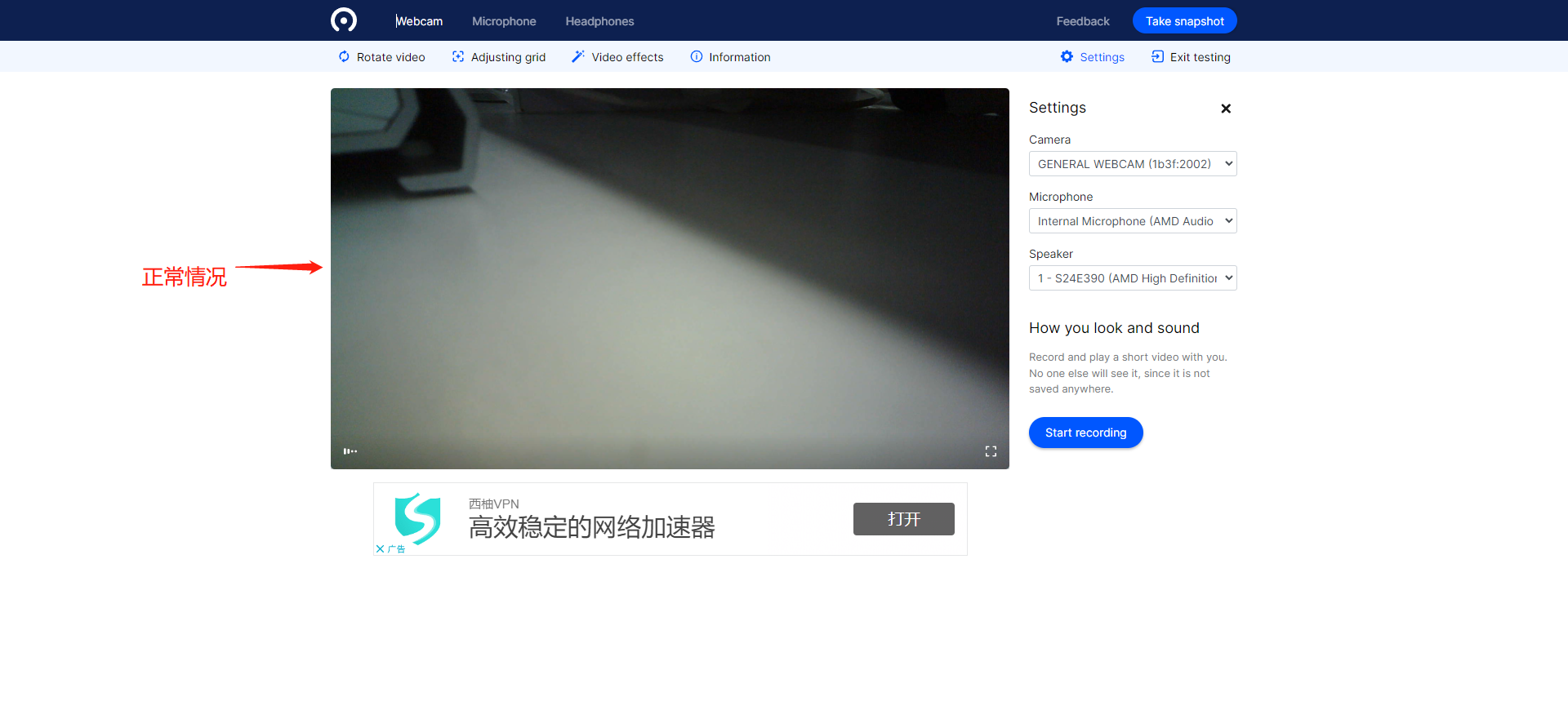
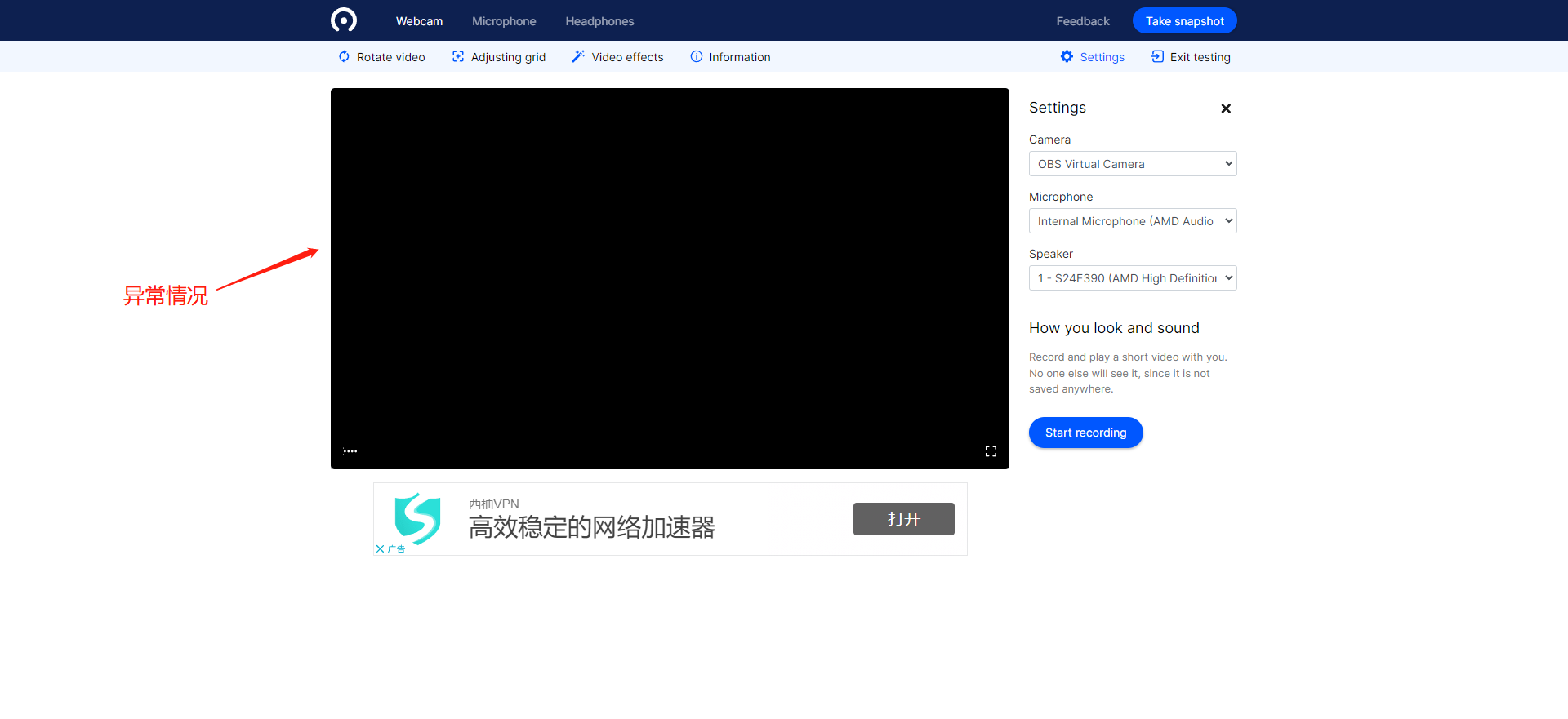
![image.png](https://wechatapppro-1252524126.file.myqcloud.com/help_document/image/ueditor/73980000_1677492495.png ".png")

![image.png](https://wechatapppro-1252524126.file.myqcloud.com/help_document/image/ueditor/24102400_1677492495.png ".png")

# Common Questions about Kuaishou Relay

<div data-elink-language-switch="1" id="bkmrk-%E4%B8%AD%E6%96%87" style="border:1px solid #d6d9de;border-radius:6px;padding:10px 12px;margin:0 0 18px 0;background:#f8fafc;font-size:14px;">[中文](/books/091d5/page/d947b)</div>**<span style="font-size:16px;">Q: For a live stream rebroadcast to Kuaishou, do I need to click 'Start Live' on Kuaishou after the live stream starts?</span>**<span style="font-size:16px;">  
A: No need if you use the one - click rebroadcast to Kuaishou. If you use the Kuaishou streaming address to rebroadcast to Kuaishou, you need to click 'Start Live' on Kuaishou.</span>

<span style="font-size:16px;">  
**Q: Can I view the replay of a live stream rebroadcast to Kuaishou on Kuaishou?**  
A: Kuaishou has a replay function. You can turn on the replay switch for the rebroadcast live stream on Kuaishou.</span>

<span style="font-size:16px;">  
**Q: When elink rebroadcasts a live stream to Kuaishou, will the Kuaishou live stream end automatically after the elink live stream ends?**  
A: No. After the elink live stream stops pushing, you need to manually end the Kuaishou live stream.</span>

<span style="font-size:16px;">  
**Q: Does the live stream of a trial - version online store support rebroadcasting to Kuaishou?**  
A: Yes, it does.</span>

<span style="font-size:16px;">  
**Q: How many elink live streams can a single Kuaishou account receive for rebroadcast at the same time?**  
A: A single Kuaishou account can receive at most one elink live stream for rebroadcast at the same time. If there is an overlap in the rebroadcast time using the same Kuaishou account, the new live stream will overwrite the old one.</span>

<span style="font-size:16px;">  
**Q: Do I need to reset every time I create a new Kuaishou rebroadcast?**  
A: If you have previously bound a Kuaishou account, when creating a new live stream, it will automatically bind the account and cover image of the previous live stream that was in the 'ended' state and was rebroadcast using a Kuaishou account. You can modify them.</span>

<span style="font-size:16px;">  
**Q: When users watch a live stream rebroadcast to Kuaishou, can they synchronously participate in the relevant interactions of the elink live stream, such as co - hosting?**  
A: Rebroadcasting to Kuaishou is limited to the rebroadcast of the live - stream picture. Other interactive capabilities will not be synchronized. Co - hosting, live commerce, etc. initiated in the elink live stream can only be participated in the elink live - stream room and cannot be participated in the Kuaishou live - stream room.</span>

<span style="font-size:16px;">  
**Q: Can I use the method of filling in the Kuaishou streaming address for rebroadcast?**  
A: Yes. You can obtain the Kuaishou streaming address and use the third - party rebroadcast function. For the specific tutorial, click[https://helpcenter.xiaoe - tech.com/#/problem/detail?document\_id=doc\_5f6c4d59a1a00\_Cu4yM](https://helpcenter.xiaoe-tech.com/#/problem/detail?document_id=doc_5f6c4d59a1a00_Cu4yM). Note: After starting the live stream, you need to click 'Start Live' in the Kuaishou live - stream room.  
</span>

<span style="background-color:rgb(255,255,255);color:rgb(53,53,53);font-family:BlinkMacSystemFont, 'Segoe UI', Roboto, 'Helvetica Neue', Helvetica, sans-serif, 'Apple Color Emoji', 'Segoe UI Emoji', 'Segoe UI Symbol', 'Noto Color emoji', 'Helvetica Neue', Roboto, 'system-ui', '-apple-system', BlinkMacSystemFont, 'Segoe UI', Roboto, 'Helvetica Neue', Helvetica, sans-serif, 'Apple Color Emoji', 'Segoe UI Emoji', 'Segoe UI Symbol', 'Noto Color emoji', 'Helvetica Neue', Helvetica, 'PingFang SC', 'Microsoft YaHei', 'Source Han Sans SC', 'Noto Sans CJK SC', 'WenQuanYi Micro Hei', sans-serif;letter-spacing:0px;font-size:16px;">  
</span>

<span style="background-color:rgb(255,255,255);color:rgb(53,53,53);font-family:BlinkMacSystemFont, 'Segoe UI', Roboto, 'Helvetica Neue', Helvetica, sans-serif, 'Apple Color Emoji', 'Segoe UI Emoji', 'Segoe UI Symbol', 'Noto Color emoji', 'Helvetica Neue', Roboto, 'system-ui', '-apple-system', BlinkMacSystemFont, 'Segoe UI', Roboto, 'Helvetica Neue', Helvetica, sans-serif, 'Apple Color Emoji', 'Segoe UI Emoji', 'Segoe UI Symbol', 'Noto Color emoji', 'Helvetica Neue', Helvetica, 'PingFang SC', 'Microsoft YaHei', 'Source Han Sans SC', 'Noto Sans CJK SC', 'WenQuanYi Micro Hei', sans-serif;letter-spacing:0px;font-size:16px;">  
</span>

<span style="background-color:rgb(255,255,255);color:rgb(53,53,53);font-family:BlinkMacSystemFont, 'Segoe UI', Roboto, 'Helvetica Neue', Helvetica, sans-serif, 'Apple Color Emoji', 'Segoe UI Emoji', 'Segoe UI Symbol', 'Noto Color emoji', 'Helvetica Neue', Roboto, 'system-ui', '-apple-system', BlinkMacSystemFont, 'Segoe UI', Roboto, 'Helvetica Neue', Helvetica, sans-serif, 'Apple Color Emoji', 'Segoe UI Emoji', 'Segoe UI Symbol', 'Noto Color emoji', 'Helvetica Neue', Helvetica, 'PingFang SC', 'Microsoft YaHei', 'Source Han Sans SC', 'Noto Sans CJK SC', 'WenQuanYi Micro Hei', sans-serif;letter-spacing:0px;font-size:16px;">  
</span>

<span style="background-color:rgb(255,255,255);color:rgb(53,53,53);font-family:BlinkMacSystemFont, 'Segoe UI', Roboto, 'Helvetica Neue', Helvetica, sans-serif, 'Apple Color Emoji', 'Segoe UI Emoji', 'Segoe UI Symbol', 'Noto Color emoji', 'Helvetica Neue', Roboto, 'system-ui', '-apple-system', BlinkMacSystemFont, 'Segoe UI', Roboto, 'Helvetica Neue', Helvetica, sans-serif, 'Apple Color Emoji', 'Segoe UI Emoji', 'Segoe UI Symbol', 'Noto Color emoji', 'Helvetica Neue', Helvetica, 'PingFang SC', 'Microsoft YaHei', 'Source Han Sans SC', 'Noto Sans CJK SC', 'WenQuanYi Micro Hei', sans-serif;letter-spacing:0px;font-size:16px;">  
</span>

<span style="font-family:BlinkMacSystemFont, 'Segoe UI', Roboto, 'Helvetica Neue', Helvetica, sans-serif, 'Apple Color Emoji', 'Segoe UI Emoji', 'Segoe UI Symbol', 'Noto Color emoji', 'Helvetica Neue', Roboto, 'system-ui', '-apple-system', BlinkMacSystemFont, 'Segoe UI', Roboto, 'Helvetica Neue', Helvetica, sans-serif, 'Apple Color Emoji', 'Segoe UI Emoji', 'Segoe UI Symbol', 'Noto Color emoji', 'Helvetica Neue', Helvetica, 'PingFang SC', 'Microsoft YaHei', 'Source Han Sans SC', 'Noto Sans CJK SC', 'WenQuanYi Micro Hei', sans-serif;color:rgb(53,53,53);background:rgb(255,255,255);letter-spacing:0px;vertical-align:baseline;font-size:16px;">  
</span>

<span style="font-family:BlinkMacSystemFont, 'Segoe UI', Roboto, 'Helvetica Neue', Helvetica, sans-serif, 'Apple Color Emoji', 'Segoe UI Emoji', 'Segoe UI Symbol', 'Noto Color emoji', 'Helvetica Neue', Roboto, 'system-ui', '-apple-system', BlinkMacSystemFont, 'Segoe UI', Roboto, 'Helvetica Neue', Helvetica, sans-serif, 'Apple Color Emoji', 'Segoe UI Emoji', 'Segoe UI Symbol', 'Noto Color emoji', 'Helvetica Neue', Helvetica, 'PingFang SC', 'Microsoft YaHei', 'Source Han Sans SC', 'Noto Sans CJK SC', 'WenQuanYi Micro Hei', sans-serif;color:rgb(53,53,53);background:rgb(255,255,255);letter-spacing:0px;vertical-align:baseline;font-size:16px;">  
</span>

<span style="font-family:BlinkMacSystemFont, 'Segoe UI', Roboto, 'Helvetica Neue', Helvetica, sans-serif, 'Apple Color Emoji', 'Segoe UI Emoji', 'Segoe UI Symbol', 'Noto Color emoji', 'Helvetica Neue', Roboto, 'system-ui', '-apple-system', BlinkMacSystemFont, 'Segoe UI', Roboto, 'Helvetica Neue', Helvetica, sans-serif, 'Apple Color Emoji', 'Segoe UI Emoji', 'Segoe UI Symbol', 'Noto Color emoji', 'Helvetica Neue', Helvetica, 'PingFang SC', 'Microsoft YaHei', 'Source Han Sans SC', 'Noto Sans CJK SC', 'WenQuanYi Micro Hei', sans-serif;color:rgb(53,53,53);background:rgb(255,255,255);letter-spacing:0px;vertical-align:baseline;font-size:16px;">  
</span>

<span style="font-family:BlinkMacSystemFont, 'Segoe UI', Roboto, 'Helvetica Neue', Helvetica, sans-serif, 'Apple Color Emoji', 'Segoe UI Emoji', 'Segoe UI Symbol', 'Noto Color emoji', 'Helvetica Neue', Roboto, 'system-ui', '-apple-system', BlinkMacSystemFont, 'Segoe UI', Roboto, 'Helvetica Neue', Helvetica, sans-serif, 'Apple Color Emoji', 'Segoe UI Emoji', 'Segoe UI Symbol', 'Noto Color emoji', 'Helvetica Neue', Helvetica, 'PingFang SC', 'Microsoft YaHei', 'Source Han Sans SC', 'Noto Sans CJK SC', 'WenQuanYi Micro Hei', sans-serif;font-weight:bold;color:rgb(53,53,53);background:rgb(255,255,255);letter-spacing:0px;vertical-align:baseline;font-size:16px;"></span>

<span style="font-family:BlinkMacSystemFont, 'Segoe UI', Roboto, 'Helvetica Neue', Helvetica, sans-serif, 'Apple Color Emoji', 'Segoe UI Emoji', 'Segoe UI Symbol', 'Noto Color emoji', 'Helvetica Neue', Roboto, 'system-ui', '-apple-system', BlinkMacSystemFont, 'Segoe UI', Roboto, 'Helvetica Neue', Helvetica, sans-serif, 'Apple Color Emoji', 'Segoe UI Emoji', 'Segoe UI Symbol', 'Noto Color emoji', 'Helvetica Neue', Helvetica, 'PingFang SC', 'Microsoft YaHei', 'Source Han Sans SC', 'Noto Sans CJK SC', 'WenQuanYi Micro Hei', sans-serif;font-weight:bold;color:rgb(53,53,53);background:rgb(255,255,255);letter-spacing:0px;vertical-align:baseline;font-size:16px;">  
</span>

<span style="font-family:BlinkMacSystemFont, 'Segoe UI', Roboto, 'Helvetica Neue', Helvetica, sans-serif, 'Apple Color Emoji', 'Segoe UI Emoji', 'Segoe UI Symbol', 'Noto Color emoji', 'Helvetica Neue', Roboto, 'system-ui', '-apple-system', BlinkMacSystemFont, 'Segoe UI', Roboto, 'Helvetica Neue', Helvetica, sans-serif, 'Apple Color Emoji', 'Segoe UI Emoji', 'Segoe UI Symbol', 'Noto Color emoji', 'Helvetica Neue', Helvetica, 'PingFang SC', 'Microsoft YaHei', 'Source Han Sans SC', 'Noto Sans CJK SC', 'WenQuanYi Micro Hei', sans-serif;font-weight:bold;color:rgb(53,53,53);background:rgb(255,255,255);letter-spacing:0px;vertical-align:baseline;font-size:16px;">  
</span>

# How to reduce live streaming traffic consumption

<div data-elink-language-switch="1" id="bkmrk-%E4%B8%AD%E6%96%87" style="border:1px solid #d6d9de;border-radius:6px;padding:10px 12px;margin:0 0 18px 0;background:#f8fafc;font-size:14px;">[中文](/books/091d5/page/04511)</div><span style="font-size:14px;font-family:PingFangSC;font-weight:bold;color:rgb(53,53,53);background:rgb(255,255,255);letter-spacing:0;vertical-align:baseline;">I. How to reduce live streaming traffic consumption when using the elink Live client or elink Live Mini Program for live streaming with push streaming</span>

<span style="font-size:14px;font-family:PingFangSC;color:rgb(53,53,53);background:rgb(255,255,255);letter-spacing:0;vertical-align:baseline;">1. elink Live client: Find \[Settings\] - \[General Settings\] in the live streaming room. By lowering the clarity level, you can reduce the live streaming traffic consumption after push streaming. (Note: Lower clarity may affect the live streaming image quality.)</span>

![image.png](https://wechatapppro-1252524126.file.myqcloud.com/help_document/image/ueditor/49516900_1710405239.png ".png")

<span style="font-size:15px;color:rgb(51,51,51);letter-spacing:0;vertical-align:baseline;">2. elink Live Mini Program: Find \[Live Streaming Settings\] - \[Clarity\] in the live streaming room.</span><span style="font-size:14px;font-family:PingFangSC;color:rgb(53,53,53);background:rgb(255,255,255);letter-spacing:0;vertical-align:baseline;">By lowering the clarity level, you can reduce the live streaming traffic consumption after push streaming. (Note: Lower clarity may affect the live streaming image quality.)</span>

![image.png](https://wechatapppro-1252524126.file.myqcloud.com/help_document/image/ueditor/39625400_1710405291.png ".png")

<span style="font-size:14px;font-family:PingFangSC;font-weight:bold;color:rgb(53,53,53);background:rgb(255,255,255);letter-spacing:0;vertical-align:baseline;">II. How to reduce live streaming traffic consumption when using OBS for live streaming with push streaming</span>

<span style="font-size:14px;font-family:PingFangSC;color:rgb(53,53,53);background:rgb(255,255,255);letter-spacing:0;vertical-align:baseline;">Click \[Settings\]. In the \[Output\] settings, lower the values of the video bitrate and audio bitrate. The lower the values, the lower the live streaming traffic consumption after push streaming. (Note: Extremely low video and audio bitrates may affect the live streaming image quality.)</span>

![image.png](https://wechatapppro-1252524126.file.myqcloud.com/help_document/image/ueditor/3783400_1710405338.png ".png")

<span style="font-size:14px;font-family:PingFangSC;font-weight:bold;color:rgb(53,53,53);background:rgb(255,255,255);letter-spacing:0px;vertical-align:baseline;">III. </span><span style="font-size:14px;font-family:PingFangSC;font-weight:bold;color:rgb(53,53,53);background:rgb(255,255,255);letter-spacing:0px;vertical-align:baseline;">How to reduce live streaming traffic consumption when using</span><span style="font-size:14px;font-family:PingFangSC;font-weight:bold;color:rgb(53,53,53);background:rgb(255,255,255);letter-spacing:0px;vertical-align:baseline;">recorded live streaming</span>

<span style="font-size:14px;font-family:PingFangSC;color:rgb(53,53,53);background:rgb(255,255,255);letter-spacing:0;vertical-align:baseline;">You can reduce the live streaming traffic consumption by lowering the clarity level settings or selecting a lower bitrate.</span>

<span style="font-size:14px;font-family:PingFangSC;color:rgb(53,53,53);background:rgb(255,255,255);letter-spacing:0;vertical-align:baseline;">Operation path 1: New live streaming - Recorded video - Image quality settings</span>

![image.png](https://wechatapppro-1252524126.file.myqcloud.com/help_document/image/ueditor/53445000_1710405440.png ".png")

<span style="font-size:14px;font-family:PingFangSC;color:rgb(53,53,53);background:rgb(255,255,255);letter-spacing:0;vertical-align:baseline;">Operation path 2: Live streaming management - Management - Recorded video - Image quality settings</span>

<span style="font-size:15px;letter-spacing:0;vertical-align:baseline;">![image.png](https://wechatapppro-1252524126.file.myqcloud.com/help_document/image/ueditor/89392000_1710405469.png ".png")</span>

<span style="font-size:15px;letter-spacing:0;vertical-align:baseline;"></span>

<span style="font-size:14px;font-family:PingFangSC;color:rgb(53,53,53);background:rgb(255,255,255);letter-spacing:0;vertical-align:baseline;">Operation path 3: General settings - Global settings - Recorded live streaming image quality settings</span>

![image.png](https://wechatapppro-1252524126.file.myqcloud.com/help_document/image/ueditor/18612100_1710405478.png ".png")<span style="font-size:15px;letter-spacing:0;vertical-align:baseline;"></span>

# Black borders or incomplete display in the live streaming video

<div data-elink-language-switch="1" id="bkmrk-%E4%B8%AD%E6%96%87" style="border:1px solid #d6d9de;border-radius:6px;padding:10px 12px;margin:0 0 18px 0;background:#f8fafc;font-size:14px;">[中文](/books/091d5/page/202cb-alr)</div>### <span style="font-family:'微软雅黑';">  
</span>

### <span style="font-family:'微软雅黑';">  
</span>

### <span style="font-family:'微软雅黑';">  
</span>

### <span style="font-family:'微软雅黑';">  
</span>

### <span style="font-family:'微软雅黑';">  
</span>

### <span style="font-family:'微软雅黑';">  
</span>

### <span style="font-family:'微软雅黑';">  
</span>

### <span style="font-family:'微软雅黑';">  
</span>

### <span style="font-family:'微软雅黑';">  
</span>

### <span style="font-family:'微软雅黑';">  
</span>

### <span style="font-family:'微软雅黑';">  
</span>

### <span style="font-family:'微软雅黑';">  
</span>

### <span style="font-family:'微软雅黑';">I. </span><span style="font-size:19px;color:rgb(26,26,26);letter-spacing:0;vertical-align:baseline;">Black borders on the screen</span>

<span style="font-family:Wingdings;">  
</span>

<span style="font-family:Wingdings;">●<span style="font-family:'Times New Roman';"> </span></span><span style="font-size:15px;color:rgb(51,51,51);letter-spacing:0;vertical-align:baseline;">Scenario 1: Black borders appear during screen sharing</span>

<span style="font-family:Wingdings;">○<span style="font-family:'Times New Roman';"> </span></span><span style="font-size:15px;color:rgb(51,51,51);letter-spacing:0;vertical-align:baseline;">Example: Sharing the desktop</span>

 ![image.png](https://wechatapppro-1252524126.file.myqcloud.com/help_document/image/ueditor/17056200_1698218274.png ".png")

<span style="font-family:Wingdings;">○<span style="font-family:'Times New Roman';"> </span></span><span style="font-size:15px;color:rgb(51,51,51);letter-spacing:0;vertical-align:baseline;">Reason 1: The screen sharing resolution of the computer desktop is not 16:9, which is common on Mac and Huawei computers. The resolution of Mac computers is usually 16:10.</span>

<span style="font-family:Wingdings;">○<span style="font-family:'Times New Roman';"> </span></span><span style="font-size:15px;color:rgb(51,51,51);letter-spacing:0;vertical-align:baseline;">Suggestion 1:</span>

<span style="font-family:Wingdings;">■<span style="font-family:'Times New Roman';"> </span></span><span style="font-size:15px;color:rgb(51,51,51);letter-spacing:0;vertical-align:baseline;">Step 1: It is recommended to check the screen resolution and adjust it to 16:9 if possible. The adjustment method is as shown in the following figure:</span>

<span style="font-size:15px;color:rgb(51,51,51);letter-spacing:0;vertical-align:baseline;"> 【Adjusting the screen resolution on a Mac computer】</span>

<span class="image-wrapper" style="display:inline-block;overflow:hidden;width:495px;height:435.462px;">![png](https://wdcdn.qpic.cn/MTY4ODg1MDQ5MzgxNDU4Mw_806859_XNg0oU8zAu9XJFzZ_1697703384?w=1430&h=1258&type=image/png)</span>

<span style="font-size:15px;color:rgb(51,51,51);letter-spacing:0;vertical-align:baseline;"> 【Screen resolution on a Windows computer】</span>

<span class="image-wrapper" style="display:inline-block;overflow:hidden;width:488px;height:266.445px;">![png](https://wdcdn.qpic.cn/MTY4ODg1MDQ5MzgxNDU4Mw_889044_8YcvaFH7XGNW3nfl_1697703448?w=1011&h=552&type=image/png)</span>

<span style="font-family:Wingdings;">■<span style="font-family:'Times New Roman';"> </span></span><span style="font-size:15px;color:rgb(51,51,51);letter-spacing:0;vertical-align:baseline;">Step 2: If there is no such resolution (e.g., on a Mac computer), it is recommended that the instructor share the window and ensure that the ratio of the shared window is 16:9 to avoid black borders. (Note: If some videos have built - in black borders, there will also be black borders when sharing these videos through window sharing.)</span>

<span style="font-family:Wingdings;">■<span style="font-family:'Times New Roman';"> </span></span><span style="font-size:15px;color:rgb(51,51,51);letter-spacing:0;vertical-align:baseline;">Step 3: If you cannot confirm the size of the shared window; if you are sharing courseware, it is recommended to upload the courseware to the live - streaming room for demonstration. Note that before uploading the courseware, you can adjust the size of the courseware to “Wide screen (16:9)” locally. The specific operation is as shown in the following figure:</span>

<span style="font-family:Wingdings;">◆<span style="font-family:'Times New Roman';"> </span></span><span style="font-size:15px;color:rgb(51,51,51);letter-spacing:0;vertical-align:baseline;">Step 1: Adjust the slide size in the design</span>

 ![image.png](https://wechatapppro-1252524126.file.myqcloud.com/help_document/image/ueditor/27027800_1698217713.png ".png")

<span style="font-family:Wingdings;">◆<span style="font-family:'Times New Roman';"> </span></span><span style="font-size:15px;color:rgb(51,51,51);letter-spacing:0;vertical-align:baseline;">Step 2: Upload the courseware to the live - streaming room/file storage and select “Presentation”</span>

 ![image.png](https://wechatapppro-1252524126.file.myqcloud.com/help_document/image/ueditor/40183700_1698217843.png ".png")

<span style="font-size:15px;color:rgb(51,51,51);letter-spacing:0;vertical-align:baseline;">If you are sharing a video, it is recommended to adjust the size of the local player. Taking Tencent Video as an example, if it is not in the compact mode, first enter the compact mode in the upper - right corner. If there are still black borders at this time, you can stretch the playback interface to adjust until you are satisfied.</span>

<span style="font-family:Wingdings;">■<span style="font-family:'Times New Roman';"> </span></span><span style="font-size:15px;color:rgb(51,51,51);letter-spacing:0;vertical-align:baseline;">Step 1: Open Tencent Video</span>

<span class="image-wrapper" style="display:inline-block;overflow:hidden;width:500px;height:318px;"> ![png](https://wdcdn.qpic.cn/MTY4ODg1MDQ5Mzg2OTkzOA_473970_7jBu8bQvR7oEfFOf_1697170339?w=500&h=318&type=image/png)</span>

<span style="font-family:Wingdings;">■<span style="font-family:'Times New Roman';"> </span></span><span style="font-size:15px;color:rgb(51,51,51);letter-spacing:0;vertical-align:baseline;">Step 2: Click the compact mode</span>

 ![image.png](https://wechatapppro-1252524126.file.myqcloud.com/help_document/image/ueditor/50475400_1698218131.png ".png")

<span style="font-family:Wingdings;">■<span style="font-family:'Times New Roman';"> </span></span><span style="font-size:15px;color:rgb(51,51,51);letter-spacing:0;vertical-align:baseline;">Step 3: After clicking the 【Compact mode】 icon, it will automatically enter the 【Compact mode】 for playback. At this time, you can also adjust the size of the video playback window with the mouse.</span>

<span style="font-family:Wingdings;">○<span style="font-family:'Times New Roman';"> </span></span><span style="font-size:15px;color:rgb(51,51,51);letter-spacing:0;vertical-align:baseline;">Reason 3: Since the viewing devices of some students are not 16:9, no matter how the instructor adjusts, there will still be black borders on some viewing devices.</span>

<span style="font-family:Wingdings;">●<span style="font-family:'Times New Roman';"> </span></span><span style="font-size:15px;color:rgb(51,51,51);letter-spacing:0;vertical-align:baseline;">Scenario 2: Black borders appear in the round - table mode</span>

<span style="font-family:Wingdings;">○<span style="font-family:'Times New Roman';"> </span></span><span style="font-size:15px;color:rgb(51,51,51);letter-spacing:0;vertical-align:baseline;">Example:</span>

 ![image.png](https://wechatapppro-1252524126.file.myqcloud.com/help_document/image/ueditor/66313300_1698218148.png ".png")

<span style="font-family:Wingdings;">○<span style="font-family:'Times New Roman';"> </span></span><span style="font-size:15px;color:rgb(51,51,51);letter-spacing:0;vertical-align:baseline;">Reason: In the round - table meeting mode, the camera ratio is fixed at 16:9, and the content sharing ratio mode is 16:9. There will definitely be black borders in the empty part of the camera and around the content sharing. If the ratio of the shared window content itself is not 16:9, there will be two layers of black borders.</span>

<span style="font-family:Wingdings;">○<span style="font-family:'Times New Roman';"> </span></span><span style="font-size:15px;color:rgb(51,51,51);letter-spacing:0;vertical-align:baseline;">Suggestion: Adjust the ratio of the content - sharing window to 16:9 and set the background image of the video area to fill the black borders.</span>

### <span style="font-family:'微软雅黑';">II. </span><span style="font-size:19px;color:rgb(26,26,26);letter-spacing:0;vertical-align:baseline;">Incomplete screen display</span>

<span style="font-size:19px;color:rgb(26,26,26);letter-spacing:0;vertical-align:baseline;">  
</span>

<span style="font-family:Wingdings;">●<span style="font-family:'Times New Roman';"> </span></span><span style="font-size:15px;color:rgb(51,51,51);letter-spacing:0;vertical-align:baseline;">Scenario 1: In the vertical screen live - streaming mode, the viewing end cannot see the full screen</span>

<span style="font-family:Wingdings;">○<span style="font-family:'Times New Roman';"> </span></span><span style="font-size:15px;color:rgb(51,51,51);letter-spacing:0;vertical-align:baseline;">Reason: This situation is mainly related to the instructor's mobile device for streaming. The system defaults to streaming the entire screen of the instructor's mobile phone, while the screen ratios of each viewer's mobile phone model are different. Therefore, some models may have incomplete screen display.</span>

<span style="font-family:Wingdings;">○<span style="font-family:'Times New Roman';"> </span></span><span style="font-size:15px;color:rgb(51,51,51);letter-spacing:0;vertical-align:baseline;">Suggestion: When the instructor is doing vertical screen live - streaming, they can use another mobile phone to test the effect and leave a safe distance when making the background image. If using OBS for live - streaming and pushing, it is recommended to adjust the output ratio to 9:16.</span>

<span style="font-family:Wingdings;">●<span style="font-family:'Times New Roman';"> </span></span><span style="font-size:15px;color:rgb(51,51,51);letter-spacing:0;vertical-align:baseline;">Scenario 2: In the horizontal screen live - streaming mode, the output image of the camera is inconsistent with the image captured by the external camera</span>

<span style="font-family:Wingdings;">○<span style="font-family:'Times New Roman';"> </span></span><span style="font-size:15px;color:rgb(51,51,51);letter-spacing:0;vertical-align:baseline;">Reason: Currently, the output image of the camera is 16:9, while the image captured by the external camera has a different ratio, so part of the image will be cropped.</span>

<span style="font-family:Wingdings;">○<span style="font-family:'Times New Roman';"> </span></span><span style="font-size:15px;color:rgb(51,51,51);letter-spacing:0;vertical-align:baseline;">Suggestion: It is recommended to check the output effect in the camera preview screen and adjust the ratio of the image captured by the external camera to 16:9.</span>

# Video clarity of each live streaming push terminal

<div data-elink-language-switch="1" id="bkmrk-%E4%B8%AD%E6%96%87" style="border:1px solid #d6d9de;border-radius:6px;padding:10px 12px;margin:0 0 18px 0;background:#f8fafc;font-size:14px;">[中文](/books/091d5/page/e2c42)</div>![直播各推流终端清晰度 (1).png](https://wechatapppro-1252524126.file.myqcloud.com/help_document/image/ueditor/7023400_1731392258.png ".png")

# Problems and Solutions for Abnormal Live Room Access

<div data-elink-language-switch="1" id="bkmrk-%E4%B8%AD%E6%96%87" style="border:1px solid #d6d9de;border-radius:6px;padding:10px 12px;margin:0 0 18px 0;background:#f8fafc;font-size:14px;">[中文](/books/091d5/page/072b0)</div><span style="font-size:15px;color:rgb(51,51,51);letter-spacing:0;vertical-align:baseline;">When users encounter issues accessing the live streaming room, they can match the information on the page<span style="color:rgb(51,51,51);font-family:'等线';font-size:15px;background-color:rgb(255,255,255);">and handle it with the corresponding solutions</span></span>

<span style="font-size:15px;color:rgb(51,51,51);letter-spacing:0;vertical-align:baseline;">  
</span>

<span style="font-size:15px;color:rgb(51,51,51);letter-spacing:0;vertical-align:baseline;">  
</span>

**<span style="color:rgb(51,51,51);letter-spacing:0px;vertical-align:baseline;font-size:16px;">1. Failed to enter the live streaming room due to network issues</span>**

<span style="font-size:15px;color:rgb(51,51,51);letter-spacing:0;vertical-align:baseline;">● Scenario 1: Network issues</span>

![mty4odg1mdq5mzg0nzqznq_241877_pbob6fozpqc96gcs_1715325892](https://wechatapppro-1252524126.file.myqcloud.com/help_document/image/ueditor/31199800_1715412413.cn/mty4odg1mdq5mzg0nzqznq_241877_pbob6fozpqc96gcs_1715325892)<span style="font-size:12pt;color:rgb(0,0,0);"> </span>![image.png](https://wechatapppro-1252524126.file.myqcloud.com/help_document/image/ueditor/37367600_1715412413.png ".png")<span style="font-size:12pt;color:rgb(0,0,0);"> </span>![image (1).png](https://wechatapppro-1252524126.file.myqcloud.com/help_document/image/ueditor/43309200_1715412413.png ".png")

<span style="font-size:15px;font-family:BlinkMacSystemFont;background:rgb(253,253,254);letter-spacing:0px;vertical-align:baseline;color:rgb(0,0,0);">When you see the above page while accessing the live streaming room, you can follow the steps below to check if your network connection is normal:</span>

**<span style="font-size:15px;font-family:BlinkMacSystemFont;background:rgb(253,253,254);letter-spacing:0px;vertical-align:baseline;">1. </span><span style="font-size:15px;font-family:BlinkMacSystemFont;background:rgb(253,253,254);letter-spacing:0px;vertical-align:baseline;">Check the Wi-Fi connection</span>**<span style="letter-spacing:0px;font-size:15px;font-family:BlinkMacSystemFont;background:rgb(253,253,254);vertical-align:baseline;">: First, make sure that the Wi-Fi function of your device is turned on</span>

<span style="font-size:15px;font-family:BlinkMacSystemFont;background:rgb(253,253,254);letter-spacing:0px;vertical-align:baseline;"></span>

<span style="font-size:15px;font-family:BlinkMacSystemFont;background:rgb(253,253,254);letter-spacing:0px;vertical-align:baseline;">a. <span style="font-family:'system-ui';font-size:15px;background-color:rgb(253,253,254);">Check if you are connected to an available Wi-Fi network</span></span>

<span style="font-size:15px;font-family:BlinkMacSystemFont;background:rgb(253,253,254);letter-spacing:0px;vertical-align:baseline;">b. <span style="font-family:'system-ui';font-size:15px;background-color:rgb(253,253,254);">If you are connected to Wi-Fi but there is an exclamation mark next to the network icon, it means the network is unavailable. You can try disconnecting and reconnecting to Wi-Fi or restarting your device</span></span>

**<span style="font-size:15px;font-family:BlinkMacSystemFont;background:rgb(253,253,254);letter-spacing:0px;vertical-align:baseline;color:rgb(0,0,0);">2. Check the mobile data connection</span>**<span style="font-size:15px;font-family:BlinkMacSystemFont;background:rgb(253,253,254);letter-spacing:0px;vertical-align:baseline;color:rgb(0,0,0);">: If Wi-Fi is unavailable or the signal is weak, you can try using mobile data</span>

<span style="font-size:15px;font-family:BlinkMacSystemFont;background:rgb(253,253,254);letter-spacing:0px;vertical-align:baseline;color:rgb(0,0,0);">a. Make sure that the mobile data function on your device is turned on</span>

<span style="font-size:15px;font-family:BlinkMacSystemFont;background:rgb(253,253,254);letter-spacing:0px;vertical-align:baseline;color:rgb(0,0,0);">b. Check if the signal bar on your device shows a mobile data signal (e.g., 4G/5G)</span>

**<span style="font-size:15px;font-family:BlinkMacSystemFont;background:rgb(253,253,254);letter-spacing:0px;vertical-align:baseline;color:rgb(0,0,0);">3. Check the VPN settings</span>**<span style="font-size:15px;font-family:BlinkMacSystemFont;background:rgb(253,253,254);letter-spacing:0px;vertical-align:baseline;color:rgb(0,0,0);">: If you have used a VPN (Virtual Private Network) before, it may affect your network connection</span>

<span style="font-size:15px;font-family:BlinkMacSystemFont;background:rgb(253,253,254);letter-spacing:0px;vertical-align:baseline;color:rgb(0,0,0);">a. You can go to the 'Settings' menu on your device and find the 'VPN' option</span>

<span style="background-color:rgb(253,253,254);font-family:BlinkMacSystemFont;font-size:15px;letter-spacing:0px;">b. If the VPN is enabled, it is recommended to turn it off and then try to connect to the network again</span>

<span style="font-size:15px;font-family:BlinkMacSystemFont;background:rgb(253,253,254);letter-spacing:0px;vertical-align:baseline;color:rgb(0,0,0);">**4. Set the device DNS**: The DNS settings of your device may affect the network connection</span>

<span style="font-size:15px;font-family:BlinkMacSystemFont;background:rgb(253,253,254);letter-spacing:0px;vertical-align:baseline;color:rgb(0,0,0);">a. Go to the 'Settings' menu and find the 'Wi-Fi' option</span>

<span style="font-size:15px;font-family:BlinkMacSystemFont;background:rgb(253,253,254);letter-spacing:0px;vertical-align:baseline;color:rgb(0,0,0);">b. Select the Wi-Fi network you are currently connected to and click on 'Modify Network' or a similar option</span>

<span style="font-size:15px;font-family:BlinkMacSystemFont;background:rgb(253,253,254);letter-spacing:0px;vertical-align:baseline;color:rgb(0,0,0);">c. In the 'IP settings' or 'Advanced options', find the DNS settings and try changing the DNS address to 114.114.114.114</span>

<span style="font-size:15px;font-family:BlinkMacSystemFont;background:rgb(253,253,254);letter-spacing:0px;vertical-align:baseline;color:rgb(0,0,0);">d. After the change, save the settings and reconnect to the Wi-Fi network</span>

<span style="font-size:15px;font-family:BlinkMacSystemFont;background:rgb(253,253,254);letter-spacing:0px;vertical-align:baseline;color:rgb(0,0,0);">After following the steps above, most network connection issues should be resolved. If the problem persists, it is recommended that you contact your network service provider or device manufacturer for further assistance.</span>

# Common issues and solutions for audio-video out-of-sync in live streaming

<div data-elink-language-switch="1" id="bkmrk-%E4%B8%AD%E6%96%87" style="border:1px solid #d6d9de;border-radius:6px;padding:10px 12px;margin:0 0 18px 0;background:#f8fafc;font-size:14px;">[中文](/books/091d5/page/a02ff)</div><span style="font-size:15px;color:rgb(51,51,51);letter-spacing:0;vertical-align:baseline;">When</span><span style="font-size:15px;color:rgb(51,51,51);letter-spacing:0;vertical-align:baseline;">Audio and video are out of sync during the live stream, affecting the viewing experience</span><span style="font-size:15px;color:rgb(51,51,51);letter-spacing:0;vertical-align:baseline;">, you can match the corresponding solution according to the live streaming tool and scenario for processing</span>

##### <span style="font-size:15px;color:rgb(26,26,26);letter-spacing:0;vertical-align:baseline;">  
</span>

##### <span style="font-size:15px;color:rgb(26,26,26);letter-spacing:0;vertical-align:baseline;">  
</span>

<span style="font-size:15px;color:rgb(26,26,26);letter-spacing:0;vertical-align:baseline;">  
</span>

##### <span style="font-size:15px;color:rgb(26,26,26);letter-spacing:0;vertical-align:baseline;">  
</span>

##### <span style="font-size:15px;color:rgb(26,26,26);letter-spacing:0;vertical-align:baseline;">  
</span>

##### <span style="font-size:15px;color:rgb(26,26,26);letter-spacing:0;vertical-align:baseline;">1 </span><span style="font-size:15px;color:rgb(26,26,26);letter-spacing:0;vertical-align:baseline;">OBS</span><span style="font-size:15px;color:rgb(26,26,26);letter-spacing:0;vertical-align:baseline;">Streaming tool</span>

<span style="font-size:15px;color:rgb(26,26,26);letter-spacing:0;vertical-align:baseline;">  
</span>

<table id="bkmrk-problemscenarioprobl"><tbody><tr class="firstRow" style="height:27px;"><td colspan="1" rowspan="1" style="width:50px;background:rgb(153,190,255);vertical-align:middle;padding:0px 7.2px;border-color:rgb(203,205,209);"><span style="font-size:15px;font-weight:bold;color:rgb(51,51,51);letter-spacing:0;vertical-align:baseline;">Problem</span>

</td><td colspan="1" rowspan="1" style="width:150px;background:rgb(153,190,255);vertical-align:middle;padding:0px 7.2px;border-color:rgb(203,205,209);"><span style="font-size:15px;font-weight:bold;color:rgb(51,51,51);letter-spacing:0;vertical-align:baseline;">Scenario</span>

</td><td colspan="1" rowspan="1" style="width:378px;background:rgb(153,190,255);vertical-align:middle;padding:0px 7.2px;border-color:rgb(203,205,209);"><span style="font-size:15px;font-weight:bold;color:rgb(51,51,51);letter-spacing:0;vertical-align:baseline;">Problem</span><span style="font-size:15px;font-weight:bold;color:rgb(51,51,51);letter-spacing:0;vertical-align:baseline;">Cause</span>

</td><td colspan="1" rowspan="1" style="width:346px;background:rgb(153,190,255);vertical-align:middle;padding:0px 7.2px;border-color:rgb(203,205,209);"><span style="font-size:15px;font-weight:bold;color:rgb(51,51,51);letter-spacing:0;vertical-align:baseline;">Solution</span><span style="font-size:15px;font-weight:bold;color:rgb(51,51,51);letter-spacing:0;vertical-align:baseline;">Method</span>

</td></tr><tr style="height:27px;"><td colspan="1" rowspan="1" style="width:50px;vertical-align:middle;padding:0px 7.2px;border-color:rgb(203,205,209);"><span style="font-size:13px;font-family:'微软雅黑';letter-spacing:0;vertical-align:baseline;">1</span>

</td><td colspan="1" rowspan="1" style="width:150px;vertical-align:middle;padding:0px 7.2px;border-color:rgb(203,205,209);"><span style="font-size:13px;font-family:'微软雅黑';letter-spacing:0;vertical-align:baseline;">OBS</span><span style="font-size:13px;font-family:'微软雅黑';letter-spacing:0;vertical-align:baseline;">Streaming + Network frame loss</span>

</td><td colspan="1" rowspan="1" style="width:378px;vertical-align:middle;padding:0px 7.2px;border-color:rgb(203,205,209);"><span style="font-size:13px;font-family:'微软雅黑';letter-spacing:0;vertical-align:baseline;">Streaming device</span><span style="font-size:13px;font-family:'微软雅黑';letter-spacing:0;vertical-align:baseline;">Network</span><span style="font-size:13px;font-family:'微软雅黑';letter-spacing:0;vertical-align:baseline;">Packet loss</span><span style="font-size:13px;font-family:'微软雅黑';letter-spacing:0;vertical-align:baseline;">,</span><span style="font-size:13px;font-family:'微软雅黑';letter-spacing:0;vertical-align:baseline;">resulting in frame loss or skipping in the input picture of the stream</span><span style="font-size:13px;font-family:'微软雅黑';letter-spacing:0;vertical-align:baseline;">/</span><span style="font-size:13px;font-family:'微软雅黑';letter-spacing:0;vertical-align:baseline;">Frame skipping</span>

</td><td colspan="1" rowspan="1" style="width:346px;vertical-align:middle;padding:0px 7.2px;border-color:rgb(203,205,209);"><span style="font-size:13px;letter-spacing:0;vertical-align:baseline;">It is recommended</span><span style="font-size:13px;letter-spacing:0;vertical-align:baseline;">Check the OBS monitor and</span><span style="font-size:13px;letter-spacing:0;vertical-align:baseline;">adjust the network by yourself:</span><span style="font-size:13px;letter-spacing:0;vertical-align:baseline;">【OBS】How to monitor the streaming quality?</span>

[<span style="font-size:13px;">2</span>](https://helpcenter.xiaoe-tech.com/#/problem/detail?document_id=doc_638ee87753ca1_2rTTp)

</td></tr><tr style="height:27px;"><td colspan="1" rowspan="1" style="width:50px;vertical-align:middle;padding:0px 7.2px;border-color:rgb(203,205,209);"><span style="font-size:13px;font-family:'微软雅黑';letter-spacing:0;vertical-align:baseline;">OBS</span>

</td><td colspan="1" rowspan="1" style="width:150px;vertical-align:middle;padding:0px 7.2px;border-color:rgb(203,205,209);"><span style="font-size:13px;font-family:'微软雅黑';letter-spacing:0;vertical-align:baseline;">Streaming + Ultra - high bitrate</span><span style="font-size:13px;font-family:'微软雅黑';letter-spacing:0;vertical-align:baseline;">Streaming</span>

</td><td colspan="1" rowspan="1" style="width:378px;vertical-align:middle;padding:0px 7.2px;border-color:rgb(203,205,209);"><span style="font-size:13px;font-family:'微软雅黑';letter-spacing:0;vertical-align:baseline;">Configuring an ultra - high bitrate requires a high network bandwidth. When the bandwidth</span><span style="font-size:13px;font-family:'微软雅黑';letter-spacing:0;vertical-align:baseline;">is not sufficient, frame loss occurs</span><span style="font-size:13px;font-family:'微软雅黑';letter-spacing:0;vertical-align:baseline;">Bandwidth</span><span style="font-size:13px;font-family:'微软雅黑';letter-spacing:0;vertical-align:baseline;">It is recommended</span>

</td><td colspan="1" rowspan="1" style="width:346px;vertical-align:middle;padding:0px 7.2px;border-color:rgb(203,205,209);"><span style="font-size:13px;letter-spacing:0;vertical-align:baseline;">to set the bitrate according to the</span><span style="font-size:13px;letter-spacing:0;vertical-align:baseline;">recommended</span><span style="font-size:13px;letter-spacing:0;vertical-align:baseline;">bitrate value:</span><span style="font-size:13px;letter-spacing:0;vertical-align:baseline;">【OBS】Recommended live streaming settings</span>

[<span style="font-size:13px;">3</span>](https://helpcenter.xiaoe-tech.com/#/problem/detail?document_id=doc_638ee4af4ff2b_XgV9i)

</td></tr><tr style="height:27px;"><td colspan="1" rowspan="1" style="width:50px;vertical-align:middle;padding:0px 7.2px;border-color:rgb(203,205,209);"><span style="font-size:13px;font-family:'微软雅黑';letter-spacing:0;vertical-align:baseline;">OBS streaming + Beauty filter plugin</span>

</td><td colspan="1" rowspan="1" style="width:150px;vertical-align:middle;padding:0px 7.2px;border-color:rgb(203,205,209);"><span style="font-size:13px;font-family:'微软雅黑';letter-spacing:0;vertical-align:baseline;">The camera uses</span>

</td><td colspan="1" rowspan="1" style="width:378px;vertical-align:middle;padding:0px 7.2px;border-color:rgb(203,205,209);"><span style="font-size:13px;font-family:'微软雅黑';letter-spacing:0;vertical-align:baseline;">YY Beauty</span><span style="font-size:13px;font-family:'微软雅黑';letter-spacing:0;vertical-align:baseline;">and other</span><span style="font-size:13px;font-family:'微软雅黑';letter-spacing:0;vertical-align:baseline;">plugins, causing a delay in the camera picture output and resulting in audio - video out - of - sync</span><span style="font-size:13px;font-family:'微软雅黑';letter-spacing:0;vertical-align:baseline;">●</span>

</td><td colspan="1" rowspan="1" style="width:346px;vertical-align:middle;padding:0px 7.2px;border-color:rgb(203,205,209);"><span style="font-family:Wingdings;"> <span style="font-family:'Times New Roman';">If the beauty</span></span><span style="font-size:13px;letter-spacing:0;vertical-align:baseline;">plugin</span><span style="font-size:13px;letter-spacing:0;vertical-align:baseline;">is enabled,</span><span style="font-size:13px;letter-spacing:0;vertical-align:baseline;">it is recommended</span><span style="font-size:13px;letter-spacing:0;vertical-align:baseline;">to turn off the beauty</span><span style="font-size:13px;letter-spacing:0;vertical-align:baseline;">plugin and try</span><span style="font-size:13px;letter-spacing:0;vertical-align:baseline;">●</span>

<span style="font-family:Wingdings;"> <span style="font-family:'Times New Roman';">If a voice - tuning software is enabled,</span></span><span style="font-size:13px;letter-spacing:0;vertical-align:baseline;">it is recommended</span><span style="font-size:13px;letter-spacing:0;vertical-align:baseline;">to turn off the voice - tuning software and try</span><span style="font-size:13px;letter-spacing:0;vertical-align:baseline;">●</span><span style="font-size:13px;letter-spacing:0;vertical-align:baseline;"></span>

<span style="font-family:Wingdings;">If the sound card has a built - in voice - tuning console,<span style="font-family:'Times New Roman';">it is recommended</span></span><span style="font-size:13px;letter-spacing:0;vertical-align:baseline;">to set it back to the</span><span style="font-size:13px;letter-spacing:0;vertical-align:baseline;">default</span><span style="font-size:13px;letter-spacing:0;vertical-align:baseline;">configuration and try</span><span style="font-size:13px;letter-spacing:0;vertical-align:baseline;">4</span><span style="font-size:13px;letter-spacing:0;vertical-align:baseline;">OBS</span><span style="font-size:13px;letter-spacing:0;vertical-align:baseline;">Streaming + Device performance</span>

</td></tr><tr style="height:27px;"><td colspan="1" rowspan="1" style="width:50px;vertical-align:middle;padding:0px 7.2px;border-color:rgb(203,205,209);"><span style="font-size:13px;font-family:'微软雅黑';letter-spacing:0;vertical-align:baseline;">The CPU usage of the streaming device is high, resulting in audio - video out - of - sync</span>

</td><td colspan="1" rowspan="1" style="width:150px;vertical-align:middle;padding:0px 7.2px;border-color:rgb(203,205,209);"><span style="font-size:13px;font-family:'微软雅黑';letter-spacing:0;vertical-align:baseline;">It is recommended to check the OBS monitor. If the device performance is poor, consider replacing the</span><span style="font-size:13px;font-family:'微软雅黑';letter-spacing:0;vertical-align:baseline;">device:</span>

</td><td colspan="1" rowspan="1" style="width:378px;vertical-align:middle;padding:0px 7.2px;border-color:rgb(203,205,209);"><span style="font-size:13px;font-family:'微软雅黑';letter-spacing:0;vertical-align:baseline;">【OBS】How to monitor the streaming quality?</span><span style="font-size:13px;font-family:'微软雅黑';letter-spacing:0;vertical-align:baseline;">5</span>

</td><td colspan="1" rowspan="1" style="width:346px;vertical-align:middle;padding:0px 7.2px;border-color:rgb(203,205,209);"><span style="font-size:13px;letter-spacing:0;vertical-align:baseline;">OBS streaming + Non - network and non - device performance scenario<span style="letter-spacing:0px;vertical-align:baseline;font-size:13px;">If it is confirmed that the network and CPU of the streaming device are normal,</span></span>

<span style="color:rgb(53,53,53);font-family:PingFangSC, 'Microsoft Yahei', Helvetica, Tahoma, Arial, 'Hiragino Sans GB', 'Hiragino Sans GB W3', STXihei, STHeiti, Heiti, SimSun, sans-serif;background-color:rgb(255,255,255);font-size:13px;">[it may be related to the audio offset](https://helpcenter.xiaoe-tech.com/#/problem/detail?document_id=doc_638ee87753ca1_2rTTp)</span>

</td></tr><tr style="height:27px;"><td colspan="1" rowspan="1" style="width:50px;vertical-align:middle;padding:0px 7.2px;border-color:rgb(203,205,209);"><span style="font-size:13px;font-family:'微软雅黑';letter-spacing:0;vertical-align:baseline;">1. You can try</span>

</td><td colspan="1" rowspan="1" style="width:150px;vertical-align:middle;padding:0px 7.2px;border-color:rgb(203,205,209);"><span style="font-size:13px;font-family:'微软雅黑';letter-spacing:0;vertical-align:baseline;">to adjust the audio synchronization offset and manually correct the audio and video</span>

</td><td colspan="1" rowspan="1" style="width:378px;vertical-align:middle;padding:0px 7.2px;border-color:rgb(203,205,209);"><span style="font-size:13px;font-family:'微软雅黑';letter-spacing:0;vertical-align:baseline;">2. If the previous steps have no effect, try restarting OBS</span><span style="font-size:13px;font-family:'微软雅黑';letter-spacing:0;vertical-align:baseline;">2 </span>

</td><td colspan="1" rowspan="1" style="width:346px;vertical-align:middle;padding:0px 7.2px;border-color:rgb(203,205,209);"><span style="font-size:13px;letter-spacing:0;vertical-align:baseline;">elink Live streaming client</span><span style="font-size:13px;letter-spacing:0;vertical-align:baseline;">Problem</span><span style="font-size:13px;letter-spacing:0;vertical-align:baseline;">Scenario</span>

<span style="font-size:13px;letter-spacing:0;vertical-align:baseline;">Problem</span>

</td></tr></tbody></table>

##### <span style="font-size:15px;color:rgb(26,26,26);letter-spacing:0;vertical-align:baseline;">Cause</span><span style="font-size:15px;color:rgb(26,26,26);letter-spacing:0;vertical-align:baseline;">Solution</span>

<span style="font-size:15px;color:rgb(26,26,26);letter-spacing:0;vertical-align:baseline;">  
</span>

<table id="bkmrk-method1network-jitte"><tbody><tr class="firstRow" style="height:27px;"><td colspan="1" rowspan="1" style="width:50px;background:rgb(153,190,255);vertical-align:middle;padding:0px 7.2px;border-color:rgb(203,205,209);"><span style="font-size:15px;font-weight:bold;color:rgb(51,51,51);letter-spacing:0;vertical-align:baseline;">Method</span>

</td><td colspan="1" rowspan="1" style="width:208px;background:rgb(153,190,255);vertical-align:middle;padding:0px 7.2px;border-color:rgb(203,205,209);"><span style="font-size:15px;font-weight:bold;color:rgb(51,51,51);letter-spacing:0;vertical-align:baseline;">1</span>

</td><td colspan="1" rowspan="1" style="width:300px;background:rgb(153,190,255);vertical-align:middle;padding:0px 7.2px;border-color:rgb(203,205,209);"><span style="font-size:15px;font-weight:bold;color:rgb(51,51,51);letter-spacing:0;vertical-align:baseline;">Network jitter</span><span style="font-size:15px;font-weight:bold;color:rgb(51,51,51);letter-spacing:0;vertical-align:baseline;">Network jitter causes packet loss and frame loss in the audio and video upload</span>

</td><td colspan="1" rowspan="1" style="width:366px;background:rgb(153,190,255);vertical-align:middle;padding:0px 7.2px;border-color:rgb(203,205,209);"><span style="font-size:15px;font-weight:bold;color:rgb(51,51,51);letter-spacing:0;vertical-align:baseline;">When the client</span><span style="font-size:15px;font-weight:bold;color:rgb(51,51,51);letter-spacing:0;vertical-align:baseline;">shows a poor network prompt,</span>

</td></tr><tr style="height:27px;"><td colspan="1" rowspan="1" style="width:50px;vertical-align:middle;padding:0px 7.2px;border-color:rgb(203,205,209);"><span style="font-size:13px;letter-spacing:0;vertical-align:baseline;">it is recommended</span>

</td><td colspan="1" rowspan="1" style="width:208px;vertical-align:middle;padding:0px 7.2px;border-color:rgb(203,205,209);"><span style="font-size:13px;letter-spacing:0;vertical-align:baseline;">to switch to a stable network</span>

</td><td colspan="1" rowspan="1" style="width:300px;vertical-align:middle;padding:0px 7.2px;border-color:rgb(203,205,209);"><span style="font-size:13px;letter-spacing:0;vertical-align:baseline;">2</span>

</td><td colspan="1" rowspan="1" style="width:366px;vertical-align:middle;padding:0px 7.2px;border-color:rgb(203,205,209);"><span style="font-size:13px;letter-spacing:0;vertical-align:baseline;">Device performance (mainly CPU)</span><span style="font-size:13px;letter-spacing:0;vertical-align:baseline;">When the CPU load is high, the frame rate of audio and video picture capture fluctuates</span><span style="font-size:13px;letter-spacing:0;vertical-align:baseline;">It is recommended</span><span style="font-size:13px;letter-spacing:0;vertical-align:baseline;">to close unused software or replace the device with better performance</span><span style="font-size:13px;letter-spacing:0;vertical-align:baseline;">3</span>

</td></tr><tr style="height:27px;"><td colspan="1" rowspan="1" style="width:50px;vertical-align:middle;padding:0px 7.2px;border-color:rgb(203,205,209);"><span style="font-size:13px;letter-spacing:0;vertical-align:baseline;">External microphone malfunction</span>

</td><td colspan="1" rowspan="1" style="width:208px;vertical-align:middle;padding:0px 7.2px;border-color:rgb(203,205,209);"><span style="font-size:13px;letter-spacing:0;vertical-align:baseline;">The input delay of the external microphone causes audio - video out - of - sync</span>

</td><td colspan="1" rowspan="1" style="width:300px;vertical-align:middle;padding:0px 7.2px;border-color:rgb(203,205,209);"><span style="font-size:13px;letter-spacing:0;vertical-align:baseline;">1. It is recommended to test whether there is a delay when using this peripheral in other software</span>

</td><td colspan="1" rowspan="1" style="width:366px;vertical-align:middle;padding:0px 7.2px;border-color:rgb(203,205,209);"><span style="font-size:13px;letter-spacing:0;vertical-align:baseline;">2. If it malfunctions in all software, it is recommended to replace the problematic peripheral</span><span style="font-size:13px;letter-spacing:0;vertical-align:baseline;">4</span>

</td></tr><tr style="height:27px;"><td colspan="1" rowspan="1" style="width:50px;vertical-align:middle;padding:0px 7.2px;border-color:rgb(203,205,209);"><span style="font-size:13px;letter-spacing:0;vertical-align:baseline;">Custom beauty filter</span>

</td><td colspan="1" rowspan="1" style="width:208px;vertical-align:middle;padding:0px 7.2px;border-color:rgb(203,205,209);"><span style="font-size:13px;letter-spacing:0;vertical-align:baseline;">Users use a custom beauty filter, which consumes performance and</span>

</td><td colspan="1" rowspan="1" style="width:300px;vertical-align:middle;padding:0px 7.2px;border-color:rgb(203,205,209);"><span style="font-size:13px;letter-spacing:0;vertical-align:baseline;">affects audio and video encoding and decoding</span>

</td><td colspan="1" rowspan="1" style="width:366px;vertical-align:middle;padding:0px 7.2px;border-color:rgb(203,205,209);"><span style="font-size:13px;letter-spacing:0;vertical-align:baseline;">It is recommended</span>

<span style="font-size:13px;letter-spacing:0;vertical-align:baseline;">to temporarily turn off the beauty effect</span>

</td></tr><tr style="height:27px;"><td colspan="1" rowspan="1" style="width:50px;vertical-align:middle;padding:0px 7.2px;border-color:rgb(203,205,209);"><span style="font-size:13px;letter-spacing:0;vertical-align:baseline;">or replace the device with better performance</span>

</td><td colspan="1" rowspan="1" style="width:208px;vertical-align:middle;padding:0px 7.2px;border-color:rgb(203,205,209);"><span style="font-size:13px;letter-spacing:0;vertical-align:baseline;">5</span>

</td><td colspan="1" rowspan="1" style="width:300px;vertical-align:middle;padding:0px 7.2px;border-color:rgb(203,205,209);"><span style="font-size:13px;letter-spacing:0;vertical-align:baseline;">Virtual camera input delay</span><span style="font-size:13px;letter-spacing:0;vertical-align:baseline;">Users use virtual cameras such as YY and OBS, but input delay occurs, resulting in audio - video out - of - sync</span>

</td><td colspan="1" rowspan="1" style="width:366px;vertical-align:middle;padding:0px 7.2px;border-color:rgb(203,205,209);"><span style="font-size:13px;letter-spacing:0;vertical-align:baseline;">Third - party virtual cameras are currently uncontrollable. It is recommended to try turning off the virtual camera for debugging and observe whether there is a delay in the picture</span><span style="font-size:13px;letter-spacing:0;vertical-align:baseline;">Temporarily turn off the beauty effect</span><span style="font-size:13px;letter-spacing:0;vertical-align:baseline;">Or replace with a device with better performance</span>

</td></tr><tr style="height:27px;"><td colspan="1" rowspan="1" style="width:50px;vertical-align:middle;padding:0px 7.2px;border-color:rgb(203,205,209);"><span style="font-size:13px;letter-spacing:0;vertical-align:baseline;">5</span>

</td><td colspan="1" rowspan="1" style="width:208px;vertical-align:middle;padding:0px 7.2px;border-color:rgb(203,205,209);"><span style="font-size:13px;letter-spacing:0;vertical-align:baseline;">Input delay of the virtual camera</span>

</td><td colspan="1" rowspan="1" style="width:300px;vertical-align:middle;padding:0px 7.2px;border-color:rgb(203,205,209);"><span style="font-size:13px;letter-spacing:0;vertical-align:baseline;">The user is using virtual cameras such as YY or OBS, but input delay occurs, resulting in out-of-sync audio and video</span>

</td><td colspan="1" rowspan="1" style="width:366px;vertical-align:middle;padding:0px 7.2px;border-color:rgb(203,205,209);"><span style="font-size:13px;letter-spacing:0;vertical-align:baseline;">Currently, third-party virtual cameras cannot be controlled. It is recommended to try turning off the virtual camera for debugging and observe if there is any delay in the picture</span>

</td></tr></tbody></table>

# Suggestions for live streaming equipment and parameter settings

<div data-elink-language-switch="1" id="bkmrk-%E4%B8%AD%E6%96%87" style="border:1px solid #d6d9de;border-radius:6px;padding:10px 12px;margin:0 0 18px 0;background:#f8fafc;font-size:14px;">[中文](/books/091d5/page/25ddc-eJJ)</div><span style="font-size:20px;">**<span style="font-family:'宋体';">I. Live Streaming via eLink Live Client</span>**</span>

<span style="font-size:18px;">**<span style="font-family:'宋体';">1. Live Streaming Device</span>**</span>

<span style="font-family:'宋体';font-size:16px;">CPU: Intel i5 - 9300</span>

<span style="font-family:'宋体';font-size:16px;">Graphics Card: NVIDIA GTX 1060 3GB</span>

<span style="font-family:'宋体';font-size:16px;">Memory: Over 8GB</span>

<span style="font-size:18px;">**<span style="font-family:'宋体';">2. Live Streaming Network</span>**</span>

<span style="font-family:'宋体';font-size:16px;">Stable upload speed of 3000KB/S;</span>

<span style="font-size:18px;">**<span style="font-family:'宋体';">3. Camera</span>**</span>

<span style="font-family:'宋体';font-size:16px;">Logitech C920 or C930e, or other HD cameras capable of supporting 1080P (resolution should support at least 1280\*720);</span>

<span style="font-family:'宋体';font-size:16px;">Camera Resolution: 1920\*1080 or 1280\*720;</span>

<span style="font-size:18px;">**<span style="font-family:'宋体';">4. Beautification Software</span>**</span>

<span style="font-family:'宋体';font-size:16px;">It is recommended to use the beautification tool built - in the eLink Live Client;</span>

<span style="font-size:18px;">**<span style="font-family:'宋体';">5. Live Streaming Parameters</span>**</span>

<span style="font-family:'宋体';font-size:16px;">Clarity Settings:</span><span style="font-size:16px;font-family:'宋体';">  
</span>

<span style="font-family:'宋体';font-size:16px;">Ultra - HD: Bitrate around 3200, Frame Rate 24, 1080P</span>

<span style="font-family:'宋体';font-size:16px;">HD: Bitrate around 2400, Frame Rate 15, 1080P</span>

<span style="font-family:'宋体';font-size:16px;">SD: Bitrate around 1600, Frame Rate 15, 1080P</span>

<span style="font-family:'宋体';font-size:16px;">Clear: Bitrate around 1000, Frame Rate 15, 1080P</span>

<span style="font-family:'宋体';font-size:14px;"></span>

<span style="font-size:20px;">**<span style="font-family:'宋体';">II. Live Streaming via eLink Live Mini Program</span>**</span>

<span style="font-size:18px;">**<span style="font-family:'宋体';">1. eLink Live Mini Program - Streaming Instructor</span>**</span>

<span style="font-family:'宋体';font-size:16px;">Ultra - HD: Bitrate around 3200, Frame Rate 30, 1080P  
</span>

<span style="font-family:'宋体';font-size:16px;">HD: Bitrate around 2400, Frame Rate 24, 1080P</span>

<span style="font-family:'宋体';font-size:16px;">Clear: Bitrate around 1600, Frame Rate 24, 1080P</span>

<span style="font-family:'宋体';font-size:16px;">Smooth: Bitrate around 1000, Frame Rate 24, 1080P</span>

<span style="font-size:18px;">**<span style="font-family:'宋体';">2. eLink Live Mini Program (Multi - person) - Students/Guests</span>**</span>

<span style="font-family:'宋体';font-size:16px;">No Selection: Bitrate 400, Frame Rate 15, 540P</span>

<span style="font-family:'宋体';font-size:16px;">  
</span>

<span style="font-family:'宋体';font-size:16px;"></span>

<span style="font-size:20px;">**<span style="font-family:'宋体';">III. Live Streaming via eLink Live APP</span>**</span>

<span style="font-size:20px;">**<span style="font-family:'宋体';"></span>**</span>

<span style="font-family:'宋体';font-size:16px;">Clarity Settings:</span>

<span style="font-family:'宋体';font-size:16px;">Ultra - HD: Bitrate around 3200, Frame Rate 30, 1080P</span>

<span style="font-family:'宋体';font-size:16px;">HD: Bitrate around 2400, Frame Rate 24, 720P</span>

<span style="font-family:'宋体';font-size:16px;">SD: Bitrate around 1600, Frame Rate 24, 540P</span>

<span style="font-family:'宋体';font-size:16px;">Smooth: Bitrate around 1000, Frame Rate 24, 360P</span>

<span style="font-size:20px;">**<span style="font-family:'宋体';">  
</span>**</span>

<span style="font-size:20px;">**<span style="font-family:'宋体';">IV. Live Streaming via eLink Assistant</span>**</span>

<span style="font-size:18px;">**<span style="font-family:'宋体';">1. Live Streaming Device</span>**</span>

<span style="font-family:'宋体';font-size:16px;">CPU: Intel<span style="font-family:'宋体';">i5 - 9300</span></span>

<span style="font-family:'宋体';font-size:16px;">Graphics Card: NVIDIA GTX 1060 3GB</span>

<span style="font-family:'宋体';font-size:16px;">Memory: Over 8GB</span>

<span style="font-size:18px;">**<span style="font-family:'宋体';">2. Live Streaming Network</span>**</span>

<span style="font-family:'宋体';font-size:16px;">Stable upload speed of 3000KB/S;</span>

<span style="font-size:18px;">**<span style="font-family:'宋体';">3. Camera</span>**</span>

<span style="font-family:'宋体';font-size:16px;">Logitech C920 or C930e, or other HD cameras capable of supporting 1080P (resolution should support at least 1280\*720);</span>

<span style="font-family:'宋体';font-size:16px;">Camera Resolution: 1920\*1080 or 1280\*720;</span>

<span style="font-size:18px;">**<span style="font-family:'宋体';">4. Beautification Software</span>**</span>

<span style="font-family:'宋体';font-size:16px;">It is recommended to use the beautification tool built - in the eLink Assistant;</span>

<span style="font-size:18px;">**<span style="font-family:'宋体';">5. Live Streaming Parameters</span>**</span>

<span style="font-family:'宋体';font-size:16px;">Clarity Settings:</span>

<span style="font-family:'宋体';font-size:16px;">Ultra - HD: Bitrate around 3200, Frame Rate 24, 1080P</span>

<span style="font-family:'宋体';font-size:16px;">HD: Bitrate around 2400, Frame Rate 15, 1080P</span>

<span style="font-family:'宋体';font-size:16px;">Clear: Bitrate around 1600, Frame Rate 15, 1080P</span>

<span style="font-family:'宋体';font-size:16px;">Smooth: Bitrate around 1000, Frame Rate 15, 1080P</span>

<span style="font-family:'宋体';font-size:14px;"></span>

<span style="font-family:'宋体';font-size:14px;"></span>

<span style="font-size:20px;">**<span style="font-family:'宋体';"><span style="font-family:'宋体';">V. Live Streaming via PC Web</span></span>**</span>

<span style="font-size:18px;">**<span style="font-family:'宋体';">1. Live Streaming Device</span>**</span>

<span style="font-family:'宋体';font-size:16px;">CPU: Intel <span style="font-family:'宋体';">i5 - 9300</span></span>

<span style="font-family:'宋体';font-size:16px;">Graphics Card: NVIDIA GTX 1060 3GB</span>

<span style="font-family:'宋体';font-size:16px;">Memory: Over 8GB</span>

<span style="font-size:18px;">**<span style="font-family:'宋体';">2. Live Streaming Network</span>**</span>

<span style="font-family:'宋体';font-size:16px;">Stable upload speed of 3000KB/S;</span>

<span style="font-size:18px;">**<span style="font-family:'宋体';">3. Camera</span>**</span>

<span style="font-family:'宋体';font-size:16px;">Logitech C920 or C930e, or other HD cameras capable of supporting 1080P (resolution should support at least 1280\*720);</span>

<span style="font-family:'宋体';font-size:16px;">Camera Resolution: 1920\*1080 or 1280\*720;</span>

<span style="font-size:18px;">**<span style="font-family:'宋体';">4. Live Streaming Parameters</span>**</span>

<span style="font-family:'宋体';font-size:16px;">Clarity Settings</span><span style="font-family:'宋体';"></span><span style="font-family:'宋体';font-size:16px;">(No Selection):</span>

<span style="font-family:'宋体';font-size:16px;">Main Stream (Camera): Bitrate around 900, Frame Rate 15, 720P</span>

<span style="font-family:'宋体';font-size:16px;">Secondary Stream (Screen Sharing): Bitrate around 2000, Frame Rate 15, 720P</span>

<span style="font-family:'宋体';font-size:14px;"></span>

<span style="font-size:20px;">**<span style="font-family:'宋体';">VI. Third - Party Streaming (OBS)</span>**</span>

<span style="font-size:18px;">**<span style="font-family:'宋体';">1. Live Streaming Parameters</span>**</span>

<span style="font-family:'宋体';font-size:16px;">Bitrate: The recommended bitrate is 1500 - 3000, which can be selected according to the network speed and computer equipment as needed.  
Frame Rate: The higher the frame rate, the smoother the picture. It is recommended to set the common FPS value to 30;</span>

<span style="font-family:'宋体';font-size:16px;">Smooth: 1000</span>

<span style="font-family:'宋体';font-size:16px;">SD: 1600</span>

<span style="font-family:'宋体';font-size:16px;">HD: 2400</span>

<span style="font-family:'宋体';font-size:16px;">Ultra - HD: 3200</span>

<span style="font-family:'宋体';font-size:16px;">And so on...</span>

<span style="font-size:18px;">**<span style="font-family:'宋体';">2. OBS Usage Tutorial</span>**</span><span style="font-size:15px;">**<span style="font-family:'宋体';">  
</span>**</span><span style="font-size:16px;"><span style="font-family:'宋体';">You can refer to the following link<span style="font-size:16px;color:rgb(53,53,53);font-family:PingFangSC, 'Microsoft Yahei', Helvetica, Tahoma, Arial, 'Hiragino Sans GB', 'Hiragino Sans GB W3', STXihei, STHeiti, Heiti, SimSun, sans-serif;background-color:rgb(255,255,255);"> :</span></span>**<span style="font-family:'宋体';">  
</span>**<span style="font-family:'宋体';">[https://helpcenter.xiaoe - tech.com/#/problem/detail?document\_id=doc\_5eb50e26e1f6e\_fcnIf](https://helpcenter.xiaoe-tech.com/#/problem/detail?document_id=doc_5eb50e26e1f6e_fcnIf)</span></span>

<span style="font-size:16px;font-family:'宋体';">Or search in the Help Center<span style="font-size:16px;font-family:'宋体', SimSun;">:<span style="color:rgb(53,53,53);background-color:rgb(255,255,255);">【OBS】Client Usage Tutorial</span></span></span>

# Common Questions about Live Learning Data

<div data-elink-language-switch="1" id="bkmrk-%E4%B8%AD%E6%96%87" style="border:1px solid #d6d9de;border-radius:6px;padding:10px 12px;margin:0 0 18px 0;background:#f8fafc;font-size:14px;">[中文](/books/091d5/page/38b3e)</div><span style="font-size:15px;font-weight:bold;color:rgb(51,51,51);letter-spacing:0;vertical-align:baseline;">Scenario 1:</span>

<span style="font-size:15px;color:rgb(51,51,51);letter-spacing:0;vertical-align:baseline;">Question: Why do users enter the live - streaming room to claim coupons, sign in, or participate in lucky draws, but their live - streaming viewing time is 0?</span>

<span style="font-size:15px;color:rgb(51,51,51);letter-spacing:0;vertical-align:baseline;">Answer: Only when the live - streaming room player is in the playing state will it be regarded as valid learning for reporting. There is no necessary relationship between the actions of claiming coupons, signing in, or participating in lucky draws and the viewing time. It's possible that users only participated in the interaction but did not actually play the live - stream.</span>

<span style="font-size:15px;font-weight:bold;color:rgb(51,51,51);letter-spacing:0;vertical-align:baseline;">Scenario 2:</span>

<span style="font-size:15px;color:rgb(51,51,51);letter-spacing:0;vertical-align:baseline;">Question: Why do users who have entered the live - streaming room have a viewing time of 0?</span>

<span style="font-size:15px;color:rgb(51,51,51);letter-spacing:0;vertical-align:baseline;">Answer: If users stay in the live - stream for less than 10 seconds, their viewing time will be recorded as 0 seconds.</span>

<span style="font-size:15px;font-weight:bold;color:rgb(51,51,51);letter-spacing:0;vertical-align:baseline;">Scenario 3:</span>

<span style="font-size:15px;color:rgb(51,51,51);letter-spacing:0;vertical-align:baseline;">Question: Users use the campus network and enter multiple live - streaming rooms to watch, but their viewing time is 0?</span>

<span style="font-size:15px;color:rgb(51,51,51);letter-spacing:0;vertical-align:baseline;">Answer: Some campus networks have restrictions, which prevent the learning data from being reported normally. It is recommended to try switching the network for viewing.</span>

<span style="font-size:15px;font-weight:bold;color:rgb(51,51,51);letter-spacing:0;vertical-align:baseline;">Scenario 4:</span>

<span style="font-size:15px;color:rgb(51,51,51);letter-spacing:0;vertical-align:baseline;">Question: Will the learning time be accumulated if users switch between different devices/ports during the live - stream viewing?</span>

<span style="font-size:15px;color:rgb(51,51,51);letter-spacing:0;vertical-align:baseline;">Answer: Yes, it will be accumulated.</span>

# How to edit the recorded playback of live streams?

<div data-elink-language-switch="1" id="bkmrk-%E4%B8%AD%E6%96%87" style="border:1px solid #d6d9de;border-radius:6px;padding:10px 12px;margin:0 0 18px 0;background:#f8fafc;font-size:14px;">[中文](/books/091d5/page/ef575)</div>### **<span style="color:unset;font-style:unset;font-weight:unset;text-decoration-line:unset;word-spacing:normal;font-size:18px;">【Scenario 1】Recorded live streaming rooms created on or after May 22, 2024</span>**

![image/png](https://wechatapppro-1252524126.file.myqcloud.com/help_document/image/ueditor/17905800_1718611701.png "企业微信截图_17181611374493.png")

![image/png](https://wechatapppro-1252524126.file.myqcloud.com/help_document/image/ueditor/65889000_1718611701.png "企业微信截图_17181625022615.png")

<span style="font-size:16px;">If your current recorded live streaming room was created on or after May 22, 2024, you can enter the playback settings via Live Streaming Management &gt; and select from three modes. If you need to replace the previous live streaming playback video, you can select 【Mode 3】 and choose a video or a previously streamed live broadcast to replace the playback video. You can refer to the above guidance.</span>

<span style="font-size:16px;"> (If your live streaming room is a "Streamed Live Streaming Room" and was created after May 22, 2024, you can also modify the playback video using this method.)</span>

<span style="color:rgb(255,0,0);">Kind reminder: If you choose to reference a historical live broadcast, currently only<span> live broadcasts created after June 1, 2024 are supported.</span></span>

### **<span style="font-size:18px;">【Scenario 2】Recorded live streaming rooms created before May 22, 2024</span>**

### ![image/png](https://wechatapppro-1252524126.file.myqcloud.com/help_document/image/ueditor/83725300_1718611701.png "企业微信截图_1718161904965.png")

<span style="font-size:16px;">If your current recorded live streaming room was created before May 22, 2024, and you need to replace the playback video, you can click "Select File" on the live streaming details editing page, choose the video you want to replace, and after successful saving, once the transcoding is completed, the playback video that users watch in the live streaming room will be the newly replaced video. You can refer to the above guidance.</span>