# Internal Training Management (formerly Enterprise Training Plus)
# Course Mall
# Tutorial on Using the Course Marketplace (Online Store)
[中文](/books/2a38a/page/13f98)
**I. Feature Introduction**
The Course Mall collaborates with top instructors and training institutions in various fields to provide enterprises with high - quality courses in different industries and sub - categories. Enterprises can purchase courses as needed and assign them to trainees for learning.
After purchasing the courses, you can study them permanently within the platform's validity period. However, when the store's subscription expires, the courses cannot be viewed or studied due to restricted platform access. In this case, you can continue learning after renewing the platform subscription.
**II. Purpose of Use**
When an enterprise conducts internal training and needs to introduce external course resources, it can enter the Course Mall to make purchases to meet its demand for course resources.
**III. Usage Scenarios**
Courses are a necessity for enterprise internal training. However, the cost of creating in - house courses is relatively high, and it also requires high - level in - house instructors. Therefore, enterprises can purchase high - quality courses through the Course Mall and assign them to employees for learning.
**IV. Operation Path**
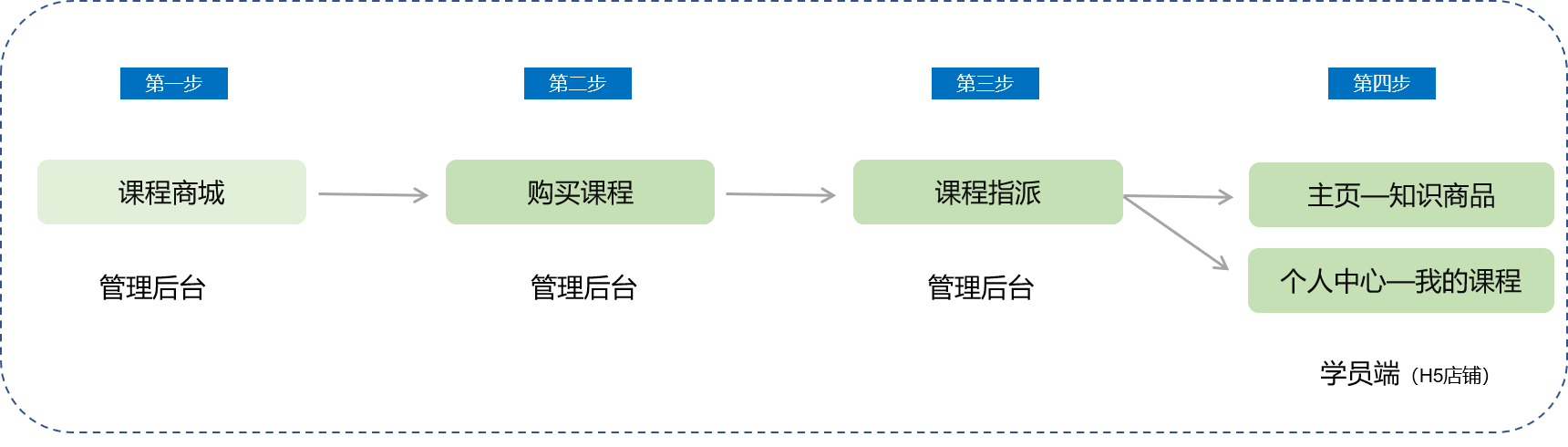
Merchant side: Merchant background → Applications → Course Mall → Purchase Courses → Assign Courses
Trainee side: WeChat H5 Store → Personal Center → My Courses → Study Purchased Courses
**V. Usage Tutorial**
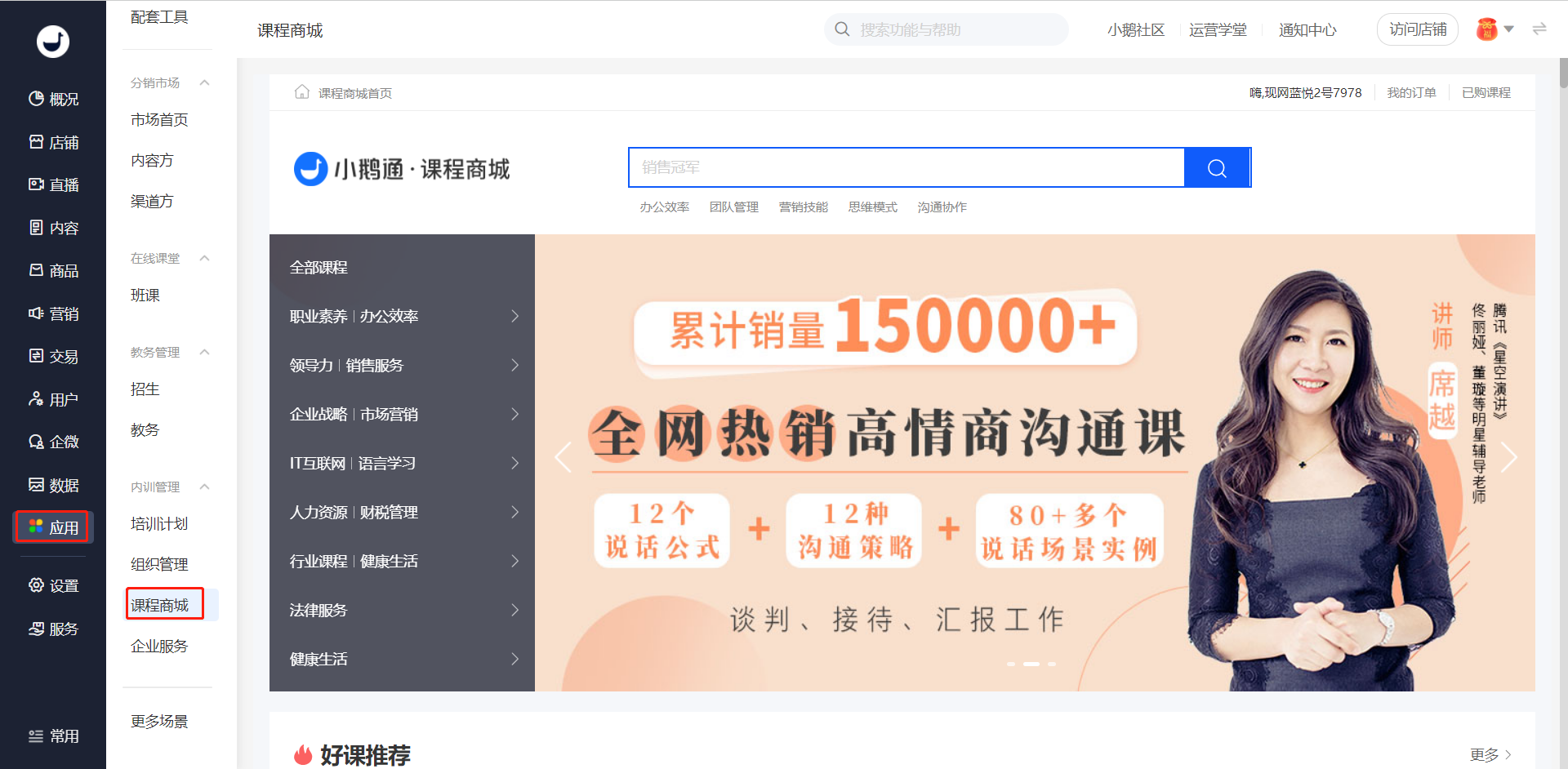
**Step 1: Click to enter the Course Mall***(Management background)*
Entry: Applications - Course Mall
**Step 2: Purchase courses***(Management background)*
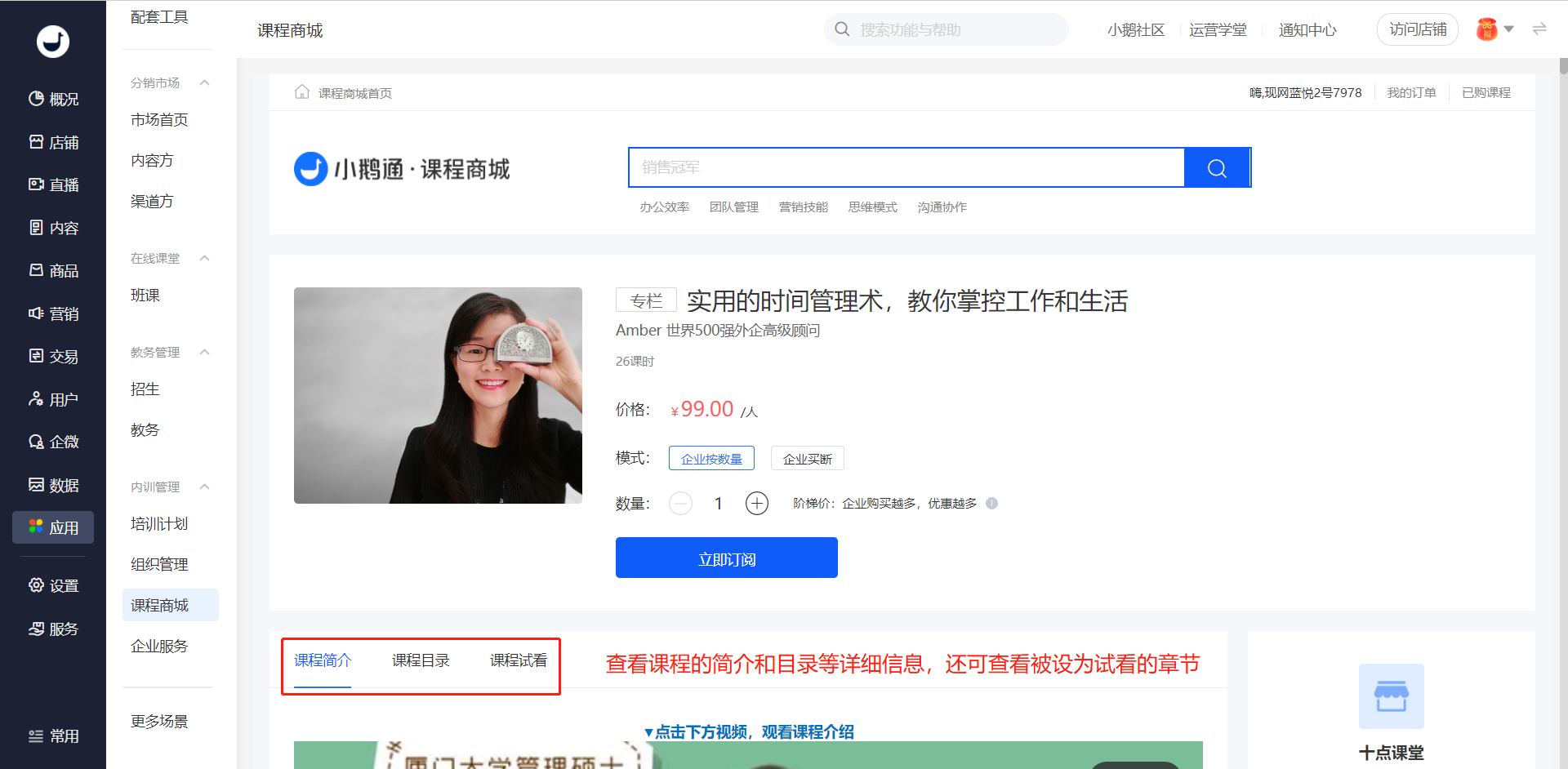
1. Click to view the courses you are interested in. Understand the course details through the course introduction, syllabus, and course preview, and decide whether to purchase.
2. Select the purchase mode and click “Subscribe Now” to make a purchase.
The courses support two subscription modes: Purchase by quantity/Enterprise buy - out.
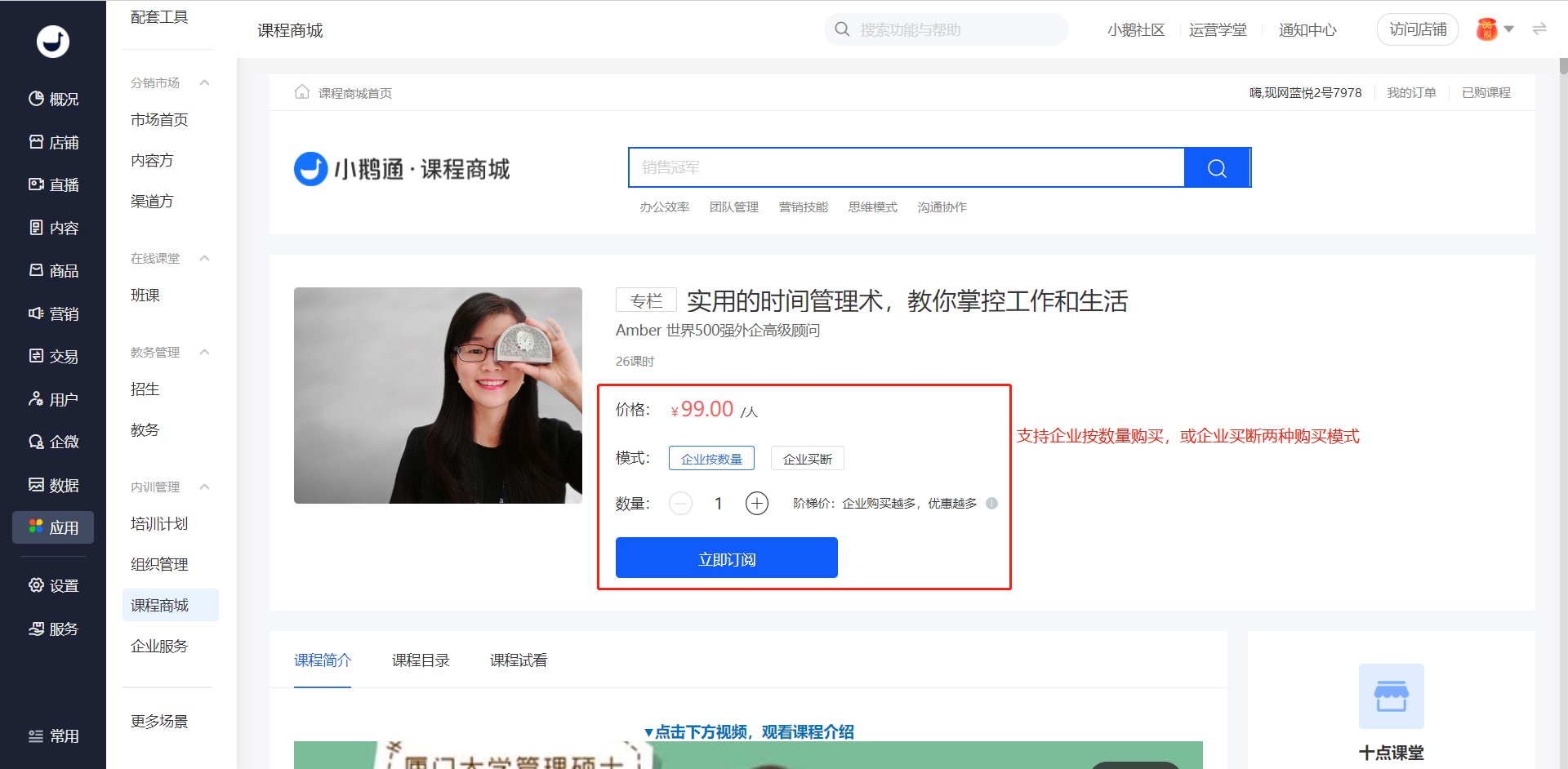
a. If you choose to purchase by quantity, the administrator needs to select the number of courses to be purchased. After the purchase, the administrator needs to allocate the learning quotas of the courses to employees.
b. If the enterprise chooses the buy - out option, there is no limit on the learning quotas of the purchased courses, and the enterprise can allocate them to all employees for learning.
c. Free courses have no limit on learning quotas.
3. Confirm the course purchase order
After clicking “Subscribe Now”, you will enter the course order details page. After confirming that the order information is correct, click “Pay Now”.
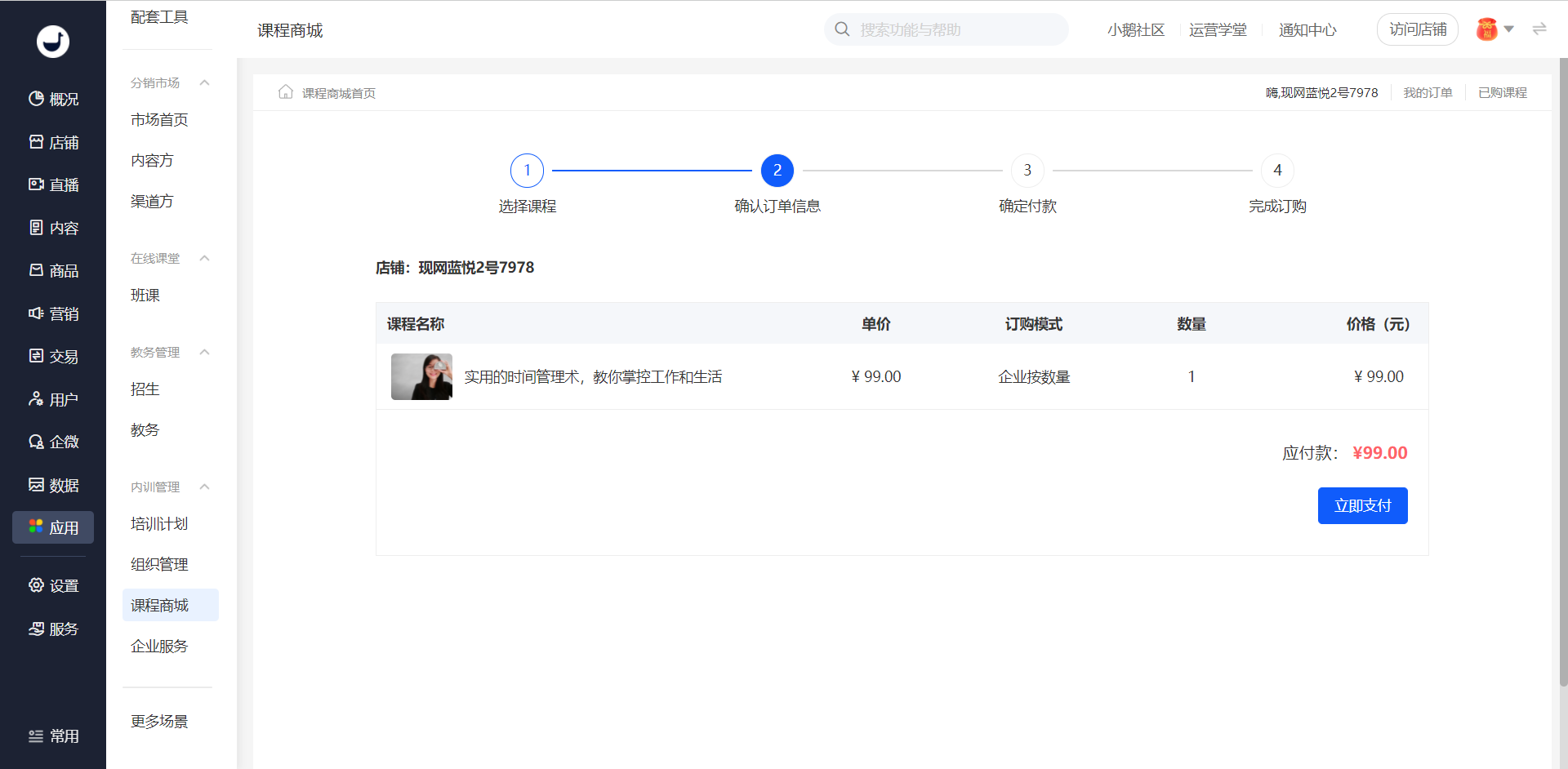
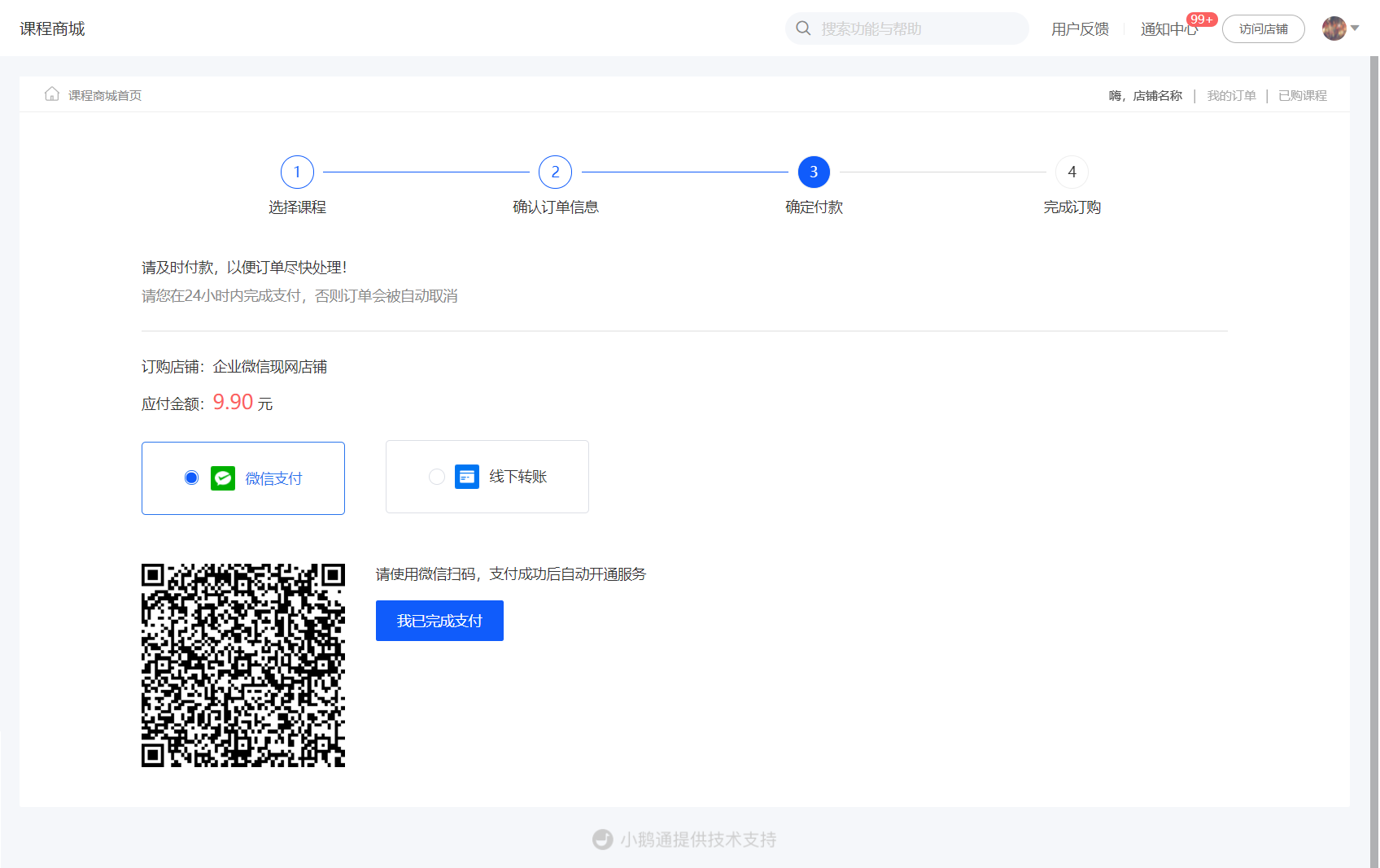
Currently, two payment methods are supported: WeChat Pay, Offline transfer \[Manual adjustment required\]
For WeChat Pay, simply scan the QR code with WeChat to complete the payment.
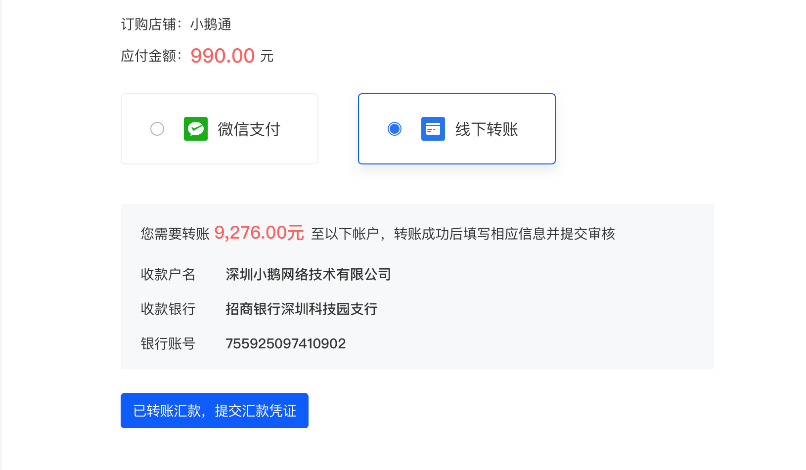
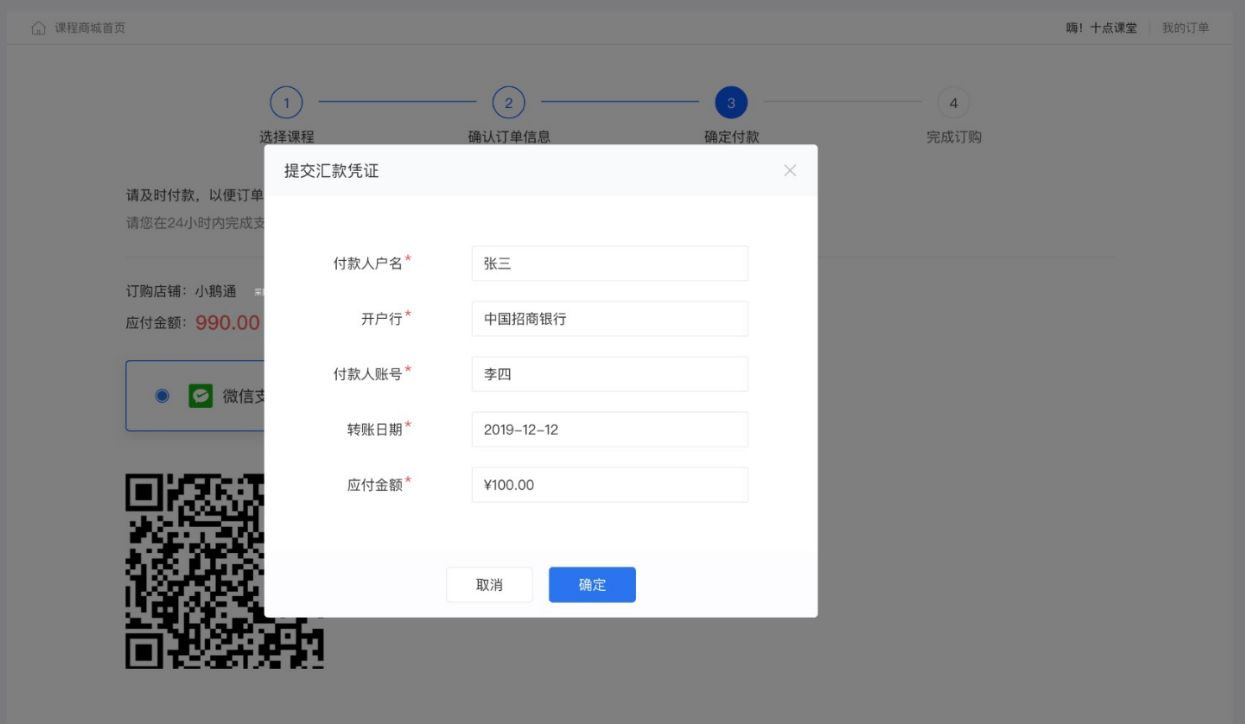
For offline transfer, first obtain the elink collection account. After completing the transfer, find the ordered product in “My Orders” and click “Submit Remittance Voucher” to submit the corresponding remittance information. elink will have a dedicated team for review. After the review is approved, the course purchase is completed.
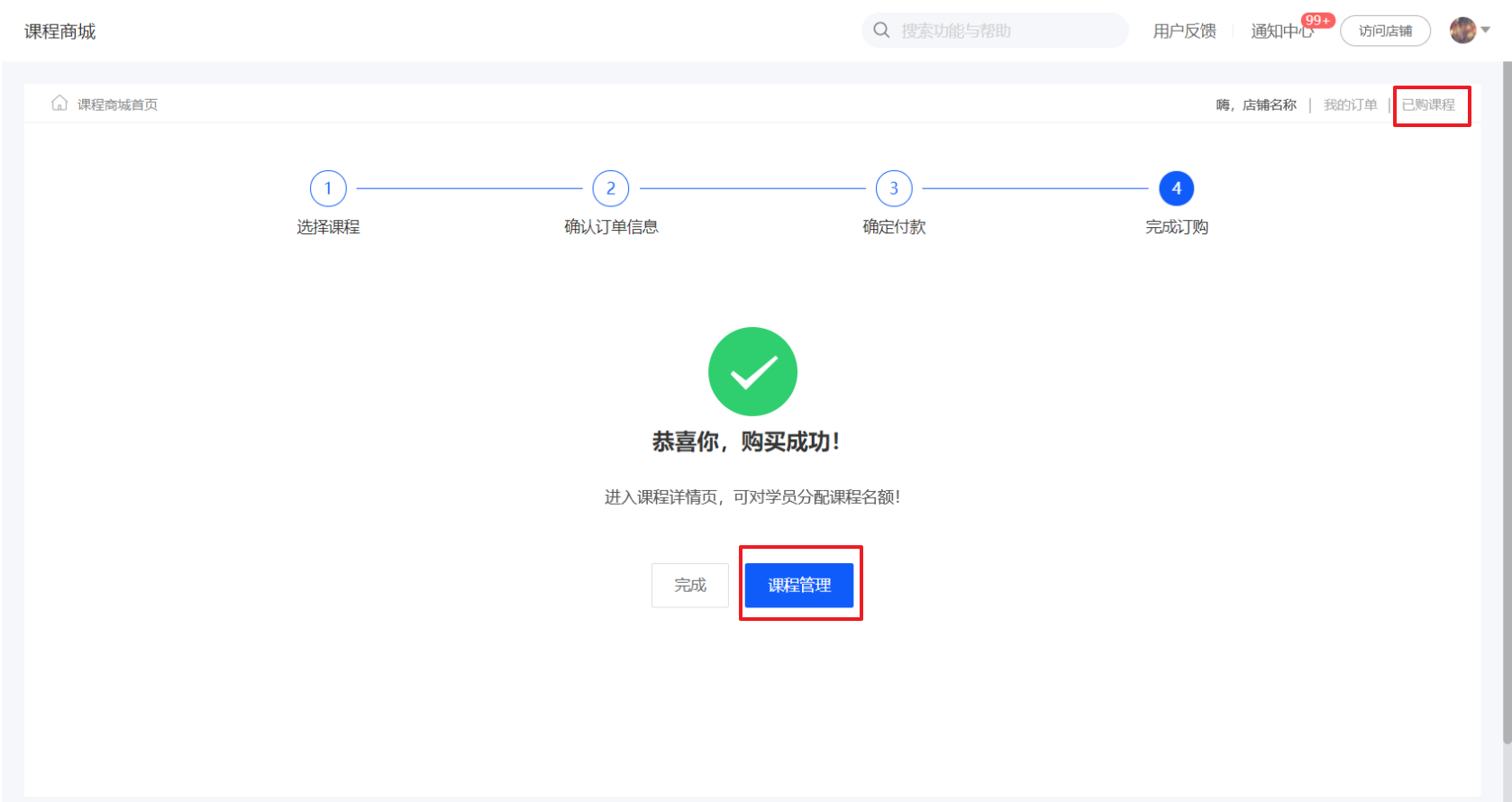
4. After a successful purchase, you can click “Course Management” on the payment result page or “Purchased Courses” in the upper - right corner to view the list of purchased courses.
**Step 3: Assign courses***(Management background)*
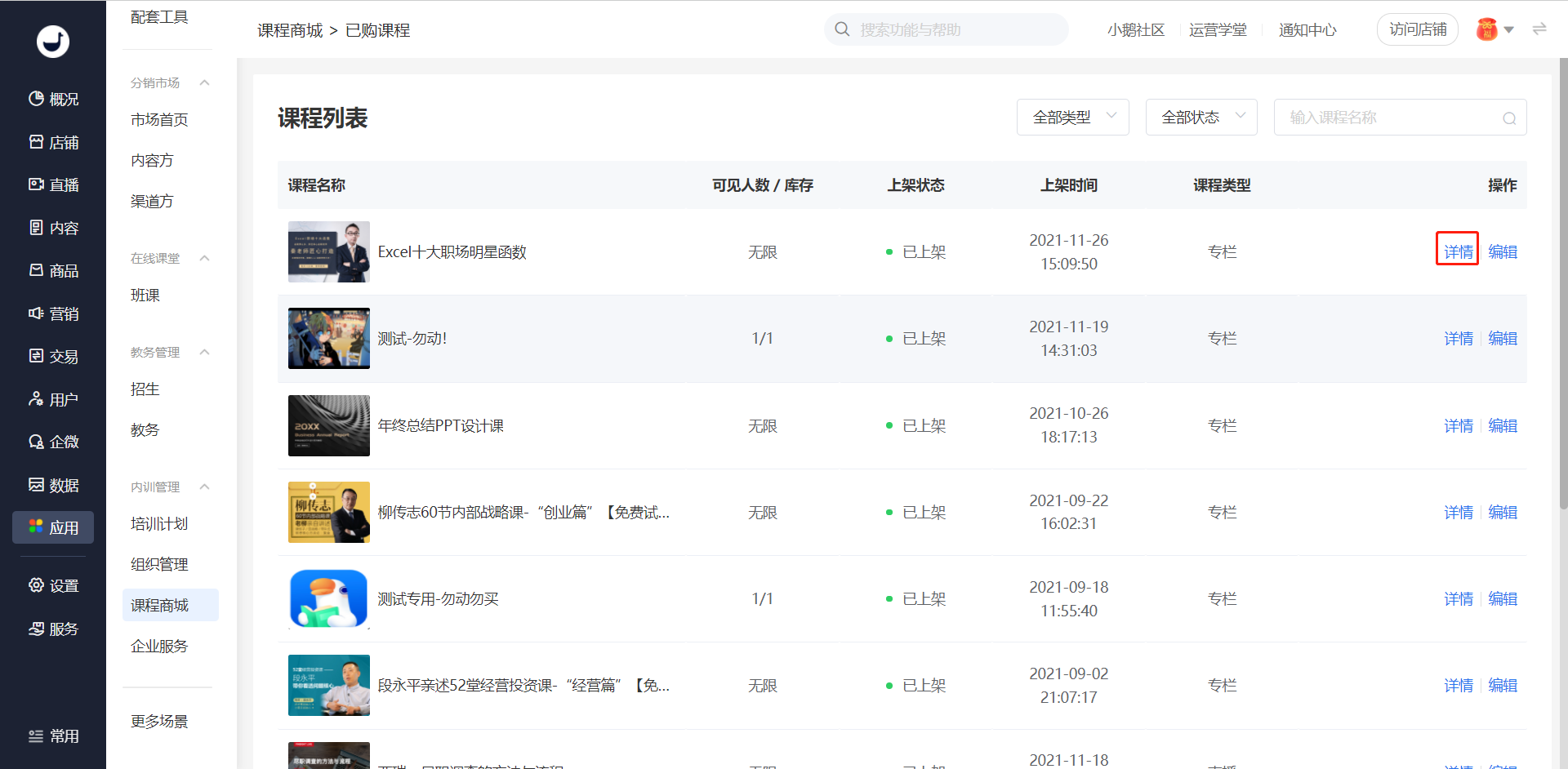
1. Enter the list page of purchased courses and click to view the course details.

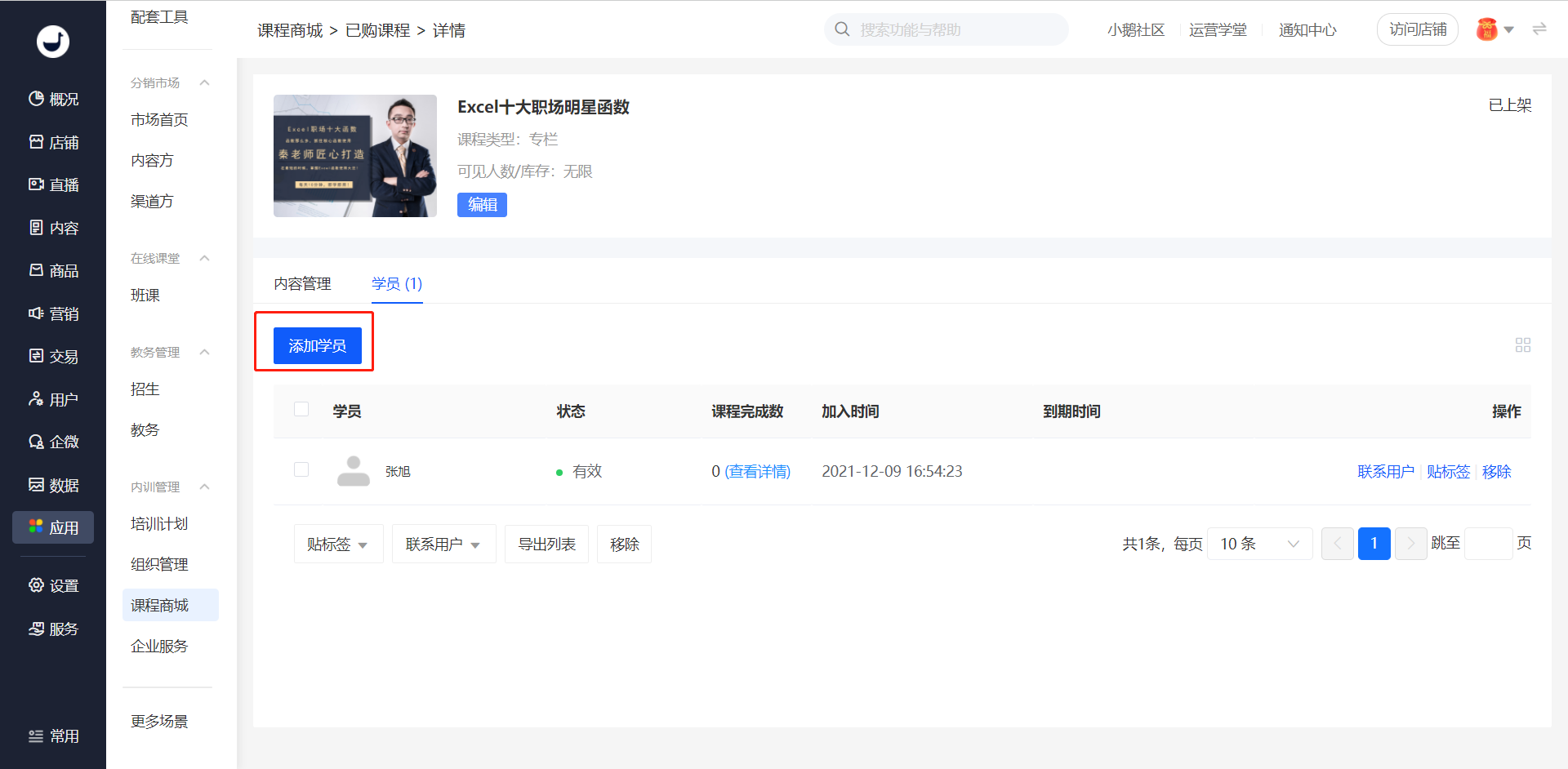
2. On the “Trainees” page of the course details, you can assign trainees to study the course. Currently, only employees within the enterprise organization can be assigned as trainees. For courses purchased by quantity, the inventory will be consumed according to the number of assigned trainees after assignment.
**Step 4: Study the purchased courses***(H5 Store)*
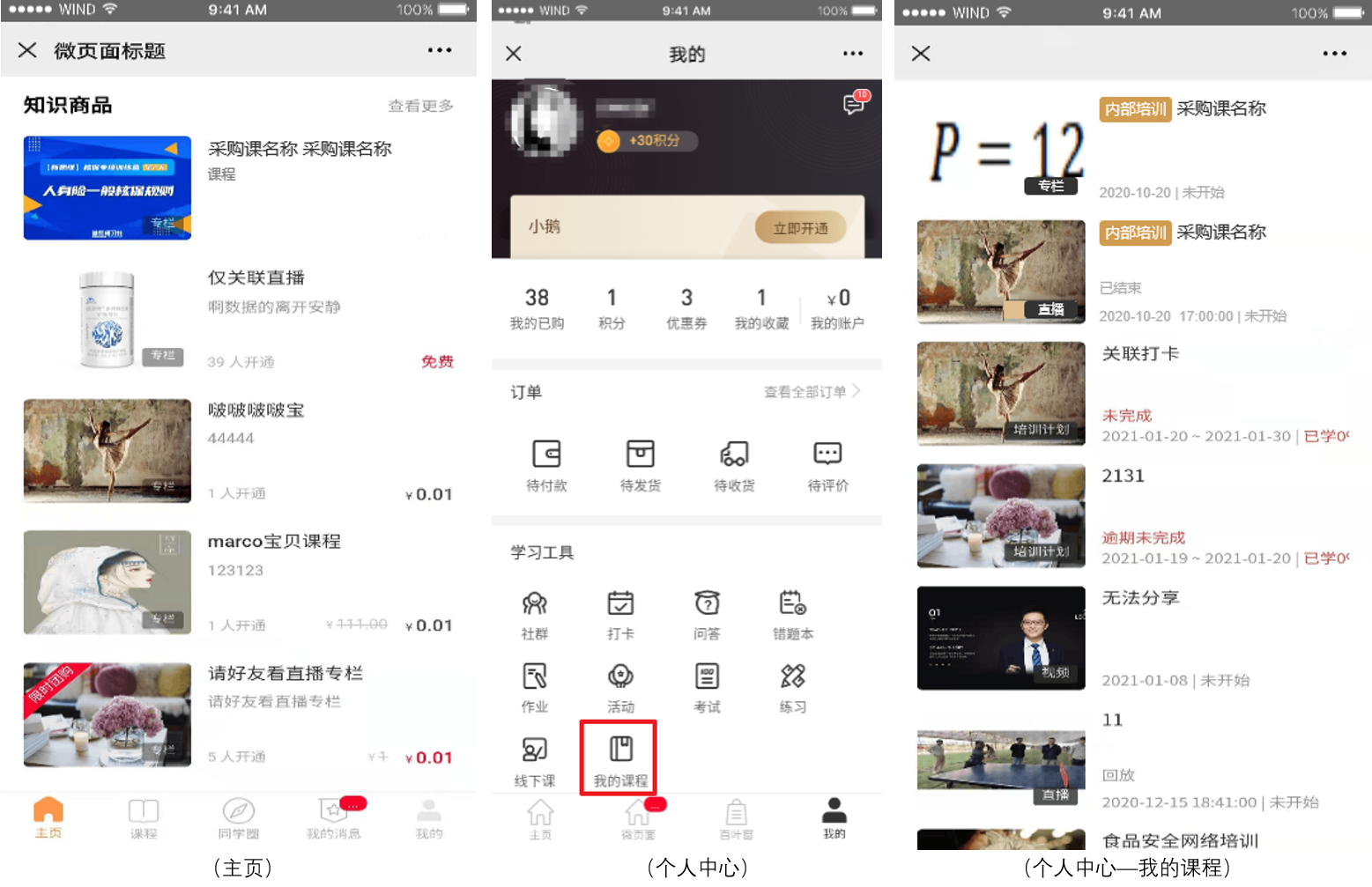
1. Homepage - Knowledge Products: Purchased courses can be added to the “Knowledge Products” component during store management. Assigned trainees can click to enter and start learning.
2. Personal Center - My Courses: Trainees can also enter the My Courses page from the personal center. This page will display all the courses assigned to the trainee.
**Notes:**
Homepage - Knowledge Products: The courses in the homepage knowledge products are manually added by the user in the store management. If an employee is not assigned a purchased course, a message indicating no course access permission will be displayed when opening the course page.
Personal Center - My Courses: This page only displays the purchased courses assigned to the trainee.