# Employee management
# How to add new roles/employees for management?
[中文](/books/877a9/page/0aa18)
**I. Function Introduction**
Merchants' employee accounts are divided into two types: free accounts and paid accounts. Each time a paid account is added, it will occupy a paid quota. When the quotas are insufficient, you need to purchase more paid account quotas. You can purchase them in the form of a feature package, namely the 'Store Employees' feature package. You can choose the number of quotas, and each quota costs 1 yuan per day.
**II. The number of paid account quotas given away for different store versions is as follows:**
Basic Edition: 1 quota
Professional Edition: 3 quotas
Flagship Edition: 10 quotas
Note: The above quotas do not include the creator's account.
**III. Free/Paid Roles**
Free Role: Teaching Assistant
Paid Roles: Senior Administrator, General Administrator, Finance Staff, Teacher, Course Consultant, Academic Affairs Specialist, Salesperson, Marketing Supervisor
**IV. Concept Explanation**
**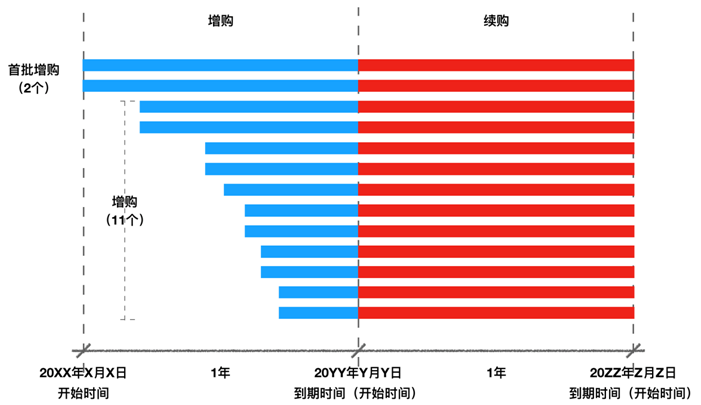**
1. Additional Purchase:
① It is divided into the first - batch additional purchase and non - first - batch additional purchase. The quota period for the first - batch additional purchase is 365 days and cannot be changed. The expiration time of the non - first - batch additional purchase must be aligned with that of the first - batch additional purchase, and the fees are calculated on a daily basis. Example: On March 1, 2019, 3 paid employee quotas were additionally purchased in the first batch (for 365 days), and the settlement amount is 3 \* 365 = 1095 yuan. On June 1, 2019, another 3 paid employee quotas were additionally purchased, and the settlement amount is 3 \* (365 - 92) = 819 yuan.
② The number of additionally purchased quotas is limited to within 1000.
2. Renewal:
① When renewing employee quotas, you can choose the number of quotas to renew. The renewal period is 365 days and cannot be changed.
② The start time of the renewal validity period is the expiration time of the first - batch additionally purchased quotas.
③ When the number of renewed employees is less than the number of previously additionally purchased employees, some employees may be disabled after expiration, except for the store creator. Therefore, please disable or delete the accounts of these employees in advance. In the employee list, the employees at the bottom are more likely to be disabled.
④ If the previously additionally purchased quotas are not renewed before they expire uniformly, after expiration, the paid employee quotas will return to the initial state, and you need to make an additional purchase before you can renew.
3. Handling of Old Accounts:
For those employee accounts added before the launch of the 'Store Employees' feature package, if they are paid accounts, their expiration time is consistent with the store's expiration time. However, if you need to add new paid employee accounts, you still need to additionally purchase paid employee quotas, and the expiration time will still be consistent with the store's expiration time.
4. Others:
① Disabling or deleting a paid employee account will release the paid employee quota.
② Changing the paid role selected for an employee account to a free role will release the paid employee quota.
**V. Operation Process**
\[Additional Purchase/Renewal\]
Operation path: Log in to the elink backend - \[Settings - Employee Management - Additional Purchase\];
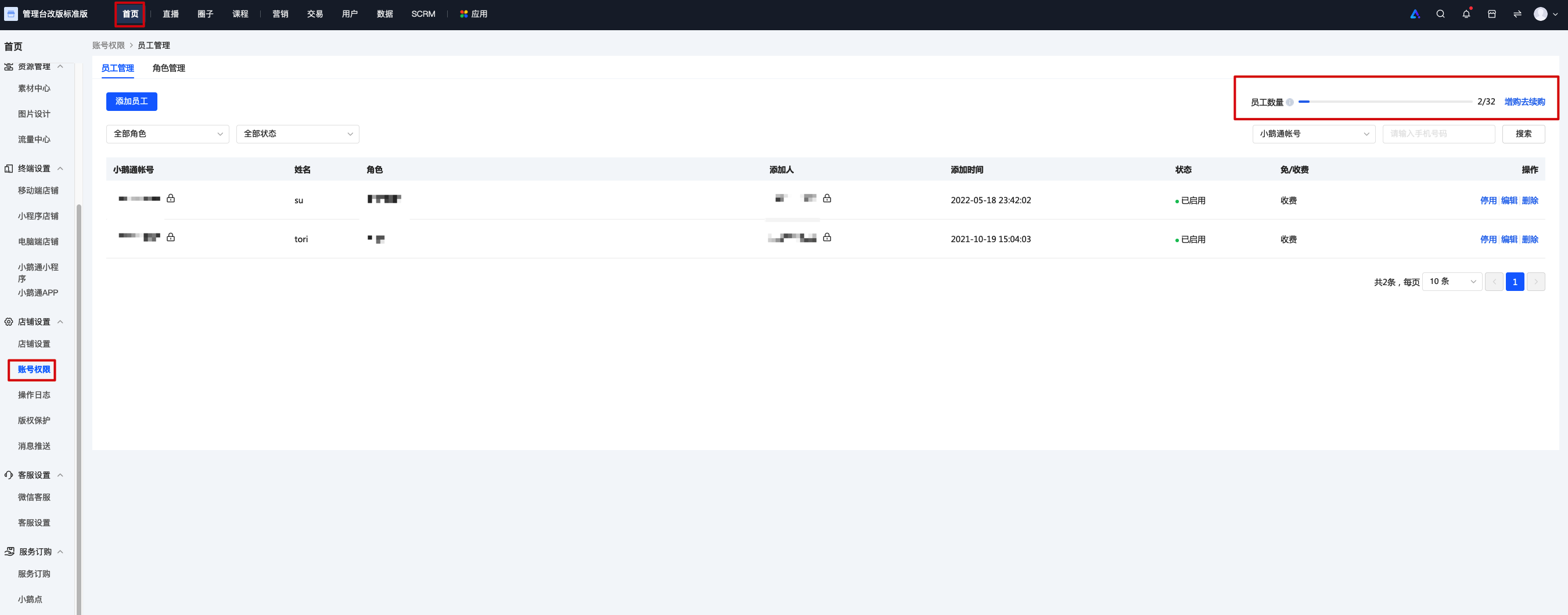
In the Employee Management\_Employee Account List, you can directly make an additional purchase or renewal.

# Store staff instructions
[中文](/books/877a9/page/26657)
**I. Feature Introduction**
Employee Management: Merchants can add accounts for their team members and assign corresponding roles for logging in and managing the store.
Role Management: Merchants can customize different roles according to the actual division of labor in work, assign different management permissions, and manage them centrally.
**II. Scenario Examples**
Currently, there is a team of about a dozen people jointly operating an elink store, with each person having their own responsibilities, including the merchant owner, operator, accountant, designer, course administrator, etc. By setting up role/employee management (for example, the merchant owner can perform all operations and view all core data, and the accountant can perform all operations related to the financial module), the team can better divide labor and collaborate while ensuring the security of core data.
**III. Feature Operations**
1. Role Management
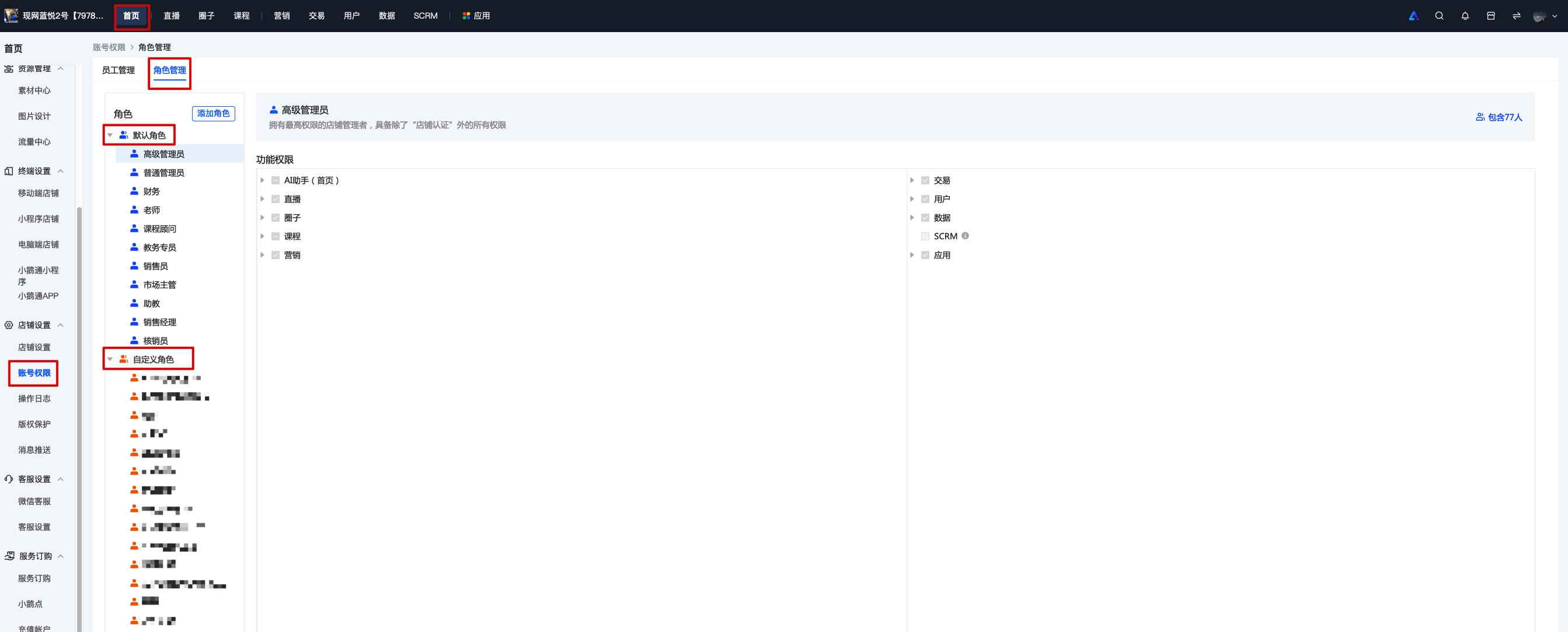
Operation Path: Log in to the merchant management background - \[Homepage - Account Permissions - Role Management\]. You can view all roles and their corresponding permissions and modify role permissions. In addition to the system default roles, you can also create and customize roles according to actual scenarios (currently, each store can create a maximum of 20 custom roles).
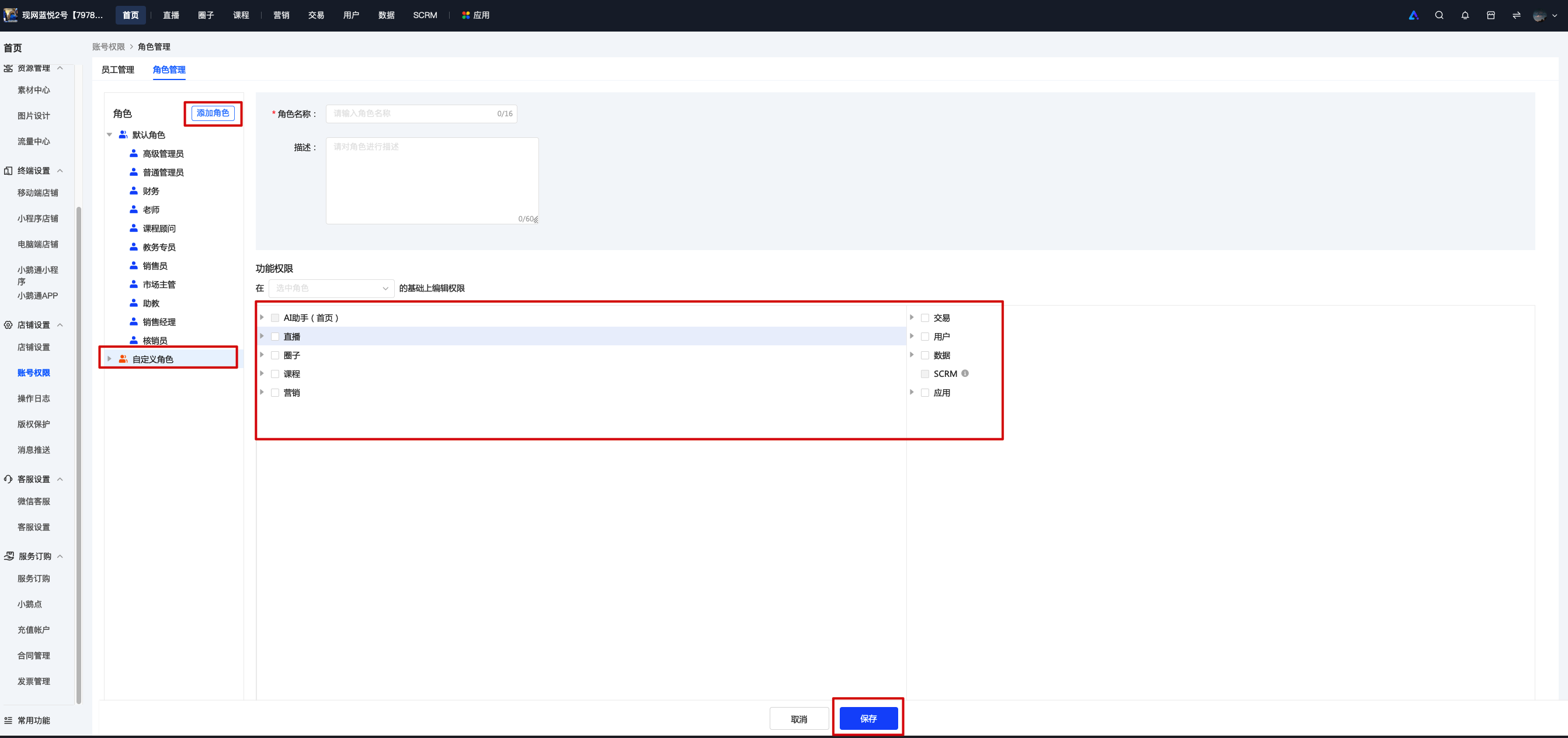
2. Create a New Role
When creating a new custom role, you can select the permissions for this role according to the actual scenario. For unselected permissions, if they are navigation - related, the navigation items seen by this role will be grayed out, and the corresponding pages cannot be accessed; if they are function - related, this role will not be able to operate the corresponding functions.
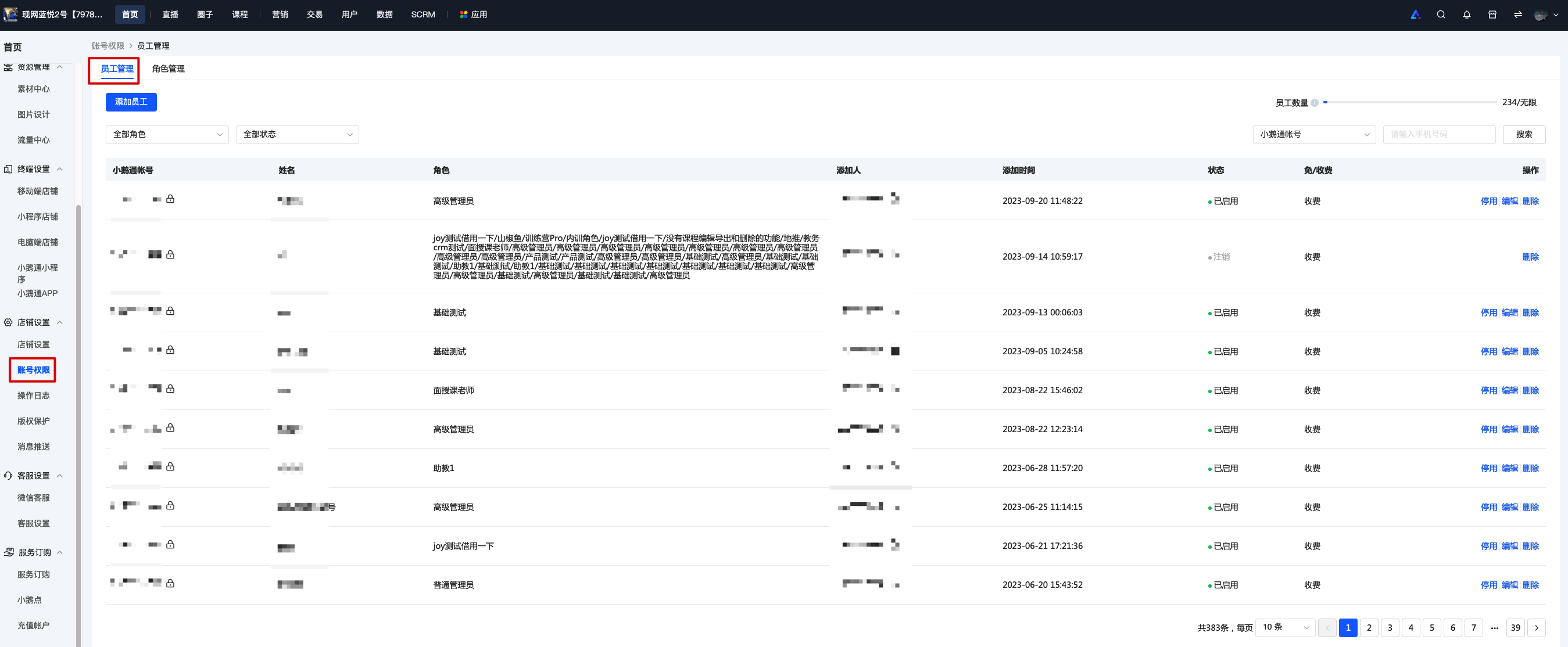
3. Employee Management
After creating roles, you can add and manage employees in the employee management module.
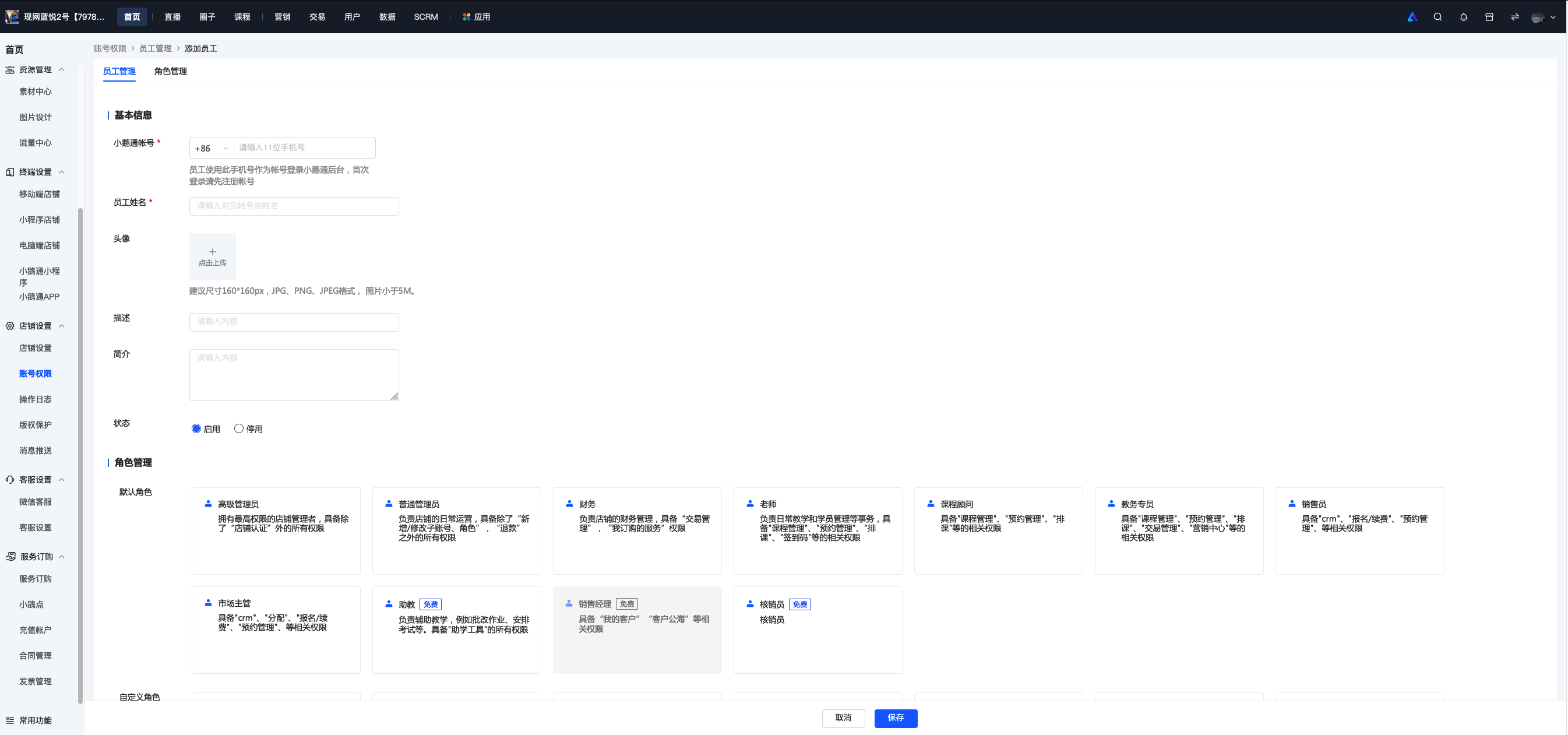
4. Add Employees
By adding employees, other team members can log in to the store background and manage the modules they are responsible for.

# Relationship between Role Management and Employee Management
[中文](/books/877a9/page/084b6)
# Relationship between Role Management and Employee Management
Role Management defines the scope of permissions and seat requirements. Employee Management authorizes employee accounts to use corresponding functions by assigning roles.