# Tutorial on Using the Head and Branch Store Management System
[中文](/books/41f1f/page/6da90)
**I. Function Introduction**
The Headquarter-Branch Management module is a one-stop solution provided by elink for institutional headquarters for course distribution to branches and branch management.
**II. Purpose of Use**
It is suitable for the headquarters of various institutions to output courses, empower with content, manage data, etc. for branches/schools, franchise stores/schools, and channels, promoting the formation of a good cooperative relationship between the headquarters and branches.
**III. Use Scenarios**
A chain education institution A. Most of its branch campuses have opened stores on elink and have been using them. The headquarters wants to uniformly manage and distribute courses to both the branch campuses that have already opened elink stores and those that have not.
Education institution A can bind the relationship between the opened branch campus stores and the headquarters store through an agreement. The headquarters initiates the application, and the branch campuses authorize it to establish the headquarter-branch relationship. After that, the headquarters can distribute unified courses to the branches and manage the data of the branches.
For branch campuses that have not opened elink stores, different versions of stores can be opened according to the needs of the branch campuses first, and then the association operation can be carried out to establish the relationship.
**IV. Operation Path**
****
\[Merchant End\]
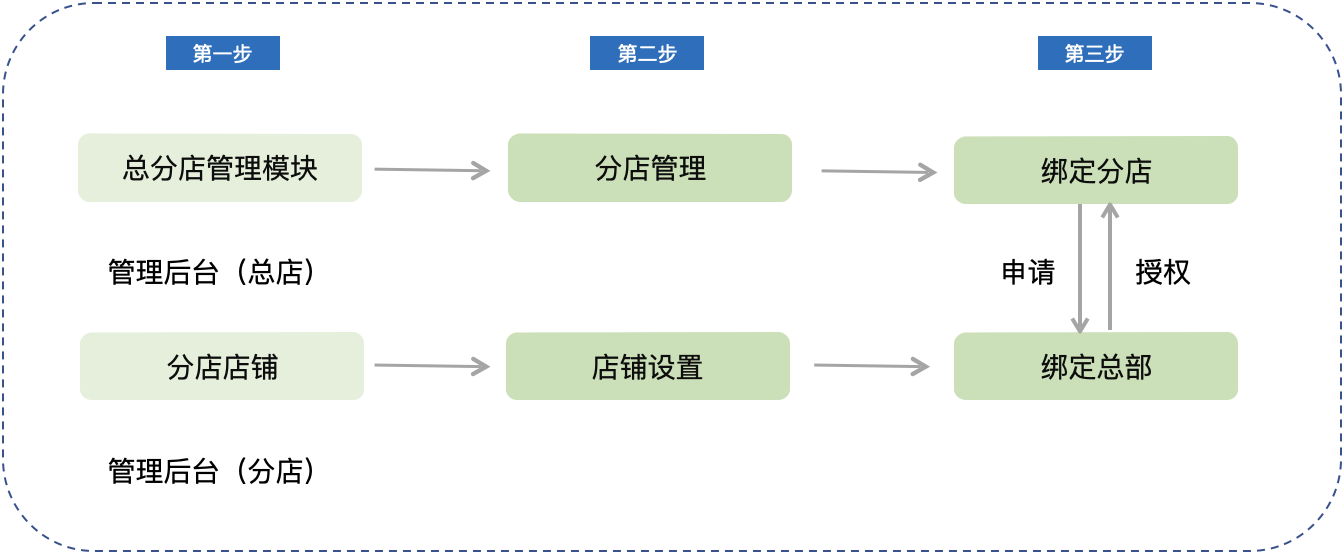
Headquarters: Merchant background of the headquarters store → Applications → More scenarios → Headquarter-Branch Management → Branch Management → Bind Branches → Initiate Application
Branches: Merchant background of the branch store → Store Settings → Bind Headquarters → Agree to Authorization
**V. Usage Tutorial**
Specific Steps:
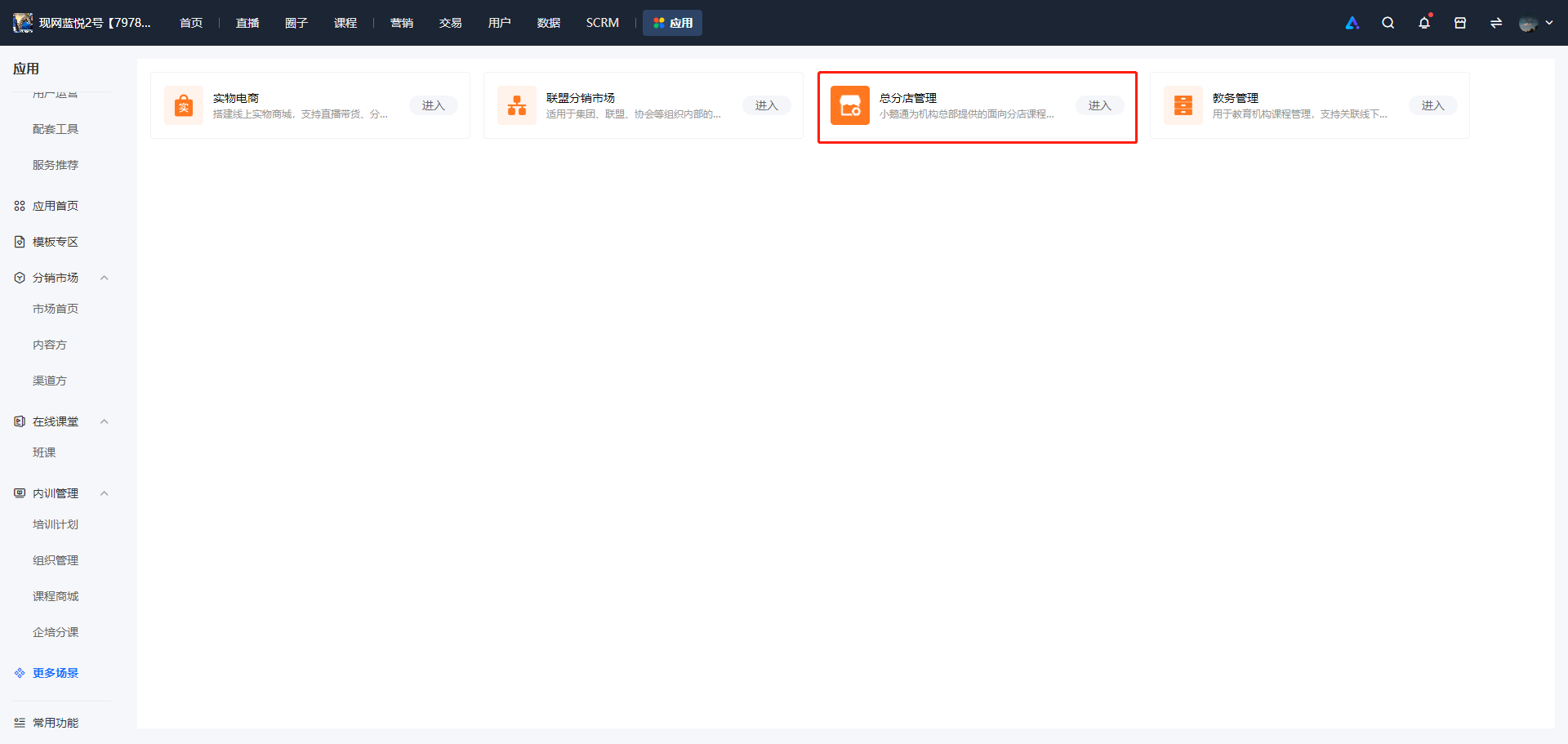
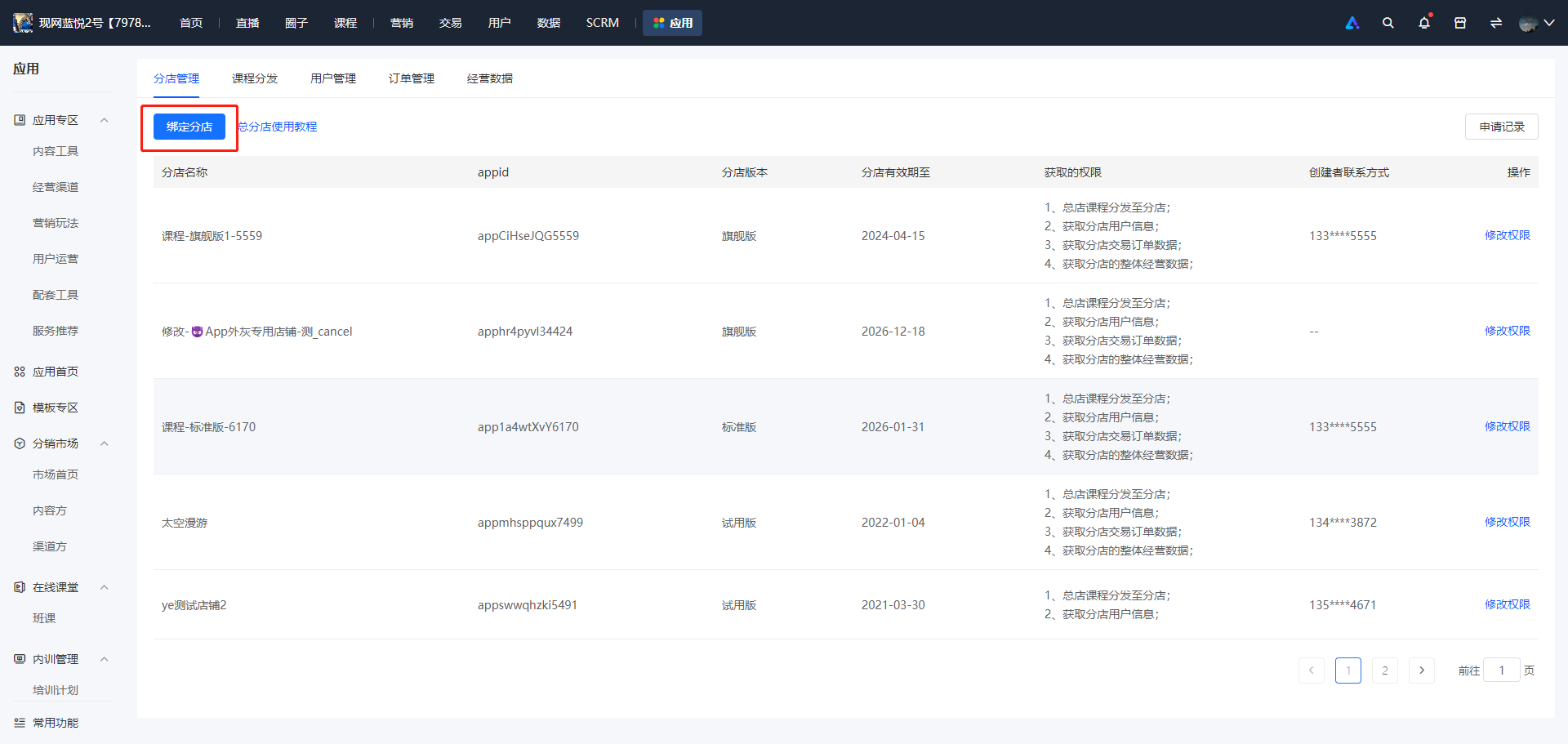
1. Log in to the elink merchant management background, and select \[Applications\] - \[More scenarios\] - \[Headquarter-Branch Management\] - \[Branch Management\] - \[Bind Branches\] in sequence.
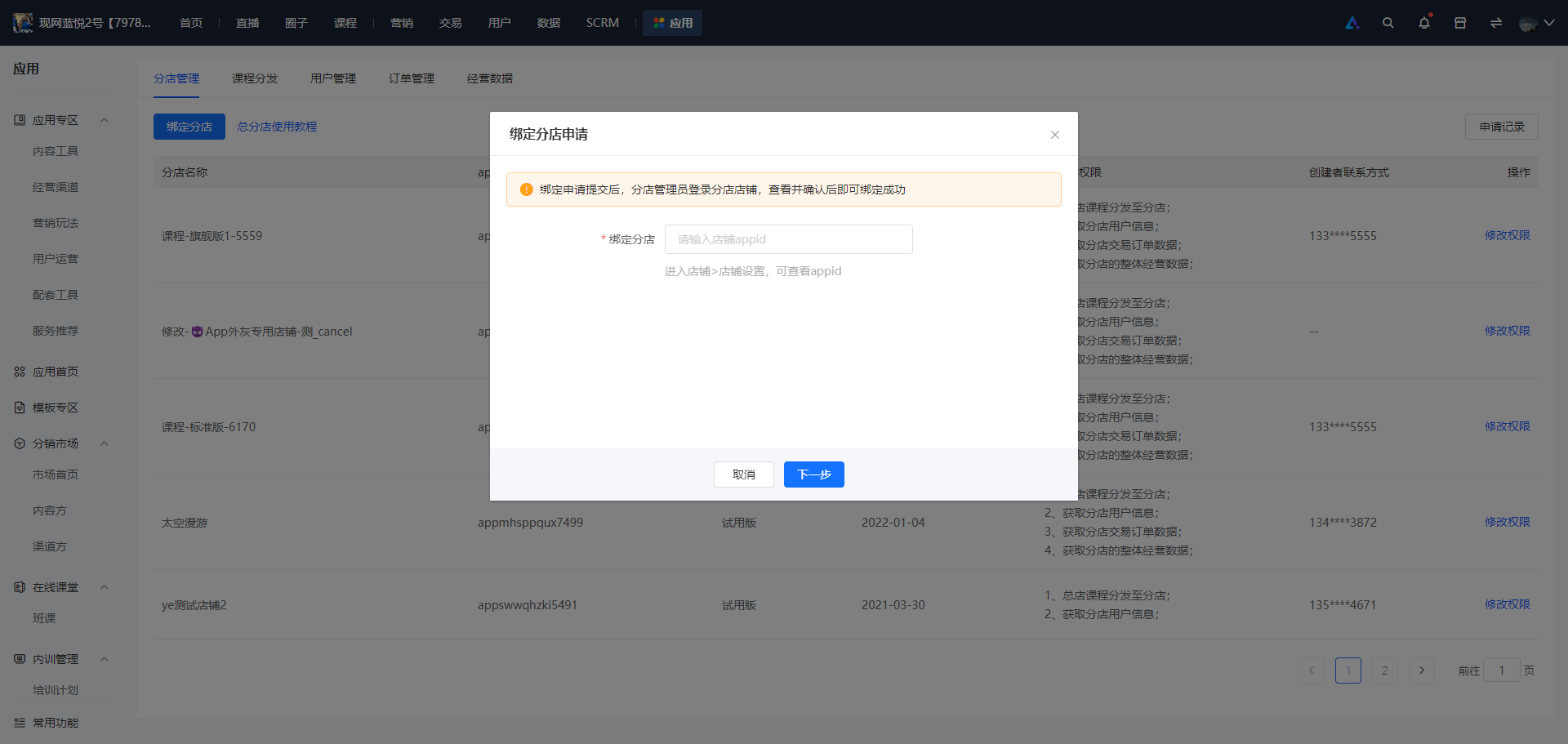
2. Enter the appid of the branch to be bound. If you don't know the appid of the branch, you can check it in the branch - Store Settings.
x
3. Click Next. The headquarters needs to select the permissions it wants to obtain, including \[Course Distribution\], \[User Data\], \[Order Data\], and \[Business Data\]. At the same time, for security reasons, the mobile phone number of the branch creator needs to be verified.
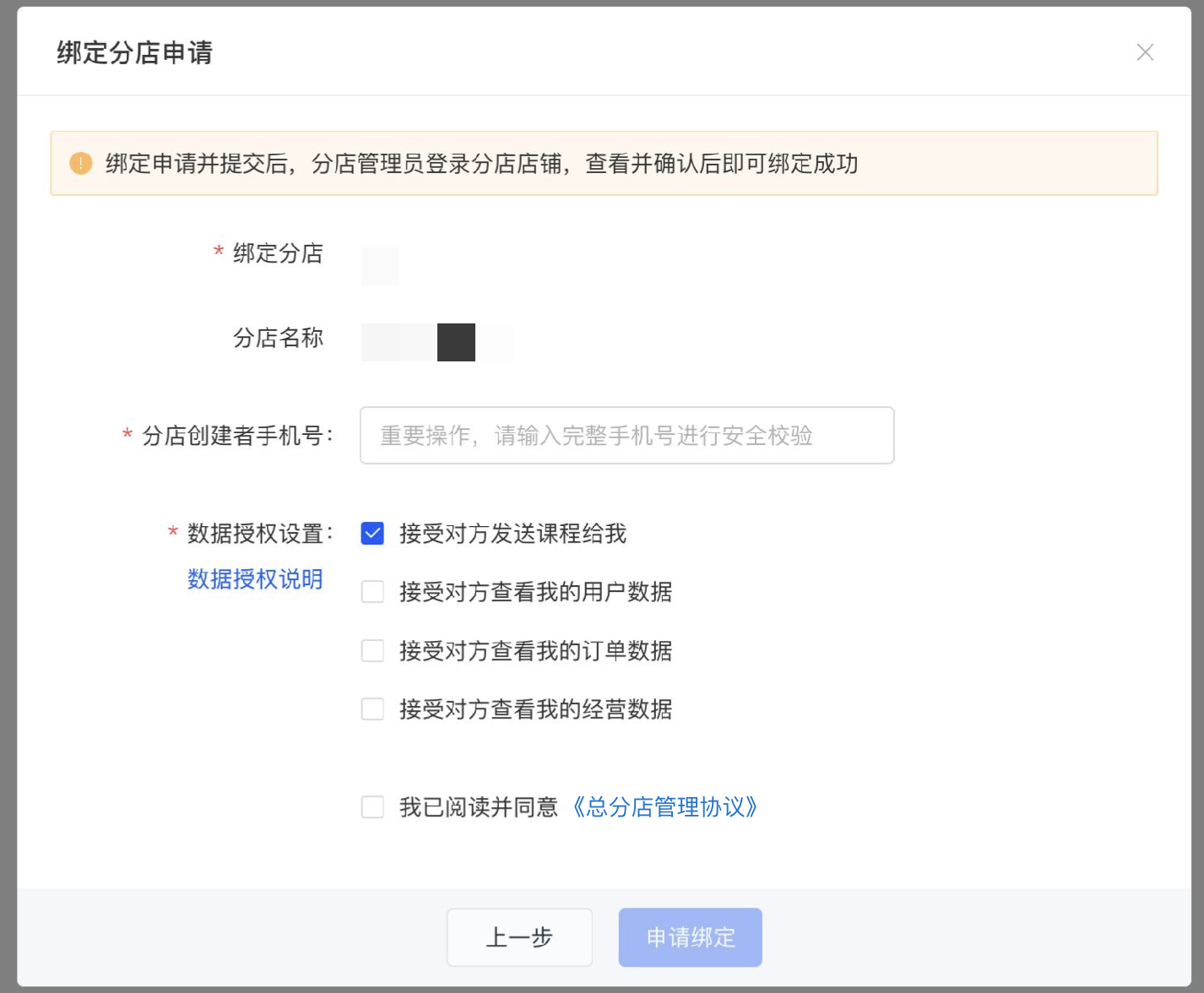
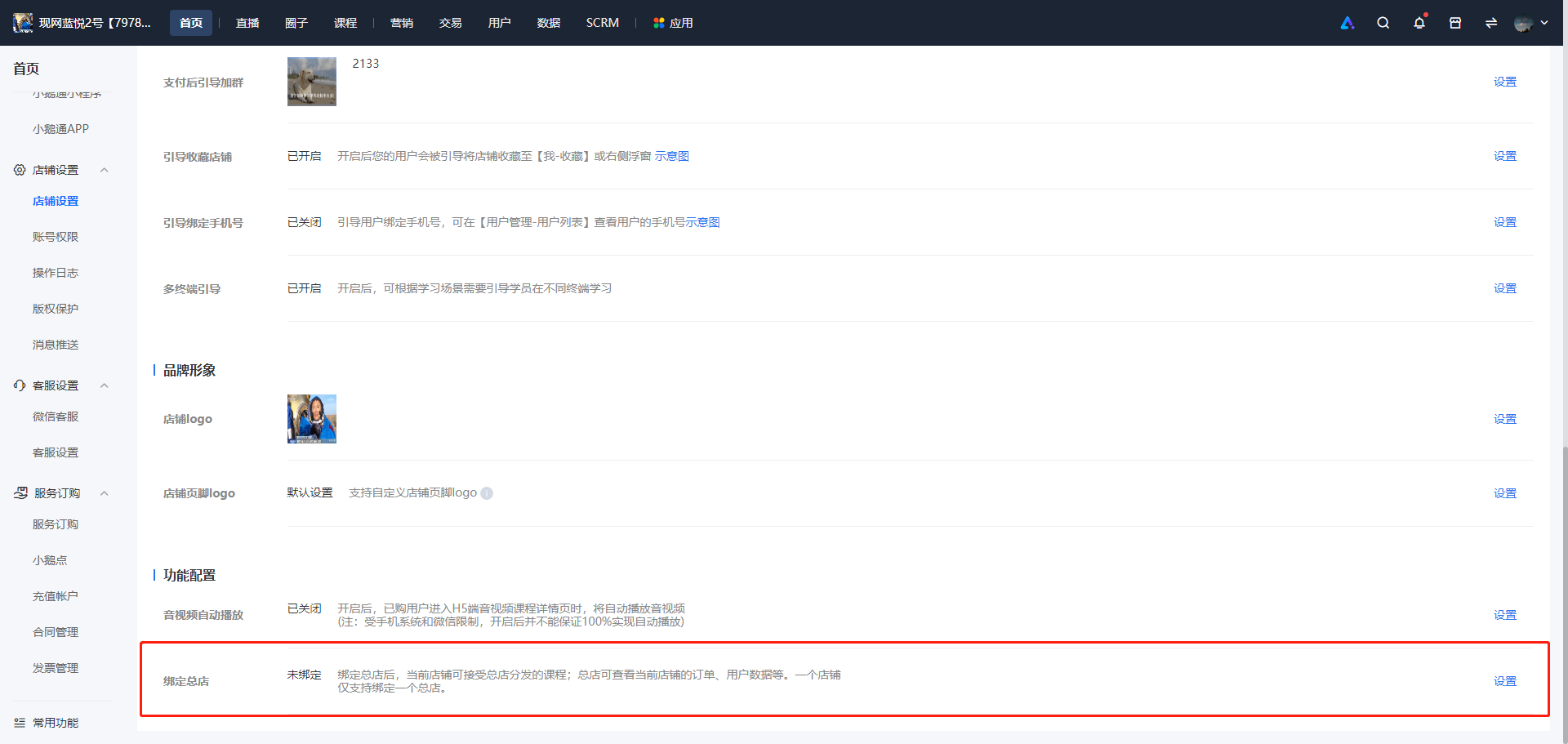
4. After the headquarters completes the process of applying for binding, the branch manager needs to go to the branch store to view and agree to the application. The branch manager logs in to the merchant background of the branch store, selects \[Homepage\] - \[Store Settings\] - \[Bind Headquarters\] in sequence, and clicks 'Receive' in the application record list.
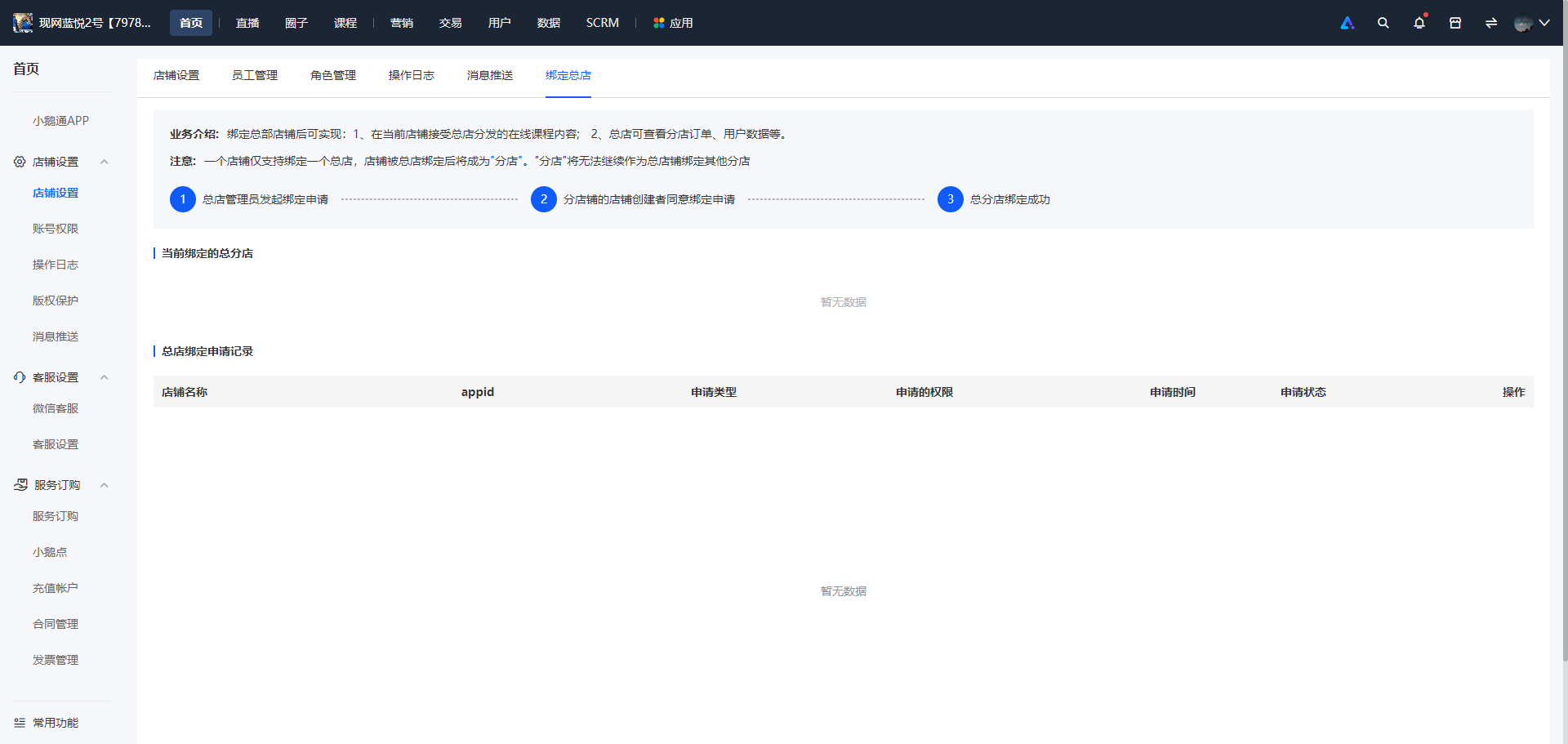
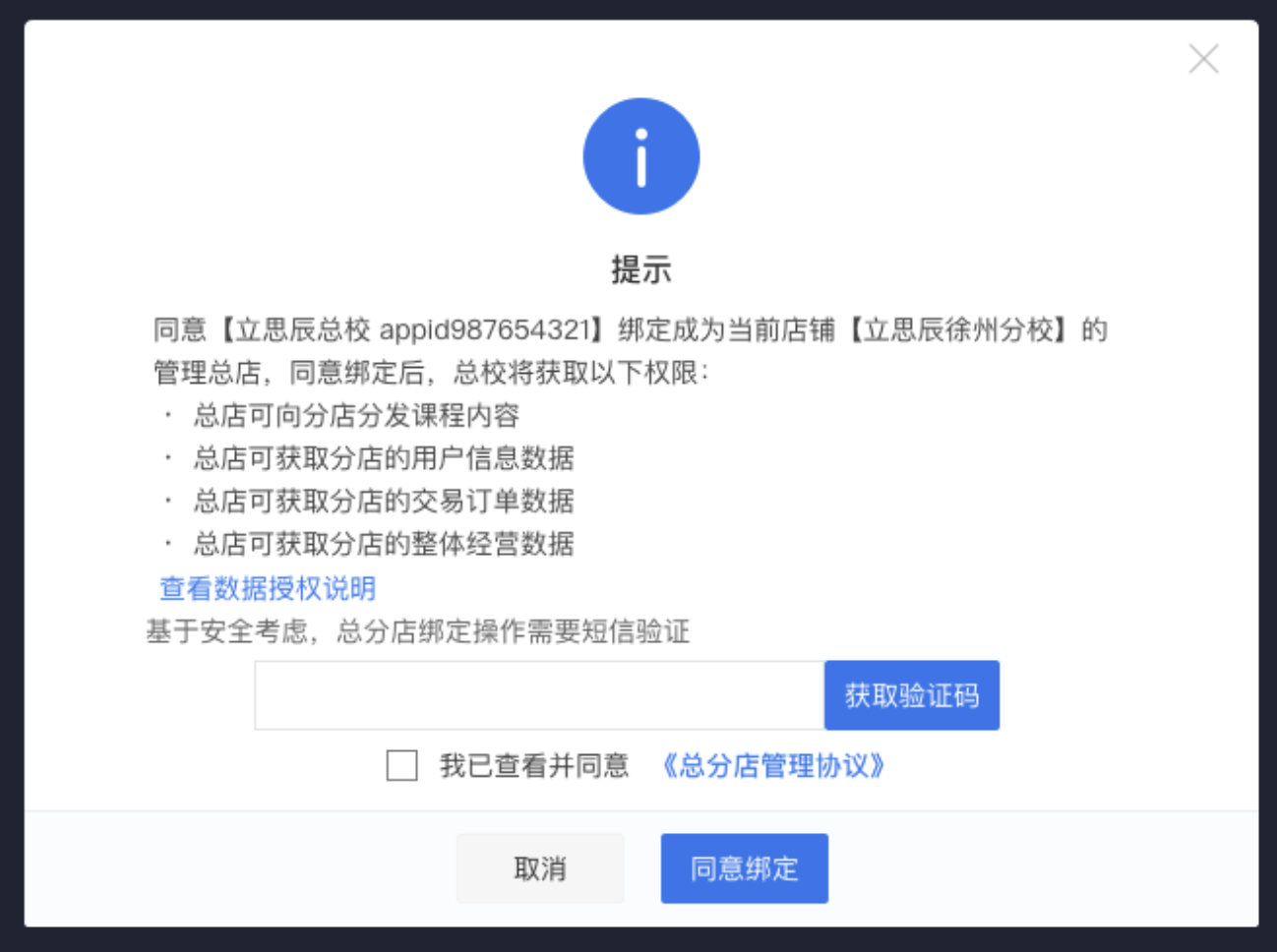
5. The branch can see the permissions that the headquarters wants to obtain in the pop-up window. Before agreeing, the branch needs to verify by SMS and select the 'Headquarter-Branch Management Agreement'. After the above operations are completed, click 'Agree to Bind', and the headquarter-branch relationship is established.
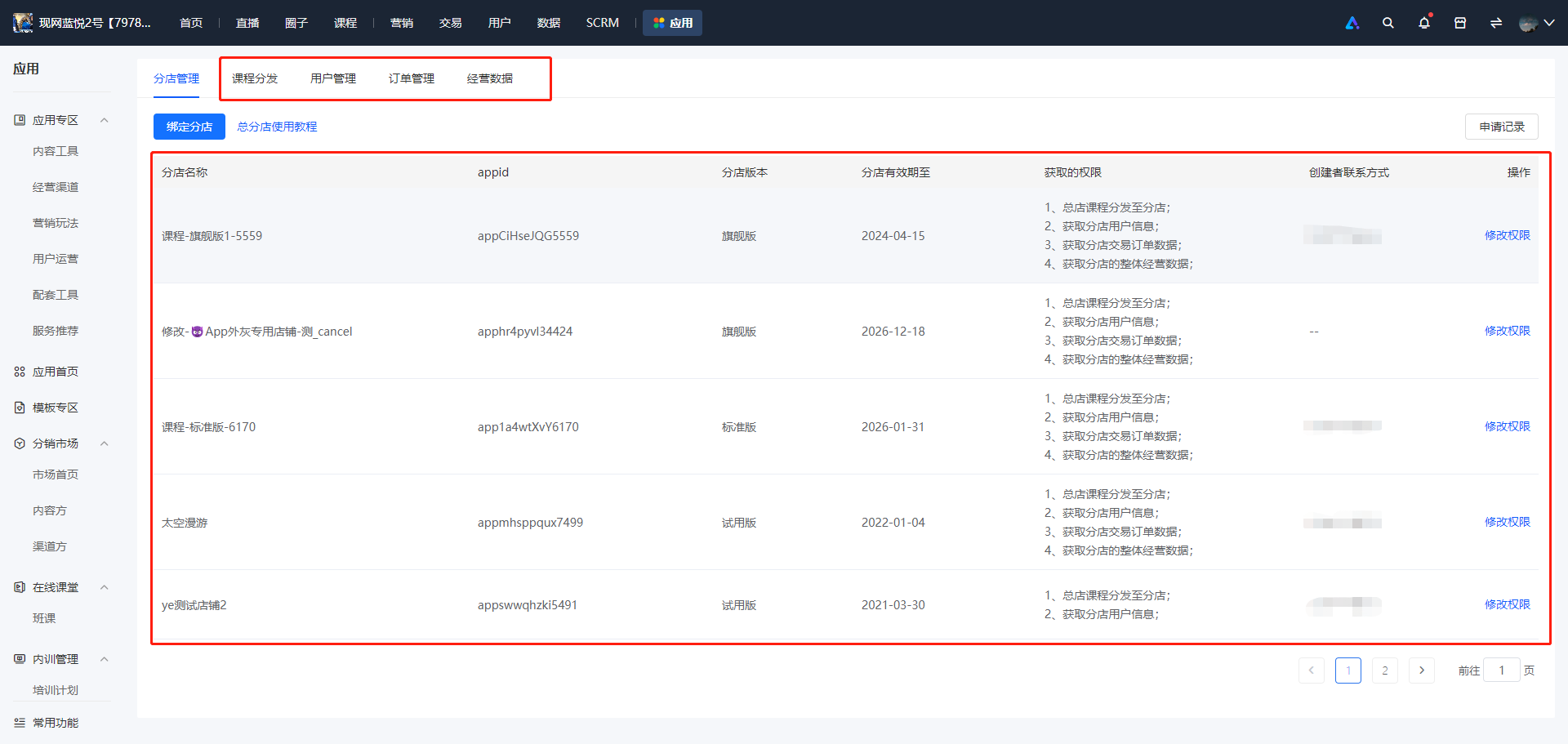
6. After the headquarter-branch relationship is established, the headquarters can see the bound branches and the authorized permissions in the branch management. According to the authorized permissions, management and operations can be carried out in course distribution, user management, order management, and business data.
● If the headquarters wants to modify the authorized permissions of a bound branch, it can perform the operation of modifying permissions.
● If the headquarters wants to view the historical binding application records, click the application records to view.
**VI. Frequently Asked Questions**
1. Which version can use the Headquarter-Branch Management module?
Answer: The Headquarter-Branch Management module is only supported in the flagship version, that is,the store version of the headquarters must be the flagship version.If the version does not meet the requirements, please upgrade the version to the flagship version first to use it for free.
2. Are there any restrictions on the version of the branches?
Answer: There are no restrictions on the version of the branches. It can be the flagship version, the professional version, the ordinary version, or even the trial version.
3. After becoming a headquarters, can it still become a branch of other headquarters?
Answer: It is not supported. Once it becomes a headquarters, it cannot become a branch again. Please operate with caution.
4. After becoming a branch, can it still become a branch of other headquarters?
Answer: It is not supported temporarily. Currently, once it becomes a branch of a certain headquarters, it cannot become a branch of other headquarters again. Please operate with caution.
5. Can the headquarters unbind the bound branches?
Answer: The unbinding operation is not supported temporarily. The unbinding operation will be added later.
6. Do functions such as offline courses and educational administration support the headquarter-branch model?
Answer: The headquarter-branch model is not supported for functions such as offline courses and educational administration in this phase. Support will be added gradually later.