Usage tutorial for workbooks
I. Function Introduction
A learning tool that allows teachers to assign homework after classes and test students' knowledge mastery. It supports the release, submission, and review of homework in the form of pictures, voice, and text.
II. Purpose of Use
The homework book function enables teachers to understand students' learning progress and provide targeted feedback and guidance.
III. Usage Scenarios
A company invited its in - house business experts to teach the sales team. The teaching mode is offline classes plus online live streaming, with a total of 7 classes, one per week. After each class, the teacher assigns homework to the students and reviews and explains the submitted homework.
IV. Operation Path
Management Console: Desktop management backend → Learning Assistance → Homework Book → Create New Homework Book
Student End: H5 Academy → My Learning → Learning Tools → Homework
V. Usage Tutorial
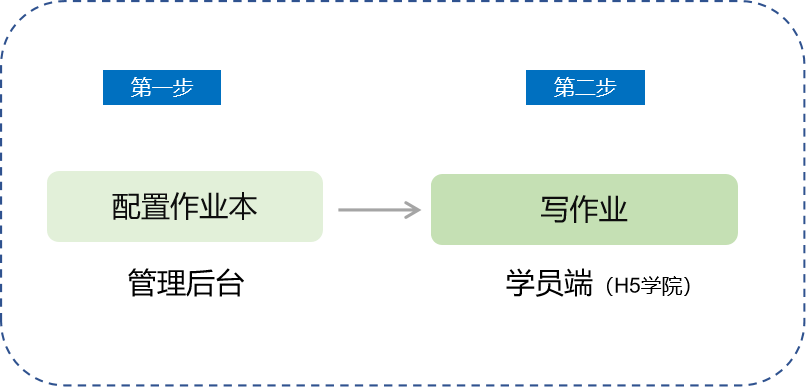
Step 1: Configure the Homework Book Module(Management Backend)
1. Create a New Homework Book
Click [Learning Assistance] - [Homework Book] - [Create New Homework Book] on the management console to enter the new homework book creation page;
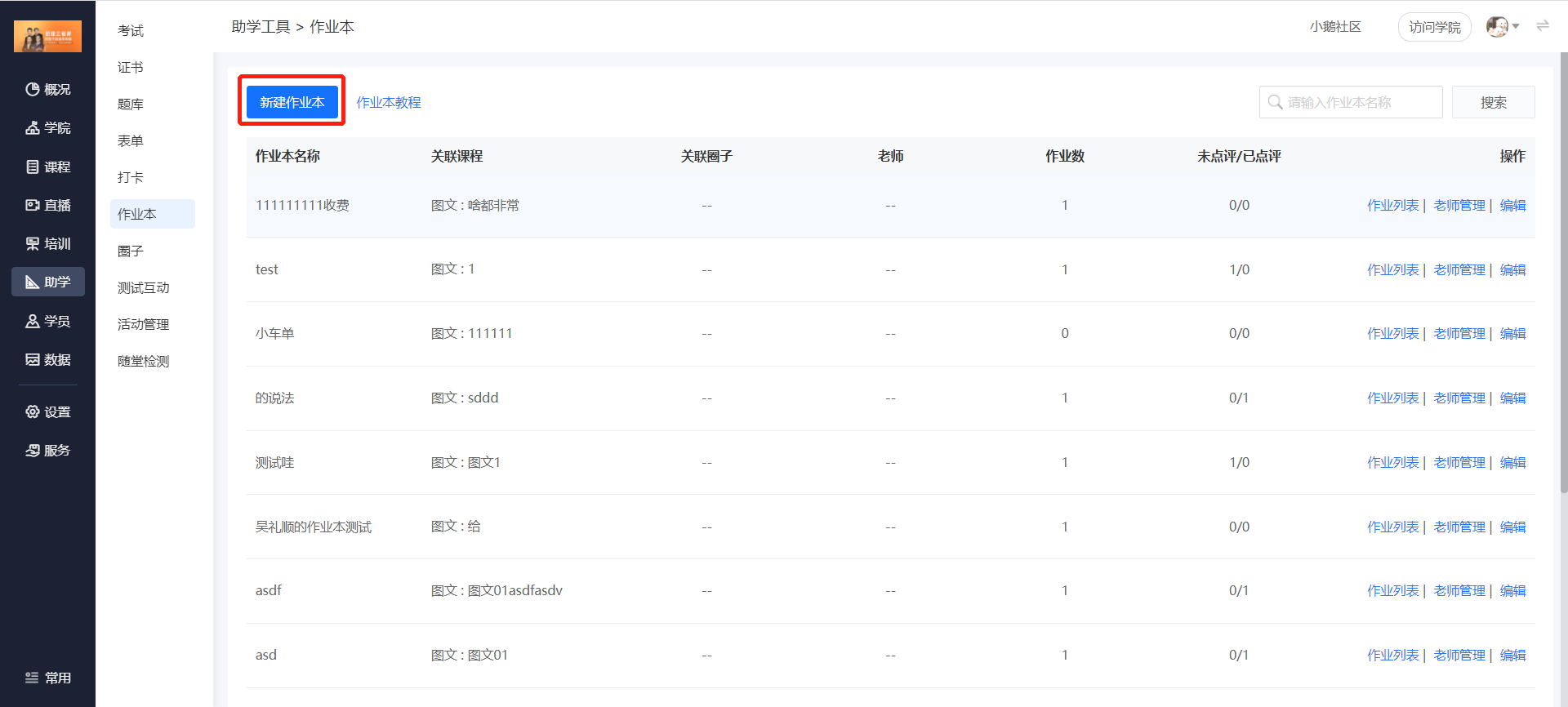
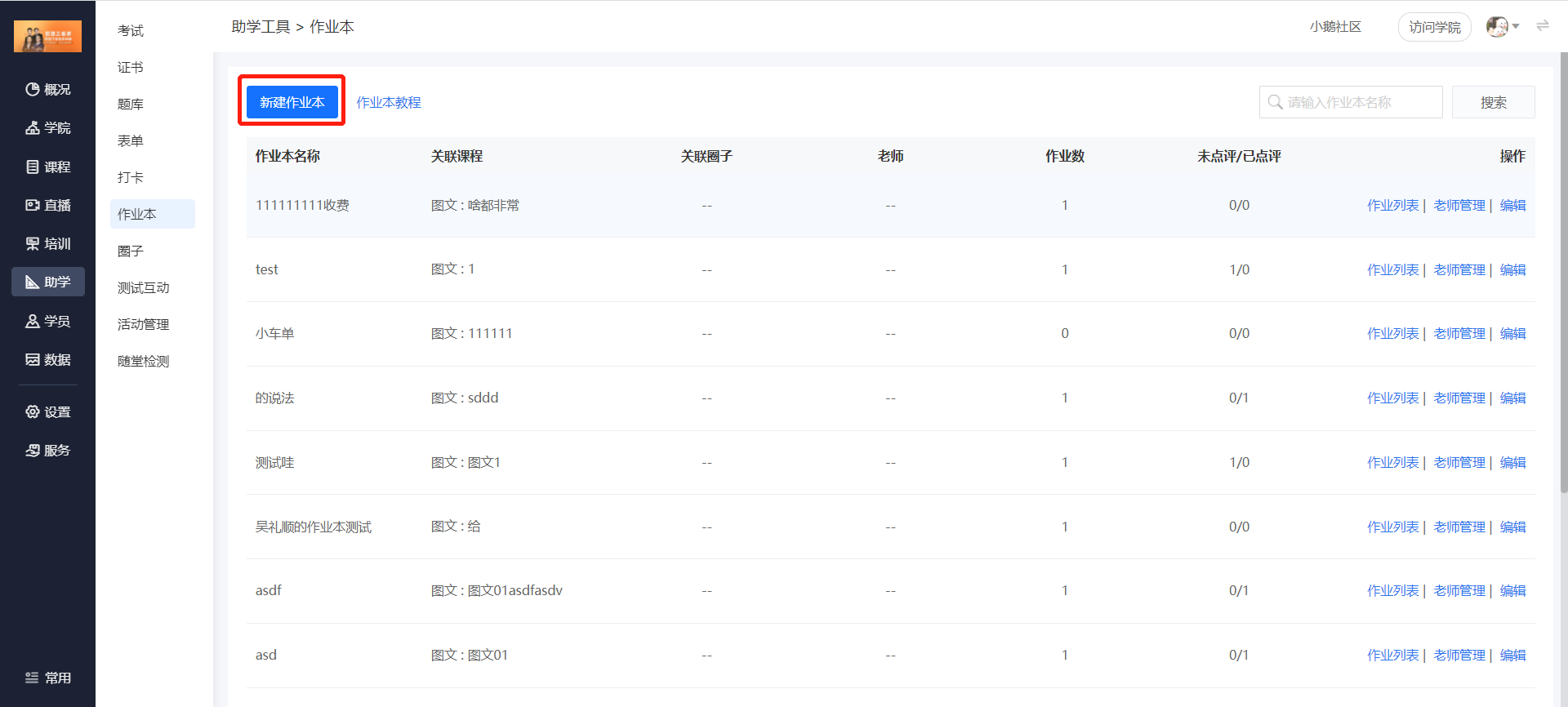
(Management Backend)
2. Configure Homework Information
Fill in the name of the homework book and associate it with a course (column/audio/video/picture - text/live stream). You can also associate the homework book with a community.
Click the save button.
*Note: If the teacher has already assigned homework, the associated course of the homework book cannot be modified again.
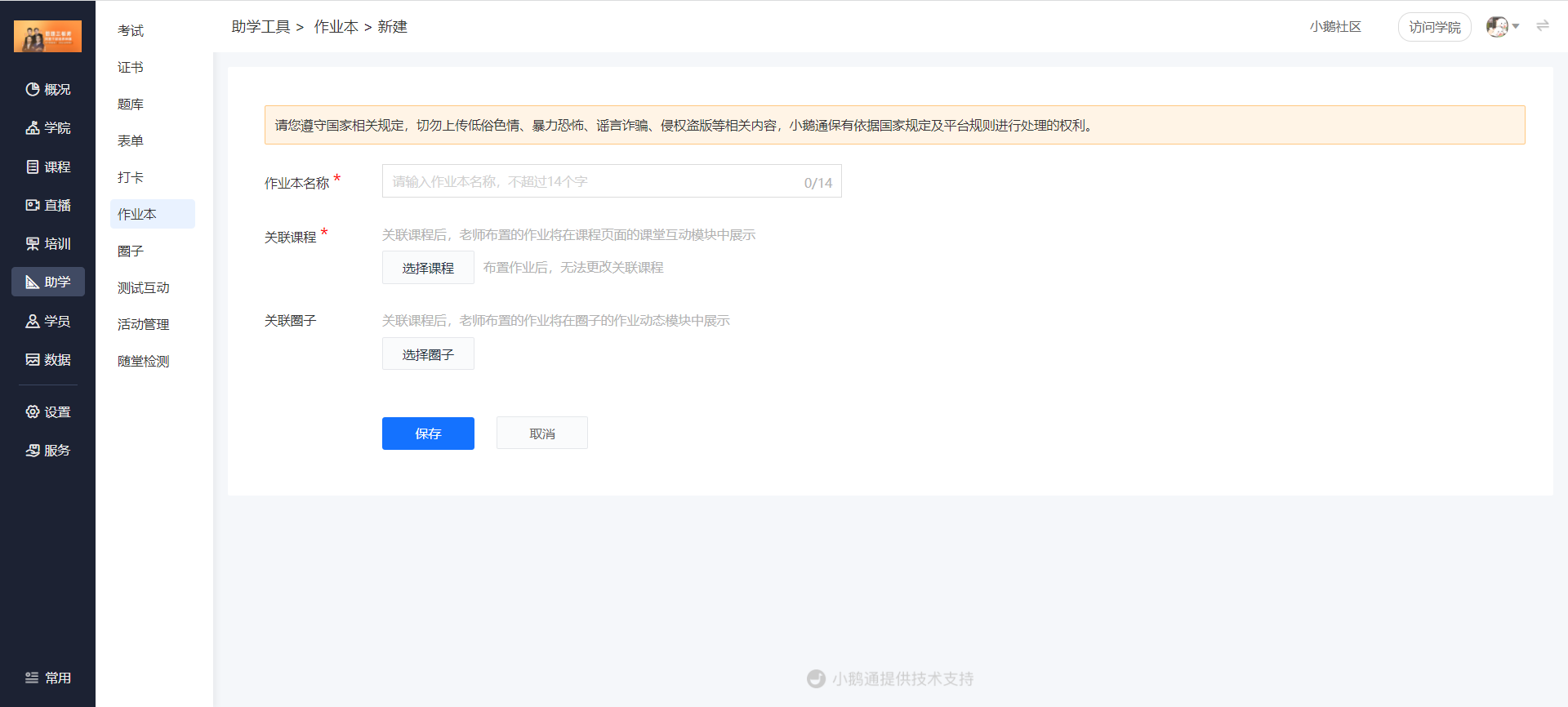
(Management Backend)
3. Add Teachers:
(1) On the homework book list page, click [Teacher Management] to open the teacher management pop - up window.
(2) Click [Add Teacher], search for the employee's name, and add the employee as a teacher.
(3) Click [OK], and then click [Save] to confirm the addition.
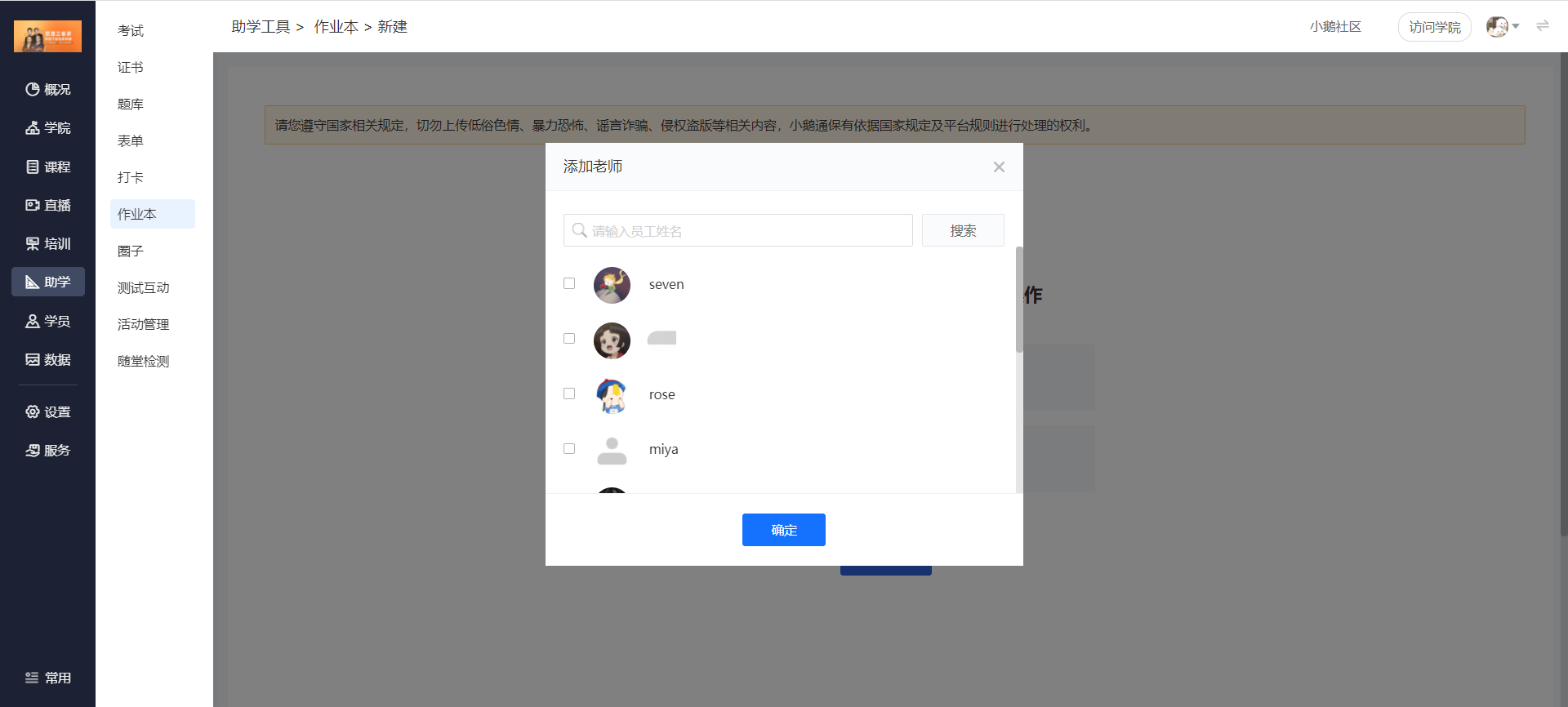
(Management Backend)
4. Assign Homework
(1) On the homework book list page, click [Homework List] to enter the homework list page, and then click [Assign Homework].
(2) It supports two assignment methods: manual assignment and importing questions from the question bank.
(3) The homework content supports text, pictures, and audio.
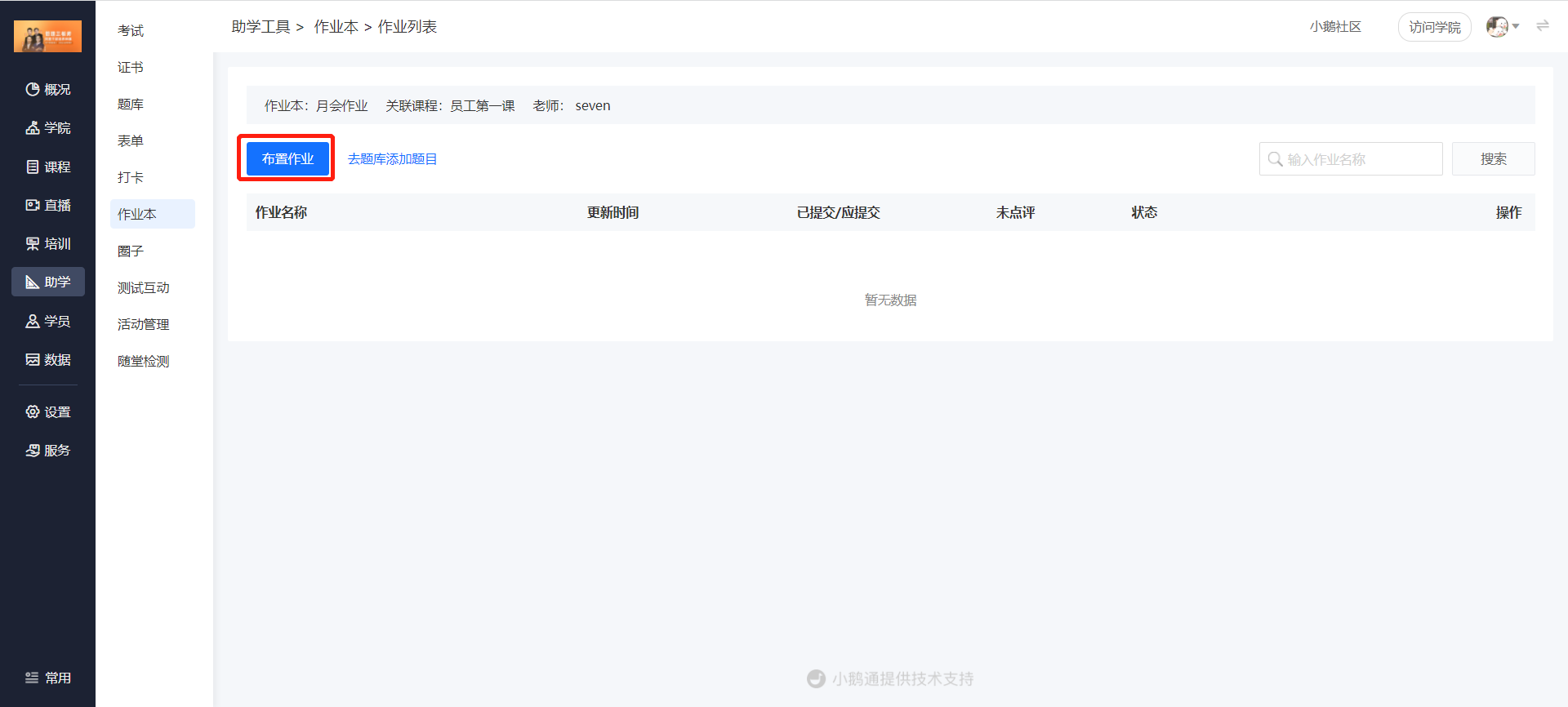
(Management Backend)
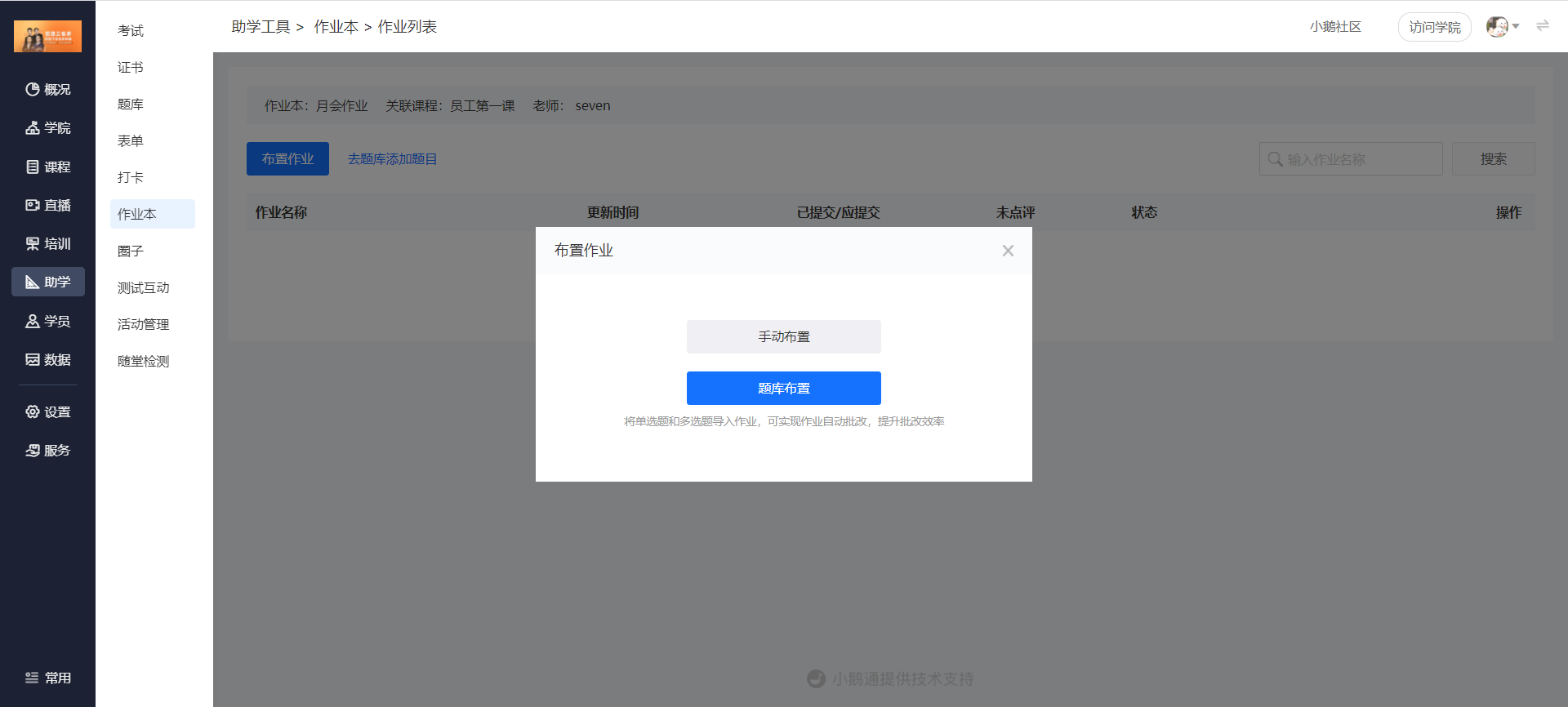
(Management Backend)
5. Review Homework
Click [Learning Assistance] - [Homework Book] - [Homework List] - [Student Homework] - [View] - [Review Homework]
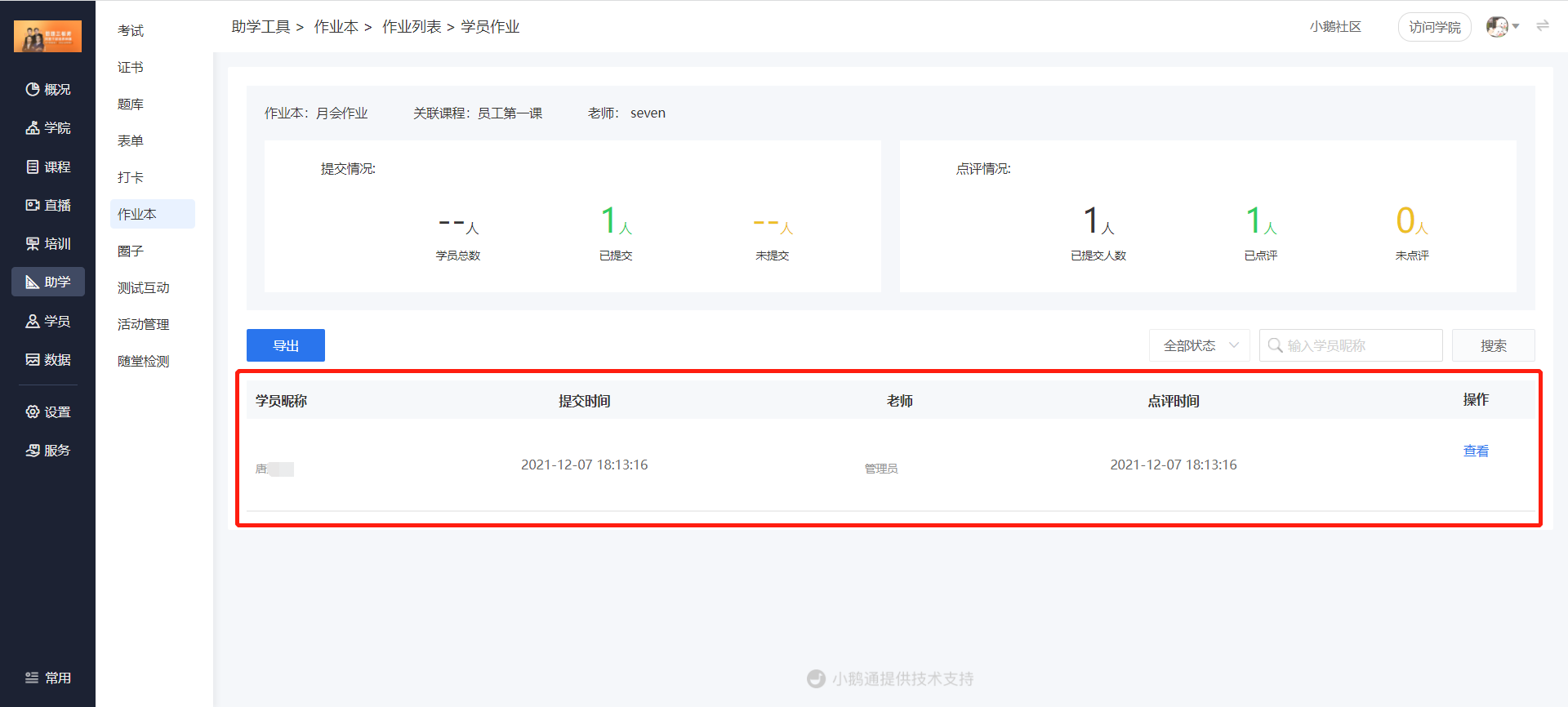
(Management Backend)
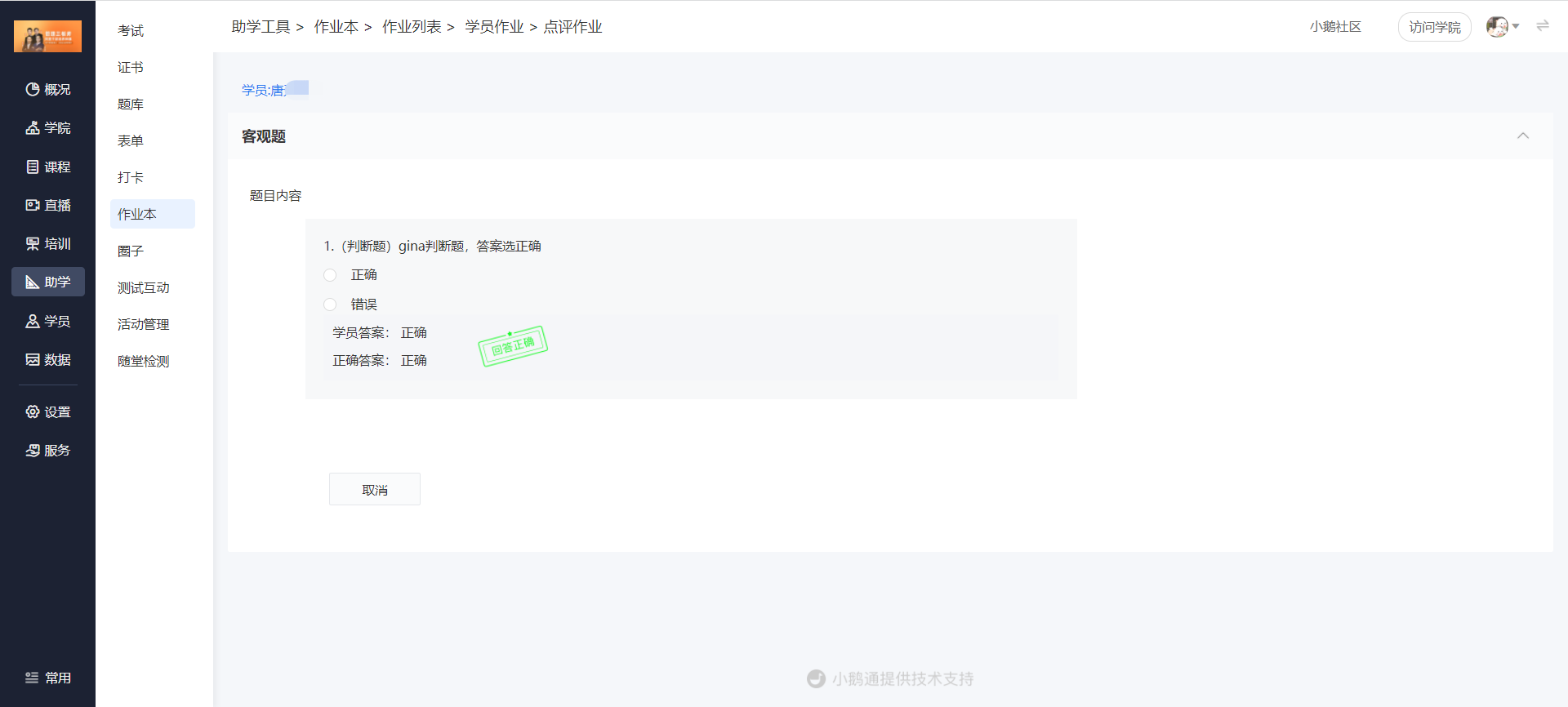
(Management Backend)
Step 2: Students Do Their Homework
Method 1: Students directly scan the homework code shared by the administrator to enter the 'Homework Details' homepage. Click [Do Homework] to enter the 'Do Homework' page. After completing the homework, click [Submit Homework] to finish.
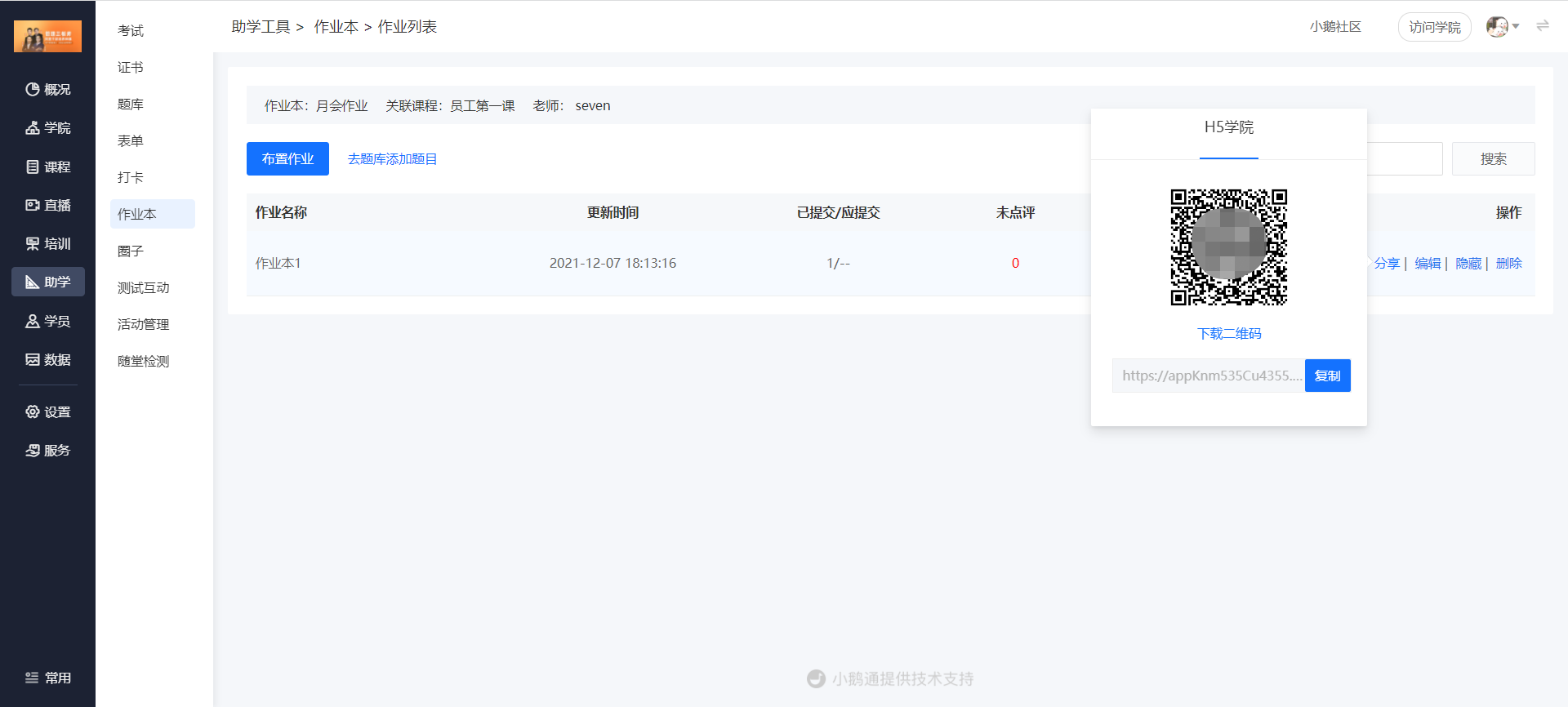
(Management Backend)
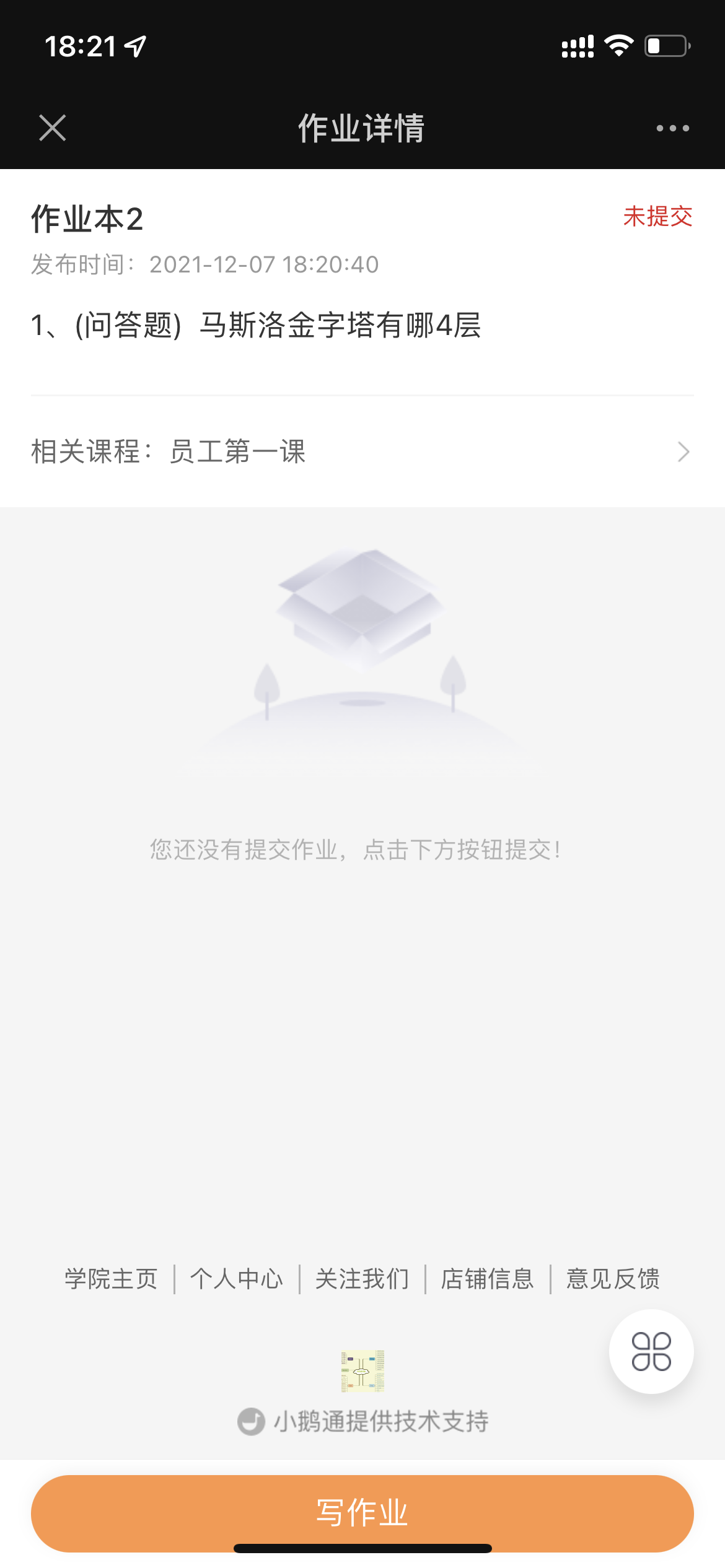
(Homework Details)
Method 2: Students enter the academy homepage through the enterprise training QR code sharing. Through the path [My Learning] - [Learning Tools] - [Homework], select the homework to be completed and enter the homework details page to finish.
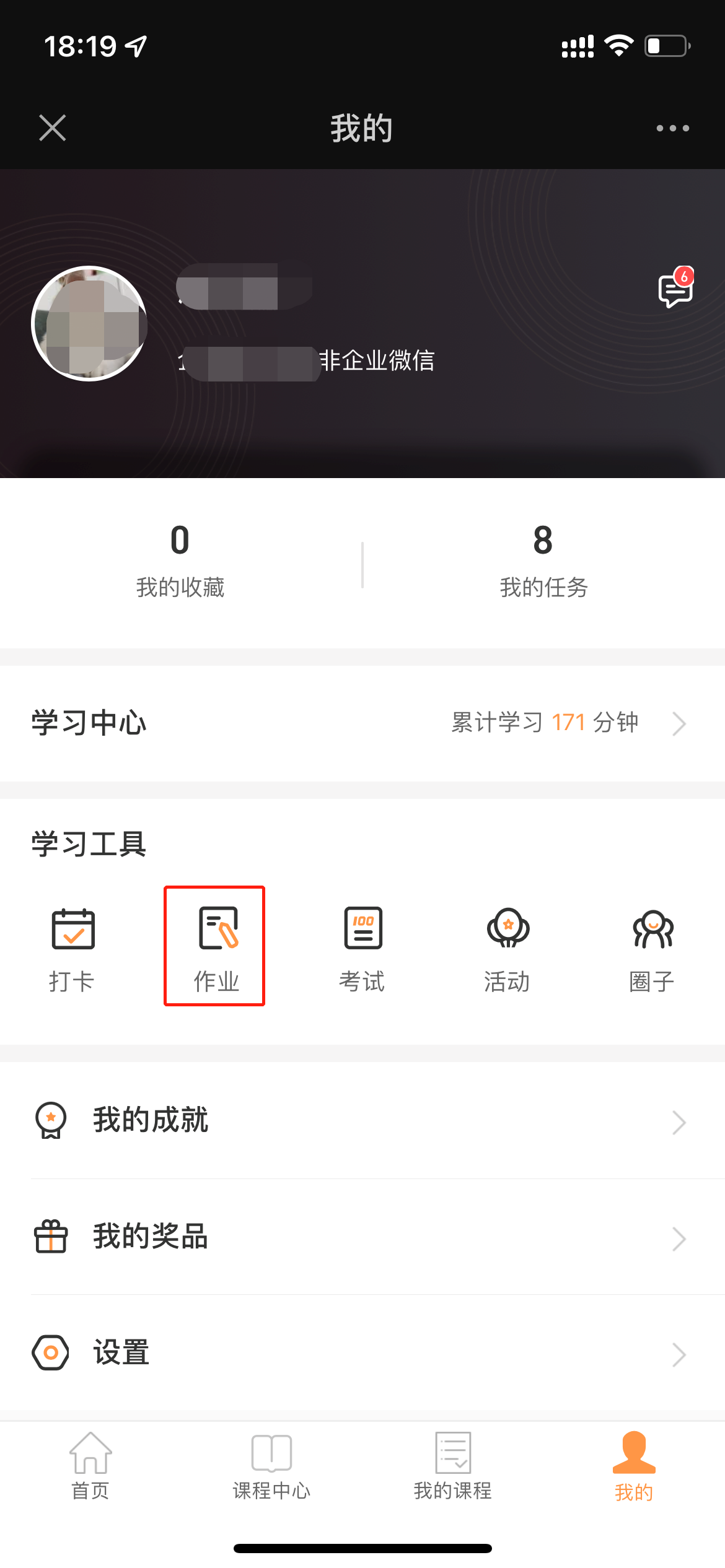
(Student - end 'My' Page)