# Tutorial on setting the visible range
[中文](/books/8e6b4/page/6f3ef)
**I. Function Introduction**
Administrators can use the visibility scope function to assign learning permissions for courses. Employees can only learn the courses assigned to them.
**II. Purpose of Use**
Configure different learning content for different target learners.
**III. Use Scenarios**
The visibility scope function applies to all courses, including text - image courses, audio courses, video courses, live courses, e - books, columns, and purchased courses (columns, live courses).
**IV. Operation Path**
Merchant side: Corporate Training Management Console → Courses → Edit Course
Learner side: H5 Academy → Course Homepage
**V. Usage Tutorial**
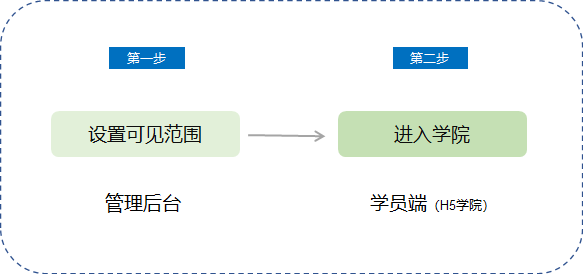
**Step 1: Set the Visibility Scope***(Management Backend)*
1. Log in to the management console. Select the course for which you need to set the scope from \[Courses\], and click \[Edit\] to enter the course editing page.
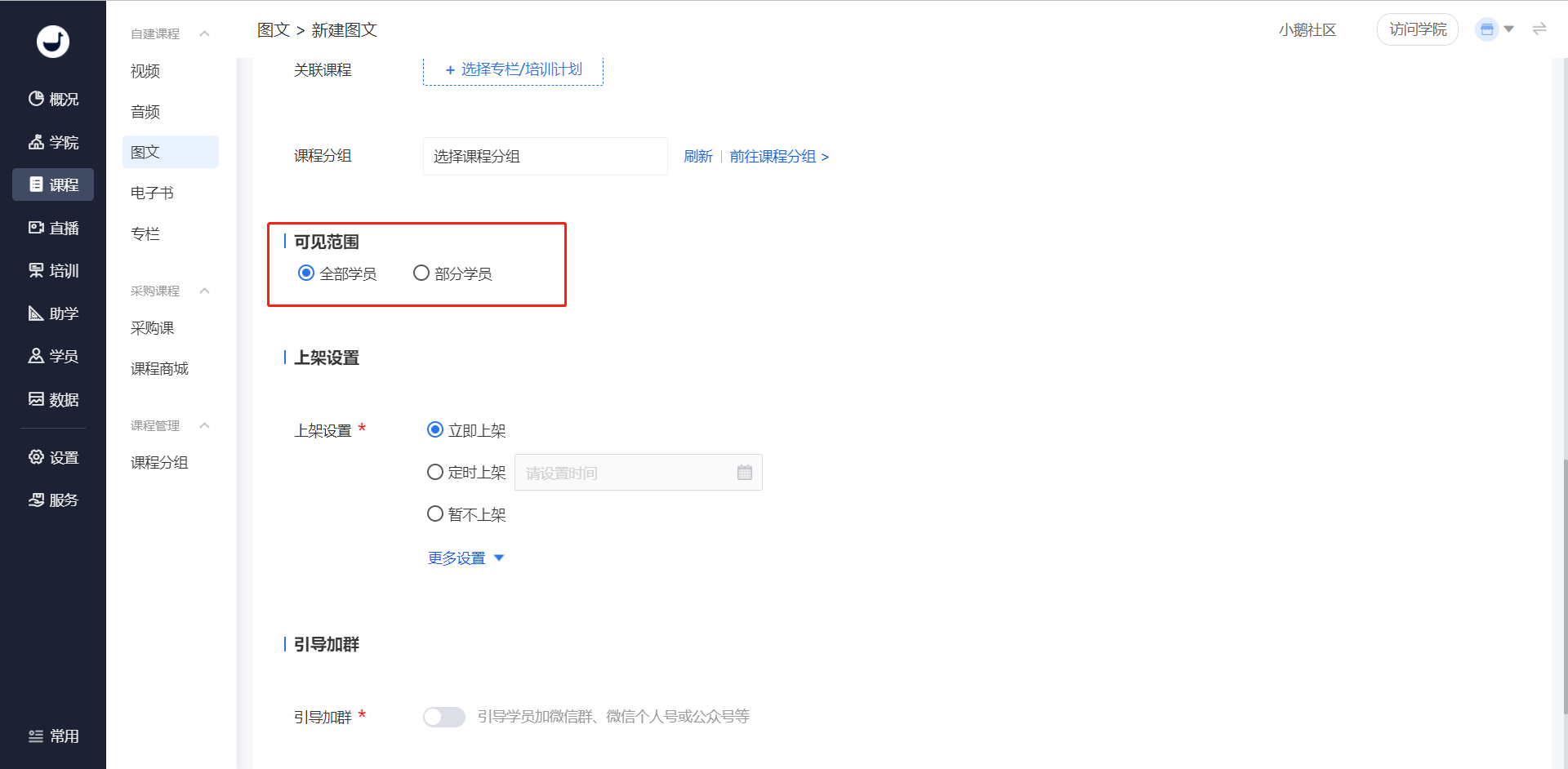
(Management Backend - Course Editing Page)
2. Select the visibility scope.
All learners: All learners can study this course;
Some learners: Select the corresponding department learners or the corresponding learners under the department. After selection, only the specified learners can see the course.
Note: Paid purchased courses have inventory limits. When setting the visibility scope, please allocate according to the inventory quantity. If the number of allocated learners exceeds the course inventory, the allocation will fail. Free purchased courses have no quantity limit.

(Management Backend - Course Editing Page - Select Some Learners Visible)
3. Click \[Save\] to save the visibility scope settings.
**Step 2: Course Learning***(H5 Academy)*
1. Learners log in to the academy.
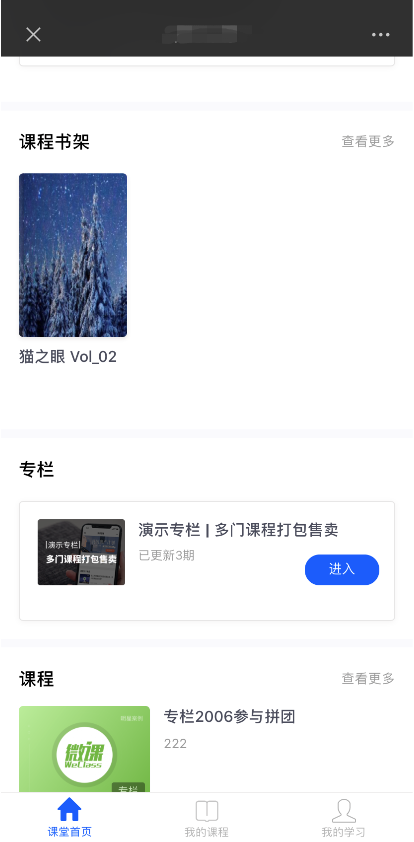
(H5 Academy - Course Homepage)
2. Learners within the course visibility scope can select courses from the courses for learning.