E-book Usage Tutorial
I. Function Introduction
E-books support one-click import of local resources. The system automatically parses the book chapters, enabling easy online management of e-books. Learners can read on their mobile devices, with support for functions such as regional touch page-turning, highlighting, bookmarking, and background changing.
II. Purpose of Use
Train learners with various types of courses.
III. Usage Scenarios
You can upload PDF files such as company regulations and onboarding manuals as materials for employee training on company regulations.
IV. Operation Path
Management Console: Enterprise Academy Management Console → Courses → E-books
Learner End: WeChat H5 Academy → E-book Courses
V. Usage Tutorial
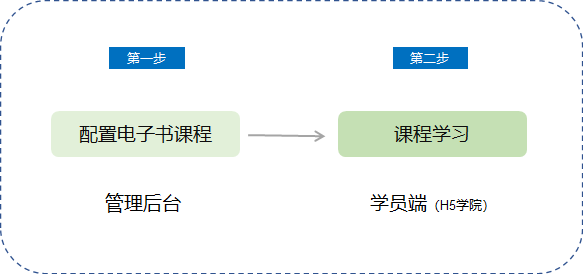
Step 1: Configure E-book Courses(Management Backend)
Log in to the management console. Select [E-books] from [Courses] → [New E-book].

(Management Backend - Course Management - E-books)
2. Enter the new e-book page, upload an e-book (size limit: 100M, supports two formats: PDF and EPUB; PDF e-books do not currently support highlighting and theme changing). Fill in the book title, author, and description, and upload the cover. Note that re-uploading a file will overwrite the previously uploaded one.

(Management Backend - Courses - E-books - New E-book)
3. Course Information
Associated Courses: You can choose to associate with columns and training plans. After saving, the course information will be displayed in the details of the columns and training plans.
4. Visibility Scope: Set the course to be visible to specified employees. For details, please readUsage Tutorial for Setting Visibility Scope.
5. Publishing Settings: Set the publishing time of the course. For details, please readUsage Tutorial for Publishing and Unpublishing Settings.
6. Group Joining Promotion: Configure relevant communities for different courses and guide employees to join the communities on the course details page. The steps are to enable group joining promotion, set the promotional message, and upload the community QR code.
7. Click [Save] to successfully create an e-book course.
Step 2: Course Learning(H5 Academy)
1. Learners log in to the academy.
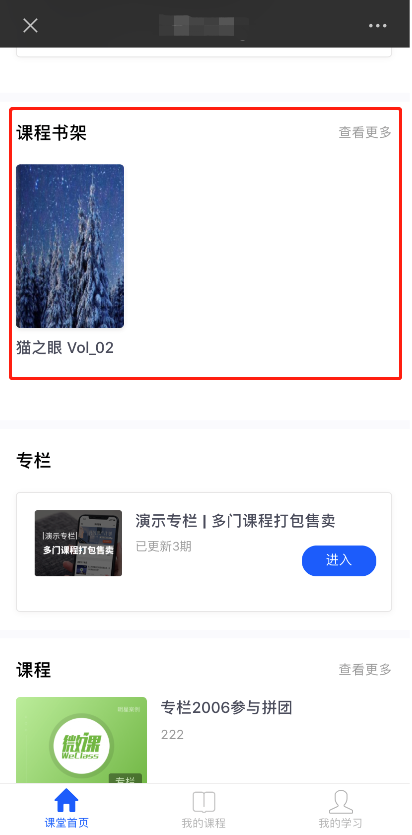
2. Select the corresponding e-book course from the courses for learning.
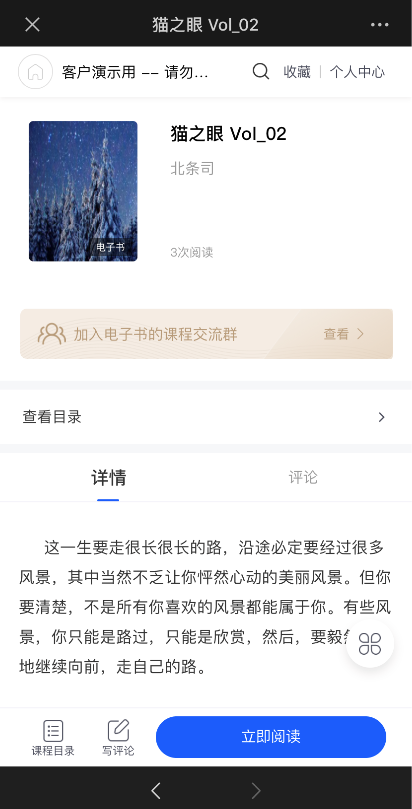
(H5 Academy - E-book Course Details Page)