# Administrator Settings Tutorial
[中文](/books/8e6b4/page/e44fe)
**I. Function Introduction**
Administrator settings are a module provided for enterprises to create and manage multiple administrator accounts (sub - accounts). The super administrator creates administrator accounts and assigns module permissions to the accounts. Administrators can log in to the management background using their accounts and view or use corresponding functional modules according to the assigned permissions.
**II. Purpose of Use**
Enterprises need to set up multiple personnel to operate and manage the enterprise training background and define their management permissions according to different management responsibilities.
**III. Use Scenarios**
**Use scenarios for administrator settings**
Enterprise training requires each department to organize courses and arrange training independently. Therefore, training responsible personnel from each department need to enter the management background to manage courses and set up training personnel on their own. The enterprise's super administrator can add personnel in the administrator settings module and complete the permission assignment for these personnel.
**Use scenarios for role management**
Enterprises need to standardize some roles and group permissions under a certain role. For example, the HR department needs to have personnel management permissions, so relevant personnel permissions can be grouped under this role and standardized as the 'HR trainer' role. When adding an HR colleague as an administrator, this role can be assigned to the administrator.
**IV. Operation Path**
Administrator: Management background → Settings → Administrator settings → Add administrator
**V. Usage Tutorial**
**Rule Explanation**
Each enterprise training has an unlimited number of administrator accounts;
● For enterprise training not integrated with Enterprise WeChat:
1. The administrator account needs to be filled in as a mobile phone number, and this mobile phone number needs to be registered with elink;
2. If the 'Senior administrator' or 'Ordinary administrator' system - built - in roles are selected when adding an account, verification with the mobile phone number of the enterprise training creator is required.
● For enterprise training integrated with Enterprise WeChat:
1. When adding an administrator, you need to select from the student accounts that have been synchronized to the student management address book;
2. You can directly synchronize Enterprise WeChat administrators as enterprise training administrators, and their permissions are all senior administrator permissions.
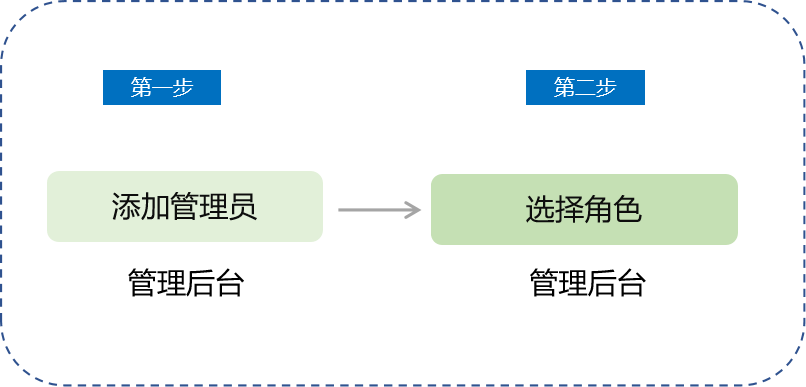
**Step 1: Fill in the basic information of the administrator***(Management background)*
● For enterprise training not integrated with Enterprise WeChat
1. Enter the page through \[Settings\] - \[Administrator settings\] - \[Add administrator\] in the management background
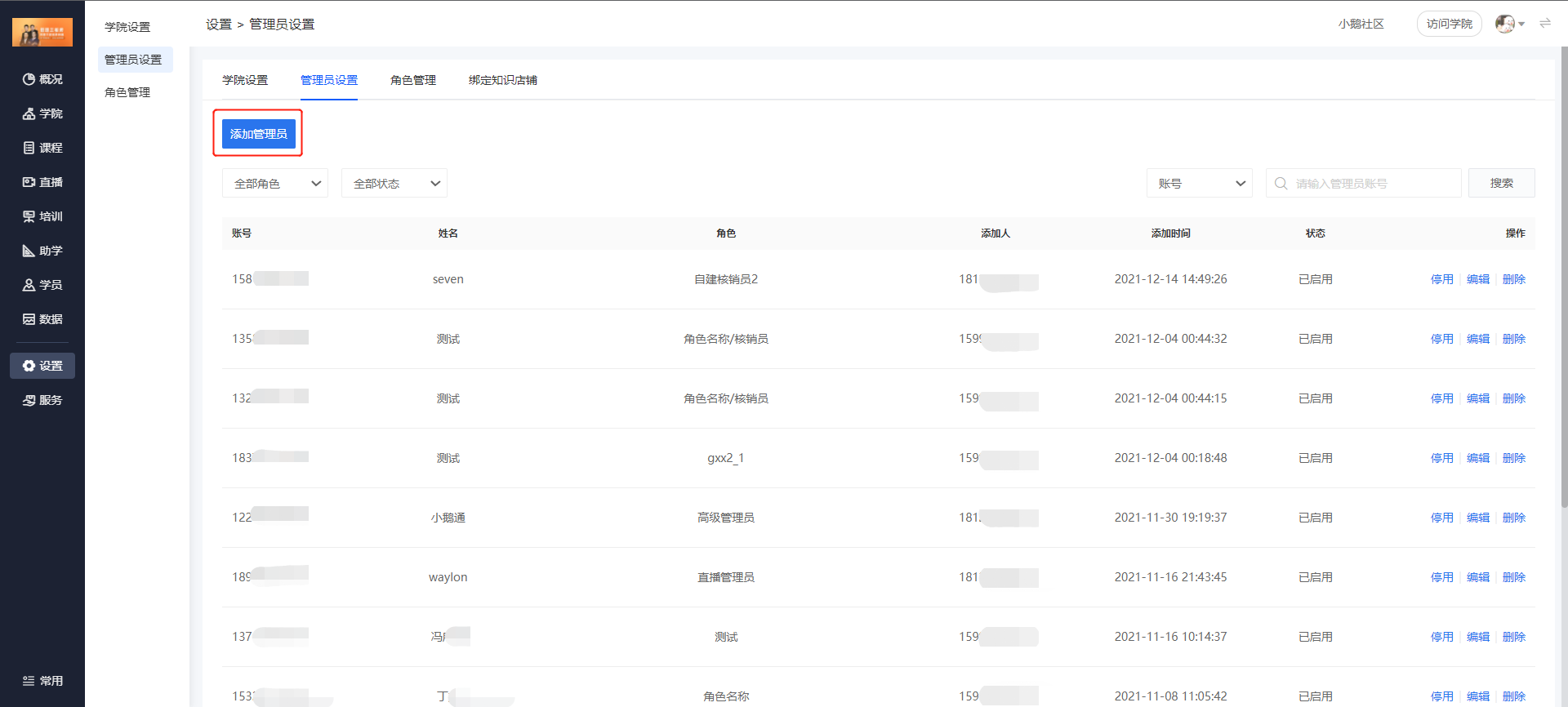
(Management background)
2. Fill in the basic information of the administrator
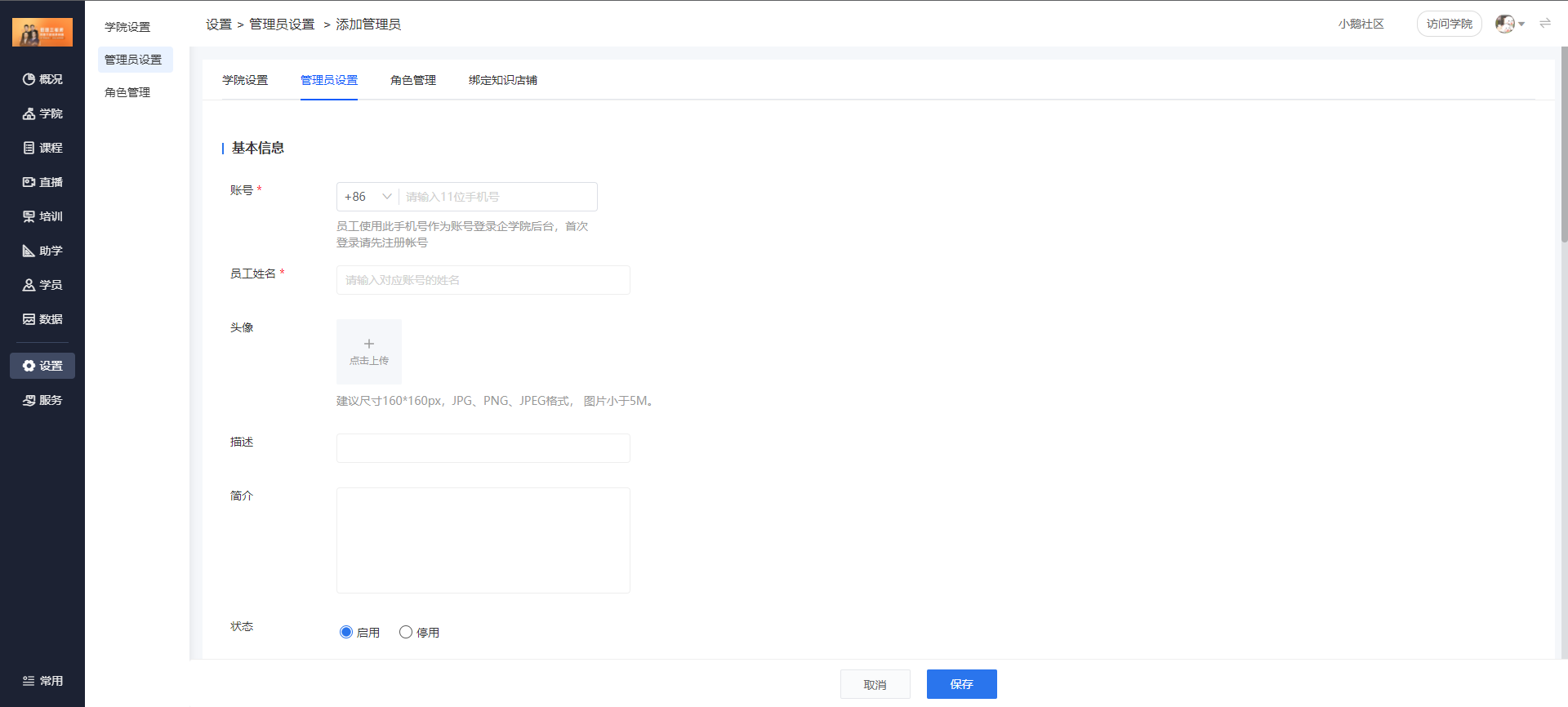
(Management background)
● For enterprise training integrated with Enterprise WeChat
1. Through \[Settings\] - \[Administrator settings\] - \[Add administrator\] in the management background, select a student account from the synchronized address book in student management. After saving, the account will be directly added as an ordinary administrator;

(Management background)
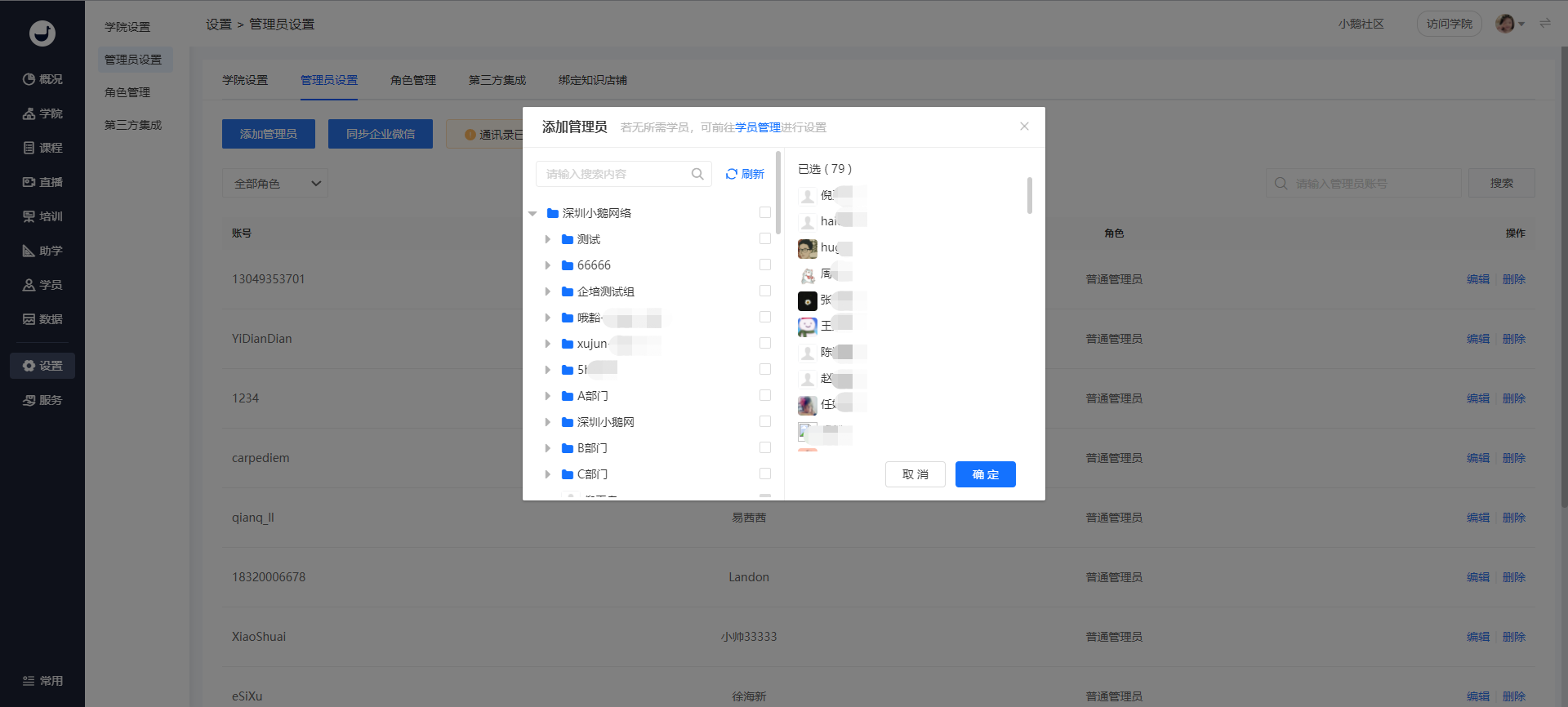
(Management background)
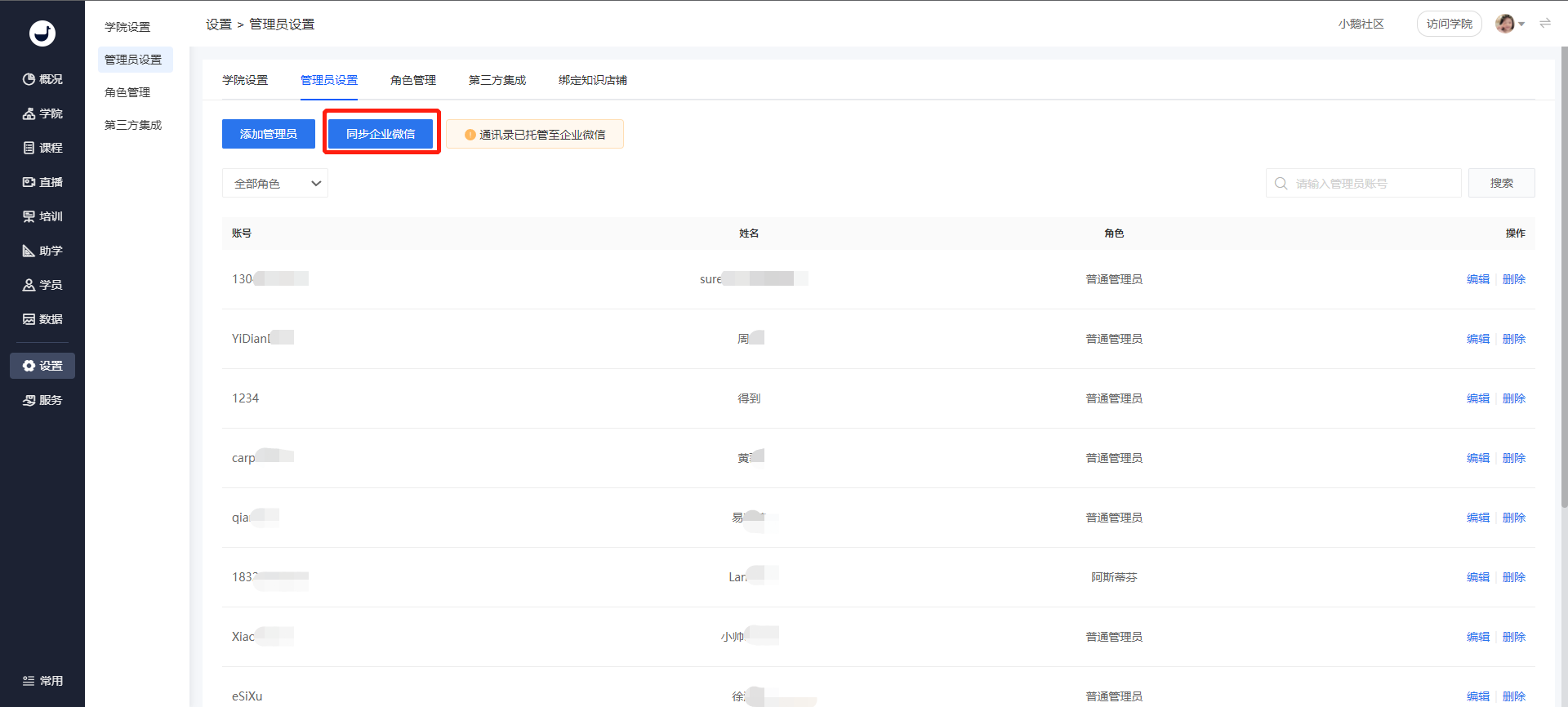
2. You can also click \[Synchronize with Enterprise WeChat\] to directly synchronize Enterprise WeChat administrators to enterprise training and add them as senior administrators;
Note: After clicking the 'Synchronize with Enterprise WeChat' button, the permissions of Enterprise WeChat administrators in elink enterprise training will be directly overwritten as senior administrator permissions (with all functional permissions).
(Management background)
**Step 2: Select a role and clarify the corresponding permissions under this role**
● For enterprise training not integrated with Enterprise WeChat
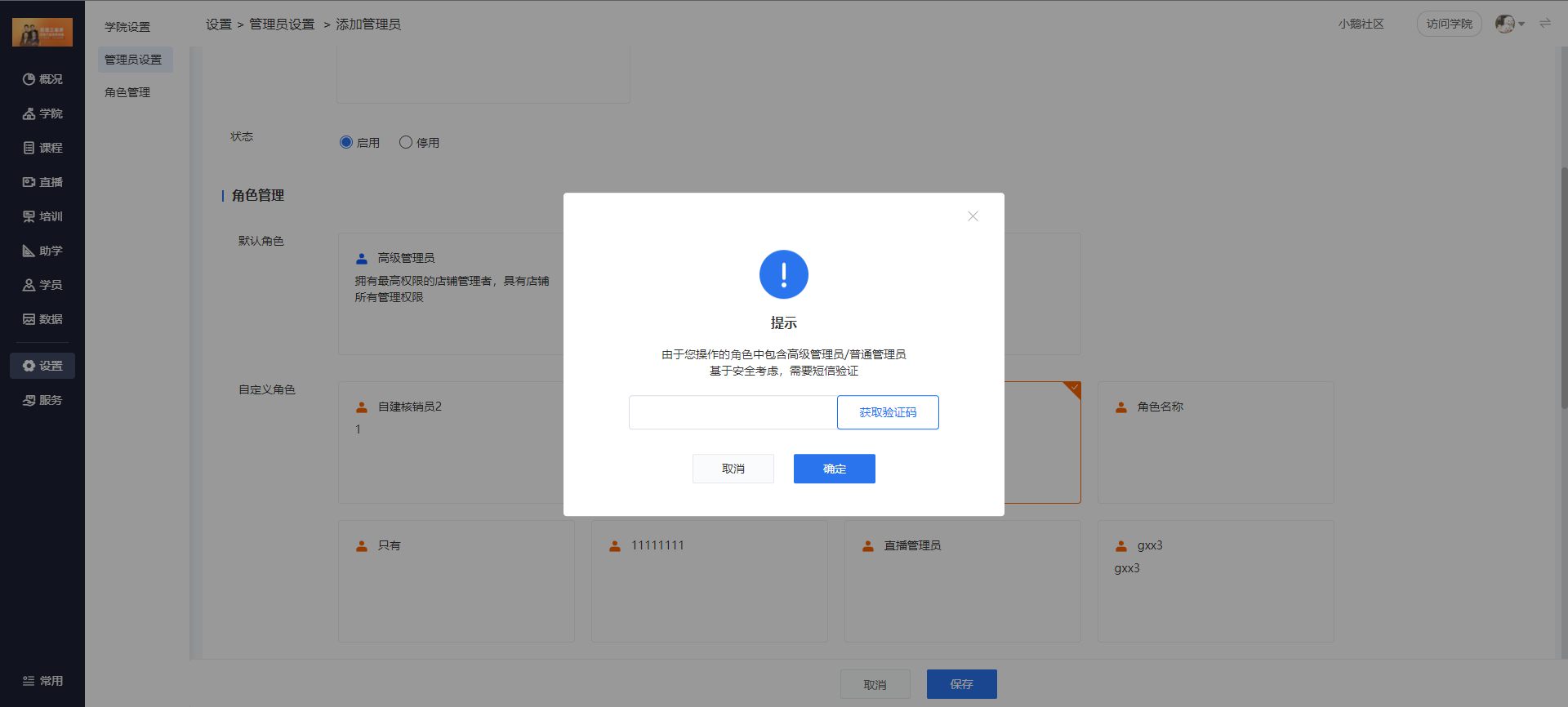
After selecting the corresponding role, click 'Save' to complete the addition of the administrator;
If the senior administrator or ordinary administrator is selected, click to obtain the verification code of the mobile phone number of the enterprise training creator for verification
(Management background)
● For enterprise training integrated with Enterprise WeChat
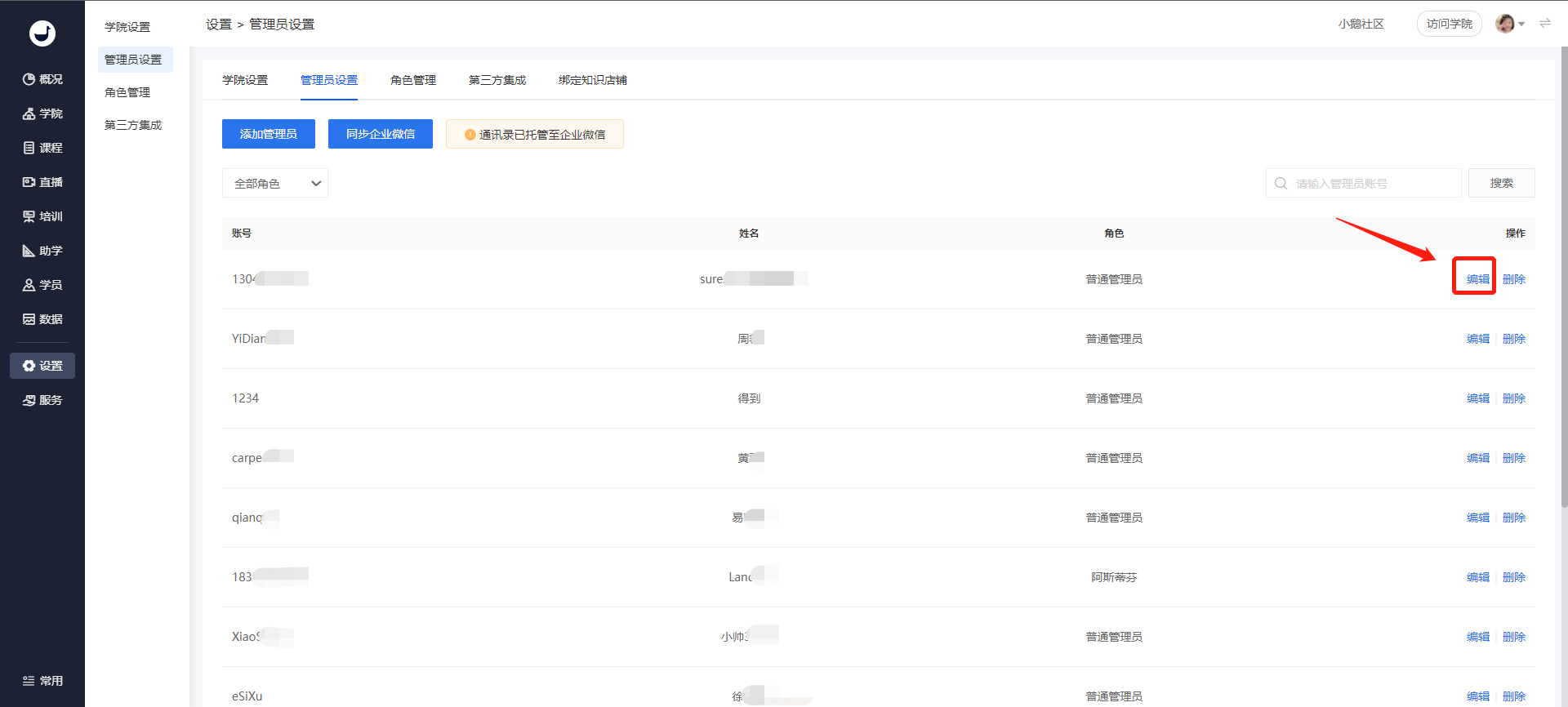
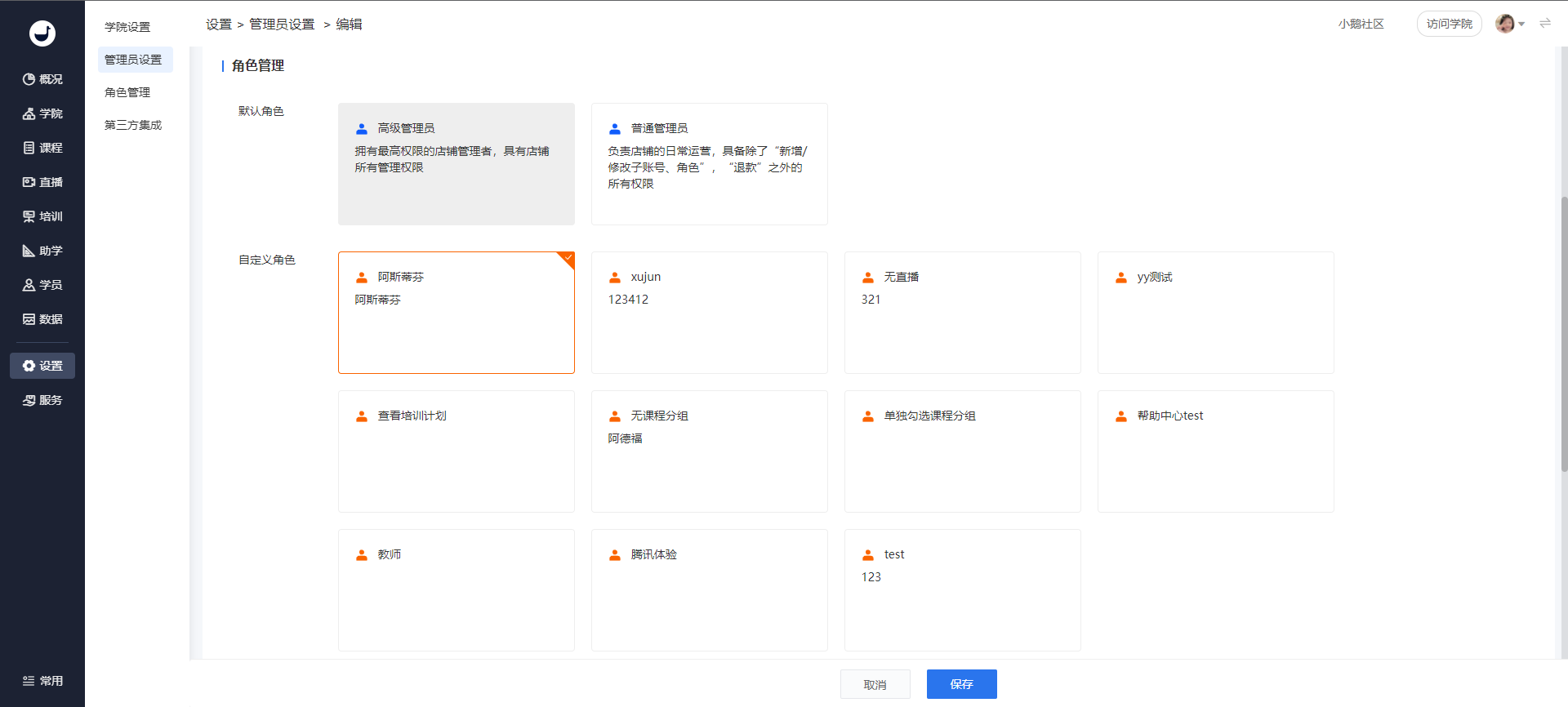
In the administrator list, click \[Edit\] to modify the administrator's role and permissions.
(Management background)
(Management background)