# Data Overview
# How to set the data viewing permissions for the overview page?
[中文](/books/9be40/page/b6d76)
Store data on the overview page of the merchant management backend can be directly viewed by the store creator upon login. However, store employees (sub-accounts) need to have the relevant permissions enabled to view it.
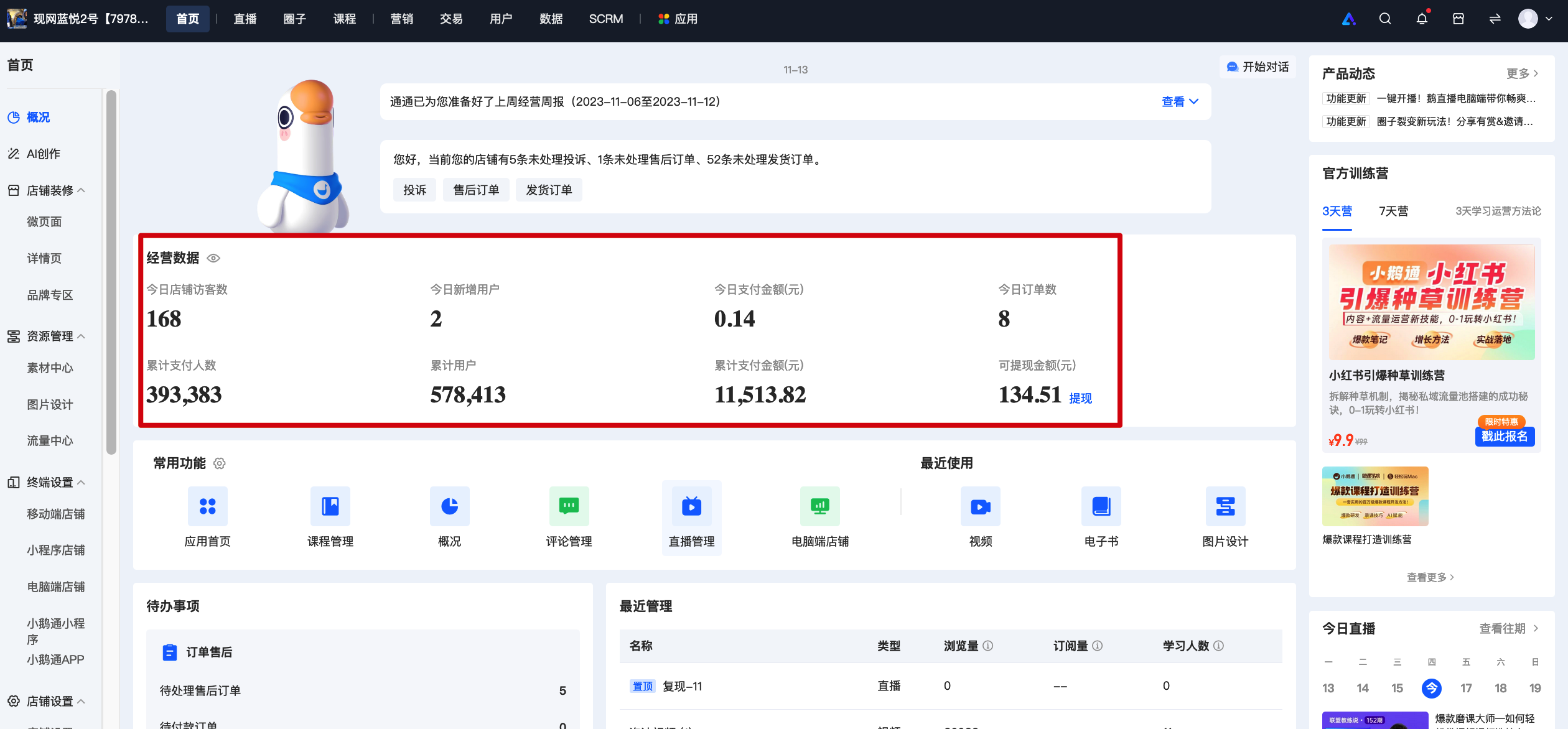
When the accounthas no relevant permissions, the corresponding data will display 'No permission. Please contact the administrator to apply' and appear in gray.
The steps to enable permissions are as follows:
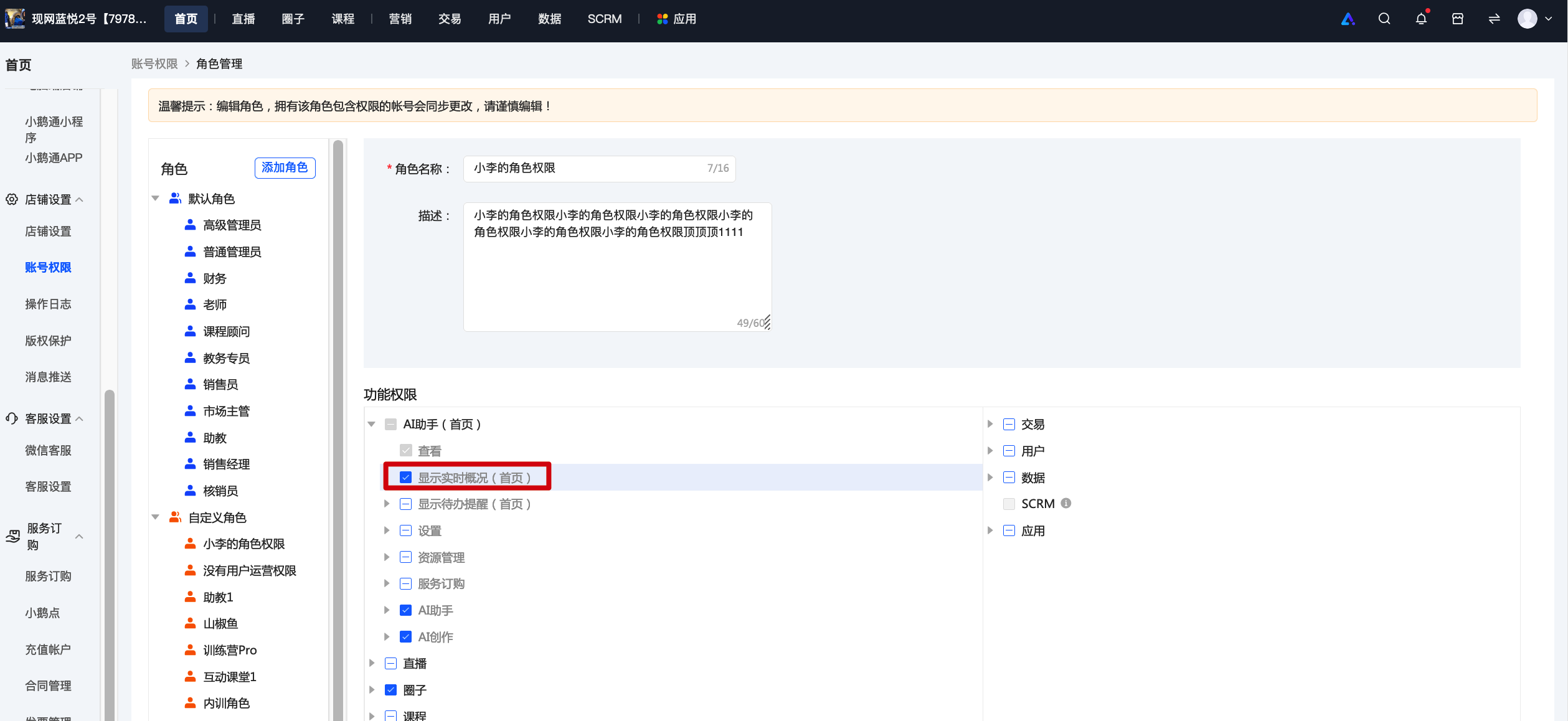
1. Click \[Settings\] - \[Account Permissions\]. You can set sub-account permissions on the new creation or editing page.
2. Check the 'Homepage - Display Real-time Overview' permission and assign it to the sub-account to view the corresponding data.
# What does an active user on the user dashboard refer to?
[中文](/books/9be40/page/e46de)
Hello, it refers to the number of users who have visited the store within the selected time period
# What does a paid user on the user dashboard refer to?
[中文](/books/9be40/page/6512b)
Hello, it refers to the number of users who have successfully made payments within the selected time period. Multiple payments made by one person are counted as one (all successfully paid orders are calculated, refunds are not excluded, and orders imported via API are not included in the selection).
# Tutorial on Using Data Overview
[中文](/books/9be40/page/b1d10)
**I. Feature Introduction**
The data overview feature supports monitoring the overall operational status of the online store, including real-time data and recent trends of core indicators such as visits and orders. It also reflects the store's operational performance of the previous day through the core indicators on the four dashboards: Traffic, Conversion, Products, and Users.
**II. Purpose of Use**
1. Monitor real-time visit and order completion data of the day to promptly assess the effectiveness of daily operational strategies.
2. Grasp the overall changes in the key business indicators of the store and quickly identify trends in terms of traffic, conversion, products, and users.
**III. Use Scenarios**
Scenario 1: A merchant conducts a promotion on a certain day. The operation team checks the changes in visit and order indicators at the 1st, 3rd, 6th, and 12th hours after the promotion starts to evaluate whether the promotion meets the expectations and adjust the promotion strategy promptly.
Scenario 2: Every morning, the operation team reviews the previous day's operational performance. They obtain the previous day's core data and its 30 - day trend through the operation window. If the data is below expectations, they can quickly identify issues using the Traffic, Transaction, Products, and Users dashboards to adjust the day's operational plan.
**IV. Operation Path**
Merchant side: Merchant backend → Data → Data Overview
**V. Usage Tutorial**
**Real - time Overview (Management Backend)**
Check the real - time cumulative income (settlement amount) of the day and compare it with the cumulative income of the same period on the previous day. Continuously monitor the core indicators of the day at regular intervals.

(Real - time Overview Dashboard)
**Operation Window (Store Management Console)**
1. Core Indicators
Check the core indicators of a natural day (default: the previous day), along with their daily and weekly comparisons. You can also compare the 30 - day indicator trends to understand the changes in the store's business performance.

(Core Indicators Dashboard)
2. Traffic Dashboard
Check the page views, number of visitors, and their daily and weekly comparisons on the selected day. Also, view the 24 - hour traffic trend of the selected day.

(Traffic Dashboard)
3. Conversion Dashboard
Check the visitor - order conversion rate and visitor - payment conversion rate on the selected day, along with their daily and weekly comparisons.

(Conversion Dashboard)
4. Products Dashboard
Check the top 5 products in terms of the number of visitors and the number of paying users on the selected day to identify the main traffic - driving and conversion - generating products of the day.

(Products Dashboard)
5. Users Dashboard
Check the cumulative, new, and active numbers of store users and paying users on the selected day and their 30 - day trends.
Check the contribution ratios of new and old paying users to the settlement amount and the number of settled users.
Check the repurchase rate of customers in the week and month of the selected day.

(Users Dashboard)
**VI. Notes**
1. Explanation of data indicator definitions:
