Usage Tutorial for Workbooks
I. Function Introduction
TeacherA learning tool for teachers to assign homework after class and test students' knowledge mastery.Homework can be published, submitted, and commented on in the form of pictures, voice, and text.
Set Teachers: The homework book function allows you to set teachers for courses. In the mobile store andthe PC management console, a complete service process of publishing, submitting, and commenting on homework can be completed in the form of pictures, voice, and text.
Associated Courses: The homework book can be associated with text - pictures/audio/video/live streaming/columns/memberships. After association, it will be displayed in the corresponding course interaction column.
Associated Communities: After creating homework, teachers can generate a homework card and send it directly to students. The homework will be presented as a post in the small community, meeting different after - class service scenarios.
II. Purpose of Use
Help teachers understand students' learning status and provide one - on - one guidance to students
III. Usage Scenarios
Suitable for assigning homework to students after a course to test their learning effects
IV. Operation Path
Teacher's End (Merchant Backstage): Management Backstage → Courses → Interaction Management → New Homework Book → Assign Homework → Homework Comment
V. Usage Tutorial
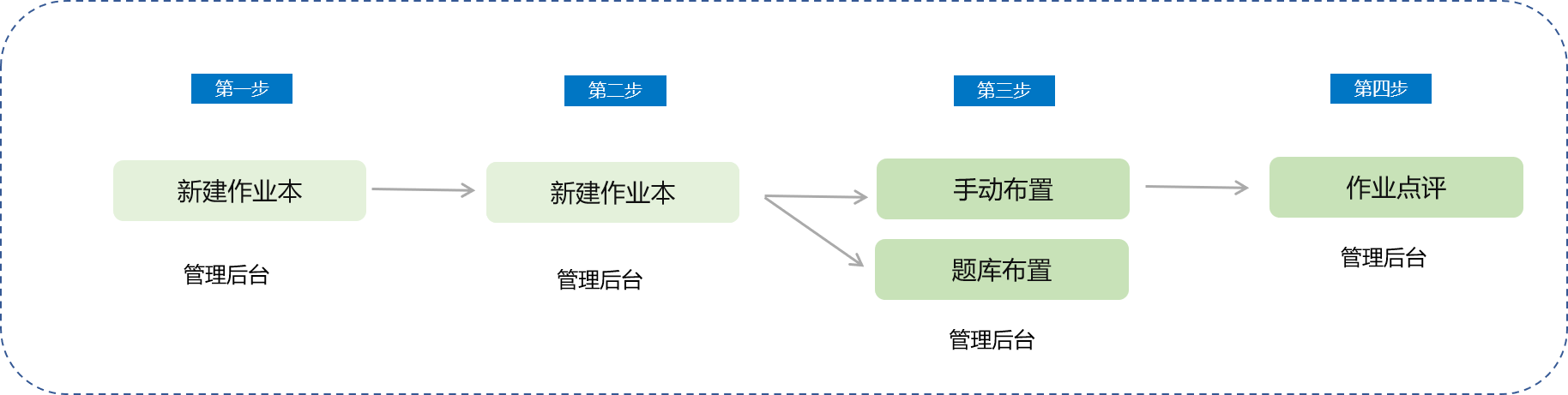
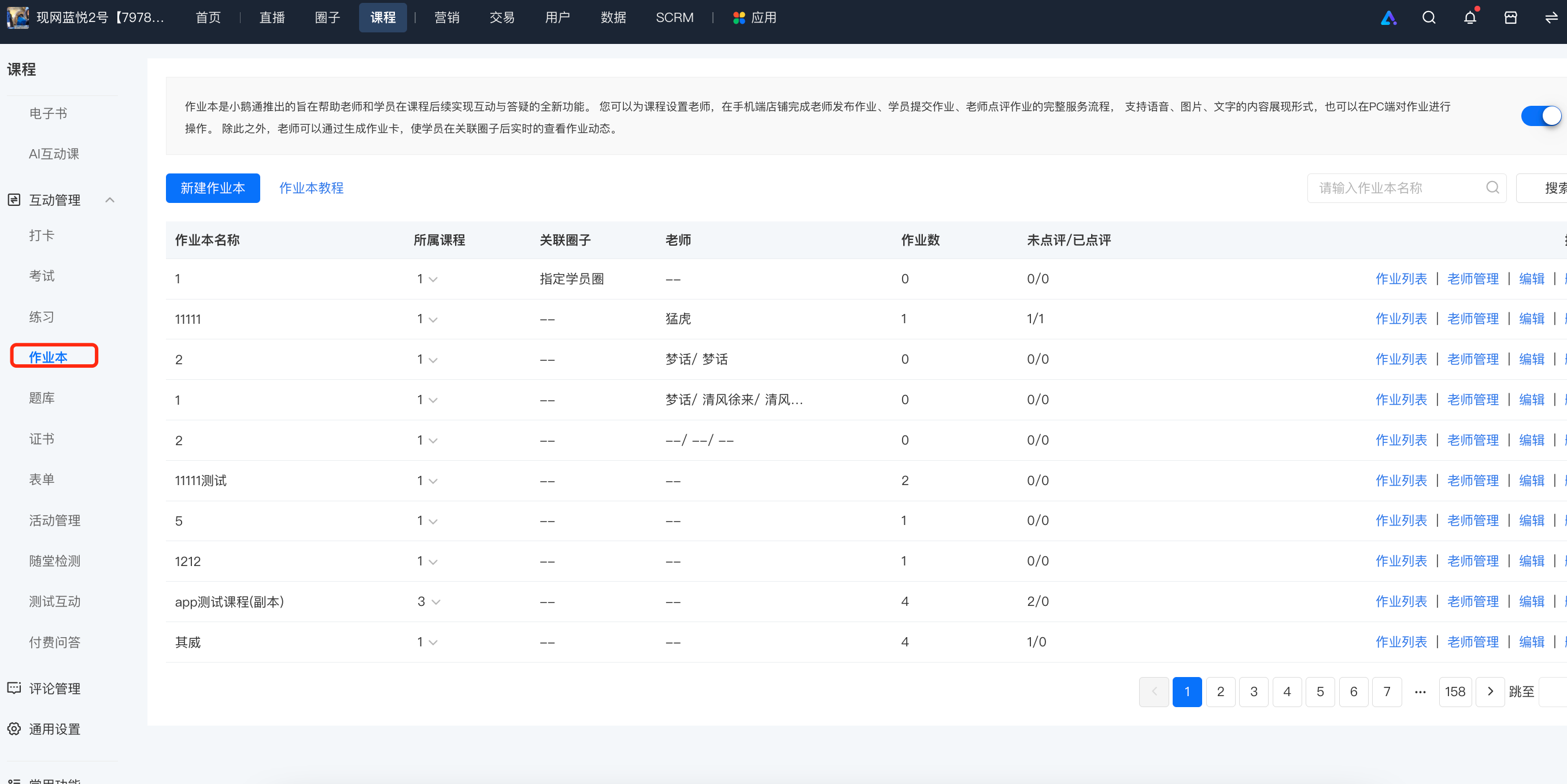
Step 1:Enter the homework book management interface from [Interaction Management] → [Homework Book].
Step 2:Click [New Homework Book] to create a homework book for a course (column/membership/audio/video/text - pictures/live streaming). Enter the homework book editing page, fill in the name of the homework book, and associate the specified course and community to successfully create it.
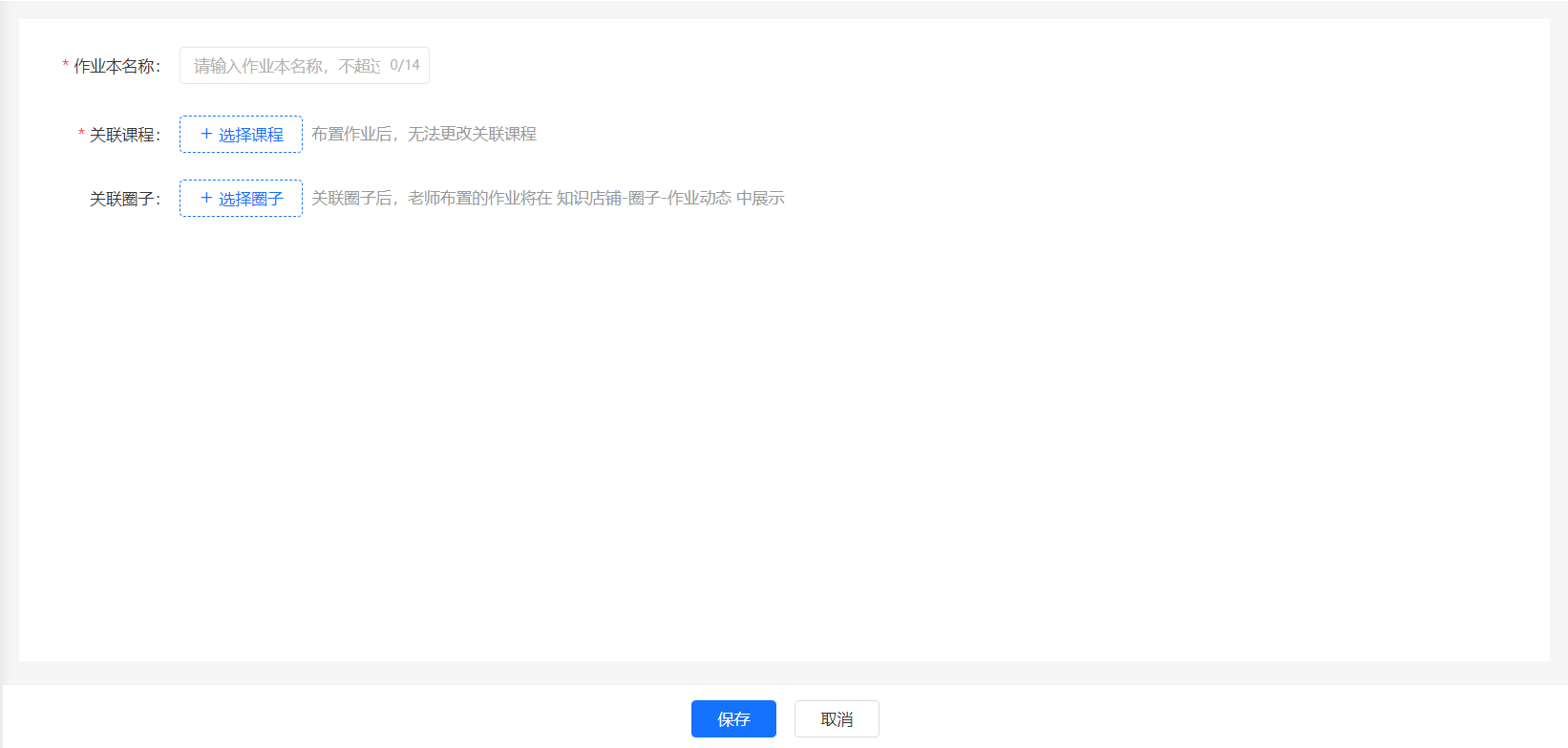
Note: If the teacher has already assigned homework, the associated courses of the homework book cannot be modified again.
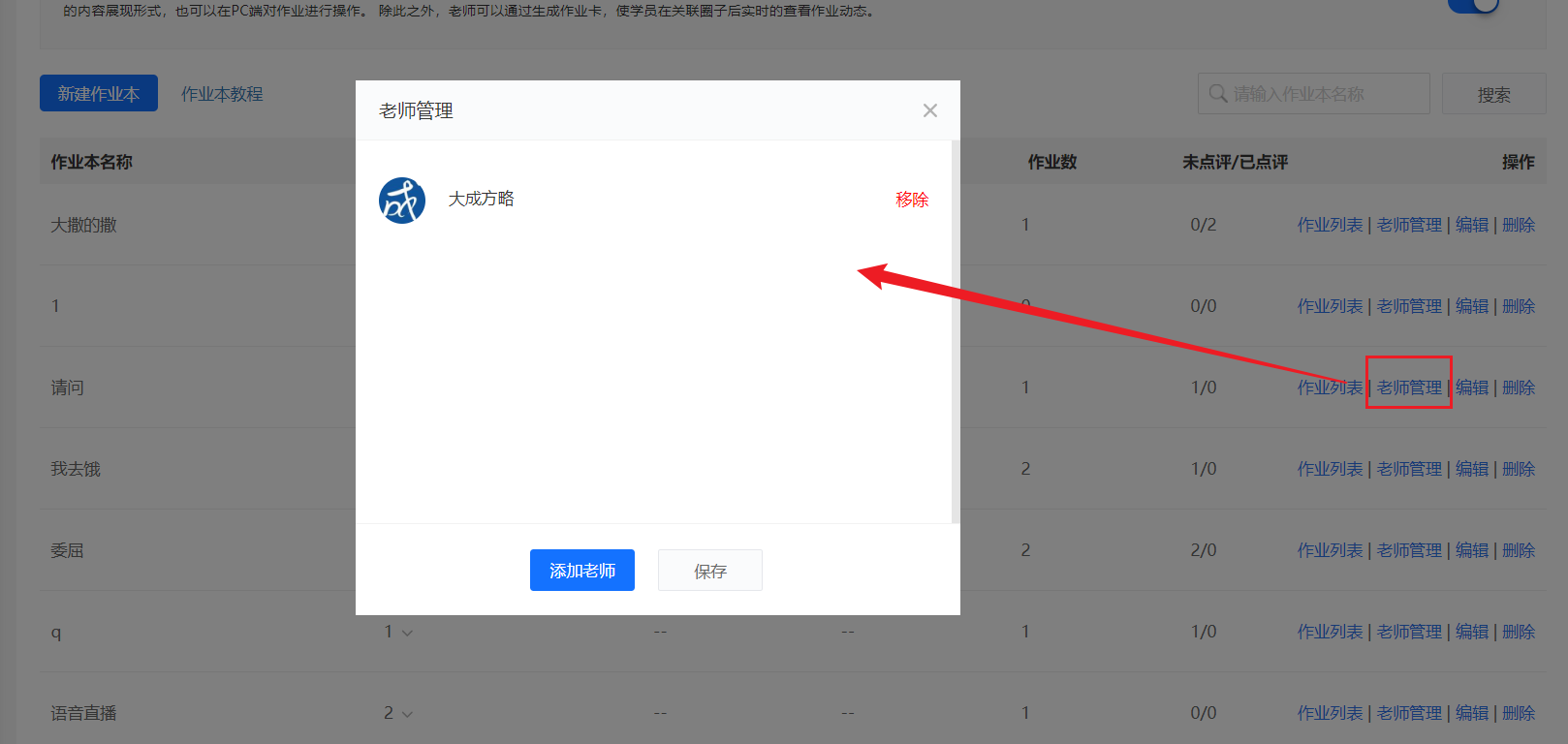
Step 3:Click [Teacher Management]. In the pop - up window, you can set multiple teachers for this homework book.
If the associated course is a live - streaming room, please go to [Live - streaming Room] → [Guest Settings] to set labels for teachers. Users with the label of 'Lecturer' are teachers.
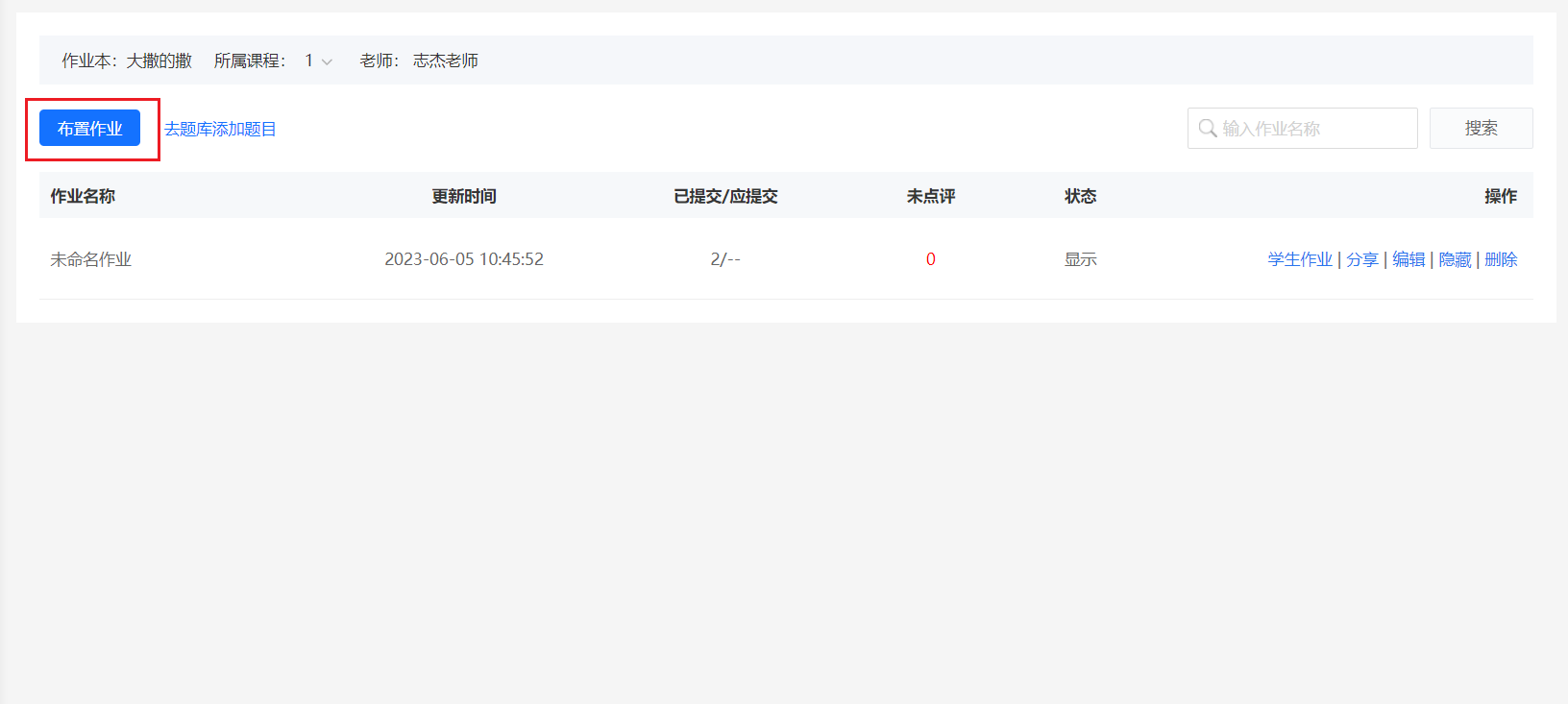
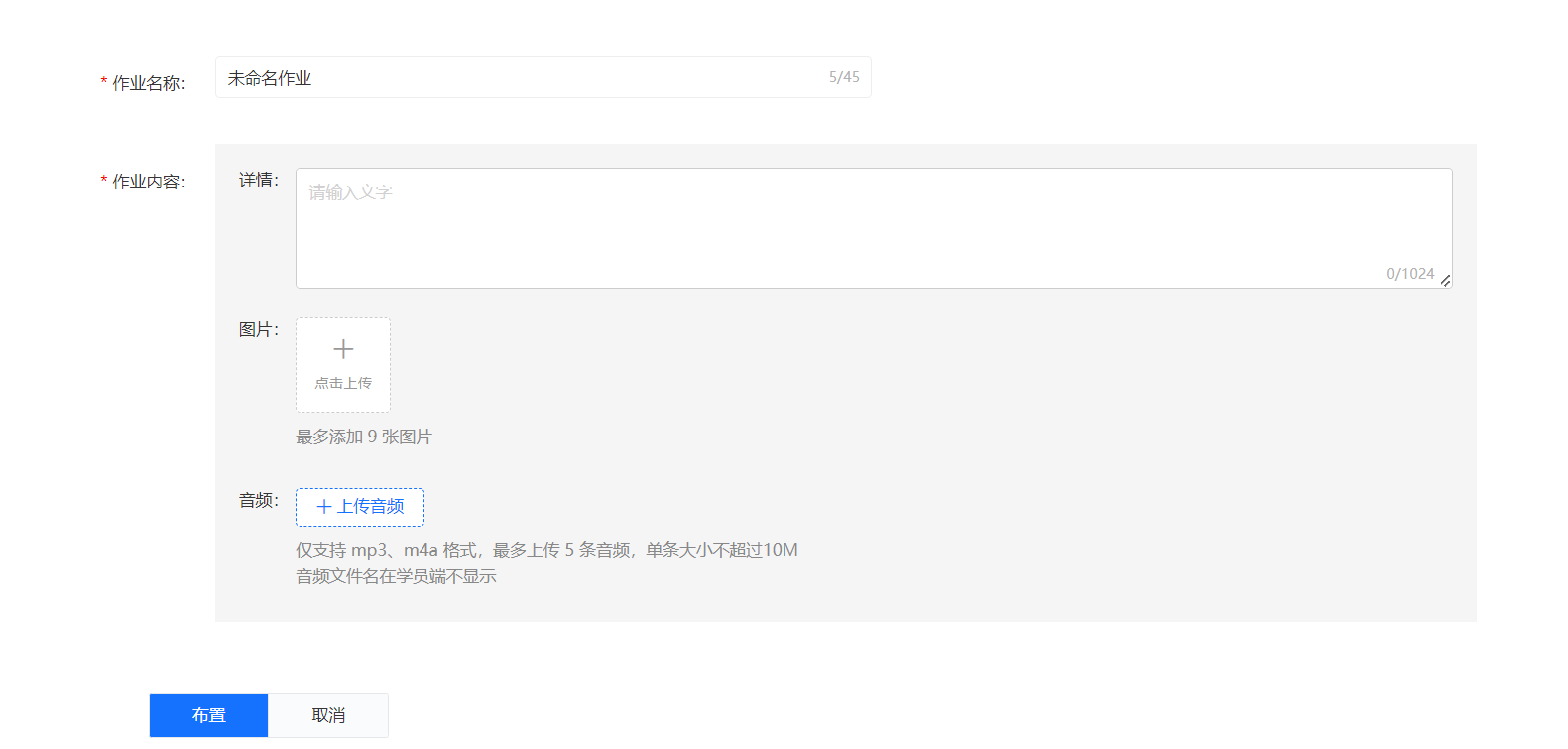
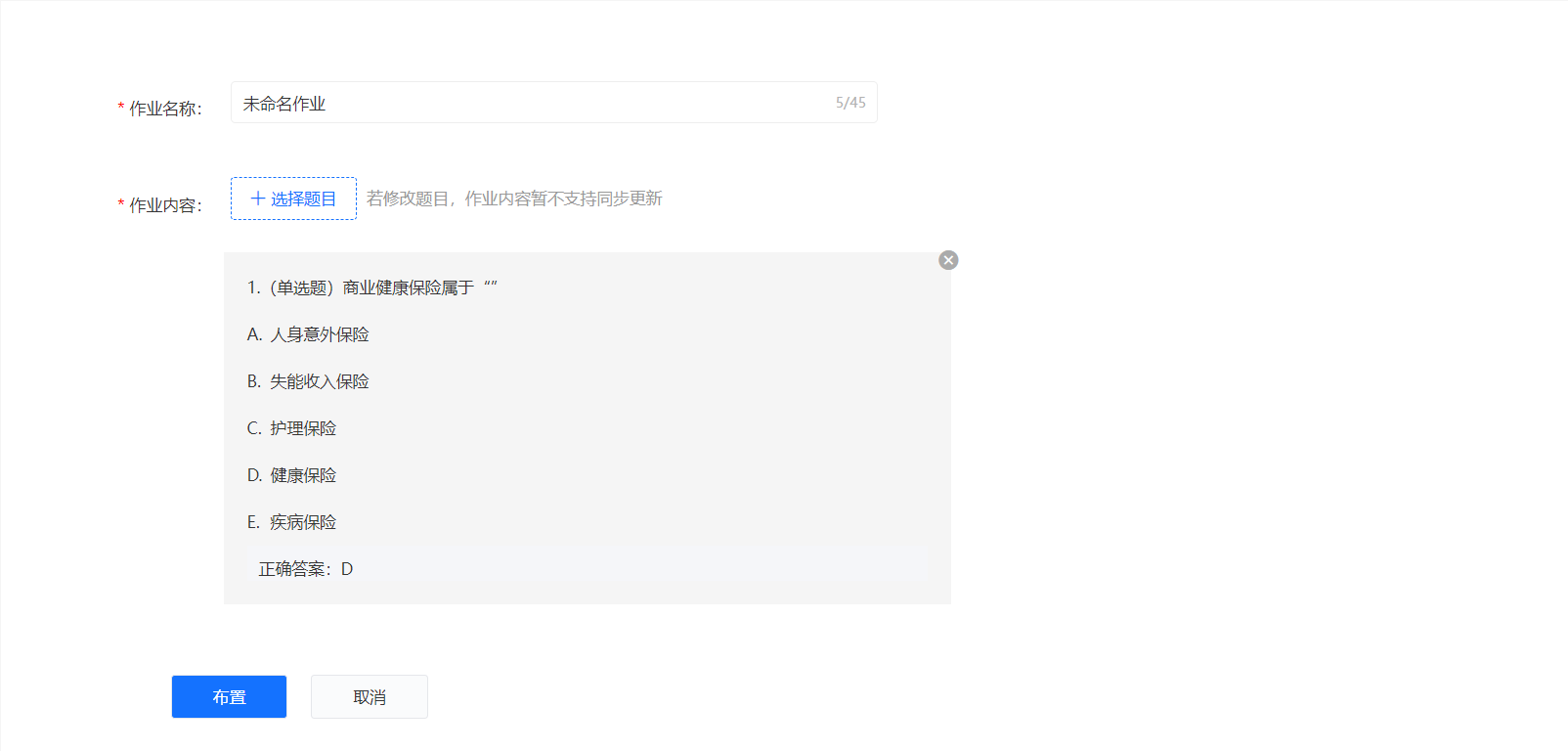
Step 4:After creating the homework book, it will be displayed in the homework book list. Next, you can assign homework in the PC or mobile store. Assigning homework on the PC requires management console login permission. After entering the homework list, click [Assign Homework]. It supports two assignment methods: direct editing and importing questions from the question bank. The homework content supports text, pictures, and audio formats.
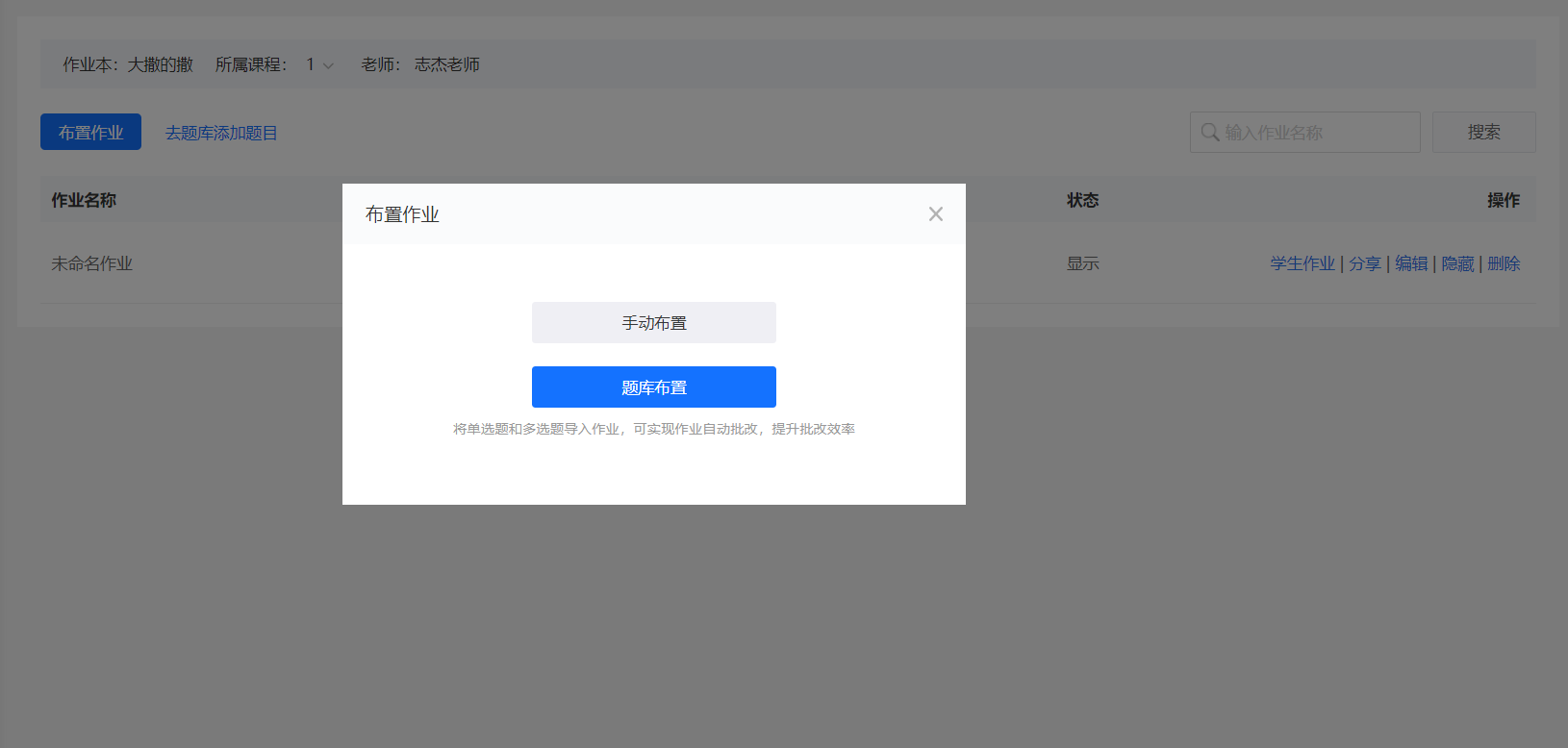
① Manual Assignment:
② Assignment from Question Bank:
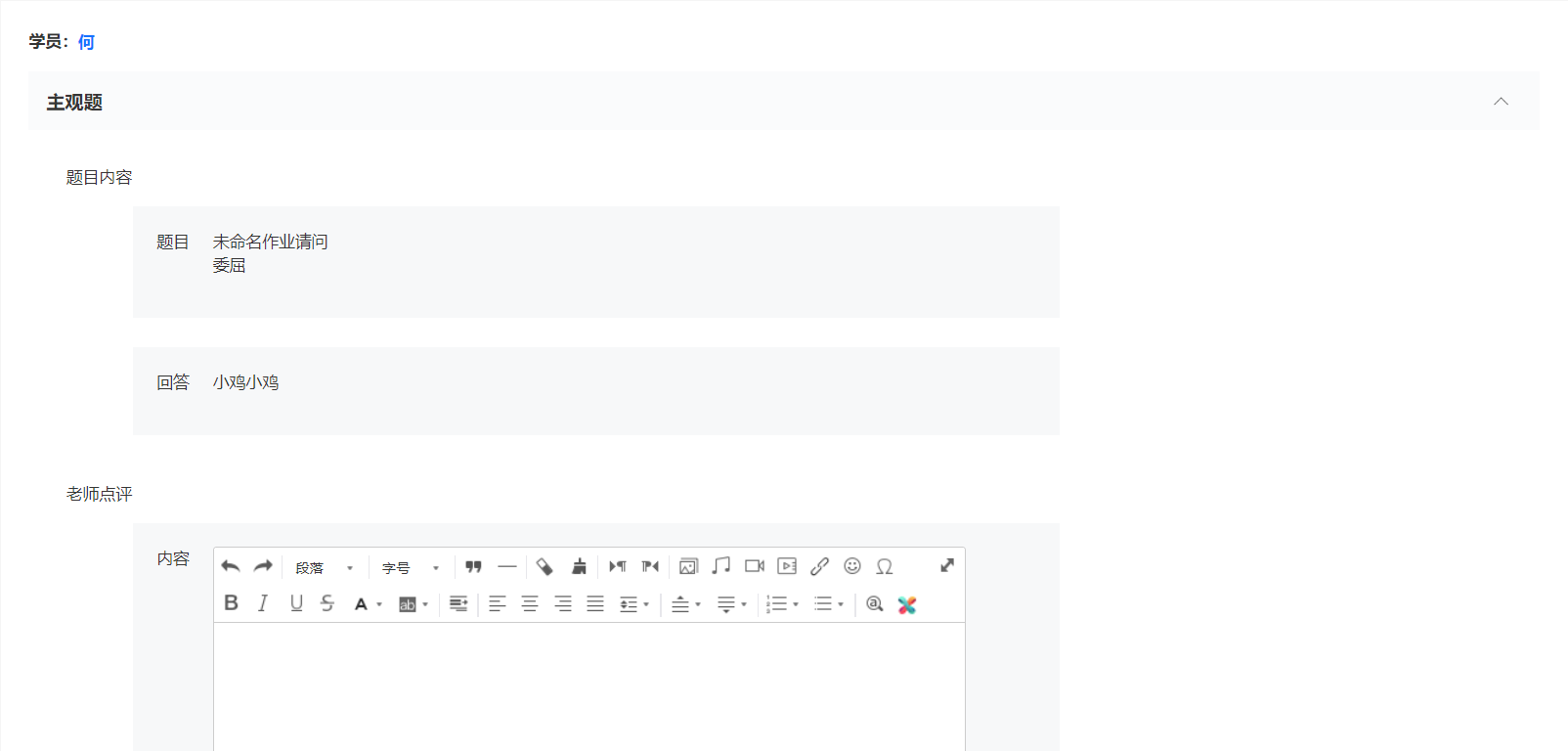
Step 5:You can comment on the homework submitted by students on the PC and mobile. Commenting on homework on the PC still requires management console login permission. Homework comments also support text, pictures, and audio formats.
VI. Introduction to Homework Book Permissions
Teacher: Assign homework/Modify homework/Generate homework card/Set whether the homework is publicly displayed/Comment on homework
Student: Students who have purchased the course can submit homework/View publicly displayed homework
Note: After setting teachers, they still cannot view the course for free. You can send them a free invitation code