# How to use the 'Default Rules' for check-ins
[中文](/books/bcbe3/page/d3d94)
**I. The function of default rules**
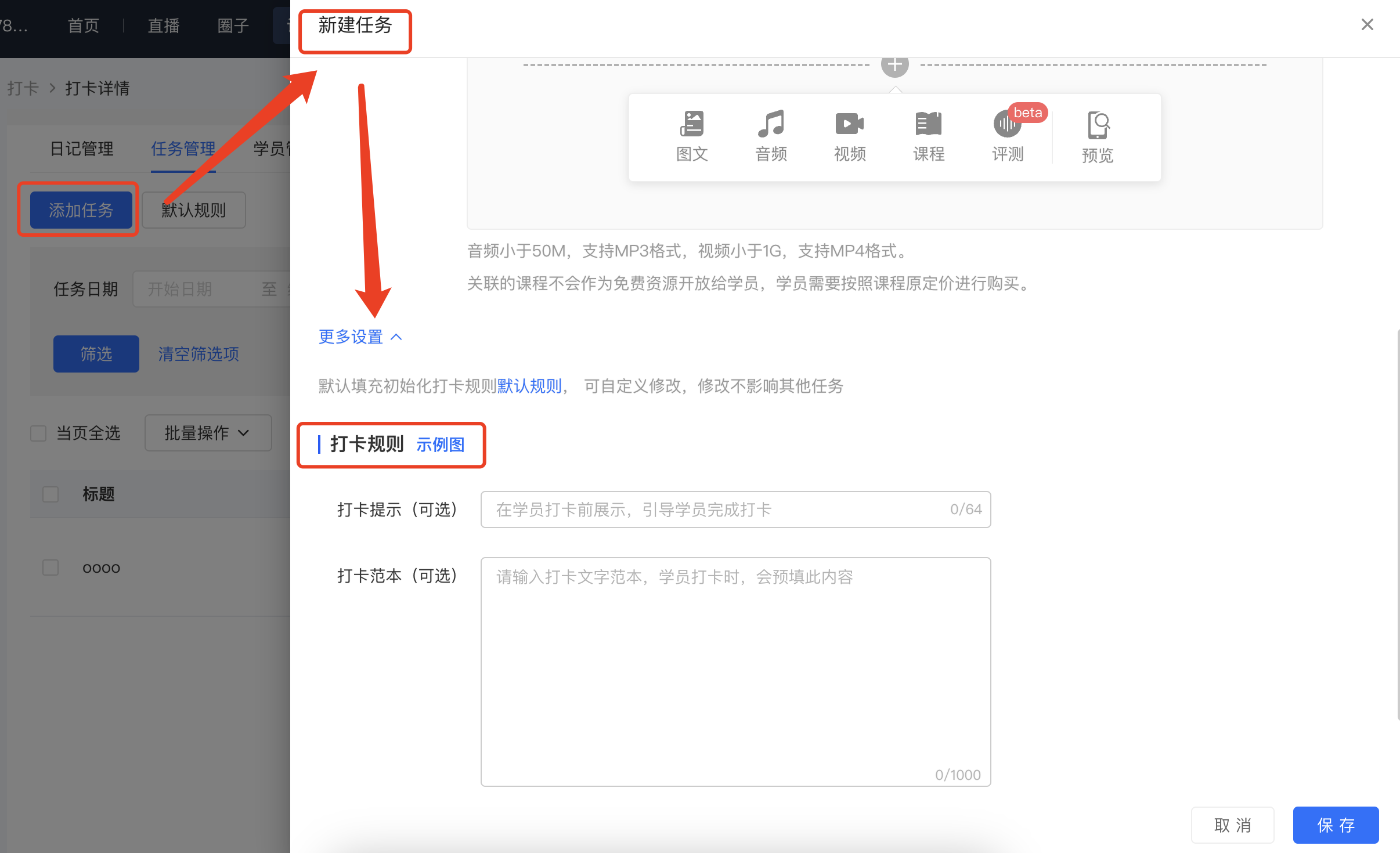
Since self-punch-in tasks support custom punch-in rules, there will be a cumbersome operation of configuring punch-in rules for each task separately. To improve operational efficiency, you can use the "Default Rules" to help configure the initial punch-in rules. When creating a new task, the configuration content in the "Default Rules" will be automatically filled in, eliminating the need for repeated configuration.
**II. How to use default rules**
**1. Configure the \[Default Rules\]**
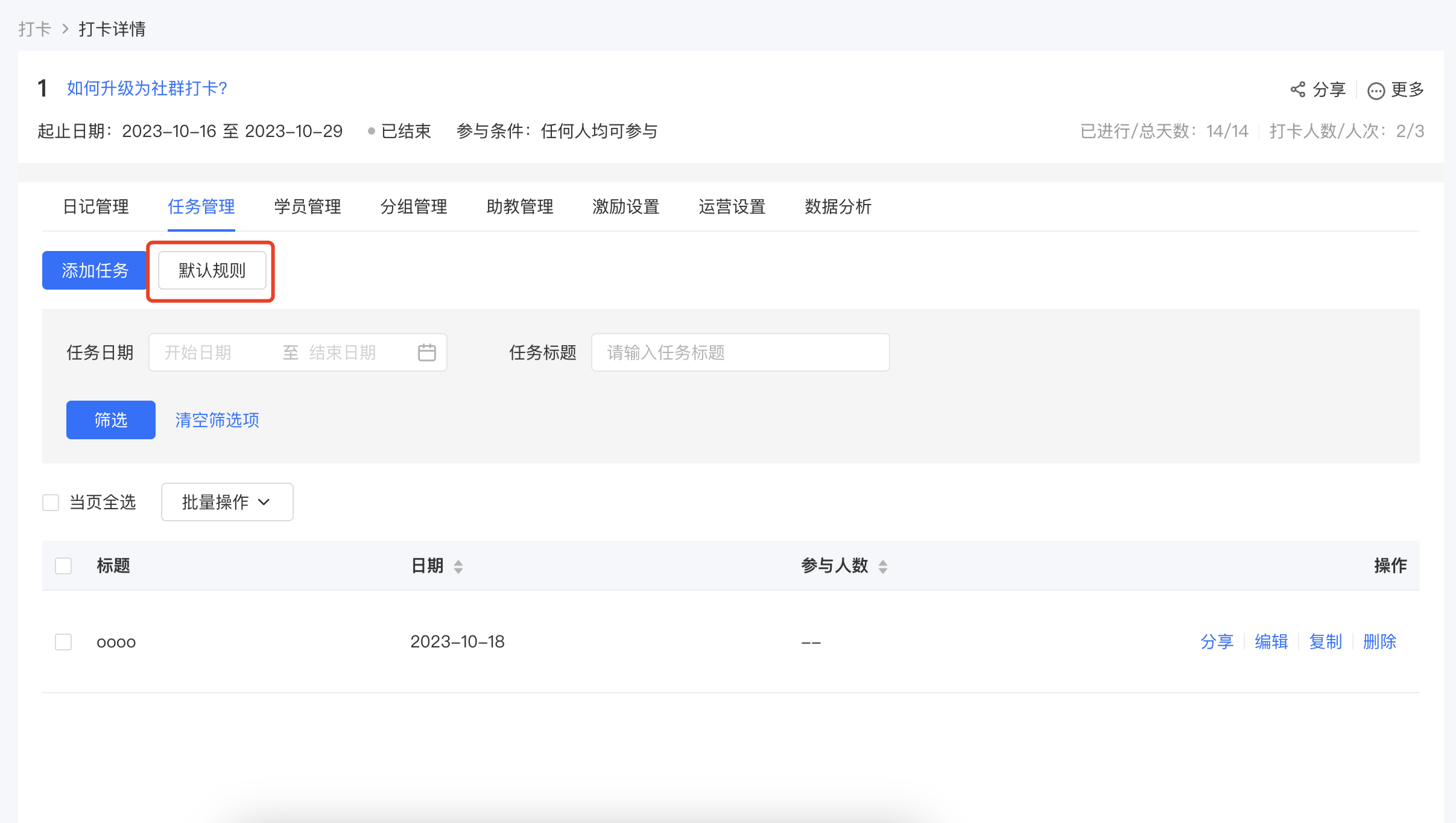
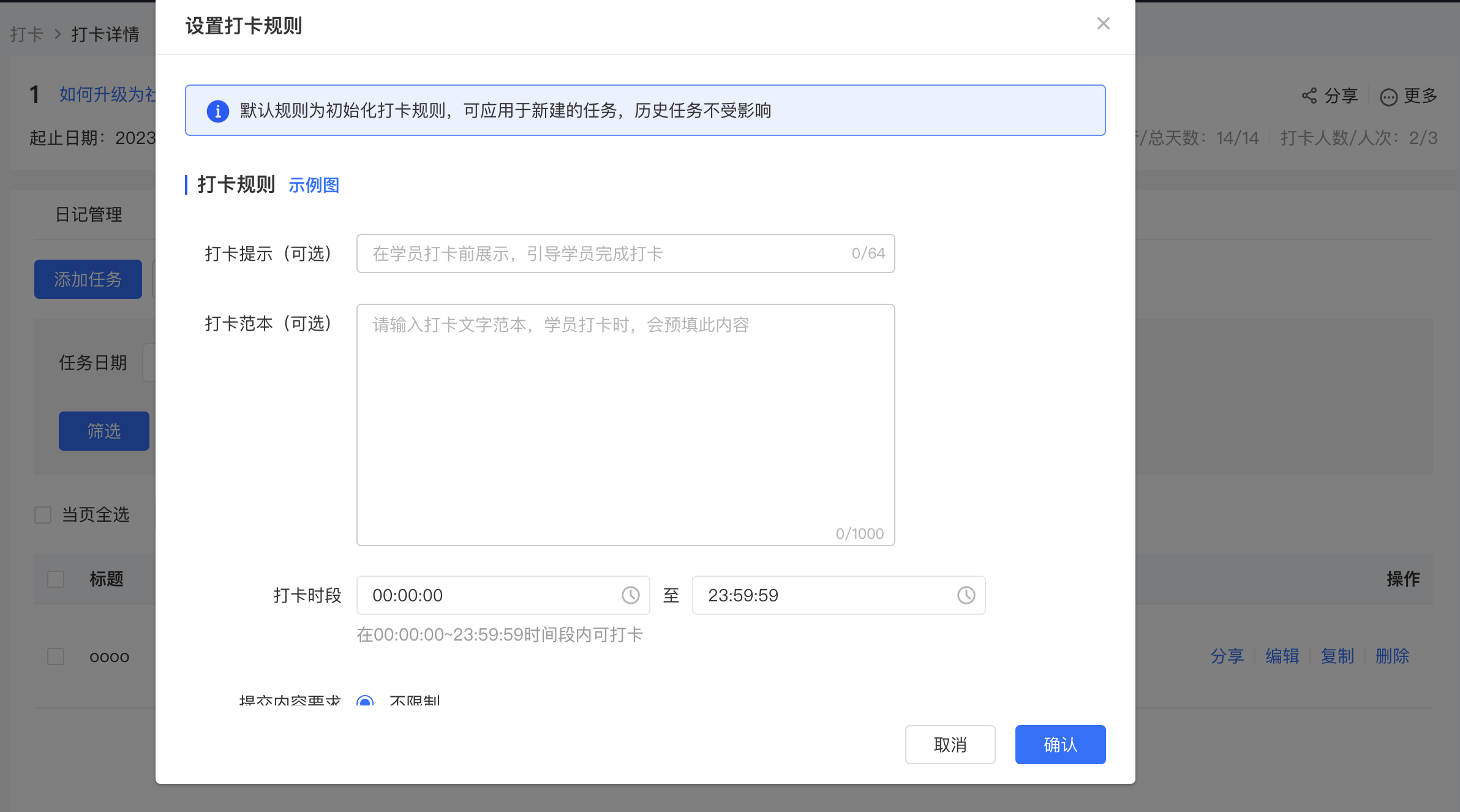
Log in to your elink account. Click \[Courses\] in the menu bar, select \[Interactive Management\], and enter the \[Punch-in\] module. Find the punch-in task you need to operate on, click the \[Details\] button in the right-hand operation column, enter the punch-in details page, and find \[Task Management\]. Click the \[Default Rules\] button to enter the configuration pop-up window and configure the default rules.
**2. Apply the \[Default Rules\]**
**Scenario 1: As a specification when "students do not select a task for punch-in"**
In calendar punch-in, when students do not select a task for punch-in, the punch-in behavior will be regulated according to the "Default Rules".
**Scenario 2: As the initial punch-in rule configuration for "creating a new task"**
In calendar punch-in/homework punch-in/level-up punch-in, when students select a task for punch-in, the punch-in behavior will be regulated according to the punch-in rules configured for that task. At this time, the \[Default Rules\] only serve as the initial configuration when creating a new task. Each task can customize and modify the punch-in rules, and the modification will not affect the "Default Rules".
It should be noted that modifying the \[Default Rules\] will not affect the configuration of existing tasks. It only serves as the initial setting when creating a new task.