How to assign homework on the mobile app?
I. Function Introduction
TeacherA learning tool for teachers to assign homework and test students' knowledge mastery status after teaching.Homework can be published, submitted, and commented on in the form of pictures, voice, and text.
II. Purpose of Use
Help teachers understand students' learning status and provide one-on-one guidance to students.
III. Usage Scenarios
Suitable for assigning homework to students after a course to test their learning effectiveness.
IV. Operation Path
Teacher's End (H5 Commenting): Personal Center → Homework → Assign Homework → Generate Homework Card
V. Usage Tutorial
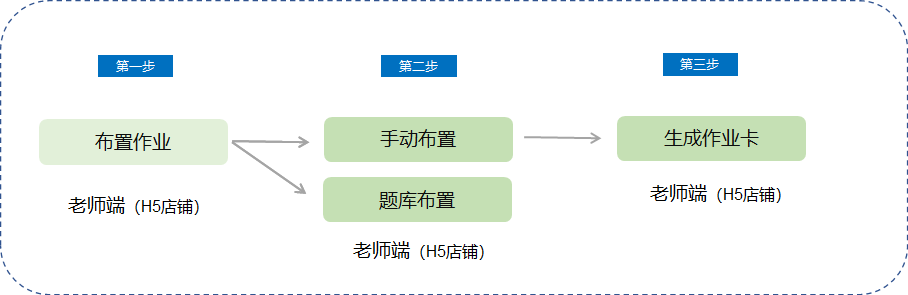
Step 1:Teachers enter the mobile store. In [Personal Center] → [Learning Tools] → [Homework] → [Homework List], they can find the entry to publish homework. Click the [Assign Homework] button to enter the homework editing page, where they can choose to assign homework manually or from a question bank.
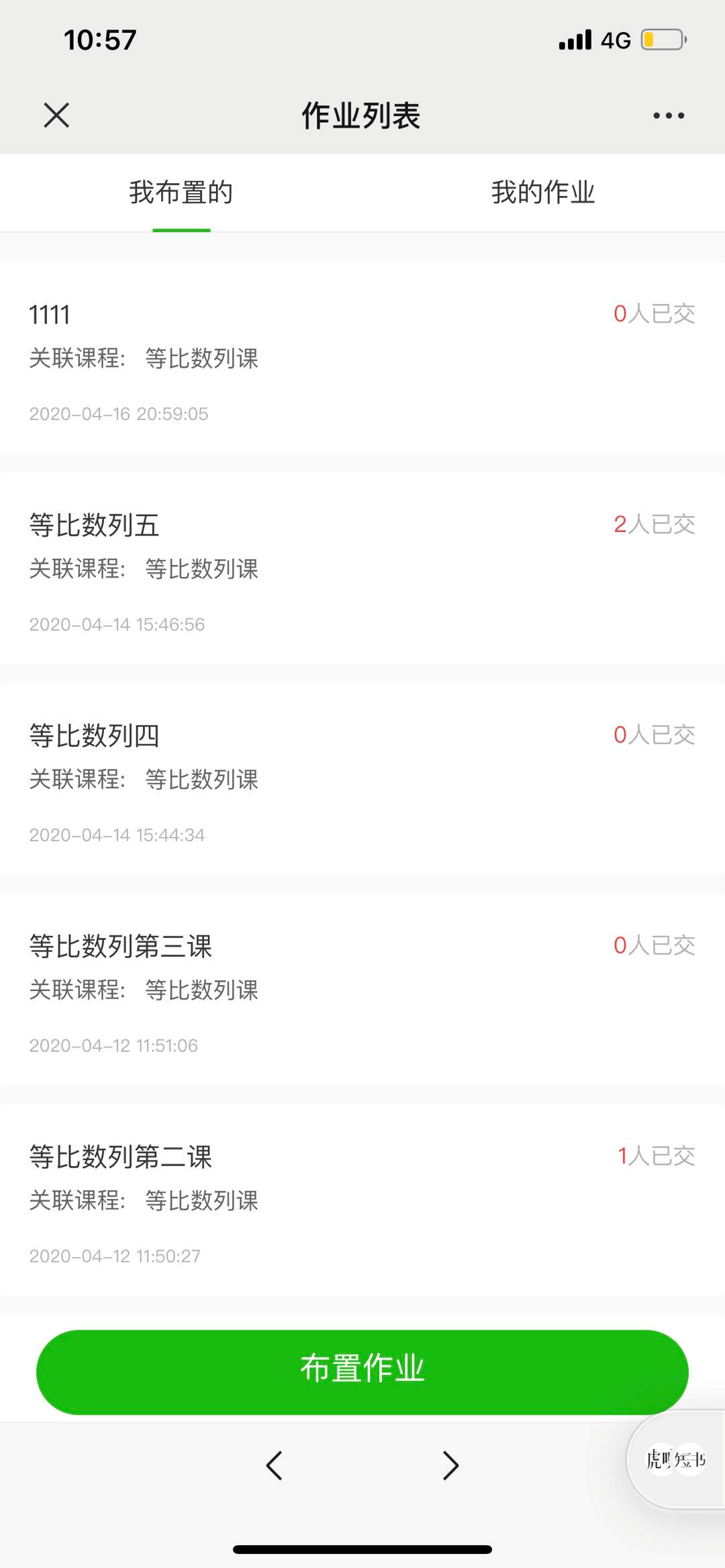
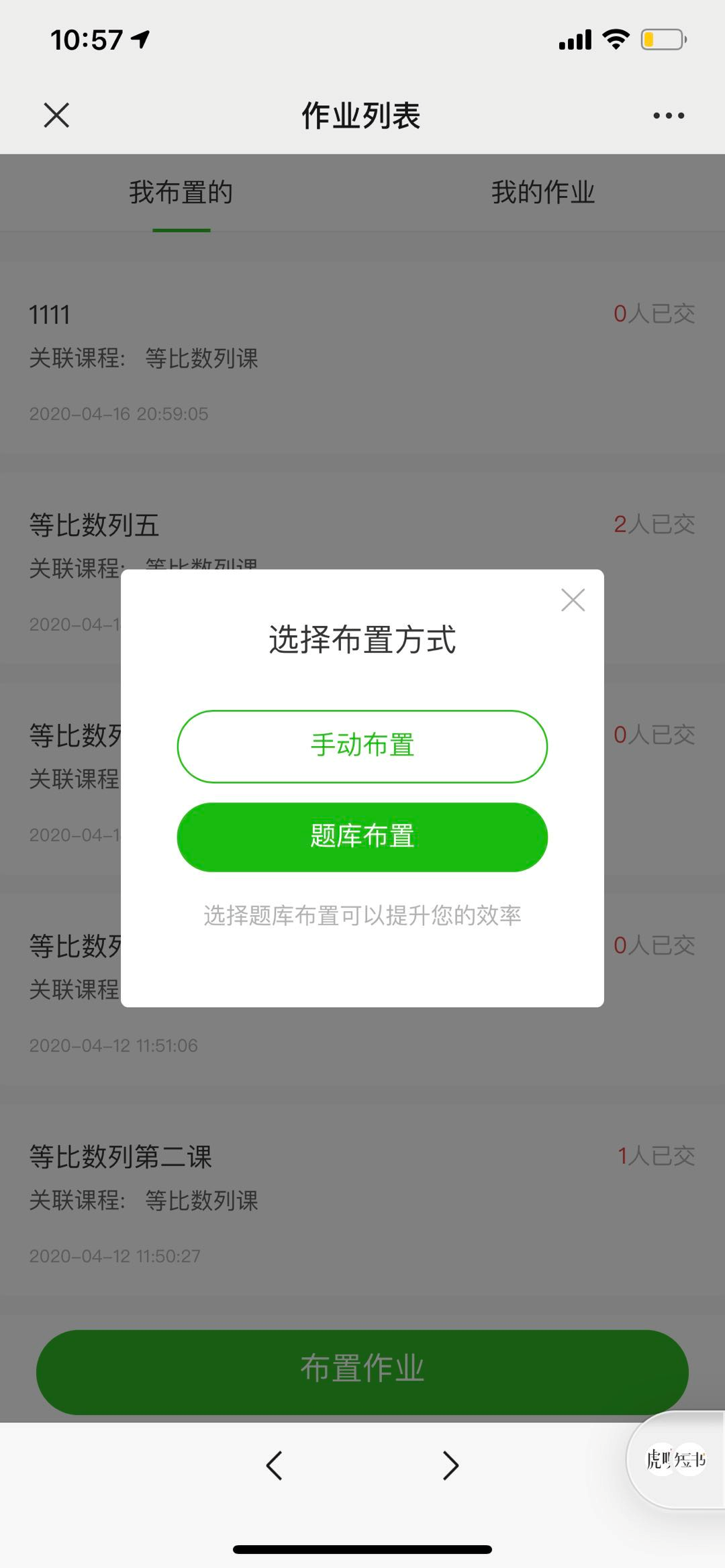
Step 2:If you choose to assign homework manually, you need to edit the homework content. The homework content can be presented in the form of text (up to 1024 characters), pictures (up to 9 pictures), and voice (each up to 60 seconds, up to 5 in total).
When assigning homework for a single course or column, the corresponding homework entry will be displayed in the classroom interaction section of the course/column details page.
If you want to prepare homework in advance but not publish it immediately, you can first select [Hide] the homework, which means it will not be displayed on the course details page. Then, you can [Show] it to students at an appropriate time.
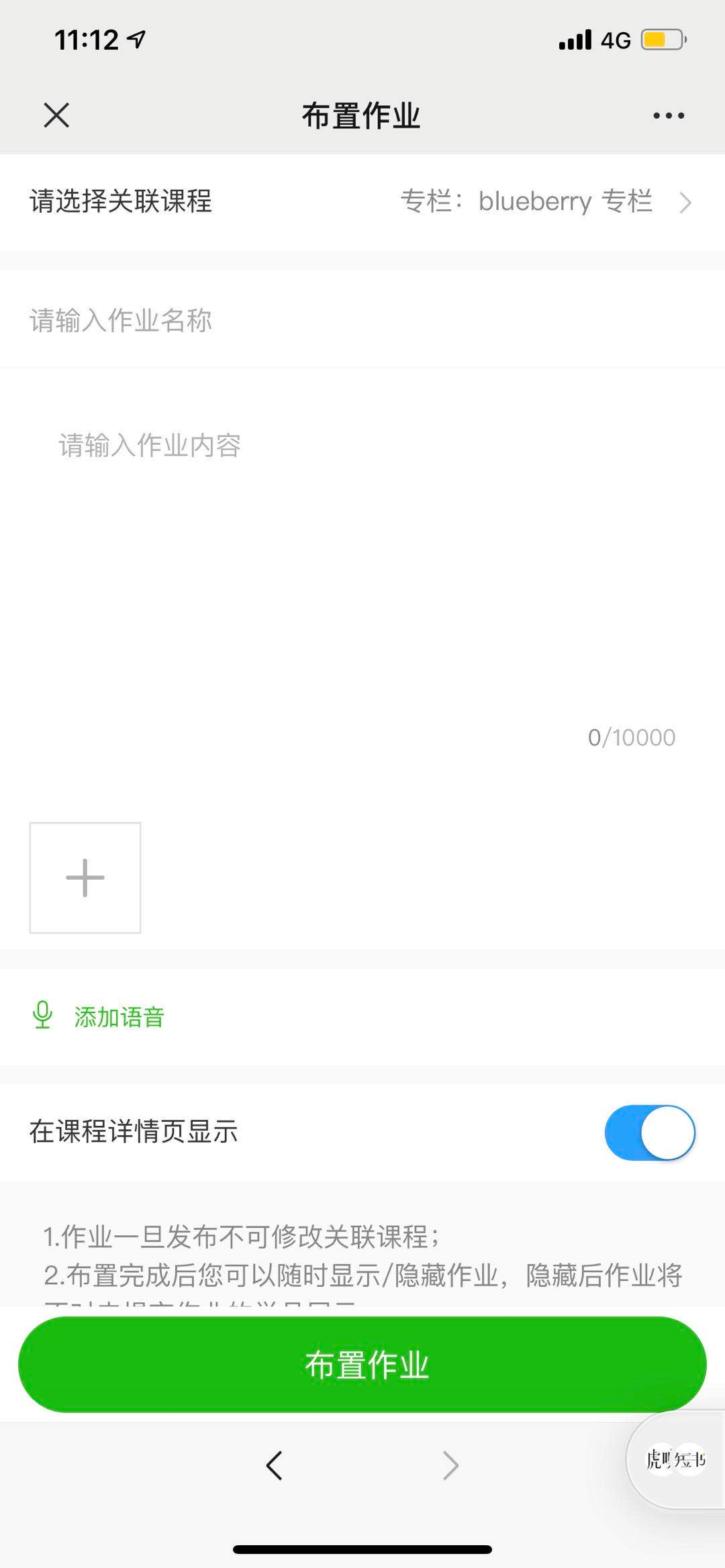
① Manual assignment: [Select related courses] → [Edit homework name/title] → Click the [Assign Homework] button
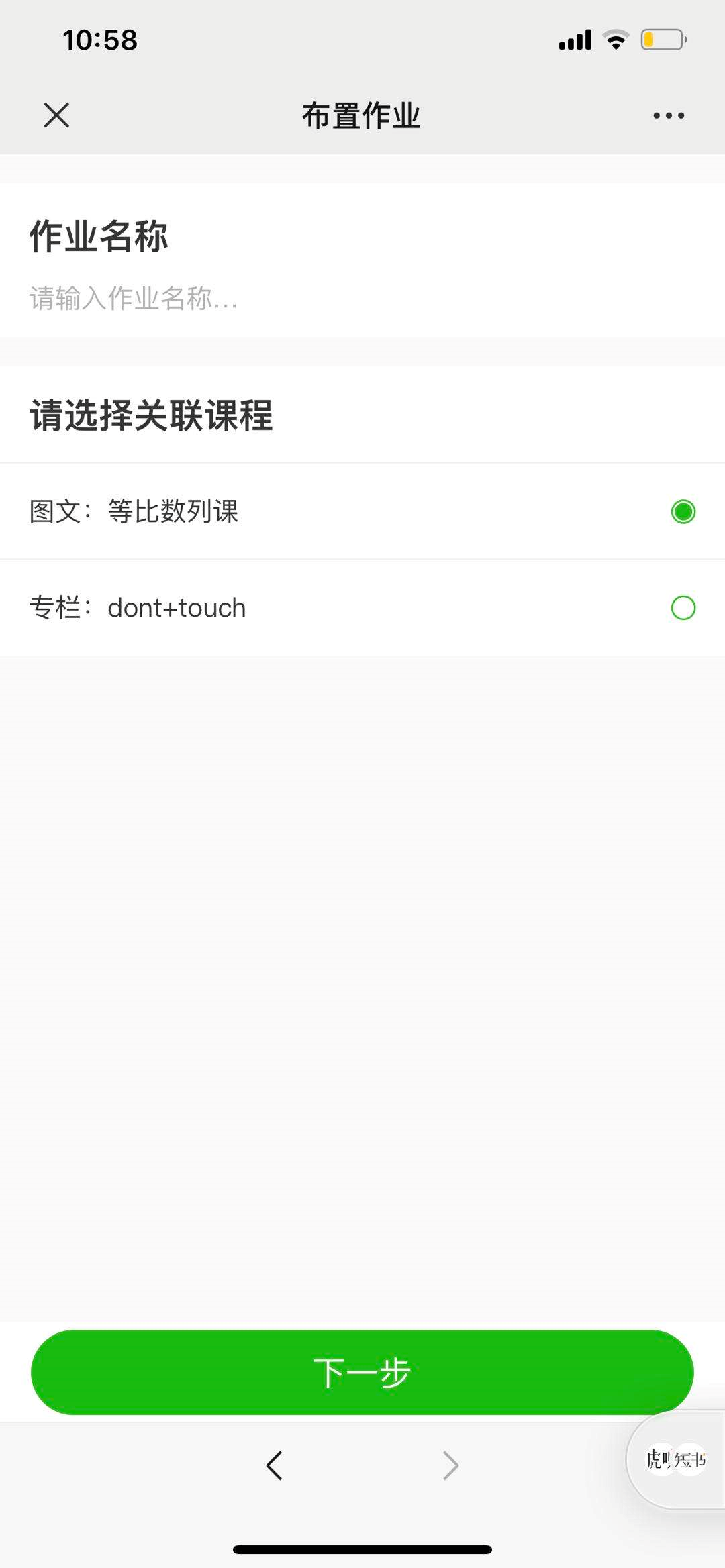
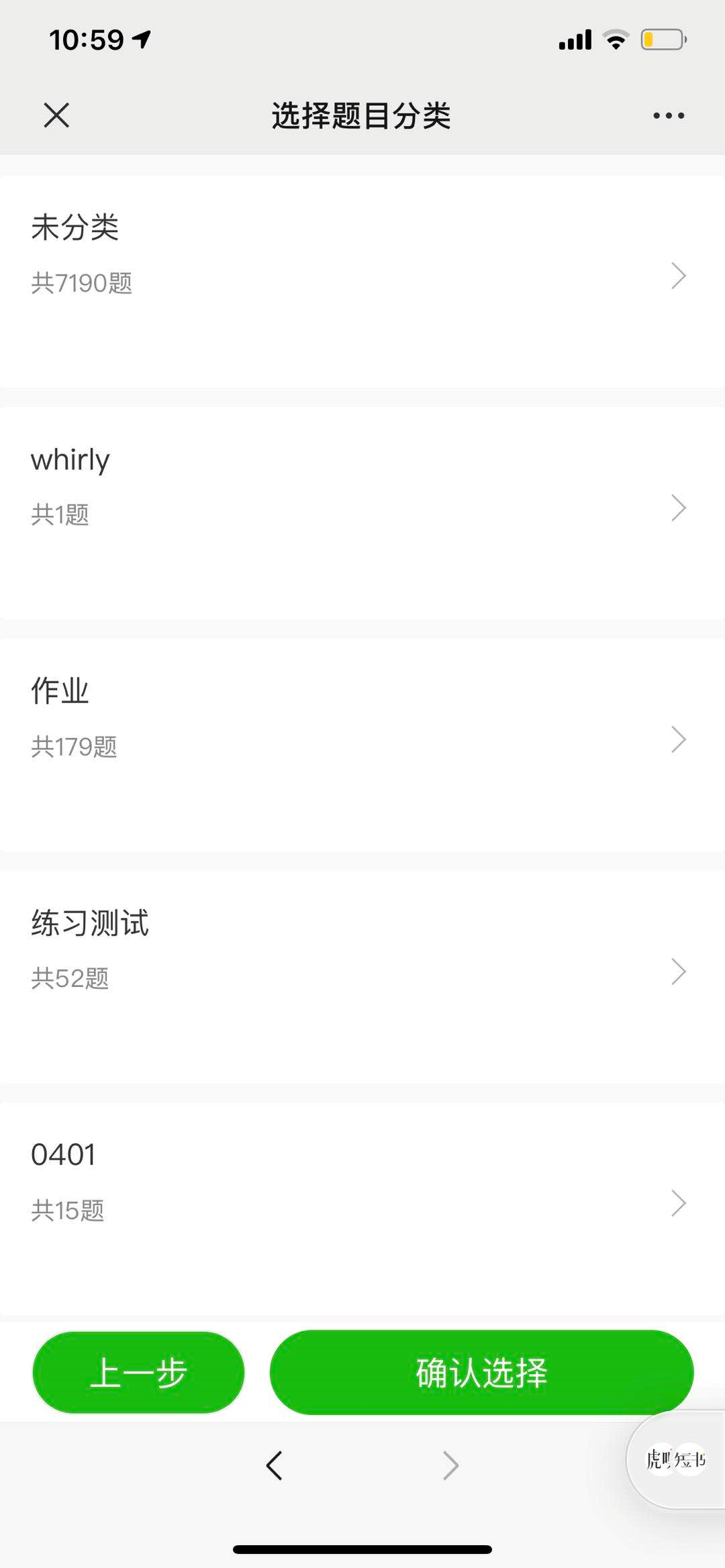
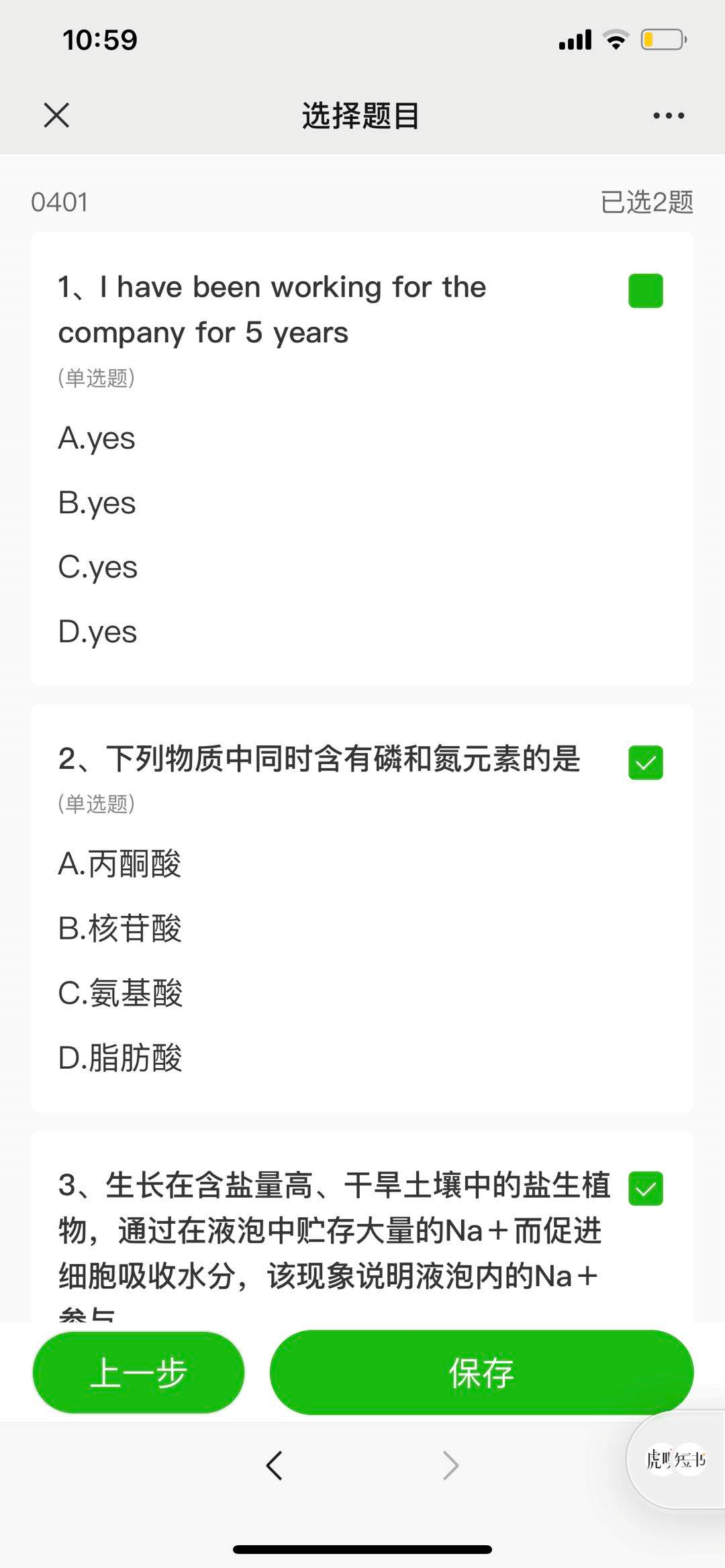
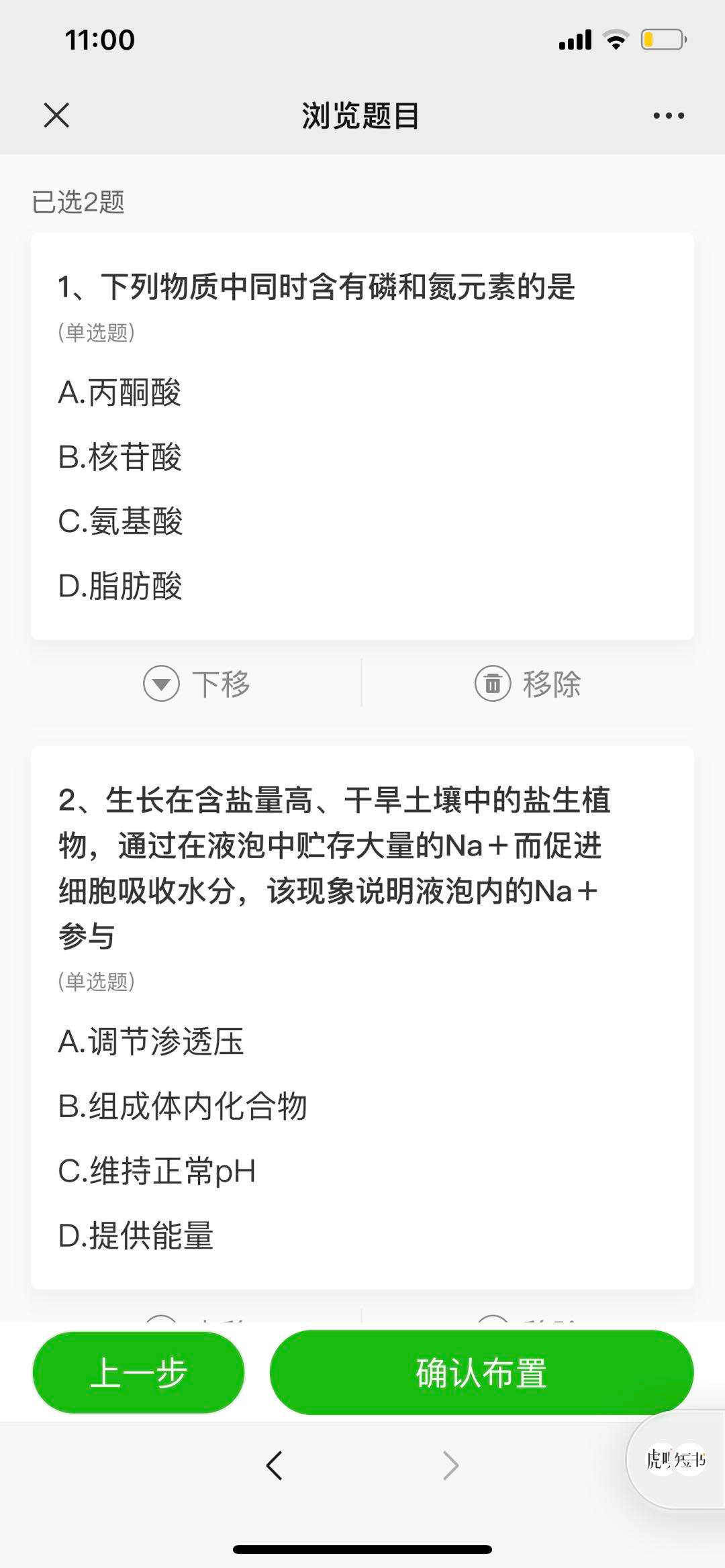
② Assignment from question bank: [Enter homework name/select related courses] → [Select question category] → [Select specific questions] → Click [Confirm Selection] → Click [Confirm Assignment]
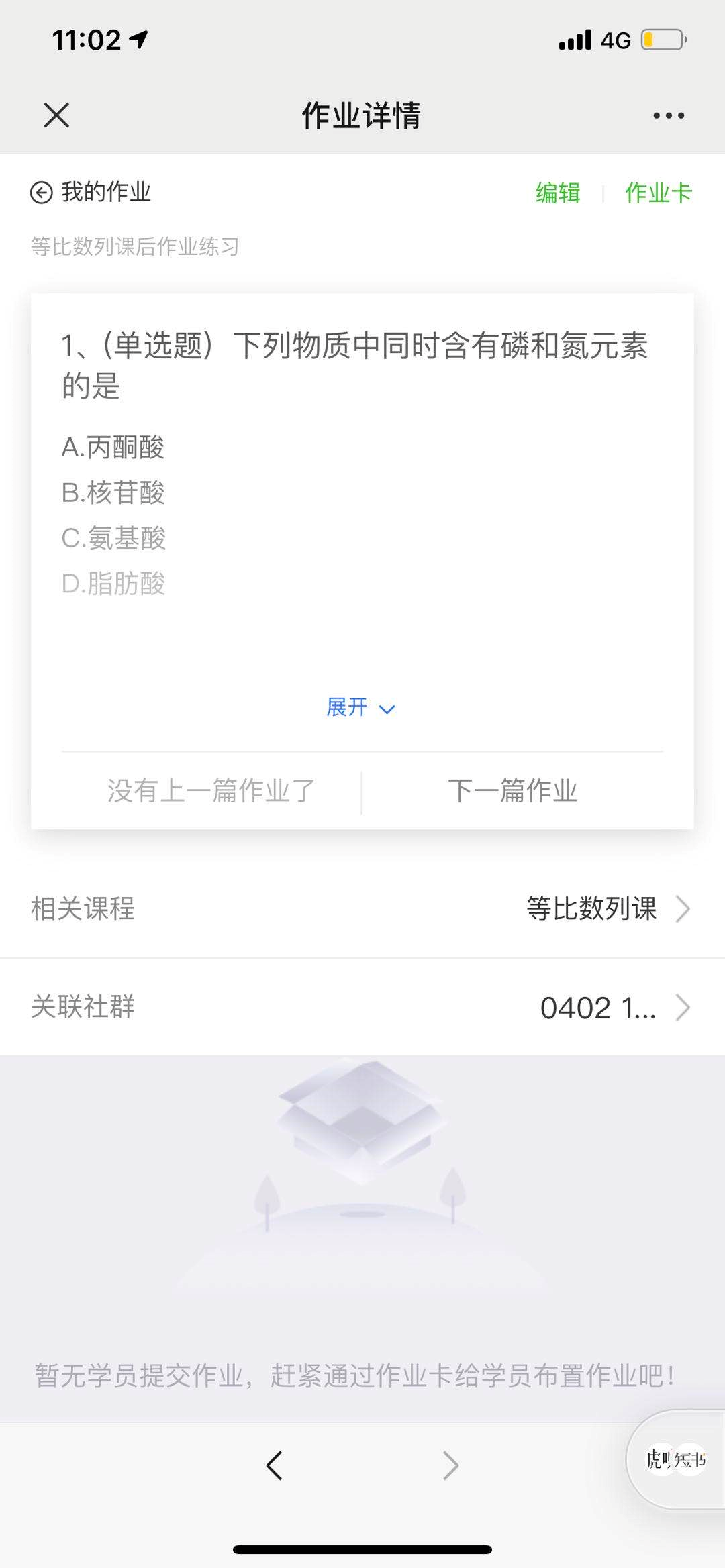
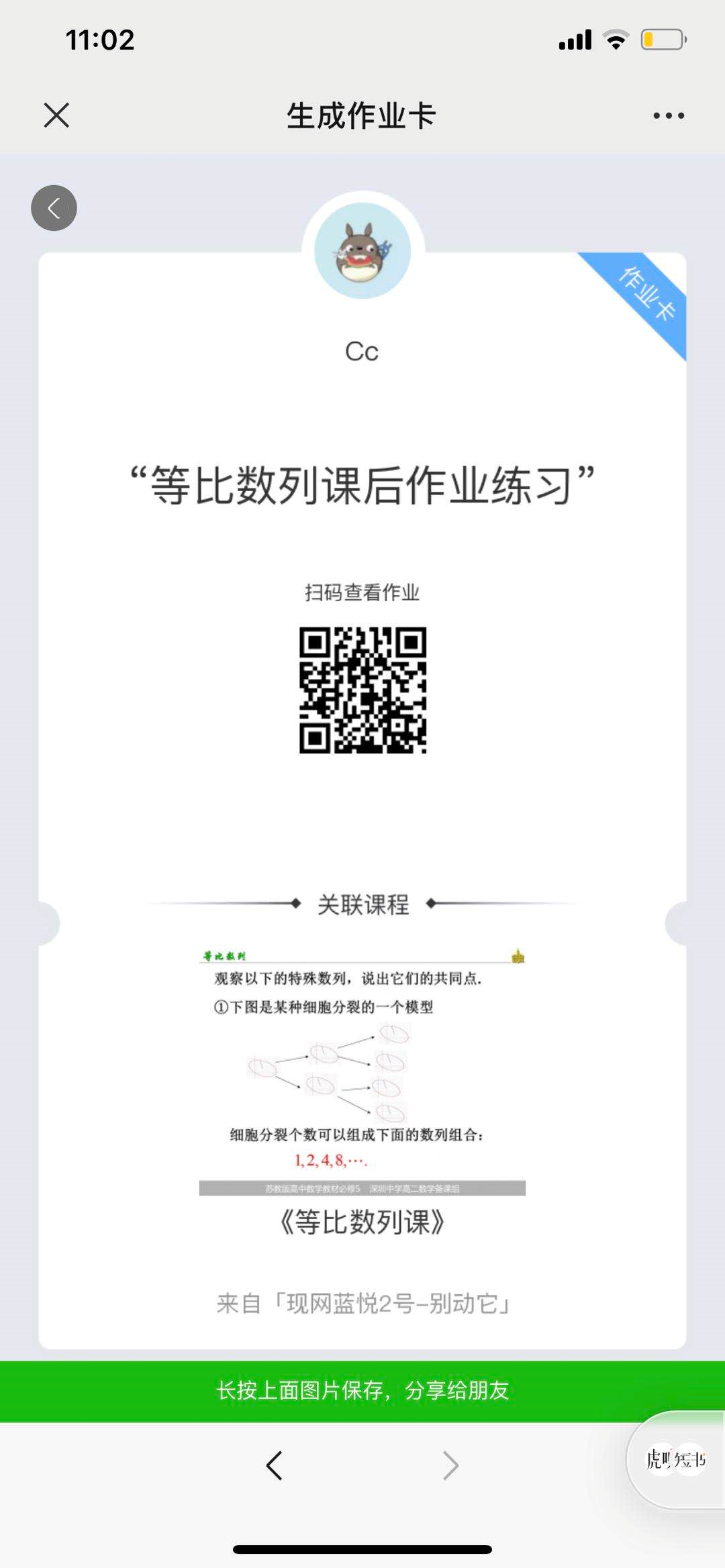
Step 3:After the homework is assigned, enter the homework details page. Teachers can generate a [Homework Card]. Long - press to save the invitation card and then share it with a small community or send it to students via WeChat.