Exercise book
- Can I modify the workbook after associating it with a course?
- What is the relationship between workbooks and assignments?
- What formats are supported for the assignments submitted by learners?
- What's the relationship between workbooks and assignment check-ins?
- Can the assigned homework be deleted?
- How to import assignments in batches?
- Does the workbook support exporting the assignment content of students?
- How to view the ungraded assignments of trainees?
- Can the workbook be deleted?
- Can a single workbook be associated with multiple small communities?
- How to assign homework?
- Can students view other students' assignments?
- How can teachers comment on students' assignments?
- How to add teachers to the workbook?
- Usage Tutorial for Workbooks
- On the mobile app, students submit assignments, teachers provide feedback, and the assignments are publicly displayed
- How to assign homework on the mobile device?
- How to assign homework on the mobile app?
Can I modify the workbook after associating it with a course?
If the teacher has already assigned homework, the homework book cannot be modified to associate with other courses.
What is the relationship between workbooks and assignments?
Multiple assignments can be arranged under one workbook.
What formats are supported for the assignments submitted by learners?
The assignment content supports text, images, and voice, but does not support videos for now.
The maximum length of text is 10,000 characters; the maximum number of images is 9; the maximum duration of audio is 300 seconds, with a maximum of 60 seconds per voice message and a maximum of 5 messages. Each 60-second segment will be automatically saved, and recording of the next segment will start automatically.
What's the relationship between workbooks and assignment check-ins?
The two are concepts of different natures and have no correlation.
Workbooks are learning tools for teachers to assign homework after classes and test students' knowledge mastery; homework check-ins are check-in activities centered around 'homework'.
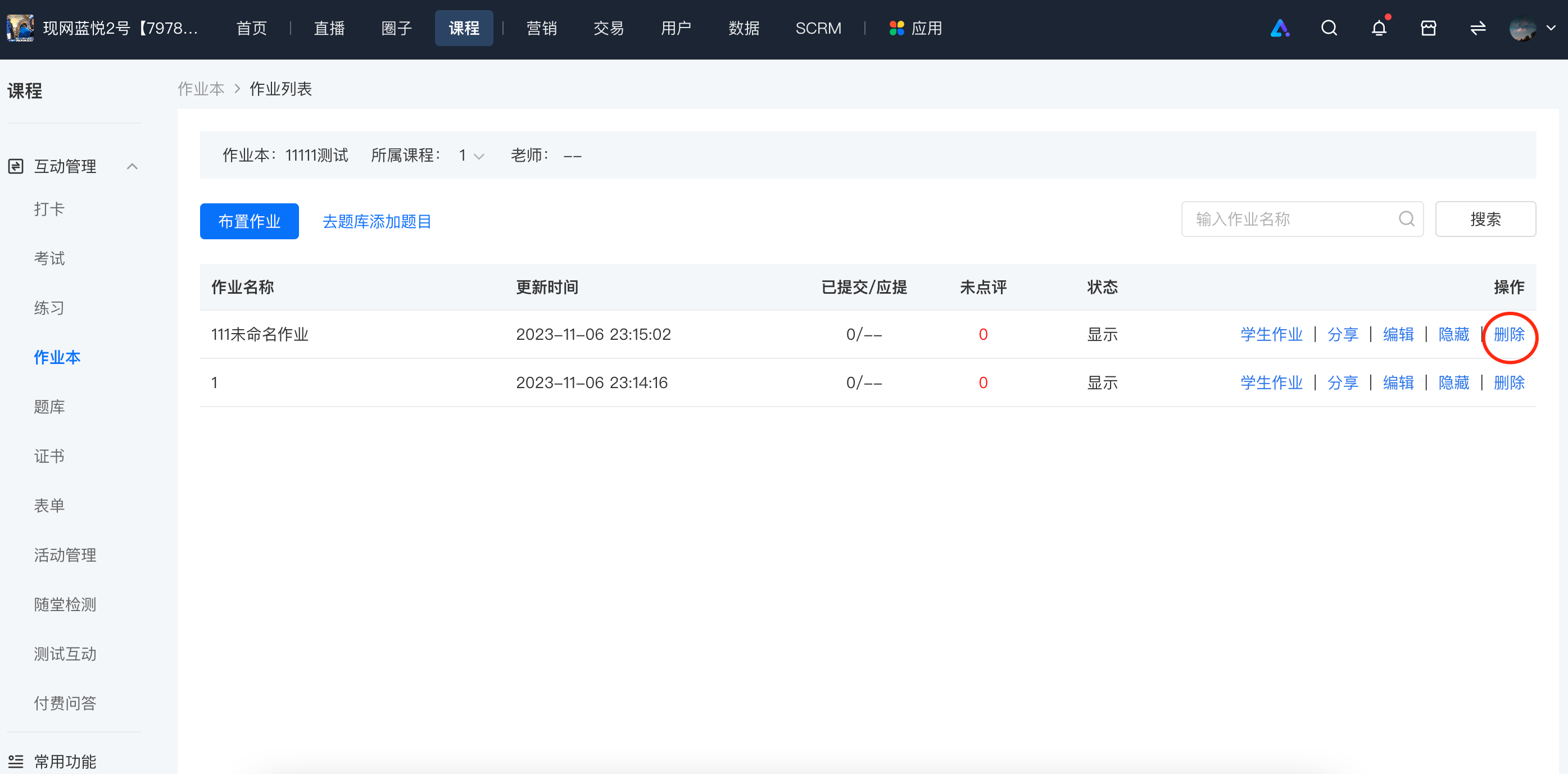
Can the assigned homework be deleted?
Sure, if you want to delete an assignment after posting it, you can go to the assignment list and select the corresponding assignment to delete.
How to import assignments in batches?
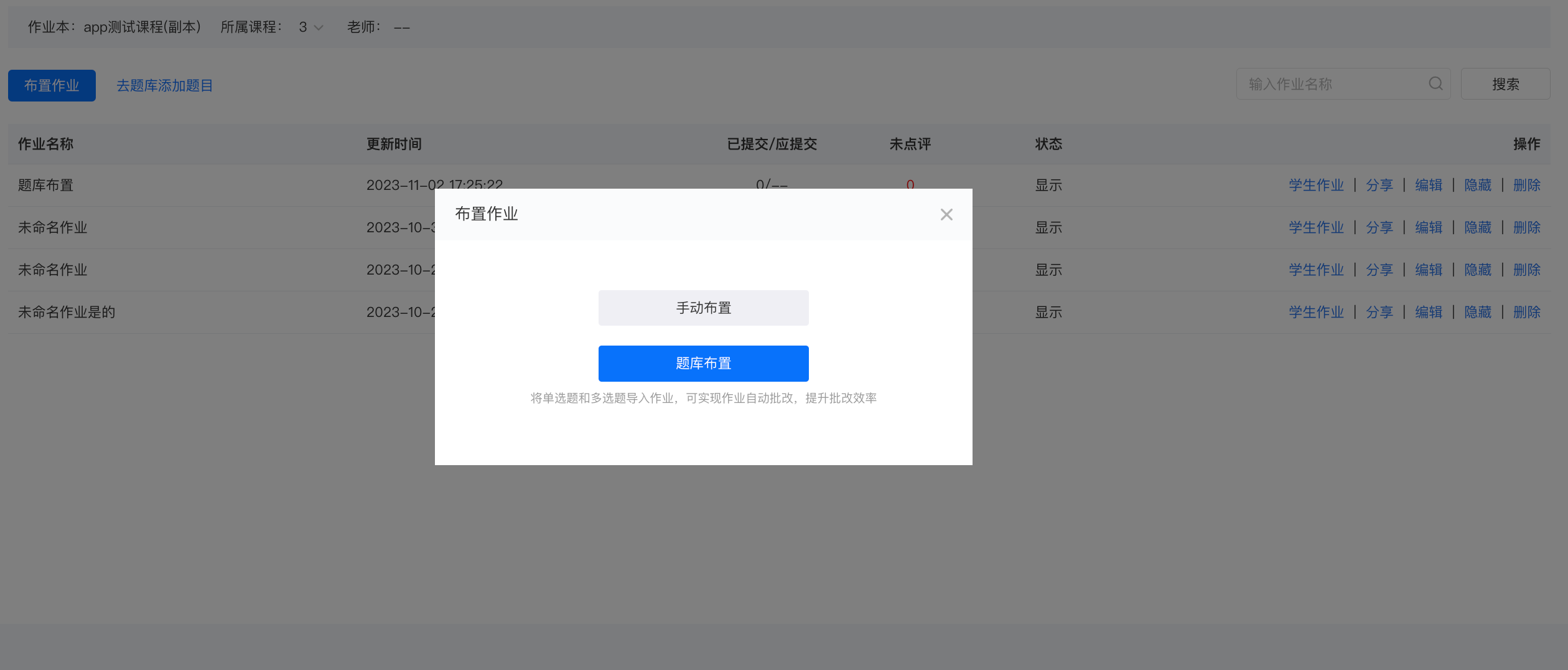
You can batch import assignments through the following steps:
1. Select [Assign Assignments > Assign from Question Bank], and click [Import Questions from Question Bank].
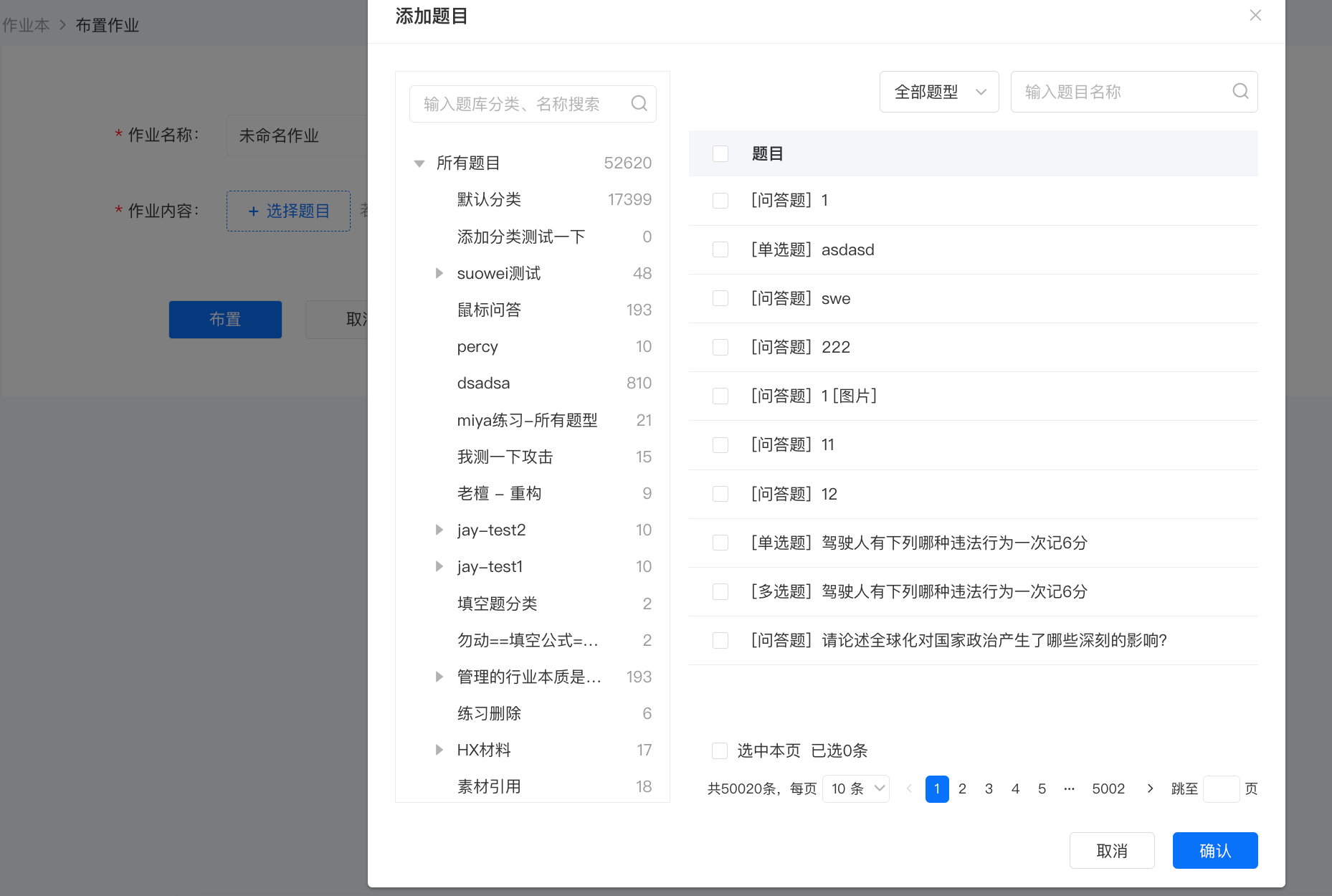
2. Select the corresponding category in the question classification on the left. All questions will be displayed on the right. Select all/multiple questions and click [Confirm Selection] to successfully complete the batch import.
Does the workbook support exporting the assignment content of students?
Not supported, but you can export the assignment data of trainees.

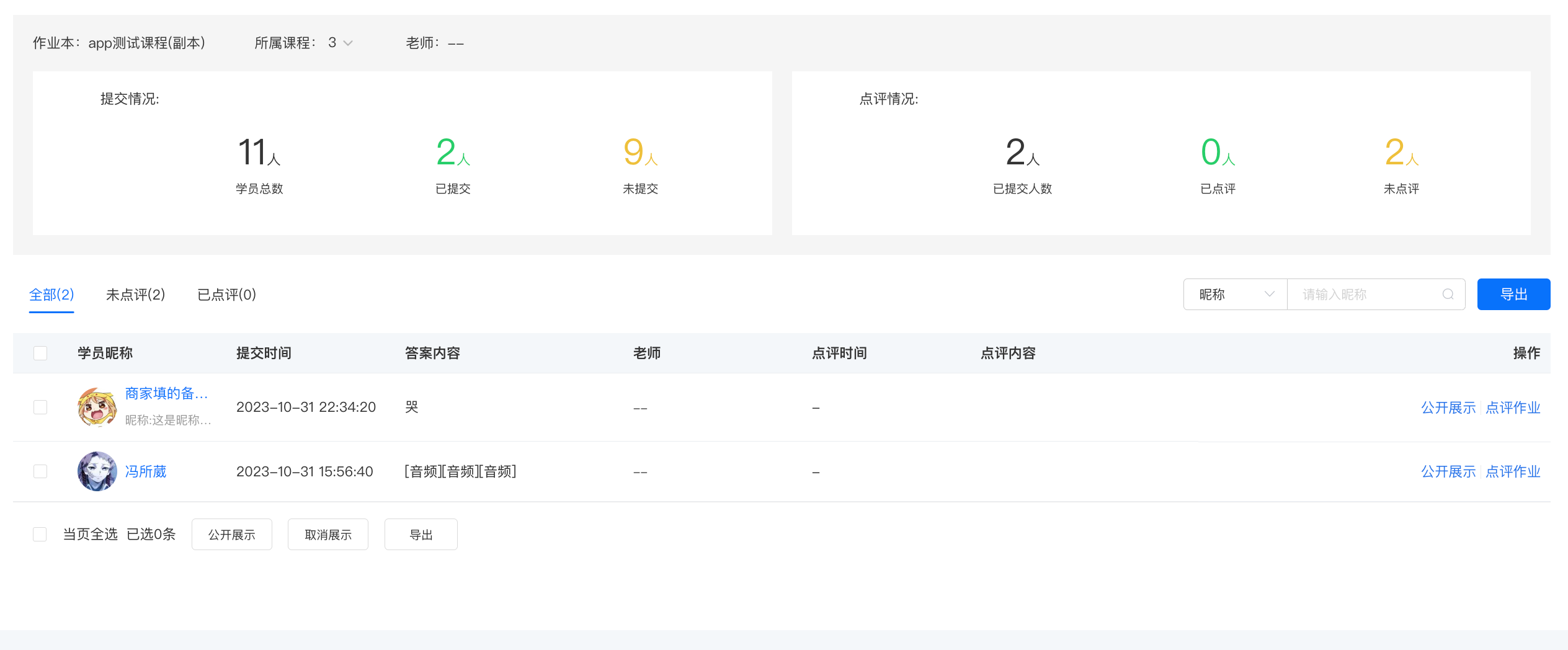
How to view the ungraded assignments of trainees?
Click the status filter [Unreviewed] to view the current unreviewed student assignments. Click [Review Assignment] to view the details of the student assignment and leave a review.
Can the workbook be deleted?
Yes, if you need to delete a workbook, click the [Delete] button corresponding to the workbook in the list.
**Note:Deleting a workbook will also delete all the assignment tasks and the corresponding student assignment records within it. After deletion, students will not be able to view the deleted assignment content on the student side.Please operate with caution to avoid accidentaldeletion.
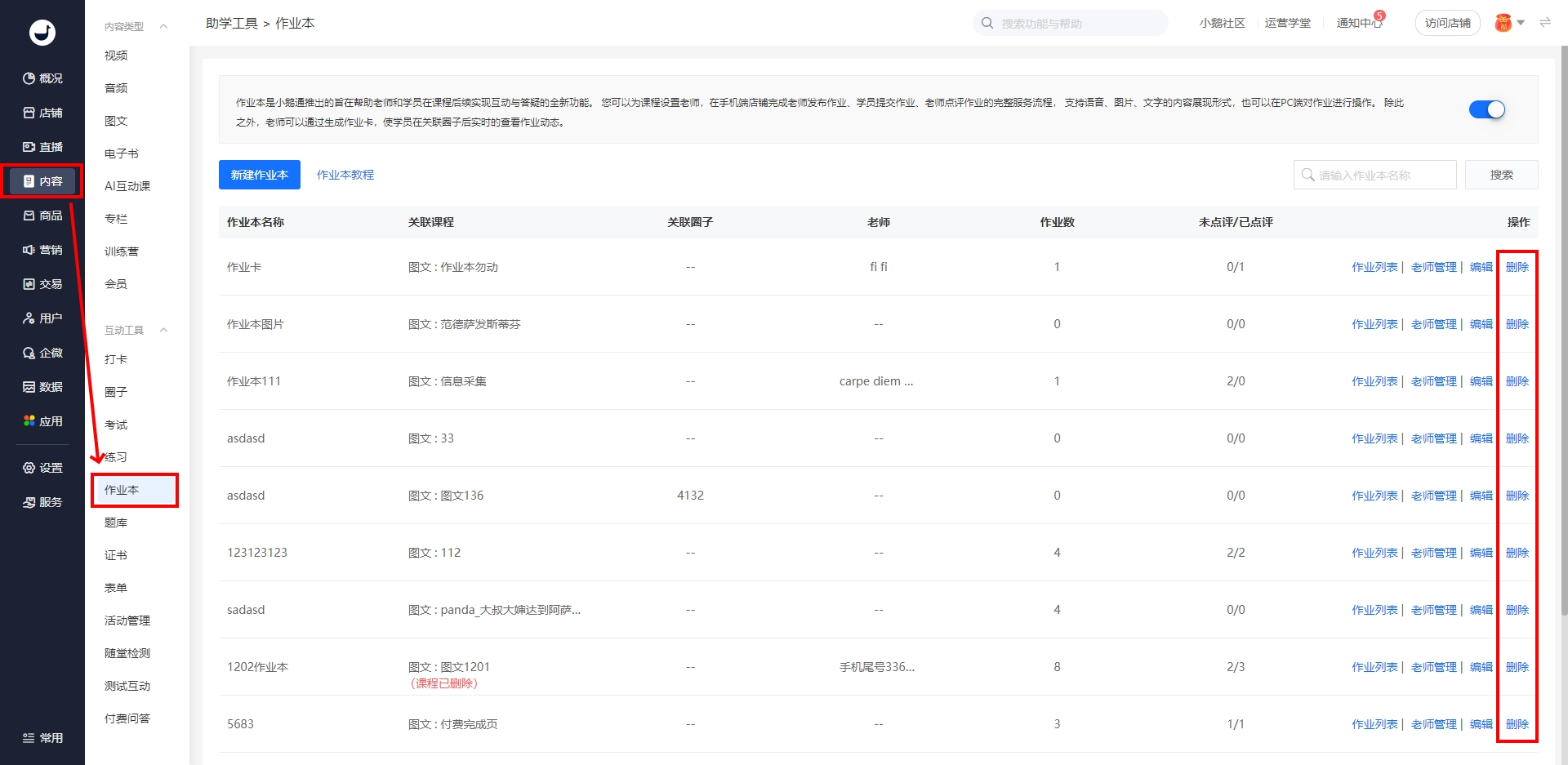
Can a single workbook be associated with multiple small communities?
No, it's not possible. However, a single small community can be associated with different workbooks.
How to assign homework?
Currently, homework can be assigned either through the PC client or the mobile client.
1. The process of assigning homework through the PC client is as follows: You need to grant account permissions to teachers. Then you can assign homework in [Homework List] - [Assign Homework].
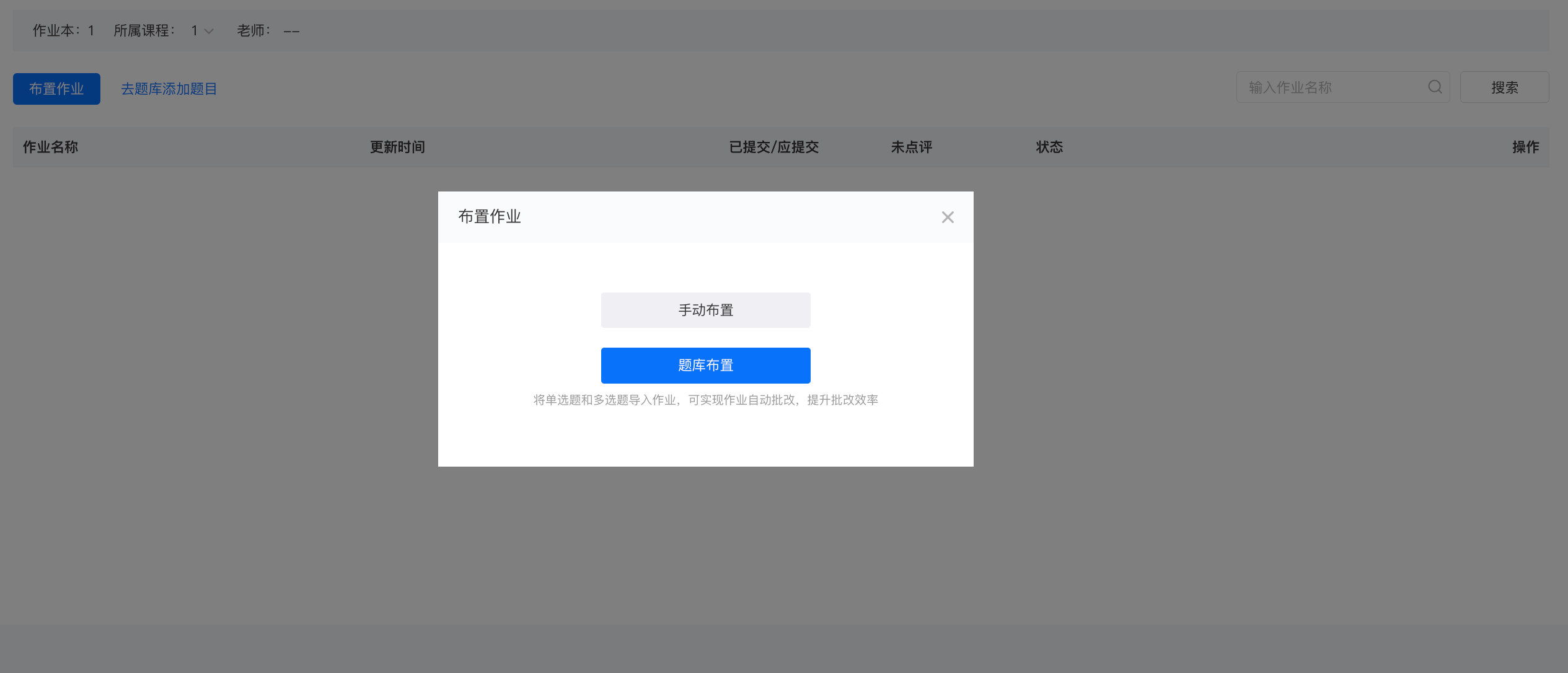
2. The process of assigning homework through the mobile client is as follows:
2.1 First, in the homework book list, click on Teacher Management to add teachers' WeChat accounts.
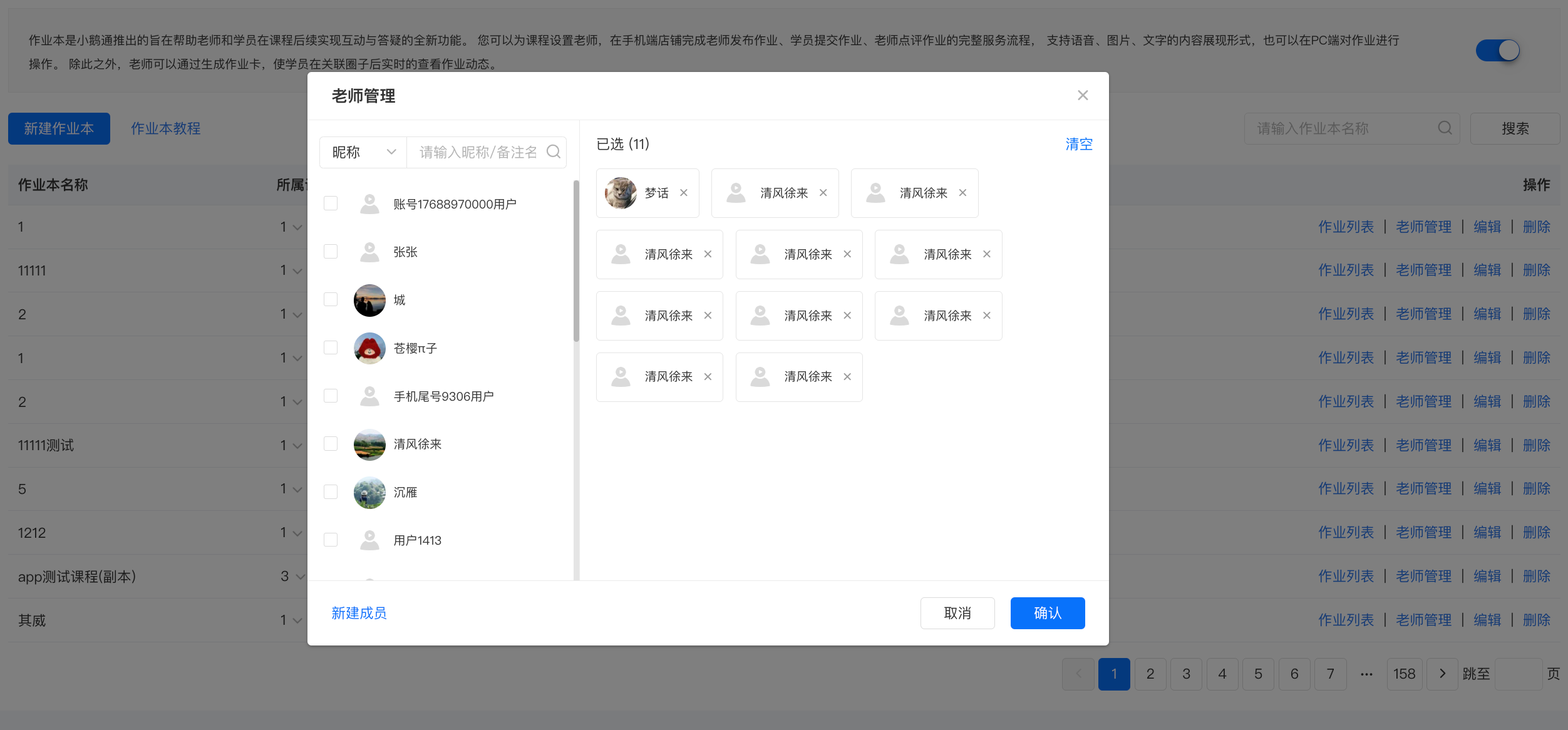
Teachers enter the mobile - client store. They can find the entry to publish homework in [My] → [My Homework] → [Homework List]. Click the [Assign Homework] button to enter the homework editing page.
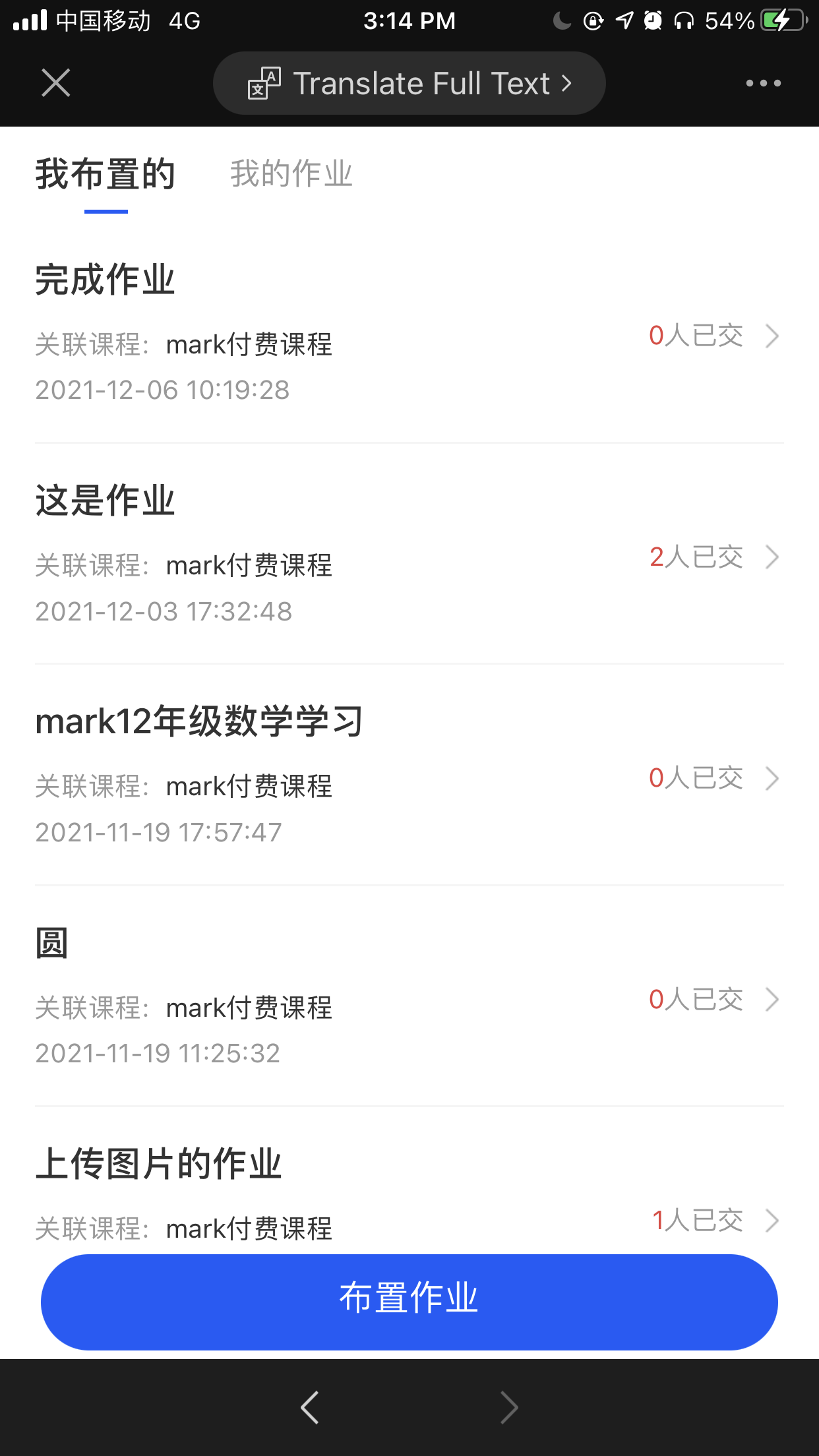
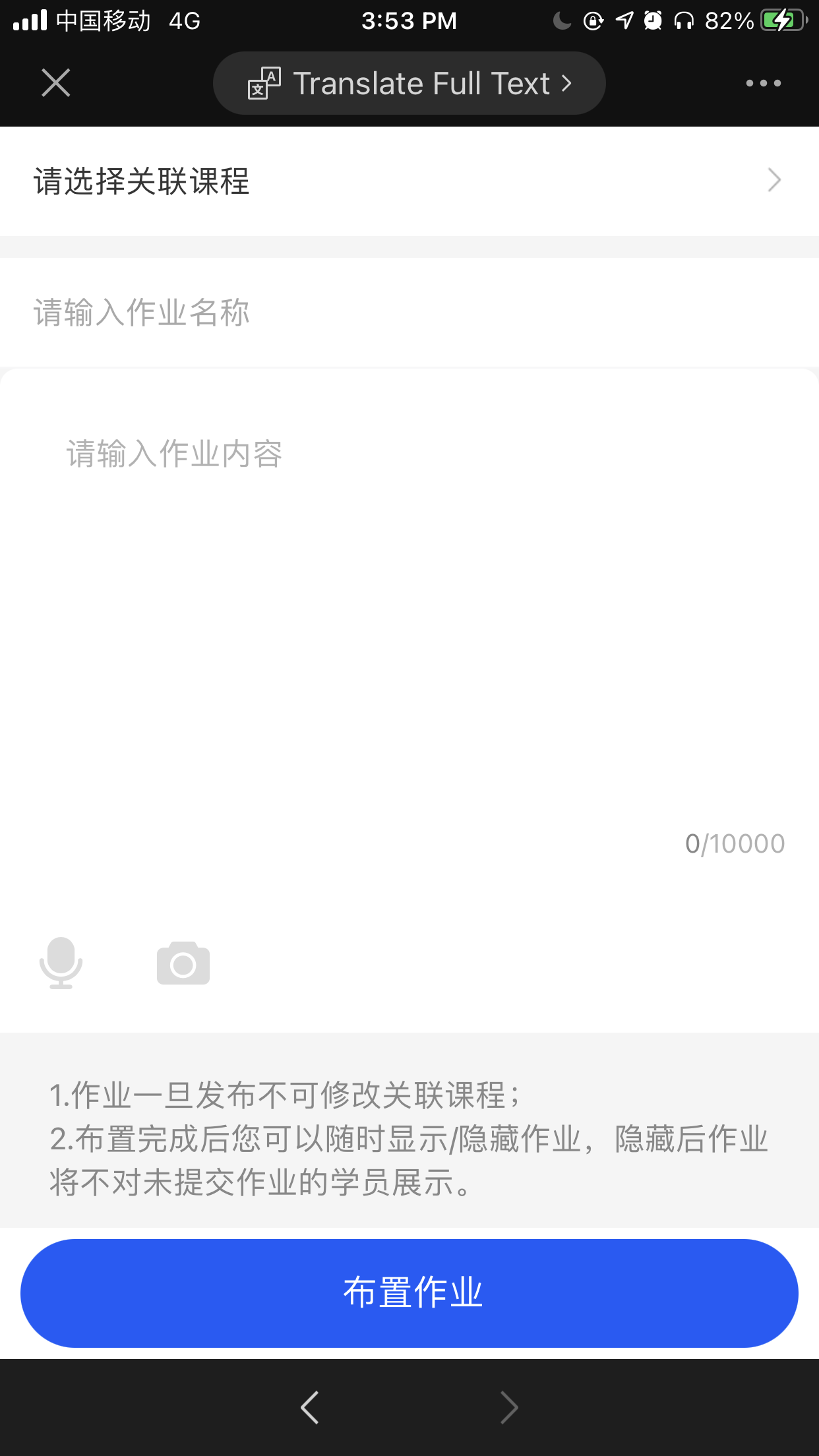
(Assigning Homework)
*Note: Teachers can assign homework and students can submit homework using text, pictures, and voice. The text should not exceed 10,000 characters; a maximum of 9 pictures can be sent; each voice message should not exceed 60 seconds, and a maximum of 5 voice messages can be sent.
Can students view other students' assignments?
After a student submits an assignment, only the teacher, teaching assistant, and the student themselves can see the submitted assignment. Teachers and teaching assistants can select [Publicly Display]. After public display, the student's assignment will be visible to other students who have purchased the course.

How can teachers comment on students' assignments?
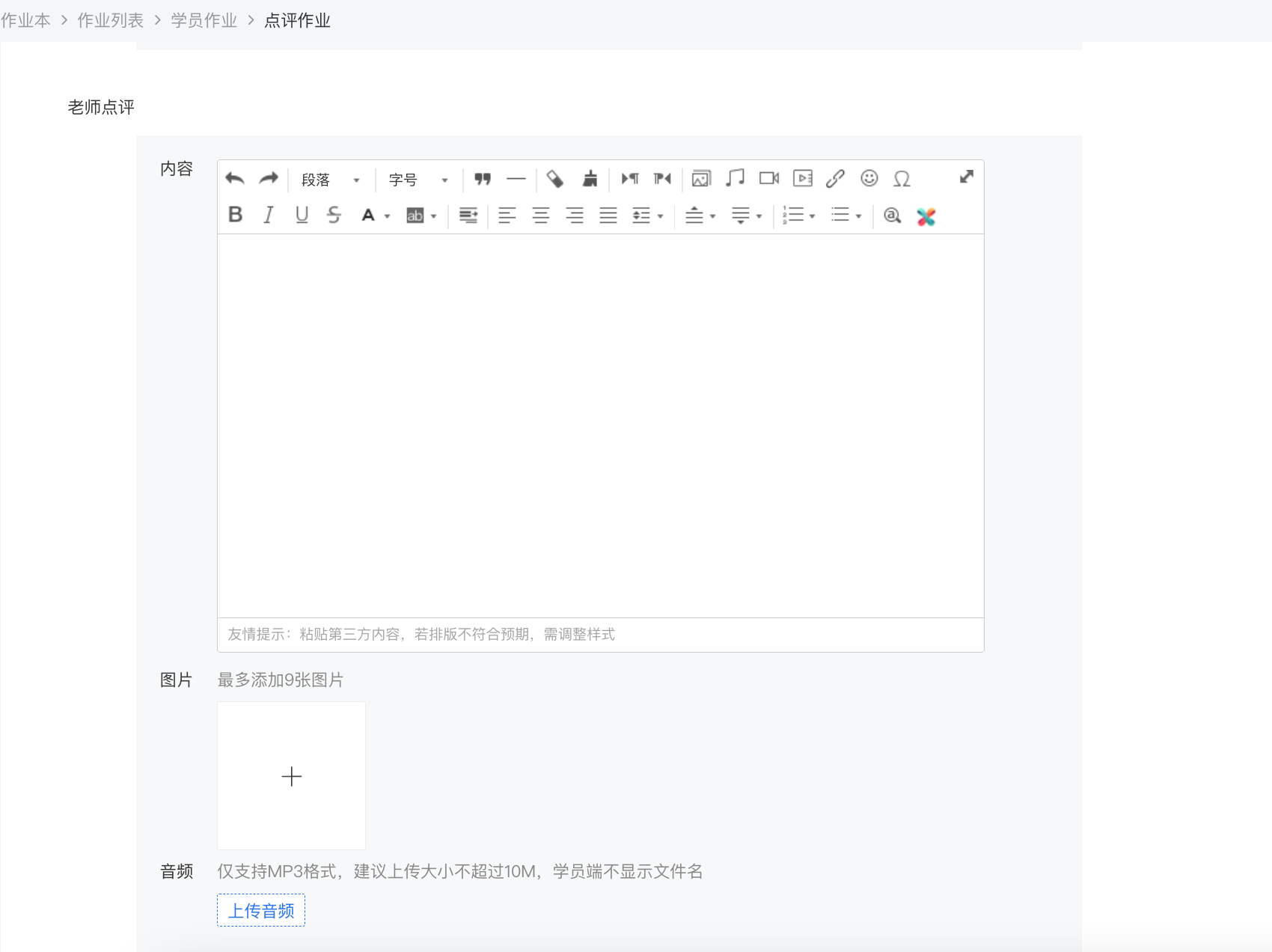
1. On the PC, teachers can view the submission status of students' assignments in [Assignment List] - [Students' Assignments]. Click [Review Assignment] for an individual student to view the assignment details and leave a review.
2. In the H5 Online Store, teachers can view the details of students' assignments in [My] - [Assignments]. Click [Review] to leave a review for the assignment.
Note: Reviews support text, images, and voice. Each voice message should not exceed 60 seconds, and a maximum of 5 voice messages can be sent; a maximum of 9 images can be sent; there is no limit on the number of characters for text.
How to add teachers to the workbook?
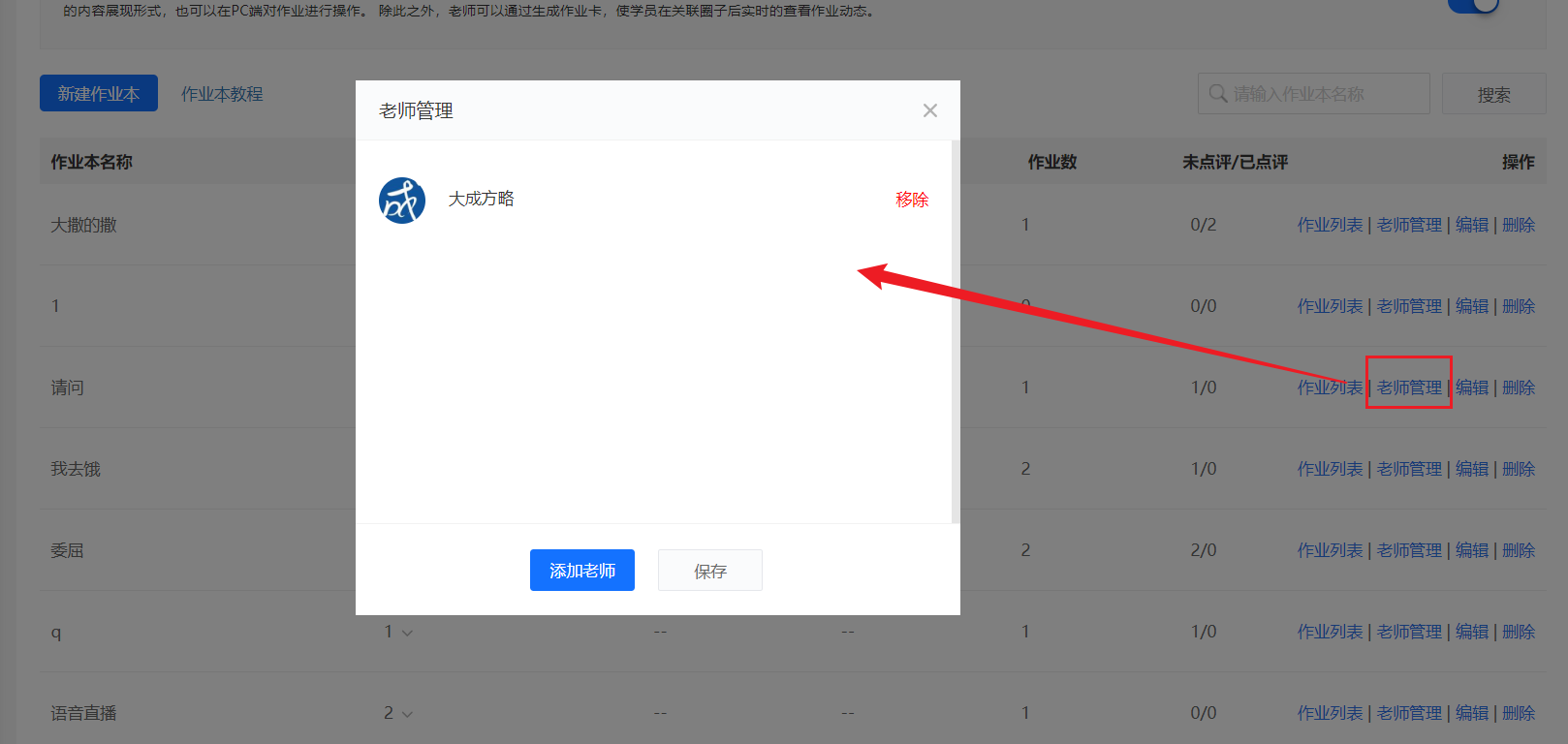
Find the corresponding workbook in the workbook list, click [Teacher Management] - [Add Teacher], search for the teacher's nickname, select it and confirm to complete the addition successfully.
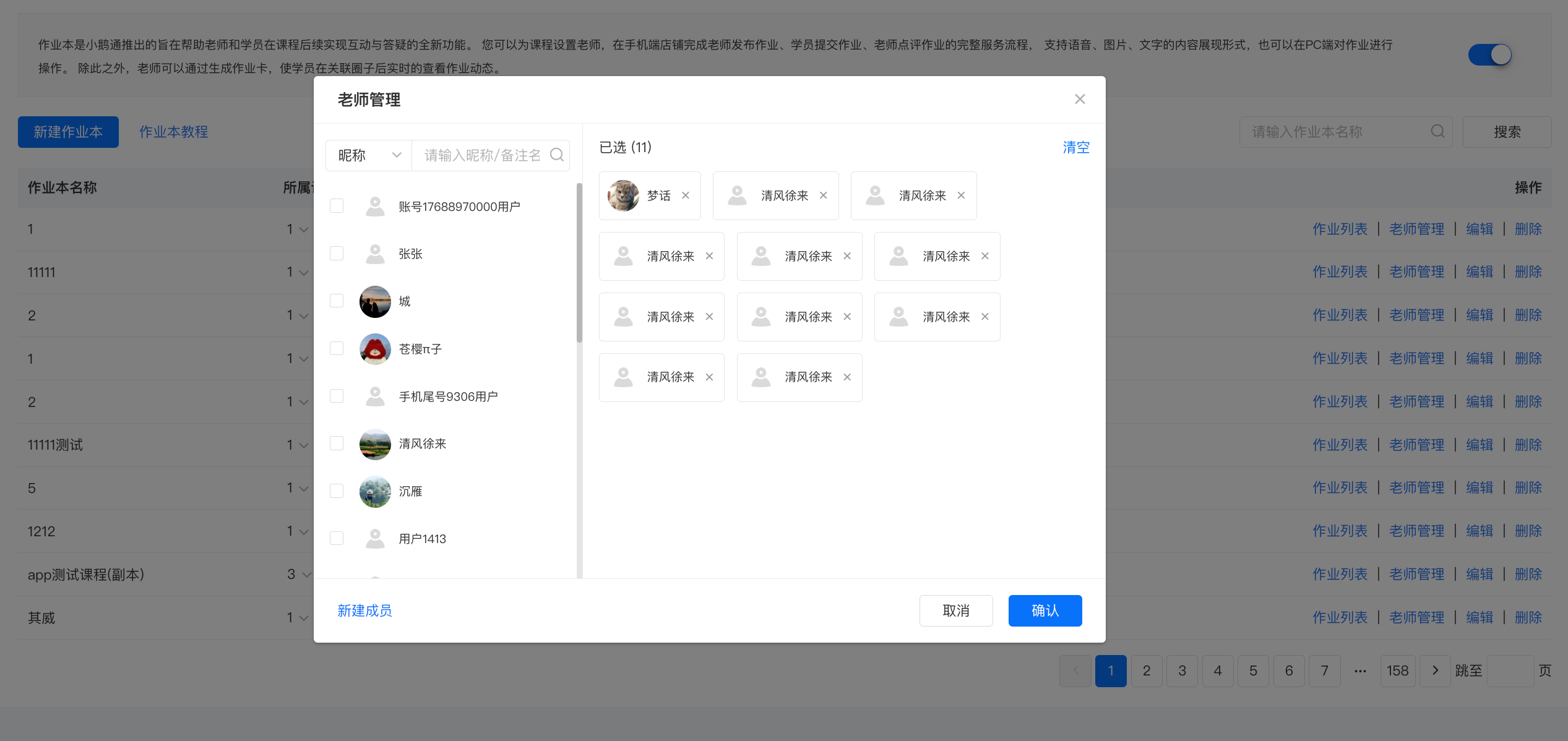
(Management Backend)
Usage Tutorial for Workbooks
I. Function Introduction
TeacherA learning tool for teachers to assign homework after class and test students' knowledge mastery.Homework can be published, submitted, and commented on in the form of pictures, voice, and text.
Set Teachers: The homework book function allows you to set teachers for courses. In the mobile store andthe PC management console, a complete service process of publishing, submitting, and commenting on homework can be completed in the form of pictures, voice, and text.
Associated Courses: The homework book can be associated with text - pictures/audio/video/live streaming/columns/memberships. After association, it will be displayed in the corresponding course interaction column.
Associated Communities: After creating homework, teachers can generate a homework card and send it directly to students. The homework will be presented as a post in the small community, meeting different after - class service scenarios.
II. Purpose of Use
Help teachers understand students' learning status and provide one - on - one guidance to students
III. Usage Scenarios
Suitable for assigning homework to students after a course to test their learning effects
IV. Operation Path
Teacher's End (Merchant Backstage): Management Backstage → Courses → Interaction Management → New Homework Book → Assign Homework → Homework Comment
V. Usage Tutorial
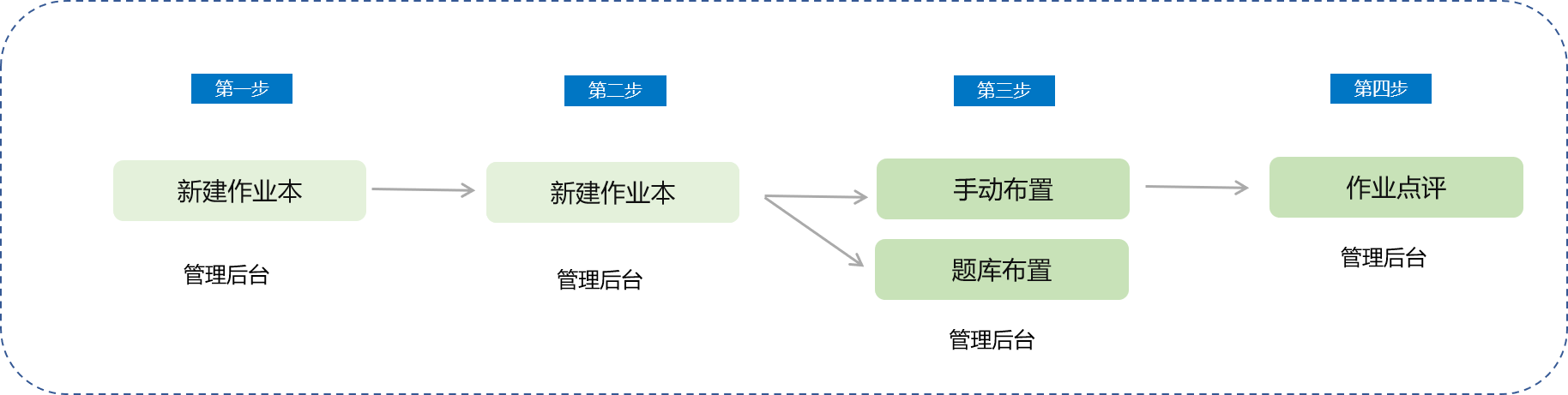
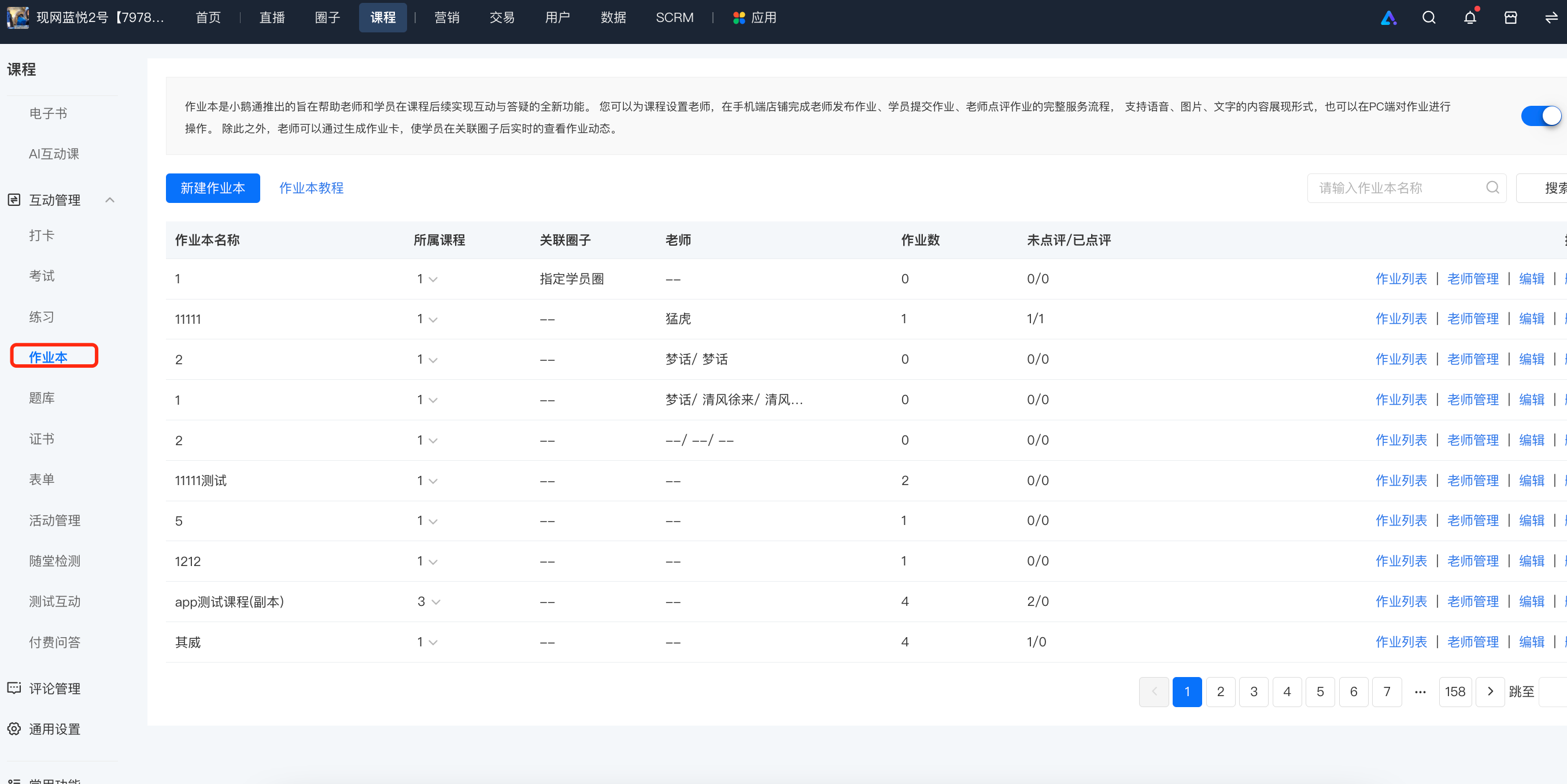
Step 1:Enter the homework book management interface from [Interaction Management] → [Homework Book].
Step 2:Click [New Homework Book] to create a homework book for a course (column/membership/audio/video/text - pictures/live streaming). Enter the homework book editing page, fill in the name of the homework book, and associate the specified course and community to successfully create it.
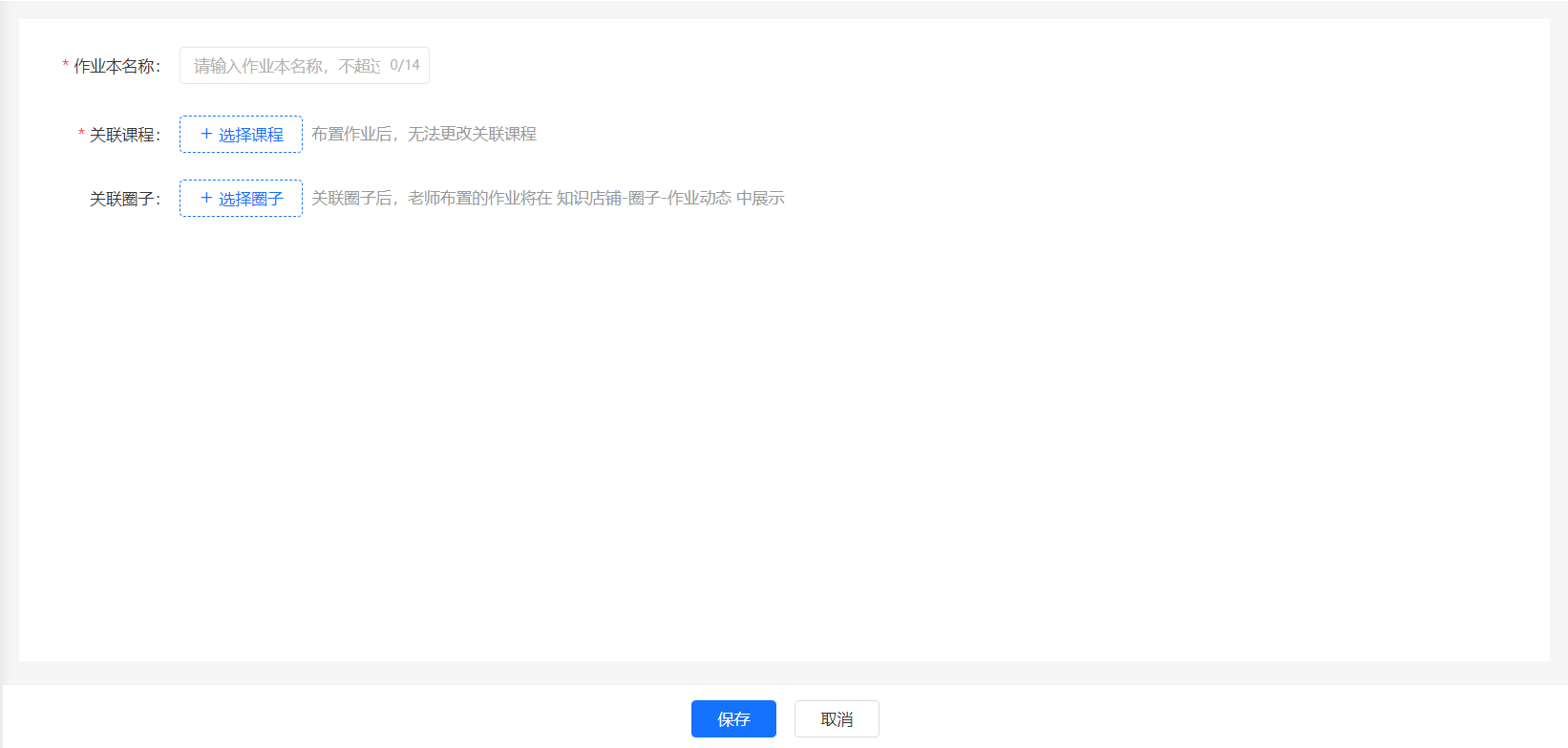
Note: If the teacher has already assigned homework, the associated courses of the homework book cannot be modified again.
Step 3:Click [Teacher Management]. In the pop - up window, you can set multiple teachers for this homework book.
If the associated course is a live - streaming room, please go to [Live - streaming Room] → [Guest Settings] to set labels for teachers. Users with the label of 'Lecturer' are teachers.
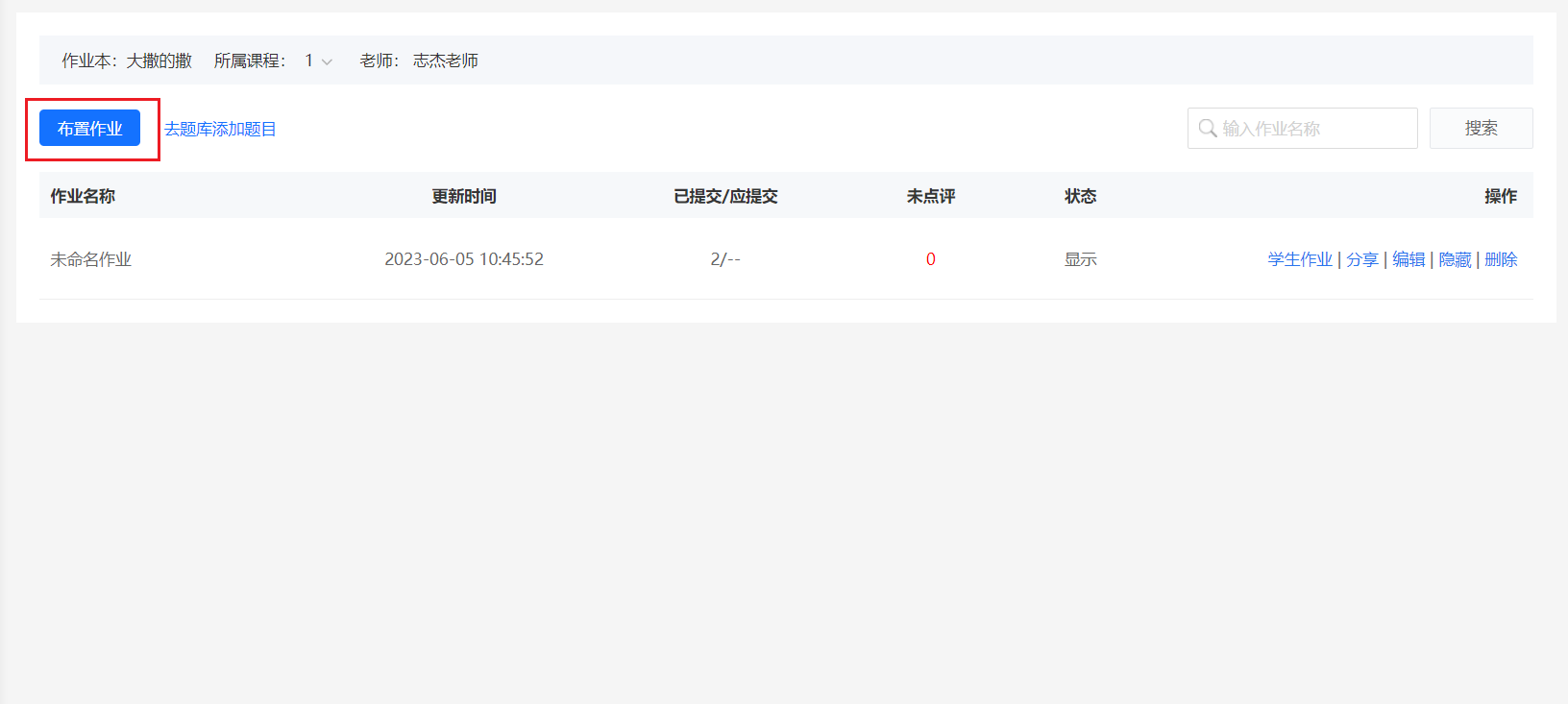
Step 4:After creating the homework book, it will be displayed in the homework book list. Next, you can assign homework in the PC or mobile store. Assigning homework on the PC requires management console login permission. After entering the homework list, click [Assign Homework]. It supports two assignment methods: direct editing and importing questions from the question bank. The homework content supports text, pictures, and audio formats.
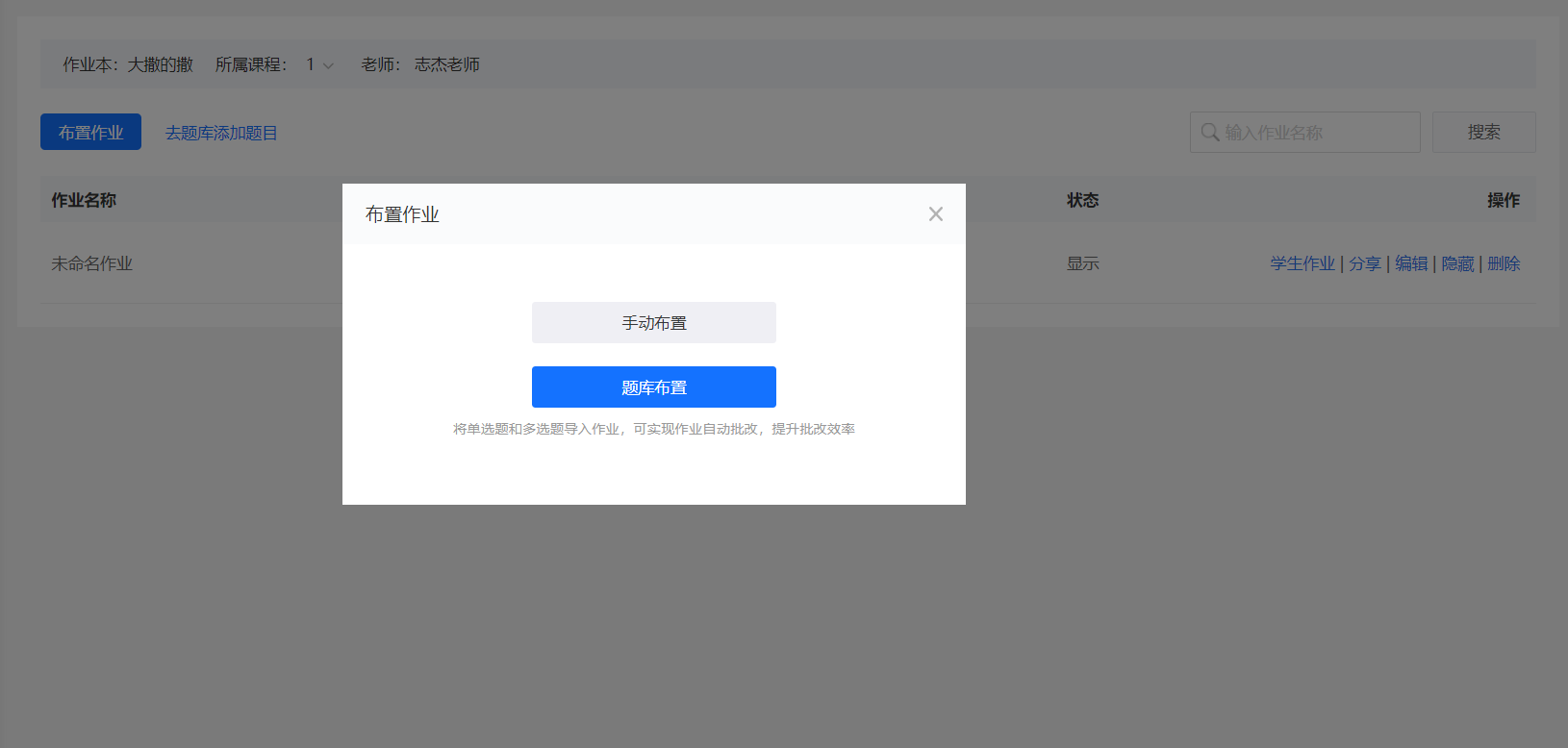
① Manual Assignment:
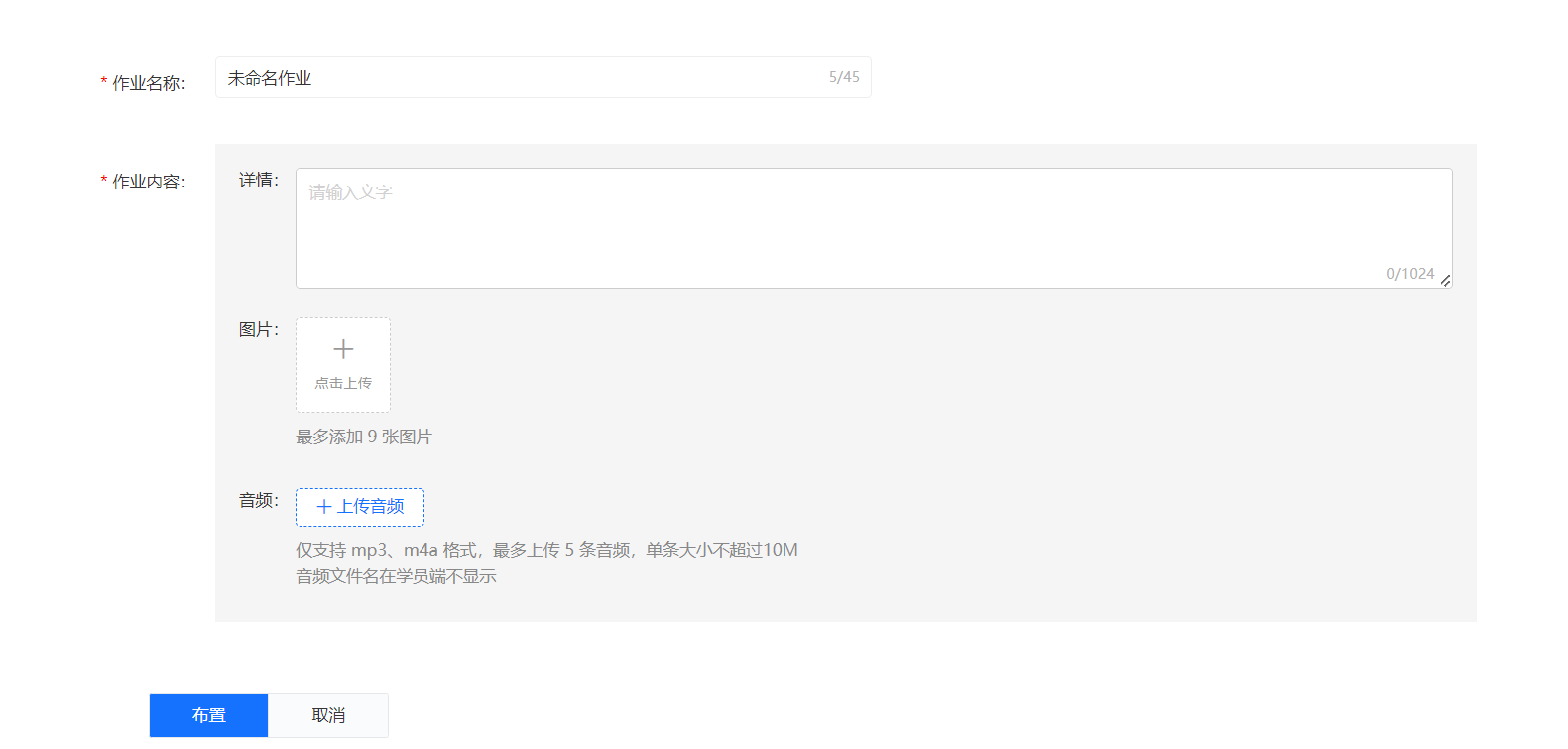
② Assignment from Question Bank:
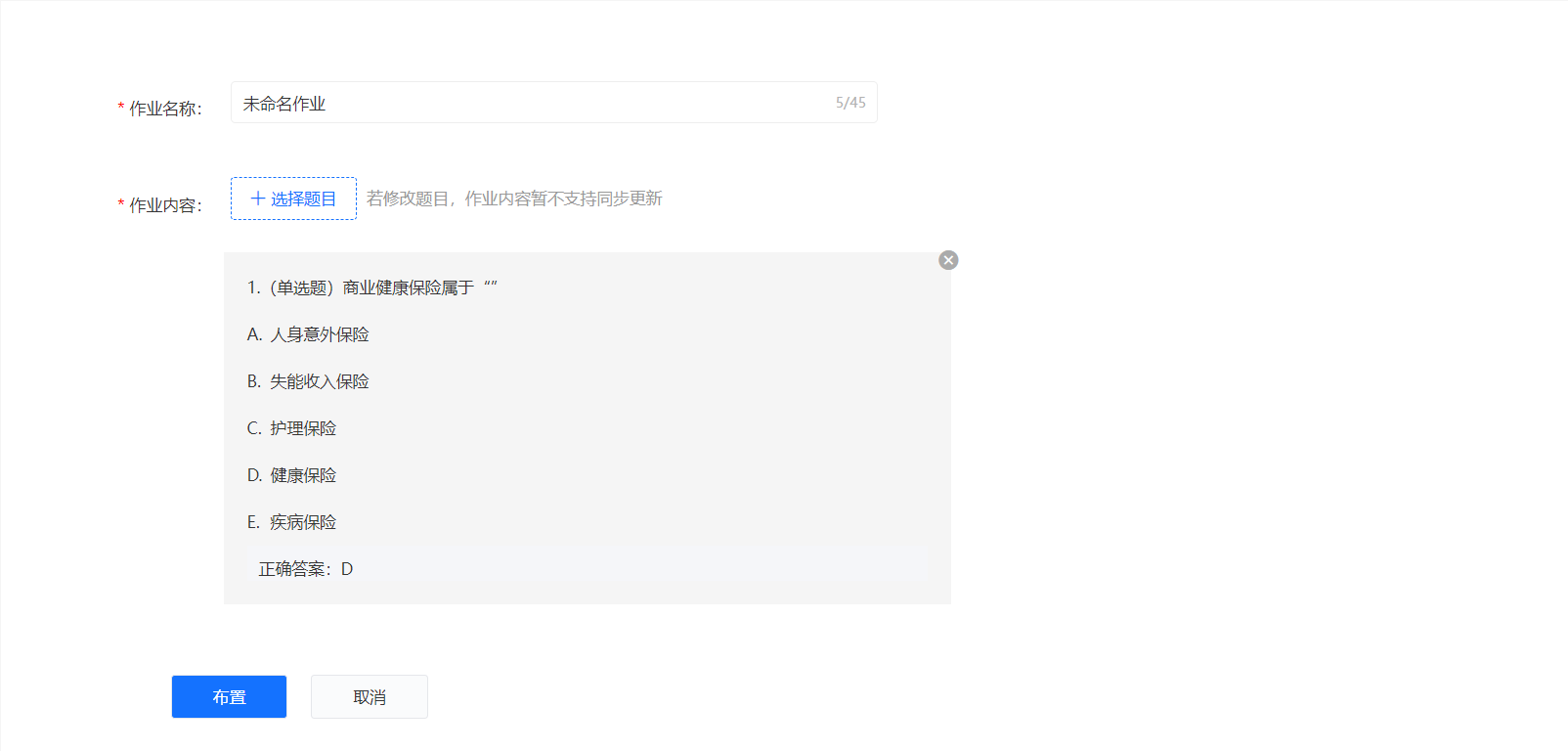
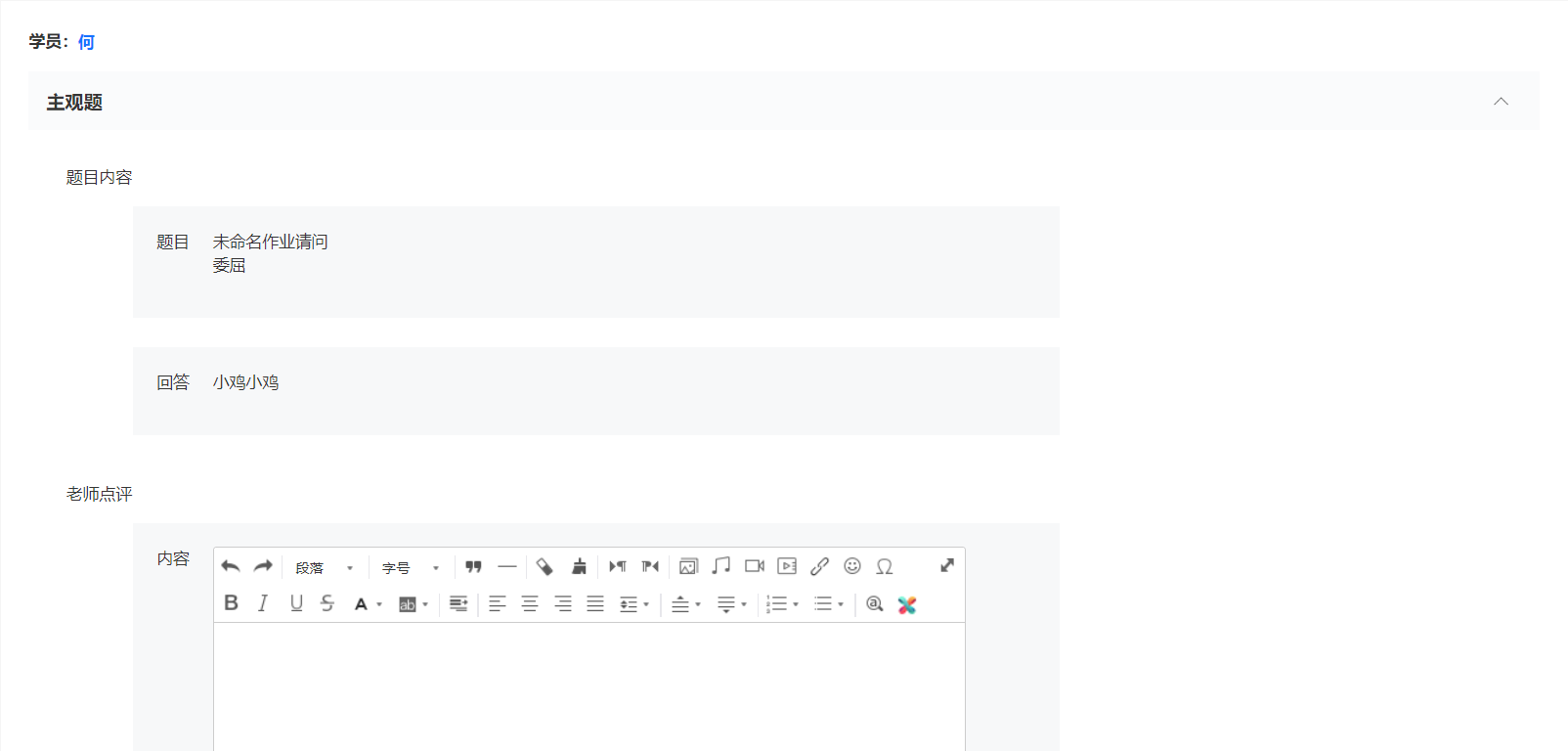
Step 5:You can comment on the homework submitted by students on the PC and mobile. Commenting on homework on the PC still requires management console login permission. Homework comments also support text, pictures, and audio formats.
VI. Introduction to Homework Book Permissions
Teacher: Assign homework/Modify homework/Generate homework card/Set whether the homework is publicly displayed/Comment on homework
Student: Students who have purchased the course can submit homework/View publicly displayed homework
Note: After setting teachers, they still cannot view the course for free. You can send them a free invitation code
On the mobile app, students submit assignments, teachers provide feedback, and the assignments are publicly displayed
I. Feature Introduction
After students complete the homework assigned by teachers, teachers can comment on the students' homework and publicly display it for other students to view.
II. Purpose of Use
Help teachers provide one - on - one guidance by commenting on students' learning progress.
III. Usage Scenarios
Suitable for scenarios where students complete course assignments online and teachers provide online comments.
IV. Operation Path
Student App (H5 Online Store): Personal Center → Learning Tools → Assignment List → Do Homework → Submit Homework
Teacher App (H5 Commenting): Personal Center → Learning Tools → Assignment List (Assigned by Me) → Comment/Publicly Display
V. Usage Tutorial
Students submit homework on mobile devices:

Homework Commenting/Public Display:

1. Students submit homework on mobile devices
Step 1:Locate the assignment entry. Find the corresponding assignment through the [Course Details] → [Course Interaction] → [Assignments] section.
① Entry from the course details page

② Entry from the personal center. Find the assignment list of purchased courses through [Personal Center] → [Learning Tools] → [Assignments] → [My Assignments].


Step 2:Click on the assignment to enter the details page. Click the [Do Homework] button to start answering the assignment. After finishing, click the [Submit Homework] button to complete the assignment.
Answer instructions: For objective questions, students can answer by clicking on the options. For subjective questions, students can answer in the form of text (up to 1024 characters), pictures (up to 9 pictures), and voice (up to 5 voice messages, each 60 seconds long).


2. Homework Commenting/Public Display
After students submit their homework, only teachers, teaching assistants, and the students themselves can see the submitted homework. Teachers and teaching assistants can choose [Publicly Display]. After public display, the student's homework will be visible to other students who have purchased the course.

How to assign homework on the mobile device?
I. Function Introduction
TeacherA learning tool that allows teachers to assign homework and test students' knowledge mastery after class.Homework can be published, submitted, and commented on in the form of pictures, voice, and text.
II. Purpose of Use
Help teachers understand students' learning status and provide one-on-one guidance to students.
III. Usage Scenarios
Suitable for assigning homework to students after a course to assess their learning outcomes.
IV. Operation Path
Teacher's End (H5 Commenting): Personal Center → Homework → Assign Homework → Generate Homework Card
V. Usage Tutorial
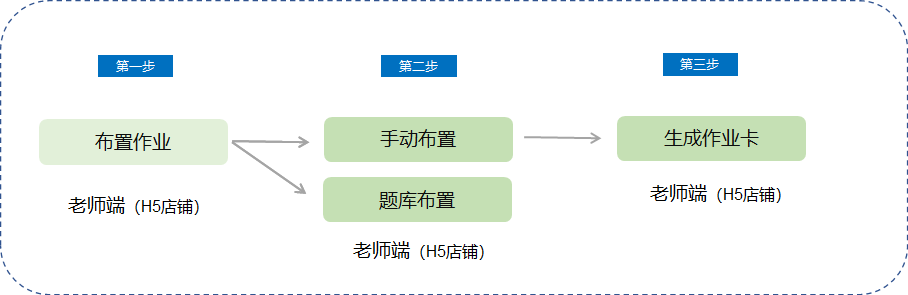
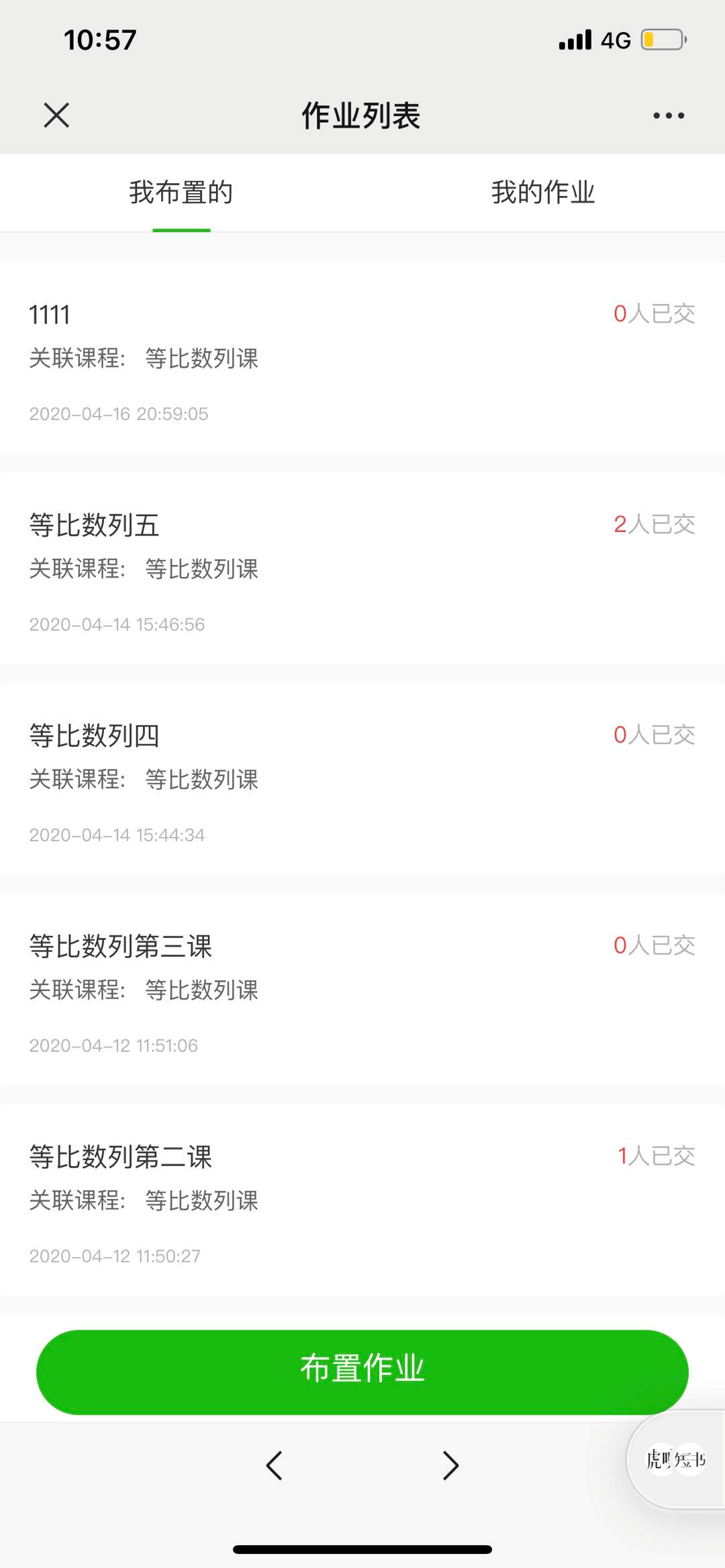
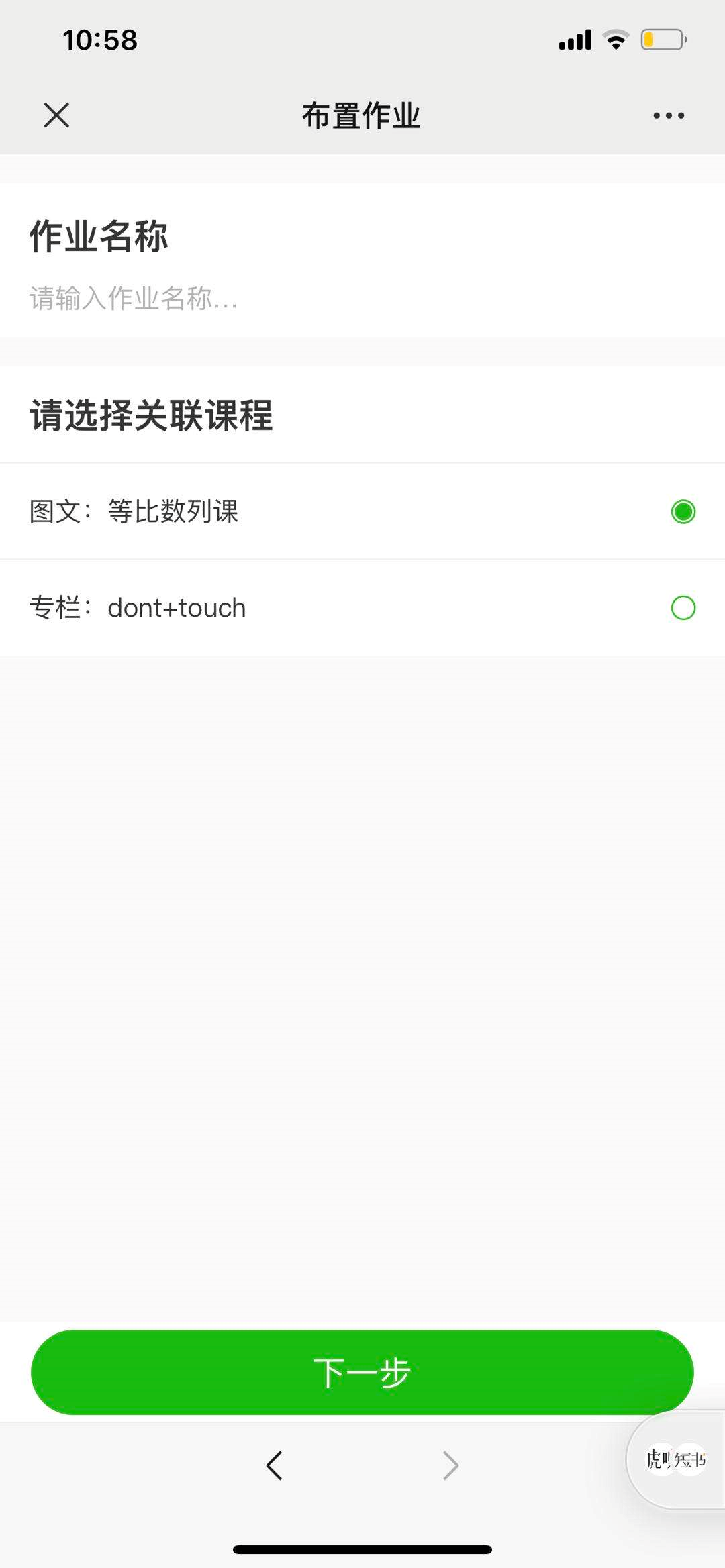
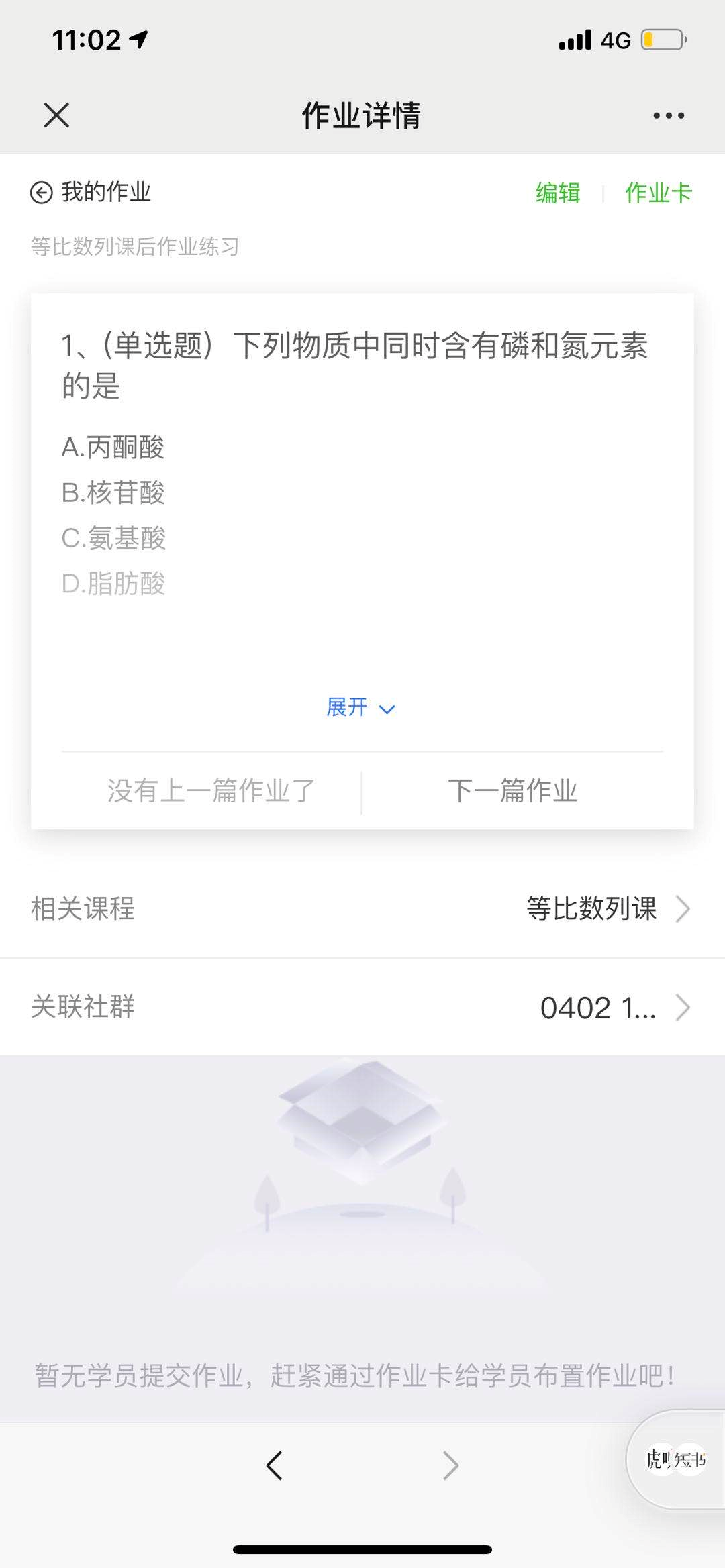
Step 1:Teachers enter the mobile store. In [Personal Center] → [Learning Tools] → [Homework] → [Homework List], they can find the entry to publish homework. Click the [Assign Homework] button to enter the homework editing page. They can choose to assign homework manually or from a question bank.
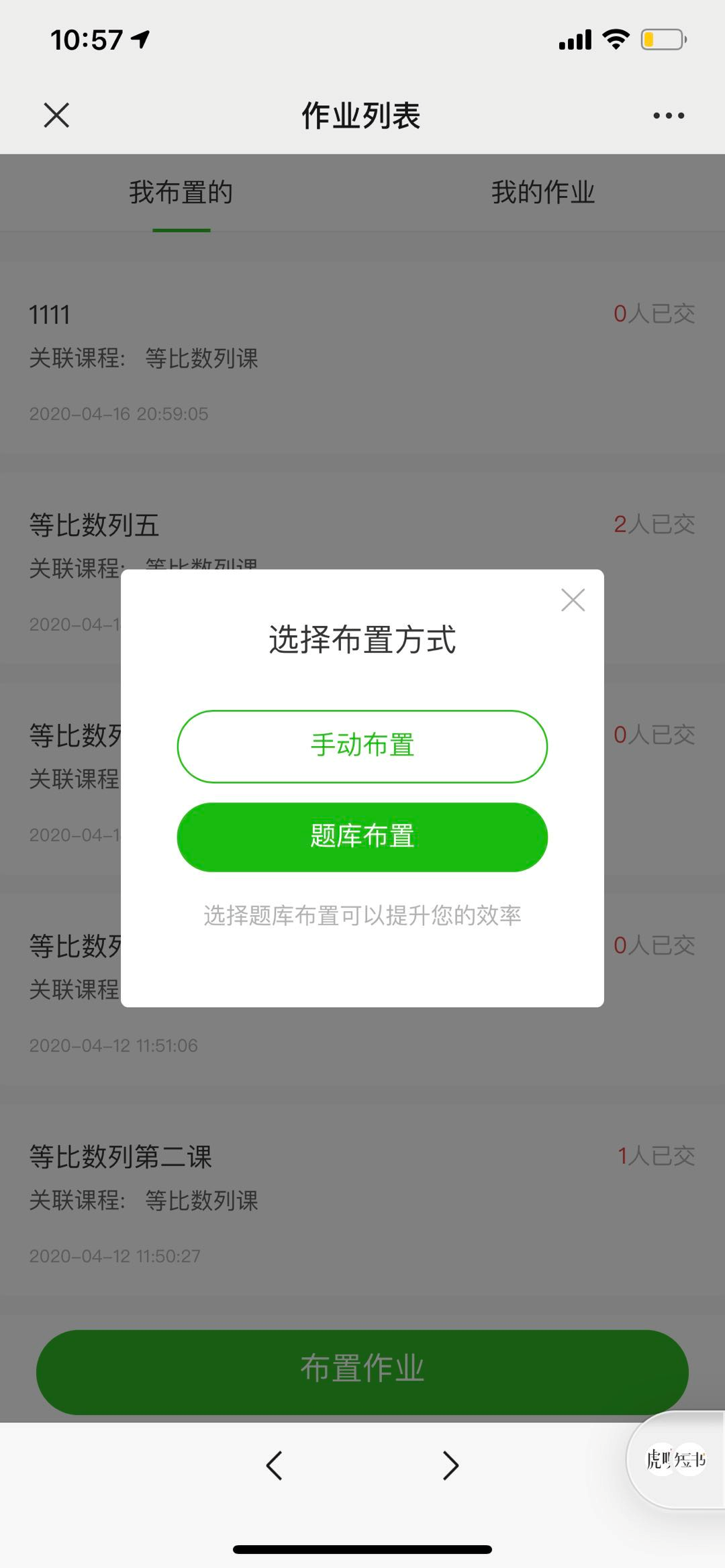
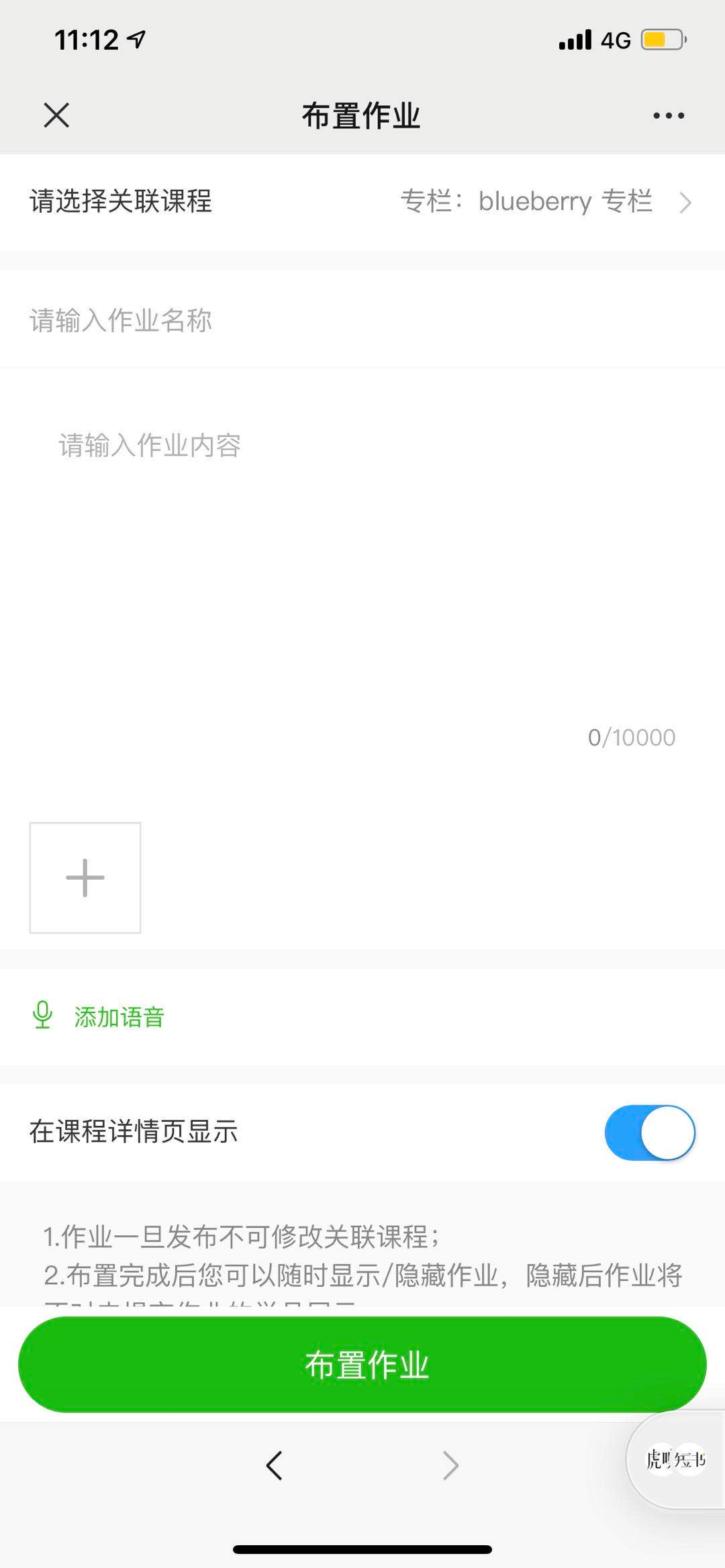
Step 2:If you choose to assign homework manually, you need to edit the homework content. The homework content can be presented in the form of text (up to 1024 characters), pictures (up to 9 pictures), and voice (each up to 60 seconds, up to 5 pieces).
When assigning homework for a single course or a column, the corresponding homework entry will be displayed in the classroom interaction section of the course/column details page.
If you prepare homework in advance but don't want to publish it immediately, you can choose to [Hide] the homework, which means it won't be displayed on the course details page. Then, you can [Show] it to students at an appropriate time.
① Manual Assignment: [Select Associated Course] → [Edit Homework Name/Question] → Click the [Assign Homework] button
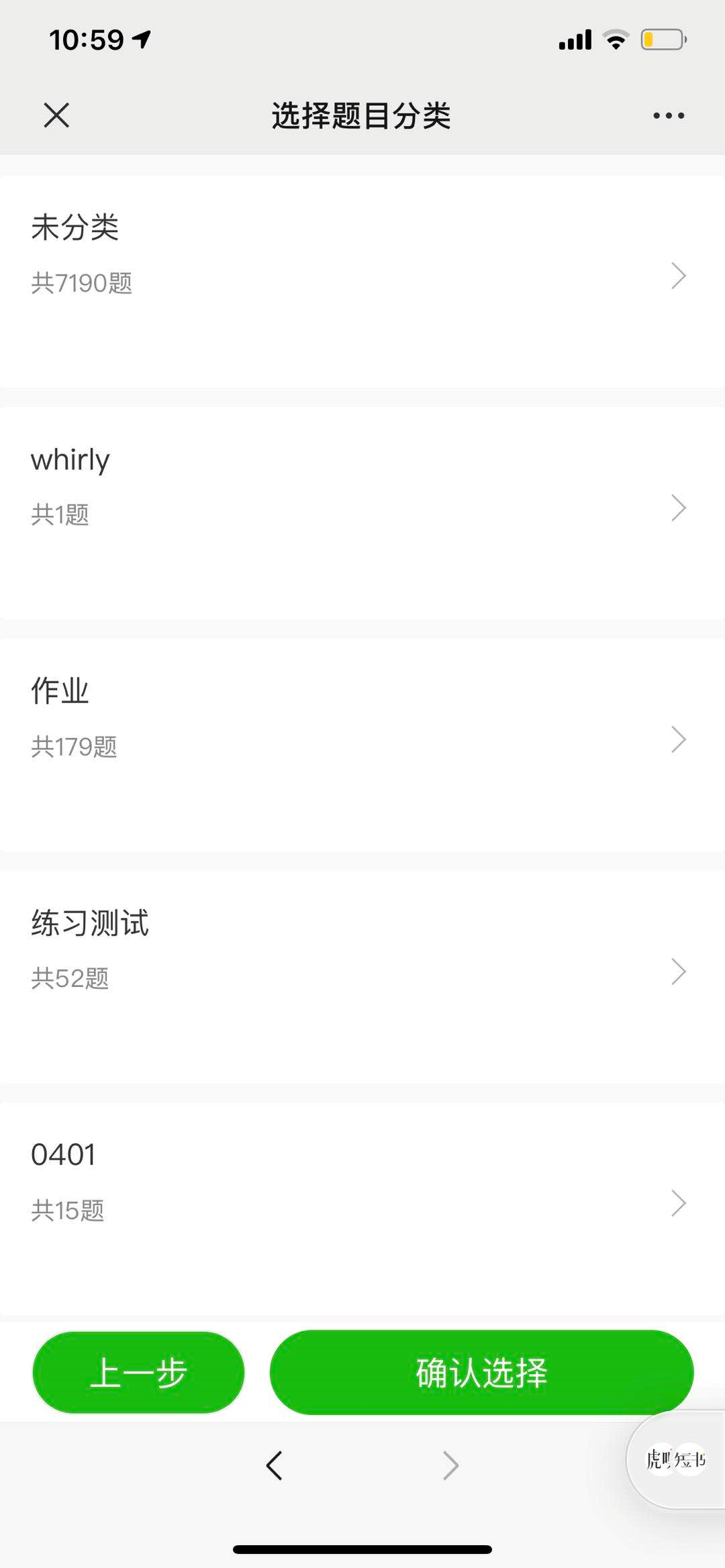
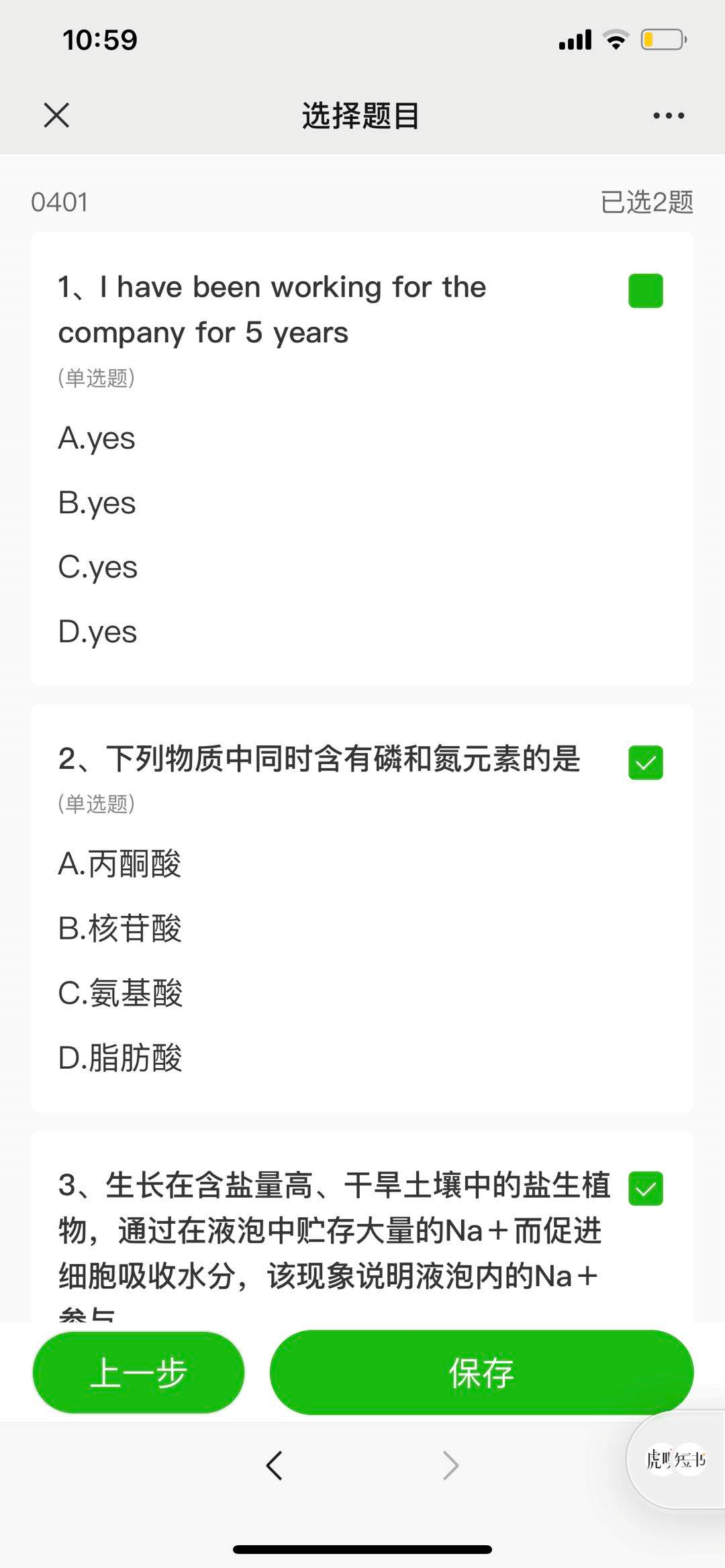
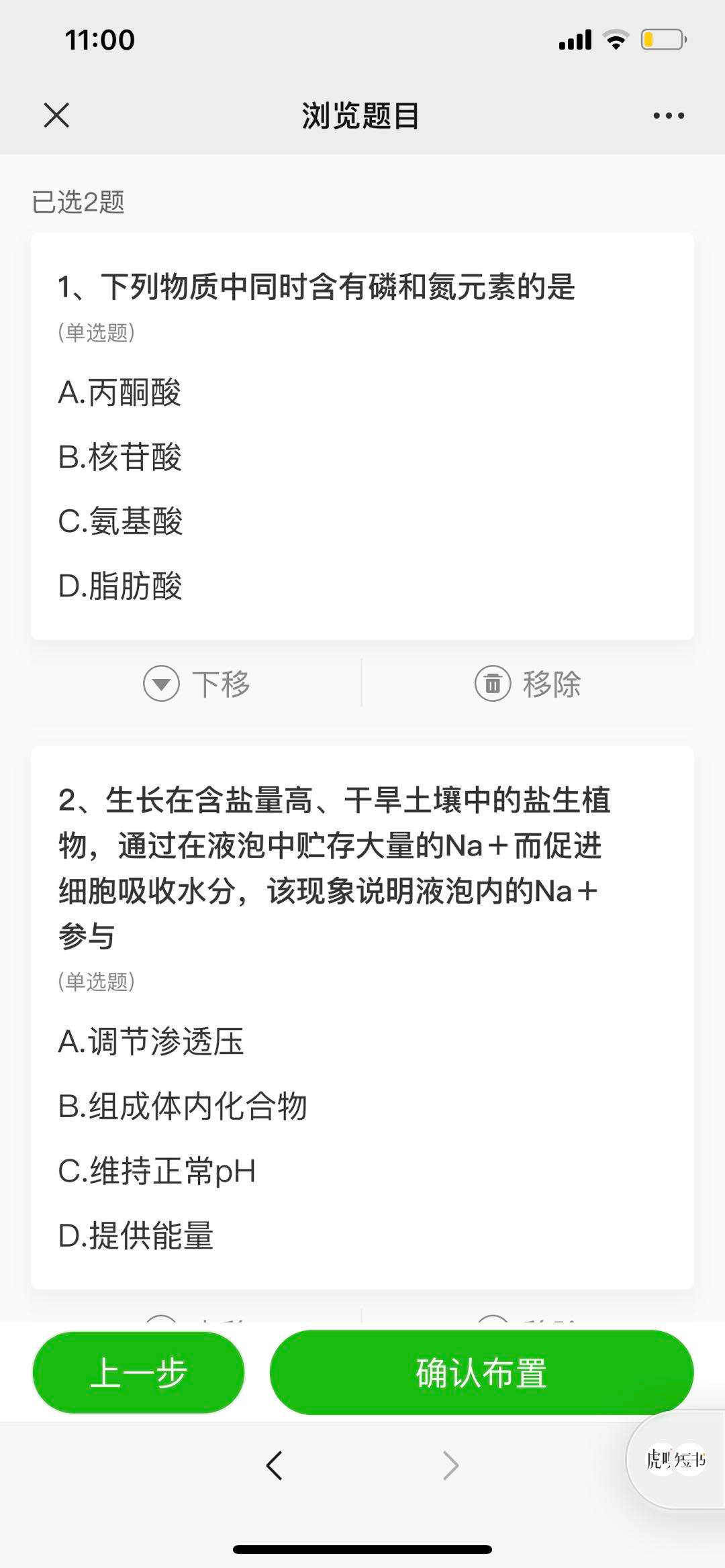
② Assignment from Question Bank: [Enter Homework Name/Select Associated Course] → [Select Question Category] → [Select Specific Questions] → Click [Confirm Selection] → Click [Confirm Assignment]
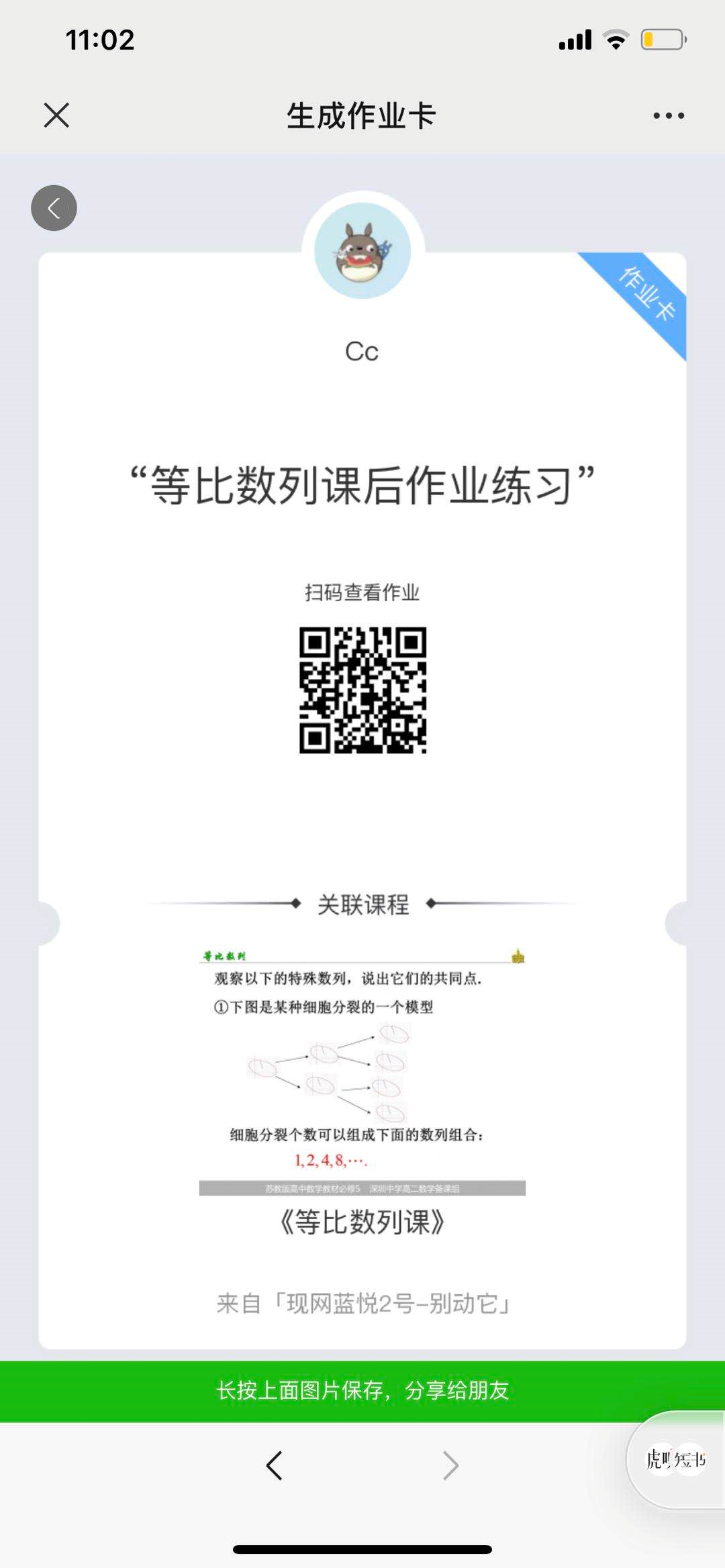
Step 3:After the homework is assigned, enter the homework details page. Teachers can generate a [Homework Card]. Long - press to save the invitation card and then share it with students in a small community or via WeChat.
How to assign homework on the mobile app?
I. Function Introduction
TeacherA learning tool for teachers to assign homework and test students' knowledge mastery status after teaching.Homework can be published, submitted, and commented on in the form of pictures, voice, and text.
II. Purpose of Use
Help teachers understand students' learning status and provide one-on-one guidance to students.
III. Usage Scenarios
Suitable for assigning homework to students after a course to test their learning effectiveness.
IV. Operation Path
Teacher's End (H5 Commenting): Personal Center → Homework → Assign Homework → Generate Homework Card
V. Usage Tutorial
Step 1:Teachers enter the mobile store. In [Personal Center] → [Learning Tools] → [Homework] → [Homework List], they can find the entry to publish homework. Click the [Assign Homework] button to enter the homework editing page, where they can choose to assign homework manually or from a question bank.
Step 2:If you choose to assign homework manually, you need to edit the homework content. The homework content can be presented in the form of text (up to 1024 characters), pictures (up to 9 pictures), and voice (each up to 60 seconds, up to 5 in total).
When assigning homework for a single course or column, the corresponding homework entry will be displayed in the classroom interaction section of the course/column details page.
If you want to prepare homework in advance but not publish it immediately, you can first select [Hide] the homework, which means it will not be displayed on the course details page. Then, you can [Show] it to students at an appropriate time.
① Manual assignment: [Select related courses] → [Edit homework name/title] → Click the [Assign Homework] button
② Assignment from question bank: [Enter homework name/select related courses] → [Select question category] → [Select specific questions] → Click [Confirm Selection] → Click [Confirm Assignment]
Step 3:After the homework is assigned, enter the homework details page. Teachers can generate a [Homework Card]. Long - press to save the invitation card and then share it with a small community or send it to students via WeChat.