Examination
- Does the exam support automatic grading?
- How to set comments for students in different score ranges?
- Will there be any impact if I modify the issuance conditions for the course completion certificate?
- What are the functions of statistical analysis?
- Will users receive notifications from the Service Account after teachers finish grading the test papers?
- Can a single exam be associated with different certificates?
- How to set up exam certificates?
- Can I modify the exam content after the exam has been published?
- After changing the answers in the question bank, will the previous exam answers be updated synchronously?
- How to set the scores for exam questions?
- How to set up exam certificates when creating a new exam?
- Does the statistical analysis data support export?
- What scenarios is the exam statistics function applicable to?
- Can the exam be associated with a certificate?
- Can the number of exam attempts for students be restricted?
- Can an exam be associated with a course?
- How to control the display time of exam answers?
- Where can I view my exam certificates?
- Tutorial on Exam Usage
- Tutorial on Using Exam Certificates
Does the exam support automatic grading?
The system will automatically grade multiple-choice questions (fill-in-the-blank questions and true-or-false questions), while essay questions need to be graded manually. If the exam consists entirely of multiple-choice questions (fill-in-the-blank questions and true-or-false questions), the system will directly provide the score, and users can know their scores without waiting for the teacher's grading.
How to set comments for students in different score ranges?
For learners who achieve different learning outcomes, you can set comment content for different scores in [Certificate Settings] - [Score Settings] to make the comments more targeted.
Will there be any impact if I modify the issuance conditions for the course completion certificate?
After modifying the issuance conditions for the course completion certificates, the certificates already obtained by students will not be updated, and those who have not obtained them will receive certificates according to the latest conditions.
What are the functions of statistical analysis?
After students submit an exam and it is graded, a statistical analysis report for that exam is generated. Instructors can use this report to verify students' learning outcomes and identify their knowledge gaps, thereby helping students continue to improve.
Will users receive notifications from the Service Account after teachers finish grading the test papers?
Yes. After the teacher grades the exams, the exam results will be pushed via the Service Account configured in the Online Store. Students can also check their results through the [My] - [My Exams] section in the Online Store.
Can a single exam be associated with different certificates?
No, currently one exam only supports being associated with one certificate.
How to set up exam certificates?
There are three ways to configure exam certificates:
1. Associate an already created exam on the certificate function page.
2. Supplement the configuration and add certificates for an already created exam on the exam function page.
3. Jump to configure and add certificates at the end of the exam creation process.
For specific operation steps, please refer to:Tutorial on Using Exam Certificates
Can I modify the exam content after the exam has been published?
It is divided into the following two situations:
1. For exams that have already had students participating, you cannot increase or decrease the number of questions. However, you can modify the question content and correct answers. You cannot add options to multiple - choice questions or blanks to fill - in - the - blank questions.
2. For exams that no students have participated in yet, you can click [More] - [Stop], then add questions. After completion, simply publish the exam again.
After changing the answers in the question bank, will the previous exam answers be updated synchronously?
Yes, after the answers in the question bank are modified, the answers for the generated exams will be updated synchronously, and the previous exam scores of the learners will also be updated synchronously.
How to set the scores for exam questions?
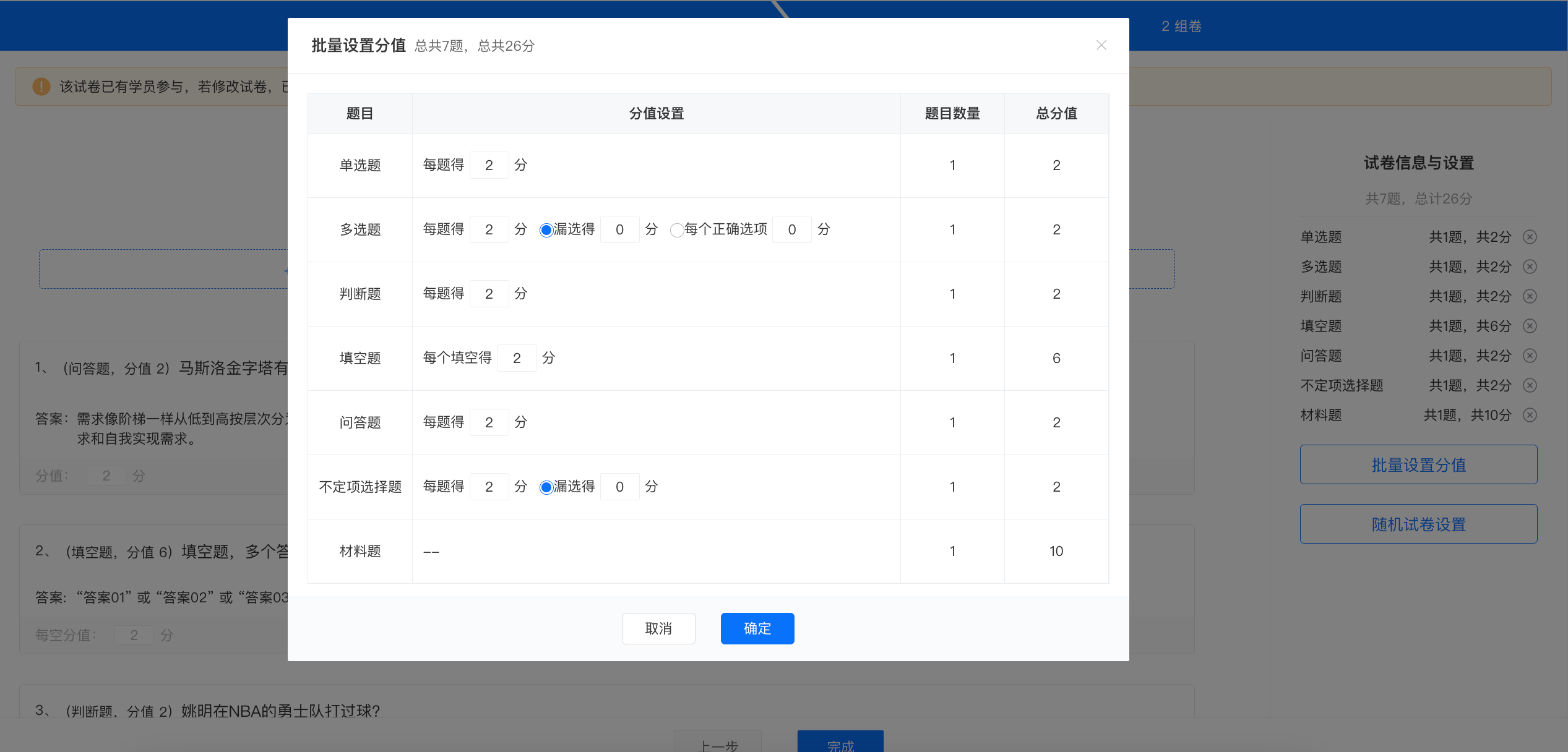
All five question types in the exam support batch score modification. You can set the scores for each question type in the left sidebar, and also set the score for a single question on the right.
1. Each question (total) score: x points. Selecting the correct answer for a single/multiple-choice question earns x points.
2. Partial selection earns x points. For example, if the correct answer to a question is ABC, selecting A/AB/C only earns x points, while selecting ABC earns full marks.
3. Each selected option earns x points. For example, if the options for a question are ABC, selecting A earns x points, selecting AB earns 2x points, and selecting ABC earns full marks.
Note: Incorrect selection results in no score. For example, if the options are ABCDE and the correct answer is ABC, selecting AD results in no score.
How to set up exam certificates when creating a new exam?
You can set certificates in the following three ways:
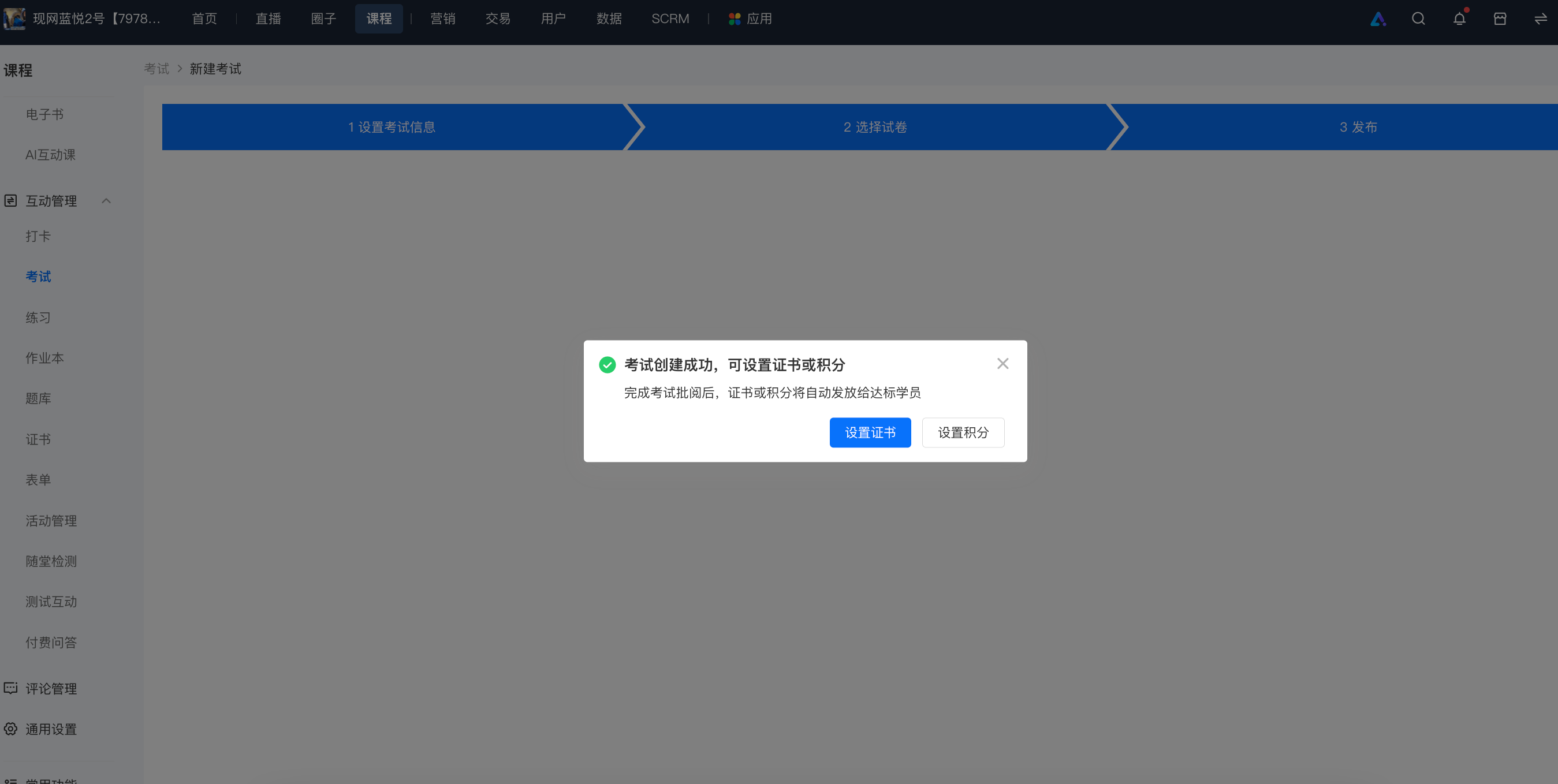
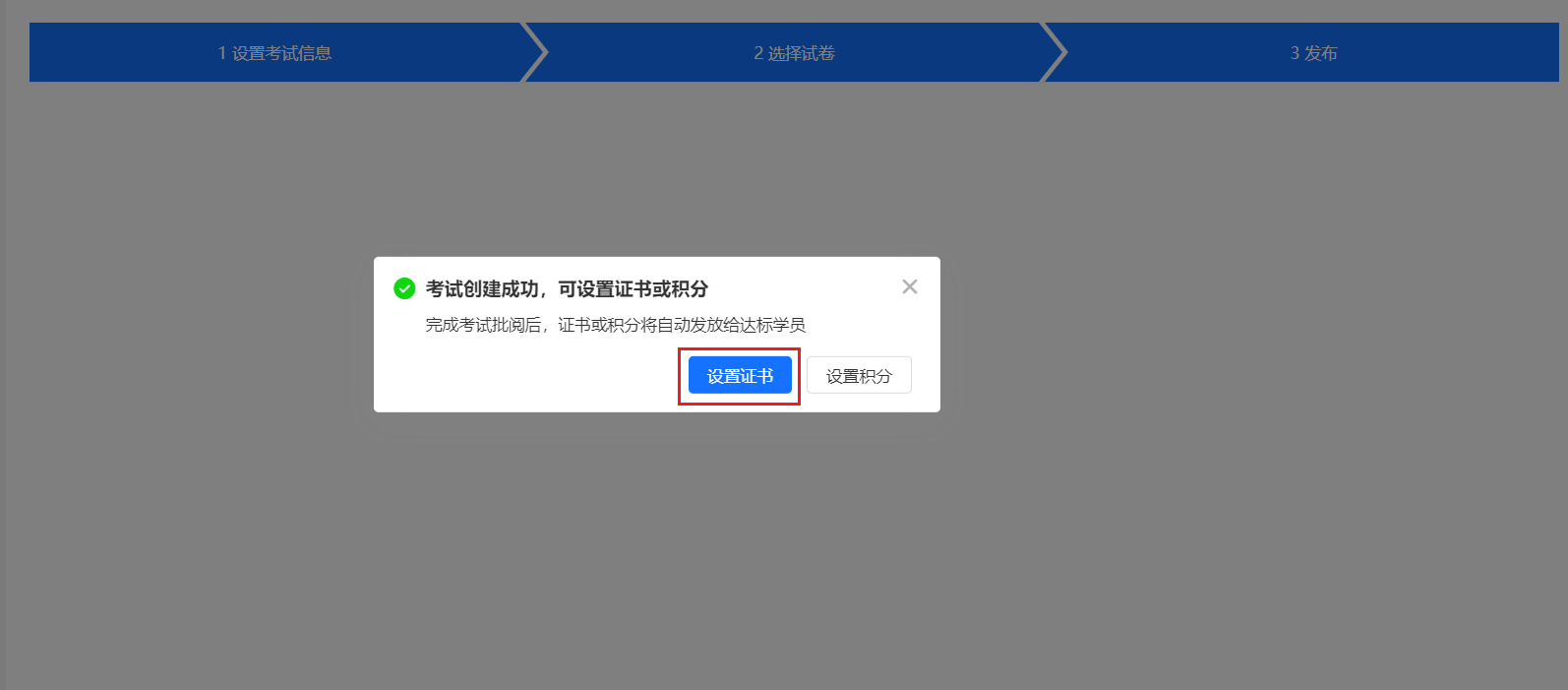
1. You can set certificates on the publishing page after successfully creating a new exam.
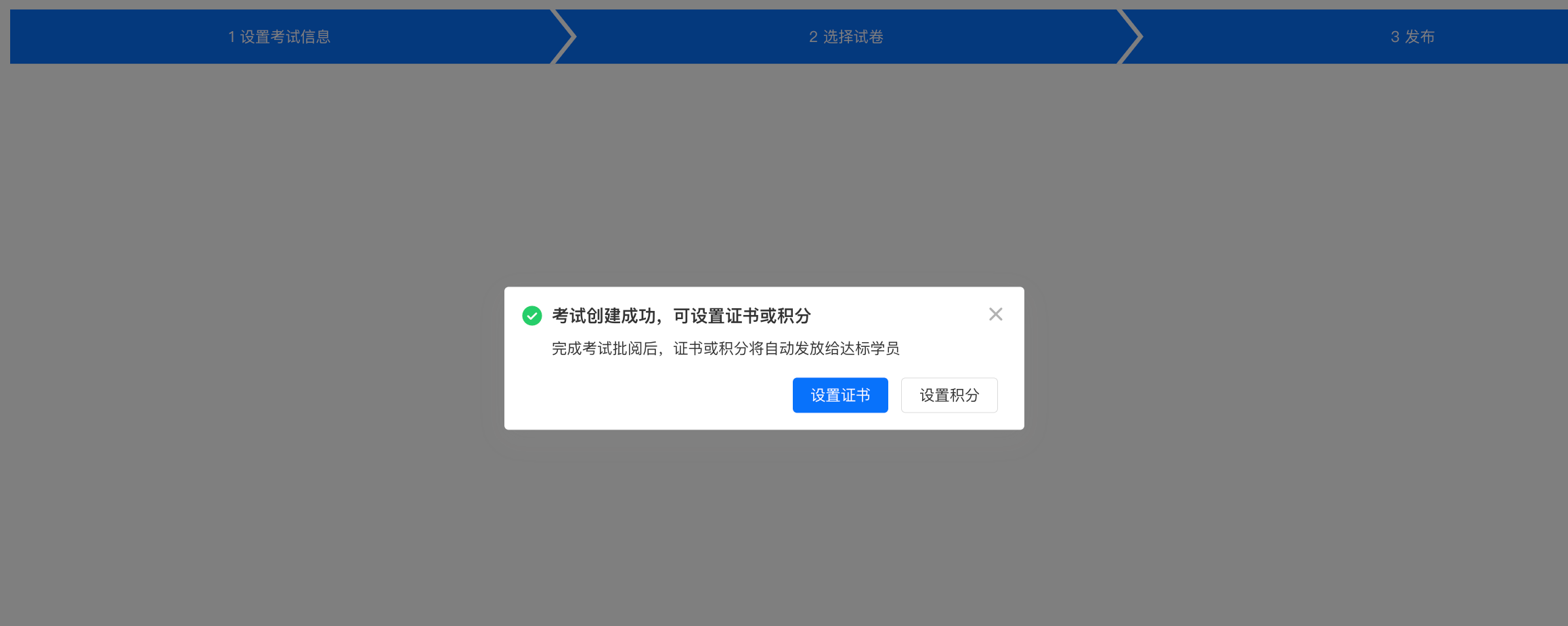
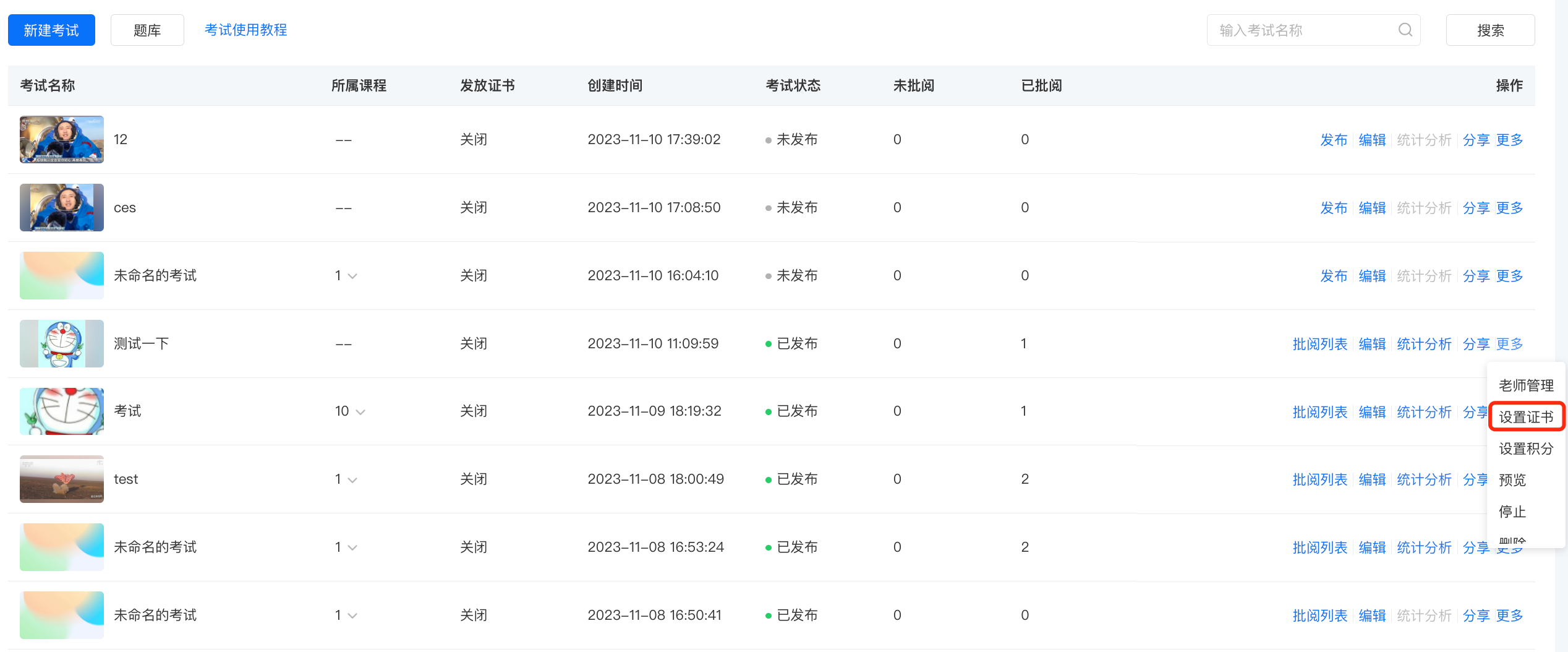
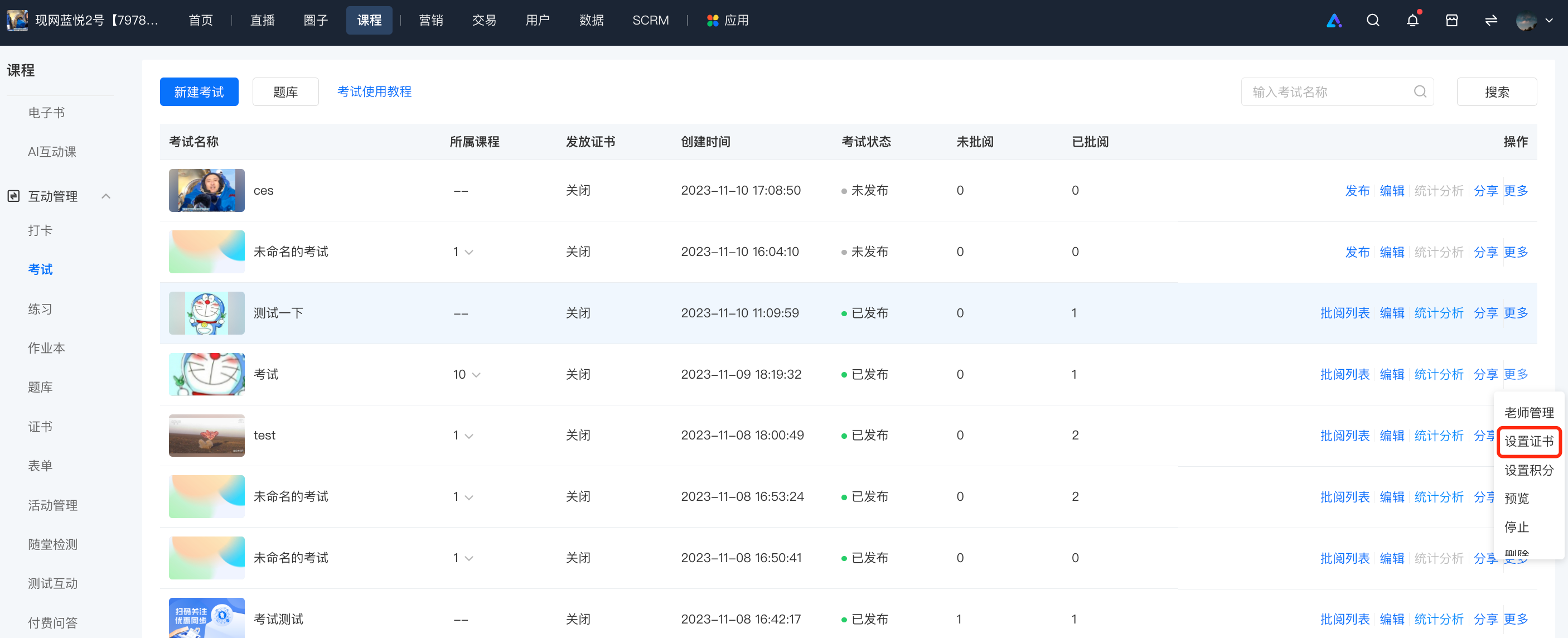
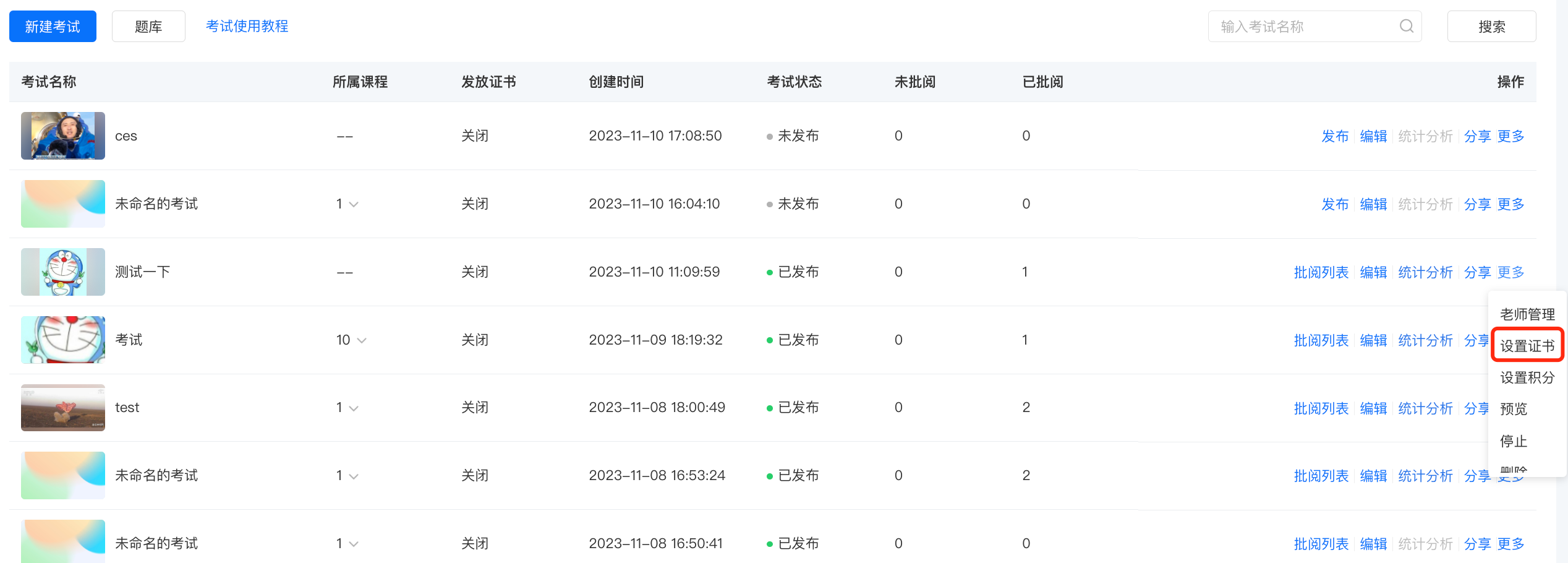
2. In the exam list, you can select the corresponding exam and click [More] - [Set Certificate] to set it.
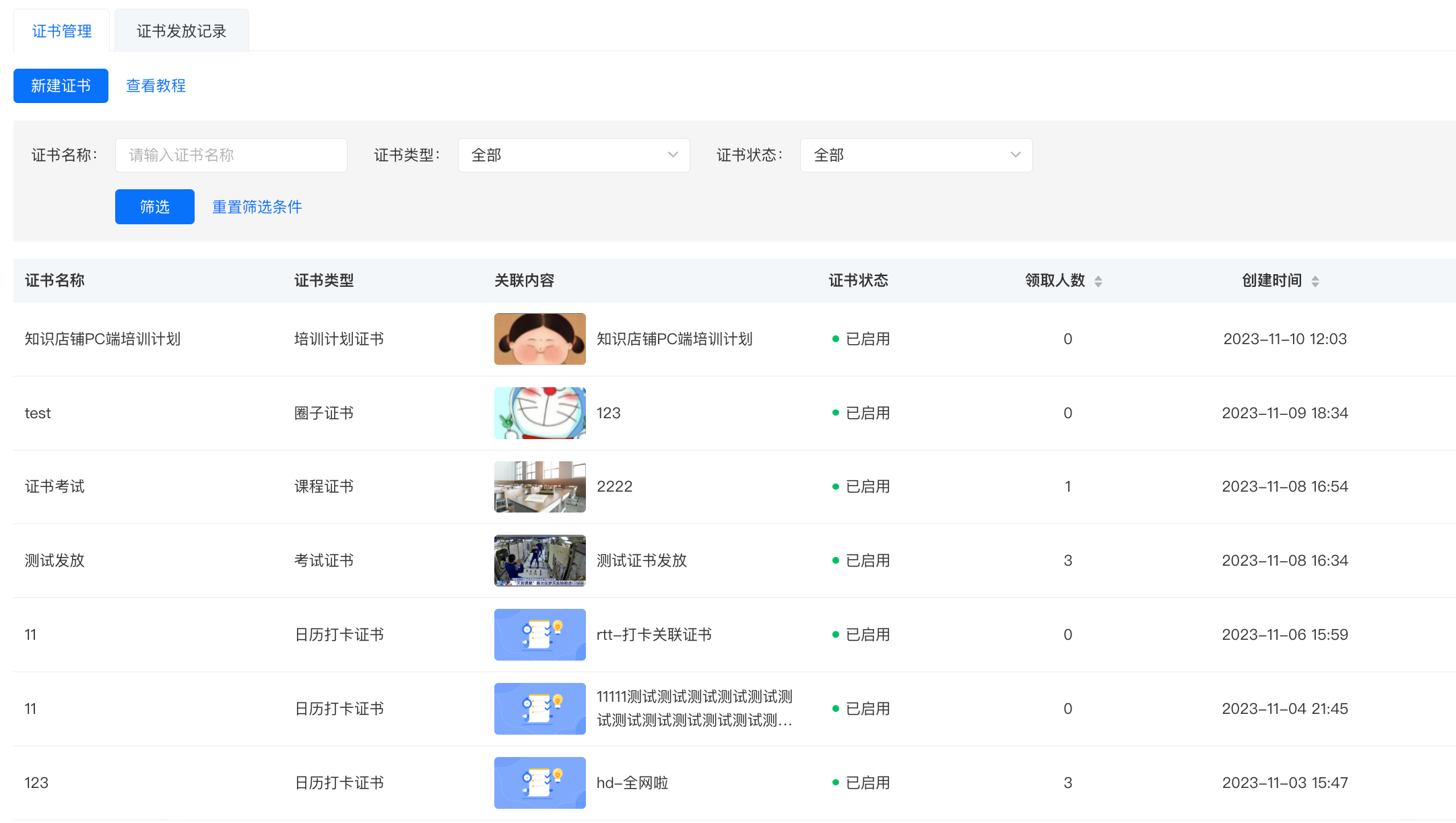
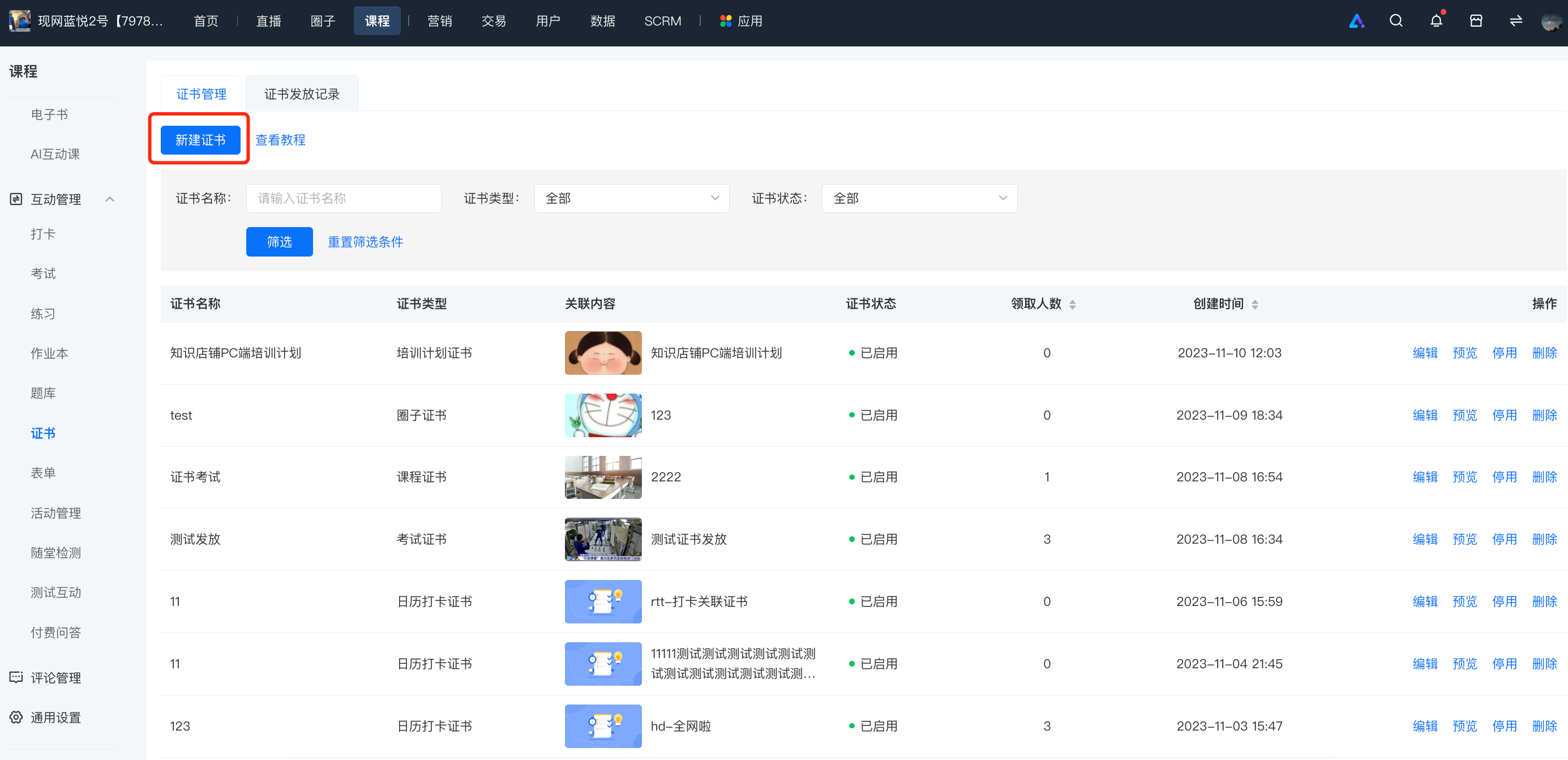
3. In [Certificates] - [New Certificate], select the exam that has already been created to set the certificate.
Does the statistical analysis data support export?
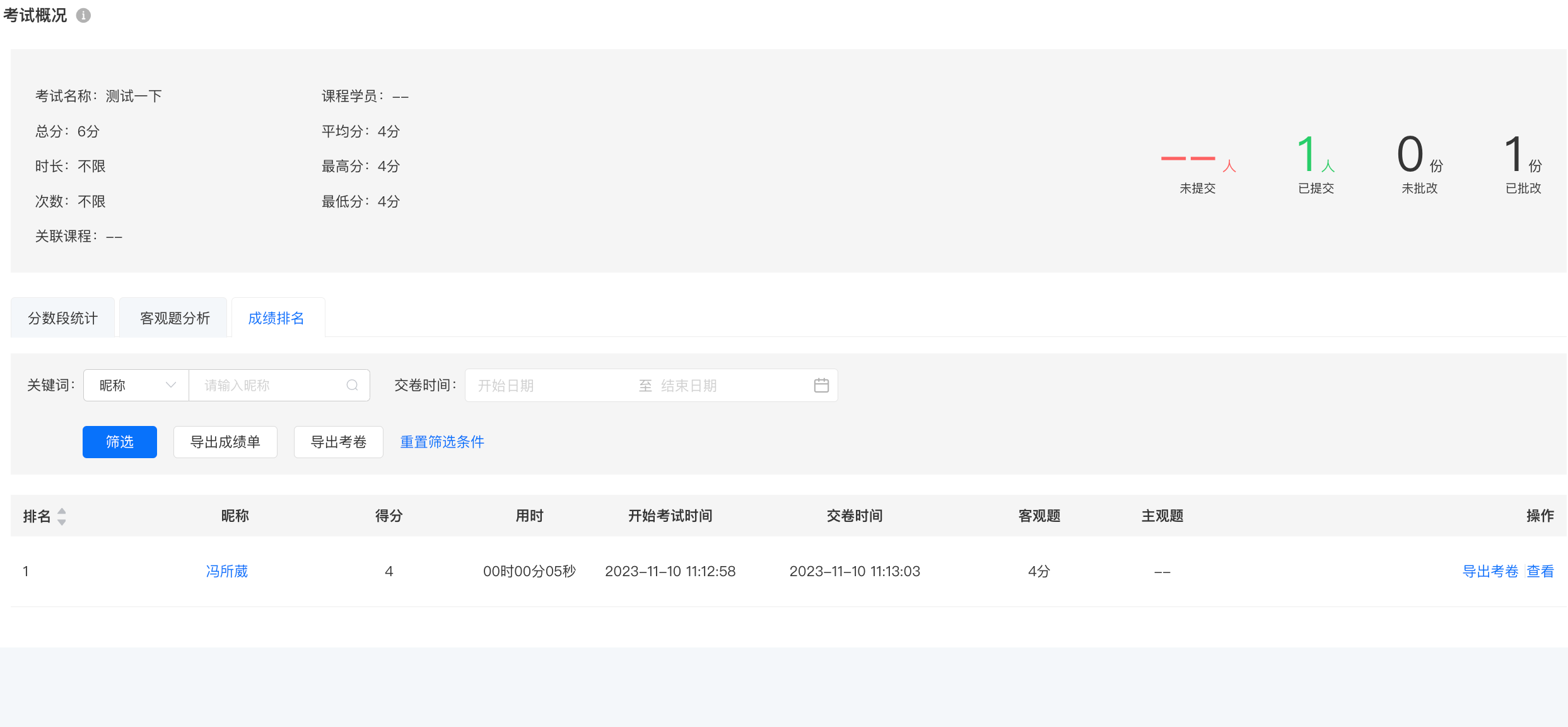
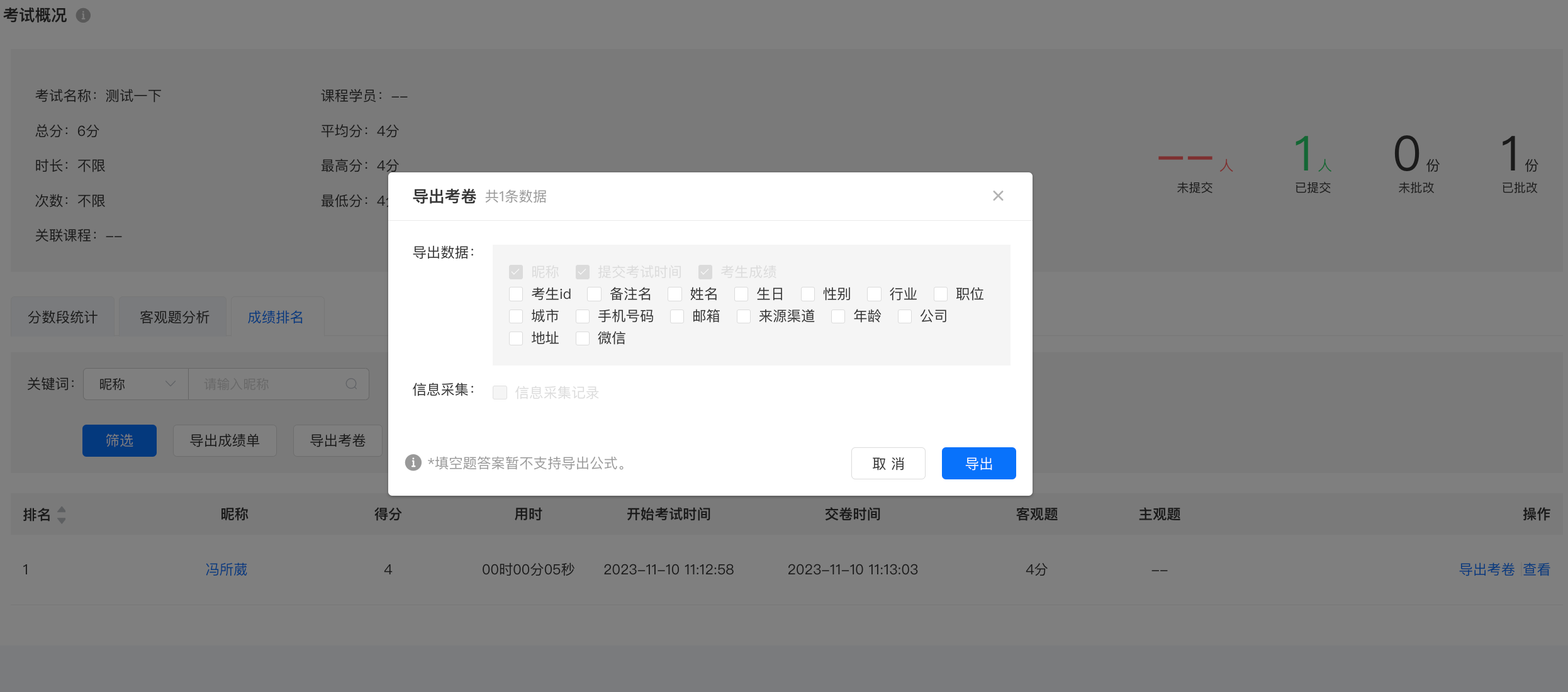
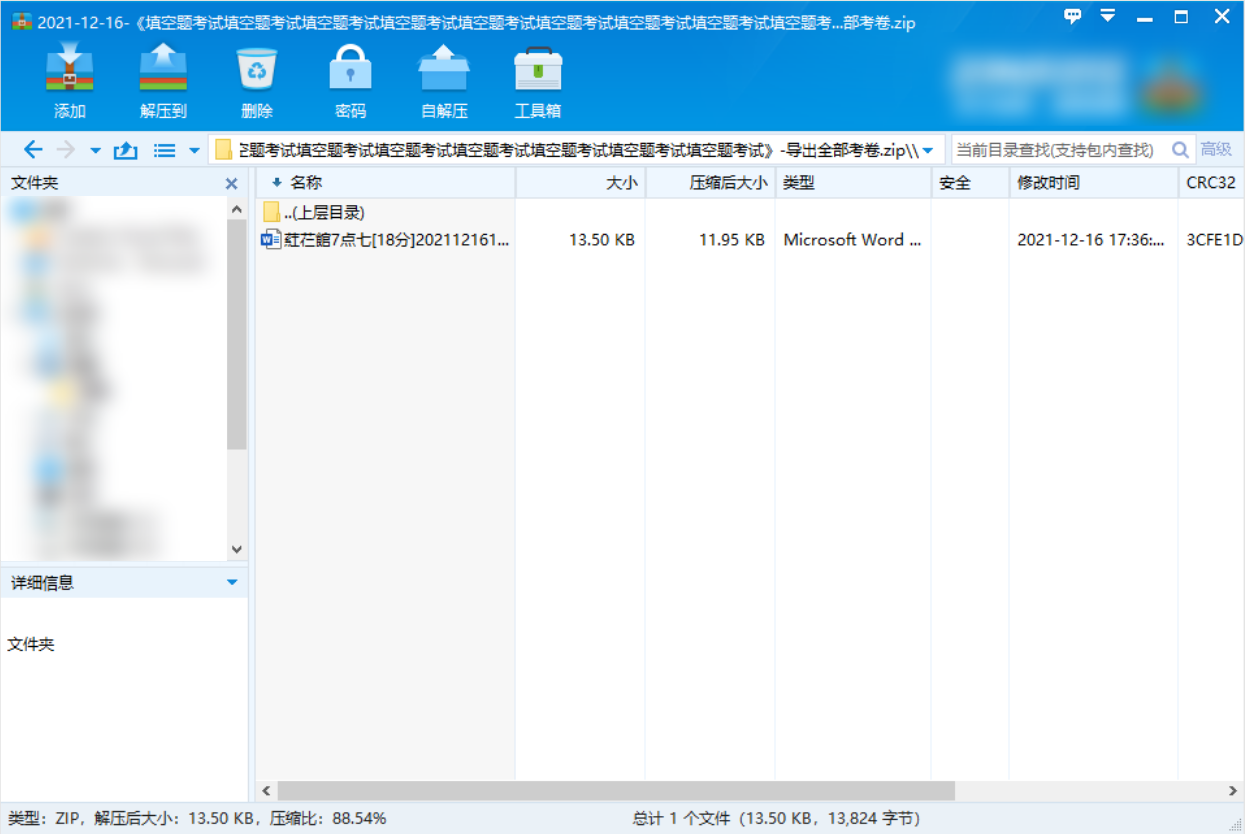
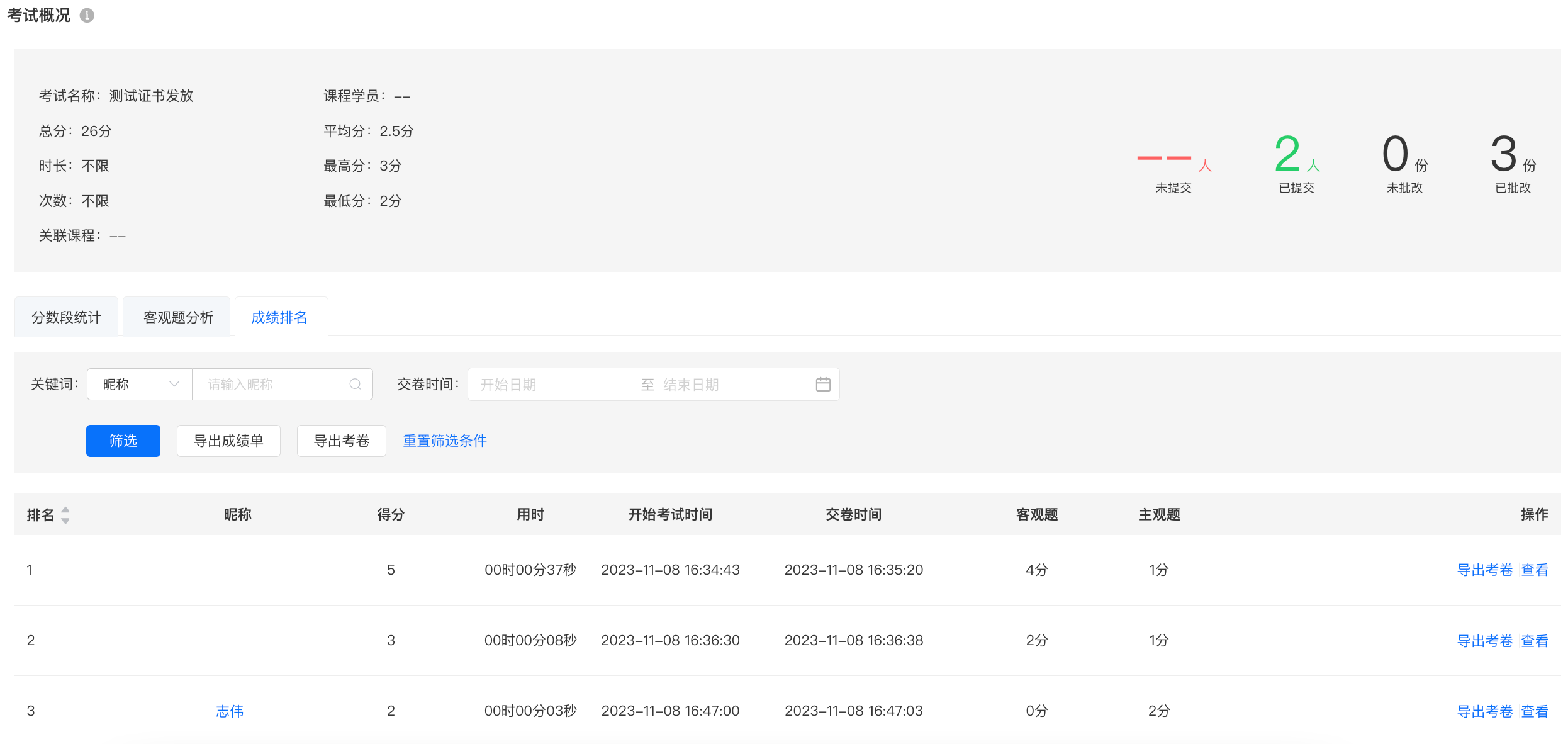
In the [Grade Ranking] of statistical analysis, you can export the data of report cards and students' test papers. Simply click the corresponding export button. When exporting the exam report card, the exam name will be used as the file name. Students' test papers will be exported as a compressed package of Word documents.
What scenarios is the exam statistics function applicable to?
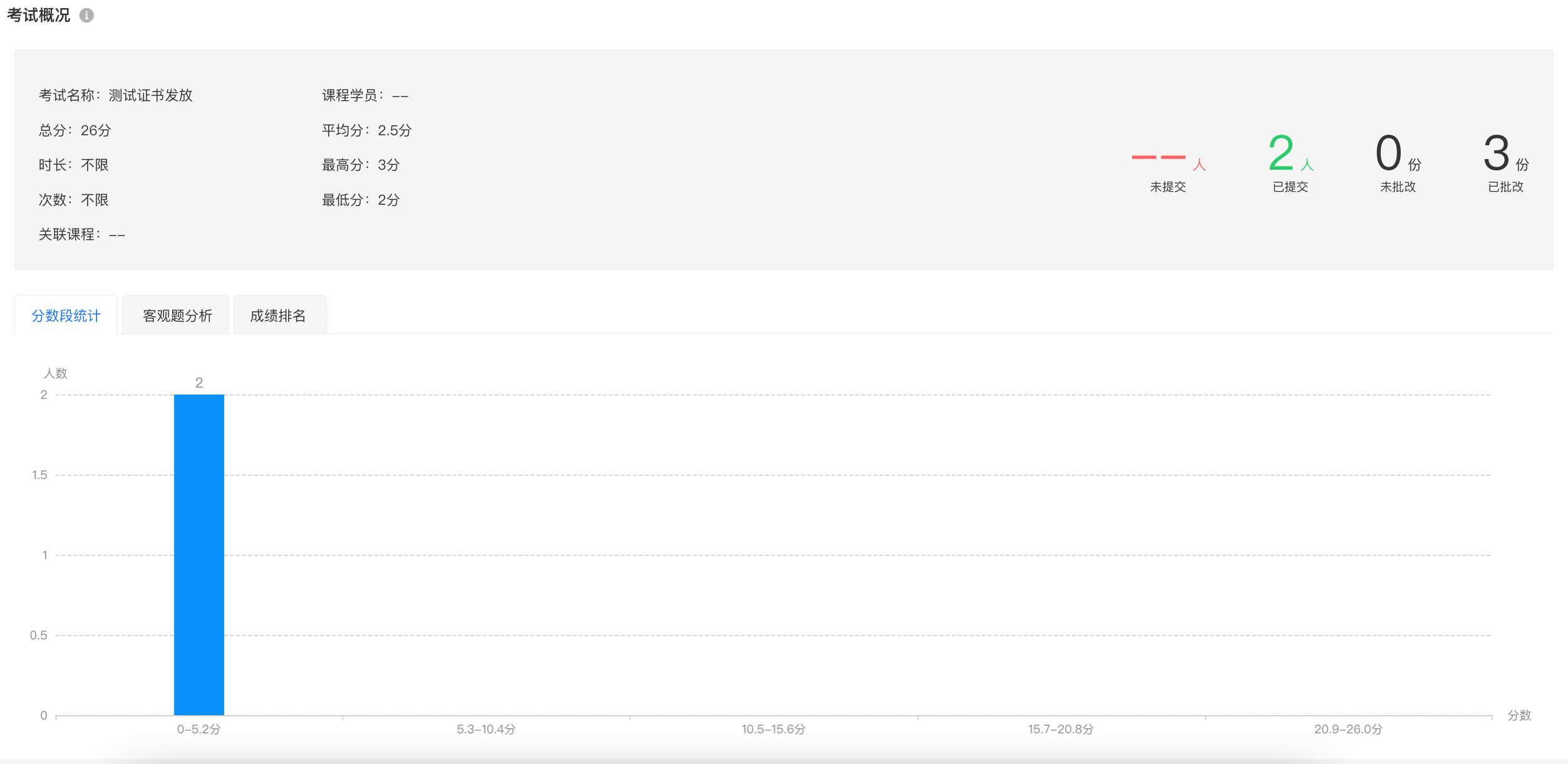
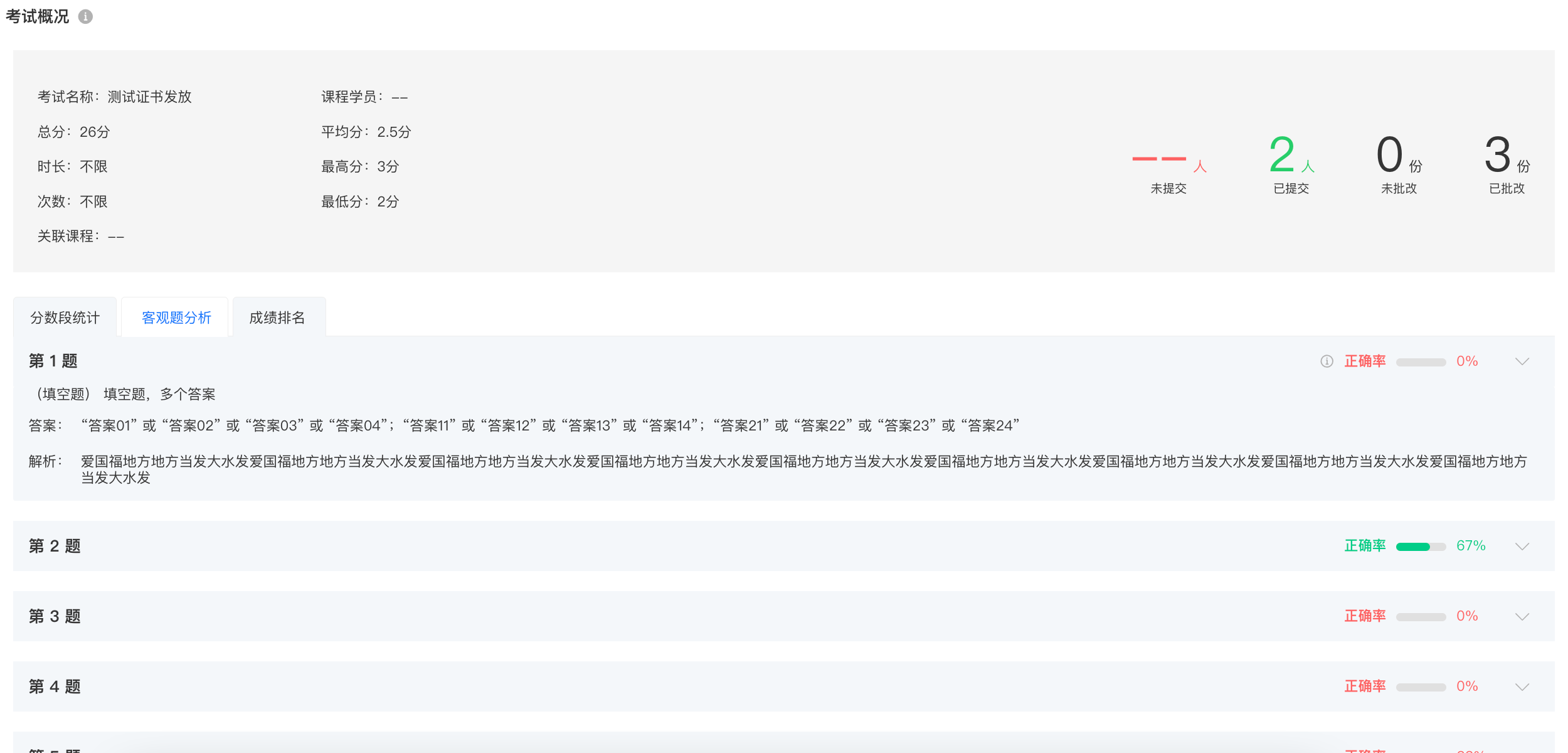
Applicable to the following three types of scenarios:
1. Through score range statistics, it is possible to determine the general level of all students.
2. Through objective question analysis, it can be seen which questions have a high error rate and which knowledge points students generally have not mastered yet, and intensive tutoring is required in the courses.
3. Through grade ranking, it is possible to identify which students have excellent performance and which ones perform poorly. Targeted tutoring is needed, or they can be recommended to take certain courses.
Can the exam be associated with a certificate?
You can set certificates in the following three ways:
1. You can set certificates on the publishing page after successfully creating a new exam.
2. In the exam list, you can select the corresponding exam and click [More] - [Set Certificate] to set it.
3. In [Certificates] - [New Certificate], select an already created exam to set the certificate.
Can the number of exam attempts for students be restricted?
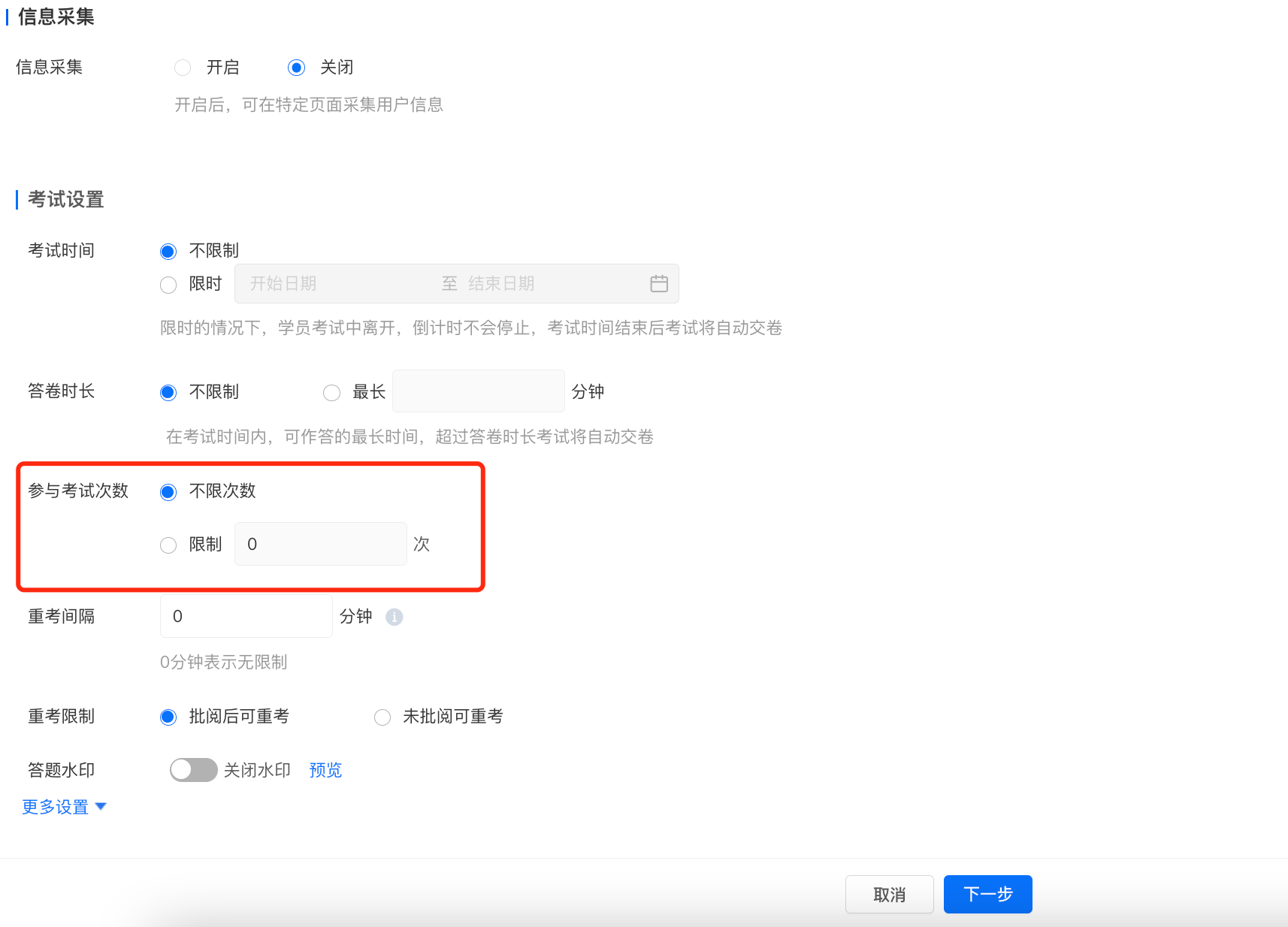
Currently, the number of exam attempts supports custom limits or no limits. When the number of exam attempts is set to more than one or unlimited, the interval time for retakes can be set.
Can an exam be associated with a course?
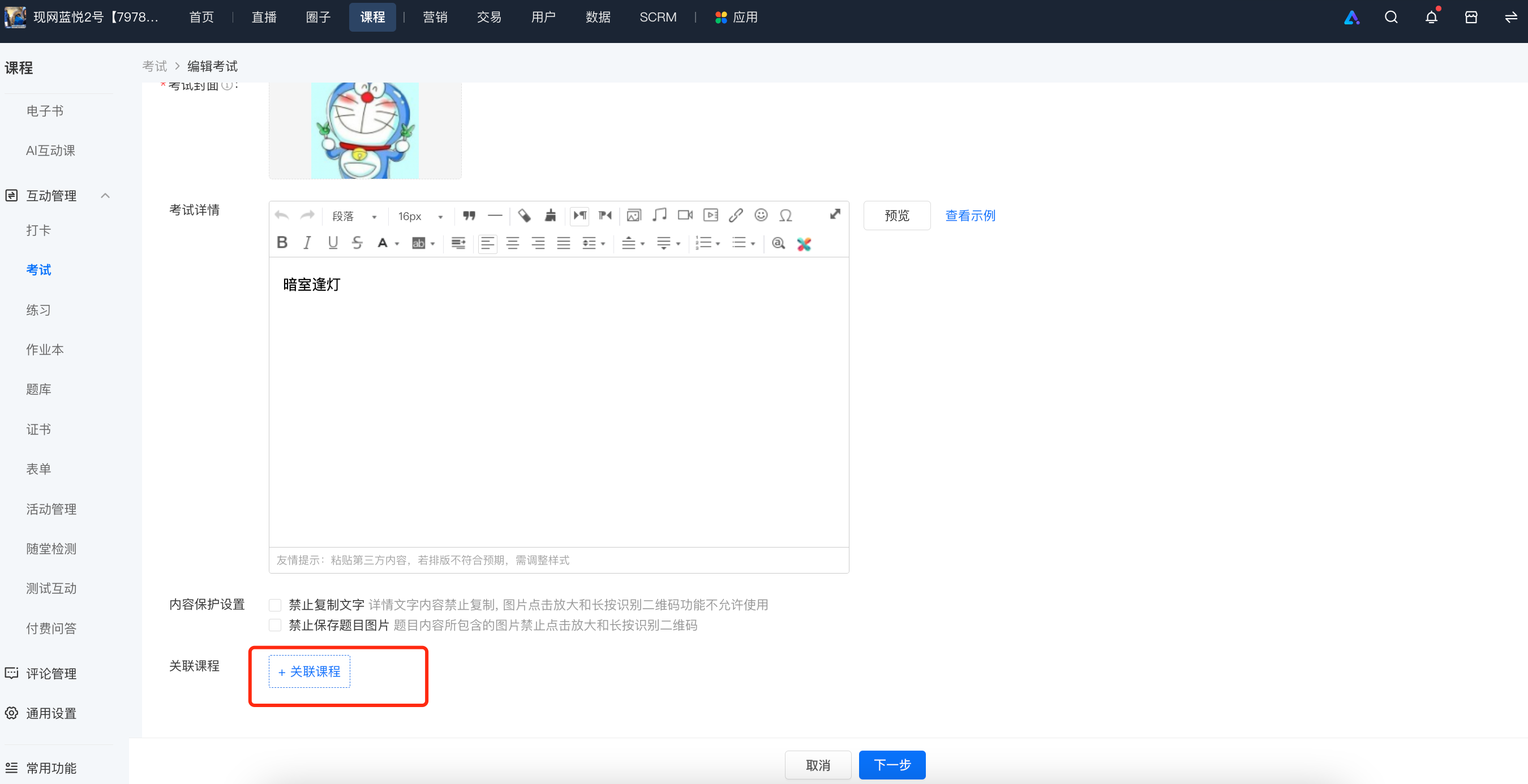
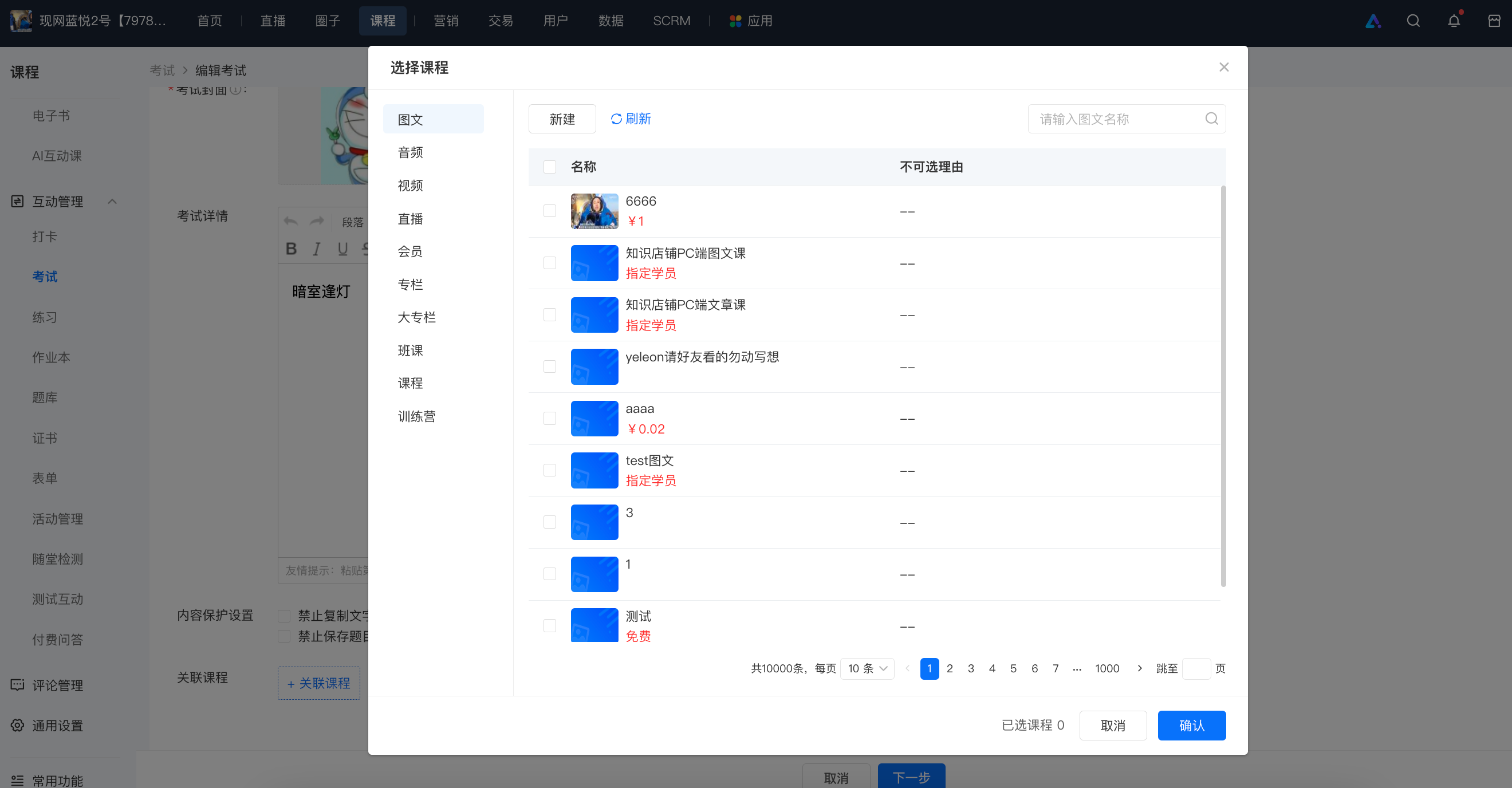
Yes, you can associate courses in the exam list. Select the corresponding exam, click [Edit] - [Basic Information] - [Associated Courses]. One exam can be associated with multiple courses.
After association, you can view it in [Classroom Interaction] on the course details page.
How to control the display time of exam answers?
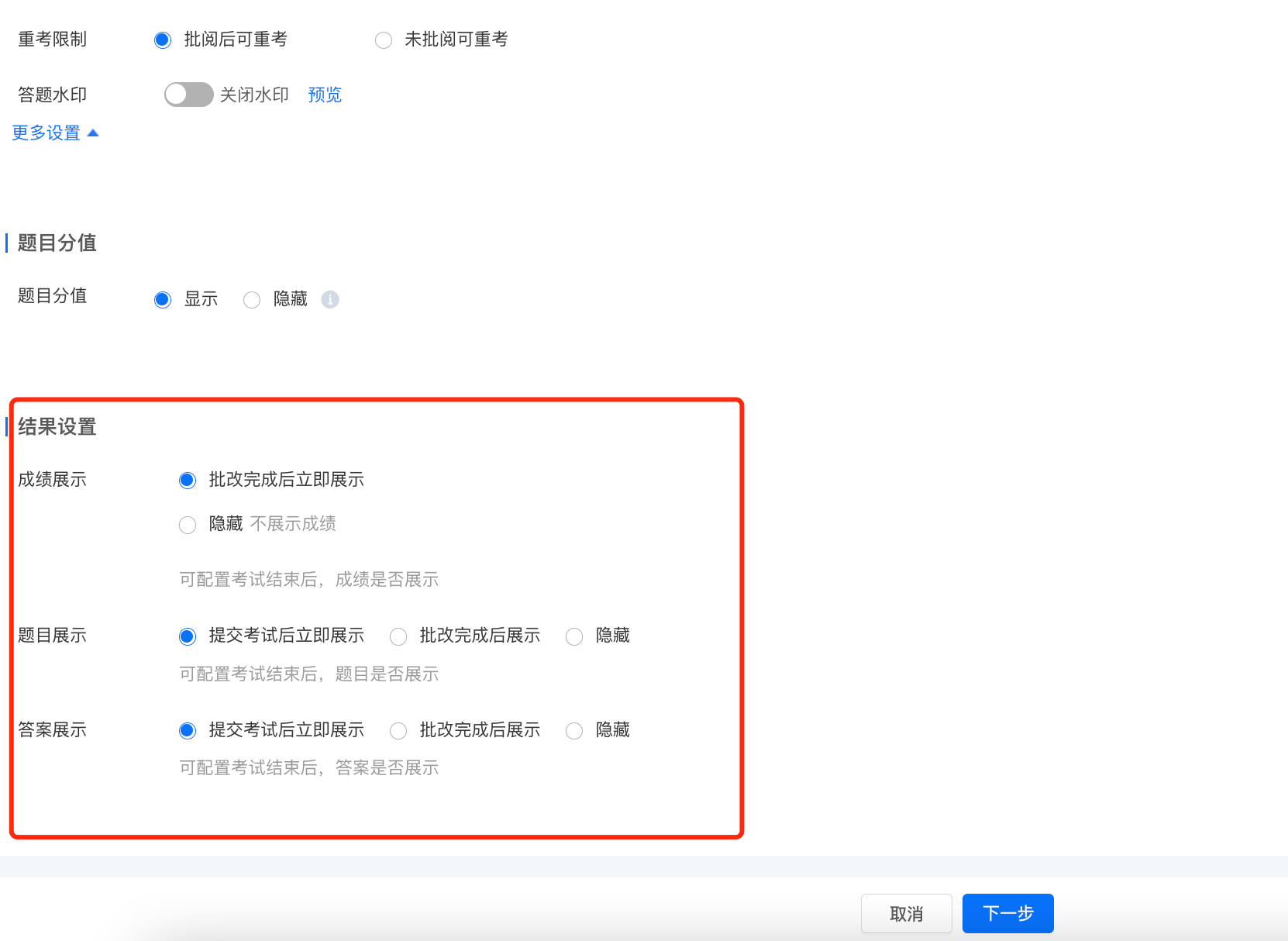
There are three answer display settings in the exam settings, namely: display immediately after submitting the exam, display after submission and grading, and hide:
1. Display immediately after submitting the examAfter the learner submits the exam, the answers and explanations for all question types will be displayed.
2. Display after submission and grading:After the learner submits the exam, only the content the learner has answered will be displayed, while the answers and explanations for all question types will be hidden. The scores for each question type will be displayed only after grading.
3. Hide:After a single learner submits the exam, they will not be able to see the reference answers and explanations at any time.
Where can I view my exam certificates?
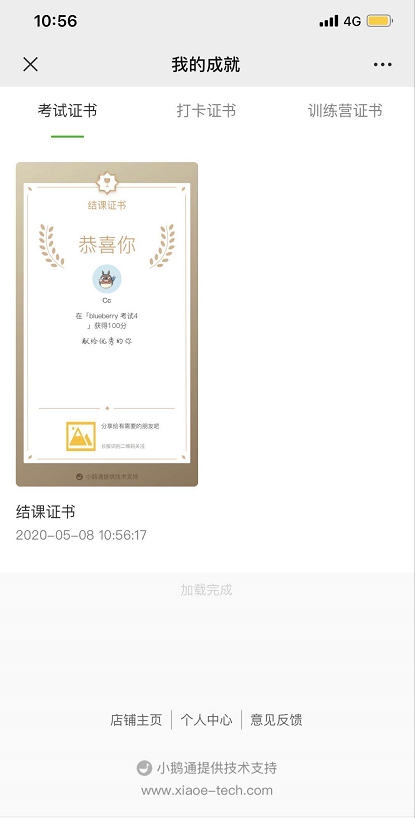
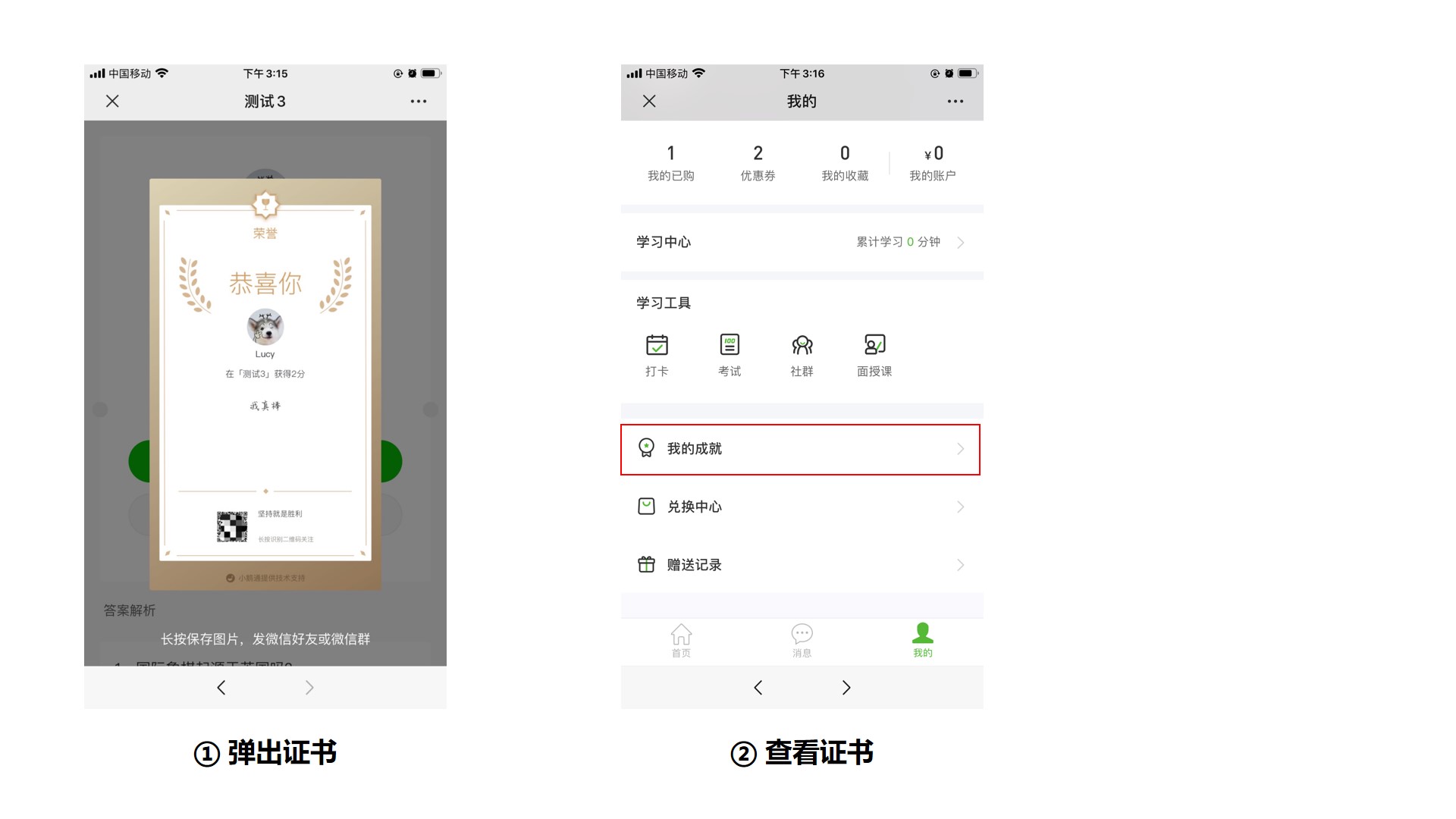
1. Students who meet the certificate issuance rules will be presented with the following course completion certificate after the exam.
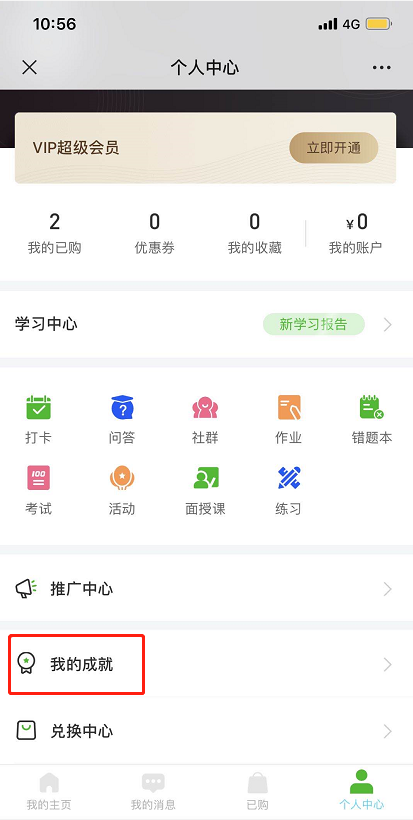
2. Students can view their certificates in [My - My Achievements].
Tutorial on Exam Usage
I. Function Introduction
The exam function is used in the scenario of detecting the learning effects of trainees during training and learning, helping trainees consolidate course knowledge. Operators can set post - course exams and quizzes for courses. Exams can consist of various types of questions, including single - choice, multiple - choice, indefinite - choice, fill - in - the - blank, Q&A, and material - based questions.
II. Purpose of Use
It is a learning tool for operators to detect users' learning effects. Operators can get feedback on learning effects through exam results and optimize subsequent courses based on the feedback.
III. Use Scenarios
A certain online store has created many courses, but after they were launched, there was no way to know whether users truly mastered the course content, and there was a lack of direction for subsequent course optimization. After using the exam function, users can take in - class exams while learning courses to consolidate knowledge. Based on their exam scores, users will study the courses more purposefully, truly improving learning effects.
IV. Operation Path
Merchant side: Desktop management console→ Courses→ Interaction Management → Exams→Create a new exam → Assemble a test paper → Publish → Grade
Trainee side (H5): Personal Center → Learning Tools → Exam List → Start the exam → Submit the test paper

V. Usage Tutorial
Step 1: Create a new exam (Management background)
On the management console, go to [Learning Assistance Tools] - [Exams] to enter the exam list management page;

Create a new exam and set the basic exam information;

Explanation of relevant settings:
1. Name: The name of the exam, such as the ** Intermediate Exam in 2020;
2. Cover image: The cover image of the exam;
3. Details: Write a concise introduction for your exam;
4. Associated courses: After associating courses, trainees can view the exam in the details of the associated courses. If no courses are associated, operators can click the share button in the list to get the relevant link and QR code to promote the exam to trainees;
5. Information collection: Trainees' information can be collected. Trainees need to fill in the information required by the merchant before they can take the exam;
6. Exam settings: The exam time, duration, number of retakes, and intervals can be set;
7. Question scores: Whether to display the scores of questions can be set
8. Result settings: Whether to display the exam scores, questions, and answers, and when to display them can be set
Step 2: Assemble a test paper (Management background)
Add a test paper. It supports creating a new test paper and selecting an existing one from the test paper library(Click to view the test paper operation tutorial)

Step 3: Publish (Management background)
After configuring the test paper, the publication time and service account notifications can be set. Click [Complete] to publish the exam;

Step 4: Grade (Management background)
① Grading of objective questions: The system will automatically grade multiple - choice, fill - in - the - blank, and true - false questions. Q&A questions need to be graded manually. (If the exam consists entirely of multiple - choice questions, the system will directly grade the exam, and users can know their scores without waiting for the operator to grade.)
② Grading of Q&A questions: Through the exam list, click the [Grading List] button to enter the grading list page. Find the trainee to be graded and click the [Grade] button to start grading. You can give scores to questions and enter corresponding comments


Trainee side (H5)

Trainee - side operations
Method 1: Exam List (e - exam Mini Program)
1. Test paper answering
Step 1: Trainees can enter the exam through the Mini Program code of the e - exam, the sharing link, the H5 floating window, or the WeChat Mini Program list. Click the [Start the exam] button to start answering the exam;


Step 2: Click on the exam to enter the details page. Click the [Start the exam] button to start answering the exam. After answering, click the [Submit the test paper] button to complete the exam.


Method 2: Exam List (H5 store)
1. Test paper answering
Step 1: Trainees can enter the exam through the sharing link of the exam or the entrance in the course details page. Click the [Start the exam] button to start answering the exam;


Step 2: Click on the exam to enter the details page. Click the [Start the exam] button to start answering the exam. After answering, click the [Submit the test paper] button to complete the exam.


Answering instructions: Trainees answer objective questions by clicking on options and answer subjective questions in text form.
2. Score viewing
Users can view their scores through [My] - [My Exams] in the store.

VI. Notes
1. Can one exam be associated with multiple courses?
One exam can be associated with multiple courses.
2. If a user exits the exam page before finishing answering the questions, will the exam time be restarted?
No, the timing starts when the user first enters the answering page.
3. If a user exits the exam page before finishing answering the questions, will the previous answering progress be retained?
The previous answering progress will be retained, and there is no need to answer the questions again.
4. After the operator grades the test paper, will the user be notified by a service account message?
There is currently no service account message notification. Users can view their scores through [My] - [My Exams] in the store.
Tutorial on Using Exam Certificates
I. Function Introduction
Instructors can customize the background and comments of exam certificates. Students who achieve high scores or meet the requirements will automatically receive exam certificates after passing the exam. They can then share and show off these certificates.
II. Purpose of Use
Enhance students' engagement with the courses and their initiative in learning. Encourage students to actively promote the exam certificates, thereby attracting traffic to the courses.
III. Use Scenarios
Merchants organize an exam and want to award certificates to outstanding students.
IV. Operation Path
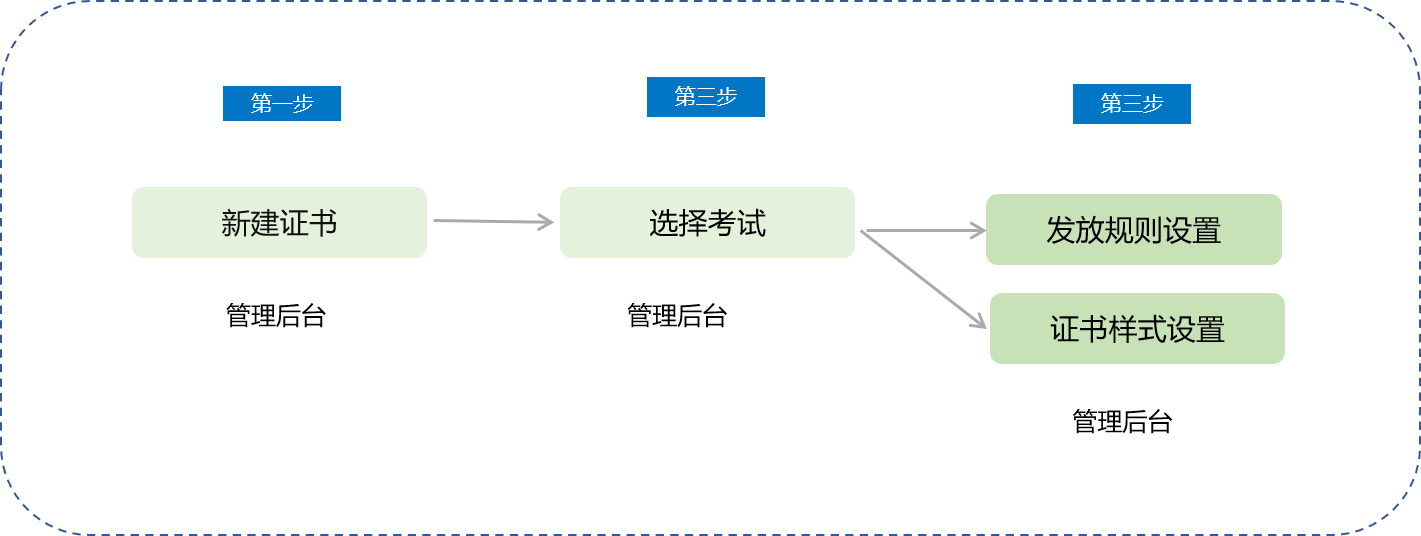
Associate an existing exam on the certificate function page:
Management Console → Courses → Interactive Management → Certificates → New Certificate → Select Exam → Certificate Settings
Configure and add certificates at the end of the exam creation process:
Management Console → Courses →Interactive Management → Exams →New Exam → Set Exam Information/Add Questions/Complete Creation → Set Certificate → Certificate Settings
Supplement the configuration and add certificates for an existing exam on the exam function page:
Management Console → Exam List → More (Set Certificate) → Certificate Settings
V. Usage Tutorial
Associate an existing exam on the certificate function page:
Configure and add certificates at the end of the exam creation process:
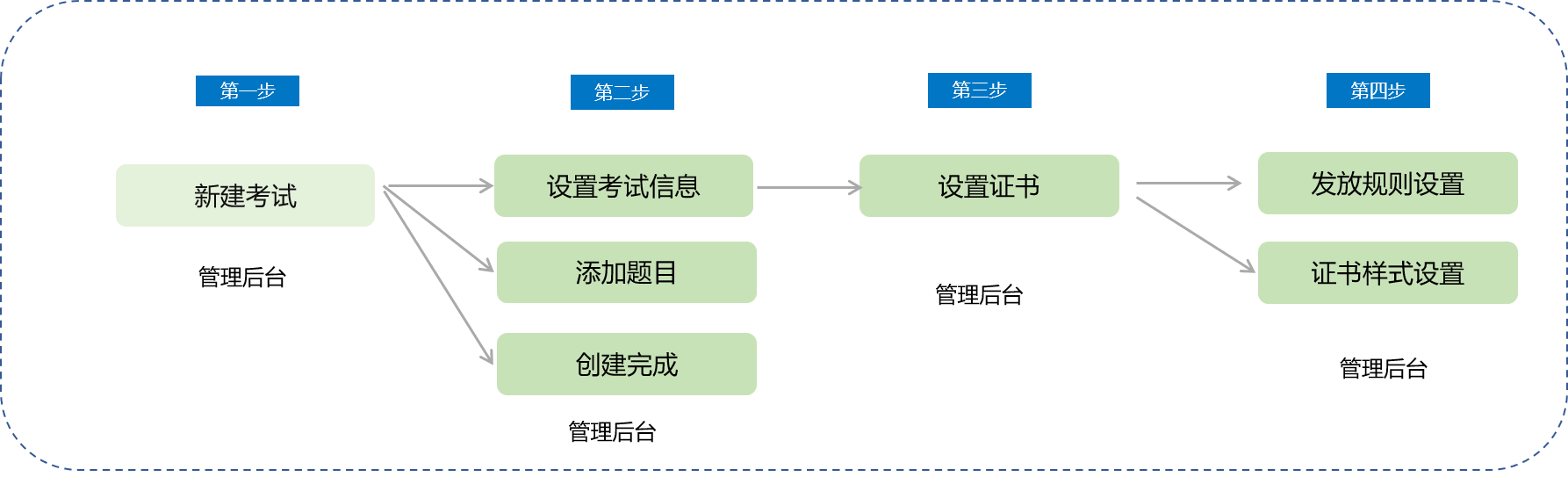
Supplement the configuration and add certificates for an existing exam on the exam function page:
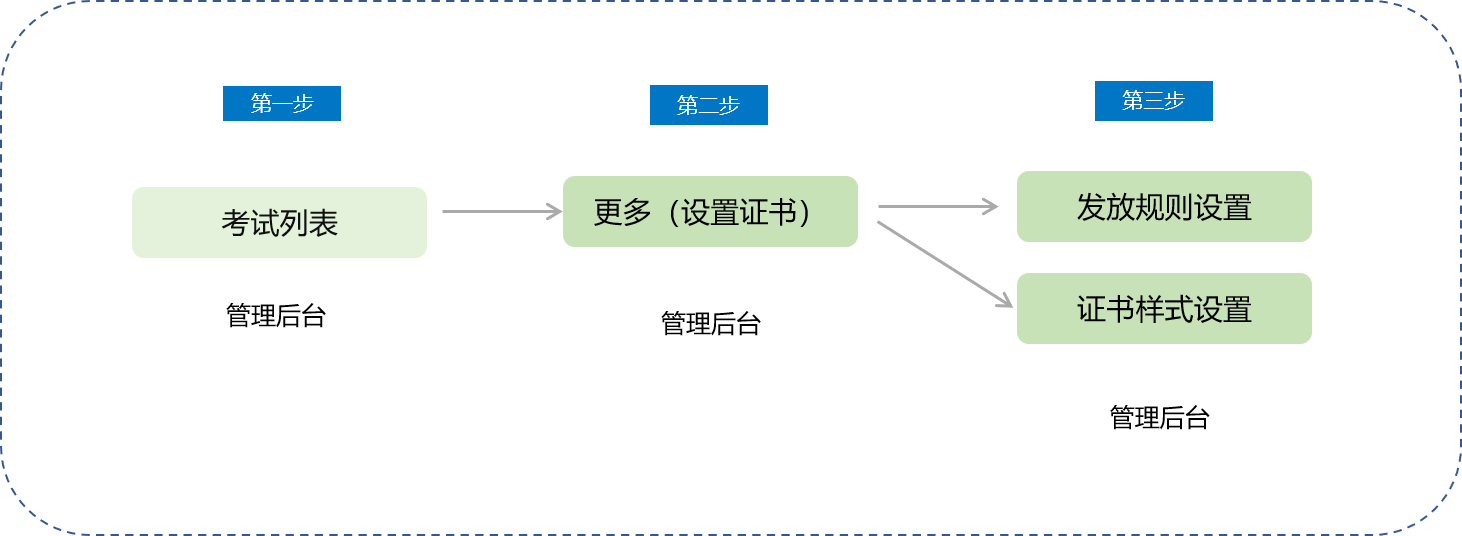
Method 1:
Step 1: Enter the certificate management page through the [Learning Tools] - [Certificates] entry on the management console, and click the [New Certificate] button.
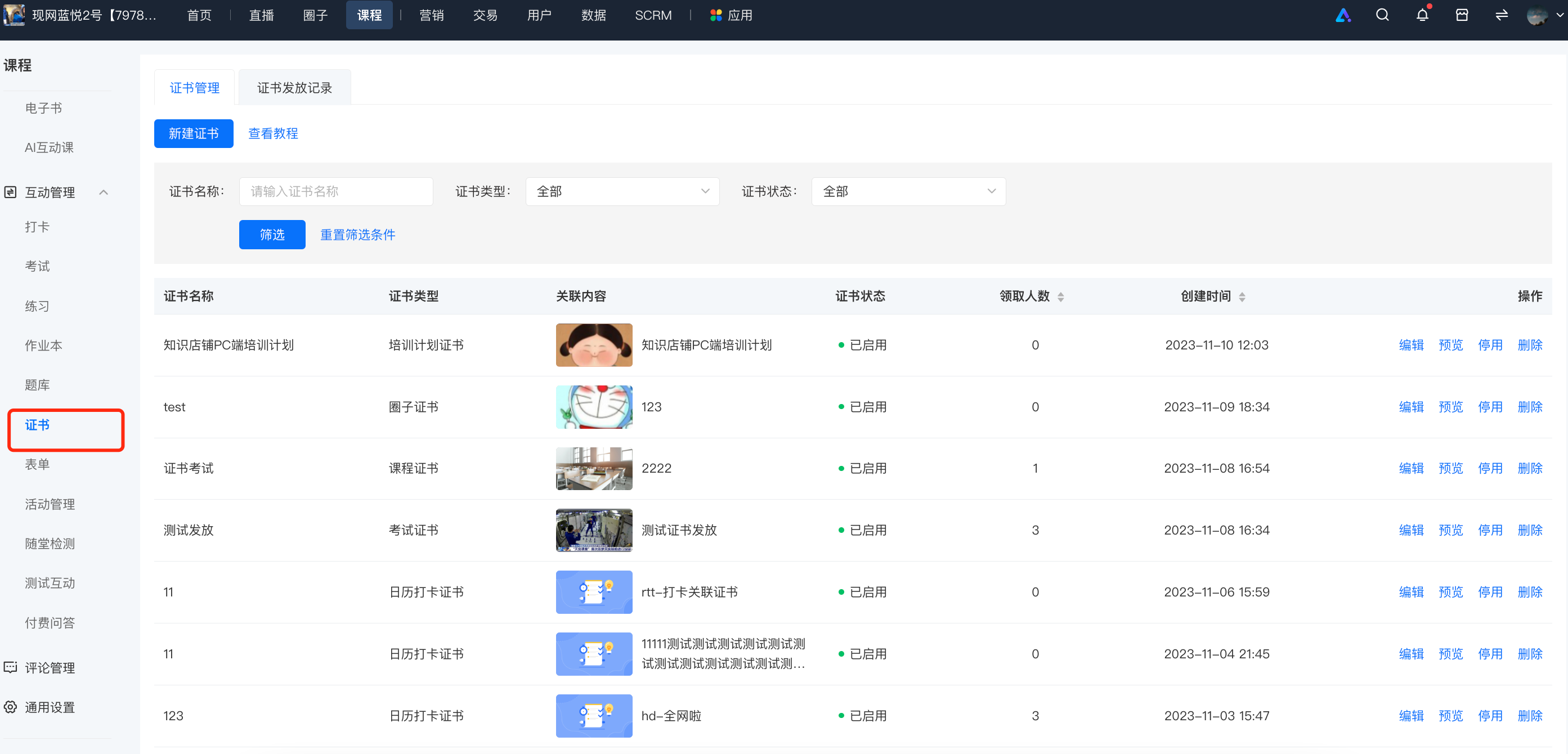
Step 2: Create a new exam certificate.
① Associate an exam and set the rules for issuing certificates. Certificates will only be issued when students' exam scores are higher than a certain score.
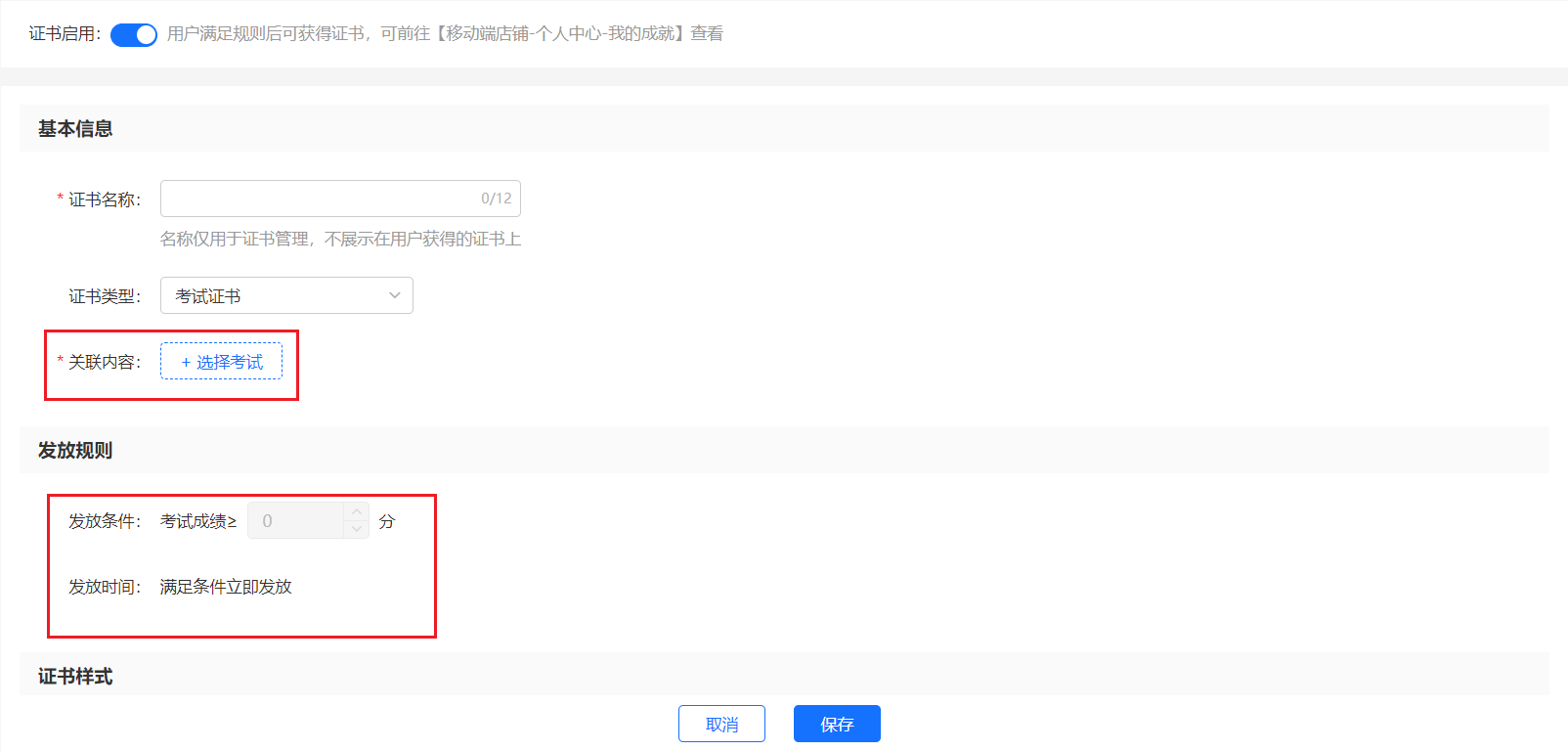
1. Enable the exam certificate switch: You can choose whether to issue certificates after the exam ends.
2. Exam score: You can choose the minimum score required for students to obtain the certificate.
3. Certificate name: The name of the certificate, for example, ** Honor Certificate in 2020;
Certificate background: The background of the certificate. You can use the default background or upload a custom image background;
4. Score settings: You can set different comments for certificates based on different score ranges;
5. QR code settings: You can upload the course QR code for traffic attraction after sharing;
6. Sharing message: Limited to within 20 characters, you can briefly introduce the course content.
Method 2:
At the last step of creating an exam, you can conveniently go directly to the certificate setting process. Click the [Set Certificate] button to jump to the certificate setting page (refer to the certificate settings in Method 1).
Method 3:
After an exam is created, or add a certificate to an exam created previously.
Through the [Courses] -[Interactive Management] -[Exams] entry on the management console, you can enter the exam management page to view previously created exams. Click [More] - [Set Certificate] to enter the certificate setting interface, and then start setting according to the certificate setting process introduced in Method 1.
VI. C - end User Display Screen
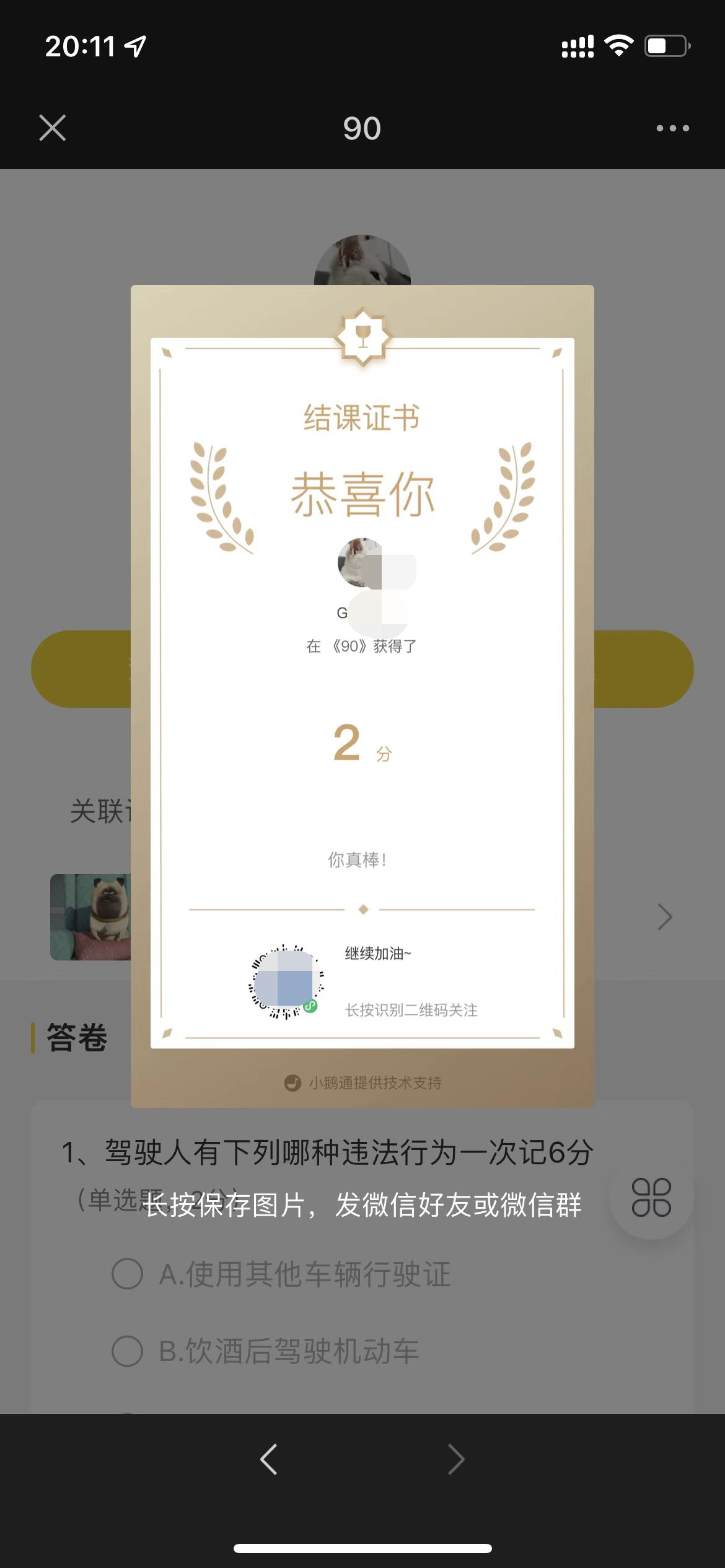
View all obtained certificates through [Personal Center] → [My Achievements];