# What should I do if the video fails to play or the transcoding takes too long to complete?

<div data-elink-language-switch="1" id="bkmrk-%E4%B8%AD%E6%96%87" style="border:1px solid #d6d9de;border-radius:6px;padding:10px 12px;margin:0 0 18px 0;background:#f8fafc;font-size:14px;">[中文](/books/250cf/page/07cdf)</div><span style="font-size:14px;font-family:arial, helvetica, sans-serif;">To provide students with a better course learning experience, we aim to make course videos clearer. Currently, elink supports video uploads of up to 5GB, with a maximum 1080p ultra - high - definition transcoding (1920x1080 resolution), and is compatible with various mainstream video formats such as mp4, avi, wmv, mov, flv, rmvb, 3gp, m4v, and mkv.</span>

<span style="font-size:14px;font-family:arial, helvetica, sans-serif;">  
</span>

<span style="font-size:14px;font-family:arial, helvetica, sans-serif;"></span>

<span style="font-family:arial, helvetica, sans-serif;color:rgb(51,51,51);letter-spacing:0px;vertical-align:baseline;font-size:14px;">Through testing and research, some merchants have reported the following video issues:</span>

<span style="font-family:arial, helvetica, sans-serif;font-size:14px;">**<span style="font-family:arial, helvetica, sans-serif;color:rgb(51,51,51);letter-spacing:0px;vertical-align:baseline;">Videos:</span>**<span style="font-family:arial, helvetica, sans-serif;color:rgb(51,51,51);letter-spacing:0px;vertical-align:baseline;"></span><span style="font-family:arial, helvetica, sans-serif;font-weight:bold;color:rgb(51,51,51);letter-spacing:0px;vertical-align:baseline;">Black screen, freezing, audio - video out of sync, blurry video, and excessively long transcoding time</span></span>

<span style="font-family:arial, helvetica, sans-serif;font-size:14px;"><span style="font-family:arial, helvetica, sans-serif;font-weight:bold;color:rgb(51,51,51);letter-spacing:0px;vertical-align:baseline;">  
</span></span>

<span style="font-family:arial, helvetica, sans-serif;font-size:14px;"><span style="font-family:arial, helvetica, sans-serif;color:rgb(51,51,51);letter-spacing:0px;vertical-align:baseline;">Most of these issues are due to problems in the original recorded files,</span><span style="font-family:arial, helvetica, sans-serif;font-weight:bold;color:rgb(51,51,51);letter-spacing:0px;vertical-align:baseline;">such as over - compression, low transcoding bitrate, outdated video formats, damaged recorded files, and only changing the file extension without actually converting the format when changing the file format.</span><span style="font-family:arial, helvetica, sans-serif;color:rgb(51,51,51);letter-spacing:0px;vertical-align:baseline;">elink recommends the following video transcoding solutions for your reference:</span></span>

<span style="font-family:arial, helvetica, sans-serif;font-size:15px;color:rgb(51,51,51);letter-spacing:0px;vertical-align:baseline;">  
</span>

<span style="font-family:arial, helvetica, sans-serif;font-size:14px;"><span style="font-family:arial, helvetica, sans-serif;">1. </span><span style="font-family:arial, helvetica, sans-serif;color:rgb(51,51,51);letter-spacing:0px;vertical-align:baseline;">Record videos using eLive for a better playback experience;</span></span>

<span style="color:rgb(51,51,51);font-size:15px;letter-spacing:0px;vertical-align:baseline;font-family:arial, helvetica, sans-serif;"> <span style="color:rgb(51,51,51);letter-spacing:0px;vertical-align:baseline;font-family:arial, helvetica, sans-serif;font-size:14px;">\[Help Center\] - \[</span></span>[<span style="font-size:15px;letter-spacing:0px;vertical-align:baseline;font-family:arial, helvetica, sans-serif;"><span style="letter-spacing:0px;vertical-align:baseline;font-family:arial, helvetica, sans-serif;font-size:14px;"><span style="font-size:14px;font-family:arial, helvetica, sans-serif;letter-spacing:0px;vertical-align:baseline;background-color:rgb(255,255,255);">How to Record and Publish Video Courses Using eLive</span></span></span>](https://helpcenter.xiaoe-tech.com/#/problem/detail?document_id=doc_655ac1523a468_fzRdb)<span style="color:rgb(51,51,51);font-size:15px;letter-spacing:0px;vertical-align:baseline;font-family:arial, helvetica, sans-serif;"><span style="color:rgb(51,51,51);letter-spacing:0px;vertical-align:baseline;font-family:arial, helvetica, sans-serif;font-size:14px;"><span style="font-size:14px;font-family:arial, helvetica, sans-serif;letter-spacing:0px;vertical-align:baseline;background-color:rgb(255,255,255);color:rgb(112,48,160);"></span><span style="font-family:arial, helvetica, sans-serif;letter-spacing:0px;vertical-align:baseline;color:rgb(53,53,53);background-color:rgb(255,255,255);">\]</span></span></span><span style="color:rgb(51,51,51);letter-spacing:0px;font-family:arial, helvetica, sans-serif;font-size:14px;">;</span>

<span style="color:rgb(51,51,51);letter-spacing:0px;font-family:arial, helvetica, sans-serif;font-size:14px;">  
</span>

<span style="font-family:arial, helvetica, sans-serif;font-size:14px;"><span style="font-family:arial, helvetica, sans-serif;">2. </span><span style="font-family:arial, helvetica, sans-serif;color:rgb(51,51,51);letter-spacing:0px;vertical-align:baseline;">Use Format Factory (recommended),</span><span style="font-family:PingFangSC;color:rgb(53,53,53);background:rgb(255,255,255);letter-spacing:0px;vertical-align:baseline;">Windows tools such as Video Editing Expert</span><span style="font-family:arial, helvetica, sans-serif;color:rgb(51,51,51);letter-spacing:0px;vertical-align:baseline;">for transcoding (format conversion).</span></span>

  
<span style="font-size:14px;"></span>

<span style="font-size:17px;">**How to Transcode (Convert Format) and Compress Videos While Maintaining Clarity**</span>

<span style="font-size:17px;">  
</span>

**<span style="font-size:14px;">I. Choose Appropriate Editing and Transcoding Software</span>**

<span style="font-size:14px;">For video editing and transcoding: Commonly used Windows software such as Format Factory and Video Editing Expert is recommended. Download address:[http://www.pcgeshi.com/](http://www.pcgeshi.com/)</span>

**<span style="font-size:14px;">II. Ensure the Video Bitrate</span>**

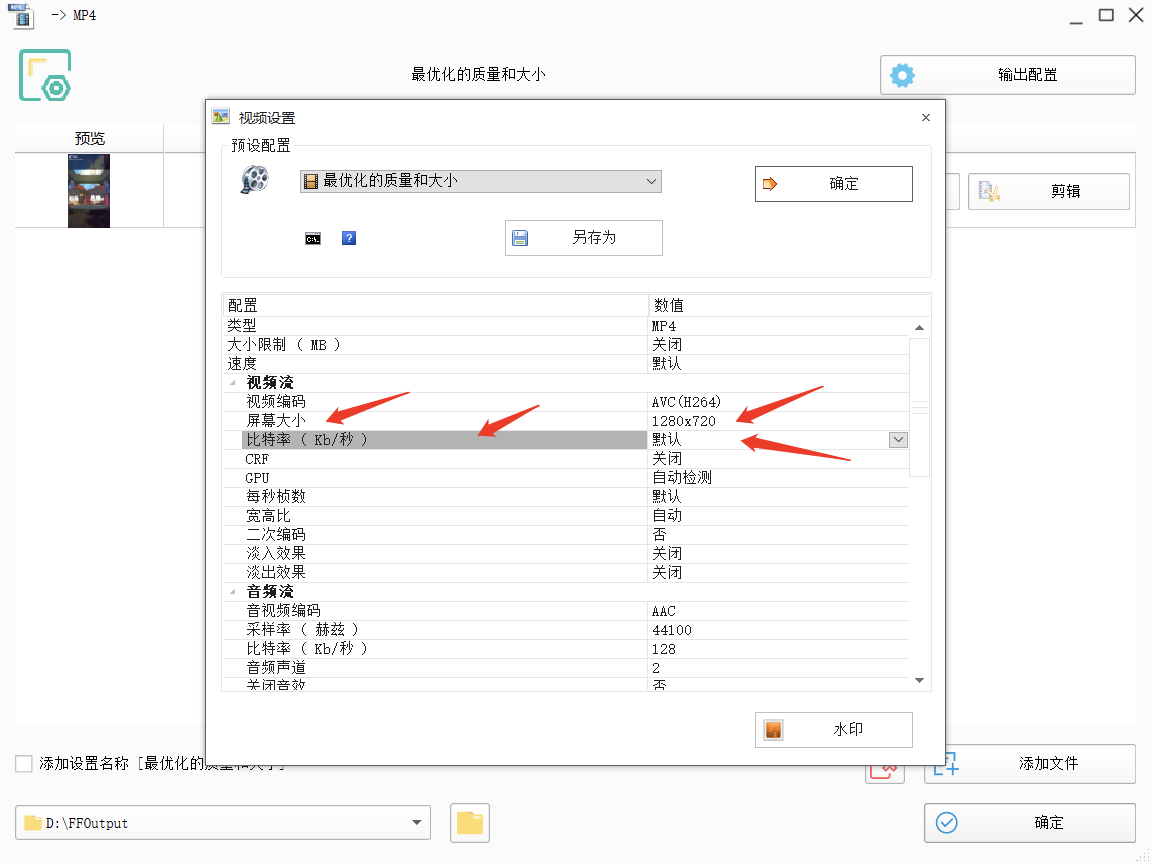
<span style="font-size:14px;">Through testing, the rule that 'at a fixed resolution, the higher the bitrate, the higher the clarity' has been verified. During the process of transcoding and compressing videos, if you have high requirements for clarity, it is recommended to choose a bitrate of 1000 or above. Currently, 'Format Factory' can support a relatively high bitrate. After video transcoding and format conversion, there is almost no obvious difference in clarity.</span>

<span style="font-size:14px;">  
</span>

**<span style="font-size:14px;">III. Choose the Appropriate Video Format</span>**

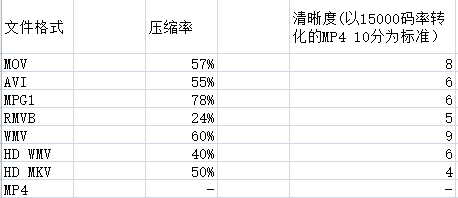
<span style="font-size:14px;">For the final video format, it is recommended to choose the MP4 or WMV format, which can ensure a low compression ratio (small video size) but high clarity (close to the original video).</span>

<span style="font-size:14px;">  
</span>

<span style="font-size:14px;">![1.png](https://wechatapppro-1252524126.file.myqcloud.com/help_document/image/ueditor/16884400_1702260165.png ".png")</span>

<span style="font-size:14px;">Clarity Reference Diagram</span>

<span style="font-size:14px;">  
</span>

**<span style="font-size:14px;">IV. Ensure the Video Resolution</span>**

<span style="font-size:14px;">Resolution has the greatest impact on video size and clarity. If you want high - definition video playback (720p), make sure to choose a 1280x720 resolution during the transcoding and compression process.</span>

<span style="font-size:14px;">  
</span>

**<span style="font-size:14px;">V. Control the Video Size</span>**

<span style="font-size:14px;">If the original video is extremely large (e.g., 6GB), it is recommended to split it into several course videos and upload them separately. elink supports single - file video uploads of up to 5GB. You can also choose a lower resolution and bitrate during the transcoding and compression process to reduce the video size for a single upload, but the clarity will be affected.</span>

<span style="font-size:14px;">Software Operation Process (Taking Format Factory as an Example):</span>

<span style="font-size:14px;">  
</span>

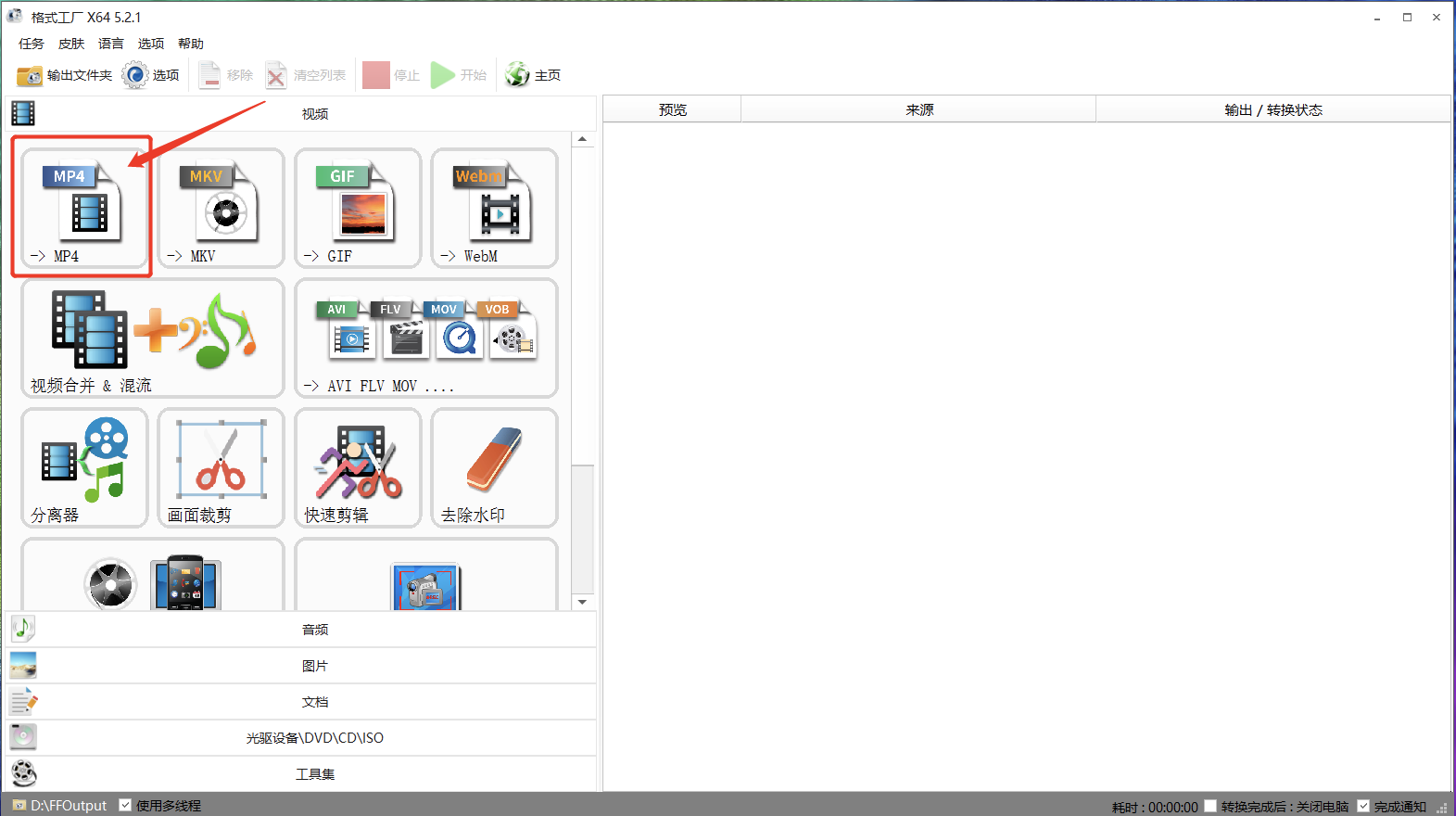
<span style="font-size:14px;">① Click 'Output as MP4'</span>

<span style="font-size:14px;">![2.png](https://wechatapppro-1252524126.file.myqcloud.com/help_document/image/ueditor/40198700_1702260165.png ".png")</span>

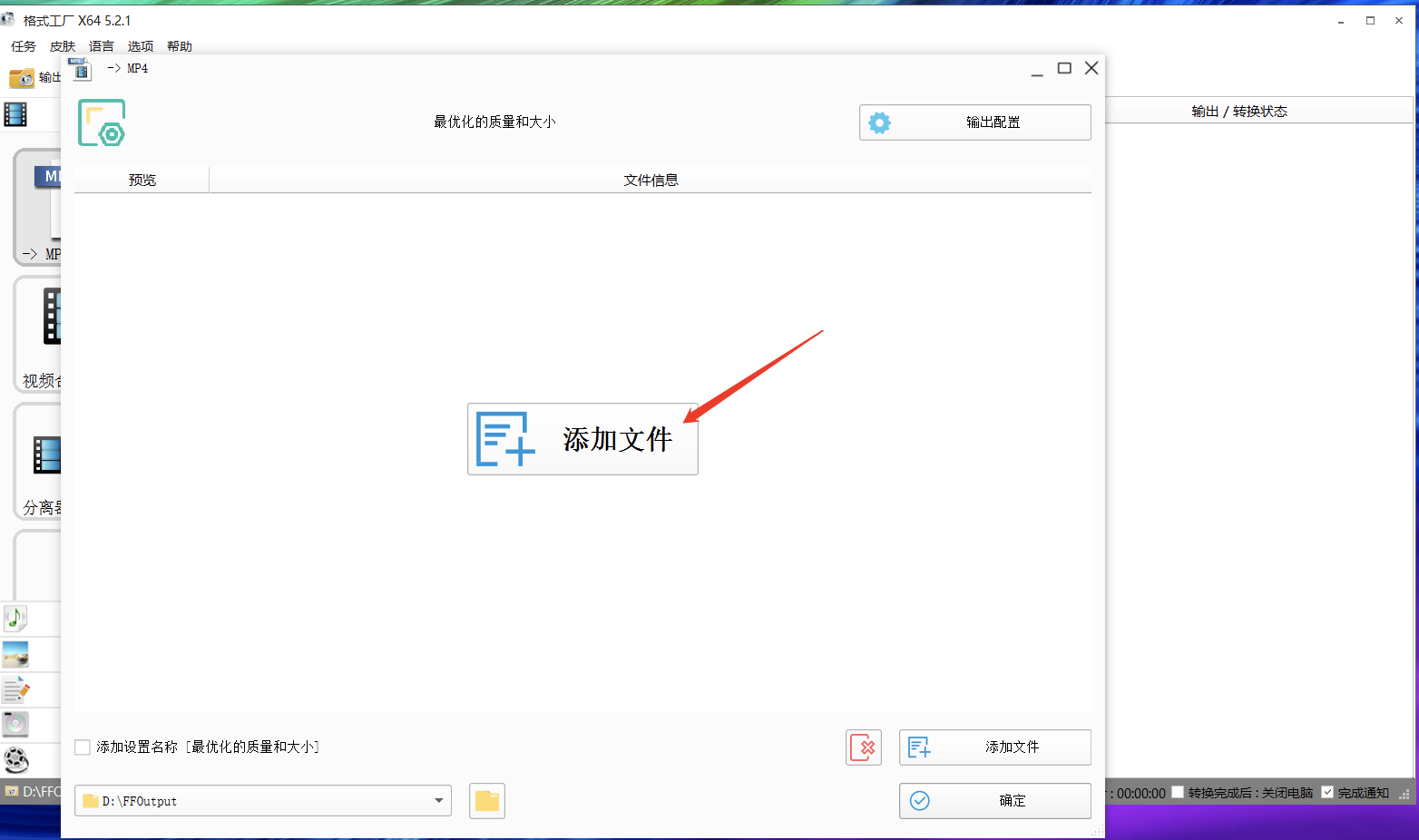
<span style="font-size:14px;">② Click 'Add Files'</span>

<span style="font-size:14px;">![3.png](https://wechatapppro-1252524126.file.myqcloud.com/help_document/image/ueditor/53535300_1702260165.png ".png")</span>

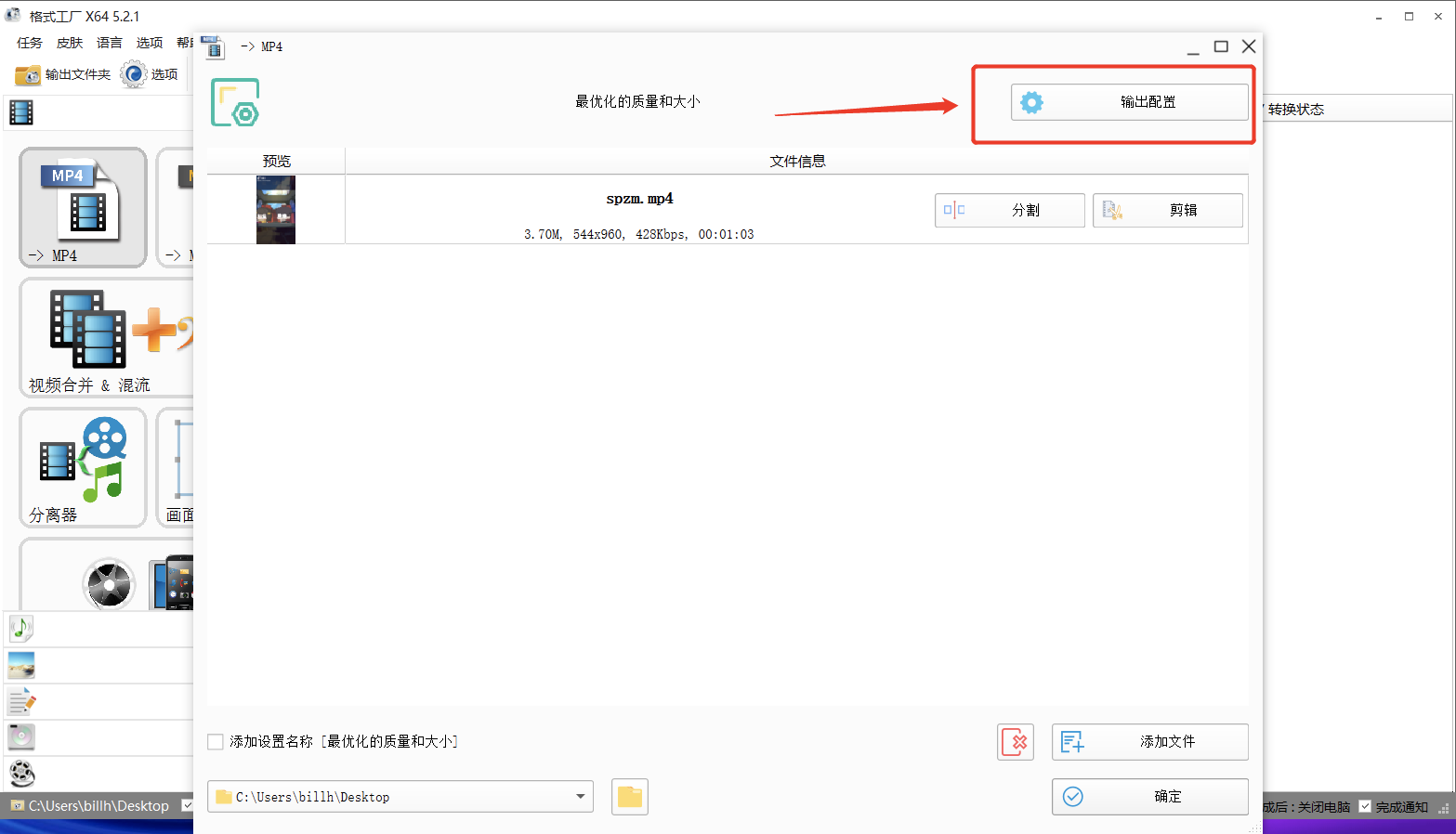
<span style="font-size:14px;">③ Click 'Output Configuration'</span>

<span style="font-size:14px;">![4.png](https://wechatapppro-1252524126.file.myqcloud.com/help_document/image/ueditor/72416300_1702260165.png ".png")</span>

<span style="font-size:14px;">④ Set the video, change the bitrate and screen size, and click 'OK'.</span>

<span style="font-size:14px;">![5.png](https://wechatapppro-1252524126.file.myqcloud.com/help_document/image/ueditor/85328400_1702260165.png ".png")</span>

<span style="font-size:14px;">  
</span>

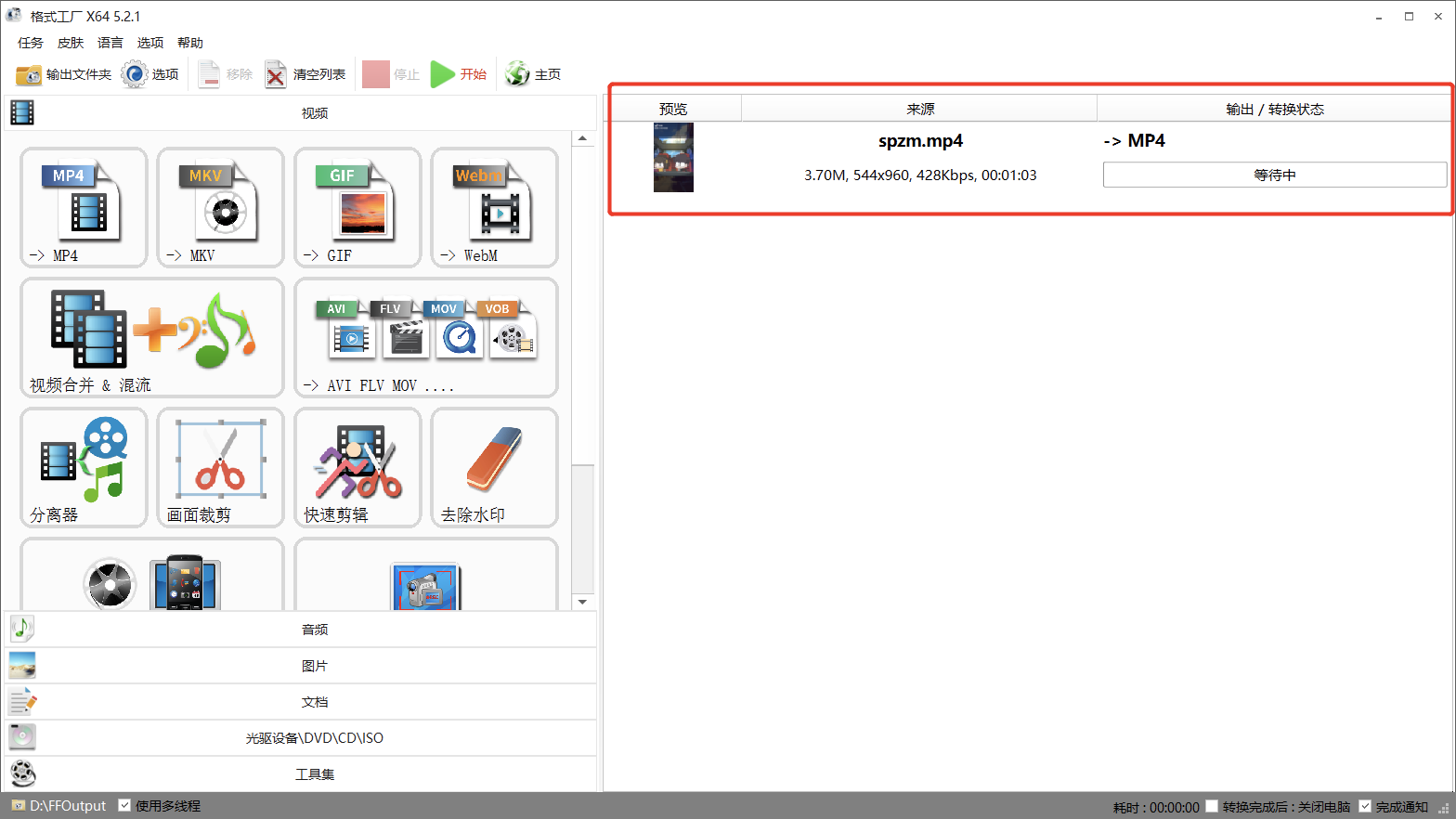
<span style="font-size:14px;">⑤ You can see that the file is being converted. Just wait for the transcoding to succeed.</span>

<span style="font-size:14px;">![6.png](https://wechatapppro-1252524126.file.myqcloud.com/help_document/image/ueditor/98723900_1702260165.png ".png")</span>

<span style="font-size:14px;">  
</span>

<span style="font-size:14px;">  
</span>

<span style="font-size:17px;">**Upload the Processed Video to elink**</span>

<span style="font-size:14px;">Once the video is processed, you can upload it to elink. It is recommended that you play the video on a mobile device. If it does not meet your requirements, you can check the size of the original video and the processing steps.</span>