# Tutorial on Batch Operations for Courses
[中文](/books/250cf/page/68ce1)
**I. Feature Introduction**
Provide merchants with the ability to create and manage courses in batches. Merchants can create audio, video, and live courses in batches, and perform operations such as batch publishing, unpublishing, and deletion of courses.
**II. Purpose of Use**
Improve the efficiency of merchants in creating and managing courses.
**III. Operation Path**
Merchant side: Merchant backend → Course management → Course list → Batch creation, Batch operations
**IV. Usage Tutorial**
**(1) Batch creation of audio and video**
1. On the audio (video) course list, merchants can click the “Batch new” button above to enter the batch creation page for audio (video) courses.
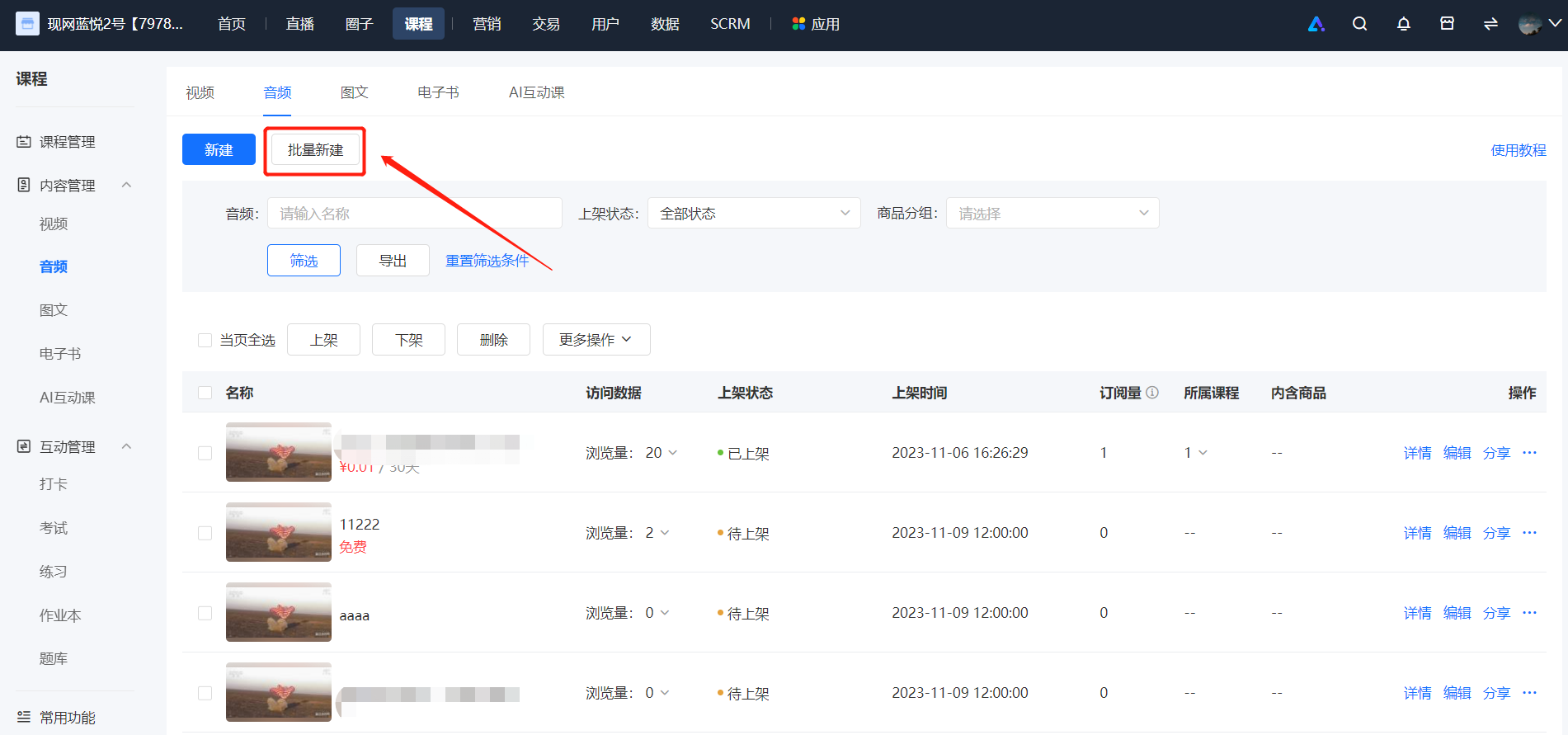
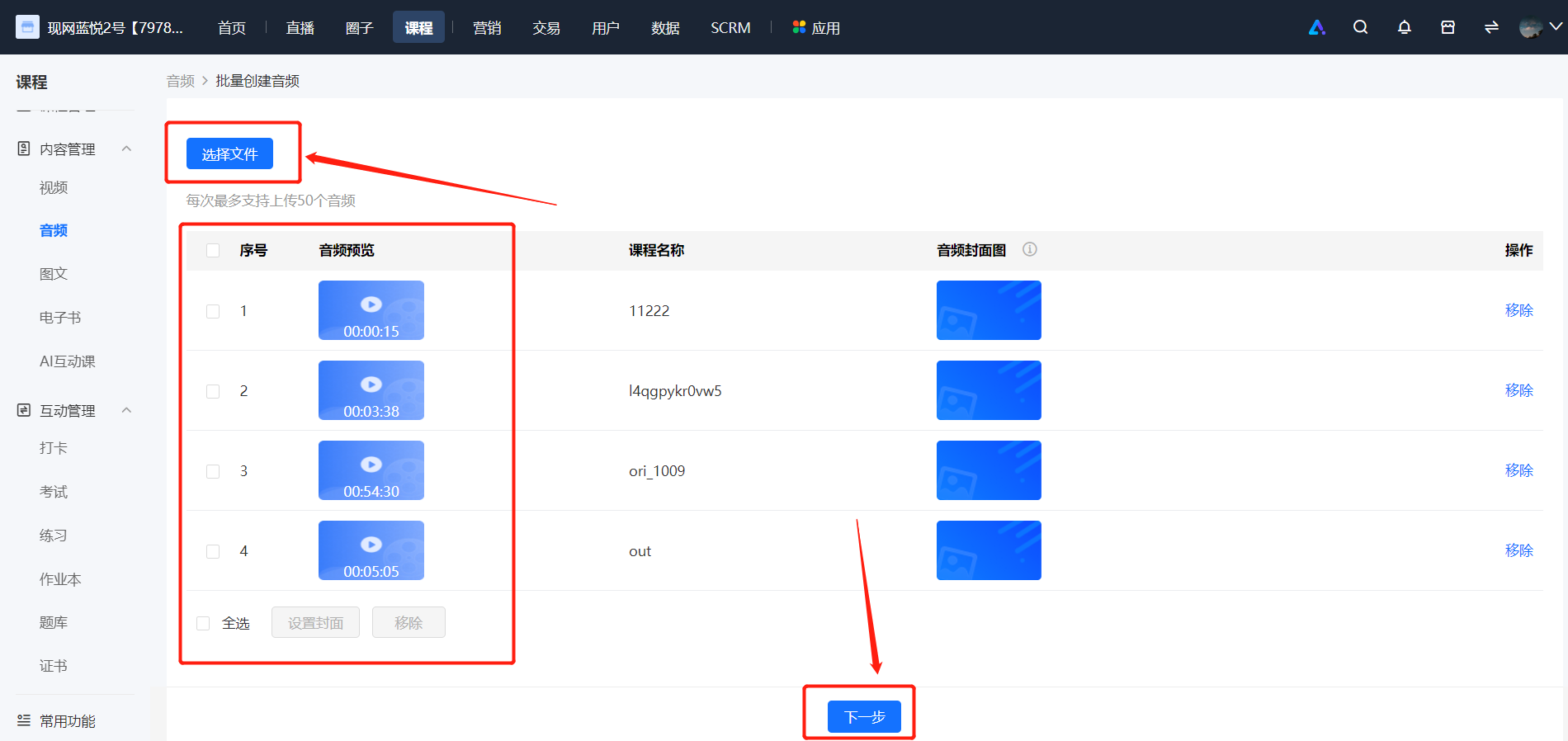
2. Batch creation of audio (video) is divided intotwo steps:
① 【Upload files】: Upload audio (video) files and set the corresponding course names (the file names are used by default) and course covers. A maximum of 50 courses can be created in batch each time.
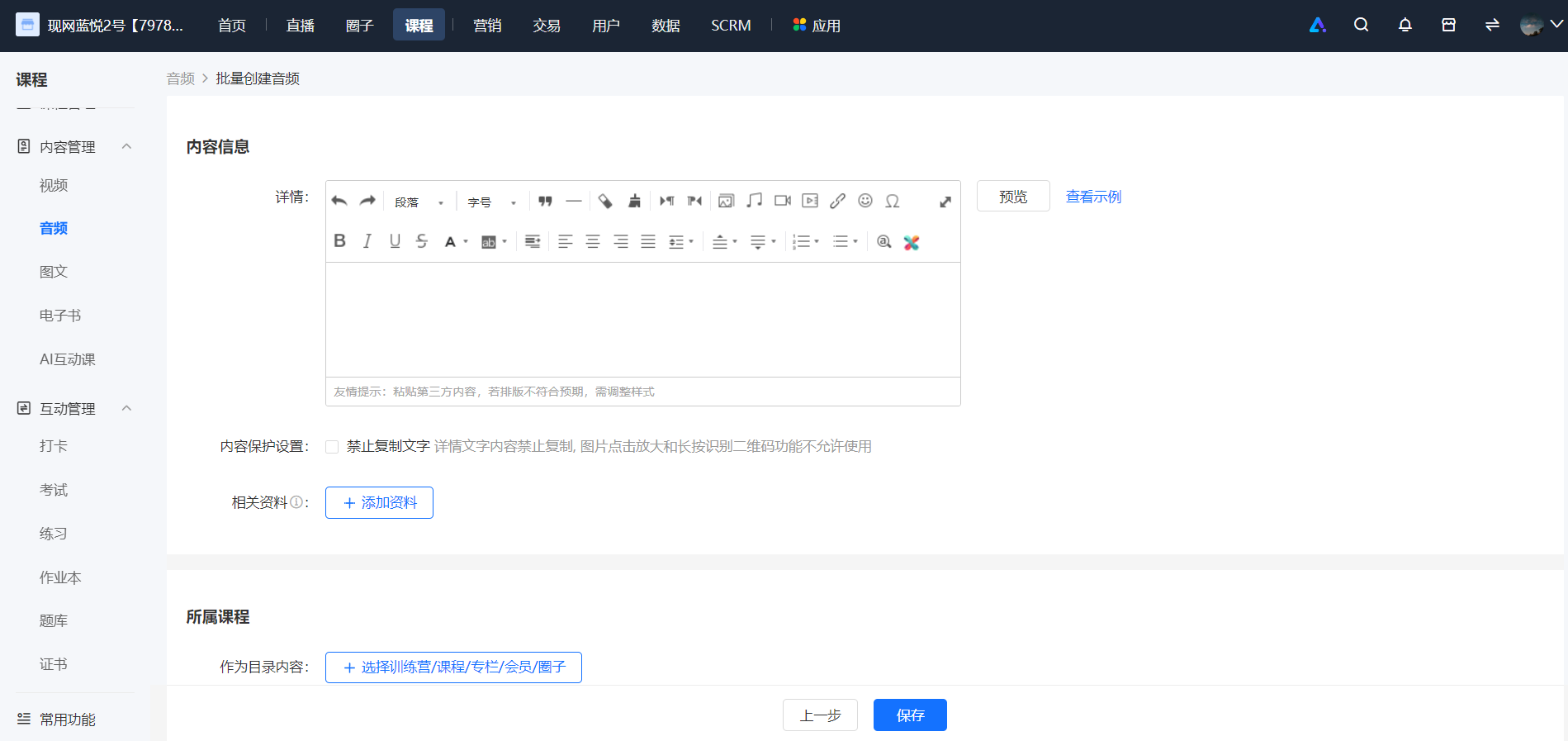
② 【Batch course settings】: After uploading, click “Next”. In this step, other information for these courses (such as content information and product information) can be set uniformly. Click “Save” after setting to start batch creation.
3. After starting batch creation, the course list will be displayed, showing the courses that have been created (batch creation takes some time. You can refresh the page later to view).
**(2) Batch creation of live courses**
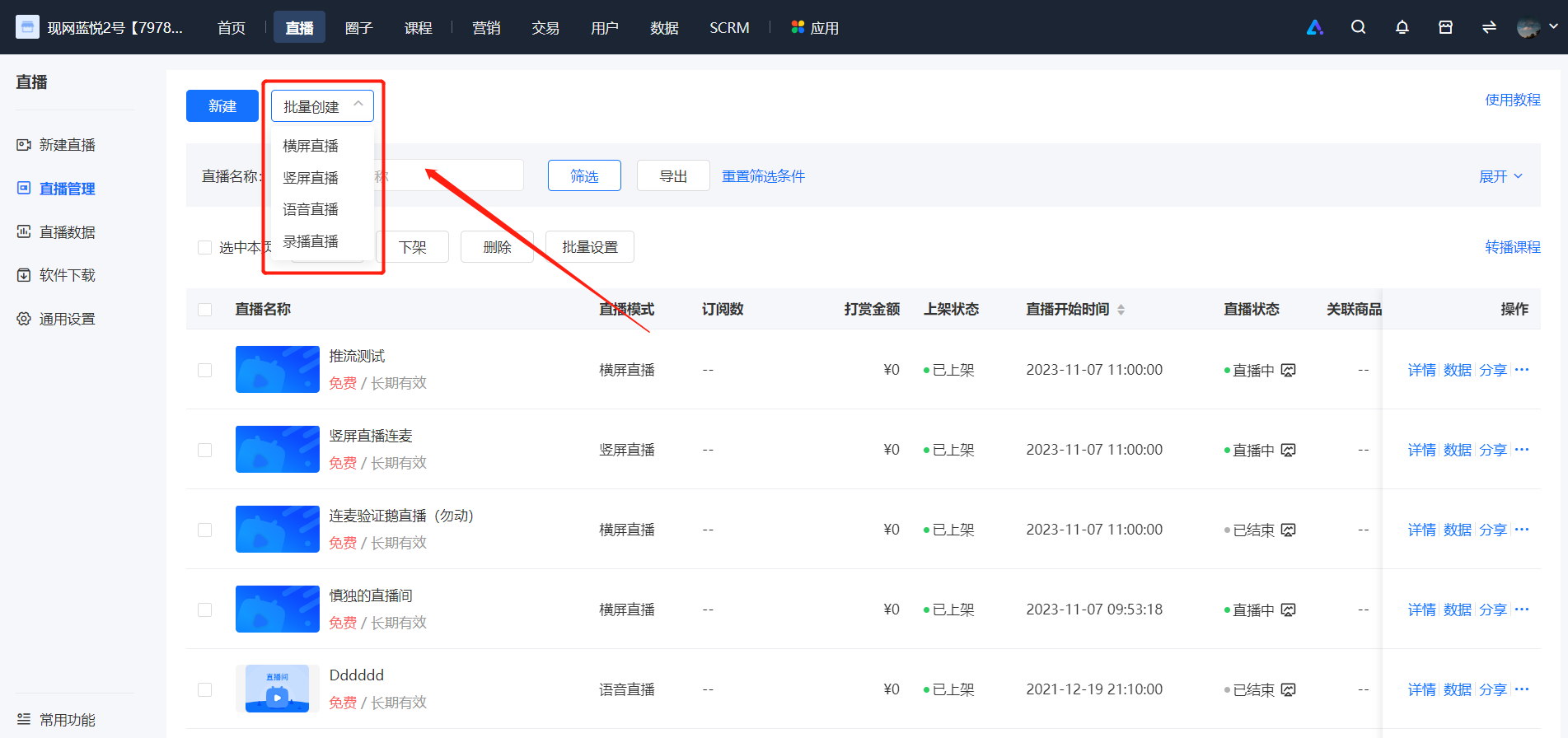
1. On the live course list, merchants click the “Batch create” button above and select the live course mode to be created.
2. Batch creation of live courses is divided into two steps:
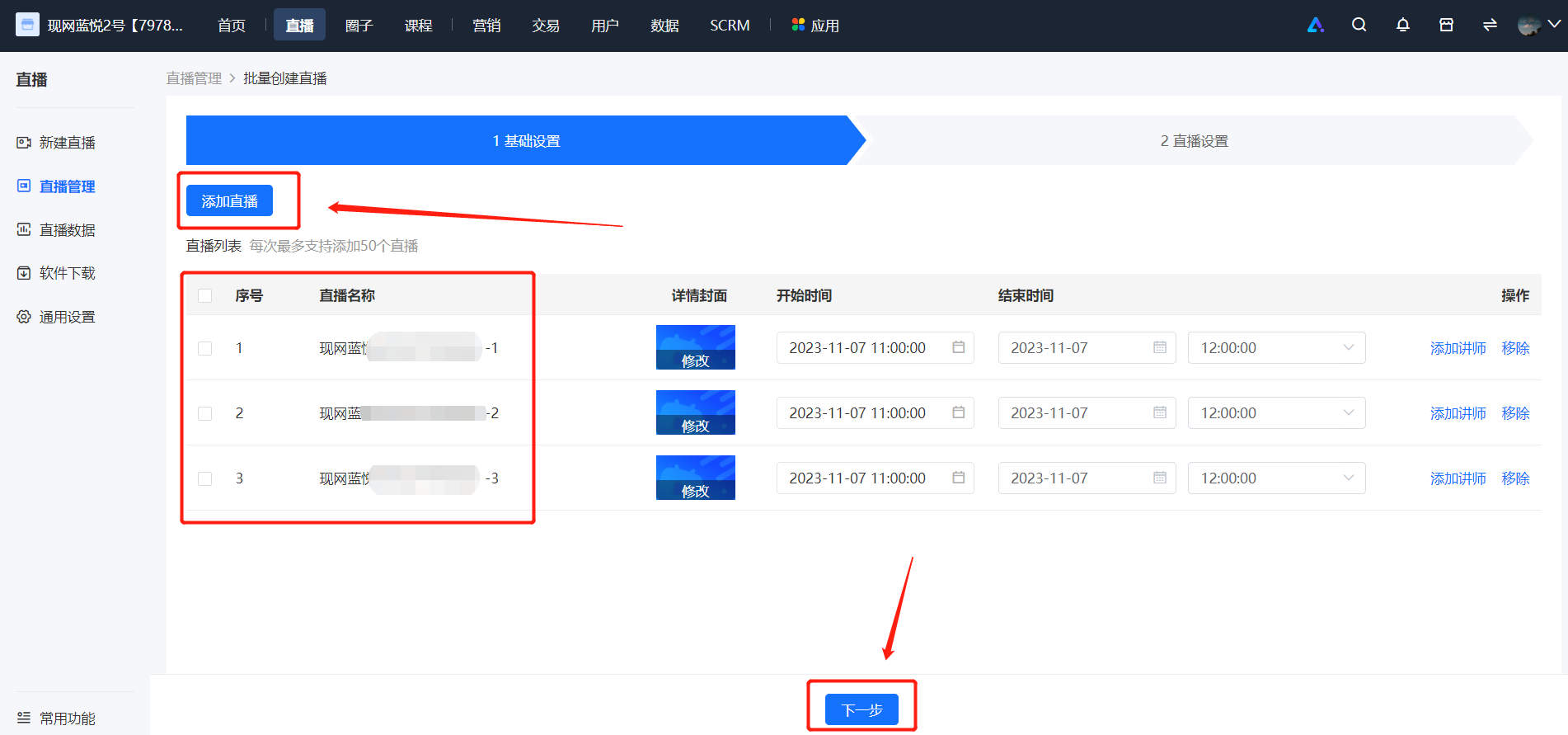
① 【Basic settings】: Create live courses and fill in the corresponding live course names (by default, they are sorted in ascending order as store name - 1, store name - 2), live course covers, start times, and live course durations. If the recorded live course mode is selected, files also need to be uploaded. A maximum of 50 live courses can be created in batch each time.
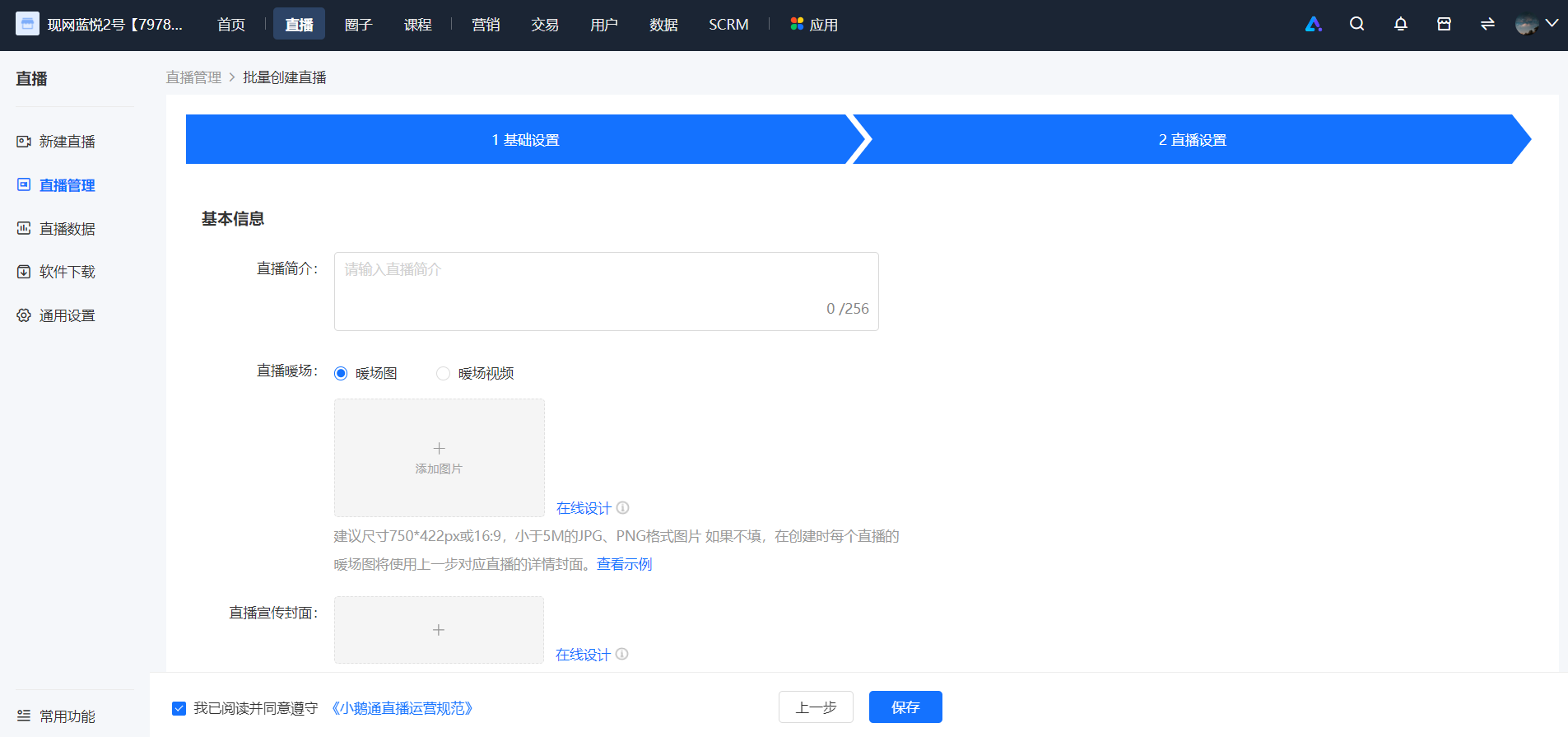
② 【Live course settings】: In this step, other information for these live courses (such as live course introductions and live course details) can be set uniformly. Click “Save” after setting to start batch creation.
3. After starting batch creation, the live course list will be displayed, showing the live courses that have been created (batch creation takes some time. You can refresh the page later to view).
**(3) Batch operations on courses**
【For courses】: Text - image, audio, video, e - books, live courses, and columns.
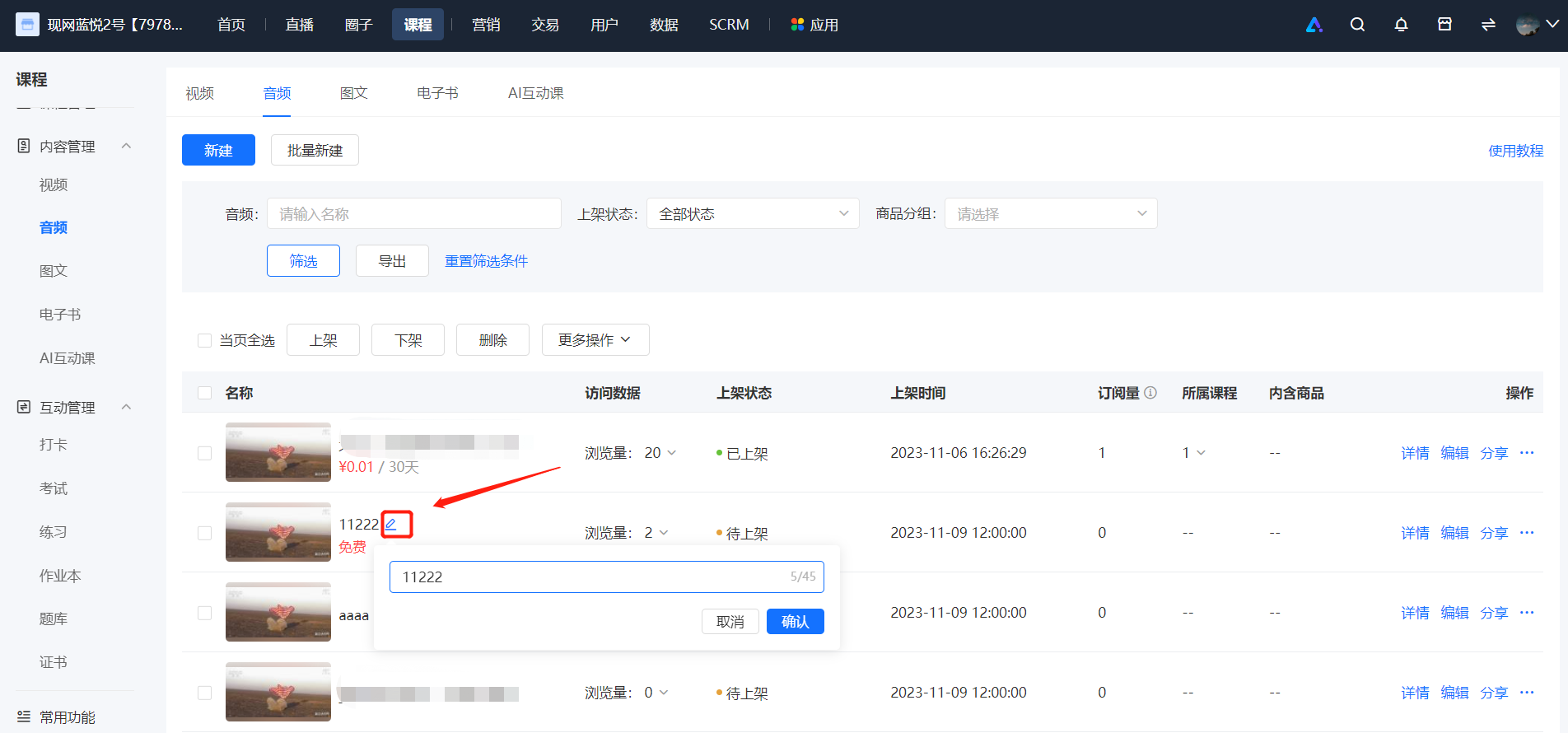
1. On the above course list, when the mouse hovers over a list item, an edit icon will be displayed next to the course cover and course title. Click it to perform quick edit operations.
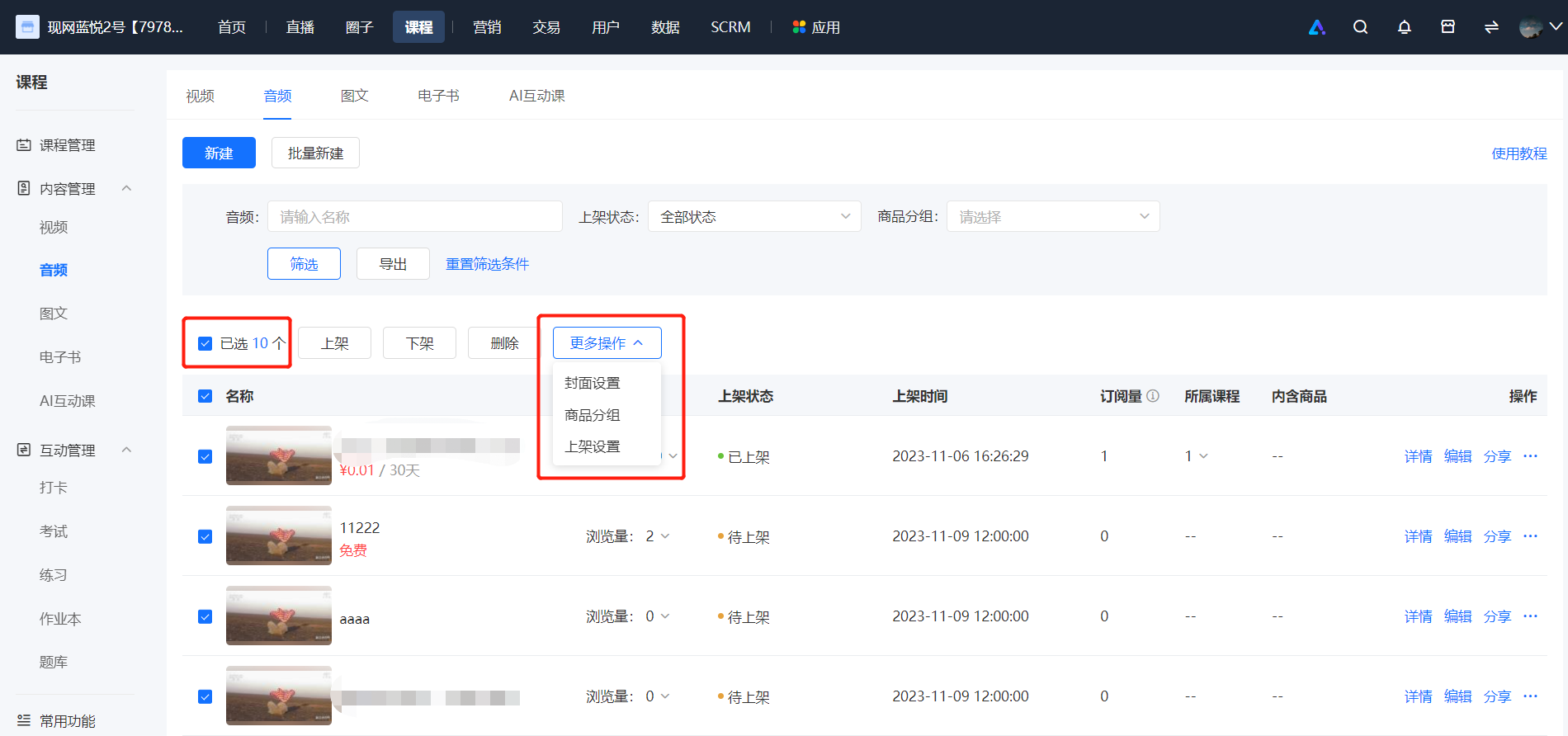
2. On the above course list, some courses can be selected for batch operations:
① Batch publishing, unpublishing, and deletion.
② More settings:
● Set course covers: Change the covers of the selected courses to the specified pictures.
● Add product groups: Add the selected courses to the specified product groups.
● Publishing settings: Modify the publishing settings of the selected courses.
**(4) Batch management of columns**
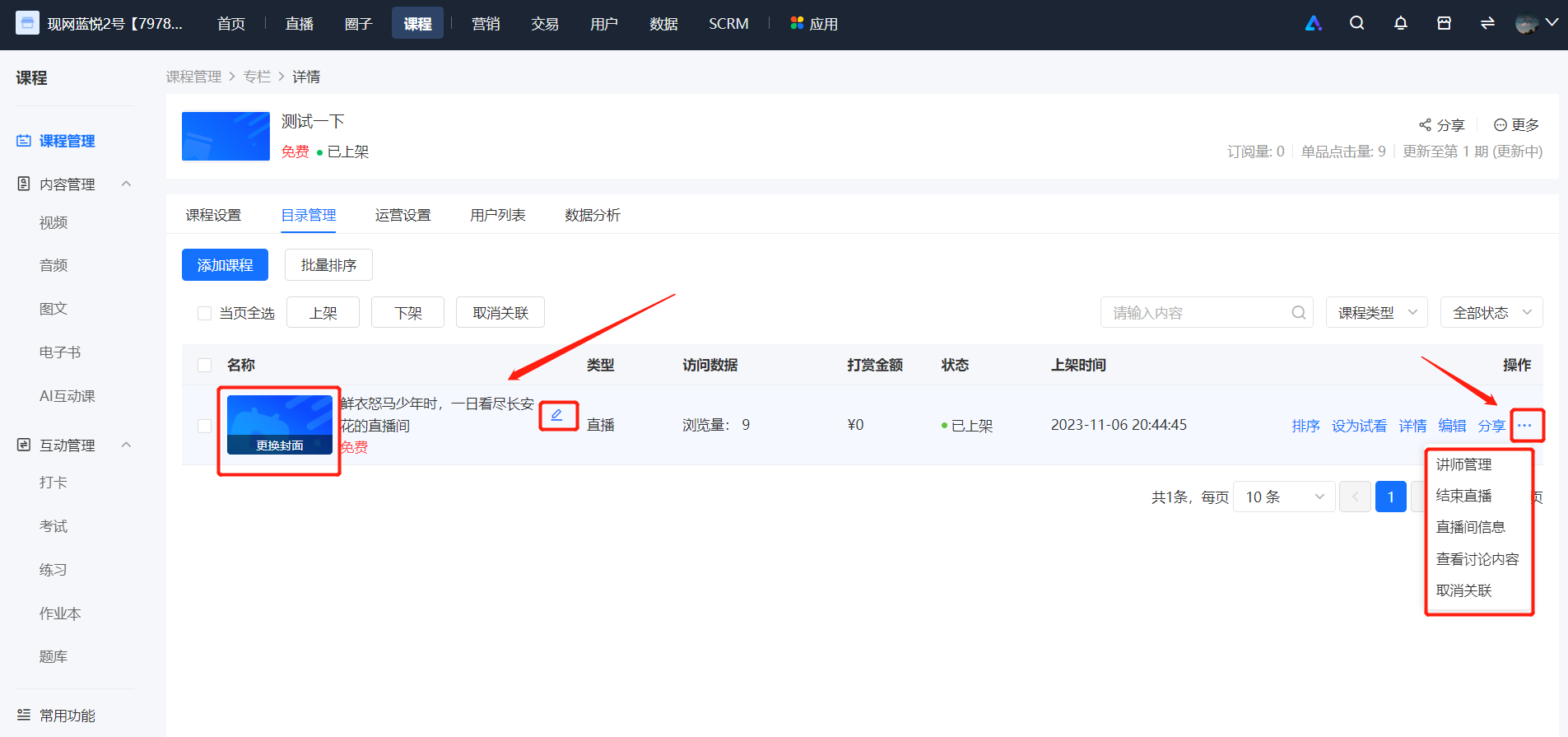
On the column - details - content management page, a batch content management function is provided.
1. \[Quick edit course title/cover\]: When the mouse hovers over a list item, you can quickly edit the course title and course cover (the function is the same as that in the course list).
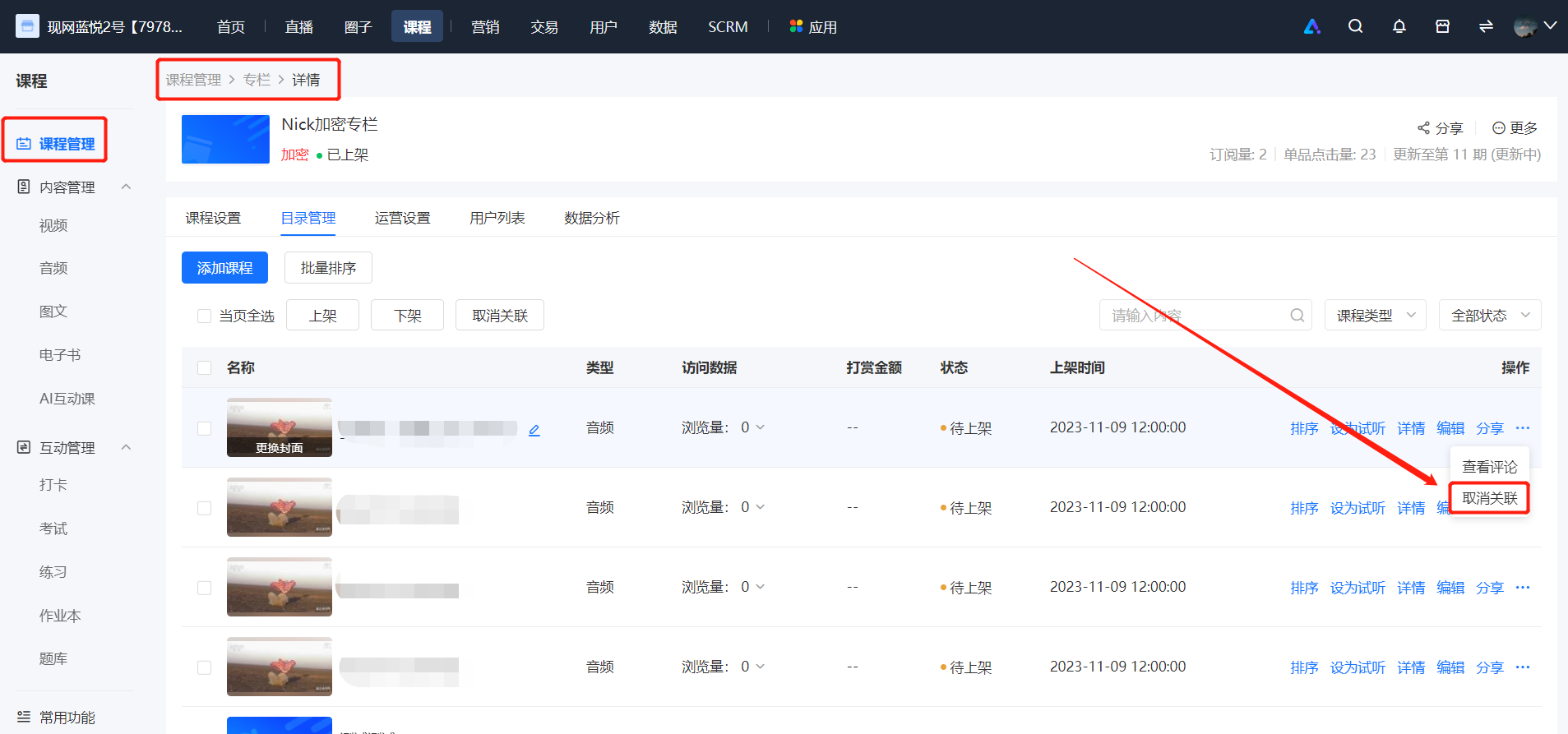
2. \[Unlink\]: Click the 'More - Unlink' button on the right side of the list item to remove the course from the column (users who have purchased the column will not be able to view the content of this single - course).
3. \[Batch operations\]: You can select some courses in the column for batch operations (batch publish/unpublish, batch unlink).
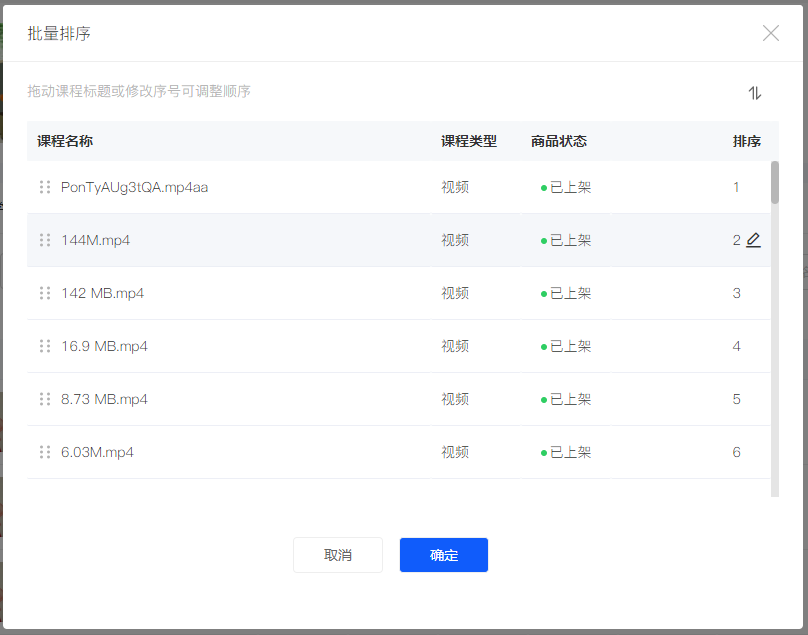
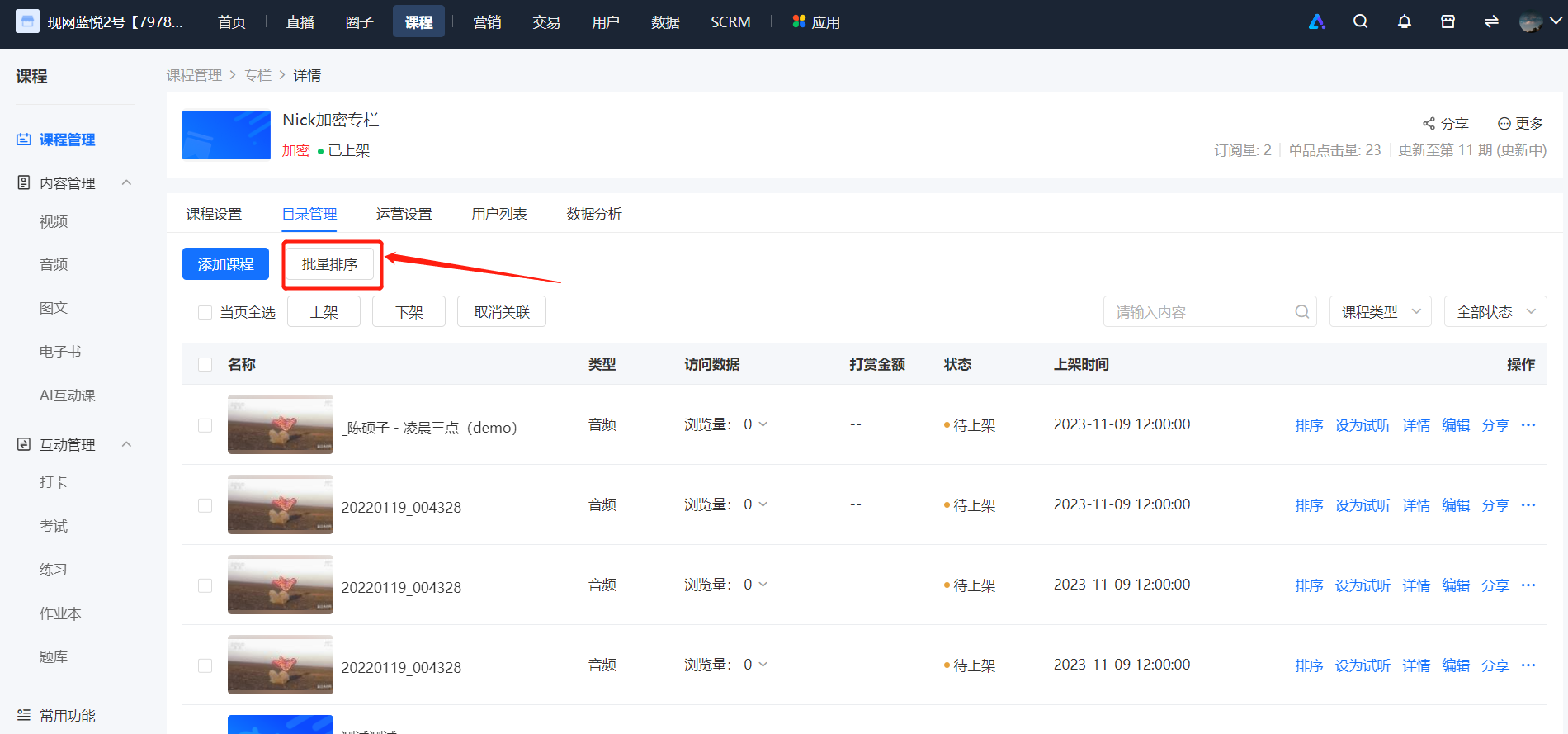
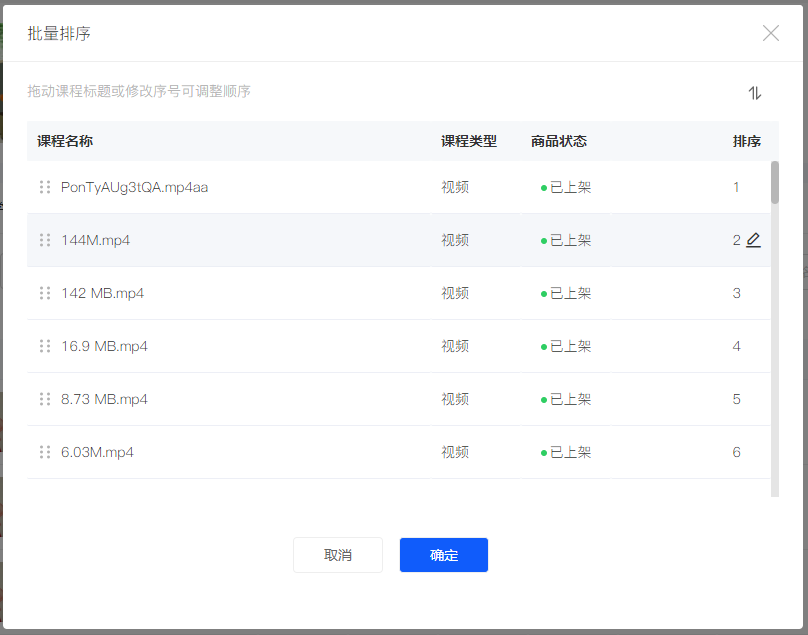
4. \[Batch sorting\]: Click the 'Batch sorting' button to quickly sort the course content in the column in batches. You can directly adjust the order by dragging the courses or entering the serial numbers. Click the toggle button in the upper - right corner to reverse the order of the courses in the pop - up window with one click. After adjusting the order, click 'OK' to make the changes.
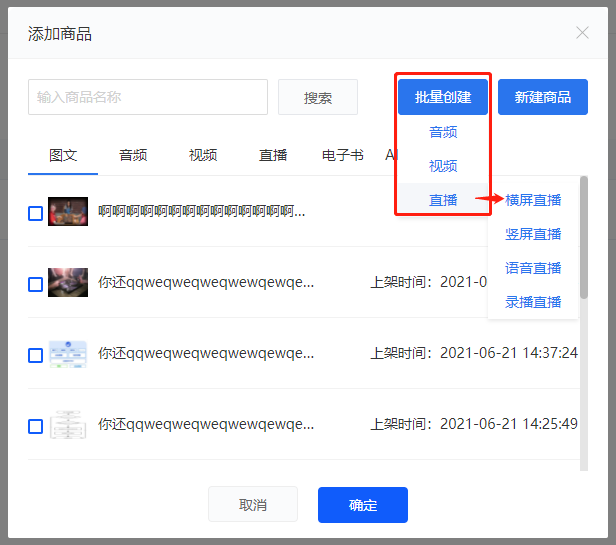
5. \[Batch create courses in the column\]: In the 'Add products' pop - up window of the column, click the 'Batch create' button to select to batch create audio, video, and live - streaming courses (the function is the same as that in the course list).
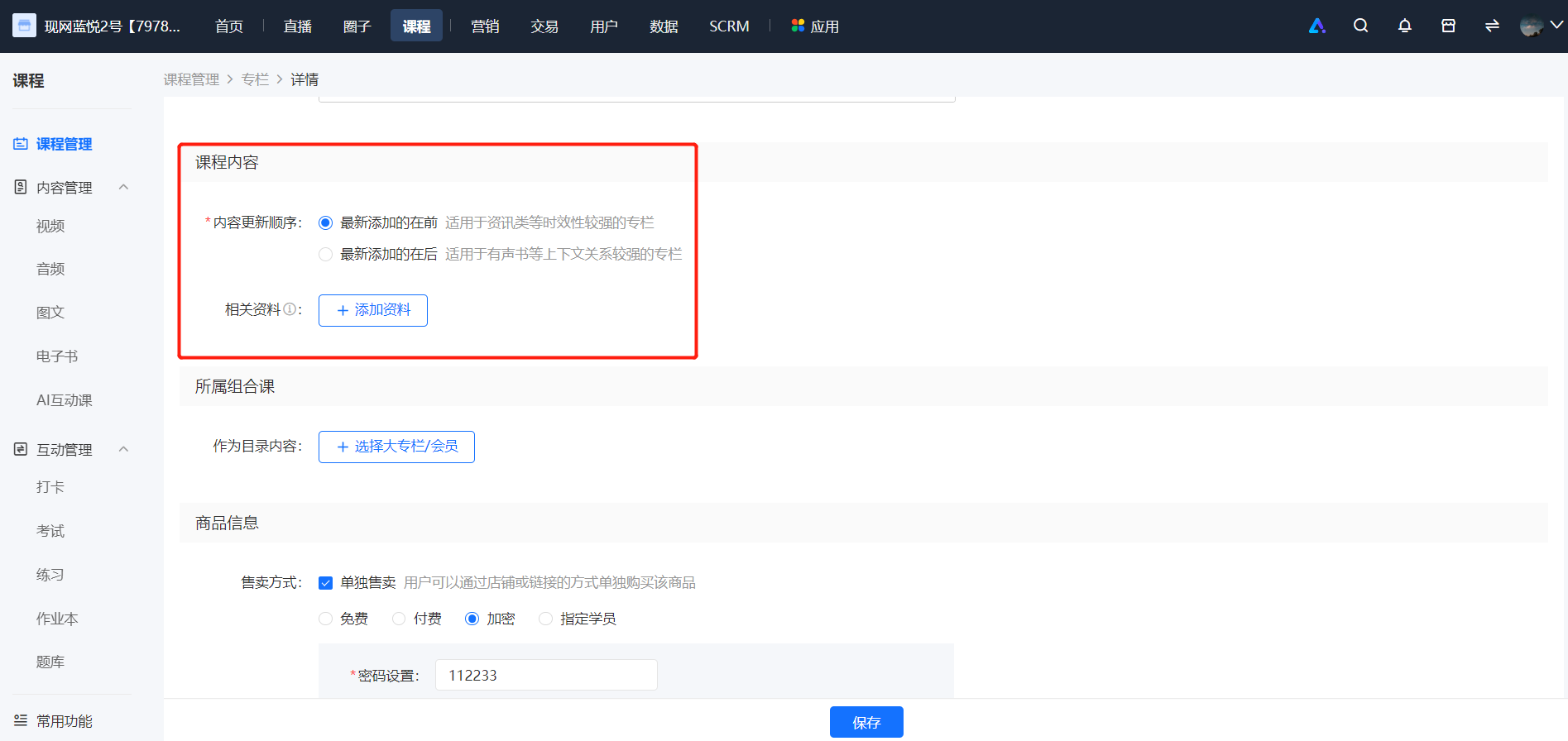
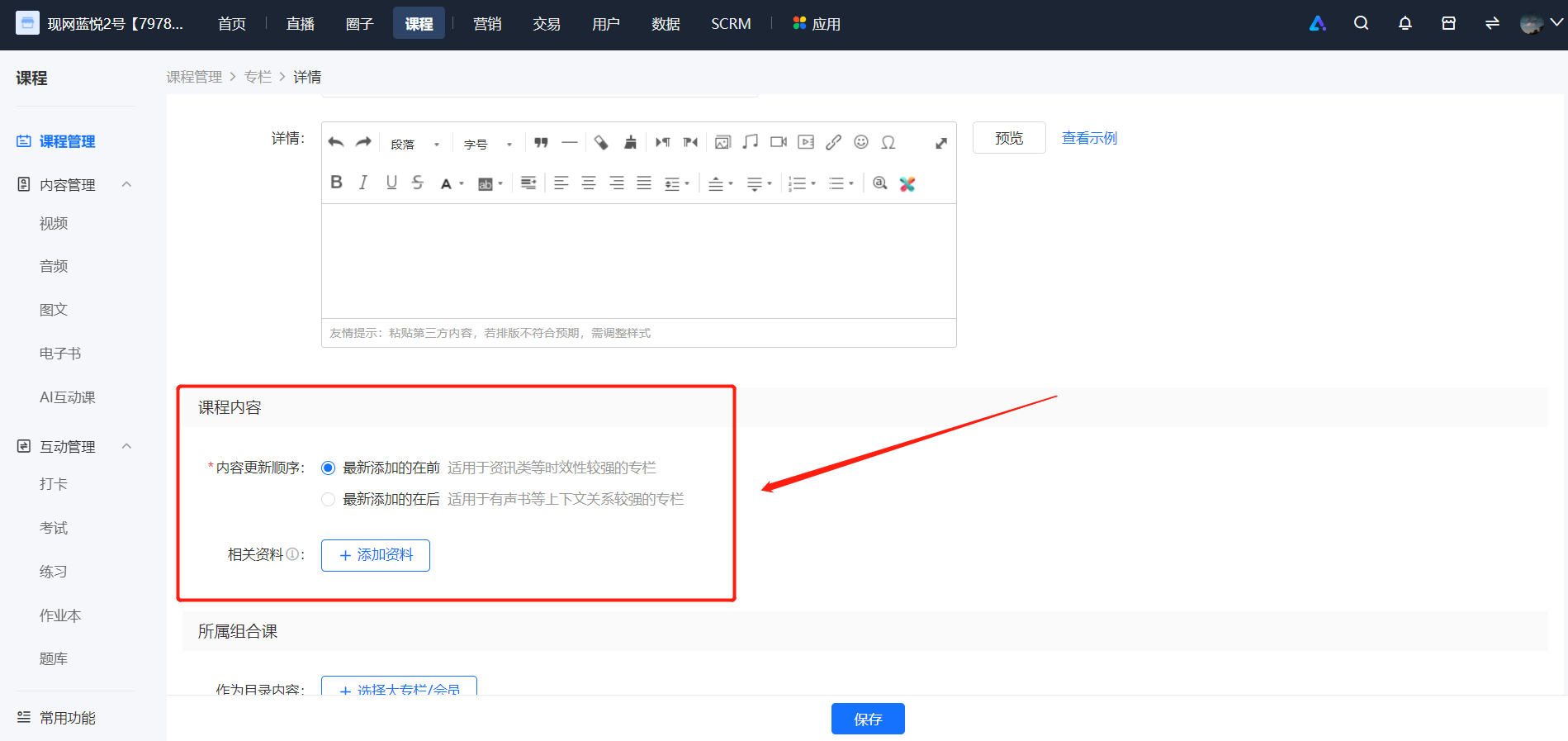
6. \[Column content update order\]: When creating/editing a column, you can set the 'Content update order' function.
● Newly added first: Newly added courses in the column will be ranked at the top of the list (this setting is recommended for columns with strong timeliness such as news columns).
● Newly added last: Newly added courses in the column will be ranked at the bottom of the list (this setting is recommended for columns with strong context relationships such as audiobooks).
**V. Frequently Asked Questions**
Q 1: Which courses support batch creation?
A: Audio, video, and live - streaming courses support batch creation.
Q2 : Is there a limit to the number of courses that can be created in batches?
A: Currently, a maximum of 50 courses can be created at a time.
Q3 : When creating courses in batches, how can I know if all the courses I created in batches were created successfully?
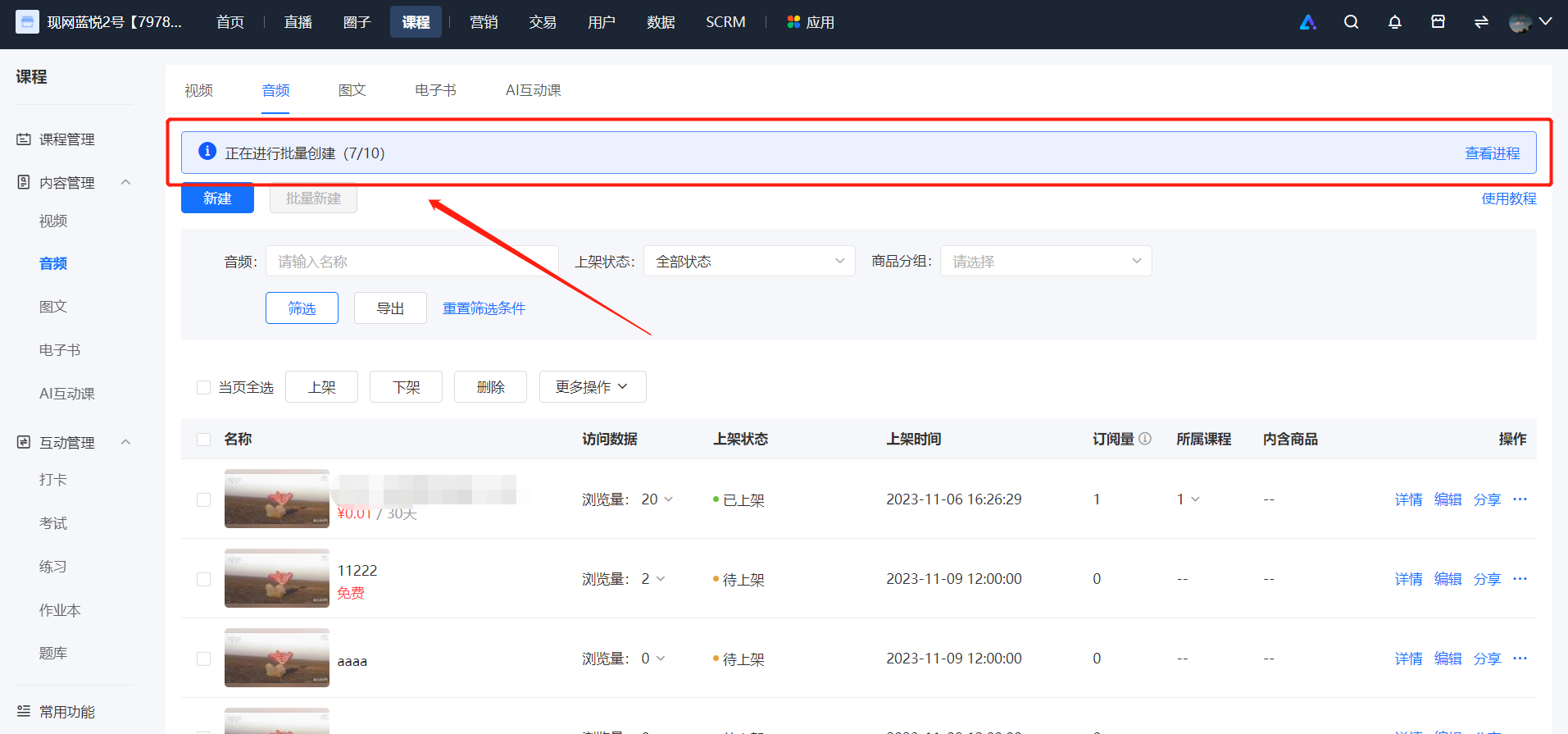
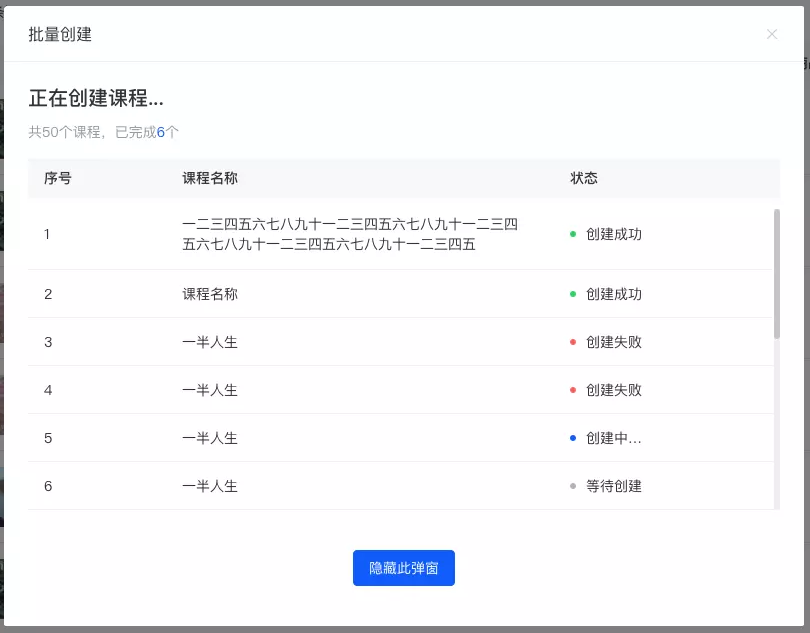
A: After initiating batch creation, the detailed progress of this batch creation task will be displayed above the course list. Click it to view the detailed task progress (you can perform other operations in the course list at this time, which will not affect the batch course creation task).
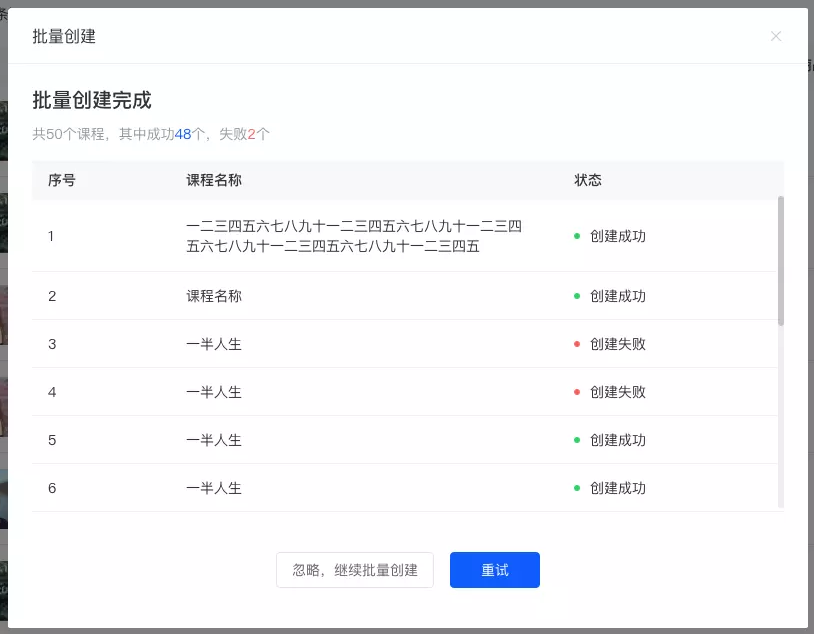
After the batch course creation task is completed, a pop - up window will appear to inform you of the result; if some courses fail to be created due to certain reasons, you can directly initiate a retry or start a new batch creation task.
Q4 : Which course lists support batch operations?
A: The lists of graphic, audio, video, e - book, live - streaming, and column courses support batch operations.
Q5 : What batch operation functions are currently supported?
A: Functions such as batch publish/unpublish, batch delete, batch modify course covers, and batch add product groups are supported.
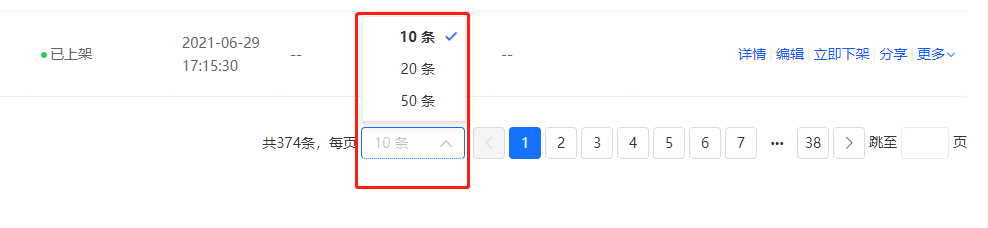
Q 6: When performing batch operations, I want to select more courses for batch operations. What should I do?
A: You can switch and set the number of items displayed per page at the bottom of the course list. The maximum number of items per page can be set to 50.
Q7 : How can I quickly sort the courses in a column?
A: In the management console - column details - content management list, click the 'Batch sorting' button above the list to quickly sort the course content in the column in batches. You can directly adjust the order by dragging the course titles or entering the serial numbers. Click the toggle button in the upper - right corner to reverse the order of the content in the pop - up window with one click. After adjusting the order, click 'OK' to make the changes.
Q8 : How can I quickly remove a course from a column?
A: In the management console - column details - content management list, click the 'More - Unlink' button on the right side of the list item to remove this course from the column. You can also select multiple courses and click the 'Unlink' button at the bottom of the list for batch removal.
Q9 : What is the function of the 'Column content update order'?
A: When creating/editing a column, you can set the 'Content update order' function.
● Newly added first: Newly added courses in the column will be ranked at the top of the list (this setting is recommended for columns with strong timeliness such as news columns).
● Newly added last: Newly added courses in the column will be ranked at the bottom of the list (this setting is recommended for columns with strong context relationships such as audiobooks).